Amazon in Talks To Invest Up To $50 Billion in OpenAI

An anonymous reader shares a report: Amazon is in talks to invest up to $50 billion in OpenAI, according to people familiar with the matter, in what would be a giant bet on the hot AI startup. The ChatGPT maker is seeking up to $100 billion in new capital from investors, a round that could value it at as much as $830 billion, The Wall Street Journal previously reported.

Andy Jassy, Amazon’s chief executive, is leading the negotiations with OpenAI CEO Sam Altman, according to some of the people. The exact shape of a deal, should one be reached, could still change, the people said. Investing tens of billions of dollars in OpenAI could make Amazon the biggest contributor in the AI company’s ongoing fundraising round. SoftBank is in talks to invest up to $30 billion more in OpenAI as part of the round, adding to the Japanese conglomerate’s already large stake in the startup.


Read more of this story at Slashdot.

Rogbid Fusion Debuts As An Ultra-Affordable Smartwatch You Wear Like A Ring

Rogbid Fusion Debuts As An Ultra-Affordable Smartwatch You Wear Like A Ring
For those of you who find smartwatches bulky or too much of a hassle to wear and fitness rings too limited, Rogbid’s Fusion might be your jam. The Fusion takes the middle ground by being a smartring with a display that can also be worn as a smartwatch. 

The Rogbid Fusion is basically a 2-in-1 hybrid. On one hand (or rather, finger), it

NVIDIA Reportedly Shifted 75% Of GPU Supply To These Three RTX 50 Models

NVIDIA Reportedly Shifted 75% Of GPU Supply To These Three RTX 50 Models
Not to beat a dead horse (too late), but a memory chip shortage is wreaking havoc on consumer device availability and pricing. That includes graphics cards, the all-important component for a gaming PC, which employ varying amounts onboard video RAM (VRAM). According to a fresh rumor, the situation has caused NVIDIA and its hardware partners

How to watch the 2026 Grammy Awards: TV channel, start time, where to stream, nominations list and more

LOS ANGELES, CALIFORNIA - FEBRUARY 05: (FOR EDITORIAL USE ONLY) Bad Bunny accepts the Best Música Urbana Album for “Un Verano Sin Ti” during the 65th GRAMMY Awards at Crypto.com Arena on February 05, 2023 in Los Angeles, California. (Photo by Timothy Norris/FilmMagic)
Grammy winner Bad Bunny, seen here accepting his award for Best Música Urbana Album for “Un Verano Sin Ti” in 2023, is nominated again this year. (Timothy Norris/FilmMagic)
Timothy Norris via Getty Images

The 2026 Grammy Awards honor music’s biggest achievements of the year, and some of the biggest stars on the planet are nominated this year. Kendrick Lamar leads the way with nine nominations, including for Record and Song of the Year for “luther,” his collaboration with SZA. Other top nominees this year include Lady Gaga, Jack Antonoff, and Cirkut with seven nominations apiece, and Bad Bunny, Sabrina Carpenter, and Leon Thomas, who have six. The 2026 Grammy Awards will be hosted by comedian Trevor Noah, who also happens to be a nominee this year in the Best Audio Book, Narration & Storytelling category. 

The 2026 Grammys will take place at Crypto.com Arena in Los Angeles, and the broadcast will air this Sunday, Feb. 1, at 8PM ET/5PM PT on CBS, streaming live on Paramount+ (for Premium subscribers only). The 2026 Grammy Awards Premiere Ceremony — where the majority of the Grammys are actually awarded — will take place earlier that same day, from 3:30PM ET/12:30PM PT, and streams live free on YouTube.

Here’s how to watch the 2026 Grammy Awards live this Sunday.

When are the 2026 Grammy Awards?

The 68th Grammy Awards will be held this Sunday, Feb. 1, 2026.

Grammys start time

The Grammy Awards live TV broadcast begins at 8PM ET/5PM PT. It’s scheduled to run until 11:30PM ET.

Prior to the main broadcast, the 2026 Grammy Awards Premiere Ceremony (this is where you can watch the awards for categories like Musical Theater, Americana, Reggae, Metal, Gospel and more) will take place from 3:30PM ET/12:30PM PT. The Grammys Premiere Ceremony will stream live for free at live.GRAMMY.com and on YouTube.

Grammy Awards TV channel

The 68th Grammy Awards will air on CBS and stream live on Paramount+ for Premium subscribers. The awards show will also be available the following day on demand for Paramount+ Essential subscribers.

How to watch the Grammys without cable

How to watch the 2026 Grammys free

Who is performing at the 2026 Grammy Awards?

Among this year’s Grammy’s performers are Justin Bieber, Sabrina Carpenter, Album of the Year nominees Clipse and Pharrell Williams, and every Best New Artist nominee, including Addison Rae, Alex Warren, KATSEYE, Leon Thomas, Lola Young, Olivia Dean, SOMBR, and The Marías.

This year’s In Memorium honoring artists we’ve lost this year will include a musical tribute from Reba McEntire, Brandy Clark and Lukas Nelson, a performance from Ms. Lauryn Hill in honor of D’Angelo and Roberta Flack, and an Ozzy Osbourne tribute from artists like Post Malone, Andrew Watt, Chad Smith, Duff McKagan, and Slash.

Who is hosting the Grammys this year?

Trevor Noah will return to host the Grammys for the sixth and final year.

Who is presenting at the 2026 Grammys?

While the full list of Grammys presenters has yet to be released, we do know that Harry Styles and Doechii will be presenting.

Grammy Awards new categories

This year’s Grammys will see the return of the award for Best Album Cover (after 53 years!). This year, the category of Best Country Album will now be split into two awards: Best Contemporary Country Album and Best Traditional Country Album.

Grammys eligibility window

The 2026 Grammy Awards will recognize music released from August 31, 2024 to August 30, 2025.

2026 Grammy nominations

Here are the nominees for the 68th Grammy Awards.

Album of the Year

  • Bad Bunny — Debí Tirar Más Fotos

  • Justin Bieber — Swag

  • Sabrina Carpenter — Man’s Best Friend

  • Clipse, Pusha T & Malice — Let God Sort Em Out

  • Lady Gaga — Mayhem

  • Kendrick Lamar — GNX

  • Leon Thomas — Mutt

  • Tyler, the Creator — Chromakopia

Record of the Year

  • Bad Bunny — “DtMF”

  • Sabrina Carpenter — “Manchild”

  • Doechii — “Anxiety”

  • Billie Eilish — “Wildflower”

  • Lady Gaga — “Abracadabra”

  • Kendrick Lamar feat. SZA — “Luther”

  • Chappell Roan — “The Subway”

Song of the Year

  • Lady Gaga — “Abracadabra”

  • Doechii — “Anxiety”

  • ROSÉ & Bruno Mars — “APT.”

  • Bad Bunny — “DtMF”

  • HUNTR/X (EJAE, Audrey Nuna, REI AMI) — “Golden”

  • Kendrick Lamar feat. SZA — “Luther”

  • Sabrina Carpenter — “Manchild”

  • Billie Eilish — “Wildflower”

Best New Artist

  • Olivia Dean

  • KATSEYE

  • The Marías

  • Addison Rae

  • sombr

  • Leon Thomas

  • Alex Warren

  • Lola Young

Best Pop Solo Performance

  • Justin Bieber — “Daisies”

  • Sabrina Carpenter — “Manchild”

  • Lady Gaga — “Disease”

  • Chappell Roan — “The Subway”

  • Lola Young — “Messy”

Best Pop Vocal Album

  • Justin Bieber — Swag

  • Sabrina Carpenter — Man’s Best Friend

  • Miley Cyrus — Something Beautiful

  • Lady Gaga — Mayhem

  • Teddy Swims — I’ve Tried Everything But Therapy (Part 2)

Best Alternative Music Album

  • Bon Iver — Sable, Fable

  • The Cure — Songs of a Lost World

  • Tyler, the Creator — Don’t Tap the Glass

  • Wet Leg — Moisturizer

  • Hayley Williams — Ego Death at a Bachelorette Party

Best Rock Album

  • Deftones — Private Music

  • HAIM — I Quit

  • Linkin Park — From Zero

  • Turnstile — Never Enough

  • YUNGBLUD — Idols

Best Rap Album

  • Clipse, Pusha T & Malice — Let God Sort Em Out

  • GloRilla — Glorious

  • JID — God Does Like Ugly

  • Kendrick Lamar — GNX

  • Tyler, the Creator — Chromakopia

Best R&B Album

  • GIVĒON — Beloved

  • Coco Jones — Why Not More?

  • Ledisi — The Crown

  • Teyana Taylor — Escape Room

  • Leon Thomas — Mutt

Best Contemporary Country Album

  • Kelsea Ballerini — Patterns

  • Tyler Childers — Snipe Hunter

  • Eric Church — Evangeline vs. The Machine

  • Jelly Roll — Beautifully Broken

  • Miranda Lambert — Postcards From Texas

Best Traditional Country Album

  • Charley Crockett — Dollar a Day

  • Lukas Nelson — American Romance

  • Willie Nelson — Oh What a Beautiful World

  • Margo Price — Hard Headed Woman

  • Zach Top — Ain’t In It for My Health

Producer of the Year, Non-Classical

  • Dan Auerbach

  • Cirkut

  • Dijon

  • Blake Mills

  • Sounwave

Songwriter of the Year, Non-Classical

  • Amy Allen

  • Edgar Barrera

  • Jessie Jo Dillon

  • Tobias Jesso Jr.

See the full list at Grammy.com.

This article originally appeared on Engadget at https://www.engadget.com/entertainment/streaming/how-to-watch-the-2026-grammy-awards-tv-channel-start-time-where-to-stream-nominations-list-and-more-150015179.html?src=rss

These Sweat-Proof JBL Earbuds Are 25% Off Right Now

We may earn a commission from links on this page. Deal pricing and availability subject to change after time of publication.

The JBL Endurance Race 2 is built with a specific user in mind, and it does not pretend otherwise. These are sports earbuds first, and that focus shows in the design and the trade-offs. Right now, they’re $59.95 on Amazon, down from $89.95, which makes them easier to consider if you want something tough without paying premium prices.

The earbuds themselves are large and stick out more than most, but the silicone wing design works. You twist them into place, and they lock in. During runs, strength training, and high-sweat workouts, they stay put in a way many smaller earbuds do not. If fit security has been your frustration with workout earbuds, this alone may be enough to justify a look.

The earbuds carry an IP68 rating, which means they’re dustproof and can handle heavy sweat and rain without concern. They are not designed for swimming, but they are tougher than almost anything else near this price. The charging case is less impressive. It’s light at about 1.4 ounces but bulky, and the IPX2 rating means it’s fine inside a gym bag but not something you want exposed to bad weather.

Battery life, however, is a strong point. You get up to 12 hours with noise cancelling off, around 10 hours with it on, and up to 48 hours total with the case. That’s enough for a full week of workouts without needing to think about charging.

These aren’t high-end earbuds, and it shows in the lack of crispness in higher frequencies. Bass is solid and punchy enough for workout playlists, but detail takes a backseat. As for its ANC, it works fine indoors, like in a gym or while commuting, but it reportedly doesn’t hold up well outside, where traffic and footfalls still break through. Ambient mode also falls short. It doesn’t let in enough sound for confidence near busy roads, and wind noise can become distracting. Controls are touch-based and can be customized in the app, but they don’t always respond well to sweaty fingers or gloves.

These earbuds are not for people chasing refined sound or top-tier noise cancelling. They are for people who want a secure fit, long battery life, and gear that can take a beating.

Deals are selected by our commerce team

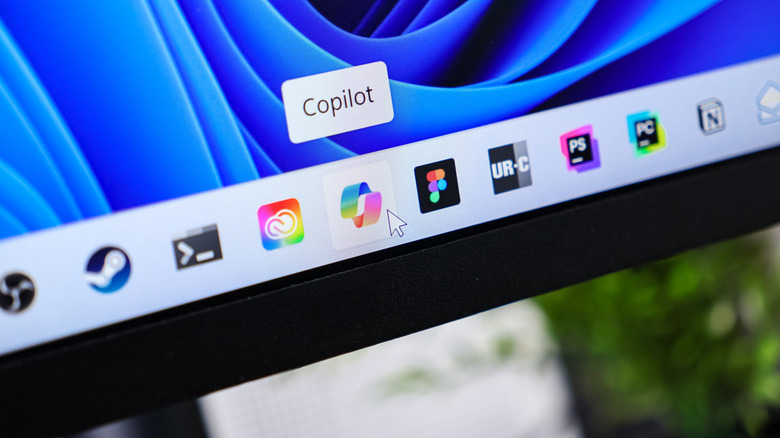
Microsoft is Experimenting With a Top Menu Bar for Windows 11

An anonymous reader shares a report: Microsoft’s PowerToys team is contemplating building a top menu bar for Windows 11, much like Linux, macOS, or older versions of Windows. The menu bar, or Command Palette Dock as Microsoft calls it, would be a new optional UI that provides quick access to tools, monitoring of system resources, and much more.

Microsoft has provided concept images of what it’s looking to build, and is soliciting feedback on whether Windows users would use a PowerToy like this. “The dock is designed to be highly configurable,” explains Niels Laute, a senior product manager at Microsoft. “It can be positioned on the top, left, right, or bottom edge of the screen, and extensions can be pinned to three distinct regions of the dock: start, center, and end.”


Read more of this story at Slashdot.

Engadget Podcast: What do prediction markets like Kalshi cost us?

Somehow, we live in a world where people can bet on practically anything using sites like Polymarket and Kalshi. In this episode, Devindra and Engadget Senior Reporter Karissa Bell dive into the world of prediction markets. How did we get here? And is endless betting having an effect on the real world? Also, we chat about the new American version of TikTok, which stumbled during its first weekend with a litany of errors and reported censorship.

Subscribe!

Topics

  • Who’s going to buy the Samsung Galaxy Z Tri-fold for $2900? – 1:18

  • Tesla is killing off the Model X and S lines to focus on its Optimus robot moonshot – 6:46

  • Amazon plans to cut 16,000 jobs and close its grocery stores in another round of restructuring – 10:45

  • Most of the UK will lose access to Pornhub in a fight over age verification and privacy – 21:16

  • Internal messages from Meta about Instagram being ‘a drug’ for teens could be bombshell evidence at trial – 26:59

  • What are prediction markets and why are they suddenly so popular? – 32:11

  • As TikTok US stumbles, users ask ‘is it server problems or censorship?’ – 46:55

  • Around Engadget – 59:11

  • Pop culture picks – 1:01:23 

Credits

Hosts: Devindra Hardawar and Karissa Bell
Producer: Ben Ellman
Music: Dale North and Terrence O’Brien

This article originally appeared on Engadget at https://www.engadget.com/general/engadget-podcast-what-do-prediction-markets-like-kalshi-cost-us-143113799.html?src=rss

Apple Posts Monster $143.8 Billion Quarter Driven By Record iPhone Sales

Apple Posts Monster $143.8 Billion Quarter Driven By Record iPhone Sales
Apple’s financial results for its fiscal 2026 first quarter shattered expectations, with revenue skyrocketing to a $143.8 billion, up 16% from the same quarter a year ago. It ranks as Apple’s best quarter in the company’s nearly 50-year history, and it’s thanks in large part to record demand for iPhone devices.

“iPhone had its best-ever

This Well-Reviewed Outdoor Camera Is Nearly 30% Off Right Now

We may earn a commission from links on this page. Deal pricing and availability subject to change after time of publication.

There’s no shortage of outdoor security cameras, but finding one that balances video quality, battery life, and ease of use without pushing past $100 is rare. Right now, the Tapo MagCam 2K+ is on sale for $64.98 on Amazon, down from $89.99, which is its lowest price to date, according to price trackers.

PCMag named it the best security camera of 2024, pointing out that while battery-powered cameras often trade convenience for frequent recharging, the MagCam 2K+ avoids that issue with a 10,000mAh battery rated to last up to 300 days per charge, depending on how often it records.

Charging happens over micro-USB, though there’s an optional Tapo A200 solar panel ($35.99) if you want to avoid manual recharging altogether. Video tops out at 2K resolution, with a wide 150-degree field of view that works well for driveways or side yards. During the day, footage looks sharp and detailed. At night, the camera can switch between infrared black-and-white or color video using its built-in spotlights and starlight sensor. Storage is flexible. You can record locally to a microSD card, up to 512GB (card not included), or you can go with cloud storage through a Tapo Care plan starting at $3.49/month.

Alerts can distinguish between people, pets, and vehicles, and those intelligent notifications are free, as highlighted by PCMag in its “outstanding” review of the MagCam 2K+. It also integrates smoothly with Alexa, Google Assistant, and IFTTT, though it doesn’t support Apple’s HomeKit. You also won’t find mechanical pan or tilt, but the fixed lens covers enough ground for most yards or porches. As for managing the camera, its companion app is intuitive, offering settings for motion sensitivity, siren activation, spotlight brightness, firmware updates, and more. Overall, the MagCam 2K+ handles the basics well and throws in a few smart features usually reserved for pricier models.

Deals are selected by our commerce team

Backseat Software

Mike Swanson, commenting on modern software’s intrusive, attention-seeking behavior: What if your car worked like so many apps? You’re driving somewhere important…maybe running a little bit late. A few minutes into the drive, your car pulls over to the side of the road and asks:

“How are you enjoying your drive so far?”

Annoyed by the interruption, and even more behind schedule, you dismiss the prompt and merge back into traffic.

A minute later it does it again.

“Did you know I have a new feature? Tap here to learn more.”

It blocks your speedometer with an overlay tutorial about the turn signal. It highlights the wiper controls and refuses to go away until you demonstrate mastery.

Ridiculous, of course.

And yet, this is how a lot of modern software behaves. Not because it’s broken, but because we’ve normalized an interruption model that would be unacceptable almost anywhere else.


Read more of this story at Slashdot.

10 Hacks Every Steam Deck Owner Should Know

We may earn a commission from links on this page.

Valve’s Steam Deck revolutionized PC gaming when it came out in 2022, popularizing the handheld gaming PC format. In 2026, it’s still got a great performance-to-price ratio, and is plenty relevant compared to more expensive and more finicky alternatives like the Asus Rog Xbox Ally X. But that doesn’t mean it’s fully stacked right out of the box. SteamOS presents a more intuitive pick-up-and-play experience than I’ve used on any other handheld gaming PC (or gaming PC in general, to be honest), but there are plenty of hacks and customizations you can use to make it truly yours.

Steam Deck’s desktop mode basically turns it into a mini PC

This one’s simple, but vastly increases what you can do with your Steam Deck. Yes, the Steam Deck’s biggest strength is that you can easily hop into games right from the home screen using the built-in controls, but did you know that you can also use it like a more traditional desktop?

To swap the device over to its built-in desktop mode, press the Steam button (the one on the device itself), then select Power. From there, select Switch to Desktop.

Bam, you’ll be taken right to a more traditional PC interface, and one that will look extra familiar to you if you’ve ever used Linux, the base operating system SteamOS is built on.

You’ll need desktop mode to enable a lot of the other hacks on this list, but it’s also great on its own. With it, you can install your favorite Linux productivity apps, or even just browse the web using Microsoft Edge, which comes pre-installed (you can install your browser of choice later). You can use the right trackpad, the thumbsticks, or the touchscreen to move the mouse cursor, and press Steam + X to bring up a keyboard, but you can also plug in an external accessory or dock using the USB-C port on top of the device, too. Play this right, and you can basically turn the Steam Deck into a full-fledged Mini PC, complete with a built-in screen.

To leave desktop mode and re-enter the Steam Deck’s default interface, click on the Return to Gaming mode icon in your desktop’s top left corner.

You can play games that aren’t from Steam

By default, the Steam Deck will show you games from your Steam Library, and that’s where the Store page will take you, too. That makes sense—Valve wants you to buy games from its store. But because the Steam Deck is essentially just a highly specialized mini PC, it won’t stop you from playing games from other PC gaming stores.

There are a few ways to do this, but by far, the most convenient one is Heroic Launcher. This allows you to install games from your Epic Game Store, Amazon, and GOG libraries by picking them from a handy, scrollable list.

Installing Heroic Game Launcher is easy. First, go to desktop mode, then click on the Discover store, which is the little shopping bag icon to the left of the folder icon. Search for Heroic, and install the app called Heroic (it’ll likely be the first entry, and will have an icon that looks like a shield with a sword in it).

Once it’s installed, open it, either by clicking the shortcut on your desktop or by searching for it using SteamOS’ version of the classic Windows Start menu (it’ll be to the far left of your taskbar, and will look like the Steam Deck logo).

From here, log into your various alternative game launcher accounts using the Log in button in the top left corner. After that, you could simply install your games and stop here, navigating to desktop mode and opening Heroic Launcher every time you want to play them. But let’s go one step further, so you can access them right from gaming mode (the Steam Deck’s default interface).

First, let’s try installing a game of your choice from the Library tab, to get used to the process. Select the game you want to install, then click Install. You may see the option to change the Install Path or change the “Wine” settings. The latter can help with compatibility, but you likely won’t need to mess with these. You may need to allow a C++ install to actually run certain games, but you can simply click “Install” on the pop-up that shows up when you try running these games to do this.

Once your game is installed, click the three-dot menu in the top right corner and select Add to Steam. This will add the game to your Steam library, so you can open it right from the handheld’s gaming mode.

You could also stop here, just adding games to Steam on a case-by-case basis. But for ultimate convenience, you can add Heroic Launcher itself to the Steam Deck’s gaming mode, to make accessing games in it easier. To do this, click the Steam shortcut on your desktop (or open it from the “Start” menu). From here, click the Add a game button in the bottom left corner, next to the plus sign. Click Add a Non-Steam Game, and in the list that pops up, find and click on Heroic Game Launcher. Click Add Selected Programs.

With this, you’ll be able to access Heroic Game Launcher from within gaming mode by navigating to Library > Non-Steam. This is also where any games you’ve added to Steam from Heroic Game Launcher will show up, and you can use these same steps to add and view other third-party apps within Steam too, even mainstays like Google Chrome. You’ll notice that the art for these might be a little barren. There are a few ways to fix this, but I’ll touch on my favorite below.

Install plugins to customize your experience

By default, SteamOS is pretty snappy and easy to navigate, but fans have taken it upon themselves to make various plugins to help you customize it further. You’ll find these in a program called Decky Loader.

Unlike Heroic Launcher, Decky Loader needs to be installed from a browser. Enter desktop mode, open your browser of choice (Edge is the default), then navigate to decky.xyz. From here, click Download in the top-right corner. Find the install file, either from your browser or the Steam Deck’s File Manager (the folder icon in the taskbar) under Downloads. Double click on it, and then proceed with the installation. For the most stable experience, choose the recommended install option.

Now, to actually use Decky Loader, go back to gaming mode and press the physical three-dot button on your Steam Deck (I’ll refer to that as the “quick settings button” for the rest of this article). Scroll down to the Decky Loader menu, which looks like a plug. Here’s where you can start toying with your plugins.

You’ve got a number of options here, so let’s navigate through where to find plugins and what some of my favorites are. First, select the icon that looks like a market stall (in the top-right corner), and from here, you’ll see all available plugins.

By default, these will be arranged alphabetically, but I have the best luck by navigating to “Sort” and selecting “Most Downloaded First.” This will put the most popular plugins up top. Some of my favorites include CSS Loader, which allows you to change your Steam Deck’s look and theme, and Animation Changer, which allows you to change what animations your Steam Deck plays when it boots or suspends. Download whatever strikes your fancy, and access them through the plug menu when pressing the quick settings button.

Note that, sometimes, installing a new Steam Deck system update might break your plugins. To fix them, navigate to the plug menu and click the cog in the top-right corner, then select “Plugins” and reinstall the ones that have updates. You might also need to update Decky Loader itself, in the General menu on the same page. And if you’re not seeing the plug menu, you’ll need to exit back out to desktop, reinstall Decky Loader using the install file you grabbed earlier, and restart.

Let’s close with an example, and an answer for how to get artwork for your Non-Steam games. In the Decky store, grab the SteamGridDB plugin. Now, with it installed, go to any of your installed Steam games and click the Start button (the three horizontal lines above the right thumbstick). From the menu that pops up, select Change Artwork. You’ll see a number of community-made options that will change how the game’s various icons and posters will show up across your Steam Deck. This will work with almost any game in your library—most have art uploaded to the database this plug-in pulls from—and some non-game programs, too. Most importantly, it will allow you to easily add art to games that don’t have it by default, like Non-Steam games.

Get yourself a dock

The Steam Deck might be a handheld, but that doesn’t mean you can’t use it like a regular desktop pc, too. I’ve already covered how to access desktop mode on the Steam Deck, but if you want to go the extra mile and use it on the big screen, you’ll probably want a dock.

You’ve got a few options for this. I use the unofficial JSAUX dock, mostly because I bought mine before the official Steam Deck dock came out. For firmware support from Valve, you’re going to want the more expensive official Steam Deck dock, but this will merely increase stability—it’s not required.

Steam Deck dock

Credit: Valve

Whatever you pick, you’ll just want to ensure it has either a DisplayPort or HDMI 2.1 connection (ensure your TV or monitor supports these, too), since those will support high resolutions and fast refresh rates. A built-in ethernet port is also nice, so you can have a wired internet connection, as are extra USB ports.

With a dock, you’ll be able to connect your Steam Deck to a big screen using the USB-C port at the top and the appropriate HDMI or DisplayPort cables for your dock. You’ll also be able to connect as many accessories as your dock will allow. And some docks come with handy bonuses. For instance, storage company Sabrent sells a Steam Deck dock with room for an M.2 SSD, for expanded external storage. JSAUX sells one too, although I can’t speak to it, since it’s not the model I have.

Once you have your dock and it’s all set up, just turn on your Steam Deck and set your TV or monitor to the right input, and you should able to play on the big screen, just like with a standard PC. Note that, depending on your screen’s resolution, you might want to take advantage of manually setting per-game screen resolutions (available in the cog menu after selecting any game, under General > Game Resolution), as some games might need to be set to a lower resolution to run at full speed if connected to a 4K TV. Or, you could set a global max resolution for games by pressing the Steam button and navigating to Settings > Display > Advanced > Maximum Game Resolution.

You can also take advantage of the Steam Deck’s built-in FSR upscaling to help make games look better when running at lower resolutions, by pressing the quick settings button, selecting the lightning bolt icon (this will take you to the Steam Deck’s performance settings), and scrolling down to Scaling Filter. Select Sharp to start upscaling the way I usually do, but there are other filters and modes for you to play with to find the right settings for you, too.

Make emulating games from older systems easy

Aside from playing PC games, you can also use the Steam Deck to emulate games from older systems, too. While you could install emulators yourself (programs that are legal, as long as they don’t come with copyrighted software), industrious fans have created a tool to make installing all the emulators you could possibly need on your Steam Deck way simpler.

It’s called Emudeck, and installing it as as simple as going to desktop mode, opening a browser to emudeck.com, clicking the Download button in the top-right corner, selecting steamOS, and running the install file from either your browser or the Downloads tab in the File Manager.

Honestly, there are a lot of install options you can select here—too many to list. If you’re new to emulation, I suggest selecting Easy Mode, which will get you set up with EmuDeck’s recommended settings. These should work for most people, but if you want to customize things like aspect ratios, filters, and which emulators you install, choose Custom Mode.

Go through the install process, and then to find your emulators, either open Emulation Station (or the alternative frontend you installed using Custom Mode) in gaming mode under Library > Non-Steam Games, or Steam ROM Manager by opening it in the “Start” menu.

As for actually getting games onto your device, you’re generally on your own there: It relies on your collection of retro games and methods for getting files from it. However, many of the same steps outlined in this article will apply.

Make the Steam Deck’s fan quieter

If your Steam Deck’s fan is too loud, you don’t have to just accept it. You’ve actually got multiple steps to control it, including one easy official toggle and one more advanced fan-made option.

Let’s start with the official toggle. If your fan is too loud, press the Steam button on your device, then select System and scroll all the way down until you see Enable updated fan control. Toggle that on to make your fan quieter, but note that doing so could reduce performance, as your system won’t handle heat as well (if this is already toggled, you can actually toggle it off to gain a potential performance boost).

Fantastic plugin for Steam Deck

Credit: NGnius

For more detailed control, install Decky Loader using the “Install plugins” hack on this list. Then, install the Fantastic plugin. This will allow you to set a custom fan curve for your Steam Deck, which will change the fan speed based on your Steam Deck’s current temperature. Simply open the plug-in and tap on the curve under the FAN menu to adjust it to your liking.

Adjust the power draw for better battery life

Not every game needs your Steam Deck’s full power. If you’re playing a more lightweight title, considering lowering your Steam Deck’s performance to save some battery life.

To do this, press the quick settings button and select the lighting bolt icon to access the performance menu. From here, you can adjust the TDP Limit to lower how much power your Steam Deck is allowed to use. By default, it’s set to 15 Watts, but on some lightweight games, I’ve been able to get away with 8 watts or less. Play around to find the right power-to-performance balance for you, depending on your game.

While you’re here, you can also set a Manual GPU Clock, which will lower your GPU’s performance, and could also help you gain more battery life. Similarly, you can set your screen’s refresh rate, which will reduce how many frame your system will be able to display per second, but could similarly extend your playtime.

Get a Steam Deck for cheap

Ever since Valve discontinued the Steam Deck LCD, the base price for the Steam Deck has been $550. Not bad for an OLED screen and all this device can do, but much more expensive than the former $400 starting price.

However, Valve will sometimes drop new batches of “certified refurbished” Steam Decks on its store page. These can go for as low as $279, and while these drops are rare, it’s a hefty discount if you can find it.

Valve is your best bet to get a refurbished Steam Deck without any issues, but if you absolutely need one and can’t wait for the next drop, you can try a third-party program. GameStop also sells its own refurbished Steam Decks, although at time of writing, stock is also low there.

Refurbished Steam Decks are probably worth keeping an eye out for, but don’t plan on getting one if you really want a Steam Deck now.

Get Steam beta updates

Valve is constantly iterating SteamOS, but it can take a while for new features to reach the general public. If you can’t wait to get the next big SteamOS update, though, you can easily sign up for beta features. To do so, press the Steam button, then navigate to Settings > System > Beta Participation. From here, join either the Beta or Preview update channels.

These will let you get new SteamOS features more quickly, although they can introduce instability. Still, if you’re fine with tinkering, this will let you get your hands on features like display-off downloads more quickly.

Make your Steam Deck more colorful

Color vibrance controls on Steam Deck

Credit: Michelle Ehrhardt

Finally, let’s make that screen look a little more vibrant. This can be especially helpful if you’re like me, and you have one of those discontinued LCD Steam Decks.

This used to be limited to a fan-made plugin, but Valve has now added official support for adjusting your Steam Deck’s color settings. To access this, press the Steam button, and navigate to Settings > Display. From here, click Adjust Display Colors. You’ll be taken to a menu where you can adjust the device’s color temperature and vibrance, and see the results on a demo image right up top.

LILYGO Debuts ESP32-C5-Based T-Dongle C5 and T7-C5 Development Boards

LILYGO has introduced its first ESP32-C5-based development boards, geared toward different form factors and usage models: the USB stick-style T-Dongle C5 and the more conventional T7-C5 development board. Both platforms support dual-band Wi-Fi 6 alongside Bluetooth LE. The T-Dongle C5 is a USB Type-A development board designed in a flash-drive form factor and housed in […]