The $200 billion video game industry is caught between studios eager to cut ballooning development costs through AI and a player base that has grown openly hostile to the technology after a string of visible blunders.
As Bloomberg news, Arc Raiders, a surprise hit from Stockholm-based Embark Studios that sold 12 million copies in three months, was briefly vilified online for its robotic-sounding auto-generated voices — even as CEO Patrick Soderlund insists AI was only used for non-essential elements. EA’s Battlefield 6 and Activision’s Call of Duty: Black Ops 7 both drew gamer anger this winter over thematically mismatched or poorly generated graphics, and Valve’s Steam has added labels to flag games made using AI.
Some 47% of developers polled by research house Omdia said they expect generative AI to reduce game quality, and PC gamers — now facing inflated hardware prices from AI-driven demand for graphics chips — have turned reflexively antagonistic.
AirSnitch is a newly-revealed attack on Wi-Fi networks that work across all major router brands and firmwares, including DD-WRT and OpenWrt. In an alarming turn for cybersecurity, researchers revealed a form of Wi-Fi attack that can entirely bypass client isolation on Wi-Fi, which is typically the only thing preventing attackers from intercepting
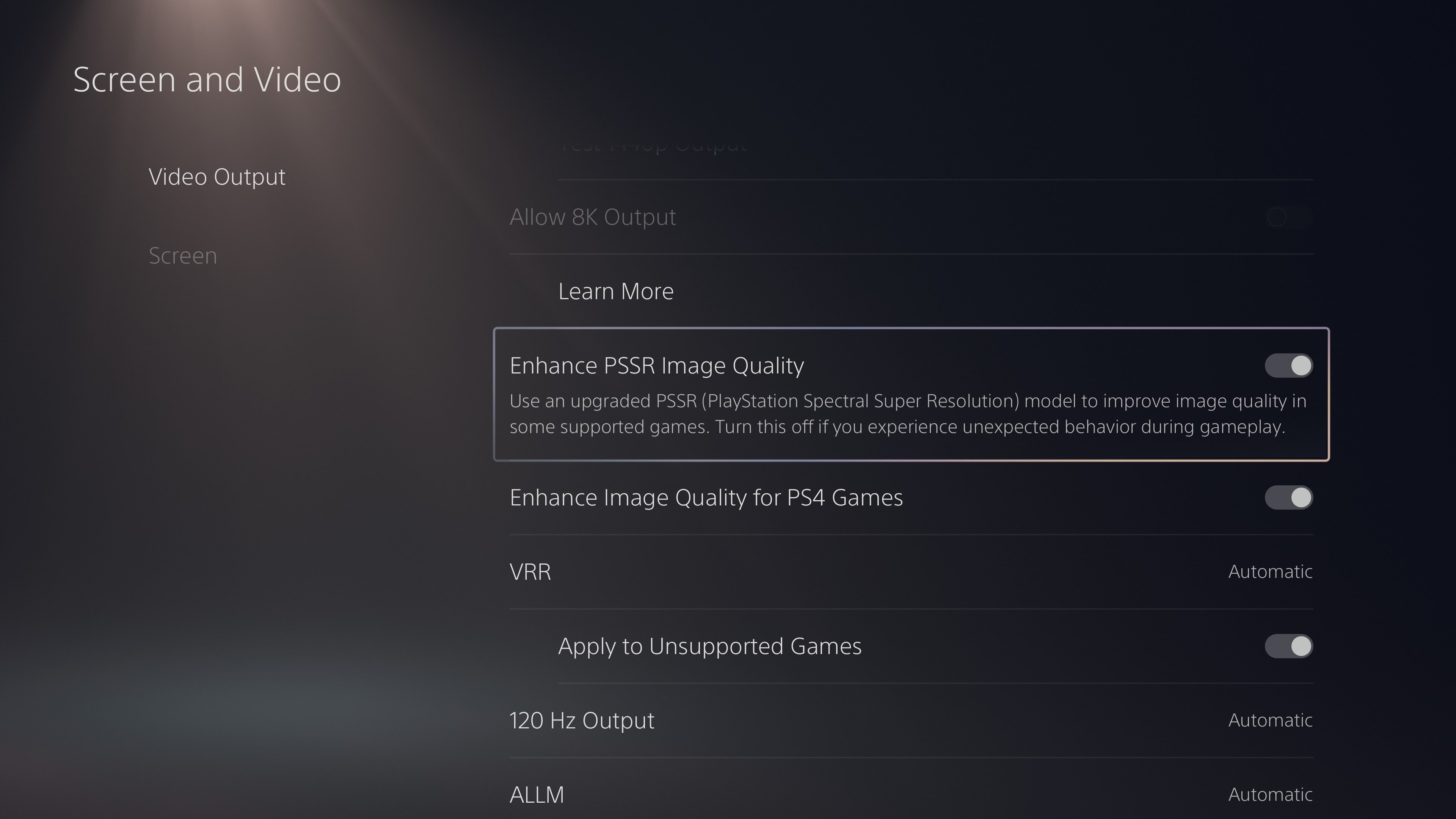
After suggesting a version of AMD’s FSR 4 could be ported to the PS5 Pro last year, it looks like Sony is finally rolling out an update with the upscaling tech in March. Mark Cerny, the lead architect of the PS4, PS5 and PS5 Pro, shared via a blog post that the PS5 Pro will be updated with a new version of the company’s PSSR (PlayStation Spectral Super Resolution) upscaling tech next month, and Resident Evil Requiem is one of the first games to use it.
PSSR is “an AI library that analyzes game images pixel by pixel as it upscales them,” Cerny says, which boosts the visual fidelity of games on the PS5 Pro, while running them at a less demanding resolution. The upgraded version of PSSR “takes a very different approach to not only the neural network but also the overall algorithm,” and is now able to keep both framerate and image quality high when it’s enabled.
Cerny’s blog post includes comparison images if you’re curious about the visual differences the new PSSR is able to achieve. Masaru Ijuin, a Senior Manager from Capcom’s Engine Development Support Section R&D Foundational Technology Department, also provided comments on how the new upscaling tech improves Resident Evil Requiem:
With Resident Evil Requiem, we focused on enhancing the presentation quality of the protagonist through an upgraded version of RE Engine to deepen the player’s immersion in horror. For example, each individual strand of hair and beard is rendered as a polygon, allowing it to move realistically in response to body motion and wind. The way light passes through his hair changes depending on how the strands of hair are overlapped as well. This detailed expression of texture is one of the many details that we would especially love for our fans to see.
The upgraded PSSR has allowed us to elevate our expressiveness by successfully processing these details and textural particularities, which are traditionally difficult to upscale because of their intricacy. We hope you will experience this unprecedented level of horror and visual fidelity, and the new gameplay feel it delivers.
Sony and AMD formally announced “Project Amethyst,” their collaboration to develop machine-learning technology to improve graphics and gameplay, in 2024. The partnership has already benefitted both companies: Cerny says Sony contributed to the development of AMD’s FSR 4 and similar improvements are now trickling back to the PS5 Pro. Both companies’ plans to improve everything from upscaling performance to energy efficiency could also pay further dividends in future consoles and GPUs.
Sony Interactive Entertainment
The upgraded PSSR will roll out to PS5 Pro owners as part of a software update in March, and will be able to be toggled on and off in the console’s settings, according to Cerny. Around the same time, multiple PS5 games are also supposed to be updated to support the upscaling tech. While the graphical improvements are still incremental over a normal PS5, the fact that Sony’s still squeezing more performance out of its console should at least be reassuring to anyone who spent $700 (or now $750) on a PS5 Pro.
This article originally appeared on Engadget at https://www.engadget.com/gaming/playstation/the-ps5-pro-is-getting-upgraded-upscaling-tech-in-march-200105816.html?src=rss
Meta’s strategy for its Quest 3 and 3S VR headsets is clearly to make virtual and mixed reality as easy, fun, and affordable as possible, but they might have done the job a little too well. All that user-friendliness has left a lot of power on the table. Casual Questers don’t know that the Snapdragon XR2 Gen 2 processor is powerful enough to handle spatial computing and multitasking that rivals some laptops, and that they can link their headset to a PC for close-to-4K visuals that rival much more expensive headsets. With the right software and a little bit of monkeying around with (often-hidden) settings, you can take the Quest 3 and 3S way beyond its the out-of-the-box performance. Below are ten hacks every Meta Quest user should know to get the most out of their headset.
Download the Quest Games Optimizer for Your Meta Quest 3
If you choose just one hack, it should be downloading Quest Game Optimizer. QGO is a third-party utility that lets you control a ton of hidden settings for any Quest game or app. Meta typically locks its hardware to conservative clock speeds to preserve battery and thermal headroom, but QGO lets you force the Quest’s chip to work at its maximum power. Most impressively, it lets you to increase the internal render resolution up to 300%, effectively “supersampling” your games to match the high-fidelity density of the Quest 3’s pancake lenses. It really makes a difference.
As you might have guessed, you won’t find QGO on the official Meta Store, and it takes some lightly hacker-ish work to set up. To get it running, you’ll need to:
Create a developer account with Meta. This is free, and you can do it from inside your headset.
Enable Developer Mode on your Meta account.
Uncompress the QGO app. Either sideload the compressed Android file on your PC using a tool like SideQuest, or unzip it straight in the headset using a file manager like AnExplorer or Mobile VR Station.
Grant Accessibility Permissions within the headset to allow the optimizer to override system defaults.
You can take the Quest 3 beyond standalone by linking it to your PC, either tethered or with a virtual link. This offloads the computing to a more powerful processor, turns your headset into a high-def display, and lets you use programs like Half-Life: Alyx or Microsoft Flight Simulator that would be impossible to run natively. You’ll seriously be shocked at how good they look and how smoothly they run. You can do this in two ways:
Wired
This is the best choice for the highest possible fidelity visuals and the easiest set-up, plus you don’t have to worry about how fast your wifi works.
Get a high-quality USB-C 3.1 cable or the Meta Link Cable, and plug it in.
Follow the instructions on your headset.
Wireless
This is the choice if you want the freedom of wireless connection and you have really reliably wifi.
For best results, connect your PC to your router via Ethernet, make sure your Quest 3 is on a 5GHz or 6GHz (Wi-Fi 6E) band, and use the Quest and PC in the same room.
In the Quest, go to “quick settings” and select the “Link” tile.
Switch “Use Air Link” to “On,” select your PC, and hit “Pair.”
Click “Launch” and you’ll be streaming directly from your PC to your face computer.
Unlock experimental features on the Meta Quest 3
Meta lets users test out “coming soon” features in its experimental menu and get an early look at “quality-of-life” improvements, most of which will be heading to the Quest soon. Among other improvements, the current experimental menu contains a couple of bangers: “lying down mode,” and “Meta AI” integration. Here’s how to check it out:
Open the “Settings” menu.
Scroll down to the Experimental tab on the left-hand sidebar.
Toggle the features you want to try.
Try the Meta Quest 3’s new spatial locking feature
This brand new (as of February 2026) feature is evidence of how hard Meta is leaning into mixed reality. Spatial locking lets you anchor windows wherever you want in physical space, so you can look at your real television and see a virtual one, have three virtual monitors extending your workspace, or create a window to YouTube over your sink for when you’re washing dishes. Bonus: The Quest will remember where these windows are when you restart it.
Here’s how it works:
Make sure you’re in pass-through mode.
Open a window in your headset.
Grab the window with the control bar at the bottom and move it where you’d like.
Select the “anchor” icon on the control bar.
This won’t work with travel mode. But speaking of travel mode…
Enable travel mode on the Meta Quest 3
Yes, you’ll look sort of dorky on a plane, but the Quest 3’s travel mode makes it possible to use your Quest on the road by creating a stationary boundary, and setting the Quest to ignore external velocity and rely only on head movements. Here’s how to turn it on:
Go to the “Settings” menu.
Click on “Environmental Set Up.”
Click on “Travel Mode.”
Install Bigscreen Beta streaming app on the Meta Quest 3
Bigscreen Beta is the go-to video streaming app on Quest headsets. It allows you to sit in a highly detailed virtual environment—a cozy modern living room, a massive outdoor drive-in, another planet, etc.—and stream video. You can use the Bigscreen Remote Desktop tool on your PC to stream content from Netflix, Disney+ or just about anywhere else directly into your virtual environment. Not only that, you can stream content directly from Bigscreen into your private space, invite friends over to watch with you, or watch movies and TV with strangers in shared virtual theaters.
Play Xbox games on the Meta Quest 3 in mixed reality
If you have an Xbox Live account, you can play (2D) Xbox games right from your VR headset, giving you a portable game console with a 100″ screen. Here’s how it works:
Pair a controller with your Quest. Quest controllers aren’t made to work with XBox games, so you’ll have to use Bluetooth to pair a game controller to your Quest. You can use an XBox controller, a PS5 controller, a Switch 2 controller, and a ton of generic controllers.
Run the Xbox app and choose a game.
Enable passthrough. This lets you play your game on as big a screen as you’d like while still being in the “real” world.
There can be some latency, as the game is being run from the cloud, but it’s surprisingly smooth in my experience.
Explore WebXR on the Meta Quest 3
WebXR might be the Quest’s biggest secret. It lets you use a seemingly infinite number of games and apps that are not available in the Meta store, and are almost all free. Since WebXR apps are browser based, all you have to do is point your Meta browser to a site that hosts a WebXR program and hit go. If you like experimental little tests and whatnot, you’ll never run out. Here are some to check out:
Moon Rider: A totally free, open-source alternative to Beat Sabre.
Silkbrush: A web-based version of the famous Tilt Brush that lets you paint in 3D space.
Above Par-adowski: A surprisingly deep browser-based miniature golf game.
Master the Meta Horizon mobile app
You can do a lot with your Quest without even turning it on. The Meta Horizon mobile app lets you manage your library, download games, change your settings, and more, all without strapping anything to your face. Browsing the Meta store feels way more natural on the app, and it’s easier to navigate and change setting there too. Plus, the app can tell you how much charge is left in your battery, whether your friends are online, download screenshots and videos, and cast what’s going on in your headset to another screen.
Invest in a third-party battery strap for the Meta Quest 3
The Meta Quest 3 is ergonomically fine for shorter sessions, but if you wear it long enough, you realize how much the design is a battle between comfort and performance, and it compromises on both ends—it’s kind of heavy and the battery life is kind of short. The front-weighted design puts pressure on your face and the battery life rarely survives a two-hour session, but there’s a solution to both problems: Trade the stock fabric strap for a third-party “Elite” style strap with a built in extra battery, like the KIWI design H4 Boost or the BOBOVR S3 Pro. These move the extra weight to the back of your head, balancing the ergonomics, and they have swappable extra batteries so you can use your headset as long as you’d like.
Hundreds of employees at Google and OpenAI have signed an open letter urging their companies to stand with Anthropic in its standoff with the Pentagon over military applications for AI tools like Claude.
The letter, titled “We Will Not Be Divided,” calls on the leadership of both companies to “put aside their differences and stand together to continue to refuse the Department of War’s current demands for permission to use our models for domestic mass surveillance and autonomously killing people without human oversight.” These are two lines that Anthropic CEO Dario Amodei has said should not be crossed by his or any other AI company.
As of publication, the letter has over 450 signatures, almost 400 of which come from Google employees and the rest from OpenAI. Currently, roughly 50 percent of all participants have chosen to attach their names to the cause, with the rest remaining anonymous. All are verified as current employees of these companies. The original organizers of the letter aren’t Google or OpenAI employees; they say are unaffiliated with any AI company, political party or advocacy group.
The open letter is the latest development in the saga between Anthropic and US Defense Secretary Pete Hegseth, who threatened to label the company a “supply chain risk” if it did not agree to withdraw certain guardrails for classified work. The Pentagon has also been in talks with Google and OpenAI about using their models for classified work, with xAI coming on board earlier this week. The letter argues the government is “trying to divide each company with fear that the other will give in.”
OpenAI CEO Sam Altman told his employees on Friday that the ChatGPT maker will draw the same red lines as Anthropic, according to an internal memo seen by Axios. He told CNBC on the same day that he doesn’t “personally think the Pentagon should be threatening DPA against these companies.”
This article originally appeared on Engadget at https://www.engadget.com/ai/google-and-openai-employees-sign-open-letter-in-solidarity-with-anthropic-194957274.html?src=rss
Catching me by surprise today was a new Intel CPU microcode drop “20260227” for Linux users/administrators outside of their typical Patch Tuesday alignment for CPU microcode releases…
If you own a home, it’s never a bad time to be thinking about its curb appeal. That’s a given when it’s time to sell, but making a series of smaller upgrades over time will leave you with less to worry about once it comes time to list it, at which point you’ll probably be more focused on interior renovations. Plus, that way you’ll get to enjoy coming home to a prettier, well-kept exterior every single day until then.
The math around the cost of improvements and their potential return on investment is always complex, but less so when the upgrades don’t cost much to begin with. You can handle a lot of projects yourself in a few hours on the weekend, and with modest budgets (often less than $100). Here are a dozen of the best ways to boost your home’s curb appeal without draining your bank account.
Add a coat of paint or stain to beautify your front door
The front door of your house is one of the first things people see, and it has a huge impact on the home’s perceived value. Installing a new front door can have an ROI of almost 200%, but if the average cost of about $2,300 is a bit too rich for your blood, simply painting or staining the door can add thousands of dollars to your home’s value at a cost of less than $100 in materials, and a few hours of your time.
Add an awning over the front door
Installing an awning over your front door or other entrances isn’t an expensive or difficult project, and it can add both beauty and practicality to the exterior of your house, protecting you from rain and drips from your roof line. It also makes your front door more welcoming to guests, who won’t have to stand in the elements waiting for you to answer their knock.
Patch and seal your driveway before small cracks become a big problem
Your driveway should be considered part of your landscaping, because its condition is part of the first impression people form about your house. A cracked, crumbling, stained driveway says all the wrong things (and is a warning of a big repair bill coming sooner rather than later), so cleaning it up and sealing it will go a long way.
Sweep away dirt and debris
Clean thoroughly with a power wash (you can use dish soap and your garden hose in a pinch)
Fill in cracks with a quality crack filler product for asphalt or concrete.
An easy, affordable way to make the exterior of your home stand out is to hang some outside wall art. For just a few bucks (this dog-themed piece is just $16, for example) you can give the exterior of your home a bit of your personality, eliminate boring blank space, and make your outdoor spaces more visually interesting. That will prompt guests or potential buyers to think of those spaces as finished, and invite them to imagine themselves using those spaces.
Plant some trees to increase your property value
An easy way to spruce up the exterior of your home is to plant some trees—and trees definitely add to your home’s curb appeal and property value. Trees provide shade, which makes outdoor spaces more comfortable (and can even help keep your interior cooler by blocking some of the sun), and they make an outdoor space feel organic and comfortable. It can even be a $0 investment, because many cities and towns offer free tree programs, so if you’re willing to put in the sweat equity, the project doesn’t have to cost you a thing.
Upgrade your mailbox
If your house has a mailbox on the edge of your property, upgrading it has a lot of advantages. For one, a larger mailbox can accommodate packages, meaning fewer crushed items and “we missed you” slips. And a new, stylish mailbox will be a little boost to the overall curb appeal of the house.
While you’re at it, consider creating a mailbox garden, if there’s space for it. Building a simple raised garden bed around the mailbox and filling it with native flowers or spreading plants will enhance the mailbox and extend the influence of your landscaping.
Refresh your garage door with new hardware and paint
Your garage door is literally a huge aspect of your home’s curb appeal—typically anywhere from 50 to several hundred square feet of exterior space. If it’s looking a bit dingy, no amount of landscaping or other tricks will make your house look good. Luckily, upgrading your garage door doesn’t require an expensive replacement, as long as the door is in good physical shape. A coat of good-quality exterior paint can do a world of good. And you can also give your garage door a more lux look by adding some faux hardware whether permanently attached or using magnetic versions. Doing both will come in under $100.
Add or replace your exterior lighting
If your front door is a dark and gloomy place, adding some lighting (or replacing what’s there) will make your home seem a lot more inviting. You don’t need to spend hundreds of bucks and hire an electrician, either—you can pick up a battery– or solar-powered exterior light that installs with a few screws. Not only will this make your exterior a little nicer, it also means not fumbling with your phone’s flashlight when you get home late and can’t quite see your keys.
Replace your house numbers with something stylish
If your home’s address is difficult to read, it can be hard to find. And if your home’s address numbers are faded or rusted, it reflects poorly on the rest of the home’s curb appeal. Replacing those numbers is pretty easy—and you have an incredibly wide range of styles to choose from, so you can really match or augment your home’s exterior style. You can get custom address plates made, of course, but you can find address numbers that attach via screws or adhesive if you’re not in the mood to break out the power drill.
Install window plant boxes to hide your outdated windows
Whether your windows are brand new or a bit weathered, you can easily upgrade their look (and thus the look of the whole house) with the addition of window garden boxes. They extend your landscaping up onto the vertical space, creating a unified, cohesive look, and they help frame your windows with color and architectural interest. You can just place freestanding boxes on the sill if there’s room, or install something more permanent for a more upscale look.
Install ornamental shutters to add visual interest
Just like wall art, shutters can fill up the empty space on your exterior walls and create visual interest. They also imply a certain fanciness (that’s a technical real estate term) that can make the whole house look and feel a bit more expensive. But, secretly, they’re an inexpensive and easy upgrade: You can buy a pair of durable, paintable vinyl shutters for under $100, and they install easily, instantly transforming your exterior look and feel.
Paint your gutters to make them pop
If your gutters are the standard white, they’re an opportunity to make your home’s exterior pop a little more—because you can paint your gutters as easily as anything else. Choose a strong accent color, pick an exterior paint that’s appropriate for your gutter material (plastic or metal, typically), and transform them by spending a few hours painting (being super careful if you’re on a ladder, of course).
An anonymous reader shares a report: Worldwide smartphone shipments are forecast to decline 12.9% year-on-year (YoY) in 2026 to 1.1 billion units, according to the International Data Corporation (IDC) Worldwide Quarterly Mobile Phone Tracker. This decline will bring the smartphone market to its lowest annual shipment volume in more than a decade. The current forecast represents a sharp decline from our November forecast amid the intensifying memory shortage crisis.
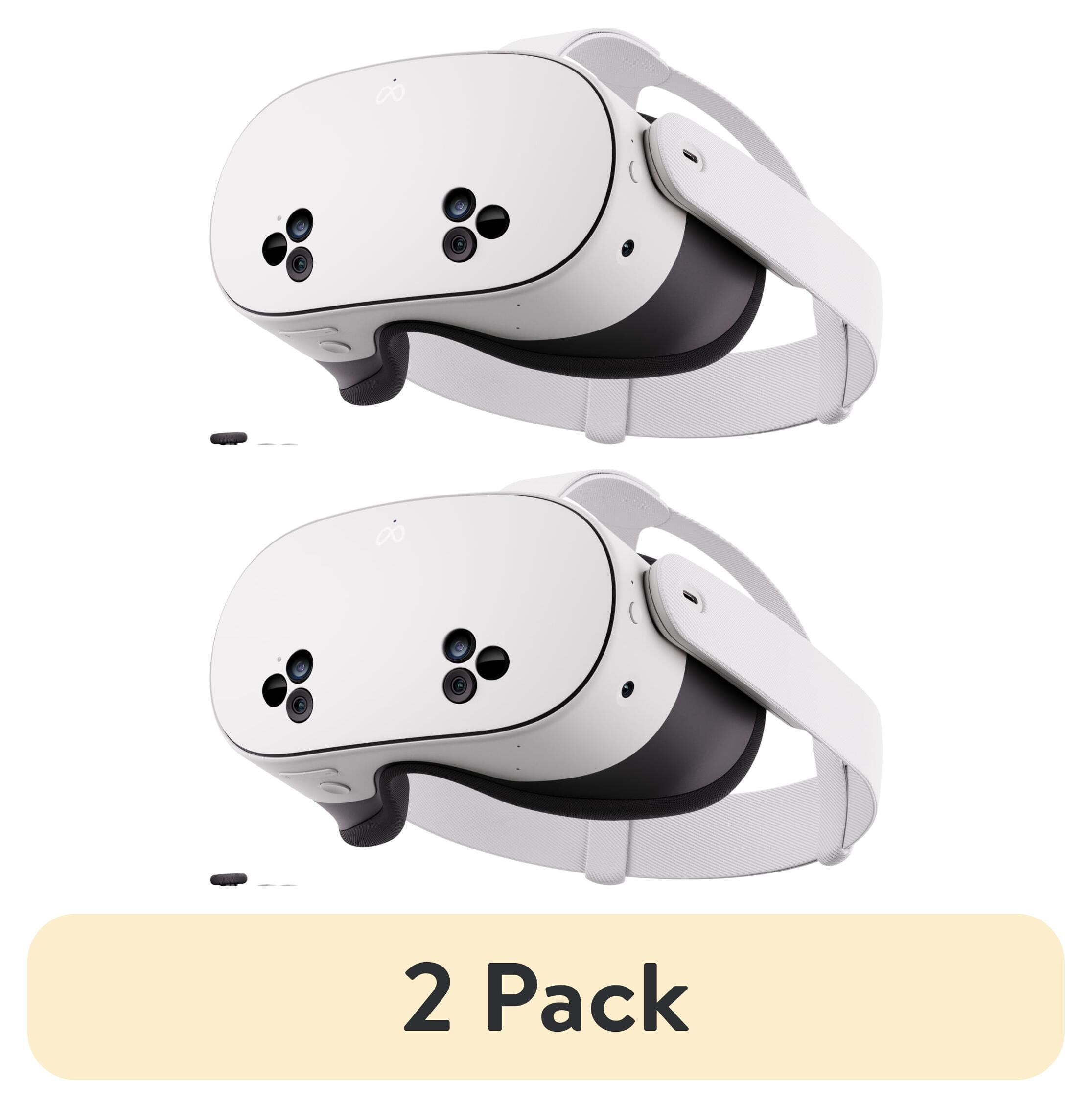
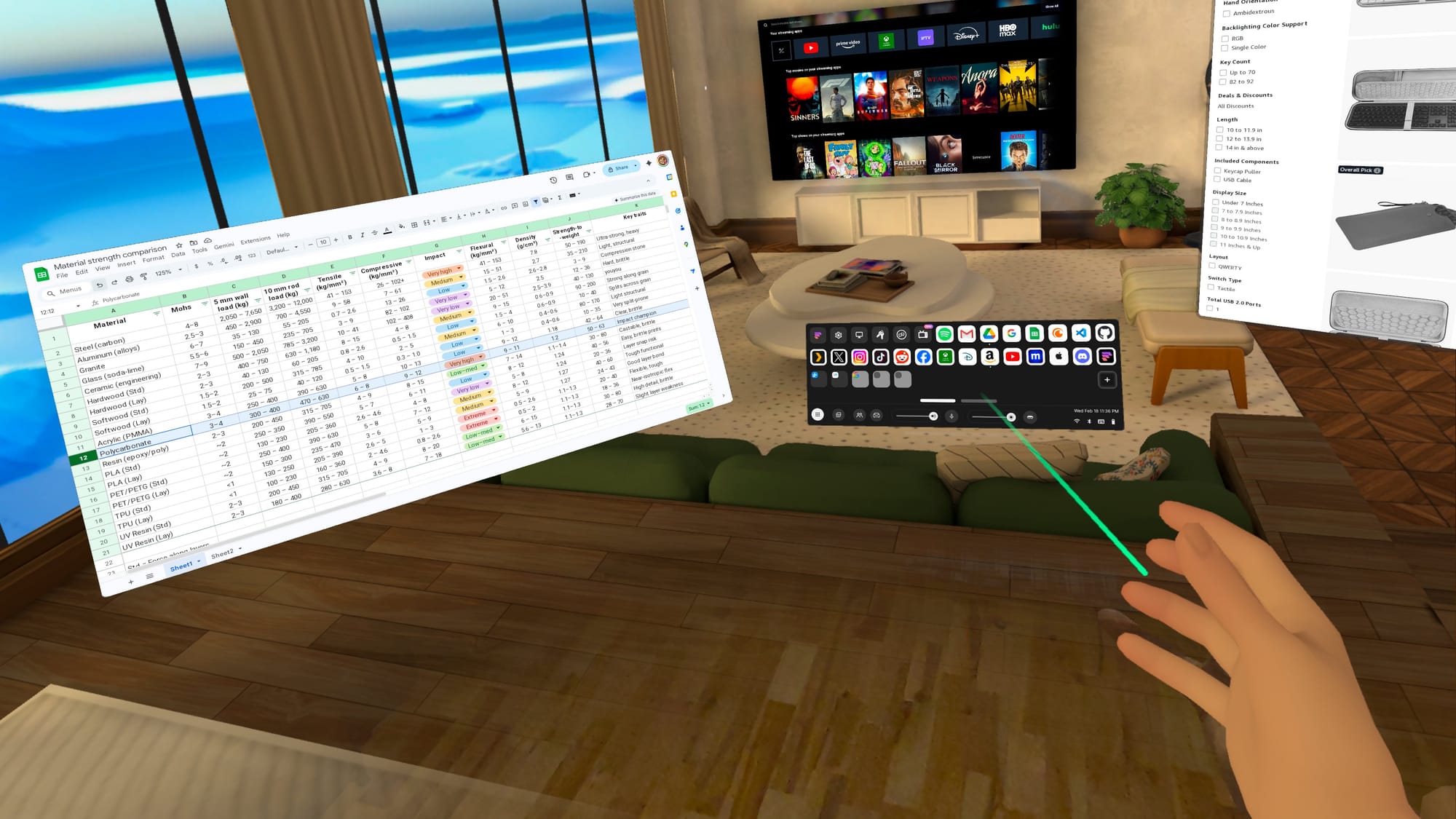
Meta’s Quest 3 is the best choice for standalone VR gaming and fitness, but you may not be aware how well it works as a relatively affordable travel-ready spatial computer.
With the latest updates to Horizon OS, Quest 3 and Quest 3S can now effectively double as portable computers. You can experience multiple giant screens without taking up any extra room, an awesome bonus if you live in an apartment or shared space.
As a portable virtual computer, your Quest headset gives you more screen space than a laptop, and vastly more than a phone. However, some setup is required to avoid unexpected issues when you’re away from your usual tech. If you test essential websites, verify logins, and settle on a comfortable typing method, your Quest 3 can feel less like a casual-use headset and more like a computer you can count on.
With the right setup, your Quest 3 could even become a primary device around the house, especially if you like working in short sessions, streaming video, and switching rooms. Think of this as turning your headset into a grab-and-go workstation for the web apps, messaging, and media you already use.
The Quest Pro and Quest 2 will work in a pinch, but they miss some newer features, including Meta’s touch-typing keyboard that projects onto a surface. It is not yet available on the Quest 3S, but datamining by Luna suggests it will be enabled eventually.
If you want your Quest 3 to function as a portable computer, the browser is its foundation. Productivity depends on web app and website compatibility, so testing matters.
Don’t just load a page and assume you’re good. Try the things you normally do on your computer. Sign into important accounts, create and edit documents in the web apps you use, and upload/download files if that’s part of your process. If something fails, try to find a simple solution or alternative.
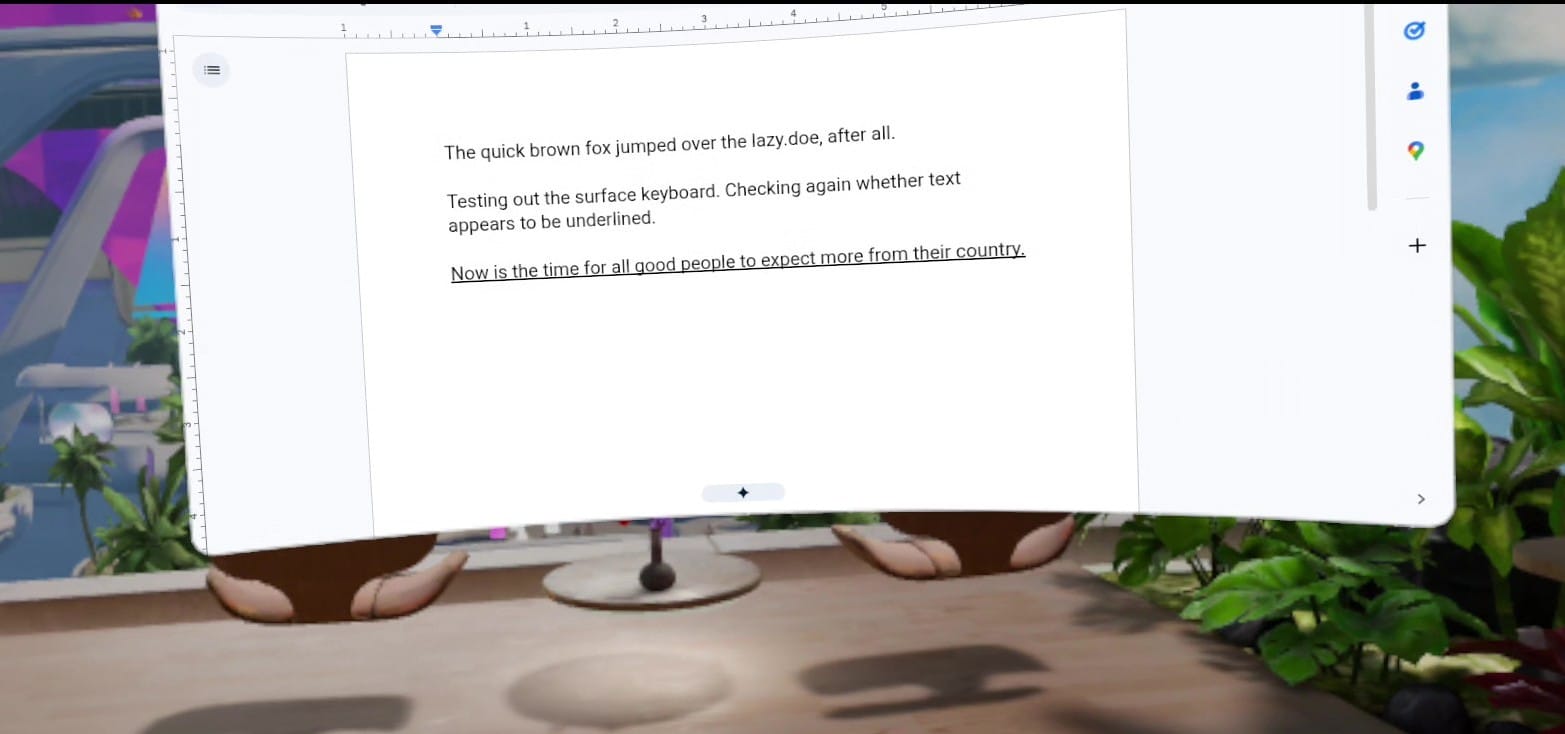
I ran across a great example of unusual behavior using Google Docs in my Quest 3. Everything I type appears underlined. It actually isn’t, and if I click elsewhere, it reverts to plain text. It works, but the glitch is visually disruptive.
Everything I type in Google Docs appears to be underlined.
Another easy workaround is to use a different online editor, such as Microsoft Word, StackEdit, or Lex. Even if your favorite web app works perfectly, it’s worth having a backup, because little quirks like this show up when you least expect them.
If a particular website doesn’t play nicely with Meta’s browser, you may need a different one. Choices are limited on Quest headsets, but there is at least one alternative.
The Fluid Browser
Fluid is my favorite third-party browser for Quest headsets. It’s based on Chromium, with an optional per-website mode that uses Gecko, the Firefox renderer. It behaves more like the browsers on your computer or phone, which can help with picky web apps.
Fluid has unique environments and an adjustable floor passthrough.
Fluid’s interface is also more flexible than Meta’s. Hand gestures can trigger voice input, manipulate windows, and move you through virtual rooms. It also offers advanced features like adjustable passthrough range, multi-user window sharing, theater modes, and remote access to your computer.
There are other third-party browsers, but most suffer from weak app store ratings. Fluid averages 4.5 stars, backed by an active community and a responsive dev team.
Prepare Your Browser
You’ve been refining your computer’s bookmarks, logins, and settings for years. To get a smooth transition on Quest, you’ll want a little prep work. Some Horizon OS browser features may still be rolling out, so they might not appear on your headset yet.
Backup And File Access
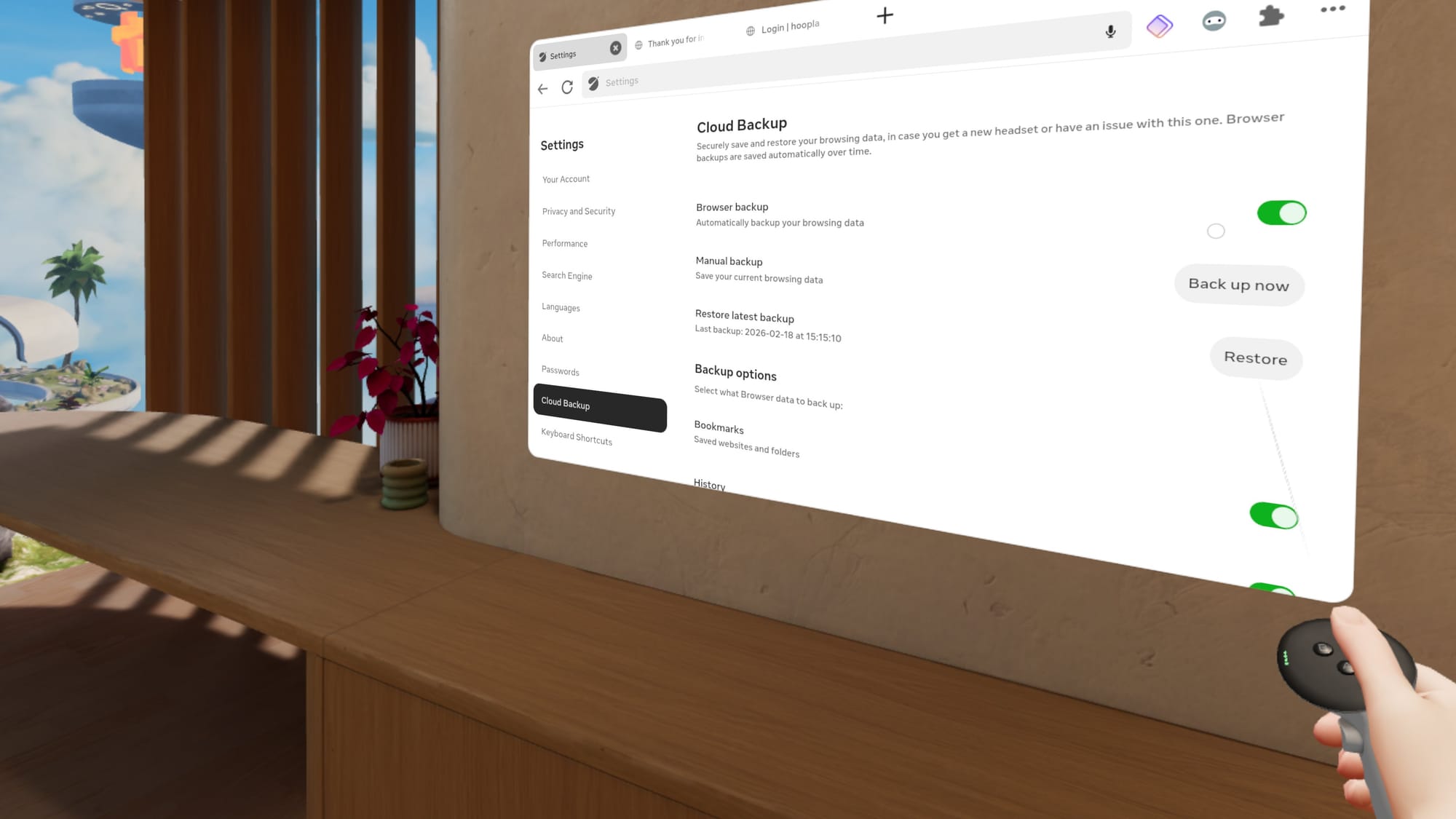
Enable Cloud Backup in the Horizon OS browser, so you don’t have to start over if something goes wrong. You can find the toggle in browser settings. Cloud Backup can restore bookmarks, browsing history, and extensions.
Cloud Backup is essential for the Horizon OS browser.
If you need access to important files or photos, cloud storage is the easiest path. Upload what you want from your computer or phone, then open it on Quest through the web apps you already use.
Password Autofill
Logins matter, and modern security requirements can make access annoying from any device. The easiest solution is Meta’s password import feature in browser settings under Passwords. Meta includes instructions for exporting from Chrome, Safari, Edge, and others. You may also want a device PIN to keep accounts secure.
This isn’t the only option. Some third-party password managers offer web apps that work in any browser, and a few have extensions for the Horizon OS browser.
Browser Extensions
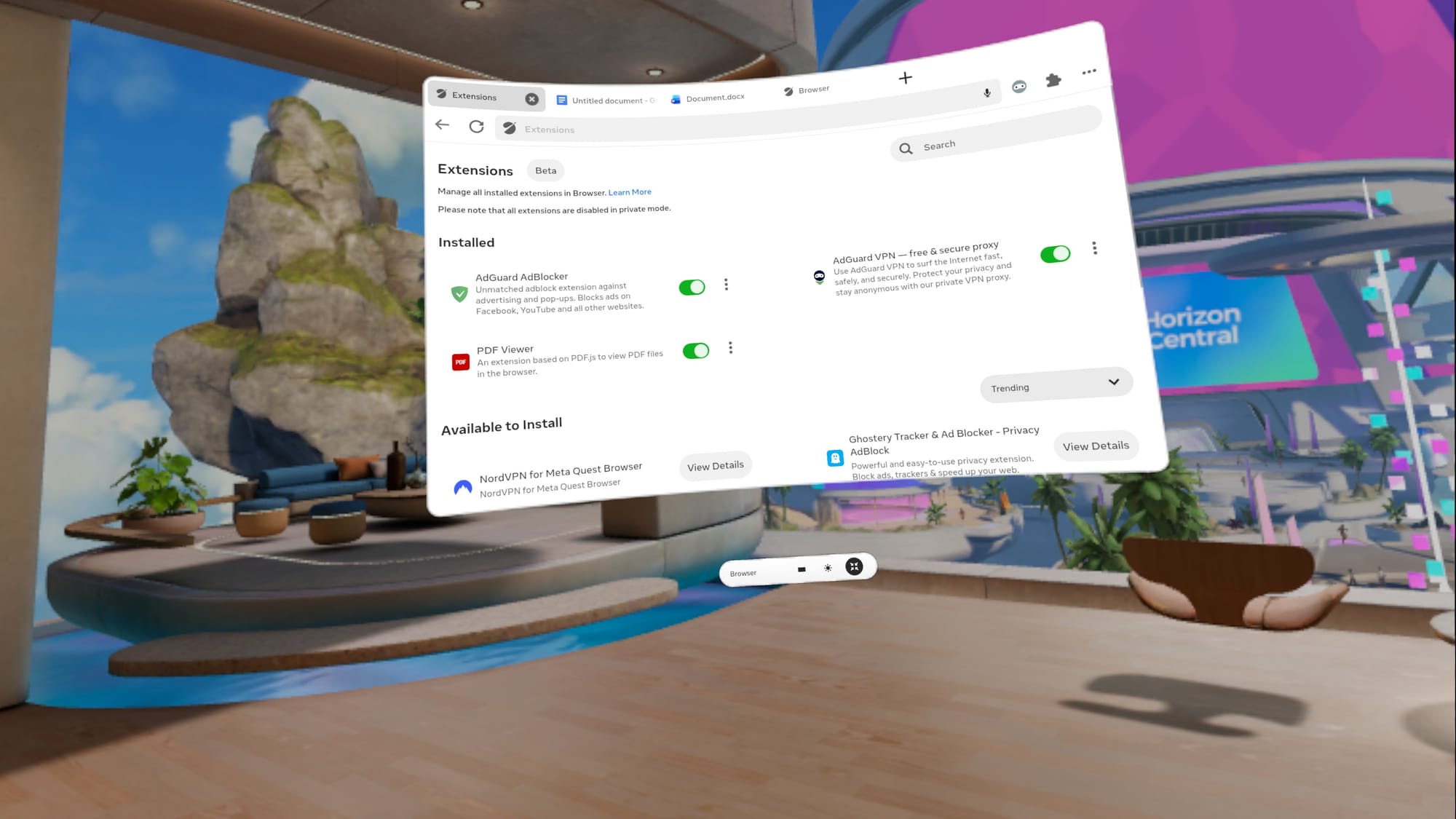
If security and privacy are crucial, you’ll want extensions for your password manager, a content blocker, and possibly a VPN. Meta’s extension ecosystem is growing, but the Horizon OS browser only supports about a dozen extensions so far.
The list of Horizon OS browser extensions is growing.
You can find extensions by selecting the puzzle piece at the top right of a browser window. A new tab opens with installed extensions, toggles, and a list of available add-ons.
Test your password manager and VPN while your computer and phone are nearby. It’s easier to authenticate MFA, access email, and verify passkeys before you travel.
Building Bookmarks
Meta doesn’t have a bookmark import option, offering instead link sharing via the Horizon mobile app. Saving one bookmark at a time would become tiresome quickly. Fortunately, there are some good workarounds.
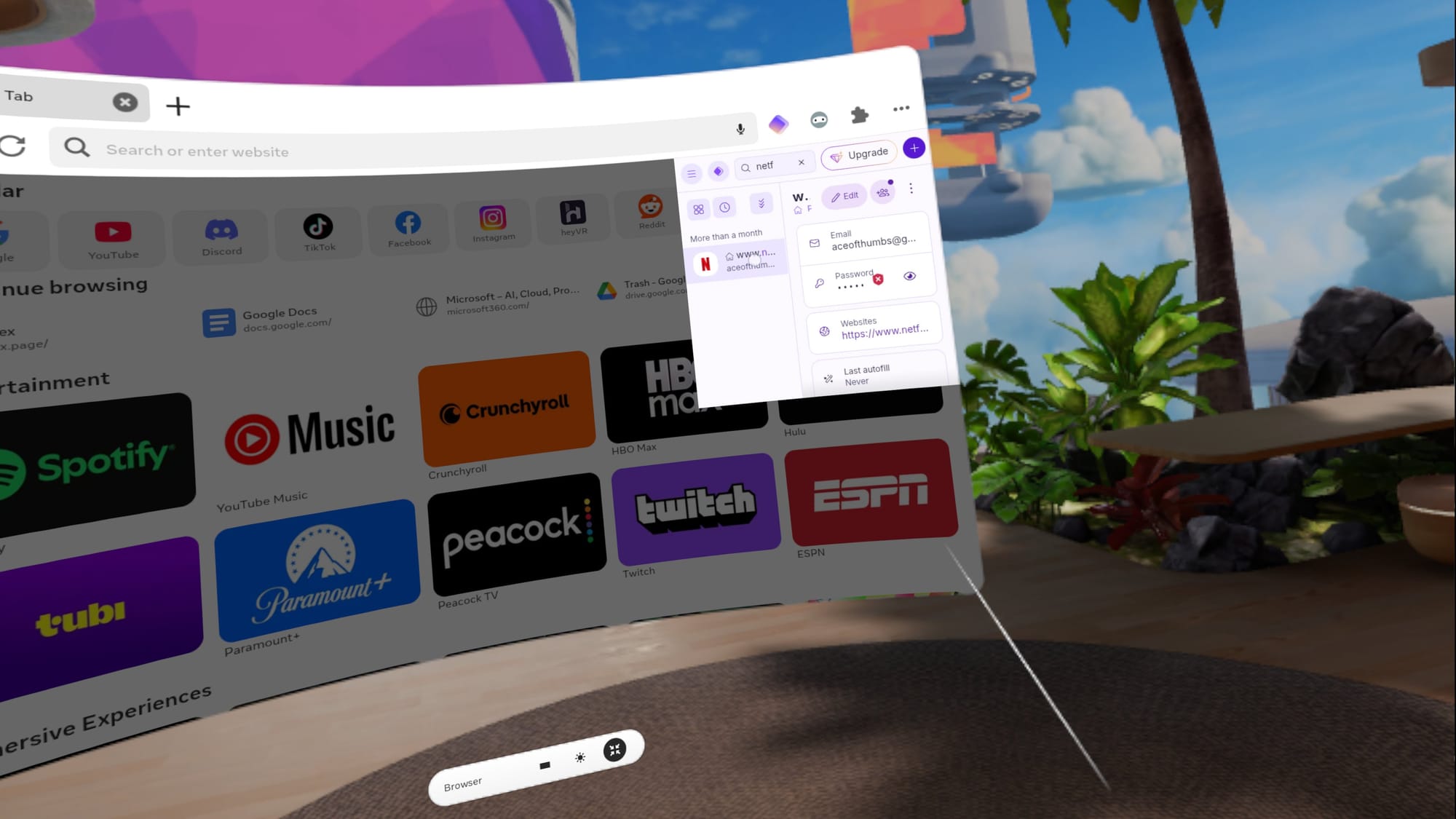
I use Proton Pass as a website quick launcher.
Proton Pass is a free password manager with a Horizon OS extension, and it can double as a website launcher if you pin it. Third-party browsers are a mixed bag. Fluid lacks bookmark import, but supports several password managers. Wolvic deserves credit as one of the few Quest browsers that can import bookmarks by syncing from Firefox.
Bookmarks shouldn’t be this hard, but it’s worth spending a few minutes to make your favorite websites accessible. With a working system, you’re one click away from the tools you actually use.
Explore Input Options
Quick, reliable text entry is the difference between casual browsing and real work. Quest 3 offers multiple ways to type, and you might use different ones depending on the situation.
The System Keyboard
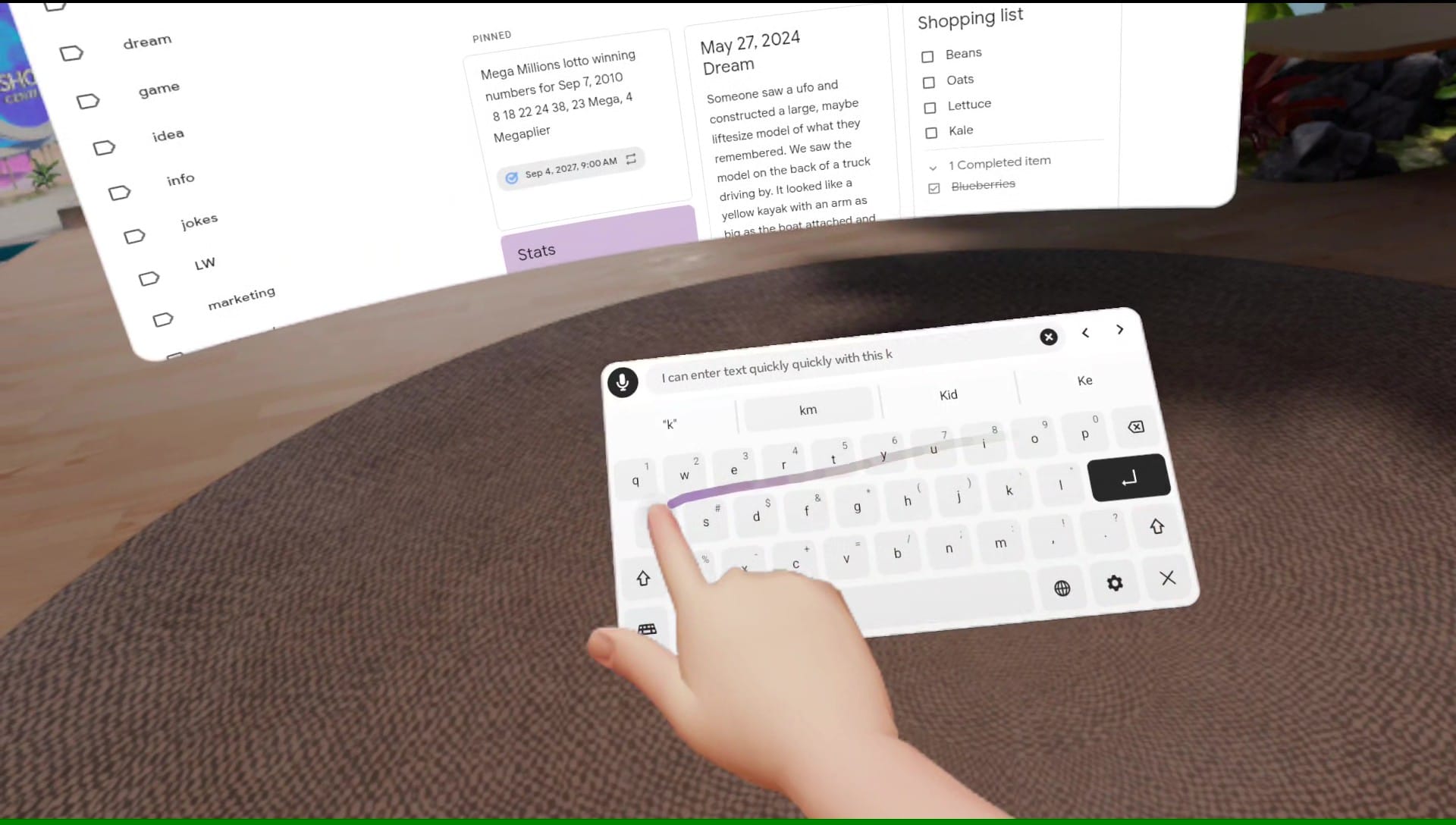
Two-finger typing on the default pop-up keyboard is fine for quick searches, short messages, and the occasional form, but it isn’t ideal for drafting and editing. That’s why you should enable Swipe typing in Virtual keyboard settings and turn the mic on in Quick Settings.
Swipe typing on the Quest 3 works just as well as it does on my phone.
The default keyboard includes a mic icon, and one click lets you dictate words, website addresses, or whole paragraphs. It’s fast, accurate, and you don’t need to speak loudly.
Swipe typing works just as well as it does on your phone, but with a larger keyboard. I like to bring the keyboard close and use a finger, but a controller works, too.
Bluetooth Keyboard And Mouse
Bluetooth accessories are still the most predictable way to make Quest feel like a computer. A compact keyboard is usually easy to pair, and a mouse makes selection and window control far easier.
I occasionally use Bluetooth accessories with my Quest 3.
If you want to pack light, a keyboard with an integrated trackpad can be ideal.
Meta’s Surface Keyboard Surprise
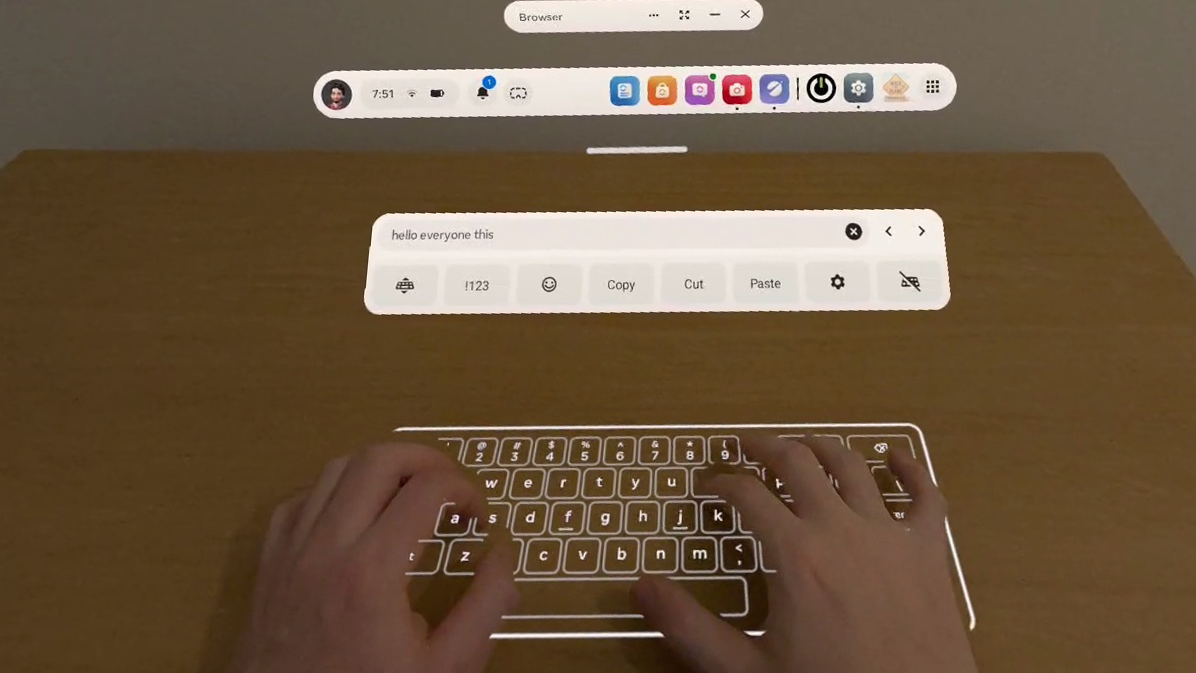
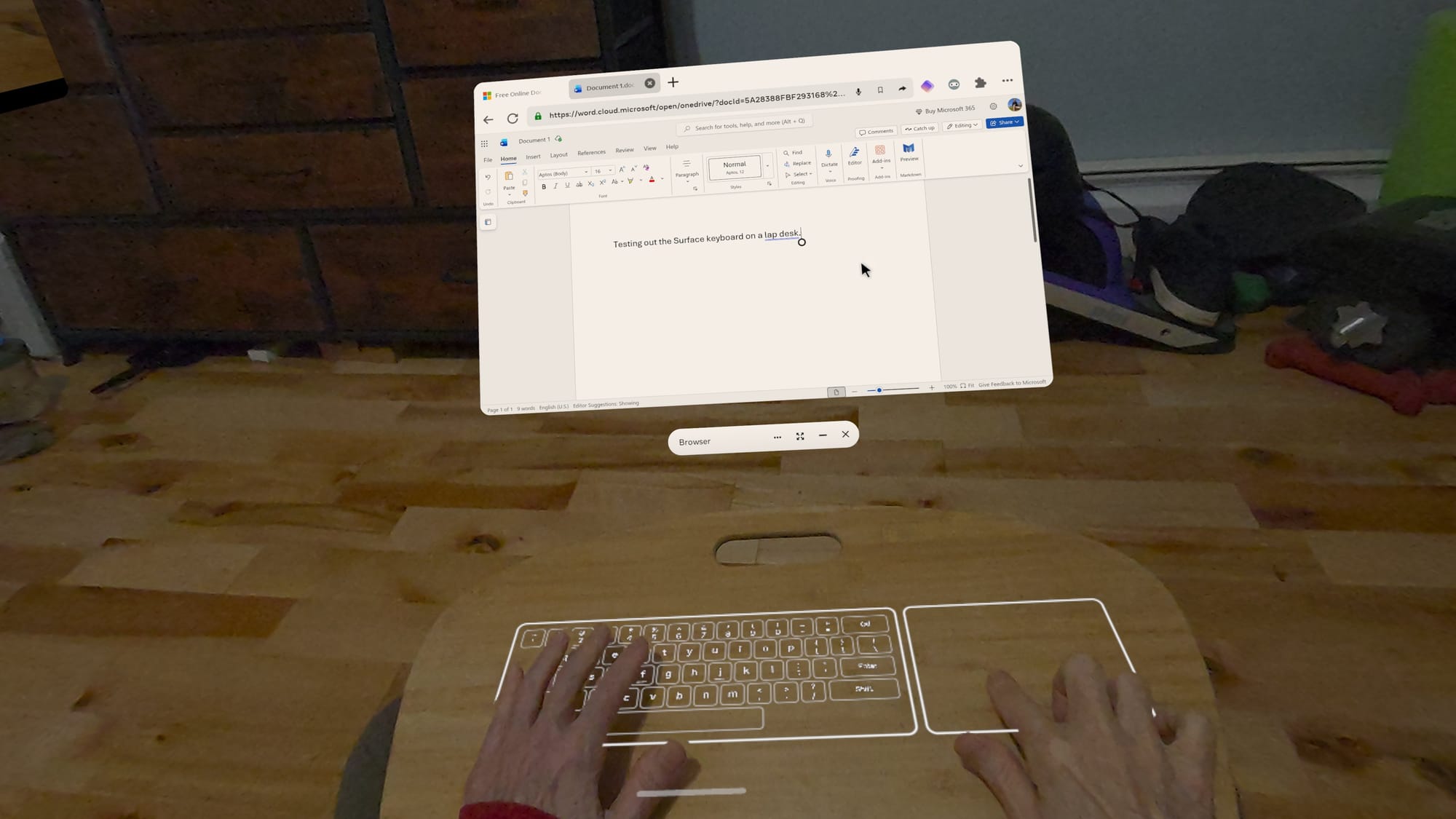
If you have access to Meta’s new Surface keyboard, it’s worth exploring in Experimental settings. A projected keyboard sounds like a novelty, but it’s genuinely useful if you touch type.
Since it aligns with your desk or table, you get tactile feedback. Meta added a trackpad and a hovering toolbar with cursor arrows, copy, cut, and paste. A preview window in the toolbar lets you see what you’re typing while looking down at the keys.
Meta’s Surface Keyboard is a great alternative to a physical keyboard.
It can’t compete with the clackity, full-travel keyboard I use with my desktop. Physical keys still win for long sessions, but the Surface keyboard does a good job simulating a soft, laptop-style keyboard and trackpad.
The biggest benefit is portability. I’m not dragging a keyboard and mouse between rooms or packing them when I travel.
Explore Apps
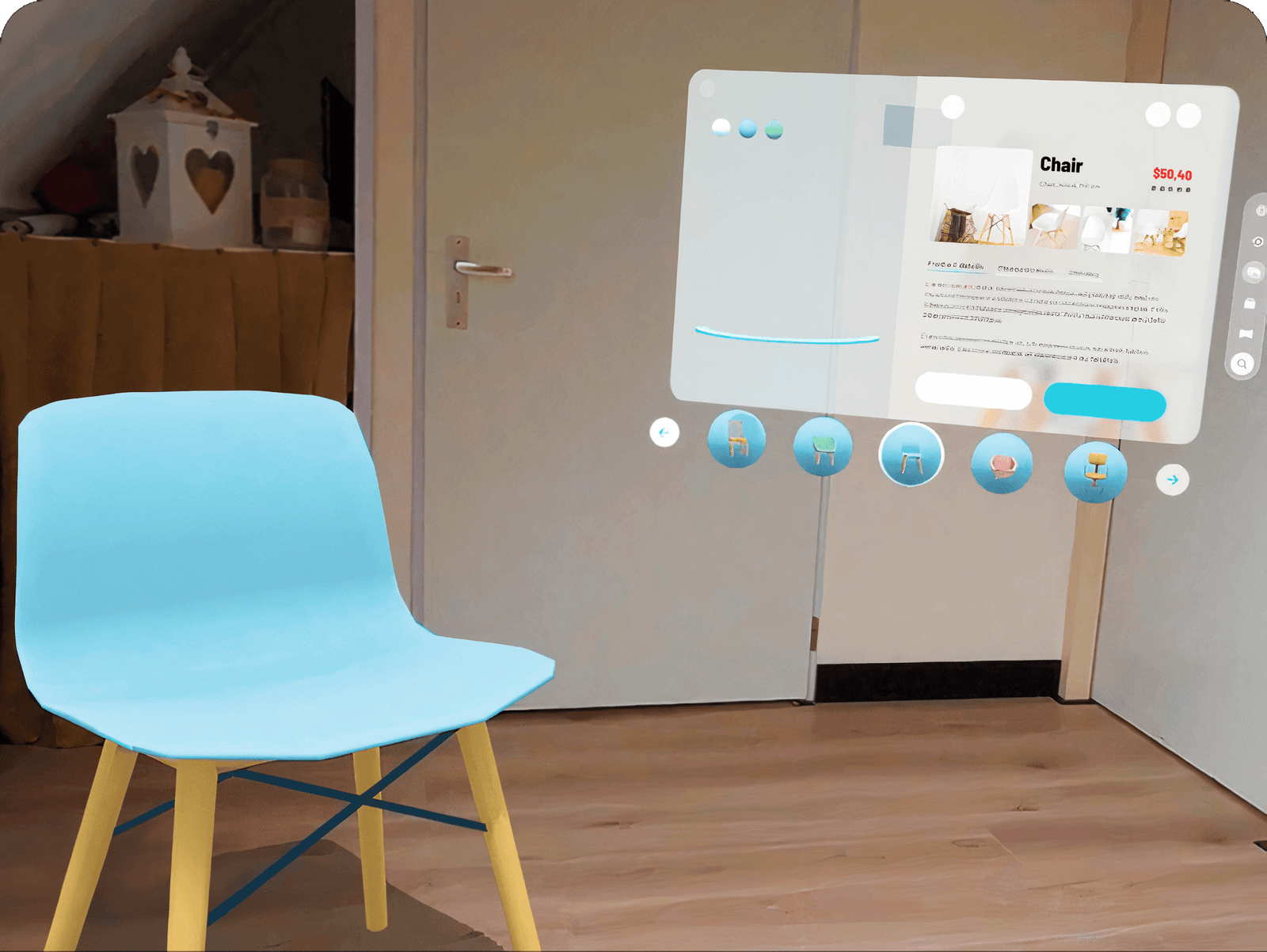
A browser-first setup might be all you need, but the Quest 3 becomes more useful when you add apps that benefit from VR or mixed reality. For 3D work, VR-native tools can be a leap forward. Your model is in the room with you, and you can handle it like an object. Apps like Gravity Sketch and ShapesXR let you think and build in space, which is hard to replicate on a flat screen.
ShapesXR lets designers build and test in an immersive space.
Meta’s Instagram, Facebook, and Messenger apps can be useful for messaging and keeping in touch while wearing your headset. Instagram offers a fun new feature that automatically converts photos and videos to 3D.
Streaming is a big win for most Quest owners. Whether you use native apps or browser tabs, having a giant screen anywhere makes casual viewing feel like a private cinema. Test the streaming services you use, both the app and the browser version, to find out which works best for you.
Portability Tips For Home And Travel
Your Quest 3 or Quest 3S might be all you need around your home or office, but a few accessories can make a big difference when traveling. I recommend a charger and USB-C cable, a battery pack for longer sessions, between charging, a microfiber cloth for lenses and sensors, and Bluetooth accessories if you prefer them.
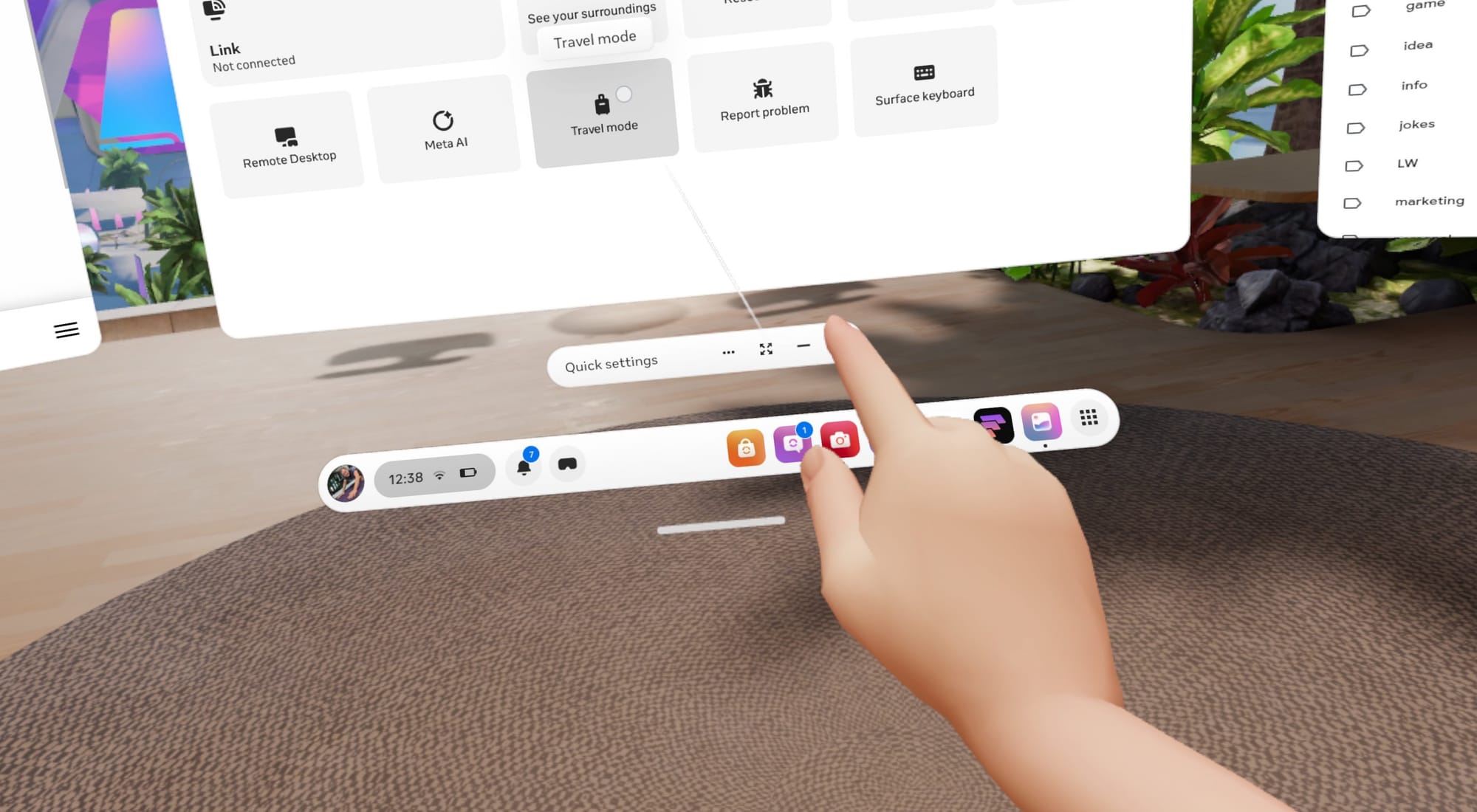
Travel mode is easy to access in Quick Settings.
If you want to use your headset on a plane, train, or other vehicle, your Quest 3 has a Travel mode that can help. When movement is detected, the option can appear automatically, and you can also switch it on manually in Quick Settings.
The least glamorous tip is also the most practical. Spatial computing is still fringe tech, so plan for glitches. Install a third-party browser in case something doesn’t work in the system browser. Keep your phone nearby for MFA requests. Make sure the Horizon mobile app is installed, so you can send links and photos to your Quest.
Your Quest 3 As A Spatial Computer
The Quest can be a great portable computer, but its processor and storage are closer to the hardware of a phone than a laptop. You shouldn’t expect it to handle a hundred tabs while streaming video and processing voice input. However, with a little self-restraint and tab management, you might be impressed with what’s possible on such an affordable VR headset.
The Quest is great when your workflow is browser-first, when you enjoy advanced tech, and when you want easy portability. It really shines when you lean into VR-native tools for spatial work, because a laptop can’t match the experience of stepping into a 3D workspace.
While a VR headset falls short for specialized desktop software, heavy multitasking, and some peripheral connectivity, remote access can fill the gap. Apps like Virtual Desktop make macOS and Windows connections easy and reliable.
The key is choosing the right tool for the job. As long as you don’t expect miracles, a Quest 3 or Quest 3S can serve as a low-cost, all-in-one system that creates a unique spatial computing experience that provides a taste of the future with virtual screens, intuitive gesture control, and projected mixed reality interfaces. All it takes is a little setup time and exploration.
The US military mistakenly shot down a Customs and Border Protection (CBP) drone near the Mexican border in a strike that reportedly used a laser-based anti-drone system. The CBP uses drones to track people crossing the border.
“Congressional aides told Reuters the Pentagon used the high-energy laser system to shoot down a Customs and Border Protection drone near the Mexican border, in an area that often has incursions from Mexican drones used by drug cartels,” Reuters reported last night.
The FAA closed some airspace along the border with Mexico in Fort Hancock, Texas, on Thursday with a notice announcing temporary flight restrictions for special security reasons. The restrictions are in place until June 24 but could be lifted earlier. There are conflicting reports on which day the strike happened, with The New York Times reporting that the strike occurred Thursday and Bloomberg writing that the Federal Aviation Administration (FAA) “was notified Wednesday after the event occurred.”
Shotcut 26.2 has been released today as the latest stable version of this open-source, cross-platform, and free video editing software written in Qt using the MLT framework.
We haven’t had a new film from Gore Verbinski for nine years. But the director who brought us the first three Pirates of the Caribbean movies, the nightmare-inducing horror of The Ring (2002), and the Oscar-winning hijinks of Rango (2011) is back in peak form with Good Luck, Have Fun, Don’t Die. It’s a darkly satirical, inventive, and hugely entertaining time-loop adventure that also serves as a cautionary tale about our widespread online technology addiction.
(Some spoilers below but no major reveals.)
Sam Rockwell stars as an otherwise unnamed man who shows up at a Norms diner in Los Angeles looking like a homeless person but claiming to be a time traveler from an apocalyptic future. He’s there to recruit the locals into his war against a rogue AI, although the diner patrons are understandably dubious about his sanity. (“I come from a nightmare apocalypse,” he assures the crowd about his grubby appearance. “This is the height of f*@ing fashion!”)
Ever since I deleted my Facebook account, Instagram has taken its place as the social network I visit most often to check what my friends are up to. I’ve been on the app for something like 15 years now, and during this time, I’ve learned a trick or two that improve the experience (or at least make it less annoying). Here are 10 Instagram hacks that will enhance your privacy, reduce the amount of junk in your feed, help you reset your algorithm, and more.
Use Instagram filters to block spam messages and comments and clean up your feed
On every social media app, I like to set up filters to mute offensive keywords, but you can use keywords to block almost anything you don’t want to see. On Instagram, you can use filters to easily block spammy comments and offensive messages. While you can customize your filter list, I just looked up a list of offensive phrases, and quickly added it to my IG account, then added a few additional terms.
You can do the same thing by going to your Instagram profile page, and tapping the three-lines menu in the top-right corner in Instagram. This opens the Settings and activity page, where you can select Hidden Words. It lets you add multiple words, as long as you separate them with a comma. Once added, Instagram will block comments and messages containing those terms.
You can also add mute keywords for posts appearing in your feed. Go to Instagram Settings > Content preferences > Specific words and phrases. On the Content preferences page, go to Sensitive content and Political content, and you can limit those types of posts and videos from showing up on your feed too.
Reset your Instagram algorithm
Every once in a while, my Instagram algorithm goes haywire and I’m forced to reset it. After all, I mostly open this app to see my friends’ updates and cat videos, and once my feed starts showing me too much Hyrox content (a “sport” I couldn’t care less about), I know I’m in trouble. If something like this happens to you, there are two ways to reprogram your feed. The easy option is to just look for a reel you enjoy (such as a cat video), and swipe upwards a few times till you reach a non-cat video, then navigate away. Repeat this process a few times and your feed will be back to more cat videos and less Hyrox (or anything else).
If that doesn’t work, or if your feed is too far gone in the wrong direction, then you can go to Instagram Settings > Content preferences > Reset suggested content to reboot it entirely.
Remove tracking links from Instagram
When you share any post, reel, story, or other type of content on Instagram, the app tracks who you’re sharing it with, even if you send the link outside Instagram. You can see this by tapping the Share button on any post, and selecting Copy link: Paste this link in any text editor, such as Apple Notes or Google Keep, and you’ll see that the link has tracking parameters at the end, such as “?igsh=…” or “?utm…”. That helps Instagram identify that you’ve shared the link.
There’s no way to disable this tracking, but you can manually remove it from each link before you send it to someone. Just paste the URL it as usual, then delete everything after the question mark.
Force Instagram to open DM links in your preferred browser
Credit: Pranay Parab
Whenever you open a link in Instagram, the app opens it in an in-app browser. This is the least privacy friendly option, as Instagram can then track which websites you’re visiting quite easily. You can partially stop this by tapping the three-dots button in the top-right corner of Instagram’s in-app browser and selecting Open in external browser.
There’s no way to make this the default setting for all links, but you can set it as default for links you receive via DM. To do this, go to Instagram Settings > App website permissions > Message links and turn on Open in external browser.
Limit your Instagram notifications
After you post something, Instagram loves to spam you with notifications every time a few people interact with the post. Even if you don’t use Instagram for a day or two, you’ll still get a deluge of notifications from the app. I don’t face this problem because I never allow Instagram permission to send any notifications on my devices, but that’s not an option for everyone. If you don’t want to turn off notifications entire, you can choose to receive only the useful notifications from Instagram. To do this, go to Instagram Settings > Notifications and review all the options available to you. I particularly like the Messages only option, which only sends me an alert when someone DMs viaon the app.
To further limit notifications, go to the Following and followers section on this page, and disable Account suggestions. Similarly, you can go to Messages and disable Message reminders and all varieties of channel notification settings. You can also go to the Calls section and turn off Video chats, which has the added bonus of disabling video calls on Instagram, which I’ve never wanted to use.
Hide your online status and disable read receipts on Instagram
For some reason, Instagram shows other people when you’re online. If you want to be more discreet, go to Instagram Settings > Messages and story replies > Show activity status and turn the setting off. (On the previous page, you can select Show read receipts and turn it off to stop people seeing if you’ve read their messages too.)
Hide the “typing” indicator in Instagram messages
When someone is messaging you on Instagram, the app shows you an animation to tell you that the other person is typing. More often than not, this feature only makes me keep the app open longer while the other person types their message, which is probably why Instagram’s added it in the first place. If you don’t want to see the typing indicator in a chat, you can disable it: Open any chat in Instagram and tap the contact’s name up top. Go to Privacy and safety and turn off Typing indicator. Sadly, you’ll need to do this manually for each of your Instagram chats.
Enable end-to-end encryption to make Instagram more secure
Credit: Pranay Parab
Instagram chats are not encrypted by default, which means that the company can read all your messages. If you want to beef up your security, consider using end-to-end encryption for your chats. Just like Telegram, Instagram hides its end-to-end encrypted chat feature, and makes you enable it manually for each chat. You can do so by opening any chat in Instagram, tapping the contact’s name up top, selecting Privacy and safety > Use end-to-end encryption.
Automatically clear your Instagram search history
Your Instagram search history shows up whenever you try to search for anything on Instagram. This can be embarrassing if you’ve looked up something really silly (or slightly naughty), and someone else sees it. to prevent this, you can clear your searches by tapping the search bar in Instagram, and selecting Clear all, or tapping the x next to each search term.
However, there’s also a way to automatically clear your search history on Instagram: Go to Instagram Settings > Accounts Center > Your information and permissions > Search history > Keep searches for, and select 3 days, which is the minimum time for automatically deleting your searches.
Reset your Instagram ad preferences to protect your data
There’s no way to block ads on Instagram, but you can reduce the amount of your data that Instagram uses to show you those ads. Just go to Instagram Settings > Accounts Center > Ad preferences > Manage info. You can go through each option on this page and turn off everything you can. Under Categories used to reach you, select Remove on every option.
You can choose Don’t allow us… in these two categories: Ads in other apps and Ads about Meta. Finally, you can select Activity information from ad partners > Review setting, and pick No, don’t make my ads more relevant.
Nasa announced on Friday radical changes to its delayed Artemis III mission to land humans back on the moon, as the US space agency grapples with technical glitches and criticism that it is trying to do too much too soon. From a report: The abrupt shift in strategy was laid out by the space agency’s recently confirmed administrator, Jared Isaacman. Announcing the changes on Friday, he said that Nasa would introduce at least one new moon flight before attempting to put humans back on the lunar surface for the first time in more than half a century, in 2028.
The new, more incremental approach would give the Nasa team a chance to test flight and refine its technology. As part of the changes, the Artemis II mission to fly humans around the moon this year, without landing, would also be pushed back from its latest scheduled launch on 6 March to 1 April at the earliest.
“Everybody agrees this is the only way forward,” Isaacman told reporters at a news conference. “I know this is how Nasa changed the world, and this is how Nasa is going to do it again.”
You’re probably expecting us to be talking about one of the extant Bartlett Lake processors based on re-reheated Raptor Lake silicon. Nope! This is a Core 9 273PQE, one of the long-rumored 12 P-core LGA 1700 CPUs. However, lest you accuse us of clickbait, we’ll get the disappointing part out of the way early: it doesn’t work in the board it