Don’t forget about Steam Link on Raspberry Pi

Connect your gaming PC to your TV with ease, thanks to Steam Link and Raspberry Pi.

A Steam Link to the past

Back in 2018, we asked Simon, our Asset Management Assistant Keeper of the Swag, Organiser of the Stuff, Lord Commander of the Things to give Steam Link on Raspberry Pi a try for us, as he likes that sort of thing and was probably going to do it anyway.

Valve’s Steam Link, in case you don’t know, allows users of the gaming distribution platform Steam to stream video games from their PC to a display of their choice via their home network, with no need for cumbersome wires and whatnot.

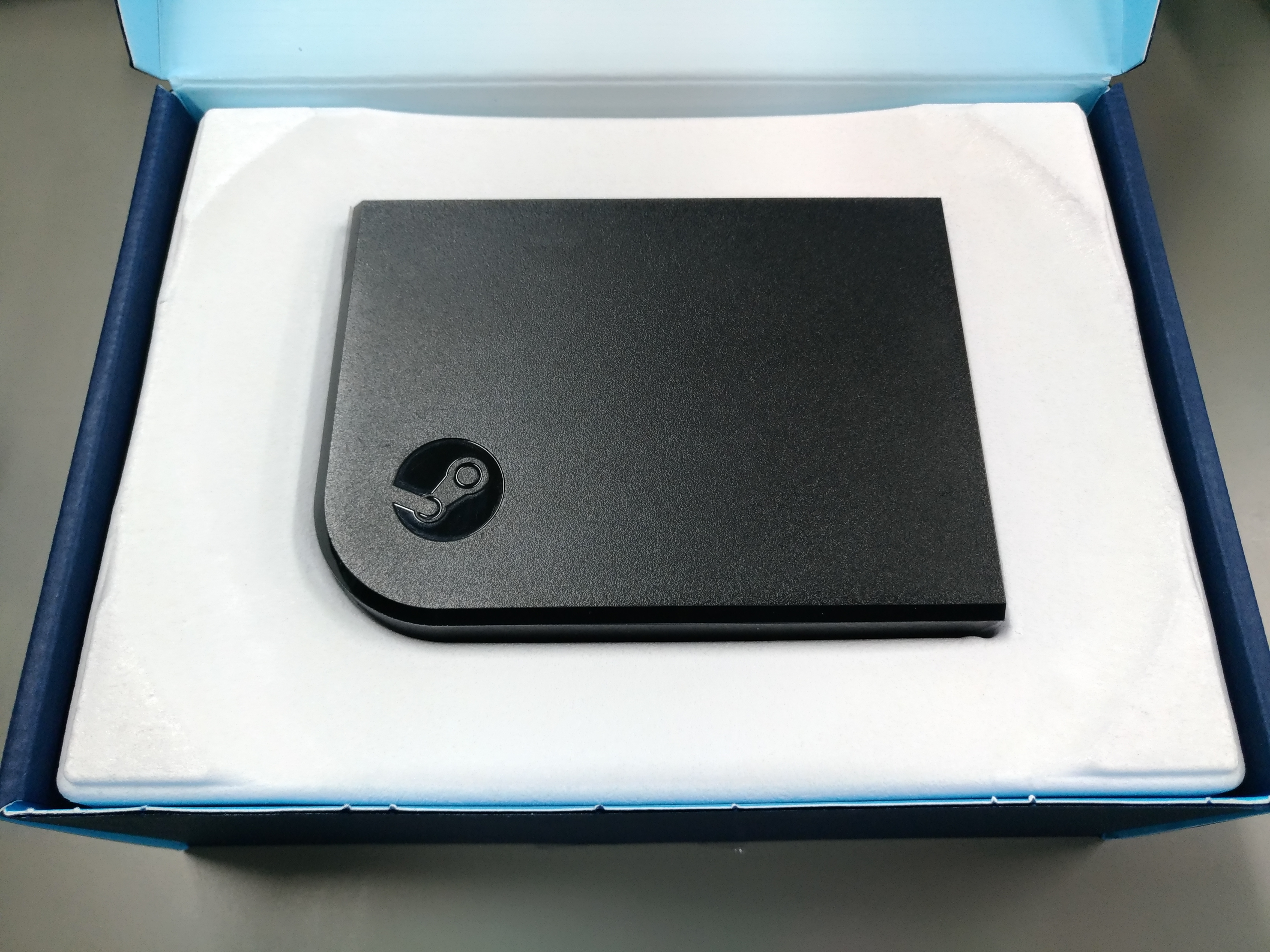
Originally produced as a stand-alone box in 2018, Valve released this tool as a free download to all Raspberry Pi users, making it accessible via a single line of code. Nice!

The result of Simon’s experiment was positive: he reported that setting up Steam Link was easy, and the final product was a simple and affordable means of playing PC games on his TV, away from his PC in another room.

And now…

Well, it’s 2020 and since many of us are staying home lately, so we figured it would be nice to remind you all that this streaming service is still available.

To set up Steam Link on your Raspberry Pi, simply enter the following into a terminal window:

sudo apt update
sudo apt install steamlink

The post Don’t forget about Steam Link on Raspberry Pi appeared first on Raspberry Pi.


Source: Raspberry Pi – Don’t forget about Steam Link on Raspberry Pi

Activities you can do at home this week!

At the Raspberry Pi Foundation, our mission is to put the power of computing and digital making into the hands of people all over the world. We know that a lot of families around the globe are navigating school closures and practicing social distancing right now to keep their communities healthy and safe.

So in today’s post, we put together a list for you with some of our free online projects and resources that digital makers of all ages and experience levels can explore at home.

A family of digital makers (illustration)

For most of these projects, you don’t need any new software or hardware. And many of our online resources are available in multiple languages, so young learners can use them even if their mother language isn’t English!

Free activities for you at home

Beginner level:

  • Rock band: This activity is a great introduction to Scratch, a block-based coding language. You’ll learn how to get started with Scratch and start your dream music group. Rock on!
  • Pixel art: This is a great activity for anyone just getting started with programming. Grab some crayons or colored pencils and create your masterpiece!
  • Web page stickers: In this activity, you’ll learn the basics of HTML and create some stickers. We can’t wait to see what you make!

pixel art (illustration)

Intermediate level

  • Storytime with Python (the language not the snake!): Let your imagination run wild with this activity! You will use Python to create a program that generates a random story, based on what the user types in.
  • Meme generator: In this activity you will make a meme generator with HTML, CSS, and Javascript! Using an image of your choice (bonus points if the image is of your pet), you can create your own memes.

example of a meme

Advanced level

  • Getting started with GUIs: In this activity, you will create two simple GUIs (graphical user interfaces) in Python. This is where you can get fancy with buttons, menus, and even a text box!
  • Pride and Prejudice for zombies: Learn how to use Python web requests and regular expressions while creating a version of Pride and Prejudice that’s more appealing to zombies.

Not just for young learners

  • Build a web server with Flask: This is a great how-to project if you’d like to learn how to set up a web server and create a simple website using Flask, Python, and HTML/CSS. Be aware though, the guide may not always work smoothly, because of external updates.
  • Sign up for one of our free online courses. From programming to physical computing and running coding clubs, we’ve got something that will inspire you.
  • Check out The MagPi magazine! Download the free PDF of this month’s MagPi and read about the #MonthOfMaking, getting started with electronics, fancy ways to wear your Raspberry Pi, and more.

People creating a robot (illustration)

We are here to support you!

Our team is working hard to bring you more online learning experiences to support you, your children, and everyone in the community at this time. You can read our CEO Philip Colligan’s message about how we are responding to the novel coronavirus.

We want to make sure digital makers of all ages have the resources they need to explore and create with code. What do you think of these activities, and what else would you like to see? Tell us in the comments below!

The post Activities you can do at home this week! appeared first on Raspberry Pi.


Source: Raspberry Pi – Activities you can do at home this week!

Build a physical game controller for Infinite Bunner

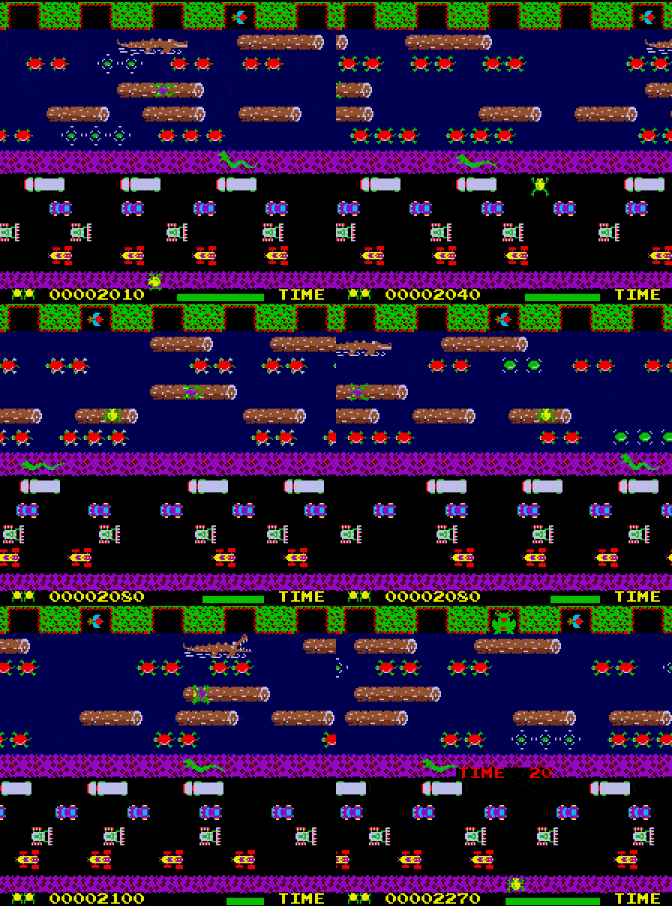
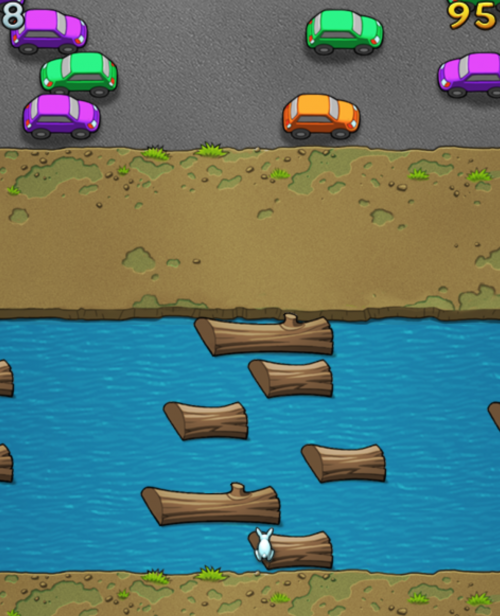
In HackSpace magazine issue 28 we had a look at how to create an ultrasonic controller for a version of Pong called Boing!. This month, we’re going to take a step further forward through video game history and look at the game Frogger. In this classic game, you control a frog as it makes its way across logs, roads, and train tracks, avoiding falling in the water or getting hit.

Infinite Bunner

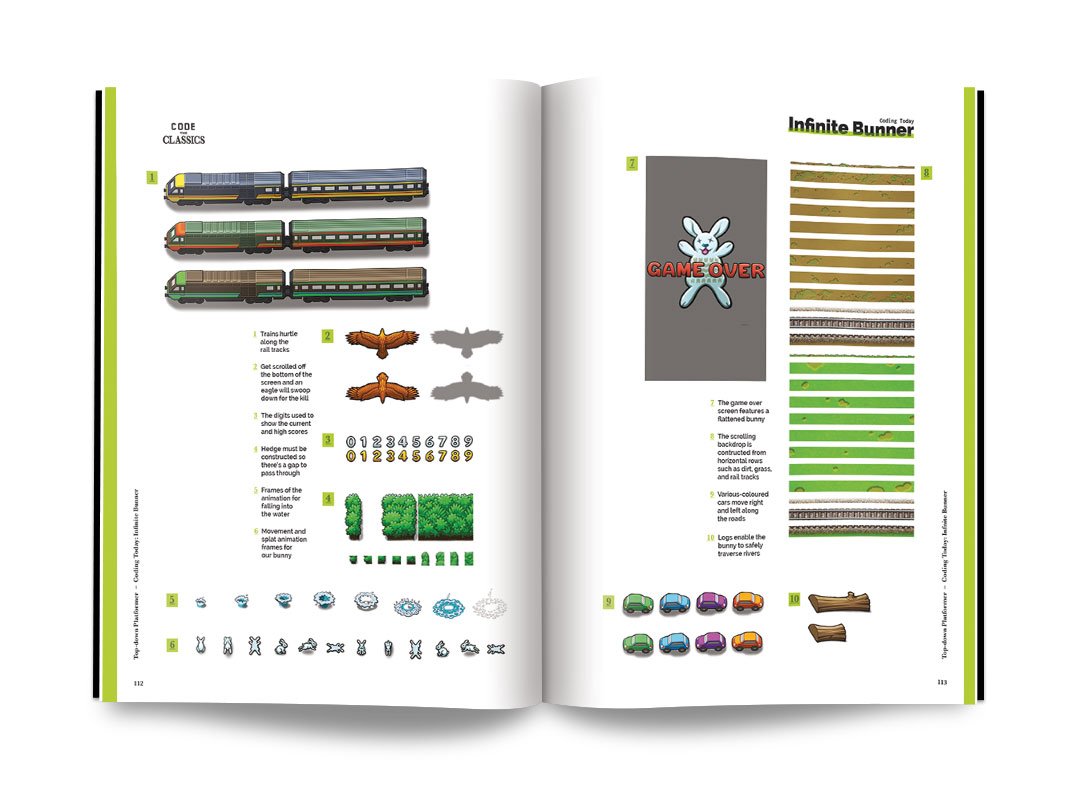
The tribute to Frogger in the new Code the Classics Volume 1 book is called Infinite Bunner, and works in much the same way, except you control a bunny.

Jump along the logs, dodge the traffic, avoid the trains, and keep your bunny alive for as long as possible

All this hopping got us thinking about a controller. Our initial idea was that since the animals jump, so should the controller. An accelerometer can detect freefall, so it shouldn’t be too hard to convert that into button presses. However, it turns out that computer-controlled frogs and rabbits can jump much, much faster than humans can, and we really struggled to get a working game mechanic, so we compromised a little and worked with ‘flicks’.

The flick controller

The basic idea is that you tilt the controller left or right to move left or right, but you have to flick it up to register a jump (simply holding it upright won’t work).

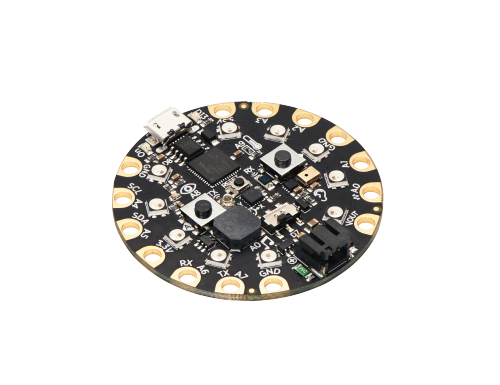
We’ve used a Circuit Playground Bluefruit as our hardware, but it would work equally well with a Circuit Playground Express. There are two key parts to the software. The first is reading in accelerometer values and use these to know what orientation the board is in, and the second is the board mimicing a USB keyboard and sending keystrokes to any software running on it.

Playing Infinite Bunner

The first step is to get Infinite Bunner working on your machine.

Get your copy of Code the Classics today

You can download the code for all the Code the Classics Volume 1 games here. Click on Clone or Download > Download ZIP. Unzip the download somewhere.

You’ll need Python 3 with Pygame Zero installed. The process for this differs a little between different computers, but there’s a good overview of all the different options on page 186 of Code the Classics.

Subscribe to HackSpace magazine for twelve months and you get a Circuit Playground Express for free! Then you can make your very own Infinite Bunner controller

Once everything’s set up, open a terminal and navigate to the directory you unzipped the code in. Then, inside that, you should find a folder called bunner-master and move into that. You can then run:

python3 bunner.py

Have a few goes playing the game, and you’ll find that you need the left, right, and up arrow keys to play (there is also the down arrow, but we’ve ignored this since we’ve never actually used it in gameplay – if you’re a Frogger/Bunner aficionado, you may wish to implement this as well).

Reading the accelerometer is as easy as importing the appropriate module and running one line:

from adafruit_circuitplayground import cp
x, y, z = cp.acceleration

Sending key presses is similarly easy. You can set up a keyboard with the following:

from adafruit_hid.keyboard import Keyboard

from adafruit_hid.keyboard_layout_us import KeyboardLayoutUS

from adafruit_hid.keycode import Keycode


keyboard = Keyboard(usb_hid.devices)

Then send key presses with code such as this:

time.keyboard.press(Keycode.LEFT_ARROW)
 time.sleep(0.1)

keyboard.release_all()

The only thing left is to slot in our mechanics. The X-axis on the accelerometer can determine if the controller is tilted left or right. The output is between 10 (all the way left) and -10 (all the way right). We chose to threshold it at 7 and -7 to require the user to tilt it most of the way. There’s a little bit of fuzz in the readings, especially as the user flicks the controller up, so having a high threshold helps avoid erroneous readings.

The Y-axis is for jumping. In this case, we require 
a ‘flap’ where the user first lifts it up (over a threshold of 5), then back down again.

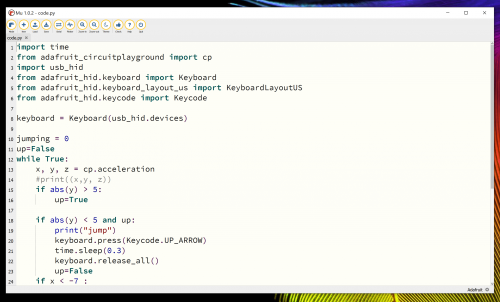
The full code for our controller is:

import time

from adafruit_circuitplayground import cp

import usb_hid

from adafruit_hid.keyboard import Keyboard

from adafruit_hid.keyboard_layout_us import KeyboardLayoutUS

from adafruit_hid.keycode import Keycode


keyboard = Keyboard(usb_hid.devices)


jumping = 0

up=False

while True:

    x, y, z = cp.acceleration

    if abs(y) > 5:

        up=True
    if y < 5 and up:

        keyboard.press(Keycode.UP_ARROW)
        time.sleep(0.3)

        keyboard.release_all()

        up=False

    if x < -7 :

        keyboard.press(Keycode.LEFT_ARROW)

        time.sleep(0.1)

        keyboard.release_all()

    if x < 7 :
 keyboard.press(Keycode.RIGHT_ARROW)

        time.sleep(0.1)

        keyboard.release_all()

        time.sleep(0.1)

    if jumping > 0:
        jumping=jumping-1

It doesn’t take much CircuitPython to convert a microcontroller into a games controller

The final challenge we had was that there’s a bit of wobble when moving the controller around – especially when trying to jump repeatedly and quickly. After fiddling with thresholds for a while, we found that there’s a much simpler solution: increase the weight of the controller. The easiest way to do this is to place it inside a book. If you’ve ever held a copy of Code the Classics, you’ll know that it’s a fairly weighty tome. Just place the board inside and close the book around it, and all the jitter disappears.

That’s all there is to the controller. You can use it to play the game, just as you would any joypad. Start the game as usual, then start flapping the book around to get hopping.

HackSpace magazine is out now

The latest issue of HackSpace magazine is out today and can be purchased from the Raspberry Pi Press online store. You can also download a copy if you want to see what all the fuss is about.


Code the Classics is available from Raspberry Pi Press as well, and comes with free UK shipping. And here’s a lovely video about Code the Classics artist Dan Malone and the gorgeous artwork he created for the book:

Code the Classics: Artist Dan Malone

No Description

The post Build a physical game controller for Infinite Bunner appeared first on Raspberry Pi.


Source: Raspberry Pi – Build a physical game controller for Infinite Bunner

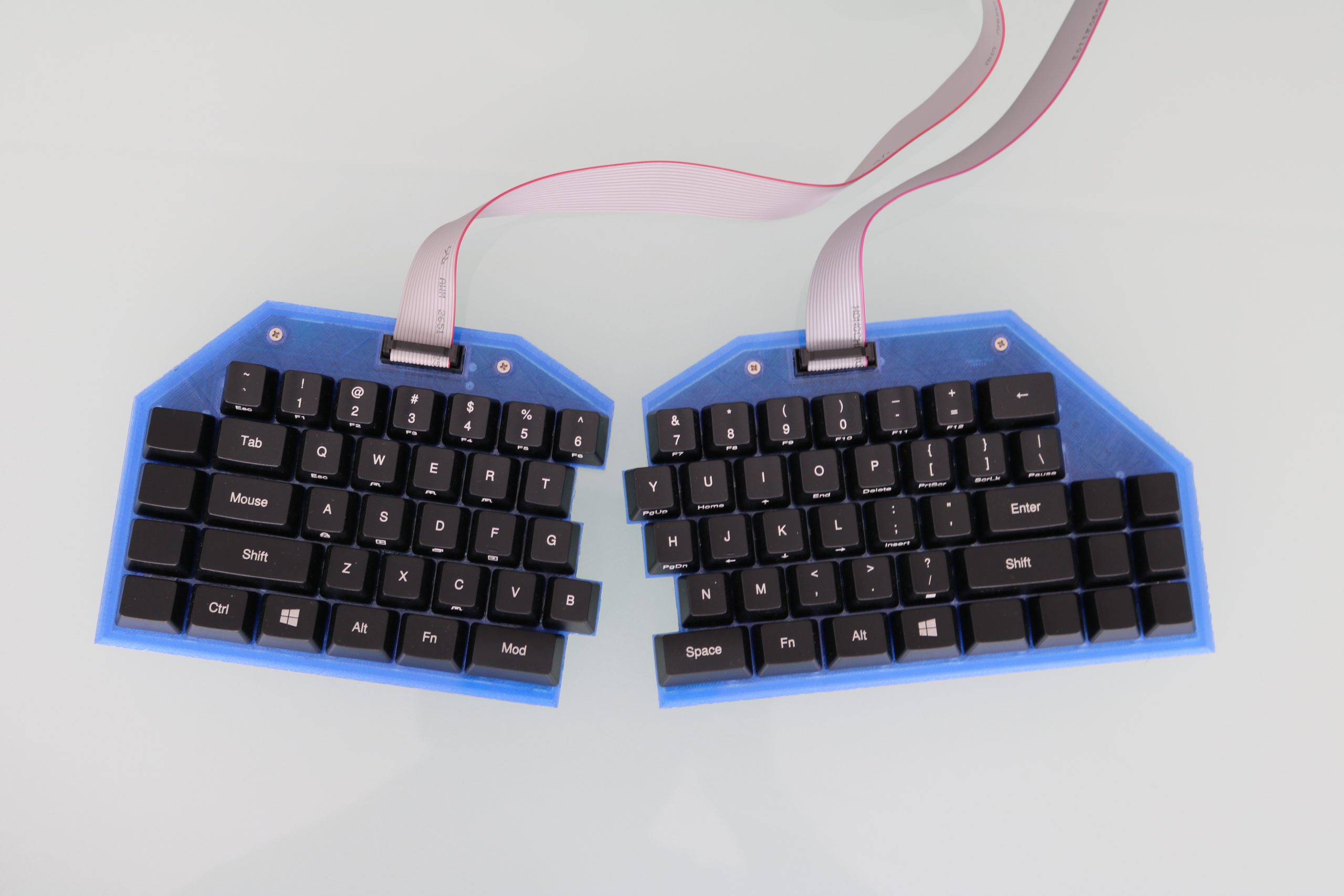
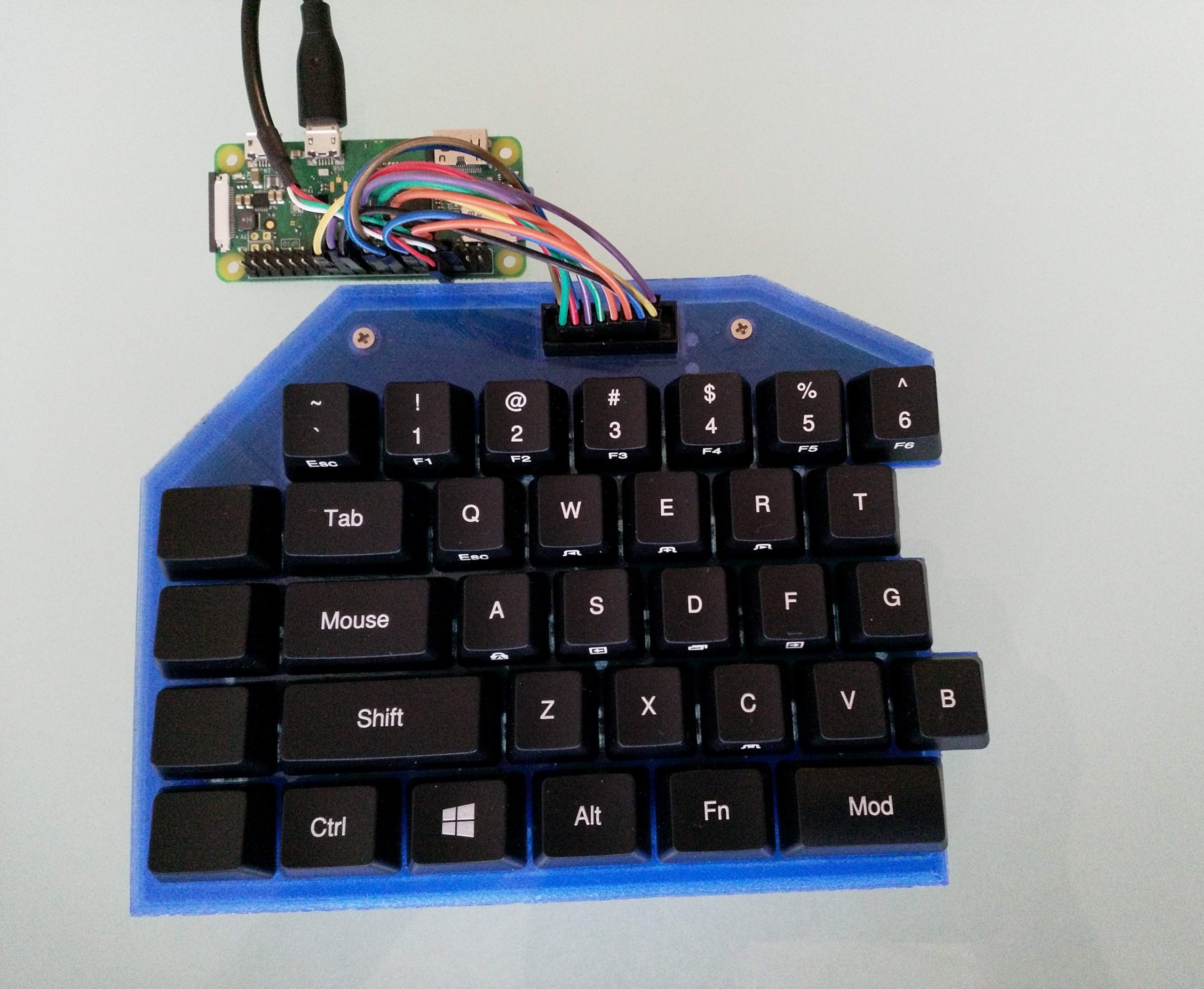
Building a split mechanical keyboard with a Raspberry Pi Zero controller

Looking to build their own ergonomic mechanical split keyboard, Gosse Adema turned to the Raspberry Pi Zero W for help.

So long, dear friend

Gosse has been happily using a Microsoft Natural Elite keyboard for years. You know the sort, they look like this:

Twenty years down the line, the keyboard has seen better days and, when looking for a replacement, Gosse decided to make their own.

This is my the first mechanical keyboard project. And this will be for daily usage. Although the possibilities are almost endless, I limit myself to the basic functionality: An ergonomic keyboard with mouse functions.

Starting from scratch

While searching for new switched, Gosse came across a low-profile Cherry MX that would allow for a thinner keyboard. And what’s the best device to use when trying to keep the profile of your project as thin as possible? Well, hello there, Raspberry Pi Zero W, aren’t you looking rather svelte today.

After deciding to use a Raspberry Pi as the keyboard controller over other common devices, Gosse took inspiration from an Adafruit tutorial on turning Raspberry Pi into a USB gadget, and from “the usbarmory Github page of Chris Kuethe”, which describes how to create a USB gadget with a keyboard.

Build your own

There is a lot *A LOT* of information on how Gosse built the keyboard on Instructables and, if we try to go into any detail here, our word count is going to be in the thousands. So, let’s just say this: the project uses some 3D printing, some Python code, and some ingenuity to create a lovely-looking final keyboard. If you want to make your own, Gosse has provided absolutely all the information you need to do so. So check it out, and be sure to give Gosse some love via the comments section on Instructables.

Mechanical keyboards

Also, if you’re unsure of how a mechanical keyboard differs from other keyboards, we made this handy video for you all!

How do mechanical keyboards work?

So, what makes a mechanical keyboard ‘mechanical’? And why are some mechanical keyboards more ‘clicky’ than others? Custom PC’s Edward Chester explains all. …

The post Building a split mechanical keyboard with a Raspberry Pi Zero controller appeared first on Raspberry Pi.


Source: Raspberry Pi – Building a split mechanical keyboard with a Raspberry Pi Zero controller

Wireframe’s deep(ish) dive into the glorious double jump

Yoshi aside, we can’t think of anyone who isn’t a fan of the double jump. In their latest video, the Wireframe magazine team take a deep(ish) dive into one of video gaming’s most iconic moves.

What is the Double Jump | Wireframe Deep Dive

The humble jump got a kick in 1984 with the introduction of the double jump, a physicist’s worst nightmare and one of video gaming’s most iconic moves. Subsc…

Also, HDR!

Are you looking to upgrade your computer monitor? Last week, Custom PC magazine, a publication of Raspberry Pi Press, released their latest video discussing HDR monitors. Are you ready to upgrade, and more importantly, should you?

What is an HDR monitor? High dynamic range explained | Custom PC magazine

High dynamic range (HDR) monitors are all the rage, but what exactly is HDR and which monitors produce the best image quality? Check out our full HDR guide: …

We produce videos for all our Raspberry Pi Press publications, including magazines such as The MagPi and HackSpace magazine, as well as our book releases, such as Code the Classics and Build Your Own First-Person Shooter in Unity.

Subscribe to the Raspberry Pi Press YouTube channel today and click on the bell button to ensure you’re notified of all new releases. And, for our complete publication library, visit the Raspberry Pi Press online store.

The post Wireframe’s deep(ish) dive into the glorious double jump appeared first on Raspberry Pi.


Source: Raspberry Pi – Wireframe’s deep(ish) dive into the glorious double jump

Recreate Flappy Bird’s flight mechanic | Wireframe #29

From last year’s issue 29 of Wireframe magazine: learn how to create your own version of the simple yet addictive side-scroller Flappy Bird. Raspberry Pi’s Rik Cross shows you how.

Flappy Bird: ridiculously big in 2014, at least for a while.

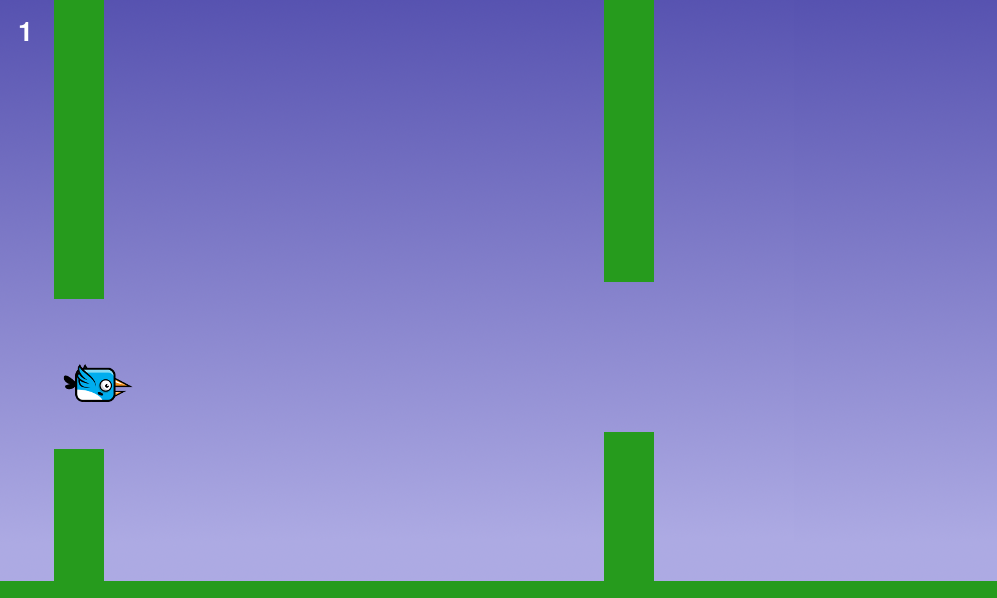
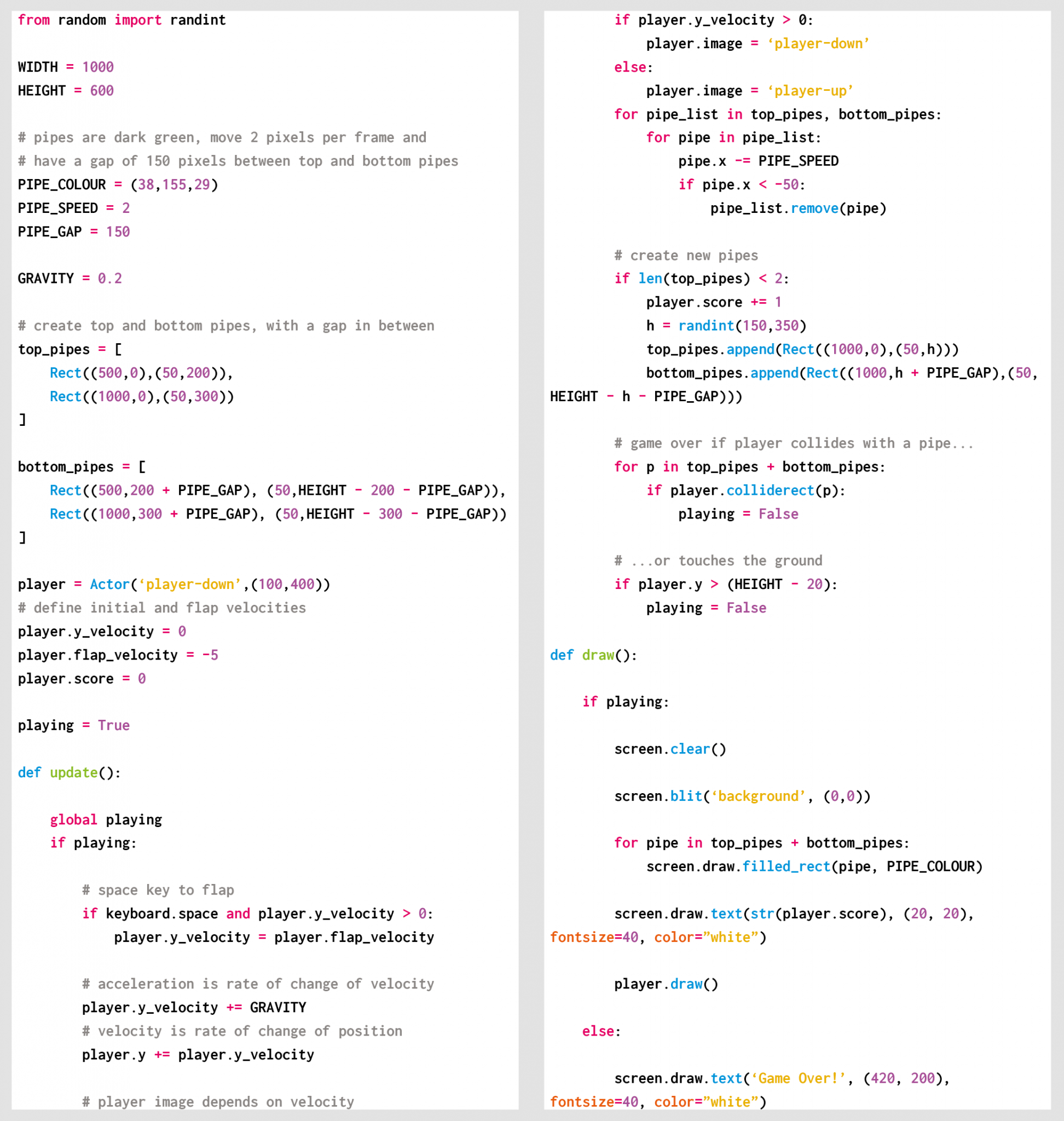
Flappy Bird was released by programmer Dong Nguyen in 2013, and made use of a straightforward game mechanic to create an addictive hit. Tapping the screen provided ‘lift’ to the main character, which is used strategically to navigate through a series of moving pipes. A point is scored for each pipe successfully passed. The idea proved so addictive that Nguyen eventually regretted his creation and removed it from the Google and Apple app stores. In this article, I’ll show you how to recreate this simple yet time-consuming game, using Python and Pygame Zero.

The player’s motion is very similar to that employed in a standard platformer: falling down towards the bottom of the screen under gravity. See the article, Super Mario-style jumping physics in Wireframe #7 for more on creating this type of movement. Pressing a button (in our case, the SPACE bar) gives the player some upward thrust by setting its velocity to a negative value (i.e. upwards) larger than the value of gravity acting downwards. I’ve adapted and used two different images for the sprite (made by Imaginary Perception and available on opengameart.org), so that it looks like it’s flapping its wings to generate lift and move upwards.

Pressing the SPACE bar gives the bird ‘lift’ against gravity, allowing it to navigate through moving pipes.

Sets of pipes are set equally spaced apart horizontally, and move towards the player slowly each frame of the game. These pipes are stored as two lists of rectangles, top_pipes and bottom_pipes, so that the player can attempt to fly through gaps between the top and bottom pipes. Once a pipe in the top_pipes list reaches the left side of the screen past the player’s position, a score is incremented and the top and corresponding bottom pipes are removed from their respective lists. A new set of pipes is created at the right edge of the screen, creating a continuous challenge for the player. The y-position of the gap between each newly created pair of pipes is decided randomly (between minimum and maximum limits), which is used to calculate the position and height of the new pipes.

The game stops and a ‘Game over’ message appears if the player collides with either a pipe or the ground. The collision detection in the game uses the player.colliderect() method, which checks whether two rectangles overlap. As the player sprite isn’t exactly rectangular, it means that the collision detection isn’t pixel-perfect, and improvements could be made by using a different approach. Changing the values for GRAVITY, PIPE_GAP, PIPE_SPEED, and player.flap_velocity through a process of trial and error will result in a game that has just the right amount of frustration! You could even change these values as the player’s score increases, to add another layer of challenge.

Here’s Rik’s code, which gets an homage to Flappy Bird running in Python. To get it working on your system, you’ll first need to install Pygame Zero. And to download the full code, go here.

If you’d like to read older issues of Wireframe magazine, you can find the complete back catalogue as free PDF downloads.

The latest issue of Wireframe is available in print to buy online from the Raspberry Pi Press store, with older physical issues heavily discounted too. You can also find Wireframe at local newsagents, but we should all be staying home as much as possible right now, so why not get your copy online and save yourself the trip?

Make sure to follow Wireframe on Twitter and Facebook for updates and exclusive offers and giveaways. And subscribe on the Wireframe website to save up to 49% compared to newsstand pricing!

The post Recreate Flappy Bird’s flight mechanic | Wireframe #29 appeared first on Raspberry Pi.


Source: Raspberry Pi – Recreate Flappy Bird’s flight mechanic | Wireframe #29

How the Raspberry Pi Foundation is responding to the novel coronavirus

In this blog post, I want to share an update on how the Raspberry Pi Foundation is responding to the novel coronavirus and what it means for our work to support people all over the planet to change their world through technology.

The situation is changing rapidly, and we’ll update this blog as our response develops.

Follow local public health advice

The main guidance to our teams, partners, and community members is that they should follow the local public health advice in the country or region where they are based.

The spread of the virus is at different stages in different parts of the world. That’s one reason why the public health advice differs so much depending on where you are. This is a new threat and there are competing theories about the best course of action. We see that in the different approaches that are being taken by different governments around the world.

To state what I am sure is obvious, we aren’t epidemiologists or public health experts. That’s why our approach is to follow the local public health advice.

Changes to our schedule of events

We’ve been working closely with venues, partners, sponsors, and community members to keep our programme of events under review. There aren’t currently any restrictions on events that affect the specific dates and places where our events are being held. The problem really is one of uncertainty.

Until now, we’ve taken a ‘wait and see’ approach for events, following the local public health guidance closely and working on the assumption that we will go ahead as planned, unless the local advice is to cancel. However, over the past couple of days, we have become increasingly concerned that we are asking people to book travel and make practical arrangements when we think that there is a high likelihood that we will have to cancel events at the last minute.

We have therefore taken a number of very difficult decisions about our events programme.

Cambridge Computing Education Research Symposium, 1 April 2020

We have decided to hold the Research Symposium as an online-only event. Plans for this are well developed, and we are looking forward to bringing together an amazing community of researchers, academics, and practitioners to discuss cutting-edge research on how young people learn computing and computer science. Registration remains open and we will provide updates on the event via the symposium web page.

Coolest Projects UK, 4 April 2020 in Manchester, and Coolest Projects International, 6 June 2020 in Dublin

We have decided to cancel both upcoming Coolest Projects events. This was a really tough decision. In both cases, there is just too much uncertainty for us to continue to ask young people, parents, mentors, and volunteers to make travel and other arrangements. We are exploring options for providing an online experience that will enable the young creators to still showcase their amazing projects, so please don’t stop work on your project. We will provide further updates on the Coolest Projects website.

Clubs and community-led events

We have issued guidance to the tens of thousands of brilliant human beings that organise Code Clubs, CoderDojos, Raspberry Jams, and other community-led events all over the world. Our message is that they should follow the local public health advice in their country or region and take decisions on whether to cancel their club or event in consultation with the venues that host them. If you are a club leader or an event organiser and you have a concern, please contact us in the usual way, or email us at events@raspberrypi.org.

We are working with community members and partners to increase our support for online learning, and we’ll say more about this soon. For now, clubs (and everyone else) can access all of our free learning resources online as usual.

Raspberry Pi computers

As a organisation with a global supply chain that makes and sells products all over the world, we have been working with our partners to minimise the impact of the pandemic on the availability of our products, and on the wellbeing of those involved in our supply chain and distribution network. At this stage, I am delighted to report that Raspberry Pi products are still available in all of the usual places and we’re working very hard to make sure that this continues.

Supporting colleagues

We have implemented a range of actions to support our colleagues wherever they work. This has included restricting non-essential international travel, encouraging and supporting flexible and home working, improving the cleaning and hygiene facilities at our offices, and putting in place extra support for colleagues who have increased caring responsibilities because of government or other institutions taking actions to control the spread of the virus, like school closures.

We are following local public health guidance on self-isolation and, for anyone who is unwell, we will provide sick pay as normal. We have committed that none of our employees will be out of pocket because of actions we take to prevent the spread of the virus.

We have encouraged colleagues to consider moving face to face meetings online, including job interviews. So if you’re due to meet anyone at the Foundation, they’ll check in with you about your preferences and agree the best approach with you. No-one will be disadvantaged in our recruitment processes if they prefer to be interviewed online.

Look out for each other

One of the best things about Raspberry Pi is the amazing community that we have the privilege to work with everyday. That includes our teams, partners and funders, educators, volunteers, businesses, and millions of incredible young digital makers.

Whatever happens over the coming days, weeks, and months, it feels increasingly likely that everyone in this community will be affected in some way. Hopefully, for most people that will be nothing more than being inconvenienced.

Personally, I am finding the uncertainty one of the hardest things to deal with. I’ve really appreciated all of the messages of support and offers of help that I’ve received over the past few days. This has always been an organisation and a community where people genuinely care about and support each other. Let’s all double down on that now.

Philip Colligan

CEO Raspberry Pi Foundation

The post How the Raspberry Pi Foundation is responding to the novel coronavirus appeared first on Raspberry Pi.


Source: Raspberry Pi – How the Raspberry Pi Foundation is responding to the novel coronavirus

Code a homage to Marble Madness | Wireframe #34

Code the map and movement basics of the innovative marble-rolling arcade game. Mark Vanstone shows you how.

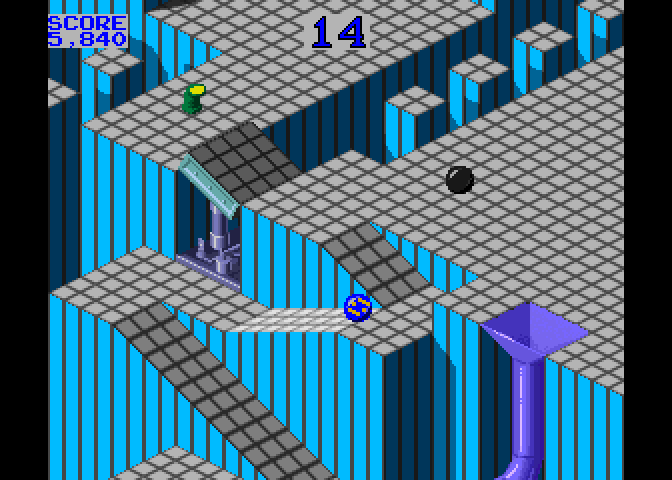
The original Marble Madness

Each of Marble Madness’ six levels got progressively harder to navigate and had to be completed within a time limit.

Marble Madness

Hitting arcades in 1984, Atari’s Marble Madness presented a rather different control mechanism than other games of the time. The original arcade cabinet provided players with a trackball controller rather than a conventional joystick, and the aim was to guide a marble through a three-dimensional course in the fastest possible time. This meant that a player could change the angle and speed of the marble as it rolled and avoid various obstacles and baddies.

During development, designer Mark Cerny had to shelve numerous ideas for Marble Madness, since the hardware just wasn’t able to achieve the level of detail and interaction he wanted. The groundbreaking 3D display was one idea that made it through to the finished game: its pre-rendered, ray-traced isometric levels.

Marble Madness was the first game to use Atari’s System 1 upgradeable hardware platform, and also boasted the first use of an FM sound chip produced by Yamaha to create its distinctive stereo music. The game was popular in arcades to start with, but interest appeared to drop off after a few months – something Cerny attributed to the fact that the game didn’t take long to play. Marble Madness’s popularity endured in the home market, though, with ports made for most computers and consoles of the time – although inevitably, most of these didn’t support the original’s trackball controls.

Our Python version of Marble Madness

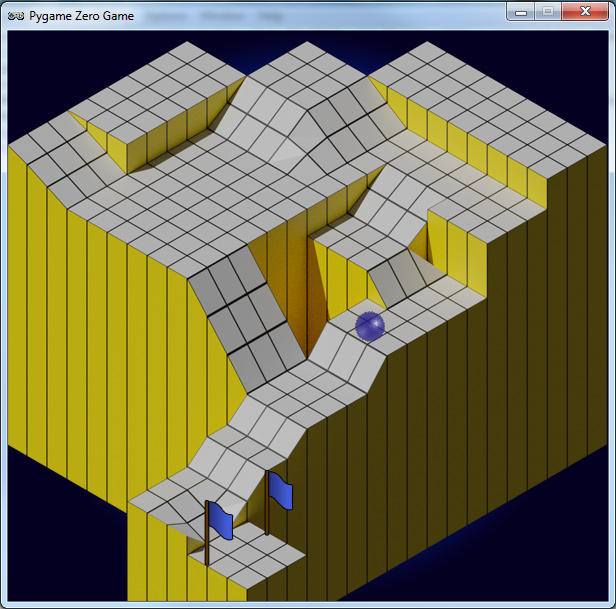
In our sample level, you can control the movement of the marble using the left and right arrow keys.

Making our game

For our version of Marble Madness, we’re going to use a combination of a rendered background and a heightmap in Pygame Zero, and write some simple physics code to simulate the marble rolling over the terrain’s flats and slopes. We can produce the background graphic using a 3D modelling program such as Blender. The camera needs to be set to Orthographic to get the forced perspective look we’re after. The angle of the camera is also important, in that we need an X rotation of 54.7 degrees and a Y rotation of 45 degrees to get the lines of the terrain correct. The heightmap can be derived from an overhead view of the terrain, but you’ll probably want to draw the heights of the blocks in a drawing package such as GIMP to give you precise colour values on the map.

The ball rolling physics are calculated from the grey-shaded heightmap graphic. We’ve left a debug mode in the code; by changing the debug variable to True, you can see how the marble moves over the terrain from the overhead viewpoint of the heightmap. The player can move the marble left and right with the arrow keys – on a level surface it will gradually slow down if no keys are pressed. If the marble is on a gradient on the heightmap, it will increase speed in the direction of the gradient. If the marble hits a section of black on the heightmap, it falls out of play, and we stop the game.

That takes care of the movement of the marble in two dimensions, but now we have to translate this to the rendered background’s terrain. The way we do this is to translate the Y coordinate of the marble as if the landscape was all at the same level – we multiply it by 0.6 – and then move it down the screen according to the heightmap data, which in this case moves the marble down 1.25 pixels for each shade of colour. We can use an overlay for items the marble always rolls behind, such as the finish flag. And with that, we have the basics of a Marble Madness level.

The code you'll need to make Marble Madness

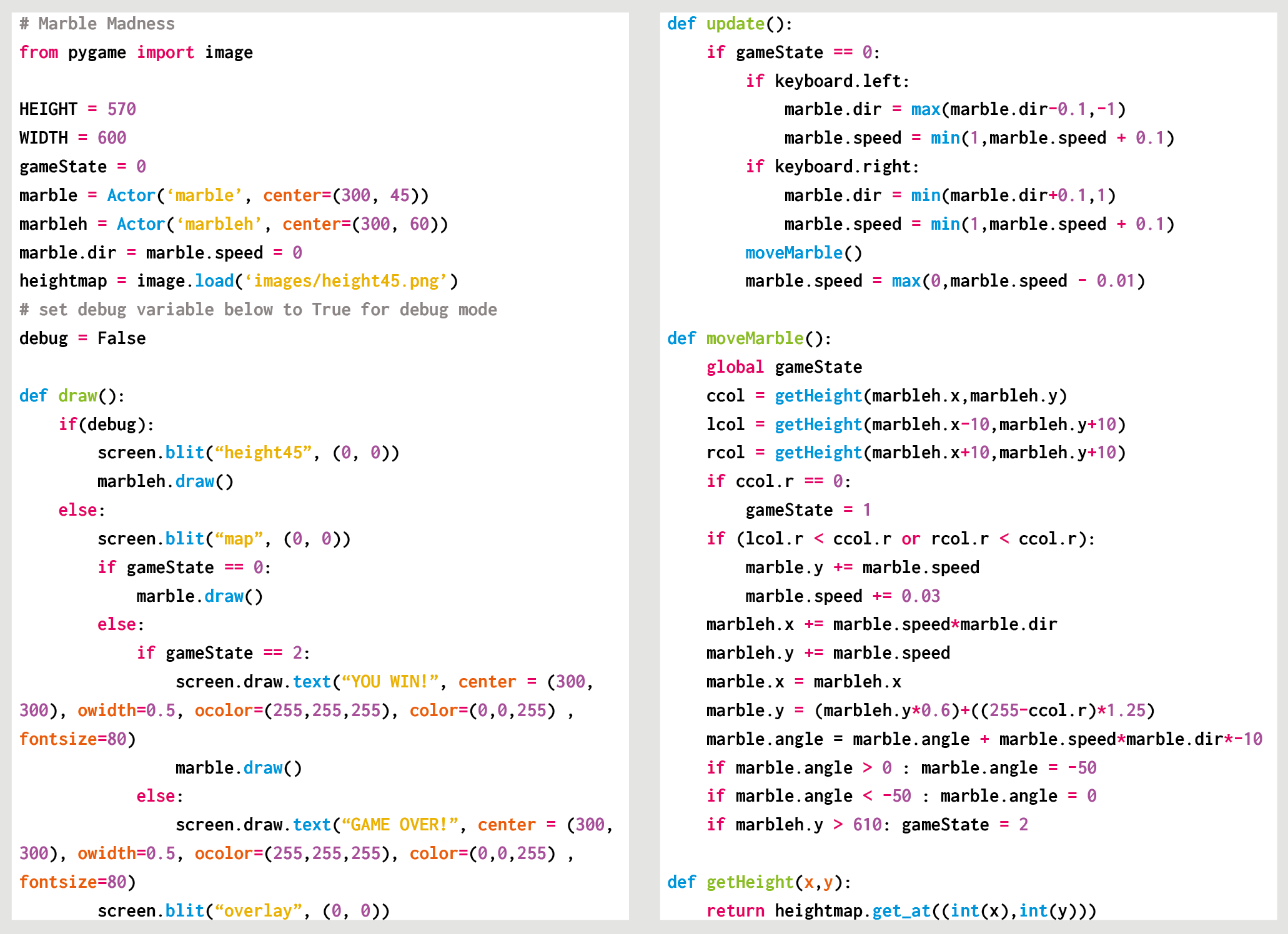
Here’s Mark’s code snippet, which creates a Marble Madness level in Python. To get it working on your system, you’ll need to install Pygame Zero. And to download the full code, go here.

Module Madness

We use the image module from Pygame to sample the colour of the pixel directly under the marble on the heightmap. We also take samples from the left diagonal and the right diagonal to see if there is a change of height. We are only checking for left and right movement, but this sample could be expanded to deal with the two other directions and moving up the gradients, too. Other obstacles and enemies can be added using the same heightmap translations used for the marble, and other overlay objects can be added to the overlay graphic.

Get your copy of Wireframe issue 34

You can read more features like this one in Wireframe issue 34, available now at Tesco, WHSmith, all good independent UK newsagents, and the Raspberry Pi Store, Cambridge.

Or you can buy Wireframe directly from Raspberry Pi Press — delivery is available worldwide. And if you’d like a handy digital version of the magazine, you can also download issue 34 for free in PDF format.

Wireframe #34

Make sure to follow Wireframe on Twitter and Facebook for updates and exclusive offers and giveaways. Subscribe on the Wireframe website to save up to 49% compared to newsstand pricing!

The post Code a homage to Marble Madness | Wireframe #34 appeared first on Raspberry Pi.


Source: Raspberry Pi – Code a homage to Marble Madness | Wireframe #34

Our approach to developing progression for teaching computing

Part of our work in the consortium behind the National Centre for Computing Education (NCCE) is to produce free classroom resources for teachers to deliver the Computing curriculum to students aged 5–16 in England. Our Director of Educator Support Carrie Anne Philbin describes how we define and represent progression in these resources.

For our work to develop a complete bank of free teaching resources that help teachers deliver the Computing curriculum in England, we knew that a strong progression framework is absolutely crucial. A progression framework is the backbone of any subject curriculum: it defines the sequence in which students learn, noting where core understanding of a topic is established in order to progress.

What’s the best approach to present progression?

We studied a lot of progression frameworks, examination specifications, and even some research papers. What we found is that there are two quite different ways of presenting progression that show what should be taught and when it should be taught, as well as information on how or why concepts should be taught.

Listing is one option

Firstly, there is the approach of creating a categorisation of skills and concepts into a list or table. Sequencing is shown by having objectives listed by Key Stage, year group, or even by learners’ age. Examples of this approach include the CAS computing progression pathways and the Massachusetts Digital Literacy and Computer Science Curriculum Framework. They are essentially lists of required knowledge that’s bundled by theme.

Mapping trajectories is another approach

Another approach is to use a map of possible trajectories through learning waypoints and importantly how they connect to each other. This approach highlights where prerequisite knowledge needs to be mastered before students can move on, as well as the dependent knowledge contained in other nodes that need to be mastered in order to progress.

Cambridge Mathematics are leading the way in “developing a flexible and interconnected digital Framework to help reimagine mathematics education 3-19”. We’ve been lucky enough to learn from their work, which has helped us to create learning graphs.

We develop learning graphs

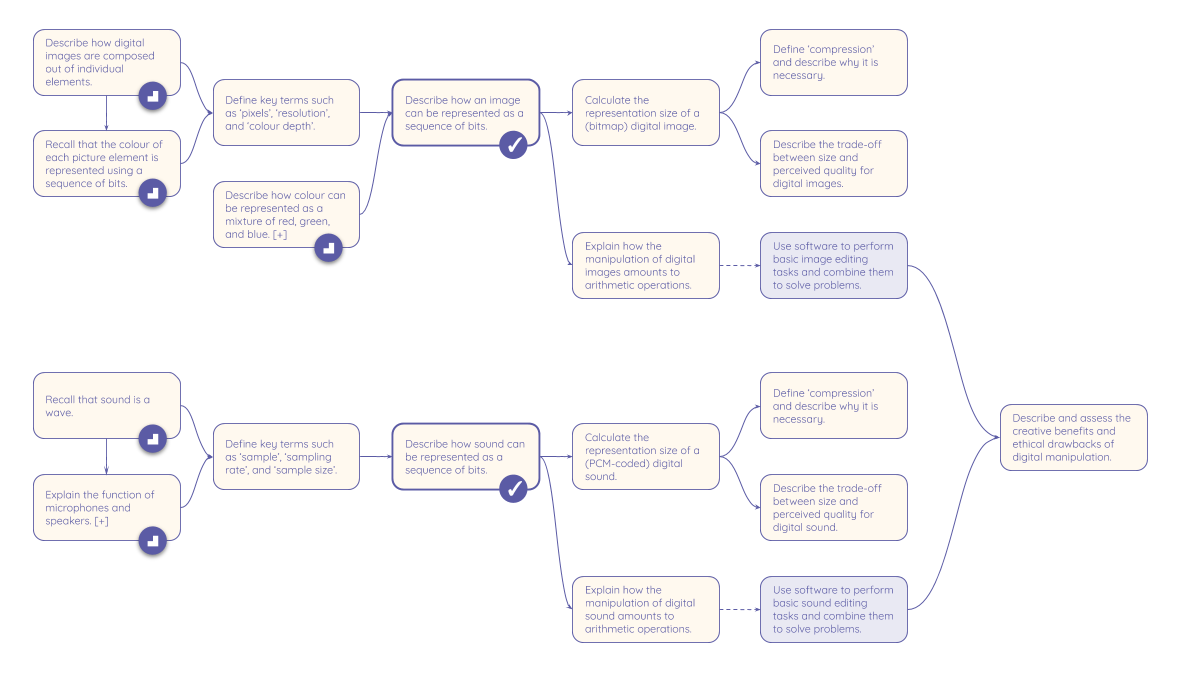
For our free classroom resources, we organise computing content (concepts, knowledge, skills, and objectives) into interconnected networks we call learning graphs. We found that nodes often form clusters corresponding to specific themes, and we can connect them if they represent two adjacent waypoints in the learning process. Depending on the level of abstraction, the nodes in a learning graph contain anything ranging from the contents of a curriculum strand across an entire Key Stage, to the learning objectives of a six-lesson unit.

The learning graph for the Year 9 unit Representations: going audiovisual

The learning graph for the Year 9 unit ‘Representations: going audiovisual’. Click to embiggen.

Initially, the graphs we produce are in a fluid state: they uncover the structure of the content and the possible journeys through it, without being bound to a specific teaching pathway. As we develop the content further, the graphs eventually reach a solid state, where the nodes are arranged to reflect our suggestions on the order in which teachers could actually deliver the content.

Learning graphs are doubly useful

We believe that learning graphs are useful to teachers on a whole new level: they directly inform lesson planning, but they also add value by showing opportunities to assess understanding at landmark waypoints in a lesson or unit. By checking that students are grasping the concepts, teachers are able to think more about how they are teaching and can revisit knowledge that perhaps didn’t land with learners the first time.
Woman teacher and female students at a computer

We need teachers’ feedback

All progression frameworks are subjective, and because so far there’s only little research into computing education, we rely on teachers’ experience of combining the ‘what’ we teach and ‘how’ to teach it in order to help inform this work. If you’ve not taken a look at our learning graphs for the NCCE Resource Repository, access them via teachcomputing.org/resources and let us know your thoughts via resourcesfeedback@raspberrypi.org.

A version of this article will be part of the upcoming issue of Hello World, our free magazine for computing educators, launching on 23 March. Follow Hello World on Twitter for updates!

The post Our approach to developing progression for teaching computing appeared first on Raspberry Pi.


Source: Raspberry Pi – Our approach to developing progression for teaching computing

Raspberry Pi vs antibiotic resistance: microbiology imaging with open source hardware

The Edwards Lab at the University of Reading has developed a flexible, low-cost, open source lab robot for capturing images of microbiology samples with a Raspberry Pi camera module. It’s called POLIR, for Raspberry Pi camera Open-source Laboratory Imaging Robot. Here’s a timelapse video of them assembling it.

Measuring antibiotic resistance with colour-changing dye

The robot is useful for all kinds of microbiology imaging, but at the moment the lab is using it to measure antimicrobial resistance in bacteria. They’re doing this by detecting the colour change in a dye called resazurin, which changes from blue to pink in the presence of metabolically active cells: if bacteria incubated with antibiotics grow, their metabolic activity causes the dye to turn pink. However, if the antibiotics stop or impede the growth of the bacteria, their lower levels of metabolic activity will cause less colour change, or none at all. In the photo below, the colourful microtitre plate holds bacterial samples with and without resistance to the antibiotics against which they’re being tested.

POLIR, an open source 3D printer-based Raspberry Pi lab imaging robot

An imaging system based on 3D-printer designs

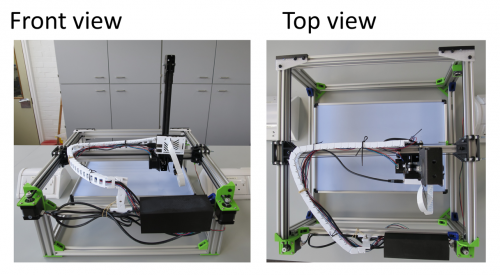
The researchers adapted existing open source 3D printer designs and used v-slot aluminium extrusion (this stuff) with custom 3D-printed joints to make a frame. Instead of a printer extrusion head, a Raspberry Pi and camera module are mounted on the frame. An Arduino running open-source Repetier software controls x-y-z stepper motors to adjust the position of the computer and camera.

Front and top views of POLIR

Open-source OctoPrint software controls the camera position by supplying scripts from the Raspberry Pi to the Arduino. OctoPrint also allows remote access and control, which gives researchers flexibility in when they run experiments and check progress. Images are acquired using a Python script configured with the appropriate settings (eg image exposure), and are stored on the Raspberry Pi’s SD card. From there, they can be accessed via FTP.

More flexibility, lower cost

Off-the-shelf lab automation systems are extremely expensive and remain out of the reach of most research groups. POLIR cost just £600.

The system has a number of advantages over higher-cost off-the-shelf imaging systems. One is its flexibility: the robot can image a range of sample formats, including agar plates like those in the video above, microtitre plates like the one in the first photograph, and microfluidic “lab-on-a-comb” devices. A comb looks much like a small, narrow rectangle of clear plastic with striations running down its length; each striation is a microcapillary with capacity for a 1μl sample, and each comb has ten microcapillaries. These microfluidic devices let scientists run experiments on a large number of samples at once, while using a minimum of space on a lab bench, in an incubator, or in an imaging robot like POLIR.

POLIR accommodates 2160 individual capillaries and a 96 well plate, with room to spare

High spatial and temporal resolution

For lab-on-a-comb images, POLIR gives the Reading team four times the spatial resolution they get with a static camera. The moveable Raspberry Pi camera with a short focus yields images with 6 pixels per capillary, compared to 1.5 pixels per capillary using a $700 static Canon camera with a macro lens.

Because POLIR is automated, it brings higher temporal resolution within reach, too. A non-automated system, by contrast, can only be used for timelapse imaging if a researcher repeatedly intervenes at fixed time intervals. Capturing kinetic data with timelapse imaging is valuable because it can be significant if different samples reach the same endpoint but at different rates, and because some dyes can give a transient signal that would be missed by an endpoint measurement alone.

Dr Alexander Edwards of the University of Reading comments:

We built the robot with a simple purpose, to make antimicrobial resistance testing more robust without resorting to expensive and highly specialised lab equipment […] The beauty of the POLIR kit is that it’s based on open source designs and we have likewise published our own designs and modifications, allowing everyone and anyone to benefit from the original design and the modifications in other contexts. We believe that open source hardware is a game changer that will revolutionise microbiological and other life science lab work by increasing data production whilst reducing hands-on labour time in the lab.

You can find POLIR on GitLab here. You can also read more, and browse more figures, in the team’s open-access paper, Exploiting open source 3D printer architecture for laboratory robotics to automate high-throughput time-lapse imaging for analytical microbiology.

The post Raspberry Pi vs antibiotic resistance: microbiology imaging with open source hardware appeared first on Raspberry Pi.


Source: Raspberry Pi – Raspberry Pi vs antibiotic resistance: microbiology imaging with open source hardware

How to use a button with a Raspberry Pi

Here’s our latest How to use video, showing you how to connect a button to your Raspberry Pi.

HOW TO USE a BUTTON with Raspberry Pi

Learn how to use a tactile button with your Raspberry Pi. They’re a great addition to any digital making project! Subscribe to our YouTube channel: http://rp…

Connect a button to Raspberry Pi

Attaching a button to your Raspberry Pi is a great way of introducing digital making into your coding experience. Use it to play music, turn lights on and off, or even shut down your device.

Follow our other How to use videos to learn how to use a servo motor, LED, and Raspberry Pi camera module with your Raspberry Pi. Try linking them together to build something grander, such as a digital camera, a robot, or a music box.

How to use Raspberry Pi

You’ll find a full list of our current How to use videos here – be sure to subscribe to our channel for more content as we release it.

The post How to use a button with a Raspberry Pi appeared first on Raspberry Pi.


Source: Raspberry Pi – How to use a button with a Raspberry Pi

Make a hamster feeder with Raspberry Pi Zero

People make marvellous things for their pets with Raspberry Pi. Here’s a splendid hamster feeder tutorial from Christopher Barnatt of Explaining Computers, just perfect if you’re after a small project for this weekend.

Raspberry Pi Zero Hamster Feeder

Raspberry Pi servo-controlled pet feeder, using a Raspberry Pi Zero and two SG90 servo motors. This project builds on the servo control code and setup from m…

All you need to build your hamster feeder is a Raspberry Pi Zero and peripherals, a couple of servos, some plasticard, sellotape and liquid polyadhesive, and some jumper wires. The video takes you very clearly through the entire set-up, from measurements to wiring details to Python code (which is available to download). As Christopher explains, this will allow you to feed your hamster controlled portions of food at suitable intervals, so that it doesn’t eat the lot in one go and, consequently, explode. What’s not to love?

Check out the Explaining Computers YouTube channel for more clear, detailed videos to help you do more with computing. And for more Raspberry Pi projects, head to our own Raspberry Pi projects, with hundreds of ideas for beginners and beyond available in English and many other languages.

The post Make a hamster feeder with Raspberry Pi Zero appeared first on Raspberry Pi.


Source: Raspberry Pi – Make a hamster feeder with Raspberry Pi Zero

Introducing Raspberry Pi Imager, our new imaging utility

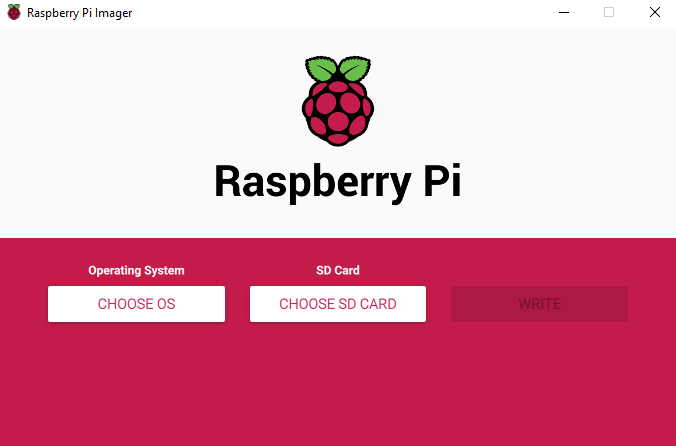
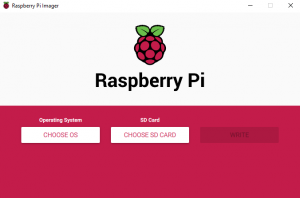
We’ve made a simpler way to image your microSD card with Raspbian, the official Raspberry Pi operating system, and other operating systems. Introducing our new imaging utility, Raspberry Pi Imager.

Raspberry Pi Imager

Simplifying the Raspberry Pi experience

For me, one of the most important aspects of the Raspberry Pi experience is trying to make it as easy as possible to get started.  To this end, since launching the first Raspberry Pi, we’ve added a GUI to our operating system, a wizard to help you set up your Raspberry Pi the first time you boot it, and lots of books and magazines to get people up and running.  We’ve even developed the Raspberry Pi Desktop Kit to put all the things you need (yes, Alex, I know – except for a monitor) into a single box to make it as easy as possible!

SD cards can be a bit tricky

Despite all these moves towards more simplicity, when it comes to microSD cards, programming them with your favourite Raspberry Pi operating system has always been a little bit tricky.

The main problem comes from the differences between the operating systems that people’s main computers are likely to use: Windows, macOS, and Linux all use different methods of accessing the SD card, which doesn’t help matters. And, for some new Raspberry Pi users, understanding where to find the latest up-to-date image and how to get it onto the microSD card can be a bit confusing, unless you’ve had prior experience with image-flashing tools such as Etcher.

For that reason, we’ve always suggested that you should buy a pre-loaded NOOBS SD card from your Raspberry Pi Approved Reseller.

But what if you want to re-image an existing card?

Introducing the new Raspberry Pi Imager

Image Utility

No Description

From today, Raspberry Pi users will be able to download and use the new Raspberry Pi Imager, available for Windows, macOS and Ubuntu.

Raspberry Pi Imager


The utility is simple to use and super speedy, thanks to some shortcuts we’ve introduced into the mechanics.

Firstly, Raspberry Pi Imager downloads a .JSON file from our website with a list of all current download options, ensuring you are always installing the most up-to-date version.

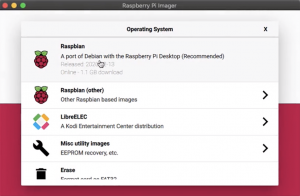
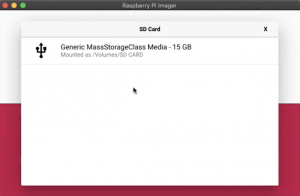
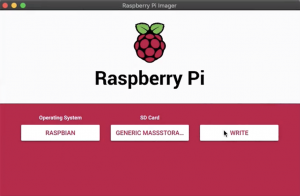
Once you’ve selected an operating system from the available options, the utility reads the relevant file directly from our website and writes it straight to the SD card. This speeds up the process quite considerably compared to the standard process of reading it from the website, writing it to a file on your hard drive, and then, as a separate step, reading it back from the hard drive and writing it to the SD card.

During this process, Raspberry Pi Imager also caches the downloaded operating system image – that is to say, it saves a local copy on your computer, so you can program additional SD cards without having to download the file again.

Open source and ready to go!

Download the Raspberry Pi Imager from our downloads page today.

Raspberry Pi Imager is fully open source and was originally written as a modification of the PiBakery tool, later modified and finished by Floris Bos (the original writer of the NOOBS tool and the PiServer tool). You can see Floris’ other software, for data centres, here.

The post Introducing Raspberry Pi Imager, our new imaging utility appeared first on Raspberry Pi.


Source: Raspberry Pi – Introducing Raspberry Pi Imager, our new imaging utility

SD Card Speed Test

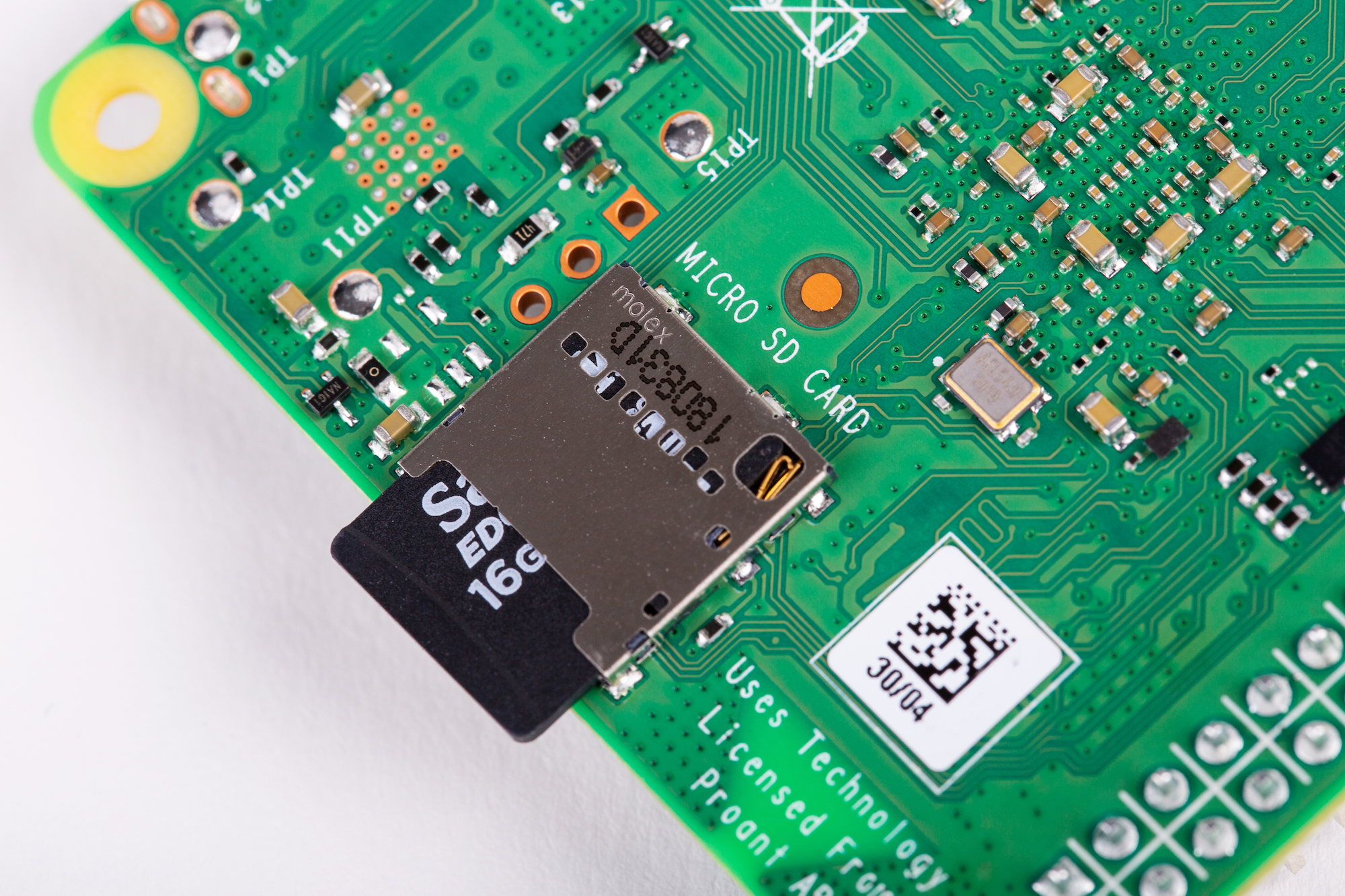
Since we first launched Raspberry Pi, an SD card (or microSD card) has always been a vital component. Without an SD card to store the operating system, Raspberry Pi is pretty useless*! Over the ensuing eight years, SD cards have become the default removable storage technology, used in cameras, smartphones, games consoles and all sorts of other devices. Prices have plummeted to the point where smaller size cards are practically given away for free, and at the same time storage capacity has increased to the point where you can store a terabyte on your thumbnail.

SD card speed ratings, and why they matter

However, the fact that SD cards are now so commonplace sometimes conceals the fact that not all SD cards are created equal. SD cards have a speed rating – how fast you can read or write data to the card – and as card sizes have increased, so have speed ratings. If you want to store 4K video from your digital camera, it is important not just that the card is big enough to hold it, but also that you can write it to the card fast enough to keep up with the huge amount of data coming out of the camera.

The speed of an SD card will also directly affect how fast your Raspberry Pi runs, in just the same way as the speed of a hard drive affects how fast a conventional desktop computer runs. The faster you can read data from the card, the faster your Raspberry Pi will boot, and the faster programs will load. Equally, write speed will also affect how well any programs which save large quantities of data run – so it’s important to use a good-quality card.

What speed can I expect from my SD card?

The speed rating of an SD card should be printed either on the card itself or on the packaging.

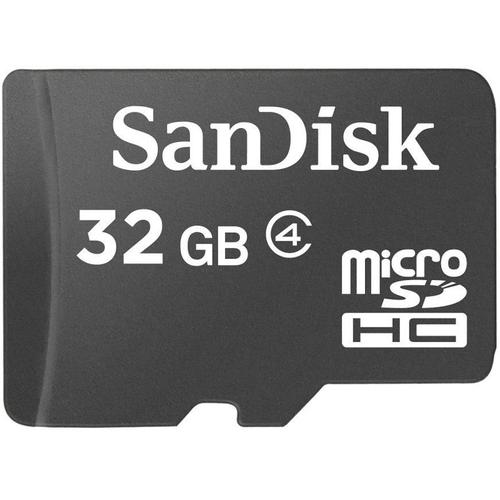
The 32GB card shown below is Class 4, denoted by the 4 inside the letter C – this indicates that it can write at 4MB/s.

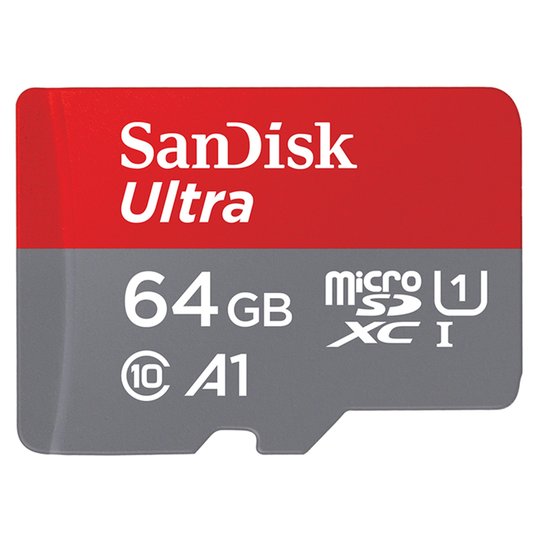
The 64GB card shown below is Class 10, and so can write at 10MB/s. It also shows the logo of UHS (“ultra high speed”) Class 1, the 1 inside the letter U, which corresponds to the same speed.

More recently, speeds have started to be quoted in terms of the intended use of the card, with Class V10 denoting a card intended for video at 10MB/s, for example. But the most recent speed categorisation – and the one most relevant to use in a Raspberry Pi – is the new A (for “application”) speed class. We recommend the use of Class A1 cards (as the one above – see the A1 logo to the right of the Class 10 symbol) in Raspberry Pi – in addition to a write speed of 10MB/s, these support at least 1500 read operations and 500 write operations per second. All the official Raspberry Pi microSD cards we sell meet this specification.

A new tool for testing your SD card speed

We’ve all heard the stories of people who have bought a large capacity SD card at a too-good-to-be-true price from a dodgy eBay seller, and found that their card labelled as 64GB can only actually hold 2GB of data. But that is at least fairly easy to spot – it’s much harder to work out whether your supposedly fast SD card is actually meeting its specified speed, and unscrupulous manufacturers and sellers often mislabel low quality cards as having unachievable speeds.

Today, as the first part of a new suite of tests which will enable you to perform various diagnostics on your Raspberry Pi hardware, we are releasing a tool which allows you to test your SD card to check that it performs as it should.

To install the new tool, from a terminal do

sudo apt update
sudo apt install agnostics

(“agnostics”? In this case it’s nothing to do with religion! I’ll leave you to work out the pun…)

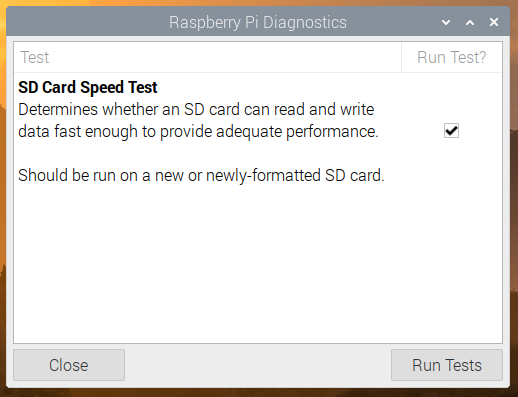
Once installed, you will find the new application “Raspberry Pi Diagnostics” in the main menu under “Accessories”, and if you launch it, you’ll see a screen like this:

In future, this screen will show a list of the diagnostic tests, and you will be able to select which you want to run using the checkboxes in the right-hand column. But for now, the only test available is SD Card Speed Test; just press “Run Tests” to start it.

Understanding your speed test results

One thing to note is that the write performance of SD cards declines over time. A new card is blank and data can be written to what is effectively “empty” memory, which is fast; but as a card fills up, memory needs to be erased before it can be overwritten, and so writes will become slower the more a card is used. The pass / fail criteria in this test assume a new (or at least freshly formatted) card; don’t be alarmed if the write speed test fails when run on the SD card you’ve been using for six months! If you do notice your Raspberry Pi slowing down over time, it may be worth backing up your SD card using the SD Card Copier tool and reformatting it.

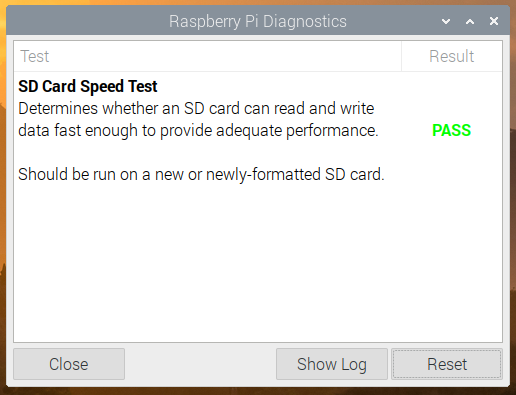
The test takes a minute or so to run on a Raspberry Pi 4 (it’ll take longer on older models), and at the end you’ll see a results screen with either (hopefully) PASS or (if you are less fortunate) FAIL. To see the detailed results of the speed test, press “Show Log”, which will open the test log file in a text editor. (The log file is also written to your home directory as rpdiags.txt.)

We are testing against the A1 specification, which requires a sequential write speed of 10MB/s, 500 random write operations per second, and 1500 random read operations per second; we run the test up to three times. (Tests of this nature are liable to errors due to other background operations accessing the SD card while the test is running, which can affect the result – by running the test multiple times we try to reduce the likelihood of a single bad run resulting in a fail.)

If the test result was a pass, great! Your SD card is good enough to provide optimum performance in your Raspberry Pi. If it failed, have a look in the log file – you’ll see something like:

Raspberry Pi Diagnostics - version 0.1
Mon Feb 24 09:44:16 2020

Test : SD Card Speed Test
Run 1
prepare-file;0;0;12161;23
seq-write;0;0;4151;8
rand-4k-write;0;0;3046;761
rand-4k-read;9242;2310;0;0
Sequential write speed 4151 kb/s (target 10000) - FAIL
Note that sequential write speed declines over time as a card is used - your card may require reformatting
Random write speed 761 IOPS (target 500) - PASS
Random read speed 2310 IOPS (target 1500) - PASS
Run 2
prepare-file;0;0;8526;16
...

You can see just how your card compares to the stated targets; if it is pretty close to them, then your card is only just below specification and is probably fine to use. But if you are seeing significantly lower scores than the targets, you might want to consider getting another card.

[*] unless you’re using PXE network or USB mass storage boot modes of course.

The post SD Card Speed Test appeared first on Raspberry Pi.


Source: Raspberry Pi – SD Card Speed Test

The MagPi 91: #MonthOfMaking is back for 2020!

If you read The MagPi, it’s safe to say you like making in some way. The hobby has exploded in popularity over the last few years, thanks in no small part to a burgeoning online community and the introduction of low-cost computing with Raspberry Pi.

Last year we decided to celebrate making with a month-long online event called #MonthOfMaking. The idea was simply to get people to share what they’re making online, whatever it was. Whether you’re turning on your first LED with code or sending rockets to the moon, we want to create a space where you can share your proud achievements. So, let’s get making.

What is #MonthOfMaking?

#MonthOfMaking is simply an excuse to get people inspired to make something. And by make, we mean electronics, engineering, art, and craft projects. Get your creative powers buzzing and make something that you can show to the world.

There’s no skill-level threshold to participating either. If you’ve been wanting to start learning, this can be your jumping-on point. By sharing your builds with the community, you can learn and grow. Here are some simple rules to sum it all up:

  1. Find a new project, continue with one you’re working on, or finally crack on with something you’ve been putting off.
  2. Take pictures of your build progress and share it online with the hashtag #MonthOfMaking.
  3. If you can help someone with a problem, give them a hand.
  4. Have fun!

Getting ideas and inspiration

We’ve all been there. Sat down at a work bench or desk, staring at some components and thinking… what can I make with this? What would I like to make? Like any other creative pursuit, you’ll need some inspiration. If the projects in the magazine haven’t inspired you, then here are some website suggestions…

Instructables

Instructables is one of the oldest sites out there for finding amazing project guides and ideas, and we’ve been fans of it for years. The best part is you can search by specific project types as well, including Raspberry Pi if you’d like to keep it on‑brand. They’ve recently added more arts and crafts stuff if you fancy trying your hand at knitting.

Hackaday and Hackster

For more serious hacks for more advanced makers, Hackaday and Hackster have some great projects that really take a deep dive into a project. If you’re curious as to the limits of electronics and programming, these may be the place to look. Equally, if you want to do something huge with a lot of computer power, they should be your first stop.

Raspberry Pi projects

There are so many amazing things on the Raspberry Pi projects site that can help you with your first steps in just about any field of making. It’s also home to loads of great and simple home-grown projects that are perfect for young makers and older makers alike.

Planning your build

Step 01 Read and understand

Basing your build on a tutorial you’ve seen? Seen a few things you’d like to combine into something else? Always make sure to read the instructions you’ve found properly so that you know if it’s within your skill level.

Step 02 Order supplies
Write a list of what you need. Always double‑check you have the component you think you have. Sometimes you may need to buy from separate places, so just make sure the delivery times work for you.

Step 03 Follow along and be safe

Need adult supervision for a project? Absolutely get some. Even adults need to be wary, so always take safety precautions and wear protective clothing when needed. Make sure to follow any tutorials you’ve found as closely as you can.

Read The MagPi for free!

The rest of our #MonthOfMaking guide, along with loads more amazing projects and tutorials, can be found in The MagPi #91, out today, including our starter electronics guide! You can get The MagPi #91 online at our store, or in print from the Raspberry Pi Store in Cambridge and all good newsagents and supermarkets. You can also access The MagPi magazine via our Android and iOS apps.

We have a new US subscription offer!

Don’t forget our amazing subscription offers, which include a free gift of a Raspberry Pi Zero W when you subscribe for twelve months. Until the end of March, you can get a twelve-month subscription in the US for only $60! Head to magpi.cc/usa to find out more.

And, as with all our Raspberry Pi Press publications, you can download the free PDF from our website.

The post The MagPi 91: #MonthOfMaking is back for 2020! appeared first on Raspberry Pi.


Source: Raspberry Pi – The MagPi 91: #MonthOfMaking is back for 2020!

Code a Zaxxon-style axonometric level | Wireframe #33

Fly through the space fortress in this 3D retro forced scrolling arcade sample. Mark Vanstone has the details

A shot from Sega's arcade hit, Zaxxon

Zaxxon was the first arcade game to use an axonometric viewpoint, which made it look very different from its 2D rivals.

Zaxxon

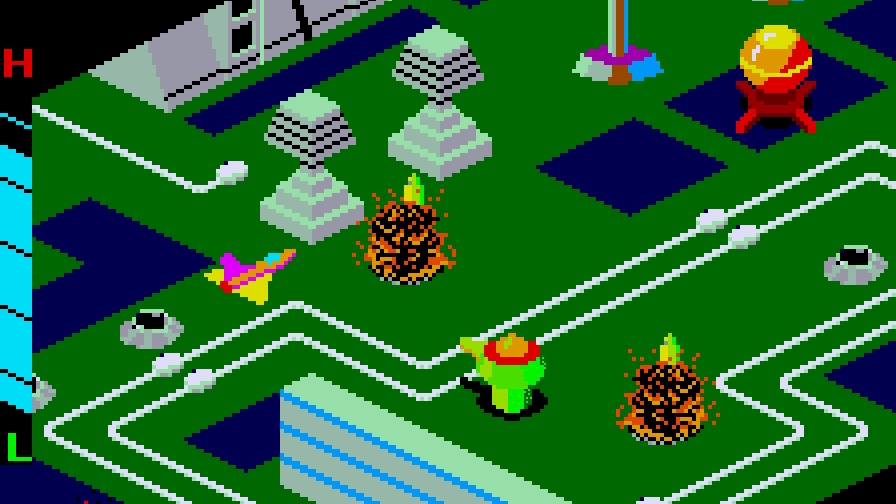
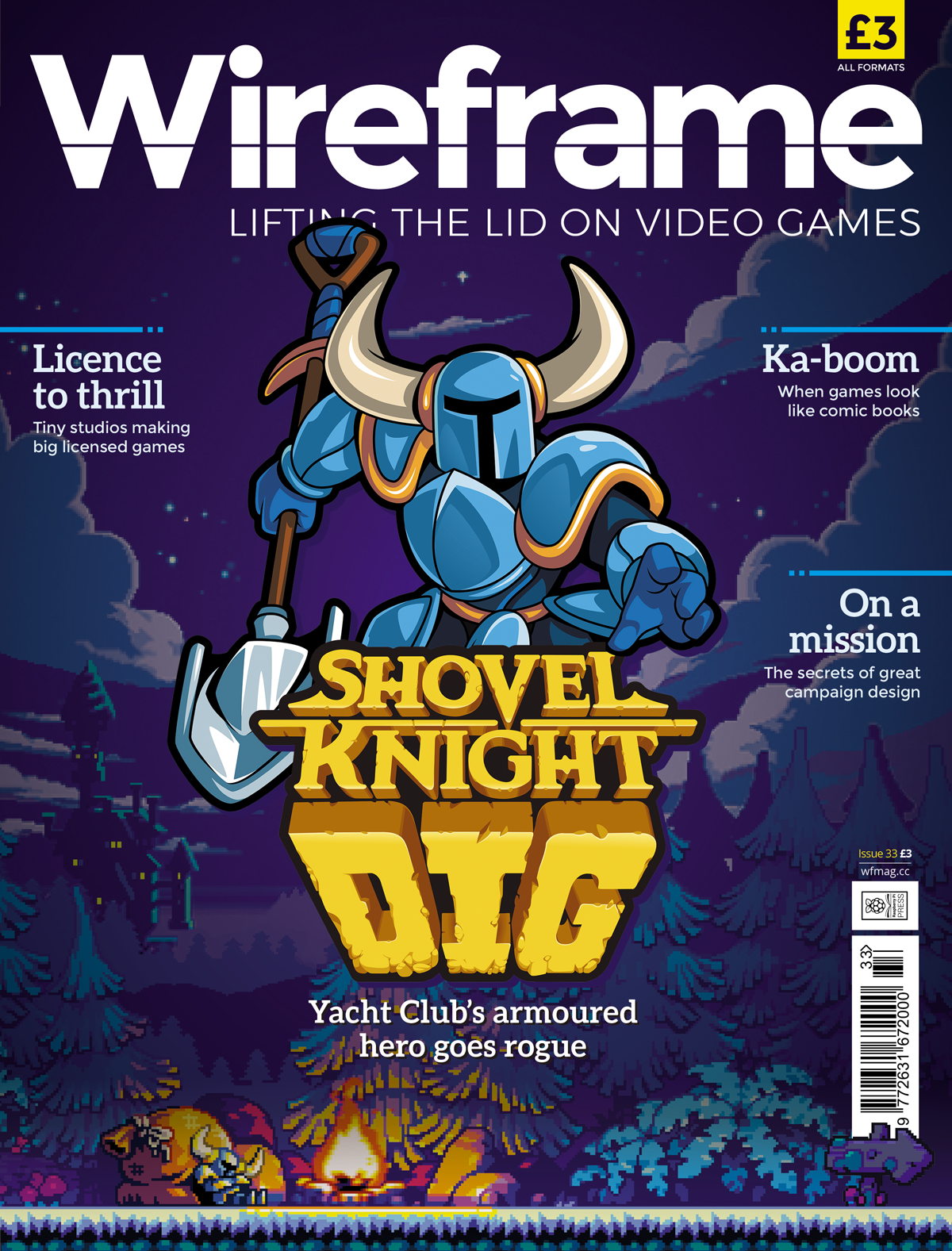
When Zaxxon was first released by Sega in 1982, it was hailed as a breakthrough thanks to its pseudo-3D graphics. This axonometric projection ensured that Zaxxon looked unlike any other shooter around in arcades.

Graphics aside, Zaxxon offered a subtly different twist on other shooting games of the time, like Defender and Scramble; the player flew over either open space or a huge fortress, where they had to avoid obstacles of varying heights. Players could tell how high they were flying with the aid of an altimeter, and also the shadow beneath their ship (shadows were another of Zaxxon’s innovations). The aim of the game was to get to the end of each level without running out of fuel or getting shot down; if the player did this, they’d encounter an area boss called Zaxxon. Points were awarded for destroying gun turrets and fuel silos, and extra lives could be gained as the player progressed through the levels.

A shot of our Pygame version of Zaxxon

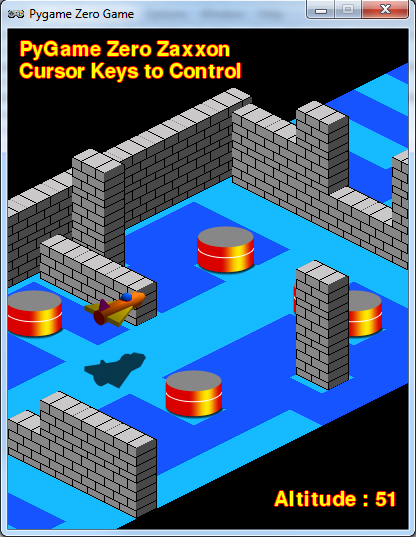
Our Zaxxon homage running in Pygame Zero: fly the spaceship through the fortress walls and obstacles with your cursor keys.

Making our level

For this code sample, we can borrow some of the techniques used in a previous Source Code article about Ant Attack (see Wireframe issue 15) since it also used an isometric display. Although the way the map display is built up is very similar, we’ll use a JSON file to store the map data. If you’ve not come across JSON before, it’s well worth learning about, as a number of web and mobile apps use it, and it can be read by Python very easily. All we need to do is load the JSON file, and Python automatically puts the data into a Python dictionary object for us to use.

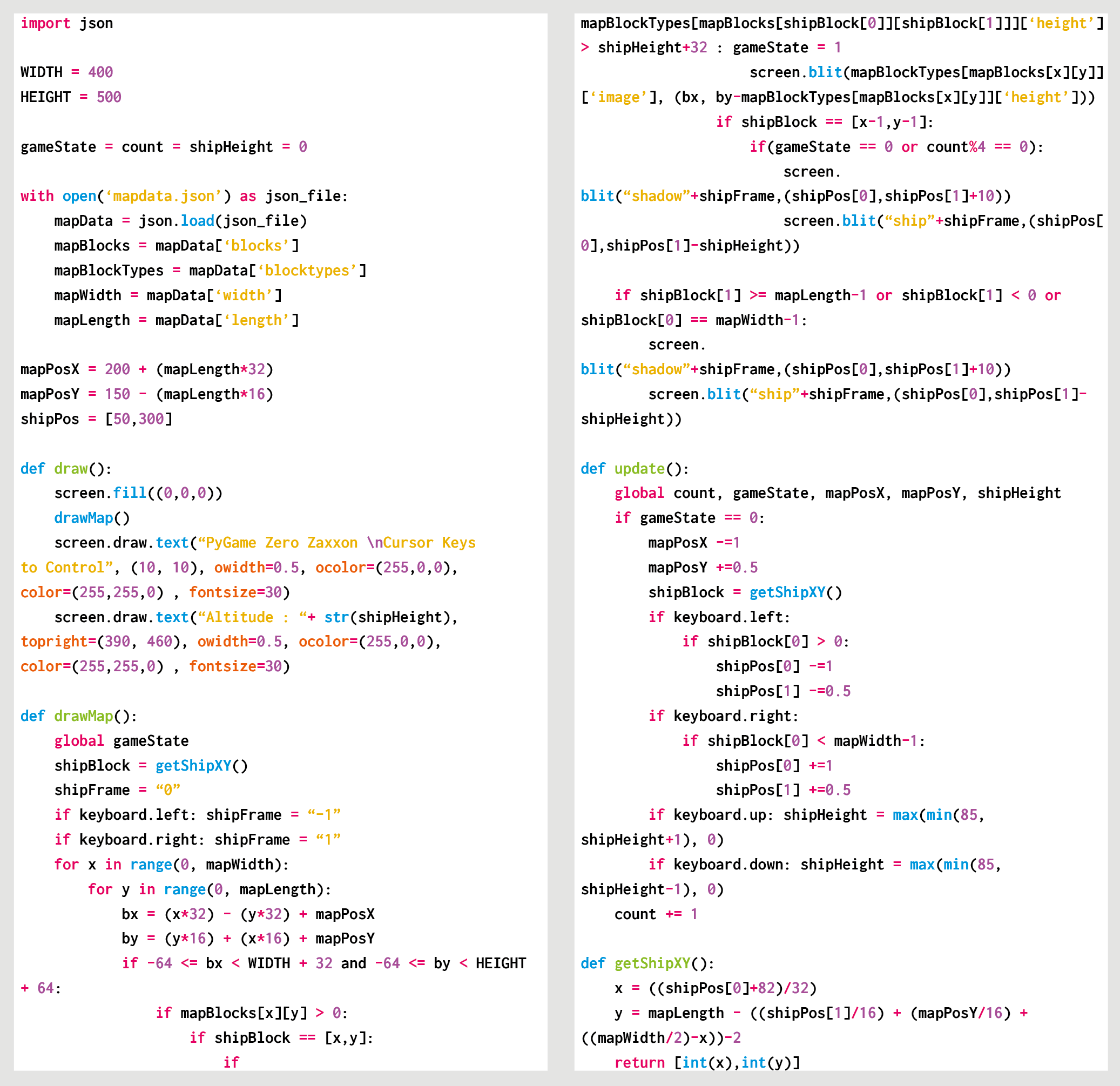
In the sample, there’s a short run of map data 40 squares long with blocks for the floor, some low walls, higher walls, and a handful of fuel silos. To add more block types, just add data to the blocktypes area of the JSON file. The codes used in the map data are the index numbers of the blocktypes, so the first blocktypes is index 0, the next index 1, and so on. Our drawMap() function takes care of rendering the data into visual form and blits blocks from the top right to the bottom left of the screen. When the draw loop gets to where the ship is, it draws first the shadow and then the ship a little higher up the screen, depending on the altitude of the ship. The equation to translate the ship’s screen coordinates to a block position on the map is a bit simplistic, but in this case, it does the job well enough.

Cursor keys guide the movement of the spaceship, which is limited by the width of the map and a height of 85 pixels. There’s some extra code to display the ship if it isn’t on the map – for example, at the start, before it reaches the map area. To make the code snippet into a true Zaxxon clone, you’ll have to add some laser fire and explosions, a fuel gauge, and a scoring system, but this code sample should provide the basis you’ll need to get started.

Code for our Zaxxon homage

Here’s Mark’s code snippet, which creates a side-scrolling beat-’em-up in Python. To get it working on your system, you’ll need to install Pygame Zero. And to download the full code, go here.

Get your copy of Wireframe issue 33

You can read more features like this one in Wireframe issue 33, available now at Tesco, WHSmith, all good independent UK newsagents, and the Raspberry Pi Store, Cambridge.

Or you can buy Wireframe directly from Raspberry Pi Press — delivery is available worldwide. And if you’d like a handy digital version of the magazine, you can also download issue 33 for free in PDF format.

Make sure to follow Wireframe on Twitter and Facebook for updates and exclusive offers and giveaways. Subscribe on the Wireframe website to save up to 49% compared to newsstand pricing!

The post Code a Zaxxon-style axonometric level | Wireframe #33 appeared first on Raspberry Pi.


Source: Raspberry Pi – Code a Zaxxon-style axonometric level | Wireframe #33

Raspberry Jams around the world celebrate Raspberry Pi’s 8th birthday

Happy birthday to us: tomorrow marks the eighth birthday of the Raspberry Pi computer!

A celebratory photo of a birthday party for Raspberry Pi computers

On 29 February 2012 we launched our very first $35 credit card-sized computer, Raspberry Pi 1 Model B. Since then, we’ve sold over 30 million Raspberry Pi computers worldwide. People all over the world (and beyond!) use them to learn, teach, and make cool stuff; industrial customers embed Raspberry Pi devices in their own products or use them to monitor and control factory processes. As an early birthday present, yesterday we cut the price of the 2GB RAM Raspberry Pi 4 Model B from $45 to $35: now you can buy a no-compromises desktop PC for the same price as Raspberry Pi 1 in 2012.

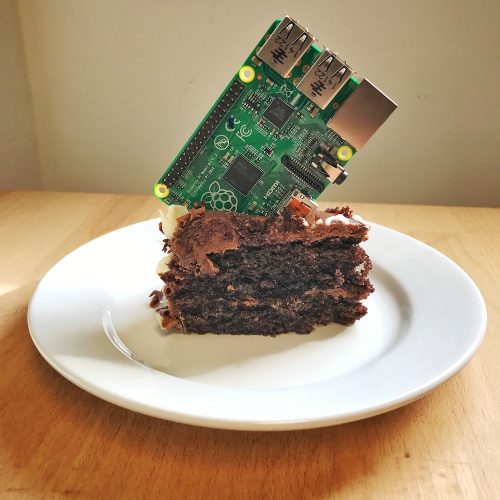
A Raspberry Pi stuck into a piece of birthday cake

Don’t try this at home: you may damage your Raspberry Pi or teeth.

A global community of Raspberry Jams

Throughout the last eight years, a passionate community of enthusiasts has championed the use of Raspberry Pi, and our library of free resources, by hosting Raspberry Jams: events where people of all ages come together to learn about digital making in a fun, friendly, and inclusive environment.

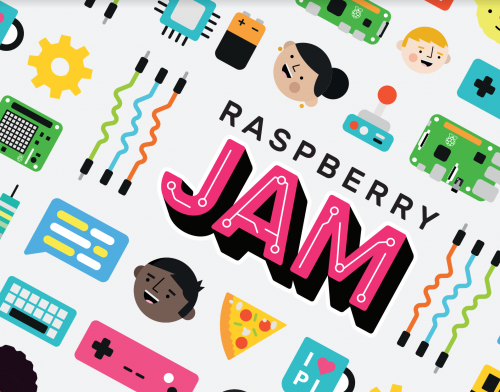
Raspberry Jam logo and illustrations

To celebrate Raspberry Pi’s in style, Raspberry Jam community members around the world are hosting special birthday-themed events during the whole month from 15 February to 15 March.

Our special thanks to The Pi Hut for shipping our special birthday packs to these Jams all over the world!

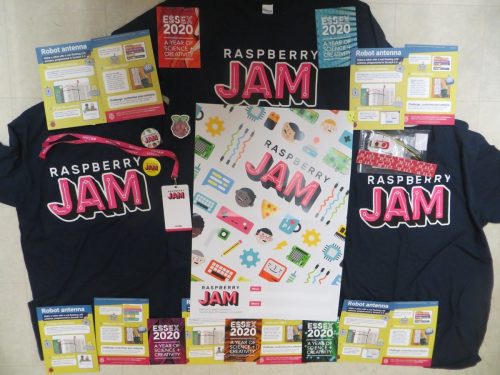
Raspberry Jam branded goodies

The contents of the packs we sent to Raspberry Jams that registered events during our birthday month. Thanks for the photo go to Andy Melder, who runs Southend and Chelmsford Raspberry Jams.

20 Birthday Jams have already taken place in Australia, Belgium, Bulgaria, Canada, Greece, India, the UK, and the US. In total, there are at least 118 Birthday Jam events across 35 countries on 6 continents this year! (We’re determined to reach Antarctica one day soon.)

Jams can take many forms, from talks and workshops based around the Raspberry Pi computer, to project showcases and hackathons. Here is a selection of photos from some of the birthday events community members have run over the last fortnight:


Shoutout to Tokyo Raspberry Jam

We’d like to give a special mention to Masafumi Ohta and our friends at Tokyo Raspberry Jam, who have had to postpone their Birthday Jam due to coronavirus-related safety restrictions currently in place across Japan.

Someone blowing out the candles of a birthday cake

The Birthday Jam in Tokyo in 2018

The whole team at the Foundation sends their best wishes to everyone who is affected by the virus!

You can still join in the celebrations

Jam makers are running birthday events up to and including 15 March, so check out the Raspberry Jam world map to find your nearest Birthday Jam!

Chelmsford Raspberry Jam, celebrating Raspberry Pi’s eighth birthday with multiple generations

If you’d like to host your own Jam, we also have free resources to help you get started and free starter projects made especially for Jam events.

It’s really simple to register your Birthday Jam: just fill in the Raspberry Jam submission form, including a valid event information URL linking to a webpage with more information about your event. (This is an excellent example of a Jam event listing.)

As always, if you have any questions, please don’t hesitate to ask us via jam@raspberrypi.org.

The post Raspberry Jams around the world celebrate Raspberry Pi’s 8th birthday appeared first on Raspberry Pi.


Source: Raspberry Pi – Raspberry Jams around the world celebrate Raspberry Pi’s 8th birthday

A birthday gift: 2GB Raspberry Pi 4 now only $35

TL;DR: it’s our eighth birthday, and falling RAM prices have allowed us to cut the price of the 2GB Raspberry Pi 4 to $35. You can buy one here.

Happy birthday to us

In two days’ time, it will be our eighth birthday (or our second, depending on your point of view). Many of you set your alarms and got up early on the morning of 29 February 2012, to order your Raspberry Pi from our newly minted licensee partners, RS Components and Premier Farnell. In the years since, we’ve sold over 30 million Raspberry Pi computers; we’ve seen our products used in an incredible range of applications all over the world (and occasionally off it); and we’ve found our own place in a community of makers, hobbyists, engineers and educators who are changing the world, one project, or one student, at a time.

The first Raspberry Pi

When we first started talking about Raspberry Pi 1 Model B back in 2011, we were very clear about what we were trying to build: a desktop Linux PC with interfacing capabilities for $35. At the time, it seemed obvious that our low price point would come with compromises. Even though you could use your Raspberry Pi 1 to watch HD video, or play Quake 3, or compile the Linux kernel, or automate a factory, some things – like browsing modern, JavaScript-heavy websites – were out of reach.

Our very first website led with an early prototype running an Ubuntu 9.04 desktop

Improving performance

Every subsequent product – from quad-core Raspberry Pi 2 in 2015, to 64-bit Raspberry Pi 3 in 2016, to Raspberry Pi 3+ in 2018 – whittled down those compromises a little further. By offering steadily increasing processing power at a time when the performance of traditional PCs had begun to stagnate, we were gradually able to catch up with typical PC use cases. With each generation, more people were able to use a Raspberry Pi as their daily-driver PC.

The Raspberry Pi I’d buy for my parents

Until, in June of last year, we launched Raspberry Pi 4. Roughly forty times faster than the original Raspberry Pi, for the first time we have a no-compromises PC for the majority of users. I’ve described Raspberry Pi 4 as “the Raspberry Pi I’d buy for my parents”, and since I bought them a Desktop Kit for Christmas they’ve found it to be basically indistinguishable in performance and functionality from other PCs.

In a sense, this was a “mission accomplished” moment. But Raspberry Pi 4 brought its own compromises: for the first time we couldn’t fit as much memory as we wanted into the base product. While the $35 1GB device makes a great media player, home server, or embedded controller, to get the best desktop experience you need at least 2GB of RAM. At launch this would have cost you $45.

Dropping the price of 2GB

Which brings us to today’s announcement. The fall in RAM prices over the last year has allowed us to cut the price of the 2GB variant of Raspberry Pi 4 to $35. Effective immediately, you will be able to buy a no-compromises desktop PC for the same price as Raspberry Pi 1 in 2012. In comparison to that original machine, we offer:

  • 40× the CPU performance
  • 8× the memory
  • 10× the I/O bandwidth
  • 4× the number of pixels on screen
  • Two screens instead of one
  • Dual-band wireless networking

And of course, thanks to inflation, $35 in 2012 is equivalent to nearly $40 today. So effectively you’re getting all these improvements, and a $5 price cut.

We’re going to keep working to make Raspberry Pi a better desktop computer. But this feels like a great place to be, eight years in. We hope you’ve enjoyed the first eight years of our journey as much as we have: here’s to another eight!

FAQs

Is this a permanent price cut?

Yes.

What about the 1GB product?

In line with our commitment to long-term support, the 1GB product will remain available to industrial and commercial customers, at a list price of $35. As there is no price advantage over the 2GB product, we expect most users to opt for the larger-memory variant.

What about the 4GB product?

The 4GB variant of Raspberry Pi 4 will remain on sale, priced at $55.

The post A birthday gift: 2GB Raspberry Pi 4 now only $35 appeared first on Raspberry Pi.


Source: Raspberry Pi – A birthday gift: 2GB Raspberry Pi 4 now only

Play Pong with ultrasonic sensors and a Raspberry Pi | HackSpace magazine

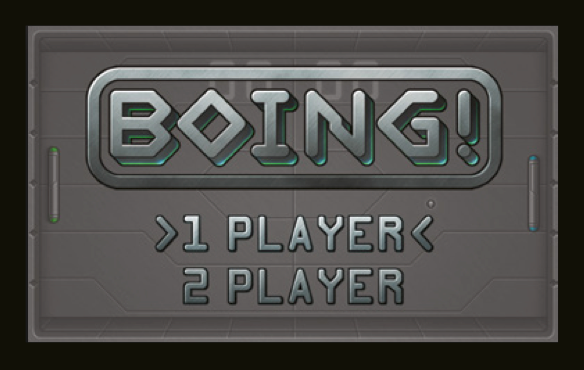
Day three of our Pong celebration leads us here, to HackSpace magazine’s ultrasonic hack of Eben’s Code the Classics Pong tribute, Boing!

If you haven’t yet bought your copy of Code the Classics, you have until 11:59pm GMT tonight to get £1 off using the discount code PONG. Click here to visit the Raspberry Pi Press online store to secure your copy, and read on to see how you can use ultrasonic sensors to turn this classic game into something a lot more physical.

Over to the HackSpace magazine team…

Code the Classics is an entertaining book for a whole bunch of reasons, but one aspect of it that is particularly exciting to us makers is that it means there are some games out there that are really fun to play, but also written to be easy to understand and have high-quality game art to go along with them. Why does this excite us as makers? Because it makes them ideal candidates for testing out novel DIY games controllers!

Pong

We’re going to start right at the beginning of the book (and also at the beginning of computer game history) with the game Pong. There’s a great chapter on this seminal game in the book, but we’ll dive straight into the source code of our Boing! tribute game. This code should run on any computer with Python 3 (and a few dependencies) installed, but we’ll use a Raspberry Pi, as this has GPIO pins that we can use to add on our extra controller.

Download the code here by clicking the ‘Clone or download’ button, and then ‘Download ZIP’. Unzip the downloaded file, and you should have a directory called Code‑The‑Classics-master, and inside this, a directory called boing-master.

Open a terminal and navigate to this directory, then run:

python3 boing.py

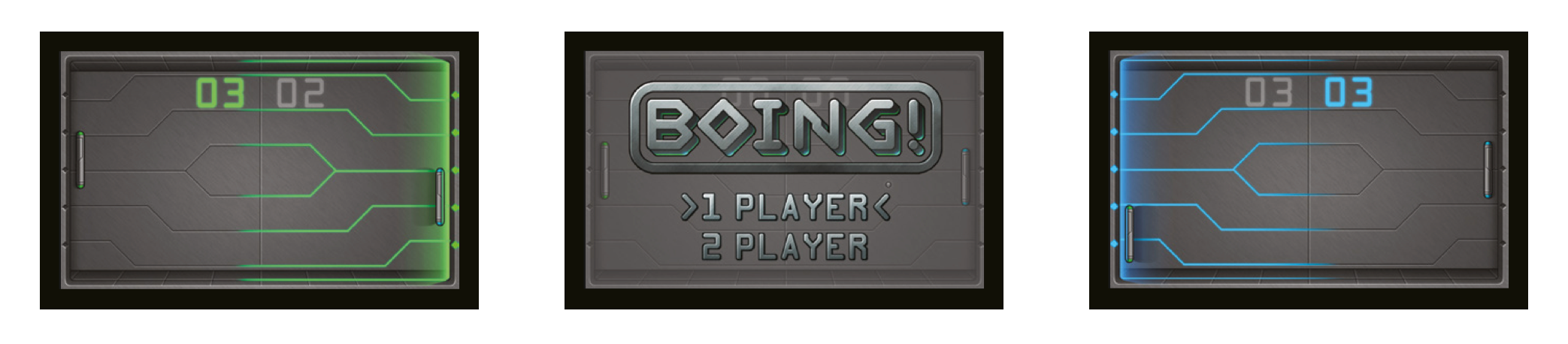
If everything works well, you’ll get a screen asking you to select one or two players – press SPACE to confirm your selection, and have a play.

Hacking Code the Classics

So that’s how Eben Upton designed the game to be played. Let’s put our own spin on it. Games controllers are basically just sensors that take input from the real world in some way and translate that into in-game actions. Most commonly, these sensors are buttons that you press, but there’s no need for that to be the case. You can use almost any sensor you can get input from – it sounds trite, but the main limitation really is your imagination!

We were playing with ultrasonic distance sensors in the last issue of HackSpace magazine, and this sprung to mind a Pong controller. After all, distance sensors measure in one dimension and Pong bats travel in one dimension.

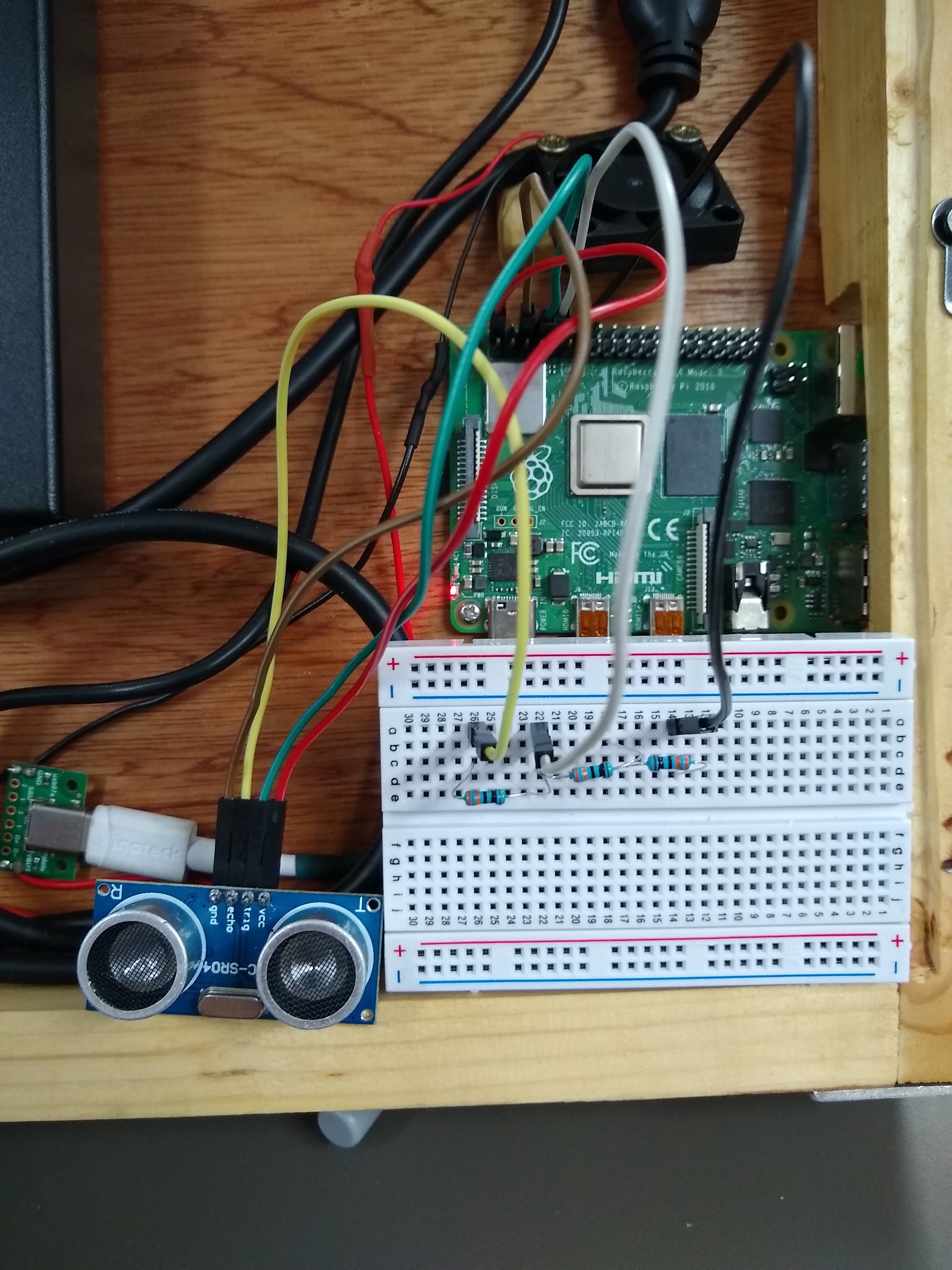
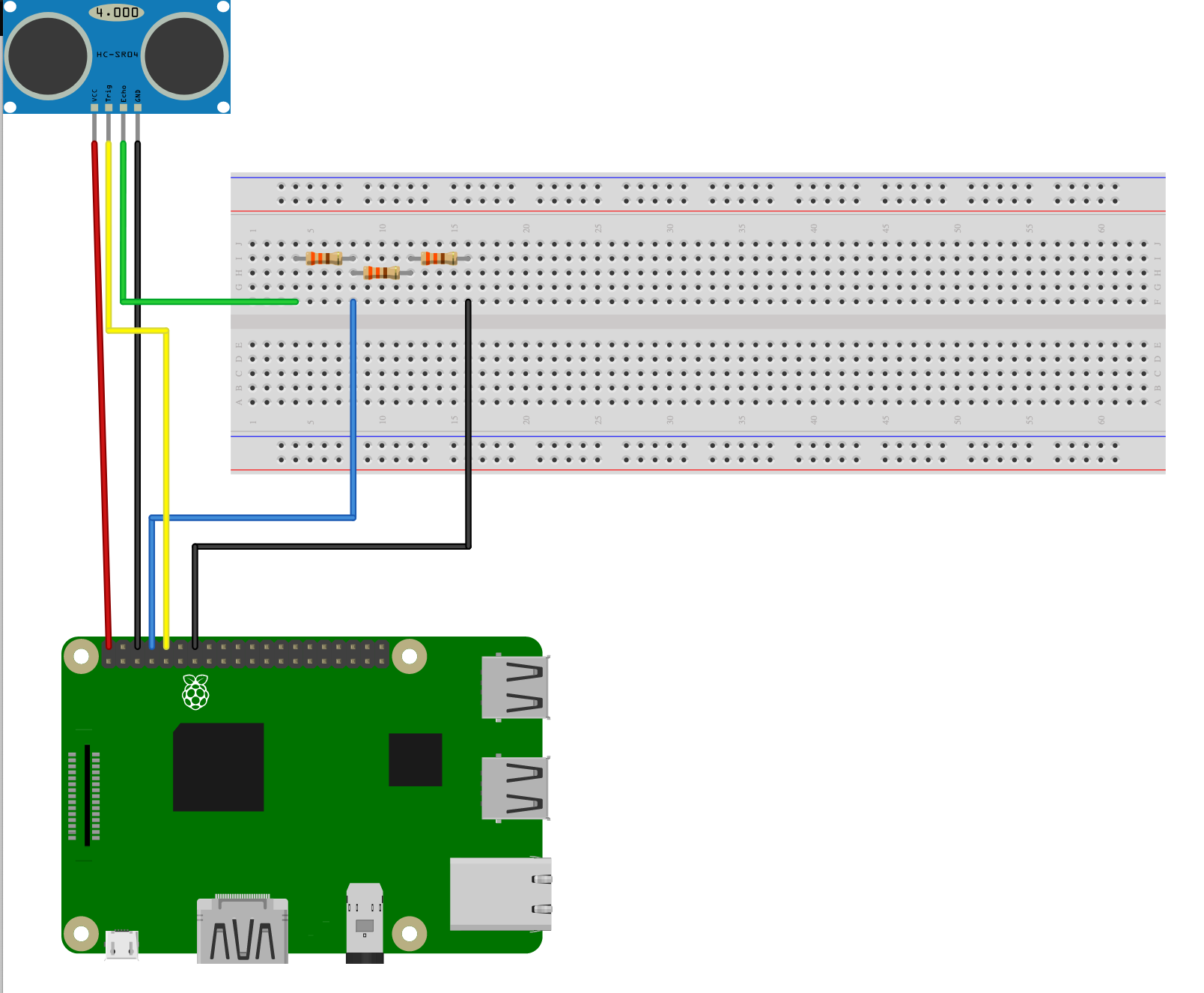
Last issue we learned that the main challenge when using the cheap HC-SR04 sensors with 3.3V devices is that they use 5V, so we need to reduce their output to 3.3V. A simple voltage divider does the trick, and we used three 330Ω resistors to achieve this – see Figure 1 for more details.

There’s support for these sensors in the GPIO Zero Python library. As a simple test, you can obtain the distance with the following Python code:

import gpiozero
import time
sensor = gpiozero.DistanceSensor(echo=15,trigger=14)

while True:
    print(sensor.distance)

time.sleep(0.1)

That will give you a constant read-out of the distance between the ultrasonic sensor and whatever object is in front of it. If you wave your hand around in front of the sensor, you’ll see the numbers changing from 0 to 1, which is the distance in metres.

So far, so straightforward. We only need to add a few bits to the code of our Boing! game to make it interact with the sensor. You can download an updated version of Boing! here, but the changes are as follows.

Add this line to the import statements at the top:

import gpiozero

Add this line to instantiate the distance sensor object at the end of the file (just before pgzrun.go()):

p1_distance = DistanceSensor(echo=15,trigger=14,queue_len=5)

We added the queue_len parameter to get the distances through a little quicker.

Finally, overwrite the p1_controls function with the following:

def p1_controls():
    move = 0
    distance = p1_distance.distance
    print(distance)
    if distance < 0.1:
        move = PLAYER_SPEED
    elif distance > 0.2:
        move = -PLAYER_SPEED
    return move

This uses the rather arbitrary settings of 10 cm and 20 cm to define whether the paddle moves up or down. You can adjust these as required.

That’s all there is to our ultrasonic Pong. It’s great fun to play, but there are, no doubt, loads of other versions of this classic game you can make by adding different sensors. Why not see what you can come up with?

Code the Classics

Today is the last day to get £1 off Code the Classics with the promo code PONG, so visit the Raspberry Pi Press online store to order your discounted copy before 11:59pm GMT tonight.

You can also download Code the Classics as a free PDF here, but the book, oh, the book – it’s a marvellous publication that deserves a physical presence in your home.

The post Play Pong with ultrasonic sensors and a Raspberry Pi | HackSpace magazine appeared first on Raspberry Pi.


Source: Raspberry Pi – Play Pong with ultrasonic sensors and a Raspberry Pi | HackSpace magazine

Create Boing!, our Python tribute to Pong

Following on from yesterday’s introduction to Pong, we’re sharing Boing!, the Python-based tribute to Pong created by Eben Upton exclusively for Code the Classics. Read on to get a detailed look at the code for Boing!

You can find the download link for the Boing! code in the Code the Classics book, available now in a variety of formats. Be sure to stick with today’s blog post until the end, for a special Code the Classics offer.
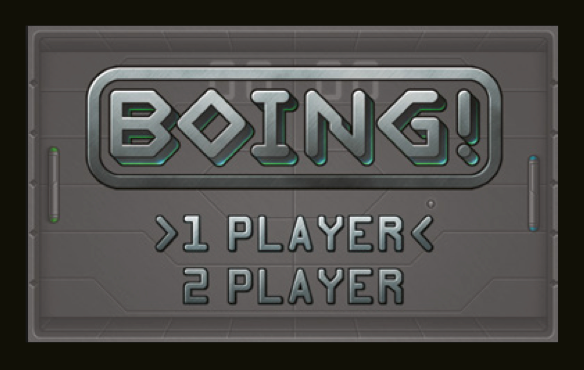
From Pong to Boing!

To show how a game like Pong can be coded, we’ve created Boing! using Pygame Zero, a beginner-friendly tool for making games in Python. It’s a good starting point for learning how games work – it takes place on a single screen without any scrolling, there are only three moving objects in the game (two bats and a ball), and the artificial intelligence for the computer player can be very simple – or even non-existent, if you’re happy for the game to be multiplayer only. In this case, we have both single-player and two-player modes.

The code can be divided into three parts. First, there’s the initial startup code. We import from other Python modules so we can use their code from ours. Then we check to make sure that the player has sufficiently up-to-date versions of Python and Pygame Zero. We set the WIDTH and HEIGHT variables, which are used by Pygame Zero when creating the game window. We also create two small helper functions which are used by the code.
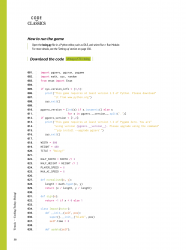
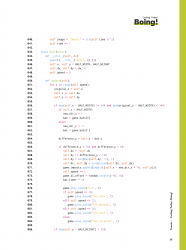
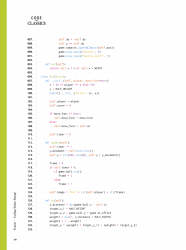
The next section is the largest. We create four classes: Impact, Ball, Bat, and Game. The first three classes inherit from Pygame Zero’s Actor class, which amongst other things keeps track of an object’s location in the game world, and takes care of loading and displaying sprites. Bat and Ball define the behaviour of the corresponding objects in the game, while Impact is used for an animation which is displayed briefly whenever the ball bounces off something. The Game class’s job is to create and keep track of the key game objects, such as the two bats and the ball.

Further down, we find the update and draw functions. Pygame Zero calls these each frame, and aims to maintain a frame rate of 60 frames per second. Gameplay logic, such as updating the position of an object or working out if a point has been scored, should go in update, while in draw we tell each of the Actor objects to draw itself, as well as displaying backgrounds, text, and suchlike.
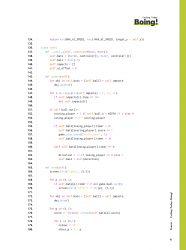
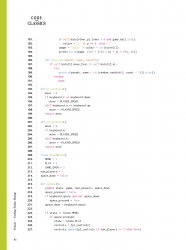
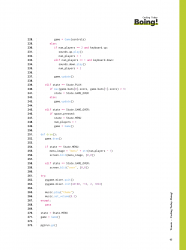
Our update and draw functions make use of two global variables: state and game. At any given moment, the game can be in one of three states: the main menu, playing the game, or the game-over screen. The update and draw functions read the state variable and run only the code relevant to the current state. So if state is currently State.MENU, for example, update checks to see if the SPACE bar or the up/down arrows are pressed and updates the menu accordingly, and draw displays the menu on the screen. The technical term for this kind of system is ‘finite state machine’.

The Game class’s job is to create and keep track of the key game objects

The game variable references an instance of the Game class as described above. The __init__ (constructor) method of Game optionally receives a parameter named controls. When we create a new Game object for the main menu, we don’t provide this parameter and so the game will therefore run in attract mode – in other words, while you’re on the main menu, you’ll see two computer-controlled players playing against each other in the background. When the player chooses to start a new game, we replace the existing Game instance with a new one, initialising it with information about the controls to be used for each player – if the controls for the second player are not specified, this indicates that the player has chosen a single-player game, so the second will be computer-controlled.

Two types of movement

In Boing!, the Bat and Ball classes inherit from Pygame Zero’s Actor class, which provides a number of ways to specify an object’s position. In this game, as well as games in later chapters, we’re setting positions using the x and y attributes, which by default specify where the centre of the sprite will be on the screen. Of course, we can’t just set an object’s position at the start and be done with it – if we want it to move as the game progresses, we need to update its position each frame. In the case of a Bat, movement is very simple. Each frame, we check to see if the relevant player (which could be a human or the computer) wants to move – if they do, we either subtract or add 4 from the bat’s Y coordinate, depending on whether they want to move up or down. We also ensure that the bat does not go off the top or bottom of the screen. So, not only are we only moving along a single axis, our Y coordinate will always be an integer (i.e. a whole number). For many games, this kind of simple movement is sufficient. Even in games where an object can move along both the X and Y axes, we can often think of the movement along each axis as being separate. For example, in the next chapter’s game, Cavern, the player might be pressing the right arrow key and therefore moving along the X axis at 4 pixels per frame, while also moving along the Y axis at 10 pixels per frame due to gravity. The movement along each axis is independent of the other.

Able to move at any angle, the ball needs to move at the same speed regardless of its direction

For the Ball, things get a bit more complicated. Not only can it move at any angle, it also needs to move at the same speed regardless of its direction. Imagine the ball moving at one pixel per frame to the right. Now imagine trying to make it move at a 45° angle from that by making it move one pixel right and one pixel up per frame. That’s a longer distance, so it would be moving faster overall. That’s not great, and that’s before we’ve even started to think about movement in any possible direction.

The solution is to make use of vector mathematics and trigonometry. In the context of a 2D game, a vector is simply a pair of numbers: X and Y. There are many ways in which vectors can be used, but most commonly they represent positions or directions.

You’ll notice that the Ball class has a pair of attributes, dx and dy. Together these form a vector representing the direction in which the ball is heading. If dx and dy are 1 and 0.5, then each time the ball moves, it’ll move by one pixel on the X axis and a half a pixel on the Y axis. What does it mean to move half a pixel? When a sprite is drawn, Pygame Zero will round its position to the nearest pixel. So the end result is that our sprite will move down the screen by one pixel every other frame, and one pixel to the right every frame (Figure 1).
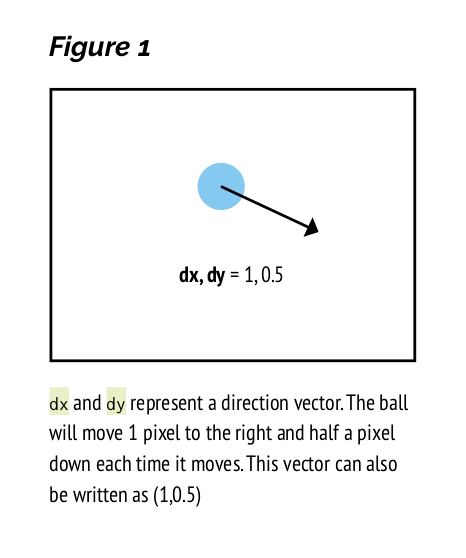
We still need to make sure that our object moves at a consistent speed regardless of its direction. What we need to do is ensure that our direction vector is always a ‘unit vector’ – a vector which represents a distance of one (in this case, one means one pixel, but in some games it will represent a different distance, such as one metre). Near the top of the code you’ll notice a function named normalised. This takes a pair of numbers representing a vector, uses Python’s math.hypot function to calculate the length of that vector, and then divides both the X and Y components of the vector by that length, resulting in a vector which points in the same direction but has a length of one (Figure 2).
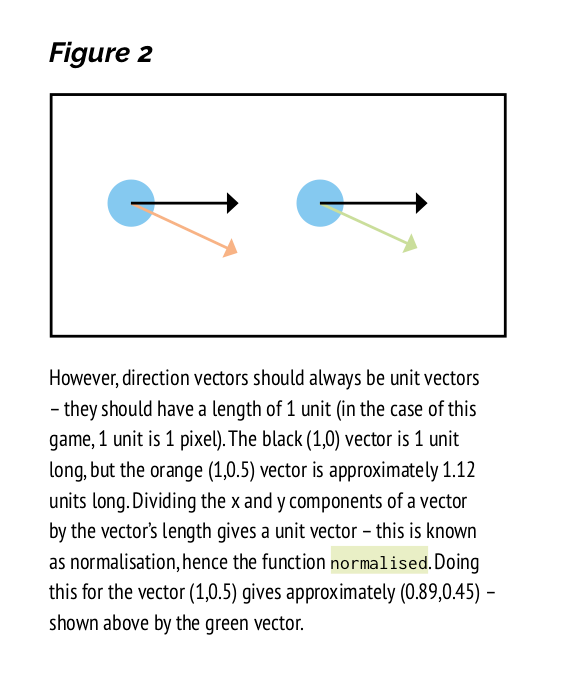
Vector maths is a big field, and we’ve only scratched the surface here. You can find many tutorials online, and we also recommend checking out the Vector2 class in Pygame (the library on top of which Pygame Zero is built).

Try Boing!

Update Raspbian to try Boing! and other Code the Classics games on your Raspberry Pi.

The full BOING! tutorial, including challenges, further explanations, and a link to the downloadable code can be found in Code the Classics, the latest book from Raspberry Pi Press.

We’re offering £1 off Code the Classics if you order it before midnight tomorrow from the Raspberry Pi Press online store. Visit the store now, or use the discount code PONG at checkout if you make a purchase before midnight tomorrow.

As always, Code the Classics is available as a free PDF from the Wireframe website, but we highly recommend purchasing the physical book, as it’s rather lovely to look at and would make a great gift for any gaming and/or coding enthusiast.

The post Create Boing!, our Python tribute to Pong appeared first on Raspberry Pi.



Source: Raspberry Pi – Create Boing!, our Python tribute to Pong