Printing at home from your Raspberry Pi

Yesterday I wrote about working from home with your Raspberry Pi, and talked about things like how to connect to your company VPN, and how to get video conferencing up and working. However, one thing I didn’t talk about – and that many of you have asked for some guidance on – was printing.

To get printing up and working on your Raspberry Pi the first thing you need to do is install CUPS. CUPS is an open source printing system developed by Apple that uses the Internet Printing Protocol (IPP) to support printing to both local and network printers.

Installing CUPS

Go ahead and open a terminal window, and install CUPS.

$ sudo apt-get install cups

CUPS has a lot of dependencies, so depending on your broadband connection installation, it could take a while. If you have any left in the house, now might be a good time for a cup of coffee ☕.

After installation you’ll need to give the pi user administrative rights on CUPS. To do this, go back to your console and type

$ sudo usermod -a -G lpadmin pi

to make the pi user part of the lpadmin group.

Adding a printer

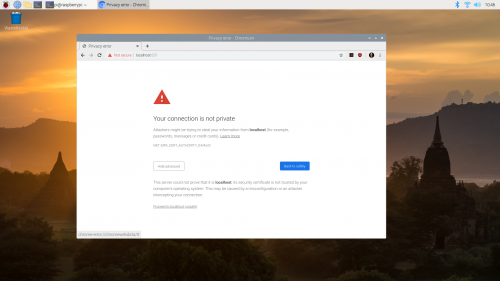
Now open up your browser and navigate to https://localhost:631 . You’ll receive a security warning from your browser. Hit the ‘Advanced’ button and then ‘Proceed to localhost (unsafe)’.

Accepting the locally generated certificate

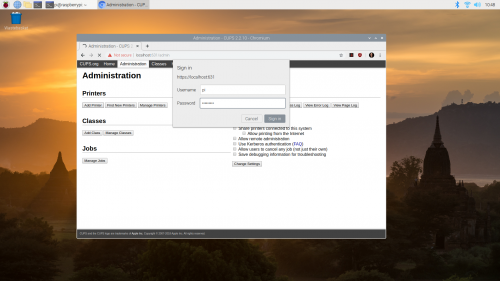
You’ll be presented with the CUPS interface. Click on ‘Administration’ in the top bar, and a drop-down will appear. Authorise yourself to CUPS as the pi user, which we’d added to the administrator group earlier.

Authorising yourself with CUPS as an administrator

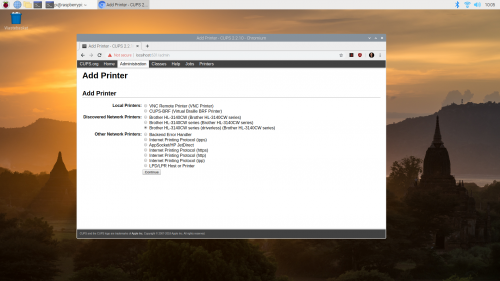
After you authorise yourself, click on the ‘Add Printer’ button. CUPS will then look for locally connected (via USB) printers as well as any networked printers it can see on your home network.

For a lot of printers you’ll be presented with a number of possible options, as most modern printers offer a number of ways to connect. So depending on which printer you have, you might need to go through the process of adding a printer a couple of times to figure out the best method to connect.

Adding a printer in CUPS

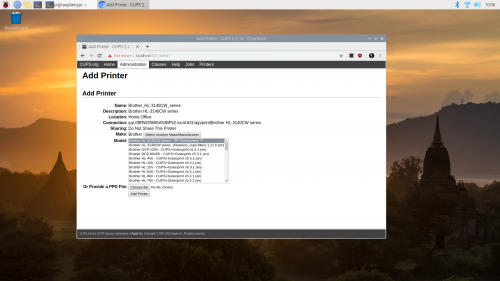
I have a Brother HL-3140CW, an older model colour laser printer. While Brother offers Linux drivers, they are compiled for the x86 rather than ARM architecture, and the open source ‘brlaser’ driver doesn’t support my model. However, CUPS does list a ‘driverless’ option for communicating without a native printer driver using the Internet Printing Protocol (IPP).

Selecting a driver, I chose “IPP Everywhere”

Picking this option, I was presented with a list of drivers for the printer. I picked IPP Everywhere from the list, and hit the ‘Add Printer’ button.

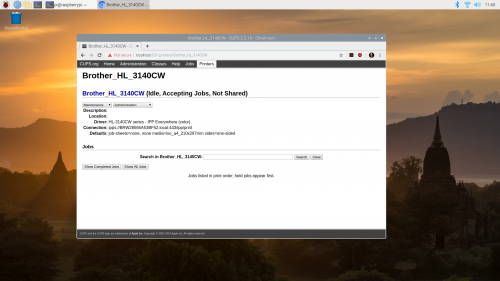
Successfully added the printer

After a few seconds CUPS should present you with the ‘Printers’ tab, which should show you your connected printer. If everything is okay it should show that the printer is ‘Accepting Jobs’.

Testing the printer

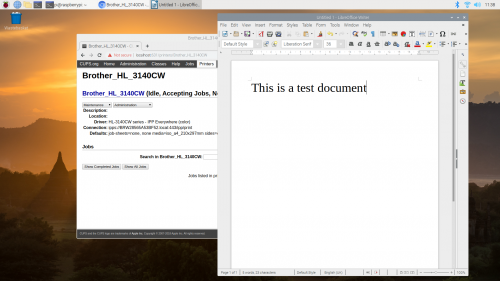
Now we have our printer set up we need to test it. Go ahead and open LibreOffice Writer from the start menu, and enter some test text.

Writing a test document

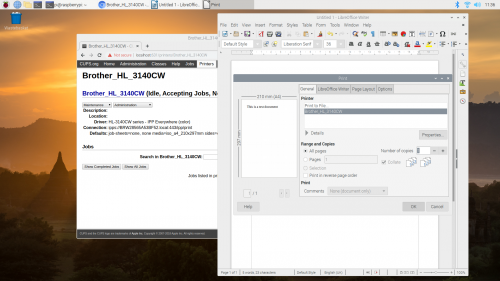
Then click on ‘File > Print’ in the LibreOffice Writer menu.

Printing our test document from LibreOffice Writer

If everything has gone smoothly your printer should start making appropriate printing noises and should print your test document.

Our test documents

I actually went ahead and printed two test documents just to be sure colour printing was working okay, and happily it was working just fine!

Wrapping up

The exact process you’re going to go through to get your printer working will depend heavily on which printer you own. The trickiest bit is always going to be drivers. Thankfully, these days things are a lot easier than they used to be, as most printers – especially networked printers that live on your wireless network – offer standard ways to print and you don’t necessarily have to rely on a native (manufacturer-provided) driver any more.

The post Printing at home from your Raspberry Pi appeared first on Raspberry Pi.


Source: Raspberry Pi – Printing at home from your Raspberry Pi

Working from home with your Raspberry Pi

Raspberry Pi 4 is more than powerful enough to serve as replacement desktop computer while you’re working from home. Or as a secondary desktop to help you out while you’re doing other things, such video conferencing, on your main computer.
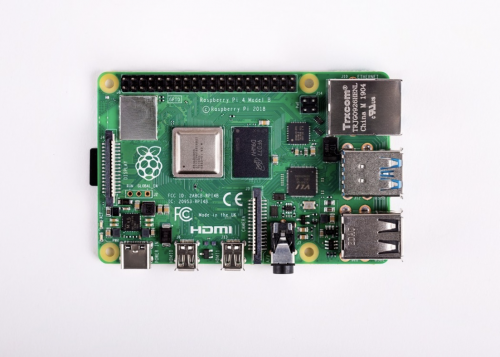
The Raspberry Pi 4, Model B

Raspberry Pi 4 Model B

If you’re pulling your Raspberry Pi out of a drawer right now, you should make sure you update it with the latest version of Raspbian; if it’s been a while since you used this Raspberry Pi, you might even want to install a new copy of Raspbian so you know you’re working from a good base image. Fortunately, you can use our new imaging utility, which makes installing a fresh copy of the operating system much easier.

Connecting a monitor, keyboard, and Mouse

I normally use my Raspberry Pis headless as a server. But working from home, and using Raspberry Pi as your primary computer, you’re going to need a monitor, keyboard, and mouse.
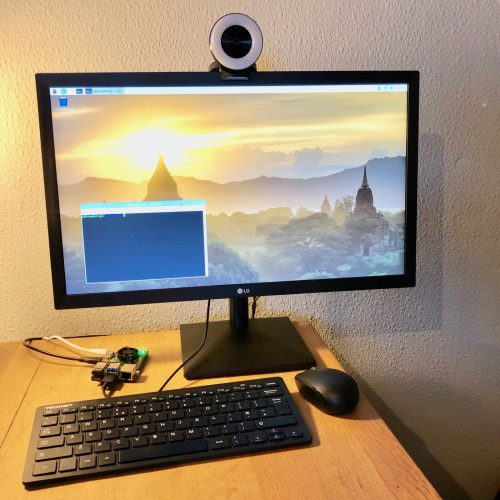
My Raspberry Pi 4 which I use for video calls perched on the edge of my desk at home

My Raspberry Pi 4, which I use for video calls, perched on the edge of my desk at home

Except for the monitor, the Raspberry Pi Desktop Kit has everything you need to get you going, including a USB-C power supply and all the necessary cables.

Connecting a keyboard and a mouse to your Raspberry Pi just involves plugging them in, although you should probably make sure you plug them into the USB 2 rather than the USB 3 sockets. You can tell these apart by their colour: USB 3 sockets have blue ‘tongues’, while USB 2 sockets have black ones.
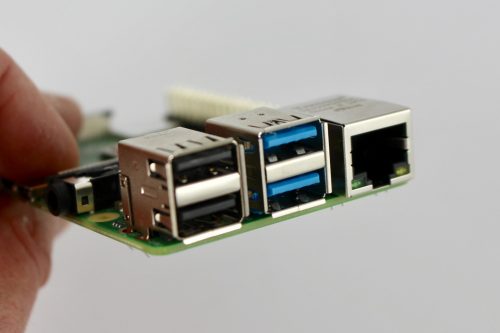
USB 2 sockets (left), with USB 3 sockets (middle), and Ethernet (right)

USB 2 sockets (left), USB 3 sockets (middle), and Ethernet socket (right)

Raspberry Pi 4 has two micro HDMI sockets, allowing you to use it with dual monitors if you wish: it supports one 4K screen at 60fps, or two 4K screens at 30fps.
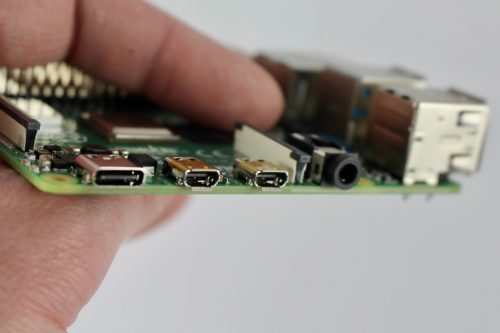
Power (USB-C) socket (left), with two micro-HDMI sockets (middle) and the headphone jack (right)

Power (USB-C) socket (left),  two micro-HDMI sockets (middle), and the headphone jack (right)

You can connect Raspberry Pi to any HDMI monitor (or two) you have in the house — you’ll only need a micro-HDMI to HDMI cable (or two) to do it. There are two of these included in the Desktop Kit.

While the official Raspberry Pi keyboard and mouse are great, I’ve picked up a smaller wireless keyboard and mouse for added convenience and fewer wires.

Setting up wireless networking

Setting up wireless networking on Raspberry Pi can be done from your desktop. Alternatively, you can also set up networking before you boot your Raspberry Pi for the first time by editing a file on the boot partition of your SD card after you burn the operating system onto it.

$ cd /Volumes/boot
$ nano wpa_supplicant.conf

Then add the following lines to the wpa_supplicant.conf file:

country=COUNTRY
ctrl_interface=DIR=/var/run/wpa_supplicant GROUP=netdev
update_config=1
network={
 ssid="SSID"
 psk="PASSWORD"
 key_mgmt=WPA-PSK 
}

COUNTRY should be set the two-letter ISO/IEC alpha2 code for the country in which you are using your Raspberry Pi, e.g.:

  • GB (United Kingdom)
  • FR (France)
  • DE (Germany)
  • US (United States)
  • SE (Sweden)

SSID is the ESSID of your home network, with PASSWORD being the WPA2 password for that network.

It’s important to enter the correct country code in the file, as this will determine which regulatory domain your Raspberry Pi thinks it’s operating in, and therefore which wireless channels it enables on your adaptor.

Setting up email

For many of us, our email lives in our browsers these days, so just navigate to your normal email provider in Chromium and you will be able to use it as normal.

However, you can get your email directly to your Raspberry Pi desktop if you want to do that. Raspbian ships with the Claws Mail client, which supports both POP3 and IMAP standards. Although some ISPs still use the POP3 protocol, IMAP access is the more commonly used, especially when it comes to most of the web-based services like Google’s Gmail.

Using Microsoft Office

Some workplaces will prefer that you use MS Office. Raspbian ships with Libre Office, and there is no native version of Microsoft Office applications that run on Raspberry Pi. However, you can use Office directly in your browser.
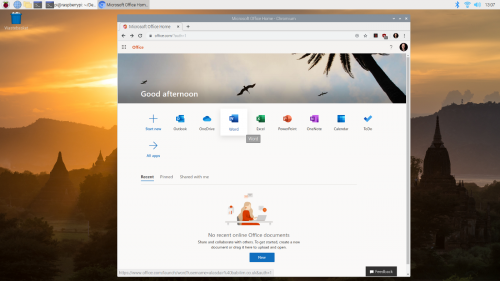
Using Microsoft Office in the browser

Using Microsoft Office in the browser

Navigate to office.com and log in with your Microsoft Live account to access the free version; if your company subscribes to Office 365, you should be able to log in with your work username and password.

Using Google Docs and Drive

Designed to be used in web browsers, Google Docs, Sheets, Slides, and Forms work out of the box on Raspberry Pi.
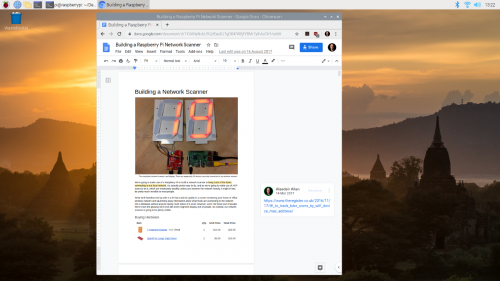
Using Google Docs on the Raspberry Pi

Using Google Docs on the Raspberry Pi

Like all the other Google applications you can access Google Drive directly in your browser from your Raspberry Pi. However if needed you can mount Google Drive using FUSE as part of the file system.

Setting up a VPN client

It’s really easy to find advice and tutorials on how to set up a VPN server for Raspberry Pi. Finding information on how to set up your Raspberry Pi as a VPN client, to allow it to connect to your existing work VPN back in the office, is much harder.

How you get your Raspberry Pi to talk to your office VPN is going to depend on exactly which type of VPN your company uses. So reach out to your company’s IT team to ask them for advice.

Using OpenVPN

The OpenVPN protocol is one of the youngest VPN protocols; it is open-source and generally considered one of the more secure protocols.

To get OpenVPN working on Raspberry Pi, first you’ll need to install the OpenVPN package:

$ sudo apt-get install openvpn

Then you’ll need to create a client.conf configuration file in /etc/openvpn.

client
dev tun

proto udp
remote HOSTNAME PORT

resolv-retry infinite
nobind

user nobody
group nogroup

persist-key
persist-tun

# Path to your certificates (ca.crt, client.crt, and client.key)
ca FILEPATH_CA
cert FILEPATH_CRT
key FILEPATH_KEY

ns-cert-type server
comp-lzo
verb 3

Replace HOSTNAME and PORT with the name and port number of your company’s VPN server, and FILEPATH_CAFILEPATH_CRT, and FILEPATH_KEY with the fully resolved path to your ca.rt, client.crt, and client.key certificate files; you can obtain this information from your company’s IT people. While these files normally live alongside your configuration file in /etc/openvpn, it isn’t necessary to have them saved there if you really want them to live somewhere else.

Then in a terminal window, type:

$ sudo openvpn /etc/openvpn/client.conf

You should then be connected to your company’s VPN via OpenVPN.

Using PPTP

The Point Tunneling Protocol (PPTP) is an older VPN protocols, and despite known vulnerabilities, it is still one of the more widely used ones because it’s integrated into Windows, macOS, and Linux. If your workplace offers other protocols, such as OpenVPN, I suggest that you choose one of these instead, since they are more secure. However, if you do need to use PPTP, you can do so on Raspberry Pi.

First you’ll need to install the PPTP package:

$ sudo apt-get install pptp-linux

Then go ahead and create a /etc/ppp/peers/pptp-config file to hold your PPTP configuration, and copy and paste the following into the file:

pty "pptp HOSTNAME --nolaunchpppd --debug"
name USERNAME
password PASSWORD
remotename PPTP
require-mppe-128
require-mschap-v2
refuse-eap
refuse-pap
refuse-chap
refuse-mschap
noauth
debug
persist
maxfail 0
defaultroute
replacedefaultroute
usepeerdns

Replace HOSTNAME, USERNAME, and PASSWORD with the name of your company’s VPN server, your own username, and your password.

Then in a terminal window, type:

$ sudo pon /etc/ppp/peers/pptp-config

You should then be connected to your company’s VPN via PPTP.

Using L2TP/IPSec

Because of the lack of confidentiality inherent in the Layer 2 Tunneling Protocol (L2TP), it is normally used in conjunction with another protocol called IPSec. Unfortunately setting up an L2TP/IPSec client on Raspberry Pi is somewhat more involved than using either OpenVPN or PPTP.

If your company supports it, I’d opt to use OpenVPN rather than trying to get L2TP/IPsec up and working on Raspberry Pi.

One alternative approach is to swap out Raspberry Pi’s default wireless management for Network Manager and use the Network Manager widget to setup L2TP/IPSec instead of the default tools. It’s probably easier than trying to set things up via the command line, but if you run into problems, it’s going to be somewhat harder to figure out what is going wrong.

Setting up video conferencing

To get video conferencing working with Raspberry Pi, you’ll need three things: a way to get audio out of Raspberry Pi, a way to get audio in, and a camera so that people can see you.

Adding audio

Setting up audio out for your Raspberry Pi is normally fairly easy. You can just plug a set of headphones into the audio jack, or use the speakers in your computer monitor connected via HDMI, and Raspberry Pi should just figure things out for you.

If you’re not getting sound out of your Raspberry Pi, either via the audio jack or the built-in speakers in your monitor, you might need to set audio output manually using the raspi-config tool.

Unfortunately, Raspberry Pi doesn’t have any native audio input capability. The simplest way to to add audio input is to use a USB microphone. These range from a cheap and cheerful mini USB microphone, designed for basic sound capture, to much more impressive ones designed for podcasting.

Alternatively, you can get a compatible USB sound card, which means that you may be able to use a wired headset and microphone with a standard audio jack. But be warned, most USB sound cards don’t provide any gain for passive mics, so you’ll need to provide a good signal.

Adding a camera

The absolutely easiest way to add a camera to your Raspberry Pi for video conferencing is just to plug in a USB webcam. If your camera offers a built-in microphone, like the Razor Kiyo, and your monitor has built-in speakers, then your camera can provide your audio as well as video.

You can test your USB web camera using the fswebcam package.

If you’ve got a Raspberry Pi Camera Module, it’s possible to use that as well — just make sure you configure the Camera Module using raspi-config. You will however need to have a separate microphone, as the Raspberry Pi Camera Module doesn’t have one built in.

Using Google Hangouts

Google Hangouts works in your browser and doesn’t require a client. You should be able to navigate to hangouts.google.com or click directly on the meeting link in your calendar or email.
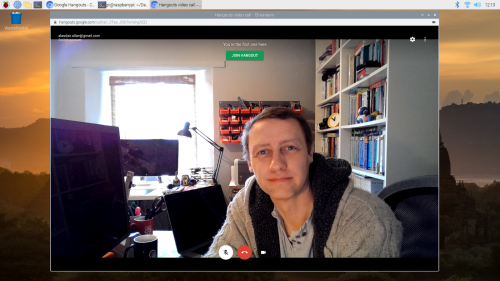
Google Hangouts on the Raspberry Pi desktop

Google Hangouts on the Raspberry Pi desktop

However, the first time you open Hangouts, despite giving permission for the app to access your camera and microphone, you might find that it thinks that access has been denied.

To fix this problem, navigate to the padlock🔒icon in your browser’s address bar and click on it. This will open a drop-down menue letting you mark both the Camera and Microphone as ‘Allow’. Select ‘Allow’ for both the camera and microphone, even if they are set to ‘Allow’ already.
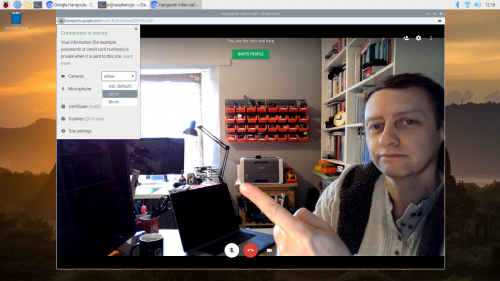
The permissions drop down in Google Hangouts

The permissions drop-down menu in Google Hangouts

Close the drop-down menu by clicking on the cross in the top right-hand corner of the dialog window. Doing so add a bar at the top of your window prompting you to ‘Reload’. Click on ‘Reload’. This time, Google Hangouts should be able to access your camera and microphone.

This trick may also be handy for some other video conferencing applications.

Using Zoom

While there isn’t a Zoom desktop client for Raspberry Pi, you can run the Zoom client application, or even host a meeting, directly in the browser.

Open your browser, navigate to join.zoom.us, and enter the meeting ID and password; if you have received an email invitation, you can click directly on the meeting request URL in the email.
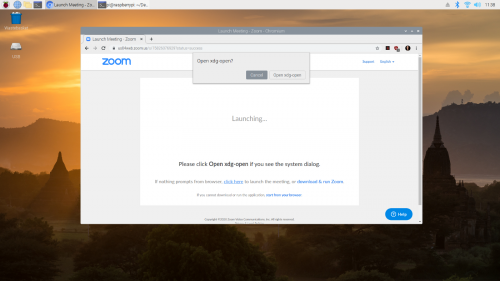
Click on the cancel button when prompted to “Open xdg-open” by Zoom

Click on the ‘Cancel’ button when prompted to ‘Open xdg-open’ by Zoom

Then, when you get asked to ‘Open xdg-open?’ in the system dialog that opens, click on ‘Cancel’.

Next click on the ‘click here’ link near the bottom of the page where it says “If nothing prompts from browser, click here to launch the meeting…”. Another ‘Open xdg-open?’ system dialog will open, and you need to click on ‘Cancel’ again.

Then you should see a new “start from your browser” link in really small font at the bottom of the page. Go ahead and click on the this link.

Your Zoom meeting should now start normally in your browser.

Using Skype

There is a Skype web client, which works out of the box on Raspberry Pi. Just navigate to web.skype.com and log in as normal.

Setting up Citrix Workspace (Citrix Receiver)

It’s possible to use Citrix Receiver on your Raspberry Pi, because Citrix offers a prepackaged Linux binary for the ARM architecture that will run without problems on Raspberry Pi.

Download the ‘Full Package (Self-Service Support)’ for Debian Linux, picking the ‘Citrix Workspace app for Linux (ARM HF)’ package.

Then install it by typing into a terminal window:

$ sudo dpkg -I iaclient_19.12.0.19_armhf.deb

You can then find the newly installed client in main desktop menu.
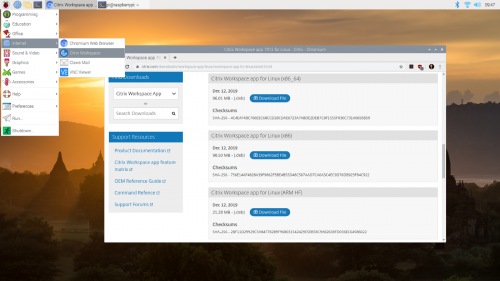
The newly installed Citrix Workspace client

The newly installed Citrix Workspace client

Clicking on the Citrix icon will open a pop-up menu asking you to accept the EULA and then prompting you to add an account. Here you need to enter your work email or the server address provided by your company’s IT people.

Setting up a VNC client

Raspbian includes the VNC Connect client from RealVNC. To open it, navigate to the start menu, click on ‘Internet’, and then on ‘VNC Viewer’.
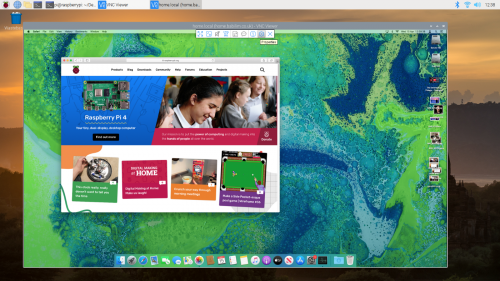
VNC viewer connected to my Mac mini

VNC Viewer connected to my Mac mini

Type the host name of the computer you’re trying to reach into the address bar of the VNC Viewer. You’ll be prompted for a username and password to authenticate to your remote computer. Your remote desktop should appear in a window. You can access the window setting by mousing over near the middle top of the window where a small drop-down panel will appear.

Wrapping things up

I’d been a freelance journalist for years before joining Raspberry Pi, so I perfected my home-working setup a long time ago; but I’m still finding it incredibly useful having a Raspberry Pi set up at the corner of my desk.

A number of our colleagues here at Pi Towers are are using a Raspberry Pi as their main work-from-home computer, or as a supplementary device for conferencing and file-sharing. We’re also seeing a very large number of people, both in our team and out in the community, using Raspberry Pi as a computer for kids to do homework on (an absolute necessity in so many households where parents are using all the available computers to do their own work on!).

If you’ve found any clever work-from-home workarounds that you’d like to share, please let us know about them below.

The post Working from home with your Raspberry Pi appeared first on Raspberry Pi.


Source: Raspberry Pi – Working from home with your Raspberry Pi

Raspberry Pi puts the heart back in mid-noughties nostalgia tech

Is it still the Easter holidays? Can anyone tell? Does it matter, when we have nostalgic tech bunny pets to share with you?

These little bunnies can now do much more than when they first appeared. But they’re still incredibly cute – just look at that little lopsided-ear thing they do.

The original Nabaztag bunnies were to us in the mid-noughties what Tamagotchis were to eleven-year-olds everywhere in the 1990s. They communicated through colour, light, and sound. But now (and here’s the best bit), with a simple bit of surgery and the help of a new Raspberry Pi heart, your digital desk pet will be smarter than ever. It will be able to tell you what the weather is like, and offer local speech recognition as well as “ear-based Tai Chi”. No, we’re not sure either, but we are sure that it sounds cool. And very calming.

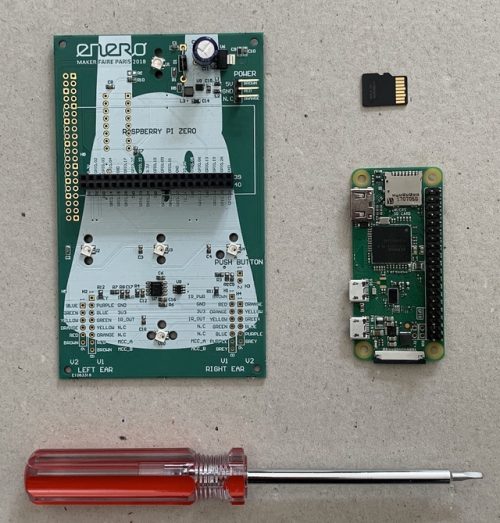
Part of the custom kit that will breathe new life into your bunny

The design team have created what they call the TagTagTag kit. Here are the main components of said kit:

This new venture had its first outing at the Paris Maker Faire in 2018, and it looks like we’re already too late to buy one of the limited number of ready-made upgraded bunnies. However, those of you who kept hold of your original bunny might be able to source one of Nabaztag’s custom boards to upgrade it yourself if you’re prepared to be patient – head over to the project’s funding page. You’ll also need a Raspberry Pi Zero W and a microSD card. The video below is in French, but it’s captioned.

Nabaztag’s funding page also shares all of the tech specs, schematics, and open source Python code you’re going to need.

We know this might be a tricky project for which to source all the parts, but it’s just. So. Cute. Follow the rabbit on Twitter to find out when you might be able to get your hands on a custom board.

The post Raspberry Pi puts the heart back in mid-noughties nostalgia tech appeared first on Raspberry Pi.


Source: Raspberry Pi – Raspberry Pi puts the heart back in mid-noughties nostalgia tech

This clock really, really doesn’t want to tell you the time

What’s worse than a clock that doesn’t work? One that makes an “unbearably loud screeching noise” every minute of every day is a strong contender.

That was the aural nightmare facing YouTuber Burke McCabe. But rather than just fix the problem, he decided, in true Raspberry Pi community fashion, to go one step further. Because why not?

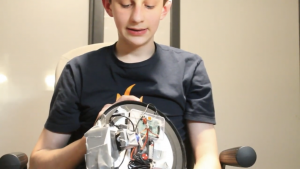
The inventor of the clock holds it with the back facing the camera to show us how it works and is looking down at it.

Burke showing YouTube viewers his invention

On the back of the clock, alongside the built-in mechanism controlling the clock’s arms, Burke added a Raspberry Pi to control a motor, which he hooked up to a webcam. The webcam was programmed using open computer vision library OpenCV to detect whenever a human face comes into view. Why would a clock need to know when someone looks at it? We’ll come to that.

First up, more on how that webcam works. OpenCV detects when a pair of eyes is in view of the webcam for three consecutive frames. You have to be really looking at it, not just passing it – that is, you have to be trying to tell the time. When this happens, the Raspberry Pi rotates the attached motor 180 degrees and back again.

But why? Well:

A clock that falls off the wall when you look at it

hello #invention #robot #raspberrypi

Burke has created a clock which, when you look at it to tell the time, falls off the wall.

We know: you want your own. So do we. Thankfully, Burke responded to calls in the comments on his original video for a more detailed technical walkthrough, and, boy, did he deliver.

How I made A clock that falls off the wall when you look at it

I dunno why I sounded depressed in this video Original Video – https://www.youtube.com/watch?v=R3HUuf6LGQE&t=41s The Code – https://github.com/SmothDragon/Fa…

In his walkthrough video, you get a good look at Burke’s entire setup, including extra batteries to make sure your Raspberry Pi gets enough juice, advice on how to get to grips with the code, and even the slots your different coloured wires need to go in. And so very, very much duct tape. Who’s going to start a GoFundMe to get Burke the glue gun sticks he so desperately needs? And hit subscribe for his YouTube channel while you’re at it!
The post This clock really, really doesn’t want to tell you the time appeared first on Raspberry Pi.


Source: Raspberry Pi – This clock really, really doesn’t want to tell you the time

Digital Making at Home: Make us laugh!

Welcome back for another exciting week of Digital Making at Home from the Raspberry Pi Foundation! Get ready to keep the coding going, and if you’re joining us for the first time, we’re so thrilled to have you!

All of the stories you sent us from across the world last week were not only super creative, they were really uplifting as well. Great job, digital makers! The best part of this for us is seeing what you create, so please keep sharing your projects with us.

Our new theme this week is a complete joke… because we want you to make us laugh!

Welcome to Digital Making at Home: Make us laugh

Find out more about Digital Making at Home at http://rpf.io/home Find more digital making projects at http://rpf.io/projects Find out more about the #Raspber…

Make us laugh this week

Laughter makes a world of difference, and what better way for us all to connect as a global community than by sharing a good laugh together! Just like coding, laughter is a universal language. So this week, we challenge you to make us laugh (or even LOL!). Ask yourself what jokes and tricks you think are funny and then let that guide you while you create your digital making project.

We like to think that we’re a funny bunch at the Raspberry Pi Foundation, so in case you need help with where to begin your project, we share a few tricks of our own in this week’s code-along videos:

Beginner level

Join Mark and his sidekick Zac to find out how to use Scratch and your webcam to make fun photo filters and digital props that will have us rolling on the floor laughing.

Digital Making at Home – ScratchChat filters (beginner)

Go to the free project guide: http://rpf.io/dm-filters Find out more about Digital Making at Home at http://rpf.io/home Provide feedback on this video: https…

If you love this video, also check out Mr C’s extra video about how to turn yourself into a ‘Deal with it’ meme in Scratch.

Go to the brand new and free project guide (available in 14 languages).

Intermediate level

Christina shows you how to use Scratch, Raspberry Pi, and LEDs together to make a unicorn dance.

Digital Making at Home – Dancing unicorn (intermediate)

Go to the free project guide: http://rpf.io/dm-unicorn Find out more about Digital Making at Home at http://rpf.io/home Provide feedback: https://docs.google…

Go to the free project guide (available in 12 languages).

Advanced level

Try not to giggle while Marc explains how to create your own meme generator using HTML, CSS, and JavaScript!

Digital Making at Home – Meme generator (advanced)

Go to the free project guide: http://rpf.io/dm-meme-gen Find out more about Digital Making at Home at http://rpf.io/home Provide Feedback on this video: http…

Go to the free project guide (available in 17 languages).

Share your funny project with us!

We really, really loved the stories you all sent us last week, so please share your hilarious projects with us this week. We truly do hope that you love getting creative with Digital Making at Home, and if you have the time, please tell us your feedback!

We’re looking forward to all the laughs this week!

PS: Don’t forget that you have access to all of our resources for free, forever! Go to www.raspberrypi.org/donate if you want to join the amazing people and organisations whose donations make this possible.

The post Digital Making at Home: Make us laugh! appeared first on Raspberry Pi.


Source: Raspberry Pi – Digital Making at Home: Make us laugh!

Crunch your way through morning meetings

OK, so, we’re not really here. It is a public holiday in the UK and we are all between three and seventeen pounds of Easter chocolate and hot cross buns deep. Our teeth hurt. Anyway, we’re not sure what possessed our cute friends over at Deep Local to do this, but we like it, and not all Raspberry Pi projects need to make sense.

A cereal box with a built in screen

They’ve married the necessary remote-working evil that is conference calls with the kids’ cereal we’re just not ready to let go of, despite being grown-up professionals who take conference calls.

Conference Call’n Crunch

No Description

Taylor Tabb cut a hole in a Cap’n Crunch cereal box to fit a 5″ display, and brought together a Logitech USB webcam and microphone, a USB speaker, and a battery pack, all powered by a Raspberry Pi 3B+. The best bit? It still works as a cereal box. Just don’t forget to mute your mic.

We found this project via Jeremy S. Cook on hackster.io, but Taylor has a wee online collection of all his projects here.

There’s a virtual prize of our love and admiration for the first person to work Taylor’s idea into an Easter egg box.

The post Crunch your way through morning meetings appeared first on Raspberry Pi.


Source: Raspberry Pi – Crunch your way through morning meetings

Make a Side Pocket-esque pool game | Wireframe #36

Recreate the arcade pool action of Data East’s Side Pocket. Raspberry Pi’s own Mac Bowley has the code.

In the original Side Pocket, the dotted line helped the player line up shots, while additional functions on the UI showed where and how hard you were striking the cue ball.

Created by Data East in 1986, Side Pocket was an arcade pool game that challenged players to sink all the balls on the table and achieve a minimum score to progress. As the levels went on, players faced more balls in increasingly difficult locations on the table.

Here, I’ll focus on three key aspects from Side Pocket: aiming a shot, moving the balls, and handling collisions for balls and pockets. This project is great for anyone who wants to dip their toe into 2D game physics. I’m going to use the Pygame’s built-in collision system as much as possible, to keep the code readable and short wherever I can.

Making a pool game

Before thinking about aiming and moving balls, I need a table to play on. I created both a border and a play area sprite using piskelapp.com; originally, this was one sprite, and I used a rect to represent the play area (see Figure 1). Changing to two sprites and making the play area an actor made all the collisions easier to handle and made everything much easier to place.

Figure 1: Our table with separate border. You could add some detail to your own table, or even adapt a photograph to make it look even more realistic.

For the balls, I made simple 32×32 sprites in varying colours. I need to be able to keep track of some information about each ball on the table, such as its position, a sprite, movement, and whether it’s been pocketed or not – once a ball’s pocketed, it’s removed from play. Each ball will have similar functionality as well – moving and colliding with each other. The best way to do this is with a class: a blueprint for each ball that I will make copies of when I need a new ball on the table.

class Ball:
def __init__(self, image, pos):
self.actor = Actor(image, center=pos, anchor=(“center”, “center”))
self.movement = [0, 0]
self.pocketed = False

def move(self):
self.actor.x += self.movement[0]
self.actor.y += self.movement[1]
if self.pocketed == False:
if self.actor.y < playArea.top + 16 or self.actor.y > playArea.bottom-16:
self.movement[1] = -self.movement[1]
self.actor.y = clamp(self.actor.y, playArea.top+16, playArea.bottom-16)
if self.actor.x < playArea.left+16 or self.actor.x > playArea.right-16:
self.movement[0] = -self.movement[0]
self.actor.x = clamp(self.actor.x, playArea.left+16, playArea.right-16)
else:
self.actor.x += self.movement[0]
self.actor.y += self.movement[1]
self.resistance()

def resistance(self):
# Slow the ball down
self.movement[0] *= 0.95
self.movement[1] *= 0.95

if abs(self.movement[0]) + abs(self.movement[1]) < 0.4:
self.movement = [0, 0]

The best part about using a class is that I only need to make one piece of code to move a ball, and I can reuse it for every ball on the table. I’m using an array to keep track of the ball’s movement – how much it will move each frame. I also need to make sure it bounces off the sides of the play area if it hits them. I’ll use an array to hold all the balls on the table.

To start with, I need a cue ball:

balls = []
cue_ball = Ball(“cue_ball.png”, (WIDTH//2, HEIGHT//2))
balls.append(cue_ball)

Aiming the shot

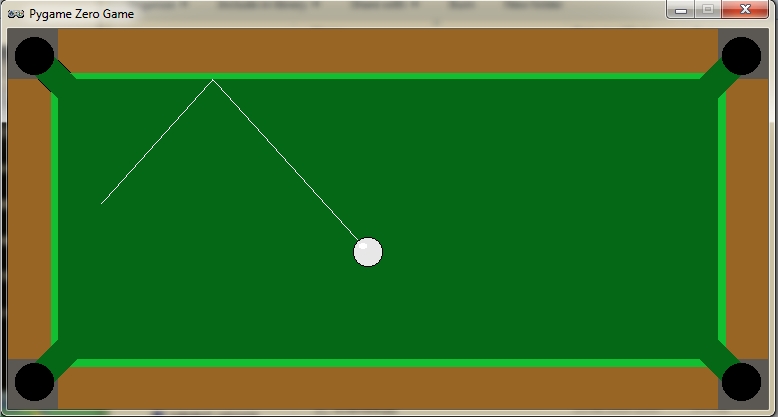
In Side Pocket, players control a dotted line that shows where the cue ball will go when they take a shot. Using the joystick or arrow buttons rotated the shot and moved the line, so players could aim to get the balls in the pockets (see Figure 2). To achieve this, we have to dive into our first bit of maths, converting a rotation in degrees to a pair of x and y movements. I decided my rotation would be at 0 degrees when pointing straight up; the player can then press the right and left arrow to increase or decrease this value.

Figure 2: The dotted line shows the trajectory of the ball. Pressing the left or right arrows rotates the aim.

Pygame Zero has some built-in attributes for checking the keyboard, which I’m taking full advantage of.

shot_rotation = 270.0 # Start pointing up table
turn_speed = 1
line = [] # To hold the points on my line
line_gap = 1/12
max_line_length = 400
def update():
global shot_rotation

## Rotate your aim
if keyboard[keys.LEFT]:
shot_rotation -= 1 * turn_speed
if keyboard[keys.RIGHT]:
shot_rotation += 1 * turn_speed

# Make the rotation wrap around
if shot_rotation > 360:
shot_rotation -= 360
if shot_rotation < 0:
shot_rotation += 360

At 0 degrees, my cue ball’s movement should be 0 in the x direction and -1 in y. When the rotation is 90 degrees, my x movement would be 1 and y would be zero; anything in between should be a fraction between the two numbers. I could use a lot of ‘if-elses’ to set this, but an easier way is to use sin and cos on my angle – I sin the rotation to get my x value and cos the rotation to get the y movement.

# The in-built functions need radian
rot_radians = shot_rotation * (math.pi/180)

x = math.sin(rot_rads)
y = -math.cos(rot_rads)
if not shot:
current_x = cue_ball.actor.x
current_y = cue_ball.actor.y
length = 0
line = []
while length < max_line_length:
hit = False
if current_y < playArea.top or current_y > playArea.bottom:
y = -y
hit = True
if current_x < playArea.left or current_x > playArea.right:
x = -x
hit = True
if hit == True:
line.append((current_x-(x*line_gap), current_y-(y*line_gap)))
length += math.sqrt(((x*line_gap)**2)+((y*line_gap)**2) )
current_x += x*line_gap
current_y += y*line_gap
line.append((current_x-(x*line_gap), current_y-(y*line_gap)))

I can then use those x and y co-ordinates to create a series of points for my aiming line.

Shooting the ball

To keep things simple, I’m only going to have a single shot speed – you could improve this design by allowing players to load up a more powerful shot over time, but I won’t do that here.

shot = False
ball_speed = 30


## Inside update
## Shoot the ball with the space bar
if keyboard[keys.SPACE] and not shot:
shot = True
cue_ball.momentum = [x*ball_speed, y*ball_speed]

When the shot variable is True, I’m going to move all the balls on my table – at the beginning, this is just the cue ball – but this code will also move the other balls as well when I add them.

# Shoot the ball and move all the balls on the table
else:
shot = False
balls_pocketed = []
collisions = []
for b in range(len(balls)):
# Move each ball
balls[b].move()
if abs(balls[b].momentum[0]) + abs(balls[b].momentum[1]) > 0:
shot = True

Each time I move the balls, I check whether they still have some movement left. I made a resistance function inside the ball class that will slow them down.

Collisions

Now for the final problem: getting the balls to collide with each other and the pockets. I need to add more balls and some pocket actors to my game in order to test the collisions.

balls.append(Ball(“ball_1.png”, (WIDTH//2 - 75, HEIGHT//2)))
balls.append(Ball(“ball_2.png”, (WIDTH//2 - 150, HEIGHT//2)))

pockets = []
pockets.append(Actor(“pocket.png”, topleft=(playArea.left, playArea.top), anchor=(“left”, “top”)))
# I create one of these actors for each pocket, they are not drawn

Each ball needs to be able to collide with the others, and when that happens, the direction and speed of the balls will change. Each ball will be responsible for changing the direction of the ball it has collided with, and I add a new function to my ball class:

def collide(self, ball):
collision_normal = [ball.actor.x - self.actor.x, ball.actor.y - self.actor.y]
ball_speed = math.sqrt(collision_normal[0]**2 + collision_normal[1]**2)
self_speed = math.sqrt(self.momentum[0]**2 + self.momentum[1]**2)
if self.momentum[0] == 0 and self.momentum[1] == 0:
ball.momentum[0] = -ball.momentum[0]
ball.momentum[1] = -ball.momentum[1]
elif ball_speed > 0:
collision_normal[0] *= 1/ball_speed
collision_normal[1] *= 1/ball_speed
ball.momentum[0] = collision_normal[0] * self_speed
ball.momentum[1] = collision_normal[1] * self_speed

When a collision happens, the other ball should move in the opposite direction to the collision. This is what allows you to line-up slices and knock balls diagonally into the pockets. Unlike the collisions with the edges, I can’t just reverse the x and y movement. I need to change its direction, and then give it a part of the current ball’s speed. Above, I’m using a normal to find the direction of the collision. You can think of this as the direction to the other ball as they collide.

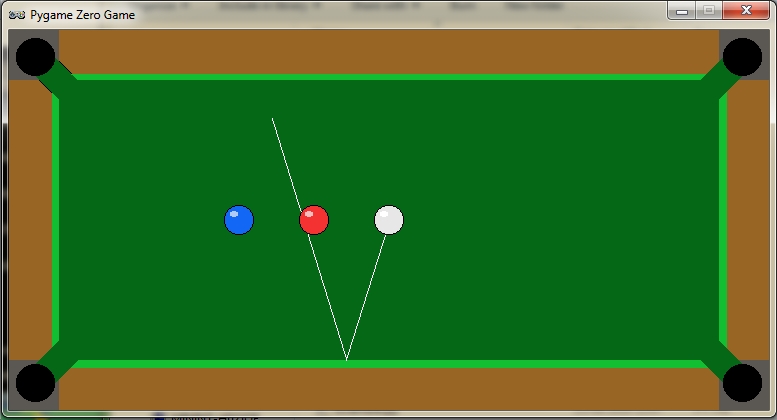
Our finished pool game. See if you can expand it with extra balls and maybe a scoring system.

Handling collisions

I need to add to my update loop to detect and store the collisions to be handled after each set of movement.

# Check for collisions
for other in balls:
if other != b and b.actor.colliderect(other.actor):
collisions.append((b, other))
# Did it sink in the hole?
in_pocket = b.actor.collidelistall(pockets)
if len(in_pocket) > 0 and b.pocketed == False:
if b != cue_ball:
b.movement[0] = (pockets[in_pocket[0]].x - b.actor.x) / 20
b.movement[1] = (pockets[in_pocket[0]].y - b.actor.y) / 20
b.pocket = pockets[in_pocket[0]]
balls_pocketed.append(b)
else:
b.x = WIDTH//2
b.y = HEIGHT//2

First, I use the colliderect() function to check if any of the balls collide this frame – if they do, I add them to a list. This is so I handle all the movement first and then the collisions. Otherwise, I’m changing the momentum of balls that haven’t moved yet. I detect whether a pocket was hit as well; if so, I change the momentum so that the ball heads towards the pocket and doesn’t bounce off the walls anymore.

When all my balls have been moved, I can handle the collisions with both the other balls and the pockets:

for col in collisions:
col[0].collide(col[1])
if shot == False:
for b in balls_pocketed:
balls.remove(b)

And there you have it: the beginnings of an arcade pool game in the Side Pocket tradition. You can get the full code and assets right here.

Get your copy of Wireframe issue 36

You can read more features like this one in Wireframe issue 36, available directly from Raspberry Pi Press — we deliver worldwide. And if you’d like a handy digital version of the magazine, you can also download issue 36 for free in PDF format.

Make sure to follow Wireframe on Twitter and Facebook for updates and exclusive offers and giveaways. Subscribe on the Wireframe website to save up to 49% compared to newsstand pricing!

The post Make a Side Pocket-esque pool game | Wireframe #36 appeared first on Raspberry Pi.


Source: Raspberry Pi – Make a Side Pocket-esque pool game | Wireframe #36

Digital making at home: a guide for parents

This blog post is for parents. Specifically, it’s for parents who want to help their kids get into making things with technology but don’t know where to start.

Lots of us at the Raspberry Pi Foundation are parents too, and right now we’re also all trying to figure out how to keep our kids occupied, entertained, and learning useful things. So we recognise that families are currently facing lots of challenges, which is why we’re supporting parents and carers with learning for young people at home.

We already provide loads of resources and activities that are available for free, online, in up to 30 languages, and we’ll help you get your children set up and started.

A young person having fun with digital making at home

You don’t need any coding experience to get involved

All of our online projects for young people are completely free. They include step-by-step instructions and are easily filtered by level and topic. The projects are designed so that young people can complete them in no more than an hour.

You don’t need any coding experience yourself. The step-by-step instructions mean you can learn alongside your child, or, as long as they can read the instructions themselves, they can work independently on the projects.

A teenager having fun with digital making at home

Watch our support tutorials 

If you’re wondering where to start, or how digital making can work for your young people at home, take a look at our introduction video by Mark, our Youth Programmes Manager. He tells you about Scratch, a free graphical programming language developed by our friends at the Scratch Foundation (plus, it’s the language used to teach computing in most primary schools and a great place to start for beginners):

A parents’ introduction to the programming language Scratch

Find out more about the #RaspberryPi Foundation: Raspberry Pi http://rpf.io/ytrpi Code Club UK http://rpf.io/ytccuk Code Club International http://rpf.io/ytc…

He also takes you through our project site, which is where all the fun stuff happens:

How to use the Raspberry Pi projects site

Find out more about the #RaspberryPi Foundation: Raspberry Pi http://rpf.io/ytrpi Code Club UK http://rpf.io/ytccuk Code Club International http://rpf.io/ytc…

The Digital Making at Home initiative

We’re also offering a series of free weekly, instructor-led videos called Digital Making at Home, which have code-along instructions to help young people with fun projects they can do independently at home. Here’s more information about how you and your family can get involved.

Get involved in Digital Making at Home

Find out more about the #RaspberryPi Foundation: Raspberry Pi http://rpf.io/ytrpi Code Club UK http://rpf.io/ytccuk Code Club International http://rpf.io/ytc…

Sign up for our free content tailored to your needs

Sign up now to start receiving free activities suitable to your child’s age and ability straight to your inbox. And let us know what you as a parent or carer need help with, and what you’d like more or less of.

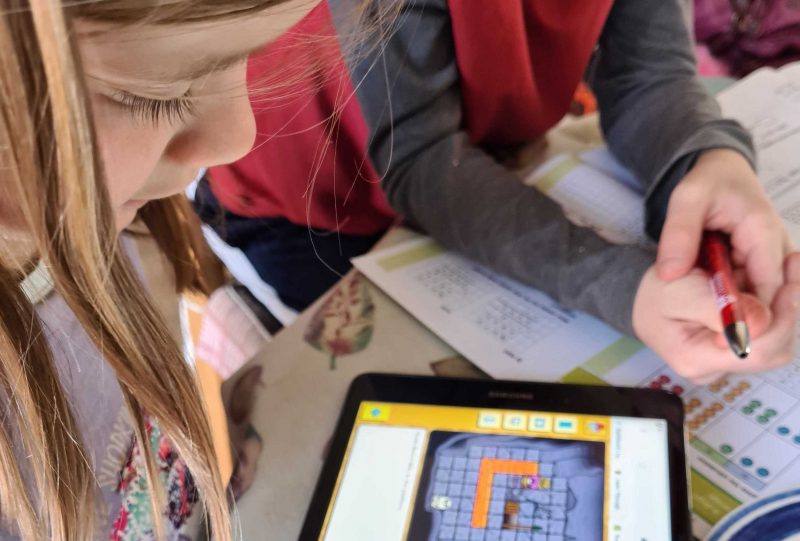
A child having fun with digital making at home using a tablet

What parents and carers say

“I started to try coding activities with my kids a few years ago (now aged 8 and 11). They really like the clear instructions from the Raspberry Pi projects site, it has helped build their confidence particularly when getting started. Their interest in coding has gone up and down over that time, but when I sense that they are losing interest I try to step back and not push it. They like coding simple games particularly, and changing the rules to make it easier for them to win!” Olympia, parent and Head of Youth Partnerships at the Raspberry Pi Foundation 

A girl with her Scratch project

“Finding independent activities is really hard – especially good ones that are also educational. Once we were up and running, Dylan (age 9) was able to follow the step-by-step video and make a game in Scratch by himself!”  Dan, step-parent 

A child having fun with digital making at home using a Crumble controller

“My younger daughter is on the autistic spectrum and really enjoys creating projects which appeal to her particular interests. So we often modify Scratch projects so that she can use different images or add in different sounds. Shifting the focus to things she particularly enjoys means that when we hit a bug, she is more motivated to persevere, fix it, and celebrate her success. Taking a child-centred approach is important for lots of children who want to be in control of their own learning journey.” Katharine, parent and Programme Coordinator at the Raspberry Pi Foundation 

“I introduced my son to coding in Scratch when he was 6. At the start, it was important to sit with him as he worked through little projects. I kept my hands away from his mouse and keyboard and let him explore the interface, with a bit of gentle guidance. Within no time he was independently creating his own projects, and using Scratch for his school work and home life. He even created a random Karate moves generator to help him prepare for a Karate grading. Eventually he wanted to move on though, and when Scratch became too limited we explored some HTML and CSS, and then a little Python. He’s now fully independent, and coding 3D games using Unity. It’s got to the point where he’s using a language that I have no experience with, so debugging just involves me asking him to explain his code and helping him to find solutions online.” Marc Scott, Parent and Senior Learning Manager at the Raspberry Pi Foundation

Our simple top tips (from Marc, Senior Learning Manager)

  • If possible, sit with your child and have them explain to you what they are doing. You don’t have to understand the code, but you can listen and ask questions. If they talk through their thought process, they’re more likely to be successful.
  • Maintain a hands-off approach: offer them suggestions rather than instructions, and keep your hands off their keyboard and mouse.
  • Getting things wrong is one of the best ways to learn. When they encounter bugs in their programs (which they will!), ask questions before giving answers. Try “Why do you think that didn’t work? or “Have you tried changing this bit of code?”
  • Pick tools that are accessible or familiar to the young person. If they like Scratch, then stick with it until they’re trying to do things so complicated that they need more advanced software.
  • If a young person is going to share their project online, you should remind them not to include personal information in it. Tip: Your child has probably learned about e-safety at school, so why not ask them about the rules they’ve learned in class?
  • Always ask the young person to show you what they have made, and show enthusiasm for their work. You may not have a clue what it is, or you might think it’s super simple, but they’ll be proud of it and encouraged if you are too!

PS: All of our resources are completely free. This is made possible thanks to the generous donations of individuals and organisations. Learn how you can help too!

The post Digital making at home: a guide for parents appeared first on Raspberry Pi.


Source: Raspberry Pi – Digital making at home: a guide for parents

Five years of Raspberry Pi clusters

In this guest blog post, OpenFaaS founder and Raspberry Pi super-builder Alex Ellis walks us down a five-year-long memory lane explaining how things have changed for cluster users.

I’ve been writing about running Docker on Raspberry Pi for five years now and things have got a lot easier than when I started back in the day. There’s now no need to patch the kernel, use a bespoke OS, or even build Go and Docker from scratch.

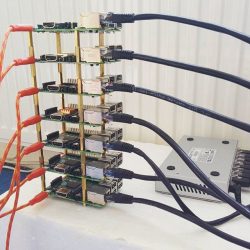
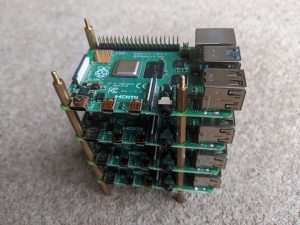
My stack of seven Raspberry Pi 2s running Docker Swarm (2016)

Since my first blog post and printed article, I noticed that Raspberry Pi clusters were a hot topic. They’ve only got even hotter as the technology got easier to use and the devices became more powerful.

Back then we used ‘old Swarm‘, which was arguably more like Kubernetes with swappable orchestration and a remote API that could run containers. Load-balancing wasn’t built-in, and so we used Nginx to do that job.

I built out a special demo using kit from Pimoroni.com. Each LED lit up when a HTTP request came in.

Docker load-balanced LED cluster Raspberry Pi

Ask questions and get all the details including the code over on the blog at: http://blog.alexellis.io/iot-docker-cluster/

After that, I adapted the code and added in some IoT sensor boards to create a smart datacenter and was invited to present the demo at Dockercon 2016:

IoT Dockercon Demo

Get all the write-up here: http://blog.alexellis.io/meet-me-at-dockercon/

Docker then released a newer version of Swarm also called ‘Swarm’ and I wrote up these posts:

Docker Swarm mode Deep Dive on Raspberry Pi (scaled)

Please Subscribe to the channel! Get all the details @ http://blog.alexellis.io/live-deep-dive-pi-swarm/

This is still my most popular video on my YouTube channel.

Now that more and more people were trying out Docker on Raspberry Pi (arm), we had to educate them about not running potentially poisoned images from third-parties and how to port software to arm. I created a Git repository (alexellis/docker-arm) to provide a stack of common software.

I wanted to share with users how to use GPIO for accessing hardware and how to create an IoT doorbell. This was one of my first videos on the topic, a live run-through in one take.

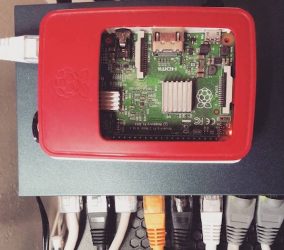
birds eye view of a raspberry pi in a red case

Did you know? I used to run blog.alexellis.io on my Raspberry Pi 3

Then we all started trying to run upstream Kubernetes on our 1GB RAM Raspberry Pis with kubeadm. Lucas Käldström did much of the groundwork to port various Kubernetes components and even went as far as to fix some issues in the Go language.

I wrote a recap on everything you needed to know including exec format error and various other things. I also put together a solid set of instructions and workarounds for kubeadm on Raspberry Pi 2/3.

Users often ask what a practical use-case is for a cluster. They excel at running distributed web applications, and OpenFaaS is loved by developers for making it easy to build, deploy, monitor, and scale APIs.

In this post you’ll learn how to deploy a fun Pod to generate ASCII text, from there you can build your own with Python or any other language:

This blog post was one of the ones that got pinned onto the front page of Hacker News for some time, a great feeling when it happens, but something that only comes every now and then.

The instructions for kubeadm and Raspbian were breaking with every other minor release of Kubernetes, so I moved my original gist into a Git repo to accept PRs and to make the content more accessible.

I have to say that this is the one piece of Intellectual Property (IP) I own which has been plagiarised and passed-off the most.

You’ll find dozens of blog posts which are almost identical, even copying my typos. To begin with I found this passing-off of my work frustrating, but now I take it as a vote of confidence.

Shortly after this, Scott Hanselman found my post and we started to collaborate on getting .NET Core to work with OpenFaaS.

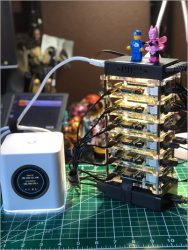
Lego batman and his lego friend atop a cluster of Raspberry Pi

This lead to us co-presenting at NDC, London in early 2018. We were practising the demo the night before, and the idea was to use Pimoroni Blinkt! LEDs to show which Raspberry Pi a Pod (workload) was running on. We wanted the Pod to stop showing an animation and to get rescheduled when we pulled a network cable.

It wasn’t working how we expected, and Scott just said “I’ll phone Kelsey”, and Mr Hightower explained to us how to tune the kubelet tolerance flags.

As you can see from the demo, Kelsey’s advice worked out great!

Building a Raspberry Pi Kubernetes Cluster and running .NET Core – Alex Ellis & Scott Hanselman

Join Scott Hanselman and Alex Ellis as they discuss how you can create your own Raspberry Pi cluster that runs Kubernetes on the metal. Then, take it to the …


Fast forward and we’re no longer running Docker, or forcing upstream Kubernetes into 1GB of RAM, but running Rancher’s light-weight k3s in as much as 4GB of RAM.

k3s is a game-changer for small devices, but also runs well on regular PCs and cloud. A server takes just 500MB of RAM and each agent only requires 50MB of RAM due to the optimizations that Darren Shepherd was able to make.

I wrote a new Go CLI called k3sup (‘ketchup’) which made building clusters even easier than it was already and brought back some of the UX of the Docker Swarm CLI.

Kubernetes Homelab with Raspberry Pi 4

Join me for this hands-on tutorial where I build out a Kubernetes Homelab with a Raspberry Pi 4 and get internet access with a LoadBalancer, something normal…

To help combat the issues around the Kubernetes ecosystem and tooling like Helm, which wasn’t available for ARM, I started a new project named arkade . arkade makes it easy to install apps whether they use helm charts or kubectl for installation.

k3s, k3sup, and arkade are all combined in my latest post which includes installing OpenFaaS and the Kubernetes dashboard.

In late March I put together a webinar with Traefik to show off all the OpenFaaS tooling including k3sup and arkade to create a practical demo. The demo showed how to get a public IP for the Raspberry Pi cluster, how to integrate with GitHub webhooks and Postgresql.

The latest and most up-to-date tutorial, with everything set up step by step:

Cloud Native Tools for Developers with Alex Ellis and Alistair Hey

In this Traefik Online Meetup, Alex Ellis, Founder of OpenFaaS, and Alistair Hey, from the OpenFaaS community, will show you how to bootstrap a Kubernetes cl…


In the webinar you’ll find out how to get a public IP for your IngressController using the inlets-operator.

Take-aways

  • People will always hate

Some people try to reason about whether you should or should not build a cluster of Raspberry Pis. If you’re asking this question, then don’t do it and don’t ask me to convince you otherwise.

  • It doesn’t have to be expensive

You don’t need special equipment, you don’t even need more than one Raspberry Pi, but I would recommend two or three for the best experience.

  • Know what to expect

Kubernetes clusters are built to run web servers and APIs, not games like you do with your PC. They don’t magically combine the memory of each node into a single supercomputer, but allow for horizontal scaling, i.e. more replicas of the same thing.

  • Not everything will run on it

Some popular software like Istio, Minio, Linkerd, Flux and SealedSecrets do not run on ARM devices because the maintainers are not incentivised to make them do so. It’s not trivial to port software to ARM and then to support that on an ongoing basis. Companies tend to have little interest since paying customers do not tend to use Raspberry Pis. You have to get ready to hear “no”, and sometimes you’ll be lucky enough to hear “not yet” instead.

  • Things are always moving and getting better

If you compare my opening statement where we had to rebuild kernels from scratch, and even build binaries for Go, in order to build Docker, we live in a completely different world now. We’ve seen classic swarm, new swarm (swarmkit), Kubernetes, and now k3s become the platform of choice for clustering on the Raspberry Pi. Where will we be in another five years from now? I don’t know, but I suspect things will be better.

  • Have fun and learn

In my opinion, the primary reason to build a cluster is to learn and to explore what can be done. As a secondary gain, the skills that you build can be used for work in DevOps/Cloud Native, but if that’s all you want out of it, then fire up a few EC2 VMs on AWS.

Recap on projects

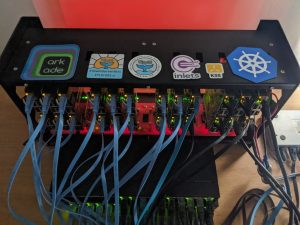
Featured: my 24-node uber cluster, chassis by Bitscope.

Featured: my 24-node uber cluster, chassis by Bitscope.

    • k3sup — build Raspberry Pi clusters with Rancher’s lightweight cut of Kubernetes called k3s
    • arkade — install apps to Kubernetes clusters using an easy CLI with flags and built-in Raspberry Pi support
    • OpenFaaS — easiest way to deploy web services, APIs, and functions to your cluster; multi-arch (arm + Intel) support is built-in
    • inlets — a Cloud Native Tunnel you can use to access your Raspberry Pi or cluster from anywhere; the inlets-operator adds integration into Kubernetes

Want more?

Well, all of that should take you some time to watch, read, and to try out — probably less than five years. I would recommend working in reverse order from the Traefik webinar back or the homelab tutorial which includes a bill of materials.

Become an Insider via GitHub Sponsors to support my work and to receive regular email updates from me each week on Cloud Native, Kubernetes, OSS, and more: github.com/sponsors/alexellis

And you’ll find hundreds of blog posts on Docker, Kubernetes, Go, and more on my blog over at blog.alexellis.io.

The post Five years of Raspberry Pi clusters appeared first on Raspberry Pi.


Source: Raspberry Pi – Five years of Raspberry Pi clusters

Cambridge Computing Education Research Symposium – recap of our online event

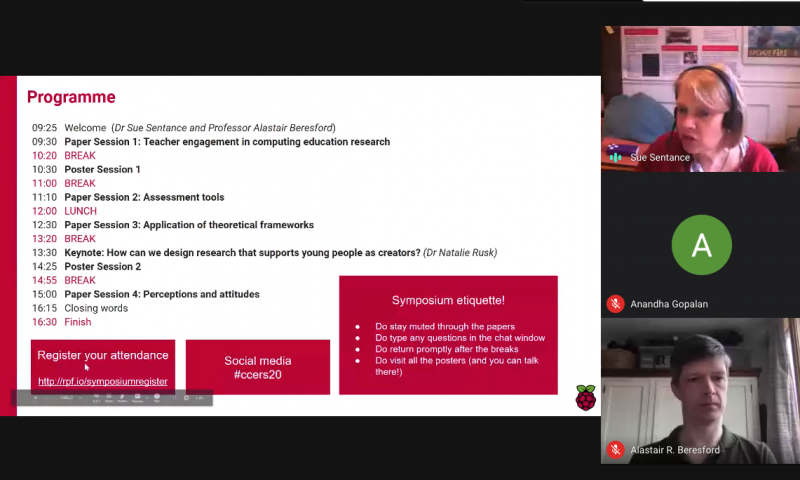
On Wednesday, we hosted the first-ever Cambridge Computing Education Research Symposium online. Research in computing education, particularly in school and for young people, is a young field compared to maths and science education, and we do not have much in terms of theoretical foundations. It is not a field that has received a lot of funding, so we cannot yet look to large-scale, longitudinal, empirical studies for evidence. Therefore, further research on how best to teach, learn, and assess computing is desperately needed. We also need to investigate ways of inspiring and motivating all young people in an area which is increasingly important for their future.

That’s why at the Raspberry Pi Foundationwe have made research a key part of our new strategy, and that’s why we worked with the University of Cambridge to hold this event.

Moving the symposium online

This was to be our first large-scale research event, held jointly with the University of Cambridge Department of Computer Science and Technology. Of course, current circumstances made it necessary for us to turn the symposium from a face-to-face into an online event at short notice.

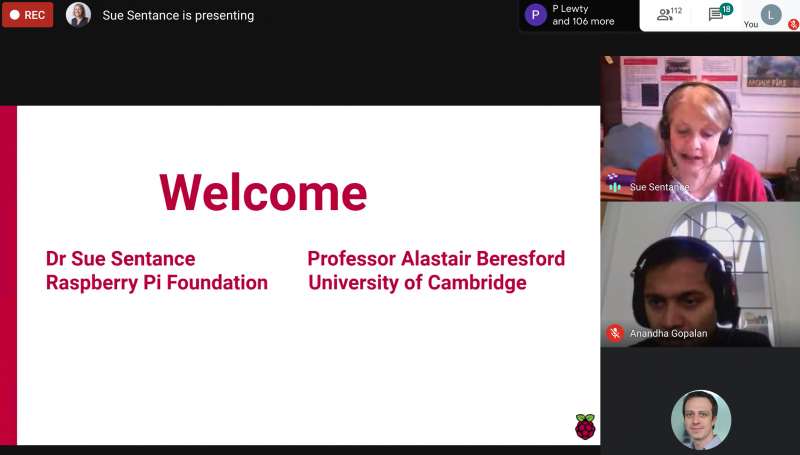
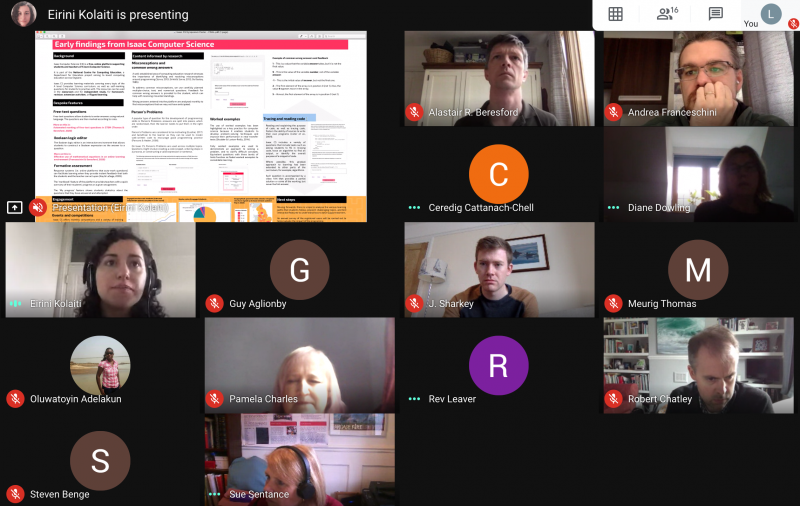
Screengrab from the Cambridge Computing Education Research Symposium 2020 online event

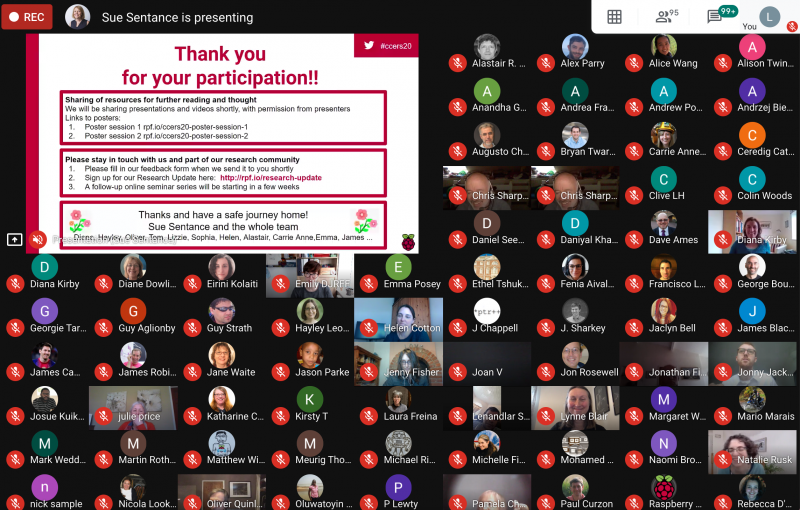
An enthusiastic team took on the challenge, and we were delighted with how well the way the day went! You can see what participants shared throughout the day on Twitter.

Keynote presentation

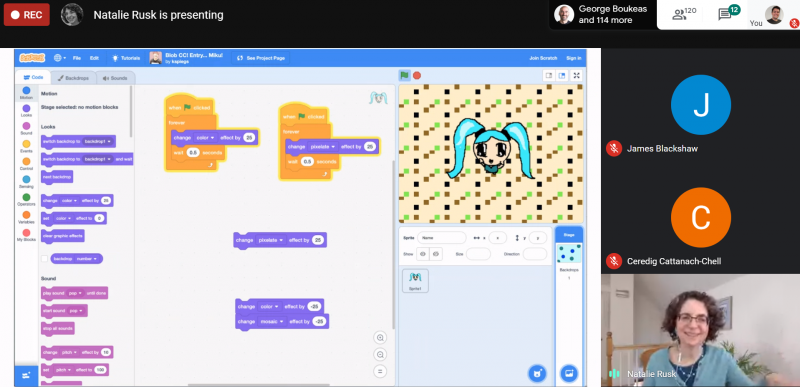
Our keynote speaker was Dr Natalie Rusk of MIT and the Scratch Foundation, who shared her passion for digital creativity using Scratch.

Dr Natalie Rusk from the MIT Media Lab

We were excited to see images from early versions of Scratch and how it had developed over the years. Plus, Natalie revealed the cat blocks that were available on 1 April only — I had completely forgotten the day of the symposium was April Fools’ Day! The focus of Natalie’s presentation was on creativity, invention, tinkering, and the development of ideas over time, and she explored case studies of two ‘Scratchers’ who took a very different approach to working in the Scratch community on projects. The talk was well received by all.

Screengrab from the Cambridge Computing Education Research Symposium 2020 online event

Paper presentations

We heard from researchers from a range of institutions on topics under these themes:

  • Working with teachers on computing education research
  • Assessment tools and techniques
  • Perceptions and attitudes about computing
  • Theoretical frameworks used for computing education

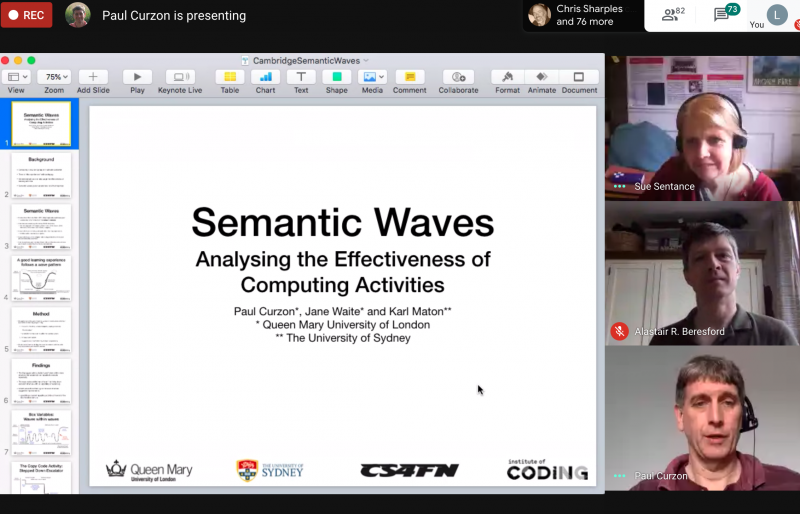
Highlights for me were Ethel Tshukudu’s analysis of the way students transfer from one programming language to another, in which she draws on semantic transfer theory; and Paul Curzon’s application of Karl Maton’s semantic wave theory (taken from linguistics) to computing education.

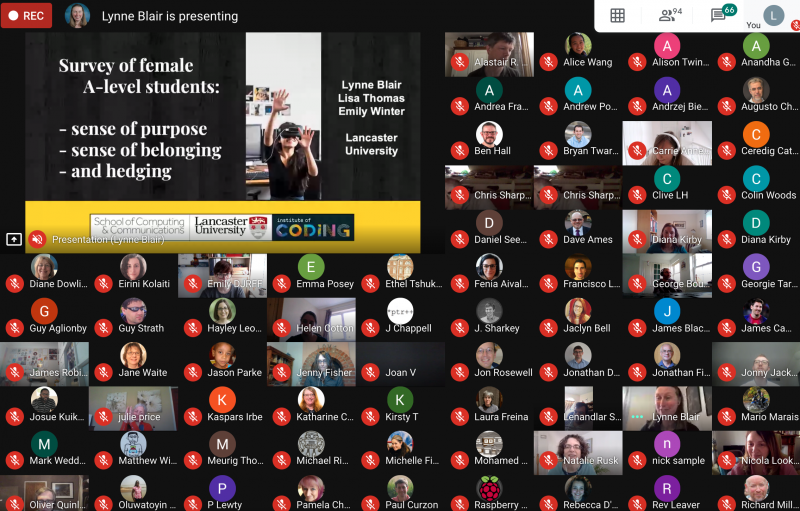
The symposium’s focus was computing for young people, and much of the research presented was directly grounded in work with teachers and students in learning situations. Lynne Blair shared an interesting study highlighting female participation in A level computer science classes, which found the feeling of a lack of belonging among young women, a finding that echoes existing research around computing education and gender. Fenia Aivaloglou from the University of Leiden, Netherlands, considered the barriers faced by learners and teachers in extra-curricular code clubs, and Alison Twiner and Jo Shillingworth from the University of Cambridge shared a study on engaging young people in work-related computing projects.

We also heard how tools for supporting learners are developing, for example machine learning techniques to process natural language answers to questions on the free online learning platforms Isaac Computer Science and Isaac Physics.

Poster presentations

For the poster sessions, we divided into separate sessions so that the poster presenters could display and discuss their posters with a smaller group of people. This enabled more in-depth discussion about the topic being presented, which participants appreciated at this large online event. The 11 posters covered a wide range of topics from data visualisations in robotics to data-driven dance.

Screengrab from the Cambridge Computing Education Research Symposium 2020 online event

We showcased some of our own work on progression mapping with learning graphs for the NCCE Resource Repository; the Isaac Computer Science A level content platform; and our research into online learning with our free online courses for teachers.

Running an online symposium — what is it like?

From having successfully hosted this event online, we learned many lessons that we want to put into practice in future online events being offered by the Raspberry Pi Foundation.

There’s a plethora of tools available, and they all have their pros and cons (we used Google Meet). It’s my view that the tool is less important than the preparation needed for a large-scale online event, which is significant! The organising team hosted technical run-throughs with all presenters in the two days before the event, and instigated a ‘green room’ for all presenters to check their setups again five to ten minutes before their speaking slot. This helped to avoid a whole myriad of potential technical difficulties.

Screengrab from the Cambridge Computing Education Research Symposium 2020 online event

I’m so grateful to the great team at the Raspberry Pi Foundation, who worked behind the scenes all day to make sure that the participants and presenters got the most out of the event!

Stay in touch!

  • On the Research Symposium web page, you can now download the symposium’s abstract booklet. We will shortly be sharing recordings of the symposium’s presentations and files of slides and posters there as well.
  • When we moved the symposium online, we postponed two pre-symposium events: a workshop on gender balance, and a workshop on research-to-practice; we’re hoping to hold these as in-person events in the autumn.
  • Meanwhile, we are planning a series of online seminars, set to start on Tuesday 21 April at 17:00 BST and continue throughout the summer at two-week intervals.

If you’re interested in receiving a regular update about these and other research activities of ours, sign up to our newsletter.

We look forward to building a community of researchers and to sharing more of our work with you over the coming years.

The post Cambridge Computing Education Research Symposium – recap of our online event appeared first on Raspberry Pi.


Source: Raspberry Pi – Cambridge Computing Education Research Symposium – recap of our online event

Digital Making at Home: Storytelling with code

Welcome back to Digital Making at Home from the Raspberry Pi Foundation! If you’re joining us for the first time this week, welcome: you’re now part of a global movement with other young digital makers from all over the world. You’re in great company, friend!

You all CRUSHED making your own games last week, so we’re eager to see how you take on this week’s theme: storytelling!

Digital Making at Home from the Raspberry Pi Foundation [Week 2]

Subscribe to our YouTube channel: http://rpf.io/ytsub Help us reach a wider audience by translating our video content: http://rpf.io/yttranslate Buy a Raspbe…

Tell us a story this week

We all have a story to tell, and with the power of coding and digital making, you can share your own story in your very own way with other digital makers around the world! This week, your challenge is to tell us a story using code. Maybe you want to create your own story or retell one of your favourite tales in your own way — the possibilities are endless.

And when you’ve created your story, share it with others! We’re excited to see it too, so show us what you’ve made by sending it to us to check out..

If you need some inspiration, our Raspberry Pi team is here for you! They’re all back with more code-along videos to help you explore storytelling with code.

Beginner level

Join Mr. C and his sidekick Zack as they create their own story generator in Scratch.

Digital Making at Home – Story generator (Beginner)

Go to the project guide: http://rpf.io/dm-storygen What do you think about this content? Tell us your feedback: https://docs.google.com/forms/d/e/1FAIpQLScM4…

Go to the free project guide (available in 19 languages).

Mr C has also recorded some extra videos showing you how to do cool extra things with your Scratch story! Find them in this week’s playlist.

Intermediate level

Christina shows you how to tell a story on a web page you build with HTML/CSS and any pictures you like.

Digital Making at Home – Tell a story (intermediate)

Go to the project guide: http://rpf.io/dm-tellastory What do you think about this content? Tell us your feedback: https://docs.google.com/forms/d/e/1FAIpQLSc…

Go to the free project guide (available in 25 languages).

Advanced level

Code along with Marc, who creates his own online version of a classic story using more advanced HTML/CSS code and content that’s in the public domain.

Digital Making at Home – Magazine (advanced)

Go to the project guide: http://rpf.io/dm-magazine What do you think abotut his content? Tell us your feedback: https://docs.google.com/forms/d/e/1FAIpQLScM4…

Go to the free project guide (available in 21 languages).

Bonus level

If you want to try something else, here’s a video from a friend of ours! Meet Nick, one of our Raspberry Pi Certified Educators in the USA, as he explains how to create interactive fiction stories:

Creating Interactive Fiction in the Classroom

This is a webinar that walks teachers through the steps of creating a piece of Interactive Fiction. This is a great project to do with students who are takin…

Share your story with us!

We would love to see the story you’re choosing to tell this week! When you’re ready, enlist an adult to send us your story. Who knows, maybe we will feature it in an upcoming blog for our global community to see?

As you’re coding something new this week, we’ll be playing through your game projects from last week! We were super thrilled to see so many digital makers submit their games from all over the world: Iraq, Canada, United Kingdom, and beyond. We wonder what story you’ll tell us this week…?

Are you ready? Get set…LET’S CODE!

Share your feedback

We’d love to know what you think of Digital Making at Home, so that we can make it better for you! Please let us know your thoughts.

PS: All of our resources are available for free forever. This is made possible thanks to the generous donations of individuals and organisations. Learn how you can help too!

The post Digital Making at Home: Storytelling with code appeared first on Raspberry Pi.


Source: Raspberry Pi – Digital Making at Home: Storytelling with code

Instaclock | The Magpi 92

Designed to celebrate a new home, Instaclock uses two Raspberry Pi computers to great visual effect. Rosie Hattersley introduces maker Riccardo Cereser’s eyecatching build in issue #92 of The MagPi, out now.

There is nothing like a deadline to focus the mind! Copenhagen-based illustrator and UX designer Riccardo Cereser was about to move into a new apartment with his girlfriend, and was determined his new home would have a unique timepiece. Instaclock is the result.

Having studied at the Copenhagen Institute of Interactive Design, Italian-born Riccardo was keen that his new apartment would include an object that reflected his skills. He began sketching out ideas in Photoshop, starting with the idea of images representing numbers. “A hand showing fingers; a bicycle wheel resembling the number 0; candles on a cake; or the countdown numbers that appear in the beginning of a recording…” he suggests.

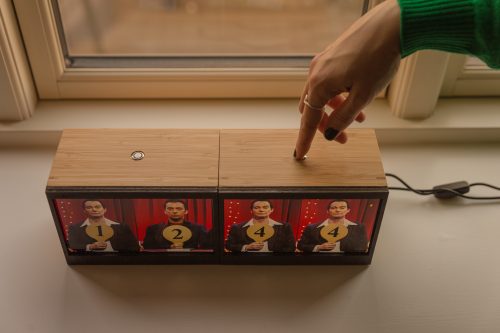
Having decided the idea could be used for an interactive clock, he quickly worked out how such an image-based concept might work displaying the hour, minutes, and seconds on displays in three wooden boxes.

Next, he set off around Copenhagen. “I started taking photos of anything that could resemble a number, aiming to create sets of ten pictures each based on a specific theme,” he recalls. “I then thought how awesome it would be to be able to switch the theme and create new sets on the go, potentially by using Instagram.”

This, Riccardo explains, is how the project became known as Instaclock. He was able to visualise his plan using Photoshop and made a prototype for his idea. It was clear that there was no need to display seconds, for example. Minute-by-minute updates would be fine.

Getting animated

Next up was figuring out how to call up and refresh the images displayed. Riccardo had some experience of using Raspberry Pi, and had even made a RetroPie games console. He also had a friend on the interactive design course who might just be able to help

Creative coder Andreas Refsgaard soon got involved, and was quickly able to come up with a Processing sketch for Instaclock.

Having spent dozens of hours looking into how an API might be used to pull in specific images for his clock, Riccardo was grateful that Andreas immediately grasped how it could be done. Riccardo then set parameters in cron for each Raspberry Pi used, so the Instaclock loaded images at startup and moved on to the next image set every ten seconds.

Because Riccardo wanted Instaclock to be as user-friendly as possible, they also added a rule that shuts a screen down if the button on top of it is pressed for ten seconds or more. The script was one he got from The MagPi.

Assembly time

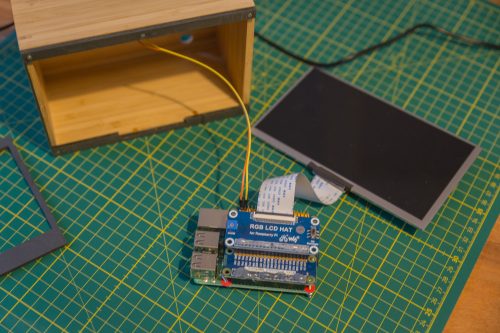
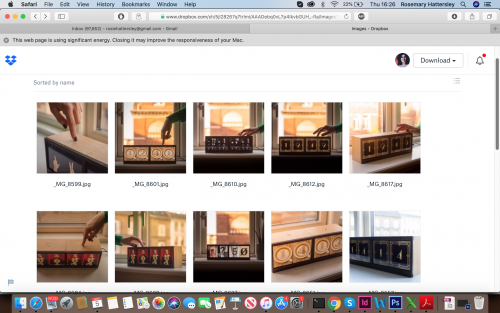
One of the most fun aspects of this project was the opportunity to photograph, draw, or source online images that represent numerals. It was also the most time-consuming, of course. Images reside in Dropbox folders, so can be accessed from anywhere. Deciding on a suitable set of screens to display them, and boxes or frames for them, could also have dragged on but for an impromptu visit to Ikea. Riccardo fortuitously found that the Waveshare screens he selected would fit neatly into the store’s Dragan file organiser boxes. He was then able to laser-cut protective overlays secured with tiny magnets.

Read The MagPi for free!

Find more fantastic projects, tutorials, and reviews in The MagPi #92, out now! You can get The MagPi #92 online at our store, or in print from all good newsagents and supermarkets. You can also access The MagPi magazine via our Android and iOS apps.

Don’t forget our super subscription offers, which include a free gift of a Raspberry Pi Zero W when you subscribe for twelve months.

And, as with all our Raspberry Pi Press publications, you can download the free PDF from our website.

The post Instaclock | The Magpi 92 appeared first on Raspberry Pi.


Source: Raspberry Pi – Instaclock | The Magpi 92

How the Raspberry Pi Foundation is responding to the novel coronavirus (part 2)

It’s been a couple of weeks since I posted a blog about how the Raspberry Pi Foundation was responding to the novel coronavirus, and I thought it would be useful to share an update. Writing this has helped me reflect on just how much has changed in such a short space of time.

Getting used to life in the lockdown

Like most of the world, we’ve been getting used to life in the lockdown. As an organisation, we’re very lucky that the vast majority of our work can be done remotely. We’ve moved all of our meetings and lots of events online. Yesterday, we held the first-ever Cambridge Computing Education Research Symposium as an online event, bringing together 250 researchers and practitioners to learn from each other.

Many of us have been figuring out how to combine working at home with additional daily caring responsibilities and homeschooling. Honestly, it’s a work in progress (in my house at least). We’ve introduced new flexible working policies, we’re working doubly hard to stay connected to each other, and we’re introducing initiatives to support well-being.

I am so grateful and frankly proud of the way that the Raspberry Pi team and all of our partners have responded to the crisis: taking care of each other, supporting the community, and focusing on how we can make the biggest positive contribution and impact.

Our mission has never been more vital

Our educational mission has never been more vital. Right now, over 1.5 billion young people aren’t able to access learning through schools or clubs due to the restrictions needed to stop the spread of the virus. Teachers and parents are doing their best to provide meaningful learning experiences at home and online. We have a responsibility and the ability to help.

We are taking four immediate actions to help millions of young people to learn at home during the crisis:

  1. Delivering direct-to-student learning experiences
  2. Supporting teachers to deliver remote lessons
  3. Helping volunteers run virtual and online coding clubs
  4. Getting computers into the hands of children who don’t have one at home

Digital Making at Home

Based on feedback from the community, we’ve launched a series of direct-to-student virtual and online learning experiences called Digital Making at Home. The idea is to inspire and support young people aged 7–17 who are learning at home, independently or with their parents, carers, or siblings. Taking our amazing library of free project resources (which are translated into up to 29 languages) as the starting point, we’re producing instructional videos that support different levels of skills. Each week we’re setting a theme that will inspire and engage young people to learn how to solve problems and express themselves creatively with technology.

Please check it out and let us have your feedback. We’ve got loads of ideas, but we really want to respond to what you need, so let us know.

Supporting teachers to deliver remote lessons

We are working with partners in England (initially) to support teachers to deliver remote lessons on Computing and Computer Science. This work is part of the National Centre for Computing Education. We are adapting the teaching resources that we have developed so that they can be used by teachers who are delivering lessons and setting work remotely. We are designing a programme of online events to support learners using the Isaac Computer Science platform for post-16 students of Computer Science, including small-group mentoring support for both students and teachers.

All of our teaching and learning resources are available for free for anyone to use anywhere in the world. We are interested in working with partners outside England to find additional ways to make them as useful as possible to the widest possible audience.

Helping volunteers run virtual and online coding clubs

We support the world’s largest network of free coding clubs, with over 10,000 Code Clubs and CoderDojos reaching more than 250,000 young people on a regular basis. We are supporting the clubs that are unable to meet in person during the pandemic to move to virtual and online approaches, and we’ve been blown away by the sheer number of volunteers who want to keep their clubs meeting despite the lockdown.

We’re providing training and support to CoderDojo champions, Code Club organisers, educators, and volunteers, including providing free resources, support with handling issues such as safeguarding, and effective design and delivery of online learning experiences. We are also working with our network of 40 international partners to help them support the clubs in their regions.

Access to hardware

We know that a significant proportion of young people don’t have access to a computer for learning at home, and we’re working with incredibly generous donors and fantastic partners in the UK to get Raspberry Pi Desktop Kits distributed for free to children who need them. We’re also in discussions about extending the programme outside the UK.

Get involved

Everything we do is made possible thanks to an incredible network of partners and supporters. We have been overwhelmed (in a good way) by offers of help since the coronavirus pandemic took hold. Here are some of the ways that you can get involved right now:

  • Share what we’re doing. We need as many people as possible to know that we are offering free, meaningful learning experiences for millions of young people. Please help us spread the word. Why not start by sharing this blog with your networks or inside your company?
  • Share your expertise and time. We regularly mobilise tens of thousands of volunteers all over the world to run computing clubs and other activities for young people. We are supporting clubs to continue to run virtually and online. We also need more help with translation of our learning resources. If you have expertise and time to share, get in touch at supporters@raspberrypi.org.
  • Support us with funding. Now more than ever, we need financial support to enable us to continue to deliver meaningful educational experiences for millions of young people at home. You can donate to support our work here.

Stay safe and take care of each other

Wherever you are in the world, I hope that you and yours are safe and well. Please follow the local public health guidance. Stay safe and take care of each other.

Philip Colligan

CEO Raspberry Pi Foundation

The post How the Raspberry Pi Foundation is responding to the novel coronavirus (part 2) appeared first on Raspberry Pi.


Source: Raspberry Pi – How the Raspberry Pi Foundation is responding to the novel coronavirus (part 2)

El Carrillon | The MagPi 92

Most Raspberry Pi projects we feature debut privately and with little fanfare – at least until they’re shared by us.

The El Carrillon project, however, could hardly have made a more public entrance. In September 2019 it was a focal point of Argentina’s 49th annual Fiesta Nacional de la Flor (National Flower Festival), where its newly overhauled bell tower proudly rang out a brand-new, Raspberry Pi-enabled tune.

Many years ago, festival organisers created custom hardware with a PIC (programmable interface) microcontroller to control 18 tuned bells. Each bell is associated with a musical note, from A3 to D5 with all the semitones. Until its long overdue update, the tower’s 18 bells had rung the tune to Ayer, also known as Yesterday by The Beatles. They now have a brand-new repertoire of MIDI-based tunes, including the theme from Star Wars.

For Gerardo Richarte, the originator of the project, there was a little extra pressure: his dad is on the board of the NGO that organises Fiesta Nacional de la Flor, and challenged his son to come up with a way to update the bells so different songs could be played.

Ringing the changes

With the challenge accepted, Mariano Martinez Peck explains, “We chose Raspberry Pi because it was inexpensive, yet powerful enough to run Linux, Python, and VA Smalltalk. We could find ready-made HATs that actually matched the pinout of the existing flat cables without much hacking, and only a minimal amount of other hardware was needed. In addition, there was plenty of documentation, materials, tutorials, and GPIO libraries available.”

The bells had a pre-existing driver module

The project aim was to be able to run a mobile-friendly website within Raspberry Pi Zero that allowed control, configuration, and playback of MIDI songs on the bell tower. “In addition, we wanted to allow live playing from a MIDI keyboard,” says Mariano. The project developed as a live test and iteration update, but the final build only came together when Mariano and Gerardo’s moment in the spotlight arrived and El Carrillon rang out the first new tunes.

Coding a classic

The decades-old chimes were controlled by assembly code. This was superseded by Python when the team made the switch to Raspberry Pi Zero. Mariano explains, “Raspberry Pi allowed us to use Python to directly interface with both the old and new hardware and get the initial project working.”

However, the Python code was itself replaced by object-oriented VA Smalltalk code – an environment both Mariano and Gerardo are adept at using. Mariano says, “Smalltalk’s live programming environment works really well for fast, iterative development and makes software updates quick and easy without the need for recompilation that lower-level languages [such as assembly or C/C++] would need.”

El Carrillon’s bells can now play any MIDI file on Raspberry Pi, and the notes of the song will be mapped to the tuned bells. However, as the testing process revealed, some songs are more recognisable than others when reproduced on chimes.

A final feature enabled Gerardo to bag some brownie points with his father-in-law. He recently added a web interface for controlling, configuring, and playing songs, meaning the bells can now be controlled remotely and the song selected via a smartphone app.

The El Carrillon bell tower forms a striking backdrop to the flower festival and other cultural events

Read The MagPi for free!

Find more amazing projects and tutorials in The MagPi #92, out now! You can get The MagPi #92 online at our store, or in print from all good newsagents and supermarkets. You can also access The MagPi magazine via our Android and iOS apps.

Don’t forget our fantastic subscription offers, which include a free gift of a Raspberry Pi Zero W when you subscribe for twelve months.

And, as with all our Raspberry Pi Press publications, you can download the free PDF from our website.

The post El Carrillon | The MagPi 92 appeared first on Raspberry Pi.


Source: Raspberry Pi – El Carrillon | The MagPi 92

Code Hyper Sports’ shooting minigame | Wireframe #35

Gun down the clay pigeons in our re-creation of a classic minigame from Konami’s Hyper Sports. Take it away, Mark Vanstone

Hyper Sports

Hyper Sports’ Japanese release was tied in with the 1984 Summer Olympics.

Hyper Sports

Konami’s sequel to its 1983 arcade hit, Track & Field, Hyper Sports offered seven games – or events – in which up to four players could participate. Skeet shooting was perhaps the most memorable game in the collection, and required just two buttons: fire left and fire right.

The display showed two target sights, and each moved up and down to come into line with the next clay disc’s trajectory. When the disc was inside the red target square, the player pressed the fire button, and if their timing was correct, the clay disc exploded. Points were awarded for being on target, and every now and then, a parrot flew across the screen, which could be gunned down for a bonus.

Making our game

To make a skeet shooting game with Pygame Zero, we need a few graphical elements. First, a static background of hills and grass, with two clay disc throwers each side of the screen, and a semicircle where our shooter stands – this can be displayed first, every time our draw() function is called.

We can then draw our shooter (created as an Actor) in the centre near the bottom of the screen. The shooter has three images: one central while no keys are pressed, and two for the directions left and right when the player presses the left or right keys. We also need to have two square target sights to the left and right above the shooter, which we can create as Actors.

When the clay targets appear, the player uses the left and right buttons to shoot either the left or right target respectively.

To make the clay targets, we create an array to hold disc Actor objects. In our update() function we can trigger the creation of a new disc based on a random number, and once created, start an animation to move it across the screen in front of the shooter. We can add a shadow to the discs by tracking a path diagonally across the screen so that the shadow appears at the correct Y coordinate regardless of the disc’s height – this is a simple way of giving our game the illusion of depth. While we’re in the update() function, looping around our disc object list, we can calculate the distance of the disc to the nearest target sight frame, and from that, work out which is the closest.

When we’ve calculated which disc is closest to the right-hand sight, we want to move the sight towards the disc so that their paths intersect. All we need to do is take the difference of the Y coordinates, divide by two, and apply that offset to the target sight. We also do the same for the left-hand sight. If the correct key (left or right arrows) is pressed at the moment a disc crosses the path of the sight frame, we register a hit and cycle the disc through a sequence of exploding frames. We can keep a score and display this with an overlay graphic so that the player knows how well they’ve done.

And that’s it! You may want to add multiple players and perhaps a parrot bonus, but we’ll leave that up to you.

Here’s Mark’s code snippet, which creates a simple shooting game in Python. To get it working on your system, you’ll need to install Pygame Zero. And to download the full code and assets, go here.

Get your copy of Wireframe issue 35

You can read more features like this one in Wireframe issue 35, available now at Tesco, WHSmith, and all good independent UK newsagents.

Or you can buy Wireframe directly from Raspberry Pi Press — delivery is available worldwide. And if you’d like a handy digital version of the magazine, you can also download issue 35 for free in PDF format.

Make sure to follow Wireframe on Twitter and Facebook for updates and exclusive offers and giveaways. Subscribe on the Wireframe website to save up to 49% compared to newsstand pricing!

The post Code Hyper Sports’ shooting minigame | Wireframe #35 appeared first on Raspberry Pi.


Source: Raspberry Pi – Code Hyper Sports’ shooting minigame | Wireframe #35

Digital Making at Home: Making games

When you’re part of the Raspberry Pi Foundation community, you’re a part of a global family of young creators who bring things to life with the power of digital making. We imagine that, given the current changes we’re all navigating, there are probably more of you who are interested in creating new and exciting things at home. And we want to help you! One of the best things we can do right now is to tap into what connects us as a community, and that’s digital making. So, welcome to Digital Making at Home from the Raspberry Pi Foundation!

Welcome to Digital Making at Home from the Raspberry Pi Foundation

Subscribe to our YouTube channel: http://rpf.io/ytsub Help us reach a wider audience by translating our video content: http://rpf.io/yttranslate Buy a Raspbe…

What is Digital Making at Home?

Whether you wrote your first line of code years ago or minutes ago, or you’ve yet to get started, with Digital Making at Home we’re inviting you on a digital making adventure each week.

Digital Making at Home from the Raspberry Pi Foundation V1

At the start of each week, we will share a theme that’s designed to jumpstart your journey of creative expression and problem solving where you create a digital making project you’re proud of. Every week, we’ll have code-along videos led by people from our team. They will walk you through projects from our free projects collection, to give you a place to start and a friendly face to accompany you!

a girl using Scratch on a laptop at home

For those of you whose mother language isn’t English, our free project guides are available in up to 30 languages so far.

Share your digital making project with us!

Each week, when you’ve made something you love using digital making, you can share it us! Just make sure you have your parent’s or guardian’s permissions first. Then share your project by filling out this form. You might find one of your projects featured in a future blog post for the whole community to see, but no matter what, we want to see what you created!

Just because we’re all at home, that doesn’t mean we can’t create together, so let’s kick off Digital Making at Home with this week’s theme:

This week, we’re making games

Playing a game is a fun way to pass the time, but why not take it to the next level and make your own game? This week, we invite you to create a game that you can play with your friends and family!

Let your imagination run free, and if you’re not sure where to start, here are three code-along videos to help you.

Beginner level

If you’re new to coding, we want to introduce you to Scratch, a block-based coding language that is perfect to start with.

Try out Archery, led by Mr C and his sidekick Xavier:

Digital Making at Home – [Archery] (beginner)

Subscribe to our YouTube channel: http://rpf.io/ytsub Help us reach a wider audience by translating our video content: http://rpf.io/yttranslate Buy a Raspbe…

Go to the free Archery project guide (also available in Polish).

Intermediate level

If you’re looking to go beyond the Scratch surface, dive a little deeper into the coding language with.

Try out CATS!, led by Christina:

Digital Making at Home – [Cats] (intermediate)

Subscribe to our YouTube channel: http://rpf.io/ytsub Help us reach a wider audience by translating our video content: http://rpf.io/yttranslate Buy a Raspbe…

Go to the free CATS! project guide (available in 30 languages).

Advanced level

If you’re all Scratched out, move on to Python, a text-based coding language, to take things up a notch.

Try out Turtle Race, led by Marc:

Digital Making at Home – [Turtle Race] (advanced)

Subscribe to our YouTube channel: http://rpf.io/ytsub Help us reach a wider audience by translating our video content: http://rpf.io/yttranslate Buy a Raspbe…

Go to the free Turtle Race project guide (available in 16 languages).

More inspiration for making games

If you’re creating a game in Scratch, check out the extra videos from Mr C in the ‘Digital Making at Home: Making games’ playlist. These will show you how to add a timer, or a score, or a game over message, or a cool starter screen to any Scratch game!

A girl with her Scratch project

And if you’re into Python coding and hungry for more creative inspiration, we’ve got you covered. Our own Wireframe magazine, which you can download for free, has a ton of resources about making games. The magazine’s Source Code series shows you how to recreate an aspect of a classic game with a snippet of Python code, and you can read articles from that series on the Raspberry Pi blog. And if that’s still not enough, take a look at our Code the Classics book, which you can also download for free!

Alright friends, you’ve got all you need, so let’s get digital making!

Share your feedback

We’d love to know what you think of Digital Making at Home, so that we can make it better for you! Let us know your thoughts by filling in this form.

The post Digital Making at Home: Making games appeared first on Raspberry Pi.


Source: Raspberry Pi – Digital Making at Home: Making games

FluSense takes on COVID-19 with Raspberry Pi

Raspberry Pi devices are often used by scientists, especially in biology to capture and analyse data, and a particularly striking – and sobering – project has made the news this week. Researchers at UMass Amherst have created FluSense, a dictionary-sized piece of equipment comprising a cheap microphone array, a thermal sensor, an Intel Movidius 2 neural computing engine, and a Raspberry Pi. FluSense monitors crowd sounds to forecast outbreaks of viral respiratory disease like seasonal flu; naturally, the headlines about their work have focused on its potential relevance to the COVID-19 pandemic.

A photo of Forsad Al Hossain and Tauhidur Rahman with the FluSense device alongside a logo from the Amherst University of Massachusetts

Forsad Al Hossain and Tauhidur Rahman with the FluSense device. Image courtesy of the University of Massachusetts Amherst

The device can distinguish coughing from other sounds. When cough data is combined with information about the size of the crowd in a location, it can provide an index predicting how many people are likely to be experiencing flu symptoms.

It was successfully tested in in four health clinic waiting rooms, and now, PhD student Forsad Al Hossain and his adviser, assistant professor Tauhidur Rahman, plan to roll FluSense out in other large spaces to capture data on a larger scale and strengthen the device’s capabilities. Privacy concerns are mitigated by heavy encryption, and Al Hossain and Rahman explain that the emphasis is on aggregating data, not identifying sickness in any single patient.

The researchers believe the secret to FluSense’s success lies in how much of the processing work is done locally, via the neural computing engine and Raspberry Pi: “Symptom information is sent wirelessly to the lab for collation, of course, but the heavy lifting is accomplished at the edge.”

A bird's-eye view of the components inside the Flu Sense device

Image courtesy of the University of Massachusetts Amherst

FluSense offers a different set of advantages to other tools, such as the extremely popular self-reporting app developed by researchers at Kings College Hospital in London, UK, together with startup Zoe. Approaches like this rely on the public to sign up, and that’s likely to skew the data they gather, because people in some demographic groups are more likely than others to be motivated and able to participate. FluSense can be installed to capture data passively from groups across the entire population. This could be particularly helpful to underprivileged groups who are less likely to have access to healthcare.

Makers, engineers, and scientists across the world are rising to the challenge of tackling COVID-19. One notable initiative is the Montreal General Hospital Foundation’s challenge to quickly design a low-cost, easy to use ventilator which can be built locally to serve patients, with a prize of CAD $200,000 on offer. The winning designs will be made available to download for free.
There is, of course, loads of chatter on the Raspberry Pi forum about the role computing has in beating the virus. We particularly liked this PSA letting you know how to free up some of your unused processing power for those researching treatments.

screenshot of the hand washer being built from a video on instagram

Screenshot via @deeplocal on Instagram

And to end on a cheering note, we *heart* this project from @deeplocal on Instagram. They’ve created a Raspberry Pi-powered soap dispenser which will play 20 seconds of your favourite song to keep you at the sink and make sure you’re washing your hands for long enough to properly protect yourself.

The post FluSense takes on COVID-19 with Raspberry Pi appeared first on Raspberry Pi.


Source: Raspberry Pi – FluSense takes on COVID-19 with Raspberry Pi

Using Raspberry Pi for deeper learning in education

Using deeper learning as a framework for transformative educational experiences, Brent Richardson outlines the case for a pedagogical approach that challenges students using a Raspberry Pi. From the latest issue of Hello World magazine — out today!

A benefit of completing school and entering the workforce is being able to kiss standardised tests goodbye. That is, if you don’t count those occasional ‘prove you watched the webinar’ quizzes some supervisors require.

In the real world, assessments often happen on the fly and are based on each employee’s ability to successfully complete tasks and solve problems. It is often obvious to an employer when their staff members are unprepared.

Formal education continues to focus on accountability tools that measure base-level proficiencies instead of more complex skills like problem-solving and communication.

One of the main reasons the U.S. education system is criticised for its reliance on standardised tests is that this method of assessing a student’s comprehension of a subject can hinder their ability to transfer knowledge from an existing situation to a new situation. The effect leaves students ill-prepared for higher education and the workforce.

A study conducted by the National Association of Colleges and Employers found a significant gap between how students felt about their abilities and their employer’s observations. In seven out of eight categories, students rated their skills much higher than their prospective employers had.

Some people believe that this gap continues to widen because teaching within the confines of a standardised test encourages teachers to narrow their instruction. The focus becomes preparing students with a limited scope of learning that is beneficial for testing.

With this approach to learning, it is possible that students can excel at test-taking and still struggle with applying knowledge in new ways. Educators need to have the support to not only prepare students for tests but also to develop ways that will help their students connect to the material in a meaningful manner.

In an effort to boost the U.S. education system’s ability to increase the knowledge and skills of students, many private corporations and nonprofits directly support public education. In 2010, the Hewlett Foundation went so far as to develop a framework called ‘deeper learning’ to help guide its education partners in preparing learners for success.

The principles of deeper learning

Deeper learning focuses on six key competencies:

    1. Master core academic content
    2. Think critically and solve
      complex problems
    3. Work collaboratively
    4. Communicate effectively
    5. Learn how to learn
    6. Develop academic mindsets

This framework ensures that learners are active participants in their education. Students are immersed in a challenging curriculum that requires them to seek out and acquire new information, apply what they have learned, and build upon that to create new knowledge.

While deeper learning experiences are important for all students, research shows that schools that engage students from low-income families and students of colour in deeper learning have stronger academic outcomes, better attendance and behaviour, and lower dropout rates. This results in higher graduation rates, and higher rates
of college attendance and perseverance than comparison schools serving similar students. This pedagogical approach is one we strive to embed in all our work at Fab Lab Houston.

A deeper learning timelapse project

The importance of deeper learning was undeniable when a group of students I worked with in Houston built a solar-powered time-lapse camera. Through this collaborative project, we quickly found ourselves moving beyond classroom pedagogy to a ‘hero’s journey’ — where students’ learning paths echo a centuries-old narrative arc in which a protagonist goes on an adventure, makes new friends, encounters roadblocks, overcomes adversity, and returns home a changed person.
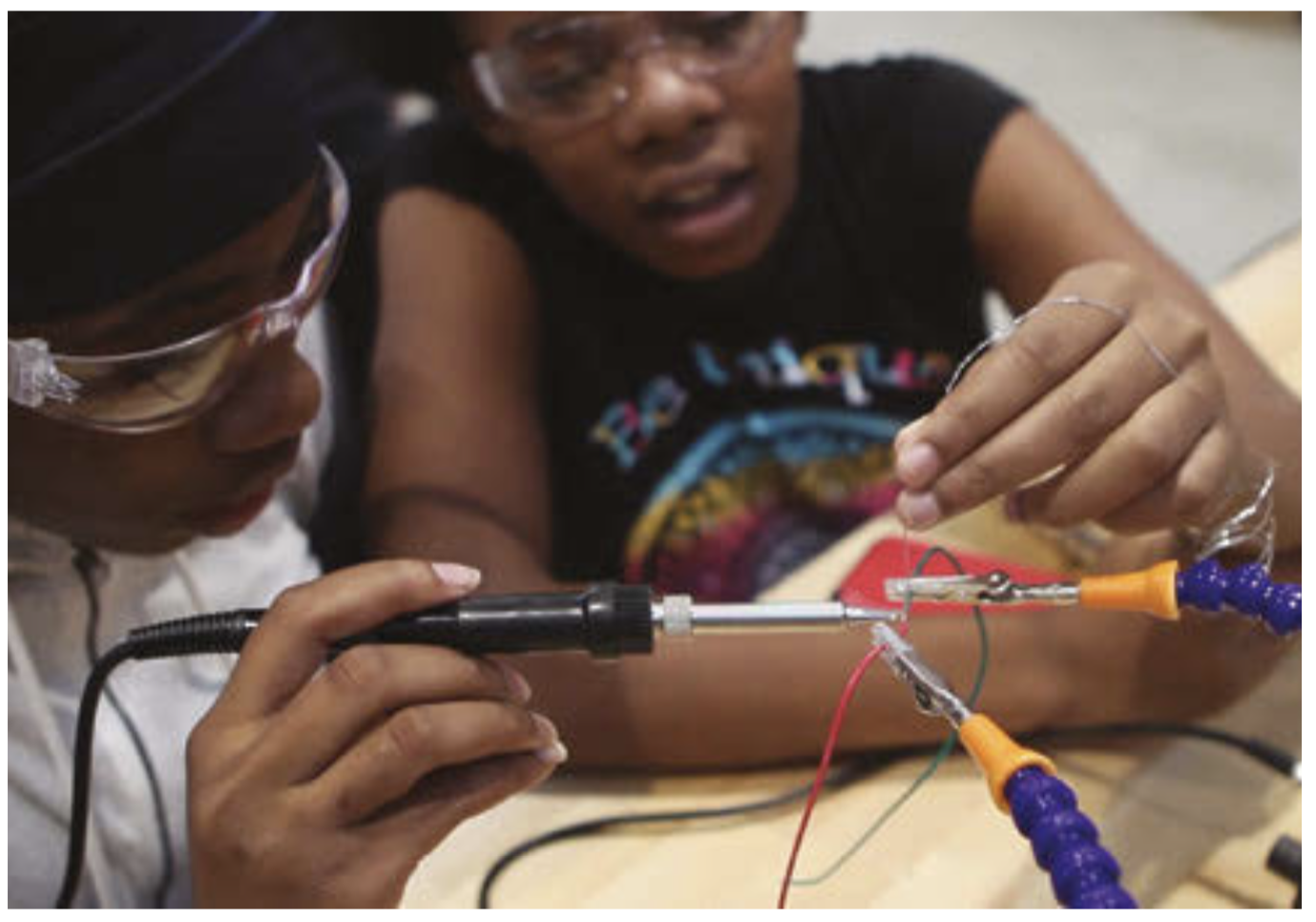
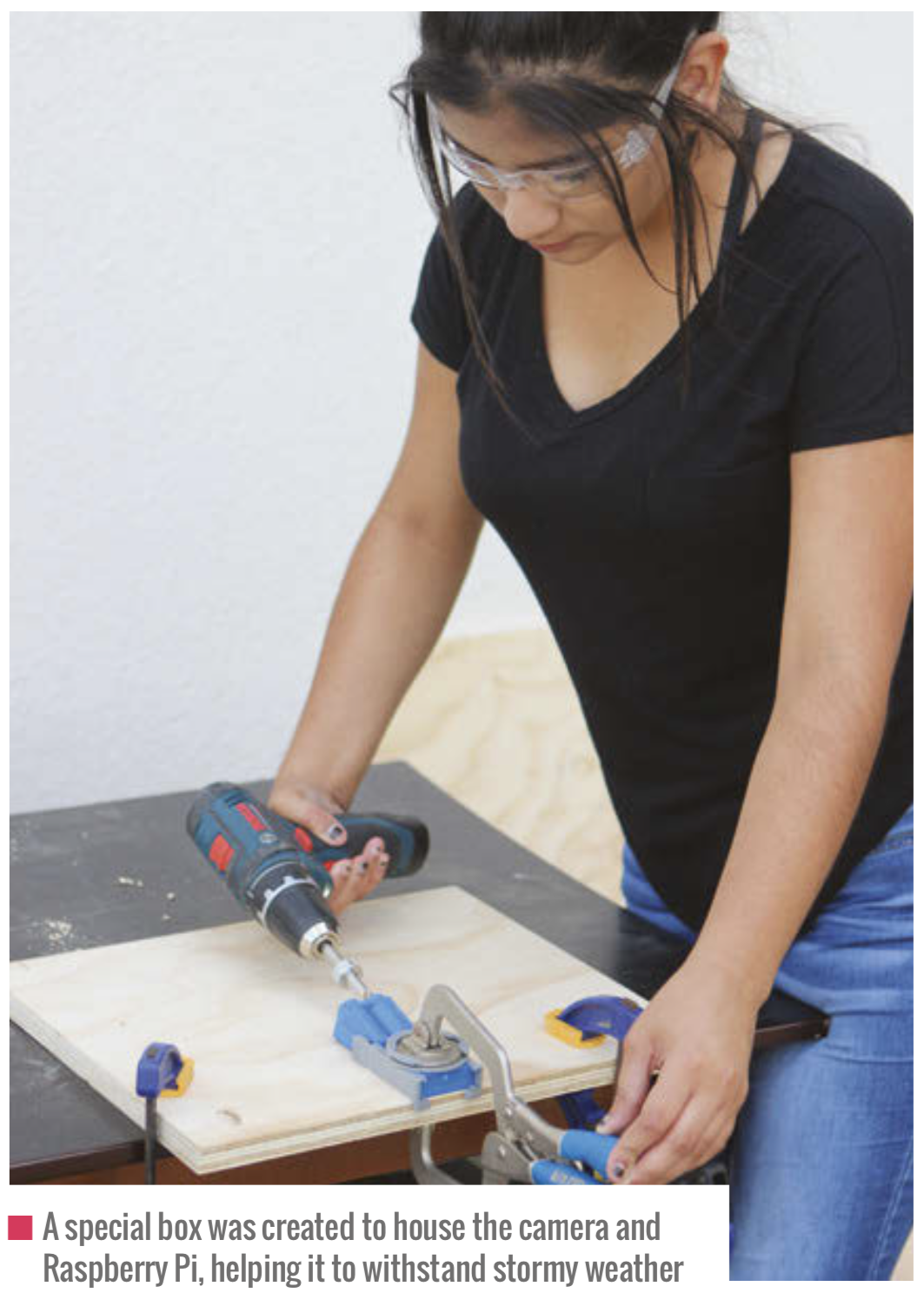
In this spirit, we challenged the students with a simple objective: ‘Make a device to document the construction of Fab Lab Houston’. In just one sentence, participants understood enough to know where the finish line was without being told exactly how to get there. This shift in approach pushed students to ask questions as they attempted to understand constraints and potential approaches.

Students shared ideas ranging from drone video to photography robots. Together everyone began to break down these big ideas into smaller parts and better define the project we would tackle together. To my surprise, even the students that typically refused to do most things were excited to poke holes in unrealistic ideas. It was decided, among other things, that drones would be too expensive, robots might not be waterproof, and time was always a concern.

The decision was made to move forward with the stationary time-lapse camera, because although the students didn’t know how to accomplish all the aspects of the project, they could at least understand the project enough to break it down into doable parts and develop a ballpark budget. Students formed three teams and picked one aspect of the project to tackle. The three subgroups focused on taking photos and converting them to video, developing a remote power solution, and building weatherproof housing.

A group of students found sample code for Raspberry Pi that could be repurposed to take photos and store them sequentially on a USB drive. After quick success, a few ambitious learners started working to automate the image post-processing into video. Eventually, after attempting multiple ways to program the computer to dynamically turn images into video, one team member discovered a new approach: since the photos were stored with a sequential numbering system, thousands of photos could be loaded into Adobe Premiere Pro straight off the USB with the ‘Automate to Sequence’ tool in Premiere.

A great deal of time was spent measuring power consumption and calculating solar panel and battery size. Since the project would be placed on a pole in the middle of a construction site for six months, the students were challenged with making their solar-powered time-lapse camera as efficient as possible.

Waking the device after it was put into sleep mode proved to be more difficult than anticipated, so a hardware solution was tested. The Raspberry Pi computer was programmed to boot up when receiving power, take a picture, and then shut itself down. With the Raspberry Pi safely shut down, a timer relay cut power for ten minutes before returning power and starting the cycle again.

Finally, a waterproof container had to be built to house the electronics and battery. To avoid overcomplicating the process, the group sourced a plastic weatherproof ammunition storage box to modify. Students operated a 3D printer to create custom parts for the box.

After cutting a hole for the camera, a small piece of glass was attached to a 3D-printed hood, ensuring no water entered the box. On the rear of the box, they printed a part to hold and seal the cable from the solar panel where it entered the box. It only took a few sessions before the group produced a functioning prototype. The project was then placed outside for a day to test the capability of the device.

The test appeared successful when the students checked the USB drive. The drive was full of high-quality images captured every ten minutes. When the drive was connected back to Raspberry Pi, a student noticed that all the parts inside the case moved. The high temperature on the day of the test had melted the glue used to attach everything. This unexpected problem challenged students to research a better alternative and reattach the pieces.

Once the students felt confident in their device’s functionality, it was handed over to the construction crew, who installed the camera on a twenty-foot pole. The installation went smoothly and the students anxiously waited to see the results.

Less than a week after the camera went up, Houston was hit hard with the rains brought on by hurricane Harvey. The group was nervous to see whether the project they had constructed would survive. However, when they saw that their camera had survived and was working, they felt a great sense of pride.

They recognised that it was the collaborative effort of the group to problem-solve possible challenges that allowed their camera to not only survive but to capture a spectacular series of photos showing the impact of the hurricane in the location it was placed.

BakerRipleyTimeLapse2

This is “BakerRipleyTimeLapse2” by Brent Richardson on Vimeo, the home for high quality videos and the people who love them.

A worthwhile risk

Overcoming many hiccups throughout the project was a great illustration of how the students learned how to learn and
to develop an academic mindset; a setback that at the beginning of the project might have seemed insurmountable was laughable in the end.

Throughout my experience as a classroom teacher, a museum educator, and now a director of a digital makerspace, I’ve seen countless students struggle to understand the relevance of learning, and this has led me to develop a strong desire to expand the use of deeper learning.

Sometimes it feels like a risk to facilitate learning rather than impart knowledge, but seeing a student’s development into a changed person, ready to help someone else learn, makes it worth the effort. Let’s challenge ourselves as educators to help students acquire knowledge and use it.

Get your FREE copy of Hello World today

Issue 12 of Hello World is available now as a FREE PDF download. UK-based educators can also subscribe to receive Hello World directly to their door in all its shiny printed goodness. Visit the Hello World website for more information.

The post Using Raspberry Pi for deeper learning in education appeared first on Raspberry Pi.


Source: Raspberry Pi – Using Raspberry Pi for deeper learning in education

Ashley’s top five projects for Raspberry Pi first-timers

It is time. Time to go to that little stack of gifts from well-wishers who have badged you as “techie” or noted that you “play computer games”. Armed with this information, they decided you’d like to receive one of our small and perfectly formed Raspberry Pis. You were thrilled. You could actually make a thing.

Except you haven’t. You had to go to that job thingy, and talk to that partner thingy, and wash and feed those children thingies. Don’t worry, we’re not offended. We know that embarking on your first coding project is daunting and that the community has taken off like a rocket so there are eight bajillion ideas floating around. Good job we’re here to help, then, isn’t?

First-timer project 01

Some of us have found ourselves spending more time with our online communities recently. Those whose digital family of choice is to be found on Reddit should see an uptick in their personal ‘Karma’ if they’re spending more time digging into “the front page of the internet”. If you’d like to see a real-world indicator of the fruits of your commenting/sharing/Let-Me-Google-That-For-You labour, a super-easy Raspberry Pi first-timer project is building a Karma counter, like this one we found on Reddit.

Now, Squiddles1227 is one of those flash 3D printer-owning types, but you could copy the premise and build your own crafty Karma-themed housing around your counter.

On a similar note (and featuring a comprehensive ‘How To’), GiovanniBauer on instructables.com used his Raspberry Pi to create an Instagram follower counter. Developed on Raspbian with Node.js, this project walk-through should get you started on whichever social media counter project you’d like to have a bash at.

First-timer project 02

We know this is a real-life Raspberry Pi first-timer project because the Reddit post title says so. Ninjalionman1 made an e-ink calendar using a Raspberry Pi Zero so they can see their daily appointments, weather report, and useful updates.

We mined the original Reddit thread to find you the comment linking to all the info you need about hardware and setup. Like I said, good job we’re here.

First-timer project 03

Raspberry Pi 3 and 4, as well as Raspberry Pi Zero W, come with built-in Bluetooth connectivity. This means you can build something to let your lockdown-weary self take your emotional-health-preserving music/podcasts/traditional chant soundtrack with you as you migrate around your living space. “Mornings in the lounge… mid-afternoons at the kitchen table…” – we feel you.

Circuitdigest.com posted this comprehensive walk-through to show you how a Raspberry Pi can convert an ordinary speaker with a 3.5mm jack into a wireless Bluetooth speaker.

First-timer project 04

PCWorld.com shared 10 Raspberry Pi projects they bet anyone can do, and we really like the look of this one. It shows you how to give a “dumb” TV extra smarts, like web browsing, which could be especially useful if screen availability is limited in a multi-user household.

The PCWorld article recommends using a Raspberry Pi 2, 3 or 4, and points out that this is a much cheaper option than things like Chromebits and Compute Sticks.

First-timer project 05

Lastly, electromaker.io have hidden the coding education vegetables in the Minecraft tomato sauce using Raspberry Pi. The third post down on this thread features a video explaining how you can hack your kids’ favourite game to get them learning to code.

The video blurb also helpfully points out that Minecraft comes pre-installed on Raspbian, making it “one of the greatest Pi projects for kids.”

If you’re not quite ready to jump in and try any of the above, try working your way through these really simple steps to set up your Raspberry Pi and see what it can do. Then come back here and try one of these first-timer projects, share the results of your efforts, tag us, and receive a virtual round of applause!

The post Ashley’s top five projects for Raspberry Pi first-timers appeared first on Raspberry Pi.


Source: Raspberry Pi – Ashley’s top five projects for Raspberry Pi first-timers

Stay busy in your Vault with a Raspberry Pi Zero Pipboy

While being holed up in the Vaults living off our stash of Nuke cola, we’ve come across this mammoth junk-build project, which uses Raspberry Pi Zero W to power a working Pipboy.

Pipboy scrap build

No Description

UK-based JustBuilding went full Robert House and, over several months, built the device’s body by welding together scrap plastic. Raspberry Pi Zero W serves as the brain, with a display header mounted to the GPIO pins. The maker wrote a Pipboy-style user interface, including demo screens, in Python — et voilà…


Lucky for him, semiconductors were already invented but, as JustBuilding admits, this is not what we’d call a beginner’s project. Think the Blue Peter show’s Tracey Island extravaganza, except you don’t have crafty co-presenters/builders, and you also need to make the thing do something useful (for our US readers who just got lost there, think Mr Rogers with glitter glue and outdoor adventure challenges).

The original post on Instructables is especially dreamy, as JustBuilding has painstakingly produced a really detailed, step-by-step guide for you to follow, including in-the-making photos and links to relevant Raspberry Pi forum entries to help you out where you might get stuck along the way.

And while Raspberry Pi can help you create your own post-apocalyptic wristwear, we’re still working on making that Stealthboy personal cloaking device a reality…

If you’re lucky enough to have access to a 3D printer, the following is the kind of Pipboy you can knock up for yourself (though we really like JustBuilding’s arts’n’crafts upcycling style):

3D Printed Pipboy 3000 MKIV with Raspberry Pi

Find out how to 3D print and build your own functional Pipboy 3000 using a Raspberry Pi and Adafruit 3.5″ PiTFT. The pypboy python program for the Raspberry …

The post Stay busy in your Vault with a Raspberry Pi Zero Pipboy appeared first on Raspberry Pi.


Source: Raspberry Pi – Stay busy in your Vault with a Raspberry Pi Zero Pipboy