Raspberry Pi-powered wedding memories record player

We’re a sentimental bunch and were bowled over by this intricate, musical wedding gift. It’s powered by a Raspberry Pi and has various other bits of geeky goodness under the hood. Honestly, the extra features just keep coming — you’ll see.

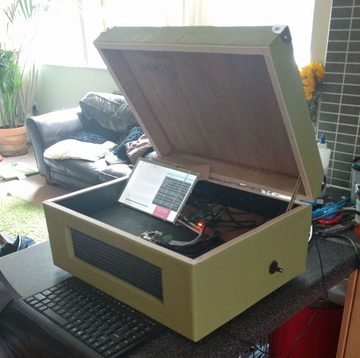
This beautifully crafted ‘record player’ plays one pair of newlyweds’ Spotify accounts, and there’s a special visual twist when their ‘first dance’ wedding song plays.

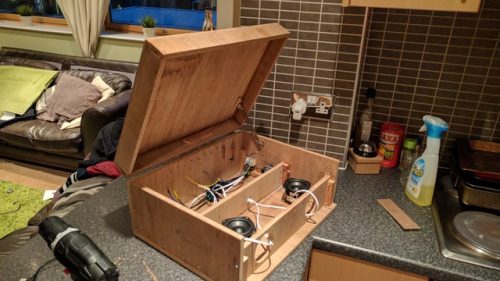
Midway through the build process

First, a little background: the newlyweds, Holly and Dougie, have been sweethearts since early highschool days. Their wedding took place on a farm near the village they grew up in, Fintry in rural Scotland.

No Title

No Description

Throughout the wedding day, the phrase “Music is a huge deal” was repeated often, which gave the bride’s older brother Ben Howell the idea for a homemade, Raspberry Pi–powered gift.

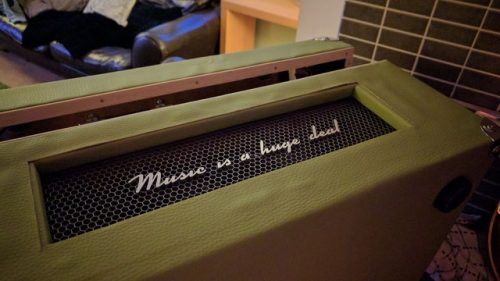
Custom tagline laser-cut and spray-painted

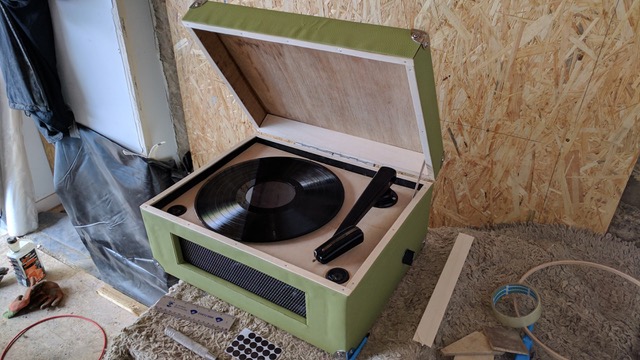
He built the couple a neatly finished music box, known as HD-001 (HD for ‘Holly Dougie’ of course) and home to a ‘smart turntable’. It can connect to a wireless network and has a touch screen where the record label would normally sit. When you lift the lid and switch it on, it asks “Hello. Who’s listening?”

Once you tap on the picture of either the bride or groom, it accesses their Spotify account and fetches the album artwork of whatever song it plays.

What’s inside?

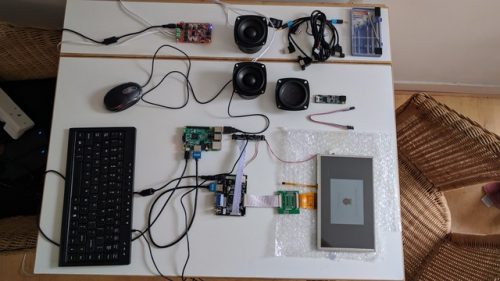
The main brain is Raspberry Pi 3 running Raspberry Pi OS. The interface is built as a web page in mostly PHP and JavaScript. It uses the Spotify API to get the ‘now playing’ track of the bride’s or groom’s account, and to fish out the album artwork URL from the return data so it can display this on a rotating panel.

The audio side is a powered by a 50W Bluetooth amplifier, which is entirely independent from the Raspberry Pi computer.

The build details

The enclosure is all custom-designed and built using scrap wood wrapped in green faux leather material. Ben sourced most of the other materials — rubber feet, hinges, switches, metal grille — on Amazon.

The HD-001 also features a hand-built 4-way speaker system and a custom-made speaker grille with that famous phrase “Music is a huge deal” on the front.

The lettering on the grille was laser-cut by a company in Glasgow to order, and Ben spray-painted it metallic grey. The LCD panel and driver board are also from Amazon.

To play and pause music, Ben sourced a tone-arm online and routed cabling from the Raspberry Pi GPIO pins through to a micro-switch where the original needle should sit. That’s how lifting the arm pauses playback, and replacing it resumes the music.

Getting the audio to work

Ben explains: “Essentially, it’s a fancy Bluetooth speaker system disguised as an old-fashioned turntable and designed to behave and work like an old-fashioned turntable (skeuomorphism gone mad!).”

Oh, and our favourite adorable bonus feature? If the first dance song from Holly’s and Dougie’s wedding is played, the album artwork on the LCD panel fades away, to be replaced by a slideshow of photos from their wedding.

And for extra, extra big brother points, Ben even took the time to create a manual to make sure the newlyweds got the most out of their musical gift.

We have it on good authority that Ben will entertain anyone who would like to place a pre-order for the HD-002.

The post Raspberry Pi-powered wedding memories record player appeared first on Raspberry Pi.


Source: Raspberry Pi – Raspberry Pi-powered wedding memories record player

Vulkan update: now with added source code

Today we have a guest post from Igalia’s Iago Toral, who has spent the past year working on the Mesa graphic driver stack for Raspberry Pi 4.

It is almost five months since we announced the Vulkan effort for Raspberry Pi 4. It was great to see how many people were excited about this, and today we would like to give you a status update on our progress over these last months.

When we announced the effort back in January we were at the point of rendering a coloured triangle, which required only minimal coverage of the Vulkan 1.0 API in the driver. Today, we are passing over 70,000 tests from the Khronos Conformance Test Suite for Vulkan 1.0 and we have an implementation for a significant subset of the Vulkan 1.0 API.

Progress so far, in pictures

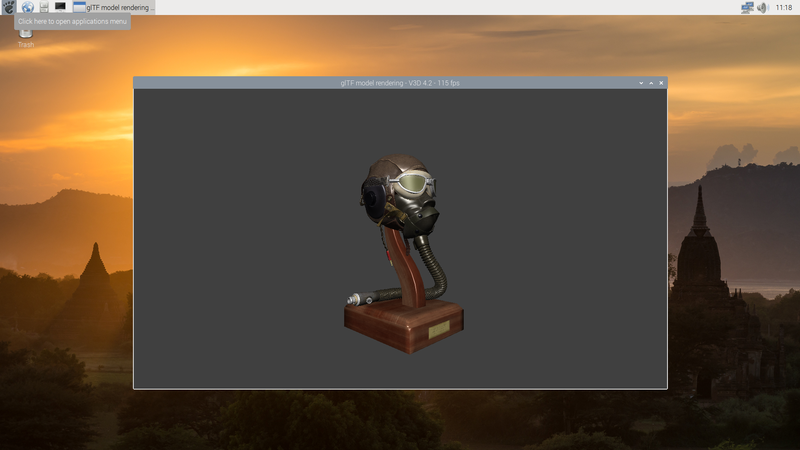
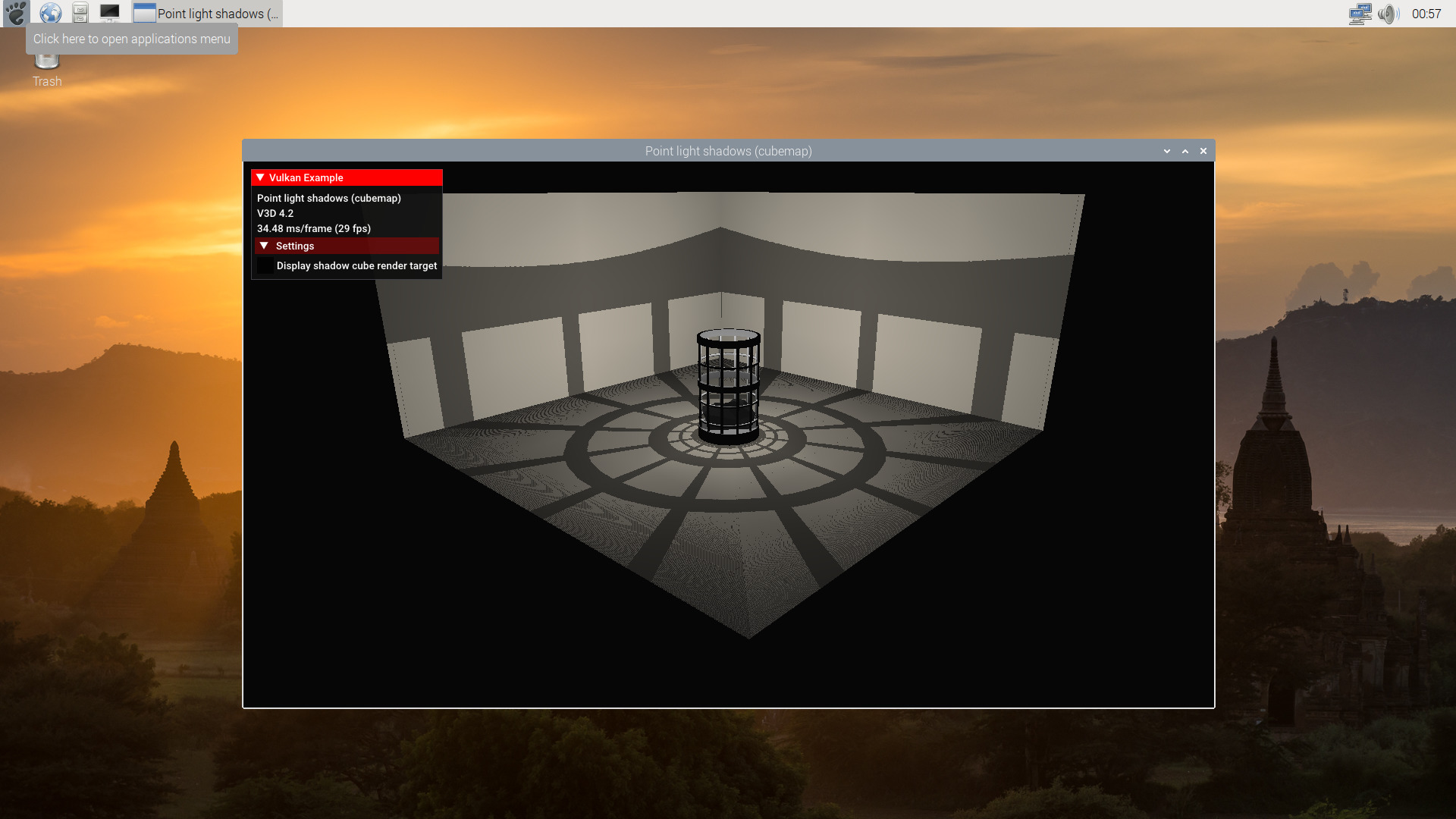
While I could detail here all the features that we have implemented, I am sure that list would get long and boring very quickly for most of you. So, instead, we would like to show you our progress through pics taken from a bunch of the popular Vulkan demos by Sascha Willems running on Raspberry Pi 4:

Hopefully that is more entertaining than a feature checklist and will help you visualize better where we are now compared to January’s coloured triangle.

Before you get too excited though, while these demos are nice, they are still a far cry from actual games and applications. We still have a lot of work to do before the driver can handle these more complex workloads. Even some of Sascha’s demos don’t run yet, whether because of driver bugs or unimplemented Vulkan features. We still have a lot of work ahead of us.

Next up

I would also like to give you an overview of some of the things we will be working on in the coming months:

Our first priority is to support the basic Vulkan 1.0 feature set. This will involve, at least, supporting compute shaders, input attachments, texel buffers, storage images, pipeline caches, and multisampling. There are some other features that we need to support in Vulkan 1.0, such as robust buffer access etc, but those are probably the largest ones we are currently missing.

Once we are feature-complete we will probably move focus to CTS conformance, which will be all about bugfixing, and making sure we handle spec corner cases. And once we are close to conformance, the driver should hopefully be stable and robust enough that we should probably start testing actual Vulkan applications and games to drive further bugfixing work.

Finally, there will be a lot of performance tuning and optimization work that we will probably tackle in the last stages of development.

So as I said before, we still have a long way to go!

Moving development to an open repository

Before we end this post, I would also like to share another important piece of news: starting today, we are moving development of the driver to an open repository. You can find instructions on how to build and install the driver here. I know this is something that many of you have been asking for, and I am sorry that it took us a few months to get here. But I think that now that we have a more stable driver infrastructure in place, and we don’t feel like we are constantly making large changes every other day, development should be a lot friendlier to external contributors than it may have been a few months ago.

So that’s everything we wanted to share today – I hope you are still excited about Vulkan and looking forward to future updates. In the meantime, if you have questions or are interested in contributing to the driver, join us on irc.freenode.net, #videocore channel.

The post Vulkan update: now with added source code appeared first on Raspberry Pi.


Source: Raspberry Pi – Vulkan update: now with added source code

What are the effects of the pandemic on education? | Hello World #13

How has computing education changed over the last few months? And how will the coronavirus pandemic affect education in the long term? In the introduction to our newest issue of Hello World, our CEO Philip Colligan reflects on the incredible work of front-line educators, and on the challenges educators and students will face.

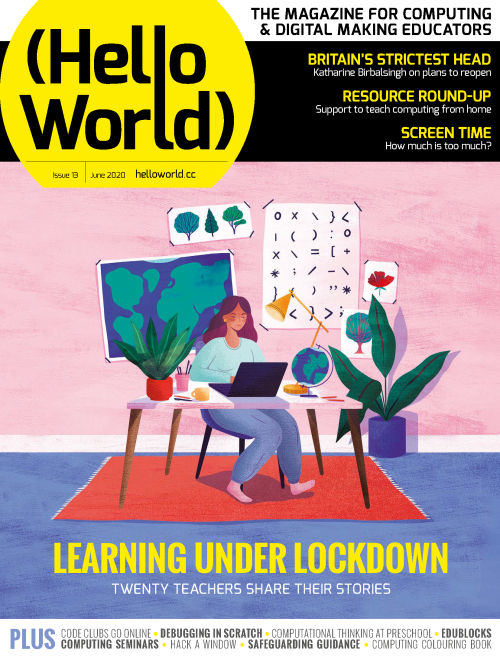
Hello World issue 13 front cover

In just a few short weeks, the coronavirus pandemic has had a profound impact on every aspect of life, not least education. With 1.2 billion young people affected by the closure of schools, teachers have joined health and care workers, and the many others, who are on the front line of the fight against the virus.

As chair of governors at a state school here in Cambridge, I’ve seen first-hand the immense pressure that schools and teachers are under. The abrupt transition to emergency remote teaching, caring for the most vulnerable students, supporting families who are experiencing the health and economic devastation wrought by the virus, and doing all of this while looking after themselves and their loved ones. The word ‘heroic’ doesn’t feel nearly sufficient to describe the efforts of teachers all over the world.

At the Raspberry Pi Foundation, we wanted to learn about how different schools have responded, what’s working, what the challenges are, and crucially, what is happening to computing education. We spoke to teachers at primary schools, secondary schools, and further education colleges. Most were based in the UK, with a few in India and the US.

Even from this small collection of interviews, we saw incredible innovation and resilience, coupled with a determination to ensure that all young people could continue learning during the lockdown.

Most of the teachers that we spoke to were specialists in computing. Their expertise with technology has put them centre-stage, with many stepping into leadership roles, supporting the rapid roll-out of online learning, and providing invaluable support to colleagues and students alike. We hope that this leads to schools giving greater priority to computing education. Digital technologies are keeping the world connected and working. Equipping all young people with the ability to harness the power of computing has never been more vital.

We’ve also seen profound challenges. The digital divide has never been more apparent. Far too many young people lack access to a computer for learning at home. This is a problem that can be fixed at a cost that is trivial compared to the long-term economic impact of the educational disadvantage that it causes.

But we’re also hearing first-hand how educational disadvantage isn’t just about access to technology. Many families are struggling to support home learning, whether because of the condition of their housing, their work or caring responsibilities, or the struggle to put food on the table. Teachers have responded compassionately, offering practical support where it’s needed most, and planning now for how they will help students catch up when schools reopen.

We know that school closures disproportionately impact the most disadvantaged students. If we are going to reduce the long-term economic and social impact of the virus, there needs to be a huge global effort to invest in addressing the educational impact that it has caused.

As we start to figure out what a post-lockdown world might look like, the only thing that feels certain is we are facing a long period of disruption to formal education. We need to find new ways to combine online learning, classroom and remote teaching, mentoring, and non-formal learning experiences, to ensure that all young people, whatever their backgrounds, are able to thrive and fulfil their potential. The stories we’ve heard from these educators give me hope that we can, but they will need the support of government, industry, and nonprofits. The Raspberry Pi Foundation is committed to playing our part.

Get your free copy today!

Besides the Learning in lockdown feature, issue 13 of Hello World contains articles and opinion pieces on managing screen time, safeguarding in online lessons, and how the education landscape is shifting at an unprecedented rate.

We’ve also collected together some of the best free resources for online learning, and we share fantastic activities in our resources section.

Download your free copy to read about all this and more!

And if you’re an educator in the UK, you can take out a free subscription to receive print copies of Hello World.

The post What are the effects of the pandemic on education? | Hello World #13 appeared first on Raspberry Pi.


Source: Raspberry Pi – What are the effects of the pandemic on education? | Hello World #13

Let’s go out to sea with Digital Making at Home

Digital Making at Home: Out at sea

Subscribe to our YouTube channel: http://rpf.io/ytsub Help us reach a wider audience by translating our video content: http://rpf.io/yttranslate Buy a Raspbe…

Join us for Digital Making at Home, where this week for World Oceans Day, the big blue sea is calling our names. With Digital Making at Home, we invite young people all over the world to code along with us and our new videos every week to keep the coding fun going at home!

There’s a whole world to discover under the sea, so let’s use the power of digital making to dive in together, code-first:

Check out this week’s code-along videos!

And tune in on Wednesday at 2pm BST / 9am EDT / 7.30pm IST at rpf.io/home to code along with our live stream session.

The post Let’s go out to sea with Digital Making at Home appeared first on Raspberry Pi.


Source: Raspberry Pi – Let’s go out to sea with Digital Making at Home

Raspberry Pi–powered robot farmers

We love seeing Raspberry Pi being used to push industry forward. Here’s an example of how our tiny computers are making an impact in agriculture. 

Directed Machines is a small company on a mission to remove pollution and minimise human labour in land care. Their focus is to do more with less, so the affordable power of our robust computers matches perfectly with their goals.

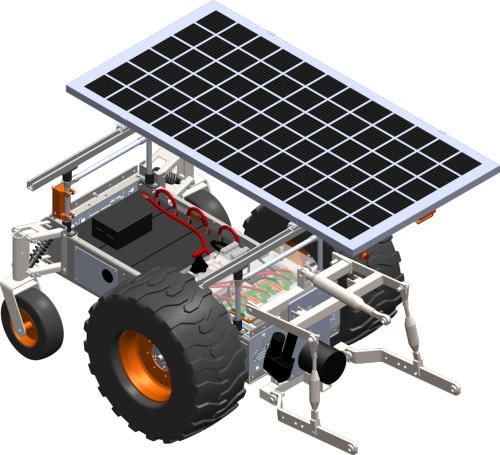
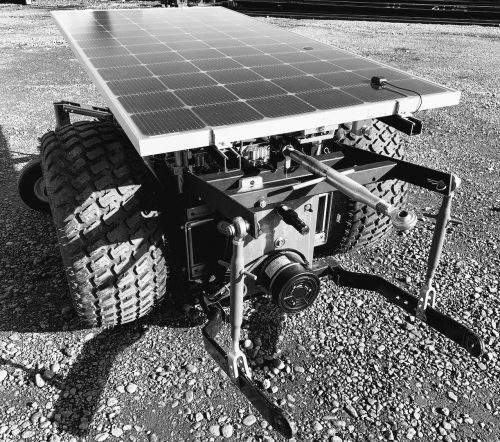
You’ll find a Raspberry Pi 4 at the heart of their solar-powered, autonomous, electric tractors called Land Care Robots.

Here are a few of the robot’s specs:

  • 30KW / 42HP peak power
  • 1400 ft.lb torque
  • 400W bi-facial, high-efficiency solar panel for 10KWh energy storage
  • 50″(W)×80″(L) with zero turn
  • Dual color and depth (distance measuring) cameras, accelerometer, magnetic compass, and GPS
  • 4G/3G/2G modem for self-update/telemetry publish/map downloads and WiFi, allowing direct control from smartphone or PC
  • Multiple autonomy modes, area coverage, and way-point navigation
  • Follow mode, person or peer robot, using wearable tag, depth sensors and motion control using smartphone touch/tilt, combined with obstacle avoidance

Directed Machine’s COO Wayne Pearson explains: “Rather than opting for the most advanced components (often the simplest solution), we endeavour to find affordable, easily sourced components. We then enable these components to accomplish more by ensuring efficient uses of compute/memory resources through our software stack, which we built from the ground up.”

“All in all,” Wayne continues, “this approach helps minimise unnecessarily inflated component costs (as well as the corresponding complexities) from being passed along to our customers — which keeps our prices lower and enables rapid field repair/maintenance.”

Here’s a practical example of that. This is a custom HAT Directed Machine’s ‘Electrical Engineering Guy’ Chris Doughty shared on LinkedIn. It was specially created to expand the functionality of the Raspberry Pi 4s they were using:

The HAT includes:

• 7-port USB 2.0 hub (six ports off-board) with individual port-power control
• 5A of 5.45V power to keep Pi running stable with high-current peripherals
• 9-axis IMU LSM9DS1
• Precision ‘M8P’ UBLOX GNSS receiver (capable of supporting RTK) SMA connection for external GPS antenna including DC for LNA
• 7–15V DC input to support automotive and accessory-port applications • Connects to standard Raspberry Pi 3 and 4 via pin-header and standoffs

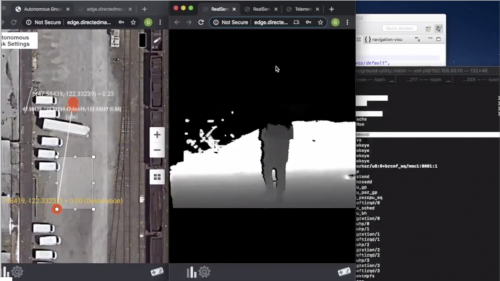
Directed Machine’s founder George Chrysanthakopoulos shared the video at the top of this post on LinkedIn to demonstrate how the land care robots see the world while autonomously navigating. The combined power of Raspberry Pi 4 and their own built-from-the-ground software stack lets the robots see dual depth and colour streams at 15Hz. This is all made possible with a cheap GPS plus an Inertial Measurement Unit (IMU) for just $15 combined.


With a base price of the Land Care Robot is in the thousands, we’re not suggesting you should pick up one for your back garden — cutting the lawn is a childhood chore for the ages. But, for industry, the robot is a fine example of how businesses are using Raspberry Pi to cut both cost and environmental impact.

Also see Liz’s favourite project, the Cucumber Counter, and the popular CNC FarmBot, for more examples of ‘Down on the farm with Raspberry Pi’.

The post Raspberry Pi–powered robot farmers appeared first on Raspberry Pi.


Source: Raspberry Pi – Raspberry Pi–powered robot farmers

Code Gauntlet’s four-player co-op mode | Wireframe #39

Four players dungeon crawling at once? Mark Vanstone shows you how to recreate Gauntlet’s co-op mode in Python and Pygame Zero.

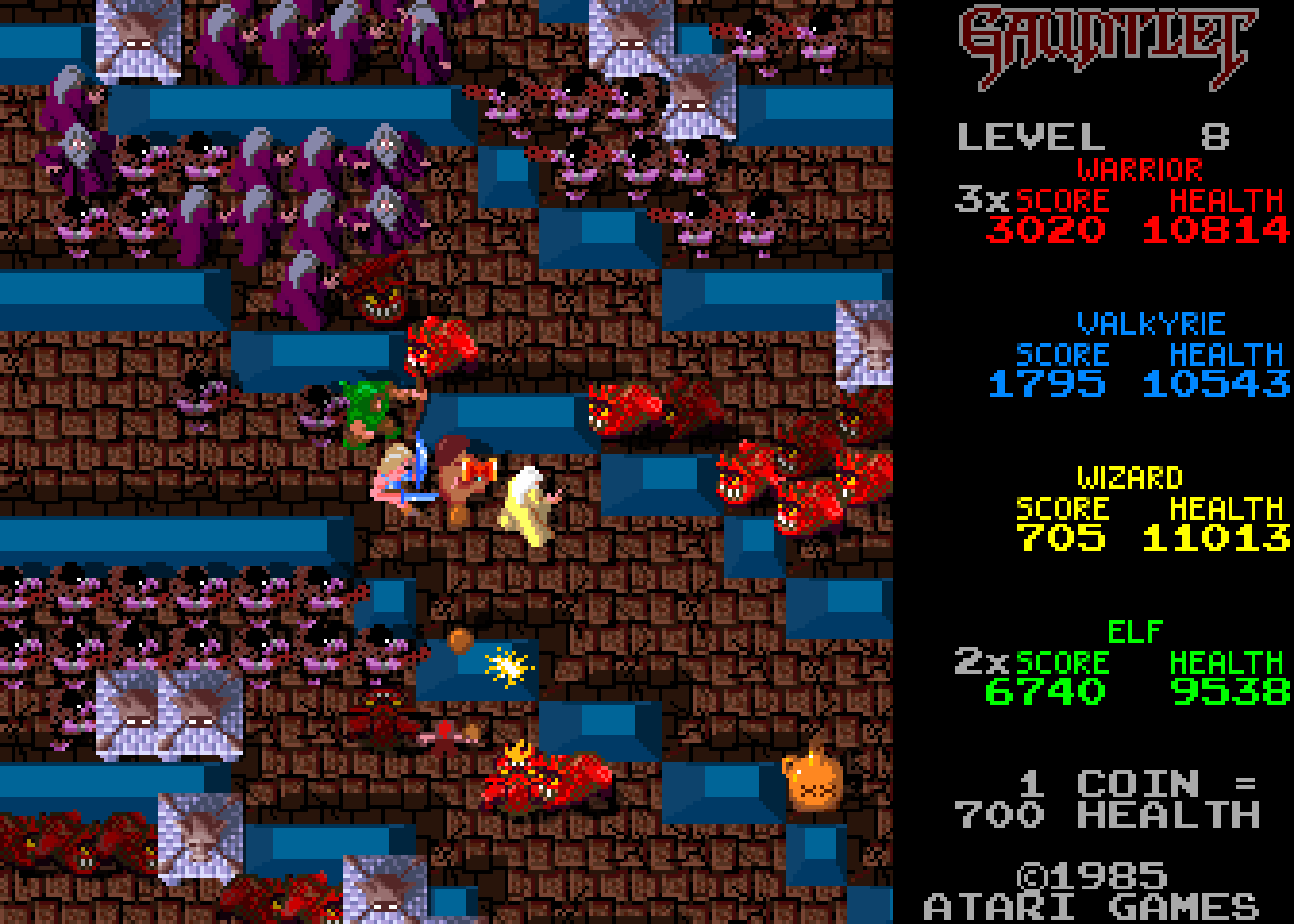
Players collected items while battling their way through dungeons. Shooting food was a definite faux pas.

Atari’s Gauntlet was an eye-catching game, not least because it allowed four people to explore its dungeons together. Each player could choose one of four characters, each with its own abilities – there was a warrior, a Valkyrie, a wizard, and an elf – and surviving each dungeon required slaughtering enemies and the constant gathering of food, potions, and keys that unlocked doors and exits.

Designed by Ed Logg, and loosely based on the tabletop RPG Dungeons & Dragons, as well as John Palevich’s 1983 dungeon crawler, Dandy, Gauntlet was a big success. It was ported to most of the popular home systems at the time, and Atari released a sequel arcade machine, Gauntlet II, in 1986.

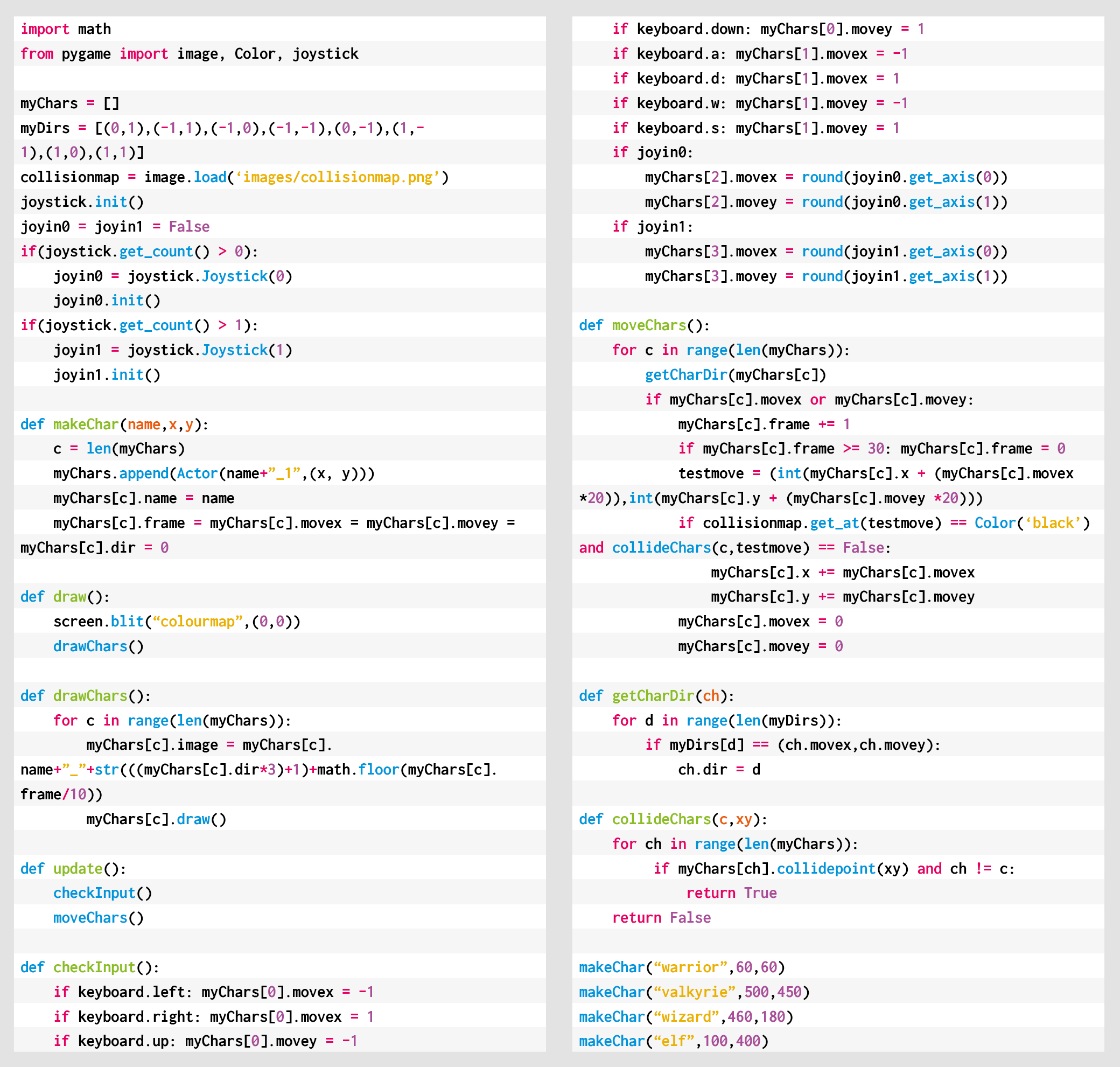
Atari’s original arcade machine featured four joysticks, but our example will mix keyboard controls and gamepad inputs. Before we deal with the movement, we’ll need some characters and dungeon graphics. For this example, we can make our dungeon from a large bitmap image and use a collision map to prevent our characters from clipping through walls. We’ll also need graphics for the characters moving in eight different directions. Each direction has three frames of walking animation, which makes a total of 24 frames per character. We can use a Pygame Zero Actor object for each character and add a few extra properties to keep track of direction and the current animation frame. If we put the character Actors in a list, we can loop through the list to check for collisions, move the player, or draw them to the screen.

We now test input devices for movement controls using the built-in Pygame keyboard object to test if keys are pressed. For example, keyboard.left will return True if the left arrow key is being held down. We can use the arrow keys for one player and the WASD keys for the other keyboard player. If we register x and y movements separately, then if two keys are pressed – for example, up and left – we can read that as a diagonal movement. In this way, we can get all eight directions of movement from just four keys.

For joystick or gamepad movement, we need to import the joystick module from Pygame. This provides us with methods to count the number of joystick or gamepad devices that are attached to the computer, and then initialise them for input. When we check for input from these devices, we just need to get the x-axis value and the y- axis value and then make it into an integer. Joysticks and gamepads should return a number between -1 and 1 on each axis, so if we round that number, we will get the movement value we need.

We can work out the direction (and the image we need to use) of the character with a small lookup table of x and y values and translate that to a frame number cycling through those three frames of animation as the character walks. Then all we need to do before we move the character is check they aren’t going to collide with a wall or another character. And that’s it – we now have a four-player control system. As for adding enemy spawners, loot, and keys – well, that’s a subject for another time.

Here’s Mark’s code snippet. To get it working on your system, you’ll need to install Pygame Zero. And to download the full code and assets, go here.

Get your copy of Wireframe issue 39

You can read more features like this one in Wireframe issue 39, available directly from Raspberry Pi Press — we deliver worldwide.

And if you’d like a handy digital version of the magazine, you can also download issue 39 for free in PDF format.

Make sure to follow Wireframe on Twitter and Facebook for updates and exclusive offers and giveaways. Subscribe on the Wireframe website to save up to 49% compared to newsstand pricing!

The post Code Gauntlet’s four-player co-op mode | Wireframe #39 appeared first on Raspberry Pi.


Source: Raspberry Pi – Code Gauntlet’s four-player co-op mode | Wireframe #39

Learn at home #3: building resilience and problem solving skills

With changes to school and work around the world, many parents and carers still aren’t sure what to expect over the next few weeks. While some children have returned to school, we know that many young people and families are still learning and working at home. We’re providing lots of free extra resources for young people, and we’re offering free support tutorials for parents who want to help their children understand more about the tools they’ll be using on their coding journey.

a kid doing digital making at home

In our last blog post for parents, we talked to you about Python, which is a widely used text-based programming language, and about Trinket, a free online platform that lets you write and run your code in any web browser.

This week we talk about the importance of resilience and problem solving as we cover debugging — finding and fixing errors in your code.

Debugging explained

When your child embarks on a coding project, expect to hear the phrase “It’s not working!” often. It’s really important to recognise that their code might not work on the first (or fourth) go, and that that’s completely OK. Debugging is a key process for young people who are learning how to code, and it helps them to develop resilience and problem solving skills.

Learning Manager Mac shows you tips and tricks for fixing Python code errors to help you build more confidence while you support your children at home.

Fixing errors in Python code

In this video, Learning Manager Mac will show you some tips and tricks for fixing Python code errors (also known as ‘debugging’) to help you build more confi…

Mac’s top tips for debugging

1. Check the instructions

If your child is following one of our online coding projects, the instructions are usually very detailed and precise. Encourage your child to read through the instructions thoroughly and see if they can spot a difference between their code and what’s in the instructions. You should find that many errors can be fixed by doing this!

2. Try, try and try again

Coding is iterative: programs are written in stages, with debugging during every stage. Errors in code are normal and very common, so mistakes in your child’s programs are to be expected. As a young person begins to develop coding skills, they start learning to problem-solve and persevere despite the errors, which will help them both on and off the computer. And the more they code, the quicker they’ll become at spotting and fixing errors.

Two kids doing digital making at home

3. Small changes make a big difference

Most of the coding problems your child will come across will be due to tiny mistakes, e.g. one letter or a piece of punctuation that needs changing. So during debugging, it’s helpful for both you and your child to frame the problem in this way: “It’s just one small thing, you are so close.” This helps them build resilience and perseverance, because finding one small error is much more achievable than thinking that the whole program is broken and they need to start over.

4. Say it out loud

When your child encounters a problem with their code, encourage them to talk you through their whole problem, without interrupting them or making suggestions. Programmers call this technique ‘rubber duck debugging’: when they encounter a problem with their code, they explain everything their code does to an inanimate object — such as a rubber duck! — to find the detail that’s causing the problem. For your child, you can play the part of the rubber duck and provide a supportive, listening ear!

Join in with Digital Making at Home

To keep young people entertained and learning, we’re running a Digital Making at Home series, which is free and accessible to everyone. New code-along videos are released every Monday, with different themes and projects for all levels of experience. We also stream live code-along sessions on Wednesdays at 14:00 BST at rpf.io/home!

a teenager doing digital making at home

Parent diary: Adapting to life online

Ben Garside is a Learning Manager at the Raspberry Pi Foundation and also a dad to three children aged between 6 and 8. Ben is currently homeschooling and working (and still smiling lots!). In this video, Ben shares his personal experience of trying to find the best way of making this work for his family, with a bit of trial and error and lots of flexibility.

Parent diary: Adapting to life online

Ben Garside is a Learning Manager at the Raspberry Pi Foundation and also a dad to three children aged between 6 and 8. Ben is currently homeschooling and wo…

Free online course: Getting Started with Your Raspberry Pi

You’ve got a Raspberry Pi computer at home and aren’t sure how to use it? Then why not sign up to our new free online course to find out all about how to set up your Raspberry Pi, and how to use it for everyday tasks or for learning to code!

Do you have feedback for us?

We’ve been asking parents what they’d like to see as part of our initiative to support young people and parents. We’ve had some great suggestions so far! If you’d like to share your thoughts, email us at parents@raspberrypi.org.

Sign up for our bi-weekly emails, tailored to your needs

Sign up now to start receiving free activities suitable to your child’s age and experience level straight to your inbox. And let us know what you as a parent or guardian need help with, and what you’d like more or less of from us.


PS All of our resources are completely free. This is made possible thanks to the generous donations of individuals and organisations. Learn how you can help too!

The post Learn at home #3: building resilience and problem solving skills appeared first on Raspberry Pi.


Source: Raspberry Pi – Learn at home #3: building resilience and problem solving skills

6558 programs from young people have run on the ISS for Astro Pi 2019/20!

The team at the Raspberry Pi Foundation, in collaboration with ESA Education, is excited to announce that all of this year’s successful Astro Pi programs have now run aboard the International Space Station (ISS)!

Record numbers of young people took part in Astro Pi Mission Zero

This year, a record 6350 teams of students and young people from all 25 eligible countries successfully entered Mission Zero, and they had their programs run on the Astro Pi computers on board the ISS for 30 seconds each!

ESA astronaut Chris Cassidy with an Astro Pi computer aboard the ISS

Astronaut Chris Cassidy overseeing the Mission Zero experiments

The Mission Zero teams measured the temperature inside the ISS Columbus module, and used the Astro Pi LED matrix to display the measurement together with a greeting to the astronauts, including Chris Cassidy, who oversaw this year’s experiments.

Mission Space Lab: Investigating life in space and on Earth

In addition, 208 teams of students and young people are currently in the final phase of Astro Pi Mission Space Lab. Over the last few weeks, each of these teams has had their scientific experiment run on either Astro Pi Ed or Astro Pi Izzy for 3 hours each.

Photograph of Earth, taken by Astro Pi computer Izzy

Astro Pi Izzy’s view of Earth

Teams interested in  life on Earth used Astro Pi Izzy’s near-infrared camera to capture images to investigate, for example, vegetation health and the impact of human life on our planet. Using Astro Pi Ed’s sensors, participants investigated life in space, measuring the conditions on the ISS and even mapping the magnetic field of Earth.

Program deployment, but not as we know it

This year, we encountered a problem during the deployment of some experiments investigating life on Earth. When we downloaded the first batch of data from the ISS, we realised that Astro Pi Izzy had an incorrect setting, which resulted in some pictures turning pink. And not only that: the CANADARM was the middle of Izzy’s window view!

The CANADARM from Astro Pi Izzy’s view of Earth

The CANADARM from Astro Pi Izzy’s view of Earth

Needless to say, this would have had a negative impact on many experiments, so we put in a special request to NASA to remove the CANADARM arm and we reset Izzy. This meant that program deployment took longer than normal, but we managed to re-run all experiments and capture some fantastic images!

All Mission Space Lab teams have now received their data back from the ISS to analyse and summarise in their final scientific reports. So that they can write their reports while social distancing measures are in place, we are sharing special guidance and advice on how best to collaborate remotely, and have extended the submission deadline to 3 July 2020.

Who will win Mission Space Lab 2019/20?

The programs teams sent us this year were outstanding in their quality, creativity, and technical skill. A jury of experts appointed by ESA and the Raspberry Pi Foundation will judge all of the Mission Space Lab reports and select the 10 teams with the best reports as the winners of the European Astro Pi Challenge 2019/20. Each of the 10 winning teams will receive a special prize.

Astro Pi Mission Space Lab logo

Congratulations to all the teams that have taken part in Astro Pi Mission Space Lab this year. We hope that you found it as interesting and as fun as we did, we can’t wait to read your reports!

Celebrating your achievements

Every team that participated in Mission Zero or Mission Space Lab this year will receive a special certificate in celebration of their achievements during the European Astro Pi Challenge. The Mission Zero certificates will feature the coordinates of the ISS when your programs were run!

We’d love to see pictures of your certificates hanging in your homes, schools, or clubs, so tag us in your tweets with @astro_pi!

The post 6558 programs from young people have run on the ISS for Astro Pi 2019/20! appeared first on Raspberry Pi.


Source: Raspberry Pi – 6558 programs from young people have run on the ISS for Astro Pi 2019/20!

Monitoring bees with a Raspberry Pi and BeeMonitor

Keeping an eye on bee life cycles is a brilliant example of how Raspberry Pi sensors help us understand the world around us, says Rosie Hattersley

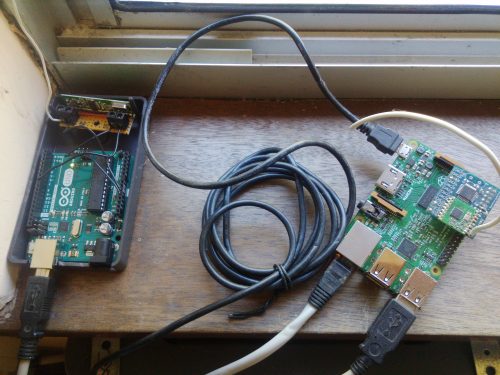
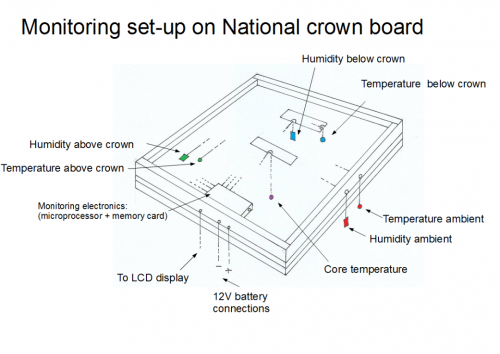
The setup featuring an Arduino, RF receiver, USB cable and Raspberry Pi

Getting to design and build things for a living sounds like a dream job, especially if it also involves Raspberry Pi and wildlife. Glyn Hudson has always enjoyed making things and set up a company manufacturing open-source energy monitoring tools shortly after graduating from university. With access to several hives at his keen apiarist parents’ garden in Snowdonia, Glyn set up BeeMonitor using some of the tools he used at work to track the beehives’ inhabitants.

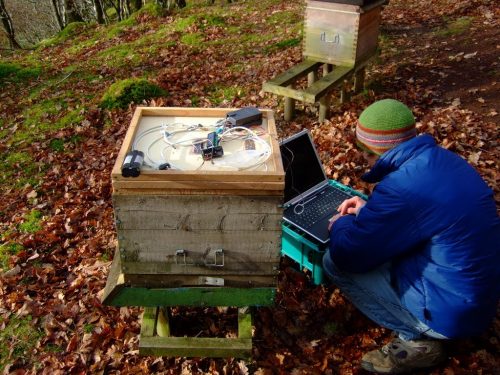
Glyn bent down infront of a hive checking the original BeeMonitor setup

Glyn checking the original BeeMonitor setup

“The aim of the project was to put together a system to monitor the health of a bee colony by monitoring the temperature and humidity inside and outside the hive over multiple years,” explains Glyn. “Bees need all the help and love they can get at the moment and without them pollinating our plants, weíd struggle to grow crops. They maintain a 34∞C core brood temperature (± 0.5∞C) even when the ambient temperature drops below freezing. Maintaining this temperature when a brood is present is a key indicator of colony health.”

Wi-Fi not spot

BeeMonitor has been tracking the hives’ population since 2012 and is one of the earliest examples of a Raspberry Pi project. Glyn built most of the parts for BeeMonitor himself. Open-source software developed for the OpenEnergyMonitor project provides a data-logging and graphing platform that can be viewed online.

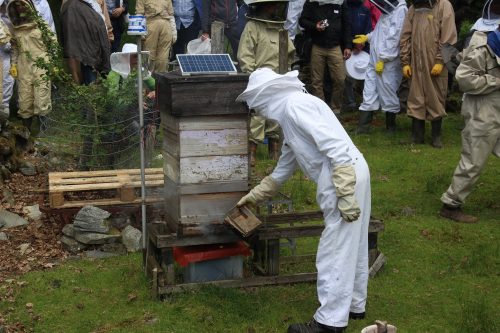
Spectators in protective suits watching staff monitor the beehive

BeeMonitor complete with solar panel to power it. The Snowdonia bees produce 12 to 15 kg of honey per year

The hives were too far from the house for WiFi to reach, so Glyn used a low-power RF sensor connected to an Arduino which was placed inside the hive to take readings. These were received by a Raspberry Pi connected to the internet.

Diagram showing what information BeeMonitor is trying to establish

Diagram showing what information BeeMonitor is trying to establish

At first, there was both a DS18B20 temperature sensor and a DHT22 humidity sensor inside the beehive, along with the Arduino (setup info can be found here). Data from these was saved to an SD card, the obvious drawback being that this didn’t display real-time data readings. In his initial setup, Glyn also had to extract and analyse the CSV data himself. “This was very time-consuming but did result in some interesting data,” he says.

Sensor-y overload

Almost as soon as BeeMonitor was running successfully, Glyn realised he wanted to make the data live on the internet. This would enable him to view live beehive data from anywhere and also allow other people to engage in the data.

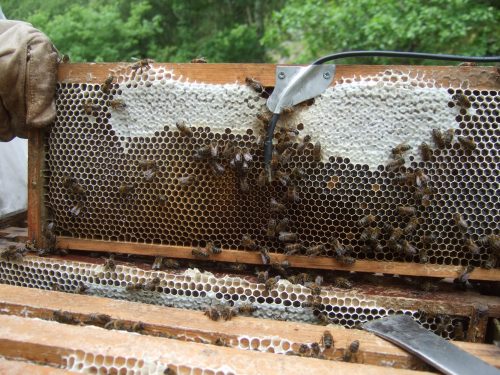
“This is when Raspberry Pi came into its own,” he says. He also decided to drop the DHT22 humidity sensor. “It used a lot of power and the bees didn’t like it – they kept covering the sensor in wax! Oddly, the bees don’t seem to mind the DS218B20 temperature sensor, presumably since it’s a round metal object compared to the plastic grille of the DHT22,” notes Glyn.

Bees interacting with the temperature probe

Unlike the humidity sensor, the bees don’t seem to mind the temperature probe

The system has been running for eight years with minimal intervention and is powered by an old car battery and a small solar PV panel. Running costs are negligible: “Raspberry Pi is perfect for getting projects like this up and running quickly and reliably using very little power,” says Glyn. He chose it because of the community behind the hardware. “That was one of Raspberry Pi’s greatest assets and what attracted me to the platform, as well as the competitive price point!” The whole setup cost him about £50.

Glyn tells us we could set up a basic monitor using Raspberry Pi, a DS28B20 temperature sensor, a battery pack, and a solar panel.

The post Monitoring bees with a Raspberry Pi and BeeMonitor appeared first on Raspberry Pi.


Source: Raspberry Pi – Monitoring bees with a Raspberry Pi and BeeMonitor

Let’s make art at home this week

Digital Making at Home: Make art

Subscribe to our YouTube channel: http://rpf.io/ytsub Help us reach a wider audience by translating our video content: http://rpf.io/yttranslate Buy a Raspbe…

Digital Making at Home is a program which encourages young people to code and share along with us, featuring weekly themed content, code-along videos, livestreams, and more!

This week, we’re exploring making art with code. Many young makers are no stranger to making art, especially the digital kind! This week we’re inviting them to bring their most colourful and imaginative ideas to life with code.

So this week for Digital Making at Home, let’s make some art!

The post Let’s make art at home this week appeared first on Raspberry Pi.


Source: Raspberry Pi – Let’s make art at home this week

Latest Raspberry Pi OS update – May 2020

Along with yesterday’s launch of the new 8GB Raspberry Pi 4, we launched a beta 64-bit ARM version of Debian with the Raspberry Pi Desktop, so you could use all those extra gigabytes. We also updated the 32-bit version of Raspberry Pi OS (the new name for Raspbian), so here’s a quick run-through of what has changed.

NEW Raspberry Pi OS update (May 2020)

An update to the Raspberry Pi Desktop for all our operating system images is also out today, and we’ll have more on that in tomorrow’s blog post. For now, fi…

Bookshelf

As many of you know, we have our own publishing company, Raspberry Pi Press, who publish a variety of magazines each month, including The MagPi, HackSpace magazine, and Wireframe. They also publish a wide range of other books and magazines, which are released either to purchase as a physical product (from their website) or as free PDF downloads.

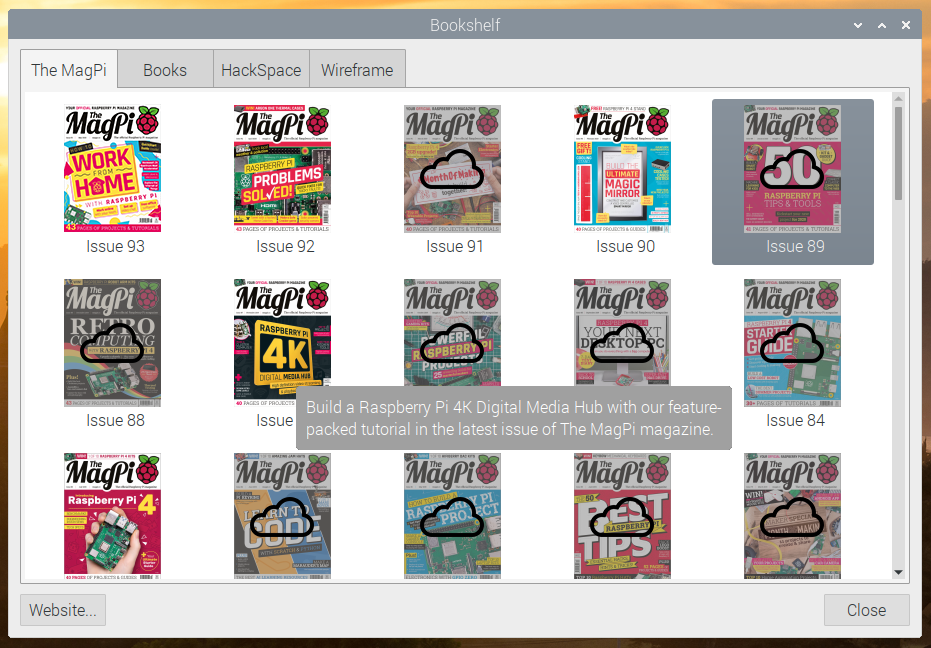
To make all this content more visible and easy to access, we’ve added a new Bookshelf application – you’ll find it in the Help section of the main menu.

Bookshelf shows the entire current catalogue of free magazines – The MagPi, HackSpace magazine and Wireframe, all with a complete set of back issues – and also all the free books from Raspberry Pi Press. When you run the application, it automatically updates the catalogue and shows any new titles which have been released since you last ran it with a little “new” flash in the corner of the cover.

To read any title, just double-click on it – if it is already on your Raspberry Pi, it will open in Chromium (which, it turns out, is quite a good PDF viewer); if it isn’t, it will download and then open automatically when the download completes. You can see at a glance which titles are downloaded and which are not by the “cloud” icon on the cover of any file which has not been downloaded.

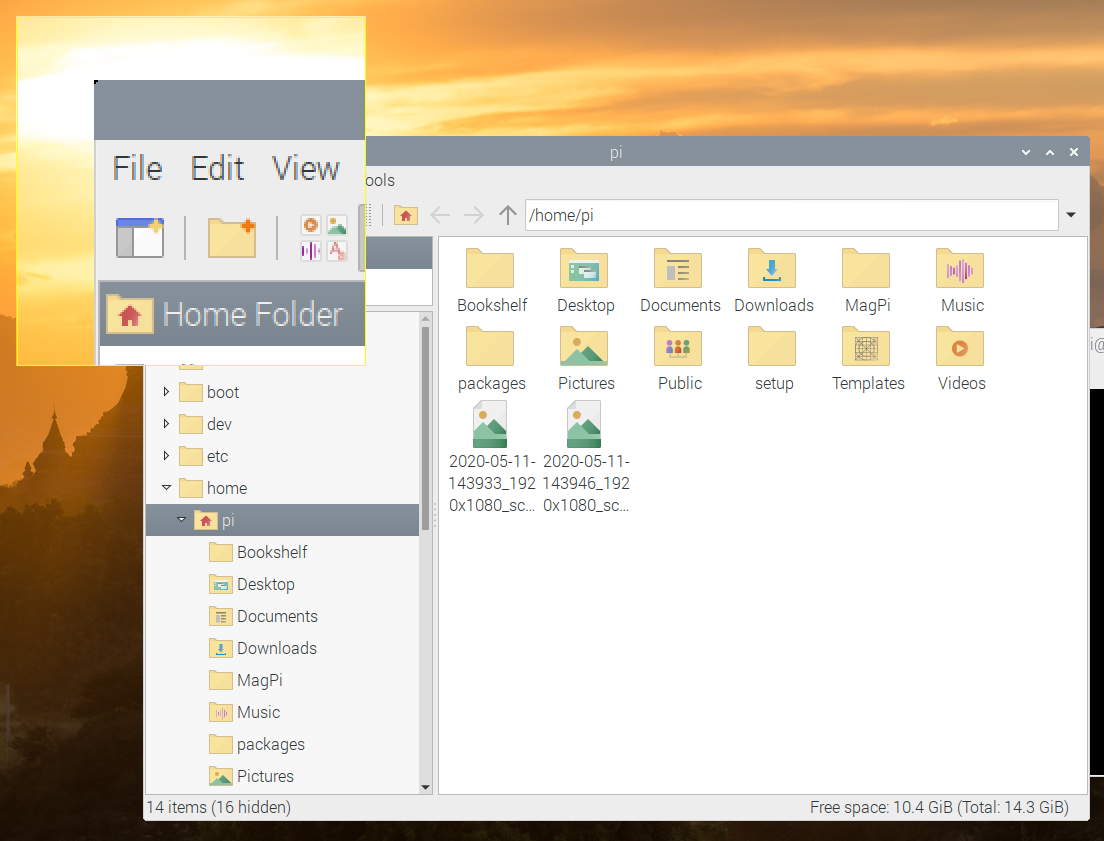
All the PDF files you download are saved in the “Bookshelf” directory in your home directory, so you can also access the files directly from there.

There’s a lot of excellent content produced by Raspberry Pi Press – we hope this makes it easier to find and read.

Magnifier

As mentioned in my last blog post (here), one of the areas we are currently trying to improve is accessibility to the Desktop for people with visual impairments. We’ve already added the Orca screen reader (which has had a few bug fixes since the last release which should make it work more reliably in this image), and the second recommendation we had from AbilityNet was to add a screen magnifier.

This proved to be harder than it should have been! I tried a lot of the existing screen magnifier programs that were available for Debian desktops, but none of them really worked that well; I couldn’t find one that worked the way the magnifiers in the likes of MacOS and Ubuntu did, so I ended up writing one (almost) from scratch.

To install it, launch Recommended Applications in the new image and select Magnifier under Universal Access. Once it has installed, reboot.

You’ll see a magnifying glass icon at the right-hand end of the taskbar – to enable the magnifier, click this icon, or use the keyboard shortcut Ctrl-Alt-M. (To turn the magnifier off, just click the icon again or use the same keyboard shortcut.)

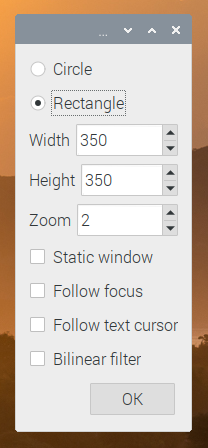
Right-clicking the magnifier icon brings up the magnifier options. You can choose a circular or rectangular window of whatever size you want, and choose by how much you want to zoom the image. The magnifier window can either follow the mouse pointer, or be a static window on the screen. (To move the static window, just drag it with the mouse.)

Also, in some applications, you can have the magnifier automatically follow the text cursor, or the button focus. Unfortunately, this depends on the application supporting the required accessibility toolkit, which not all applications do, but it works reasonably well in most included applications. One notable exception is Chromium, which is adding accessibility toolkit support in a future release; for now, if you want a web browser which supports the accessibility features, we recommend Firefox, which can be installed by entering the following into a terminal window:

sudo apt install firefox-esr

(Please note that we do not recommend using Firefox on Raspberry Pi OS unless you need accessibility features, as, unlike Chromium, it is not able to use the Raspberry Pi’s hardware to accelerate video playback.)

I don’t have a visual impairment, but I find the magnifier pretty useful in general for looking at the finer details of icons and the like, so I recommend installing it and having a go yourself.

User research

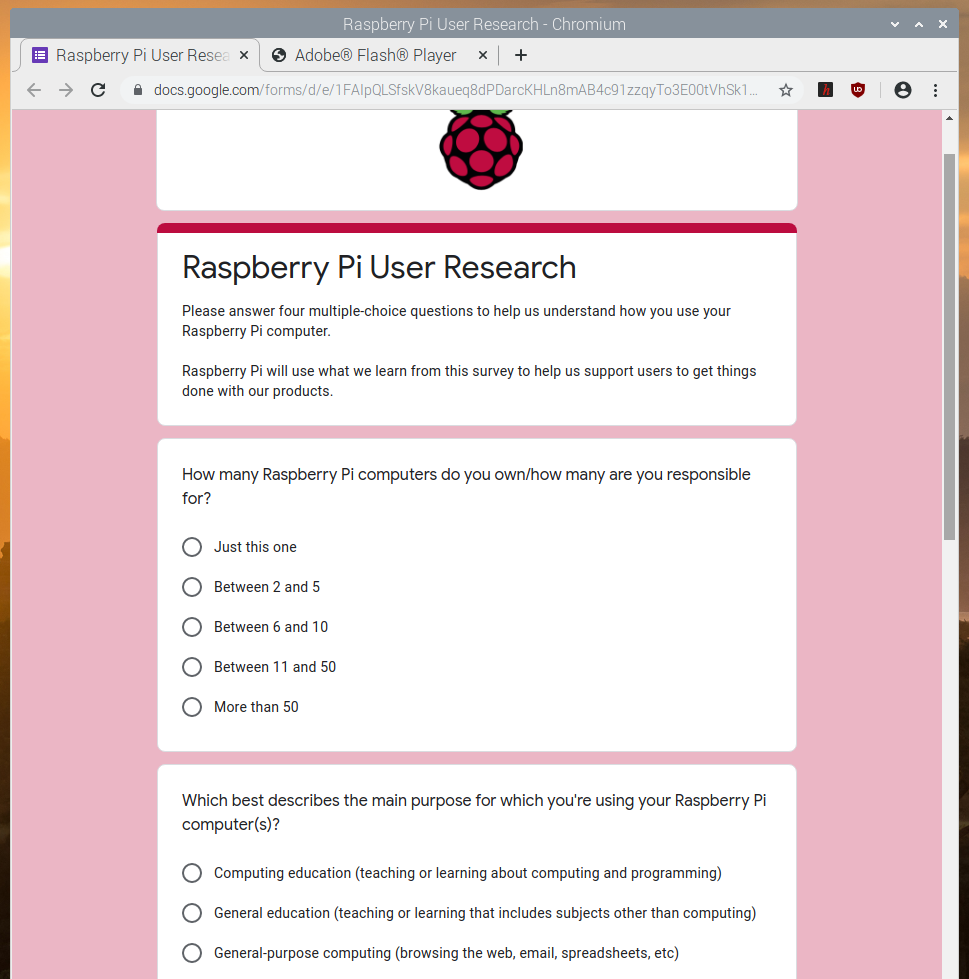
We already know a lot of the things that people are using Raspberry Pi for, but we’ve recently been wondering if we’re missing anything… So we’re now including a short optional questionnaire to ask you, the users, for feedback on what you are doing with your Raspberry Pi in order to make sure we are providing the right support for what people are actually doing.

This questionnaire will automatically be shown the first time you launch the Chromium browser on a new image. There are only four questions, so it won’t take long to complete, and the results are sent to a Google Form which collates the results.

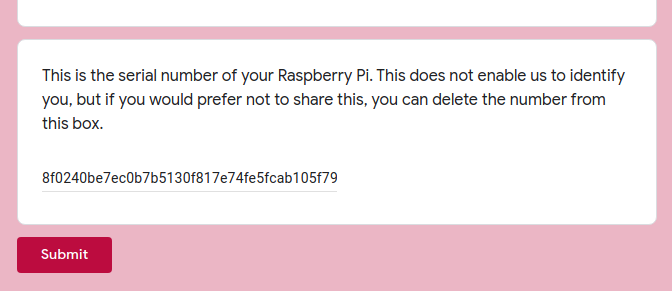
You’ll notice at the bottom of the questionnaire there is a field which is automatically filled in with a long string of letters and numbers. This is a serial number which is generated from the hardware in your particular Raspberry Pi which means we can filter out multiple responses from the same device (if you install a new image at some point in future, for example). It does not allow us to identify anything about you or your Raspberry Pi, but if you are concerned, you can delete the string before submitting the form.

As above, this questionnaire is entirely optional – if you don’t want to fill it in, just close Chromium and re-open it and you won’t see it again – but it would be very helpful for future product development if we can get this information, so we’d really appreciate it if as many people as possible would fill it in.

Other changes

There is also the usual set of bug fixes and small tweaks included in the image, full details of which can be found in the release notes on the download page.

One particular change which it is worth pointing out is that we have made a small change to audio. Raspberry Pi OS uses what is known as ALSA (Advanced Linux Sound Architecture) to control audio devices. Up until now, both the internal audio outputs on Raspberry Pi – the HDMI socket and the headphone jack – have been treated as a single ALSA device, with a Raspberry Pi-specific command used to choose which is active. Going forward, we are treating each output as a separate ALSA device; this makes managing audio from the two HDMI sockets on Raspberry Pi 4 easier and should be more compatible with third-party software. What this means is that after installing the updated image, you may need to use the audio output selector (right-click the volume icon on the taskbar) to re-select your audio output. (There is a known issue with Sonic Pi, which will only use the HDMI output however the selector is set – we’re looking at getting this fixed in a future release.)

Some people have asked how they can switch the audio output from the command line without using the desktop. To do this, you will need to create a file called .asoundrc in your home directory; ALSA looks for this file to determine which audio device it should use by default. If the file does not exist, ALSA uses “card 0” – which is HDMI – as the output device. If you want to set the headphone jack as the default output, create the .asoundrc file with the following contents:

defaults.pcm.card 1
defaults.ctl.card 1

This tells ALSA that “card 1” – the headphone jack – is the default device. To switch back to the HDMI output, either change the ‘1’s in the file to ‘0’s, or just delete the file.

How do I get it?

The new image is available for download from the usual place: our Downloads page.

To update an existing image, use the usual terminal command:

sudo apt update
sudo apt full-upgrade

To just install the bookshelf app:

sudo apt update
sudo apt install rp-bookshelf

To just install the magnifier, either find it under Universal Access in Recommended Software, or:

sudo apt update
sudo apt install mage

You’ll need to add the magnifier plugin to the taskbar after installing the program itself. Once you’ve installed the program and rebooted, right-click the taskbar and choose Add/Remove Panel Items; click Add, and select the Magnifier option.

We hope you like the changes — as ever, all feedback is welcome, so please leave a comment below!

The post Latest Raspberry Pi OS update – May 2020 appeared first on Raspberry Pi.


Source: Raspberry Pi – Latest Raspberry Pi OS update – May 2020

8GB Raspberry Pi 4 on sale now at $75

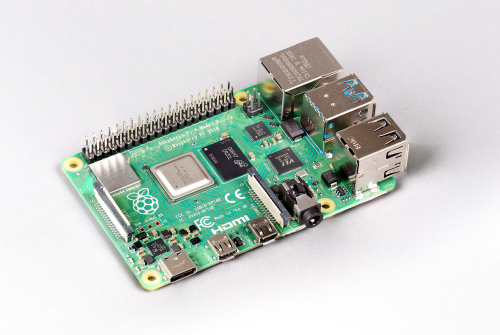
The long-rumoured 8GB Raspberry Pi 4 is now available, priced at just $75.

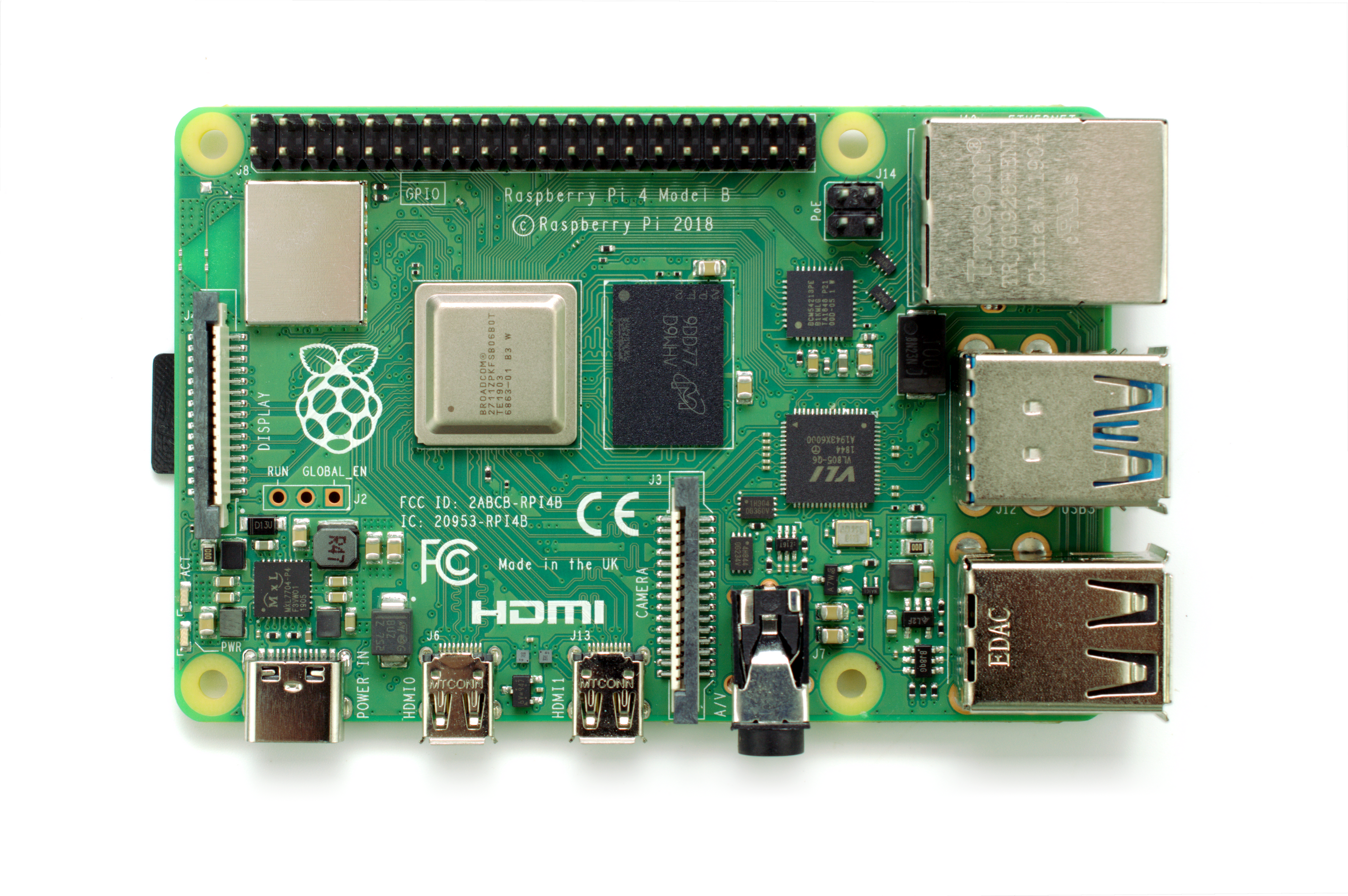
Raspberry Pi 4 is almost a year old, and it’s been a busy year. We’ve sold nearly 3 million units, shipped a couple of minor board revisions, and reduced the price of the 2GB variant from $45 to $35. On the software side, we’ve done enormous amounts of work to reduce the idle and loaded power consumption of the device, passed OpenGL ES 3.1 conformance, started work on a Vulkan driver, and shipped PXE network boot mode and a prototype of USB mass storage boot mode – all this alongside the usual round of bug fixes, feature additions, and kernel version bumps.

While we launched with 1GB, 2GB and 4GB variants, even at that point we had our eye on the possibility of an 8GB Raspberry Pi 4. We were so enthusiastic about the idea that the non-existent product made its way into both the Beginner’s Guide and the compliance leaflet.

Oops.

The BCM2711 chip that we use on Raspberry Pi 4 can address up to 16GB of LPDDR4 SDRAM, so the real barrier to our offering a larger-memory variant was the lack of an 8GB LPDDR4 package. These didn’t exist (at least in a form that we could address) in 2019, but happily our partners at Micron stepped up earlier this year with a suitable part. And so, today, we’re delighted to announce the immediate availability of the 8GB Raspberry Pi 4, priced at just $75.

Multum in parvo

It’s worth reflecting for a moment on what a vast quantity of memory 8GB really is. To put it in retro-perspective (retrospective?), this is a BBC Micro‘s worth of memory for every bit in the memory of the BBC Micro; it’s a little over 13,000 times the 640KB that Bill Gates supposedly thought should be enough for anyone (sadly, it looks as though this quote is apocryphal).

If you’re a power user, intending to compile and link large pieces of software or run heavy server workloads, or you simply want to be able to have even more browser tabs open at once, this is definitely the Raspberry Pi for you.

What else has changed?

To supply the slightly higher peak currents required by the new memory package, James has shuffled the power supply components on the board, removing a switch-mode power supply from the right-hand side of the board next to the USB 2.0 sockets and adding a new switcher next to the USB-C power connnector. While this was a necessary change, it ended up costing us a three-month slip, as COVID-19 disrupted the supply of inductors from the Far East.

New switcher, new inductors, new schedule

Other than that, this is the same Raspberry Pi 4 you’ve come to know and love.

What about 64-bit?

Our default operating system image uses a 32-bit LPAE kernel and a 32-bit userland. This allows multiple processes to share all 8GB of memory, subject to the restriction that no single process can use more than 3GB. For most users this isn’t a serious restriction, particularly since every tab in Chromium gets its own process. Sticking with a 32-bit userland has the benefit that the same image will run on every board from a 2011-era alpha board to today’s shiny new 8GB product.

But power users, who want to be able to map all 8GB into the address space of a single process, need a 64-bit userland. There are plenty of options already out there, including Ubuntu and Gentoo.

Not to be left out, today we’ve released an early beta of our own 64-bit operating system image. This contains the same set of applications and the same desktop environment that you’ll find in our regular 32-bit image, but built against the Debian arm64 port.

Both our 32-bit and 64-bit operating system images have a new name: Raspberry Pi OS. As our community grows, we want to make sure it’s as easy as possible for new users to find our recommended operating system for Raspberry Pi. We think the new name will help more people feel confident in using our computers and our software. An update to the Raspberry Pi Desktop for all our operating system images is also out today, and we’ll have more on that in tomorrow’s blog post.

You can find a link to the new 64-bit image, and some important caveats, in this forum post.

The post 8GB Raspberry Pi 4 on sale now at $75 appeared first on Raspberry Pi.


Source: Raspberry Pi – 8GB Raspberry Pi 4 on sale now at

Learning AI at school — a peek into the black box

“In the near future, perhaps sooner than we think, virtually everyone will need a basic understanding of the technologies that underpin machine learning and artificial intelligence.” — from the 2018 Informatics Europe & EUACM report about machine learning

As the quote above highlights, AI and machine learning (ML) are increasingly affecting society and will continue to change the landscape of work and leisure — with a huge impact on young people in the early stages of their education.

But how are we preparing our young people for this future? What skills do they need, and how do we teach them these skills? This was the topic of last week’s online research seminar at the Raspberry Pi Foundation, with our guest speaker Juan David Rodríguez Garcia. Juan’s doctoral studies around AI in school complement his work at the Ministry of Education and Vocational Training in Spain.

Juan David Rodríguez Garcia

Juan’s LearningML tool for young people

Juan started his presentation by sharing numerous current examples of AI and machine learning, which young people can easily relate to and be excited to engage with, and which will bring up ethical questions that we need to be discussing with them.

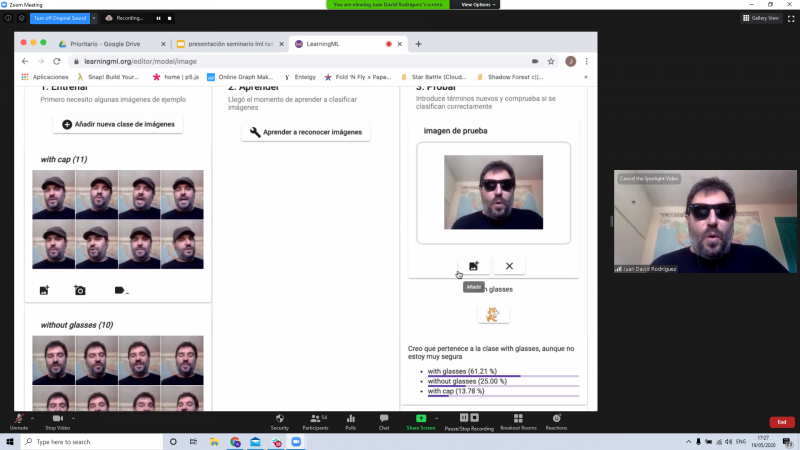
Of course, it’s not enough for learners to be aware of AI applications. While machine learning is a complex field of study, we need to consider what aspects of it we can make accessible to young people to enable them to learn about the concepts, practices, and skills underlying it. During his talk Juan demonstrated a tool called LearningML, which he has developed as a practical introduction to AI for young people.

Screenshot of a demo of Juan David Rodríguez Garcia's LearningML tool

Juan demonstrates image recognition with his LearningML tool

LearningML takes inspiration from some of the other in-development tools around machine learning for children, such as Machine Learning for Kids, and it is available in one integrated platform. Juan gave an enticing demo of the tool, showing how to use visual image data (lots of pictures of Juan with hats, glasses on, etc.) to train and test a model. He then demonstrated how to use Scratch programming to also test the model and apply it to new data. The seminar audience was very positive about the LearningML, and of course we’d like it translated into English!

Juan’s talk generated many questions from the audience, from technical questions to the key question of the way we use the tool to introduce children to bias in AI. Seminar participants also highlighted opportunities to bring machine learning to other school subjects such as science.

AI in schools — what and how to teach

Machine learning demonstrates that computers can learn from data. This is just one of the five big ideas in AI that the AI4K12 group has identified for teaching AI in school in order to frame this broad domain:

  1. Perception: Computers perceive the world using sensors
  2. Representation & reasoning: Agents maintain models/representations of the world and use them for reasoning
  3. Learning: Computers can learn from data
  4. Natural interaction: Making agents interact comfortably with humans is a substantial challenge for AI developers
  5. Societal impact: AI applications can impact society in both positive and negative ways

One general concern I have is that in our teaching of computing in school (if we touch on AI at all), we may only focus on the fifth of the ‘big AI ideas’: the implications of AI for society. Being able to understand the ethical, economic, and societal implications of AI as this technology advances is indeed crucial. However, the principles and skills underpinning AI are also important, and how we introduce these at an age-appropriate level remains a significant question.

Illustration of AI, Image by Seanbatty from Pixabay

There are some great resources for developing a general understanding of AI principles, including unplugged activities from Computer Science For Fun. Yet there’s a large gap between understanding what AI is and has the potential to do, and actually developing the highly mathematical skills to program models. It’s not an easy issue to solve, but Juan’s tool goes a little way towards this. At the Raspberry Pi Foundation, we’re also developing resources to bridge this educational gap, including new online projects building on our existing machine learning projects, and an online course. Watch this space!

AI in the school curriculum and workforce

All in all, we seem to be a long way off introducing AI into the school curriculum. Looking around the world, in the USA, Hong Kong, and Australia there have been moves to introduce AI into K-12 education through pilot initiatives, and hopefully more will follow. In England, with a computing curriculum that was written in 2013, there is no requirement to teach any AI or machine learning, or even to focus much on data.

Let’s hope England doesn’t get left too far behind, as there is a massive AI skills shortage, with millions of workers needing to be retrained in the next few years. Moreover, a recent House of Lords report outlines that introducing all young people to this area of computing also has the potential to improve diversity in the workforce — something we should all be striving towards.

We look forward to hearing more from Juan and his colleagues as this important work continues.

Next up in our seminar series

If you missed the seminar, you can find Juan’s presentation slides and a recording of his talk on our seminars page.

In our next seminar on Tuesday 2 June at 17:00–18:00 BST / 12:00–13:00 EDT / 9:00–10:00 PDT / 18:00–19:00 CEST, we’ll welcome Dame Celia Hoyles, Professor of Mathematics Education at University College London. Celia will be sharing insights from her research into programming and mathematics. To join the seminar, simply sign up with your name and email address and we’ll email the link and instructions. If you attended Juan’s seminar, the link remains the same.

The post Learning AI at school — a peek into the black box appeared first on Raspberry Pi.


Source: Raspberry Pi – Learning AI at school — a peek into the black box

Meet your new robotic best friend: the MiRo-E dog

When you’re learning a new language, it’s easier the younger you are. But how can we show very young students that learning to speak code is fun? Consequential Robotics has an answer…

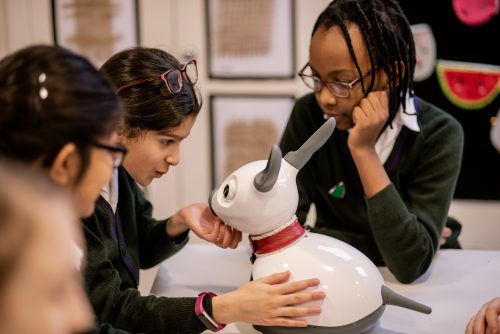
The MiRo-E is an ’emotionally engaging’ robot platform that was created on a custom PCB  and has since moved onto Raspberry Pi. The creators made the change because they saw that schools were more familiar with Raspberry Pi and realised the potential in being able to upgrade the robotic learning tools with new Raspberry Pi boards.

The MiRo-E was born from a collaboration between Sheffield Robotics, London-based SCA design studio, and Bristol Robotics Lab. The cute robo-doggo has been shipping with Raspberry Pi 3B+ (they work well with the Raspberry Pi 4 too) for over a year now.

While the robot started as a developers’ tool (MiRo-B), the creators completely re-engineered MiRo’s mechatronics and software to turn it into an educational tool purely for the classroom environment.

Three school children in uniforms stroke the robot dog's chin

MiRo-E with students at a School in North London, UK

MiRo-E can see, hear, and interact with its environment, providing endless programming possibilities. It responds to human interaction, making it a fun, engaging way for students to learn coding skills. If you stroke it, it purrs, lights up, move its ears, and wags its tail. Making a sound or clapping makes MiRo move towards you, or away if it is alarmed. And it especially likes movement, following you around like a real, loyal canine friend. These functionalities are just the basic starting point, however: students can make MiRo do much more once they start tinkering with their programmable pet.

These opportunities are provided on MiRoCode, a user-friendly web-based coding interface, where students can run through lesson plans and experiment with new ideas. They can test code on a virtual MiRo-E to create new skills that can be applied to a real-life MiRo-E.

What’s inside?

Here are the full technical specs. But basically, MiRo-E comprises a Raspberry Pi 3B+ as its core, light sensors, cliff sensors, an HD camera, and a variety of connectivity options.

How does it interact?

MiRo reacts to sound, touch, and movement in a variety of ways. 28 capacitive touch sensors tell it when it is being petted or stroked. Six independent RGB LEDs allow it to show emotion, along with DOF to move its eyes, tail, and ears. Its ears also house four 16-bit microphones and a loudspeaker. And two differential drive wheels with opto-sensors help MiRo move around.

What else can it do?

The ‘E’ bit of MiRo-E means it’s emotionally engaging, and the intelligent pet’s potential in healthcare have already been explored. Interaction with animals has been proved to be positive for patients of all ages, but sometimes it’s not possible for ‘real’ animals to comfort people. MiRo-E can fill the gap for young children who would benefit from animal comfort, but where healthcare or animal welfare risks are barriers.

The same researchers who created this emotionally engaging robo-dog for young people are also working with project partners in Japan to develop ‘telepresence robots’ for older patients to interact with their families over video calls.

The post Meet your new robotic best friend: the MiRo-E dog appeared first on Raspberry Pi.


Source: Raspberry Pi – Meet your new robotic best friend: the MiRo-E dog

The Raspberry Pi Press store is looking mighty fine

Eagle-eyed Raspberry Pi Press fans might have noticed some changes over the past few months to the look and feel of our website. Today we’re pleased to unveil a new look for the Raspberry Pi Press website and its online store.

Did you know?

Raspberry Pi Press is the publishing imprint of Raspberry Pi (Trading) Ltd, which is part of the Raspberry Pi Foundation, a UK-based charity that does loads of cool stuff with computers and computer education.

Did you also know?

Raspberry Pi Press publishes five monthly magazines: The MagPi, HackSpace Magazine, Wireframe, Custom PC, and Digital SLR Photography. It also produces a plethora of project books and gorgeous hardback beauties, such as retro gamers’ delight Code the Classics, as well as Hello World, the computing and digital making magazine for educators! Phew!

And did you also, also know?

The Raspberry Pi Press online store ships around the globe, with copies of our publications making their way to nearly every single continent on planet earth. Antarctica, we’re looking at you, kid.

It’s upgrade time!

With all this exciting work going on, it seemed only fair that Raspberry Pi Press should get itself a brand new look. We hope you’ll enjoy skimming the sparkling shelves of our online newsagents and bookshop.

Ain’t nothin’ wrong with a little tsundoku

You can pick up all the latest issues of your favourite magazines or treat yourself to a book or three, and you can also subscribe to all our publications with ease. We’ve even added a few new payment options to boot.

New delivery options

We’ve made a few changes to our shipping options, with additional choices for some regions to make sure that you can easily track your purchases and receive timely and reliable deliveries, even if you’re a long way from the Raspberry Pi Press printshop.

Customers in the UK, the EU, North America, Australia, and New Zealand won’t see any changes to delivery options. We continue to work to make sure we’re offering the best price and service we can for everyone, no matter where you are.

Have a look and see what you think!

So hop on over to the new and improved Raspberry Pi Press website to see the changes for yourself. And if you have any feedback, feel free to drop Oli and the team an email at rpipresshelp@raspberrypi.com.

The post The Raspberry Pi Press store is looking mighty fine appeared first on Raspberry Pi.


Source: Raspberry Pi – The Raspberry Pi Press store is looking mighty fine

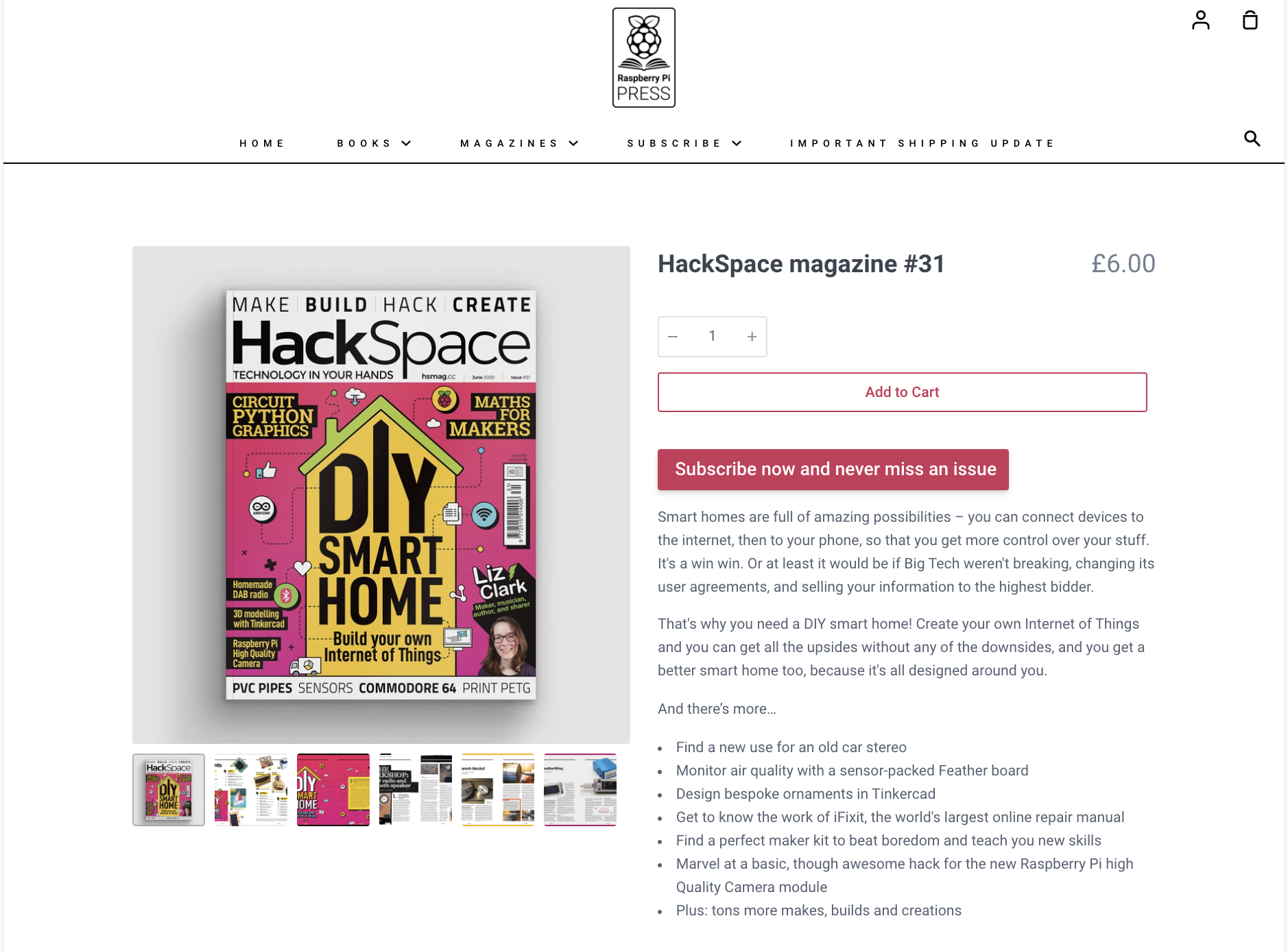
Design your own Internet of Things with HackSpace magazine

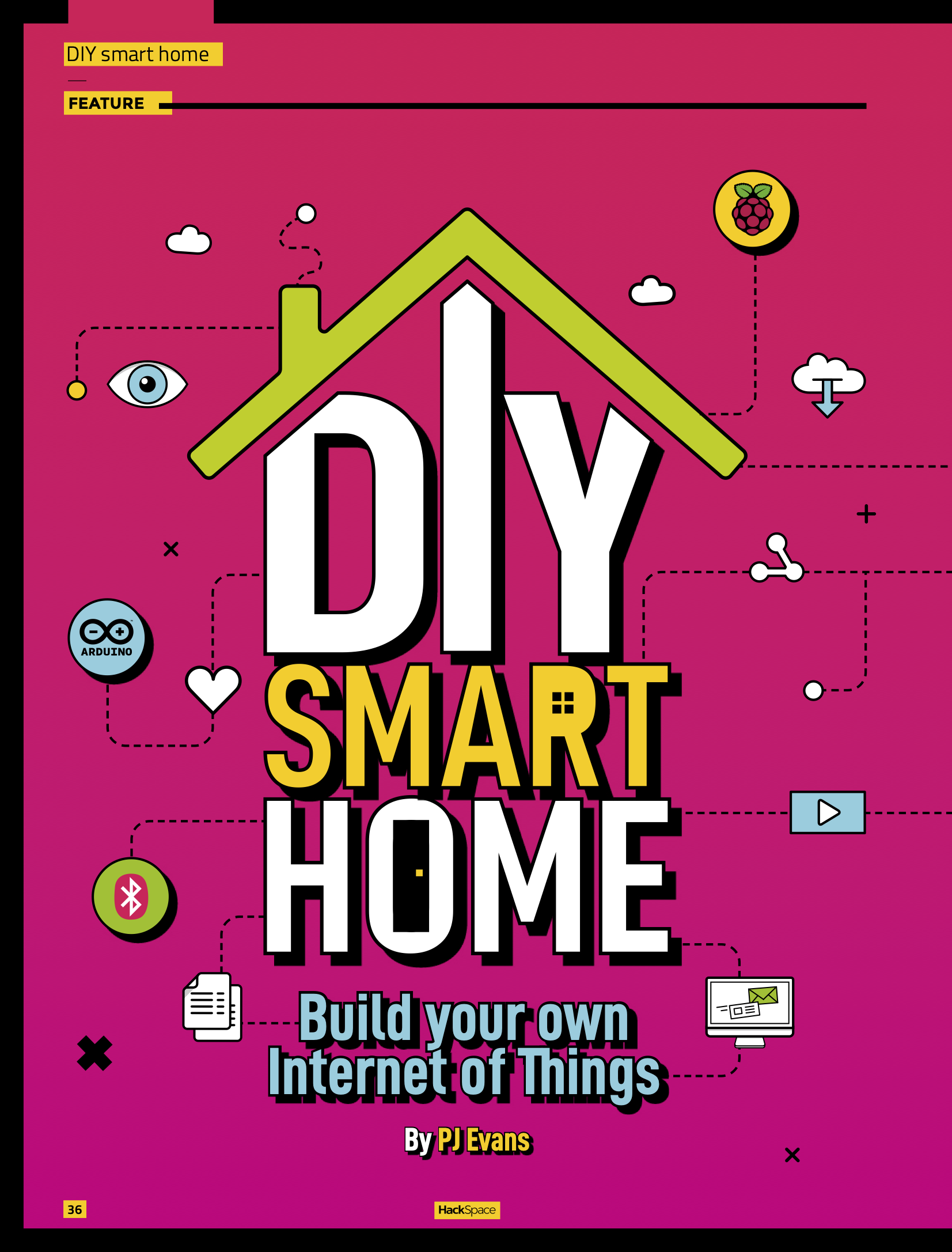
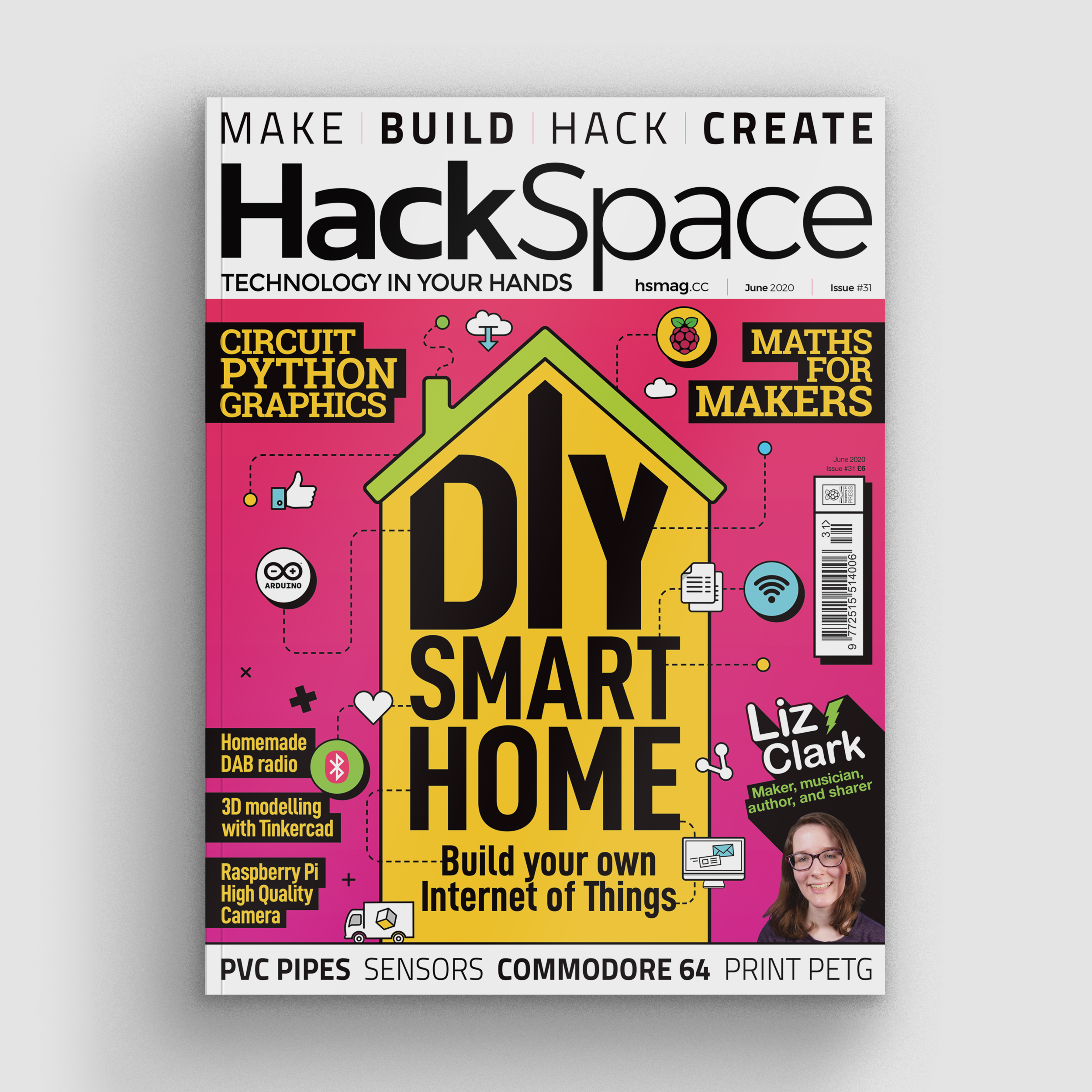
In issue 31 of HackSpace magazine, out today, PJ Evans looks at DIY smart homes and homemade Internet of Things devices.

In the last decade, various companies have come up with ‘smart’ versions of almost everything. Microcontrollers have been unceremoniously crowbarred into devices that had absolutely no need for microcontrollers, and often tied to phone apps or web services that are hard to use and don’t work well with other products.

Put bluntly, the commercial world has struggled to deliver an ecosystem of useful smart products. However, the basic principle behind the connected world is good – by connecting together sensors, we can understand our local environment and control it to make our lives better. That could be as simple as making sure the plants are correctly watered, or something far more complex.

The simple fact is that we each lead different lives, and we each want different things out of our smart homes. This is why companies have struggled to create a useful smart home system, but it’s also why we, as makers, are perfectly placed to build our own. Let’s dive in and take a look at one way of doing this – using the TICK Stack – but there are many more, and we’ll explore a few alternatives later on.

Many of our projects create data, sometimes a lot of it. This could be temperature, humidity, light, position, speed, or anything else that we can measure electronically. To be useful, that data needs to be turned into information. A list of numbers doesn’t tell you a lot without careful study, but a line graph based on those numbers can show important information in an instant. Often makers will happily write scripts to produce charts and other types of infographics, but now open-source software allows anyone to log data to a database, generate dashboards of graphs, and even trigger alerts and scripts based on the incoming data. There are several solutions out there, so we’re going to focus on just one: a suite of products from InfluxData collectively known as the TICK Stack.

InfluxDB

The ‘I’ in TICK is the database that stores your precious data. InfluxDB is a time series database. It differs from regular SQL databases as it always indexes based on the time stamp of the incoming data. You can use a regular SQL database if you wish (and we’ll show you how later), but what makes InfluxDB compelling for logging data is not only its simplicity, but also its data-management features and built-in web-based API interface. Getting data into InfluxDB can be as easy as a web post, which places it within the reach of most internet-capable microcontrollers.

Kapacitor

Next up is our ‘K’. Kapacitor is a complex data processing engine that acts on data coming into your InfluxDB. It has several purposes, but the common use is to generate alerts based on data readings. Kapacitor supports a wide range of alert ‘endpoints’, from sending a simple email to alerting notification services like Pushover, or posting a message to the ubiquitous Slack. Multiple alerts to multiple destinations can be configured, and what constitutes an alert status is up to you. More advanced uses of Kapacitor include machine learning and anomaly detection.

Chronograf

The problem with Kapacitor is the configuration. It’s a lot of work with config files and the command line. Thoughtfully, InfluxData has created Chronograf, a graphical user interface to both Kapacitor and InfluxDB. If you prefer to keep away from the command line, you can query and manage your databases here as well as set up alerts, metrics that trigger an alert, and the configurations for the various handlers. This is all presented through a web app that you can access from anywhere on your network. You can also build ‘Dashboards’ – collections of charts displayed on a single page based on your InfluxDB data.

Telegraf

Finally, our ’T’ in TICK. One of the most common uses for time series databases is measuring computer performance. Telegraf provides the link between the machine it is installed on and InfluxDB. After a simple install, Telegraf will start logging all kinds of data about its host machine to your InfluxDB installation. Memory usage, CPU temperatures and load, disk space, and network performance can all be logged to your database and charted using Chronograf. This is more due to the Stack’s more common use for monitoring servers, but it’s still useful for making sure the brains of our network-of-things is working properly. If you get a problem, Kapacitor can not only trigger alerts but also user-defined scripts that may be able to remedy the situation.

Get HackSpace magazine issue 31 — out today

HackSpace magazine issue 31: on sale now!

You can read the rest of HackSpace magazine’s DIY IoT feature in issue 31, out today and available online from the Raspberry Pi Press online store. You can also download issue 31 for free.

The post Design your own Internet of Things with HackSpace magazine appeared first on Raspberry Pi.


Source: Raspberry Pi – Design your own Internet of Things with HackSpace magazine

Share your keyboard and mouse between computers with Barrier

Declutter your desk by sharing your mouse and keyboard across multiple computers at once, including your Raspberry Pis, with Barrier. Raspberry Pi Director of Software Engineering, Gordon Hollingworth, shows you how.

Barrier walkthrough

Subscribe to our YouTube channel: http://rpf.io/ytsub Help us reach a wider audience by translating our video content: http://rpf.io/yttranslate Buy a Raspbe…

Desk clutter is a given

My desk is a bit untidy. Talking to people in our office, you’ll find that it’s mostly because I only clear it properly once a year, or leave it entirely until the next time we move office!

It’s cluttered with Raspberry Pis of random types, with little tags saying what’s wrong or right about each one, and then there’s every manner of SD card, adapter, JTAG connector, headphones, and whiteboard marker pens you can dream of filling the gaps.

But one thing that really annoys me is that I tend to have a mouse and keyboard per computer, and I’ve got at least four computers running at my desk at any one time.

Solutions to this problem have existed for a very long time, known as KVM (keyboard, video and mouse) switches; many people use these to switch (literally with a big toggle switch) between computer 1, 2, and 3 while using a single screen.

But if that’s what you want to do, the best solution is to use VNC on each of the computers so you can use a single display, keyboard, and mouse to access each of their screens and bring them all together.

And, that’s okay, but…

But that’s not quite what I want: I like having the mass-screen real-estate around me, and I like just glancing to the left to see my Raspberry Pi on its own screen.

If only there was a way to share my mouse and keyboard across multiple computers without having to flick switches or unplug USBs.

Well…

Barrier to the rescue!

In the same way one may set up multiple monitors for one computer, and move the mouse cursor seamlessly between them, Barrier allows you to share peripherals between multiple computers, allowing you to host your keyboard and mouse on one computer. It lets you simply drag your cursor from screen to screen, from device to device, as if by magic.

Download and set up Barrier

Barrier is free to use, and simple to set up. You can either follow the video tutorial shared above, or continue reading below:

Download barrier to your main computer

First, download and install Barrier from the developers’ installation page: github.com/debauchee/barrier/releases

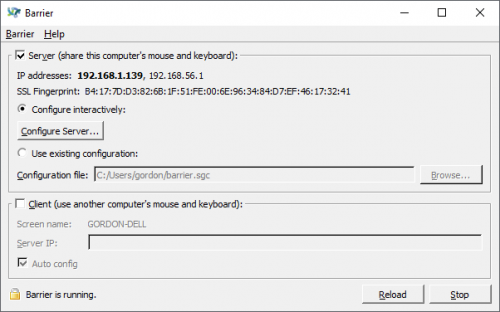
At the end of the installation, the application will run. Select the Server option (the server is the one that has the keyboard and mouse that you want to share).

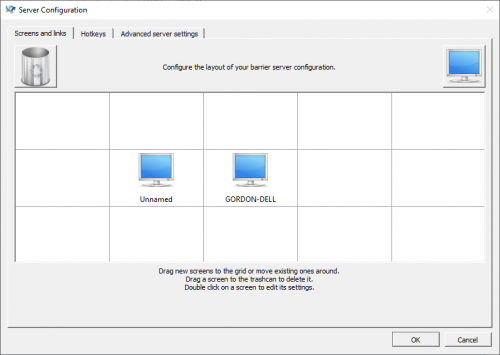
Next select Configure Server. Click on the computer screen in the top-right and drag it to where you want it to appear in relation to the server. It will default to being called ‘Unnamed’.

Next, double-click the new ‘Unnamed’ screen to set it up.

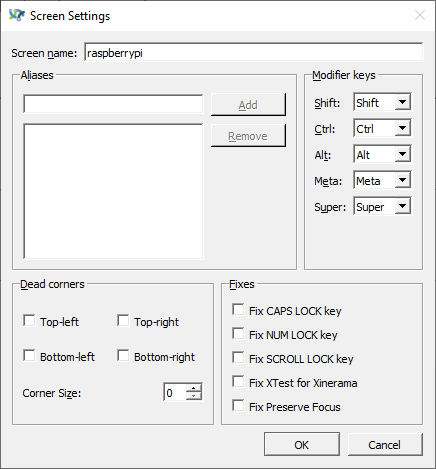
The only thing you need to do here is to set the screen name. Here I’ve changed it to ‘raspberrypi’.  Click OK here and on the Server configuration‘ dialogue. You’ll return to the main Barrier page. Click Reload.

Download Barrier to your Raspberry Pi computer

Now turn to your Raspberry Pi, open a terminal window (Ctrl-Alt-T if you didn’t know), and run:

sudo apt install barrier

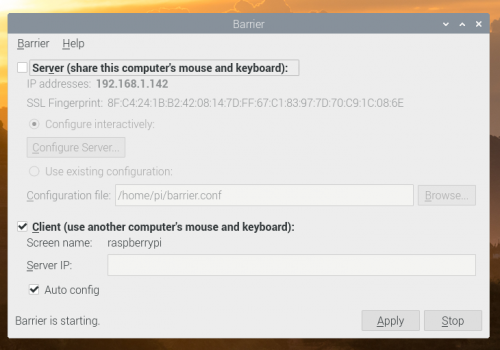
Once installation is complete, Barrier should appear in the Accessories drop-down menu, which you can access via the main menu icon (the Raspberry Pi logo in the top right-hand corner). Select Barrier and, this time, choose Client.

If you leave Auto config selected, Barrier should just work, as long as the screen name is correct (you can change this by clicking Barrier and then Change settings) and matches the name you told the server.

And there you have it. You can now use your mouse and keyboard across both your computers. And, if you have enough desktop space for even more monitors, you can continue to add devices to Barrier until your room ends up looking something like this:

A man standing in front of a wall made of computer screens

If you use Barrier to clean up your workspace, make sure to share a ‘before’ and ‘after’ photo with us on Twitter.

The post Share your keyboard and mouse between computers with Barrier appeared first on Raspberry Pi.


Source: Raspberry Pi – Share your keyboard and mouse between computers with Barrier

Make it rain chocolate with a Raspberry Pi-powered dispenser

This fully automated M&M’s-launching machine delivers chocolate on voice command, wherever you are in the room.

A quick lesson in physics

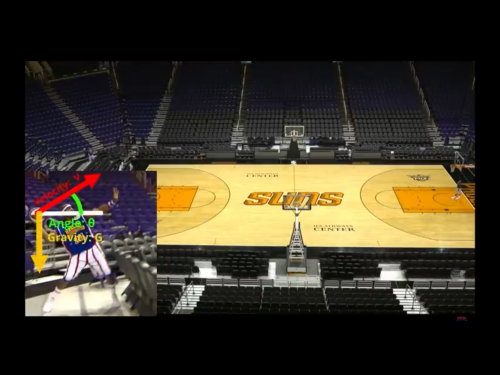
To get our head around Harrison McIntyre‘s project, first we need to understand parabolas. Harrison explains: “If we ignore air resistance, a parabola can be defined as the arc an object describes when launching through space. The shape of a parabolic arc is determined by three variables: the object’s departure angle; initial velocity; and acceleration due to gravity.”

Harrison uses a basketball shooter to illustrate parabolas

Lucky for us, gravity is always the same, so you really only have to worry about angle and velocity. You could also get away with only changing one variable and still be able to determine where a launched object will land. But adjusting both the angle and the velocity grants much greater precision, which is why Harrison’s machine controls both exit angle and velocity of the M&M’s.

Kit list

The M&M’s launcher comprises:

  • 2 Arduino Nanos
  • 1 Raspberry Pi 3
  • 3 servo motors
  • 2 motor drivers
  • 1 DC motor
  • 1 Hall effect limit switch
  • 2 voltage converters
  • 1 USB camera
  • “Lots” of 3D printed parts
  • 1 Amazon Echo Dot

A cordless drill battery is the primary power source.

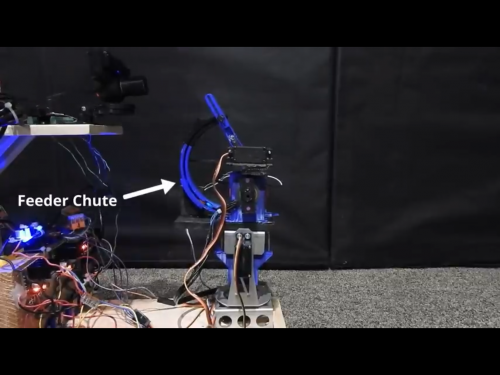
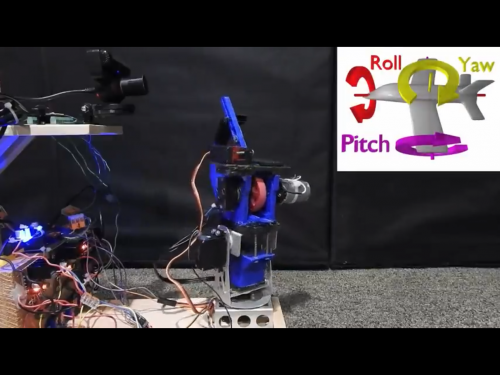
The project relies on similar principles as a baseball pitching machine. A compliant wheel is attached to a shaft sitting a few millimetres above a feeder chute that can hold up to ten M&M’s. To launch an M&M’s piece, the machine spins up the shaft to around 1500 rpm, pushes an M&M’s piece into the wheel using a servo, and whoosh, your M&M’s piece takes flight.

Controlling velocity, angle and direction

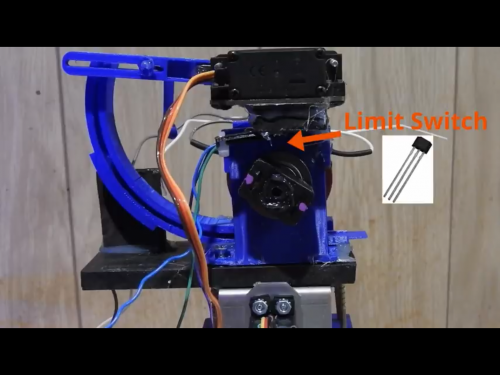
To measure the velocity of the fly wheel in the machine, Harrison installed a Hall effect magnetic limit switch, which gets triggered every time it is near a magnet.

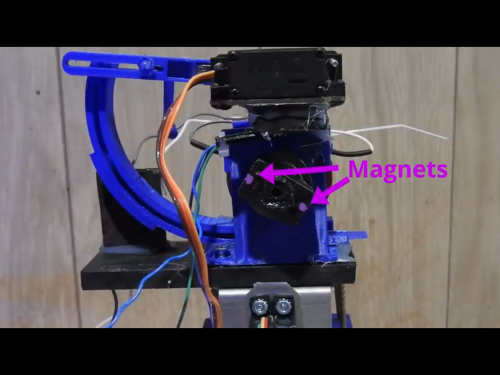
Two magnets were placed on opposite sides of the shaft, and these pass by the switch. By counting the time in between each pulse from the limit switch, the launcher determines how fast the fly wheel is spinning. In response, the microcontroller adjusts the motor output until the encoder reports the desired rpm. This is how the machine controls the speed at which the M&M’s pieces are fired.

Now, to control the angle at which the M&M’s pieces fly out of the machine, Harrison mounted the fly wheel assembly onto a turret with two degrees of freedom, driven by servos. The turret controls the angle at which the sweets are ‘pitched’, as well as the direction of the ‘pitch’.

So how does it know where I am?

With the angle, velocity, and direction at which the M&M’s pieces fly out of the machine taken care of, the last thing to determine is the expectant snack-eater’s location. For this, Harrison harnessed vision processing.


Harrison used a USB camera and a Python script running on Raspberry Pi 3 to determine when a human face comes into view of the machine, and to calculate how far away it is. The turret then rotates towards the face, the appropriate parabola is calculated, and an M&M’s piece is fired at the right angle and velocity to reach your mouth. Harrison even added facial recognition functionality so the machine only fires M&M’s pieces at his face. No one is stealing this guy’s candy!

So what’s Alexa for?

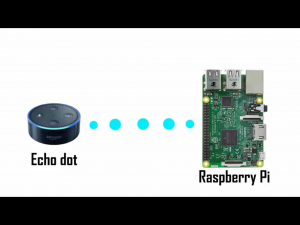
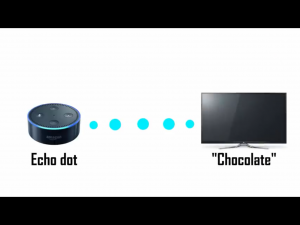
This project is topped off with a voice-activation element, courtesy of an Amazon Echo Dot, and a Python library called Sinric. This allowed Harrison to disguise his Raspberry Pi as a smart TV named ‘Chocolate’ and command Alexa to “increase the volume of ‘Chocolate’ by two” in order to get his machine to fire two M&M’s pieces at him.


Drawbacks

In his video, Harrison explaining that other snack-launching machines involve a spring-loaded throwing mechanism, which doesn’t let you determine the snack’s exit velocity. That means you have less control over how fast your snack goes and where it lands. The only drawback to Harrison’s model? His machine needs objects that are uniform in shape and size, which means no oddly shaped peanut M&M’s pieces for him.

He’s created quite the monster here, in that at first, the machine’s maximum firing speed was 40 mph. And no one wants crispy-shelled chocolate firing at their face at that speed. To keep his teeth safe, Harrison switched out the original motor for one with a lower rpm, which reduced the maximum exit velocity to a much more sensible 23 mph… Please make sure you test your own snack-firing machine outdoors before aiming it at someone’s face.

Go subscribe

Check out the end of Harrison’s videos for some more testing to see what his machine was capable of: he takes out an entire toy army and a LEGO Star Wars squad by firing M&M’s pieces at them. And remember to subscribe to his channel and like the video if you enjoyed what you saw, because that’s just a nice thing to do.

The post Make it rain chocolate with a Raspberry Pi-powered dispenser appeared first on Raspberry Pi.


Source: Raspberry Pi – Make it rain chocolate with a Raspberry Pi-powered dispenser

Coolest Projects goes online and everyone is welcome!

We’re thrilled that Coolest Projects is taking place this summer as an online showcase, and registration opens today!

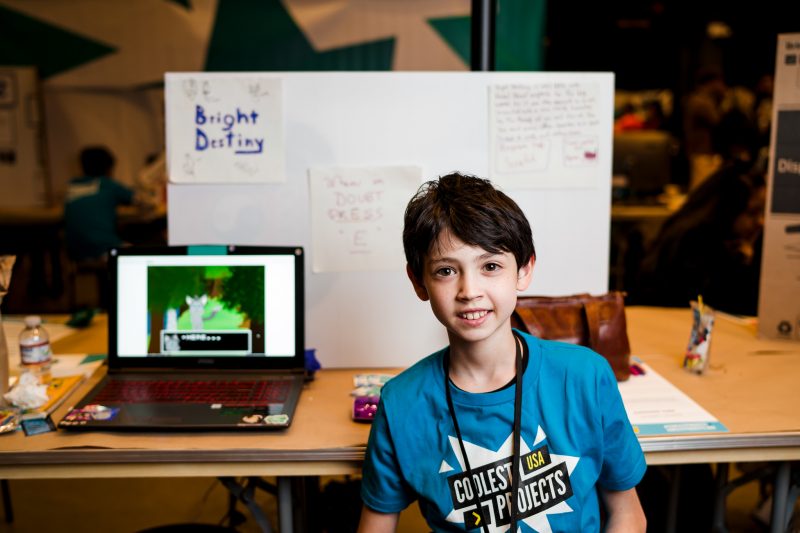
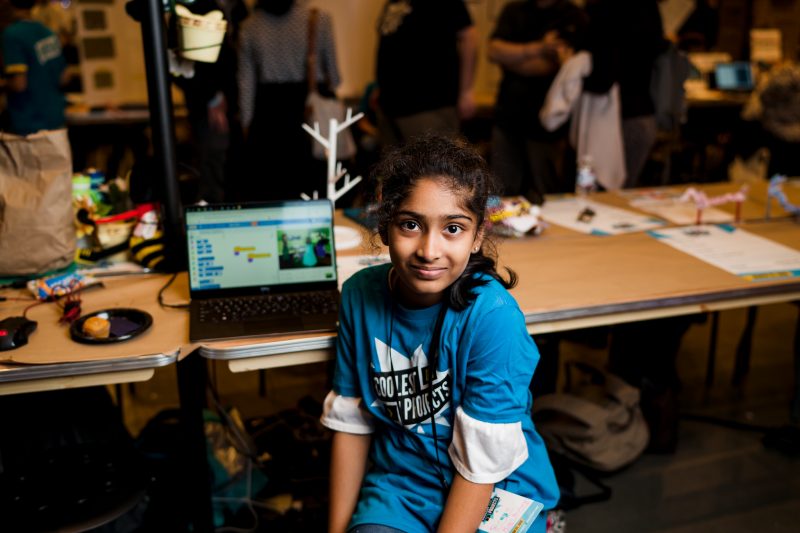
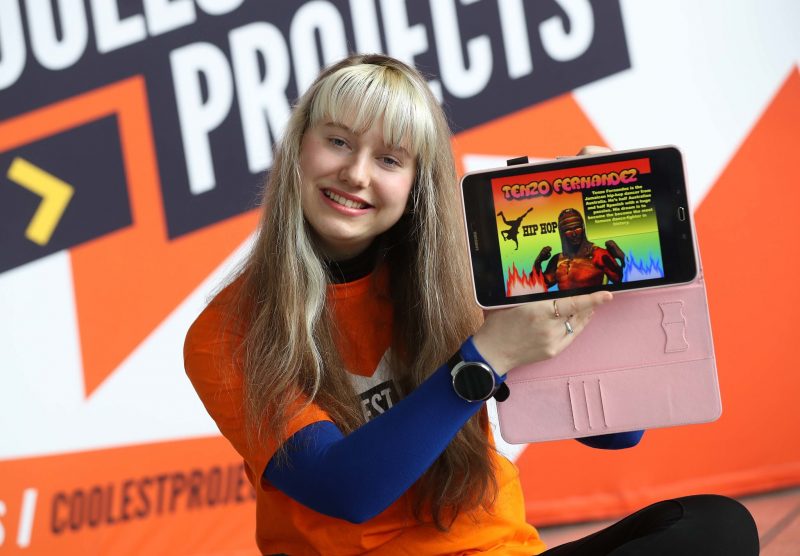
A girl presenting a digital making project

Our world-leading technology fair usually takes place as a free face-to-face event, with thousands of young people coming together to showcase projects they’ve created. After making the tough decision to cancel the Coolest Projects 2020 events in Dublin and Manchester, we began building a solution that would allow us to host our tech showcase for young people online this year.

A boy presenting his digital making project

As so many young people are currently at home all over the world, we wanted to create an online space where they can share their tech projects, be inspired by their peers, and celebrate each other’s achievements as a community.

A chance to be creative and have fun

Coolest Projects is a great opportunity for young people to get creative, have fun, learn from others, and be a part of something truly special.

A girl presenting a digital making project

To get involved in Coolest Projects, all that young people need is an idea that involves tech, and the enthusiasm to bring it to life. If they’re looking for inspiration, they can explore our Digital Making at Home series of free, weekly code-along videos and step-by-step project guides. We’ve also got support for parents who want to learn more about the tools and programs their children could use to create a tech project.

We invite all creators and all project types!

Coolest Projects is open to anyone up to the age of 18, and young people can join wherever they are in the world. Creators at all levels of experience are encouraged, with projects from beginner to advanced, and it doesn’t matter whether the project is a work in progress, a prototype, or a finished product — every participant and every project are welcome!

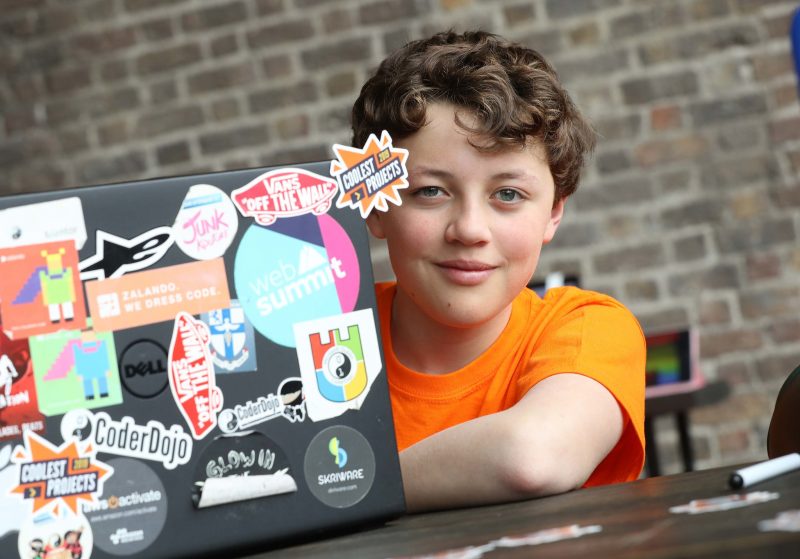
A young person at a laptop

Young creators get to share their ideas with the world

All submitted projects will be showcased for the whole world to see in the new Coolest Projects online gallery, so that we can all celebrate the effort, enthusiasm, and creativity of young people who have turned an idea into reality using tech.

A boy working on a Raspberry Pi robot buggy

In the online gallery, you’ll be able to filter projects and explore at your leisure. We’ve enlisted some special judges to help us pick out favourites!

Why do young people take part in Coolest Projects?

Estela Liobikaitė from Strokestown, Co. Roscommon in Ireland took part in Coolest Projects International last year. She began coding at school with her teacher, Ms Gilleran, and developed a love for animation. Estela talks about the possibilities coding gives young people:

“I like coding because it is very entertaining to play to learn about technology. Coding gives a person many opportunities and possibilities.”

A teenage girl presenting a digital making project on a tablet

Estela at Coolest Projects International 2019

Sofia and Mihai, both aged 9, also took part in Coolest Projects International 2019. They travelled to the Dublin event from Slatina in Romania, where they attend a Code Club in their community. Sofia and Mihai both love animals and created their project, Friendship Saves Endangered Species, to raise awareness about the fragile ecosystem.

A girl and a boy holding up a book about coding

Sofia and Mihai at Coolest Projects 2019

Their advice for other young people thinking of getting involved in Coolest Projects is: “Follow your dream, put your ideas into practice, because Coolest Projects is a great opportunity!”

Get involved with Coolest Projects

If you know a young person who has made a digital creation, then encourage them to register it for Coolest Projects, be it an animation, website, game, app, robot, or anything else they’ve built with technology. Projects can be registered in the following categories: Hardware; Scratch; Mobile Apps; Websites; Games; Advanced Programming.

To register a project or find out more about taking part, visit coolestprojects.org. Registration closes on 28 June 2020.


PS This year’s Coolest Projects online showcase wouldn’t be possible without the support of our sponsors — thank you!

Platinum sponsors

Facebook, BNY Mellon, Liberty Global, Blizzard Entertainment, EPAM

Gold sponsors

Workday, Twitter

SME and community supporter

PayPal

The post Coolest Projects goes online and everyone is welcome! appeared first on Raspberry Pi.


Source: Raspberry Pi – Coolest Projects goes online and everyone is welcome!

Setting up two-factor authentication on your Raspberry Pi

Enabling two-factor authentication (2FA) to boost security for your important accounts is becoming a lot more common these days. However you might be surprised to learn that you can do the same with your Raspberry Pi. You can enable 2FA on Raspberry Pi, and afterwards you’ll be challenged for a verification code when you access it remotely via Secure Shell (SSH).
Accessing your Raspberry Pi via SSH

A lot of people use a Raspberry Pi at home as a file, or media, server. This is has become rather common with the launch of Raspberry Pi 4, which has both USB 3 and Gigabit Ethernet. However, when you’re setting up this sort of server you often want to run it “headless”; without a monitor, keyboard, or mouse. This is especially true if you intend tuck your Raspberry Pi away behind your television, or somewhere else out of the way. In any case, it means that you are going to need to enable Secure Shell (SSH) for remote access.

However, it’s also pretty common to set up your server so that you can access your files when you’re away from home, making your Raspberry Pi accessible from the Internet.

Most of us aren’t going to be out of the house much for a while yet, but if you’re taking the time right now to build a file server, you might want to think about adding some extra security. Especially if you intend to make the server accessible from the Internet, you probably want to enable two-factor authentication (2FA) using Time-based One-Time Password (TOTP).

What is two-factor authentication?

Two-factor authentication is an extra layer of protection. As well as a password, “something you know,” you’ll need another piece of information to log in. This second factor will be based either on “something you have,” like a smart phone, or on “something you are,” like biometric information.

We’re going to go ahead and set up “something you have,” and use your smart phone as the second factor to protect your Raspberry Pi.

Updating the operating system

The first thing you should do is make sure your Raspberry Pi is up to date with the latest version of Raspbian. If you’re running a relatively recent version of the operating system you can do that from the command line:

$ sudo apt-get update
$ sudo apt-get full-upgrade

If you’re pulling your Raspberry Pi out of a drawer for the first time in a while, though, you might want to go as far as to install a new copy of Raspbian using the new Raspberry Pi Imager, so you know you’re working from a good image.

Enabling Secure Shell

The Raspbian operating system has the SSH server disabled on boot. However, since we’re intending to run the board without a monitor or keyboard, we need to enable it if we want to be able to SSH into our Raspberry Pi.

The easiest way to enable SSH is from the desktop. Go to the Raspbian menu and select “Preferences > Raspberry Pi Configuration”. Next, select the “Interfaces” tab and click on the radio button to enable SSH, then hit “OK.”

You can also enable it from the command line using systemctl:

$ sudo systemctl enable ssh
$ sudo systemctl start ssh

Alternatively, you can enable SSH using raspi-config, or, if you’re installing the operating system for the first time, you can enable SSH as you burn your SD Card.

Enabling challenge-response

Next, we need to tell the SSH daemon to enable “challenge-response” passwords. Go ahead and open the SSH config file:

$ sudo nano /etc/ssh/sshd_config

Enable challenge response by changing ChallengeResponseAuthentication from the default no to yes.
Editing /etc/ssh/ssd_config.

Then restart the SSH daemon:

$ sudo systemctl restart ssh

It’s good idea to open up a terminal on your laptop and make sure you can still SSH into your Raspberry Pi at this point — although you won’t be prompted for a 2FA code quite yet. It’s sensible to check that everything still works at this stage.

Installing two-factor authentication

The first thing you need to do is download an app to your phone that will generate the TOTP. One of the most commonly used is Google Authenticator. It’s available for Android, iOS, and Blackberry, and there is even an open source version of the app available on GitHub.

Google Authenticator in the App Store.

So go ahead and install Google Authenticator, or another 2FA app like Authy, on your phone. Afterwards, install the Google Authenticator PAM module on your Raspberry Pi:

$ sudo apt install libpam-google-authenticator

Now we have 2FA installed on both our phone, and our Raspberry Pi, we’re ready to get things configured.

Configuring two-factor authentication

You should now run Google Authenticator from the command line — without using sudo — on your Raspberry Pi in order to generate a QR code:

$ google-authenticator

Afterwards you’re probably going to have to resize the Terminal window so that the QR code is rendered correctly. Unfortunately, it’s just slightly wider than the standard 80 characters across.
The QR code generated by google-authenticator. Don’t worry, this isn’t the QR code for my key; I generated one just for this post that I didn’t use.

Don’t move forward quite yet! Before you do anything else you should copy the emergency codes and put them somewhere safe.

These codes will let you access your Raspberry Pi — and turn off 2FA — if you lose your phone. Without them, you won’t be able to SSH into your Raspberry Pi if you lose or break the device you’re using to authenticate.

Next, before we continue with Google Authenticator on the Raspberry Pi, open the Google Authenticator app on your phone and tap the plus sign (+) at the top right, then tap on “Scan barcode.”

Your phone will ask you whether you want to allow the app access to your camera; you should say “Yes.” The camera view will open. Position the barcode squarely in the green box on the screen.
Scanning the QR code with the Google Authenticator app.

As soon as your phone app recognises the QR code it will add your new account, and it will start generating TOTP codes automatically.
The TOTP in Google Authenticator app.

Your phone will generate a new one-time password every thirty seconds. However, this code isn’t going to be all that useful until we finish what we were doing on your Raspberry Pi. Switch back to your terminal window and answer “Y” when asked whether Google Authenticator should update your .google_authenticator file.

Then answer “Y” to disallow multiple uses of the same authentication token, “N” to increasing the time skew window, and “Y” to rate limiting in order to protect against brute-force attacks.

You’re done here. Now all we have to do is enable 2FA.

Enabling two-factor authentication

We’re going to use Linux Pluggable Authentication Modules (PAM), which provides dynamic authentication support for applications and services, to add 2FA to SSH on Raspberry Pi.

Now we need to configure PAM to add 2FA:

$ sudo nano /etc/pam.d/sshd

Add auth required pam_google_authenticator.so to the top of the file. You can do this either above or below the line that says @include common-auth.
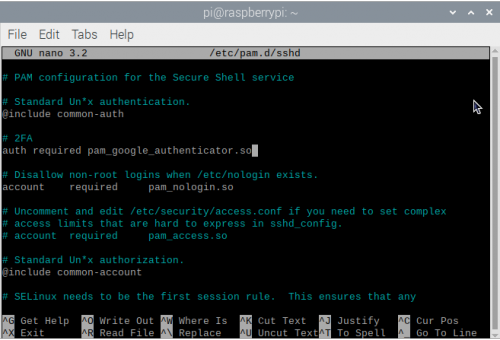
Editing /etc/pam.d/sshd.

As I prefer to be prompted for my verification code after entering my password, I’ve added this line after the @include line. If you want to be prompted for the code before entering your password you should add it before the @include line.

Now restart the SSH daemon:

$ sudo systemctl restart ssh

Next, open up a terminal window on your laptop and try and SSH into your Raspberry Pi.

Wrapping things up

If everything has gone to plan, when you SSH into the Raspberry Pi, you should be prompted for a TOTP after being prompted for your password.
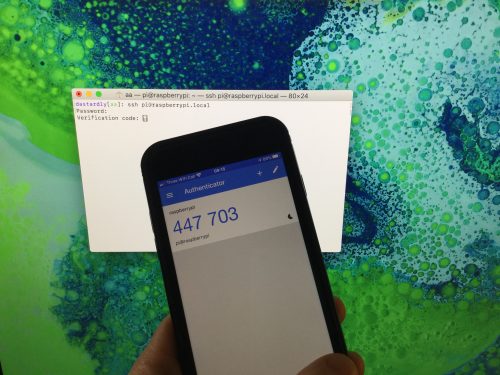
SSH’ing into my Raspberry Pi.

You should go ahead and open Google Authenticator on your phone, and enter the six-digit code when prompted. Then you should be logged into your Raspberry Pi as normal.

You’ll now need your phone, and a TOTP, every time you ssh into, or scp to and from, your Raspberry Pi. But because of that, you’ve just given a huge boost to the security of your device.

Now you have the Google Authenticator app on your phone, you should probably start enabling 2FA for your important services and sites — like Google, Twitter, Amazon, and others — since most bigger sites, and many smaller ones, now support two-factor authentication.

The post Setting up two-factor authentication on your Raspberry Pi appeared first on Raspberry Pi.



Source: Raspberry Pi – Setting up two-factor authentication on your Raspberry Pi