Raspberry Pi Off-World Bartender

Three things we like: Blade Runner, robots, and cocktails. That’s why we LOVE Donald Bell‘s Raspberry Pi–packed ‘VK-01 Off-World Bartender‘ cocktail making machine.

This machine was due to be Donald’s entry into the Cocktail Robotics Grand Challenge, an annual event in San Francisco. By the time the event was cancelled, he was too deep into his awesome build to give up, so he decided to share it with the Instructables community instead.
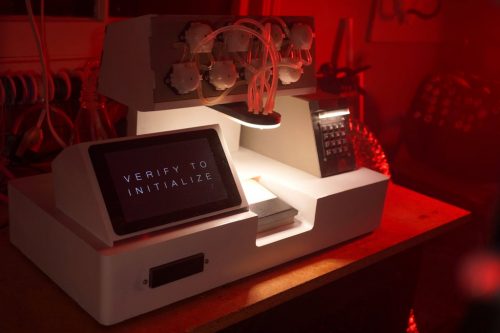
Donald wanted users to get as much interaction and feedback as possible, rather than simply pressing a button and receiving a random drink. So with this machine, the interaction comes in four ways: instructions provided on the screen, using a key card to bypass security, placing and removing a cup on the tray, and entering an order number on the keypad.

In addition to that, feedback is provided by way of lighting changes, music, video dialogue, pump motors whirring, and even the clicks of relays at each stage of the cocktail making process.

Ordering on the keypad
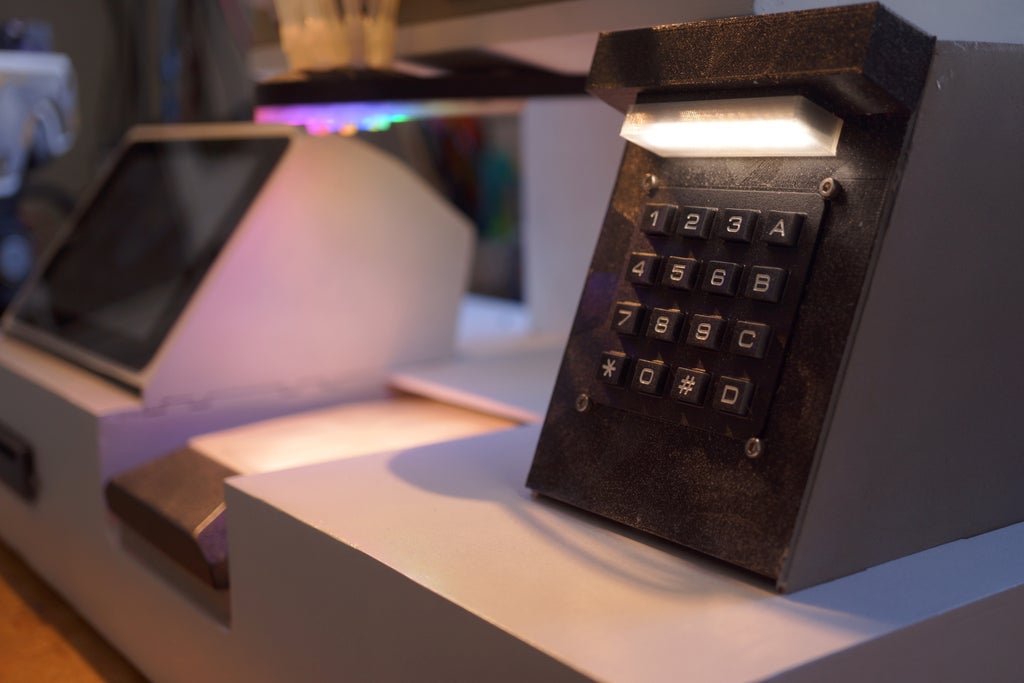
close up of the black keypad

The keypad allows people to punch in a number to trigger their order, like on a vending machine. The drink order is sent to the Hello Drinkbot software running on the Raspberry Pi 3B that controls the pumps.

Getting your cup filled
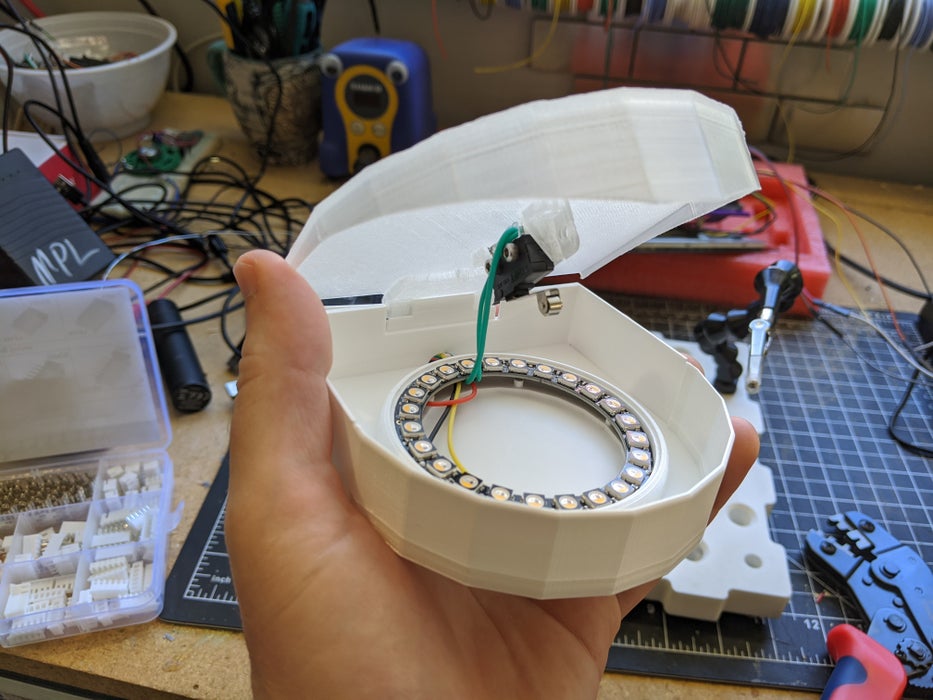
Inside the cup dispenser sensor showing the switch and LEDs
The switch under the lid and ring of LEDs on the base

In order for the machine to be able to tell when a vessel is placed under the dispenser spout, and when it’s removed, Donald built in a switch under a 3D-printed tray. Provided the vessel has at least one ice cube in it, even the lightest plastic up is heavy enough to trigger the switch.

The RFID card reader
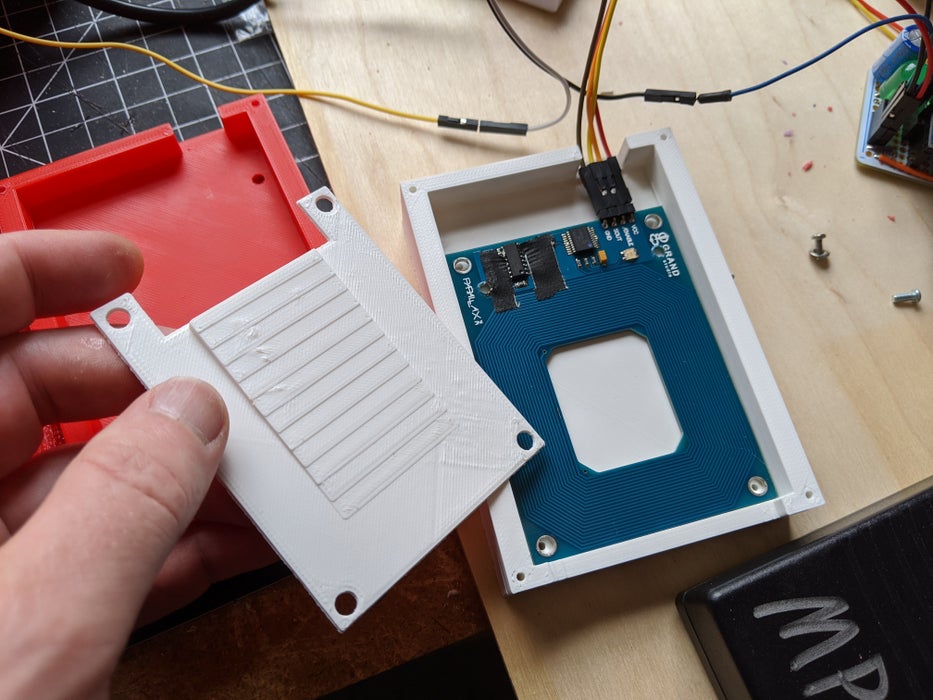
Cocktail machine customers are asked to scan a special ID card to start. To make this work, Donald adapted a sample script that blinks the card reader’s internal LED when any RFID card is detected.

Interactive video screen
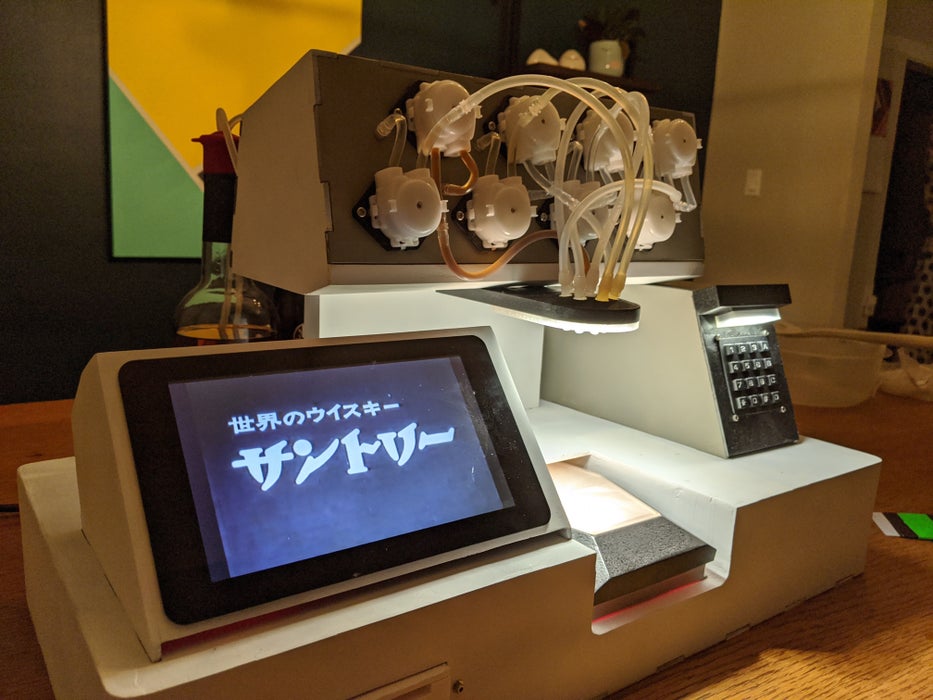
close up of the interactive screen on the machine showing Japanese style script

This bit is made possible by MP4Museum, a “bare-bones” kiosk video player software that the second Raspberry Pi inside the machine runs on boot. By connecting a switch to the Raspberry Pi’s GPIO, Donald enabled customers to advance through the videos one by one. And yes, that’s an official Raspberry Pi Touch Display.
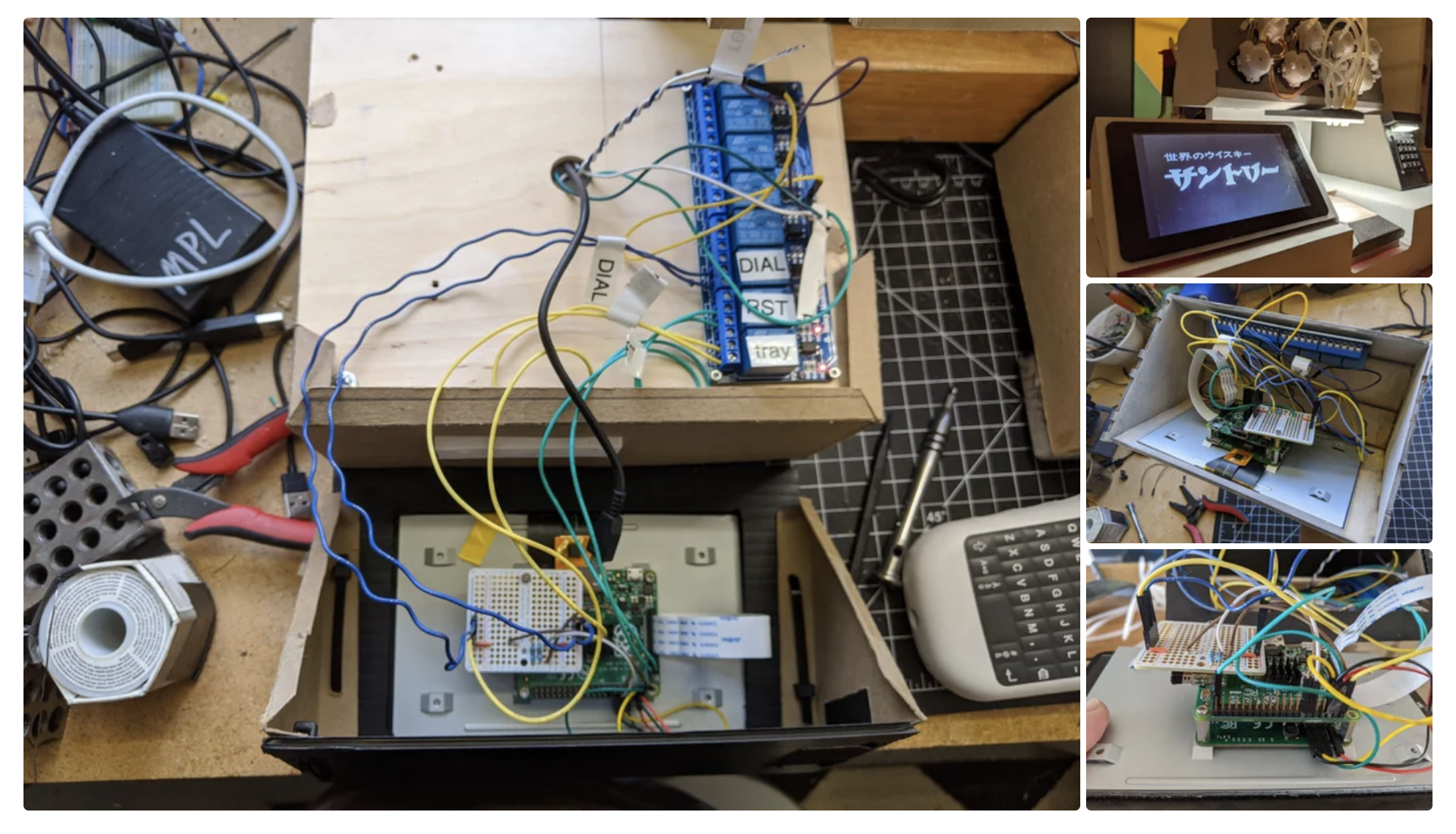
Behind the scenes of the interactive screen with the Raspberry Pi wired up
Behind the scenes of the screen with the Raspberry Pi A+ running the show

The Hello Drinkbot ‘bartender’

screen grab of the hello drinkbot web interface

Donald used the Python-based Hello Drinkbot software as the brains of the machine. With it, you can configure which liquors or juices are connected to which pumps, and send instructions on exactly how much to pour of each ingredient. Everything is configured via a web interface.

Via a bank of relays, microcontrollers connect all the signals from the Touch Display, keypad, RFID card reader, and switch under the spout.
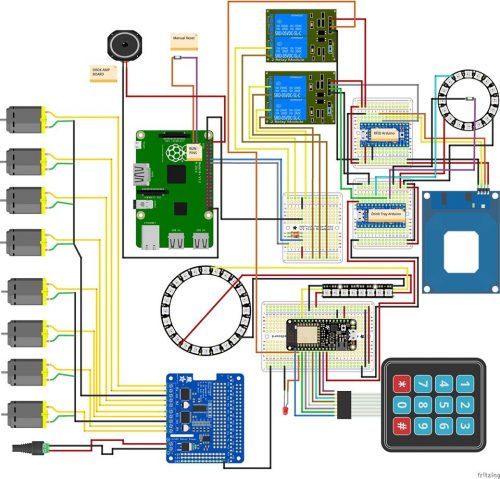
Here’s the Fritzing diagram for this beast

Supplies

Donald shared an exhaustive kit list on his original post, but basically, what you’re looking at is…

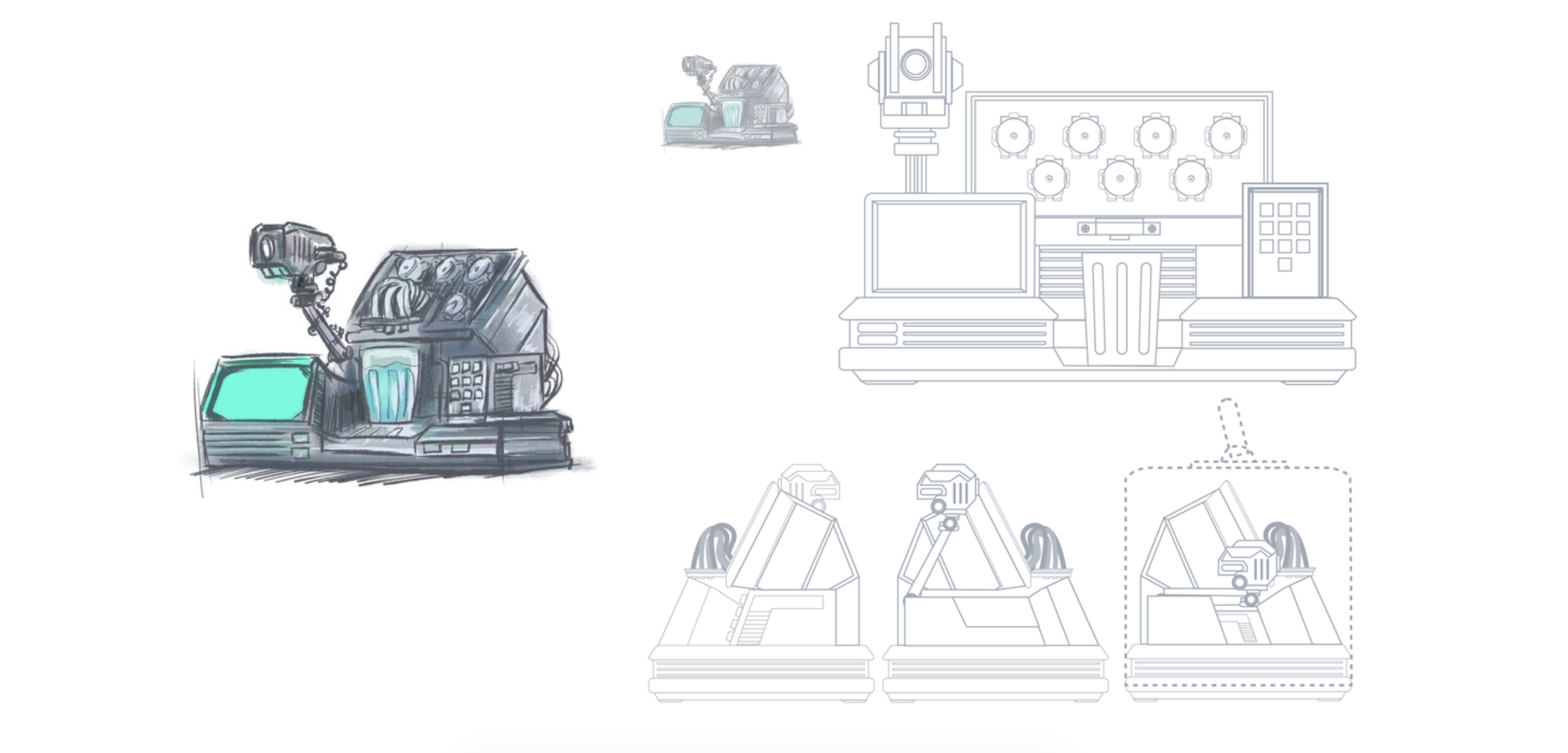
Pencil sketches of the machine from different angles
Donald’s friend Jim Burke‘s beautiful concept sketches

And finally, check out the Raspberry Pi–based Hello Drinkbot project by Rich Gibson, which inspired Donald’s build.

The post Raspberry Pi Off-World Bartender appeared first on Raspberry Pi.


Source: Raspberry Pi – Raspberry Pi Off-World Bartender
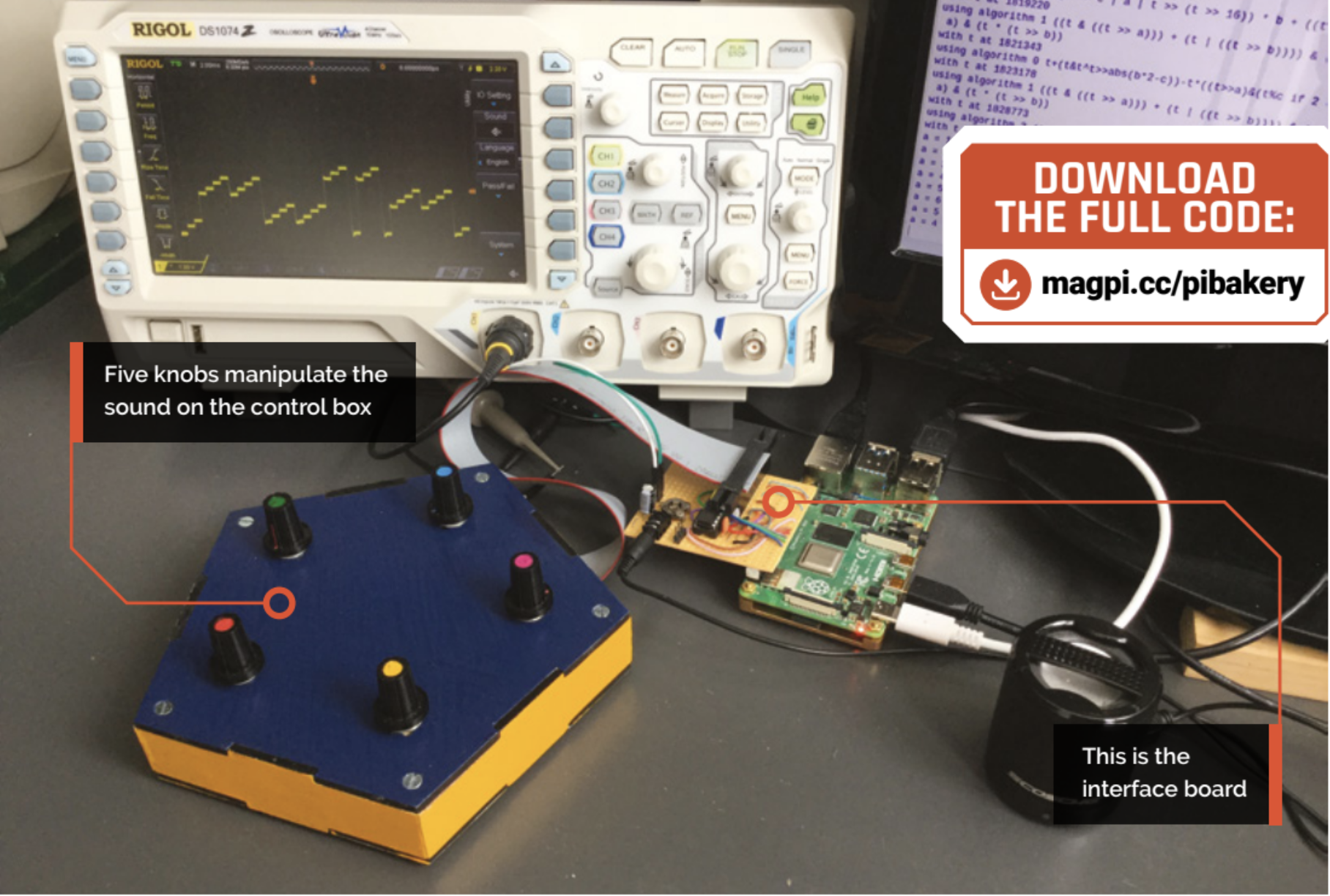
Rotary encoders: Raise a Glitch Storm | Hackspace 34

A Glitch Storm is an explosive torrent of musical rhythms and sound, all generated from a single line of code. In theory, you can’t do this with a Raspberry Pi running Python – in this month’s new issue, out now, the HackSpace magazine team lovingly acquired a tutorial from The Mag Pi team to throw theory out the window and show you how.

What is a Glitch Storm

A Glitch Storm is a user-influenceable version of bytebeat music. We love definitions like that here at the Bakery: something you have never heard of is simple a development of something else you have never heard of. Bytebeat music was at the heart of the old Commodore 64 demo scene, a competition to see who could produce the most impressive graphs and music in a very limited number of bytes. This was revived/rediscovered and christened by Viznut, aka Ville-Matias Heikkilä, in 2011. And then JC Ureña of the ‘spherical sound society’ converted the concept into the interactive Glitch Storm.

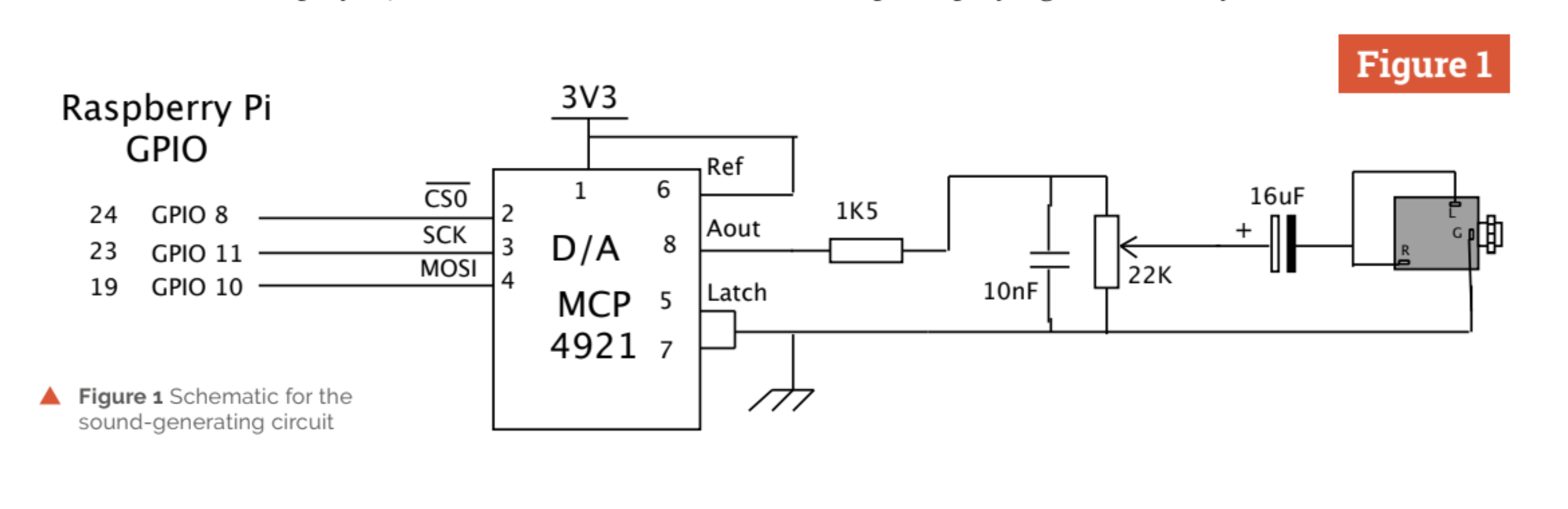
Figure 1: Schematic for the sound-generating circuit

So what is it?

Most random music generators work on the level of notes; that is, notes are chosen one at a time and then played, like our Fractal Music project in The MagPi #66. However, with bytebeat music, an algorithm generates the actual samples levels that make up the sound. This algorithm performs bitwise operations on a tick variable that increments with each sample. Depending on the algorithm used, this may or may not produce something musically interesting. Often, the samples produced exhibit a fractal structure, which is itself similar on many levels, thus providing both the notes and structure.

Enter the ‘Glitch Storm’

With a Glitch Storm, three user-controlled variables – a, b, and c – can be added to this algorithm, allowing the results to be fine-tuned. In the ‘Algorithms’ box, you can see that the bytebeat algorithms simply run; they all repeat after a certain time, but this time can be long, in the order of hours for some. A Glitch Storm algorithm, on the other hand, contains variables that a user can change in real-time while the sample is playing. This exactly what we can do with rotary encoders, without having the algorithm interrupted by checking the state of them all the time.

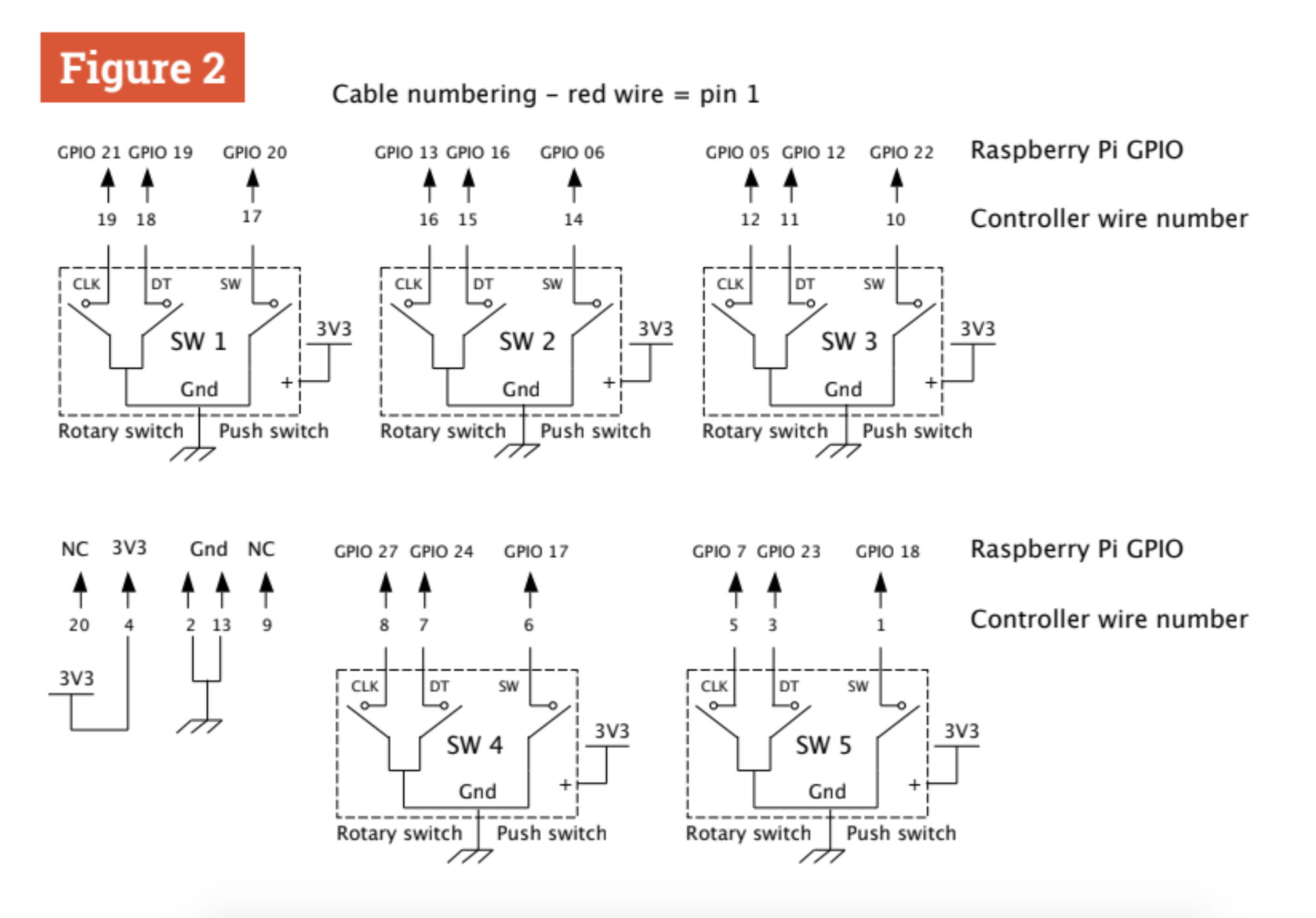
Figure 2: Schematic for the control box

What hardware?

In order to produce music like this on the Raspberry Pi, we need some extra hardware to generate the sound samples, and also a bunch of rotary encoders to control things. The samples are produced by using a 12-bit A/D converter connected to one of the SPI ports. The schematic of this is shown in Figure 1. The clock rate for the transfer of data to this can be controlled and provides a simple way of controlling, to some extent, the sample rate of the sound. Figure 2 shows the wiring diagram of the five rotary encoders we used.

Making the hardware

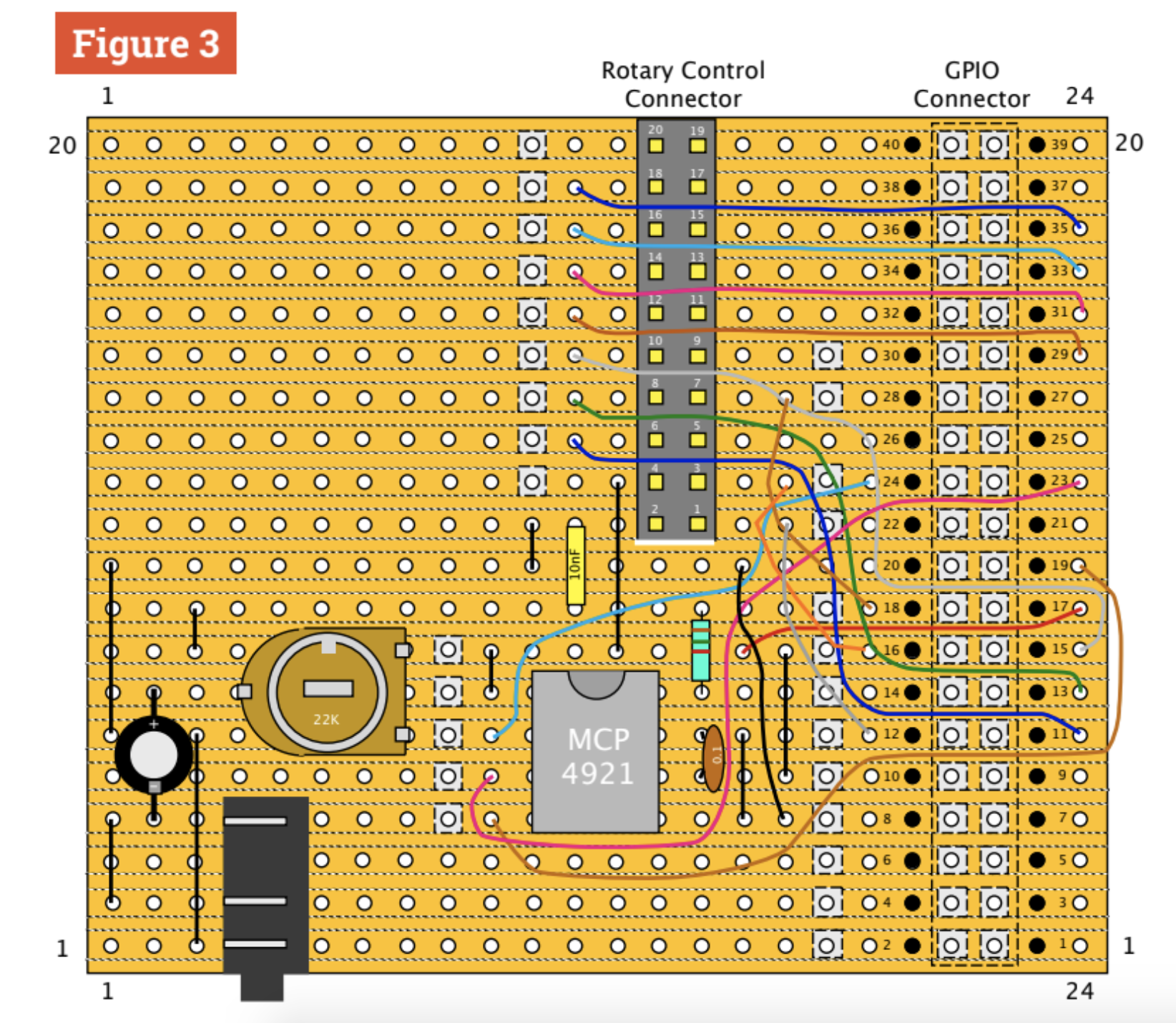
The hardware comes as two parts: the D/A converter and associated audio components. These are built on a board that hangs off Raspberry Pi’s GPIO pins. Also on this board is a socket that carries the wires to the control box. We used an IDC (insulation displacement connector) to connect between the board and the box, as we wanted the D/A connection wires to be as short as possible because they carry a high frequency signal. We used a pentagonal box just for fun, with a control in each corner, but the box shape is not important here.

Figure 3: Front physical layout of the interface board

Construction

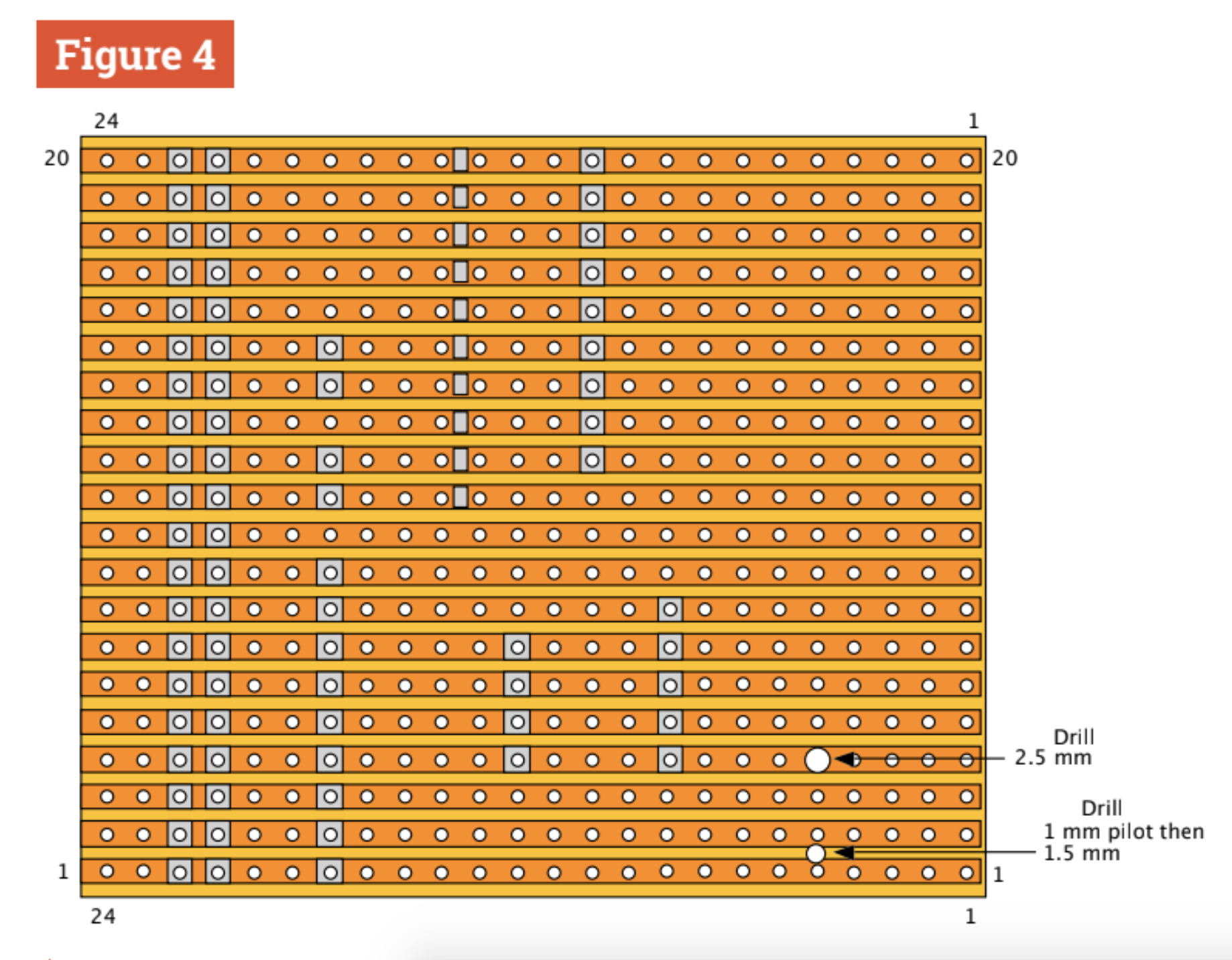
The board is built on a 20-row by 24-hole piece of stripboard. Figure 3 and Figure 4 show the physical layout for the front and back of the board. The hole number 5 on row 4 is enlarged to 2.5mm and a new hole is drilled between rows 1 and 2 to accommodate the audio jack socket. A 40-way surface-mount socket connector is soldered to the back of the board, and a 20-way socket is soldered to the front. You could miss this out and wire the 20-way ribbon cable direct to the holes in these positions if you want to economise.

Figure 4: Rear physical layout of the interface board

Further construction notes

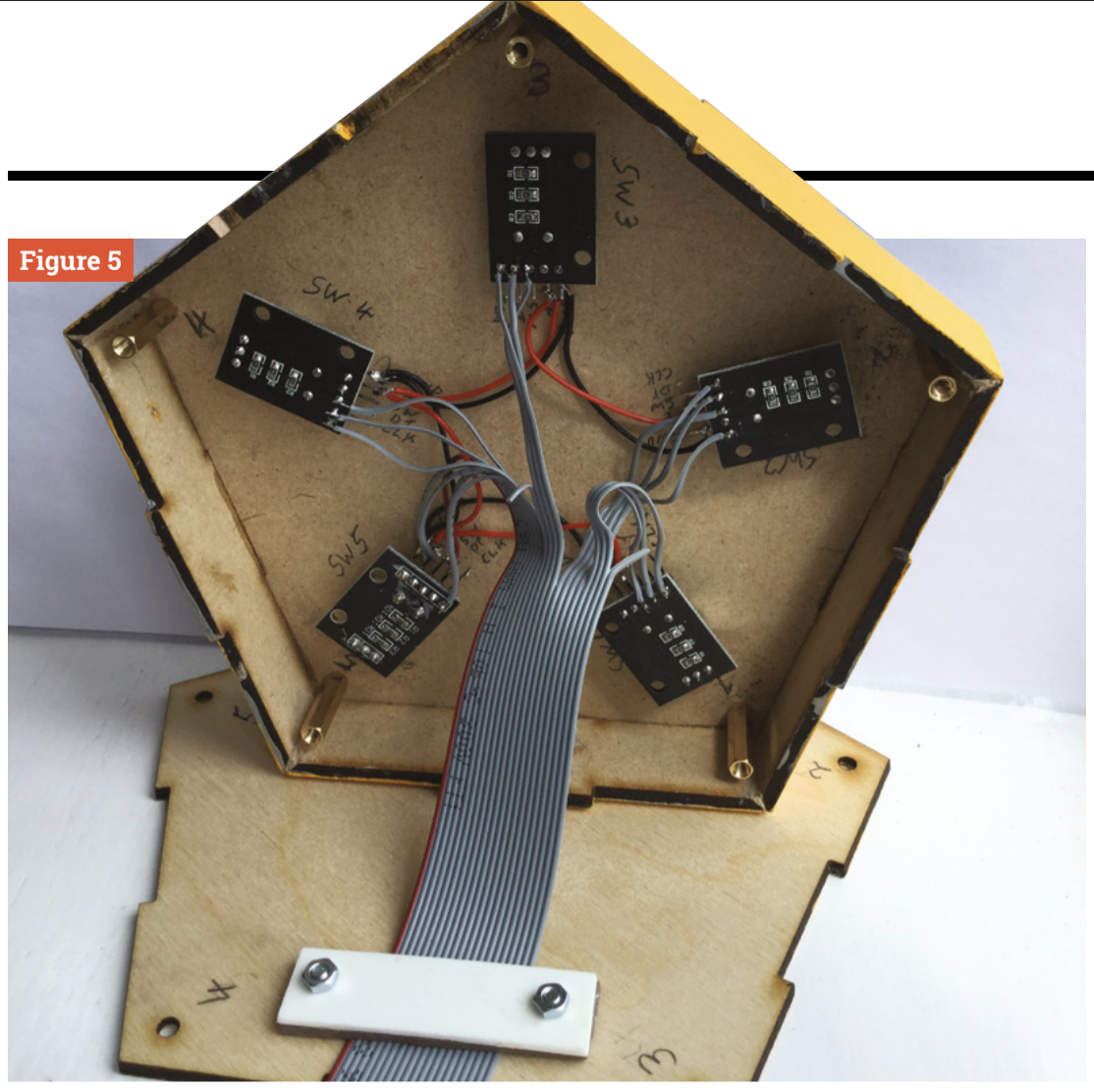
Note: as always, the physical layout diagram shows where the wires go, not necessarily the route they will take. Here, we don’t want wires crossing the 20-way connector, so the upper four wires use 30AWG Kynar wire to pop under the connector and out through a track hole, without soldering, on the other side. When putting the 20-way IDC pin connector on the ribbon cable, make sure the red end connector wire is connected to the pin next to the downward-pointing triangle on the pin connector. Figure 5 shows a photograph of the control box wiring

Figure 5: Wiring of the control board

Testing the D/A

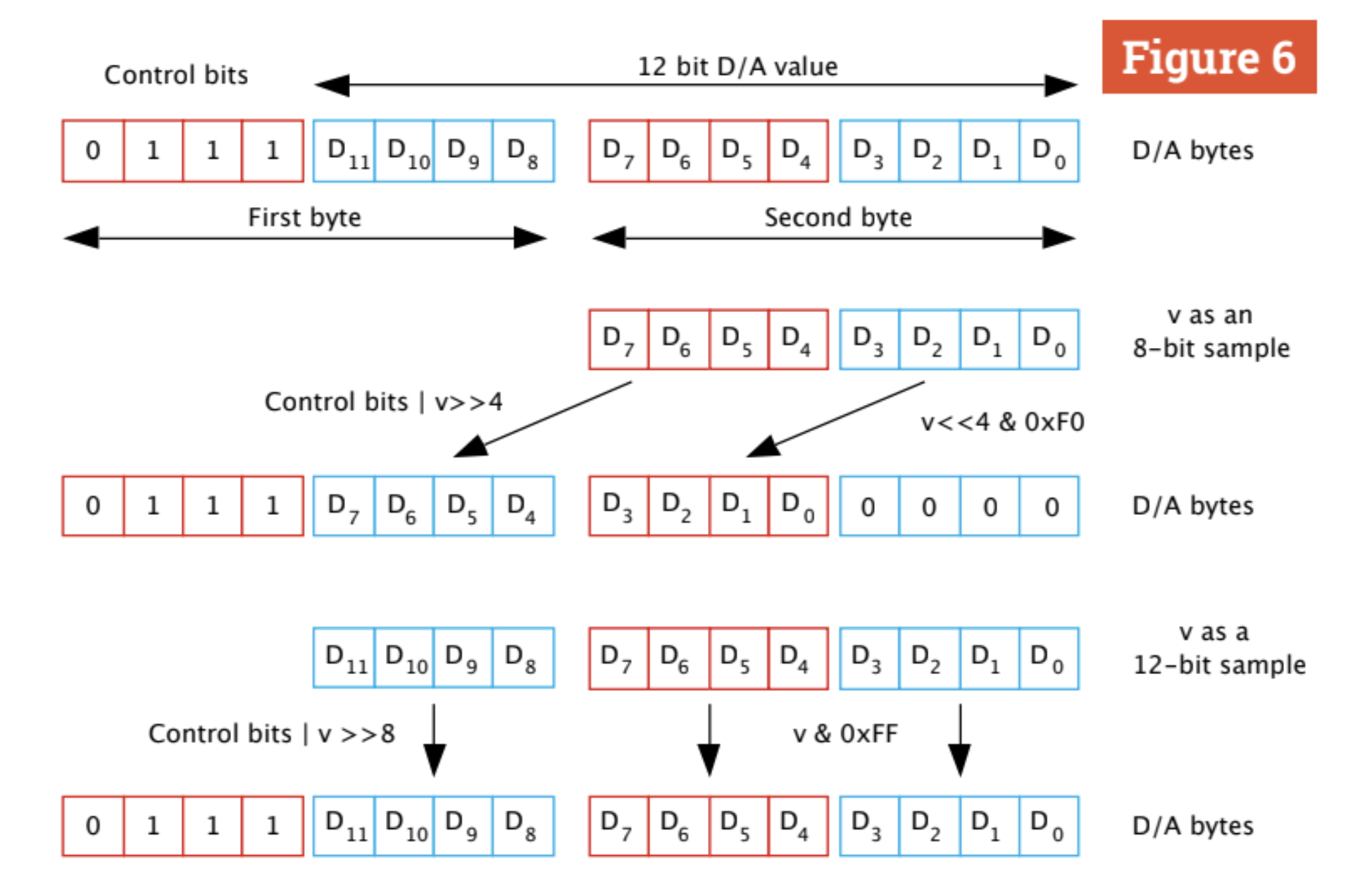
The live_byte_beat.py listing on GitHub is a minimal program for trying out a bytebeat algorithm. It will play until stopped by pressing CTRL+C. The variable v holds the value of the sample, which is then transferred to the D/A over SPI in two bytes. The format of these two bytes is shown in Figure 6, along with how we have to manipulate v to achieve an 8-bit or 12-bit sample output. Note that all algorithms were designed for an 8-bit sample size, and using 12 bits is a free bonus here: it does sound radically different, and not always in a good way.

The main software

The main software for this project is on our GitHub page, and contains 24 Pythonised algorithms. The knobs control the user variables as well as the sample rate and what algorithm to use. You can add extra algorithms, but if you are searching online for them, you will find they are written in C. There are two major differences you need to note when converting from C to Python. The first is the ternary operation which in C is a question mark, and the second is the modulus operator with a percent sign. See the notes that accompany the main code about these.

Figure 6: How to program the registers in the D/A converter

Why does this work?

There are a few reasons why you would not expect this to work on a Raspberry Pi in Python. The most obvious being that of the interruptions made by the operating system, regularly interrupting the flow of output samples. Well, it turns out that this is not as bad as you might fear, and the extra ‘noise’ this causes is at a low level and is masked by the glitchy nature of the sound. As Python is an interpreted language, it is just about fast enough to give an adequate sample rate on a Raspberry Pi 4.

Make some noise

You can now explore the wide range of algorithms for generating a Glitch Storm and interact with the sound. On our GitHub page there’s a list of useful links allowing you to explore what others have done so far. For a sneak preview of the bytebeat type of sound, visit magpi.cc/bytebeatdemo; you can even add your own algorithms here. For interaction, however, there’s no substitute for having your own hardware. The best settings are often found by making small adjustments and listening to the long-term effects – some algorithms surprise you about a minute or two into a sequence by changing dramatically.

Get HackSpace magazine issue 34 — out today

HackSpace magazine issue 34: on sale now!

HackSpace magazine is out now, available in print from the Raspberry Pi Press online store, your local newsagents, and the Raspberry Pi Store, Cambridge.

You can also download the directly from PDF from the HackSpace magazine website.

Subscribers to HackSpace for 12 months to get a free Adafruit Circuit Playground, or choose from one of our other subscription offers, including this amazing limited-time offer of three issues and a book for only £10!

If you liked this project, it was first featured in The MagPi Magazine. Download the latest issue for free or subscribe here.

The post Rotary encoders: Raise a Glitch Storm | Hackspace 34 appeared first on Raspberry Pi.


Source: Raspberry Pi – Rotary encoders: Raise a Glitch Storm | Hackspace 34

Steampunk ‘Help is coming’ Raspberry Pi alert system

Tom Lee decided to combine his household with his sister-in-law during lockdown so that she could help him make childcare more manageable. The problem was, Tom’s household was a smidge frantic in the mornings, as the family struggled to be up and ready in time for his sister-in-law’s arrival.

Enter this Raspberry Pi–powered tracking device, which tells Tom when the family car is on its way with childcare support. The DIY appliance helps his household manage childcare routines like clockwork.

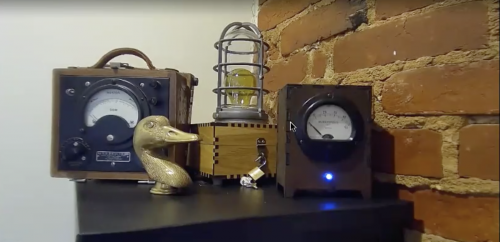
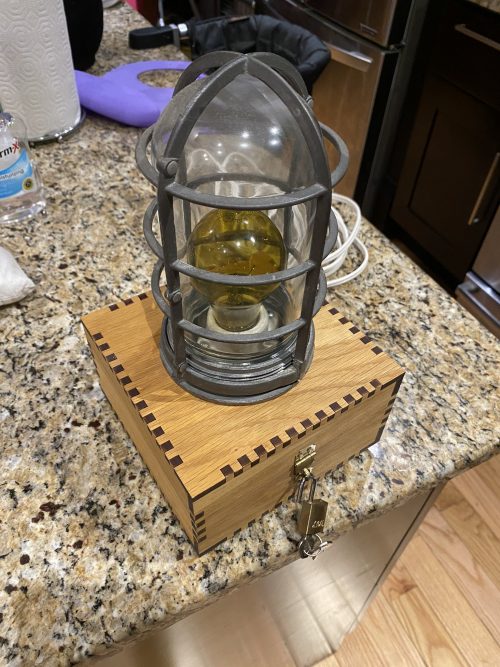
The magic is in the wooden box, but the light cage and electrical meter are all part of the show

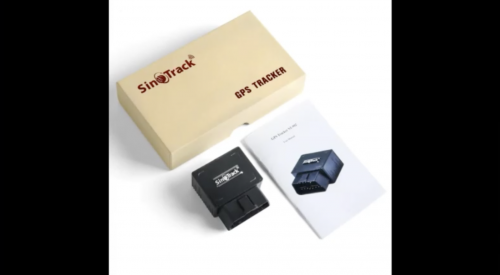
When the family car is moving, a light turns on, and an antique electrical meter points to 30…20…10 to show the estimated minutes until the driver arrives. The movements of the car come in from a cellular Sinotrack OBD2 dongle pointed at a traccar server running on Raspberry Pi 3.

We see you in there, Raspberry Pi…

Tom explains: “I have not found traccar to be the greatest to work with, but you can make it forward everything it decodes to your own script pretty easily.”

Materials:

  • Arduino microcontrollers (ATMega328P & ESP8266 based)
  • Raspberry Pi (Model 1 and 3)
  • Dongle device in car (with SIM card and cellular service)
  • Light device with bulb and solid state relay
  • Antique electrical meter (for the steampunks among you – any similar device will do the job!) 
The light safety cage was rescued from an old workshop

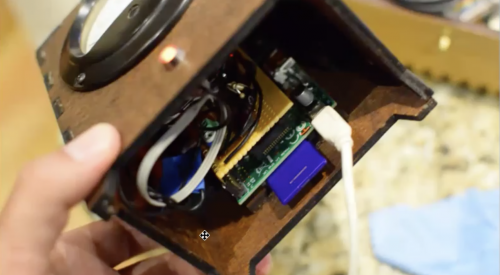
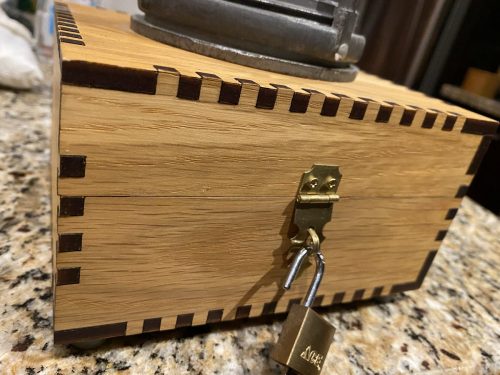
The case (below) is a lasercut design Tom had made by online laser cutting business Ponoko.

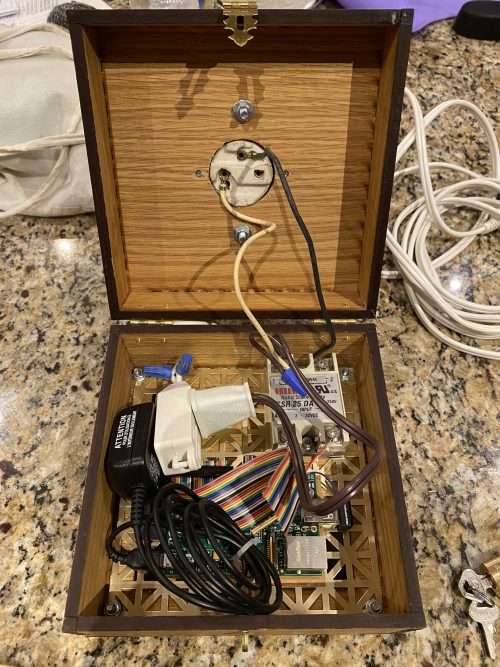
Inside there’s a solid state relay and a first-generation Raspberry Pi (hidden under the black cable in the photo below). This Raspberry Pi model doesn’t have wireless connectivity, and Tom found that getting wireless working was a bit tricky for this project.

Tom produced a nice long webinar to show you exactly how this all works. So if you’d like to give this project a try, watch it for yourself.

You’ll learn how to…

Code resources

Oh, and he’s only gone and uploaded every single bit of code you’ll need on GitHub (what an angel):

The post Steampunk ‘Help is coming’ Raspberry Pi alert system appeared first on Raspberry Pi.


Source: Raspberry Pi – Steampunk ‘Help is coming’ Raspberry Pi alert system

Teaching pigeons with Raspberry Pi

It’s been a long lockdown for one of our favourite makers, Pi & Chips. Like most of us (probably), they have turned their hand to training small animals that wander into their garden to pass the time — in this case, pigeons. I myself enjoy raising my glass to the squirrel that runs along my back fence every evening at 7pm.

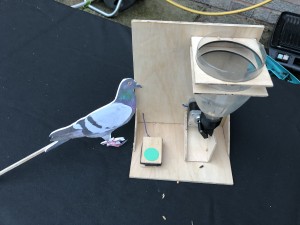
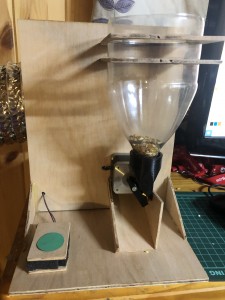
Of course, Pi & Chips has taken this one step further and created a food dispenser including motion-activated camera with a Raspberry Pi 3B+ to test the intelligence of these garden critters and capture their efforts live.

Bird behaviour

Looking into the cognitive behaviour of birds (and finding the brilliantly titled paper Maladaptive gambling by pigeons), Pi & Chips discovered that pigeons can, with practice, recognise objects including buttons and then make the mental leap to realise that touching these buttons actually results in something happening. So they set about building a project to see this in action.

Enter the ‘SmartFrank 3000’, named after the bossiest bird to grace Pi & Chips’s shed roof over the summer.

Steppers and servos

The build itself is a simple combo of a switch and dispenser. But it quickly became apparent that any old servo wasn’t going to be up to the job — it couldn’t move fast enough to open and close a hatch quickly or strongly enough.

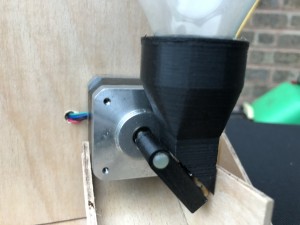
The motor setup

Running a few tests with a stepper motor confirmed that this was the perfect choice, as it could move quickly enough, and was strong enough to hold back a fair weight of seed when not in operation.

It took a while to get the timing on the stepper just right to give a pretty consistent delivery of the seed…

A 3D-printed flap for the stepper was also fashioned, plus a nozzle that fits over the neck of a two-litre drinks bottle, and some laser-cut pieces to make a frame to hold it all together.

The switch

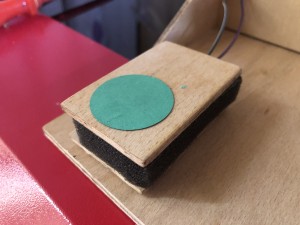
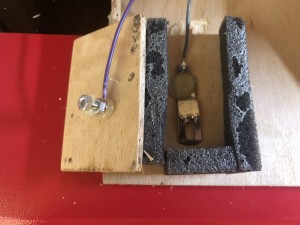
Now for the switch that Frank the pigeon was going to have to touch if it wanted any bird seed. Pi & Chips came up with this design made from 3mm ply and some sponge as the spring.

They soldered some wires to a spring clip from an old photo frame and added a bolt and two nuts. The second nut allowed very fine adjustment of the distance to make sure the switch could be triggered by as light a touch as possible.

Behind the scenes

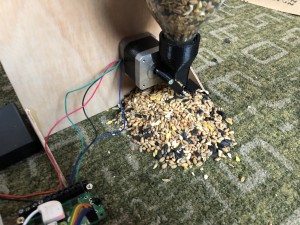
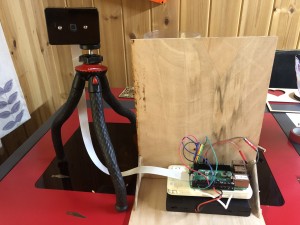
Behind the scenes setup

Behind the scenes there’s a Raspberry Pi 3B+ running the show, together with a motor controller board for the stepper motor. This board runs from its own battery pack, as it needs 12V power and is therefore too heavy for Raspberry Pi to handle directly. A Raspberry Pi Camera Module has also been added and runs this motion detection script to start recording whenever a likely bird candidate steps up to the plate for dinner. Hopefully, we can soon get some footage of Frank the pigeon learning and earning!

The post Teaching pigeons with Raspberry Pi appeared first on Raspberry Pi.


Source: Raspberry Pi – Teaching pigeons with Raspberry Pi

Build a Raspberry Pi robot buggy with your kids

Join us for Digital Making at Home: this week, young people can build a Raspberry Pi robot buggy with us! Through Digital Making at Home, we invite kids all over the world to code and make along with us and our new videos every week.

So get your Raspberry Pi, wheels, wires, and breadboards ready! We’re building a robot:

Let’s build a robot together this week!

And tune in on Wednesday 2pm BST / 9am EDT / 7.30pm IST at rpf.io/home to code along with our live stream session with Estefannie from Estefannie Explains it All to ask us your questions about robots and build something cool with Adafruit’s Circuit Playground.

The post Build a Raspberry Pi robot buggy with your kids appeared first on Raspberry Pi.


Source: Raspberry Pi – Build a Raspberry Pi robot buggy with your kids

Remote teams ring office bell with Raspberry Pi and Slack

Bustling offices… remember those? It feels like we’ve all been working from home forever, and it’s going to be a while yet before everyone is back at their desks in the same place. And when that does happen, if your workplace is anything like Raspberry Pi Towers, there will still be lots of people in your team who are based in different countries or have always worked from home.

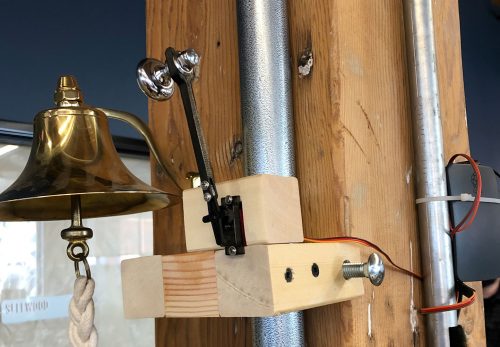
This office bell, built by a person called Alex, is powered by a Raspberry Pi 3B+ and is linked to Slack, so when a milestone or achievement is announced on the chat platform by a remote team member, they get to experience ringing the office bell for themselves, no matter where in the world they are working from.

Kit list:

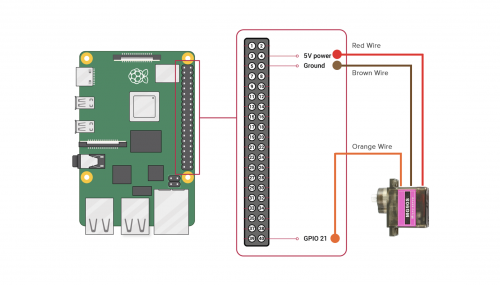
Close-up of the servo wired to the Raspberry Pi pins

Integrating with Slack

To get the Raspberry Pi talking to Slack, Alex used the slackclient module (Python 3.6+ only), which makes use of the Slack Real Time Messaging (RTM) API. This is a websocket-based API that allows you to receive events from Slack in real time and send messages as users.

With the Slack RTM API, you create an RTM client and register a callback function that the client executes every time a specific Slack event occurs. When staff tell the @pibot on Slack it’s ‘belltime’, the Raspberry Pi tells the servo to ring the bell in the office.

Alex also configured it to always respond with an emoji reaction when someone successfully rings the bell, so remote employees get some actual feedback that it worked. Here’s the script for that bit.

Alex also figured out how to get around WiFi connectivity drops: they created a cronjob that runs a bash script every 15 minutes to check if the bell ringer is running. If it isn’t running, the bash script starts it.

At the end of Alex’s original post, they’ve concluded that using a HAT would allow for more control of the servo and avoid frying the Raspberry Pi. They also cleaned up their set-up recently and switched the Raspberry Pi 3B+ out for a Raspberry Pi Zero, which is perfectly capable of this simple job.

The post Remote teams ring office bell with Raspberry Pi and Slack appeared first on Raspberry Pi.


Source: Raspberry Pi – Remote teams ring office bell with Raspberry Pi and Slack

Mini Raspberry Pi Boston Dynamics–inspired robot

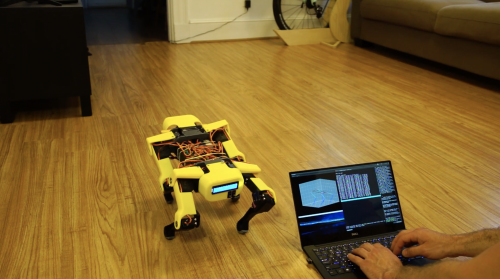
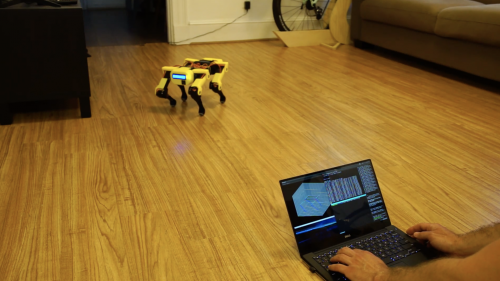
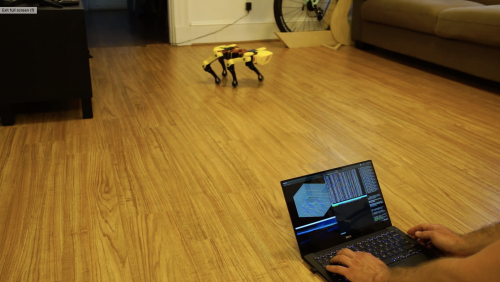
This is a ‘Spot Micro’ walking quadruped robot running on Raspberry Pi 3B. By building this project, redditor /thetrueonion (aka Mike) wanted to teach themself robotic software development in C++ and Python, get the robot walking, and master velocity and directional control.

Mike was inspired by Spot, one of Boston Dynamics’ robots developed for industry to perform remote operation and autonomous sensing.

What’s it made of?

  • Raspberry Pi 3B
  • Servo control board: PCA9685, controlled via I2C
  • Servos: 12 × PDI-HV5523MG
  • LCD Panel: 16×2 I2C LCD panel
  • Battery: 2s 4000 mAh LiPo, direct connection to power servos
  • UBEC: HKU5 5V/5A ubec, used as 5V voltage regulator to power Raspberry Pi, LCD panel, PCA9685 control board
  • Thingiverse 3D-printed Spot Micro frame

How does it walk?

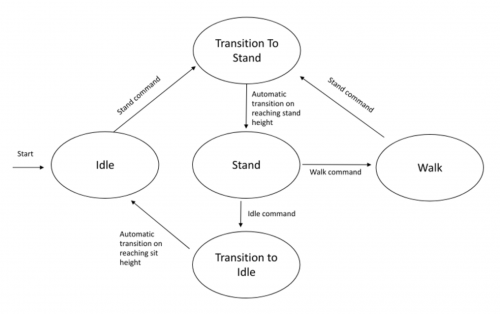
The mini ‘Spot Micro’ bot rocks a three-axis angle command/body pose control mode via keyboard and can achieve ‘trot gait’ or ‘walk gait’. The former is a four-phase gait with symmetric motion of two legs at a time (like a horse trotting). The latter is an eight-phase gait with one leg swinging at a time and a body shift in between for balance (like humans walking).

Mike breaks down how they got the robot walking, right down to the order the servos need to be connected to the PCA9685 control board, in this extensive walkthrough.

Here’s the code

And yes, this is one of those magical projects with all the code you need stored on GitHub. The software is implemented on a Raspberry Pi 3B running Ubuntu 16.04. It’s composed on C++ and Python nodes in a ROS framework.

What’s next?

Mike isn’t finished yet: they are looking to improve their yellow beast by incorporating a lidar to achieve simple 2D mapping of a room. Also on the list is developing an autonomous motion-planning module to guide the robot to execute a simple task around a sensed 2D environment. And finally, adding a camera or webcam to conduct basic image classification would finesse their creation.

The post Mini Raspberry Pi Boston Dynamics–inspired robot appeared first on Raspberry Pi.


Source: Raspberry Pi – Mini Raspberry Pi Boston Dynamics–inspired robot

Track your punches with Raspberry Pi

‘Track-o-punches’ tracks the number of punches thrown during workouts with Raspberry Pi and a Realsense camera, and it also displays your progress and sets challenges on a touchscreen.

In this video, Cisco shows you how to set up the Realsense camera and a Python virtual environment, and how to install dependencies and OpenCV for Python on your Raspberry Pi.

How it works

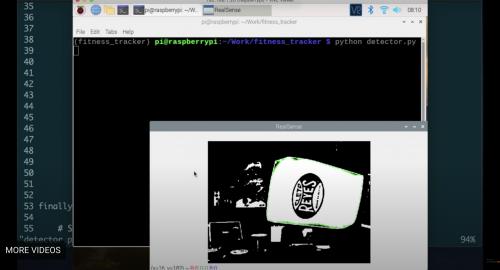
A Realsense robotic camera tracks the boxing glove as it enters and leaves the frame. Colour segmentation means the camera can more precisely pick up when Cisco’s white boxing glove is in frame. He walks you through how to threshold images for colour segmentation at this point in the video.

Testing the tracking

All this data is then crunched on Raspberry Pi. Cisco’s code counts the consecutive frames that the segmented object is present; if that number is greater than a threshold, the code sees this as a particular action.

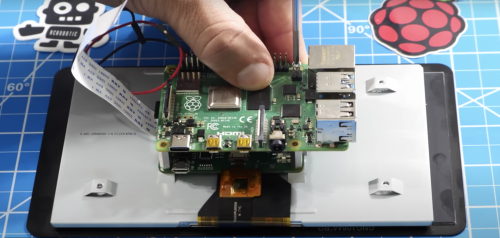
Raspberry Pi 4 being mounted on the Raspberry Pi 7″ Touch Display

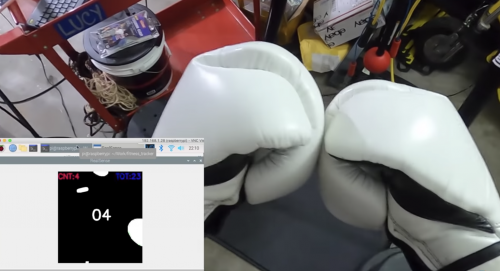
Cisco used this data to set punch goals for the user. The Raspberry Pi computer is connected to an official Raspberry Pi 7″ Touch Display in order to display “success” and “fail” messages as well as the countdown clock. Once a goal is reached, the touchscreen tells the boxer that they’ve successfully hit their target. Then the counter resets and a new goal is displayed. You can manipulate the code to set a time limit to reach a punch goal, but setting a countdown timer was the hardest bit to code for Cisco.

Kit list

Jeeeez, it’s hard to get a screen grab of Cisco’s fists of fury

A mobile power source makes it easier to set up a Raspberry Pi wherever you want to work out. Cisco 3D-printed a mount for the Realsense camera and secured it on the ceiling so it could look down on him while he punched.

The post Track your punches with Raspberry Pi appeared first on Raspberry Pi.


Source: Raspberry Pi – Track your punches with Raspberry Pi

New twist on Raspberry Pi experimental resin 3D printer

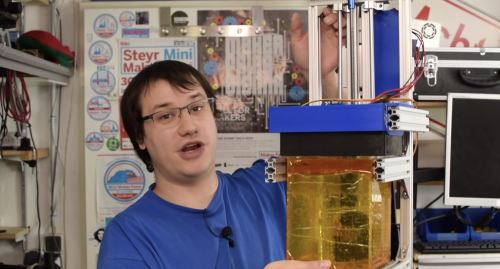
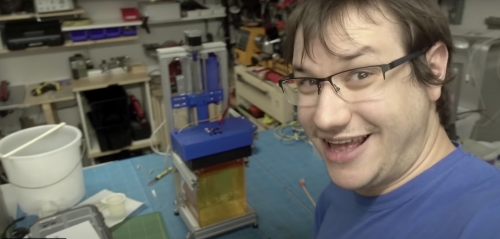
Element14’s Clem previously built a giant Raspberry Pi-powered resin-based 3D printer and here, he’s flipped the concept upside down.

The new Raspberry Pi 4 8GB reduces slicing times and makes for a more responsive GUI on this experimental 3D printer. Let’s take a look at what Clem changed and how…

The previous iteration of his build was “huge”, mainly because the only suitable screen Clem had to hand was a big 4K monitor. This new build flips the previous concept upside down by reducing the base size and the amount of resin needed.

Breaking out of the axis

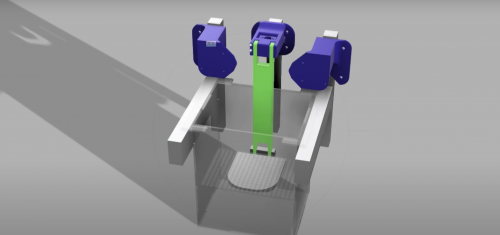
To resize the project effectively, Clem came out of an X,Y axis and into Z, reducing the surface area but still allowing for scaling up, well, upwards! The resized, flipped version of this project also reduces the cost (resin is expensive stuff) and makes the whole thing more portable than a traditional, clunky 3D printer.

Look how slim and portable it is!

How it works

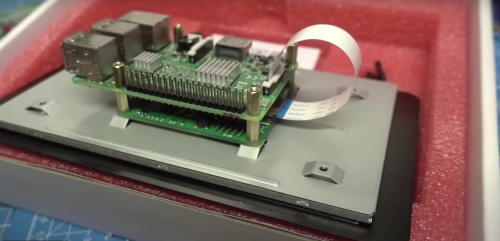
Now for the brains of the thing: nanodlip is free (but not open source) software which Clem ran on a Raspberry Pi 4. Using an 8GB Raspberry Pi will get you faster slicing times, so go big if you can.

A 5V and 12V switch volt power supply sorts out the Nanotec stepper motor. To get the signal from the Raspberry Pi GPIO pins to the stepper driver and to the motor, the pins are configured in nanodlp; Clem has shared his settings if you’d like to copy them (scroll down on this page to find a ‘Resources’ zip file just under the ‘Bill of Materials’ list).

Raspberry Pi working together with the display

For the display, there’s a Midas screen and an official Raspberry Pi 7″ Touchscreen Display, both of which work perfectly with nanodlip.

At 9:15 minutes in to the project video, Clem shows you around Fusion 360 and how he designed, printed, assembled, and tested the build’s engineering.

A bit of Fusion 360

Experimental resin

Now for the fancy, groundbreaking bit: Clem chose very specialised photocentric, high-tensile daylight resin so he can use LEDs with a daylight spectrum. This type of resin also has a lower density, so the liquid does not need to be suspended by surface tension (as in traditional 3D printers), rather it floats because of its own buoyancy. This way, you’ll need less resin to start with, and you’ll waste less too whenever you make a mistake. At 13:30 minutes into the project video, Clem shares the secret of how you achieve an ‘Oversaturated Solution’ in order to get your resin to float.

Now for the science bit…

Materials

It’s not perfect but, if Clem’s happy, we’re happy.

Join the conversation on YouTube if you’ve got an idea that could improve this unique approach to building 3D printers.

The post New twist on Raspberry Pi experimental resin 3D printer appeared first on Raspberry Pi.


Source: Raspberry Pi – New twist on Raspberry Pi experimental resin 3D printer

Raspberry Pi calls out your custom workout routine

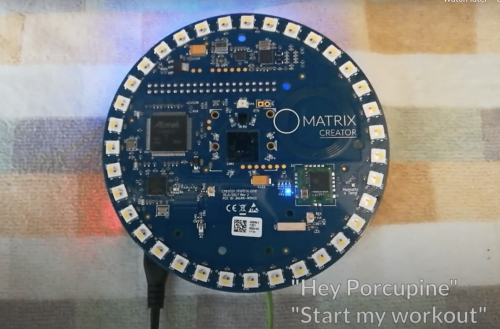
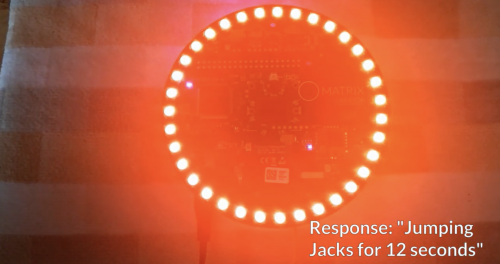
If you don’t want to be tied to a video screen during home workouts, Llum AcostaSamreen Islam, and Alfred Gonzalez shared this great Raspberry Pi–powered alternative on hackster.io: their voice-activated project announces each move of your workout routine and how long you need to do it for.

This LED-lit, compact solution means you don’t need to squeeze yourself in front of a TV or crane to see what your video instructor is doing next. Instead you can be out in the garden or at a local park and complete your own, personalised workout on your own terms.

Kit list:

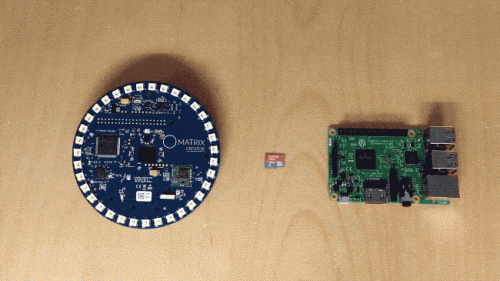
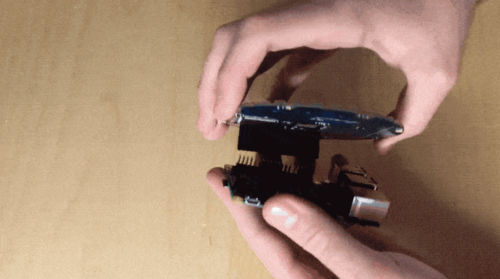
Raspberry Pi and MATRIX Device

The makers shared these setup guides to get MATRIX working with your Raspberry Pi. Our tiny computer doesn’t have a built-in microphone, so here’s where the two need to work together.

MATRIX, meet Raspberry Pi

Once that’s set up, ensure you enable SSH on your Raspberry Pi.

Click, click. Simple

The three sweet Hackster angels shared a four-step guide to running the software of your own customisable workout routine buddy in their original post. Happy hacking!

1. Install MATRIX Libraries and Rhasspy

Follow the steps below in order for Rhasspy to work on your Raspberry Pi.

2. Creating an intent

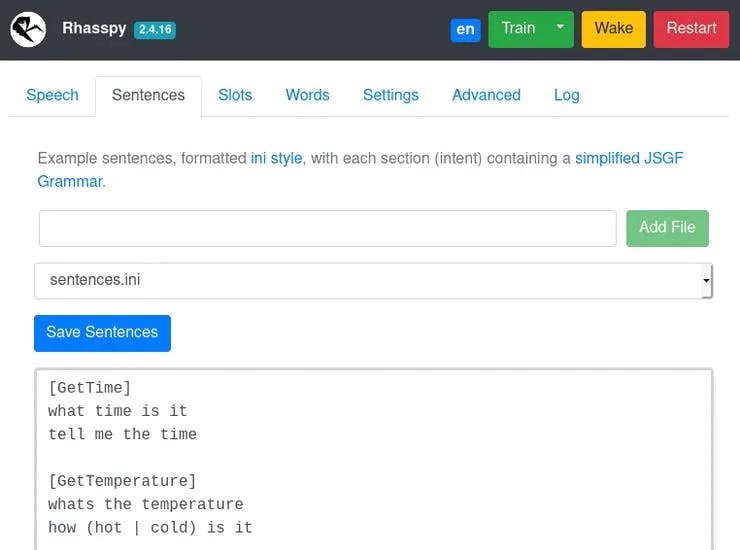
Access Rhasspy’s web interface by opening a browser and navigating to http://YOUR_PI_IP_HERE:12101. Then click on the Sentences tab. All intents and sentences are defined here.

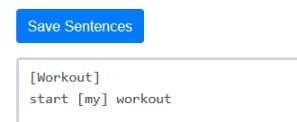
By default, there are a few example sentences in the text box. Remove the default intents and add the following:

[[code]]czoyNzpcIltXb3Jrb3V0XXN0YXJ0IFtteV0gd29ya291dFwiO3tbJiomXX0=[[/code]]

Once created, click on Save Sentences and wait for Rhasspy to finish training.

Here, Workout is an intent. You can change the wording to anything that works for you as long as you keep [Workout] the same, because this intent name will be used in the code.

3. Catching the intent

Install git on your Raspberry Pi.

[[code]]czoyMDpcInN1ZG8gYXB0IGluc3RhbGwgZ2l0XCI7e1smKiZdfQ==[[/code]]

Download the repository.

[[code]]czo2MDpcImdpdCBjbG9uZSBodHRwczovL2dpdGh1Yi5jb20vbWF0cml4LWlvL3JoYXNzcHktd29ya291dC10aW1lclwiO3tbJiomXX0=[[/code]]

Navigate to the folder and install the project dependencies.

[[code]]czozNTpcImNkIHJoYXNzcHktd29ya291dC10aW1lcm5wbSBpbnN0YWxsXCI7e1smKiZdfQ==[[/code]]

Run the program.

[[code]]czoxMzpcIm5vZGUgaW5kZXguanNcIjt7WyYqJl19[[/code]]

4. Using and customizing the project

To change the workout to your desired routine, head into the project folder and open workout.txt. There, you’ll see:

[[code]]czozNDpcImp1bXBpbmcgamFja3MgMTIscGxhbmsgMTUsIHRlc3QgMTRcIjt7WyYqJl19[[/code]]

To make your own workout routine, type an exercise name followed by the number of seconds to do it for. Repeat that for each exercise you want to do, separating each combo using a comma.

Whenever you want to use the Rhasspy Assistant, run the file and say “Start my workout” (or whatever it is you have it set to).

And now you’re all done — happy working out. Make sure to visit the makers’ original post on hackster.io and give it a like.

The post Raspberry Pi calls out your custom workout routine appeared first on Raspberry Pi.


Source: Raspberry Pi – Raspberry Pi calls out your custom workout routine

Create a stop motion film with Digital Making at Home

Join us for Digital Making at Home: this week, young people can do stop motion and time-lapse animation with us! Through Digital Making at Home, we invite kids all over the world to code along with us and our new videos every week.

So get your Raspberry Pi and Camera Module ready! We’re using them to capture life with code this week:

Check out this week’s code-along projects!

And tune in on Wednesday 2pm BST / 9am EDT / 7.30pm IST at rpf.io/home to code along with our live stream session to make a motion-detecting dance game in Scratch!

The post Create a stop motion film with Digital Making at Home appeared first on Raspberry Pi.


Source: Raspberry Pi – Create a stop motion film with Digital Making at Home

Processing raw image files from a Raspberry Pi High Quality Camera

When taking photos, most of us simply like to press the shutter button on our cameras and phones so that viewable image is produced almost instantaneously, usually encoded in the well-known JPEG format. However, there are some applications where a little more control over the production of that JPEG is desirable. For instance, you may want more or less de-noising, or you may feel that the colours are not being rendered quite right.

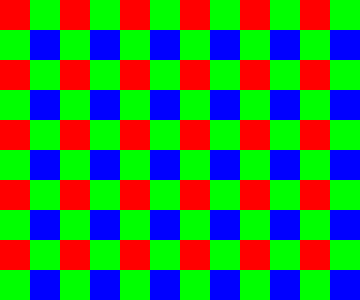
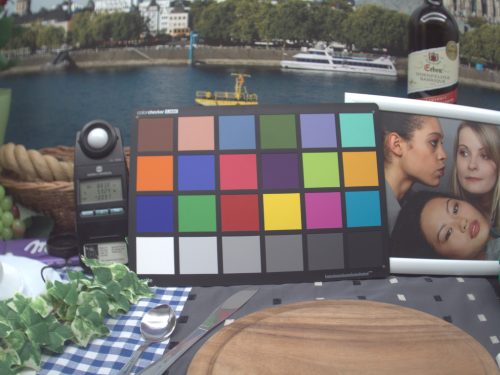
This is where raw (sometimes RAW) files come in. A raw image in this context is a direct capture of the pixels output from the image sensor, with no additional processing. Normally this is in a relatively standard format known as a Bayer image, named after Bryce Bayer who pioneered the technique back in 1974 while working for Kodak. The idea is not to let the on-board hardware ISP (Image Signal Processor) turn the raw Bayer image into a viewable picture, but instead to do it offline with an additional piece of software, often referred to as a raw converter.

A Bayer image records only one colour at each pixel location, in the pattern shown

The raw image is sometimes likened to the old photographic negative, and whilst many camera vendors use their own proprietary formats, the most portable form of raw file is the Digital Negative (or DNG) format, defined by Adobe in 2004. The question at hand is how to obtain DNG files from Raspberry Pi, in such a way that we can process them using our favourite raw converters.

Obtaining a raw image from Raspberry Pi

Many readers will be familiar with the raspistill application, which captures JPEG images from the attached camera. raspistill includes the -r option, which appends all the raw image data to the end of the JPEG file. JPEG viewers will still display the file as normal but ignore the (many megabytes of) raw data tacked on the end. Such a “JPEG+RAW” file can be captured using the terminal command:

[[code]]czoyNjpcInJhc3Bpc3RpbGwgLXIgLW8gaW1hZ2UuanBnXCI7e1smKiZdfQ==[[/code]]

Unfortunately this JPEG+RAW format is merely what comes out of the camera stack and is not supported by any raw converters. So to make use of it we will have to convert it into a DNG file.

PyDNG

This Python utility converts the Raspberry Pi’s native JPEG+RAW files into DNGs. PyDNG can be installed from github.com/schoolpost/PyDNG, where more complete instructions are available. In brief, we need to perform the following steps:

[[code]]czoxMDk6XCJnaXQgY2xvbmUgaHR0cHM6Ly9naXRodWIuY29tL3NjaG9vbHBvc3QvUHlETkcKY2QgUHlETkcKcGlwMyBpbnN0YWxsIHN7WyYqJl19cmMvLiAgIyBub3RlIHRoYXQgUHlETkcgcmVxdWlyZXMgUHl0aG9uM1wiO3tbJiomXX0=[[/code]]

PyDNG can be used as part of larger Python scripts, or it can be run stand-alone. Continuing the raspistill example from before, we can enter in a terminal window:

[[code]]czozNzpcInB5dGhvbjMgZXhhbXBsZXMvdXRpbGl0eS5weSBpbWFnZS5qcGdcIjt7WyYqJl19[[/code]]

The resulting DNG file can be processed by a variety of raw converters. Some are free (such as RawTherapee or dcraw, though the latter is no longer officially developed or supported), and there are many well-known proprietary options (Adobe Camera Raw or Lightroom, for instance). Perhaps users will post in the comments any that they feel have given them good results.

White balancing and colour matrices

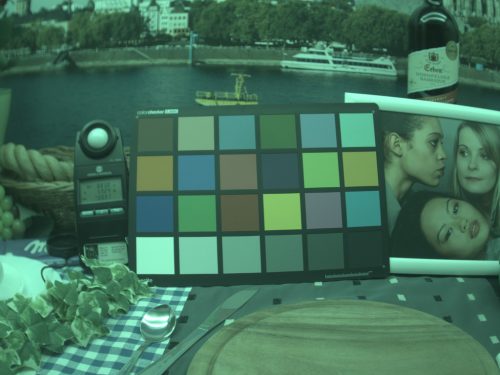
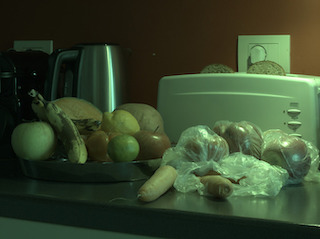
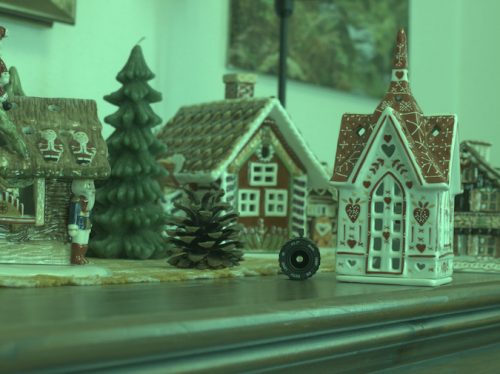
Now, one of the bugbears of processing Raspberry Pi raw files up to this point has been the problem of getting sensible colours. Previously, the images have been rendered with a sickly green cast, simply because no colour balancing is being done and green is normally the most sensitive colour channel. In fact it’s even worse than this, as the RGB values in the raw image merely reflect the sensitivity of the sensor’s photo-sites to different wavelengths, and do not a priori have more than a general correlation with the colours as perceived by our own eyes. This is where we need white balancing and colour matrices.

Correct white balance multipliers are required if neutral parts of the scene are to look, well, neutral.  We can use raspistills guesstimate of them, found in the JPEG+RAW file (or you can measure your own on a neutral part of the scene, like a grey card). Matrices and look-up tables are then required to convert colour from ‘camera’ space to the final colour space of choice, mostly sRGB or Adobe RGB.

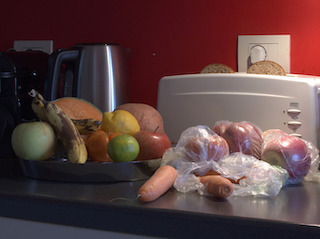
My thanks go to forum contributors Jack Hogan for measuring these colour matrices, and to Csaba Nagy for implementing them in the PyDNG tool. The results speak for themselves.

Results

Previous attempts at raw conversion are on the left; the results using the updated PyDNG are on the right.

DCP files

For those familiar with DNG files, we include links to DCP (DNG Camera Profile) files (warning: binary format). You can try different ones out in raw converters, and we would encourage users to experiment, to perhaps create their own, and to share their results!

  1. This is a basic colour profile baked into PyDNG, and is the one shown in the results above. It’s sufficiently small that we can view it as a JSON file.
  2. This is an improved (and larger) profile involving look-up tables, and aiming for an overall balanced colour rendition.
  3. This is similar to the previous one, but with some adjustments for skin tones and sky colours.

Note, however, that these files come with a few caveats. Specifically:

  • The calibration is only for a single Raspberry Pi High Quality Camera rather than a known average or “typical” module.
  • The illuminants used for the calibration are merely the ones that we had to hand — the D65 lamp in particular appears to be some way off.
  • The calibration only really works when the colour temperature lies between, or not too far from, the two calibration illuminants, approximately 2900K to 6000K in our case.

So there remains room for improvement. Nevertheless, results across a number of modules have shown these parameters to be a significant step forward.

Acknowledgements

My thanks again to Jack Hogan for performing the colour matrix calibration with DCamProf, and to Csaba Nagy for adding these new features to PyDNG.

Further reading

  1. There are many resources explaining how a raw (Bayer) image is converted into a viewable RGB or YUV image, among them Jack’s blog post.
  2. To understand the role of the colour matrices in a DNG file, please refer to the DNG specification. Chapter 6 in particular describes how they are used.

The post Processing raw image files from a Raspberry Pi High Quality Camera appeared first on Raspberry Pi.


Source: Raspberry Pi – Processing raw image files from a Raspberry Pi High Quality Camera

Recreate Time Pilot’s free-scrolling action | Wireframe #41

Fly through the clouds in our re-creation of Konami’s classic 1980s shooter. Mark Vanstone has the code


Arguably one of Konami’s most successful titles, Time Pilot burst into arcades in 1982. Yoshiki Okamoto worked on it secretly, and it proved so successful that a sequel soon followed. In the original, the player flew through five eras, from 1910, 1940, 1970, 1982, and then to the far future: 2001. Aircraft start as biplanes and progress to become UFOs, naturally, by the last level.


Players also rescue other pilots by picking them up as they parachute from their aircraft. The player’s plane stays in the centre of the screen while other game objects move around it. The clouds that give the impression of movement have a parallax style to them, some moving faster than others, offering an illusion of depth.


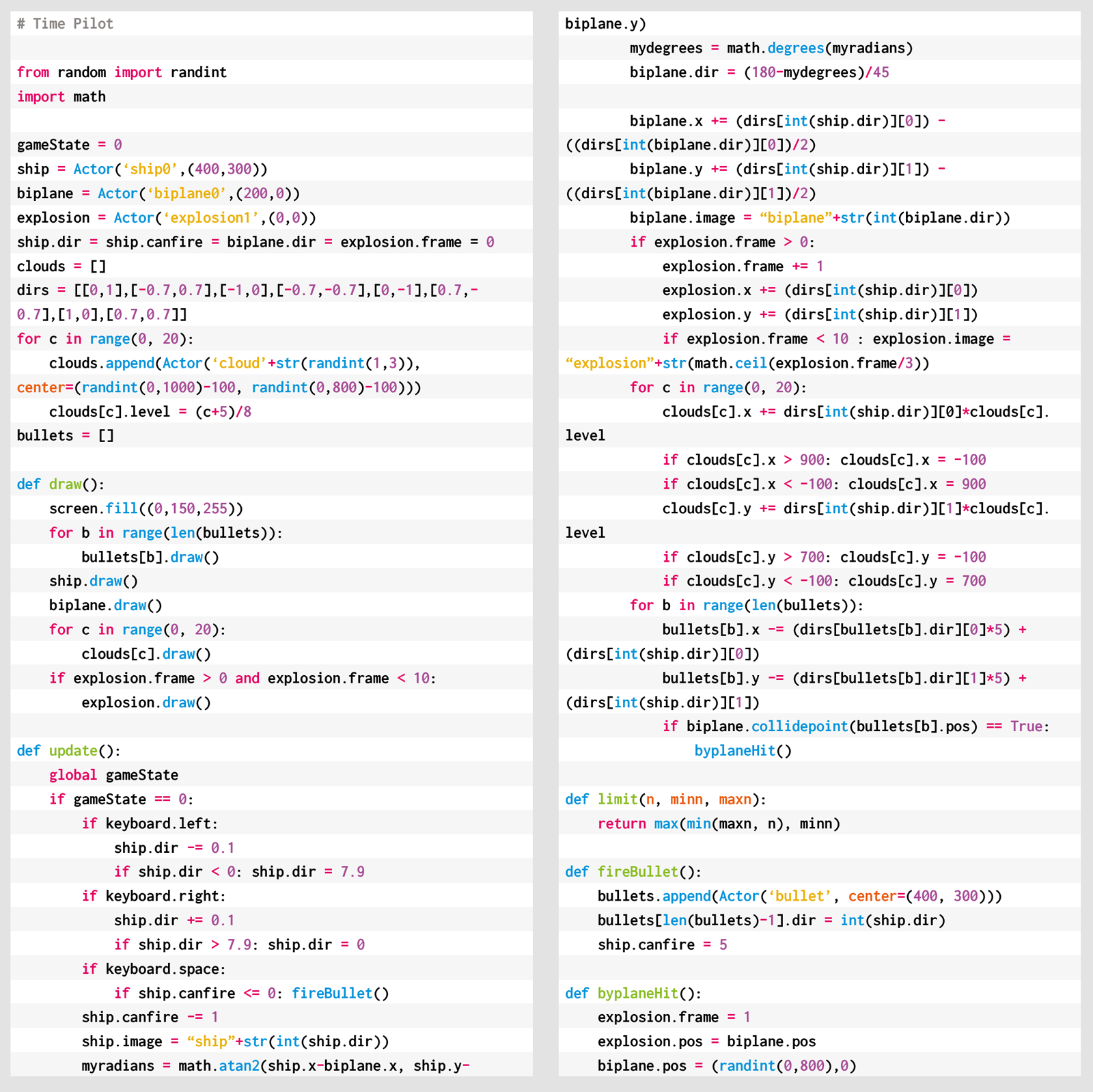
To make our own version with Pygame Zero, we need eight frames of player aircraft images – one for each direction it can fly. After we create a player Actor object, we can get input from the cursor keys and change the direction the aircraft is pointing with a variable which will be set from zero to 7, zero being the up direction. Before we draw the player to the screen, we set the image of the Actor to the stem image name, plus whatever that direction variable is at the time. That will give us a rotating aircraft.


To provide a sense of movement, we add clouds. We can make a set of random clouds on the screen and move them in the opposite direction to the player aircraft. As we only have eight directions, we can use a lookup table to change the x and y coordinates rather than calculating movement values. When they go off the screen, we can make them reappear on the other side so that we end up with an ‘infinite’ playing area. Add a level variable to the clouds, and we can move them at different speeds on each update() call, producing the parallax effect. Then we need enemies. They will need the same eight frames to move in all directions. For this sample, we will just make one biplane, but more could be made and added.


Our Python homage to Konami’s arcade classic.


To get the enemy plane to fly towards the player, we need a little maths. We use the math.atan2() function to work out the angle between the enemy and the player. We convert that to a direction which we set in the enemy Actor object, and set its image and movement according to that direction variable. We should now have the enemy swooping around the player, but we will also need some bullets. When we create bullets, we need to put them in a list so that we can update each one individually in our update(). When the player hits the fire button, we just need to make a new bullet Actor and append it to the bullets list. We give it a direction (the same as the player Actor) and send it on its way, updating its position in the same way as we have done with the other game objects.


The last thing is to detect bullet hits. We do a quick point collision check and if there’s a match, we create an explosion Actor and respawn the enemy somewhere else. For this sample, we haven’t got any housekeeping code to remove old bullet Actors, which ought to be done if you don’t want the list to get really long, but that’s about all you need: you have yourself a Time Pilot clone!


Here’s Mark’s code for a Time Pilot-style free-scrolling shooter. To get it running on your system, you’ll need to install Pygame Zero. And to download the full code and assets, head here.


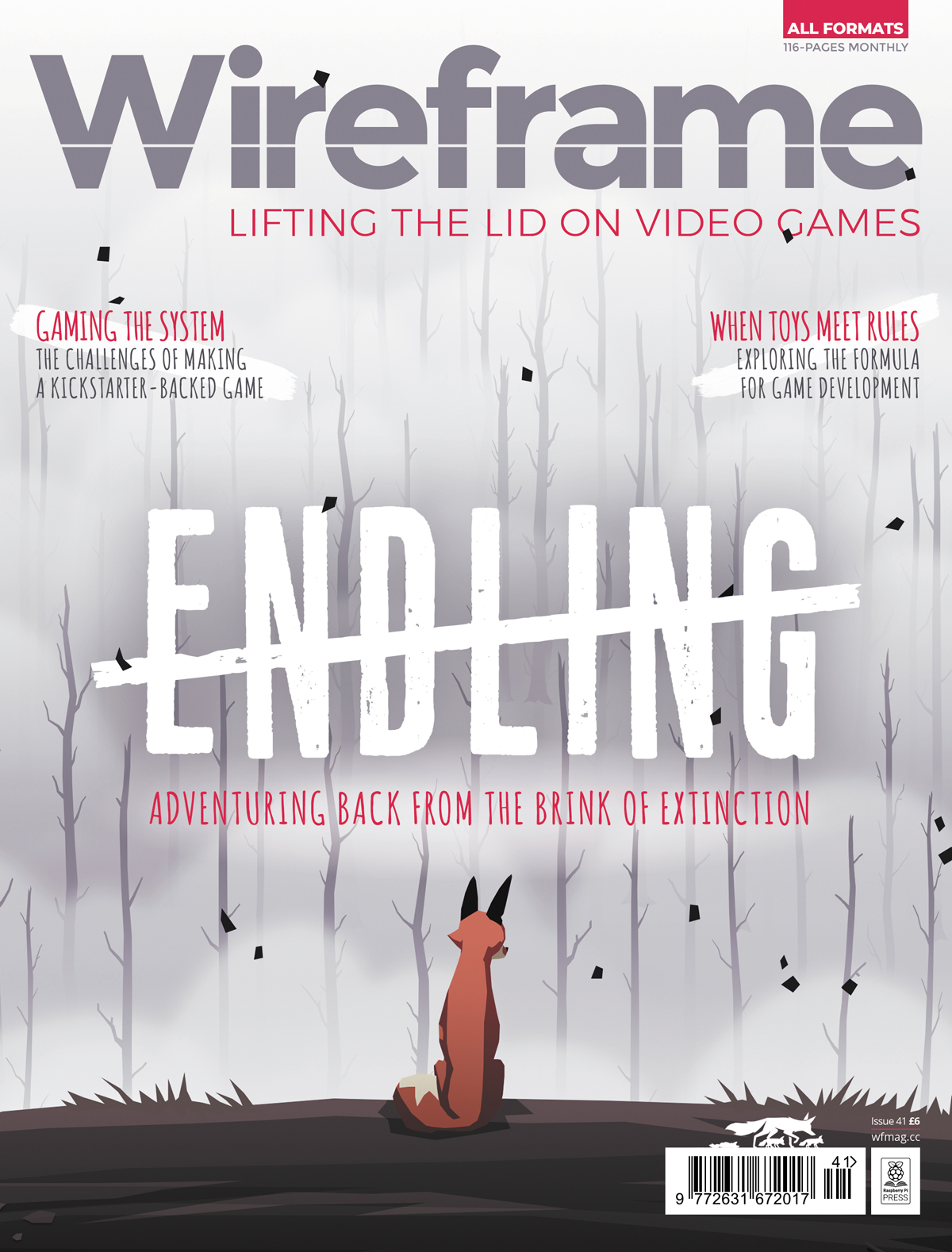
Get your copy of Wireframe issue 41


You can read more features like this one in Wireframe issue 41, available directly from Raspberry Pi Press — we deliver worldwide.


And if you’d like a handy digital version of the magazine, you can also download issue 41 for free in PDF format.


Make sure to follow Wireframe on Twitter and Facebook for updates and exclusive offers and giveaways. Subscribe on the Wireframe website to save up to 49% compared to newsstand pricing!

The post Recreate Time Pilot’s free-scrolling action | Wireframe #41 appeared first on Raspberry Pi.


Source: Raspberry Pi – Recreate Time Pilot’s free-scrolling action | Wireframe #41

Raspberry Pi keyboards for Japan are here!

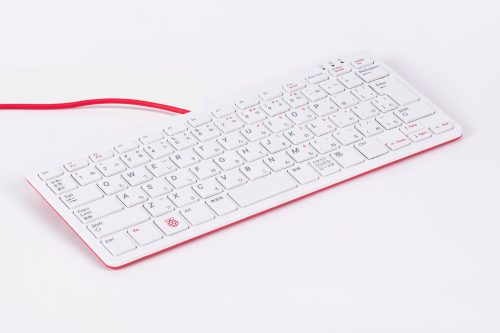
When we announced new keyboards for Portugal and the Nordic countries last month, we promised that you wouldn’t have to wait much longer for a variant for Japan, and now it’s here!

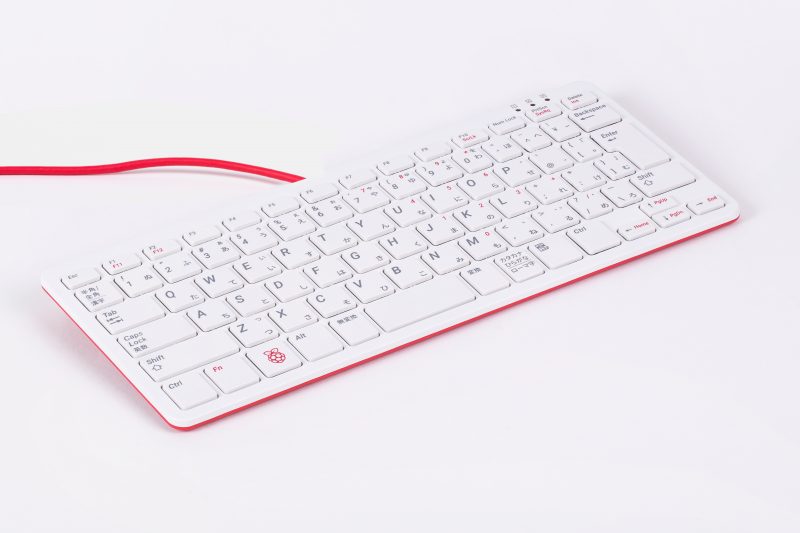
Japanese Raspberry Pi keyboard

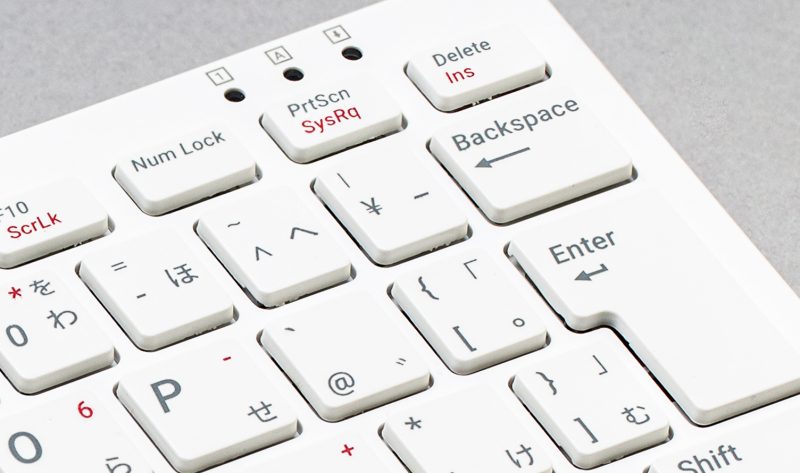
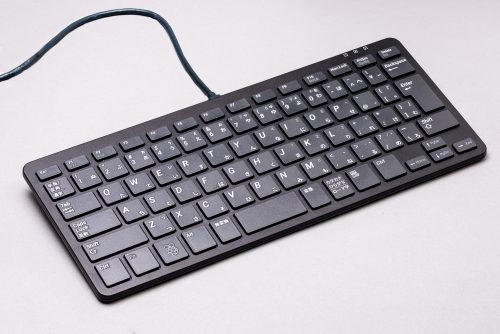
The Japan variant of the Raspberry Pi keyboard required a whole new moulding set to cover the 83-key arrangement of the keys. It’s quite a complex keyboard, with three different character sets to deal with. Figuring out how the USB keyboard controller maps to all the special keys on a Japanese keyboard was particularly challenging, with most web searches leading to non-English websites. Since I don’t read Japanese, it all became rather bewildering.

We ended up reverse-engineering generic Japanese keyboards to see how they work, and mapping the keycodes to key matrix locations. We are fortunate that we have a very patient keyboard IC vendor, called Holtek, which produces the custom firmware for the controller.

We then had to get these prototypes to our contacts in Japan, who told us which keys worked and which just produced a strange squiggle that they didn’t understand either. The “Yen” key was particularly difficult because many non-Japanese computers read it as a “/” character, no matter what we tried to make it work.

Special thanks are due to Kuan-Hsi Ho of Holtek, to Satoka Fujita for helping me test the prototypes, and to Matsumoto Seiya for also testing units and checking the translation of the packaging.

Get yours today

You can get the new Japanese keyboard variant in red/white from our Approved Reseller, SwitchScience, based in Japan.

If you’d rather your keyboard in black/grey, you can purchase it from Pimoroni and The Pi Hut in the UK, who both offer international shipping.

The post Raspberry Pi keyboards for Japan are here! appeared first on Raspberry Pi.


Source: Raspberry Pi – Raspberry Pi keyboards for Japan are here!

DSLR Motion Capture with Raspberry Pi and OpenCV

One of our favourite makers, Pi & Chips (AKA David Pride), wanted to see if they could trigger a DSLR camera to take pictures by using motion detection with OpenCV on Raspberry Pi.

You could certainly do this with a Raspberry Pi High Quality Camera, but David wanted to try with his swanky new Lumix camera. As well as a Raspberry Pi and whichever camera you’re using, you’ll also need a remote control. David sourced a cheap one from Amazon, since he knew full well he was going to be… breaking it a bit.

Breaking the remote a bit

When it came to the “breaking” part, David explains: “I was hoping to be able to just re-solder some connectors to the button but it was a dual function button depending on depth of press. I therefore got a set of probes out and traced which pins on the chip were responsible for the actual shutter release and then *carefully* managed to add two fine wires.”

Further breaking

Next, David added Dupont cables to the ends of the wires to allow access to the breadboard, holding the cables in place with a blob of hot glue. Then a very simple circuit using an NPN transistor to switch via GPIO gave remote control of the camera from Python.

Raspberry Pi on the right, working together with the remote control’s innards on the left

David then added OpenCV to the mix, using this tutorial on PyImageSearch. He took the basic motion detection script and added a tiny hack to trigger the GPIO when motion was detected.

He needed to add a delay to the start of the script so he could position stuff, or himself, in front of the camera with time to spare. Got to think of those angles.

David concludes: “The camera was set to fully manual and to a really nice fast shutter speed. There is almost no delay at all between motion being detected and the Lumix actually taking pictures, I was really surprised how instantaneous it was.”

The whole setup mounted on a tripod ready to play

Here are some of the visuals captured by this Raspberry Pi-powered project…

Take a look at some more of David’s projects over at Pi & Chips.

The post DSLR Motion Capture with Raspberry Pi and OpenCV appeared first on Raspberry Pi.


Source: Raspberry Pi – DSLR Motion Capture with Raspberry Pi and OpenCV

Raspberry Pi won’t let your watched pot boil

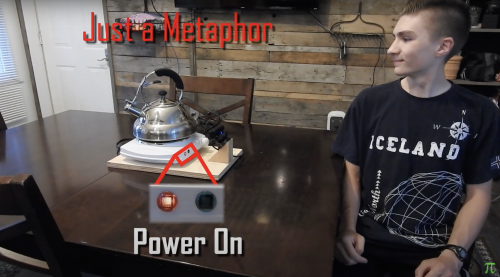
One of our favourite YouTubers, Harrison McIntyre, decided to make the aphorism “a watched pot never boils” into reality. They modified a tabletop burner with a Raspberry Pi so that it will turn itself off if anyone looks at it.

In this project, the Raspberry Pi runs facial detection using a USB camera. If the Raspberry Pi finds a face, it deactivates the burner, and vice versa.

There’s a snag, in that the burner runs off 120 V AC and the Raspberry Pi runs off 5 V DC, so you can’t just power the burner through the Raspberry Pi. Harrison got round this problem using a relay switch, and beautifully explains how a relay manages to turn a circuit off and on without directly interfacing with the circuit at the two minute mark of this video.

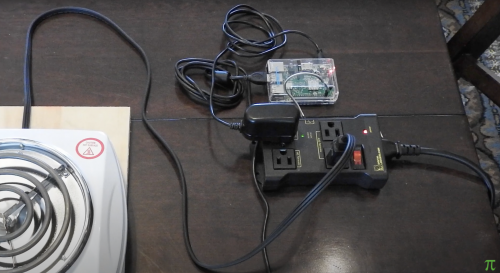
The Raspberry Pi working through the switchable plug with the burner

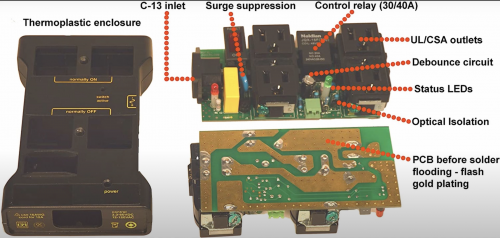
Harrison sourced a switchable plug bar which uses a relay to turn its own switches on and off. Plug the burner and the Raspberry Pi into that and, hey presto, you’ve got them working together via a relay.

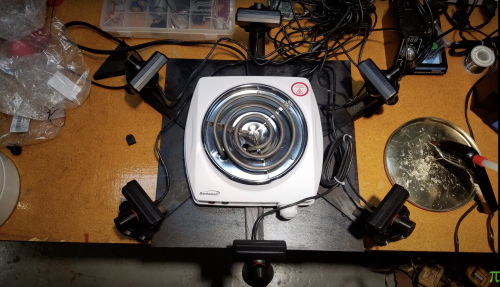
The six camera setup

Things get jazzy at the four minute 30 second mark. At this point, Harrison decides to upgrade his single camera situation, and rig up six USB cameras to make sure that no matter where you are when you you look at the burner, the Raspberry Pi will always see your face and switch it off.

Inside the switchable plug

Harrison’s multiple-camera setup proved a little much for the Raspberry Pi 3B he had to hand for this project, so he goes on to explain how he got a bit of extra processing power using a different desktop and an Arduino. He recommends going for a Raspberry Pi 4 if you want to try this at home.

Kit list:

  • Raspberry Pi 4
  • Tabletop burner
  • USB cameras or rotating camera
  • Switchable plug bar
  • All of this software
It’s not just a saying anymore, thanks to Harrison

And the last great thing about this project is that you could invert the process to create a safety mechanism, meaning you wouldn’t be able to wander away from your cooking and leave things to burn.

We also endorse Harrison’s advice to try this with an electric burner and most definitely not a gas one; those things like to go boom if you don’t play with them properly.

The post Raspberry Pi won’t let your watched pot boil appeared first on Raspberry Pi.


Source: Raspberry Pi – Raspberry Pi won’t let your watched pot boil

Design game graphics with Digital Making at Home

Join us for Digital Making at Home: this week, young people can explore the graphics side of video game design! Through Digital Making at Home, we invite kids all over the world to code along with us and our new videos every week.

So get ready to design video game graphics with us:

Check out this week’s code-along projects!

And tune in on Wednesday 2pm BST / 9am EDT / 7.30pm IST at rpf.io/home to code along with our live stream session to make a Space Invaders–style shooter game in Scratch!

The post Design game graphics with Digital Making at Home appeared first on Raspberry Pi.


Source: Raspberry Pi – Design game graphics with Digital Making at Home

International Space Station Tracker | The MagPi 96

Fancy tracking the ISS’s trajectory? All you need is a Raspberry Pi, an e-paper display, an enclosure, and a little Python code. Nicola King looks to the skies

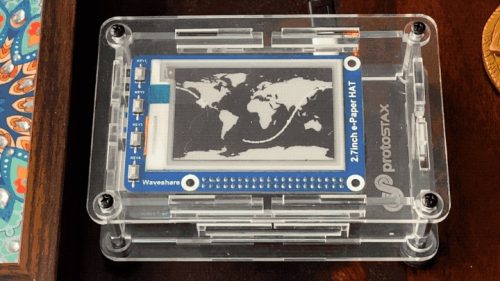
The e-paper display mid-refresh. It takes about three seconds to refresh, but it’s fast enough for this kind of project

Standing on his balcony one sunny evening, the perfect conditions enabled California-based astronomy enthusiast Sridhar Rajagopal to spot the International Space Station speeding by, and the seeds of an idea were duly sown. Having worked on several projects using tri-colour e-paper (aka e-ink) displays, which he likes for their “aesthetics and low-to-no-power consumption”, he thought that developing a way of tracking the ISS using such a display would be a perfect project to undertake.

“After a bit of searching, I was able to find an open API to get the ISS location at any given point in time,” explains Sridhar. I also knew I wouldn’t have to worry about the data changing several times per second or even per minute. Even though the ISS is wicked fast (16 orbits in a day!), this would still be well within the refresh capabilities of the e-paper display.”

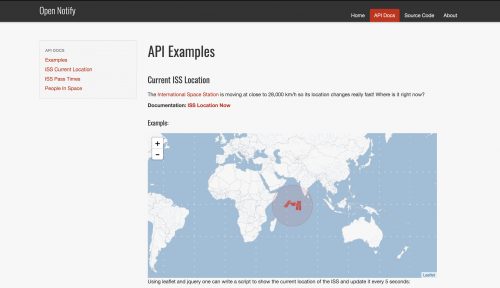
The ISS location data is obtained using the Open Notify API – visit magpi.cc/isslocation to see its current position

Station location

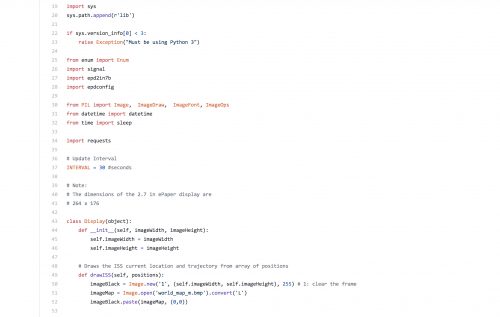
His ISS Tracker works by obtaining the ISS location from the Open Notify API every 30 seconds. It appends this data point to a list, so older data is available. “I don’t currently log the data to file, but it would be very easy to add this functionality,” says Sridhar. “Once I have appended the data to the list, I call the drawISS method of my Display class with the positions array, to render the world map and ISS trajectory and current location. The world map gets rendered to one PIL image, and the ISS location and trajectory get rendered to another PIL image.”
The project code is written in Python and can be found on Sridhar’s GitHub
page: magpi.cc/isstrackercode

Each latitude/longitude position is mapped to the corresponding XY co-ordinate. The last position in the array (the latest position) gets rendered as the ISS icon to show its current position. “Every 30th data point gets rendered as a rectangle, and every other data point gets rendered as a tiny circle,” adds Sridhar.

From there, the images are then simply passed into the e-paper library’s display method; one image is rendered in black, and the other image in red.

Track… star

Little wonder that the response received from friends, family, and the wider maker community has been extremely positive, as Sridhar shares: “The first feedback was from my non-techie wife who love-love-loved the idea of displaying the ISS location and trajectory on the e-paper display. She gave valuable input on the aesthetics of the data visualisation.”

Software engineer turned hardwarehacking enthusiast and entrepreneur, Sridhar Rajagopal is the founder of Upbeat Labs and creator of ProtoStax – a maker-friendly stackable, modular,
and extensible enclosure system.

In addition, he tells us that other makers have contributed suggestions for improvements. “JP, a Hackster community user […] added information to make the Python code a service and have it launch on bootup. I had him contribute his changes to my GitHub repository – I was thrilled about the community involvement!”

Housed in a versatile, transparent ProtoStax enclosure designed by Sridhar, the end result is an elegant way of showing the current position and trajectory of the ISS as it hurtles around the Earth at 7.6 km/s. Why not have a go at making your own display so you know when to look out for the space station whizzing across the night sky? It really is an awesome sight.

Get The MagPi magazine issue 96 — out today

The MagPi magazine is out now, available in print from the Raspberry Pi Press online store, your local newsagents, and the Raspberry Pi Store, Cambridge.

You can also download the directly from PDF from the MagPi magazine website.

Subscribers to the MagPi for 12 months to get a free Adafruit Circuit Playground, or choose from one of our other subscription offers, including this amazing limited-time offer of three issues and a book for only £10!

The post International Space Station Tracker | The MagPi 96 appeared first on Raspberry Pi.


Source: Raspberry Pi – International Space Station Tracker | The MagPi 96

Amazing science from the winners of Astro Pi Mission Space Lab 2019–20

The team at Raspberry Pi and our partner ESA Education are pleased to announce the winning and highly commended Mission Space Lab teams of the 2019–20 European Astro Pi Challenge!

Astro Pi Mission Space Lab logo

Mission Space Lab sees teams of young people across Europe design, create, and deploy experiments running on Astro Pi computers aboard the International Space Station. Their final task: analysing the experiments’ results and sending us scientific reports highlighting their methods, results, and conclusions.

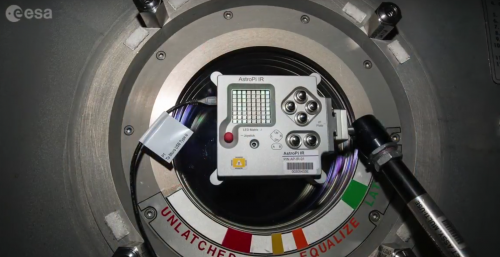
One of the Astro Pi computers aboard the International Space Station

The science teams performed was truly impressive, and the reports teams sent us were of outstanding quality. A special round of applause to the teams for making the effort to coordinate writing their reports socially distant!

The Astro Pi jury has now selected the ten winning teams, as well as eight highly commended teams:

And our winners are…

Vidhya’s code from the UK aimed to answer the question of how a compass works on the ISS, using the Astro Pi computer’s magnetometer and data from the World Magnetic Model (WMM).

Unknown from Externato Cooperativo da Benedita, Portugal, aptly investigated whether influenza is transmissible on a spacecraft such as the ISS, using the Astro Pi hardware alongside a deep literature review.

Space Wombats from Institut d’Altafulla, Spain, used normalized difference vegetation index (NDVI) analysis to identify burn scars from forest fires. They even managed to get results over Chernobyl!

Liberté from Catmose College, UK, set out to prove the Coriolis Effect by using Sobel filtering methods to identify the movement and direction of clouds.

Pardubice Pi from SPŠE a VOŠ Pardubice, Czech Republic, found areas of enormous vegetation loss by performing NDVI analysis on images taken from the Astro Pi and comparing this with historic images of the location.

NDVI conversion image by Pardubice Pi team – Astro Pi Mission Space Lab experiment
NDVI conversion image by Pardubice Pi team

Reforesting Entrepreneurs from Canterbury School of Gran Canaria, Spain, want to help solve the climate crisis by using NDVI analysis to identify locations where reforestation is possible.

1G5-Boys from Lycée Raynouard, France, innovatively conducted spectral analysis using Fast Fourier Transforms to study low-frequency vibrations of the ISS.

Cloud4 from Escola Secundária de Maria, Portugal, masterfully used a simplified static model and Fourier Analysis to detect atmospheric gravity waves (AGWs).

Cloud Wizzards from Primary School no. 48, Poland, scanned the sky to determine what percentage of the seas and oceans are covered by clouds.

Aguere Team 1 from IES Marina Cebrián, Spain, probed the behaviour of the magnetic field, acceleration, and temperature on the ISS by investigating disturbances, variations with latitude, and temporal changes.

Highly commended teams

Creative Coders, from the UK, decided to see how much of the Earth’s water is stored in clouds by analysing the pixels of each image of Earth their experiment collected.

Astro Jaslo from I Liceum Ogólnokształcące króla Stanisława Leszczyńskiego w Jaśle, Poland, used Reimann geometry to determine the angle between light from the sun that is perpendicular to the Astro Pi camera, and the line segment from the ISS to Earth’s centre.

Jesto from S.M.S Arduino I.C.Ivrea1, Italy, used a multitude of the Astro Pi computers’ capabilities to study NDVI, magnetic fields, and aerosol mapping.

BLOOMERS from Tudor Vianu National Highschool of Computer Science, Romania, investigated how algae blooms are affected by eutrophication in polluted areas.

AstroLorenzini from Liceo Statale C. Lorenzini, Italy used Kepler’s third law to determine the eccentricity, apogee, perigee, and mean tangential velocity of the ISS.

Photo of Italy, Calabria and Sicilia by AstroLorenzi team — Astro Pi Mission Space Lab experiment
Photo of Italy, Calabria and Sicilia (notice volcano Etna on the top right-hand corner) captured by the AstroLorenzi team

EasyPeasyCoding Verdala FutureAstronauts from Verdala International School & EasyPeasyCoding, Malta, utilised machine learning to differentiate between cloud types.

BHTeamEL from Branksome Hall, Canada, processed images using Y of YCbCr colour mode data to investigate the relationship between cloud type and luminescence.

Space Kludgers from Technology Club of Thrace, STETH, Greece, identified how atmospheric emissions correlate to population density, as well as using NDVI, ECCAD, and SEDAC to analyse the correlation of vegetation health and abundance with anthropogenic emissions.

The teams get a Q&A with astronaut Luca Parmitano

The prize for the winners and highly commended teams is the chance to pose their questions to ESA astronaut Luca Parmitano! The teams have been asked to record a question on video, which Luca will answer during a live stream on 3 September.

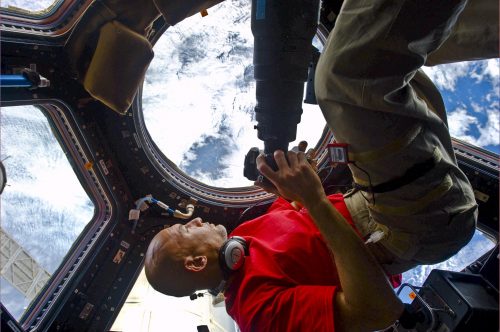
ESA astronaut Luca Parmitano aboard the International Space Station

This Q&A event for the finalists will conclude this year’s European Astro Pi Challenge. Everyone on the Raspberry Pi and ESA Education teams congratulates this year’s participants on all their efforts.

It’s been a phenomenal year for the Astro Pi challenge: team performed some great science, and across Mission Space Lab and Mission Zero, an astronomical 16998 young people took part, from all ESA member states as well as Slovenia, Canada, and Malta.

Congratulations to everyone who took part!

Get excited for your next challenge!

This year’s European Astro Pi Challenge is almost over, and the next edition is just around the corner!

Compilation of photographs of Earth, taken by Astro Pi Izzy aboard the ISS
Compilation of photographs of Earth taken by an Astro Pi computer

So we invite school teachers, educators, students, and all young people who love coding and space science to join us from September onwards.

Follow our updates on astro-pi.org and social media to make sure you don’t miss any announcements. We will see you for next year’s European Astro Pi Challenge!

The post Amazing science from the winners of Astro Pi Mission Space Lab 2019–20 appeared first on Raspberry Pi.


Source: Raspberry Pi – Amazing science from the winners of Astro Pi Mission Space Lab 2019–20

Gender balance in computing: current research

We’ve really enjoyed starting a series of seminars on computing education research over the summer, as part of our strategy to develop research at the Raspberry Pi Foundation. We want to deepen our understanding of how young people learn about computing and digital making, in order to increase the impact of our own work and to advance the field of computing education.

Part of deepening our understanding is to hear from and work with experts from around the world. The seminar series, and our online research symposium, are an opportunity to do that. In addition, these events support the global computing education research community by providing relevant content and a forum for discussion. You can see the talks recordings and slides of all our previous seminar speakers and symposium speakers on our website.

Gender balance in your computing classroom: what the research says

Our seventh seminar presentation was given by Katharine Childs from our own team. She works on our DfE-funded Gender Balance in Computing programme and gave a brilliant summary of some of the recent research around barriers to gender balance in school computing.

Screenshot of a presentation about gender balance in computing. Text says: "Key questions: What are the barriers which prevent girls' participation in computing? Which interventions can support girls to choose computing qualifications and careers?"

In her presentation, Katharine considered belongingness, role models, relevance to real-world contexts, and non-formal learning. She drew out the links between theory and practice and suggested a range of interventions. I recommend watching the video of her presentation and looking through her slides. 

Katharine has also been publishing a number of excellent blog posts summarising her research on gender balance:

You can read more about our Gender Balance in Computing project and sign up to receive regular newsletters about it.

Join our autumn seminar series

From September, our computing education research seminars will take place on the first Tuesday of each month, starting at 17:00 UK time.

We’re excited about the range of topics to be presented, and about our fantastic lineup of speakers: an international group from Australia, the US, Ireland, and Scotland will present on a survey of computing education curricular and teaching around the world; Shuchi Grover will talk to us about formative assessment; and David Weintrop will share his work on block-based programming. I’ll be talking about my research on PRIMM and the benefits of language and talk in the programming classroom. And we’re lining up more speakers after that.

Find out more and sign up today at rpf.io/research-seminars!

Thank you

We’d like to thank everyone who has participated in our seminar series, whether as speaker or attendee. We’ve welcomed attendees from 22 countries and speakers from the US, UK, and Spain. You’ve all really helped us to start this important work, and we look forward to working with you in the next academic year!

The post Gender balance in computing: current research appeared first on Raspberry Pi.


Source: Raspberry Pi – Gender balance in computing: current research