PayPal Attracts Takeover Interest After Stock Slump

An anonymous reader shares a report: PayPal, the digital payments pioneer, is attracting takeover interest from potential buyers after a stock slide wiped out almost half of its value, according to people familiar with the matter.

The San Jose, California-based company has fielded meetings with banks amid unsolicited interest from suitors, the people said. At least one large rival is looking at the whole company, while some other suitors are only interested in certain PayPal assets, the people said, asking not to be identified because the information is private.

Buyer interest in PayPal is still at a preliminary stage and may not lead to a transaction, the people cautioned. Founded in the late 1990s, PayPal was an early mover in the world of digital payments. But the company now finds itself in a rut with its customers increasingly turning to alternative ways to pay for things. PayPal’s shares have fallen around 46% in New York trading over the last 12 months, giving the company a market value of about $38.4 billion.


Read more of this story at Slashdot.

Fixer Undercover Spies A Quest Release This Week

Macguyver-esque narrative VR puzzler hits Quest on February 26, with PlayStation VR2 and PC VR to come later.

Fixer Undercover was first revealed as a demo on the now defunct Meta Quest App Lab in 2024 and officially announced at the UploadVR Summer Showcase last year, promising a return to the VR escape room style puzzles popularized by games like the I Expect You To Die series and The Room VR: A Dark Matter.

As a special agent codenamed ‘The Fixer’, players will infiltrate a prison under the guise of a maintenance worker. Alongside a witty drone named Winston, a set of basic handyman tools like a hammer, grinder, pliers, and pipe wrench are used to solve a series of environmental puzzles.

Per a post on developer Creativity AR’s Discord, it expects a full playthrough to take roughly six to eight hours.

0:00

/2:02

Fixer Undercover Gameplay Trailer

Fixer Undercover was originally planned as an Early Access release in late January, but Creativity changed course in a social media post, saying “To be completely honest: we looked at the project and realized it wasn’t ready to open its doors yet… We want to release a complete game, not a broken one. We apologize for the delay.”

Fixer Undercover releases this Thursday on Meta Quest 3, 3S, and Pro for $14.99. The game’s official website states that versions for Steam and PlayStation VR2 are planned for “a later date.” The game can be wishlisted on Steam now.

Top Dogs On Apple Immersive Brings You Up Close With Champions

Apple Immersive documentary Top Dogs brings you up close with spectacular champion breeds, but traditional filmmaking choices keep the immersion from taking Best in Show.

Apple Immersive Video is particularly well suited for narrative documentary content. It can give visitors virtual access to real, visually stunning moments in behind-the-scenes experiences and destinations that most of us will not be able to physically visit in our lifetime. The forced perspective of the 180-degree format also offers a familiar entry point for acclaimed directors accustomed to crafting video content for traditional flat screens.

What Is Apple Immersive Video?

The Apple Immersive Video format is 180° stereoscopic 3D video with 4K×4K per-eye resolution, 90FPS, high dynamic range (HDR), and spatial audio. It’s typically served with higher bitrate than many other immersive video platforms.

We highly praised Apple Immersive Video in our Vision Pro review. It’s not possible to cast or record Apple Immersive Video though, so you’ll have to take our word for it unless you have access to a Vision Pro.

Paired with Apple TV’s reputation for visually polished and compelling storytelling, I went into the two Top Dogs Apple Immersive episodes with high expectations. But narrative and compelling visuals were not enough to create quality immersion. My role in the world of Top Dogs remained undefined, and certain creative choices gave me reason to…paws. It did not fully consider how experiencing the benefits of immersion inside a headset should feel different from simply watching a story unfold on a screen.

0:00

/0:35

Spectacular dogs and clear storytelling.

The behind-the-scenes access that gets you up close to some incredible dogs makes this worth stepping into. I found myself face to face with breeds I have only ever seen on screens or in photos, and others I had never encountered before, each impeccably groomed and styled for the spotlight. The sheer range of dogs and their personalities is striking. They are the undeniable stars, and the stereoscopic depth brought me closer to these dogs than a traditional screen ever could.

The narrative also worked well. In just a combined thirty three minutes, I walked away with a clear understanding of how this renowned competition works. I learned what judges evaluate and gained insight into different aspects of the events. Participants are introduced cleanly. Stakes are easy to follow. Despite the short runtime, nothing feels rushed.

In many ways, I felt closer to this world than I would through a traditional screen. But getting close is not the same as feeling fully present within it.

Proximity is not the same as presence

Across both episodes, I kept returning to one question: who am I supposed to be here? Given Apple TV’s storytelling pedigree and the immersive potential of Apple Vision Pro, I expected Top Dogs to place me unmistakably inside its world rather than remind me at times that I was still watching from constantly shifting camera positions that were often stationary and sometimes moving speedily. My sense of embodiment wavered as scale and perspective changed without explanation or logic. Quick cuts shifted me from floating down an aisle of Dalmatians at eye level with their handlers, to sitting close-up at eye level with dogs, to looking up at handlers.

As a visitor to the documentary, I also did not feel like my presence was intended to be acknowledged. Those being interviewed spoke to an off-camera interviewer and avoided glancing into the lens, a choice typical of traditional flat-screen content. The only characters that seemed to recognize my presence on occasion were some of the dogs who took momentary interest in the camera. Locking eyes with Australian Shepherd Viking, 2024 Best in Show winner, was memorable. I impulsively shifted back when another dog jumped to the camera for a kiss. More moments like this would have helped with the sense of presence.

Traditional film language can limit immersion.

Directed and narrated by BAFTA and Peabody winner John Dower in his first immersive documentary, Top Dogs reflects a filmmaker clearly comfortable with traditional documentary language. But immersive storytelling demands intention around experience, not just storytelling.

The flyball competition segment showed what worked. The camera remained steady and well positioned as if I was watching from the sidelines. It gave me enough time to take in the space and choose where to look. The more time I had to notice details within the scene, the more immersed I felt. As the dogs sprinted back and forth, I turned my head naturally to follow them. The action defined my movement in the world. In contrast to many other moments in Top Dogs, this moment allowed me to feel confident in my spectator perspective, and present.

Framing and editing choices, however, often reflected traditional documentary grammar in ways that weakened immersion. Action and even faces were occasionally partially cropped within the 180 degree frame. Extreme close ups that might feel intimate on a flat screen felt odd and uncomfortable in headset. Photos appeared floating in black backgrounds rather than integrated into the environment. On screen text reinforced the sense of watching a framed production rather than being there. The quick cuts also shifted me between locations and perspectives without spatial grounding or transition of any sort. I would have liked to see more movement from the dogs and less movement from the camera.

When traditional documentary grammar dominates, the headset begins to feel optional. At several points, I found myself toggling from full Immersive Video to the windowed view to avoid some creative choices that felt jarring when fully immersed. I also found myself wondering why this was not simultaneously released as Apple TV content for more people to see it outside headset, given how closely its film language already aligns with traditional screens.

Climate Physicists Face the Ghosts in Their Machines: Clouds

Climate scientists trying to predict how much hotter the planet will get have long grappled with a surprisingly stubborn problem — clouds, which both reflect sunlight and trap heat, account for more than half the variation between climate predictions and are the main reason warming projections for the next 50 years range from 2 to 6 degrees Celsius.

Two research groups are now racing to close that gap using AI, though they disagree sharply on method. Tapio Schneider at Caltech built CLIMA, a model that uses machine learning to optimize cloud parameters within traditional physics equations; it will be unveiled at a conference in Japan in March. Chris Bretherton at the Allen Institute for AI took a different path — his ACE2 neural network, released in 2024, learns from 50 years of atmospheric data and largely bypasses physics equations altogether.


Read more of this story at Slashdot.

All the Ways You Can Customize Notifications on Android Auto

If you’re an Android Auto user, you may already know that setting up phone notifications while you’re driving isn’t as straightforward as it could be—though Google has recently made a settings tweak that should simplify things. On the one hand, you don’t want to miss important messages or calls, but on the other you definitely don’t want to put yourself and other road users at risk by getting distracted while driving. A careful balance is needed, and it’s important to know what options are available on your phone.

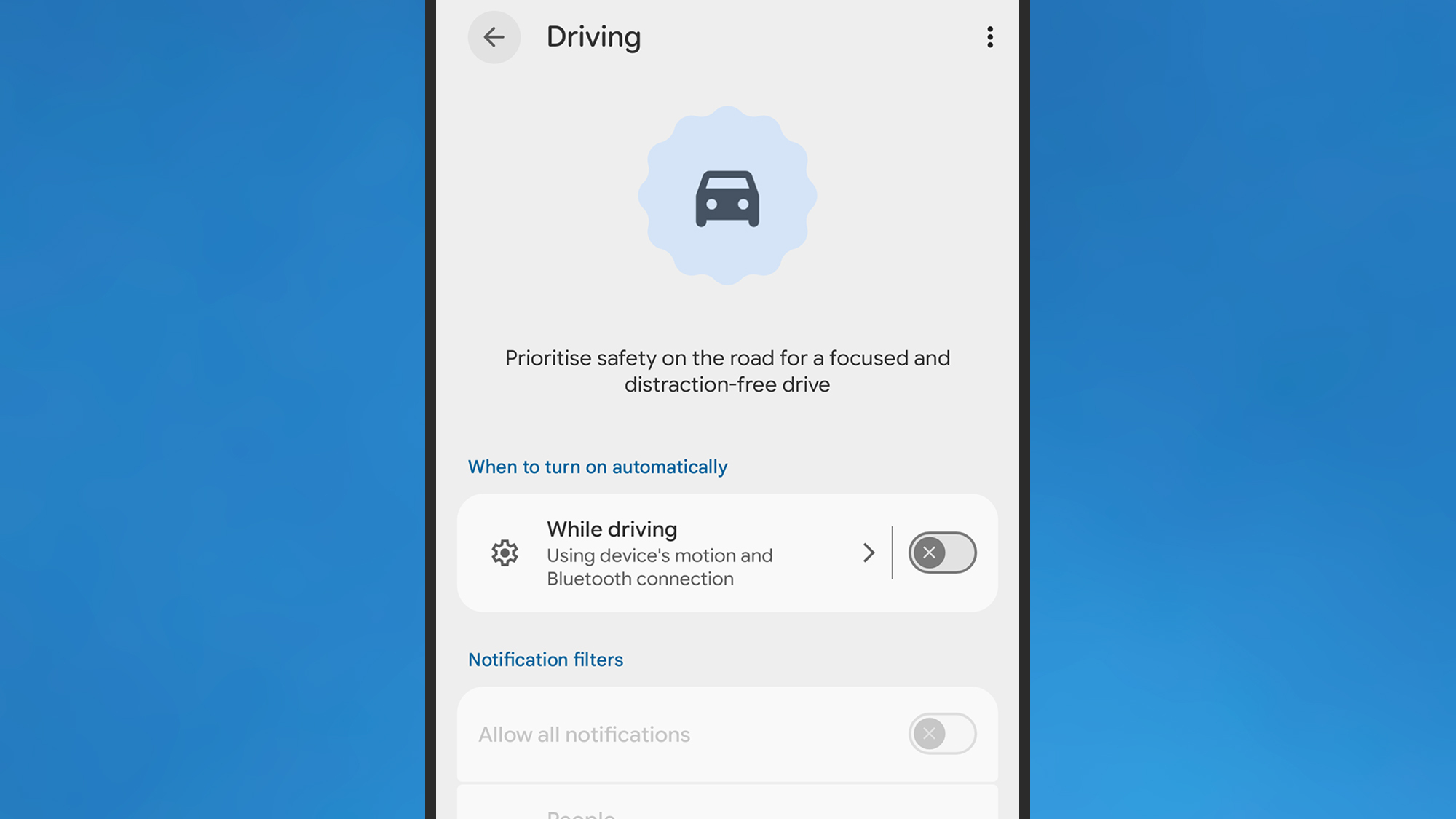
If you’re a Pixel user, Do Not Disturb is handled by Modes, which you can find by tapping Modes in Settings. Pick Driving, and if you enable the While driving toggle switch, this mode is automatically enabled when you’re in your car.

Android Auto
You can mute some or all of your phone’s notifications when driving.
Credit: Lifehacker

Tap the While driving text (not the toggle switch), and you can tell Android how it should determine whether or not you’re driving. This is the setting that Google recently tweaked: You can now choose Use Bluetooth (so the mode is enabled when a car dashboard is detected), or Use motion and Bluetooth (which also takes readings from your phone’s accelerometer into consideration). Previously, you had to rely solely on motion, which led to problems with automatic activation for both drivers and passengers—the addition of Bluetooth should mean a more reliable experience.

It’s slightly different on Samsung Galaxy phones: You need to tap Modes and Routines from Settings, then you can access the Driving mode. Here, you can specifically set a connection to an Android Auto dashboard as the trigger for enabling the mode, rather than just any Bluetooth device—something Google should really add to standard Android.

On both Pixel and Galaxy phones, you can tweak the driving mode to allow notifications from certain apps or from certain people, but again be wary of making your vehicle too distracting with pop-ups and pings.

Other Android Auto notification settings

As well as setting which apps and contacts can trigger phone notifications while you’re driving, you can customize these modes further. From the Driving mode screen on a Pixel, tap Display settings to control whether or not the phone lights up when you get a notification. You can also dim the wallpaper, and switch to a grayscale look.

When you’re editing your Driving mode on a Galaxy phone, you’ll see you can tap either Lock screen or Home screen to change the wallpaper and color palette specifically for this mode. Again, the idea is that your phone is a little less distracting visually.

There are more notification options on the main Android Auto settings page: From Android Settings, tap Connected devices > Connection preferences > Android Auto (Pixel) or Connected devices > Android Auto (Galaxy).

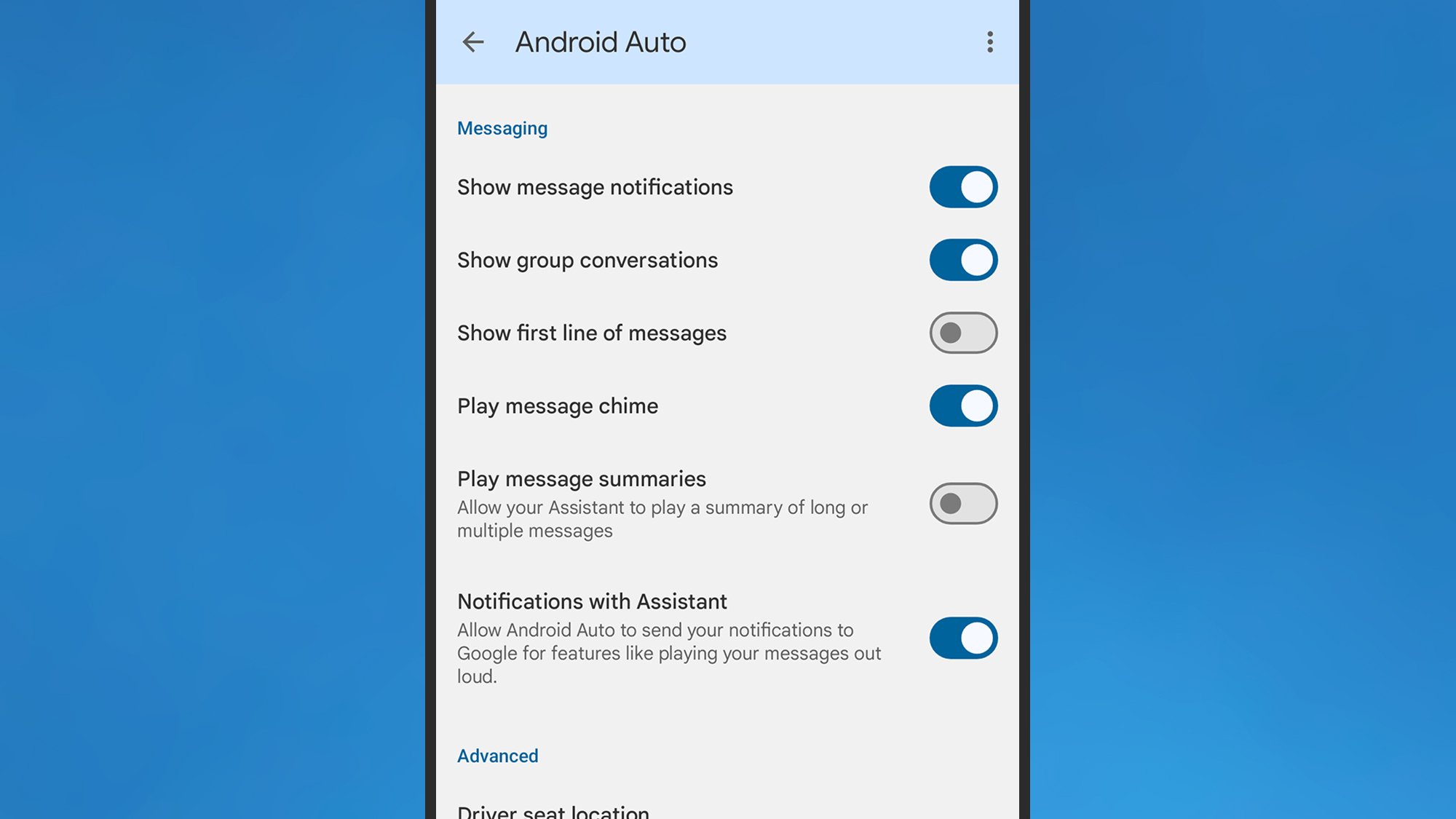
Under the Messaging header, you can turn off alerts for group conversations, or for messaging apps entirely. There’s also a toggle switch here for showing or hiding the first line of the incoming message—you probably want to disable this if you want to spend more time with your eyes on the road.

Android Auto
You can control how messages appear on your dashboard.
Credit: Lifehacker

Finally, there’s the option for having your incoming messages read out loud to you, which is another way you can reduce the temptation to stare at your vehicle’s dashboard for an extended period of time, or to pick up and unlock your phone.

It’s worth reviewing all the other Android Auto settings here as well, to make sure your driving experience is set up exactly the way you want: You can reduce the number of apps available in Android Auto, for example, and enable taskbar widgets for easier app control, which can also make a difference to how distracted you are on the road.

You should end up with an Android Auto notification system that’s not going to overwhelm you with alerts while you’re driving, but which also won’t hide important messages from you by automatically enabling notification filters without you being aware.

Roku Streaming Stick Deals Up To 47% Off As Netflix Abandons PS3 And Legacy TVs

Roku Streaming Stick Deals Up To 47% Off As Netflix Abandons PS3 And Legacy TVs
In case you have not heard, Netflix is planning to the pull the plug on streaming support for PlayStation 3 consoles. Same goes for legions of legacy TVs and older set-top boxes. Now, we’re not here to drag Netflix over the coals for abandoning a 20-year-old console and other aging hardware, but with Sony estimated to have sold nearly 90 million

The creators of Dark Sky have a new weather app

The team behind the beloved Dark Sky weather app has announced a new iPhone app called Acme Weather. The release comes after Apple’s 2020 acquisition of Dark Sky, which it ultimately shut down in 2022 after integrating much of its tech into the native iOS Weather app.

Acme Weather is primarily designed to address the uncertainty inherent in most forecasts, as different models yield disparate results and no two weather apps seem to report the same thing. Acme’s answer to this issue is “Alternate Predictions,” which shows users a range of possible outcomes alongside the app’s core forecast line throughout the day. If the lines are arranged together tightly, it means the app has high confidence in the forecast at that time. When those lines start to diverge, the app is signaling lower confidence while showing users alternate predictions for that time of day.

The app also supports community reporting, seeking to do for weather what Waymo did for traffic. Users can share real-time conditions in their area using icons or emojis, helping increase accuracy when conditions are changing quickly. Like most weather apps, there is also a map component with layers for radar, lightning, rain and snow totals, wind and more.

Acme leverages notifications to help make sure you don’t miss important changes to the forecast or weather alerts. Grossman says they are comprehensive and should help you avoid getting caught in the rain unawares. Notifications also include community reports, government weather alerts and even experimental tools from “Acme Labs” like rainbow and beautiful sunset alerts.

Acme offers a two-week free trial, then costs $25 a year. The iOS version is available now and an Android is forthcoming.

This article originally appeared on Engadget at https://www.engadget.com/apps/the-creators-of-dark-sky-have-a-new-weather-app-155426063.html?src=rss

Google Details Glimmer, Its UI Design Language For HUD & AR Glasses

Google Glimmer is the company’s design language for the interfaces in coming Gemini smart glasses with transparent heads-up displays, and eventually true AR glasses too.

Small Screens Without The Struggle

On a traditional screen, designers fill a rectangle, and a VR headset stretches the canvas to a full sphere. On display glasses, the usable area is much smaller and always competes with real life. That alone calls for apps with glanceable layouts and a simple menu system. We saw a demo of Google’s prototype smart glasses at last year’s I/O.

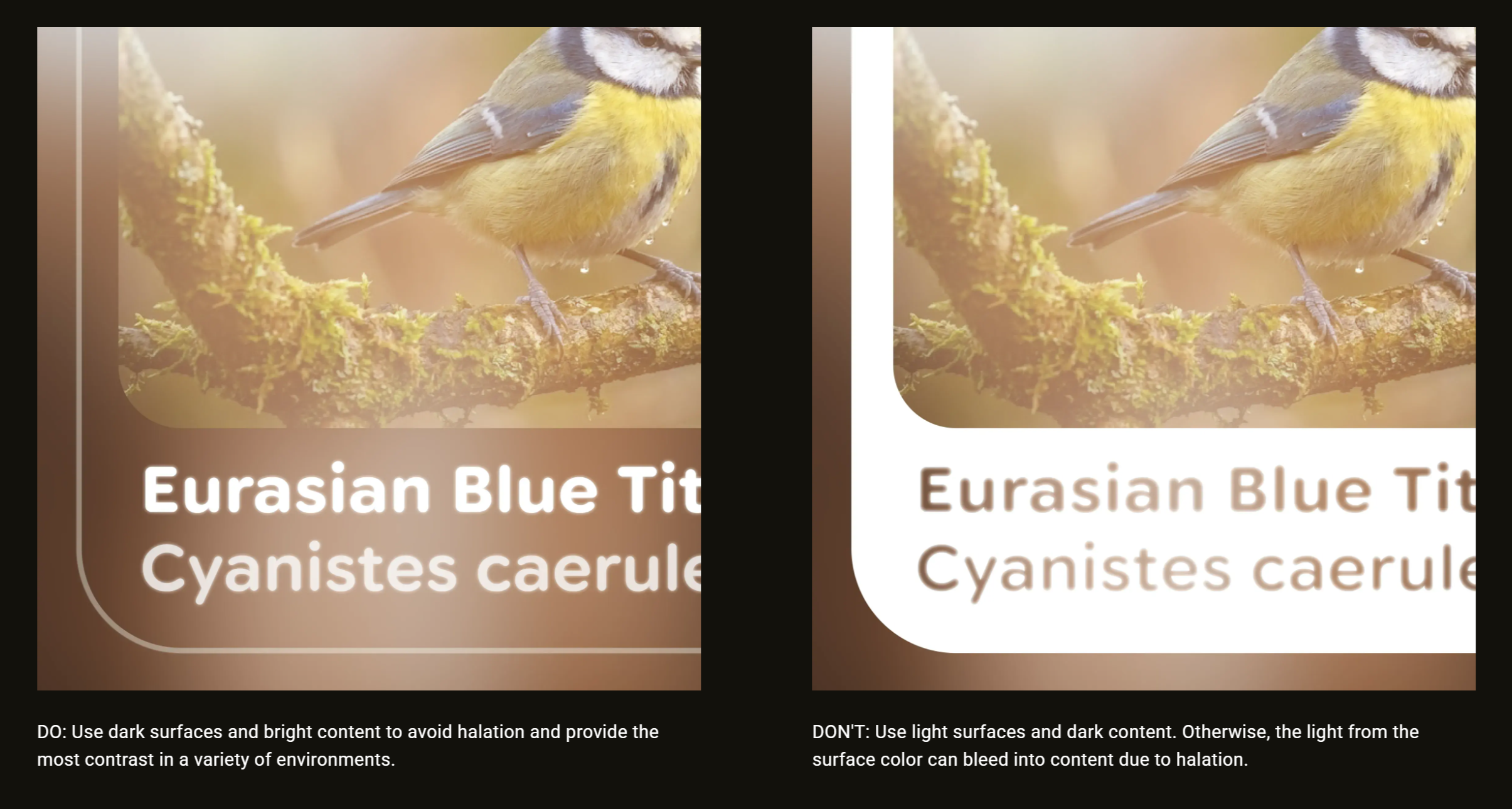
Google Glimmer suggest light content on dark backgrounds.

Google describes the display as a space you opt into with focus, not something you passively absorb. These glasses are essentially heads-up displays (HUDs), not screens you stare at for hours. For daily use, display smart glasses should use a small area that allows you to shift attention briefly, then return to the real world at a moment’s notice.

The same suggestions will help for any HUD. Meta’s Gen 2 Ray-Ban Display glasses are expected later this year, for example.

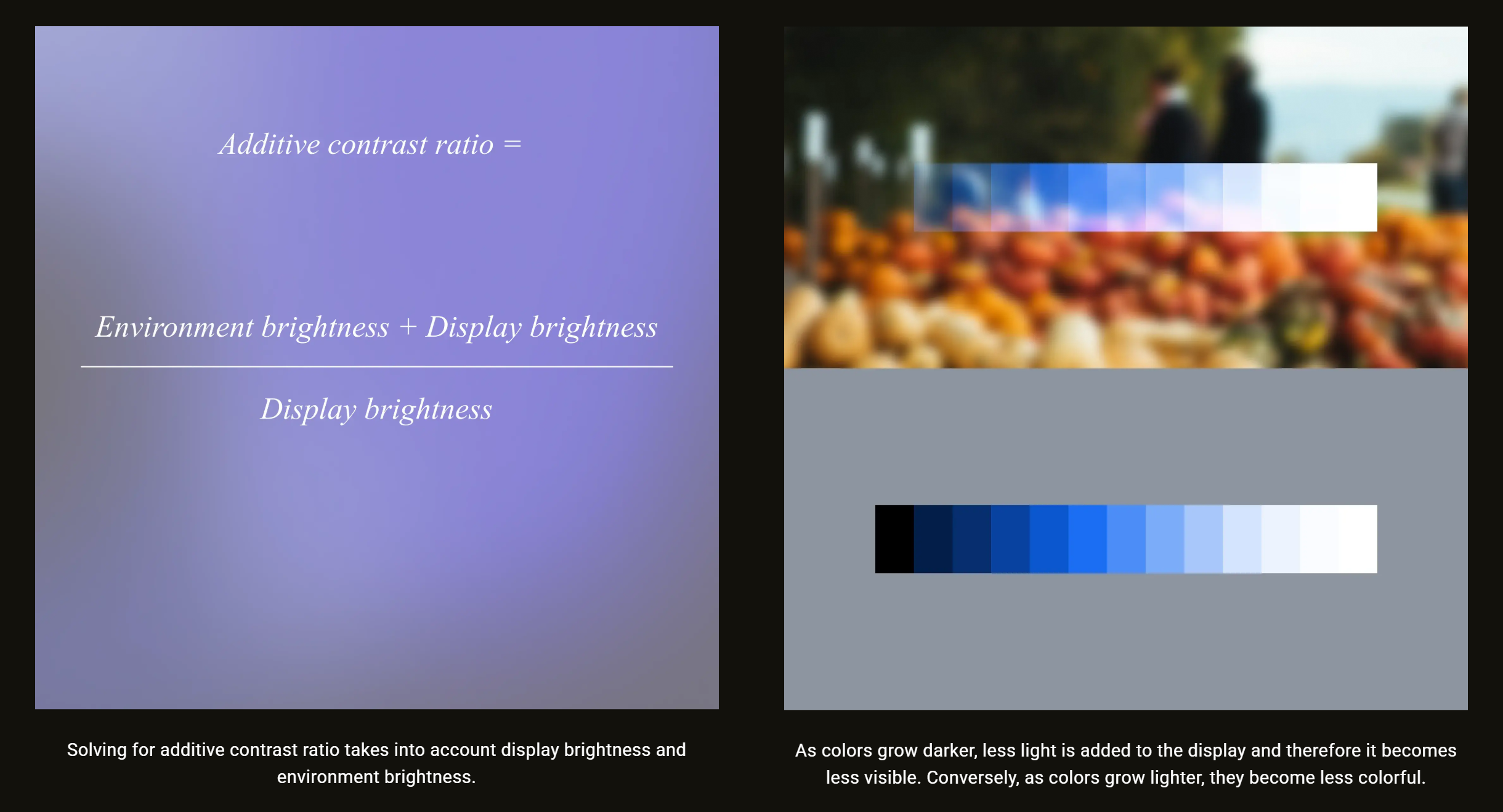
Since screen colors blend with the background, Google recommends maintaining intensity instead of maximizing saturation since darker colors fade away on transparent screens.

Resolution, Aspect Ratio, And Font Limits

Google also covered legibility, noting designers should base font size on what the eye can see clearly at arm’s length. Smart glasses displays often have tighter resolution limits and less forgiving optics, especially near edges. The predictable aspect ratios of mobile design no longer apply.

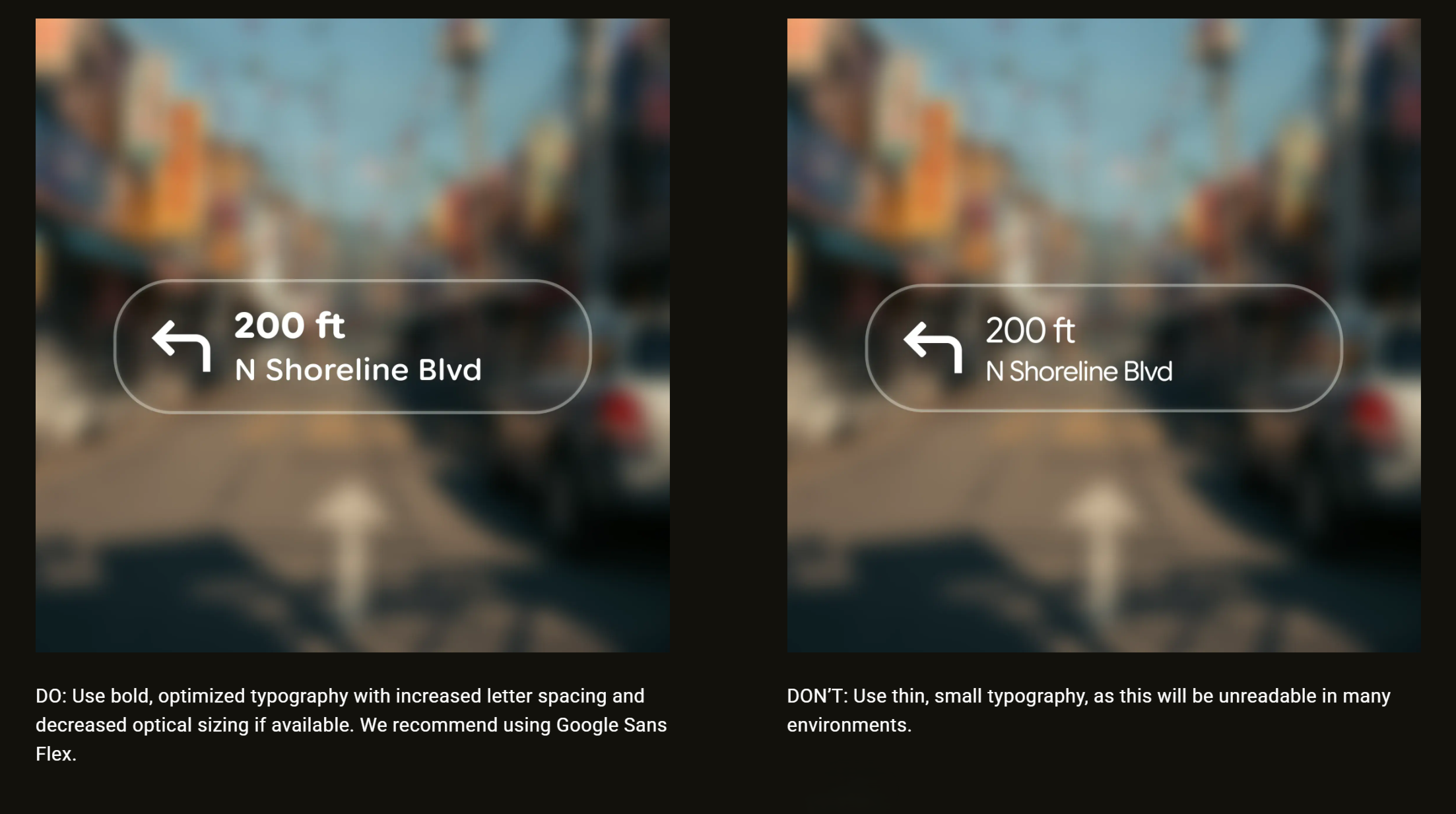
Google Glimmer suggests bold type for transparent screens.
Bold type is easier to read on transparent screens.

Apps shouldn’t display dense lists in tiny type, and even content should shift toward fewer words. Readability requires stronger contrast, heavier fonts, and clearer spacing. Google suggests its Sans Flex typeface as a good choice.

Power Is Part Of The Design

Battery life is another hard constraint for smart glasses, since weight is held to a minimum. Google calls for outlines instead of filled blocks to avoid halation (light bleed) and reduce power drain. Fewer lit pixels, transient messages, and optimizing motion are less taxing on the tiny thermal and battery envelope of smart glasses.

Google Glimmer graphic suggests transparent displays benefit from brighter graphics with less saturated colors.
Transparent displays benefit from brighter graphics with less saturated colors.

Google’s Glimmer is more than a style preference. It’s a plan to make the most of the limited display area, real-world backgrounds, legibility limits, and the challenges of daily use. To learn more, check Google’s guide on Jetpack Compose Glimmer.

AIs can generate near-verbatim copies of novels from training data

The world’s top AI models can be prompted to generate near-verbatim copies of bestselling novels, raising fresh questions about the industry’s claim that its systems do not store copyrighted works.

A series of recent studies has shown that large language models from OpenAI, Google, Meta, Anthropic, and xAI memorize far more of their training data than previously thought.

AI and legal experts told the FT this “memorization” ability could have serious ramifications on AI groups’ battle against dozens of copyright lawsuits around the world, as it undermines their core defense that LLMs “learn” from copyrighted works but do not store copies.

Read full article

Comments

Apple Reportedly Plans Multi-Day Product Blitz In Major Shift To Past Events

Apple Reportedly Plans Multi-Day Product Blitz In Major Shift To Past Events
Apple confirmed its first big product event of this year as the company sent invites to press for a “special Apple Experience” taking place in New York, London, and Shanghai. However, this slate of product launches will be different from past ones, according to Bloomberg’s Apple insider Mark Gurman, who’s expecting a slew of new additions

Meta’s ‘Horizon Plus’ Game Subscription Service Now Has Over 1M Active Members

Meta announced that its Horizon+ game subscription service topped over one million active subscribers.

Reality Labs VP of Content Samantha Ryan revealed the figure in a developer blog post, noting the service now boasts a games catalog of over 100 titles in addition to its rotating dip of monthly games.

Popular titles include Ghosts of Tabor, Job Simulator, Red Matter, Red Matter 2, Cubism, Pistol Whip, Moss, Maestro, Into Black, Racket Club, Demeo Battles, and Asgard’s Wrath 2. You can see the full list here.

Notably, this is the first time Meta has revealed active subscriber numbers for Horizon+, which was previously known as ‘Quest+’ when it first launched in 2023.

Meta’s Q4 2025 earnings didn’t offer much granularity when it comes to Reality Labs revenue, however since Horizon+ costs $8 per month, or $60 per year, this could put its revenue somewhere between $60 – $96 million.

Granted, that’s provided the company isn’t actually counting users of its three-month trial period as ‘active’ members, an offer that automatically comes with purchase of any new Quest 3 and Quest 3S. It also assumes the one million subscriber figure was relatively stable throughout 2025, and didn’t see any dramatic spikes that would otherwise skew that estimation lower.

Additionally, Ryan notes Meta had “a tremendous holiday season that was on par with our 2024 results — all despite the fact that we didn’t launch any new devices for the year.”

Furthermore, Ryan says that total payment volume on the Quest platform remained similar year-over-year in 2025, with in-app purchases making a +13% increase.

The post Meta’s ‘Horizon Plus’ Game Subscription Service Now Has Over 1M Active Members appeared first on Road to VR.

10 Hacks Every YouTube User Should Know

For all its faults as a platform, YouTube’s video player functionality is easily among the best online. It streams reliably to almost every device you can think of, in your choice of both video quality and playback speed. But it’s the array of hidden features and interface tricks that push it over the edge for me. (Other video players, take note.) Here are 10 of my favorite hacks that make YouTube easier to use.

Search YouTube video transcripts with Ctrl-F

Almost every video on YouTube either has an official or auto-generated subtitled track. While these are mainly used for captioning, you can also pull up this transcript on the web and use Ctrl-F (or Cmd-F on Macs) to search for keywords in a video and jump straight to the part you want to see.

This feature has been around for a while, but YouTube has shuffled around where to find the transcript from time to time. As of this writing, the most reliable way to find it is to open the video’s description, scroll to the bottom, and click Show transcript to open it up in a side bar.

Set a sleep timer for long videos

Four hour video essays and ASMR streams can be great background noise to help you fall asleep. However, if you want to avoid getting jolted awake by that one really loud joke you forgot about, you can set a sleep timer to pause any video after a certain amount of time.

On web or mobile, click the Settings icon on any given video and choose Sleep timer (on mobile, it may be under Settings > More). You can choose a timer ranging from 10 to 60 minutes. You can also automatically pause once the current video is over, which is helpful if you usually have auto-play enabled.

Link to specific timestamps in a video

One of YouTube’s handiest features is the ability to deep-link to a specific second of any video, like I did in the last section. There are several ways to get a precise timestamp link. If you’re on the web, you can right click a video and choose “Copy video URL at current time.” And on mobile, when you click the Share icon, you can tap the toggle next to the timestamp to add the precise link.

If none of those are options, you can even create your own timestamp link. At the end of any video URL, add “&t=01h05m47s”, replacing the numbers with the specific time you want to link to. You can use any combination of hours, minutes, and seconds to specify the point in the video you want.

Use arrow keys or double-taps for quick navigation

Most video players at this point have some kind of “Hang on, what did they just say?” button that lets you skip 5-10 seconds backward or forward. YouTube has several. The most straightforward, on mobile, is the double-tap. Tap twice on the left side of the screen to go backwards 10 seconds, and on the right to go forward. Keep tapping to move forward or back by further increments of 10 seconds.

On the web, you have even finer grain control. You can use the left and right arrow keys to move 5 seconds back and forth. Alternatively, you can use the J-K-L keys to move in 10 second increments (with K being used to pause the video). This latter method is borrowed from video editors, making it a handy way to keep your muscle memory consistent if you do a lot of editing.

Move frame-by-frame with keyboard shortcuts

YouTubers love putting walls of text in a single frame of a video that you have to pause to be able to read. On mobile, the only way to read these–or examine any specific frame–is to back up and try to time your pause perfectly. On the web, however, there’s a better way. While paused on a video, you can press the , (comma) or . (period) keys to move back or forward exactly one frame at a time. You can hold these keys down to slowly move through frames as well.

Quickly fast-forward with a long-press

It’s pretty common knowledge at this point that you can play YouTube videos at 2x (or higher) speed, but what if you only want to rush through a small part of a video, like an ad read? On the mobile version of YouTube, there’s a handy gesture to do just that, without changing your default playback speed.

Simply long-press and hold anywhere on the video while it’s playing. This will temporarily cause the video to play back at 2x speed, until you lift your finger. If you’re already watching at 2x or higher, it won’t play any faster (or slower) than your current speed, though.

Set your video quality defaults

YouTube generally does a pretty good job of automatically deciding what video quality to stream at, balancing fidelity with bandwidth demands. You can manually override this on a per-video basis, but on mobile, you have a few more options to get broader control.

In the YouTube mobile app, head to Settings > Quality. Here, you can set separate quality defaults for video when you’re streaming over mobile networks or wifi, as well as audio quality. The latter is particularly helpful if you use YouTube for listening to music or podcasts. If your wifi is reliably fast, it can be worth it to set higher quality defaults, rather than manually change each video’s resolution whenever you notice the quality looks degraded. 

Use incognito mode to preserve your suggestions

YouTube can get overly eager to show you videos even vaguely similar to one you watched before. If you’d rather not get a feed full of videos on how to fix a door, you can use an incognito tab to browse without contributing to your algorithm’s history. It’s a little tougher on mobile, but fortunately the YouTube app has an option for that.

In the mobile YouTube app, navigate to the You tab. Along the top of the screen, tap “Turn on incognito.” This will let you search and browse without any algorithmic recommendations or contributing to your history. You can manually turn off incognito mode, or it will automatically turn off after 90 minutes of inactivity. Note, if you’re a YouTube Premium subscriber, none of your benefits will apply while you’re browsing incognito.

Remove unwanted videos from your history

If you forget to turn on incognito mode, you can still remove videos from your browsing history so they won’t muck up your recommendations. To do this, head to your YouTube history on mobile or the web, tap the three-dot menu next to the video in question, and choose “Remove from watch history.”

This is usually enough to prevent a video from becoming the algorithm’s latest fixation, but it also means you won’t be able to find the video in your history again. If you want provide any kind of direct feedback, like a thumbs down or a report, make sure to do that first. Otherwise, if you navigate to the video again, it will be re-added to your history.

Master even more keyboard shortcuts

Beyond basic navigation, YouTube on the web has a plethora of helpful keyboard shortcuts that you might never encounter that are worth knowing about. Some of them are pretty niche, but you never know when they can come in handy:

  • Up and Down arrows: Turn the volume on a video up or down in 5% increments.

  • Shift+> and Shift+<:> Speed up or slow down the current video playback speed

  • M: Mute the current video.

  • F: Enter/exit fullscreen mode.

  • T: Enter/exit Theater mode

  • Shift+N: Play the next video in your queue or playlist.

  • Shift+P: Play the previous video in your queue or playlist.

  • Ctrl/Cmd+Left or Right arrow keys: Navigate to the next or previous chapter in a video.

Stressful People in Your Life Could Be Adding Months To Your Biological Age

A study published last week in PNAS found that people who regularly cause problems or make life difficult — whom the researchers call “hasslers” — are associated with measurably faster biological aging in those around them, at a rate of roughly 1.5% per additional hassler and about nine months of additional biological age relative to same-age peers.

The research drew on DNA methylation-based epigenetic clocks and ego-centric network data from a state-representative probability sample of 2,345 adults in Indiana, aged 18 to 103. Nearly 29% of respondents reported at least one hassler in their close network. The biological toll varied by relationship type: hasslers who were family members showed the strongest and most consistent associations with accelerated aging, while spouse hasslers showed no significant effect on either epigenetic measure.

The damage also went beyond aging clocks — each additional hassler was associated with greater depression and anxiety severity, higher BMI, increased inflammation, and higher multimorbidity. When benchmarked against smoking, a major behavioral risk factor for aging, the hassler effect corresponded to roughly 13 to 17% of smoking’s estimated impact on the same aging clocks.


Read more of this story at Slashdot.