
Private and government stakeholders alike seem to believe that fusion energy is right around the corner.
Monthly Archives: March 2026
Charter Gets FCC Permission To Buy Cox, Become Largest ISP In the US
An anonymous reader quotes a report from Ars Technica: Charter Communications, operator of the Spectrum cable brand, has obtained Federal Communications Commission permission to buy Cox and surpass Comcast as the country’s largest home Internet service provider. Charter has 29.7 million residential and business Internet customers compared to Comcast’s 31.26 million. Buying Cox will give Charter another 5.9 million Internet customers. The FCC approved the deal on Friday, but the companies still need Justice Department approval and sign-offs from states including California and New York.
Opponents of Charter’s $34.5 billion acquisition told the FCC that eliminating Cox as an independent entity will make it easier for Charter and Comcast to raise prices. But the FCC dismissed those concerns on the grounds that Charter and Cox don’t compete directly against each other in the vast majority of their territories.
FCC Chairman Brendan Carr’s primary demand from companies seeking to merge has been to eliminate diversity, equity, and inclusion (DEI) programs and policies. In a press release (PDF), the Carr-led FCC said that “Charter has committed to new safeguards to protect against DEI discrimination,” and that Charter’s network-expansion plans will bring “faster broadband and lower prices” to rural areas. The merger was approved one day after Charter sent a letter to Carr outlining its actions to end DEI. Charter offers broadband and cable service in 41 states, while Cox does so in 18 states.


Read more of this story at Slashdot.
Firefox 149 beta develops a split personality
A handy feature you can already try in recent versionsThe new beta of the next version of Firefox lets you view two web pages side by side, with a split you can drag with your mouse.…
The Analogue Pocket Is Finally Back In Stock But Even More Expensive As Retro Handheld Costs Rise

Also: I would delay my game showcase if I was going bankrupt, too
The Best Ways to Refresh Your Old Kitchen for Cheap (or Free)
We may earn a commission from links on this page.
Kitchens endure a lot. Every single day we’re in there spilling, splattering, and literally using open flames. Our kitchens are gathering spots, ersatz home offices, staging areas, and late-night snack depots, and they take a lot of wear and tear. Eventually, all that use begins to show, and the kitchen starts to look a little worn down and outdated—and your bank account begins to tremble, because kitchen renovations are expensive as heck.
If you’re not ready for a full-on reno or remodel, don’t despair: You can achieve a powerful transformation in your kitchen with a few simple changes and upgrades, without spending a lot of money (or, in some cases, any money at all). If you need to refresh your kitchen without cracking open a retirement account to pay for it, here are some ways to do it.
Upgrade your kitchen’s storage, both cosmetically and functionally
Your kitchen is three things, really: A gathering place and a food prep space, sure—but it’s also where you store most, if not all, of your groceries and implements. One of the most powerful ways to refresh your kitchen is to augment or add to that storage, and you can do that in a variety of cheap or free ways:
-
Remove cabinet doors. If your kitchen cabinets are a little dated and boring, you don’t need to replace them. You can get a totally new look by removing some of the cabinet doors to get an open-shelving look, and it’s totally free. The real trick is to not remove all of the doors—you want to create a visual pattern and balance the openness with the existing doors, so have a plan before you start unscrewing hinges.
-
Paint cabinets. Painting kitchen cabinets is a cheap way to revitalize them, transforming old wood finish nightmares into sleek, modern monochrome. And if you remove some cabinet doors, consider painting inside the boxes for a blast of color as well. Another option is to vinyl wrap your cabinets, which can be a very cost-effective way to completely transform your cabinetry—and with the right tools, applying vinyl film like this to your cabinets is not a difficult DIY job.
-
Add shelving. Whether your design runs rustic or industrial or something in between, if you have open wall space in your kitchen, consider putting up some simple shelving. It’s a great and inexpensive way to increase your storage (and refresh the kitchen’s look) without shelling out a lot of money.
-
Upgrade storage containers. If you’re going to go with some open shelving, or if your countertops are laden with containers of food, spices, or coffee, upgrading those containers to something a bit more attractive (and in line with the rest of the kitchen’s design) is an easy way to freshen the space. From metal canisters with cute chalkboard labels to ultra-modern splashes of color, upping your container game makes open shelving pop.
-
Add furniture. If you have a little space, adding a mobile island will expand your storage and give you more working space. If you don’t have the space for an island, a simple, attractive kitchen cart like this can also be a nice, affordable upgrade.
-
Under-cabinet lighting. Add some mood lighting that’s also a practical upgrade with some easy-to-install, plug-in under-cabinet lighting.
-
Peel-and-stick trim. If your cabinets are looking a bit bland, you can use peel-and-stick trim to augment glass cabinet doors or add panel effects to your cabinets.
-
Add some pot racks. For less than $60 and some time, you can clear out your lower cabinets and make them usable storage again while creating a nice visual in your kitchen with a hanging pot rack. Of course, if you’re going to expose your pots and pans to the world, you might want to consider an upgrade there, as well.
Give your appliances a visual upgrade
Your appliances—both built-in and on the countertops—are a huge part of your kitchen’s visual appeal (or lack thereof). You can upgrade them affordably with a few simple purchases and some elbow grease.
-
Decals and appliance wraps. If your appliances are older and white or black, you can spiff them up pretty quickly and affordably with things like magnetic dishwasher covers or vinyl wraps to give them a stainless steel look without buying all new appliances.
-
New hardware. There’s nothing easier than swapping out old pulls and handles for new, sleeker versions—new hardware can really transform the look of your cabinetry without the cost of replacing them entirely. And if your stove is looking a little well-used, a set of new burner grates and upgraded knobs will go a long way toward making it look new again. (You’ll likely need to find stove hardware that’s compatible with your specific model, but there are lots of options out there.)
-
Color coordinating countertop appliances. If your countertops are currently populated with a disparate array of appliances, a simple way to upgrade the look and feel of the kitchen is to replace them with a coordinated set. For example, KitchenAid makes toasters, mixers, kettles, and other small appliances in a sharp empire red, making your counters cohesive and eye-catching instead of chaotic and messy.
Refinish your kitchen’s walls, floors, and countertops
Get a remodeled look without the remodel by refinishing the surfaces in your kitchen using these simple, affordable, and (often) reversible projects.
-
Peel and stick. Walls, backsplashes, and even floor tiles can be completely transformed with peel-and-stick products. Wallpaper, tile backsplashes, and floor tile decals can be installed with just some cutting and measuring tools and a little patience, but the final result can look like a whole new kitchen was installed on top of your old one.
-
Vinyl flooring or washable rugs. If your kitchen floor is making you sad but tile decals won’t work, you could throw a washable area rug down and cover it up. Another alternative would be some vinyl sheet flooring that you can cut to size and simply lay over your existing floor.
-
Refinish or cover countertops. You can upgrade and transform your countertops pretty cheaply using a variety of refinishing kits that cost less than $100. Alternatively, vinyl wraps or contact paper can cover up dated counters pretty effectively. If you don’t have the time or patience for those projects, you could consider just buying an oversize cutting board to leave on top of the counters permanently.
-
Clean up grout. Sometimes it’s not your tile that’s gotten old and tired, it’s just your grout. You might be amazed to discover how transformative an hour spent using a grout pen can be.
Replace kitchen lighting, outlet covers, and other fixtures
Just about everything in your kitchen is replaceable, including old, crusty fixtures. Swapping a few out isn’t terribly expensive, and most of these projects can be done DIY.
-
Replace or add lights. If your kitchen feels sadder because the lights are old and dated (and probably dusty), even a non-electrician can swap them out for something a little more jazzy. If you just need more light, consider adding some easy, plug-in pendant lights for an instant style bump (you can also find versions that will screw into existing recessed lights).
-
Change outlet covers. One of the easiest, cheapest little upgrades you can make in your kitchen is to swap out the tired old white or beige outlet and light switch covers for something with a little more pop. All you need is a few bucks and a screwdriver (just keep in mind that you shouldn’t have metal covers near water sources).
-
Replace faucets. Changing out a faucet isn’t a terribly complicated job, though you might need some specific tools. Even a cheap faucet can have a lot of style and be a big upgrade from one that’s seen much better days.
Høiland-Jørgensen: The inner workings of TCP zero-copy
Toke Høiland-Jørgensen has posted an
overview of how zero-copy networking works in the Linux kernel.
Since the memory is being copied directly from userspace to the
network device, the userspace application has to keep it around
unmodified, until it has finished sending. The sendmsg()
syscall itself is asynchronous, and will return without waiting for
this. Instead, once the memory buffers are no longer needed by the
stack, the kernel will return a notification to userspace that the
buffers can be reused.
Gentoo Starts Exit from GitHub’s Microsoft and Copilot‑Infested Walled Garden
When Microsoft turned up the AI pressure on GitHub, Gentoo started packing for Codeberg, putting open source principles ahead of platform convenience.
The post Gentoo Starts Exit from GitHub’s Microsoft and Copilot‑Infested Walled Garden appeared first on FOSS Force.
Crimson Desert Somehow Still Looks Too Good to Be True, Even in Preview Event Breakdowns

A new Digital Foundry video shows the upcoming action-adventure game looking very impressive indeed
Qualcomm Unveils Wi-Fi 8-Fueled Snapdragon Wear Elite Platform With Native AI For Ultra-Fast Connectivity
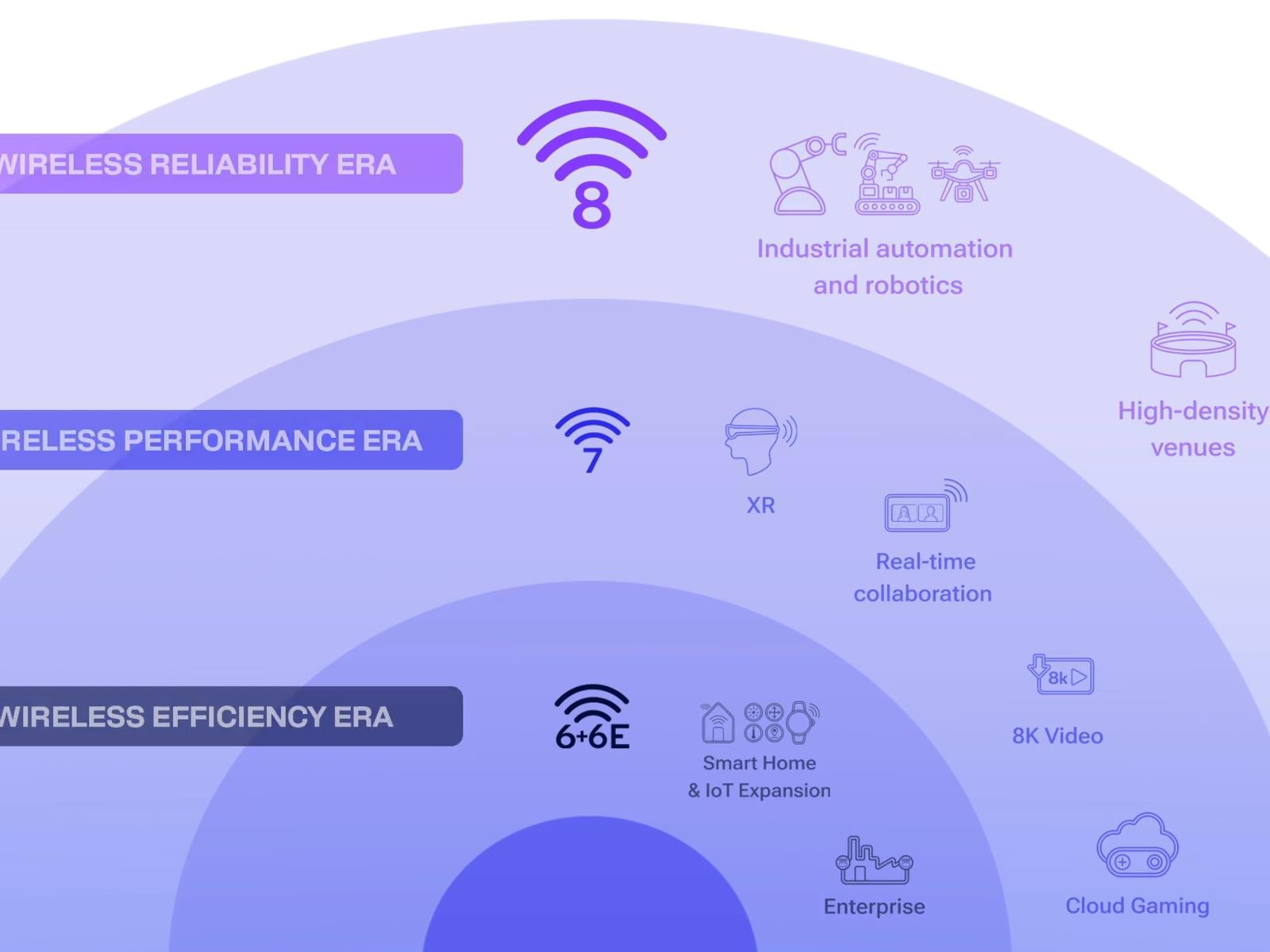
At Mobile World Congress 2026, Qualcomm is eagerly showing off its next-gen of “truly personal, always-on, intelligent wearable computing devices” powered by its Snapdragon Wear Elite platform, which includes support for Wi-Fi 8 and a built-in NPU. As Qualcomm notes, Snapdragon Wear Elite is the first NPU-powered wearable platform in the industry,
10 Hacks Every Facebook User Should Know
Facebook is clearly no longer the hot social media property it once was—younger generations are now far more likely to spend their time on TikTok, Snapchat, or Instagram—but there are still billions of people logging into the Facebook site and mobile apps each month.
During its 20+ years of existence, Facebook has added a whole host of features and options on top of its platform, and branched out in multiple different areas. There’s plenty on offer in the modern-day Facebook that you may not know about.
Whether you’re using Facebook daily or you haven’t touched your account for months, these hacks and tips will help you get more from the app: Find out how to stop people from tagging you, how to clear your tracks on Facebook, how to look back on a friendship, and more.
Adjust the algorithm to limit AI slop in your Facebook feed
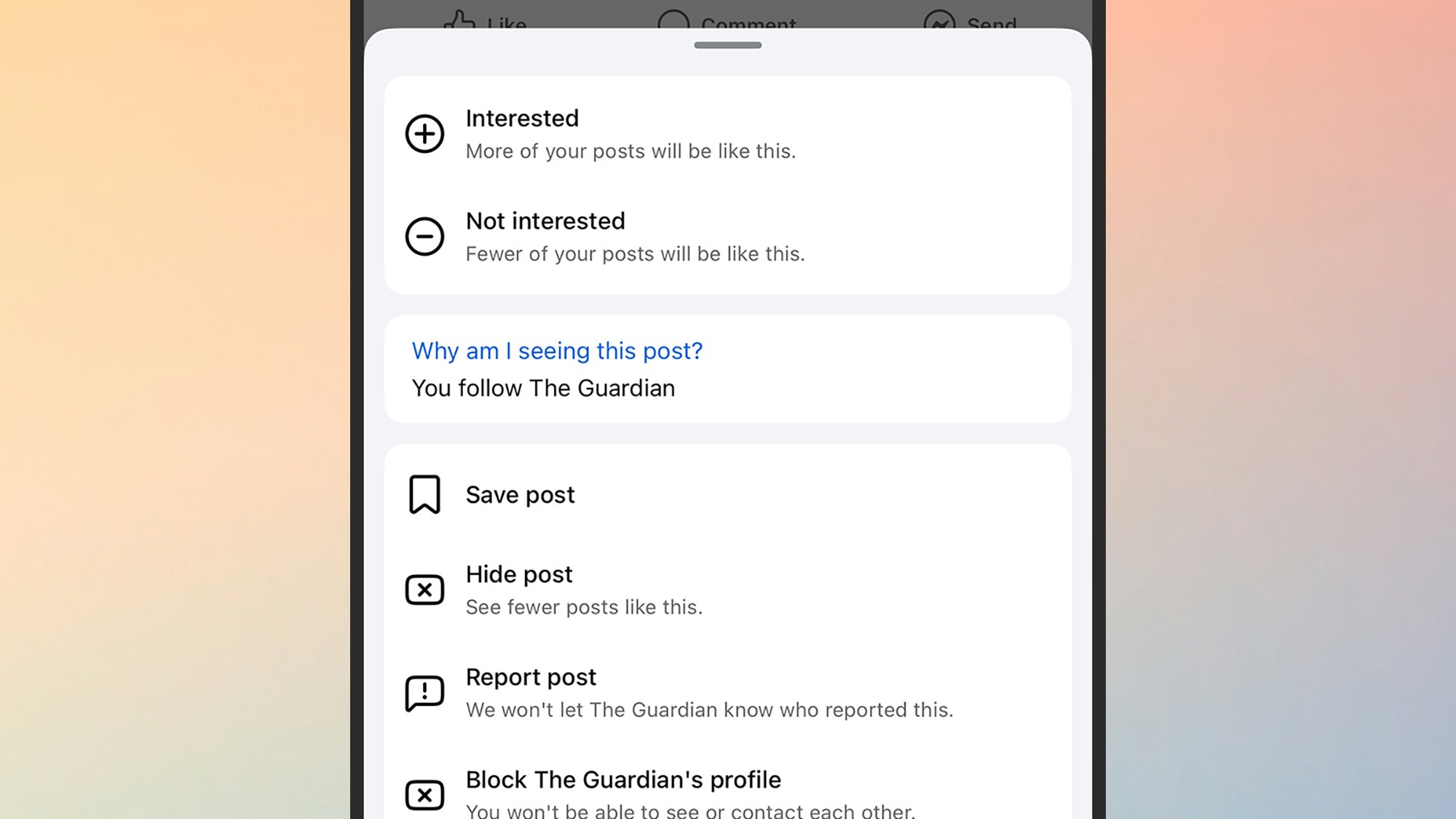
Let the Facebook algorithm know what you’re interested in.
Credit: Lifehacker
Credit: Lifehacker
The Facebook algorithm isn’t always well tuned to your tastes and interests, and that might extend to AI slop as well as friends and family members you don’t particularly want to hear from. The solution is to give the algorithm a few nudges in the right direction.
Tap or click on the three dots in the top right corner of any post in your news feed, and you’ve got a few options: You can tell Facebook you’re not interested in something, mute posts from this source for 30 days, or permanently hide this person or page.
There are also options to tweak the algorithm in the other direction—select Interested if you want to see more of this type of content in your feeds.
Change your privacy settings to stop other people from finding you on Facebook
Facebook can cause you problems when it comes to people from your past reaching out, wanting to know how you’re getting on these days. While it can make for some serendipitous reconnections, there may well be old colleagues, friends, and relatives you’d rather not hear from every again.
You can control how available you are on Facebook by heading to the website and clicking your profile picture (top right). Choose Settings & privacy > Privacy Center > Common privacy settings > Profile information and then select your Facebook account. On the next screen, select How people can find and contact you.
There are a few settings you can tweak here: You can stop people finding you through your email address or phone number, and you can stop your Facebook profile from showing up in web search results. You can also decide whether message requests from people who you’re not connected to make it into your main inbox.
Choose who you want to see your Facebook posts
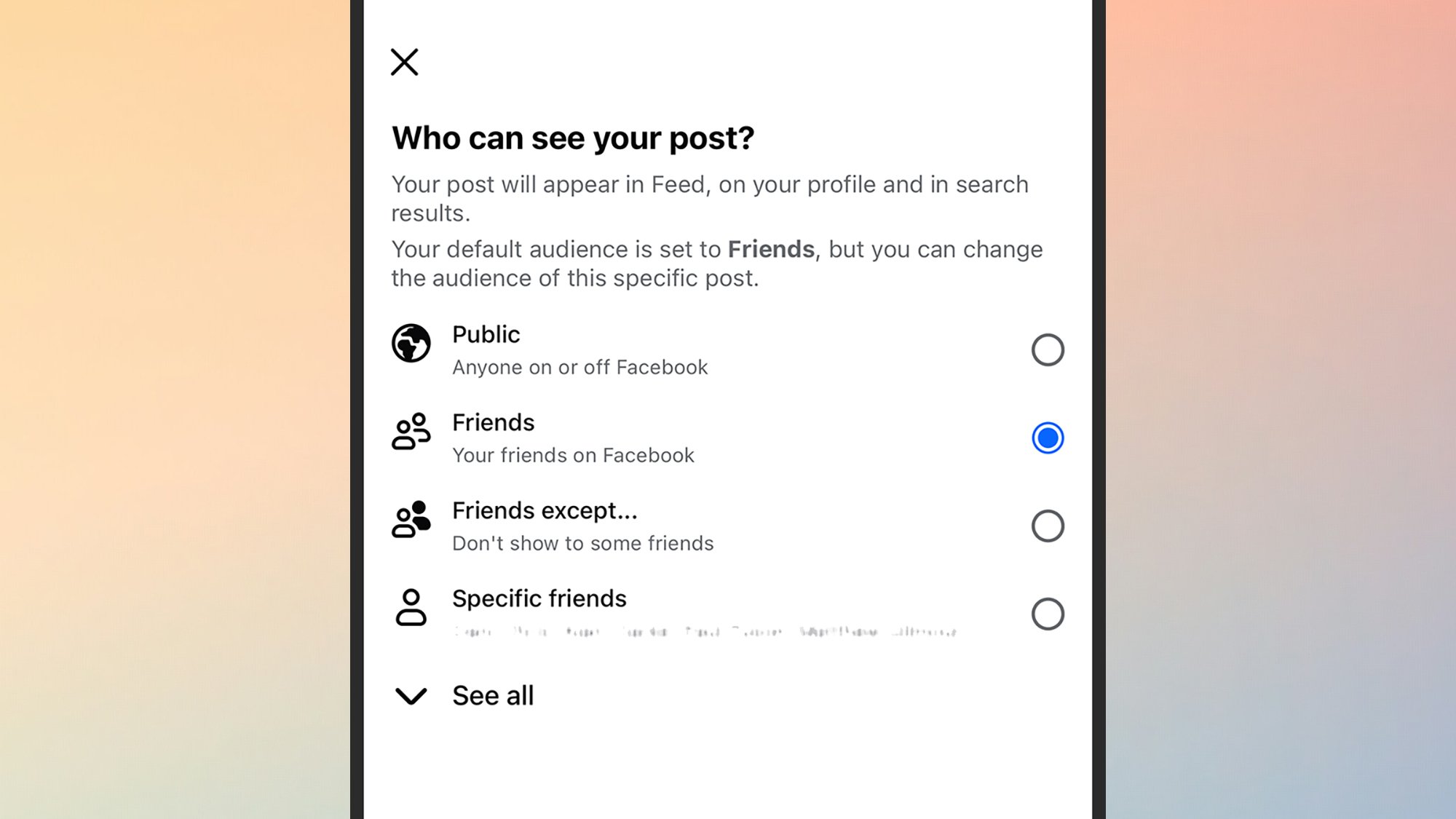
Your posts on Facebook can be visible to specific groups of people.
Credit: Lifehacker
Credit: Lifehacker
Just like on Instagram or Snapchat, you can limit the audience for certain posts—though it’s not immediately obvious where the option is. When you’re composing a post, you need to tap on the Friends drop-down list just below your name (it might say something else, like Public, if you’ve already changed the audience for posts).
The menu you see next lets you limit the post to any group of Facebook friends you like: Whether it’s two people or 200 people. You can either specify the friends who can see the post, or the friends who can’t, and you can make new custom lists of contacts by going to your friends directory and choosing Create List.
See your entire Facebook friendship history with someone
There’s quite a cool way of looking back on the moments you’ve shared with a Facebook friend—at least on this particular social media platform, anyway. Head to the Facebook profile page of a contact, then click the three dots on the right and See friendship.
You then get shown photos, posts, and events you’ve both been involved in. Assuming you both use Facebook fairly often, it’s a nice trip down memory lane (you might also see some of this shared content in your feed when your friend has a birthday).
Undo your activity on Facebook
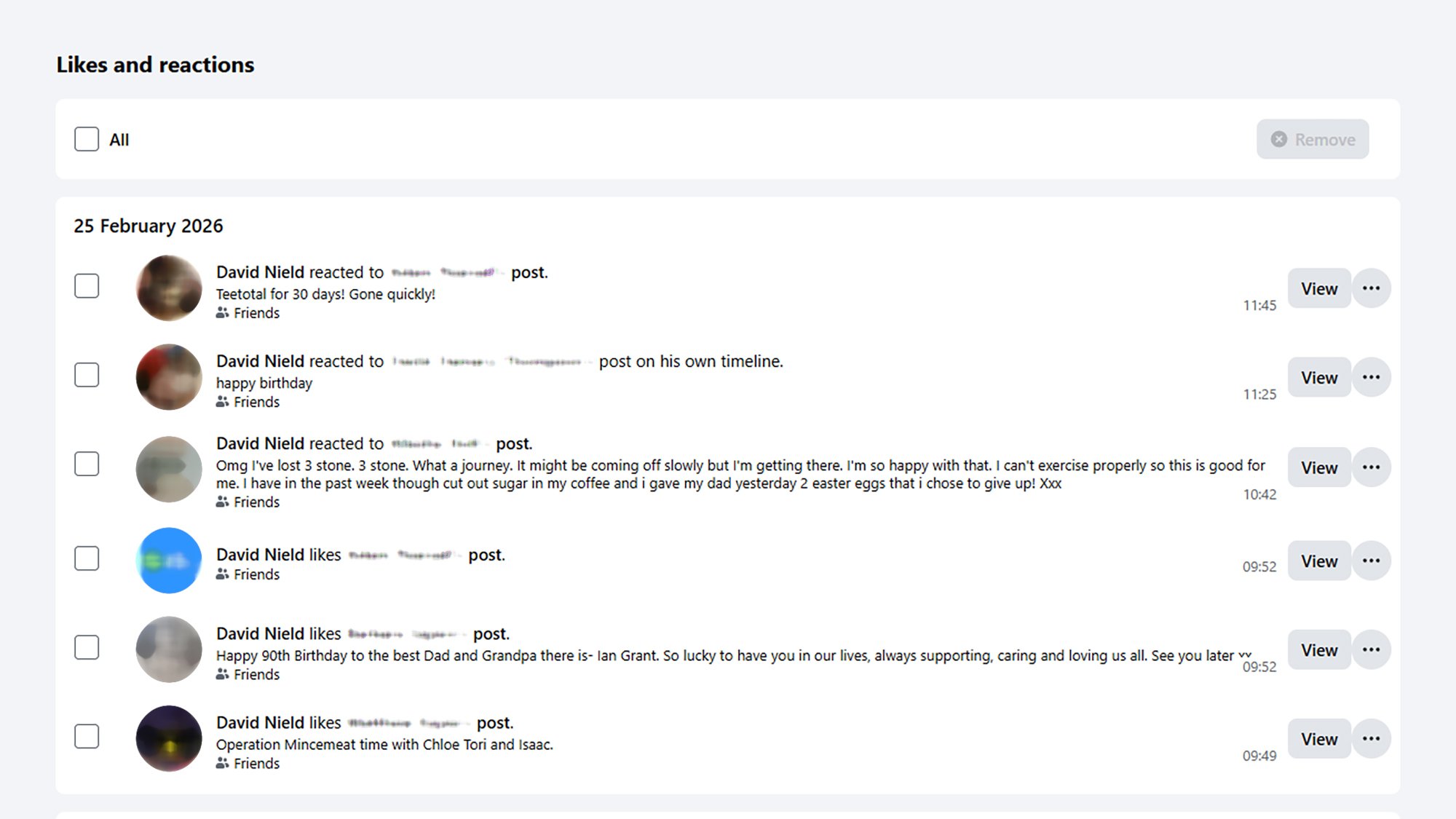
You can remove a reaction you’ve left on Facebook.
Credit: Lifehacker
Credit: Lifehacker
If you’ve logged a comment or a like on Facebook that you later regret, you can take it back: On the web, click your profile picture (top right), then pick Settings & privacy > Activity log. This is a record of everything you’ve done on Facebook.
Choose Comments to get to your comments and likes, and to remove them if necessary. You can also delete posts you’ve made, and searches you’ve run on Facebook—it’s a central hub for viewing and managing your digital tracks on the social media app.
Download and save your Facebook photos
Facebook used to be the best place to post photos, and it may well be that you’ve got a ton of pictures on the platform that you haven’t saved anywhere else. Maybe you took them before photo backup from phones was so seamless—or perhaps they were snapped with an actual camera and scanned in (remember that?).
You don’t have to go through images and videos individually to get all this content exported from Facebook and put somewhere else (like Google Photos). On the web, click your profile picture (top right), then Settings & privacy > Settings > See more in Accounts Center > Your information and permissions.
Finally, you will see the Export your information option: This lets you get all of your data out of Facebook, including pictures, posts, and messages. Be sure to choose the Higher quality option for Media quality to get the best versions of your images and videos.
Stop people from tagging you on Facebook
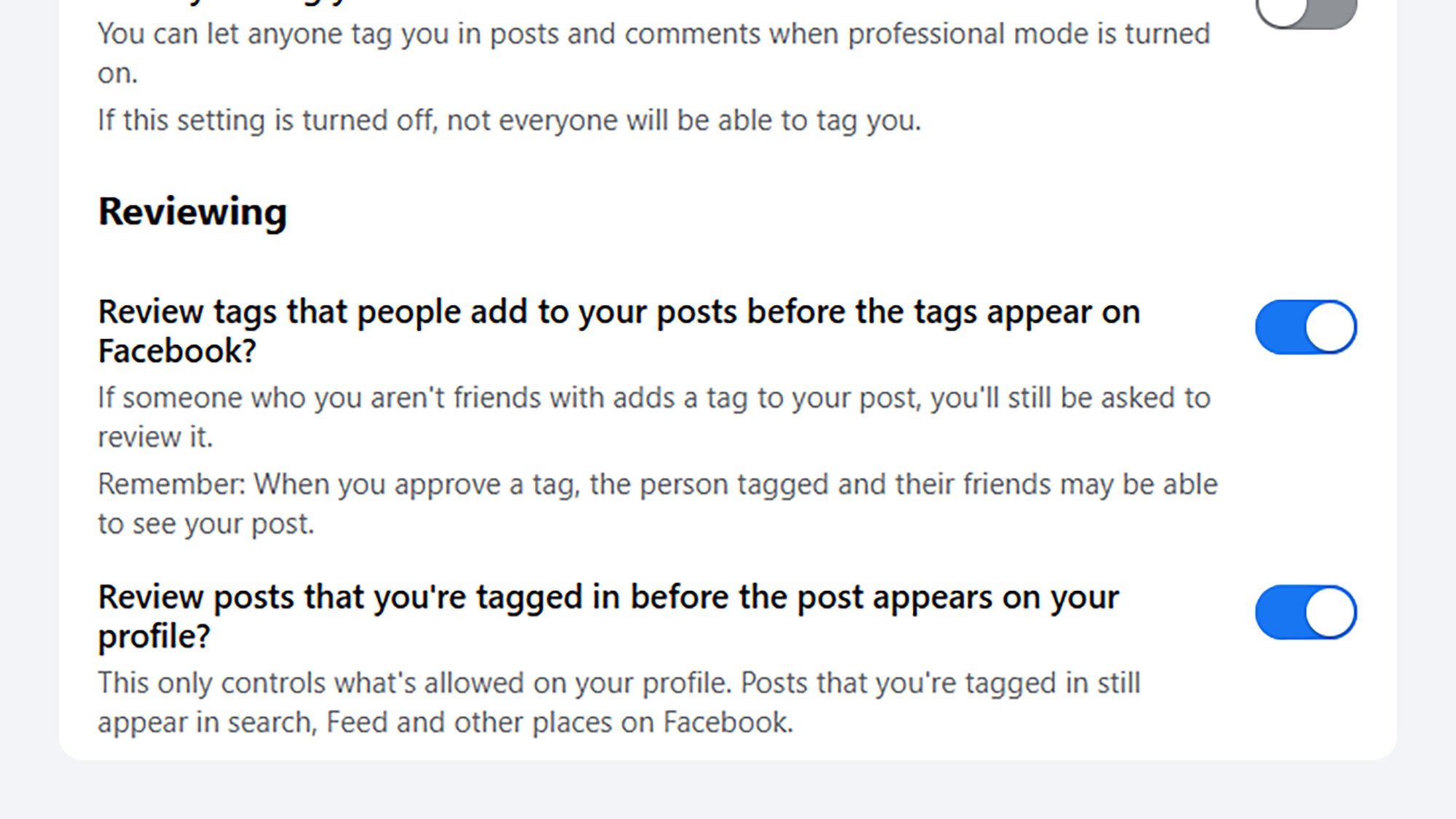
Facebook lets you manually review posts you’re tagged in.
Credit: Lifehacker
Credit: Lifehacker
You don’t necessarily want other people tagging you in pictures and other content (which means these posts will then be visible to your network too). You can enable manual tagging approval to stop this from happening: On the web, click your profile picture (top right), and select Settings & privacy > Settings > Profile and tagging.
When you’ve enabled tag reviews, you’ll get notifications on Facebook when someone else tags you. You then have the option to approve or block the tag (the tagger won’t be notified directly, but may notice if the tag hasn’t been accepted).
Control the type of ads you see on Facebook
Adverts are an inescapable part of the Facebook experience, but you can at least take some control over the types of ads you see, and from which companies. On the web, click your profile picture (top right), then choose Settings & privacy > Privacy Center > Common privacy settings, and Manage in Accounts Center under Ads preferences.
There’s lots you can do here: You can change the categories of adverts you see, hide ads from specific advertisers, and even access ads you might have saved—so if there’s a purchase you do want to make and didn’t get around to, you can do that here.
Keep your conversations on Facebook secret
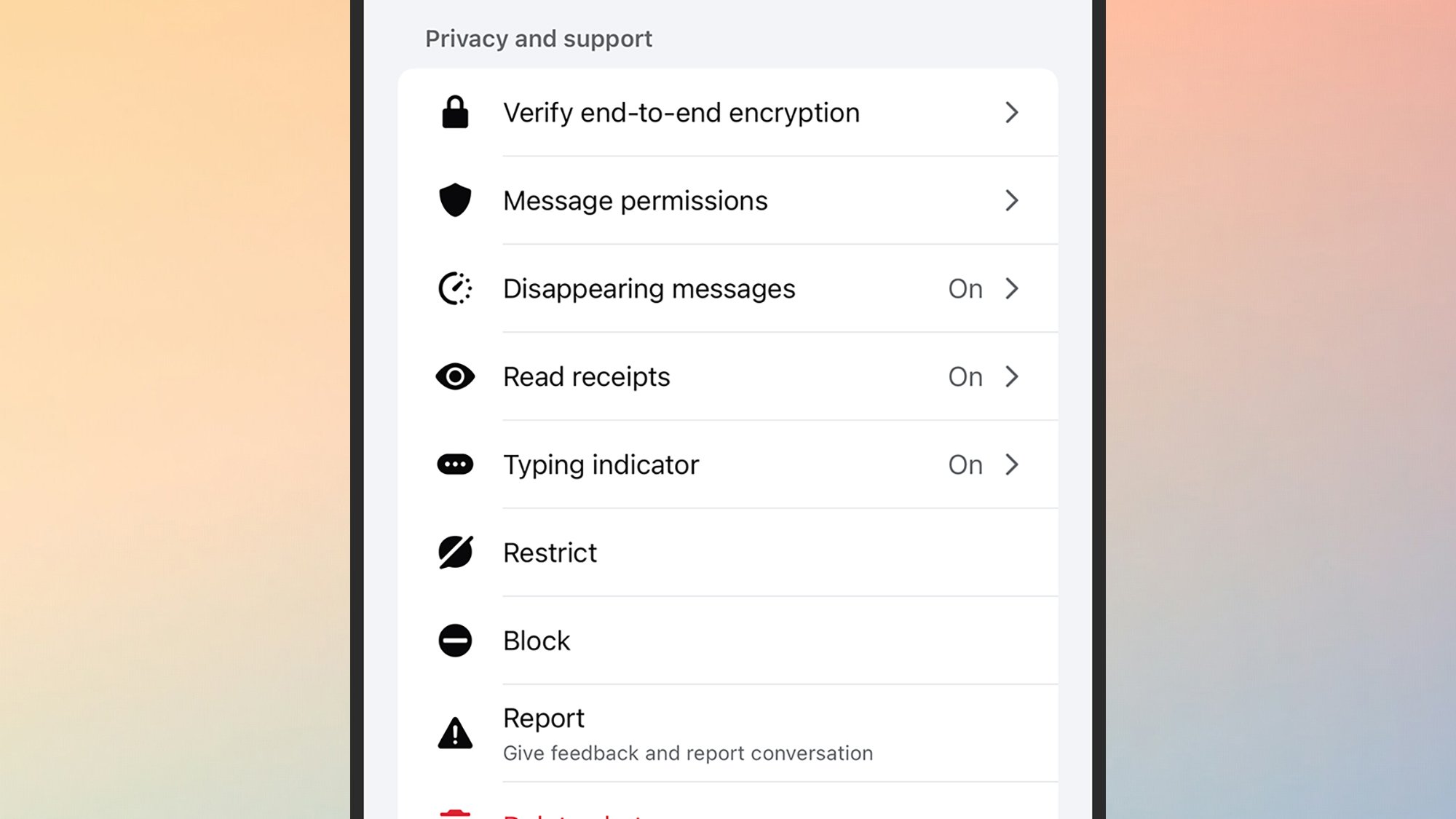
Facebook Messenger chats can disappear automatically.
Credit: Lifehacker
Credit: Lifehacker
Some of us will be using Facebook Messenger far more than the main site, and the messaging component of the platform can be tweaked and customized in multiple ways. For example, you can set messages to disappear after a set amount of time if you’d rather keep conversations off the record.
From inside a Facebook Messenger chat on mobile, tap the contact or group chat name at the top, then pick Disappearing messages. Note that the setting you choose will be applied to all messages from every sender, and a notification will be posted to the chat if you make a change.
You can give nicknames to your friends and family on Facebook
If you want to add some spice to a group chat, you can assign a nickname to the contacts in it: Tap on the group name at the top of the chat, then choose Nicknames. Bear in mind that everyone else will see the nicknames you set (and can change them to something else), and that you can use nicknames or real names when tagging people in the chat.
Microsoft Bans ‘Microslop’ On Its Discord, Then Locks the Server
Over the weekend, Windows Latest noticed that Microsoft’s official Copilot Discord server began automatically blocking the term “Microslop.” As shown in a screenshot, any message containing the word is automatically prevented from posting, and users receive a moderation notice explaining that the message includes language deemed inappropriate under the server’s rules. From the report: Windows Latest found that sending a message with the word “Microslop” inside the official Copilot Discord server immediately triggers an automated moderation response. The message does not appear publicly in the channel, and instead, only the sender sees the notice stating that the content is blocked by the server because it contains a phrase deemed inappropriate.
Of course, the internet rarely leaves things there. Shortly after Windows Latest posted about Copilot Discord server blocking Microslop on X, users began experimenting in the server with variations such as “Microsl0p” using a zero instead of the letter “o.” Predictably, those versions slipped past the filter. Keyword moderation has always been something of a cat-and-mouse game, and this isn’t any different.
What started as a simple keyword filter quickly snowballed into users deliberately testing the restriction and posting variations of the blocked term. Accounts that included “Microslop” in their messages first got banned from messaging again. Not long after, access to parts of the server was restricted, with message history hidden and posting permissions disabled for many users.


Read more of this story at Slashdot.
AMD Unveils Ryzen AI 400 Series For Next-Gen AI PC Power On AM5 Desktops

AMD told us at CES 2026 that it would be bringing its Ryzen AI 400 processors to desktop at some point, and naturally it announced those chips today, because why wouldn’t you announce desktop CPUs at Mobile World Congress? Yes, indeed; AMD’s bringing its latest mobile silicon to the desktop market, and a sentence like that gets integrated
In a Hotter, Wetter South, Mold Is Emerging as a Public Health Crisis
In Asheville, North Carolina, a housing crisis is colliding with a poorly understood health threat.
10 Hacks Every Snapchat User Should Know
Snapchat launched all the way back in 2011, and has had quite the journey since: It practically invented the stories format that every social media platform uses, and helped drive the shift from public and permanent online sharing to the more private and temporary approach most of us prefer today.
The app is also packed with more features than you might be aware of—in fact, it could reasonably claim to be the most capable and versatile social media app out there. From location alerts and data saving, to custom notifications and clever camera tricks, here’s how to get the most out of Snapchat.
Use Snapchat’s buried Data Saver mode to use less storage and prolong your battery life
Snapchat comes with a Data Saver mode that does exactly what it sounds like—it saves on data usage. Snaps and stories won’t load automatically in the background like normal, so you’ll need to manually tap them to trigger the download and see the media. This helps when you’re traveling and away from reliable wifi, and because there’s less background downloading going on, you should save a little battery life too. To enable it, from your profile, tap the cog icon (top right) to open the app settings, then tap Data Saver.
Get notifications only for specific Snapchat stories
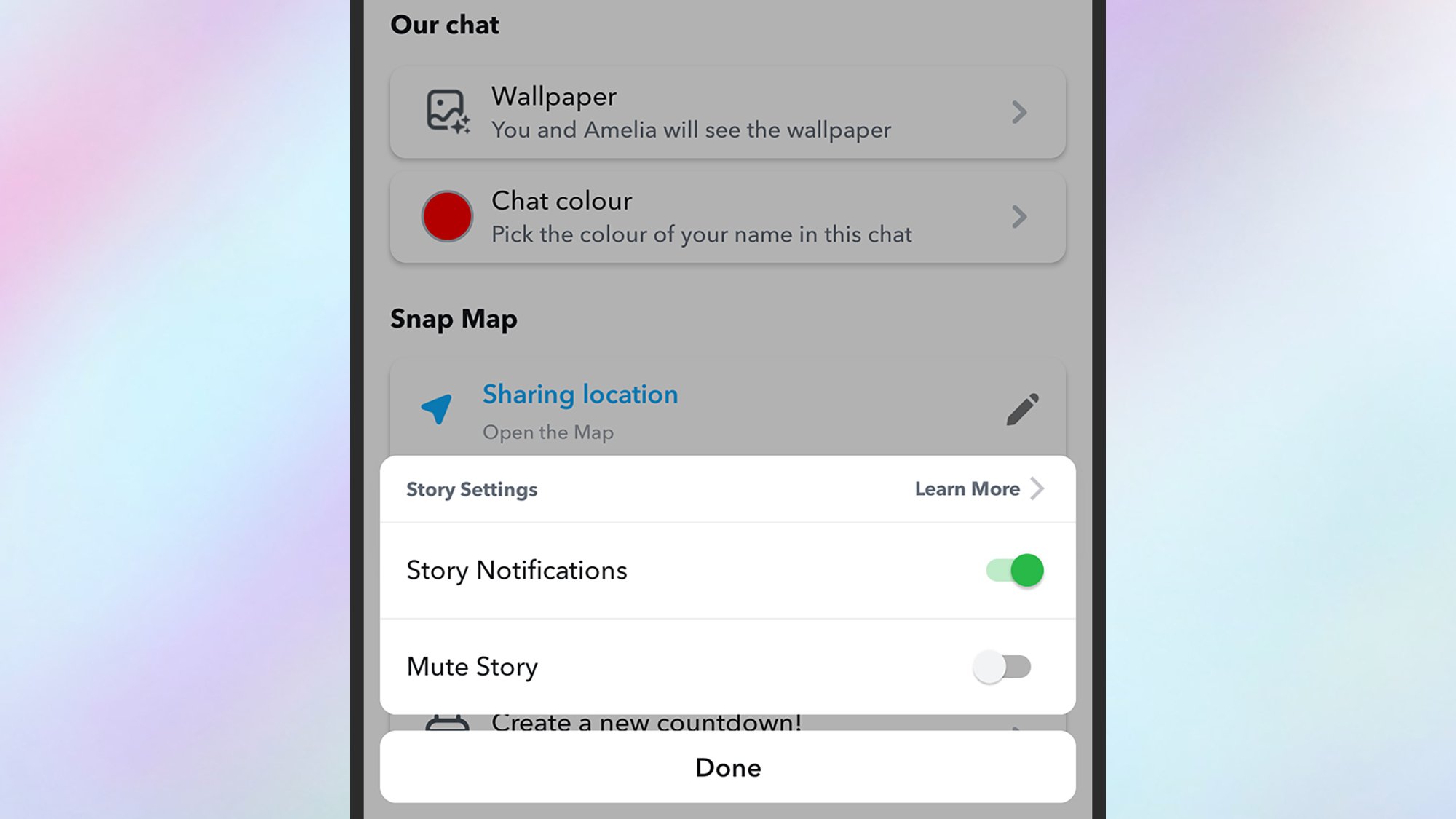
Get notifications for specific stories.
Credit: Lifehacker
Credit: Lifehacker
There’s a lot going on in Snapchat, so if you’ve got a significant number of friends, you can quickly get overwhelmed with notifications—especially when it comes to stories. With a little bit of tweaking, you can just get alerts for the stories you care about most.
From your profile page, tap the cog icon (top right), then Notifications—from here you can turn off notifications for stories generally. You can then add story notifications specifically for your favorite contacts, one by one. Tap through to the friend’s profile page, then tap on the three dots (top right): Choose Story Settings > Story Notifications to make sure you get alerts for this particular person.
You can create snaps with multiple cameras at once
You don’t have to limit yourself to just one camera for your snaps: You can capture photos and videos from both the selfie and rear cameras on your phone simultaneously, so you can comment on or react to what you’re seeing. When you’re in the main capture screen, tap the drop-down arrow on the right, then pick Dual Camera. Tap on the Dual Camera icon again to choose from four layout options—including one where a cut out of you gets superimposed over the main view.
Use Snapchat’s Snap Map to let someone know when you’ve arrived safely
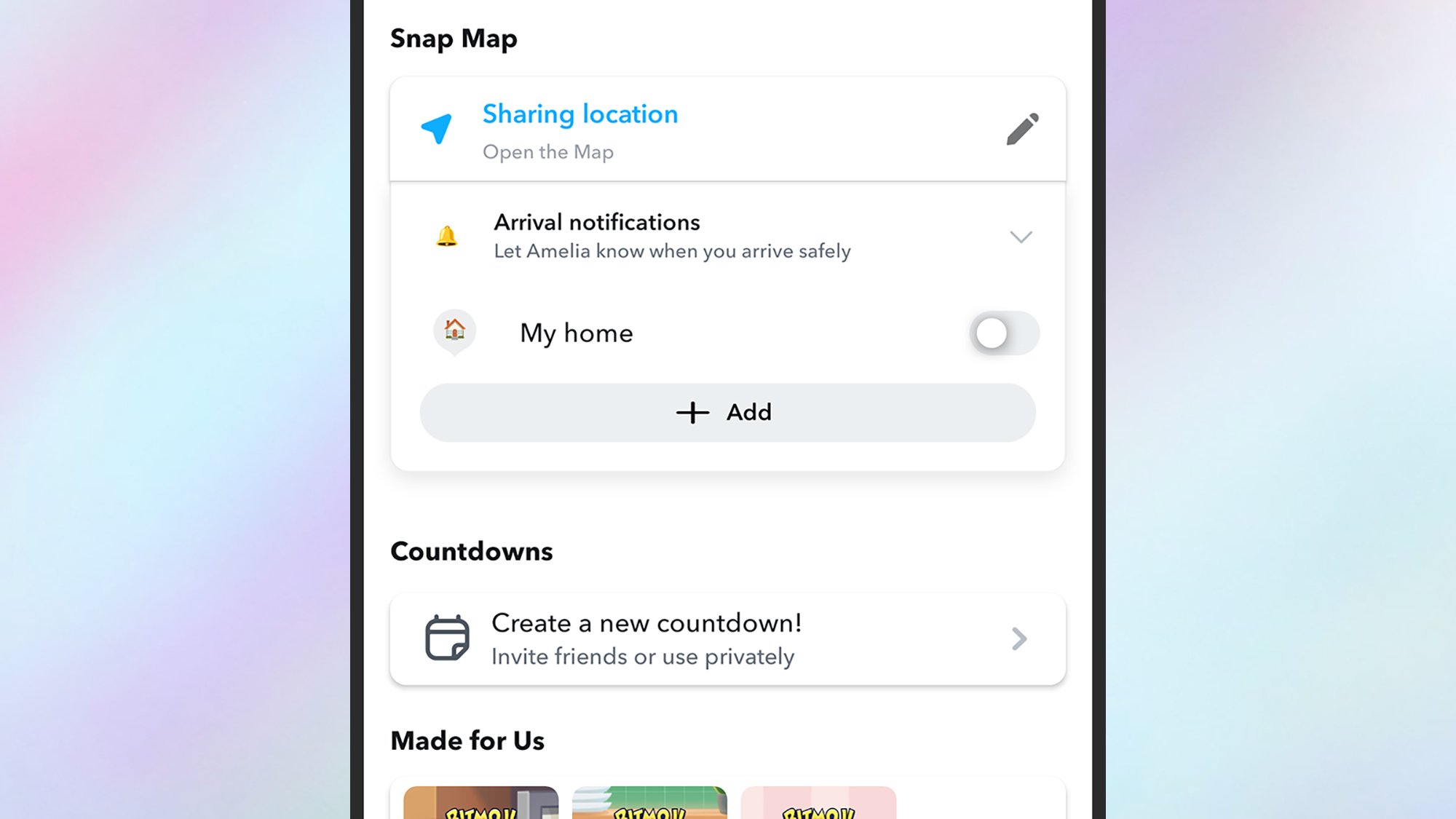
You can set up location alerts for trusted friends and family.
Credit: Lifehacker
Credit: Lifehacker
This isn’t something that you’ll want to use widely, but it’s handy for family members and partners: As an extension of the Snap Map location sharing feature, you can also ping a specific contact when you get home (or arrive at any other place on the map).
Head to the contact’s main profile page, tap the three dots (top right), then choose Arrival notifications. You can pick My home, or tap Add to set up another location—it could be school, football practice, or whatever you like.
Let your friends decide if they want to view your custom Snapchat stories
One of Snapchat’s most appealing features is the way you can create custom stories for custom audiences, and these can be set up from your profile page: Just tap New Story. However, you don’t have to pick the contacts who can view your story yourself—you can let your friends decide if they want to get involved instead.
Once you’ve created a story, create a new snap in the usual way, then tap the sticker icon (top right), and Story. This lets you post an invite link to any of your stories, so your contacts can decide for themselves whether they want to see your vacation adventures or thousands of your pet pictures.
The snap can be posted to individuals, or to one of your other stories, so you still get full control over who can see what (and you can kick out story viewers at any time).
You can search through your Snapchat memories
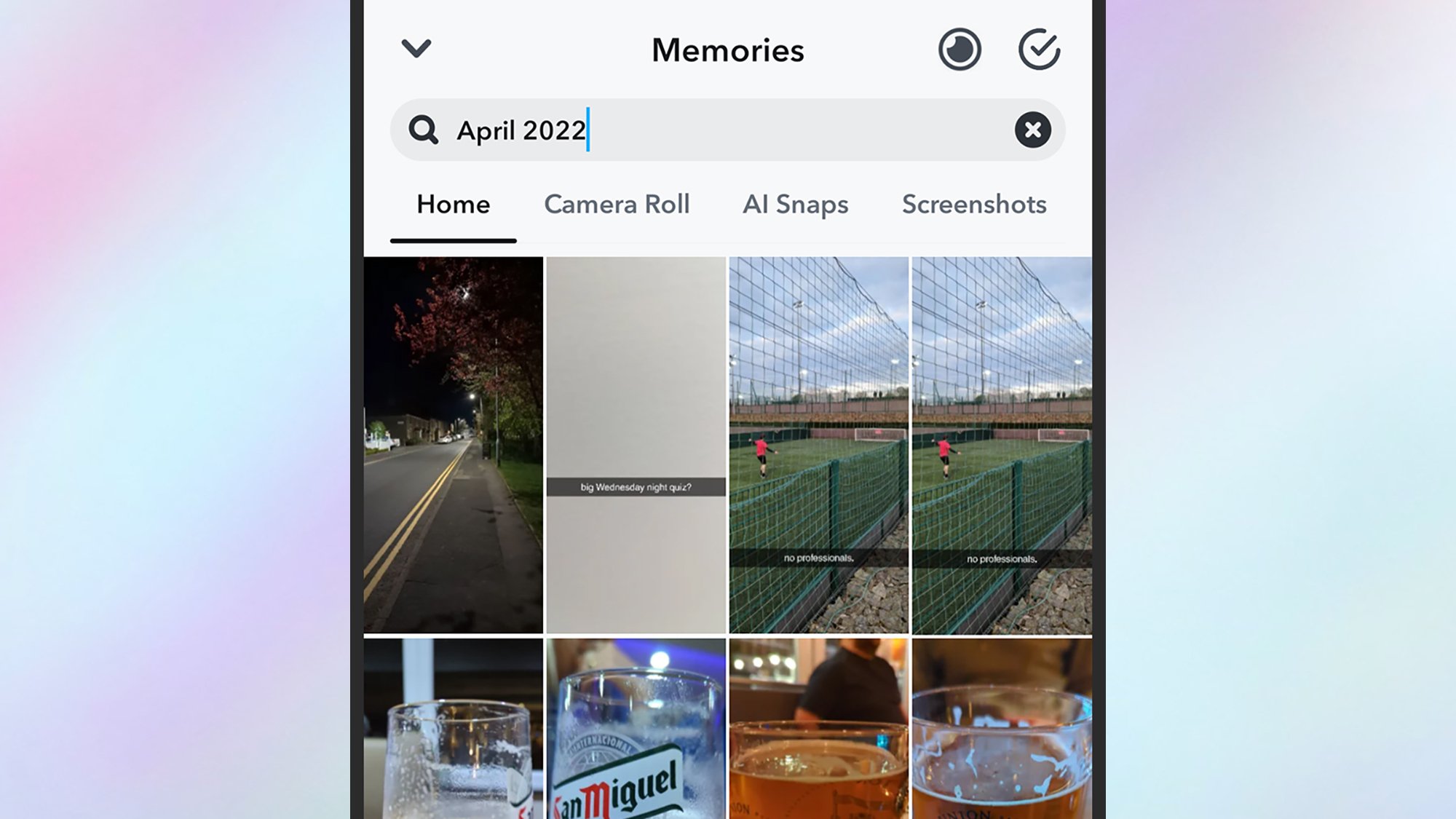
There are some powerful search options for your Snapchat memories.
Credit: Lifehacker
Credit: Lifehacker
Snapchat is focused on content creation, which means you may not realize how much you can do with the photo and video memories that the app builds up for you. From your profile page, tap the three dots (top right), then Memories to make sure they’re being saved (you can also save individual snaps as you capture them).
You can get to your memories later by tapping the image icon to the left of the shutter button on the main capture screen—and there’s a powerful search capability built right in. Try searching for pets, sunsets, locations, or dates (like “August 2023”) and you’ll get results back more or less instantly.
You’ll also see certain images and videos picked out by Snapchat and grouped as flashbacks, and any of your memories can be reposted again as snaps or stories (with new edits, if needed).
Yopu can permanently save your Snapchat chats
Snapchat is known for its ephemerality, but your pictures, videos, and text messages don’t have to disappear right after they’ve been viewed. You can keep them around for longer in certain conversations, turning the app into more of a conventional messaging tool.
From inside any of your one-to-one or group chats, tap the header bar at the top, then the three dots (top right). Choose Delete Chats and you can set them to never expire. You can also save images, videos, and text permanently by tapping and holding on them in the chat, then choosing Save in Chat.
You can make your own Snapchat stickers
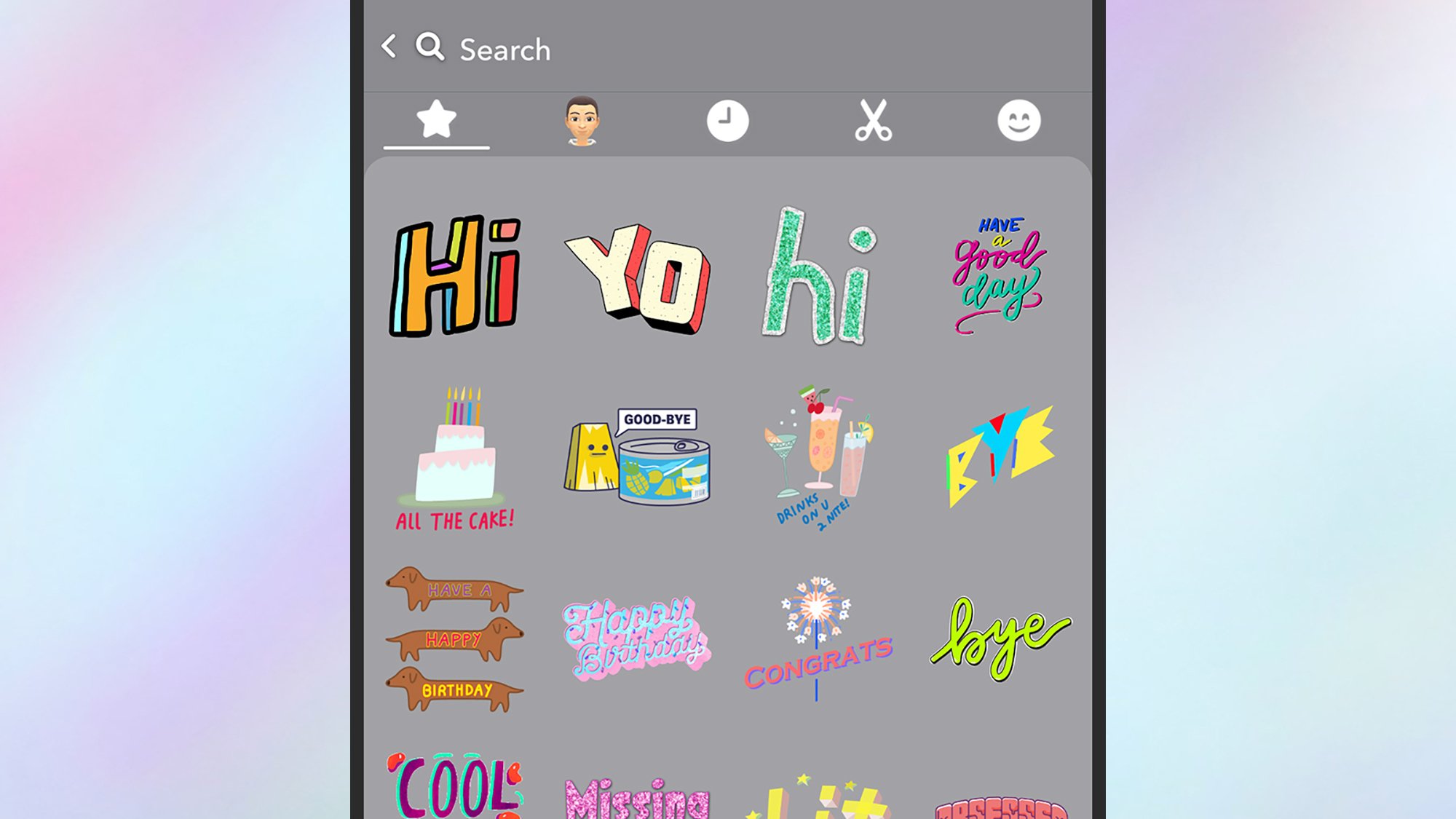
You can add your own stickers to the Snapchat selection.
Credit: Lifehacker
Credit: Lifehacker
Anything in your image and video snaps can be cut out as a sticker, ready to be used again in future posts. When you’ve captured the content, tap the scissors icon on the right, and you get three selection tools for picking out the sticker you want. Once you’ve done the cutting, you can reposition the new sticker anywhere you want in the current snap, and find it in the future by tapping on the sticker icon in the top right corner of the capture screen.
You can also use Snapchat in a web browser
Snapchat isn’t just for mobile, and there’s an official web app that offers most of the features you get on Android and iOS. It also makes typing much easier, so if you use Snapchat as a general messaging app, this is something worth looking into. You can view stories on the web, and even send snaps—though you’ll be limited to using your computer’s webcam, so these will mostly just be snaps of your face and whatever room you happen to be in.
Snapchat has a hidden dark mode—and other themes
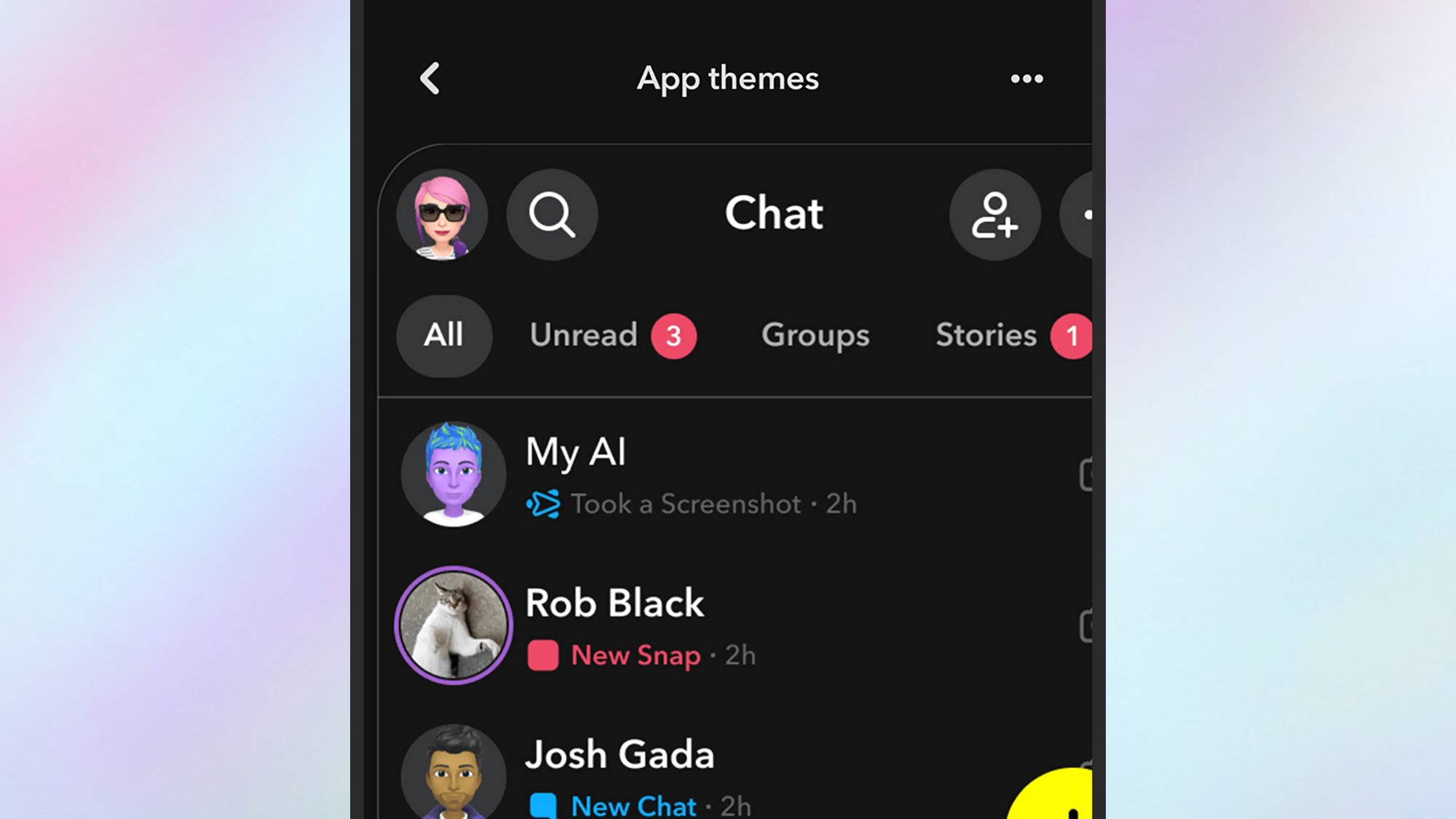
A dark mode for Snapchat is available.
Credit: Lifehacker
Credit: Lifehacker
There are a variety of different themes for Snapchat on mobile that you can choose between, though these options are pretty well hidden in the app. From your profile page, tap the cog icon (top right), then choose App appearance to get to the themes. Swipe left and right to cycle through them, including light and dark modes and numerous others. If you’re a Snapchat+ subscriber ($3.99 a month), the benefits include being able to customize individual theme elements yourself.
Amiga Workbench Simulator Helps You Pick Your Ultimate Retro Desktop In Your Browser
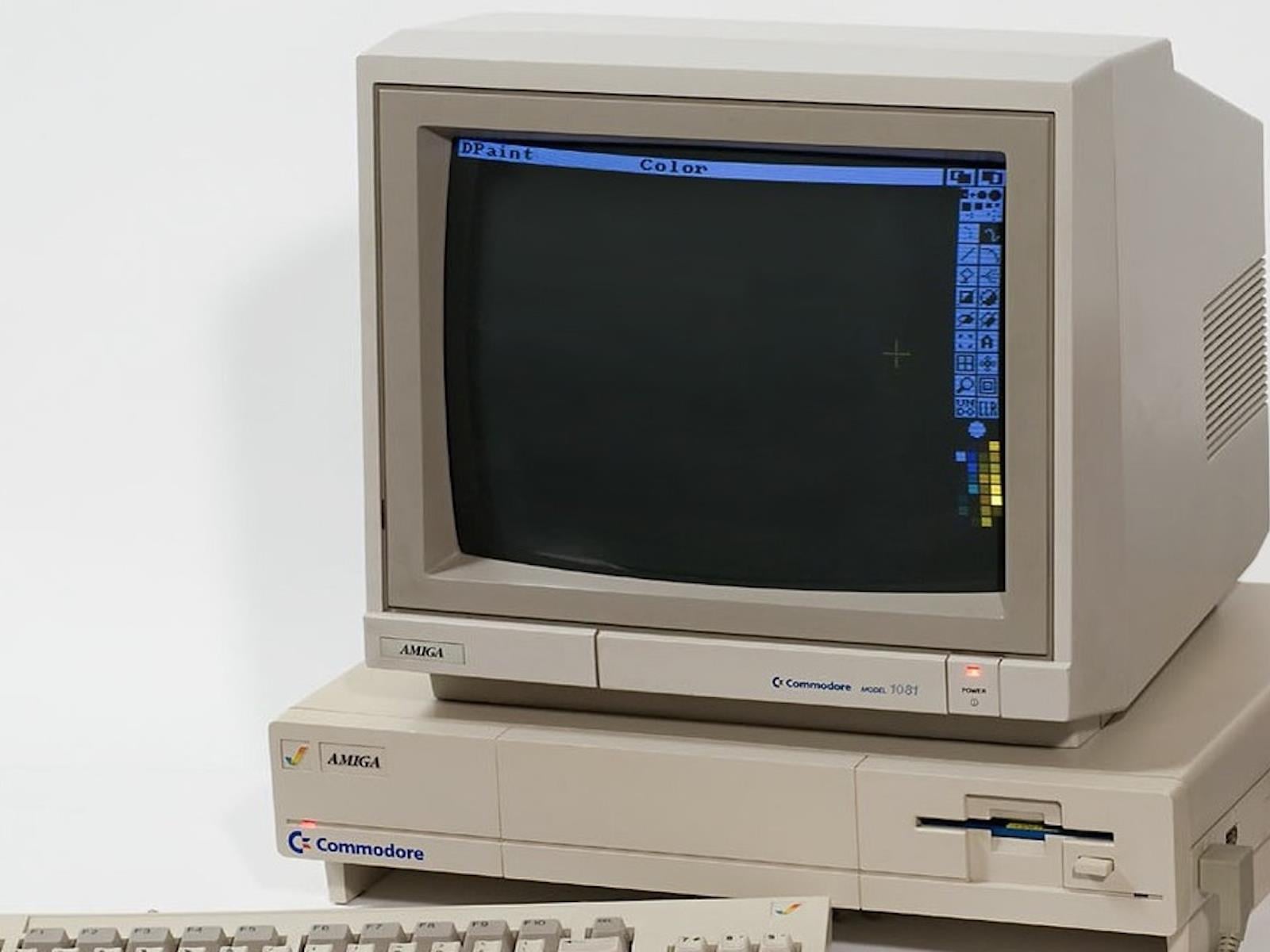
We’re in the midst of a classic computing revival, with numerous recreations of older hardware, such as THEC64 Mini and the Amiga A1200. This retro goodness isn’t limited to just hardware, though. Enthusiasts are contributing with interesting software projects like The Amiga Workbench Simulator (TAWS) as well.
TAWS has been a labor of love
Starlink’s next-gen satellite network could provide 150 Mbps speeds by end of next year
Starlink is getting ready to launch its second generation of satellites, and it’s expected to match the speeds of a traditional terrestrial network. During a keynote at Mobile World Congress, Starlink execs detailed the roadmap for the company’s upgrade towards the next generation of satellites called V2.
“The goal of Starlink Mobile … is to provide a terrestrial-like connectivity when you’re connected to the satellite system,” Michael Nicolls, SpaceX’s senior vice president of Starlink engineering, said during the MWC keynote. “In the right conditions, it should look and feel like you’re connected to a high-performing 5G terrestrial network.”
Nicolls detailed that the V2 satellite constellation could offer download speeds up to 150 Mbps in ideal conditions, comparing it to a broadband experience. According to Starlink, next-gen satellites will offer 100 times the data density of its predecessors, which should help users with faster streaming and browsing as well as more reliable voice calls. Notably, Nicolls added that the V2 satellite constellation would offer better coverage to Earth’s polar regions, which are known to have unreliable coverage with traditional networks.
Nicolls said that SpaceX is planning to send out more than 50 V2 satellites on each SpaceX launch starting in mid-2027, with a goal of building out a full constellation in six months. Outside its MWC presser, Starlink also announced a partnership with German telecommunications company Deutsche Telekom. The partnership would help Deutsche Telekom address internet coverage gaps in Europe using Starlink’s constellation, starting in 2028.
This article originally appeared on Engadget at https://www.engadget.com/science/space/starlinks-next-gen-satellite-network-could-provide-150-mbps-speeds-by-end-of-next-year-192118368.html?src=rss
Arizona Sunshine Remake & The Pirate: Republic of Nassau Are Quest’s Horizon+ Monthly Games This March
Arizona Sunshine Remake and The Pirate: Republic of Nassau are the Horizon+ monthly games on Quest for March.
March 2026 brings several new games to the Horizon+ Monthly Games Catalog, including the zombie slaughter-fest Arizona Sunshine Remake, and the swashbuckling adventure The Pirate: Republic of Nassau.
Beat Saber, GOLF+, Spatial Ops, and The 7th Guest VR also make their way to the catalog. Previously redeemed games will remain in your library while subscribed to the service.
Here’s what you need to know about this March’s offerings.
Arizona Sunshine Remake
0:00
/1:37
Arizona Sunshine Remake is the definitive updated refresh of 2016’s Arizona Sunshine, an award-winning VR shooter that debuted even before standalone VR. Arizona Sunshine Remake brings updated high-res textures, co-op multiplayer, delightfully gruesome gore, and includes all of the original game’s DLC and updates in one package. Our review said it best. “It’s hard not to recommend grabbing Arizona Sunshine Remake.”
The Pirate: Republic of Nassau
0:00
/0:46
In The Pirate: Republic of Nassau, you’ll command pirate ships and experience the early 18th century life as a true sea captain. Beginning in Nassau, the heart of pirate culture, you’ll engage in naval battles, recruit legendary pirates, explore and expand Nassau, and build your privateering fleet. Our review called it “a worthwhile golden age of piracy fantasy.”
The Pirate: Republic of Nassau Review: A Pirate’s Life for Me
Now available in its 1.0 version, The Pirate: Republic of Nassau is greater than the sum of its parts, offering a myriad of options to fulfill the pirate fantasy.
 UploadVRLuis Aviles
Horizon+ Games Catalog Games
Horizon+ continues offering a Games Catalog of Quest titles that any subscriber can access. Meta can add new games to and remove games from the catalog at any time. Here is the current Horizon+ Games Catalog in the US:
- Angry Birds VR: Isle of Pigs
- Asgard’s Wrath 2
- Assassin’s Creed Nexus VR
- Beat Saber
- Blacktop Hoops
- Cubism
- Deisim
- Demeo
- Demeo Battles
- Dungeons of Eternity
- Final Fury
- Fruit Ninja 2
- Ghosts of Tabor
- GOLF+
- Green Hell VR
- Grimlord
- Human Fall Flat VR
- I Expect You To Die 3
- iB Cricket
- In Death: Unchained
- Into Black
- Into the Radius
- Job Simulator
- Kingspray Graffiti
- Les Mills Bodycombat: Fitness Workouts
- Maestro
- Medieval Dynasty New Settlement
- Moss
- Onward
- Pets & Stuff
- Pistol Whip
- Premium Bowling
- Project Demigod
- Puzzling Places
- Racket Club
- Real VR Fishing
- Red Matter
- Red Matter 2
- Spatial Ops
- Starship Home
- Synth Riders
- The 7th Guest VR
- The Climb 2
- The Light Brigade
- The Thrill of the Fight
- Thief Simulator VR: Greenview Street
- Titans Clinic
- Townsmen VR
- Walkabout Mini Golf
- War of the Worlds
- Zero Caliber: Reloaded
Horizon+ Indie Catalog Games
Meta continues to add new games to the separate Indie Games Catalog, and you can see the entire list here.
- Alvo
- Apex Construct
- Arcade Paradise VR
- Battlenauts
- Bocce Time!
- Cactus Cowboy – Desert Warfare
- Chess Club
- Coffee Quest VR
- Crumbling
- Cybrix
- Darksword: Battle Eternity
- DIG VR
- Disc Frenzy
- Discovery 2
- Elysium Trials
- Espire 1: VR Operative
- Final Overs – VR Cricket
- Galaxy Kart
- Ghost Signal: A Stellaris Game
- Gravity League: Galactic Football
- Hide The Corpse
- I Am Hamster – Simulator
- Innkeeper VR
- Ironlights
- IRON GUARD
- Killer Frequency
- LAX VR
- Laser Thief
- Make It Stable – Kids & Family Fun!
- Motion Soccer PRO
- Mythic Realms
- Noun Town Language Learning
- Operation Serpens
- Retropolis 2: Never Say Goodbye
- Rogue Ascent VR
- Rogue Piñatas: VRmageddon
- RUNNER
- Shooty Fruity
- Slot Car VR
- Space Elevator
- Squingle
- Stupid Cars
- Sushi Ben
- Tactica
- Taiko Frenzy
- The Curious Tale of the Stolen Pets
- The Pirate Queen with Lucy Liu
- The Secret of Retropolis
- The Wizards
- Tiny Archers
- Towers and Powers
- ULTIMATE SWING GOLF by Clap Hanz
- Underworld Overseer
- Vibe Punch
- We Are One
- Windlands 2
Meta Horizon+ is a subscription service that gives players access to a monthly selection of games for $7.99 USD per month, or $59.99 USD a year. New users can give Meta Horizon+ a try for a month.
Raceclub Impressions: Just One More Lap
Raceclub is a made-for-VR love letter to formula racing that has you literally chasing ghosts in a promising, addictive work-in-progress.
I sat down with Raceclub, which just released on Meta Quest in Early Access, intending to only play about two hours. This is first impressions, not a full blown review, so I just need to get a feel for the game. Two dead extra batteries and a fully drained Quest 3 later, Raceclub had pulled off the VR trick of making me forget I was sitting in a chair awkwardly holding my controllers in mid air.

The Facts
What is it?: A formula-style racing game
Platforms: Meta Quest (played on Meta Quest 3)
Release Date: February 26, 2026 (Early Access)
Developer and Publisher: Mixer Lab Games
Price: $ 12.99
Raceclub offers two types of vehicles: Formula V12 is a more traditional F1 style car and Formula Electric is inspired by Formula E with an electric engine. Past that, cars can be customized with multiple color options and decals and racing has multiple viewing angles. First person views included a traditional cockpit look, the ‘snorkel’ position just behind the driver, the nose of the car, and one seemingly on the track itself under the car. For those prone to motion sickness, there is a third person view behind the car.
There are two modes available to play. In the time attack mode, there are three ghost cars on the track: the car one space ahead on the global leaderboards, a replay of your personal best lap (after you complete one lap), and a replay of the best lap on the top of the leaderboard. I spent over two hours just in this mode, trying to shave milliseconds off my time to improve.
0:00
/0:22
The other mode is a 1v1 ‘duel’ vs an AI driver. If the AI’s lap time is beaten, a new, faster opponent appears on the next lap, consistently ramping the challenge up as your skills improve. A third, eight-car race mode against AI, is currently unavailable.
One important note is Raceclub does not have vehicle collisions, a (missing) feature that may put some players off. It was odd to phase right through a translucent car instead of crashing, but I quickly stopped caring. I just needed a new personal best.


Two views of the electric car in Raceclub captured by UploadVR
One feature I wrote off as immersion breaking when I first saw it, but then realized its purpose is the ‘line’ visualization. It is a visual marker that runs through the entire track of the perfect racing line to take. Trying to keep my car on that line was part of what kept me playing. Every time I messed up and got off that line, I ran another lap to try again. It is a simple, but remarkably effective mechanic.
This is still an Early Access game though, meaning there is room to grow. Half of the tracks are listed as coming soon along with the eight-car race mode. Visually, the game is decent. Admittedly, there is no time to stop and admire the surroundings when chasing ghosts, but while on straightaways I had a second or two to look around and everything looked fine, but nothing stood out. The most glaring feature missing though, is multiplayer.
Comfort
Raceclub is a high speed racing game with a high sensation of simulated speed. For newer VR users, the third person view, above and behind the car is highly recommended.
There have been a lot of racing games on Quest, from kart racers like Dash Dash World and Galaxy Kart to more serious titles like EXOcars, Downtown Club, and Grid Legends. I’ve played them all, but nothing has quite pulled me in like Raceclub did. Without the horsepower to run the likes of Gran Turismo 7, Assetto Corsa, or EA’s F1 series, this is already a top notch effort on Meta Quest with room to grow.
Raceclub is available now in Early Access on Meta Quest for $12.99.
Trump’s Neck Looks Like It Needs A Green Herb

The President of the United States has a rash or is becoming a zombie, take your pick
Motorola Partners With GrapheneOS
At MWC 2026, Motorola announced a partnership with the GrapheneOS Foundation to bring the hardened, Google-free Android variant to future devices. Until now, the OS had been designed exclusively for Google Pixel phones. “We are thrilled to be partnering with Motorola to bring GrapheneOS’s industry-leading privacy and security-focused mobile operating system to their next-generation smartphone,” a GrapheneOS statement reads. “This collaboration marks a significant milestone in expanding the reach of GrapheneOS, and we applaud Motorola for taking this meaningful step towards advancing mobile security.”
GrapheneOS is a privacy and security focused mobile OS with Android app compatibility developed as a non-profit open source project. It’s often referred to as the “de-Googled OS” because Google apps are not available by default. However, users can install them via a sandboxed version of Google Play Services.


Read more of this story at Slashdot.