One of the Mac’s Best Productivity Apps Is Now on Windows

Raycast is one of the best things to happen to Windows. It brings one of my favorite Mac apps to Microsoft’s operating system. In fact, I’ve enjoyed using Raycast for Windows so much, I can’t see myself going back to the non-Raycast life. This app is free to download and use, though there is an optional paid subscription for those who want certain additional features.

What is Raycast?
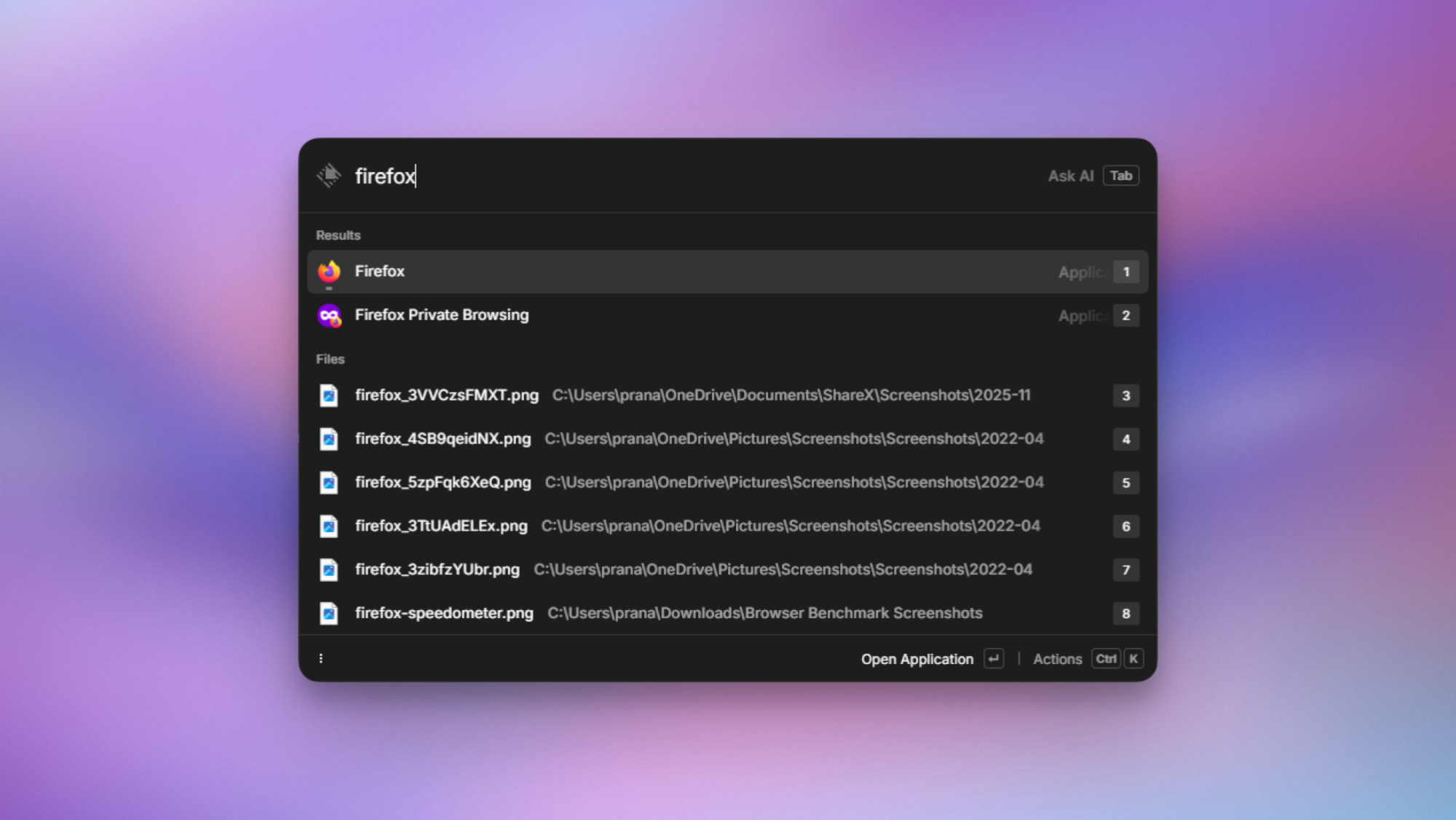
Raycast for Windows, launching Firefox.

Credit: Pranay Parab

At its heart, Raycast is an app that lets you search for apps and files stored in your computer. It stays hidden until you press its keyboard shortcut (Alt-Space on Windows). Once you do, Raycast appears as a floating search bar on the desktop. You can type anything you want to locate in the search bar, and Raycast forages through your computer to find it. I primarily use it as an app launcher since I have way too many apps on my Mac (and PC). Raycast helps me find the right app quickly and open it.

That’s just the surface layer of Raycast, though. You can use Raycast to search for files on your computer, retrieve items you’ve copied to the clipboard, send queries to ChatGPT (or other AI tools), convert currencies and units, and much more. All of these features are available under the same simple floating search bar.

Set up keyboard shortcuts in Raycast
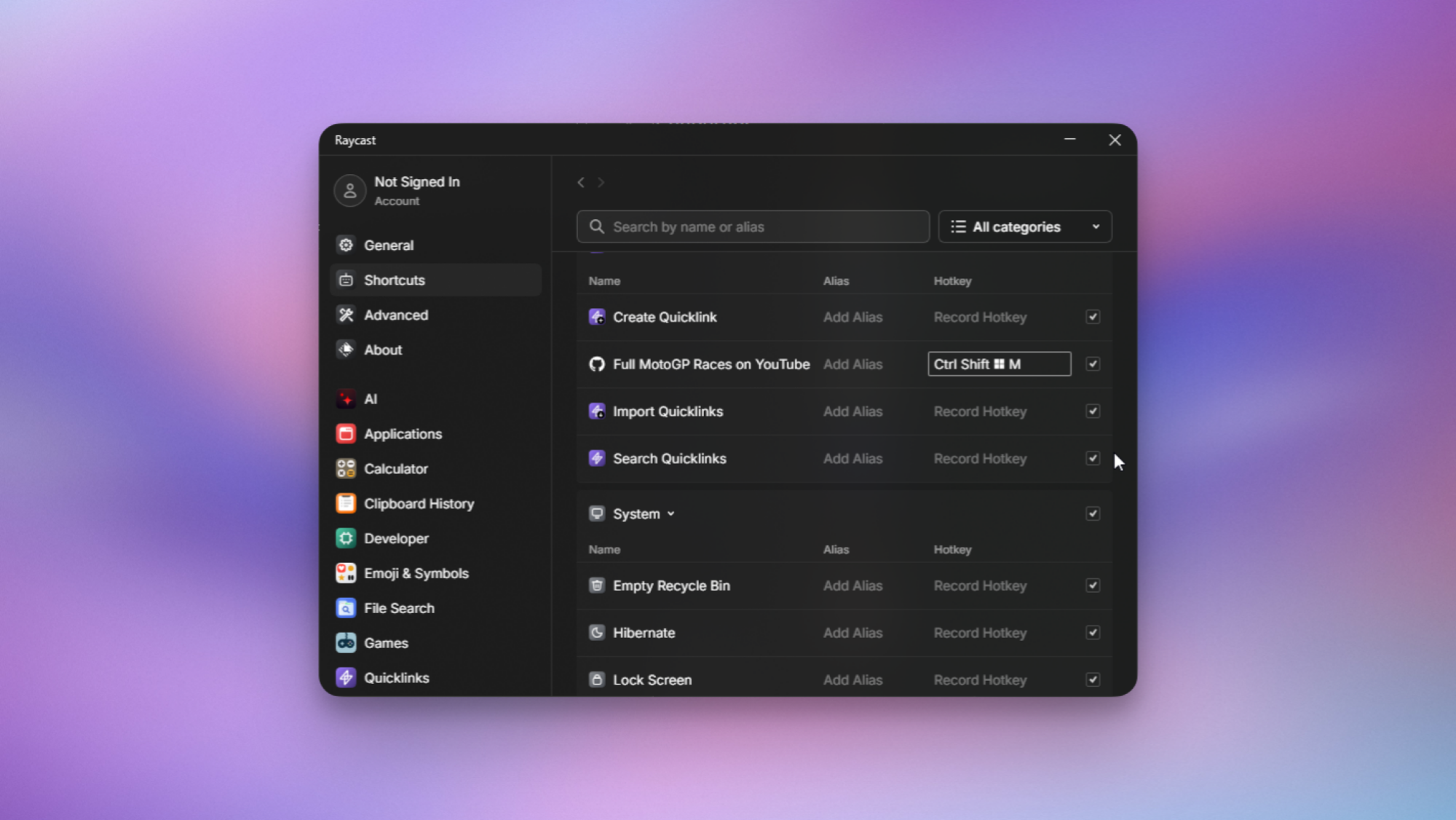
Raycast for Windows, with a hotkey set up to open a webpage.

Credit: Pranay Parab

Raycast is designed for people who love keyboard shortcuts. You can totally use it without them, but you’ll enjoy it a lot more if you set up a few shortcuts of your own. As an example, if you open Raycast and press Tab, it switches to AI mode, and you can directly send your questions and requests to ChatGPT from Raycast.

Whenever you search for anything in Raycast, you’ll probably see a button called Record hotkey next to the results. This is your cue to set up a keyboard shortcut for that action, and doing so will allow you to get to it faster. You can also go to Raycast settings to find commonly used actions and record your preferred keyboard shortcuts for all of them.

Note that the Raycast app is still in beta on Windows, and during this trial period, you can use these AI features for free. Expect that to change, though, once it’s out of beta. If you want to keep using these features, the pro tier costs $8 per month for most AI models, but certain advanced AI models are only available in the $16 per month subscription tier.

What I use Raycast for on Windows
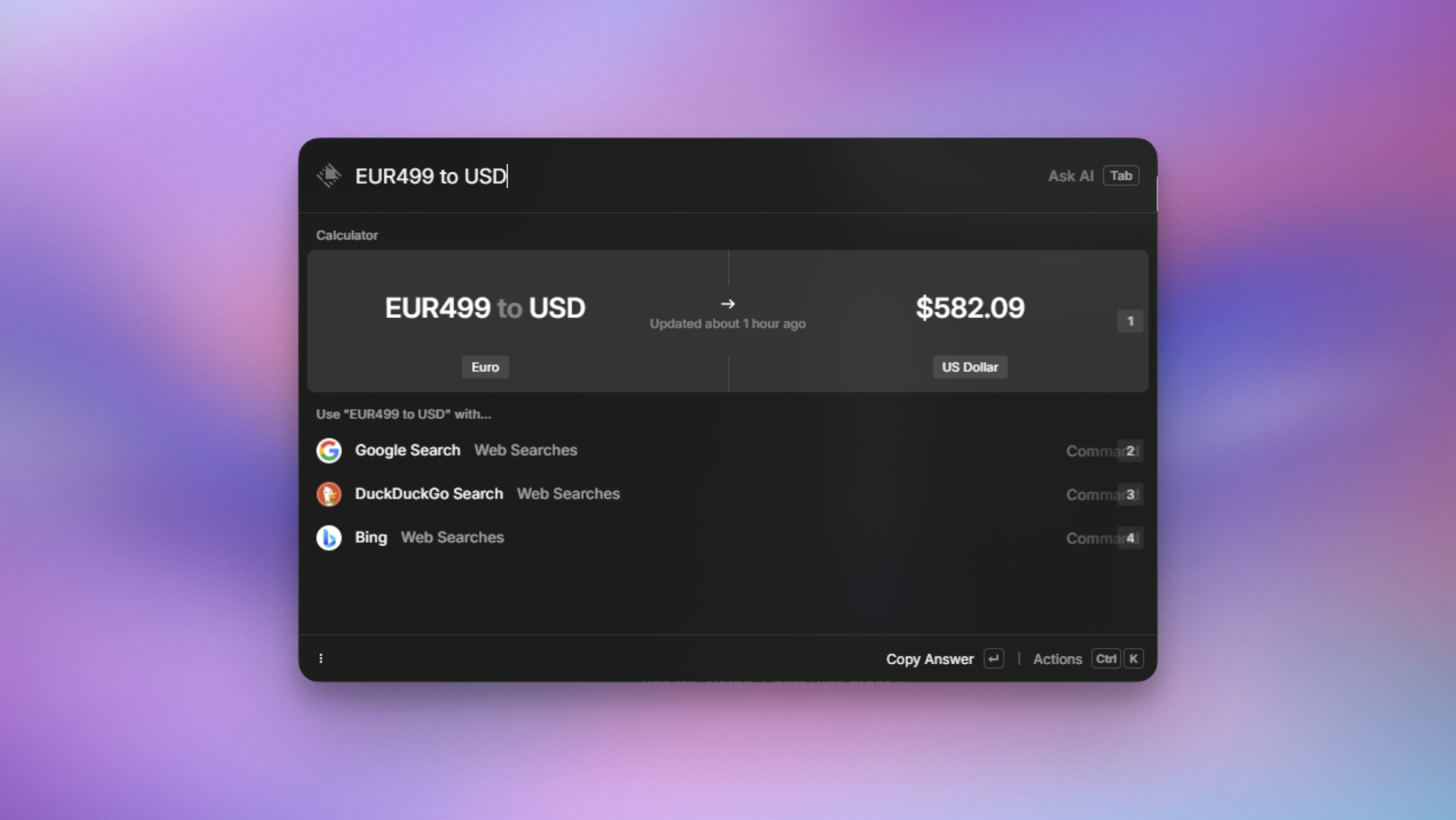
Raycast for Windows, showing currency conversion.

Credit: Pranay Parab

I use Raycast for a lot more than just launching apps on Windows. As someone who lives outside the US, converting units and currencies is a big part of my work day. Raycast’s workflow is quite seamless for this task. You can just type “$499” or any other number after the dollar sign, and Raycast automatically converts it to your local currency. You can also type something like “EUR499 to USD” and it’ll convert euros to the US dollar. I really like the fact that you don’t even have to press the Enter/Return key to see the converted currency. The moment you type a currency number, the result shows up without any further prompts.

You can also try other unit conversions with Raycast, eg: “100kg to lbs,” “800ml to fl oz,” “44 sqm to sqft,” etc. This helps me a lot when I’m ordering things from international websites that don’t always have dimensions, weight, or pricing available in units I’m used to.

Beyond this, I like using Raycast to store and view clipboard history. You can search for Clipboard in Raycast to access items you’ve copied, and the app even categorizes these items for you. You can search just for links, images, files, or email address you’ve copied, which makes it easy to quickly find specific items from your clipboard history.

Raycast also supports many other things such as window management, emptying the recycle bin, restarting your computer, locking your PC, bookmarking links and opening them in specific browsers, and text snippets—which let you quickly create or copy bits of text or code. You can open Raycast, and press Ctrl-, (comma) to open its settings and explore all its features.

The limitations of Raycast for Windows
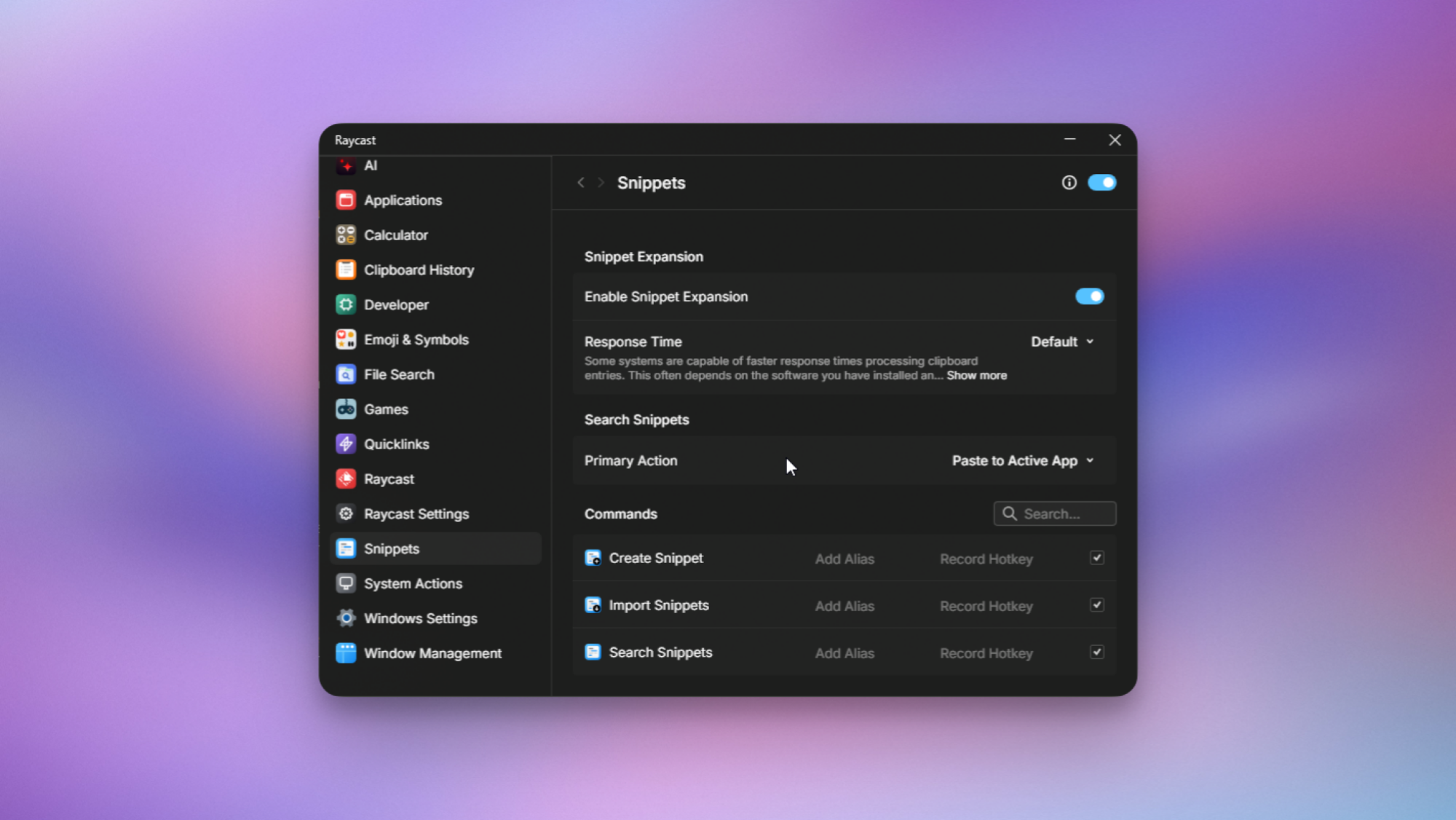
Raycast for Windows, showing text snippets.

Credit: Pranay Parab

Raycast only recently launched on Windows, which means there are a few things still missing from the macOS version. This includes the AI Chat feature (more advanced than the quick AI search available now), focus timers, the built-in notes feature, and support for more extensions. Many of its extensions were originally built only for macOS, so it’s going to take some time to bring them to Windows. The feature that I miss the most is the ability to sync your snippets, notes, chats, and other data across devices. This feature is yet to come to the Windows app, and I hope the developers change that soon.

Raycast is available on the Mac, iPhone, and now, Windows.

[Industry Direct] ‘I Am Bird’ Open-World VR Flight Adventure Takes Off on Meta Quest

We at New Folder Games—creators of I Am Cat, I Am Security, and I Am Monkey—are expanding our series with a new VR experience built around dynamic, natural-feeling flight.

Industry Direct by New Folder Games

Industry Direct is our program for sponsors who want to speak directly to the Road to VR newsletter audience. Industry Direct posts are written by sponsors with no involvement from the Road to VR editorial team and do not appear in our front-page editorial feed. Industry Direct sponsors help make Road to VR possible.

A New Way to Explore VR Worlds

Our latest title, I Am Bird, is available now on Meta Quest! In this game, players step into the role of a super-powered bird and freely fly across a large vertical city full of activities and exploration.

Flight Built Around Natural Movement

We designed a gesture-based flight system that lets players control movement intuitively:

  • Spread your arms to glide
  • Tilt to change direction
  • Lean forward to dive
  • Use quick motions for dashes and fast turns

The system supports both smooth gliding and tight technical flying through narrow streets. Comfort options allow players to adjust assist levels and motion sensitivity.

A Vertical Open City

We built the city around height, speed, and momentum. Each district has its own identity and traversal flow-from wide avenues suited for fast glides to dense blocks crafted for precision flying. Rooftops, ledges, and tall structures hide shortcuts, collectibles, and optional challenges.

Become a Watchful Protector

As an aerial guardian, players respond to various events across the city, including:

  • High-speed chases
  • Street-level disruptions
  • Rescue scenarios
  • Quick-response encounters
  • Support missions for bird allies

All action sequences revolve around timing and positioning, making movement central to every encounter.

Tools for a Super-Bird

We equipped the game with a range of gadgets that expand player abilities and support different mission types. Gadgets can distract enemies, enhance mobility, highlight objectives, or help solve environmental tasks. All tools are gesture-based to keep the flight flow uninterrupted.

Activities Across Every District

Beyond main objectives, the city contains:

  • Races
  • Obstacle courses
  • Light side stories
  • Rooftop collectibles
  • Small events that appear during exploration

These optional activities encourage repeated visits to familiar areas from different altitudes and angles.

Available now

With I Am Bird, we aimed to create a VR experience centered entirely on the joy of free flight and open-world exploration. Intuitive controls, a vertical city full of content, and a wide variety of missions combine to offer a fresh take on movement-driven VR gameplay.

I Am Bird is now available worldwide on Meta Quest!

The post [Industry Direct] ‘I Am Bird’ Open-World VR Flight Adventure Takes Off on Meta Quest appeared first on Road to VR.

Why won’t Steam Machine support HDMI 2.1? Digging in on the display standard drama.

When Valve announced its upcoming Steam Machine hardware last month, some eagle-eyed gamers may have been surprised to see that the official spec sheet lists support for HDMI 2.0 output, rather than the updated, higher-bandwidth HDMI 2.1 standard introduced in 2017. Now, Valve tells Ars that, while the hardware itself actually supports HDMI 2.1, the company is struggling to offer full support for that standard due to Linux drivers that are “still a work-in-progress on the software side.”

As we noted last year, the HDMI Forum (which manages the official specifications for HDMI standards) has officially blocked any open source implementation of HDMI 2.1. That means the open source AMD drivers used by SteamOS can’t fully implement certain features that are specific to the updated output standard.

“At this time an open source HDMI 2.1 implementation is not possible without running afoul of the HDMI Forum requirements,” AMD engineer Alex Deucher said at the time.

Read full article

Comments

Russia reportedly bans Snapchat and FaceTime

Roskomnadzor, Russia’s federal agency for monitoring and censoring mass media, has blocked access to Snapchat and FaceTime in the country, Bloomberg reports, citing Russian news service Interfax. The bans were reportedly put in place because the platforms were used “to organize and carry out terrorist acts,” and commit fraud.

It’s not clear if either service is still accessible by using a VPN, but banning Snapchat and FaceTime fits with Russia’s crackdown on communication and social platforms that started after the country’s invasion of Ukraine in 2022. Facebook and X were blocked in March of that year, and Instagram was added to the ban list not long after. In 2024, the encrypted messaging app Signal was also banned, and more recently in July 2025, Russia threatened to block access to WhatsApp.

Engadget has contacted both Apple and Snap to comment on the Russian bans. We’ll update this article if we hear back.

Banning or restricting these platforms is a way to exert control over where and how conversation happens in Russia — and prevent the spread of “LGBT propaganda,” if you believe Roskomnadzor’s reasoning for banning Roblox — but it might also be an attempt to drive people to use “MAX,” a state-run super app that offers services like communication, banking and document storage. The app is part of a long-standing push to rely on Russia’s tech industry rather than foreign companies, and could potentially give the Russian government an easier method for surveilling its citizens, The New York Times reports.

This article originally appeared on Engadget at https://www.engadget.com/apps/russia-reportedly-bans-snapchat-and-facetime-194906404.html?src=rss

Valve Engineer Confirms Plan To Run Steam Windows Games On Arm & Even Phones

Valve Engineer Confirms Plan To Run Steam Windows Games On Arm & Even Phones
Valve has done a lot of work to support Proton, which is the compatibility layer that’s enabled Windows games to work smoothly on the Steam Deck, which also happens to be a Linux-based device. Unbeknownst to the rest of the world, though, is that the company was funding another project, called Fex, which aims to bring x86 games to Arm, according

My Favorite Amazon Deal of the Day: The Nintendo Switch 2 and ‘Mario Kart World’ Bundle

We may earn a commission from links on this page. Deal pricing and availability subject to change after time of publication.

The best deal of Cyber Monday is back: The Nintendo Switch 2 with Mario Kart World bundle, is back at Amazon after running out of stock very quickly. (It’s also in stock at Walmart.) The deal includes the new console with the new Mario Kart for the same price as the standalone console. You can get this one for $449 (down from $499)—the lowest price it has reached yet, according to price-tracking tools. (Note that you can only see the price once you’ve signed in and it’s in your cart, as Nintendo restricts retailers from promoting anything below the “minimum advertised price” of $499.) With Christmas on the way, this deal is likely to sell out fast again, so I’d advise ordering it sooner rather than later if you’re considering it.

This bundle deal is great, and likely the best one you’ll see for quite some time, judging by Nintendo’s previous deals. To put it into perspective, the OLED edition of the original Nintendo Switch is $400 right now, meaning you can get the new Switch 2 with Mario Kart for $50 more. The new console is also an upgrade in every way, according to Associate Tech Editor Michelle Ehrhardt’s Nintendo Switch 2 review. The ergonomics and design have improved, making it much better to hold and look at. The battery life has also improved, now with about 180 minutes of handheld playtime before the juice runs out.

A big plus is that the Switch 2 is backwards compatible, meaning you can play your old Switch games. Some Switch games have the ability to upgrade to the Switch 2 Edition by buying that game’s upgrade pack. This is especially worth it for games like The Legend of Zelda: Tears of the Kingdom, which will look better on the Switch 2.

There aren’t a lot of Switch 2 games out at the moment, but there are some classic Nintendo games to keep you busy until the library expands, like Donkey Kong Bananza, Kirby Air Riders, and Hyrule Warriors: Age of Imprisonment.

Alpine Linux 3.23.0 released

Version 3.23.0 of Alpine Linux has been released. Notable changes
in this release include an upgrade to version 3.0
of the Alpine
Package Keeper
(apk), and replacing the linux-edge
package with linux-stable:

For years, linux-lts and linux-edge grew apart and developed their
own kernel configs, different architectures, etc.

Now linux-edge gets replaced with linux-stable which has the
identical configuration as linux-lts, but follows the stable releases
instead of the long-term releases (see https://kernel.org/).

The /usr
merge planned for this release has been postponed
; a new timeline
for the change will be published later. See the release
notes
for more information on this release.

[$] The beginning of the 6.19 merge window

As of this writing, 4,124 non-merge commits have been pulled into the
mainline repository for the 6.19 kernel development cycle. That is a
relatively small fraction of what can be expected this time around, but it
contains quite a bit of significant work, with changes to many core kernel
subsystems. Read on for a summary of the first part of the 6.19 merge
window.

Microsoft ‘Mitigates’ Windows LNK Flaw Exploited As Zero-Day

joshuark shares a report from BleepingComputer: Microsoft has silently “mitigated” a high-severity Windows LNK vulnerability exploited by multiple state-backed and cybercrime hacking groups in zero-day attacks. Tracked as CVE-2025-9491, this security flaw allows attackers to hide malicious commands within Windows LNK files, which can be used to deploy malware and gain persistence on compromised devices. However, the attacks require user interaction to succeed, as they involve tricking potential victims into opening malicious Windows Shell Link (.lnk) files. Thus some element of social engineering, and user technically naive and gullibility such as thinking Windows is secure is required. […]

As Trend Micro threat analysts discovered in March 2025, the CVE-2025-9491 was already being widely exploited by 11 state-sponsored groups and cybercrime gangs, including Evil Corp, Bitter, APT37, APT43 (also known as Kimsuky), Mustang Panda, SideWinder, RedHotel, Konni, and others. Microsoft told BleepingComputer in March that it would “consider addressing” this zero-day flaw, even though it didn’t “meet the bar for immediate servicing.” ACROS Security CEO and 0patch co-founder Mitja Kolsek found, Microsoft has silently changed LNK files in the November updates in an apparent effort to mitigate the CVE-2025-9491 flaw. After installing last month’s updates, users can now see all characters in the Target field when opening the Properties of LNK files, not just the first 260. As the movie the Ninth Gate stated: “silentium est aurum”


Read more of this story at Slashdot.

Legendary Tales Reveals First DLC With Next Year’s Dawn Of History

Legendary Tales gets its first DLC with ‘Dawn of History’ next year on PC VR and PlayStation VR2.

Developed by Urban Wolf Games, Legendary Tales is a dark fantasy RPG that received its full release in February 2024. Featuring physics-based combat with a quest-driven storyline, this comes with skill trees, explorable dungeons, crafting and more. Now, nearly two years after its full launch, it’s lifted the curtain on its first DLC expansion.

0:00

/2:21

Announcement trailer

Detailing the news on Steam, Urban Wolf Games states the DLC’s name signifies a new beginning and marks “a new chapter” for Legendary Tales, also offering a nod to the game’s ending song. Its content preview offered a look at three currently unnamed maps and three additional enemies: Fallen Warrior, Nangdo, and Succubus.

New item categories were also highlighted, with rings and two new types of weapons: Book and Staff. This upcoming DLC will also introduce five new legendary weapons, new ‘Seal’ features, and a quick slot for potions. Additional passive skills will be added, like the ability to reduce your casting time when using a different spell to the previous one.

To coincide with this announcement, Urban Wolf Games also announced that Legendary Tales has received a price reduction on both PlayStation VR2 and Steam. While it was previously available for $54.99, that’s now been permanently reduced to $39.99.

Legendary Tales is out now on PS VR2 and Steam, and Dawn of History reaches both platforms in Q1 2026.

Legendary 3dfx Voodoo2 GPU Spotted Running Quake 2 On Ryzen 9 9900X PC

Legendary 3dfx Voodoo2 GPU Spotted Running Quake 2 On Ryzen 9 9900X PC
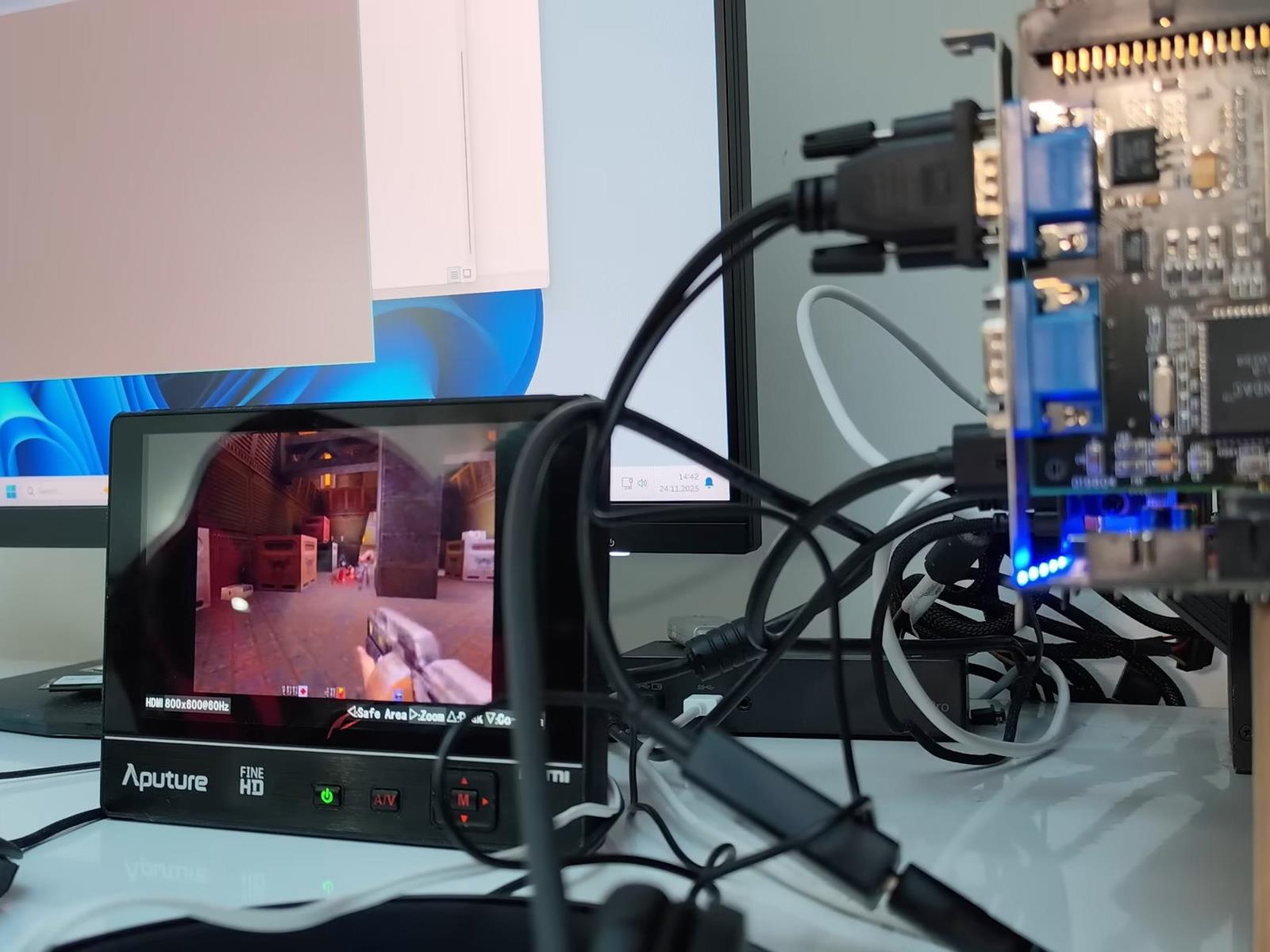
Having a retro PC is awesome, because it lets you experience classic games as they were intended to be, on the original hardware. Maintaining one is a pain, though; beyond all the issues with using 25-plus-year-old hardware, you’ve also got to find space for it. What if you could just slap a Voodoo 2 into your current desktop and play some

Google Is Testing AI-Generated Headlines, and It’s Not Going Well

Take a look at the top of this article. See that headline? If it looks different than what you clicked on to get to this page, congratulations: Google might have chosen you to participate in its latest AI experiment: rewriting news headlines for some users in Google Discover.

Evidence of the new effort was first spotted by The Verge, as it seems writer Sean Hollister was affected by the update. Here’s what’s going on: When you swipe right on your Pixel or Galaxy home screen (or scroll down in the Google app on iPhone, or open up a new Chrome browser window with Google as your homepage), there’s now a chance the article previews you’ll see from Google Discover were actually generated by AI, rather than mirroring the headlines and/or descriptions handwritten by those articles’ actual authors and editors.

Sometimes, these AI headlines are just clunky or vague—one AI headline introduced another Verge story about specific AI initiatives within Microsoft as “Microsoft developers using AI,” which doesn’t tell you much, especially in the current tech landscape.

You can’t trust AI headlines

But more dangerously, these headlines can also get the facts of the story wrong. In Hollister’s case, his Google Discover fed him a headline saying “Steam Machine price revealed,” whereas the original article from Ars Technica simply said “Valve’s Steam Machine looks like a console, but don’t expect it to be priced like one.” Clicking through leads to an article with quotes from a Valve designer hinting that the upcoming PC/home console hybrid won’t have a subsidized price like most home consoles, which is not at all the same thing as an official price reveal.

Another headline Hollister saw said “Qi2 slows older Pixels,” which implies using a Qi2 charger on your phone could hurt its performance. The original article simply said that older pixels won’t be able to use the full extent of a Qi2 charger’s fast-charging.

Granted, mistakes with consumer tech headlines will probably only cause some momentary disappointment or confusion, or maybe a missed opportunity to buy the best charger for your phone. But imagine that misinformation applied to a story about something more serious, like the Luigi Mangione case. Considering previous attempts other companies have made to summarize the news with AI, it’s hardly unlikely.

Perhaps worst of all, it also seems these AI headlines can throw shade when it wasn’t intended, introducing a risk of libel. Recently, PCGamer wrote a cheeky story about Baldur’s Gate 3, covering gamers who discovered that they can use the Polymorph and Dominate Beast spells to recruit child NPCs to their cause who, thanks to real-world German laws, can’t die. You can imagine how that would be useful in a game, and hey, it’s all fiction, right? Unfortunately, Google’s AI headline chose to change PCGamer’s original “Child labor is unbeatable” into “BG3 players exploit children.” Yikes.

What’s going on with these Google AI headlines?

Both Hollister and I reached out to Google for comment, and were given the same response: The new headlines are part of a “small UI experiment for a subset of Discover users,” and follow up on similar AI previews introduced into Google Discover in October. Those previews featured short AI summaries of articles that users could expand to see more information (and even an AI headline), but didn’t outright replace existing, author-written headlines.

The new experiment “changes the placement of existing headlines to make topic details easier to digest,” which seems to be code for the AI headlines now being placed up-top, where you would expect the real headlines to be. I’m personally not part of the UI experiment, but Hollister reported he wasn’t able to see the actual headlines until he clicked through to the real articles.

How to tell if that Google Discover headline was written by AI

Obviously, there’s a number of problems with this test. The AI headlines could misreport the news, as they already have in Hollister’s case, or make false accusations. And unfortunately, since they’re right where actual headlines have been shown in the past, it’s totally understandable for a reader to think they were approved by the articles’ authors or editors. If a Discover headline looks fishy to you, there are three ways to identify whether it was written by AI.

  • Google’s AI is obsessed with making headlines shorter. All of the AI headlines Hollister saw were four words or less, and while we like to be concise here at Lifehacker too, I can say from experience that actual journalists and editors usually write headlines that are a bit longer than that.

  • None of Google’s AI headlines seem to capitalize anything but the first word. That’s a stark difference from most websites’ style guides. At Lifehacker, for instance, we use A.P. style, which capitalizes most words expect for articles like “the.”

  • You can tap “See more” under the Discover preview and check for a tag saying that it was “Generated with AI, which can make mistakes.” Articles using actual headlines won’t even have a “See more” button.

Unfortunately, there does not seem to be a way to opt out of these AI headlines, as Google did not provide me with one when I asked, instead simply reiterating that this is a “small UI experiment.” That means not everyone is seeing these for now., at least

As someone who made frequent use of Google Discover back before I moved to an iPhone, that’s still a major bummer. In the past, it’s been a convenient way to catch up on stories that were relevant to me without having to scroll social media or check multiple homepages, but I can imagine that having to scrutinize every headline to know whether or not it’s real will make things a lot rougher.

It’s also not great for journalists, who both rely on Google Discover for traffic, and could take the brunt of user ire about inaccurate headlines from readers who don’t realize a machine created them. As it is, I think the latter is the more likely outcome. But even if Google eventually works out the kinks with AI headlines, they could still hurt web traffic, potentially removing the incentive to click that is part of all good headline writing. Google will continue to use outside content to keep people on its platform, but the people behind that content will get fewer eyes on it.

(Of course, as always, if you want to get the most accurate idea of what an article says, it’s best to read it thoroughly before forming an opinion.)

Meta says it’s fixing its broken support system, with the help of AI

If you’ve ever had something go wrong with your Facebook or Instagram account, then you probably have a good idea of just how frustrating the support process can be. The company’s automated processes are so broken that some people have found that suing Meta in small claims court can be a more reliable way of getting help from the company.

Now, Meta says it’s trying to address some of these longstanding issues. In an update, the company acknowledged that its “support hasn’t always met expectations” but that a series of AI-powered updates should make it easier for people to get help. 

The company is rolling out a new “support hub” on Facebook and Instagram that is meant to bring all of its support features into one place. The hub will also have a new AI chat feature so users can ask questions about account issues or Meta’s policies. An in-app support hub might not be that helpful if you can’t access your account, though. A Meta spokesperson pointed to its external account recovery tool, which is meant to help people get back into their accounts. 

Recovering hacked accounts has long been a pain point for Facebook and Instagram users. But Meta says that it’s now improved the process with better email and text alerts. AI has also helped the company’s systems detect devices and locations you’ve frequently used in the past. “Our new account recovery experience adjusts to your particular situation with clearer guidance and simpler verification,” Meta writes. “We’ve also expanded recovery methods to include taking an optional selfie video to further verify your identity.”

Meta is also starting to test a new “AI support assistant” on Facebook that can provide “instant, personalized help” for issues like account recovery or managing your profile. It’s not clear how this will work, or if it will enable people to talk to an actual person who works for Meta. For now, the most reliable way to access live support is via a Meta Verified subscription, though many users report that the chat-based service isn’t able to help with more complex issues.

A Meta spokesperson said that the assistant is in the “early stages of testing” and is currently only available to some Facebook users globally. Those who are part of the test can find it via the app’s new support hub. 

According to Meta, these improvements have already shown some success in helping people get back into hacked accounts. The company says that this year it has “increased the relative success rate of hacked account recovery by more than 30% in the US and Canada.”

This article originally appeared on Engadget at https://www.engadget.com/social-media/meta-says-its-fixing-its-broken-support-system-with-the-help-of-ai-185348328.html?src=rss

ChatGPT hyped up violent stalker who believed he was “God’s assassin,” DOJ says

ChatGPT allegedly validated the worst impulses of a wannabe influencer accused of stalking more than 10 women at boutique gyms, where the chatbot supposedly claimed he’d meet the “wife type.”

In a press release on Tuesday, the Department of Justice confirmed that 31-year-old Brett Michael Dadig currently remains in custody after being charged with cyberstalking, interstate stalking, and making interstate threats. He now faces a maximum sentence of up to 70 years in prison that could be coupled with “a fine of up to $3.5 million,” the DOJ said.

The podcaster—who primarily posted about “his desire to find a wife and his interactions with women”—allegedly harassed and sometimes even doxxed his victims through his videos on platforms including Instagram, Spotify, and TikTok. Over time, his videos and podcasts documented his intense desire to start a family, which was frustrated by his “anger towards women,” whom he claimed were “all the same from fucking 18 to fucking 40 to fucking 90” and “trash.”

Read full article

Comments

Android 16 Just Put Parental Controls Directly on Your Kid’s Phone

In the long-running Android vs. iOS competition, iPhones have historically had the edge in terms of parental controls: They’ve been a bit more straightforward and intuitive, and easier for caregivers to understand and manage. Apple does many things well, and getting its apps and devices working seamlessly together is definitely one of them.

Google, however, is gradually improving the experience for parents, with a batch of updates earlier this year, and now some more changes as part of a significant Android 16 upgrade. The latest changes mean more controls can be accessed on your kids’ devices.

What’s new in Android 16

The usual Android caveat applies here: Each Android phone maker does things slightly differently, though there’s not actually too much variation in this particular area. The latest Android 16 updates mentioned above are rolling out now to Pixel phones (and I’ve tested them on a Pixel), but will take a while to reach other handsets—Samsung phones will most likely get them early next year, for example, with One UI 8.5.

So what’s new? Essentially, more of the existing parental controls are available on the Android devices of your youngsters, so you can get at them from their phones and tablets as well as accessing them remotely. It should make life easier if you’re with your kids and they pass their devices over to you.

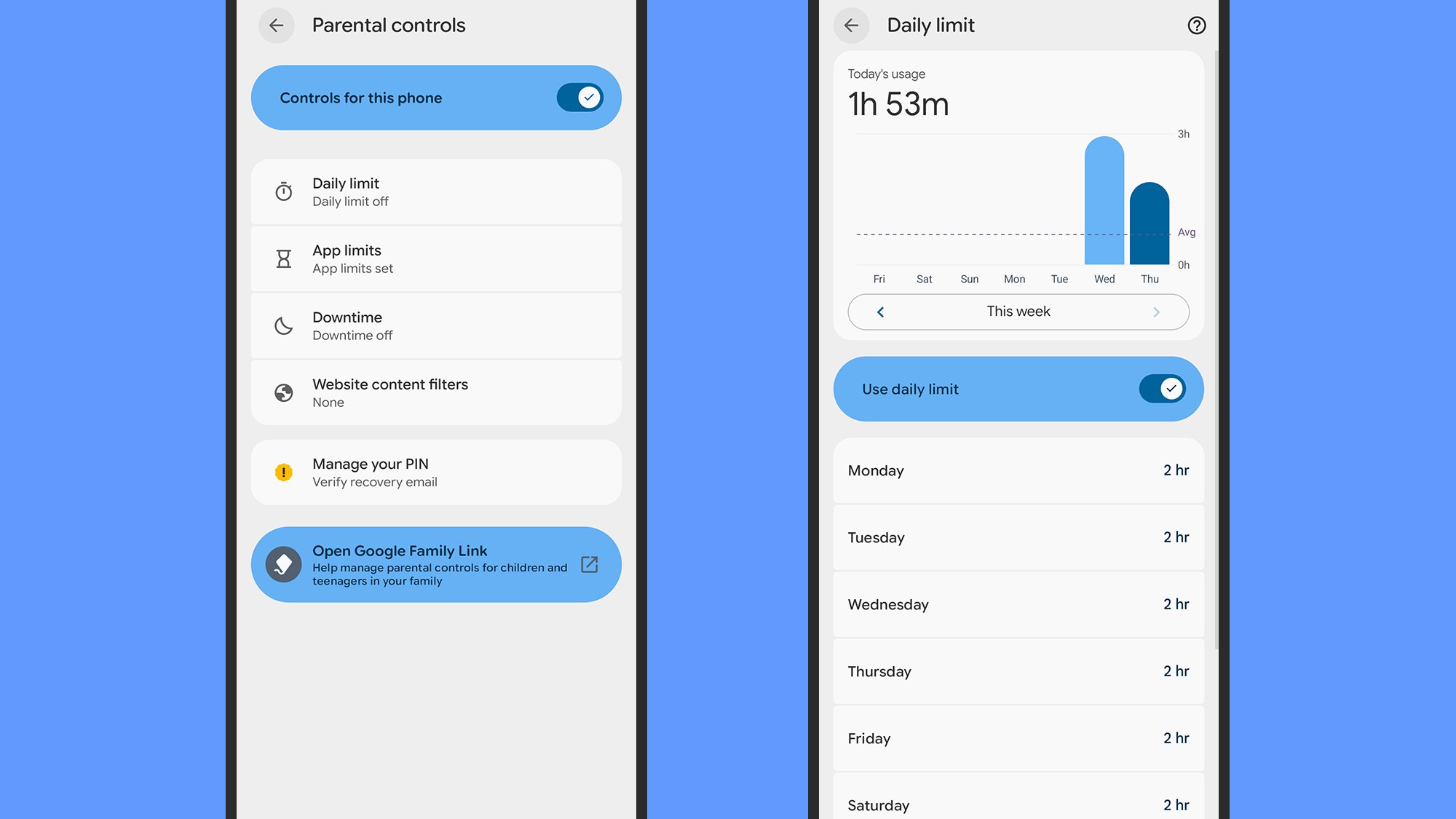
You can find the options that have been added to kids’ devices by opening Settings on the phone or tablet of your young person and choosing Parental controls. Right away you’ll see a toggle switch for enabling on-device controls, and when you do enable them you need to enter a PIN—to stop your kid from changing these settings themselves.

Android 16 parental controls
The new on-device controls in Android 16.
Credit: Lifehacker

There are then four sections you can access: Daily limit, App limits, Downtime, and Website content filters. Tap on any of these to set restrictions for the current device, which can be adjusted depending on the day of the week in some cases. Pick Downtime, for example, and you can set times during which the device is locked. These match the tools you’ve previously been able to manage remotely.

Select Daily limit, then turn on the Use daily limit toggle switch, and you’re able to control how many hours your kid can use their phone or tablet for each day. There’s also a bar chart showing device usage over time, so you can see how much screen time your child has been taking advantage of.

These settings are simple, understandable, and a breeze to use—you don’t have to mess around with Google accounts or family relationships if you don’t want to. You can just enter a PIN and start making changes—you don’t necessarily have to connect these settings to any other devices. If you want to manage them remotely, though, Google has a wider parental control system in place.

Google’s Family Link controls

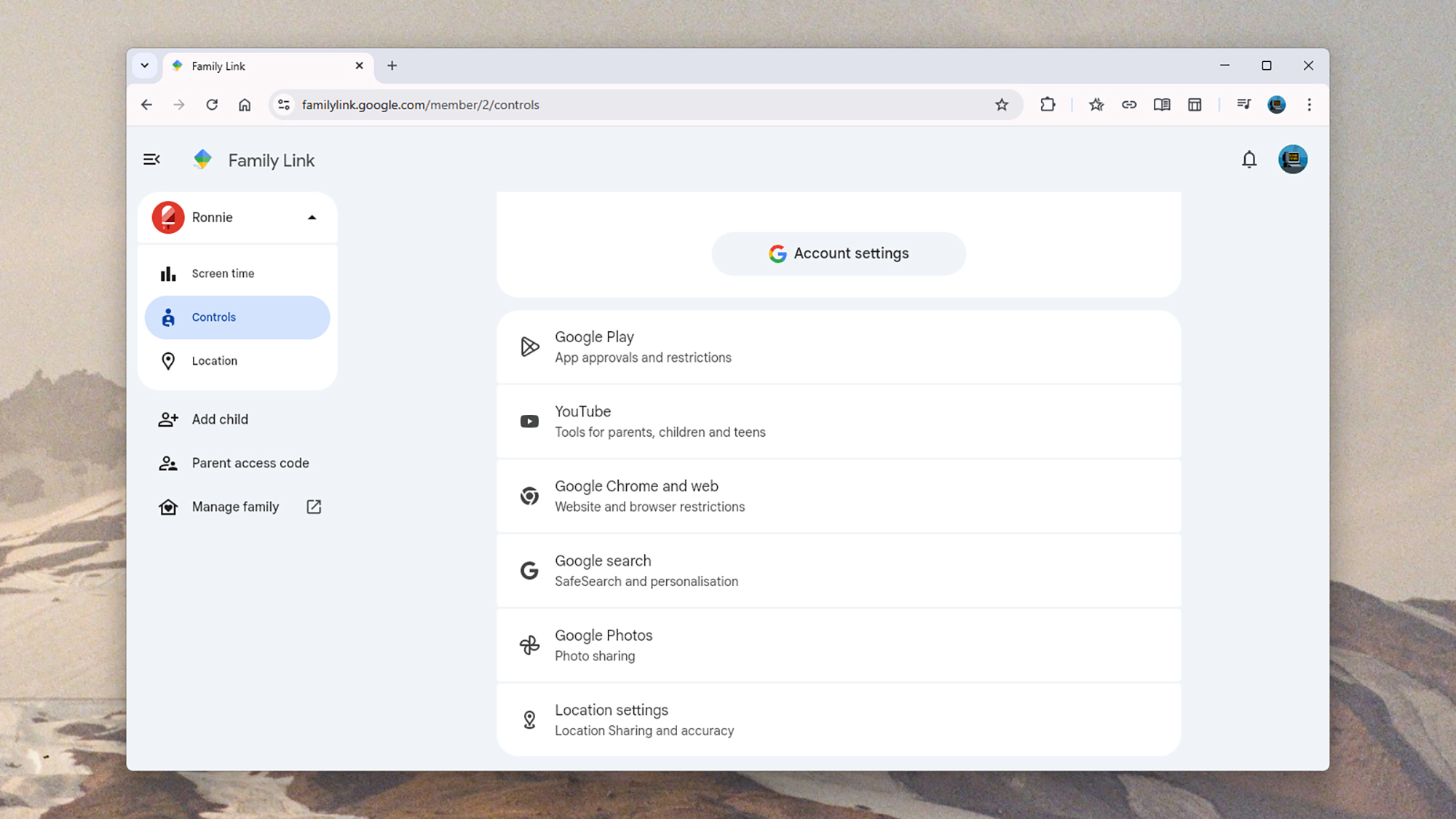
The new Android 16 controls that appear on devices can work independently of anything else, but Google already offers plenty of options if you need them. Everything is managed through the Google Family Link portal, which you can access on the web or through the apps on Android or iOS.

You can use Google Family Link to set up Google accounts for your kids, and then manage what they’re able to do with them. The idea is that they sign into their Android devices using the account you’ve created for them, and because Google knows you have a verified connection to them, you can put restrictions on those devices remotely.

All the usual safeguards and protections are covered: You can set screen time limits, manage the apps your kids can use (and for how often), put blocks on certain websites and categories of website, and put parental approvals in place for making purchases through Google’s various digital storefronts. These mostly match what’s now available on-device.

Google Family Link
Google Family Link on the web.
Credit: Lifehacker

There’s a location tracking element to Google Family Link as well, so you can see where your young people are at all times, and even get notifications based on their movements: You might want to get a ping when they turn up at school, for example, or when they leave home. All this can be managed through the apps.

More recent updates let you control the amount of screen time your children can have during school hours, and there are also now tools for managing the contacts that youngsters are able to interact with—as yet you can’t get to these controls directly on your kids’ devices. There’s plenty in the way of reports on usage too, alongside these controls.

Add everything up, and Google now has a fairly comprehensive set of parental controls that you can manage from just about any device, or from the devices your kids are using—assuming you’ve given them Android phones or tablets.