
The GStreamer project released GStreamer 1.26.8 today as the eighth maintenance update to the latest GStreamer 1.26 series of this popular and powerful open-source, free, and cross-platform multimedia framework.
Monthly Archives: November 2025
Speedy ‘Flight Of The Bumblebee’ Performed On Recorder
This is a video of musician Miguel Lawrence performing Korsakov’s iconic ‘Flight Of The Bumblebee’ on a sopranino recorder at a speed that would make even bees proud. Both the fingerwork and breathwork are most impressive. I wouldn’t be able to do that. Honestly, I got winded just typing this. Whenever anybody asks how I’m doing, my answer is never not “I could really use a nap.”
Can You Teach An Octopus To Play The Piano?
This is a video of Youtuber Mattias Krantz attempting to teach an octopus named Tako to play the piano over the course of six months. That’s a long time. Like a quarter of an octopus’s life. If I spent a quarter of my life trying to learn something, I’d like to think that I would learn it. I wouldn’t though, I would fail. I’m speaking from experience. I just want to know how to love and be loved!
Neutron rocket’s debut slips into mid-2026 as company seeks success from the start
During an earnings call on Monday, Rocket Lab chief executive Pete Beck announced that the company’s medium-lift launch vehicle, Neutron, would not launch this year.
For anyone with the slightest understanding of the challenges involved in bringing a new rocket to the launch pad, as well as a calendar, the delay does not come as a surprise. Although Rocket Lab had been holding on to the possibility of launching Neutron this year publicly, it has been clear for months that a slip into 2026 was inevitable.
According to Beck, speaking during a third-quarter 2025 earnings call, the new timeline has the company bringing Neutron to Launch Complex 2 at Wallops Flight Facility in Virginia during the first quarter of next year. The first launch is scheduled to occur “thereafter,” according to the company’s plans.
Meta Ray-Ban Display Review: First Generation Heads-Up Mobile Computing
Meta Ray-Ban Display is an early glimpse of a future where mobile computing doesn’t mean looking down and taking something out of your pocket.
Most people never leave home without their phone and take it out of their pocket so often that it’s become a replacement for fidgeting. Today, the smartphone is the ultimate mobile computing device, an omnitool for communication, photography, navigation, gaming, and entertainment. It’s your alarm clock, calendar, music player, wallet, and flashlight. Globally, more people own a smartphone than TVs and cars combined. To get philosophical for a moment, the smartphone has become humanity’s second cognitive organ.
The problem is that taking out your phone harshly disconnects you from the world around you. You have to crane your neck down and disengage from what you were otherwise doing, with your attention consumed by the digital world of the little black rectangle.

In recent years, multiple startups have tried and failed to solve this problem. The smug founders of Humane came to liberate you from your phone with a $700 jacket pin, while Rabbit r1 promised the “large action model” on its $200 pocket device could handle your daily life instead.
The truth, and the reason why these companies failed, is that most people adore their phones, and are borderline addicted to the immense value they provide. And the screen of the smartphone is a feature, not a bug. People love being able to view content in high-resolution color anywhere they go, and despite the cries of a small minority of dissenters, the models with the biggest screens sell the best.
“If you come at the king, you best not miss”, as the phrase goes.
The only form factor that seems to have any real chance of one day truly replacing the smartphone is AR glasses, which could eventually provide even larger screens that effectively float in midair, anywhere the wearer wants, any time they want. But while prototypes exist, no one yet knows how to affordably produce true AR glasses in a form factor that you’d want to wear all day. In the meantime, we’re getting HUD glasses instead.
HUD glasses can’t place virtual 3D objects into the real world, nor even 2D virtual interfaces. Instead, they provide a small display fixed somewhere in your vision. And in the case of many of the first-generation products, like Meta Ray-Ban Display, that display is only visible to one of your eyes.
Meta Ray-Ban Display is also highly reliant on your nearby phone for connectivity, so it isn’t intended to be a replacement for it as a device. It is, however, meant to replace some of the usage of your phone, preventing the need to take it out of your pocket and keeping your head pointed up with your hands mostly free. So does it succeed? And is it a valuable addition to your life? I’ve been wearing it daily for around a month now to find out.
(UploadVR purchased Meta Ray-Ban Display at retail with our own funds, while Meta provided us with the correctly sized Meta Neural Band for review.)
Comfort & Form Factor
Unlike a VR headset that you might use at home or on a plane for a few hours, the pitch for smart glasses is that you can wear them all day, throughout your daily life. Even when they run out of battery, they can still act as your sunglasses or even prescription eyewear.
Meta Ray-Ban Display Prescription Lenses: What You Need To Know
Looking to use Meta Ray-Ban Display as your everyday prescription glasses? Here’s a rundown of what prescriptions it supports, and how that works.
 UploadVRDavid Heaney
As such, it’s crucial that they have a design you’d be okay with wearing in public, and that they’re comfortable enough to not hate having them on your face.
Meta Ray-Ban Display weighs 69 grams, compared to the 52 grams of the regular Ray-Ban Meta glasses, and 45 grams of the non-smart Ray-Ban equivalent. It’s also noticeably bulkier, with thicker rims and far thicker temples.



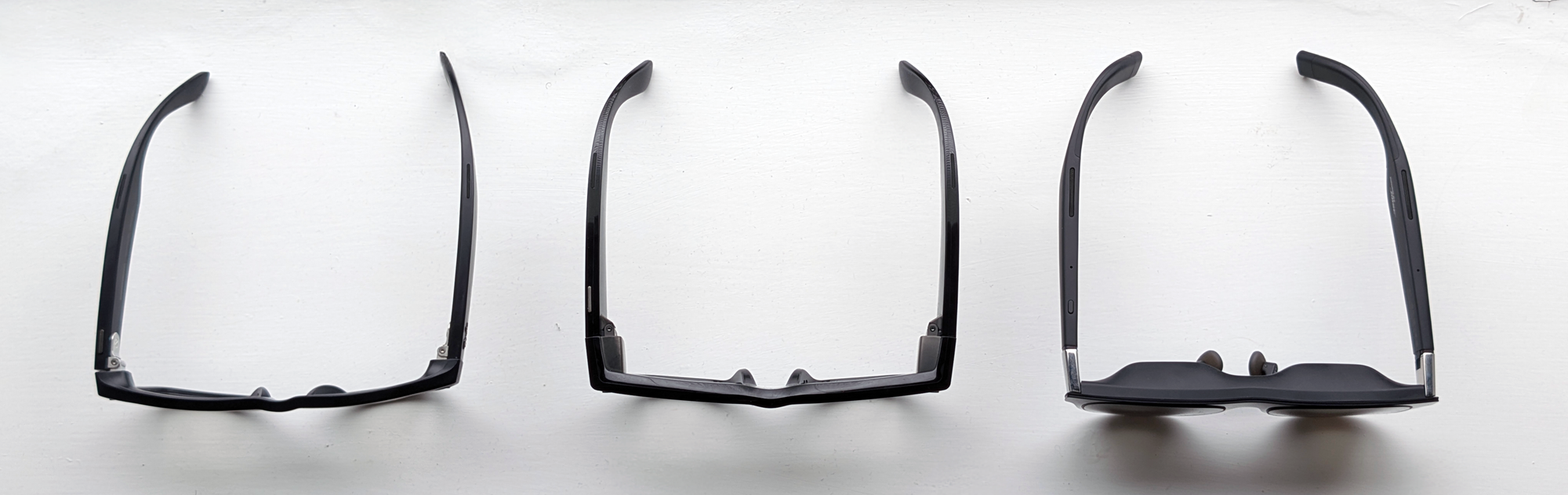
In my month with Meta Ray-Ban Display I’ve worn it almost every day throughout my daily life, sometimes for more than 8 hours at a time, and I experienced no real discomfort. The additional weight seems to be mostly in the temples, not the rims, while the nose pads are large and made out of a soft material. If anything, because the larger temples distribute the weight over a larger area and are more flexible, I think I even find Meta Ray-Ban Display slightly more comfortable than the regular Ray-Ban Meta glasses.
So, for my face at least, physical comfort is not an issue with Meta Ray-Ban Display. But what has been an issue is the social acceptability of its thick design.
With the regular Ray-Ban Meta glasses, people unfamiliar with them almost never clocked that I was wearing smart glasses. The temples are slightly thicker than usual, but the rims are essentially the same. It’s only the camera that gives them away. With Meta Ray-Ban Display, it’s apparent that I’m not wearing regular glasses. It’s chunky, and everyone notices.
In some circles, thick-framed glasses are a bold but valid fashion choice. For most people, they look comically out of place. I’ve asked friends, loved ones, and acquaintances for their brutally honest opinions. Some compared it to looking like the glasses drawn on an archetypal “nerd” in an old cartoon, while only a few said that the look works because it matches current fashion trends. And my unit is the smaller of the two available sizes.

Meta Ray-Ban Display also comes in two colors, ‘Black’ and ‘Sand’, and a confounding factor here is the black is glossy, not matte. I’m told that this decision was made because glossy was the most popular color for the regular Ray-Ban Meta glasses. But combined with the size, the glossy finish on Meta Ray-Ban Display makes it look cheap in a way that an $800 product really shouldn’t, like a prop for a throwaway Halloween costume.
So Meta Ray-Ban Display is physically comfortable, but not socially. More on that soon.
The Monocular Display
The fixed HUD in Meta Ray-Ban Display covers around 14 degrees of your vision horizontally and vertically (20 degrees diagonal). To understand how wide that is, extend your right arm fully straight and then turn just your hand 90 degrees inward, keeping the rest of your arm straight. To understand how tall, do the same but turn your hand downwards.
When it comes to what you see within that 20 degrees, it’s a clear and high detail image, though ever so slightly soft rather than fully sharp, with higher angular resolution than even Apple Vision Pro. There’s a minor but non-distracting glare that sees, for example, icons mildly bleed into the empty space around them.
More notably, the significant difference between a waveguide display like this and the interfaces you might see in a mixed reality VR headset is that it’s very translucent, with a ghostly feel. You can see the real world through it.
Display System Specs
- Display Type: Full-Color LCOS + Geometric Reflective Waveguide (Monocular)
- Resolution: 600×600
- Angular Resolution: 42 pixels per degree
- Field Of View: 14°H × 14°V (20° D)
- Peak Brightness: 5000 nits (automatically adjusts)
- Frontal Light Leak: 2%
The display’s perceived opacity and brightness is highly variable, because with waveguides this depends on the ambient light level, and the system also rapidly automatically adjusts the LCOS brightness, leveraging the ambient light sensor. You can manually adjust the brightness if you want, but the system is very good at deciding the appropriate level at all times, so I never do.
With a 5000 nit maximum, it’s even visible in daytime sunlight, though it has a very ghostly translucent feel. As the photochromic lenses transition to dark, the perceived opacity slightly increases.
One notable quirk is that because an LCOS is essentially an LCD microdisplay, if you’re in a pitch black room you’ll see a faint glow throughout the display area when it’s on, like an LCD monitor trying to show black. But in anything above pitch black, you won’t see this.
So Meta Ray-Ban Display’s display is surprisingly good, and lacks the distracting visual artifacts seen in many of the waveguide headsets of the 2010s. But, of course, there is a massive, glaring problem: it’s only visible to your right eye.
0:00
/0:11
No through-the-lens approach accurately depicts what the HUD looks like, so here’s Meta’s generic depiction instead.
Meta Ray-Ban Display is a monocular device. Your left eye sees nothing at all.
There is no situation in nature where one of your eyes sees something yet the other doesn’t while both are open. It just feels wrong, and induces a constant minor feeling of eyestrain when I look at the display for more than a few seconds, and thus I would never want to watch a video or conduct a video call on it (more on those use cases later). I’ve also put the glasses on more than a dozen people now, and while some of them could just about tolerate the monocular display, others found it hurt their eyes within seconds.
I suspect that this is a core reason why Meta Ray-Ban Display is only available after a retail demo. This just isn’t a visually comfortable product for many people, and Meta likely wants to avoid returns.
Bloomberg’s Mark Gurman and supply-chain analyst Ming-Chi Kuo have both claimed that Meta plans to launch a binocular successor to Meta Ray-Ban Display in 2027, at which point the company is expected to significantly ramp up marketing, production, and availability. By closing my left eye, I can already get a pretty good feel for just how much better the next generation will be.
No Light Leak! But Is That A Good Thing?
Almost all of the brightness of Meta Ray-Ban Display stays on your side of the glasses – 98% according to Meta. The display is not visible to people looking at you. I’ve repeatedly asked friends whether they can even tell if I have the display on or off, and none have been able to so far. The clickbait YouTube thumbnails you may have seen are fake.
This is partially due to the low “light leak” of the geometric waveguide in Meta Ray-Ban Display, but it’s also because of the automatic brightness adjustment. If you manually turn up the brightness to an uncomfortably high level, which I can’t imagine anyone intentionally doing, you can make the display slightly visible externally, though not its content. It just looks like a scrambled pattern. But again, even this requires an adjustment that no regular user would reasonably make.
All this said, while I initially assumed that the low light leak was an important feature of Meta Ray-Ban Display, I’ve come to see the inability for nearby people to know if you’re looking at the HUD as somewhat of a bug.
When you’re with another person and take out your phone, that’s an unambiguous indicator that you’re diverting attention from them. Similarly, while Apple Vision Pro shows a rendered view of your eyes, when virtual content is occluding the person you’re looking at, Apple intentionally renders a pattern on the front display. Why? To signal that you’re looking at virtual content, making it clear when the person does and doesn’t have your full attention.
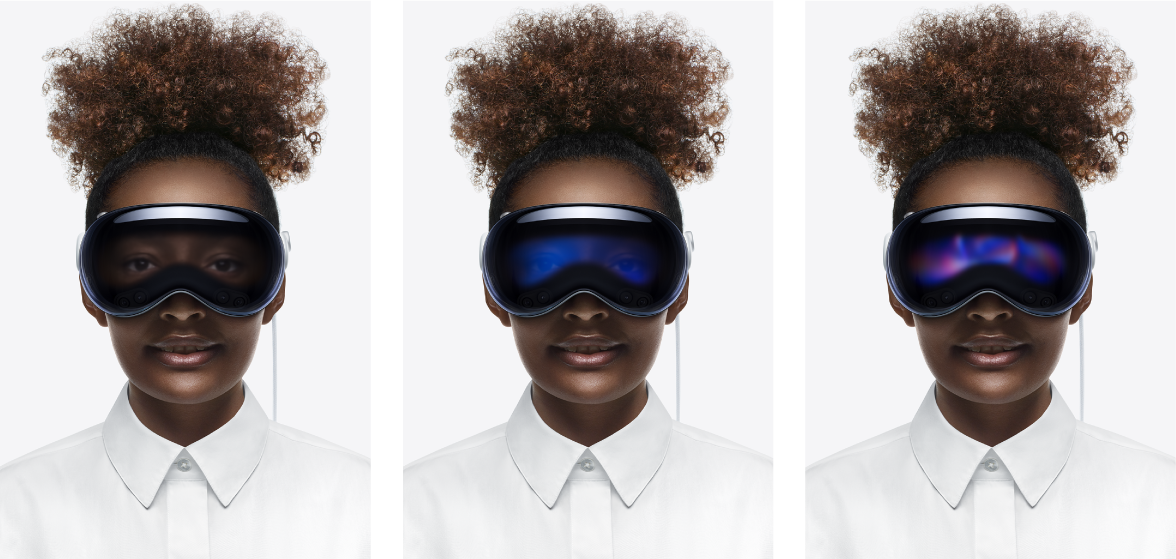
With Meta Ray-Ban Display, there is no such signal. People who spend a lot of time with you can eventually figure out that you’re looking at the HUD when your eyes are looking down and to the right, but it’s far more ambiguous, and this is not conducive to social acceptability. Are you present with them or are you not? They can’t clearly tell.
And the worst case scenario is, when looking at the HUD, to a person sitting in front of you it can, in some circumstances, appear as if you’re just looking at their chest. Yikes.
I’m not saying that I want people to be able to see the content of the display, as that would be a terrible privacy flaw. But I do wish there was an external glow on the lens when the display is on. I don’t want the other person to have to guess whether I’m fully present or not, and whether I’m looking at the HUD or their body.
The Interface & Meta Neural Band
Like the regular Ray-Ban Meta glasses, you can control Meta Ray-Ban Display with Meta AI by using your voice, or use the button and touchpad on the side for basic controls like capturing images or videos and playing or pausing music. But unlike any other smart glasses to date, it also comes with an sEMG wristband in the box, Meta Neural Band.
In its current form, Meta Neural Band is set up to detect five gestures:
- Thumb to middle finger pinch: double tap to toggle the display on/off, single tap to go back to the system menu, or hold for quick shortcuts to the 3 menu tabs.
- Thumb to index finger pinch: how you “click”.
- Thumb to side of index finger double tap: invoke Meta AI.
- Thumb swiping against the side of your index finger, like a virtual d-pad, which is how you scroll.
- Thumb to index finger pinch & twist: to adjust volume or camera zoom, as you would a physical volume knob.
How Does Meta Neural Band Work?
Meta Neural Band works by sensing the activation of the muscles in your wrist which drive your finger movements, a technique called surface electromyography (sEMG).
sEMG enables precise finger tracking with very little power draw, and without the need to be in view of a camera.
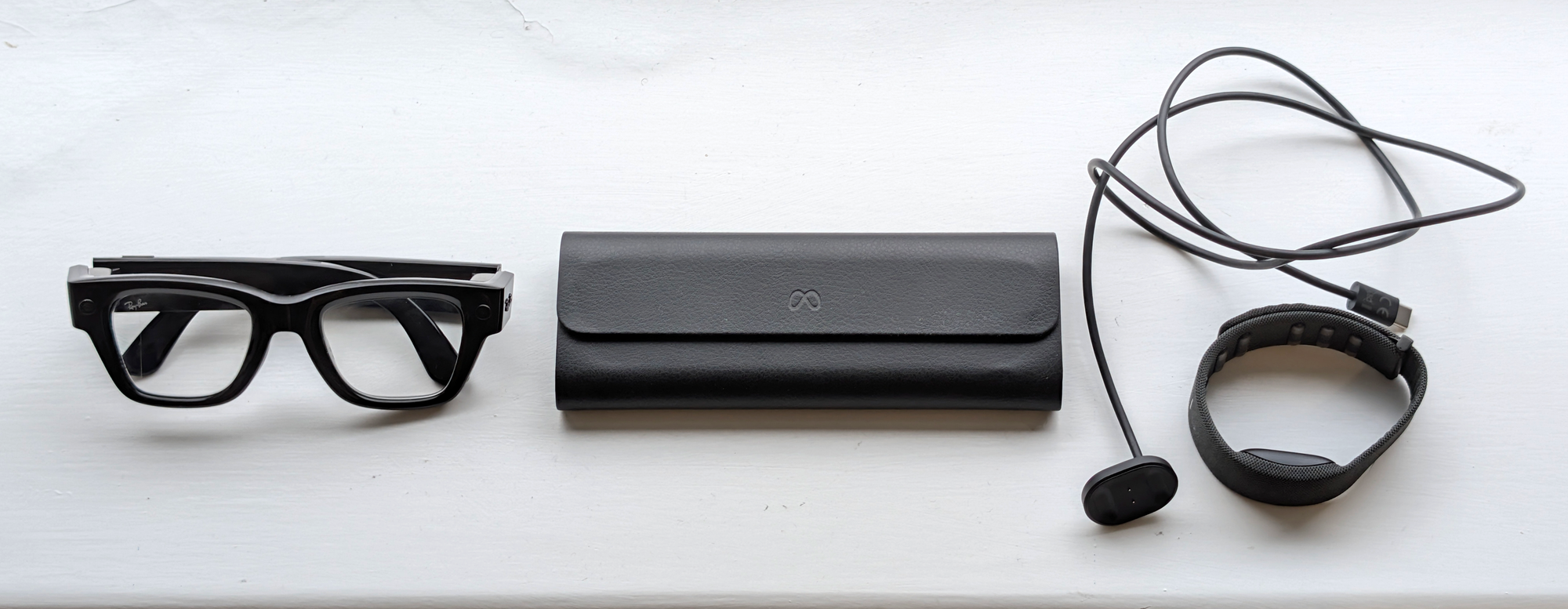
The wristband has an IPX7 water resistance rating, and charges with an included proprietary magnetic contact pin charger.
While in the above clips I have my arms extended to illustrate the gestures, the beauty of sEMG is that you don’t need to. Your hand can be at your side, resting on your leg, or even in your pocket. And it works even in complete darkness.
The gesture recognition is almost flawless, with close to 100% accuracy. The one exception is that rarely, if I’m walking it will fail to pick up a sideways directional swipe. But in general Meta Neural Band works incredibly well. The volume adjustment gesture, for example, where you pinch and twist an imaginary knob, feels like magic.
0:00
/0:05
Wake (top left), Scroll (top right), Click (bottom left), and Volume/Zoom (bottom right)
The Meta Neural Band gestures control the HUD interface, which looks much like that of a smart watch. It has 3 tabs, which you horizontally scroll between:
- The center home tab (the default) shows the date and time, your notifications, and a Meta AI button, with tiny shortcuts to active audio or navigation at the top.
- The right tab is the two-column app library: WhatsApp, Instagram, Messenger, Messages, Calls, Camera, Music, Photos, Captions, Maps, Tutorials, and a game called Hypertrail. Four rows are shown at a time, and you navigate vertically to see the rest.
- The left tab features quick controls and settings like volume, brightness, Do Not Disturb, as well as shortcuts to Captions, Camera, and Music.
When I first used Meta Ray-Ban Display I found the interface to be “just too much”, often requiring too many sequential gestures to do what you want. While I still broadly hold this view a month later, I have found myself becoming more used to quickly performing the correct sequence with experience, and I’ve discovered that if you pinch and hold your thumb to your middle finger, you get shortcuts to the three main menu tabs, which can speed things up.
I still think there’s plenty of room for improvement in Meta Ray-Ban Display’s interface though, from a simplicity perspective, and repeat my assertion that the menu should have two tabs, not three. The Meta AI finger gesture makes the Meta AI button on the center tab redundant, for example, and when you don’t have any notifications, the tab feels like a waste of space.
0:00
/0:10
This clip from Meta shows the 3 tabs of the system interface, and how you swipe between them.
A lot of the friction here will eventually be solved with the integration of eye tracking. Instead of needing to swipe around menus, you’ll be able to just look at what you want and pinch, akin to the advantages of a touchscreen over arrow keys on a phone. But for now, it can sometimes feel like using MP3 players before the iPod, or smartphones before the iPhone. sEMG is obviously going to be a huge part of the future of computing. But I strongly suspect it will only be one half of the interaction answer, with eye tracking making the whole.
A major improvement since the Meta Connect demo though, is performance. While I still wouldn’t describe Meta Ray-Ban Display as very snappy, the abject interface lag I encountered at Connect is gone in the shipping consumer model. The most noticeable delay is in waking the display, which often takes a few seconds after the gesture.
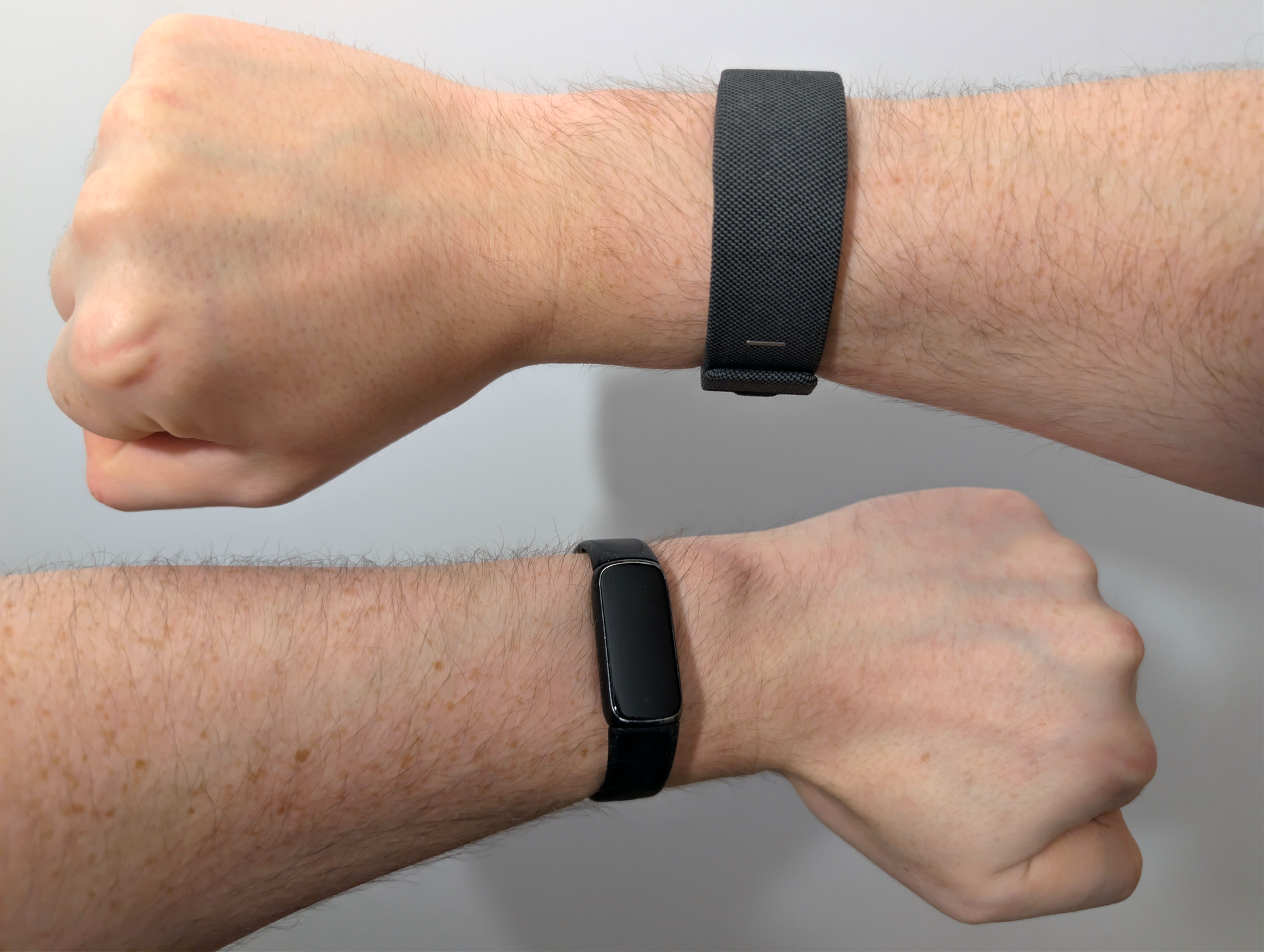
Coming back to Meta Neural Band for a second, the only real problem with it is that it’s something else you need to wear and charge (with a proprietary cable). I always wear a Fitbit on my left wrist, and now I wear the Meta Neural Band on my right too.
That’s not to say that Meta Neural Band is a comfort burden. I find it no more or less comfortable than I did the Pixel Watch I used to own, and having tried a Whoop it feels similar to that too. And while it does leave a minor mark on my wrist, so do those other devices.
But it’s another thing to remember to put on charge at night, another proprietary cable to remember to bring when traveling, and another USB-C port needed at my bedside.
Ideally, I should only have to wear and charge one wrist device. But today, Meta Neural Band is solely an sEMG input device, and nothing more.
The band already has an accelerometer inside, so in theory, a software update could let it track my daily step count. And if a future version could add a heart rate sensor for fitness, health, and sleep tracking, I wouldn’t need my Fitbit at all. But we’re not there yet. And wearing a second wrist device is a big ask for any product.
Features & Use Cases
There are six primary use cases of Meta Ray-Ban Display. It’s a camera, a communications device, a GPS navigator, an assistive captions and translations tool, a personal audio player, and an AI assistant that can (if you want) see what you see.
So how well does it do each of these things?
Capturing Photos & Videos
When the regular Ray-Ban Meta glasses first launched, they were primarily pitched as camera glasses, like their predecessor the Ray-Ban Stories, and this remains one of the biggest use cases even as Meta now calls the product category “AI glasses”. But without a display, you didn’t get a preview of what you’re capturing, nor could you check if the result was any good until it synced to the phone app. Sometimes you got lucky, and other times you failed to even frame your subjects, an issue not helped by the camera on almost all smart glasses being on a temple rather than centered.
0:00
/0:08
Meta depiction of photography.
Meta Ray-Ban Display also has 32GB of storage for media, and also syncs everything to your phone via Wi-Fi 6 when you open the Meta AI app. But the experience of capturing media is fundamentally better, because you get a live visual preview of exactly what’s in frame. And with the Meta Neural Band, you can capture without raising your arm, as well as adjust the zoom on the fly by pinching your index finger to your thumb and twisting, the same gesture used to adjust the volume.
The camera quality isn’t as good as your phone, given that the sensor has to fit into the temple of glasses. It appears to be the same camera as the regular Ray-Ban Meta glasses, and while it can produce great results in daytime, in low-light environments or with heavy zoom you’ll get a relatively grainy output. You can see some sample shots and clips in my colleague Ian Hamilton’s launch-week impressions piece.
Hands-On With Meta Ray-Ban Display & Meta Neural Band Across New York City
UploadVR’s Ian Hamilton bought the Meta Ray-Ban Display glasses on launch day and tested them across Manhattan.
 UploadVRIan Hamilton
Regardless, the ability to capture precisely framed shots without needing to hold up a smartphone is Meta Ray-Ban Display at its best. It lets you both stay in the moment and capture memories at the same time, without the doubt that what you’ve shot doesn’t capture what you wanted to include. And it works completely standalone, even if your phone is out of battery.
With a couple of swipes and taps you can also easily send your captured media to a friend, something that required extensive voice commands with the displayless glasses. And this brings us on to messaging.
Messaging
While Meta doesn’t have an existing device ecosystem like Apple and Google, what it does have is the most popular messaging platform and two most popular social networks in the world, all three of which have an integration on Meta Ray-Ban Display.
You can opt to have incoming WhatsApp, Messenger, Instagram, and text messages pop up on the display, and so without needing to look down at a smartwatch or take your phone out of your pocket you can “screen” them to decide which are important enough to respond to immediately. Tap your thumb to your middle finger to dismiss a message, or to your index finger to open it.
The notification appears in the very bottom of the display area, which is already slightly below your sightline, so doesn’t block your view of what’s in front of you. And of course, unlike with a phone, no one around you can see it. There’s also a setting to automatically detect when you’re in a moving vehicle, so if you start driving a car you won’t be interrupted.
0:00
/0:03
Meta depiction of messaging.
If you want to respond to a message, there are 4 options in the interface: dictate, voice note, suggested emoji, or suggested reply.
I don’t send voice notes, and I don’t find the suggested emojis or replies useful, but I do love the dictation. It’s powered by an on-device speech recognition model with relatively low latency and surprisingly great accuracy, in my experience. Even with my Northern Irish accent that some other systems (and people) can find difficult to understand, I’m able to dictate full responses without needing to type. And what’s most impressive is that it works even when you speak quietly, thanks to the six-microphone array that includes a dedicated contact mic positioned just a few inches above your lips. That’s yet another advantage of the glasses form factor.
Still, there are plenty of messages that I wouldn’t want to dictate even softly in public, and situations when I want to use combinations of punctuation and letters that don’t have a spoken form. Meta plans to release a software update in December that will let you enter text by finger-trace letters on a physical surface, such as your leg, bringing some of its more advanced sEMG research out of the lab and into the product. It sounds straight out of science fiction, and we’ll bring you impressions of it when the update rolls out. But it’s not there today.
What About iMessage?
If you’re an iPhone user, you’re probably wondering whether all this works with iMessage.
I use an Android phone, from which Meta Ray-Ban Display can receive and send both 1-on-1 and group text messages, including both SMS and RCS.
For iPhone, I’m told, you can receive and send only 1-on-1 iMessages, with no support for group threads. And this support is limited to only pop-up notifications – you won’t see a ‘Messages’ app in the list.
These limitations, to be clear, are imposed by Apple, and Meta would gladly support the missing features if Apple let it.
As well as receiving new messages as pop-up notifications, you can also access your 10 most recent threads on each messaging platform at any time by swiping to it on the apps list. In the apps, you can scroll through past messages and send new ones, including your captured photos and videos stored on the glasses.
The problem with accessing your past message threads, and with viewing photos and videos you’ve been sent, is that it’s incredibly slow to load. Open WhatsApp on your phone and you’ll typically see your messages update within a fraction of a second. On Meta Ray-Ban Display you’ll see everything as it was the last time the applet was opened for upwards of 10 seconds, while media can take over a minute at times, or even just seemingly never load. And it’s badly missing a loading progress bar.
So, for example, while in theory you can definitely use Meta Ray-Ban Display to catch up on the dozens of Reels that one unemployed friend sends you all day, assuming your eyes can put up with the monocular display for this long, in practice, as with waiting for fast-moving group chats to finally load, I often found it faster to take the phone out of my pocket and open the real app.
The cause of this slowness seems to be that Meta Ray-Ban Display is entirely reliant on your phone’s Bluetooth for internet connectivity. This connection speed issue is something I ran into repeatedly on Meta Ray-Ban Display, and made me wish it had its own cellular connection. In fact, I’m increasingly convinced that cellular will be a hard requirement for successful HUD and AR glasses.
Audio & Video Calls
For over two years now, I’ve made and taken almost every phone call, both personal and professional, on smart glasses. I hate in-ear and over-ear audio devices for calls because it feels unnatural to not hear my own voice clearly, and the people on the other end love the output of the optimally-positioned microphone array.
With Meta Ray-Ban Display, the addition of the HUD and wristband lets you see how long a call has gone on for, and end it without having to raise your hand. You can also view and call recently called numbers in the Calls applet.

On the regular Ray-Ban Meta glasses you can also share your first-person view in a video call, and the big new calling feature of Meta Ray-Ban Display is that you can also see the other person.
But again, this great-in-theory video calling feature is ruined by the fact that the internet connection is routed to Meta Ray-Ban Display via your phone’s Bluetooth. Even with my phone and the person I’m calling on very strong internet connections, the view on both sides was laggy and pixelated. Bluetooth just isn’t meant for this.
On-Foot Navigation
One of the features I’ve most wanted HUD glasses (and eventually AR glasses) for is pedestrian navigation. There are few things I hate more in this world than arriving in a new city and having to constantly look down at my phone or watch while walking, almost bumping into people and poles. Worse, in cities with dense skyscrapers, the GPS accuracy degrades to dozens of meters, and I hopelessly watch the little blue dot on my phone bounce around the neighborhood.
In theory, Meta Ray-Ban Display solves at least the first problem, but with a massive caveat you absolutely must be aware of if you’re thinking of buying it for this use case.
0:00
/0:05
Meta depiction of navigation.
You can open the Maps applet anywhere, and you’ll see a minimap (powered by OpenStreetMap and Overture) with nearby venues and landmarks. You can zoom all the way in to the street level, or out to the city level, using the same pinch-and-twist gesture used for volume control. You can also search for places using speech recognition, and scroll through the results by swiping your fingers.
The problem is that everywhere except inside the 28 cities Meta explicitly supports, you won’t be able to initiate navigation. Instead, you just have an option to send it to your phone, where you can tap to open it in Google Maps, defeating the purpose. It’s a rare product where core functionality is geofenced to a handful of cities.
I have been able to use Meta’s navigation feature multiple times when visiting London, and found it genuinely very useful when in New York for the Samsung Galaxy XR launch event. I love the idea here, and where it works, the implementation isn’t bad. Not having to look down to navigate is exactly what I wanted. But it works in so few places, relative to my life at least, that I just can’t stop wishing it had Google Maps. And it’s hard to imagine not switching to whatever HUD glasses have Google Maps first.
The Supported Cities
USA
• Atlanta, Georgia
• Austin, Texas
• Boston, Massachusetts
• Chicago, Illinois
• Dallas, Texas
• Fort Worth, Texas
• Houston, Texas
• Los Angeles, California
• Miami, Florida
• New York City, New York
• Orlando, Florida
• Philadelphia, Pennsylvania
• Phoenix, Arizona
• San Antonio, Texas
• San Diego, California
• San Francisco, California
• San Jose, California
• Seattle, Washington
• Washington D.C.Canada
• Toronto, Canada
• Montreal, Canada
• Vancouver, Canada
UK
• London, UK
• Manchester, UK
France
• Paris, France
Italy
• Rome, Italy
• Milan, Italy
• Naples, Italy
It’s baffling that Meta decided to roll its own navigation system. It may be the right bet in the long term, but in the short term it compromises the product and leaves the goal wide open for Google to deliver a significantly better experience. Meta already has a wide-ranging partnership with Microsoft – why didn’t it license Bing Maps for navigation? Or why not acquire a provider like TomTom?
It somewhat reminds me of the Apple Maps launch debacle, except in a parallel universe where it arrived alongside an iPhone that didn’t have Google Maps.
Meta AI & Its Dedicated Gesture
Meta has been marketing its smart glasses as “AI glasses” for some time now, riding the wave of hype that has for better and for worse almost entirely taken over the tech industry in recent years.
I didn’t use Meta AI often on the regular Ray-Ban Meta glasses because I hate saying “Hey Meta”, just as I hate saying “Hey Google”, especially in public. With Meta Ray-Ban Display, you can still invoke the AI that way if you want, but there’s also a dedicated gesture: just slightly curl your fingers inward and double-tap the side of your index finger with your thumb.
There’s something very satisfying about it. It feels more natural than the pinch gestures used for everything else. And it has me using Meta AI far more often than I would if I had to keep saying “Hey Meta”.
With the display, you also get visual aids in your responses. Ask about the weather in a place, for example, and you’ll see a five-day forecast appear. Or for most queries, you’ll see the response appear as text. I wish I could disable the voice response and just get the text, for some situations, and while I can do so by just reducing the volume to zero temporarily, this isn’t a very elegant solution.
The real problem with Meta AI is that it’s still Meta AI. It just isn’t as advanced as OpenAI’s GPT-5 or Google’s Gemini 2.5, sometimes failing at queries where it needs to make a cognitive leap based on context, and fundamentally lacking the ability to think before it responds for complex requests.
Occasionally, I’ve run into situations where I wanted the convenience of asking advanced AI about something without taking out my phone, but ended up doing so after Meta AI just couldn’t get the answer right. Ideally, I’d be able to say “Hey Meta, ask [ChatGPT/Gemini]”. But that’s not supported.
Audio Playback & Control
The primary way I use the regular Ray-Ban Meta glasses is for listening to podcasts and audiobooks. Smart glasses speakers don’t do music justice, but they’re great for spoken word content, and having your ears fully open to the real world is ideal.
What’s different on Meta Ray-Ban Display is that you can far more easily and precisely adjust the volume. Rather than needing to raise your arm up to your head and awkwardly swipe your finger along the temple, you can just wake the display, pinch and hold your index finger to your thumb, and twist. It’s a satisfying gesture that feels natural and precise.
The HUD also shows you a thumbnail for the content you’re viewing, as well as how far you’re into it and how long is left. It’s a nice addition, and one less reason to take out my phone.
Live Captions & Translation
For accessibility, one of the biggest marketed features of Meta Ray-Ban Display is Live Captions.
The real-time speech transcription has decent accuracy, with the exception of niche proper nouns, and fairly low latency, always giving you at least the gist of what the person you’re looking at is saying. And yes, I do just mean the person you’re looking at. It’s remarkable how well the system ignores any audio not in front of you, leveraging the microphone array to cancel it out. Look away from someone and the captions will stop. Look back and they’ll continue. It really does work.
0:00
/0:06
Meta depiction of live captions.
Just one swipe over from the virtual button to start Live Captions is the one to start Live Translation, and this feature blew me away. Having a friend speak Spanish and seeing an English translation of what they’re saying feels like magic, and I could see it being immensely useful when traveling abroad. For the other person to understand you, by the way, you just hand them your phone with the Meta AI app open it shows them what you’re saying, in their language. Brilliant.
Yes, you can do live translation with just a phone, or audio-only devices like AirPods and Pixel Buds.
Unfortunately, it only supports English, French, Spanish, and Italian. This is another example of where Google’s services, namely Google Translate, would be immensely valuable.
The bigger problem with both Live Captions and Live Translation is that because the display is slightly below and to the right of your sightline, you can’t look directly at someone when using the features. It’s far better than having to look down at a phone, but ideally I’d want the text to appear centered and much higher, so that I could appear to be keeping eye contact with them while seemingly-magically understanding what they’re saying. This would require different hardware, though.
The Big Missing Feature
While I’m glad that Meta Ray-Ban Display lets me decide whether it’s worth taking my phone out of my pocket for inbound personal messages, what I want the most out of HUD glasses is the ability to screen my emails and Slack messages.
There is no app store on Meta Ray-Ban Display, and Meta’s upcoming SDK for phone apps to access its smart glasses won’t support sending imagery to the HUD. For the foreseeable future, any new “apps” will have to come directly from Meta, and I call them “applets” because each really only does one thing and is essentially part of the OS.
(The company says it plans to add two new apps soon, a Teleprompter and a dedicated IG Reels app.)
So a Slack app won’t be happening anytime soon. But there’s a far easier way I could get what I want here.
Many smartwatches (yes, including third-party ones on iPhone) already let you view your phone notifications. I asked Meta why it doesn’t do this for Meta Ray-Ban Display, and the company told me that it came down to not overwhelming the user. I don’t understand this answer though, since as with smartwatches, you could select exactly which apps you do and don’t want notifications from, just as you can for WhatsApp, Messenger, Instagram, and texts already.
Another interesting approach here could be to just show the icon for the app sending a notification, and require a pinch to open the full thing. If I had this, and could screen Slack notifications and emails, I would take my phone out of my pocket significantly less often.
The Case Folds Down & Has Huge Potential
Just like with AirPods, for smart glasses the included battery case is almost as important as the device itself. Meta Ray-Ban Display has an official battery life of 6 hours, which I’ve found to be accurate, while the case provides 4 full charges for a total of 30 hours of use between needing to charge it at the wall.
The problem with the regular Ray-Ban and Oakley Meta glasses cases is that they’re far too bulky to fit in almost any jacket pocket. And the Meta Ray-Ban Display case has an elegant solution for this, likely inspired by what Snap did for the 2019 Spectacles 3.
0:00
/0:31
How Meta Ray-Ban Display’s case folds when you’re wearing the glasses.
When containing the glasses, it’s a triangular prism. But when not, it folds down into something with very similar dimensions to a typical smartphone, (just slightly taller and less wide). This means that not only does it fit in most jacket pockets, but it even fits into my jeans pockets. So when I’m dressed relatively light and using Meta Ray-Ban Display as my sunglasses, for example, I can keep it in my pocket when on-the-move and put it back in the case when in the shade. The glasses and case together are the product, along with the wristband, and the folding case makes the whole system significantly more portable.
In fact, the glasses and case make such a great pair that I’m eager for the case to do more than just act as a battery and container.
When I need to take the glasses off, for example to wash my face, take a shower, or just let them charge, docking them in the case should turn the duo into a smart speaker, letting me continue to listen to audio, take calls, and prompt Meta AI as I would with Alexa on an Amazon Echo. This could be achieved with no extra hardware, but ideally you’d add a speaker to the case with similar quality to a smartphone.
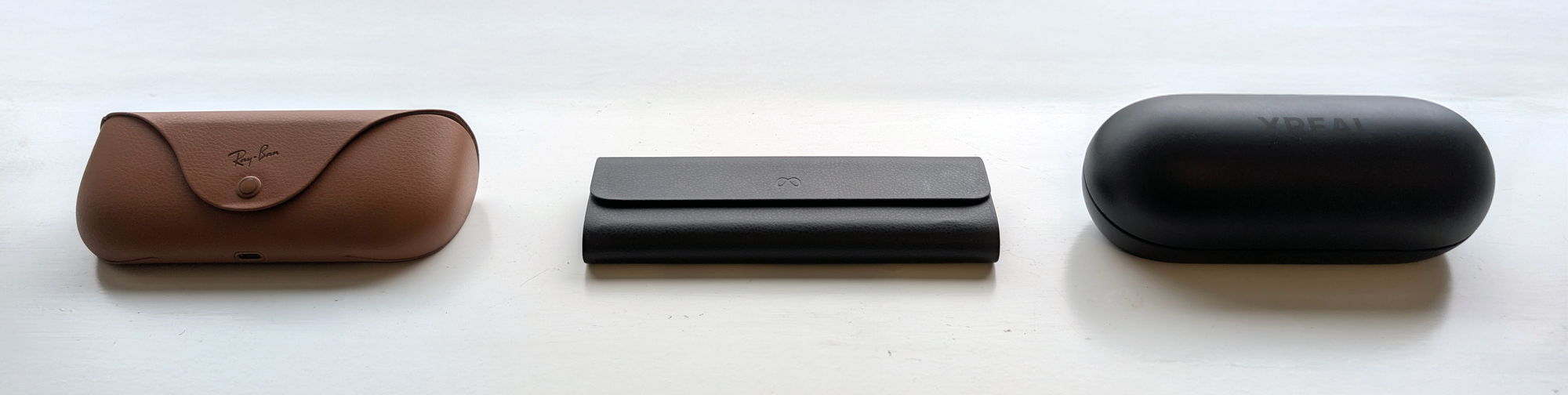
It also seems like the battery case could be the perfect way to bring cellular connectivity to a future version of Meta Ray-Ban Display without nuking the battery life. The case would send and receive 5G and LTE signals, and relay data to the glasses via Bluetooth for low-bandwidth tasks and Wi-Fi for high-bandwidth.
Interestingly, Meta has a partnership with Verizon to sell Meta Ray-Ban Display in stores. Could this evolve into a cellular partnership for the next generation?
Conclusions: Is It Worth $800?
Meta Ray-Ban Display is very much so a first generation product, an early attempt at a category that I’m convinced, after a month of testing, could eventually become a key part of the lives of at least hundreds of millions of people.
In its current form, it’s an amazing way to capture photos and videos without leaving the moment, and a great way to decide whether WhatsApp messages are worth your time without taking out your phone. In the cities where it’s supported, the on-foot navigation is genuinely useful, and for the languages supported, the live translation feature could change what it means to travel. Like displayless smart glasses, it’s also a great way to listen to spoken audio and take calls.
But the monocular display just doesn’t feel right, too much of what Meta is trying to do is hampered by the device’s lack of cellular connectivity, and the lack of established services like Gmail, Google Maps and Google Translate makes Meta Ray-Ban Display so much less useful than HUD glasses theoretically could be.

Further, while the Meta Neural Band works incredibly well, future versions need to replicate the functionality of smartwatches, instead of asking buyers to justify wearing yet another device on their wrist.
If you’re an early adopter who loves having the latest technology and you don’t mind looking odd in public, can live with the flaws I’ve outlined, and are fine with wearing a dedicated input device on your wrist, there’s nothing else quite like Meta Ray-Ban Display, and the novelty could make up for the issues.
For everyone else, I recommend waiting for future generations of HUD glasses, ideally with binocular displays and either cellular connectivity or a seamless automatic phone Wi-Fi sharing system that I suspect only Apple and Google, the makers of your phone’s OS, can pull off.
Just like with its Quest headsets, Meta is set to see fierce competition from the mobile platform incumbents in this space, and it’ll be fascinating to see how the company responds and evolves its products through the rest of this decade and beyond.
Appreciate our reporting? Consider becoming an UploadVR Member or Patron.
Critics Call Proposed Changes To Landmark EU Privacy Law ‘Death By a Thousand Cuts’
An anonymous reader quotes a report from Reuters: Privacy activists say proposed changes to Europe’s landmark privacy law, including making it easier for Big Tech to harvest Europeans’ personal data for AI training, would flout EU case law and gut the legislation. The changes proposed by the European Commission are part of a drive to simplify a slew of laws adopted in recent years on technology, environmental and financial issues which have in turn faced pushback from companies and the U.S. government.
EU antitrust chief Henna Virkkunen will present the Digital Omnibus, in effect proposals to cut red tape and overlapping legislation such as the General Data Protection Regulation, the Artificial Intelligence Act, the e-Privacy Directive and the Data Act, on November 19. According to the plans, Google, Meta Platforms, OpenAI and other tech companies may be allowed to use Europeans’ personal data to train their AI models based on legitimate interest.
In addition, companies may be exempted from the ban on processing special categories of personal data “in order not to disproportionately hinder the development and operation of AI and taking into account the capabilities of the controller to identify and remove special categories of personal data.” […] The proposals would need to be thrashed out with EU countries and European Parliament in the coming months before they can be implemented. “The draft Digital Omnibus proposes countless changes to many different articles of the GDPR. In combination this amounts to a death by a thousand cuts,” Austrian privacy group noyb said in a statement. “This would be a massive downgrading of Europeans’ privacy 10 years after the GDPR was adopted,” noyb’s Max Schrems said.
“These proposals would change how the EU protects what happens inside your phone, computer and connected devices,” European Digital Rights policy advisor Itxaso Dominguez de Olazabal wrote in a LinkedIn post. “That means access to your device could rely on legitimate interest or broad exemptions like security, fraud detection or audience measurement,” she said.


Read more of this story at Slashdot.
Ironclad OS project popping out Unix-like kernel in a unique mix of languages
There’s more to safer systems languages than RustIf you’re looking for a Unix-like, POSIX-compatible, real-time kernel, there’s no shortage of projects trying to build one. Ironclad stands out for using the Ada programming language and its formally verifiable SPARK subset.…
PDF Will Support JPEG XL Format As ‘Preferred Solution’
The PDF Association is adding JPEG XL (JXL) support to the PDF specification, giving the advanced image format a new path to relevance despite Google’s decision to declare it obsolete and remove it from Chromium. The Register reports: Peter Wyatt, CTO of the PDF Association, said: “We need to adopt a new image [format] that can support HDR [High Dynamic Range] content … we have picked JPEG XL as our preferred solution.” Wyatt also praised other benefits of JXL including wide gamut images, ultra-high resolution support for images with more than 1 billion pixels, and up to 4099 channels with up to 32 bits per channel.
The association is responsible for developing PDF specifications and standards and manages the ISO committee for PDF. JPEG XL is an advanced image format that was designed to be both more efficient and richer in features than JPEG. It was based on a combination of the Free Lossless Image Format (FLIF) from Cloudinary and a Google project called PIK, first released in late 2020, and fully standardized in October 2021 as ISO/IEC 18181. There is a reference implementation called libjxl. A second edition of the ISO standard was published in 2024.
JXL appeared to have wide industry support, including experimental implementation in Chrome and Chromium, until it was killed by Google in October 2022 and removed from its web browser engine. The company stated that “there is not enough interest from the entire ecosystem to continue experimenting with JPEG XL.” Many in the community disagreed with the decision, including FLIF inventor Jon Sneyers, who perceived it as the outcome of an internal battle between proponents of JXL and a rival format, AVIF. “AVIF proponents within Chrome are essentially being prosecutor, judge and executioner at the same time,” he said.


Read more of this story at Slashdot.
Intuitive Machines—known for its Moon landers—will become a military contractor
Intuitive Machines announced last week an $800 million acquisition that will catapult the one-time startup into the space industry establishment.
The company’s planned purchase of Lanteris Space Systems, a satellite manufacturer you may have never heard of, is rather significant. Lanteris is the latest addition to a line of corporate brands that dates back to 1957. Until last month, the company was known as Maxar Space Systems. Its acquisition by Intuitive Machines would be perhaps the industry’s most evident example of a “New Space” firm buying up an “Old Space” company.
The deal would help Intuitive Machines expand beyond its core competency of Moon missions to the broader sector of satellite manufacturing and space services. Lanteris has been owned since 2023 by Advent International, a private equity firm. The transaction is expected to close early next year, subject to “customary regulatory approvals and closing conditions,” according to Intuitive Machines.
Dell Quietly Offloads Its 1TB Laptops via Amazon (74% off), but Displays No Direct Deals on Its Website

This Intel laptop is one of the best Dell laptop deals of the year.
The post Dell Quietly Offloads Its 1TB Laptops via Amazon (74% off), but Displays No Direct Deals on Its Website appeared first on Kotaku.
You Can Get the Microsoft Surface Laptop 3 on Sale for Under $400 Right Now
We may earn a commission from links on this page. Deal pricing and availability subject to change after time of publication.
It’s been nearly six years since Microsoft released the Surface Laptop 3, but it still holds up as a solid choice for anyone who values portability, clean design, and day-to-day reliability over bleeding-edge specs. The 2019 model is available again through StackSocial in refurbished, Grade A condition (meaning it looks close to new and works like it should) with prices starting at $379.99 for the 13.5-inch i7 model with 512GB of storage and going up to $614.99 for the 15-inch version with 1TB. All variants come with 16GB of RAM and a 10th Gen Intel Core i7 processor, which makes them well-equipped for everyday use, whether that’s writing, web browsing, or streaming.
-
Microsoft Surface Laptop 3 (Black) 13.5″ ($379.99)
-
Microsoft Surface Laptop 3 (Sand) 13.5″ ($379.99)
-
Microsoft Surface Laptop 3 (Blue) 13.5″ ($379.99)
-
Microsoft Surface Laptop 3 (Black) 13.5″ ($379.99)
-
Microsoft Surface Laptop 3 (Black) 15″ ($499.99)
-
Microsoft Surface Laptop 3 (Silver) 15″ ($499.99)
-
Microsoft Surface Laptop 3 (Black) 15″ ($614.99)
For most users, the Surface Laptop 3’s biggest draw is its form factor. The 13.5-inch model weighs just under three pounds, and the larger 15-inch version remains thin enough to slip into a bag without fuss. The aluminum build still feels premium, and the PixelSense touchscreen remains bright and responsive, with a 3:2 aspect ratio that is ideal for scrolling through documents or editing photos. Microsoft’s keyboard and trackpad combo has aged particularly well—PCMag called it “snappy and satisfying”—and the typing experience still beats most modern ultrabooks. You also get USB-C and USB-A ports for flexibility, Wi-Fi 6 for strong wireless performance, and a 720p webcam with dual Studio Mics that’s serviceable for remote work or casual calls.
That said, a 2019 laptop in 2025 naturally has limits. You won’t get the faster chips, thinner bezels, or upgraded displays that newer Surface laptops have, and the battery life is closer to eight or nine hours in real use, not the 11.5 hours Microsoft claimed. But it still runs Windows 10 smoothly and can be upgraded to Windows 11, keeping it relevant for a few more years. All in all, for someone seeking a well-built, comfortable-to-use laptop for writing, productivity, or travel (without spending over a thousand dollars), the Surface Laptop 3 remains a great option.
Our Best Editor-Vetted Tech Deals Right Now
Deals are selected by our commerce team
Paramount+ is getting a price hike and ending free trials
Paramount+ is making some changes that will make its streaming service get more to watch. During Paramount’s earnings report today, the company announced that it will increase the subscription prices for Paramount+ in the US during the first quarter of 2026. Price hikes were also announced today for viewers in Canada and Australia. The new pricing was not shared, but a dollar or two more per month has become the standard change. Considering most streaming services jack their prices every year or two, the news was probably inevitable; the last increase for Paramount+ was back in June 2024. But today’s announcement also revealed that Paramount+ will no longer offer free trials, which is a common practice for most digital entertainment subscriptions.
The changes appear to be part of a reassessment of the Paramount+ finances. The company’s approach to increase long-term profitability “includes shifting away from certain hard bundles and low-margin subscriptions, reducing investment in select international markets without a clear path to sufficient scale, retiring free trials, and reviewing discount practices.”
These new moves follow Skydance’s acquisition of Paramount over the summer, an $8 billion purchase which received regulatory approval after some pretty scuzzy interactions with FCC Chairman Brendan Carr.
This article originally appeared on Engadget at https://www.engadget.com/entertainment/streaming/paramount-is-getting-a-price-hike-and-ending-free-trials-231146302.html?src=rss
Researchers isolate memorization from reasoning in AI neural networks
When engineers build AI language models like GPT-5 from training data, at least two major processing features emerge: memorization (reciting exact text they’ve seen before, like famous quotes or passages from books) and reasoning (solving new problems using general principles). New research from AI startup Goodfire.ai provides the first potentially clear evidence that these different functions actually work through completely separate neural pathways in the model’s architecture.
The researchers discovered that this separation proves remarkably clean. In a preprint paper released in late October, they described that when they removed the memorization pathways, models lost 97 percent of their ability to recite training data verbatim but kept nearly all their “logical reasoning” ability intact.
For example, at layer 22 in Allen Institute for AI’s OLMo-7B language model, the bottom 50 percent of weight components showed 23 percent higher activation on memorized data, while the top 10 percent showed 26 percent higher activation on general, non-memorized text. This mechanistic split enabled the researchers to surgically remove memorization while preserving other capabilities.
Rode’s Rodecaster Video S is a smaller, cheaper production console for creators
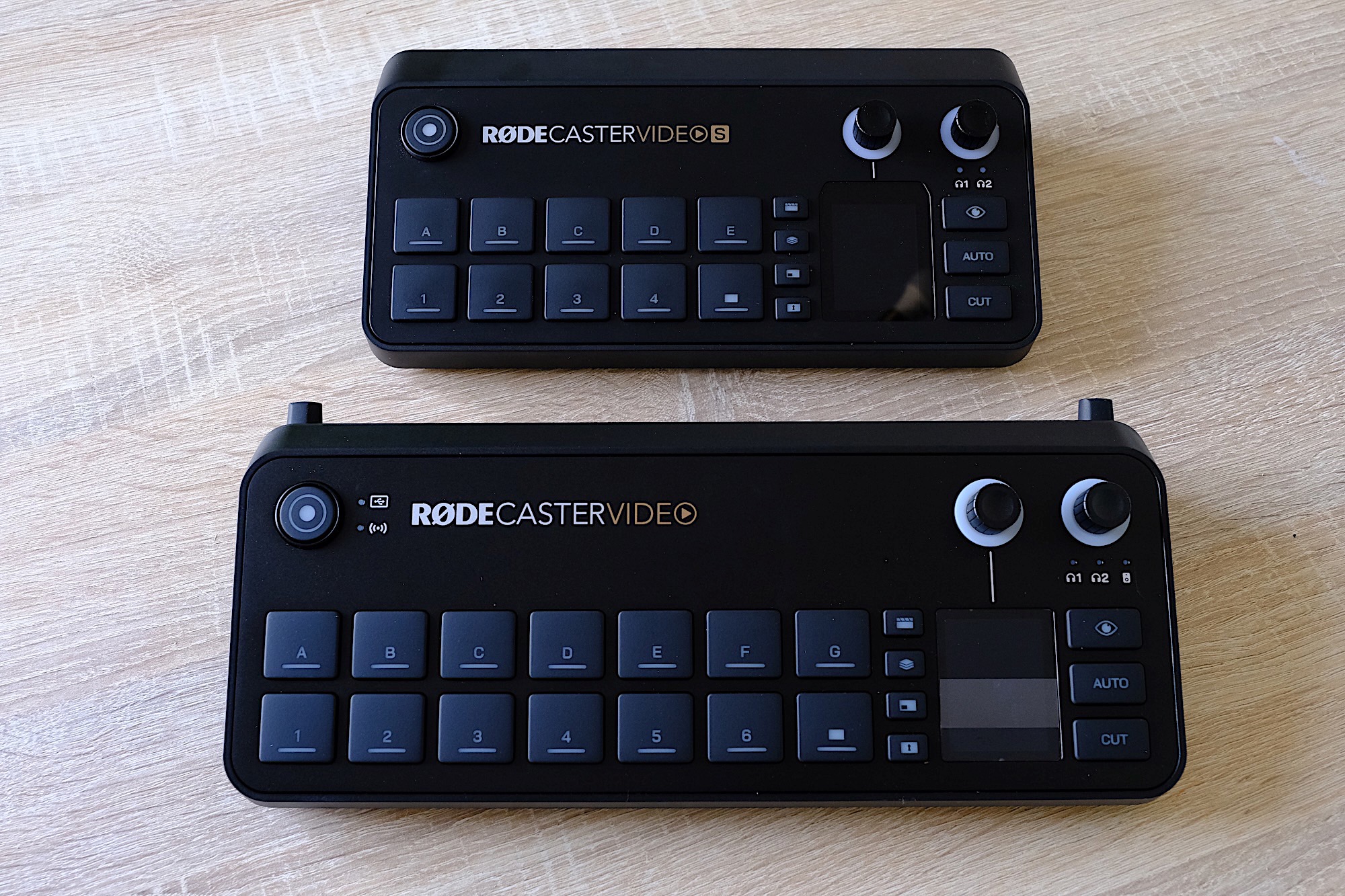
Rode is today launching the Rodecaster Video S, a smaller and cheaper version of its existing all-in-one production console. The Rodecaster Video is targeted at professionals and environments regularly producing multi-camera content. The S, meanwhile, is aimed at bedroom streamers, video podcasters and other indie creators with more modest production needs. Consequently, the focus here is on trimming down unnecessary features to get the price to a more reasonable $500.
Rode
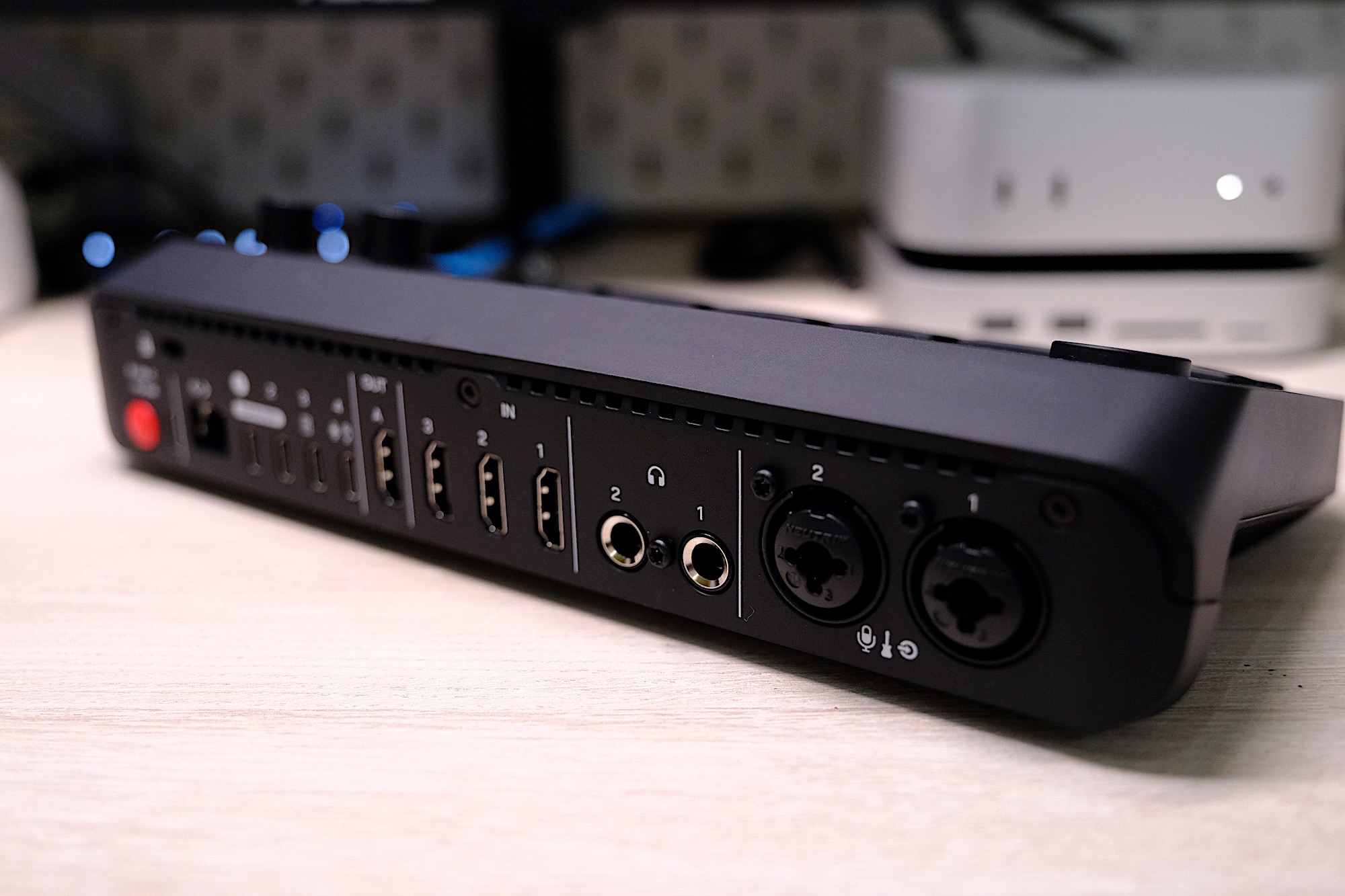
It’s easy to spot the differences by sight alone, since the hardware is smaller than its bigger sibling. It’s got fewer input and scene buttons, and is clad in plastic, rater than metal, since it probably won’t need to be moved around a lot. The number of HDMI inputs/outputs drops from 4/2 on the original to 3/1 here, and there’s only one multi-function USB-C port. Similarly, there’s only two headphone outputs here, and you’ll only get 24GB internal storage rather than the microSD-card slot found on the original.
The Rodecaster Video S is available to pre-order today, with units expected to ship across December, depending on your territory.
This article originally appeared on Engadget at https://www.engadget.com/entertainment/streaming/rodes-rodecaster-video-s-is-a-smaller-cheaper-production-console-for-creators-230052793.html?src=rss
Rodecaster Video S review: Compact and comprehensive video production
The Rodecaster series of podcast mixers have become a mainstay among audio creatives. Last year, the company expanded the line with its first multimedia model — the Rodecaster Video. It was a more niche proposition, aimed at streamers, video podcasters and live producers, and, at $1,200, people with deeper pockets. Today, Rode returns with the Rodecaster Video S (RCV-S), a streamlined version that offers much of the same functionality for less than half the cost of the original ($499).
If you currently use Ecamm Live, OBS, a Stream Deck, a Rodecaster Pro/Duo, a video capture card or Blackmagic Atem type switcher, then there’s a good chance the RCV-S does something, or many things, useful to you. Maybe it can replace all those products, some of them or enhance your workflow. It’s a little complicated, but within that complication is a lot of versatility.
With three HDMI inputs, one USB webcam/mic input and up to four NDI/wireless camera inputs, video is clearly the focus here. But there are also two XLR/Combo ports for studio microphones and instruments and the option to connect up to two of Rode’s wireless lav mics (such as the Wireless Go) directly without the need for a receiver. The RCV-S, like Blackmagic’s popular Atem Mini, outputs over HDMI at 1080p/60 (no 4K) or can be used over USB as a virtual camera just like you’d find in Zoom or Teams.
Unlike the Rodecaster Pro or Duo, there are no faders; instead, there are two rows of pads for switching between video sources and scenes. There’s 20GB of onboard storage for media — such as overlays, graphics and audio/video clips — and you can record shows directly onto USB hard-drives or stream natively to Twitch, YouTube and other platforms via RTMP/S. There’s a lot going on, and how you want to use it all is largely up to you. While the RCV-S leans more toward “live” productions such as streaming or podcasts, you can use it for conventional YouTube-style video production, depending on your workflow or video preferences.
Rodecaster Video versus Rodecaster Video S
The huge price difference between the original Rodecaster Video and the new S model might lead you to expect some serious feature trimming this time around, but Rode’s garden shears have been fairly kind. Most notably, the number of sources you can connect has been reduced from six to four. Meanwhile, the number of “scenes” you can create is now five, down from seven. As mentioned above, there are three HDMI inputs, not four, and only one USB webcam/mic input, down from two on the original. There are still nine channels of audio with two headphone outputs, but the line outputs on the original are no longer here. The SD card slot for media has also been removed in favor of internal storage. In short, there’s a little bit less connectivity, but not enough for it to feel hobbled, especially for the more casual users this is clearly aimed at.
In-use
At its most basic, the RCV-S is an all-in-one video switcher. You don’t need to connect it to a PC, just plug in your video and audio sources and you can jump between them in real time with a choice of transitions. For a more polished production you can create “scenes” via the menu with a selection of layouts for multiple cameras, picture-in-picture and so on. That could be two talking heads for a podcast, overlaying your web camera on top of your gameplay or a top-down camera mixed with a different perspective for cooking tutorials or presentations.
You can create scenes directly on the device in advance or live via templates, but things get a lot easier and more creative when you use Rode’s companion Rodecaster app. Here, you’ll find a “scene creator” tool that’s both visual and intuitive, plus it has the option to make custom layouts where you can freely resize and place all your different media wherever you want, add borders or rounded corners and so on.
While the main pads are primarily for switching between sources and scenes, they can also trigger media — pre-made video clips, overlays and graphics, for example. You can assign media to them without reducing the number of sources/scenes that are available to switch between, just tap the Media/Overlay button to temporarily change the functionality of the pads. You can also set up chromakey/green screening directly on the device or via the Rodecaster App, too.
Once you have everything set up, you can directly record output onto a USB SSD, again, without the need for a PC. There’s even the option to record only the main output (“program”) or a multi-track version which will export a recording of every input as a separate file that you can edit as you see fit. This is helpful if you’re using apps like Adobe Premier or Davinci Resolve. If you shoot multi-camera dance tutorials, for example, you can jump between your main and wide camera and then to a close up without having to hunt-down the right part from each file you recorded on different memory cards.
Rode recently updated the Rodecaster Video firmware to add support for up to four “NDI” wireless cameras as additional sources. Typically these are remote or security-style cameras, but Rode’s Capture mobile app also supports NDI streaming, meaning you can use your phone wirelessly as another camera that you can switch to, which is particularly useful. Though do note, the Rodecaster Video will need to be hard-wired to your router on the same network as your phone for this to work.
Audio
James Trew for Engadget
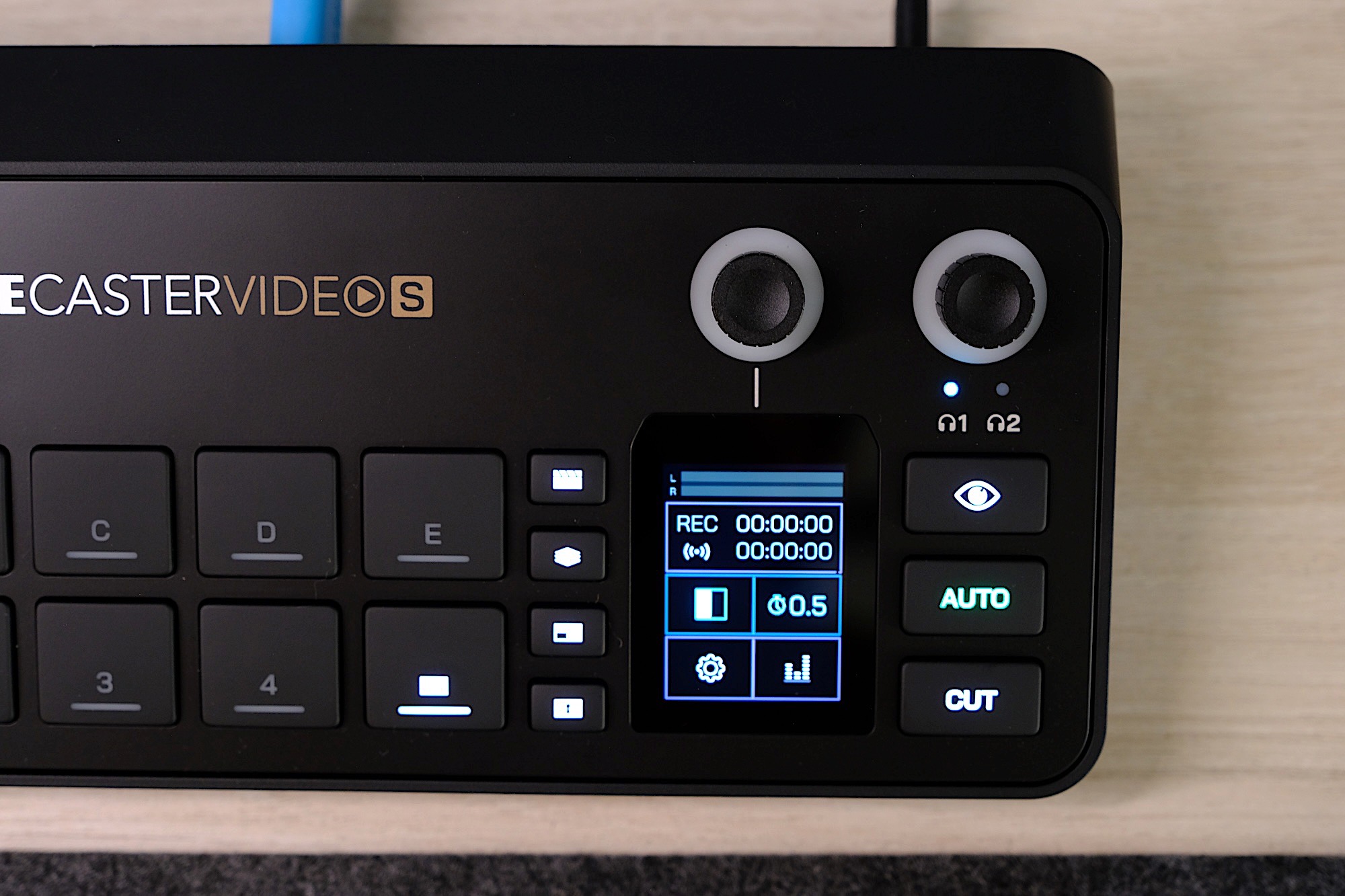
While the RCV-S offers nine audio tracks, it’s fair to say it isn’t really designed for live audio mixing in the pure sense since there are no faders. Instead, you have to access different channels via the menu on a small display and a dial — It’s a lot of hunting and pecking. If you’re connected to a PC, the Rodecaster app does offer a software mixer with faders though, which makes adjusting levels on the fly much easier.
The good news is that some voice enhancement tools, such as Depth, Sparkle and Punch have been carried over from the Rodecaster Pro/Duo, giving you a little more fine-grained control over how you or your guests sound.
There’s a slight drawback when using the RCV-S as a standalone unit, in that you need to physically push the buttons to change the scene, which might not be ideal if you’re trying to make a polished recording or can’t always be near the console. Thankfully, Rode has a solution in “auto switching.” I’m mentioning it here, in the audio section, as the RCV-S can switch cameras based on which one has the strongest audio or based on user-defined priority. Typically, that would be whoever is talking in a podcast, but it could also be in-game sound or when you switch to playing a musical instrument.
Auto switching works well, but it’s not quite dependable enough to rely on for full autonomy in a professional environment — say while recording a panel at a conference — but it solves a problem if you’re on your own, and it could at least save some time in a casual podcast situation.
Things to consider
James Trew for Engadget
It’s clear that the RCV-S, despite having fewer inputs than the original Rodecaster Video, is still quite a complex, open-ended tool. If you already have a streaming setup you like and the software and interfaces you need, then the appeal of the RCV-S will be down to whether it can do what you need more efficiently. For live video production, it’s an easier sell, as there aren’t many all-in-one devices to compete with it that can be used standalone.
For example, Blackmagic’s Atem series is incredibly popular, and until now, had the advantage on price with the Mini Pro costing just $330. Even the Mini Pro ISO ($550) that exports multi-track video was half the price of the original Rodecaster Video. The RCV-S now offers comparable connectivity, onboard recording, more expansive audio features and multi-track export for $50 less.
For general content creators it’s a little trickier. As someone that makes YouTube videos, the appeal to me is the chance to consolidate a few devices into one and remove some friction in my recordings. Right now, I have a Rodecaster Duo handling my audio, a capture card for my main camera and I swap out that camera for a smaller one if I am shooting top-down footage or need a second angle. That means I have several different devices on my desk, and I’m constantly doing a dance of unplugging things and juggling media or different recordings before I get everything ready to edit.
James Trew for Engadget
With the RCV-S I can ditch my standalone capture card and permanently leave multiple cameras connected to the Rodecaster so that they are ready to go at any time. I can even remove the Rodecaster Duo and bring it back out again on the occasions I need more immediate control over multiple sources of audio (which is sometimes, but not often). The appeal in my case is fewer devices on my desk, and the ability to record multi-camera video without having to set up every shot, every single time, which saves significant time that I can then use to actually get more work done.
There are, of course, some limitations. Not least of all is the lack of 4K. I’m still inclined to record on camera for my primary shot to ensure I still have a 4K copy for YouTube and then use the Rodecaster Video S for everything else, but as a small creator, convenience and flexibility is very appealing. For streamers and live video production, the Rodecaster Video S is a very capable tool that offers a wide range of functionality for an accessible price that will no doubt become the central hub for many creators.
The real kicker here is the price. Let’s be clear, $500 is still significant money. But at less than half the price of the original Rodecaster with decent connectivity and basically the same functionality, it’s an easy recommendation to those who were holding off based on price alone. Likewise, if you’re just starting out with content creation and need something with solid video credentials and audio chops, Rode makes a good case for itself with the Rodecaster Video S.
This article originally appeared on Engadget at https://www.engadget.com/general/rodecaster-video-s-review-compact-and-comprehensive-video-production-230000221.html?src=rss
Diablo 4 In China Censored, Blood And Skeletons Removed

A large skeleton boss found in Blizzard’s action RPG is made out of rocks in the upcoming Chinese version
The post <i>Diablo 4</i> In China Censored, Blood And Skeletons Removed appeared first on Kotaku.
Fish Shell 4.2 Released with Improved Autosuggestions
Fish Shell 4.2 enhances history-based autosuggestions, defaults to UTF-8 encoding, clears transient prompts correctly, and more.
Canada fought measles and measles won; virus now endemic after 1998 elimination
Canada has lost its measles elimination status, meaning the highly infectious virus is considered endemic once again in the country, The Pan American Health Organization (PAHO) announced Monday.
The determination was made by a committee of PAHO experts, who spent last week poring over disease data to assess the measles status of countries across the entire region. The fact that Canada has lost its elimination status means that the region of the Americas overall has also lost the status, which it achieved in 2016. Of the 35 countries and territories in the region—a health region designated by the World Health Organization—Canada is currently the only country where measles is considered to be spreading endemically, though other countries, namely the US and Mexico, are headed in the same direction.
Measles is considered eliminated when a country can go 12 months without continuous local spread. Sporadic cases brought in from international travel can continue to occur, potentially causing limited outbreaks. But elimination is lost and endemicity is declared only when transmission is sustained over the course of a year.
This Game Tests If People Know How Much Porn Characters Have On The Internet, And They’re Failing

Rule34dle is exactly what it sounds like, and it’s terrifying
The post This Game Tests If People Know How Much Porn Characters Have On The Internet, And They’re Failing appeared first on Kotaku.
Apple Has Three New AI Features in the Works, Starting With an AI Siri
When you think about the tech companies leading the AI race, Apple is pretty much at the bottom of the list. That’s not necessarily a bad thing, as far as I’m concerned. From where I’m sitting, many of us couldn’t care less about the latest AI features companies are shoving into their products—we just want the products we actually use to work, and work well.
But strictly focusing on AI progress, Apple is far behind rivals like Google and Microsoft. While Android and Windows are full of AI features, either through Google’s Gemini or OpenAI’s GPT models, Apple’s first-party AI advances are much more limited. Both Google and Microsoft promote their AI assistants as a cornerstone of their marketing strategies; meanwhile, Apple pulled it AI Siri commercial, as its promised upgrades kept getting delayed.
That’s not to say there aren’t any AI features here—far from it. Since iOS 18, Apple has rolled out AI features under the Apple Intelligence umbrella, including things like Image Playground, AI image editing, and Writing Tools. But, again, these features are not selling iPhones, and it seems like Apple knows it. The company appears to be doing more AI work behind the scenes than in front of it these days.
Despite all this, the company is still making serious in-roads with AI. In fact, the company is planning three key new AI features, at least according to Bloomberg’s Mark Gurman.
AI Siri
Remember how I said Apple’s AI Siri upgrade keeps getting delayed? Well, as it happens, AI Siri might be here sooner than later—at least, in part. According to Gurman, Apple plans to roll out “a new Siri” with iOS 26.4, while the assistant will get a “redesign” with next year’s iOS 27.
If you recall, Apple promised an AI-powered Siri with iOS 18 that was smarter than any iteration of Siri that had come before. This AI Siri was highly contextual, understanding what you meant in your requests without you needing to be hyper-specific. In addition, the assistant could pull information from a variety of sources, such as messages or emails, to fulfill requests, and even had an agent mode to take actions on your behalf. This is similar to how AI browsers let you ask the assistant to do things on the web for you. It’s objectively futuristic, to be sure, but not necessarily useful—nor is it secure.
As it happens, Apple had a lot of trouble actually getting those features to work. The company’s new Siri is an extreme engineering puzzle that wasn’t solved by iOS 18’s release, and was delayed through iOS 26.0. If the schedule holds, those changes should be coming to 26.4, and may even be powered in part by Google’s Gemini model. That said, iOS 26.4 is likely four months away: Apple just released iOS 26.1 and is beta testing iOS 26.2, and neither update comes with any Siri upgrades. Since the company released iOS 18.4 in March of this year, chances are we’ll see 26.4 in March 2026. If so, we might only be a quarter year away from a new Siri experience.
Next year, according to Gurman, Siri will get a total makeover. The assistant will be more conversational, and will power Apple’s upcoming smart home device strategy. But that’s a ways away yet.
AI health agent
Gurman says Apple is also working on an AI agent that can coach users on health-related issues. Codenamed “Project Mulberry,” the service combines a new Health app, subscription (Health+), and AI health assistant. This assistant can pull data from the Health app to inform its advice, and is being trained using real doctors across medical professions. According to Gurman, “if the Health app receives data about poor heart-rate trends, a video explaining the risks of heart disease could appear.”
The company is actually opening studio space to record videos for this service, and may feature a “major doctor personality” to “host” this Health+ service. (My money’s on Doctor Mike, but maybe that’s the only major doctor personality I know.)
Gurman says this AI health agent could arrive as soon as iOS 26.4, alongside the new AI Siri. It will be interesting to see how Apple squares two key problems with this feature: AI sometimes makes mistakes (and sometimes just makes things up), so trusting it to offer health advice raises some red flags. Add in the fact that Apple will be using user data to inform the AI on how to handle health advice, and user privacy questions pop up. The company prides itself on privacy, so I imagine it will have a clear plan here, but if this AI health agent really launches, these points will need to be addressed.
Web search tool
Finally, Gurman says that Apple has “plans for an AI-powered web search tool.” This tool is called “World Knowledge Answers” within the company, and is intended to compete against similar search tools from companies like OpenAI and Perplexity.
World Knowledge Answers will integrate directly within Siri, and may come to Safari and Spotlight too. It may include text, images, videos, and “local points of interest,” as well as AI summaries. The idea is to keep users asking questions within Apple’s own suite of products, rather than see them use other AI search tools. It’s likely it’ll arrive alongside these other two features with iOS 26.4.
Will these AI features be enough to catch Apple up to the rest of the AI players? I’m not sure. But I’m not sure the company needs to catch up. As much as Microsoft has made AI a cornerstone of its new Windows experiences, it’s not the reason people are buying PCs. Similarly, few users are choosing their smartphones, tablets, and computers based on whether Apple, Google, or Microsoft has the best AI assistant, or the best array of AI features. AI might be big money right now, but not in a way where Apple needs to be on top to remain one of the biggest companies in the world.