Linux Mint Debian Edition (LMDE) 7, based on Debian 13
(“trixie”), has been released:
Its goal is to ensure Linux Mint would be able to continue to deliver
the same user experience, and how much work would be involved, if
Ubuntu was ever to disappear. LMDE is also one of our development
targets, to guarantee the software we develop is compatible outside of
Ubuntu.
Apple has introduced an upgraded version of its Vision Pro headset that’s powered by the company’s M5 chip, its latest silicon that will also come with the new iPad Pro and MacBook Pro. The first generation of the headset was equipped with Apple’s M2, so you can expect this device to be faster and come with more capabilities. Apple hasn’t budged the price from $3,499 with 256GB of storage, but at least it comes with a Dual Knit Band, which adds a top strap for extra security and comfort. (Existing Vision Pro users can also buy the Dual Knit Band separately for $99.)
As you’d expect, Apple claims the refreshed Vision Pro should be faster while loading apps, browsing the web and doing just about everything. The M5 chip also includes a new 10-core GPU, with better support for hardware-accelerated ray tracing and mesh shading, “enabling developers to add remarkable detail to lighting, shadows, and reflections in games like Control,” according to Apple. The company also says the M5 Vision Pro renders 10 percent more pixels on its micro-OLED displays, which should make everything look a bit sharper.
The M5 Vision Pro should last a bit longer than the original model, as well. Apple claims it supports up to two and a half hours of typical usage, and up to three hours of video playback. The previous model was rated for two hours of general usage and two and a half hours of video viewing.
Bloomberg’s Mark Gurman reported a few days ago that Apple was due for another wave of product announcements. He wrote back then that the new iPad Pro and Vision Pro are already being mass produced and that Apple is “gearing up for an imminent release.” Apple had originally wanted to launch a a lighter and cheaper version of the Vision Pro headset, as well, but it reportedly decided to shift its focus on the development of smart glasses. The company pulled people working on the lighter Vision Pro, Gurman said in another report, and moved them to its smart glasses project.
Apple is reportedly working on a smart glasses model with no display and is meant to pair with iPhones, along with another model that’s equipped with a built-in screen and can directly compete with Meta’s Ray-Ban Display. The company is aiming to release the model with no screen in 2027 and the one with a screen in 2028, Gurman said.
“The Vision Pro is a flawed product, but it’s certainly not empty,” we noted in our review of the original headset. “It’s as if Apple has compiled everything it’s learned from building the Mac, iPhone, Apple Watch and AirPods into a single device, all in a bid to avoid the Innovator’s Dilemma.” At first glance, the M5 Vision Pro doesn’t seem to change that conclusion much, not without more content and apps built around spatial computing. A price drop and more storage on the base model would certainly make the Vision Pro more compelling, until that happens it’ll remain more of a developer kit than a full-fledged consumer product.
The M5 Vision Pro is now ready to pre-order and will once again set you back $3,499. Apple will start shipping the device on October 22.
This article originally appeared on Engadget at https://www.engadget.com/ar-vr/apples-new-vision-pro-gets-an-m5-chip-and-dual-knit-band-but-its-still-3499-132123957.html?src=rss
Apple’s latest 11- and 13-inch iPad Pros have arrived, and though they’re the first with the company’s all-new M5 chip, they’re otherwise largely identical to last year’s models. The main reason to buy one, then, would be for the extra performance over the M4 — something that may be worthwhile to content creators and other power users looking for a tablet instead of a laptop.
Last year Apple decided to debut its M4 chip with the iPad Pro lineup and not its laptops. The reason? Only the entry-level M4 was ready (and not the M4 Pro and M4 Max), so Apple decided to wait before putting in its MacBooks so it could launch the entire lineup at once. With updated Magic Keyboards, It also showed that Apple was marketing the iPad Pro as a feasible MacBook replacement for power users.
The same applies with the M5, except this time the company also launched its entry-level 14-inch MacBook Pro at the same time. As before, the new M5 processor uses TSMC’s 3-nanometer process, as Apple reportedly decided against 2-nanometer chips due to cost considerations. The entry-level M5 comes in a couple of versions. The iPad Pro with either 256GB or 512GB of storage gets an M5 with a 9-core CPU (3 performance cores and 6 efficiency cores), 10-core GPU and 12GB of RAM. The 1TB and 2TB models get a fourth performance core and 16GB of RAM.
The big upgrade here appears to be to the GPU; Apple says each of the 10 GPU cores have a Neural Accelerator on board, which will allow GPU-based AI processing to run significantly faster than on the M4. Apple claims it has more than four times the peak GPU compute performance of the M4 (which is only about 18 months old, mind you). Graphics performance should be about 45 percent higher than on the M4, as well. Overall multithreaded performance is 15 percent faster than the M4, and Apple says that video transcoding is six times faster than what the old M1 iPad Pro from 2021 delivered.
As for battery life, Apple claims the same 10 hours that basically every iPad has ever been rated at. But for the first time, the iPad Pro supports fast charging — you can get up to 50 percent in 30 minutes using a 60W USB-C power adaptor.
Apple is also using the C1X modem that it originally introduced last month in the iPhone Air; that’ll provide the optional 5G service that Apple has offered on iPads for a few years now. There’s also an N1 chip (also found in the iPhone Air), which is an Apple-designed networking chip for Wi-Fi 7, Bluetooth 6 and Thread connectivity. Apple claims this new chip will make features like Personal Hotspot and Airdrop more reliable while also offering improved performance on 5GHz Wi-Fi networks.
As before, the 2025 iPad Airs are extremely thin and light. The 11-inch model is 5.3mm thick and tips the scales at just under one pound, while the 13-incher is just 5.1mm thick weighs 1.29 pounds. Both feature “tandem” OLED Ultra Display XDR screens that hit up to 1,000 nits brightness and peak at 1,600 nits — so they’re perfect for viewing and editing HDR content.
The new iPad Pro starts at $999 for the 11-inch model with 256GB of storage ($1,199 with 5G) and $1,299 for the 13-inch ($1,499 with 5G). Those are the same prices as last year — still extremely expensive, but at least not more than before. You can pre-order the new iPad Pro now, and it’ll be available on October 22.
This article originally appeared on Engadget at https://www.engadget.com/mobile/tablets/apples-latest-ipad-pro-get-a-power-boost-with-the-new-m5-chip-131036435.html?src=rss
Merged today to the Tinygrad deep learning framework is a Mesa NIR back-end to allow targeting that common intermediate representation used by these open-source Linux GPU drivers. Initially supported with this Tinygrad NIR back-end is the open-source NVIDIA Vulkan driver “NVK” with its Rust-based NAK compiler as well as the CPU-based LLVMpipe driver…
Commodore is attempting to come to the rescue for hundreds of millions of users who are still running Windows 10, which has now reached official EOL (end of life) status. In a message posted to social media platform X, Commodore pitched its free Linux-based Vision 3.0 OS as a sanctuary for those left behind, calling it not just an upgrade,
Xbox is at a crossroads. While the PlayStation 5 and Switch 2 continue to gain popularity, multipleprice hikes for the Xbox Series S and X have killed their momentum. And with several big box retailers like Costco deciding to drop Microsoft’s console from their shelves, the current-gen Xbox may be dead in the water. So what should the company do?
Microsoft’s most straightforward option would be to simply punt the end of the Xbox’s lifecycle, regroup and come back strong with a brand new console in a year or two. On the flipside, the company could follow in Sega’s footsteps after the untimely demise of the Dreamcast and become a cross-platform game publisher with a large stable of first-party studios. However, there’s a third route that could fill the gap between now and whenever the next Xbox arrives that could potentially expand its reach to a whole new segment: Give handheld gaming a go.
Engineering and building a new portable gaming device isn’t cheap or quick. So instead of doing everything itself, Microsoft teamed up with ASUS to create the ROG Xbox Ally and ROG Xbox Ally X — a pair of Windows 11-based portable gaming PCs enhanced with Microsoft’s DNA. And while it’s too early to say if these handhelds will help save Xbox itself, they’re more than solid portables that could have a big impact on portable gaming going forward.
Editor’s note: This review is focused on the ROG Xbox Ally X, primarily because that’s all we have at the moment. However, the Xbox Ally and Xbox Ally X share many features including the same basic design , display, button layout and software (the only difference is their color). That said, the base Xbox Ally has less impressive specs as it comes with a slower AMD Ryzen Z2 chip, 16GB of RAM, 512GB of storage and a smaller 60WHr battery. It’s also a touch lighter (1.48 pounds vs 1.58) and has a lower price of $600 instead of $1,000.
Design and display: The Xbox goes portable
Sam Rutherford for Engadget
When you look at the ROG Xbox Ally X, it might appear as if ASUS bolted larger grips to its previous handheld — the Ally X — and called it a day. However, the company says the Xbox Ally was redesigned from the ground up, in large part to include a number of signature features that will make Xbox faithful feel right at home. This includes things like the classic ABXY button layout, Impulse triggers with tons of travel and, of course, the requisite Xbox home button. Then smack dab in the middle of everything is a 7-inch IPS LCD screen.
Speaking of the display, ASUS picked a FHD IPS panel with a 120Hz refresh rate that appears to be the exact same screen used on the Ally X. While it doesn’t deliver pure blacks like you’d get from OLED, contrast was still surprisingly good. With a brightness of 500 nits (the one on our review unit was actually a touch higher at 510 nits), this display delivers almost everything you want without feeling like you need to upgrade to something like the huge 8.8-inch OLED panel on the Lenovo Legion Go 2.
Sam Rutherford for Engadget
Around back, there are two customizable paddles while the top edge houses a fingerprint reader and all of the Xbox Ally X’s connectivity: two USB-C ports, a microSD card reader and 3.5mm audio. Notably, while both ports support charging and display capabilities, the one furthest to the left is also Thunderbolt 4 compliant. This means it has enough bandwidth to support external GPUs like ASUS’ recently updated XG Mobile graphics dock.
Ultimately, the ROG Xbox Ally might not look all that different from ASUS’ previous handhelds, but between its buttons, triggers and those big new grips, it really does feel like you’re holding a portable version of Microsoft’s console. Even without Hall Effect sensors, the Xbox Ally X’s joysticks are tight and responsive, while the triggers offer a ton of travel. The only thing I wish ASUS and Microsoft had paid a little more attention to is the handheld’s haptics, which are fine, but they’re a far cry from the expressive rumble motors you get from a DualSense controller or the Switch 2’s Joy-Con.
Performance: Flagship handheld power
Sam Rutherford for Engadget
As the higher-end model in ASUS and Microsoft’s new joint handheld lineup, the ROG Xbox Ally X features a AMD Ryzen Z2 Extreme chip with 24GB of memory (which is shared with its GPU) and 1TB of storage that can be expanded via microSD. However, thanks in part to the new full-screen Xbox experience, Microsoft tweaked a number of the handheld’s background processes and services for the first time on a Windows 11-based handheld. The result is a slightly more optimized device even when compared to its closest rivals.
In Cyberpunk 2077 at 1,920 x 1,080, medium graphics and FSR set to performance, the ROG Xbox Ally X hit 62.1 fps while plugged in and set to its max 35-watt Turbo mode. That’s almost five fps higher than what we got from the Lenovo Legion Go 2 (57.5 fps) when its settings are similarly maxed out. Admittedly, this might not sound like a huge improvement, but it ends up being an extra seven percent performance from the same chip, which ain’t bad. Meanwhile in Returnal, I got similar numbers after switching to the Ally’s more energy-efficient 17-watt Performance Mode (unplugged), where it produced 42 fps at full HD on medium versus 39 fps for the Lenovo.
Sam Rutherford for Engadget
That said, it’s important to note that the Ally’s performance changes depending on whether it’s plugged into the wall or not. If you want its full 35-watt Turbo Mode, you’re going to need to use a power adapter, while its 17-watt Performance and 13-watt Silent modes stay the same no matter what you do. There’s also a manual performance customization tool, but to access it, you’ll need to switch over to ASUS’ Armoury Crate app, as there isn’t a place to change things directly inside the Xbox app.
Software: The tailored gaming experience we needed
Getting excited about the software on a gaming handheld is usually pretty difficult. However, between the aforementioned tweaks to background services and the new full-screen Xbox experience, Microsoft has managed to remove a ton of the clunkiness that typically plagues other Windows-based gaming handhelds.
Instead of having to wade your way through the traditional Windows desktop before booting into a game, now you’re greeted by the Xbox app upon startup (and even during initial setup), so there are fewer steps to get between you and your favorite title. Furthermore, Microsoft has come up with a revamped layout that makes core features super easy to find. The Home tab is where all your installed software is, while there are other dedicated sections for Game Pass downloads (assuming you have a subscription) cloud gaming/remote play (also via Game Pass) and the Microsoft Store. If you prefer other digital marketplaces like Steam or Epic, there are shortcuts to download installers for those stores (and a few more like GOG and Ubisoft) in the My Apps tab. You don’t need to open a web browser and do things manually.
To switch between apps in Microsoft’s new full-screen Xbox experience, all you need to do is swipe up from the bottom of the ROG Xbox Ally X’s screen.
Sam Rutherford for Engadget
Furthermore, hitting the Xbox button summons a handful of quick settings for all sorts of things, including the Command Center for performance, toggles for Wi-Fi and Bluetooth, your Xbox friends list and a whole lot more. It’s kind of like a do-everything button and it makes accessing almost all of your most important tools and features quick and easy.
On top of that, there are new gestures that you can access by swiping in on the screen in different directions. Dragging your finger in from the left calls up the Xbox Game Bar overlay, even when you’re in the middle of playing a game, while swiping in from the right opens your Windows notifications. But my favorite command is swiping up from the bottom, which is a new way to switch between apps (or a cooler version of Alt + Tab, depending on how you look at it). From there, you can even scroll through any programs that are currently open just by tapping the Xbox Ally’s shoulder buttons. If you want to use the handheld like a real PC, you can also activate the Windows desktop from there too.
Microsoft has also thoughtfully included compatibility tags on a number of games in its store to give buyers a sense of how well a game will run on the ROG Xbox Ally X.
Sam Rutherford for Engadget
The redesigned Xbox experience is very breezy and handles 90 to 95 percent of your traditional gaming functions, but there are still times when some of Window’s underlying awkwardness shows through. Most often, I found this happens when exiting a game from a third-party store, where the Xbox Ally will spit you out into your Steam library (for example), where you’ll often have to rely on touchscreen controls instead of the joysticks or the desktop mode’s mouse cursor to navigate around. It’s not a big deal compared to other Windows-based handhelds, and even though Microsoft has taken a big step forward on the Xbox Ally, there is still a little polishing to be done.
Battery life: A solid jump in longevity
One of the biggest benefits of going with the ROG Xbox Ally X is that it comes with a larger 80WHr battery than the base model (60Whr). When that is combined with improved energy efficiency from its new chip, you get very solid battery life — just as long as you don’t max out the power settings.
Sam Rutherford for Engadget
I tested this by playing Clair Obscur: Expedition 33 at full HD on medium settings and max brightness (Protip: don’t do this at night if you want to get to sleep on time) and the Xbox Ally X lasted just shy of three and a half hours. That’s 30 minutes longer than what I got from the Legion Go 2, although considering the latter has a much larger screen (with the same 500 nits of brightness), that difference wasn’t a big shock. The bigger revelation is that when compared to the original Ally X, ASUS and Microsoft’s new jointly-made device provided an extra hour of runtime, which could make a meaningful difference on a long trip.
Wrap-up
While Microsoft’s first real foray into PC gaming handhelds isn’t upending the status quo and it’s way too early to say if this gadget will save Xbox as a whole, it is bringing some notable advancements. The new full-screen experience makes launching and playing games on Windows-based devices so much more seamless that it’s kind of wild it took so long to get here. Sure, there are still a few edge cases where you’ll have to tap the screen or flip between the Xbox app and ASUS’ Armoury Create to tweak certain settings, but compared to most of its rivals, the ASUS ROG Xbox Ally X is a massive upgrade in general usability.
Here is a size comparison between the ASUS ROG Xbox Ally X (bottom) and the Lenovo Legion Go 2 (top).
Sam Rutherford for Engadget
The bigger grips and a familiar button layout will instantly make longtime Xbox fans feel right at home. And thanks to the new chip and more processes and services that run in the background while you’re gaming, you get class-leading performance and battery life.
Aside from lackluster haptics, the ROG Xbox Ally X’s biggest issue is its price. I totally get that there’s a growing number of gamers who constantly crave better performance from their portable PCs. However, the trade-off for all this is a much bigger hit to your wallet. It wasn’t that long ago when the going rate for a premium handheld was more like $500, which made it easier to afford. After all, those devices weren’t really designed to be your main gaming rig like a laptop or desktop.
Ultimately the biggest deciding factor for purchasing the ROG Xbox Ally X may be how much someone is already invested into the Xbox ecosystem. If you’re a fan of other game stores or you don’t have a subscription to Xbox Game Pass or a ton of friends on the platform, you won’t get the full benefit of everything Microsoft has integrated into the handheld’s new software. This goes double for devotees of Valve’s digital store and Linux-based OS that don’t need bleeding edge performance, who can safely stick to much more affordable Steam Decks or the Legion Go S.
Alternatively, if you want a versatile portable with a giant OLED screen and detachable controllers, the Legion Go 2 is worth consideration as well. Though at $1,300 for the model with a Z2 Extreme chip, it’s even more expensive than this new handheld Xbox. Still, despite some minor caveats, Microsoft has finally put its spin on portable PC gaming (with an assist from ASUS) and brought some welcome upgrades to the space that have made the ROG Xbox Ally X a top shelf device.
This article originally appeared on Engadget at https://www.engadget.com/gaming/pc/asus-rog-xbox-ally-x-review-an-extra-life-for-xbox-130050224.html?src=rss
Here at Ars, we have been writing about rumors of a portable Xbox for literal decades now. With the ROG Xbox Ally, Microsoft has finally made those rumors a reality in the weirdest, most Microsoft way possible.
Yes, the $600 ROG Xbox Ally—and its souped-up cousin, the $1,000, ridiculous-mouthful-of-a-name ROG Xbox Ally X, which we tested—are the first official handheld hardware to sport the Xbox brand name. But Microsoft isn’t taking the exclusive-heavy, walled garden software approach that it has been committed to for nearly 25 years of Xbox home consoles. Instead, the ROG Xbox Ally is, at its base, simply a new version of Asus’ Windows-based ROG Ally line with an Xbox-flavored coat of paint.
That coat of paint—what Microsoft is calling the Xbox Full-screen Experience (FSE)—represents the company’s belated attempt to streamline the Windows gaming experience to be a bit more console-like in terms of user interface and overall simplicity. While that’s a worthy vision, the execution in these early days is so spotty and riddled with annoyances that it’s hard to recommend over the SteamOS-based competition.
Glassbreakers: Champions of Moss brings the action-strategy multiplayer game to Quest 3, Steam, and Apple Vision Pro next month.
Offering a PvP spin-off set in the Moss universe, Glassbreakers: Champions of Moss announced its return back in August following an open beta that began in 2023. Controlling a team of three Champions tasked with breaking through to an enemy’s ‘Glass Stronghold,’ Polyarc previously confirmed Quest 3/3S and Steam releases, and an Apple Vision Pro version now joins them.
Detailing this further, Polyarc states Glassbreakers is the first VR game developed in Unreal Engine to launch on Apple Vision Pro. The studio plans to release a fork of the Unreal Engine with “all the enhancements and work that went into integrating the engine with visionOS,” stating other studios will be able to use this code.
Speaking to UploadVR in a written Q&A, Technical Director Cyril Saint Girons gave us further insights into this new port. While this version has cross-platform multiplayer with Quest and Steam, Glassbreakers will support hand tracking with “native pinch events” on Apple’s headset. However, Saint Girons did not confirm or deny if hand tracking support is coming to Quest.
Weighing in on adapting Glassbreakers for hand tracking, Saint Girons described it as “a fun challenge” to figure out how best to utilize Apple Vision Pro’s technology.
“We took some time exploring fairly different paradigms like toggle controls, which could create too much cognitive load, as well as different input gestures like fists, which could be unreliable.
“But in the end, we think we found a good balance between leaning in controls that Apple Vision Pro users will expect coming from the platform with gaze and pinch, and maintaining the features we felt were important to Glassbreakers by adding middle pinch gestures for movement and adapting some of our higher-level gestures to the hand tracking space.”
Promising improved graphical performance with passthrough enabled between matches on Apple Vision Pro, Girons confirmed that the studio reduced GPU usage by implementing Metal’s Fixed Foveated Rendering on visionOS. This allows it to render Glassbreakers “at a super high resolution,” though specific figures weren’t provided.
Finally, this all leads to one particular question: are there any plans to also bring Moss and Moss: Book 2 to Apple Vision Pro? Saint Girons advised that “we’d love to bring the Moss games to Apple Vision Pro,” stating the idea’s been discussed internally since Polyarc began working with Apple on Glassbreakers. That said, the team has “nothing to announce” at this time.
Glassbreakers: Champions of Moss launches on November 13 on Quest 3/3S and Steam for $19.99, while Apple Vision Pro users need an Apple Arcade subscription. A preview weekend for Quest players takes place on October 24-26, with sign-ups available through the official website.
Ever get a suspicious text from someone claiming to be your friend, but they appear to be texting from the right number? Well, in an era of number spoofing, which involves manipulating Caller ID to make yourself look like someone you’re not, one can never be too careful. That’s why Google is finally taking out of beta a Messages feature that helps you fight back.
Called “Android System Key Verifier,” the idea is simple, and has actually been available as a separate app before. Now, right from the Messages app, you and a contact will be able to scan QR codes shown on or sent from each other’s devices to verify each other as contacts. After that, you’ll then be able to check suspicious messages to see if they came from a verified contact. The new QR code system is an alternative to a previous one, which required you and your contact to check if your chats had the same 80-digit verification code.
To try it out, open the Google Contacts app. Tap on your friend’s contact page, and under Contact settings, tap Verify keys. From there, have your friend scan the QR code that pops up on your device, which they can do either in-person or via a screenshot. Then, repeat the process, but with you scanning a QR code from them. Note that while you can do this remotely via screenshots, for safety’s sake, it might be best to do this in person, especially if you’re already unsure the person you’re texting is genuine (if that’s the case, you might actually be better off comparing verification codes, which you can still do).
Once your contact is verified, you’ll be able to make sure all future texts from them aren’t spoofed. Just open the suspicious message, then in the top-right corner of the screen, hit More > Details > Verify keys and follow the on-screen instructions. You’re able to do this in group chats, by navigating to More > Group Details, then scrolling to the contact you want to verify and selecting More > Verify keys.
It’s not perfect—you’ll want to verify your contacts proactively, before getting offending messages (or ignore the offending message until you can see your contact in person). Your contact could also lose their verification status if they get a new device or SIM card. But it’s definitely more convenient than the previous solution, with the 80-digit code.
That said, if you do want to compare codes with your contact, you can still do that. On the page with the QR code, select Compare verification codes instead, which will show you a page with your code, to check against your friend’s.
Against all cybersecurity advice to the contrary, right next to my computer is a piece of paper with the password to my Google account written on it. Why? Well, if I forget it, what am I gonna do? Send a recovery email to my Gmail that I can’t log into? It seems Google’s aware of that little problem, because while it does have other workarounds on its account recovery page (like providing a mobile number that you’ve hopefully already linked to your account), now it’s letting you use your friends’ and family’s emails to help you recover your Google accounts instead.
Google is calling these emails “Recovery Contacts,” and you can set them up now. Just navigate to your Google Account‘s security settings (or click here) to get started. From the Recovery Contacts page, click the button to add a contact, then enter someone you trust (you’ll see several suggestions) and send them a request to be a Recovery Contact for you. Once they accept it, they’ll be able to help you get your account back if you ever find yourself unable to log in, but they’ll have to jump through a few hoops that a normal recovery email wouldn’t.
First, a Recovery Contact only has seven days to accept your invite, so if they missed your initial request, you’ll have to send it again. Second, if they decline your request for whatever reason, you’ll have to wait four days before you can send them a new one. Third, once they’ve actually accepted your request, you’ll need to wait seven more days before they can actually help you recover your account.
But once your friend or family member is set up as a Recovery Contact for you and through the waiting period, there are only a few steps left. It’s not quite as convenient as a standard recovery email, but it’s close. When trying to recover your account, select your recovery contract from the list of recovery options, or follow a prompt Google says may pop up to reach out to them. Then, select Get number. Your recovery contact will then get an email with three different numbers on their device. Give them the number you got within 15 minutes, have them select it, and you should be able to get back into your account on your own device. Or, if you missed that time window, you can simply get another number to try again.
Note, though, that like with other recovery methods, Google might require additional case-by-case verification that you are who you say you are. The company says that if this is the case, your account will be put on a temporary security hold, and you’ll be notified that an account recovery request was made. It’s a bit annoying, but the idea is that if someone else tries to use your recovery contact , you’ll be able to deny them access to your account. Given that one of the steps here simply requires a 1/3rd chance guess, I suppose that makes sense. It’s still more secure than my piece of paper.
And speaking of security, if you ever find yourself not trusting a Recovery Contact as much as you once did, you can easily remove them from your list. Navigate to your Google Account’s Security & sign-in page, then tap Recovery contacts, hit the Trash icon next to the account you want to remove, and hit Confirm. Note that a Recovery Contact won’t get your standard security alerts or notifications, but it’s still good practice to remove them if you no longer trust them.
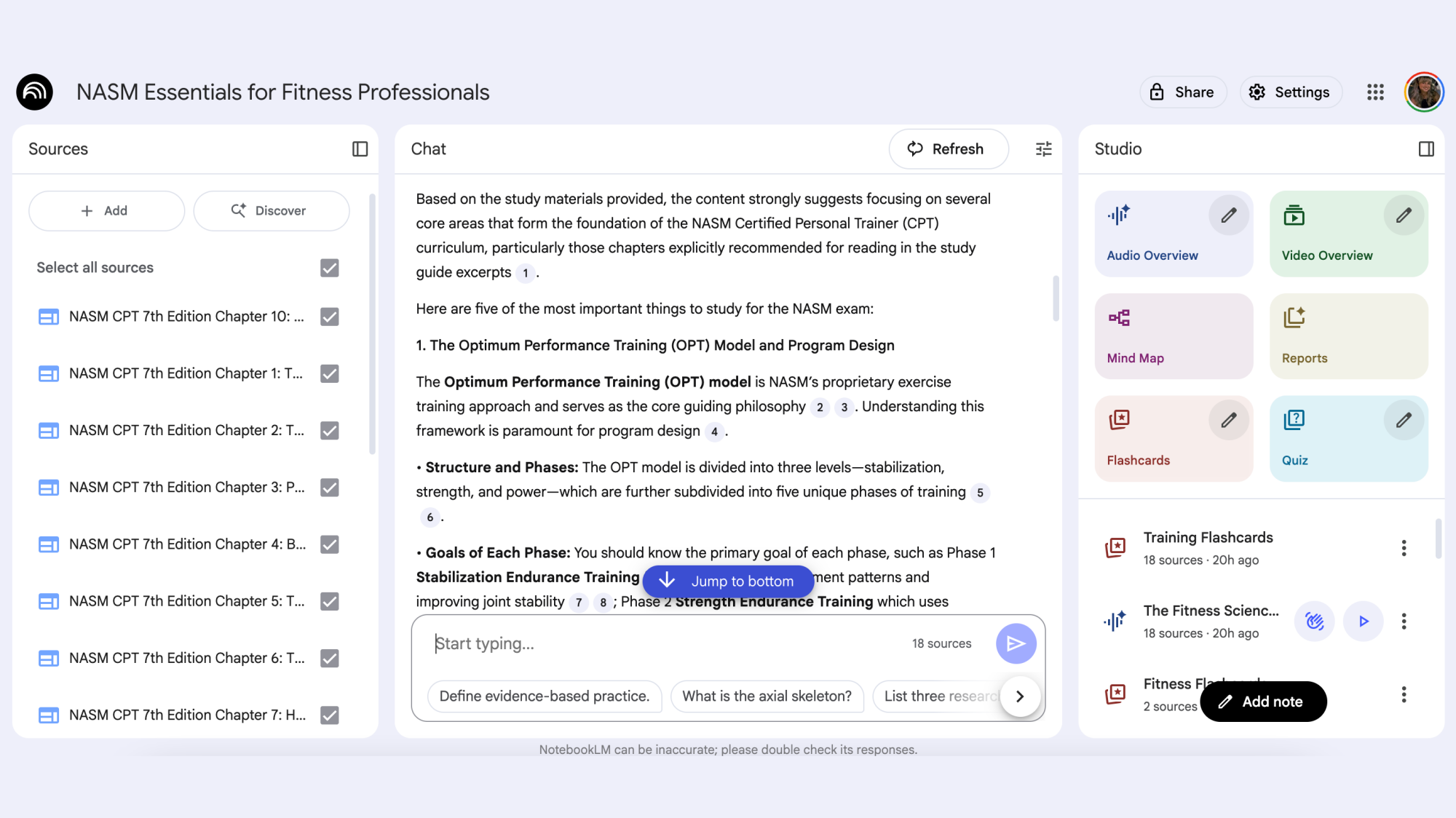
Though its mobile app is quite bad, the web version Google’s NotebookLM has become one of my most-used tools since I started playing around with the AI large language model last spring. I’ve found a ton of ways to use it to be more efficient in my everyday life, which is (much) more than I can say for other AI-enabled applications I’ve tried.
Instead of (poorly) doing the work for you, NotebookLM acts as a true helper, assisting in organizing information for you without being intrusive. And one of the most useful ways to interact with it is via its familiar chat interface, which has turned the program into my new study buddy, and a resourceful co-worker.
How I use NotebookLM’s AI chat for studying
I’ve been studying for a certification exam and have been uploading my materials into NotebookLM whenever I get to a new chapter. From there, I’ve been able to make flashcards, mind maps, practice quizzes, and study podcasts with a few clicks. The podcasts are especially unique and helpful: Two AI-generated voices discuss the concepts from my notes and materials in an informational, conversational way that sounds just like a podcast—if said podcast were a little too pedantic and on-the-nose. (Sometimes, it even adds in tics like vocal fry to make things sound that much more realistic.)
Credit: Google/Lindsey Ellefson
Usually, I listen to a podcast on my chapter while I complete a chore, like packaging up my Poshmark sales. Then, I go back to the notebook and have it generate flashcards or a quiz to see how much information I retained. Each flashcard or quiz question includes a link to the source material, so I can click it and review the full passage in the left-side panel.
I find the tool so useful, I’ve become something of an evangelist for it. A friend of mine recently went back to school, and I taught them how to upload the slide decks, chapter scans, PDFs, and other materials from their online classes into NotebookLM. They now use the chatbot to summarize a given class’s content and create outlines for discussion posts.
Using the chatbot to create outlines has been helpful for my friend, who struggles with writing but excels in thinking practically. They’re able to ask the bot to generate key dates, important facts, and other concrete facts that they should be studying and referencing in their discussion posts, but which they find difficult to pull out of the dense material themselves.
The chatbot has also been useful for my own studying, but in a different way. Unlike my back-to-school friend, I have no idea what’s going to be on my certification test. I don’t get a study guide. I know that out of 23 chapters of material, a random selection of questions will be given to me, which means I have to study everything, hoping I adequately cover what appears on my final exam. So after listening to my podcast and drilling my flashcards, I ask the bot to summarize the main idea of each chapter and suggest five of the most crucial points within it. Even though I know I have to read the whole thing, this gives me a roadmap for where to start and what to look out for. In that way, it’s similar to using a traditional study technique like KWL or SQ3R to formulate questions before a critical reading session.
I’ve also like to tell the chatbot to “have a conversation with me” about specific topics within the chapters. This is my version of the Feynman technique, in which you interrogate your mastery of a topic by trying to teach someone else about it, although I’m not “teaching” the bot so much as talking to it. By going back and forth conversationally, I practice describing the terms and ideas in a casual way, which I can’t do if I’m not intimately familiar with them. If I find myself struggling to keep up the conversation, I know I have to study that section more.
How I use NotebookLM’s AI chat for work
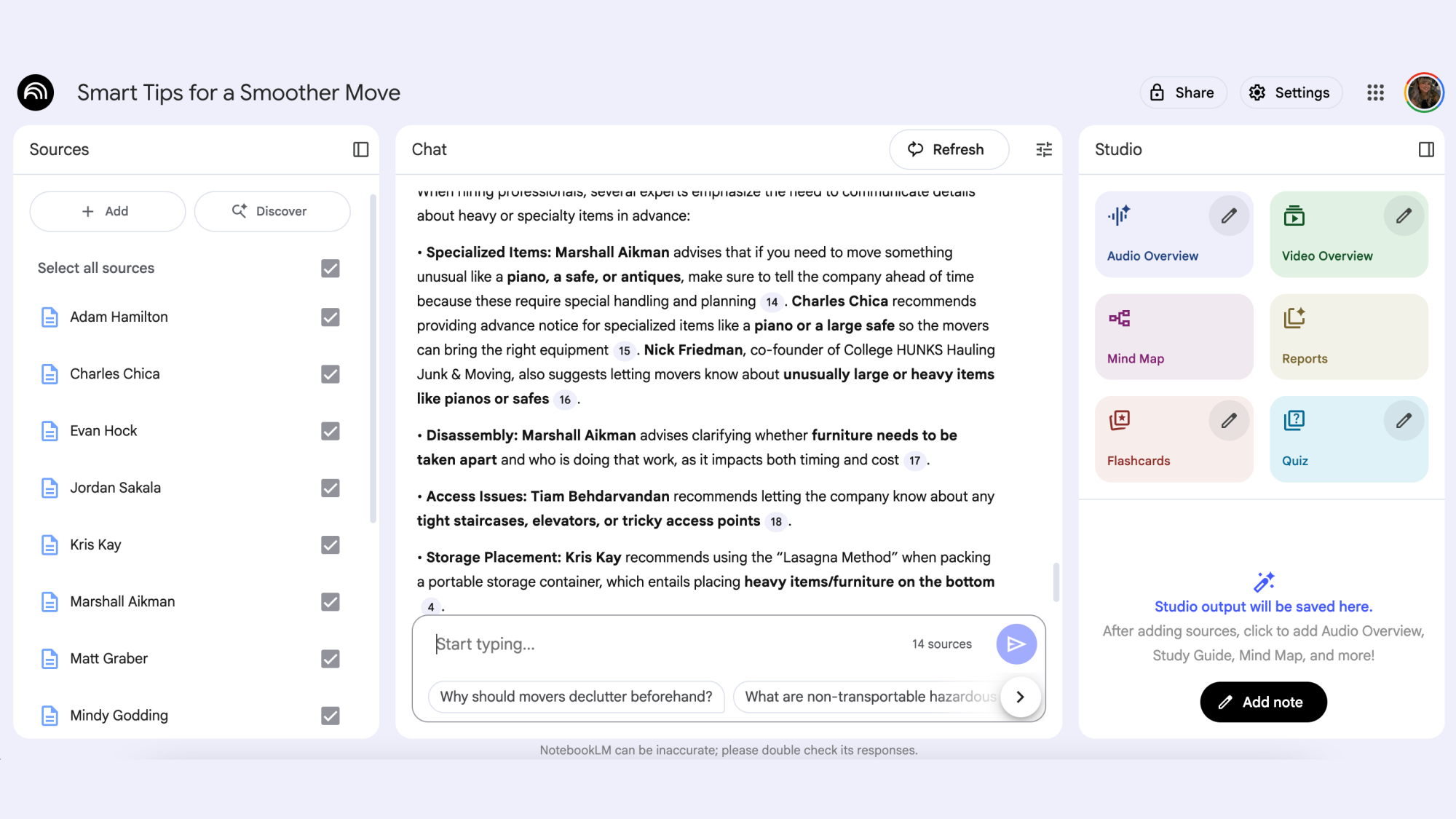
Back in May, I published a series here on Lifehacker entitled “Moving Made Simple.” In writing and researching nearly a dozen articles for it, I interviewed something like 13 moving pros from around the world. I ended up with a stack of interview transcripts to sort through, and the idea of rereading them all to highlight the most important information, plus cross-reference reoccurring advice shared by multiple sources, was daunting, to say the least. I found myself struggling to remember who recommended what, and in what context, and determining which story each tip was best suited for.
But then I turned to NotebookLM. I opened up a new notebook and dropped in copies of all of my transcripts. Because NotebookLM only pulls information from the sources and materials you input, I could then ask its built-in chatbot questions without worrying it would spit out nonsense culled from a dubious, 10-year-old Reddit post. I asked it things like, “What do the sources recommend for carrying large furniture?” and “What order should someone pack their belongings in before a move?” and NotebookLM made simple lists in response, with each answer including a hyperlink to the exact transcript from which it came.
A number of pros recommended the same things, like packing hanging clothes in a garbage bag with a hole cut out for the hanger hook, and NotebookLM condensed all of those, highlighting that this was a top tip that I should definitely include. On request, it also included each speaker’s name next to a given tip so I never had to go searching around for who said what, or risk misattributing something. NotebookLM made summarizing, organizing, and attributing all of this material so much easier than if I had spent hours going through the transcripts and highlighting everything myself.
Credit: Google/Lindsey Ellefson
Another benefit: Unlike ChatGPT, I didn’t feel gross about using this chatbot, as it wasn’t exploiting the work of others or risking producing questionable results or full-blown hallucinations—all out its output was based on my own hard-won input. I did the work of formulating questions, finding sources, and conducting interviews. The chat program just helped me organize it all so I could use it to turn the quotes and information into useful, actionable stories. (Note that at no point did I ask AI to help me draft articles—I used it for backend organization only.)
In the months since, any time I’ve had a large volume of materials to work through to complete a given task, NotebookLM has been a useful tool. I sometimes use the chat feature to ask it for summaries, main ideas, or outlines of my notes, but I most often employ it to pull out quotes or standout concepts. It has helped me become a much more organized, efficient writer.
How I use NotebookLM in my daily life
As long as there are relevant, concrete materials available to upload to the tool, you can NotebookLM for other purposes as well. I think of it like relying on a single source of truth (SSOT), an older productivity hack that involves putting all the materials related to a certain project into one computer folder—but better, because in addition to giving you space to store all your resources, NotebookLM can organize them for you. Personally, I’ve uploaded copies of my schedule and asked the tool to outline my travel and time commitments for the week. (Not everything you input has to be a file or link. There is a plaintext option where you can just type out whatever you need the bot to know.)
But you can get much more creative with it. Say you’re looking for a new job. You might upload a job description and ask the NotebookLM chatbot to prepare 20 potential interview questions you might face. Or go farther: Upload relevant news articles about a prospective employer’s culture, recent scandals, milestones, or the latest investor report, and use all of that to gain an overview of the company. The more information you provide, the more useful the output will be—and again, it will only pull from those sources, meaning you should be able to trust its summaries. To make sure of this, I periodically test the chatbot (because I’m a suspicious person). I’ll ask it about a totally unrelated topic that I know isn’t in the materials I uploaded, and so far, it has always told me my question is “interesting,” but that there is no reference to it in the provided resources.
Other possible use cases could include summarizing meeting transcripts, asking it to suggest meaningful themes in your recent journal entries, or outlining a five-year plan for your career. Your options are almost endless, and bound only by the quality and volume of the source material you upload.
Every now and then, you review a product you can’t get along with in any way, shape or form. Sometimes, it’s about the quality of the hardware, but more often it’s about the philosophy of its makers. Imagine trying to review a toilet built by, and for, aliens from the planet Zog: You can appreciate the intention behind it, but you’ll never be able to praise it. That’s the issue I’ve had with Halliday’s smart glasses, because almost every design decision made by its creators feels, to me, like the wrong one. Cofounder Carter Hou conceded that some people love Halliday’s approach and others haven’t taken to it anywhere near as much. Sadly, I’ve found myself in the latter category.
Halliday announced itself to the world at CES in January, dragging behind it a truckload of promises about its Wayfarer-style smart glasses. It said the glasses would be “invisible to onlookers,” styled to be as close to a regular pair of specs as it could manage. There’d be no outward facing camera or sensors, just a tiny interior display projecting data into the wearer’s view. It talked up its “proactive” AI assistant that was always listening and would pipe up with an answer when asked a question. It would be discreetly controlled with a touchpad ring, so you’d not need to visibly fiddle with your phone or the glasses’ touch-sensitive arm to use it. Plus, it would weigh just 35 grams. What’s not to like?
The company launched a Kickstarter at the end of January, earning $3,305,917 from more than 8,000 backers. The company has already shared its first product with backers, and it’s now ready to share it with retail customers. I’ve been testing the hardware for around a month with regular software updates. Halliday assured me that the last few issues, like inconsistent Bluetooth connectivity, should be ironed out by the time it’s available to the masses.
Hardware
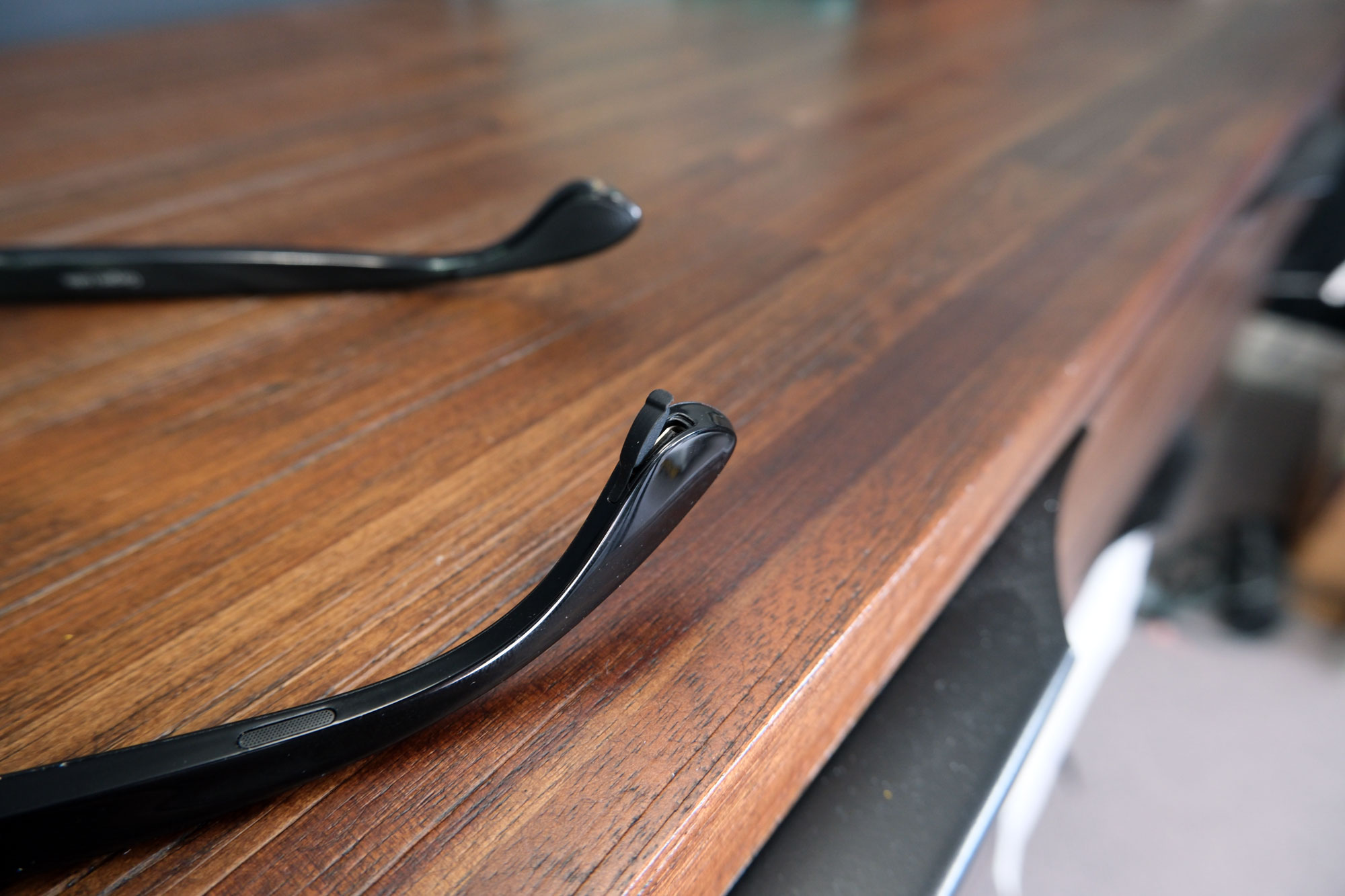
Halliday’s chunky Wayfarer-style glasses are made out of plastic, with thin plastic lenses set to your prescription. Plastic is obviously easy to work with and affordable, but it also can give the appearance and feel of looking a bit cheap and flimsy. Even the temple tips are made of solid plastic, which means they can’t be adjusted to suit your head shape and comfort levels.The only way to modify how they sit on your face is by contorting the nose pads, which you’ll be told to do during setup.
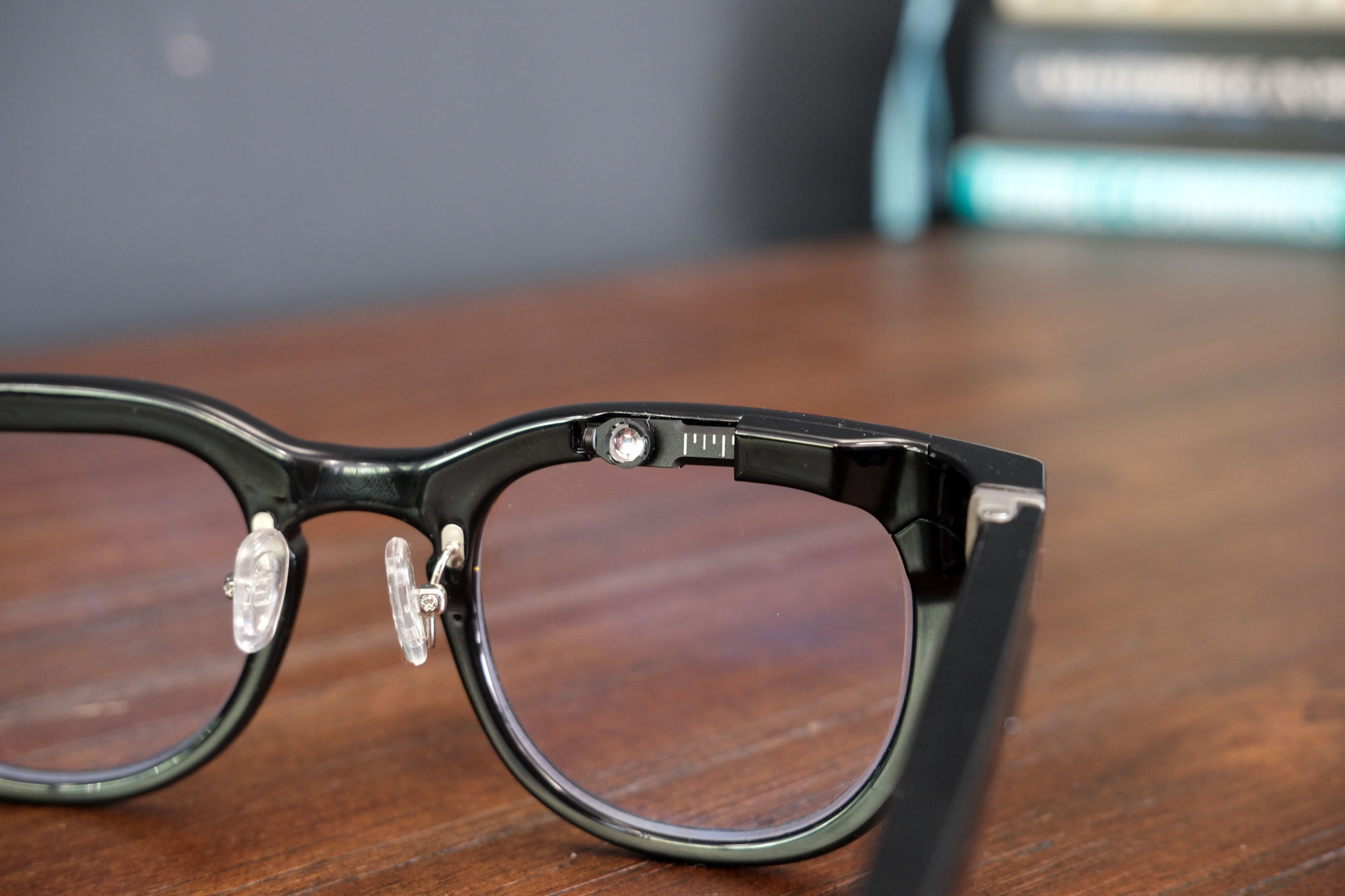
On the underside of the right temple tip, you’ll find a rubber gasket covering its built-in USB-C charging port. Follow it towards the front and you’ll find one of two speakers (its twin sits on the opposite arm), the touch surface for control and the power button. Sitting over the right lens is a little plastic cantilever arm, on the end of which is a 3.6mm round microLED display module. The arm can be pulled in or out and tilted up and down to put the display into your peripheral vision.
The aim, as stated, was to make a small and light pair of glasses that wouldn’t draw attention to themselves. Sadly, Halliday couldn’t avoid the issue that plagues all smart glasses, which is that they have to be bigger to accommodate all the electronics. But, to my eye, they only just about register as a bold style choice rather than as a comically-oversized pair of specs.
I keep flip-flopping on this: Half the time, they’re bold, half the time, I feel like I’m wearing faux Marx-brothers glasses from a Halloween store.
Daniel Cooper for Engadget
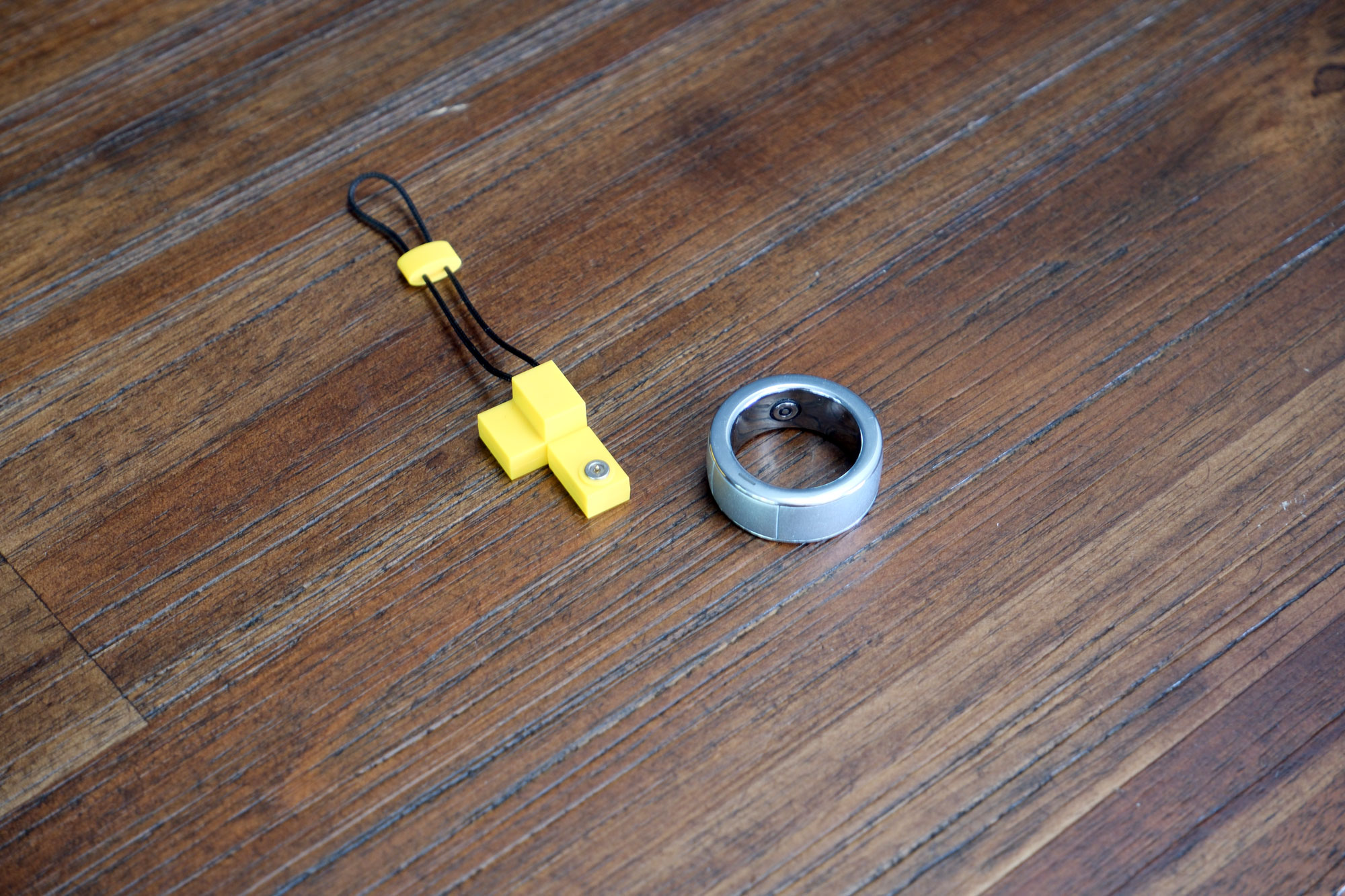
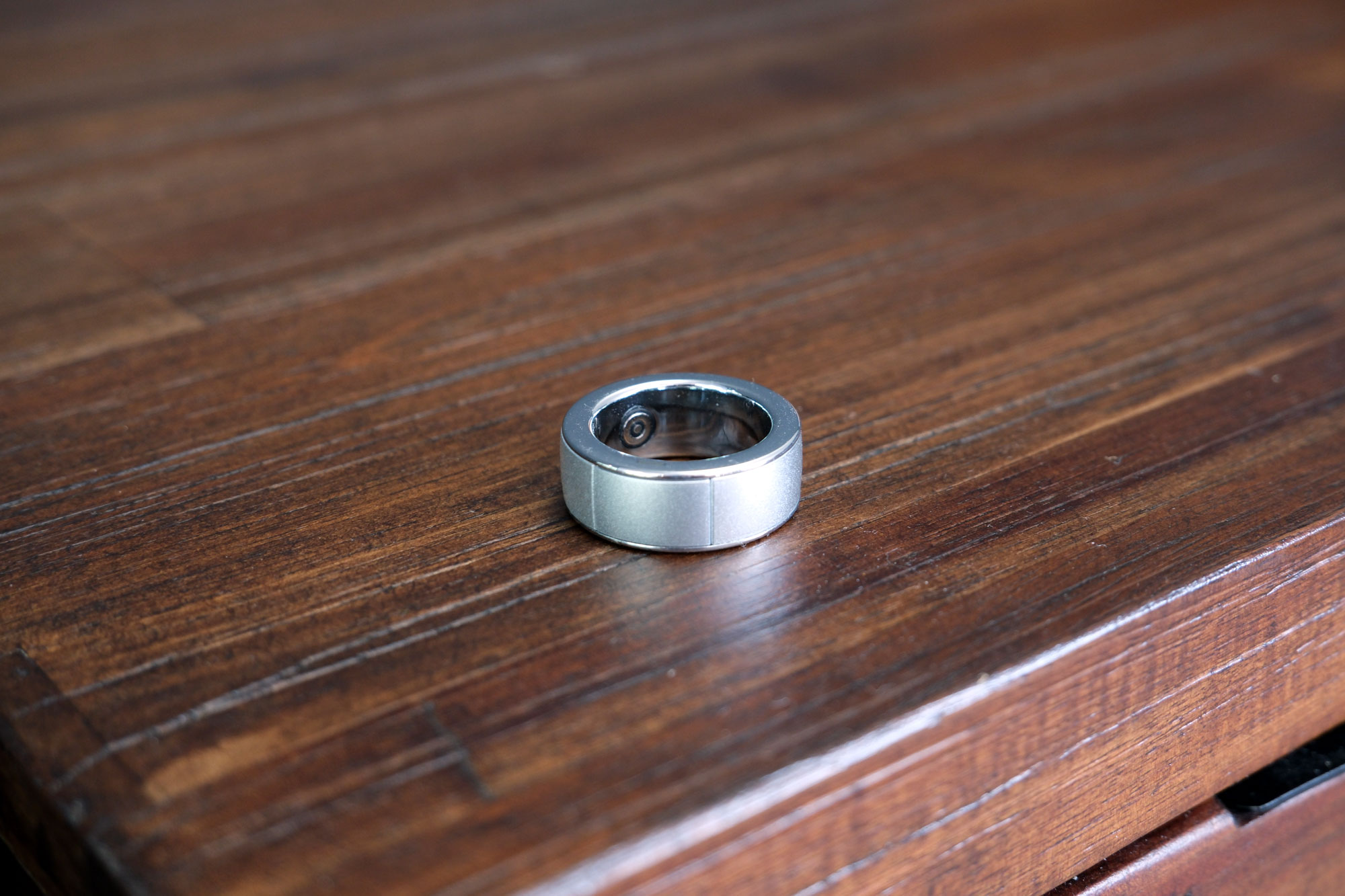
The control ring is available in US sizes 8-15, and is made of silver plastic with a small clickpad section embedded. Continuing Halliday’s focus on subtlety, the ring’s only distinguishing mark is a small black line on one side of the clickpad to indicate the right hand side. Slide the ring on without remembering to check its orientation and you’ll be trying to use the menus upside down and back to front. Like a lot of smart rings, it’ll certainly stand out on your hand if you’re used to thinner, daintier adornments.
The control ring is available in US sizes 8-15, and is made of silver plastic with a small clickpad section embedded. Continuing Halliday’s focus on subtlety, the ring’s only distinguishing mark is a small black line on one side of the clickpad to indicate the right hand side. Slide the ring on without remembering to check its orientation and you’ll be trying to use the menus upside down and back to front. Like a lot of smart rings, it’ll certainly stand out on your hand if you’re used to thinner, daintier adornments.
Display
Closeup image of the Halliday Smart Glasses display
Daniel Cooper for Engadget
It’s easy enough to put a teeny-tiny display close to your eye, ostensibly tricking it into thinking it’s much larger. The 3.6mm microLED module is meant to project the equivalent of a 3.5-inch display into your field of view. It’s the same sort of barebones green monochrome display found in a lot of wearables since green is easy to read and not too power-hungry. Again, the focus on invisibility means you’re meant to flick your eyes toward it, read what you need and flick back before anyone’s really noticed.
There are many reasons why this is a smart choice compared to companies using waveguide prisms embedded in the lenses itself. It saves a lot of weight, makes what you’re looking at far more private and cuts down the cost. Since, after all, you can just use cheap regular or prescription lenses in the frame, rather than specialist ones with the built-in prisms.
But the use of a tiny-display-close-to-your-eye is a problem if you are already a glasses wearer. After all, the screen is behind the prescription, so it’s not as simple as just glancing or catching it in my peripheral vision. In my experience, I’d get a notification, look up, and then have to wait for my eyes to refocus before I could see what was going on. That’s not a big deal if it’s just the time or an icon telling you there’s a new WhatsApp, but it’s hard to read full sentences of text.
Personally, I found the display to be too close and too unnaturally placed for me to comfortably use it. I tried every adjustment possible to make it easier to use, even wearing them in silly ways to no avail. And this gets worse when you’re being asked to engage with the lengthy responses produced by its “Proactive” AI. Reading paragraphs of text on a 3.6mm screen is a one-way ticket to the sort of eye pain you’d normally only experience after downing a pint of ice cream.
If you struggle to use those sorts of displays, then you’ll also struggle with the other text-heavy features the glasses offer. Most notably, its “reactive” AI, translation and Cheatsheet — its teleprompter-esque service for presentations.
In use
Image of the rear temple tips of the Halliday Smart Glasses
Daniel Cooper for Engadget
Once you’ve followed the YouTube clip guiding you through setup, you’ll control your glasses via Halliday’s app. Set that up, make sure it’s connected, and it’ll be easy enough to run things just with the ring. You’ll need to memorize a cumbersome control scheme, which has to work to overcome its limited inputs. For instance, it’s easy enough to think that a click would be the dominant action, with the tap acting as the secondary one — but it’s the other way around. Initially, I was clicking (which activates the notification center) rather than tapping to access a menu item. That the clickpad is so small means you’ll do a fair bit of scrolling, too.
Halliday’s focus on lightness extended beyond what you’d wear on your face, but how much you’d need to carry in your bag on the go. Rather than build a charging case, the USB-C charger is on the temple tip, hidden behind a little rubber gasket. Except, the gasket is very difficult to actually flick out of its recess and often gets pushed further in. It got to the point where I keep a paperclip on hand to flick it out when it’s time to recharge.
Close up of the Control Ring and charger for the Halliday Smart Glasses
Daniel Cooper for Engadget
The control ring is charged magnetically, so you will be carrying around a little dongle and USB-C cable. It’s not much extra weight to carry, but it is yet another thing to deal with. Plus, if you’re in a hurry for power, you’ll need to charge two devices simultaneously rather than just putting both in a charging case. Look, maybe this is a gripe too far, but it feels like Halliday attempted to reduce complexity and, in doing so, made things a hell of a lot fiddlier when it comes to charging.
Proactive AI
Image of how Halliday pitched its proactive AI.
Halliday
Halliday pitched its glasses as being the “first” with a “proactive” AI running in the background of your day to offer context-based assistance. In one of the company’s examples, the system is listening to a conversation, enabling its wearer to act like a know-it-all. Certainly, it was this feature that most intrigued me as I’m sure we’ve all hoped for an electronic version of Gary from Veep every now and again.
Image of a conversation between me and Halliday’s Proactive AI
Daniel Cooper for Engadget
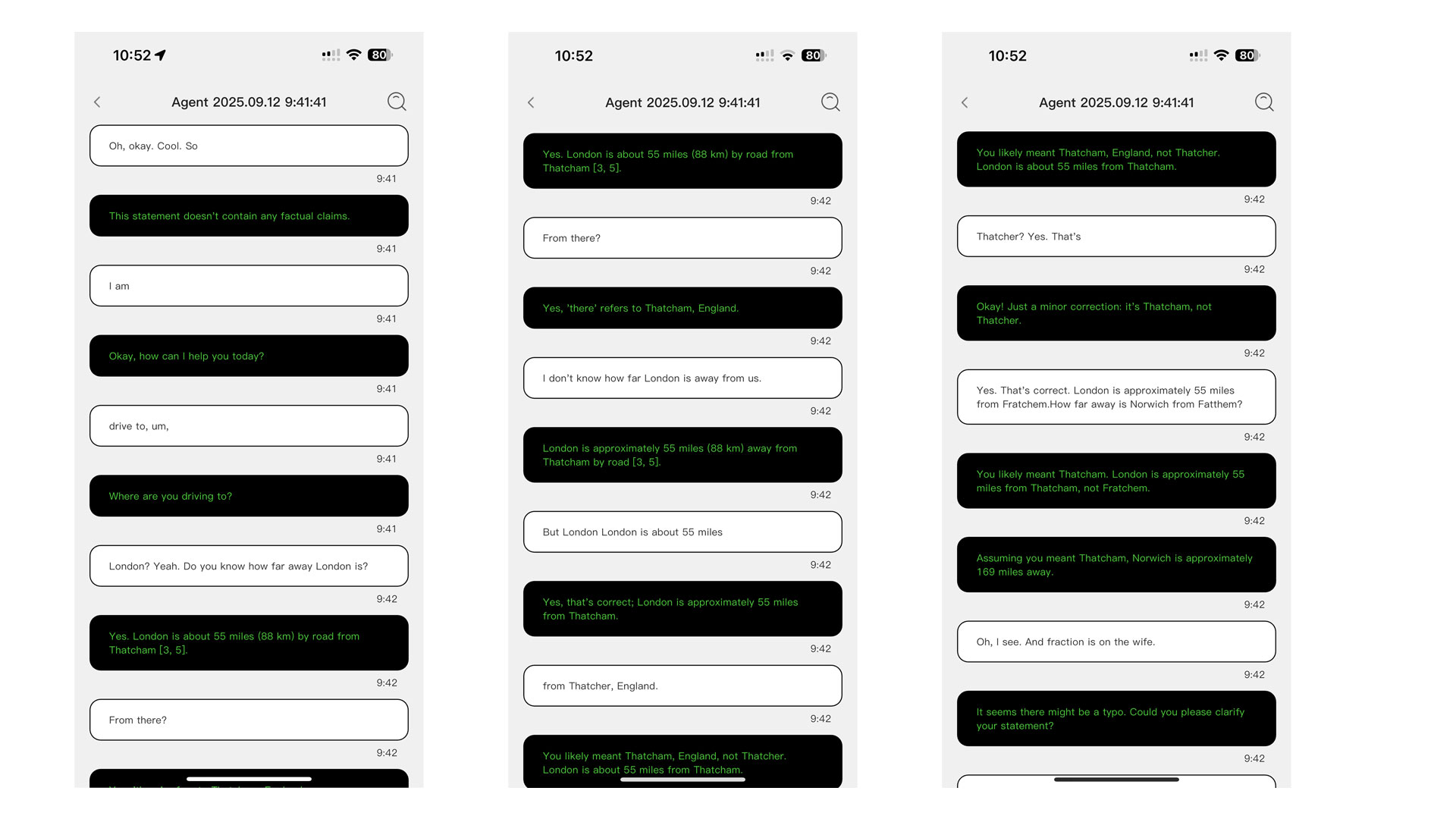
The Star Trek-esque promise of such a system clashes with its reality, since the proactive AI is just a constantly-running chatbot which treats everything as a prompt. Here’s the app’s own record of a conversation I had in which every line it heard gets its own response. It will even try to respond to the ums, ahs and other non-speech glue that holds speech together, saying that the line “doesn’t contain any factual claims.” And, don’t forget, all of this is being pushed into your peripheral vision for as long as the AI is active. Bear in mind you only have a limited amount of time credits with which to use the AI. So you can’t have it running in the background 24/7, but on this evidence, I’m not sure that you would ever want to. Hou says the company is working on improving this but, at this point, it doesn’t feel like a feature you’d want to use on a regular basis.
Reactive AI
The glasses’ reactive AI, meanwhile, is in dire need of some sort of help, since it often refused to answer my questions and, when it did, it often got its facts wrong. On September 18, I asked it who the current manager of (Portuguese football team) Benfica was, since it had just hired a new manager. But it told me the name of the old one, who’d been fired on August 31 — which isn’t ideal. Similarly, questions around basic facts concerning geography and science were either met with blank responses or lackluster answers. I know that plenty of AIs aren’t perfect for up-to-the-minute information, but what else would you want to use it for?
Audio memo and transcription
You can record audio memos through the glasses if you need to express an idea in a hurry. It’s worth noting, however, that the microphone quality is poor. It sounds like the sort of crunchy radio microphone audio you last heard in a live news broadcast from the 1980s. Given how much of the interaction with these glasses is through speech, the poor microphone quality is baffling. Sure, save on weight as much as possible, but not for the thing the glasses need to do one of their most critical jobs.
Once recorded, you can then listen back to the memo in the app, and can even ask the system for a transcription. Bafflingly, you can’t just press the button and then go do something else in the app. If you want your words turned into (an approximate) text record, you’ll need to leave that specific pane open while it runs. I found this out after pressing the button a third time and, rather than moving to the next memo to get that transcribed, I was distracted by something on my laptop and then saw the transcript finally appear before my eyes.
Music
Halliday’s app claims it’s possible to use the glasses’ built-in speakers in place of your wireless headphones. And, yes, it is technically possible to do this, in the same way that it’s technically possible to steer a motorcycle with your feet or carve a block of marble with an iPhone. I’m no audiophile, but if you’re looking for a better listening experience, listening to a broken record player from a mile away with two paper cups and some string is probably better. It’s very much the sort of option you’d go for if you had to listen to something in the direst of emergencies — and then never again.
Price and the competition
If you opted to back Halliday’s glasses on Kickstarter, you could pick them up for $399. For the rest of us, it will be available to order through the Halliday website for $499, with shipping due to begin at the end of October. It is available in one of three colors: Black, Gradient or Tortoisehell, with prescription lenses included in the price, at least at the time of publication. If you order now, you will also get the control ring for free, but it will eventually cost $69.
In terms of rival smart glasses, the closest competitor is likely Brilliant Labs’ Halo, which uses a similar standalone microLED display with the same focus on AI. Given the display option, if you think you’d struggle with Halliday, it’s easy to assume you won’t be happy with these either. Halo will set you back $299, although it’s worth mentioning that it’ll only be sold in limited quantities.
One alternative is Rokid’s forthcoming Glasses, which are equipped with the sort of waveguide display lenses I prefer. The company promises it’ll offer real-time translation, a built-in AI assistant and an outward-facing camera. Would-be backers can pick them up for $549 on Kickstarter at present, with a retail price likely closer to $750 when they launch toward the end of this year.
But if I was looking for a product that did a lot of what Halliday offered, albeit in a much more polished package, it’d be Even Realities G1. There’s a lot to like about the G1, as it offers a more limited feature set, but one in which things actually work a lot better. The one downside is the price, since you’ll need to fork out $600 for the glasses and another $150 for the lenses.
The big tech elephant in the room, of course, is Meta’s Ray-Ban Display glasses that seem to pay off on the promise of smart glasses’ premise. They’re obviously pricey, retailing for $799, but have all of the gadgets and gizmos you are likely to want and need. It ships with a 600 x 600 full color display in the lens, letting you engage with notifications a lot more like you would if you were using your phone.
Wrap-up
Close up of the Halliday Smart Glasses ring
Daniel Cooper for Engadget
My issues with the display certainly didn’t endear Halliday to me. But I think that the product is less than the sum of its parts, both from a hardware and software standpoint. The “proactive” AI is perhaps the biggest disappointment, given it’s just a chatbot responding to every interaction like a prompt. In every facet, the company prioritized things that weren’t worth the effort. What appeared to be a series of great ideas on paper is, in reality, not all that.
This article originally appeared on Engadget at https://www.engadget.com/wearables/halliday-glasses-review-ambitious-smart-glasses-with-frustrating-flaws-130000207.html?src=rss
AMD’s HIP-RT is used by the Blender 3D modeling software for GPU-accelerated ray-tracing on Radeon GPUs. For Blender 5.0 the AMD HIP-RT support is expected to be declared “stable” but will not be enabled by default until Blender 5.1…
Japan’s government has asked OpenAI not to infringe on anime and manga content that it called “irreplaceable treasures,” according to a report from ITMedia seen by IGN. The request was made by a key minister in charge of AI and IP in response to numerous videos from OpenAI’s Sora 2 generator that use copyrighted material from Japanese studios.
“We have requested OpenAI not to engage in any actions that could constitute copyright infringement,” said cabinet minister Minoru Kiuchi at a press conference last week. “Anime and manga are irreplaceable treasures that we can be proud of around the world.”
Launched on October 1, OpenAI’s Sora 2 can generate 1080p videos up to 20 seconds long with sound. The company also released the Sora app that uses Sora 2 to generate TikTok-style videos of nearly anything. Anime has been a key theme, with many short videos replicating copyrighted materials from franchises like DragonBall and Pokémon.
Despite the demand, Japan has been one of the more progressive nations when it comes to artificial intelligence. The nation’s AI Promotion Act aims to boost the use of AI as an economic growth driver, while also outlining guidelines around copyright infringement. However, the topic of enforcement is still fuzzy so the government is trying to get a better grip on it. “Japan bears a responsibility to take the lead on making rules [around AI and copyright], precisely because we are a country… [that creates] anime, games, and music,” said parliament member Akihisa Shiozaki on his blog.
Last month, OpenAI said it had contacted studios to give them the option of opting out of Sora 2 training on their materials, Reuters reported. The new process requires movie studios and other content owners to explicitly ask OpenAI to exclude their copyright material from videos generated by Sora. It’s not known which, if any, Japanese studios the company has contacted.
This article originally appeared on Engadget at https://www.engadget.com/ai/japan-asks-openai-not-to-infringe-on-irreplaceable-manga-and-anime-content-120008580.html?src=rss
If you’ve ever felt Campagnolo’s ‘standard’ Super Record 13 groupset isn’t quite fancy enough, you’re in luck.
The Italian brand has announced Super Record 13 Ultra – a suite of upgraded parts for its flagship 13-speed road bike groupset, built with even lighter and pricier materials.
The so-called ‘Ultra component package’ consists of a carbon fibre chainring, a titanium cassette and ceramic bottom bracket bearings.
These components come with an endless number of superlatives and some big price tags, of course, but you knew that already.
Campagnolo is aiming the upgrades at “ultra-demanding cyclists”. Campagnolo
These upgrades are, Campagnolo says, targeted at “ultra-demanding cyclists who will appreciate the ultimate expression of mechatronics applied to a bicycle” and “those seeking the ultimate performance and lightest weight”.
If you’ve never heard of ‘mechatronics’ before – as we hadn’t – it’s the “synergistic integration of mechanical, electrical, and computer systems”, according to Wikipedia.
In layman’s terms, it means Campangolo has sought out the finest materials to make marginal improvements to its Super Record 13 electronic groupset.
Let’s take a look at the new components and compare them to the standard versions.
Campagnolo Ultra chainring
Campagnolo’s new Ultra carbon chainring. Campagnolo
While ‘standard’ Super Record 13 chainrings are made from aluminium alloy, the Ultra chainring combines carbon fibre and aluminium to reduce weight, improve stiffness and give it a “highly attractive racing look”.
Campagnolo says the carbon is structural and the chainring teeth are made from 7075 aluminium – which is said to be “among the lightest aeronautical-derived alloys”, while also being very durable.
Available in 50- and 52-tooth sizes, Campagnolo says the Ultra chainring is designed and manufactured at its headquarters, in Vicenza, Italy – which I visited to test the Super Record 13 groupset ahead of its launch.
These outer chainrings are claimed to weigh 78 and 102g each, 34 and 28g lighter than the stock alloy chainrings (respectively).
They are priced at €330 each, around €110 more than standard chainring sets cost.
Ultra titanium cassette
The cassette is made using “aircraft-grade titanium”. Campagnolo
The clue is again in the name with the Ultra titanium cassette, which uses “aircraft-grade titanium” for the largest four or five sprockets on the cassette (depending on which range of sprockets you select).
Each cluster of sprockets is machined from a block of titanium, and is also made in the brand’s Vincenza headquarters.
The titanium sprockets also contrast with the ‘black chrome’ alloy sprockets that make up the remainder of the cassette, which “transform the cassette into a distinctive element that makes the entire groupset unique”.
The two options are 10-33 and 10-36t, with four and five titanium sprockets, and claimed weights of 215 and 238g respectively, saving 30 or 44g compared to stock equivalents.
Both cassettes cost €620 – a steep increase compared to the £325 / €349 standard Super Record 13 cassettes.
Ultra ceramic bottom bracket bearings
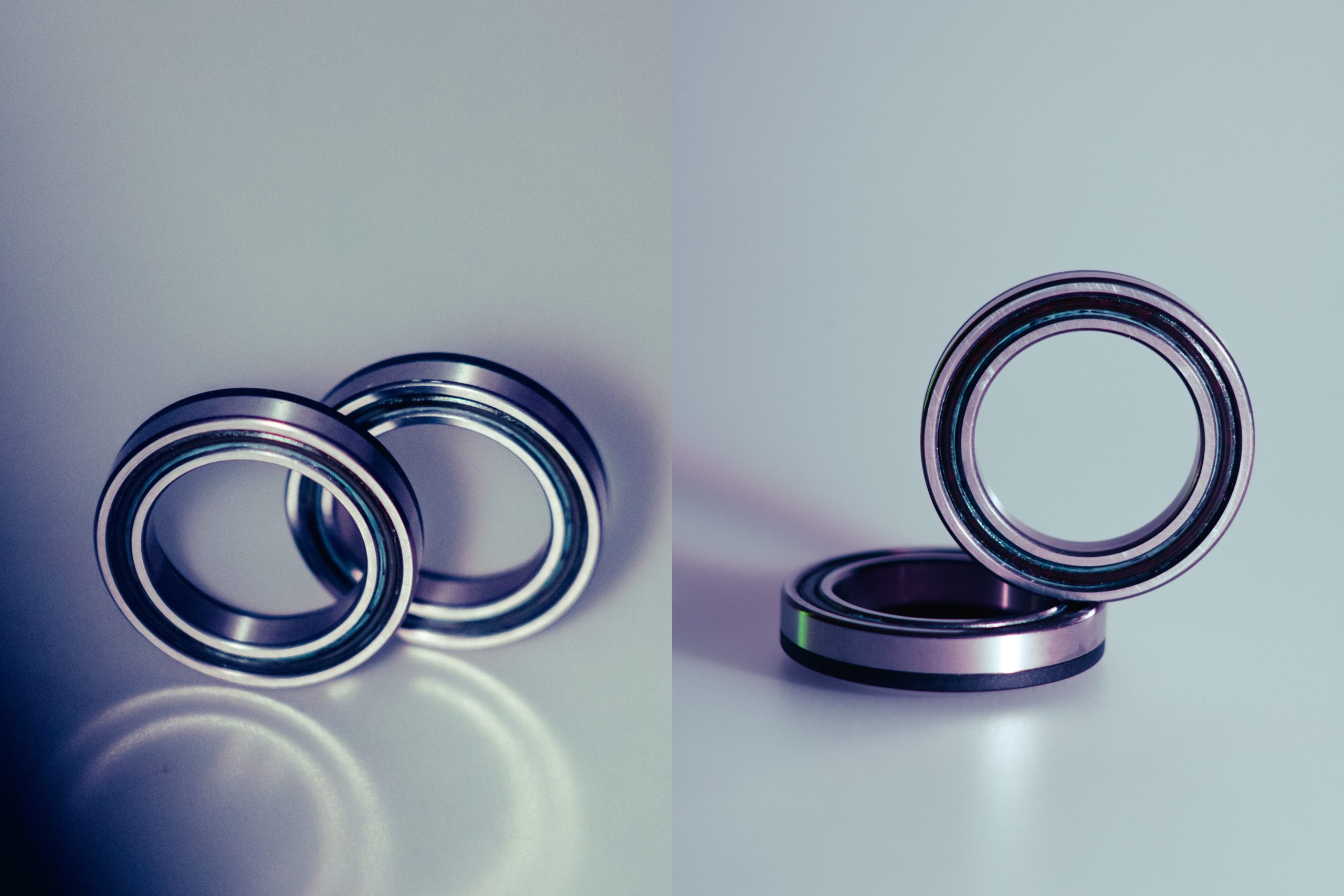
The Ultra ceramic bottom bracket bearings cost €164 and save 3g compared to steel bearings. Campagnolo
As with most ceramic bearings, these are designed to minimise friction, with Campagnolo saying the silicone nitride ball bearings are “selected according to international aerospace standards”.
This guarantees “superior roundness”, the brand says, which contributes to “optimal pedalling performance and long life”.
The bearings also feature an “internal cage” made from “high-performance resin”, which helps further reduce friction, and a “double-seal system” is used to prevent contamination during use.
As well as cutting friction, Campagnolo says the Ultra ceramic bottom bracket bearings cut 3g of weight compared to standard steel bearings.
They cost €164, which is only slightly more expensive than Campagnolo’s existing CULT hybrid-ceramic bottom bracket bearings, which cost £155 / €160.
Ultra-Torque steel bearings are, unsurprisingly, far cheaper at £32 / €33.
The lightest groupset gets lighter
Yours for a mere €1,114. Campagnolo
Overall, Campagnolo says the Ultra parts will save a rider up to 81g over a standard Super Record 13 groupset, for a grand total of €1,114.
This, the brand says boldly, “will not go unnoticed and will certainly be felt immediately”.
We’re sceptical about this, but it’s fair to say the Ultra components look very cool and we’re sure riders with deep pockets and an appreciation for high-end materials will find plenty to like here.
Campagnolo says the Ultra components are available to order now and can be purchased individually or as part of a kit, which comes in “equally striking packaging”.