Steam Frame Trademark Suggests Valve’s Steam Machine Is Making A Comeback

Steam Frame Trademark Suggests Valve's Steam Machine Is Making A Comeback
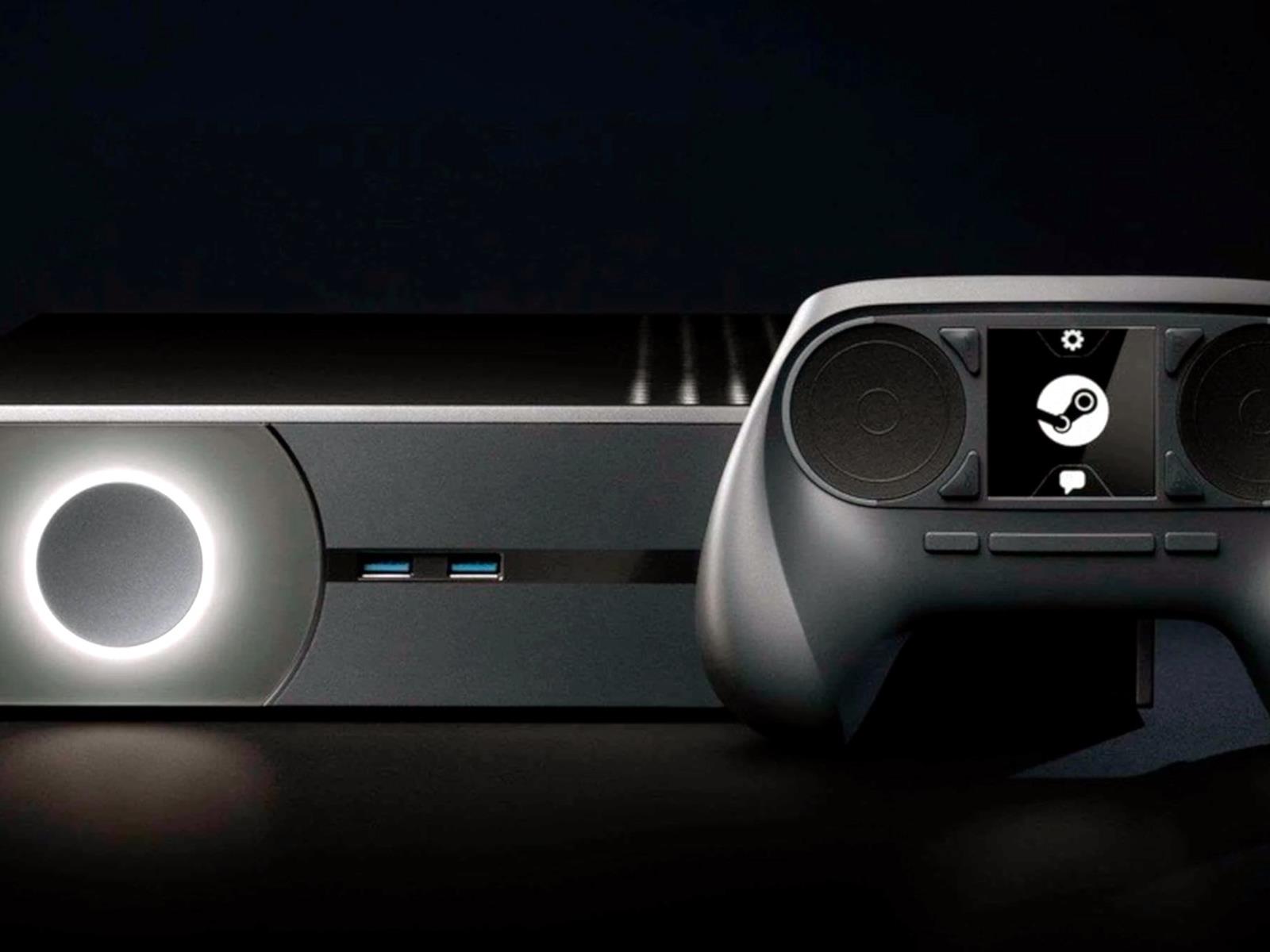
Valve’s original Steam Machine concept failed simply because the software wasn’t ready yet. That is demonstrably not the case anymore, as Linux-based machines are now able to run the majority of Windows gaming software with no compromises thanks to the company’s pioneering work on Proton. Does that mean it’s time for Valve to try again with

The LEGO Ultimate Death Star set includes over 9,000 pieces and costs $1,000

LEGO just revealed the Star Wars Ultimate Death Star set, which is a massive beast that includes over 9,000 pieces. The company says it’s the largest LEGO Star Wars set ever made. It’s also the most expensive LEGO set ever, Star Wars or not. It costs a whopping $1,000.

It may set you back around a month’s rent, but just look at this thing. It’s a legit monster. The set ships with 38 minifigures, including characters like Luke Skywalker, Darth Vader and Emperor Palpatine. It also comes with a stormtrooper figure in a hot tub, which is a nod to the LEGO Star Wars video games.

A Death Star.
LEGO

It’s not a full globe, like the actual Death Star. It’s more of a cross-section of the interior. This lets collectors recreate various locations from the movies, like the trash compactor, Palpatine’s throne room and Princess Leia’s jail cell. There’s also a tractor beam control unit, a shuttle hanger and more.

This is just the latest high-priced LEGO Star Wars release, proving that there’s a real market for this stuff. There’s a 6,000 piece recreation of the first ship from The Mandalorian and a detailed version of Luke Skywalker’s Landspeeder.

While this is the most expensive LEGO set ever made, it’s not the largest. The Eiffel Tower recreation includes over 10,000 pieces and costs $630.

This article originally appeared on Engadget at https://www.engadget.com/entertainment/tv-movies/the-lego-ultimate-death-star-set-includes-over-9000-pieces-and-costs-1000-183556661.html?src=rss

SteamVR Beta Restores Windows VR Headset Support on Windows 11 Thanks to Third-party Driver

The latest version of the SteamVR Beta automatically installs the third-party ‘Oasis’ driver, enabling compatibility with Windows VR headsets after Microsoft discontinued their support in the latest versions of Windows 11.

For years Valve has sought to support as many VR headsets as possible on SteamVR. That included Windows VR headsets from a wide range of companies including Acer, Asus, Dell, Lenovo, HP, and Samsung.

But Microsoft itself made the decision to end support for WMR headsets on the latest versions of Windows 11, making them not just incompatible with SteamVR, but the operating system entirely. For WMR users running Windows 11, 24H2 and beyond, that rendered their headsets useless.

But now the third-party ‘Oasis Driver for Windows Mixed Reality‘ has been released, which restores support for WMR headsets on SteamVR, without requiring the installation of the Mixed Reality Portal application, which is no longer available on the latest versions of Windows. Note: a major caveat of the Oasis driver is that it only supports NVIDIA GPUs, due to a lack of developer support by AMD.

Valve is taking things one step further to make sure that WMR headsets work well on SteamVR. In the latest SteamVR Beta (v2.13.1) the software will automatically install the third-party Oasis driver for users with WMR headsets that are running a version of Windows 11 that no longer supports supports the official driver from Microsoft. You can find instructions here for installing the SteamVR Beta if you’d like to check out the update for yourself.

The move is the latest in a respectable list of pro-consumer moves Valve has made to ensure seamless compatibility between SteamVR and third-party headsets. That includes making its flagship VR game, Half-Life: Alyx (2020), compatible with all SteamVR-supported headsets, and even launching a Steam Link app on Quest for wireless SteamVR play.

The post SteamVR Beta Restores Windows VR Headset Support on Windows 11 Thanks to Third-party Driver appeared first on Road to VR.

007 First Light In-Depth: Is This More Than Just A Prettier Hitman Game?

007 First Light In-Depth: Is This More Than Just A Prettier Hitman Game?
IO Interactive gave gamers a small glimpse of its upcoming foray in the world of James Bond back in June, with a reveal trailer for 007 First Light. The studio just presented a more in-depth look, however, into its re-imagining of the James Bond origin story, including in-game footage from two missions. It clearly has the DNA of the Hitman

Belkin unveils Qi2 magnetic charger at IFA 2025

Belkin unveiled several new products today at IFA 2025. Its lineup included a wall charger and car charger that will be available starting this month, plus four entries in its SoundForm audio collection. But the standout item from the consumer products brand is its new Qi2 25W wireless charging puck. 

The UltraCharge Magnetic Charger 25W promises to power an iPhone from zero to 50 percent battery in just 30 minutes. It also has some clever design choices, such as a kickstand so you can charge a phone on a tabletop and still have the screen be visible. The kickstand is collapsible and could also be used as a PopSocket-style phone grip, although the puck’s own charging cable is 6.6 feet, so you can’t wander too far while using it. The charger also boasts Belkin’s ChillBoost passive cooling tech to reduce heat buildup and protect the battery. The UltraCharge Magnetic Charger 25W will be available in October 2025, and although its US prices haven’t been set, the UK retail cost is £30.

The zippy Qi2 charging standard has been rolling out to more and more mobile devices this year. Several Android brands, which had historically not offered built-in support for that standard, have even been jumping on the Qi2 bandwagon.

This article originally appeared on Engadget at https://www.engadget.com/mobile/smartphones/belkin-unveils-qi2-magnetic-charger-at-ifa-2025-180647711.html?src=rss

Ultra-Processed Foods – It’s Time For an Improved Definition

Nature’s editorial board argues the UN’s upcoming trans fat elimination proposal must specify “industrially produced” fats to avoid unintended consequences for nutrition in poor countries. The board supports a coalition led by the International Livestock Research Institute and African Union requesting precise language, noting natural trans fats occur in milk and dairy products.

The editorial extends criticism to the broader ultra-processed foods classification system. While acknowledging the 2009 NOVA scale by University of Sao Paulo’s Carlos Monteiro pushed governments toward strong public health policies, Nature says the ultra-processed category problematically groups baby formula with hot dogs. The board calls for improved definitions that balance reining in industrial food production excesses while ensuring adequate calorie access globally.


Read more of this story at Slashdot.

I Tested Three AI Essay-Writing Tools, and Here’s What I Found

We may earn a commission from links on this page.

Did you know you can customize Google to filter out garbage? Take these steps for better search results, including adding my work at Lifehacker as a preferred source.

Writing essays can be draining, tedious, and difficult, even for me—and I write all day long for a living. If writing isn’t your special skill, it’s even harder, which is why there are so many sites and products out there that are designed to help you get your homework done.

Some of these “resources” are arguably unethical, and I’m not going to recommend hiring someone else to write your papers for you. But there are some cool, potentially useful AI tools out there that might be able to streamline the process for you. (And anyway, those paid essay-writing folks are probably using these tools too, so you’re better off eliminating the middleman and trying them on your own.)

How I tested these AI essay-helper tools

I used an old essay prompt from my grad school days to test out these services. The paper—which I wrote on my own, of course—was on the history and impact of a federal law, 21 U.S.C. S856, which outlaws the operation of any building where drugs are made or used. I put a lot of effort into the essay, so I figured comparing the output of these services with what I was actually able to produce (and get an A on) was most helpful. Here’s my assessment. 

Grammarly: Good for hitting an essay’s word count

First up was Grammarly, which prompted me to fill out a personalization quiz before I could use it. I told the site I was a grad student interested in improving the vocabulary I use in my work, and looking to brainstorm topics for my essay. I used the text-input section to type a quick introductory paragraph and selected “Generative AI” from the list of options.

When I hit the “Improve It” button, Grammarly showed me a revised version of my text that added a bunch of words, but still said the same thing as my more concise entry. To me, that’s annoying, but if you’re trying to hit a word count, it could be useful. I was also given options like “Make it assertive,” “Make it persuasive,” and “Make it confident.” When I selected “Make it more detailed,” the generative AI did expand the information pretty significantly, but it didn’t add any citations and I’m not convinced it drew on material outside of what I had already entered. When I hit “Make it persuasive,” the AI automatically assumed the bias should fall in favor of the law, but when I added more detail to my original paragraph, suggesting for argument’s sake that the law has curtailed efforts to reduce drug overdoses throughout the country, the AI assistant said, “Grammarly assistance is unavailable for this prompt because it may result in sensitive content.”

As you work, Grammarly gives you a probable “score” on a scale of zero to 100. When I left its draft completely untouched, Grammarly pretty confidently predicted I’d get a 98 on the essay. Personally, I don’t buy that. With sentences like, “The federal law 21 U.S.C., encapsulating the United States Code Title 21, stands as a cornerstone in the regulation of food and drugs in the nation,” it sounds like it was written by a robot. Worse yet, I ran it through ZeroGPT, an AI-detection service used by teachers, and it got a 100%—as in, a 100% chance it was written with generative AI. The addition of the “score” detail here is deceptive and could lead you to believe you can or should let Grammarly’s AI handle your paper for you. I promise you that you should not.

Overall, Grammarly wasn’t a great option for my needs, as my topic’s content was too “sensitive” and the generative AI really only added a bunch of words (which a stern teacher might regard as “fluff”). This one would be most useful for someone trying to hit a word count, but only if you’re writing about something noncontroversial and you have every intention of going back through it to input your own words and ideas (which you should, no matter what).

Cramly: Good if you’re not sure where to take the essay

Next I tested Cramly, which I hadn’t heard of before. Before upgrading to a $5/month plan, you do get to try five free prompts, so I pasted my basic intro paragraph in and, after a few seconds, I got five paragraphs in return. It was obvious the AI was pulling from external sources, as it mentioned fines and prison sentences associated with the law that I hadn’t specified in my copy, but it didn’t actually cite those sources. Ethics of using AI in the first place aside, the best way to actually use it is to quickly find sources and link them together, then write your own paper based on its outline. Cramly did the opposite, spitting out part of a paper with no sources at all. That’s an easy way to get a failing grade and learn nothing.

Lack of sourcing aside, the information it provided was helpful, so this one would be great if you’re not sure how to frame or expand on a topic and need a general idea of what your essay could look like. You’ll just have to go through everything it spits back at you and look it up independently, find solid sourcing, and add that yourself. 

JotBot: Good for crafting more authentic homework

Finally, I tried out JotBot, which I have seen advertised on social media. It asked me what I was writing about and whether I wanted an outline, but also gave me an opportunity to upload my old essays so it could replicate my writing style. As scary as it was, the paragraphs it generated after reading some of my older work did sound more like me than standard AI usually does. That doesn’t matter, though: I ran its output through ZeroGPT and still got a 100% AI-detection score. Again, you need to rewrite whatever these tools give you.

JotBot give me subtopic suggestions, like “impact,” “historical background,” and “controversies,” which I could select from a sidebar and, if I liked the paragraph it wrote, drag into the essay itself. From there, I could accept or reject sentences one by one as it generated new ones. I could write in the essay editing section, too, and it generated more suggestions based on what I was typing.

Frankly, this one is really cool, and I can see how it would help someone beat a case of writer’s block, since you can type and get suggestions as you go. There is a learning curve, though, and I didn’t realize how quickly I was blowing through my 10 free daily “credits,” since it’s unclear what, exactly, costs credits and how many credits it costs to, say, accept one suggestion. You can unlock unlimited credits, unlimited autocomplete, unlimited sources, and more for $14 per month. 

AI can also help you when the essay is finished

AI’s usefulness doesn’t stop when your essay is done. In fact, that’s when it might be most useful. I’ve already written about and demonstrated above how teachers can and do use GPTZero to identify AI-generated writing in your homework assignments, but you should be using it, too, after you rewrite your own essay based on AI help, to make sure it’s all in your own words. If you’re using any of the tools above, you should be rewriting everything, not only so you actually learn what you’re supposed to be learning, but so you don’t get in trouble with your teacher or school. GPTZero will identify anything that sounds too AI-generated, helping you figure out what needs to be redone.

A word of warning here, also: A few weeks ago, I was helping a friend who had to write a few blocks of text with citations. They were using ChatGPT, the most famous AI tool, and I showed them how to ask the bot to find sources to start with. It is helpful in that it can periodically get around paywalls and tell you information you wouldn’t otherwise be able to search for or read, so I suggested using it that way. I was appalled to discover that ChatGPT produced five sources that did not exist. Like, it actually made up article titles from real publications like Barron’s and CNBC, then listed a bunch of random information those fake articles supposedly “contained.” If you’re using AI for essay help, check every single citation it gives you to make sure they actually exist.

I’ve also used Chegg for years, relying on many of its features for serious homework help. You might be familiar with Chegg because it largely functions as a site where you can upload homework questions and seek expert advise in answering them, but it does plenty more. For $9.95 a month, you can use it to check your papers for plagiarism, get proofreading and grammar-correcting services, and automatically add in citations.

The AI essay-writing tools I actually recommend

Overall, EssayGenius and JotBot were the best AI tools I tested for creating an essay. I was impressed by EssayGenius’s ability to research the topic on its own, and by JotBot’s mimicry of my own writing style. They do cost money, but that might be worth it if you’re someone who struggles with idea generation, outline creation, or getting into the flow of writing overall. 

Bear in mind these tools are not meant to churn out entire finished essays for you, and you shouldn’t use them to do that—not only because it’s unethical, but because it’s pretty easy for professors to catch you doing it. Even if you do use an AI tool to generate a whole paragraph or more, try to rewrite it in your own voice. Think of AI tools more as a way to study and learn more about your topic than to have the writing done for you. 

I actually really like Google’s Notebook LM, an AI tool that only pulls from information you give it. That is to say, it doesn’t cull info from the worldwide web. Only links and PDFs that you input can be searched. I use it when I’m working on a big projects. I upload all my source material, then ask it to produce outlines or find quotes from different sources that go together. There is no risk of it making up a citation or quote. It’s just a little helper that relies only on the information I’ve found and provided for it, like an assistant. I use it for my own personal projects, but it would be an amazing academic resource. You can input PDFs of study packets, your book, or whatever your professor gives you, plus outside sources you’ve already vetted, and create perfect essay outlines that rely only on those materials.

There’s always ChatGPT

If you don’t want to lay out cash for AI assistance, you can always pay nothing and just use ChatGPT to generate outline ideas, bearing in mind that as I said above, it can and almost certainly will make mistakes. I do that often, and never have to worry about getting in trouble, cheating myself out of an education, or paying for anything, because I’m still doing most of the real work.

In line with this test, I asked ChatGPT to generate an outline for an essay on 21 U.S.C. §856 and its impact on American harm reduction efforts and got one back with eight sections, each with three subsections—an easy roadmap to follow as I write the paper on my own. Doing it this way ensures I’ll actually research and learn about the topic, which is important to me; I’ll also avoid the risk of going down for plagiarism or outright cheating, which is probably important to you too. 

The first TVs with Gemini built in arrive later this month

TCL has announced the QM9K, its latest flagship QD mini LED television series. The QM9Ks will be the first panels in the industry to feature Gemini on Google TV, a new feature that we first learned about at the start of this year.

Gemini on Google TV
TCL/Google

Using the standard “Hey Google” voice prompt, viewers will be able to find a movie or TV show, ask questions using natural language about any topic and even control smart home products that are synced through Google Home. Google TV on the QM9K also supports the creation of custom AI screensavers based on descriptions or prompts provided by users.

The TVs will feature an mmWave sensor — a form of radar used to detect if a person is in front of the panel — that will wake the devices, allowing users to engage with Gemini completely hands-free. Users will have the option of customizing distance settings and hours of operation for the wake sensor.

Aside from breaking new ground in software, the QM9K series features a “Zero Border” edge-to-edge WHVA panel, which promises excellent color accuracy and a bezel-less design.The TVs have up to 6,000 precise dimming zones for deep contrast — up to 57 percent more than on the QM8K, the other contenders in TCL’s “Ultimate Series.” The QM9K is set to deliver up to 6,500 nits of peak brightness in HDR, a 30 percent increase over its predecessor. The panels run from 65″ to 98″, and audio by Bang & Olufsen rounds out the premium sets.

The TCL QM9K will be available at Best Buy and select regional retailers later this month.

This article originally appeared on Engadget at https://www.engadget.com/ai/the-first-tvs-with-gemini-built-in-arrive-later-this-month-175029927.html?src=rss

My Favorite Amazon Deal of the Day: This 85-Inch TCL QLED TV

We may earn a commission from links on this page. Deal pricing and availability subject to change after time of publication.

Did you know you can customize Google to filter out garbage? Take these steps for better search results, including adding Lifehacker as a preferred source for tech news.

It’s impressive how far TCL has been pushing the limits of QLED technology. The QM7K is its latest mid-tier QD-Mini LED smart TV and it offers great value for your money. Right now, the massive 85-inch QM7K is marked down 40%, bringing its price down to $1,499.99 (originally $2,499.99), the lowest price it has ever been, according to price-tracking tools. The 85-inch QM6K, which is the more affordable version, is 30% off right now.

The QM7K is better in every way than the QM6K except for color accuracy. It has better contrast, brightness, gaming specs, black levels, processing, and other specs, but the QM6K is still a great option for those on a tighter budget.

I personally tested the QM7, which is a slightly older model of this TV, as well as the more budget QM6K, and I can tell you TCL is not skimping out on these TVs. They feel and look truly premium. This QM7K is no different. Its highlights are a bright panel, making it great for sunlit rooms. It has deep blacks and almost no light bloom, giving it that premium picture quality. Gamers will appreciate the 144 Hz native refresh rate and 288 Hz support panel with VRR and AMD FreeSync Premium Pro, making it a smooth experience. Since it’s a Google TV, it has hands-free Google Assistant and Google Cast, which makes streaming almost anything from your phone or computer a breeze. It can also do the same for iPhones with AirPlay.

If you’re a color stickler, you might notice that the colors run a little warmer out of the box, according to PCMag’s “excellent” review, but that’s something you can edit easily in the picture settings. If you want a massive, bright, colorful smart TV with that “wow” factor, get the 85-inch Class QM7K, but if brightness is not as important to you, consider the 85-inch QM6K. Either option is a great TV for a killer price.


Deals are selected by our commerce team

Nvidia Dominates GPU Shipments With 94% Share

An anonymous reader shares a report: The total number of GPUs sold for the second quarter of 2025 hit 11.6 million units, while desktop PC CPUs went up to 21.7 million units, according to a Jon Peddie Research report. This is a 27% increase in graphics card shipments and a 21.6% jump in CPU shipments from the last quarter, which is a change from the usual drop in deliveries we’ve seen in recent years.

“AIB prices dropped for midrange and entry-level, while high-end AIB prices increased, and most retail suppliers ran out of stock. This is very unusual for the second quarter,” said Jon Peddie Research president Dr. Jon Peddie. “We think it is a continuation of higher prices expected due to the tariffs and buyers trying to get ahead of that.”

As for the three major GPU manufacturers, Nvidia still has the lead, taking in 94% of the market — an increase of 2.1% over the previous quarter — while AMD is at a distant second place with 6%. This is still a much better position than Intel, though, whose market share is so small it did not even register on the chart.


Read more of this story at Slashdot.

Google’s Circle to Search can now translate text as you scroll

Google’s Circle to Search tool just got a bit more useful, as it can now continuously translate text while scrolling. Until now, people had to restart the process every time the content on the screen changed. The update ensures the translation feature will keep on ticking along.

Google says this is great for getting “more context for social posts from creators who speak a different language” or when browsing “menus when you’re booking restaurant reservations while traveling abroad.” Just tap the “Translate” icon and look for the menu option “scroll and translate.”

This update not only keeps the translation tool going as you scroll, but it even keeps working when switching to another app. Google says “there’s no interruption” in these cases, which sounds pretty darned useful to me.

The update is rolling out now to Android users, but Samsung Galaxy devices are getting it first. Everyone else will have to wait a little bit.

This is just the latest update for Circle to Search. The tool also now lets users conduct one-tap actions on phone numbers, emails and URLs.

This article originally appeared on Engadget at https://www.engadget.com/ai/googles-circle-to-search-can-now-translate-text-as-you-scroll-171555663.html?src=rss

Alienware 16X Aurora Review: Gaming Power, Premium Design, Solid Value

Alienware 16X Aurora Review: Gaming Power, Premium Design, Solid Value
Alienware 16X Aurora – Starts at $1,499, as tested $1,999 Alienware’s newest mid-range gaming notebook brings good looks, great performance, premium build quality, and an excellent G-Sync display.  Strong gaming and productivity performance Excellent build quality Minimal RGB bling Nice 240 Hz G-Sync Display Excellent sustained performance…

Synth Riders Kendrick Lamar Experience Now Live On Quest, Steam & PS VR2

Once an Apple Vision Pro exclusive, the Synth Riders – Kendrick Lamar Experience is out now on more platforms.

Launched in February to coincide with Kendrick Lamar’s performance at the Super Bowl LIX halftime show, Kluge Interactive has now released its ‘Kendrick Lamar Experience‘ on Quest, Steam, and PS VR2. Exploring Lamar’s music video for the 2017 track ‘Humble,’ this promises a journey from New Orleans to Los Angeles while “making it through crowds to take a rightful place on the throne.”

0:00

/0:34

Humble was initially only on Apple Vision Pro, though Kluge informed UploadVR at the time that it would eventually reach other VR platforms. This was likely due to Apple Music sponsoring this year’s Super Bowl Halftime Show, and it’s the first time we’ve seen an experience locked into timed exclusivity.

We’ve seen a few updates to Synth Riders so far this year, such as the ‘90s Music Pack introducing songs from Blur, Radiohead, and more back in May. That followed April’s Challenges+ update, which introduced power-ups previously seen in multiplayer battles to asynchronous challenges, like missiles you need to punch or dodge.

The Synth Riders – Kendrick Lamar Experience is out now on Quest, Steam, PlayStation VR2, and Apple Vision Pro.

Instagram Is Finally on the iPad, and It’s a Mess

It’s 2025 and… we finally have Instagram on the iPad. That’s quite the surprise, because both Instagram and the iPad launched 15 years ago, yet it’s taken so long to get a version of the social network on the tablet. Here’s how to get started with Instagram for iPad, but be warned: It’s a bit different than you might expect.

Getting started with Instagram for iPad

The Home tab in Instagram for iPad.

Credit: Pranay Parab

This is the easy part. You just need to open the App Store on your iPad, search for Instagram, and download the app. Alternatively, if you’re reading this on an iPad, you can click this link to directly go to the store page. Once the app is downloaded, sign in to your Instagram account, and you’re ready to roll. The initial setup process is quite similar to Instagram on iPhone. You need to sign in with your credentials, and you see the same permissions popups (notifications, and permission to track you across apps to show personalized ads). Feel free to deny both permissions if you’d like, and then you can start using the app. 

How Instagram for iPad differs from the iPhone version

Instagram's iPad app showing comments on a Reel of a cat.

Credit: Pranay Parab

Having used Instagram’s iPad app for a day, I’m honestly quite disappointed with what the company has released. It looks and feels like a pre-release beta, designed with the sole intent of increasing engagement rather than providing an experience that makes sense on the the iPad’s bigger screen. It’ll probably achieve the growth targets that its parent company Meta wants, but I wish the app had the polish of its iPhone counterpart. 

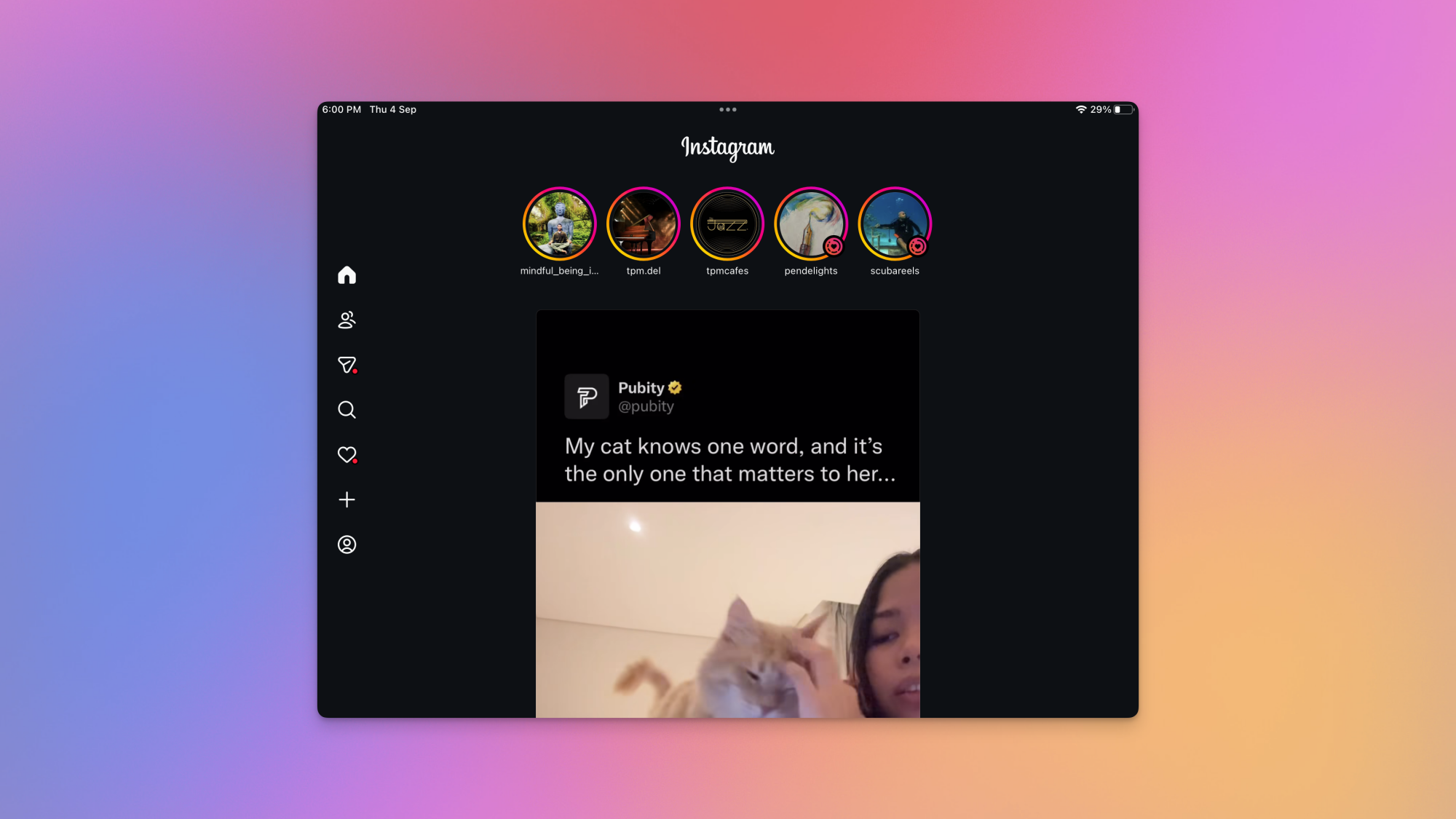
Case in point: The iPad app’s “Home” tab is different when you compare it with its counterpart on all other platforms. On iPhone, Android, or the web, tapping the Home icon takes you either to a feed of posts from people you follow or suggested posts from the app’s algorithm. On the iPad, it takes you directly to Instagram Reels. You will see Stories from people you follow up top, but below that, it’s an immediate dive into Reels. I’d expect this behavior when I tap the Reels tab on the iPhone app, but putting it right on the Home tab is a bit much. 

Instagram says this is intentional. “With Instagram for iPad, we’ve redesigned the experience to reflect how people use bigger screens today – for lean back entertainment,” the company said in its blog post announcing the app, which hints at an increasing number of people using TVs and other large screens to watch short form videos. It’s clear that the iPad app was designed to instantly suck you into the Reels algorithm and increase the time you spend using Instagram. 

An Instagram Reel on its iPad app.

Credit: Pranay Parab

To see your feeds, you need to first tap the “People” icon on the left. This shows your Following feed, which is divided into three tabs: All, Friends, and Latest. All shows a mix of content from people you follow and suggested posts, while Friends focuses on posts that your friends have liked or reposted. The Latest tab is the chronological feed, which is what I personally like to use.

There are still buttons for messages, search, notifications, creating new posts/Stories/Reels, and going to your profile. All of these work the same as they do on the iPhone app, and they’re placed neatly in the left pane, which makes them easy to reach if you’re holding your iPad with both hands. Other than this, there’s very little here to suggest that the app has been designed with much care for the person using it.

One of the most annoying things I keep running into is that the app keeps switching from light mode to dark mode. With my iPad’s system settings in light mode, Instagram opened the Home tab in dark mode, and it also used a dark background when I tried to create new posts. When I tapped any video in the Following tab, it expanded to a full-screen mode, and used a dark background there, too. However, all other tabs opened with a white background. When I enabled dark mode on my iPad, Instagram thankfully respected that choice and darkened all backgrounds, but I wish there was more consistency for light mode.

Instagram in Split View on an iPad.

Credit: Pranay Parab

I also tried using Instagram in Split View on my iPad, which meant that I had Instagram and a second app open at the same time. In Split View, you can change Instagram’s window size. When you reduce Instagram’s window to one-third of the screen, the app switches its layout to look a lot like the iPhone version. Most tabs are moved to the bottom of the screen, and a couple buttons are moved to the top (the create button and messages button). The app worked well in Split View, which is good news for the type of content Instagram is prioritizing now. Since the app focuses so heavily on vertical videos these days, using it in full-screen mode makes little sense on an iPad. You see giant black bars on either side of your videos and there’s a lot of dead space that could’ve been put to better use.

To be fair, when you open a post and try to read the comments, the video moves to the left and the comments appear on the right. Other than this, I couldn’t spot many good uses of the iPad’s larger display. It’s why I mostly prefer using Instagram in Split View on my iPad, where I can use a browser alongside it. That way, if I see something interesting on Instagram, I can quickly look it up in a browser and find out more.

Maybe you’ll get more use out of Instagram for iPad, but either way, be prepared for a bit of a learning curve.

Threads posts now support ‘text attachments’ up to 10,000 characters

That was fast. A week after a new feature for sharing long-form text was spotted in the Threads app, Meta is making the experiment official. Threads users will now be able to append text snippets of up to 10,000 characters to their posts in a feature Meta says is meant to support journalists and creators on the platform. 

As Engadget detailed last week, the feature is fairly basic for now. Selecting “text attachment” from the post composer opens up a simple text editor that has some formatting options. Once published to Threads, text attachments open either in a full-screen view on mobile or in a dedicated window on threads.com. If the post contains a link, the text attachment will also show a preview of the linked post at the end of text.

That’s notable as Meta has been trying to make links shared on Threads more prominent in an effort to give creators a boost on the platform. So far, there have been mixed results. While data shows engagement with links has been growing in recent months, Threads is sending very little traffic to websites overall.

In a blog post, the company says the feature was inspired by user behavior as people frequently share “screenshots of longer content from books, articles, newsletters, podcast transcripts.” The company also suggests that the feature could be used by authors and journalists who wish to share previews of their published works.

While the 10,000 character limit technically means that authors and journalists could publish substantial amounts of writing directly on Threads, text attachments lack many features you’d expect from publishing tools. There are limited text formatting options, for example, and you can’t embed media or do much else to break up big chunks of text. (A Meta spokesperson says highlighting and other formatting abilities are in the works.)

Text attachments also aren’t compatible with sharing to the fediverse, so followers from other ActivityPub services won’t be able to see them even if you’ve opted in to fediverse sharing. But many users will likely still find the feature preferable to sharing lengthy multi-part Threads, which can be hard to follow and don’t always all appear in a single view in the app or website. 

Meta says the feature is still in its early days and that it plans to add more functionality to text attachments in the future, along with more creator-focused updates.

This article originally appeared on Engadget at https://www.engadget.com/social-media/threads-posts-now-support-text-attachments-up-to-10000-characters-170000305.html?src=rss

Microsoft open-sources Bill Gates’ 6502 BASIC from 1978

On Wednesday, Microsoft released the complete source code for Microsoft BASIC for 6502 Version 1.1, the 1978 interpreter that powered the Commodore PET, VIC-20, Commodore 64, and Apple II through custom adaptations. The company posted 6,955 lines of assembly language code to GitHub under an MIT license, allowing anyone to freely use, modify, and distribute the code that helped launch the personal computer revolution.

“Rick Weiland and I (Bill Gates) wrote the 6502 BASIC,” Gates commented on the Page Table blog in 2010. “I put the WAIT command in.”

For millions of people in the late 1970s and early 1980s, variations of Microsoft’s BASIC interpreter provided their first experience with programming. Users could type simple commands like “10 PRINT ‘HELLO'” and “20 GOTO 10” to create an endless loop of text on their screens, for example—often their first taste of controlling a computer directly. The interpreter translated these human-readable commands into instructions that the processor could execute, one line at a time.

Read full article

Comments

Anyone can now download Tesla’s iOS Robotaxi app, but there’s still a waitlist

Tesla has made its iOS Robotaxi app available for all iPhone users to download as it expands service beyond a group of early access users for the first time. Beyond the current lack of an Android app (Tesla says one is on the way), there are a couple of things to bear in mind here. The company’s proper robotaxis are currently only available in Austin, Texas. There’s also a waitlist, so you won’t be able to book a ride immediately.

That said, it might not take folks on the waitlist too long to gain access to the service. Business Insider was able to start using it after about three hours.

Robotaxi app now available to all

Download to join waitlist – expanding access soon pic.twitter.com/gYsB3ZkbZB

— Tesla Robotaxi (@robotaxi) September 4, 2025

Tesla deployed its first fleet of Cybercab robotaxis in Austin back in June (and it didn’t take long for tales of unexpected behavior on the vehicles’ part to emerge). The company started offering rides in the Bay Area the following month with human drivers at the wheel — so really just a regular ride-hailing service rather than an autonomous one. Tesla has yet to receive permission to run a full robotaxi service in California, but it is allowed to test such rides with a safety driver behind the wheel.

This article originally appeared on Engadget at https://www.engadget.com/transportation/evs/anyone-can-now-download-teslas-ios-robotaxi-app-but-theres-still-a-waitlist-165523028.html?src=rss