
The Direct Rendering Manager (DRM) updates have been submitted for the Mediatek driver in advance of the upcoming Linux 6.16 merge window…
Monthly Archives: May 2025
You Can Now Upgrade Ubuntu 24.10 to Ubuntu 25.04, Here’s How
After almost a month of waiting, Ubuntu 24.10 (Oracular Oriole) users can finally upgrade their installations to the latest Ubuntu 25.04 (Plucky Puffin) release. Here’s a step-by-step tutorial with screenshots on how to perform the upgrade!
18 Netflix Settings Everyone Should Know About
Love watching Netflix for hours on end? There’s a lot more you can do with it if you spend just a few quick minutes in the settings section. You can improve your binge-watching weekend by customizing subtitles, home screen previews, download settings, and more. Here are 18 of the best Netflix tips and tricks.
Download your shows and movies offline
Credit: Khamosh Pathak
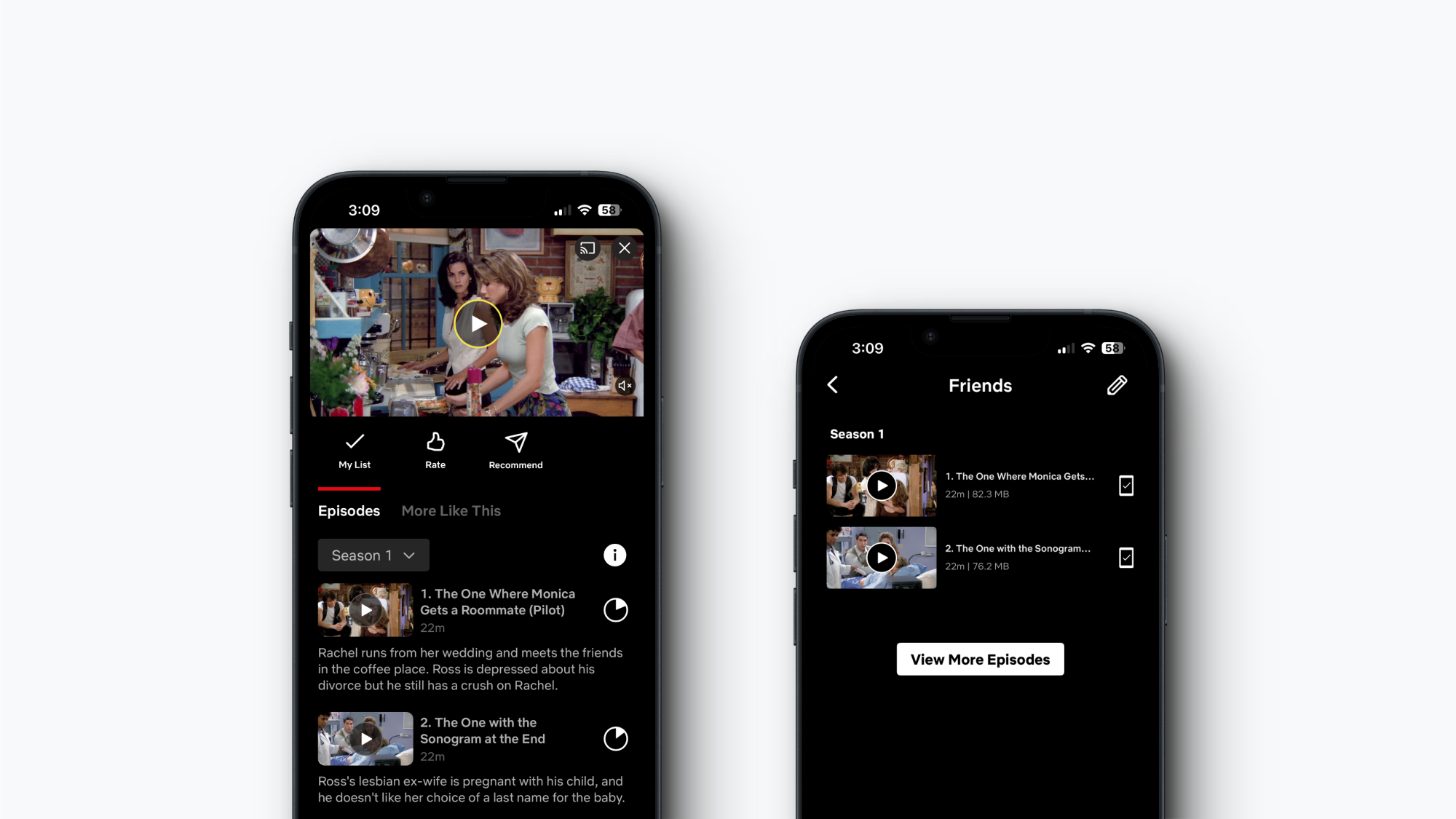
Like every other popular streaming service, Netflix lets you download movies and TV shows for offline viewing. Ad-free plans can download up to 100 items per device, while ad-supported plans can download 15 items. And as long as you go online once every 30 days, you can keep that media on your device.
To adjust quality, open the Netflix app, go to your Profile, tap the Menu button at the top (the three horizontal lines), then go to App Settings > Downloads > Video Quality. Here, choose between Standard or Higher based on your storage space or network.
Now, just tap the Download button next to an episode, season, or movie to download it. You’ll find downloaded media in the Downloads section in your Profile tab, where you can watch and delete shows.
Sign out of one, or every other device
Credit: Khamosh Pathak
Netflix has an option that lets you log out of any device from the website. This includes every device that all members of your account are using. So if you want to knock off TV access for a friend, or someone who’s not part of your shared plan, this is the place to go.
Click the Profile icon and go to Account. Here, switch to the Devices tab and choose Access and devices. Then, find a device you want to log out from and click Sign Out. You can also click the Sign Out of All Devices button to log out all devices together.
Stop Netflix from sharing your private data to third parties
Credit: Khamosh Pathak
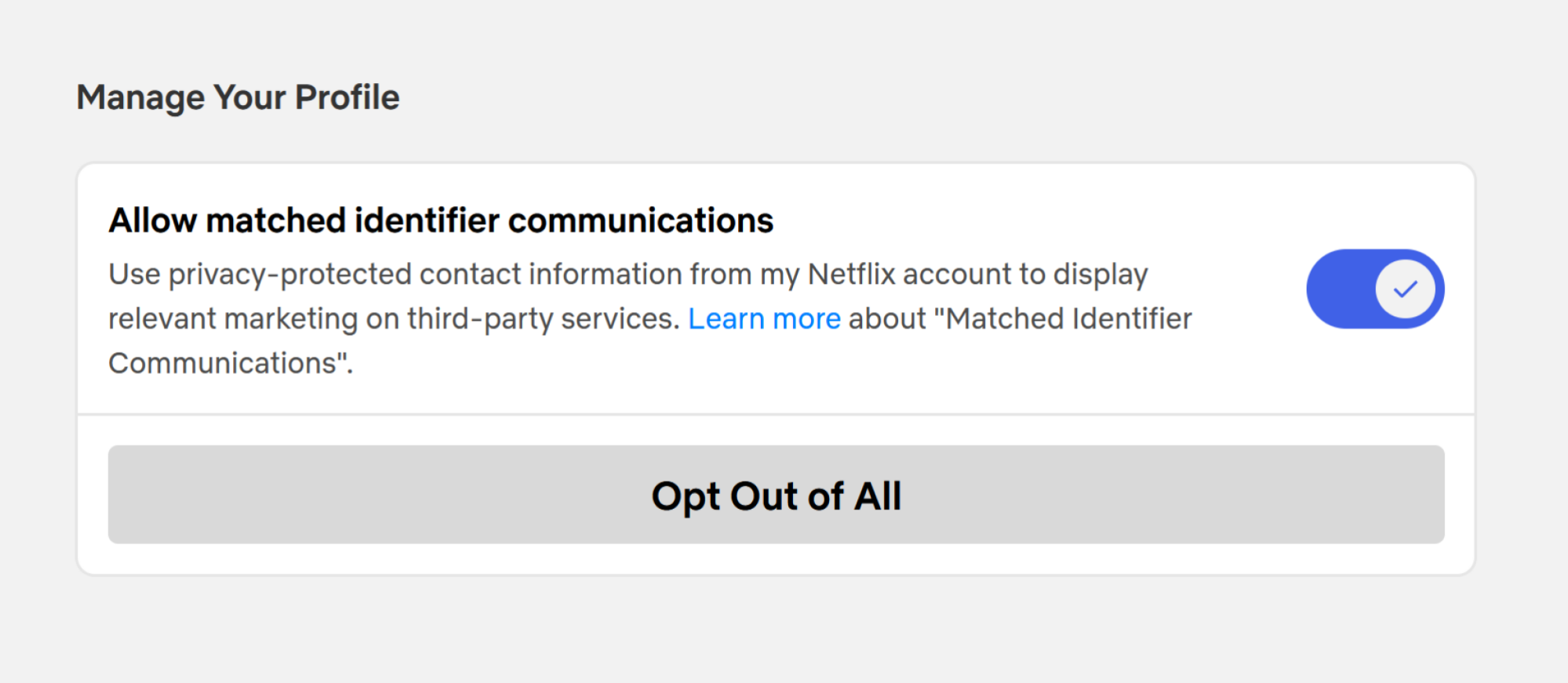
Netflix has an obscure setting that’s so weirdly worded that you’d never take it to be about data collection. Netflix, by default, shares your privacy-protected contact information with third parties to display ads on third-party services. That is something you should disable, and it’s done on a per-profile basis.
Click the Profile icon, go to Account, switch to the Profiles tab, choose your profile, and go to the Privacy and data settings option. Finally, disable the Allow matched identifier communications feature. Repeat this for all the profiles on your account.
Transfer your profile to a new account
Credit: Khamosh Pathak
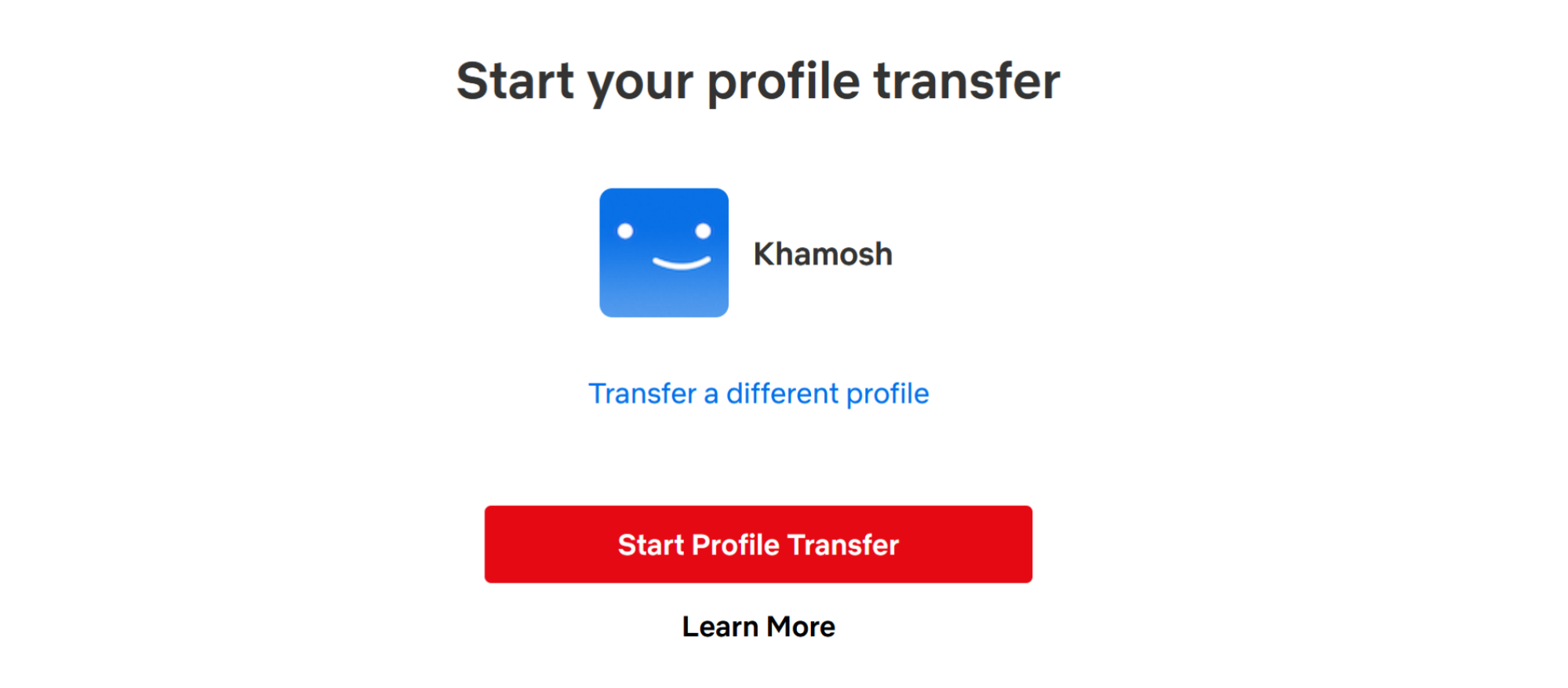
Netflix’s password sharing crack down is in full swing. If you cannot get around it, it might be time to create your own account. But that doesn’t mean you need to start fresh with the algorithm. Netflix has a feature called Transfer Profiles that can help you take all your data from an old account to a new one.
Open the Netflix website and choose your profile. Then, click the Profile icon at the top and go to Transfer Profile. This will open up a wizard that’ll walk you through the next steps. Click Start Profile Transfer and choose if you want to transfer to a brand-new account or to an existing one. Netflix will help you set up a new account with all your data. If you’re transferring to an existing account, you’ll need to know the email and the password for the account. Follow the instructions to transfer your profile to a new account.
Get rid of unwanted content from your watch history and recommendations
Credit: Khamosh Pathak
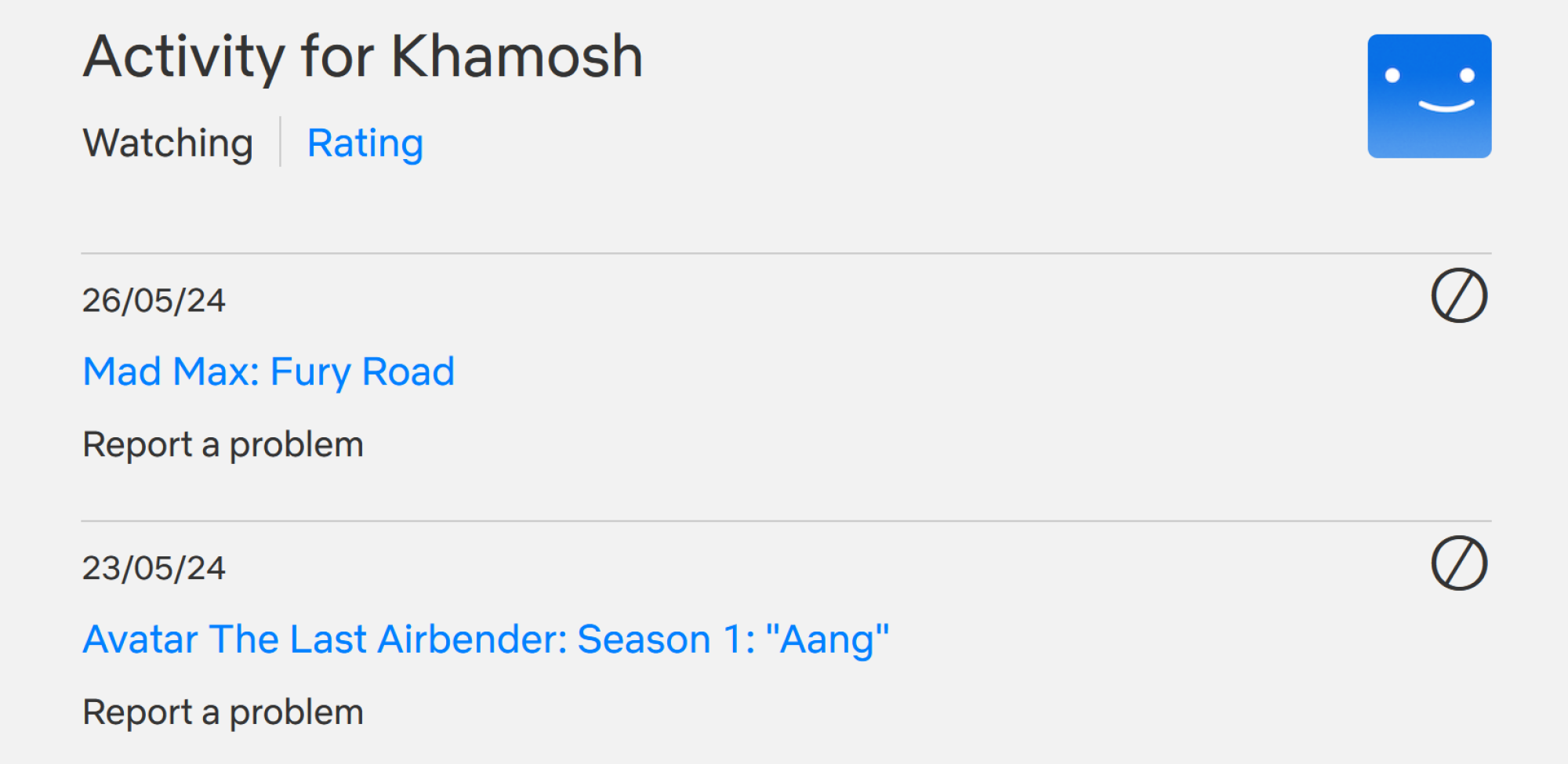
Want to get rid of an embarrassing title from your watch list? Or perhaps a title that you’re never going to finish? The only way to clear your Watch List (and the subsequent recommendations) is by removing a title from your Viewing Activity.
Go to Netflix’s Viewing Activity page (you can also get there from Account > Profiles > Your Profile > Viewing Activity).
Click the little Hide button next to the title that you want to remove. Confirm in the next step, and the title will disappear from your watch list.
Enable smart downloads for your mobile devices
Credit: Khamosh Pathak
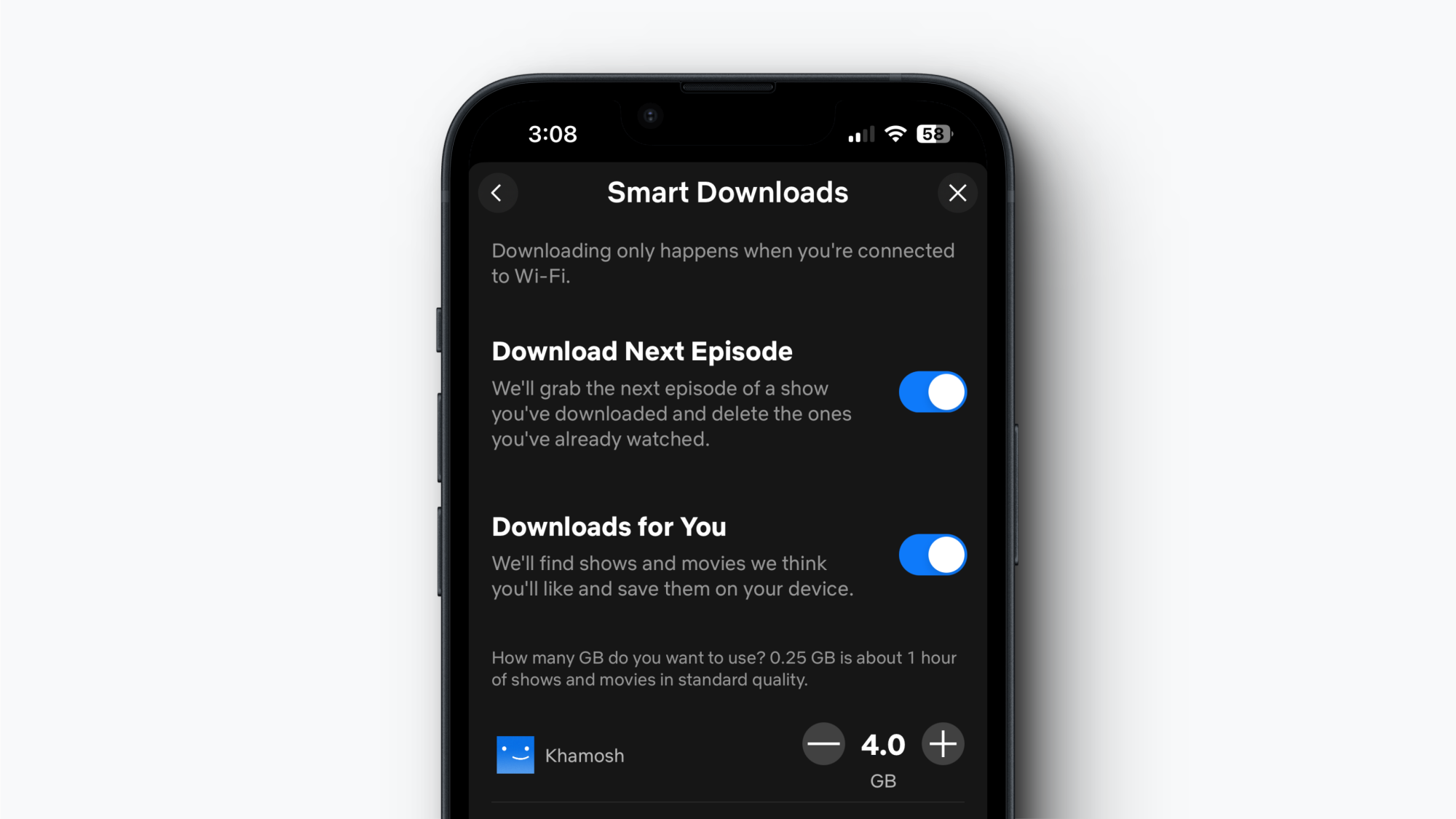
If you watch Netflix on the way to work, or if you have a spotty internet connection, the Smart Downloads feature definitely helps. Once enabled, this will automatically delete completed episodes and replace them with subsequent episodes when you’re back on Wi-Fi. You can also turn on “Downloads for you,” which automatically downloads content Netflix thinks you’ll like. You can enable these features on the iOS and Android apps from Profile > Menu > App Settings > Smart Downloads.
Stop Netflix from using too much of your mobile data plan
Credit: Khamosh Pathak
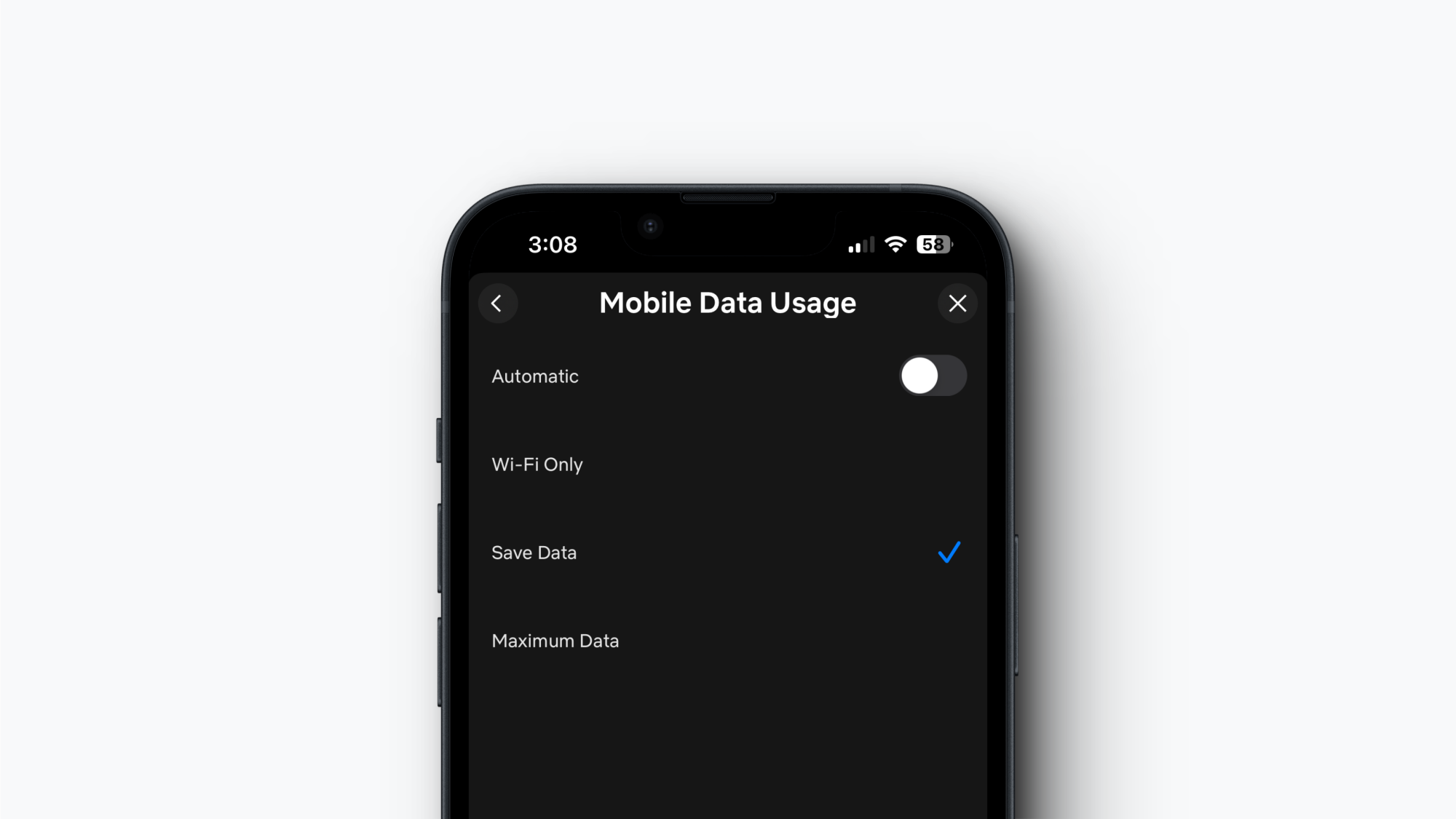
If you like watching Netflix when you’re out and about, it can eat into your mobile data plan pretty easily. Netflix’s data saver mode can help with that. In the Netflix app, go to Profile > Menu > App Settings > Cellular Data Usage. Here, disable the Automatic feature and switch to the Save Data option. This will adjust quality while off wifi to allow for about six hours of playback per GB of data.
Make sure you’re watching in HD or 4K
Credit: Khamosh Pathak
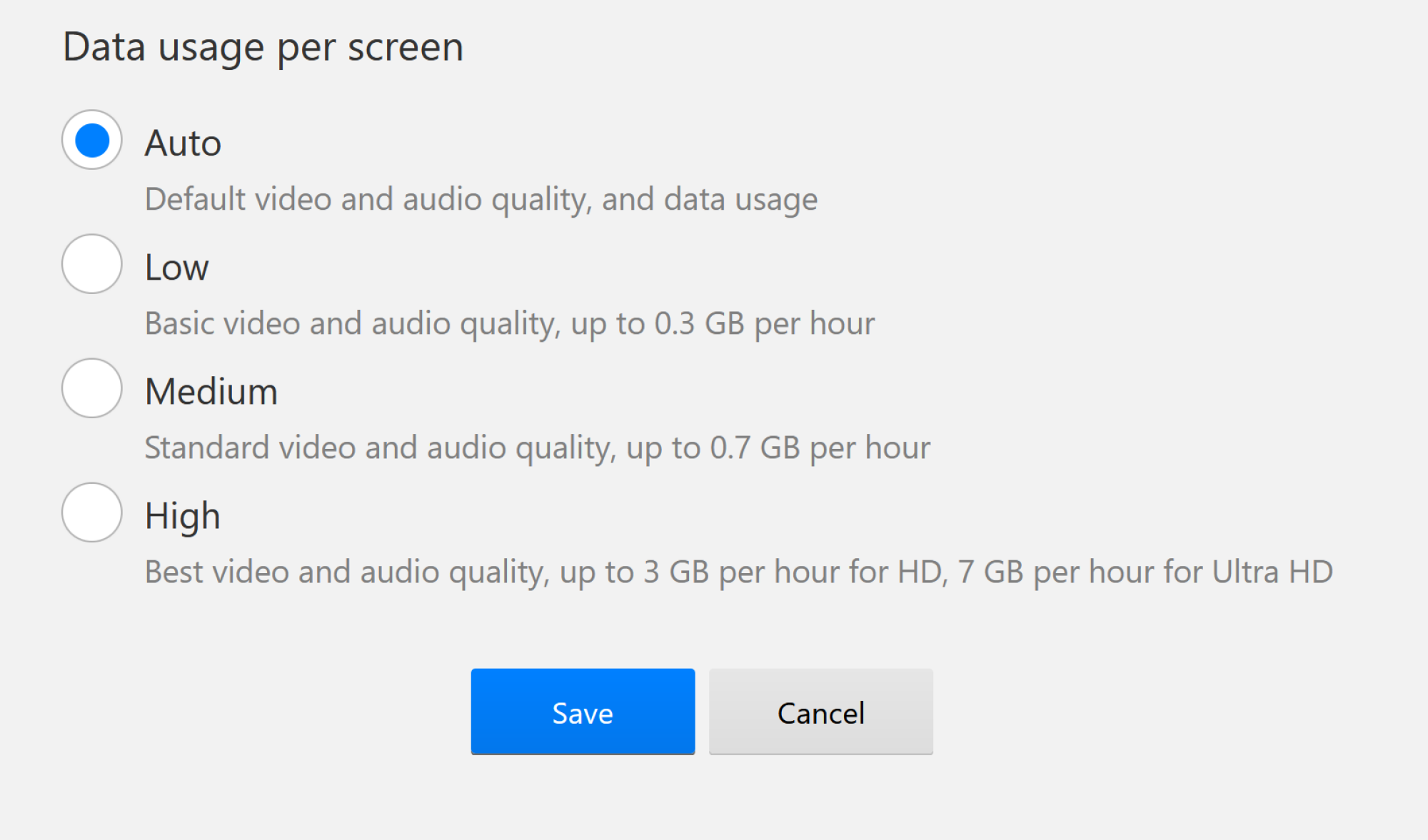
It would be a shame to pay the 4K plan but only watch in 720p because you didn’t adjust your settings. Go to Netflix’s playback settings page, and from the Data Usage Per Screen option, switch to the High option. Now you’ll get the best quality for the device or screen that you’re on.
Stop Netflix from automatically playing next episodes and previews
Credit: Khamosh Pathak
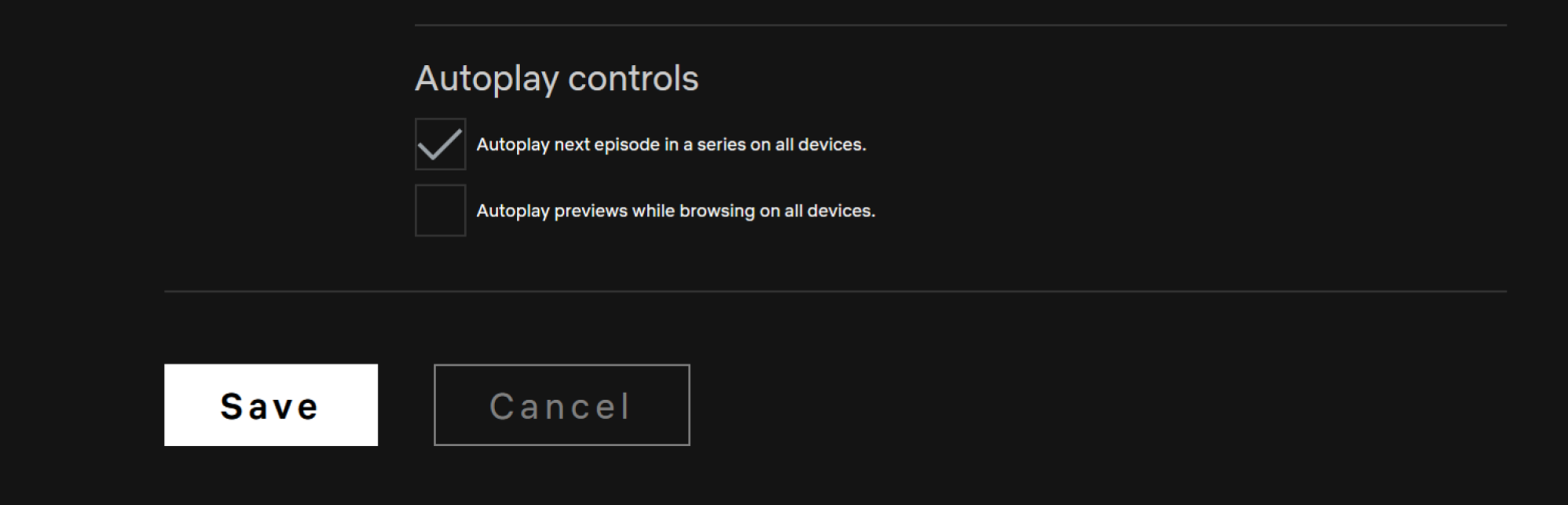
Netflix loves autoplay. Whether it’s playing the next episode or movie right after you’re done watching something, or playing previews on the home screen, it can get pretty annoying.
You can disable both features on a profile-by-profile basis. After opening the Netflix website, go to the Profiles screen. Here, click the Manage Profiles button and choose the profile where you want to disable these features.
Now, uncheck Autoplay next episode in a series on all devices and Autoplay previews while browsing on all devices. Click the Save button to save your preferences.
Customize your subtitles to be way better
Credit: Khamosh Pathak
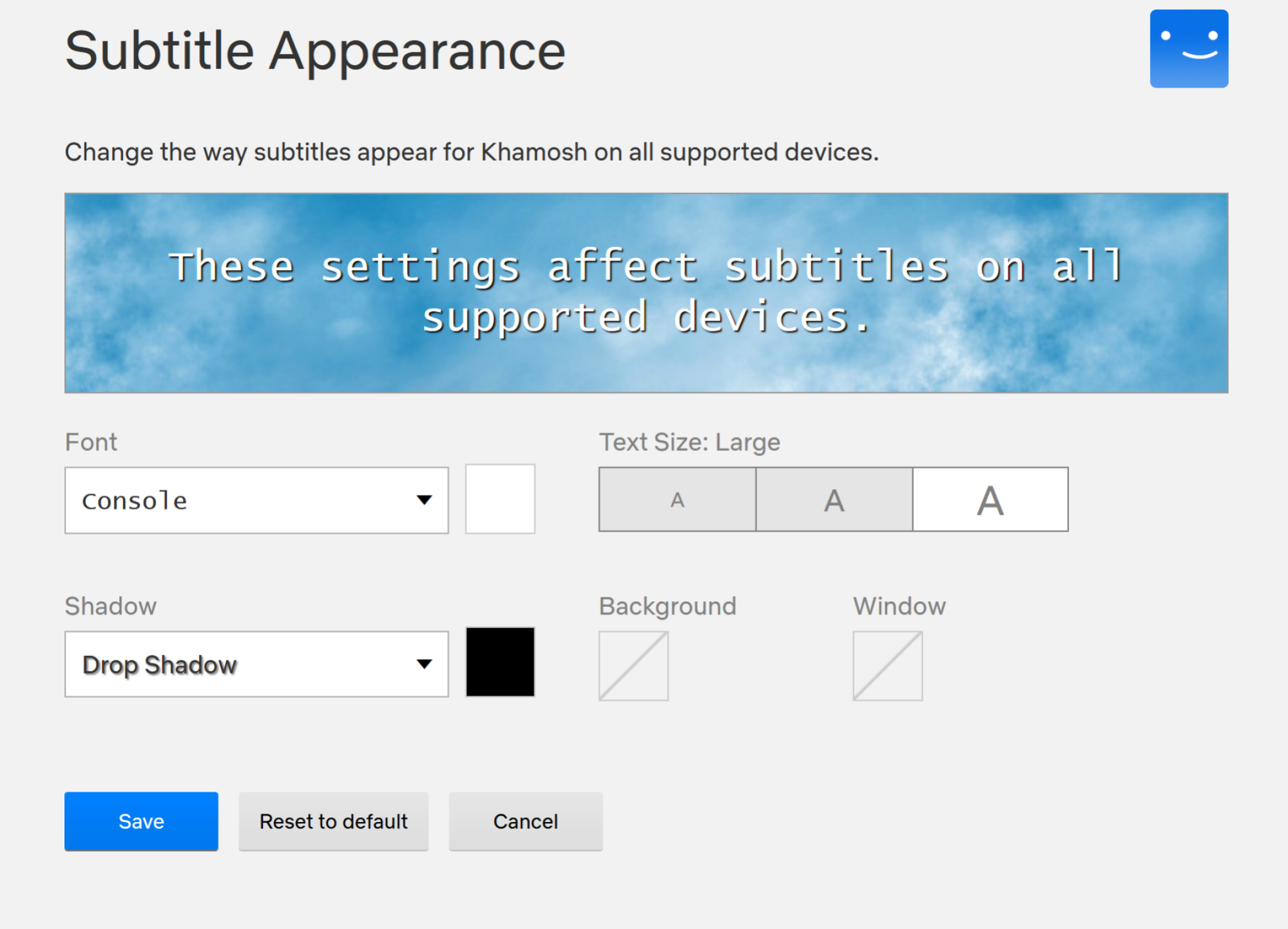
Finding the default subtitles too hard to read? You can change the subtitle font, color, and size. From the Netflix website, click the Profile icon and choose Account. Here, switch to the Profiles tab and select your profile. Now, choose the Subtitle Appearance option.
From here, you can change the subtitle font, text size, shadow, background color, and window color. Once you’re done, tap the Save button to save your settings.
Choose original dubs in your shows and movies
Credit: Khamosh Pathak
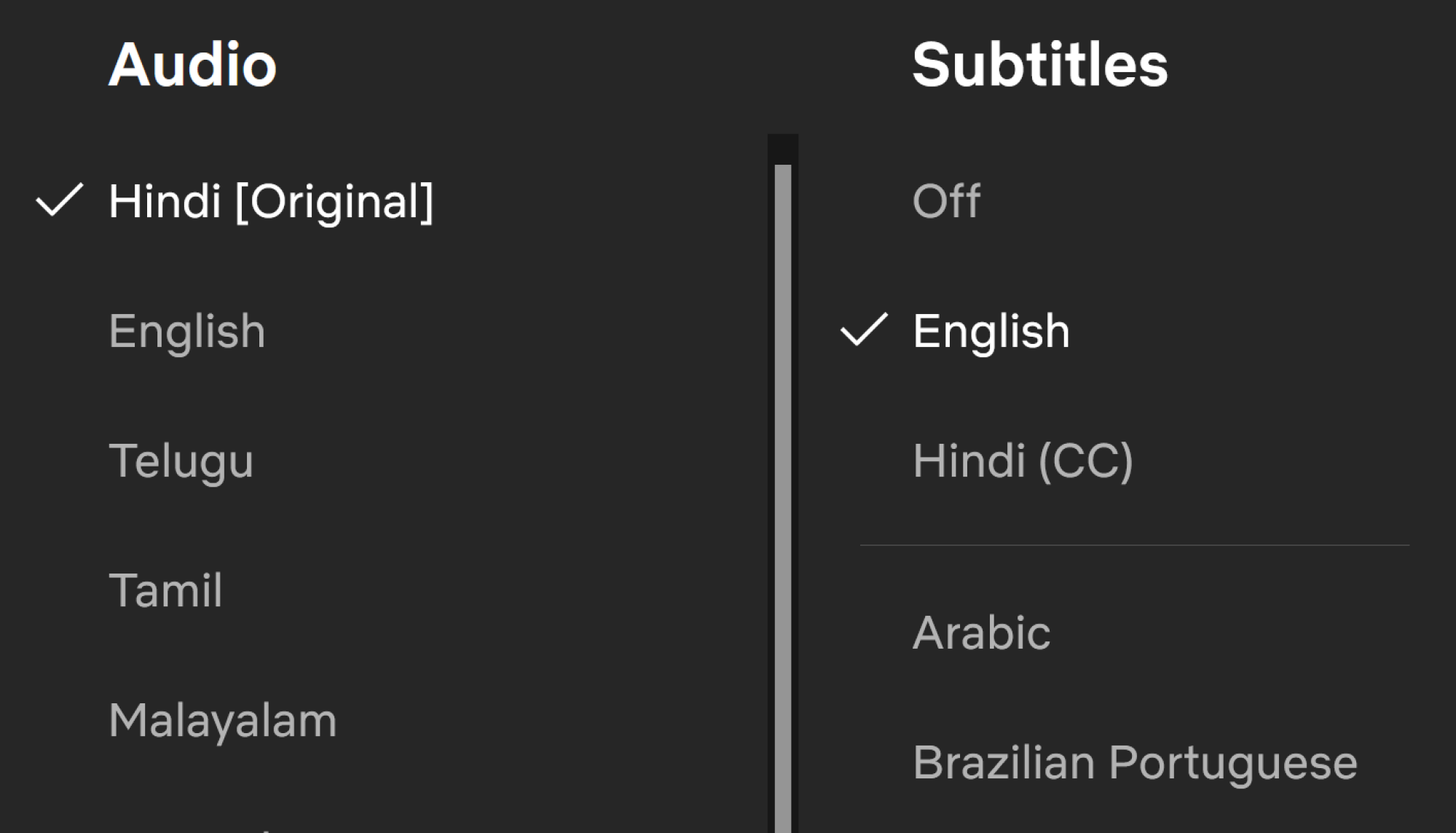
When you’re watching a foreign language film, Netflix has a habit of defaulting to English language dubbing. Sadly, there’s no setting to stop Netflix from doing that, but there’s always a way to switch to the original audio in the Netflix player. When you’re watching something, go to the Subtitles menu, and from the Audio section, switch to the Original audio.
Lock your profile to keep it private from other users
Credit: Khamosh Pathak
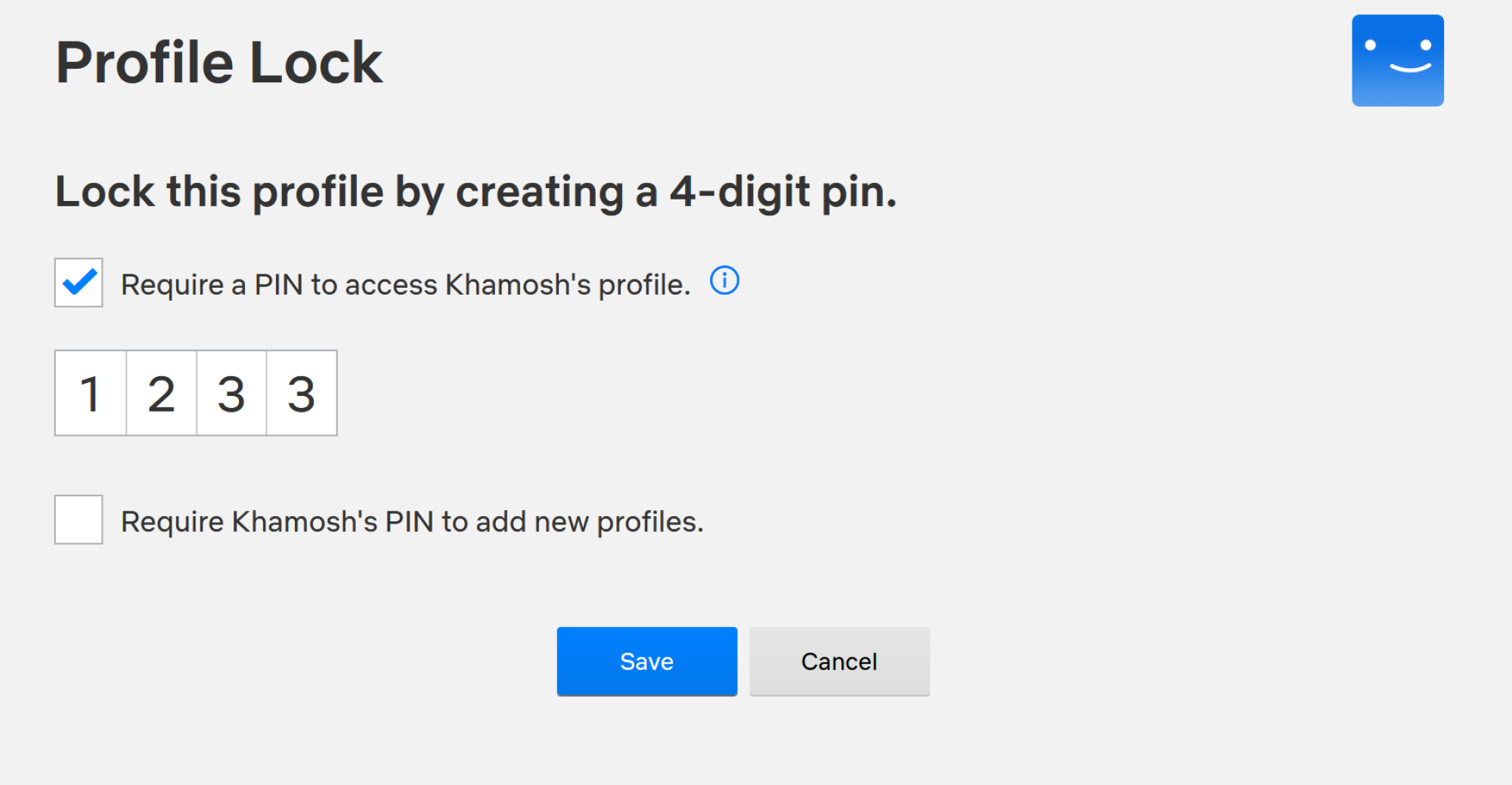
If you share your Netflix account with your friends or family members, your profile isn’t exactly private. Others can see what you’re watching, and they can also use your profile and mess up your recommendations.
If you want to protect your profile (especially if you share your account with your kids), click the Profiles icon and choose the Account option. Switch to the Profiles tab, choose your profile, and go to the Profile Lock section. Enter your account password, and from the next page, enable the Require a pin to access (user) account option. Then enter the four-digit pin and click the Save button. The next time you open Netflix, you’ll need to enter this pin to access your profile.
Block adult content, if you want
Credit: Khamosh Pathak
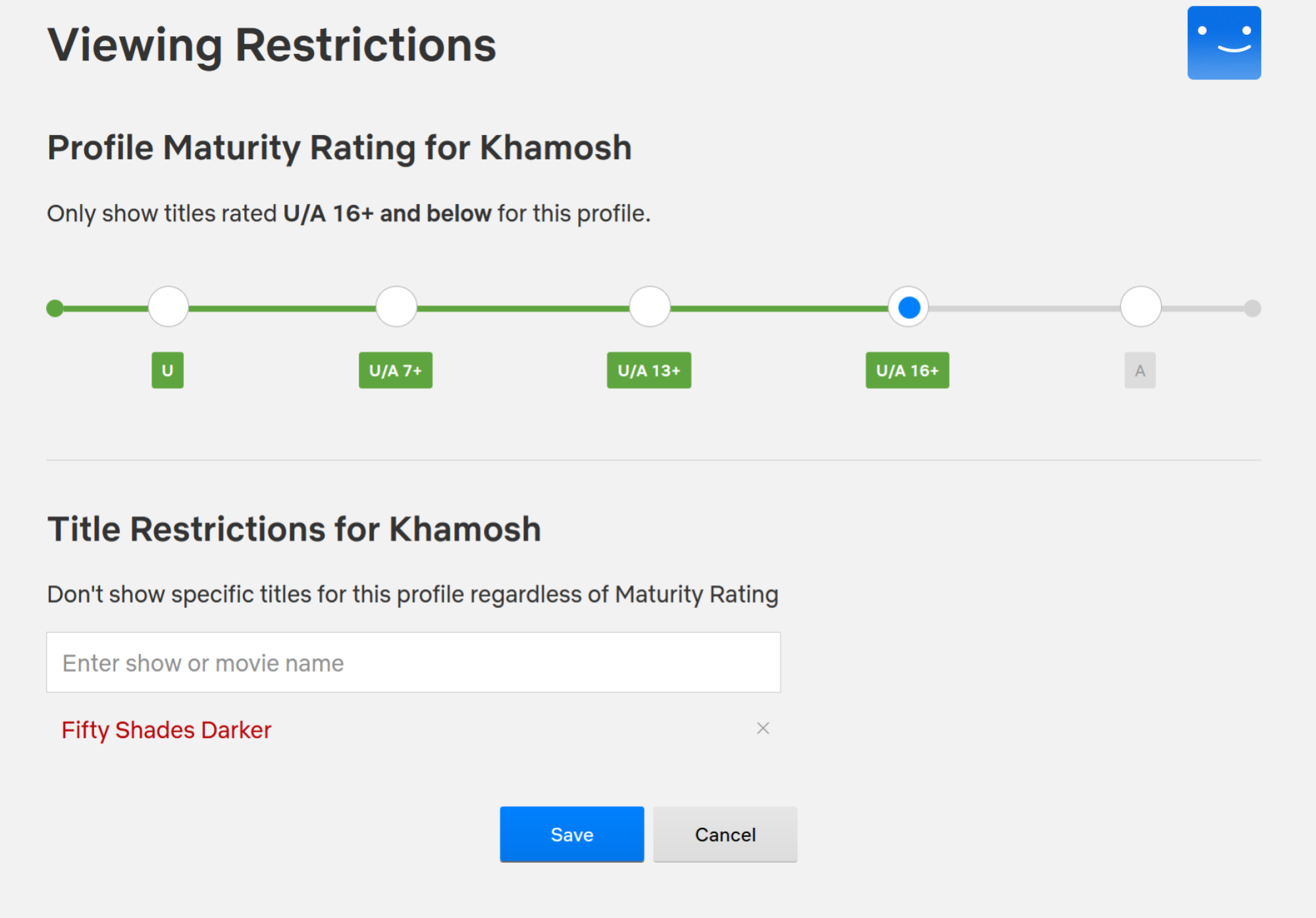
If you’re sharing your Netflix account with your kids or teenagers, you might want to block adult content. To do this, go to the Profiles tab in your Account and choose your profile. Here, go to the Viewing Restrictions section and enter your account password.
From the top, you can change the profile’s maturity rating (7+ to 18+). If you want, you can also turn the current profile into a children’s profile, only showing content suitable for children. From the bottom, you can even choose to block a particular TV show or movie. Once you’re done, click the Save button.
Switch to dialogue-only subtitles
Credit: Netflix
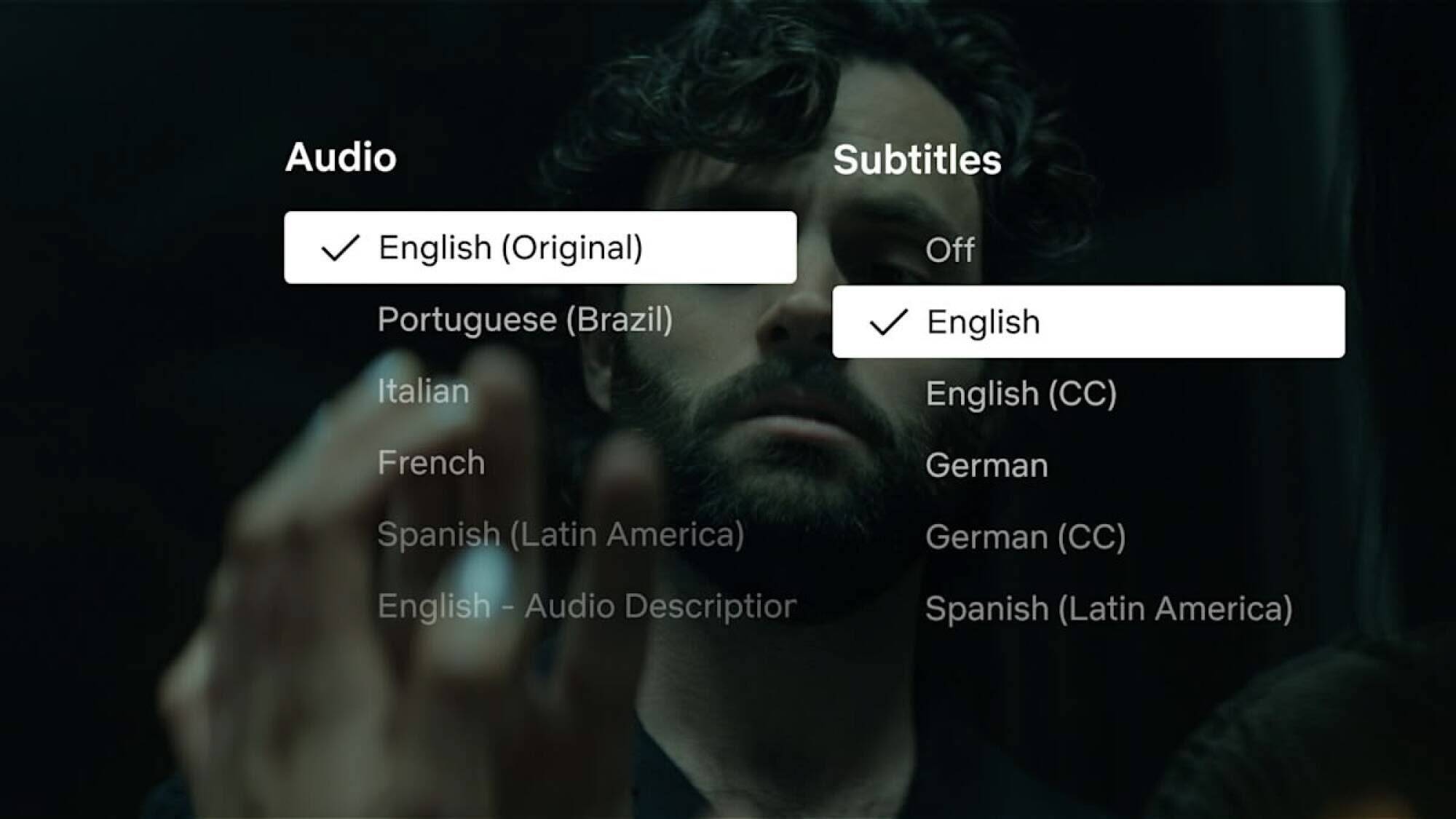
Netflix has finally added a dialogue-only subtitles option. They’re starting out with Netflix original series like the latest season of You. But they’ll be supported on every new Netflix Original going forward.
This new subtitle option removes commentary and stage directions from the subtitles. So you won’t see details about the background music or heavy breathing. You’ll just see character dialogue.
To switch to this option, start streaming a compatible show or movie on Netflix and head to the Subtitles section. Here, choose English (or any language of your choice) in the Audio section, and English in the Subtitles section as well. If you want to revert to the classic subtitles style, switch to the English (CC) option.
Browse better using Netflix’s secret codes
Netflix’s search feature is pretty great, but its organization kind of sucks. On the home screen, you might keep seeing the same popular content repeated in different sections. If you want to discover new content in a particular genre, style, or language, there is a better way. And that’s to use Netflix’s secret codes.
Netflix has codes for every kind of movie category and subcategory that you can imagine. There are 20 broad categories to start with, but there are 267 categories in total, each with their own unique code. You can find a list of all the secret codes at Netflix-Codes.com. Then, just enter the code in the Netflix search bar. Alternatively, you can also use URL to go directly to the category page.
An example: In the following URL, replace (xx) with the desired Netflix code: https://netflix.com/browse/genre/xx. So, to view “Asian action movies”, you’d navigate to https://netflix.com/browse/genre/77232.
A workaround for downloading movies and TV shows on Windows
Netflix’s Windows app used to let you download movies and TV shows for offline use. But now, Netflix has deprecated the old dedicated Windows app, replacing it with a web wrapper that’s nothing more than a glorified website in app form. A side effect of this change is that you can no longer download content like you can on mobile devices.
But there is a workaround, which is to downgrade to the older version. Because this is Windows, where you can install apps from outside of the Windows Store, this is easy and safe to do.
To download the old app directly from Microsoft, go to this Adguard store page and paste Netflix’s app link. After the download is completed, open the Terminal app on your PC and paste in the following command:
Add-AppxPackage .Downloads4DF9E0F8.Netflix_6.99.5.0_neutral_~_mcm4njqhnhss8.AppxBundle
That should do the trick. For detailed instructions, check out our guide on the topic.
Clean up your Continue Watching row
We all have a tendency to start a movie or a TV show, only to get tired of it halfway through. Though, Netflix keeps reminding us of our lack of commitment with its Continue Watching feature. I usually end up ignoring this, while a show from three years ago keeps crowding my Continue Watching list. But if you’re annoyed by this, there is a way out. If you don’t plan to go back to a movie or TV show, simply hover over the thumbnail and click the “X” button to remove it from the list.
Get notifications for upcoming content
If you like watching the latest season of hit Netflix shows the day they come out, this feature is for you. Head over to the Coming Soon section in the Netflix app, find an upcoming movie or TV show that you want to watch, and click the “Remind Me” button. Netflix will now send you a handy reminder when the content launches.
Judge Slams Lawyers For ‘Bogus AI-Generated Research’
A California judge slammed a pair of law firms for the undisclosed use of AI after he received a supplemental brief with “numerous false, inaccurate, and misleading legal citations and quotations.” From a report: In a ruling submitted last week, Judge Michael Wilner imposed $31,000 in sanctions against the law firms involved, saying “no reasonably competent attorney should out-source research and writing” to AI, as pointed out by law professors Eric Goldman and Blake Reid on Bluesky.
“I read their brief, was persuaded (or at least intrigued) by the authorities that they cited, and looked up the decisions to learn more about them — only to find that they didn’t exist,” Judge Milner writes. “That’s scary. It almost led to the scarier outcome (from my perspective) of including those bogus materials in a judicial order.”


Read more of this story at Slashdot.
You Can Safely Remove All These Preinstalled Apps From Your iPhone
Unbox and power up a brand new iPhone and you’ll find there are plenty of apps already on there—which, broadly speaking, is good! You can start browsing the web, checking your email, streaming music, making notes and much more without visiting the App Store.
However, you’re not necessarily going to make a lot of use of all of these apps. Uninstalling the ones you don’t actually need means they won’t take up space on your phone and won’t take up bandwidth with app updates.
In recent years Apple has made more and more apps optional, and you can now get rid of more apps than you may have realized. If you find you do need them again, you can easily grab them from the App Store.
To remove an app from your iPhone, tap and hold on its home screen icon, then choose Remove App > Delete App > Delete. You can also uninstall apps from the App Library: Tap and hold on an icon, then choose Delete App > Delete.
Here are the preinstalled iOS apps you can get rid of (it’s almost all of them, in fact):
Books: Apple’s depository of e-books can be uninstalled from your iPhone if you’re not interested in any digital reading. It’s been bundled with iOS since iOS 8 in 2014.
Calculator: If you prefer an alternative calculator app or you’re just great at math, you can say goodbye to the Calculator app. It’s been around since the first iPhone in 2007.
Calendar: The built-in Apple Calendar app may feel pretty essential to iOS, but it isn’t, and you can get rid of it. It’s been preinstalled on iPhones since the 2007 original.
Clock: The Clock app has been around since day one on the iPhone, back in 2007, but iOS can run fine without it. You might need to find an alternative alarm app, however.
Compass: One of the lesser-known apps, Compass can be safely removed if you’re confident you won’t need it. The app was introduced with iPhone OS 3 in 2009.
Contacts: Surprisingly, you can delete Contacts, an app that debuted in 2008, from iOS. However, your contacts will still show up in the Phone app, which can’t be removed.
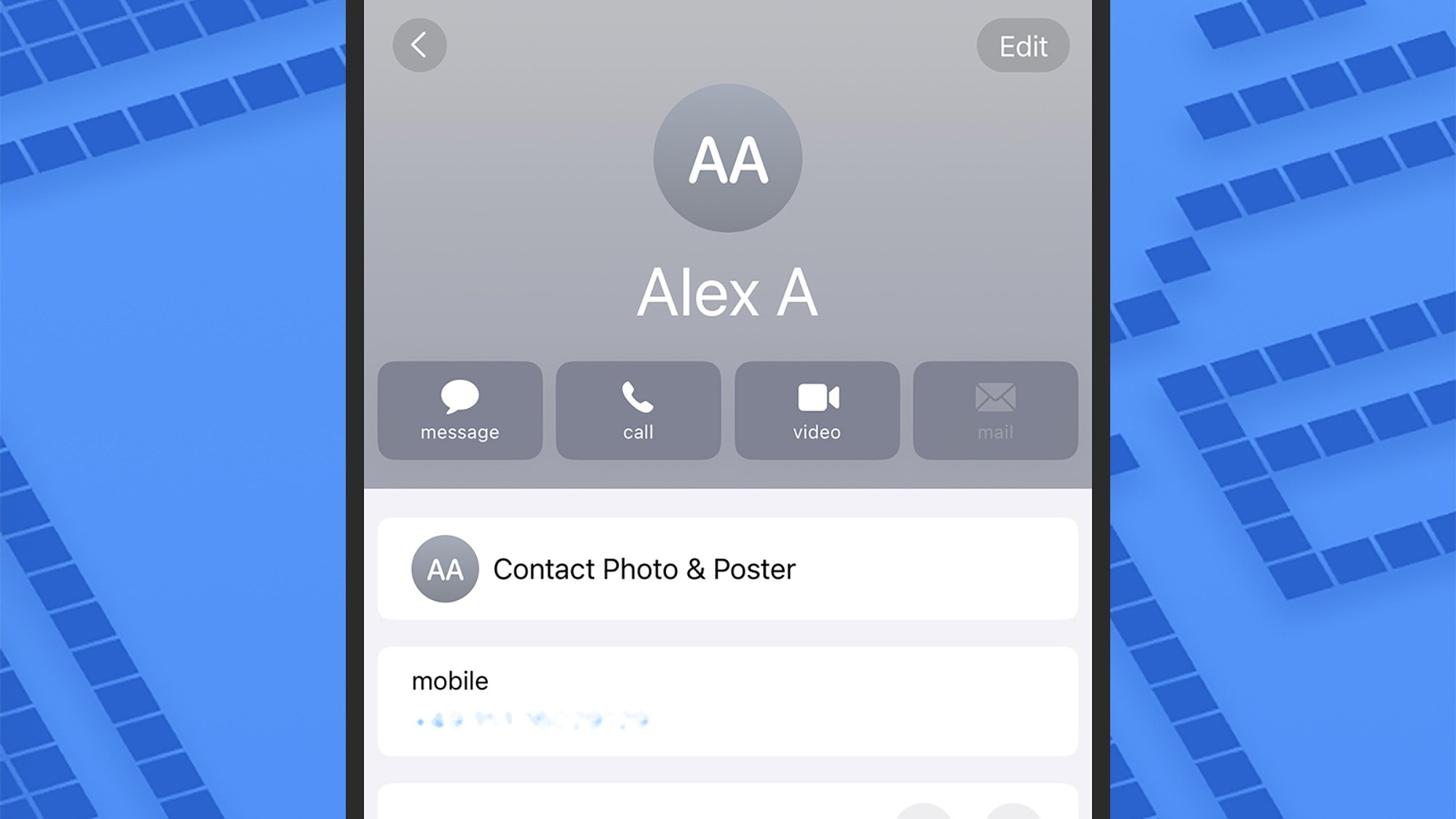
If you remove FaceTime, you can still make calls via the Phone app.
Credit: Lifehacker
Credit: Lifehacker
FaceTime: FaceTime, on the iPhone since iOS 4 in 2010, can be safely removed from your iPhone—you’ll still be able to make calls through the Phone or Contacts apps.
Files: A files app may seem pretty fundamental to a phone, but you can remove the iPhone’s built-in option. This app was introduced with the launch of iOS 11 in 2017.
Find My: A core app you’d assume can’t be uninstalled, but in fact it can be. Find My has come preinstalled since iOS 13 in 2019, combining Find My iPhone and Find My Friends.
Freeform: The virtual brainstorming app developed by Apple first made its appearance on iOS late in 2022, and you can safely take it off your iPhone without breaking anything.
Health: If you don’t need the Health app, introduced in 2014, you can delete it. However, your existing health data will remain on your phone, under Health in iOS Settings.
Home: Apple’s smart home platform hasn’t been its biggest success, and you can get rid of this app without any issue. The Home app was first added to iPhones back in 2016.
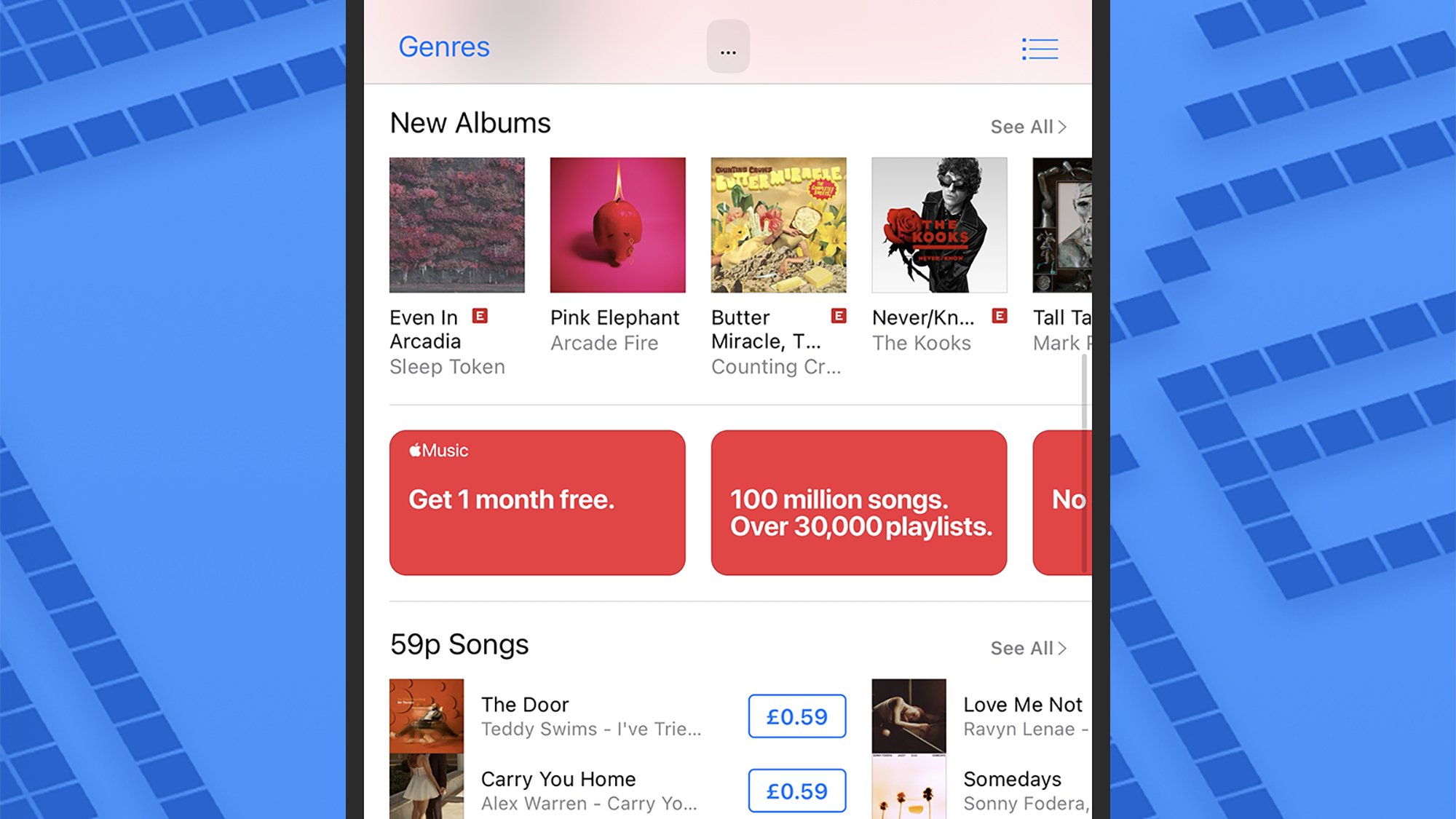
The iTunes Store app is still going.
Credit: Lifehacker
Credit: Lifehacker
iTunes Store: Did you forget about the iTunes Store? It predates the iPhone, and showed up in iOS in 2008. If you don’t want to buy any digital goods, you can remove it.
Journal: We’ve had Journal on our iPhones since 2023, letting you record memories day by day. If journaling isn’t for you, or you’ve found a better option, this app can be deleted.
Magnifier: You might have never noticed the Magnifier app on iOS, but it has been a standalone app preinstalled on iPhones since 2020—and you can remove it without issue.
Mail: There are plenty of good email clients for iOS, and if you’re not using the default one that has been preinstalled since 2007 on every iOS version, you can delete Mail.
Maps: Apple Maps has been with us since 2012, and while it’s improved a lot in that time, you might decide you prefer an alternative option—in which case, you can delete it.
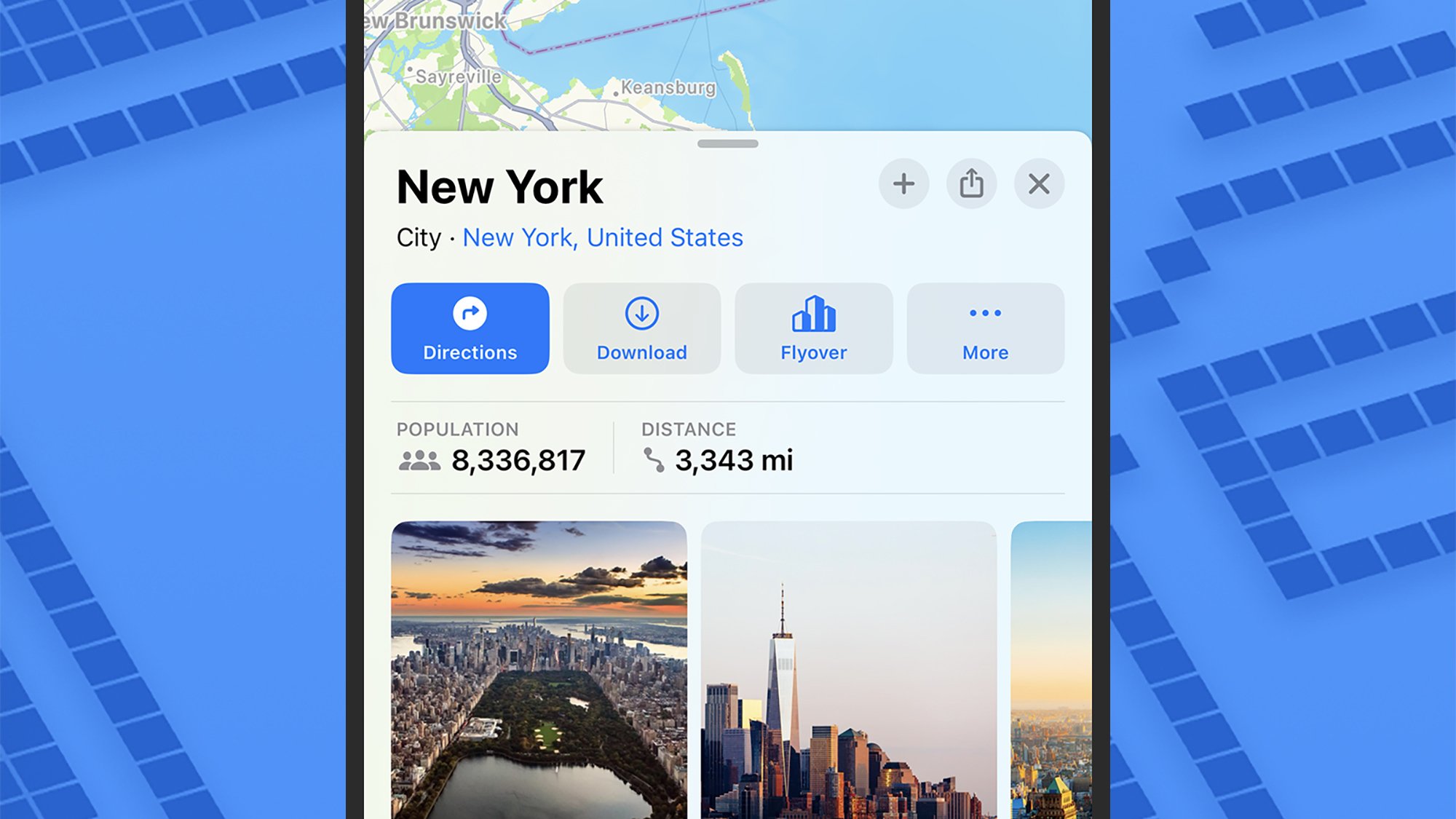
If you’re not keen on Apple Maps, you can remove it.
Credit: Lifehacker
Credit: Lifehacker
Measure: One of the minor utilities that comes free with every iPhone since 2018 and iOS 12. If you don’t need to do any measuring on your iPhone, it can be removed.
Music: This is an app category where there are lots of alternatives—and if you’re using one, you can remove this. The app first appeared in 2011, replacing the earlier iPod app.
News: If you’re not getting your news fix through Apple’s own News app, this can be uninstalled without a problem. It first made an appearance in 2015.
Notes: For many of us, Notes is an essential app, but if that’s not the case for you then you can remove it from iOS. It’s been around since the first iPhone back in 2007.
Playground: If you’ve enabled Apple Intelligence when setting up your iPhone, you’ll have the Playground app for making AI images, launched in 2024—but you can uninstall it.
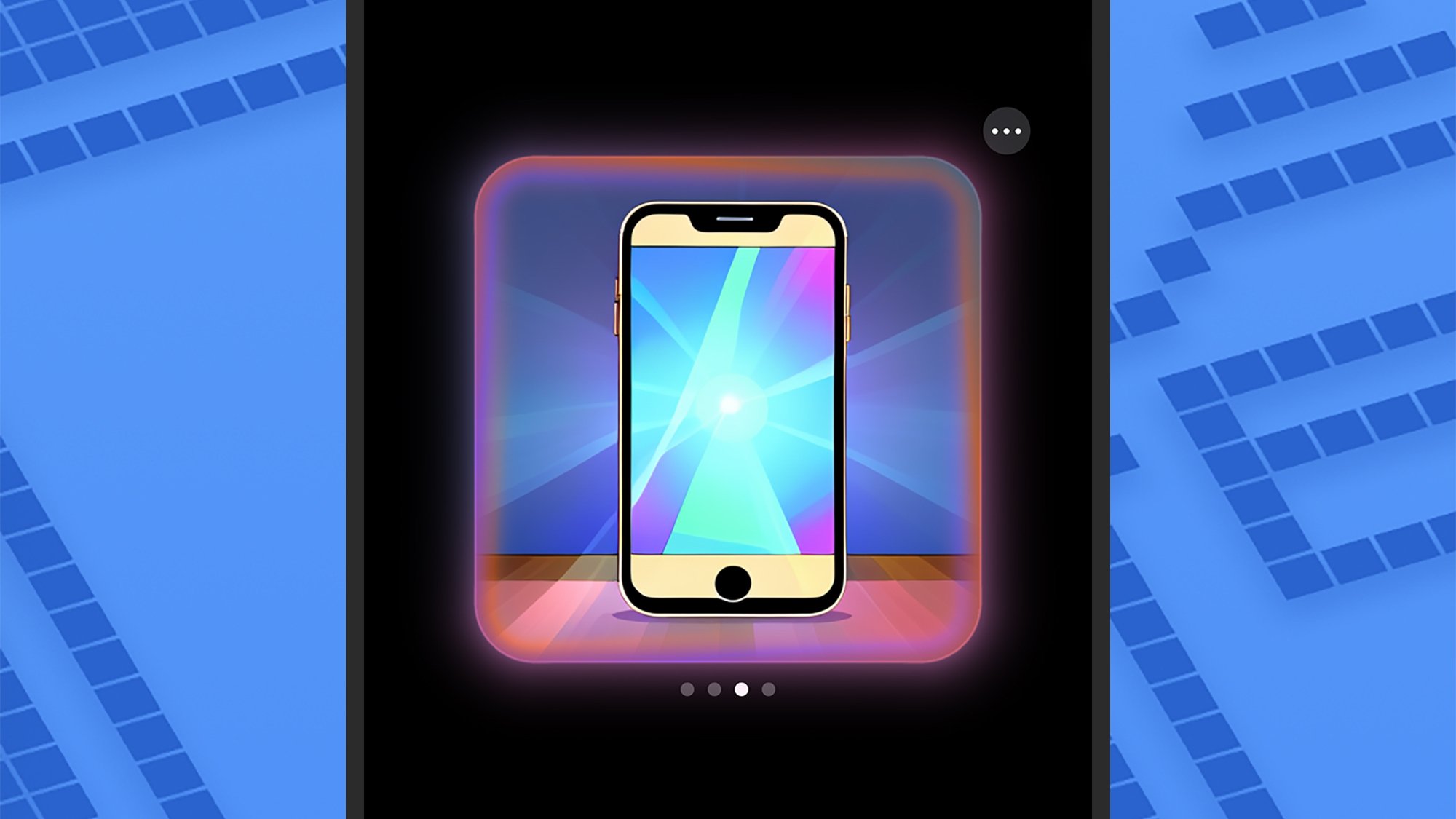
No need for AI imagery? Remove the Playground app.
Credit: Lifehacker
Credit: Lifehacker
Passwords: This is one of the newer Apple apps, launched in 2024. If you don’t need this for managing your logins and other data on your iPhone, then it can be safely uninstalled.
Podcasts: There are a host of great podcast players out there, so if Apple Podcasts isn’t your app of choice for this, get rid of it. Podcasts launched as an app in 2012 with iOS 6.
Reminders: If you’re using a different app for this job (or you’re just great at remembering everything), you can remove Reminders, which has been included with the iOS software since 2011.
Shortcuts: Some people find Shortcuts indispensable, but if you’re not one of them, this app can be safely uninstalled from your iPhone. It became a preinstalled app in 2019.
Stocks: Stocks has been on iPhones since the very beginning, the first iPhone in 2007. If you don’t need it to keep up with current stock prices, you may safely delete it.
Tips: Ever since iOS 8 in 2014, Tips has been there, ready to serve up tips and tricks for using your iPhone. If you feel you don’t need the app, there’s no problem with deleting it.
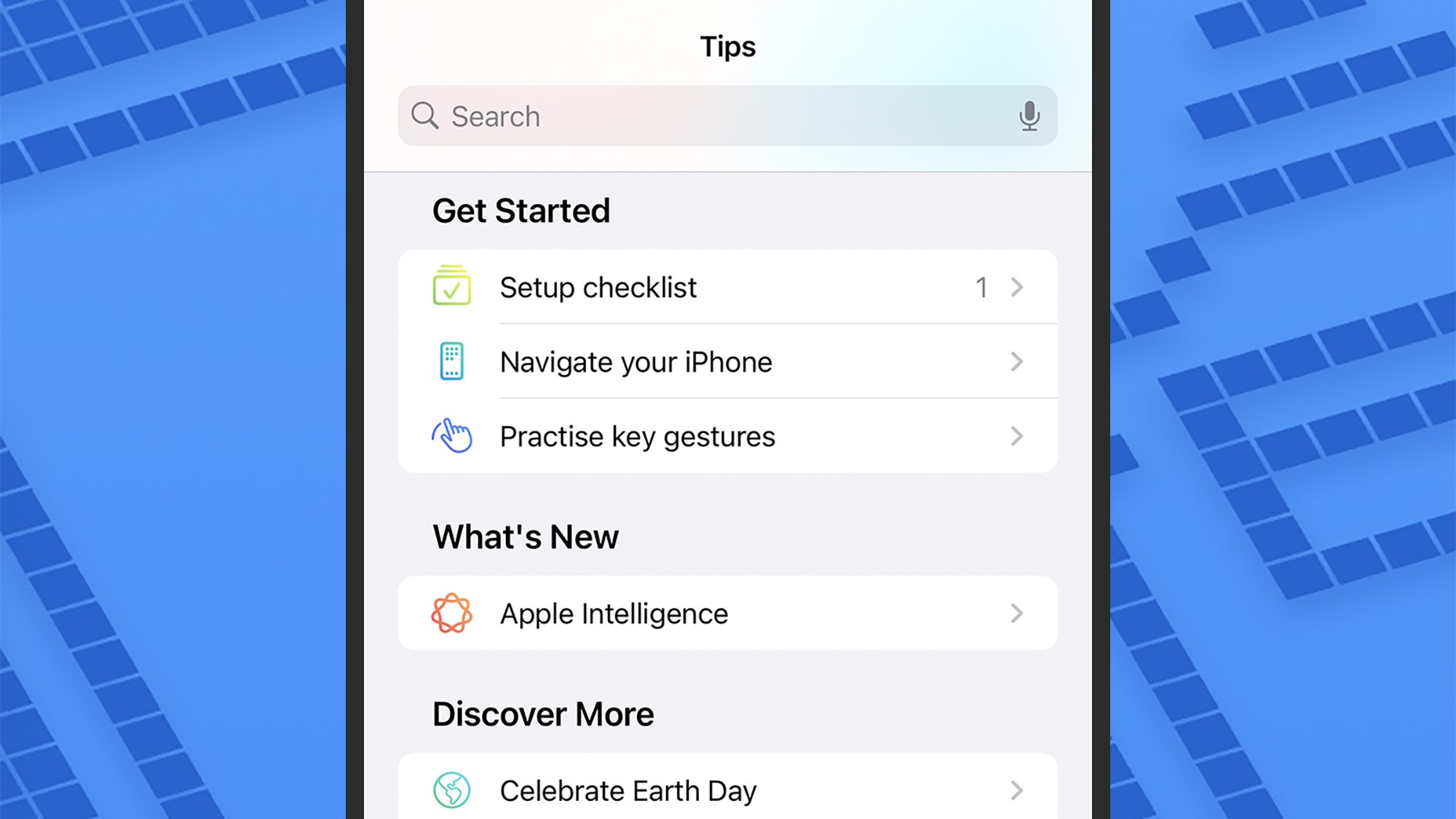
The Tips app gives you … tips.
Credit: Lifehacker
Credit: Lifehacker
Translate: Apple Translate has been around on iPhones since 2020, and it’s definitely improved since then—but it’s also possible to safely uninstall it.
TV: The Apple TV app is where you get all your movies and shows from Apple, and it’s been a standalone app since 2016. If you source your content from elsewhere, you can delete it.
Voice Memos: There’s no doubt this can be a useful app, but it’s not for everyone, and can be uninstalled. Voice Memos made its debut on the iPhone all the way back in 2009.
Wallet: You can uninstall the Wallet app from iOS, which is something of a surprise. The app for payments, cards, and tickets arrived on iOS under its current name in 2012.
Watch: If you’re not an Apple Watch user, feel free to uninstall the Watch app, available since 2015. If you have a connected Apple Watch, you’ll be asked to unpair it first.
Weather: Finally, the trusty Weather app, on iPhones since the very first one in 2007, can also be deleted from your iPhone, if you’re sourcing your forecasts from elsewhere.
Toyota is bringing the C-HR back to the US as an all-electric crossover
Toyota has announced the return of the C-HR to the United States, but this time as an all-electric model built on its e-TNGA platform. The crossover electric vehicle will now be the second Battery Electric Vehicle (BEV) model sold by Toyota in the United States, along with the new bZ, which was also announced this week.
The reimagined C-HR will offer up to 290 miles of range and will offer crossover utility with 60/40-fold-flat seats and over 25 cubic feet of cargo space behind the rear seats.
The C-HR will lean toward performance in some aspects, sporting 338 horsepower, standard all-wheel drive, and a 0 to 60 time of around five seconds. The wheel will also feature paddle shifters that control the regenerative braking.
Like the recently announced bZ, the C-HR will come equipped with the North American Charging Standard (NACS) plug type, first developed at Tesla and now open source to other EV manufacturers. In the press release for the vehicle, Toyota said the NACS-equipped vehicle would allow it “access to thousands of DC charging stations nationwide,” though it does not specify if this means access to Tesla’s Supercharger network.
The C-HR will be available in SE and XSE trims, though both will feature a 14-inch touchscreen, a digital gauge cluster, power liftgate, wireless phone chargers, and Toyota’s Safety Sense 3.0 driver assistance system.
Toyota expects the C-HR to arrive at US dealerships in 2026, though further specifics, including pricing, have not been announced.
This article originally appeared on Engadget at https://www.engadget.com/transportation/evs/toyota-is-bringing-the-c-hr-back-to-the-us-as-an-all-electric-crossover-170728601.html?src=rss
Rogue Communication Devices Found in Chinese Solar Power Inverters
Gilmoure shares a report: U.S. energy officials are reassessing the risk posed by Chinese-made devices that play a critical role in renewable energy infrastructure after unexplained communication equipment was found inside some of them, two people familiar with the matter said. Power inverters, which are predominantly produced in China, are used throughout the world to connect solar panels and wind turbines to electricity grids. They are also found in batteries, heat pumps and electric vehicle chargers.
[…] Using the rogue communication devices to skirt firewalls and switch off inverters remotely, or change their settings, could destabilise power grids, damage energy infrastructure, and trigger widespread blackouts, experts said. “That effectively means there is a built-in way to physically destroy the grid,” one of the people said, The two people declined to name the Chinese manufacturers of the inverters and batteries with extra communication devices, nor say how many they had found in total.


Read more of this story at Slashdot.
New Switch 2 specs show large performance dip in undocked mode
While Nintendo offered an official spec sheet for the Switch 2 last month, neither it nor an accompanying blog post from chip-making partner Nvidia provided many specific numbers for the upcoming console’s raw CPU and GPU horsepower. Today, though, Digital Foundry is offering what it calls “rock-solid confirmation” of the system’s final tech specs, adding detail and clarity to years-old leaks and educated speculation on the system’s internals (which turned out to be largely reliable in the end).
Unlike the Switch—which basically used an off-the-shelf Nvidia Tegra T1 chip—Digital Foundry says the Switch 2 is using “very much custom silicon designed specifically for Nintendo and for mobile gaming.” You can see what that means in terms of raw hardware performance in the tables below.
| Switch 2 | Switch | |||
|---|---|---|---|---|
| Docked (Quality) |
Undocked (Performance) |
Docked (Quality) |
Undocked (Performance) |
|
| CPU clock | 998 Mhz | 1101 Mhz | 1020 Mhz | 1020 Mhz |
| GPU clock | 1007 Mhz | 561 Mhz | 768 Mhz | 460 Mhz |
| Ray-tracing | 20 gigarays/sec | 10 gigarays/sec | N/A | N/A |
| Memory bandwidth | 102GB/s | 68GB/s | 25.6GB/s | 21.3GB/s |
| Switch 2 | Switch | |||
|---|---|---|---|---|
| Total | System (reserved) |
Total | System (reserved) |
|
| CPU cores | 8 | 2 | 4 | 1 |
| Memory | 12GB (LPDDR5X) | 3GB | 4GB | 0.8GB |
| Switch 2 | Switch | |
|---|---|---|
| CPU architecture | 8x ARM Cortex A78C | 4x ARM Cortex A57 |
| GPU architecture | Ampere | Maxwell |
| CUDA Cores | 1536 | 256 |
| Memory interface | 128-bit/LPDDR5 | 64-bit/LPDDR4 |
Glancing at those numbers, it’s easy to pick out a large difference between the system’s performance in docked and undocked modes; its GPU clock and memory bandwidth both increase substantially when plugged into a TV. Those differences could help explain why the Switch 2 dock uses an active cooling fan, unlike the much simpler TV-connection dock on the original Switch.
Max pivots back to HBO Max as WBD rethinks ability to compete with Netflix
Warner Bros. Discovery’s (WBD) streaming service Max will be called HBO Max starting this summer, bringing back a name that WBD curiously ditched a couple of years ago.
In May 2020, the company then known as WarnerMedia Group launched its flagship streaming service, HBO Max. The successor to the HBO Now subscription-based streaming service that launched in 2014, and not to be confused with the now-defunct HBO Go (which was a video-on-demand streaming service accessible to those with subscriptions to the HBO cable channel), HBO Max offered “the entire HBO service,” per WarnerMedia’s announcement. HBO Max also combined content from other titles WarnerMedia owned, including titles from DC Comics and Cartoon Network. But the main draw continued to be the ability to stream HBO’s prestigious library via a Netflix-like streaming subscription.
When WarnerMedia acquired Discovery in 2022 and became WBD, it sought to combine the libraries of HBO Max and the Discovery+ streaming service. WBD landed on Max as the name for the combined app. The name seemed to suggest access to a maximum amount of streaming content with maximum appeal. However, it questionably distanced itself from the legacy of high-budget, award-winning TV shows and recent popular movies that the HBO brand had been building since 1972.
Federal agencies continue terminating all funding to Harvard
On Tuesday, the federal government’s Joint Task Force to Combat Anti-Semitism announced that it had terminated research grants to Harvard totalling $450 million, spread out across eight federal agencies. The move comes on the heels of $2.2 billion in earlier cuts and an announcement that the university will be prevented from receiving any future grants. The ongoing campaign appears to be heading toward a point where no researchers at Harvard will receive federal funding.
The announcement reiterates accusations that are familiar from earlier federal funding terminations. It references antisemitic incidents during earlier protests about Israel’s actions in Gaza and the fact that the Harvard Law Review has taken steps to diversify the authors it publishes, which the government considers illegal discrimination. Notably, the letter does not mention any more recent events, nor Harvard’s efforts to address antisemitism on campus, saying:
Harvard’s campus, once a symbol of academic prestige, has become a breeding ground for virtue signaling and discrimination. This is not leadership; it is cowardice. And it’s not academic freedom; it’s institutional disenfranchisement. There is a dark problem on Harvard’s campus, and by prioritizing appeasement over accountability, institutional leaders have forfeited the school’s claim to taxpayer support.
It’s generally difficult to understand the big picture of these cuts and the reasons for them from this announcement. Instead, it has to be pieced together from the multitude of letters that individual agencies have sent Harvard.
Microsoft’s ‘Patch Tuesday’ Update Fixes Seven Zero-Day Exploits
Microsoft has released its latest monthly Patch Tuesday update, this time offering fixes for 72 security vulnerabilities across its systems. Five of the malicious bugs addressed are zero-days that have been actively exploited, and two have been publicly disclosed.
As Bleeping Computer reports, the May update addresses 17 elevation of privilege flaws, two security feature bypass flaws, 28 remote code execution flaws, 15 information disclosure flaws, seven denial of service flaws, and two spoofing flaws. In addition to the zero-day exploits, six of the remote code execution vulnerabilities are labeled “critical” along with one information disclosure flaw.
If you’re a Windows or Microsoft user, you should ensure your systems are up to date.
Patch Tuesday updates for May 2025
While all of Microsoft’s security updates are important to maintain the integrity of your devices and data, this Patch Tuesday is particularly heavy on zero-days—flaws that are actively exploited or publicly disclosed before the developer issues an official fix.
Four of the five actively exploited zero-days fixed with this update are elevation of privilege flaws. CVE-2025-32701 and CVE-2025-32706 both affect Windows Common Log File System Driver, while CVE-2025-30400 affects Microsoft DWM Core Library, and CVE-2025-32709 Windows Ancillary Function Driver for WinSock. All allow attackers SYSTEM privileges locally.
The fifth active exploit is a remote code execution vulnerability (labeled CVE-2025-30397) in Microsoft Scripting Engine. The flaw can be exploited if an authenticated user clicks a fraudulent link in Microsoft Edge or Internet Explorer, allowing attackers to execute code over a network.
CVE-2025-30397, CVE-2025-32701, and CVE-2025-30400 were discovered by the Microsoft Threat Intelligence Center. CVE-2025-32706 was disclosed by the Google Threat Intelligence Group and the CrowdStrike Advanced Research Team, while CVE-2025-32709 came from an “anonymous” researcher. Microsoft has not disclosed how these flaws were exploited.
One of the publicly disclosed zero-days patched this month is a spoofing flaw in Microsoft Defender (CVE-2025-26685) that allows unauthenticated attackers with LAN access to spoof another account. This was discovered by Joshua Murrell with NetSPI. The final zero-day (CVE-2025-32702) is a remote code execution vulnerability in Visual Studio—Microsoft has not revealed any additional details.
How to protect your PC
You should always install security updates as soon as they become available to minimize the risk to your system. Windows and Microsoft patches are usually downloaded and installed automatically, but you can make sure your PC is good to go via Start > Settings > Windows Update and selecting Check for Windows updates.
One year of Peacock Premium is on sale for only $25
A full year of Peacock Premium is on sale right now for $25 as part of a Memorial Day promotion. This is $55 off the typical price of $80. Just enter SPRINGSAVINGS at checkout. The promotion is live until May 30. This is the ad-supported version.
Peacock is a decent platform and made our list of the best streaming services. It doesn’t get the attention of Netflix or Disney+, but it’s home to several nifty original shows. There’s the AI-adjacent tomfoolery of Mrs. Davis and the Rian Johnson-made whodunnit Poker Face. It also airs several video game adaptations, like Knuckles and the surprisingly-decent Twisted Metal.
The big draw here, however, is likely the long-awaited spinoff of The Office, which is called The Paper. That one premieres in September and is a Peacock exclusive. The platform also signed an 11-year agreement with the NBA and that goes into effect this fall. The mobile app could be getting minigames and short-form vertical videos (like TikTok) in the near future.
There’s one caveat. This subscription will automatically renew for $80 after the year runs out. Stay on top of scheduling if you want to cancel before then.
The Scranton documentary crew is heading to Toledo. #ThePaper arrives this September on Peacock. pic.twitter.com/Mzmbw7TBzF
— Peacock (@peacock) May 12, 2025
Check out our coverage of the best streaming deals for more discounts, and follow @EngadgetDeals on X for the latest tech deals and buying advice.
This article originally appeared on Engadget at https://www.engadget.com/deals/one-year-of-peacock-premium-is-on-sale-for-only-25-163231474.html?src=rss
HBO Maxes Out on Rebranding
Warner Bros. Discovery said Wednesday it will revert its streaming service name from Max back to HBO Max this summer, just two years after dropping the HBO branding.
The decision, revealed at the company’s upfront presentation to advertisers in New York, represents an admission that HBO’s premium brand equity remains valuable in the streaming landscape. “Returning the HBO brand into HBO Max will further drive the service forward and amplify the uniqueness that subscribers can expect,” WBD stated in a press release.


Read more of this story at Slashdot.
Uber introduces Route Share, a rush hour version of Pool
Uber is introducing a few new options for riders that it claims will save you money. These choices include Route Share, which can only be described as if Uber Pool and buses had a love child (though Uber has already tried to reinvent shuttle buses a few times). It offers pickups in certain spots “along busy corridors” every 20 minutes — though only during weekday rush hours.
Basically, you can save “up to” 50 percent off UberX by treating Uber like a bus, walking to a pickup location and then getting dropped off at another designated spot near your destination. The Pool bit is that there might be up to two other riders with you.
Route Share will let you book a seat between seven days and 10 minutes before you need it. The option is now available from 6AM to 10AM and 4PM to 8PM on weekdays in New York City, Philadelphia, Chicago, San Francisco, Dallas, and Baltimore, with more cities coming.
Uber
Uber is also rolling out two different ride passes, a price lock and a prepaid option. The price lock pass lets you pay $3 to reserve a set cost for a specific ride. It seems to be pretty low risk, as if the ride ends up being cheaper when you use it, Uber won’t charge you the difference. You can use a price lock pass on up to 10 different routes each month. This pass is now available in cities like Chicago, Dallas, Las Vegas, Miami and San Francisco — but should roll out to the rest of the US soon.
Then there’s the prepaid pass, which lets you pay for multiple trips at a time. So, say you take an Uber to work or your partners place regularly, you can buy a set of trips along that route. The passes will work for 30 days or up to $50 in savings, whichever you hit first. You do have to buy either five, 10, 15 or 20 rides at a time, so Uber gets a guarantee you’ll use their service and you get a discount in return. Both types of passes will also be available on teen accounts this fall.
Update, May 14 2025, 2:17PM ET: An earlier version of this article’s headline referred to Uber’s new offering as “Ride Shares” instead of “Route Share.”
This article originally appeared on Engadget at https://www.engadget.com/transportation/uber-introduces-route-share-a-rush-hour-version-of-pool-161059274.html?src=rss
Famed Polyglot Gives Speech To High Schoolers In Their Own Gen Alpha Language
This is a video of famed multi-language speaker (polyglot) Xiaomanyc discussing the important of learning different languages to a group of high school students, using their own Generation Alpha vernacular to connect with them (but mostly be laughed at). Thank goodness for the subtitles, because I did not understand what he was saying. I’m old. Like, undead warlock old. “Not the undead warlock thing again.” It’s true, the last language I learned was Old English in the 600’s. Now? I just let my black magic do the talking. You want someone to have a really bad day? $40.
Max, which was once HBO, reverts to HBO Max
Warner Bros. Discovery announced today that its streaming service is undergoing yet another branding change. This would mark its second name change in three years, and even more if you count the days of HBO’s subscriber-exclusive streamer. The streamer previously known as HBO Max (2018–2022), then as Max (2022–2025), will henceforth be known as… checks notes …HBO Max, again.
The rebrand will take place this summer and is part of a push by Warner Bros. Discovery to grow subscriber counts globally. The company’s statement shares its belief that returning the HBO branding to the Max streaming service will help signal to its customers the type of quality content they can expect from their subscription. The new (see: old) name makes more pointed use of the brand’s iconic name. It reads in part: “This evolution has also been influenced by changing consumer needs, and the fact that no consumer today is saying they want more content, but most consumers are saying they want better content.”
Bullish on the brand power of HBO, Zaslav said, “The powerful growth we have seen in our global streaming service is built around the quality of our programming. Today, we are bringing back HBO, the brand that represents the highest quality in media, to further accelerate that growth in the years ahead.”
Warner Bros. Discovery reported earnings last week and mentioned the Max platform nearly 30 times in its nine-page letter to shareholders, touting subscriber and profitability milestones. The company clearly sees HBO Max as a core component to future growth, and HBO as the most valuable branding asset in its expanded portfolio since AT&T’s merger with Discovery, Inc. in 2022. Look, as long as you keep making White Lotus, I don’t care what you call it.
This article originally appeared on Engadget at https://www.engadget.com/entertainment/streaming/max-which-was-once-hbo-reverts-to-hbo-max-154149241.html?src=rss
Marvel’s Ironheart series now has a trailer
Marvel’s long-awaited Ironheart series premieres June 24 on Disney+. We also finally have a legitimate trailer, which looks gritty and fun. This should come as no surprise, as Black Panther and Sinners director Ryan Coogler is on board as an executive producer.
The show follows Riri Williams, who was first introduced in Black Panther: Wakanda Forever. She’s a mechanical genius in the vein of Tony Stark who also builds her own armored suit. Iron Man. Ironheart. Get it? In the comics, it’s an AI version of Stark that suggests the name, but we doubt Robert Downey Jr’s new contract extends to vocal work on a Disney+ series.
The footage suggests a season-long battle against an underrated villain in the comics called The Hood, who is a magic user with loose connections to the Dr. Strange villain Dormammu. We can look forward to plenty of tech vs. magic tomfoolery.
Ironheart stars Dominique Thorne, Anthony Ramos, Alden Ehrenreich, Lyric Ross and Anji White, among others. Chinaka Hodge is the head writer, who penned scripts for Snowpiercer and Mike Flanagan’s The Midnight Club.
We get three episodes on June 24, followed by installments each Tuesday. Ironheart runs for six episodes. The show’s followed by the premiere of the animated anthology series Eyes of Wakanda on August 6.
This article originally appeared on Engadget at https://www.engadget.com/entertainment/tv-movies/marvels-ironheart-series-now-has-a-trailer-152824616.html?src=rss
Meta is making users who opted out of AI training opt out again, watchdog says
Privacy watchdog Noyb sent a cease-and-desist letter to Meta Wednesday, threatening to pursue a potentially billion-dollar class action to block Meta’s AI training, which starts soon in the European Union.
In the letter, Noyb noted that Meta only recently notified EU users on its platforms that they had until May 27 to opt their public posts out of Meta’s AI training data sets. According to Noyb, Meta is also requiring users who already opted out of AI training in 2024 to opt out again or forever lose their opportunity to keep their data out of Meta’s models, as training data likely cannot be easily deleted. That’s a seeming violation of the General Data Protection Regulation (GDPR), Noyb alleged.
“Meta informed data subjects that, despite that fact that an objection to AI training under Article 21(2) GDPR was accepted in 2024, their personal data will be processed unless they object again—against its former promises, which further undermines any legitimate trust in Meta’s organizational ability to properly execute the necessary steps when data subjects exercise their rights,” Noyb’s letter said.
Sony Considers PS5 Price Hikes
An anonymous reader shares a report: Sony just announced its financial forecast for the next year, and it’s expecting to be impacted by tariffs to the tune of 100 billion yen (about $680 million). To compensate, the company says it’s considering options including moving manufacturing to the US and increasing prices for consumers.
Speaking to investors during the company’s earnings call, Sony CFO Lin Tao confirmed that the company is considering “passing on” the price of tariffs to consumers in order to mitigate the impact on its bottom line. Tao didn’t mention the PS5 by name though, and it’s possible that Sony could try to protect pricing on its console through increases elsewhere in its electronics business. Sony has already increased the price of the PS5 this year, but only in the UK, Europe, Australia, and New Zealand.


Read more of this story at Slashdot.
Whoop Has Changed Their Upgrade Policy
We may earn a commission from links on this page.
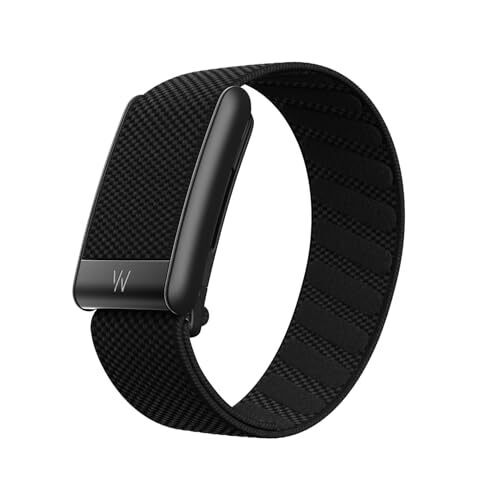
Whoop’s new 5.0 hardware launched this week, along with a premium version of the device that they’re calling the MG. Along with the launch came a new upgrade policy, requiring users to pay for what many thought would be a free upgrade. The company has walked back some of the new policy, but most users will still need to pay to get the new device. Here’s what you should know.

Whoop’s official, current upgrade policy
Hardware comes bundled with Whoop’s subscriptions, which are typically sold in 12-month or 24-month memberships. Whoop said upon launching the 5.0 and MG that you can get the new hardware in two ways:
-
You can pay to add 12 months to your subscription (a “membership extension”) and receive the new device.
-
You can pay a $49 fee and receive the new device without changing the term of your membership.
(There was also a mention of a $79 fee for upgrading to the MG hardware, but that hardware requires a more expensive subscription, so people who plan to upgrade to MG would be expected to pay more for their subscription anyway.)
After some backlash, Whoop published an article “clarifying and updating our upgrade policy” in which they announced a policy to send upgraded hardware to some customers without any further payment:
-
Members who already have more than 12 months left on their membership (for example, someone who bought a 24-month membership and still has 13 months left) can get the new hardware for free.
-
Members who purchased a 12-month (or more) membership or renewal in the 30 days before the 5.0 was announced on May 8 can also get the new hardware for free.
Why people are mad
This new upgrade policy is different from how Whoop handled upgrades in 2021, when the previous device—the 4.0—came out. And until the launch of the 5.0 earlier this month, at least two pages on Whoop’s website appeared to say that members would get to upgrade to the next generation of hardware for free. Whoop has addressed one of these as a mistake—a blog post referencing a six-month commitment—but hasn’t commented directly on the other, a FAQ that seems to say everyone gets free upgrades. I’ll start with the FAQ.
Until recently, that FAQ stated “WHOOP is a membership, which means you get the latest and greatest technology as soon as it’s available as long as you are an active member. No need to buy a new device each time it is released; you can upgrade for free.” Here is an archive of that page that I made on May 2, 2025, still showing that language less than a week before the 5.0 launched. The date on the page says that it was published in April of 2020.
The page still exists on Whoop’s website here, but now says something very different: “WHOOP is committed to a membership model where hardware is always included. When new devices launch, you’ll have the opportunity to upgrade by extending your membership and you’ll receive the new device at no additional cost. If you’re not ready to extend at that time, you can receive the latest hardware by paying a one-time upgrade fee.” There is no indication on that page that it has been changed, and it still bears the April 2020 date. (Here is an archive of how it looks today, for future reference.)
I wrote to Whoop asking if they had any comment on that change, along with a few other questions. In response, they sent me the new upgrade policy (also found here), addressed a different blog post that had changed—more about that below—and later sent along this statement:
“We’ve always tried to make it as easy and accessible as possible for our members to get on WHOOP. Since 2021, we’ve required members have a certain number of months remaining on their membership to receive a free upgrade. That remains true today. You can receive a free upgrade to WHOOP 5.0 with 12 months remaining on your membership. Alternatively, you can also pay a one-time upgrade fee if you’d prefer not to extend. You can also choose to renew your subscription when it is up, and you’ll be eligible to upgrade to WHOOP 5.0 at that time for free. With this launch, we introduced two new devices — 5.0 and MG — both of which offer 14+ day battery life, a 7% smaller size, and the Wireless PowerPack. Given MG is our most premium offering with different medical-grade capabilities, it does come with more premium cost. We ensured members could still receive a free upgrade to WHOOP 5.0, but have a different option if they were looking for different features and functionality.”
Whoop has also been criticized for a blog post, found here by Whoop users on Reddit, that shows another discrepancy in stated policies. That blog post, which bears a date of September 30, 2024, said that the policy was to give upgraded hardware to anyone who had been a member for at least six months. The blog post was still live as of March 28 of this year, as shown on this Wayback Machine archive. Whoop says that “was never our policy and should never have been posted,” saying instead that they had offered free upgrades to anyone with six months or more remaining on their subscription at the time of the 4.0 launch.
This appears to be correct—emails sent in 2021 mentioned that Whoop users with “6+ months left on their membership” were eligible to upgrade for free. Whoop showed me screenshots from such emails, and I dug into my own inbox (never delete anything, folks) and found the same. The screenshot below is from an email I received in 2021.

From an email dated Sep 17, 2021.
Credit: Whoop
Credit: Whoop
So that historical fact about six-month memberships checks out, but I see why many Whoop users say they feel misled. Meanwhile, the FAQ’s statement about free upgrades for all active members certainly influenced my long-term review of the 4.0, published just last month, in which I reported (based on that FAQ on Whoop’s own website) that “you don’t have to pay for new hardware to get new hardware.”
Angry Whoop users are discussing on Reddit and other forums the question of whether the company’s actions may run afoul of truth-in-advertising laws in Australia, the UK, the EU, and/or the U.S. Some are suggesting that U.S.-based customers consider submitting a complaint to the FTC (here is the form) or to your state’s attorney general.
Is it even worth upgrading from the 4.0 to the 5.0?
After all that, it’s not even clear whether the move from 4.0 to 5.0 is worth paying anything. If you’re happy with your current membership (now known as Peak), all you’d gain with 5.0 is a longer battery life.
But you’d lose the ability to use any straps or accessories you bought for your 4.0. The new device is 7% smaller, Whoop says, which smacks of “we wanted you to buy all new accessories.” It sure seems like they could have easily stuffed those seven-percent-smaller internals in the same size housing as the 4.0 and had everything still be compatible. Heck, fill the extra space with an even bigger battery!
I would only pay to upgrade if you feel the longer battery life is more important than back-compatibility with your old straps and accessories. (And if you have a lot of Whoop Body clothing, you may want to wait for more 5.0 users to weigh in before you toss it all—I saw at least one Reddit comment saying that the old boxers fit the new device just fine.)
Should you “upcycle” your old 4.0?
There’s another strange thing going on with Whoop’s upgrade plans. If you upgrade from the 4.0 to the 5.0, they’ll send you a gift box with a sanitizing wipe and a brand-new strap, so that you can pass your old 4.0 on to a friend. They call it “upcycling,” and the full details are here.
But why would your friend want your old 4.0? They would still have to sign up for a Whoop membership, and any new membership comes with a free 5.0 (or MG).
Whoop attempts to sweeten the deal by giving you (the gifter) a $50 credit that can be used for accessories for yourself—but not put toward membership. You only get this once your giftee signs up for a paid membership. As for the person you gift your old device to, there are a few ways for them to get a discount on membership with the used 4.0:
-
You (the gifter) can prepay for a 12-month Peak membership for them, for $190 rather than the usual $239.
-
They can join for $199 for a 12-month Peak membership
-
They can use the 4.0 for a two-month free trial, which automatically rolls over into a full-price $239 12-month Peak membership.
As soon as you pay for a membership, and have 12 months remaining, you can upgrade to the 5.0 or MG—so that gifted 4.0 may have a short lifespan indeed.
This doesn’t feel like upcycling at all to me, just a way to pretend you’re doing something useful with a device that will shortly get thrown away. For devices you actually buy, like a Garmin or an Apple Watch, going with an older model can often save you some cash. With the Whoop’s cost being baked into any new subscription, it seems strange to recommend that some users forgo the brand-new hardware that would otherwise be included.
If you have a friend getting rid of an old 4.0, you might as well use the upcycling program to get a small discount on the membership with 5.0 that you were planning to buy anyway (using one of the two options above). Or if you already have a 4.0, you might as well ask your friend to get the re-gifting kit just for the free spare band—those things still cost 49 dollars.