Did the Chicago Sun-Times Use AI to Create a Summer Reading List Filled With Fake Books?

With the weather warming up, your thoughts may be turning to spending lazy summer afternoons at the beach with a good book. Tina, an online creator and co-host of the podcast Book Talk, Etc., opened her edition of the Chicago Sun-Times on Monday to find the newspaper’s “Summer reading list for 2025.” If Tina were me, someone who isn’t in-tune with the latest in literature, this article might have seemed like a useful jumping-off point for some new book recommendations. But seeing as Tina creates content all about books, I imagine she is acutely aware of which authors are writing which books—which is why she was able to immediately spot a number of books on the list that simply do not exist.

Tina took a photo of the article and posted it to her Threads account, accusing the newspaper of using AI to generate its recommendations. That image of the article is now circulating on Bluesky, as well as the Chicago subreddit. I’m not a subscriber, and the article doesn’t appear to be on the Sun-Times’ website, so I can’t verify the list myself. But based on the photograph, it doesn’t look good for the Sun-Times.

Of the 15 “books” on this summer reading list, only five are real books you can actually, you know, read: Bonjour Tristesse by Françoise Sagan; Beautiful Ruins by Jess Walter; Dandelion Wine by Ray Bradbury; Call Me By Your Name by André Aciman; and Atonement by Ian McEwan. Coincidentally, they are the last five books on the list, and are not new. The other 10 are totally made up, including such “hey, I’d read that” entries as The Last Algorithm, a new AI thriller from The Martian author Andy Weir; and Boiling Point, a smart-sounding story of environmental ethics by critical darling Rebecca Makki. Alas.

Given these fake books have real authors attached to them, fans of those authors may believe their favorite writer has a new, intriguing novel out. Even if you have no idea who any of the named authors are, you might use this piece to head to your library or book store to get a jump on your summer reading list—and if you’re pulling from the first 10 recommendations, you’re going to be looking for a long time.

What happened here?

Like I said, this article does not appear on the Chicago Sun-Times’ website, nor does it appear in the archives for May 18 (the date on the image in question). I’m only working off of Tina’s picture of a physical copy of the newspaper, since I can’t find another image of it anywhere online. Hopefully, another reader can upload their copy as supporting evidence.

If this list is real, and it was published in the Sunday edition of the Sun-Times, it does strongly suggest the newspaper used generative AI to write it. (I’ve reached out to the paper for comment, and will update this piece if I receive a response.) That’s not just because the writing is stilted. AI often hallucinates, or, in other words, sometimes makes things up. It’s not totally clear why the models do this—it could be an issue with the training data, or the conclusions the models draw from that training—but the problem is only getting worse even as AI models ostensibly improve.

This isn’t something you can avoid with better prompts, either: If you use generative AI, it’s going to hallucinate sometimes, which means you need to check the outputs for inaccuracies (or straight-up lies). I follow that someone who doesn’t understand this technology would see what a program like ChatGPT can do and want to use it to generate articles like this, but as many writers and artists have been arguing for years now, you can’t replace a human worker with an AI chatbot and expect the same quality work. Sure, ChatGPT will happily generate you a list of 15 book recommendations in under a minute—but it’s possible some (if not most) of those recommendations will be garbage.

I don’t believe in using generative AI to publish stories like this. But if a newspaper is going to outsource the writing to a bot, it needs a human fact-checker (or perhaps, I don’t know, an editor) to review the generation and make sure everything is correct. Though at that point, I’d suggest just just paying a human writer to offer the book recommendations themself. I gaurantee you there are plenty of out-of-work or underemployed journalists who would jump at the chance.

Out of curiosity, I asked ChatGPT for the synopsis of The Last Algorithm by Andy Weir. The bot searched the web for an answer, and, to its credit, accurately reported that the book doesn’t actually exist. It made some assumptions, saying the Sun-Times definitely used AI to generate the article (though I suppose a very lazy intern who was hoping to be fired could have made up the books as well), likely because the social media posts it was pulling from suggested as much. But I also found its final thought to be particularly on-point (and accidentally self-aware):

“This incident underscores the importance of verifying information, especially when AI-generated content is involved,” ChatGPT wrote.

How I Turned My E-Reader Into a Distraction-Free Writing Device

We may earn a commission from links on this page.

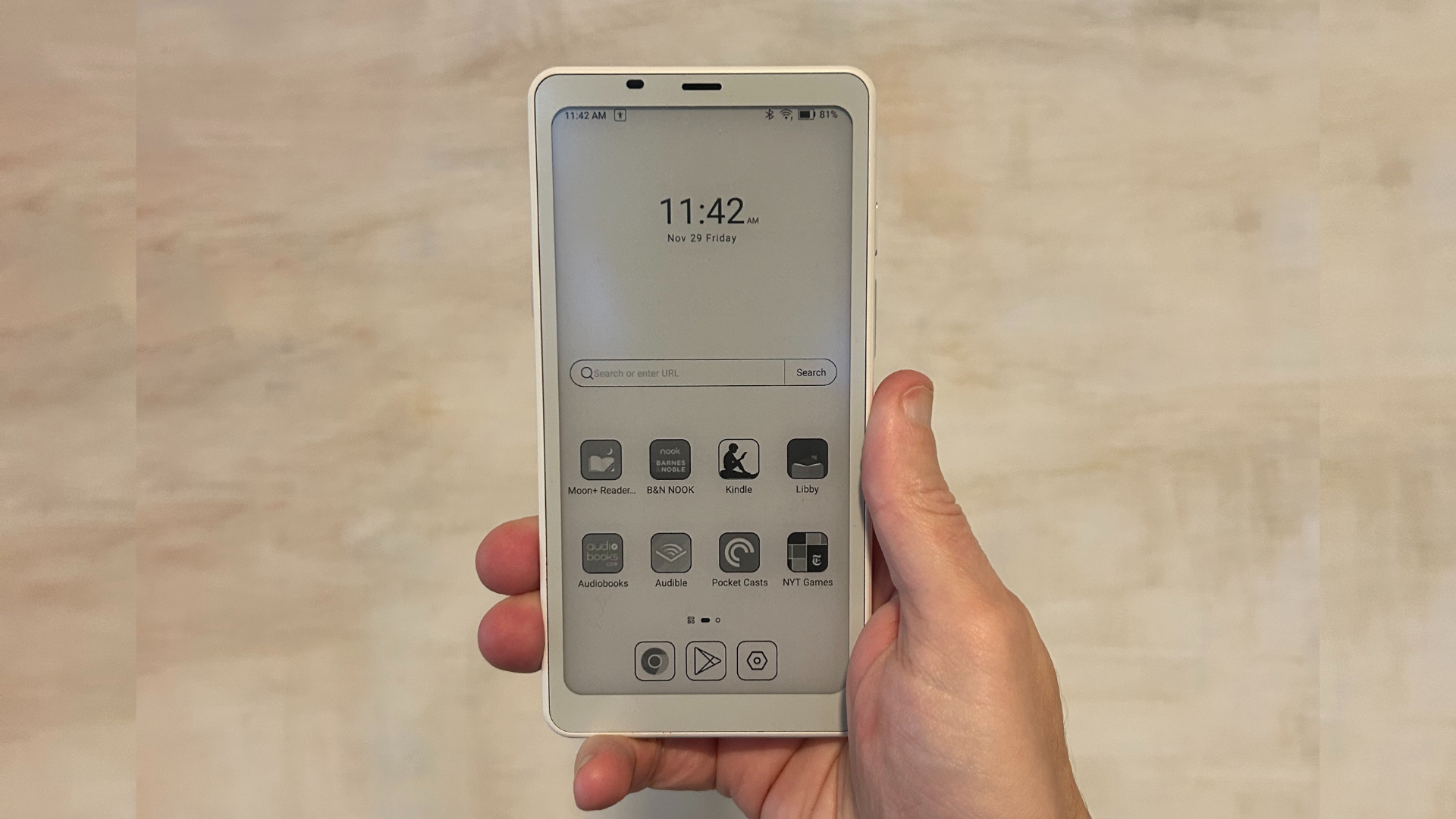
When I first reviewed the Boox Palma e-reader, I called it the ideal solution to your doomscrolling habit—a device as portable and pocketable as a phone, with an adaptable Android operating system that allows you to run any apps you want, but with an e-ink screen that is both easier on the eyes and not nearly as stimulating to stare at as your smartphone’s LED display. Weirdly, by looking like a smartphone but feeling just a little bit worse to use (complimentary), this little device helped me smash my 2025 reading goal in fewer than six months.

But doomscrolling isn’t a mobile-only problem (at least, not for me)—it’s just as easy to get sucked into the latest political outrage when I’m scrolling Bluesky on my laptop via my web browser, never mind that I’m supposed to be writing. So I decided to take a cue from the Boox fans on Reddit and explore transforming my Palma into an on-the-go productivity device: a coffee shop-friendly word processor that wouldn’t leave me pretending to work while I was really scrolling social media or wandering down another Wiki-hole.

To put it to the test, I decided I would write up my findings on the Palma itself—yes, I wrote this entire article on an e-reader.

How to turn your Boox Palma (or other Android e-reader) into a mini-word processor

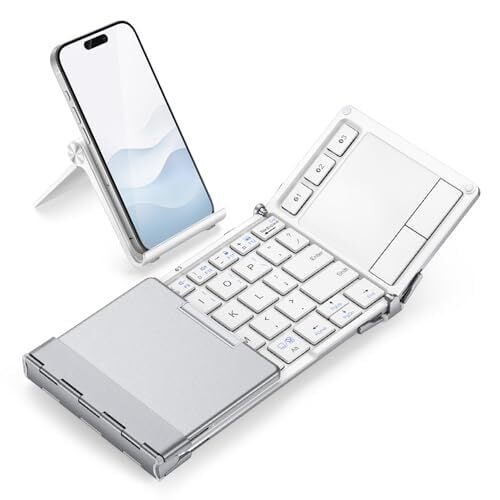
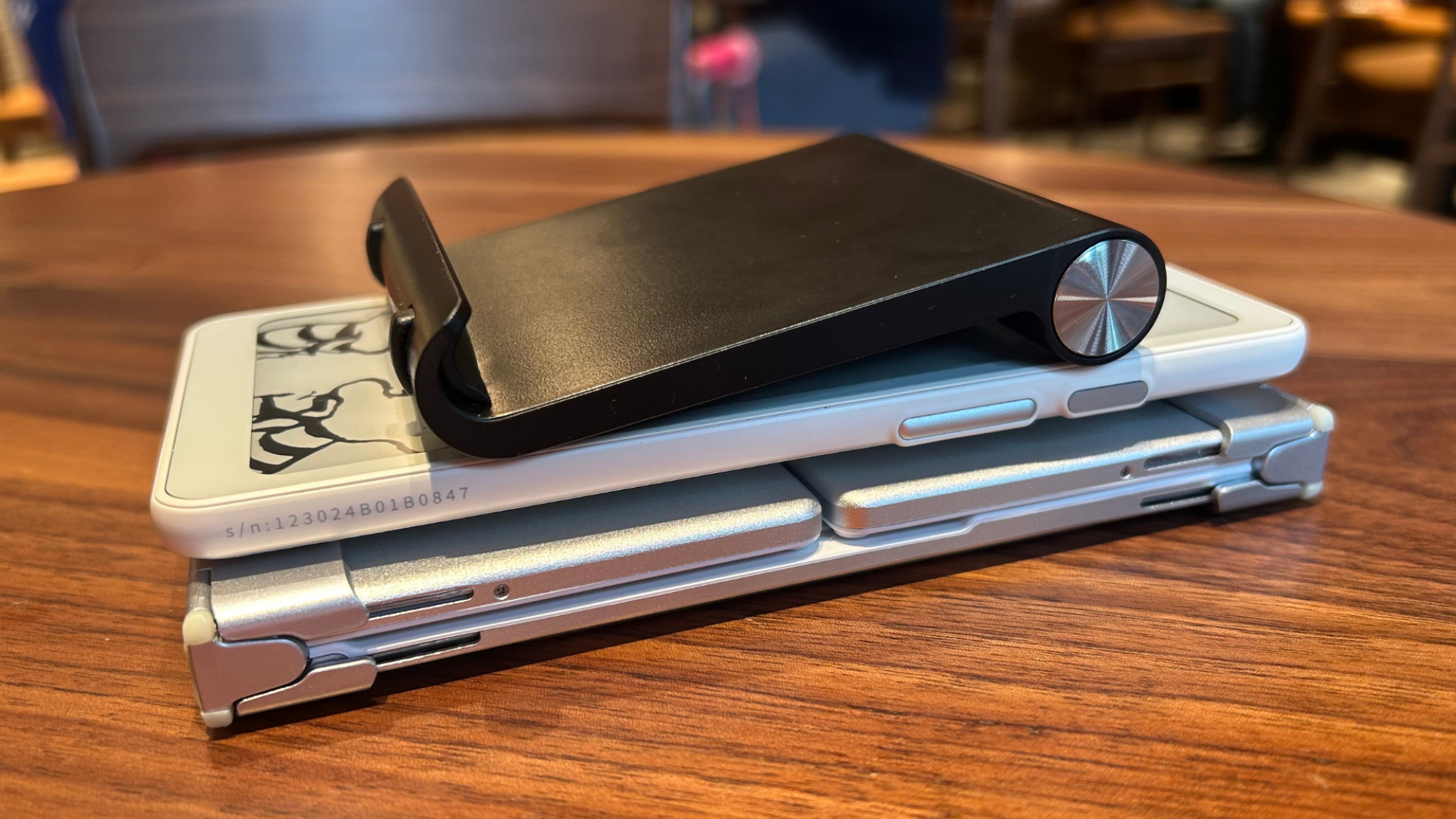
Because the Palma runs on an open version of Android, using it as a replacement for your laptop is as simple as connecting a Bluetooth keyboard. (While the Palma is my favorite e-reader, you can use a similar setup on any open Android e-ink device—not just those from Boox, like the Note Air 4C and Note Max, but also from competitors like Bigme and Hisense.) In the interest of keeping my setup as svelte and portable as possible, I opted for the iClever BK08, a slim foldable that, when stored, is roughly the size and thickness of the Palma itself. It even has a trackpad and comes with a little cloth carrying case that has enough room to fit my favorite little e-reader. (Annoyingly, it does not fit the little foldable stand that comes with the keyboard.)

The Boox Palma, the iClever folding Bluetooth keyboard (folded up) and a small phone stand in a stack showing the similar thicknesses of each

Credit: Joel Cunningham

Getting it set up was simply a matter of enabling Bluetooth on my Palma, putting the keyboard in pairing mode, and opening up Google Docs. (Well, and also spending five minutes looking for the setting to disable the onscreen keyboard when a physical keyboard is attached.)

To do this on the Palma, you’ll need to go into the system-level Settings app, scroll to More Settings, then tap Language and Input. Tap Current and select ONYX Keyboard as your default. Next, connect the keyboard via Bluetooth, open your Google Doc, and tap on the screen to bring up the onscreen keyboard. Tap the settings icon (it looks like a hexagon with a hole in the center) and then Switch Keyboard. Turn the slider next to Show virtual keyboard to off. (These directions will obviously vary if you’re using a different Android-based e-reader, like the Bigme B751C, which I have yet to test out.)

With this accomplished, you’re all set to begin treating your e-reader like a teeny tiny laptop.

What it’s like to write on the Boox Palma

If you’ve ever tried to search for something on your Kindle using the clunky onscreen keyboard, you might be expecting the experience of typing onto an e-ink screen would be a similar exercise in frustration. I had my own doubts, given I wasn’t thrilled with the performance of Boox’s own keyboard dock for the Note Max tablet I tested last year. But the iClever keyboard impressed me–the build quality feels good, it’s small but not unreasonably so for shorter writing sessions, and it even has a small touch-sensitive trackpad that allowed me to click around within Google Docs (though to be honest, just using the touch screen is faster and easier).

Performance-wise, I noticed no significant delay between pressing the keys and the characters appearing on the screen. To be fair, this likely has less to do with the keyboard (which is a sturdy little device, and fun to fold and unfold, but likely any Bluetooth keyboard will perform similarly) and more to do with Boox’s speedy refresh modes, which do their darnedest to make the Palma’s e-ink screen as responsive as the LED on your smartphone. Do they get there? Kinda. Ish. If you put the Palma in “speed” mode, you can watch YouTube on the Palma and almost make out what’s happening onscreen. But typing is way less graphically intense, and as a word processor, this little e-reader is as speedy as you need it to be.

The setup is great for writing without distractions: No intrusive notifications, no new tabs to click away to just for a second. Depending on how you configure your settings, the smaller display can also mean you’ll only see a few lines of text at any given time, which can be a boon if you’re the kind of person who gets caught up in obsessive on-the-fly editing: You’ll be able to quickly get the words out, and leave the revisions for later, when you’re back in front of a “real” computer.

The biggest hiccup I experienced had nothing to do with the keyboard at all. For some reason, the Palma didn’t want to play nice with the free wifi at Starbucks. I could connect to it, but the popup menu where you agree to the terms of use kept crashing before I could enter my email address and click “agree.” One could argue this is a feature and not a bug—you can’t waste time online if you can’t get online—but I also wasn’t able to back up my writing to the cloud without connecting to my iPhone’s hotspot.

The bottom line

As fun and functional as I found this setup, I’m not suggesting you toss out your laptop in favor of an e-reader—full disclosure, I did not edit and insert the images into this review using the Palma, and I didn’t even bother trying to connect it to the Lifehacker CMS. But if you just want to be left alone with a blinking cursor, it’s kind of ideal. I wrote the preceding 1,000 words more or less in one go, without navigating away from Google Docs to check my email or respond to texts or a notification from Instagram, which is, er, not my usual workflow (no one tell my boss; I am very good at staying on task, I swear). 

Stop what you’re doing and watch this gloriously odd, whisky-fuelled cycling adventure from 1976

Some videos defy genre, logic and liver function. This 1976 gem from the BBC archives follows Big Jim Collie – a Scottish crofter with a taste for solitude and strong drink – as he sets off on his 105th crossing of the Lairig Ghru, one of the highest mountain passes in Britain, aboard his war-era bone-shaker of a bike, the ‘Lairig Flyer’.

This gloriously odd film is part poetic travelogue, part slow-motion solo outdoors pub crawl – it’s utterly fabulous, and worth seven minutes of your day.

Jim lives alone in a tin-roofed bothy in the foothills of the Cairngorms. In the video, he’s heading to Braemar – 60 miles by road, but only 22 if you’re willing to drag you and your bike through some of the wildest terrain in Scotland.

He starts the day with a wee dram, and keeps going with the help of a generous network of whisky caches stashed along the route – not to mention the three pints he guzzles at Mar Lodge.

With rod brakes and a single gear, his bike – bought for six bob off a friend – was a relic even by 1976 standards. Undeterred, Jim explains mechanical issues – punctures, broken pedals, collapsed wheels – are met with the same response: shrug, sip, press on.

Zwift Update Version 1.90 (146371) Released

Zwift version 1.90 begins its phased rollout today. It includes the much-requested Splits feature, along with some visual tweaks and bug fixes. Read on for details…

New Splits Feature

Zwifters have long requested the ability to trigger laps/splits in game, allowing us to record our own custom interval data while riding in Zwift. Cycling head units have long offered this functionality, so many riders are already familiar with the concept of a “lap button” you can click so the head unit will display data for your current “lap”, including average power, length of time, and speed/distance.

You can trigger a new split in several different ways.

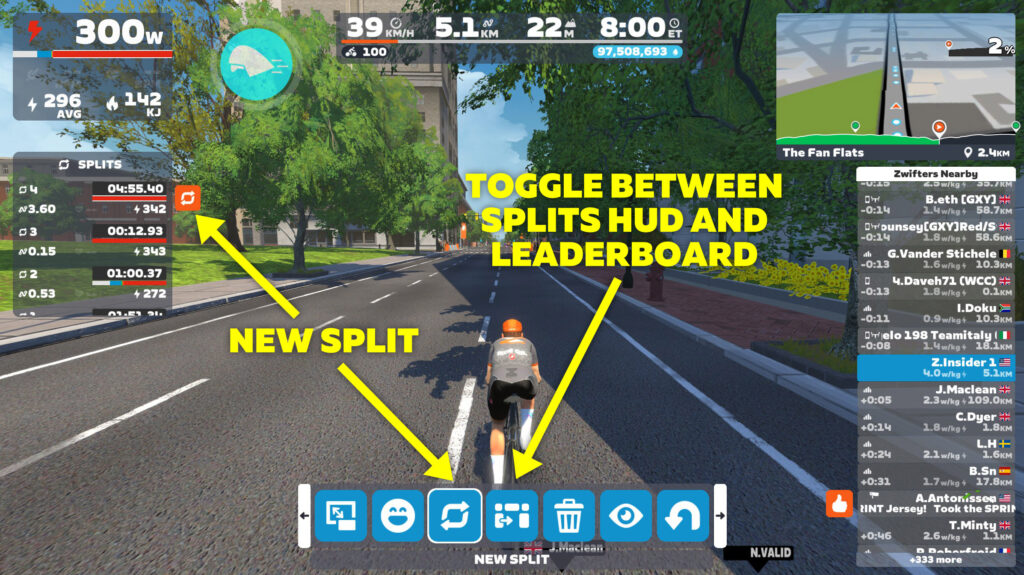
  • Click the “New Split” button in the Action Bar (which is also in the Companion app)
  • Click the on-screen lap button in the Splits HUD (on all platforms except AppleTV)
  • Use the tab key on your keyboard (this will not work in a workout, however, as this is the shortcut for skipping the interval)
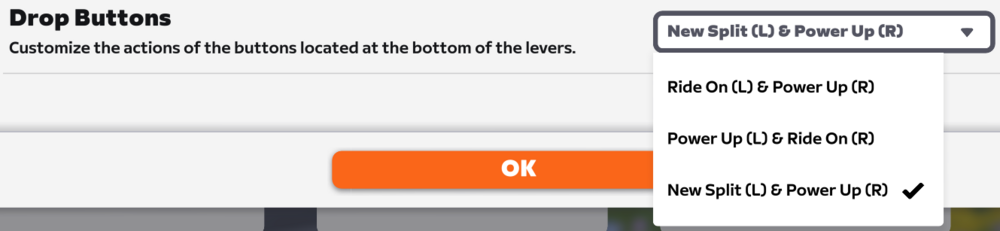
  • If you own the Zwift Ride you can configure the left drop button to trigger a new split:
draft-zg-1-90-release-notes-google-docs (2).png

The new Splits HUD displays the time, distance, and average power of each split. It also shows a color-coded power zone duration bar that functions just like the bar at the top-left below your power number, except it’s only showing power durations for each specific interval.

Once you’ve triggered a split, you’ll have access to another new “Toggle Side Display” button in the Action Bar next to the New Split button. This swaps the side display between the Splits HUD and the Leaderboard.

Splits data is written to your FIT file, so it can be displayed later on in other platforms like Strava, Garmin, Intervals.icu, etc.

Note: structured workouts will trigger a ”lap” for each interval block, as they always have. To view these splits after your workout, press the Toggle Side Display button in the Action Bar.

Here’s a quick video walkthrough of how it works in game:

There are a few minor UI bugs that Zwift still needs to iron out, including the list of splits not scrolling to the top when you click away from that list, and some typesetting being a bit misaligned, especially in non-English languages.

But the functionality is in place and working well, as far as we can see. Let’s do the splits!

Updated Lighting Effects

If you’ve noticed snazzier lighting effects during your recent Zwift sessions, you’re not hallucinating. Here’s a quick video screenshot recorded in Watopia on version 1.90:

Zwift has been experimenting with improved lighting effects lately, and while they haven’t mentioned it in any of the update notes, more and more Zwifters are starting to notice lighting changes. Our guess is that Zwift is rolling out the updated lighting to specific groups of users on certain types of hardware.

More Release Notes

Zwift provided notes on additional tweaks and bug fixes in this update:

  • Improved the appearance of flat routes in the mini-map route profile.
  • Fixed an issue that could cause the mini-map elevation profile to be stuck at the start of some routes.
  • Fixed an issue that caused the Leaderboard visibility setting to behave as if it were set to “Auto” when the “Always” setting was selected.
  • Fixed gaps in the roadway on the Douce France route in France.
  • Fixed an issue that could cause the roadway to flicker in some sections on the R.G.V. route in France.
  • iOS: Stability improvements.

Discuss this update in Zwift’s forum > (link coming soon)

Questions or Comments?

If you spotted any other changes or bugs in the update, please comment below!

OnePlus Pad 3 Taps Snapdragon 8 Elite To Challenge iPad And Android Tablets

OnePlus Pad 3 Taps Snapdragon 8 Elite To Challenge iPad And Android Tablets
OnePlus has thrown down the gauntlet, with the company’s Chief Marketing Officer boldly declaring its upcoming OnePlus Pad 3 will be the “best Android tablet of 2025.” This claim is being backed up by some tablet-killing features, such as Snapdragon 8 Elite power and productivity-focused Open Canvas triple-window multitasking and Remote Mac/iOS

France Barred Telegram Founder Pavel Durov From Traveling To US

French authorities have denied Telegram founder Pavel Durov’s request to travel to the U.S. for “negotiations with investment funds.” From a report: The Paris prosecutor’s office told POLITICO that it rendered its decision on May 12 “on the grounds that such a trip abroad did not appear imperative or justified.”

Durov was arrested in August 2024 at a French airport and has been under strict legal control since last September, when he was indicted on six charges related to illicit activity on the messaging app he operates. He is forbidden to leave France without authorization — which he obtained to travel to Dubai from March 15 to April 7, the prosecutor’s office said. Russian-born Durov is a citizen, among other countries, of France and the United Arab Emirates.


Read more of this story at Slashdot.

Meta’s “Cutting-Edge” Open-Source VR Game Demo Is A Mixed Bag

Meta released an open-source VR game demo that it claims is “a cutting-edge visual showcase for Meta Quest” with “stunning visuals that elevate the Quest’s graphical capabilities”.

Called North Star, the roughly 20-minute experience sees you, a sailor stranded in the middle of the ocean in the Age of Sail, picked up by a ship and its crew to become the new deckhand and join them on an adventure.

As a showcase of the company’s developer tools, North Star uses Application SpaceWarp, Meta XR Interaction SDK, and Meta XR Audio SDK. It supports both hand tracking and controllers, and you can switch between them at any time. Most importantly for developers, the source files for the Unity-made experience are all available on GitHub, under the MIT License. The only assets not present on GitHub are the original human voiceovers, with the repo instead having text-to-speech alternatives.

0:00

/0:55

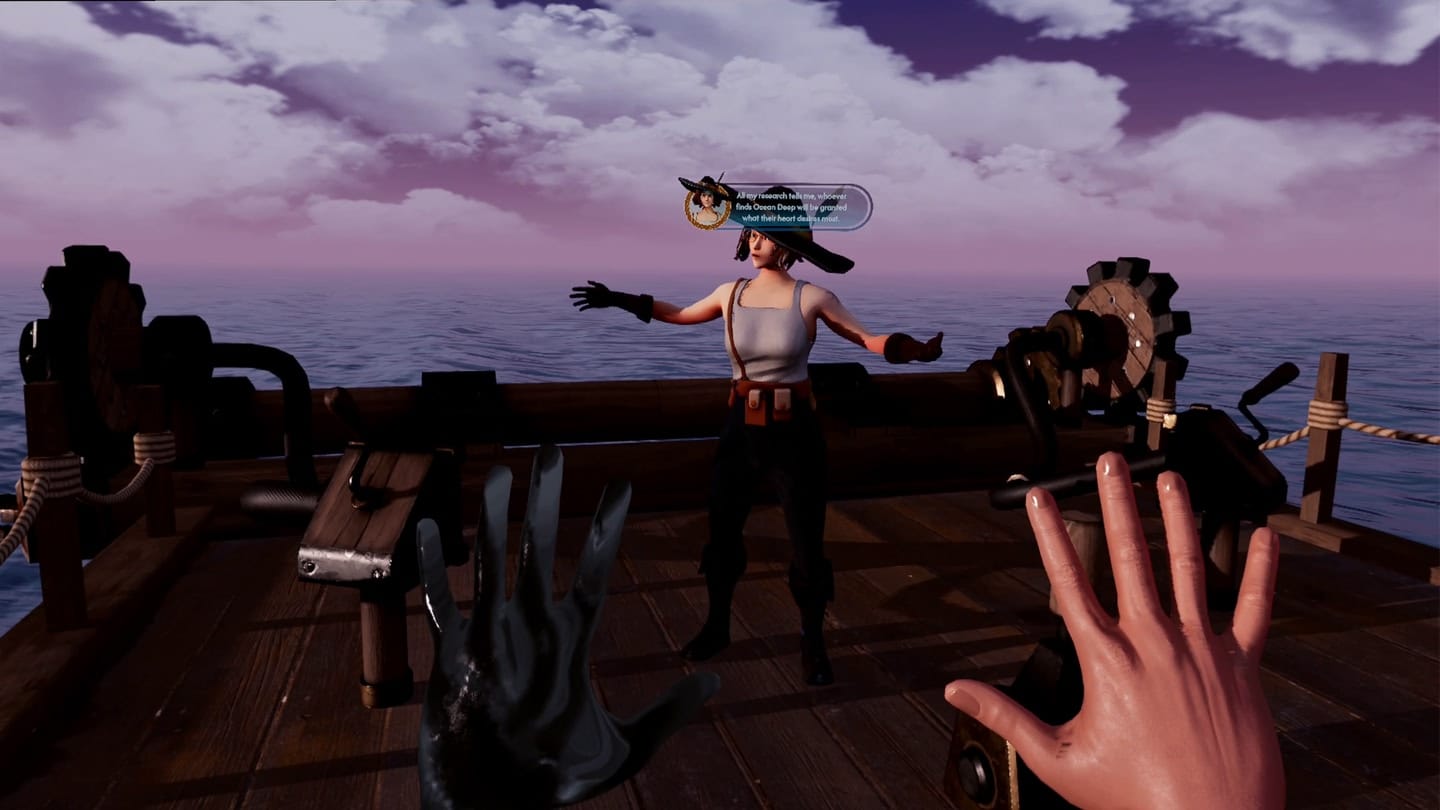
I won’t critique the gameplay of North Star, because that’s neither my area of expertise nor the point of an open-source tech demo. But I will criticize the graphics and technology, because “a cutting-edge visual showcase” with “stunning visuals that elevate the Quest’s graphical capabilities” are major claims.

Despite the use of AppSW, North Star simply does not have “cutting-edge” graphics. Titles like Batman: Arkham Shadow, Assassin’s Creed Nexus, and Asgard’s Wrath 2 look better, and there are indie titles that match it without AppSW. You may think I’m holding North Star to too high a standard. But it is Meta that decided to claim it has “stunning visuals that elevate the Quest’s graphical capabilities”, not me.

There are also a number of puzzling technical decisions and oversights in North Star.

Whenever you’re holding an object in one hand, your body and the object exhibit heavy double-imaging. It’s tempting to blame this on AppSW, but it only happens in this circumstance. And pick up the spyglass beside you for the first time and you’ll see the classic Unity judder associated with forgetting to preload a shader, the same you see when you fire the first shot in too many shooter games.

Further, right away you’ll notice that your full-body avatar’s feet are bolted to the ground, such that if you try to walk around the wooden platform you’re on, the body will awkwardly skew in the direction you move. In a few scenes your feet will move, while in others they’re also locked in place. Did the developers only test this seated?

When you’re on the ship, if you’re on a Quest 3 you’ll notice that shadows and some other effects don’t render at the very edge of your view. I’m guessing that the developers hardcoded the field of view of the narrower Quest 3S & Quest 2 lenses for shadow culling. Again, not a great sign for a showcase.

North Star’s on-by-default captions are an interesting approach to captioning in VR, appearing above the head of a character. But the flaw is immediately obvious when characters are behind walls, as it results in a depth conflict (which gives many people eye strain). The solution here should be to move the captions to slightly in front of the nearest wall.

North Star isn’t all bad, though, and much of its technology is rather advanced. It has fully dynamic lighting, including high-quality reflections and real-time shadows, and this is used to transition between times of day. The ocean is also impressive for standalone VR; it’s a simulated system that can render anything from calm seas to rough storms. It’s just not clear whether all this is a sensible choice for today’s standalone VR, where baked lighting can deliver much smoother results.

Further, North Star’s interactions are generally excellent, including the most realistically simulated rope physics I’ve ever seen on standalone VR. This isn’t just your classic “pull the rope down” system; it has you intricately tie the rope around cleats. Interactions with cranks, levers, and the captain’s wheel are also well polished. The harpoon is more of a mixed bag, like North Star itself, with its crank working well but its button lacking feedback.

An open-source demo of this scope and scale, with this many interactions and subsystems, is a resource that many VR developers will find deeply valuable, despite some notable flaws. North Star is available for free for Quest owners on the Meta Horizon Store, and almost all the source files are available on GitHub for developers.

Am I being too harsh on North Star, or do you agree it fails to match up to its marketing? Give it a try on your Quest and let us know in the discussion section below.

Crucial T710 PCIe 5 SSD Guns For Speed Win, X10 Portable SSD A Capacity King

Crucial T710 PCIe 5 SSD Guns For Speed Win, X10 Portable SSD A Capacity King
There’s been a lot of hardware (and software) announced at this year’s Computex event, not all of which is focused on AI and/or new graphics cards. Case in point, Micron expanded its solid state drive (SSD) storage family with a couple of additions to its Crucial brand, one of which takes aim at top speeds on the desktop (and in laptops),

Phison Debuts E28 SSD Controller With AI-Optimized Performance And Efficiency

Phison Debuts E28 SSD Controller With AI-Optimized Performance And Efficiency
Every hardware and software outfit right now is like, ‘You get AI, you get AI, you get AI…everyone gets AI!’. There are product segments where an AI infusion makes a lot of sense, though, and Phison sees fast solid state drive (SSD) storage as being one of them. As a result, it’s showcasing its AI-infused E28 SSD controller at Computex where

Apple’s WWDC 2025 keynote will be June 9 at 1PM ET

Apple has sent the invites for its in-person WWDC 2025 festivities on Monday, June 9, featuring the keynote session at 1PM ET/10AM PT. Attendees will be able to watch the keynote presentation at the company’s Cupertino campus, as well as meet with developers and participating in special activities. For everyone who hasn’t received an invite to Apple Park, the keynote will stream online. Developers can also participate in the rest of WWDC’s programming online for free.

We’ve already got pretty high hopes for the keynote announcements, with a lot of potential news expected about the upcoming redesign for iOS 19. We’ve heard that the operating system could have features including AI-powered battery management and improved public Wi-Fi sign ins, and our own Nathan Ingraham has penned an impassioned plea for a normal letter “a” in the Notes app. The full WWDC conference runs from June 9-13.

This article originally appeared on Engadget at https://www.engadget.com/big-tech/apples-wwdc-2025-keynote-will-be-june-9-at-1pm-et-150621700.html?src=rss

Why ‘Made in USA’ Tools Aren’t Tariff-Proof (and How to Save Money Anyway)

We may earn a commission from links on this page.

Tariffs on products being imported to the U.S., especially from China, Canada, and Mexico, have been a hotly debated topic in the news, and many people are predicting a hike in prices on things like tools and materials for DIY projects as the tariffs are enacted. There is a lot of conjecture about how to keep your home improvement and DIY projects prices down, with many commentators advising people to simply “buy American”—but that probably won’t work. The economy is increasingly international, with parts of almost everything made in the U.S. being imported from all over the world.

Most tools made in the U.S., even from brands that have a reputation for being American-made, are actually “made in the USA from globally sourced parts,” meaning that at least some of the components of these tools are made elsewhere. A few exceptions to this rule exist, like Estwing hammers and hatchets, and Channellock, which makes a large selection of tools mostly in the U.S. from U.S.-sourced materials and parts. But most tools are affected at some point along the supply chain by tariffs on imported materials and parts.

Because of an overall increase in the cost of manufacturing due to tariffs on things like fuel and electricity, as well as materials and parts, and a decrease in demand for American products abroad, manufacturing in the U.S. has slowed significantly over the last few months. As a result of this lull in activity and the lack of international demand for American goods, prices on tools made in the U.S. aren’t likely to be much cheaper than imported products. Whether companies are battling higher costs, lower demand for their products, or both, their prices won’t be going down as compared to other products as long as their business operates in the global economy. Here’s what you can do if the prices get too high.

Buy used tools

Don’t get me wrong: Estwing still makes my favorite hammer, and Klein still makes my favorite tool bag right here in the U.S., and I would never advise people not to buy these things; ultimately, the reason I like them isn’t because of tariffs but because they’re well-made and they last a long time. But if you want to save money in the economic storm caused by tariffs, consider buying used. Buying good-quality used tools is a better bet than buying low-quality new tools—they will likely last longer. For more information on how to identify quality used tools, read my article on buying tools from estate sales.

Repair broken tools instead of buying new ones

While parts might be more expensive because of tariffs, you can likely still save some money by fixing power tools when they break rather than replacing them. Sharpening saw blades for a table saw can range from $15 to about $50 per blade, which is much cheaper than replacing them, especially for specialty blades. If you have a tool with a power cord that has become worn, you can get a replacement cord for between $10 and $40, depending on the length and gauge. Even if you don’t feel comfortable replacing the cord yourself, the cost of having the repair done is likely still cheaper than buying a new drill press or bench sander.

Join a makerspace

You might be able to find a makerspace locally at a school, community center, or one that’s run as its own business. Depending on the size and scope of the space, membership can cost anywhere from $10/month to $200/month and includes access to on-site tools for a variety of DIY projects. Some of these communal shops also have tools you can check out and take home. While the price of membership for some of these spaces can seem expensive, it’s still likely cheaper than the cost of buying all the tools you would have access to, especially if you consider the cost of maintenance and electricity for some of the larger ones, like table saws.

Rent your tools

While renting smaller power tools like drills and drivers might not be worth it—the minimum rental on those is around $27—larger tools like power washers, floor sanders, and tillers can be rented for between $80 and $90 per day. This is a significant savings on buying a large tool like this, but make sure to check your rental contract to see what’s included. Sometimes you’ll be responsible for providing sanding discs and other needed accessories for the rented tool. Auto repair stores like Autozone also sometimes have tools to loan out for a deposit, as long as you return the tools within the 90-day loan period. If you have a DIY project that only requires the use of a particular tool for a short period of time, this type of rental or loan can result in significant savings.

Where to borrow tools

If you want to avoid tariffs altogether, you can try borrowing tools through a local tool library or neighborhood swap group. This is by far the most tariff-resistant way to get your DIY projects done on a budget—and build community while you work. Tool libraries can often be a resource for more than just tools—they often host classes and repair workshops, too, making them a perfect place to start if you’re a DIY beginner or you just want to make some DIY friends.

Red Hat Enterprise Linux 10 released

Red Hat has announced
the release of Red Hat Enterprise Linux (RHEL) 10. A blog post
accompanying the release provides details on some of the more notable
features, such as encrypted DNS, a developer preview of RHEL 10
for RISC-V,
and image
mode
for RHEL using bootc.

Image mode for RHEL lets you deploy your OS as a bootc image to your
hardware, virtual machine or cloud, and then layer your app on top of
it. That’s a far less complex operation than traditional packaged
deployments, and it gives developers and image maintainers a common
experience and total control over their environment.

RHEL 10 includes the 6.12.0 kernel, GCC 14.2, GNU
Binutils 2.41, GNU C Library (glibc) 2.39, Python 3.12,
Perl 5.40, and more. See the release
notes
for a full list of changes. LWN covered
CentOS Stream 10 in December, which provided an early look
at what would be in the RHEL 10 release.

Chicago Sun-Times prints summer reading list full of fake books

On Sunday, the Chicago Sun-Times published an advertorial summer reading list containing at least 10 fake books attributed to real authors, according to multiple reports on social media. The newspaper’s uncredited “Summer reading list for 2025” supplement recommended titles including “Tidewater Dreams” by Isabel Allende and “The Last Algorithm” by Andy Weir—books that don’t exist and were created out of thin air by an AI system.

The creator of the list, Marco Buscaglia, confirmed to 404 Media that he used AI to generate the content. “I do use AI for background at times but always check out the material first. This time, I did not and I can’t believe I missed it because it’s so obvious. No excuses,” Buscaglia said. “On me 100 percent and I’m completely embarrassed.”

A check by Ars Technica shows that only five of the fifteen recommended books in the list actually exist, with the remainder being fabricated titles falsely attributed to well-known authors. AI assistants such as ChatGPT are well-known for creating plausible-sounding errors known as confabulations, especially when lacking detailed information on a particular topic. The problem affects everything from AI search results to lawyers citing fake cases.

Read full article

Comments

Intel Explores Sale of Networking and Edge Unit

An anonymous reader shares a report: Intel has considered divesting its network and edge businesses as the chipmaker looks to shave off parts of the company its new chief executive does not see as crucial, three sources familiar with the matter said.

Talks about the potential sale of the group, once called NEX in Intel’s financial results, are a part of CEO Lip-Bu Tan’s strategy to focus its tens of thousands of employees on areas in which it has historically thrived: PC and data center chips.


Read more of this story at Slashdot.

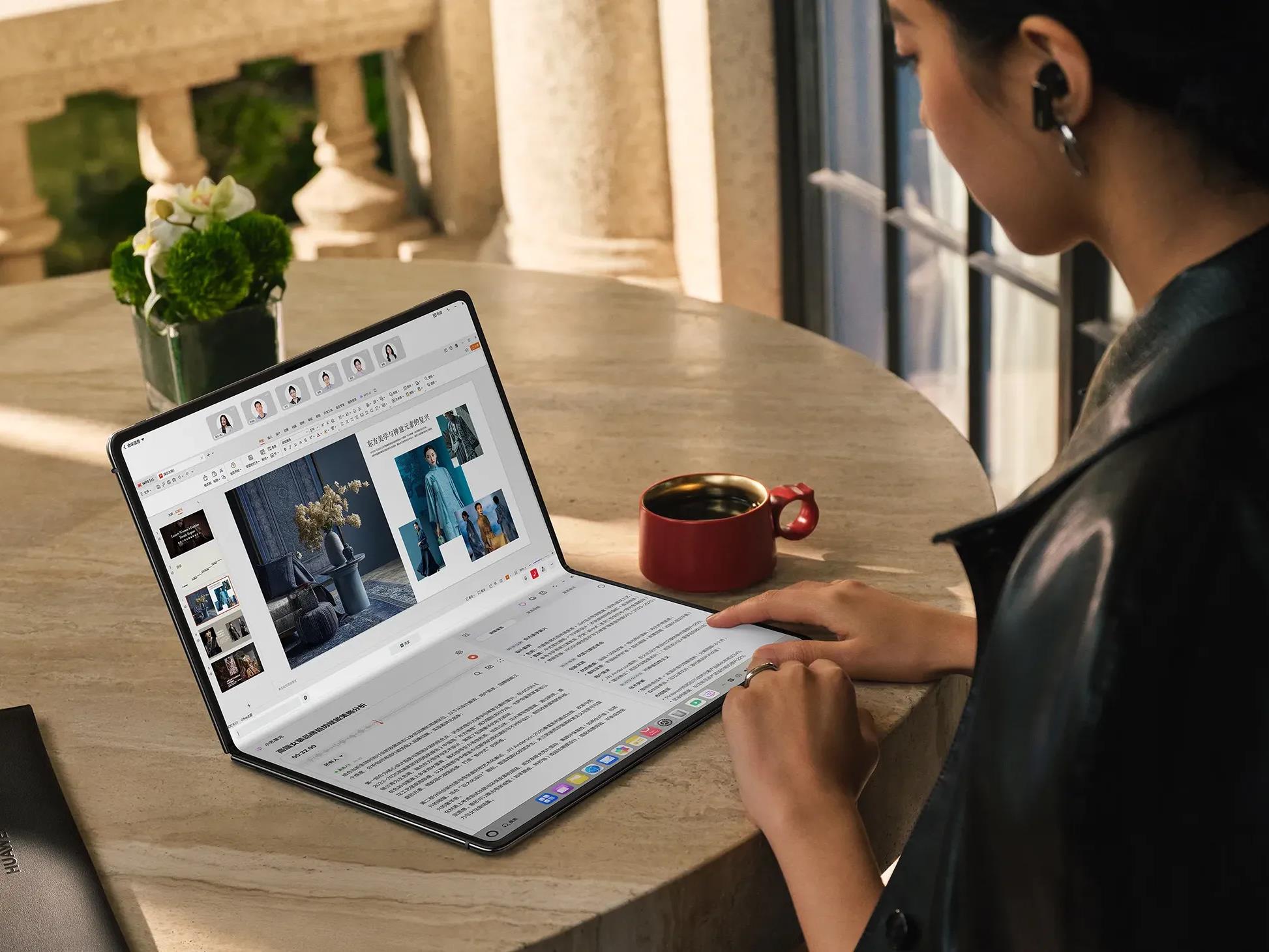
Forget Foldable iPad, Huawei MateBook Fold Is A Slick Folding Laptop That’s All Screen

Forget Foldable iPad, Huawei MateBook Fold Is A Slick Folding Laptop That's All Screen
Just as Samsung and Apple are duking it out with skinny phones, Huawei steps in and says, “Hold my beer” while showing off its new MateBook Fold, a foldable-screen laptop that, when unfolded, is thinner than your average phone. The party trick is an 18-inch foldable display, which makes the device either an all-screen laptop or folding tablet—you