New Bill Would Force Apple, Google To Open App Store Ecosystems

Rep. Kat Cammack (R-FL) introduced the App Store Freedom Act [PDF] on Tuesday, legislation that would compel “large app store operators” with over 100 million US users to permit third-party app stores and allow them to be set as defaults. The bill directly challenges Apple’s walled garden approach and Google’s Play Store dominance by requiring both companies to allow developers to use alternative payment systems, bypassing the platforms’ commission structures.

It would also mandate equal access to development tools and interfaces without discrimination, while giving users the ability to remove pre-installed apps. Violations would trigger FTC enforcement with penalties up to $1 million per infraction. The legislation mirrors recent European Union regulations that have already forced Apple to permit third-party app stores and allow users to change default apps.


Read more of this story at Slashdot.

Minecraft ended virtual reality support today

Minecraft is no longer (officially) available on virtual and mixed reality platforms. The change was confirmed in today’s patch notes for the game’s Bedrock edition following an announcement from developer Mojang in October. Those fall patch notes suggested that the platforms would be removed in March, so players who favored VR wound up getting a few extra weeks to fully immerse themselves in their blocky worlds.

Removing entire platforms isn’t a choice game devs make lightly. Especially when Minecraft‘s player base still numbers in the hundreds of millions at any given time, it seems unlikely that Mojang would take away virtual and mixed reality unless it wouldn’t cause a serious disruption for its many fans. There are still plenty of critically received games that make VR ownership worthwhile (Beat Saber, anyone?), but a title as major as Minecraft abandoning the hardware isn’t a great look.

This article originally appeared on Engadget at https://www.engadget.com/gaming/minecraft-ended-virtual-reality-support-today-224649126.html?src=rss

Memory-Safe Sudo To Become the Default In Ubuntu

Longtime Slashdot reader RoccamOccam shares a blog post from the Trifecta Tech Foundation, a nonprofit organization that creates secure, open source building blocks for infrastructure software. The foundation is also the developer behind Sudo-rs. From the report: Ubuntu 25.10 is set to adopt sudo-rs by default. Sudo-rs is a memory-safe reimplementation of the widely-used sudo utility, written in the Rust programming language. This move is part of a broader effort by Canonical to improve the resilience and maintainability of core system components. […]

The decision to adopt sudo-rs is in line with Canonical’s commitment to Carefully But Purposefully increase the resilience of critical system software, by adopting Rust. Rust is a programming language with strong memory safety guarantees that eliminates many of the vulnerabilities that have historically plagued traditional C-based software. Sudo-rs is part of the Trifecta Tech Foundation’s Privilege Boundary initiative, which aims to handle privilege escalation with memory-safe alternatives.


Read more of this story at Slashdot.

Destiny 2 will get a Star Wars expansion this December

Bungie laid out its plans for the next year of Destiny 2 content, and the back half of 2025 could be particularly exciting for Star Wars fans. The studio teased an expansion titled Renegades that draws inspiration from the sci-fi universe. Destiny has always featured classic space opera themes about battles between the light and the darkness, so maybe it was inevitable that the game would one day pay homage to Star Wars.

If you fear that there will suddenly be Skywalkers and Fetts running around your game a la Fortnite or Call of Duty, that does seem like a possibility. The teaser video features a guardian wielding an iconic green light saber, and there are some recognizable nods to the Imperial alarm sounds and uniforms in a few close-up shots. And if you really want to embrace the dark side, the most expensive pre-order option for this year’s content includes armor ornaments that can turn your guardian into Darth Vader, Kylo Ren or General Grievous.

Promo image for the Destiny 2 Year of Prophecy bundle
Bungie

More information about the Renegades expansion will be announced on September 9 ahead of the update’s arrival this December.

This article originally appeared on Engadget at https://www.engadget.com/gaming/destiny-2-will-get-a-star-wars-expansion-this-december-220446525.html?src=rss

CISA Budget Faces Possible $500 Million Cut

President Trump’s proposed 2026 budget seeks to cut nearly $500 million from CISA, accusing the agency of prioritizing censorship over cybersecurity and election protection. “The proposed cuts — which are largely symbolic at this stage as they need to be approved by Congress — are framed as a purge of the so-called ‘censorship industrial complex,’ a term the White House uses to describe CISA’s work countering misinformation,” reports The Register. From the report: In its fiscal 2024 budget request, the agency had asked [PDF] for a total of just over $3 billion to safeguard the nation’s online security across both government and private sectors. The enacted budget that year was about $34 million lower than the previous year’s. Now, a deep cut has been proposed [PDF], as the Trump administration decries the agency’s past work tackling the spread of misinformation on the web by America’s enemies, as well as the agency’s efforts safeguarding election security. […]

“The budget eliminates programs focused on so-called misinformation and propaganda as well as external engagement offices such as international affairs,” it reads [PDF]. “These programs and offices were used as a hub in the censorship industrial complex to violate the First Amendment, target Americans for protected speech, and target the President. CISA was more focused on censorship than on protecting the nation’s critical systems, and put them at risk due to poor management and inefficiency, as well as a focus on self-promotion.”


Read more of this story at Slashdot.

Meta wins more than $167 million in damages from spyware maker that targeted WhatsApp

A jury has ruled that the company behind the infamous Pegasus spyware must pay Meta more than $167 million in damages for spreading malware via WhatsApp. The ruling is a major victory for Meta after a years-long legal battle with NSO Group.

Meta sued the NSO Group in 2019 over its Pegasus spyware. Meta said at the time that more than 1,400 people in 20 countries had been targeted, including journalists and human rights activists. The company said that the “highly sophisticated cyber attack” spread malware via video calls even when the calls went unanswered. Last year, a judge sided with Meta and found the Israeli company had violated the US Computer Fraud and Abuse Act. Tuesday’s verdict followed a week-long jury trial to determine just how much NSO should pay in damages to Meta.

The jury ultimately awarded Meta $444,719 in compensatory damages and $167,254,000 in punitive damages. In a statement, WhatsApp’s VP of Global Communications Carl Woog called the verdict “a critical deterrent to this malicious industry against their illegal acts aimed at American companies and the privacy and security of the people we serve.”

NSO Group, which describes itself as a “cyber intelligence” firm, has said that it’s not possible to use Pegasus on US phone numbers. In court, lawyers for the firm argued that WhatsApp wasn’t harmed in any way by Pegasus, according to Courthouse News Service.

In a statement, NSO’s Gil Lainer said the verdict was “another step in a lengthy judicial process” and said it would pursue “further proceedings” or an appeal. “We firmly believe that our technology plays a critical role in preventing serious crime and terrorism and is deployed responsibly by authorized government agencies,” Lainer said. “This perspective, validated by extensive real-world evidence and numerous security operations that have saved many lives, including American lives, was excluded from the jury’s consideration in this case.”

WhatsApp’s Woog said Meta knows it has “a long road ahead” to collect damages from NSO. “Ultimately, we would like to make a donation to digital rights organizations that are working to defend people against such attacks around the world,” he said. He added that Meta plans to pursue a court order to prevent NSO from targeting WhatsApp in the future.

This article originally appeared on Engadget at https://www.engadget.com/cybersecurity/meta-wins-more-than-167-million-in-damages-from-spyware-maker-that-targeted-whatsapp-215459438.html?src=rss

This Mac App Gives a Much Needed Upgrade to Copying and Pasting

I couldn’t live without copy and paste—it’s core to the way I write and work—but it’s a pretty abstract feature when you think about it. Copy something and it goes… somewhere. Then you can paste it. Oh, and if you copy a second thing the first thing is gone.

This is a problem solved by clipboard managers. These applications let you review everything you’ve copied recently and even select an older item to paste it. They work well, but generally require a lot of context switching. What if you want to copy multiple things and then paste them later, all in the order you copied them, without having to open a clipboard manager and choose the items in order? There’s a free and open source Mac tool for that: Batch Clipboard (which I found via MacMenuBar).

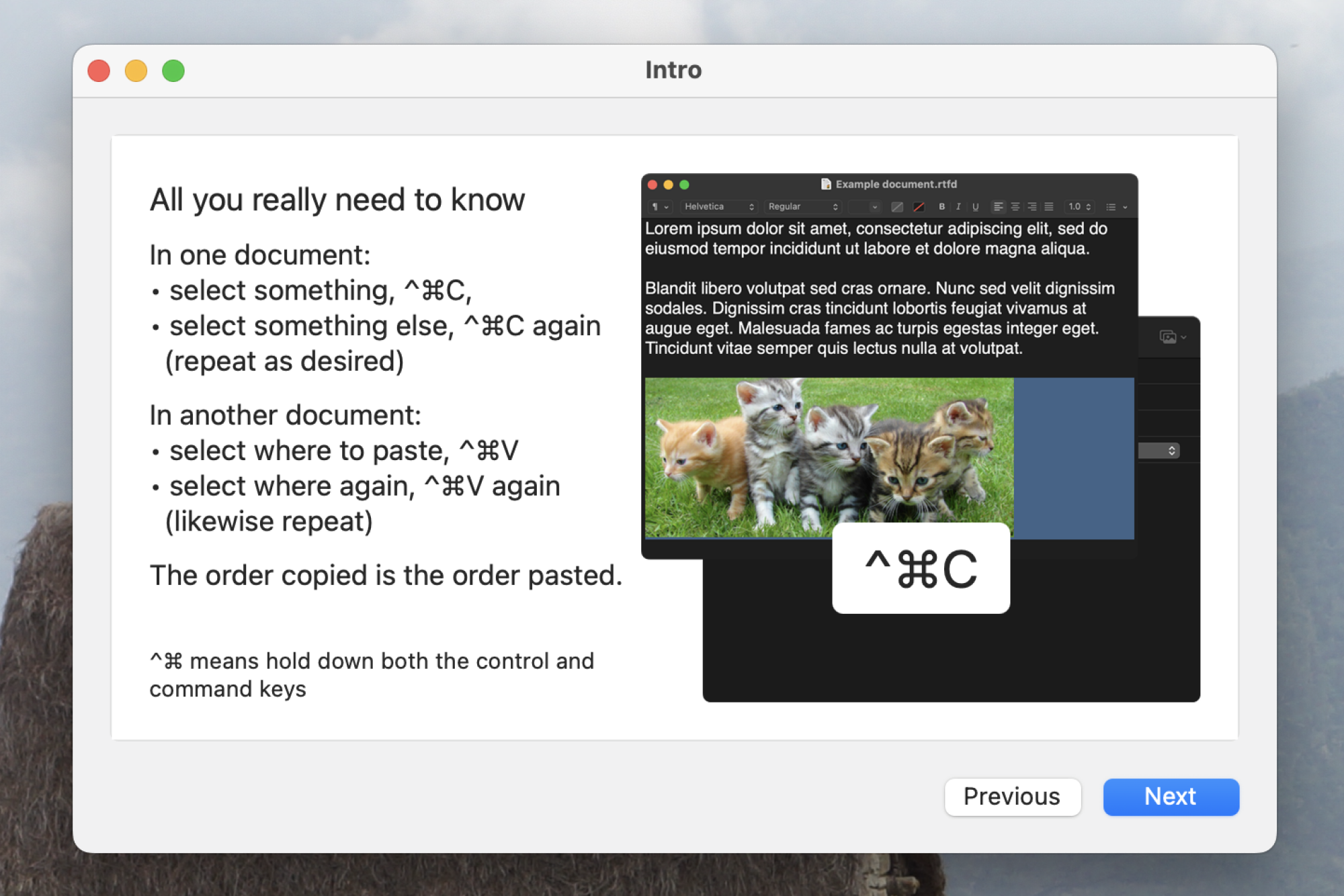
This application isn’t a clipboard manager—in fact, it can easily be used alongside one. With the application running, you can copy text, images, or files using the keyboard shortcut Cmd-Control-C to start building a batch. When you’re ready, you can paste them, one at a time starting at the beginning of the batch, using the keyboard shortcut Cmd-Control-V. You can click the menu bar icon at any time to see the current batch.

It takes a second to wrap your head around, but is quite useful in certain contexts. If, for example, you’re reading a document and want to collect a few quotes, you can copy each one to your batch and them paste them all to your notes in sequence, taking the time to add a bit of context as you go. This allows you to focus on reading instead of constantly switching back and forth between the source document and your notes.

A screenshot of the application's intro, which explains how to use the batch copy and paste feature.

Credit: Justin Pot

Getting started is simple. After downloading the app, you can launch it to read the quick start guide—it will talk you through using the application and ask you to enable permissions. You can access the settings by clicking the menu bar icon and clicking “Settings”. You can customize the keyboard shortcuts, decide whether the application start when your computer does, and change how many history items are visible in the menu. You can also choose for the application to ignore items copied from particular applications.

You could, in theory, use Batch Clipboard as an alternative to a clipboard manager—click the menu bar icon while holding the Option key and you can review everything you copied recently. You could also use it alongside a dedicated clipboard manager, or just open it when you specifically want to use the batch copying feature. Check it out if clipboard managers have never quite clicked with you.

iOS 18.5 Enables Carrier Satellite Service Like T-Mobile Starlink On Older iPhones

With iOS 18.5, Apple is bringing carrier-based satellite connectivity to the entire iPhone 13 lineup, allowing users with compatible carrier plans (like T-Mobile’s Starlink-powered service) to access satellite features in areas without traditional coverage. The update is expected to launch next week. 9to5Mac reports: It’s important to note that this update does not bring Apple’s Emergency SOS via satellite to the iPhone 13 series. That feature relies on specialized hardware found only in iPhone 14 and later and functions independently of carrier networks. It also doesn’t “install Starlink” on every iPhone, just support for carrier-provided satellite features like Starlink. By contrast, carrier-provided satellite services behave more like conventional cellular connections and require a participating plan to work.


Read more of this story at Slashdot.

Mission Center 1.0.0 released

Version
1.0.0
of Mission Center, a system-monitoring application, has been
released. Notable changes in this release include the addition of
SMART data for SATA and NVMe devices, display of per-process
network usage
, as well as a redesigned Apps Page that provides
more information about applications and processes. Mission Center’s
backend application for obtaining system data has been renamed from
the Gatherer to Magpie, and is
now available as a standalone executable and libraries that can be
used by other applications.

The company with the world’s largest aircraft now has a hypersonic rocket plane

Stratolaunch has finally found a use for the world’s largest airplane.

Twice in the last five months, the company launched a hypersonic vehicle over the Pacific Ocean, accelerated it to more than five times the speed of sound, and autonomously landed at Vandenberg Space Force Base in California. Stratolaunch used the same vehicle for both flights.

This is the first time anyone in the United States has flown a reusable hypersonic rocket plane since the last flight of the X-15, the iconic rocket-powered aircraft that pushed the envelope of high-altitude, high-speed flight 60 years ago.

Read full article

Comments

Google Debuts an Updated Gemini 2.5 Pro AI Model Ahead of I/O

An anonymous reader quotes a report from TechCrunch: Google on Tuesday announced the launch of Gemini 2.5 Pro Preview (I/O edition), an updated version of its flagship Gemini 2.5 Pro AI model that the company claims tops a number of widely used benchmarks. Gemini 2.5 Pro Preview (I/O edition) is available via the Gemini API and Google’s Vertex AI and AI Studio platforms, and is priced the same as the Gemini 2.5 Pro model it effectively replaces. It’s also in Google’s Gemini chatbot app for the web and for mobile devices.

The model’s release comes ahead of Google’s annual I/O developer conference (hence the “I/O edition” designation), where Google is expected to unveil a host of models, as well as AI-powered tools and platforms. […] According to Google, Gemini 2.5 Pro Preview (I/O edition) has “significantly” improved capabilities for coding and building interactive web apps. The model is also better at tasks like code transformation — that is, modifying a piece of code to achieve a specific goal — and code editing, the company says. Google says the Gemini 2.5 Pro Preview (I/O edition) leads the WebDev Arena Leaderboard, a benchmark measuring a model’s ability to create aesthetically pleasing and functional web apps. It also achieved a score of 84.8% on VideoMME, a popular benchmark designed to evaluate the video analysis capabilities of multi-modal large language models.


Read more of this story at Slashdot.

You Can Update Your TV’s Firmware With a USB Drive

You likely update devices like your smartphone or laptop fairly frequently. (Perhaps you’ve put the latest one off a little longer than you should.) But how often are you updating other types of devices, like your TV?

Despite how routine and simple your TV use may be, it can be important to keep the tube, like other devices, updated to the latest software and firmware version. And while many smart TVs routinely check for the latest updates, it’s possible yours doesn’t. I don’t keep my TV connected to the internet, for example, so there’s no way for me to check for updates via wifi.

You don’t need to hook your TV up to your network to update it, however, nor do you need a TV that will look for updates on its own. As a matter of fact, one of your TV’s overlooked ports can help keep it fully up to date, as ZDNet’s Chris Bayer explains.

How to update your TV over USB

To start, you’ll need three items: a TV (to update), a computer (to download the update), and a USB drive (to store the update).

First, figure out what TV you actually have. It isn’t necessarily enough to just know the brand, since that company may make many different types of TVs. You’ll want to grab your particular TV’s model number to make sure you’re pulling the most recent update available for that model.

If you have your TV mounted or backed up to a wall, it might be a bit tricky to find, since the model number is usually on a sticker on the back of your TV. If you can, pull your TV as far out as you safely can, and use a flashlight or your smartphone camera to locate the sticker with the identification number. You can also see if your TV has its model number in its settings menu. This may be in an “About” or “General” menu.

Once you know your TV’s model number, head to the manufacturer’s site and look for the downloads section. For example, for an LG TV, you’ll find this in the “Support” section under “Software & Drivers for Downloading.” When asked, enter your model number, and the site should take you to the list of available software to download. You’ll want to make sure you’re choosing the most recent download available, as well as the one for your region, as you don’t want to install the wrong software on your TV.

Once you find the right software version, download it to your computer. If it arrives as a ZIP file, you can either click it to unzip (Mac), or right-click and choose “Extract All” (Windows). Once you have access to the files (which should appear as .bin or .img files), connect a USB stick to your computer and move the files to the drive, making sure to add the files to the main drive and not any of the folders that might be on it. Choose to eject the drive from your Mac or PC before physically removing it from your computer.

Finally, plug the USB stick into your TV. If your TV doesn’t automatically register the update file on the stick, head to your TV’s settings and look for “update” language, like “Software Update” or “Firmware Update.” Your TV should walk you through the proper steps.

If the update didn’t work, format the drive

One possible issue with this method concerns the USB drive itself. If it isn’t properly formatted (to FAT32), your TV may not recognize it.

You can format the drive on either Windows or Mac, but note that formatting requires erasing everything on the drive. If you have any essential data on your drive, back it up somewhere else first, or choose another drive to work with.

If the drive is small enough, you can format it through Windows’ Explorer. Right-click on the drive, then choose Format. Here, choose FAT32 under “File system,” then check Quick Format. Click Start, click OK on the pop-up that warns you you will lose all data on the drive, and you’re set.

On Mac, plug your drive in, then open Disk Utility. Choose Erase, then choose MS-DOS (FAT) from the “Format” drop down. Now, click Erase, then choose Done when finished.

How to cancel your Netflix subscription

If you’re suffering from Netflix fatigue and are looking to cancel your subscription, the process is relatively simple. In fact, depending on how you initially signed up for the service, you’ll typically be able to end your membership in just a few steps. It’s also worth noting that Netflix allows you to downgrade or upgrade your plan if you want to keep your account but pay less. This guide covers how to cancel Netflix, how to switch your plan and what to know before doing either.

How to cancel your Netflix subscription

Netflix offers a fairly straightforward cancellation process, but the steps to do so vary slightly depending on how you’re subscribed. If you signed up directly through Netflix, you can cancel via the website or mobile app. However, if you subscribed through a third-party service such as Apple, Google or your cable provider, the process may be slightly different.

Cancel Netflix via the web

If you signed up through Netflix.com, these are the steps for canceling your subscription from a desktop or mobile browser:

  1. Go to Netflix.com and sign in.

  2. Tap your profile icon in the top-right corner and select Account from the dropdown menu.

  3. On the Account page, locate the Membership & Billing section.

  4. Click the Cancel Membership button.

  5. You’ll be taken to a confirmation page. Click Finish Cancellation to complete the process.

After cancellation, your account will remain active until the end of your current billing cycle. Netflix will store your viewing history and preferences for 10 months in case you decide to return.

How to cancel Netflix via the app

You can also cancel your membership using the Netflix app on Android or iOS (the steps for both are the same):

  1. Open the Netflix app and tap your profile icon in the top-right corner.

  2. Select Account from the dropdown menu — this will open a browser window.

  3. From there, follow the same steps listed in the section above to cancel via the web.

The mobile app simply redirects to the browser-based account page, so the process remains largely the same.

How to cancel Netflix through a third-party service

If you’re billed through a third party, such as Apple, Google, Amazon or a TV provider, the steps will be different. You’ll need to cancel through that provider’s billing system.

To find out who handles your billing:

  1. Go to your Netflix Account page.

  2. Look under Membership & Billing. If you see a message like “Billed through Apple,” you’ll need to cancel through that service.

Here’s how to cancel through some of the most common third-party providers:

Apple (iPhone/iPad)

  1. Open Settings on your iPhone or iPad.

  2. Tap your name at the top, then tap Subscriptions.

  3. Find Netflix in the list and tap it.

  4. Tap Cancel Subscription.

Google Play

  1. Open the Google Play Store app.

  2. Tap your profile icon in the top-right, then select Payments & subscriptions > Subscriptions.

  3. Choose Netflix, then tap Cancel subscription.

Amazon

  1. Go to Amazon’s Memberships & Subscriptions page.

  2. Find Netflix in your list of subscriptions.

  3. Click Manage Subscription, then select Cancel Channel or Cancel Subscription.

Cable or mobile provider

If you added Netflix through your cable package (such as Comcast/Xfinity, Verizon or T-Mobile), you’ll need to cancel via their app, website or customer support. Each provider has its own cancellation process, so check your account or contact their customer service for assistance.

What happens after you cancel

Once you cancel, your Netflix account will remain active until your current billing period ends. You won’t be charged again unless you restart your membership. Netflix retains your profile information, viewing history, My List and settings for 10 months after cancellation. So if you resume your service within that time, you can pick up right where you left off.

If you’re on the Netflix DVD plan (only available in the US), you’ll need to cancel it separately from your streaming subscription. You can do this under the DVD Plan section on your Account page.

How to change your Netflix plan

Instead of canceling completely, you may prefer to switch to a more affordable subscription tier. Netflix offers several plans, each with different features and price points. As of early 2025, the available plans in the US are:

  • Standard with ads ($7.99/month): 1080p resolution, ad-supported content, watch on two devices at a time

  • Standard ($17.99/month): 1080p, ad-free, two simultaneous streams, option to add extra members

  • Premium ($24.99/month): 4K UHD + HDR, four simultaneous streams, supports spatial audio and more download devices

Here’s how to change your plan:

  1. Go to Netflix.com and sign in.

  2. Hover over your profile icon and select Account.

  3. Under Plan Details, click Change Plan.

  4. Select your desired plan and click Continue.

  5. Confirm the change.

Plan changes take effect immediately. If you upgrade, you’ll be charged a prorated amount for the remainder of your billing period. If you downgrade, the change will apply at the start of your next billing cycle.

How to delete your Netflix account entirely

If you’re looking for a clean break from Netflix altogether, you can completely delete your account. Doing so will take slightly more time and involves going to your email, so have your inbox open.

1. Go to the Security section of your account and select Delete Account. 

2. Complete the security check. 

3. Select Permanently Delete from the available options. An email will then be sent to you to confirm your selection.

Additional things to consider

Before canceling or changing your Netflix subscription, keep the following in mind:

  • Shared accounts: If you’re part of someone else’s Netflix plan as an extra member, you won’t be able to cancel the entire subscription (the account holder would need to be the one to do this) — but you can remove yourself from the shared access.

  • Download content: Any downloaded content will become inaccessible once your subscription ends.

  • Account reactivation: You can restart your membership at any time by signing in and clicking Restart Membership from your Account page.

  • Billing dates: Your account page will show your exact billing date. Cancel before this date to avoid being charged for another month.

FAQs

Can I pause my Netflix subscription?

Yes, Netflix allows you to pause your membership, but only for one month. During this time, you can still watch your favorite content until the end of the current billing period. You will not be charged for the next billing period, and will be unable to access content while the pause is in effect. 

At the end of your one-month pause, your membership will automatically resume and you will be charged for the next period. You can choose to “Pause for a month” via the “Cancel Membership” option in your Netflix account settings, and can repeat the process two more times (for a total pause period of three months at a time). However, if you prefer to take a longer break from the service, you may be better off cancelling your membership instead.

Will I get a refund if I cancel early?

No, Netflix does not offer partial refunds. You’ll retain access until the end of your billing cycle instead.

What if I don’t see the Cancel button?

If there’s no Cancel Membership button on your account page, you’re likely being billed through a third party. In that case, follow the provider’s cancellation process.

This article originally appeared on Engadget at https://www.engadget.com/entertainment/streaming/how-to-cancel-your-netflix-subscription-202230648.html?src=rss

Half the Size & Half the Price is What Vision Pro Needs to Take Off

Apple has set the bar for UX on a standalone headset. As soon as the company can get the same experience into a smaller and cheaper package, it’s going to become significantly more appealing to a wider range of people.

Apple has billed Vision Pro as “tomorrow’s technology, today.” And frankly, that feels pretty accurate if we’re talking about the headset’s core user experience, which is far beyond other products on the market. Vision Pro is simple and intuitive to use. It might not do as much as a headset like Quest, but what it does do, it does extremely well. But it’s still undeniably big, bulky, and expensive… my recommendation is that it’s not worth buying for most people.

And that’s probably why there seems to be a broadly held notion that Vision Pro is a bad product… a rare flop for Apple. But as someone who has used the headset since launch, I can plainly see all the ways the headset is superior to what else is out there.

Saying Vision Pro is a bad product is a bit like saying a Ferrari is a bad car for not being as widespread as a Honda Accord.

I don’t know if the first generation of Vision Pro met Apple’s sales expectations or fell short of them. But what I do know is that the headset offers an incredibly compelling experience that’s significantly held back by its price and size.

If Apple can take the exact same specs, capabilities, and experience, and fit them into something that’s half the size and costs half as much, I’m certain the headset will see a massive boost in demand.

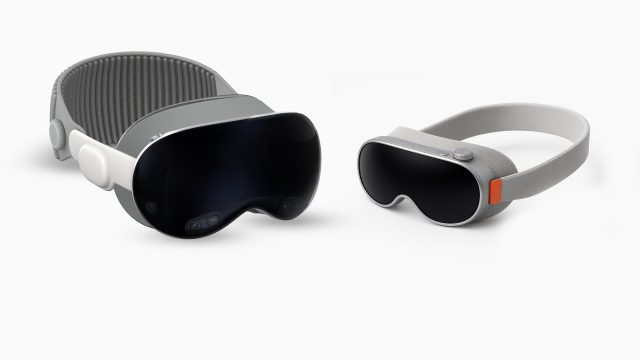
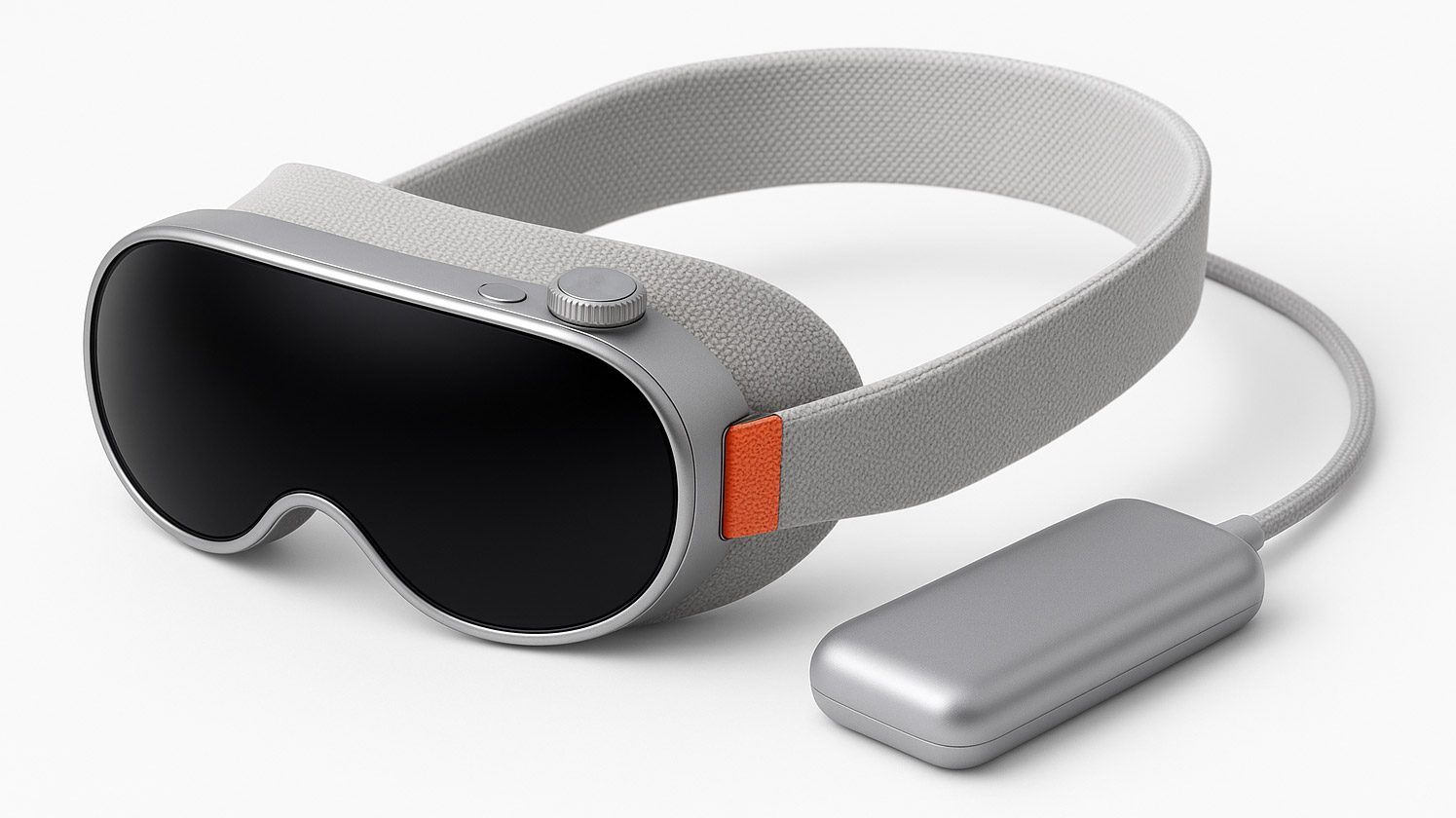
A more compact Vision Pro concept | Photo generated by Road to VR

Cutting it down to half the size would mean bringing it down around 310 grams; certainly not be easy but also not entirely unrealistic, especially if they stick to an off-board battery. After all, Bigscreen Beyond is around 180 grams. It might not be a standalone headset, but it shows how compact the housing, optics, and displays can be.

And half the cost would mean a price tag of roughly $1,750. Still not cheap compared to most headsets out there, but significantly more attainable, especially if Apple can market it as also being the best TV most people will have in their home.

This might seem obvious. Making any tech product smaller and cheaper is a good thing.

But my point here is that Vision Pro is disproportionately held back by its size and cost. It has way more to be gained by halving its size and cost than Quest, for instance, because Quest’s core UX is still very clunky.

Fitting the Quest experience into something half the size and half the cost would be nice, but the core UX would still be holding it back in a big way.

On the other hand, Vision Pro feels like its core UX is just waiting to be unleashed… halving the size and cost wouldn’t just be nice, it would be transformative.

Of course this is much easier said than done. After all, you might counter that the very reason why Vision Pro’s core UX is so great is because it costs so much. It must be the expensive hardware that makes the difference between Quest and Vision Pro.

While this is perhaps true in some specific cases, in so many more cases, it’s the software experience that makes Vision Pro excel in usability. For instance, we explained previously that Quest 3 actually has higher effective resolution than Vision Pro, but it’s the thoughtful software design of Vision Pro that lead most people to the conclusion that Vision Pro looks much better visually.

And when I say that Vision Pro will take off when it reaches half the size and half the price, I’m not even factoring in several key improvements that will hopefully come with future versions of the headset (like sharper passthrough with less motion blur and some enhancements to the software).

Apple has set a high bar for how its headset should feel and how easy it is to use. The question now is not if, but when can the company deliver the same experience in a smaller and less expensive package.

The post Half the Size & Half the Price is What Vision Pro Needs to Take Off appeared first on Road to VR.

Trump and DOJ try to spring former county clerk Tina Peters from prison

President Donald Trump is demanding the release of Tina Peters, a former election official who parroted Trump’s 2020 election conspiracy theories and is serving nine years in prison for compromising the security of election equipment.

In a post on Truth Social last night, Trump wrote that “Radical Left Colorado Attorney General Phil Weiser ignores Illegals committing Violent Crimes like Rape and Murder in his State and, instead, jailed Tina Peters, a 69-year-old Gold Star mother who worked to expose and document Democrat Election Fraud. Tina is an innocent Political Prisoner being horribly and unjustly punished in the form of Cruel and Unusual Punishment.”

Trump said he is “directing the Department of Justice to take all necessary action to help secure the release of this ‘hostage’ being held in a Colorado prison by the Democrats, for political reasons.”

Read full article

Comments

[$] Filtering fanotify events with BPF

Linux systems can have large filesystems; trying to keep up with the
stream of

fanotify
filesystem-monitoring notifications for them can be a struggle.
Fanotify is one of a few ways to monitor accesses to filesystems provided by the kernel.
Song Liu led a discussion
on how to improve in-kernel filtering of fanotify events to a joint
session of the filesystem and BPF tracks at the 2025 Linux Storage, Filesystem,
Memory-Management, and BPF Summit. He wants to combine the best parts of a few
different approaches to efficiently filter filesystem events.