Top Researchers Leave Intel To Build Startup With ‘The Biggest, Baddest CPU’

An anonymous reader quotes a report from OregonLive: Together, the four founders of Beaverton startup AheadComputing spent nearly a century at Intel. They were among Intel’s top chip architects, working years in advance to develop new generations of microprocessors to power the computers of the future. Now they’re on their own, flying without a net, building a new class of microprocessor on an entirely different architecture from Intel’s. Founded a year ago, AheadComputing is trying to prove there’s a better way to design computer chips.

“AheadComputing is doing the biggest, baddest CPU in the world,” said Debbie Marr, the company’s CEO. […] AheadComputing is betting on an open architecture called RISC-V — RISC stands for “reduced instruction set computer.” The idea is to craft a streamlined microprocessor that works more efficiently by doing fewer things, and doing them better than conventional processors. For AheadComputing’s founders and 80 employees, many of them also Intel alumni, it’s a major break from the kind of work they’ve been doing all their careers. They’ve left a company with more than 100,000 workers to start a business with fewer than 100.

“Every person in this room,” Marr said, looking across a conference table at her colleagues, “we could have stayed at Intel. We could have continued to do very exciting things at Intel.” They decided they had a better chance at leading a revolution in semiconductor technology at a startup than at a big, established company like Intel. And AheadComputing could be at the forefront of renewal in Oregon’s semiconductor ecosystem. “We see this opportunity, this light,” Marr said. “We took our chances.” It’ll be years before AheadComputing’s designs are on the market, but the company “envisions its chips will someday power PCs, laptops and data centers,” reports OregonLive. “Possible clients could include Google, Amazon, Samsung or other large computing companies.”


Read more of this story at Slashdot.

Mina the Hollower, from the makers of Shovel Knight, arrives on Halloween

It’s been a few years since Yacht Club Games, the studio behind Shovel Knight, ran a successful Kickstarter campaign for the first entry in a new franchise, and now we know when that game will drop. The team announced at Summer Game Fest Live that Mina the Hollower will arrive on October 31 on PC. A demo is available on Steam until Steam Next Fest ends on June 13.

Mina the Hollower is a gothic horror-influenced, action-adventure platformer, so the Halloween release date is quite fitting. It’s styled after the look and feel of Game Boy Color games — so much so that the game has no 3D assets and a limited color palette (but Yacht Club did make one concession by opting for a widescreen display ratio). As the inventor and mouse Mina, you’ll have a whip as a weapon and the ability to burrow short distances to cross gaps and have a moment of invincibility.

This article originally appeared on Engadget at https://www.engadget.com/gaming/mina-the-hollower-from-the-makers-of-shovel-knight-arrives-on-halloween-222539705.html?src=rss

Lego Voyagers is a co-op puzzle game from the studio behind Builder’s Journey

Annapurna Interactive showed off a first like at Lego Voyagers at Summer Game Fest Live, the next game from Light Brick Studio, the developers of Lego Builder’s Journey.

Lego Voyagers is co-op puzzle game where you and a friend will play as two Lego studs, traveling through a realistic, brick-based world solving puzzles. The trailer showed off several different locales your studs will journey through, including a Lego speedboat and rocket launch. To make your way through the game’s various challenges, you’ll move and build new structures by picking up bricks with your studs.

The game looks like it builds on the calming vibes of Builder’s Journey, but with a focus on co-op gameplay. Light Brick’s first game worked like a riff on Monument Valley, tasking you with building a path for your bricks through a minimalistic Lego world. Voyagers takes things in a Split Fiction-direction, just with a lot more chill.

Lego Voyagers is “coming soon” to PS5, PS4, Xbox Series X / S, Nintendo Switch and PC. You’ll be able to play with a friend using only one copy of the game thanks to a feature called Friend’s Pass.

This article originally appeared on Engadget at https://www.engadget.com/gaming/lego-voyagers-is-a-co-op-puzzle-game-from-the-studio-behind-builders-journey-222331161.html?src=rss

Out of Words is a cozy stop-motion co-op adventure from Epic Games

A new co-op adventure is coming from Epic Games. Made by WiredFly and Kong Orange, Out of Words will offer a stop-motion-flavored platform adventure that’s a little bit cozy and a little bit fantasy. The controllable humans have had their mouths stolen — that’s why it’s called Out of Words. (It’s a little On The Nose.)

The cute figures and creatures have been crafted by hand, and cutscenes suggest they’ve been stop-motion animated alongside the gaming parts. Alongside the two humans you seemingly control, there’s also a cute flying stingray. According to Epic Games, much of that whimsy originates from the mind of acclaimed poet Morten Søndergaard.

Out of Words
Epic Games

A core navigation dynamic will be the ability to invert gravity, allowing players to run upside-down alongside each other. There are other traversal powers, including monstrous arms that can grab and slingshot players across spaces.

Out of Words launches in 2026, and is coming to the Epic Games Store, PS5 and Xbox Series X and S.

This article originally appeared on Engadget at https://www.engadget.com/gaming/out-of-words-is-a-cozy-stop-motion-co-op-adventure-from-epic-games-220803056.html?src=rss

Killer Inn turns Werewolf into a multiplayer action game

Killer Inn is a little bit murder mystery and a little bit third-person action game, and combined, it looks like a lot of fun. Square Enix and developer Tactic Studios revealed Killer Inn during today’s Summer Game Fest kickoff stream. A beta for the game is coming to Steam soon and it’s available to wishlist now.

Killer Inn is a lot like the movie Clue, or the TV show The Traitors, or the social improv game Werewolf, or the video game Spy Party — it’s all about uncovering players’ true intentions and concealing your own, with a murderous twist. Each round includes 24 players, some of whom are wolves, while the rest are lambs. As a lamb, the players’ goal is sniff out the wolves and survive their attacks, and the wolves are out to blend in with the herd, stealthily killing when they can. Each kill leaves behind a clue for other players to find. The game ends when one team has eliminated all members of the opposing group.

It isn’t pure social strategy — there are various weapons, traps, poisons, bits of armor and masks to use, and a range of characters to choose from. Killer Inn is playable solo or with up to four players.

This article originally appeared on Engadget at https://www.engadget.com/gaming/pc/killer-inn-turns-werewolf-into-a-multiplayer-action-game-220859571.html?src=rss

How to Set Up and Start Using Your New Nintendo Switch 2

So, you’ve braved the pre-order sites, or maybe you’ve just gotten lucky while waiting in line—either way, you’ve got yourself a Nintendo Switch 2. Congratulations! But before you start gaming, there are a few things you’ll need to keep in mind while setting up your console. Nintendo is known for being user friendly, but also a bit particular. Case in point: You can only do a full transfer of your Switch 1 data to your Switch 2 during setup, and if you miss this opportunity, you’ll have to reset your device to try again, or manually copy over your games and save data piece-by-piece later on.

Luckily, I’ve got your back. Read on for a quick guide on how to set up your Nintendo Switch 2, and the three other features you should set up before you start playing.

How to start setting up a Nintendo Switch 2

For the most part, setting up a new Switch 2 out of the box is straightforward, but you’ll still want to pay close attention to each step before moving on, especially when it comes to transferring console data.

First, remove your Switch 2 and your joy-con controllers from their packaging. Then, plug your joy-cons into their respective slots (they’ll attach magnetically, so it’s much simpler than on the first Switch). If you don’t know which joy-con goes where, the one with red highlights goes to the right of the screen, and the one with blue highlights goes to the left.

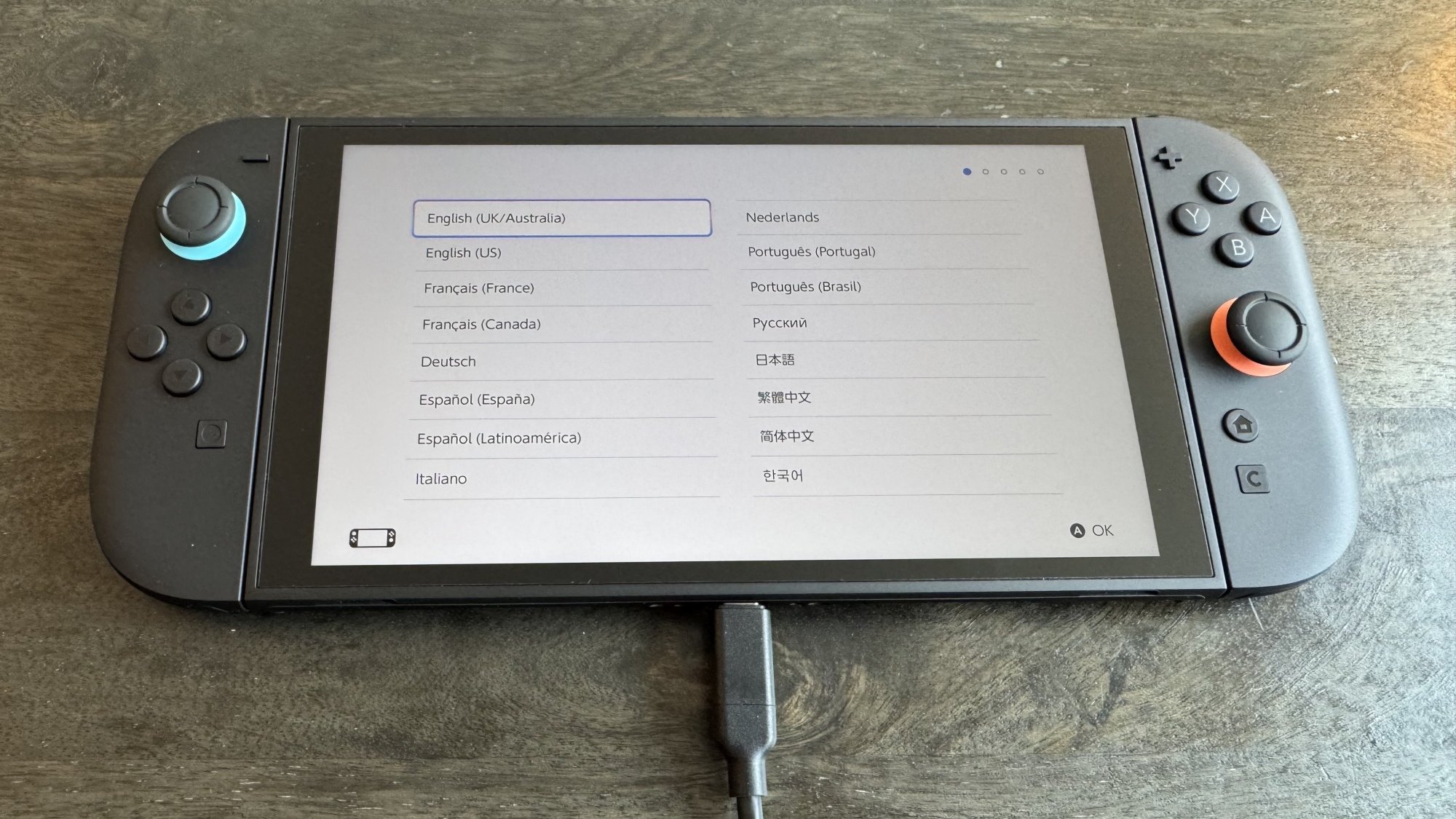
Next, plug your Switch into power using the included charging brick and cable, and power it on. On the screens that follow, select your language and region, then read and accept the end-user license agreement.

Switch 2 language

Credit: Michelle Ehrhardt

You’ll see a screen to connect to the internet and download the console’s day-one system update. This technically isn’t mandatory, and skipping it (with the X button on the right joy-con) will instead take you to time zone settings. However, most features will be locked down, including backward compatibility, until you download it, so I recommend doing it during setup if possible. If you do skip this step, you can access the update later under Settings > System > System Update.

Once you’re connected to the internet and you’ve started downloading the update, you’ll be able to continue setup while it downloads. Now, you’ll pick your time zone and click through a couple of tutorial pages. These will instruct you about portable and TV play, tell you how to use the kickstand and extra USB-C port, and walk you through detaching your joy-con from the console (press in the button on the back of the joy-con, underneath the trigger, and pull). You can also click through an optional tutorial on connecting your Switch 2 to a TV, if you like, after which you’ll get quick guides on using the included joy-con grip accessory and the joy-con wrist straps.

If your console hasn’t finished updating, it’ll finish that now, and then take you to your first big decision: do you want to transfer your Switch 1 data to your Switch 2?

Transferring Switch 1 data to the Switch 2

During Switch 2 setup, Nintendo will allow you to transfer your Switch 1 data to your Switch 2, but there are a few caveats.

You’ll know you’re ready for this once your system update is downloaded and you’re on a screen that says “To Nintendo Switch Console Owners,” above a graphic of someone holding a Switch 1 and Switch 2. 

Next to the graphic, you’ll see two buttons: Begin System Transfer, Don’t Transfer Data, plus a third button below that explains the process to you, but leaves out a few key details.

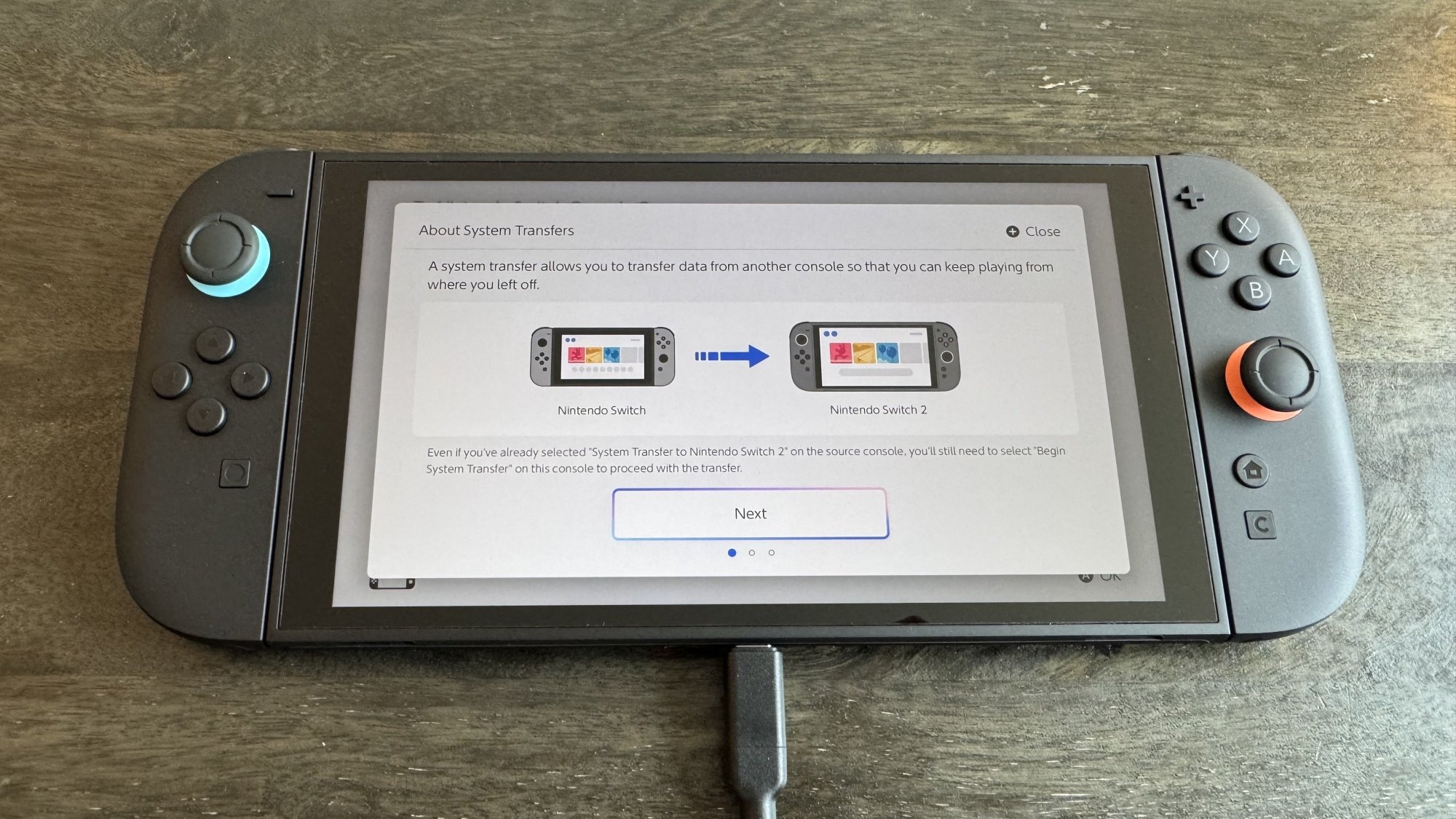
Before you make your decision, the most important thing to remember is this: There are actually two ways to transfer data from the Switch 1 to the Switch 2, and despite what you might have read elsewhere, locally transferring your Switch 1 data to the Switch 2 during setup will not factory reset your original Switch. Unless you’ve taken extra steps beforehand, this is the option Nintendo’s setup process will recommend to you, so most users don’t need to be scared about accidentally erasing their original consoles.

Switch 2 System Transfer

Credit: Michelle Ehrhardt

If you stick with a local transfer, it will simply copy over your data to your Switch 2, so that it exists on both systems. There are a few specific cases where some data will get removed from your original device as it makes its way over to your new one, but for the most part, you’ll be able to keep using your original device as usual after the transfer, and there are ways to get that data back later on (I’ll get into that). Just know that save data for specific games, as well as some free-to-play games, may have been deleted from your Switch 1 and moved over to your Switch 2. Don’t worry— Nintendo will warn you about which software will be affected during the transfer process. Additionally, screenshots and video captures stored on a microSD card attached to the Switch 1 will need to be moved over manually later on.

How to transfer your Switch 1 data locally

With that in mind, if you want to transfer your data locally, which is what most people should do, click the Begin System Transfer button and follow the instructions—this involves signing into your Nintendo account, keeping your original Switch powered on and in close proximity to the Switch 2, and activating the transfer on your original Switch under Settings > System Settings > System Transfer to Nintendo Switch 2.

How to transfer your Switch 1 data using Nintendo’s servers

The confusion about factory resets comes from this data transfer option, which involves using the Nintendo servers. This will factory reset your Switch, and is best if you plan to sell it anyway, or if you expect to be away from your original Switch during Switch 2 setup and don’t mind setting up your original console from scratch when you get back to it. To start this kind of transfer, power on your original Switch, navigate to the System Transfer page mentioned above, then select I don’t have a Nintendo Switch 2 yet. Take note of the Download Deadline for later. Conveniently, that does point to one upside to this method: you can start it before you even have a Switch 2 in hand.

Now, click Next, then Upload Data, then OK, followed by another OK. Click Start Initialization to begin factory resetting your original Switch. 

From here, your original Switch will revert to how it was before you bought it, and you’ll need to move over to your Switch 2, click Begin System Transfer, and sign into your Nintendo account. If the system detects that you have transfer data to download from the cloud, it’ll walk you through the process. Note, however, that if you don’t download your transfer data before the deadline you jotted down earlier, you’ll lose access to it.

If you want to skip the data transfer process…

If you’d rather not transfer your data, that’s also fine, but you won’t have an opportunity to do so later, and will instead need to move games and save data over manually. Click the Don’t Transfer Data button, then Continue to move to the next step.

Adding a user and parental controls

With system transfers out of the way, you’re through the hardest part of setting up your new console. Now, you’ll be prompted to add a user to the system. Here, you can sign in with your Nintendo Account to get access to your Switch Online subscription and your collection of downloadable games, or create a local user profile. After that, you can add more users as you like, or you can save that for later (simply navigate to System Settings > User > Add User).

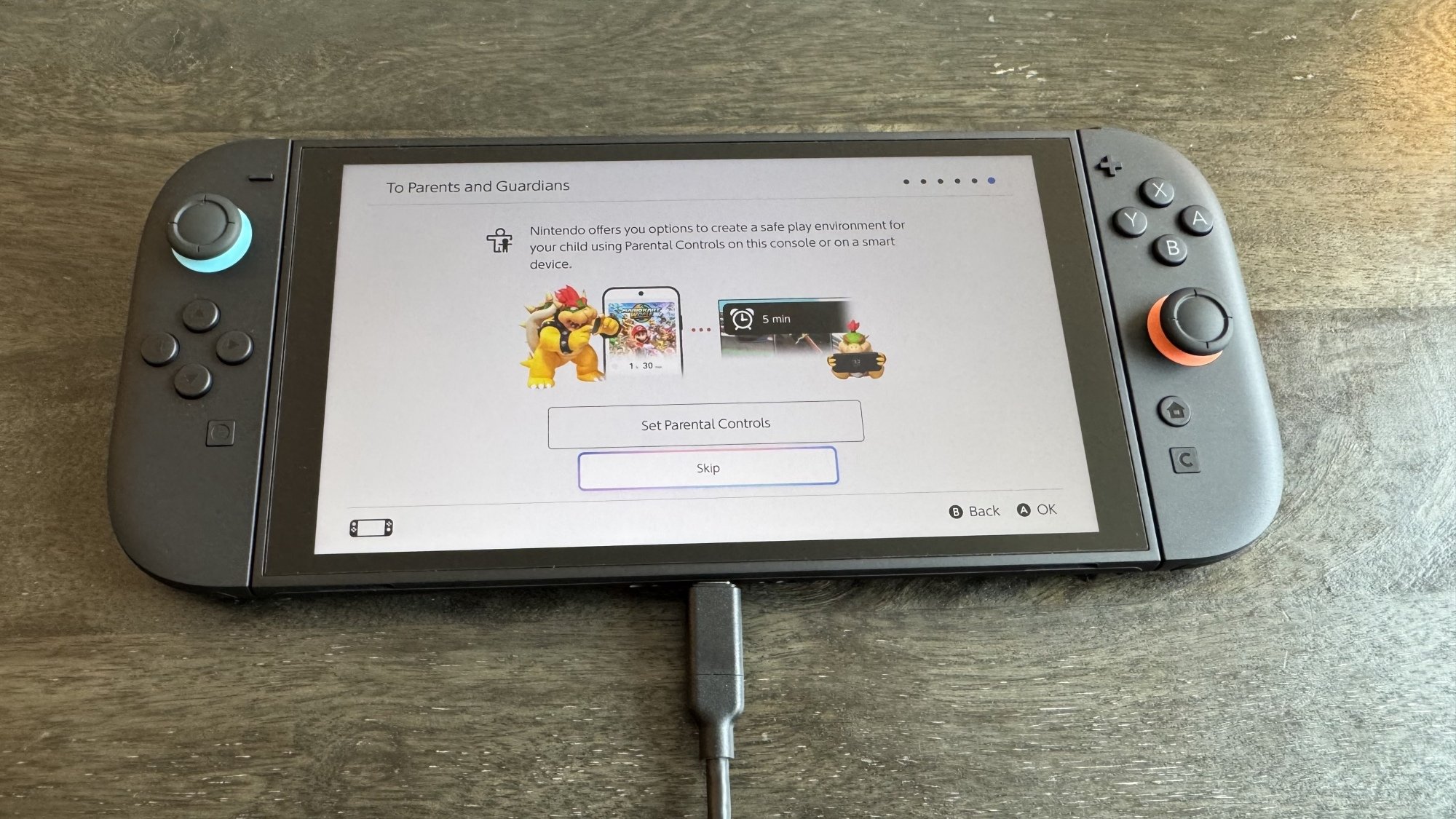
Next up, parental controls. Like with additional users, you can set these up later under System Settings > Parental Controls, but there’s no harm to setting them up now as well. To do so, click Set Parental Controls. 

Switch 2 parental controls

Credit: Michelle Ehrhardt

You’ll have a few options. Most of these will prompt you to use Nintendo’s Parental Controls app, but you can also click the X button on the right-hand joy-con to set up limited parental controls directly on the console. Doing so will allow you to select from a number of presets that will block access to certain games and communication features, but not much else. Using the app, meanwhile, will let you set a daily play time limit, bedtime settings, restrictions on the new GameChat feature, and see reports on play time and games played. It also doesn’t require a Switch Online subscription, so it’s worth using if you have a smart device.

To set up parental controls using the app, first download it for either iOS or Android using the information on the screen, then click the “If You’ve Already Downloaded the App” button. Enter the registration code from your app into your Switch 2 system, then follow the instructions in the app to finish setup. Which buttons you’ll need to click will depend on the controls you’d like to activate, as well as for which users and systems, but it’s fairly straightforward.

MicroSD card limitations

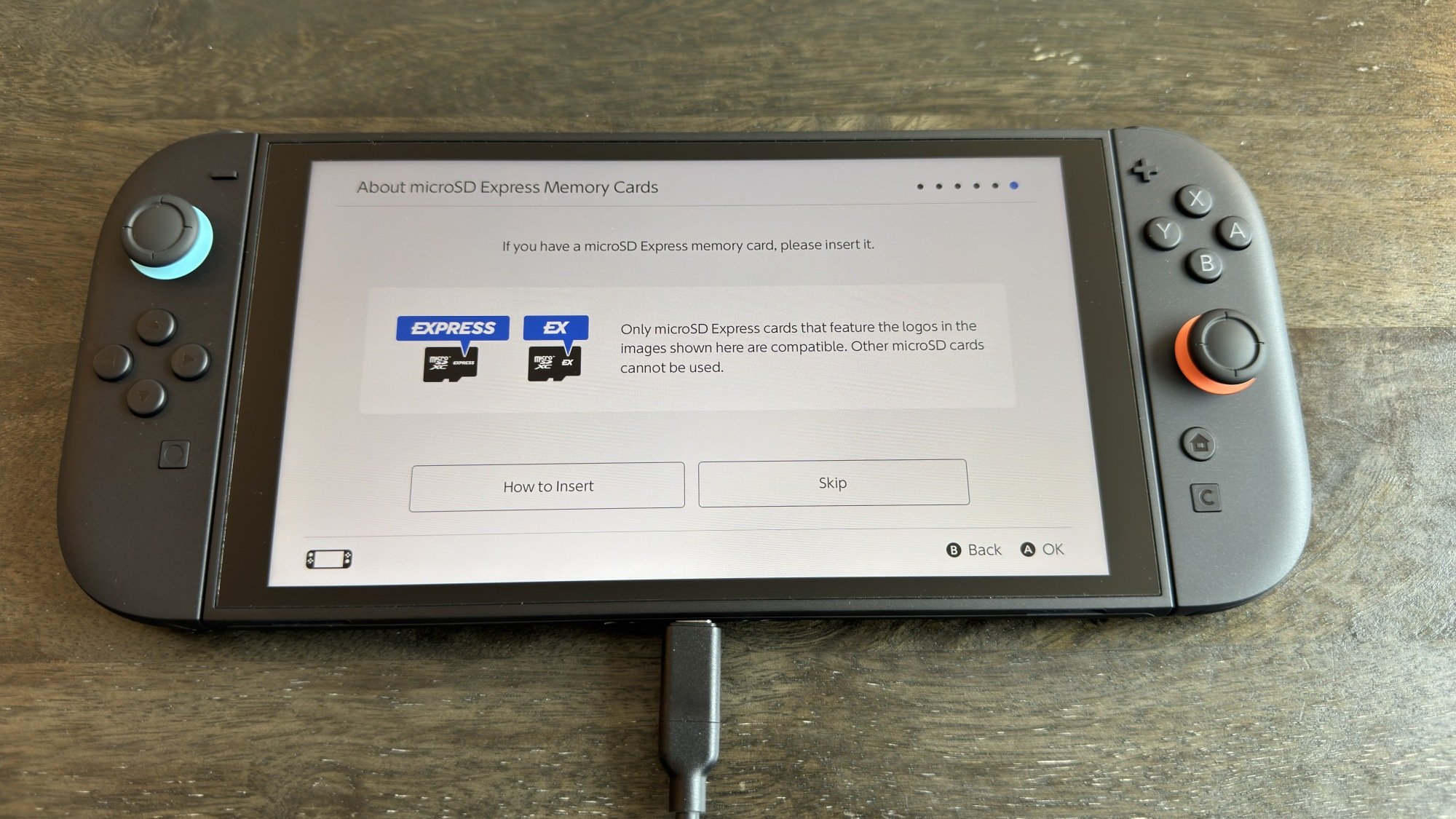
Just a couple more screens. First, a quick warning about microSD cards. Unlike the Switch 1, the Switch 2 is only compatible with microSD Express cards, which are faster, but options for them are also a bit more limited—in other words, there’s a good chance you won’t be able to use the same microSD card from your Switch 1 on your Switch 2. To use a microSD card on Switch 2, it’ll need either of the two logos shown in the image below. A bit of a bummer, but at least a microSD card is optional (it’ll help you store more games, but the included storage on the Switch 2 is more generous than on the Switch 1).

Switch 2 MicroSD card warning

Credit: Michelle Ehrhardt

Oh, and like on the Switch 1, the microSD slot is hidden under the kickstand, in case you’re having trouble finding it.

Virtual Game Cards

You’re technically through setup at this point, but there are still a few features you’ll probably want to configure before you start gaming. The most obvious of these is Virtual Game Cards, Nintendo’s new system for managing games purchased digitally.

Essentially, like the name implies, these work similarly to physical game cards, but over the internet. This means that, unlike with your Steam library, you can only have a game loaded to one console at a time. “Loading” is what Nintendo calls this, but for the most part, it just means your game is downloaded and ready to play.”(Technically, you can still play the same game on two separate consoles at the same time, but doing so is a bit obtuse—click through here for more details.)

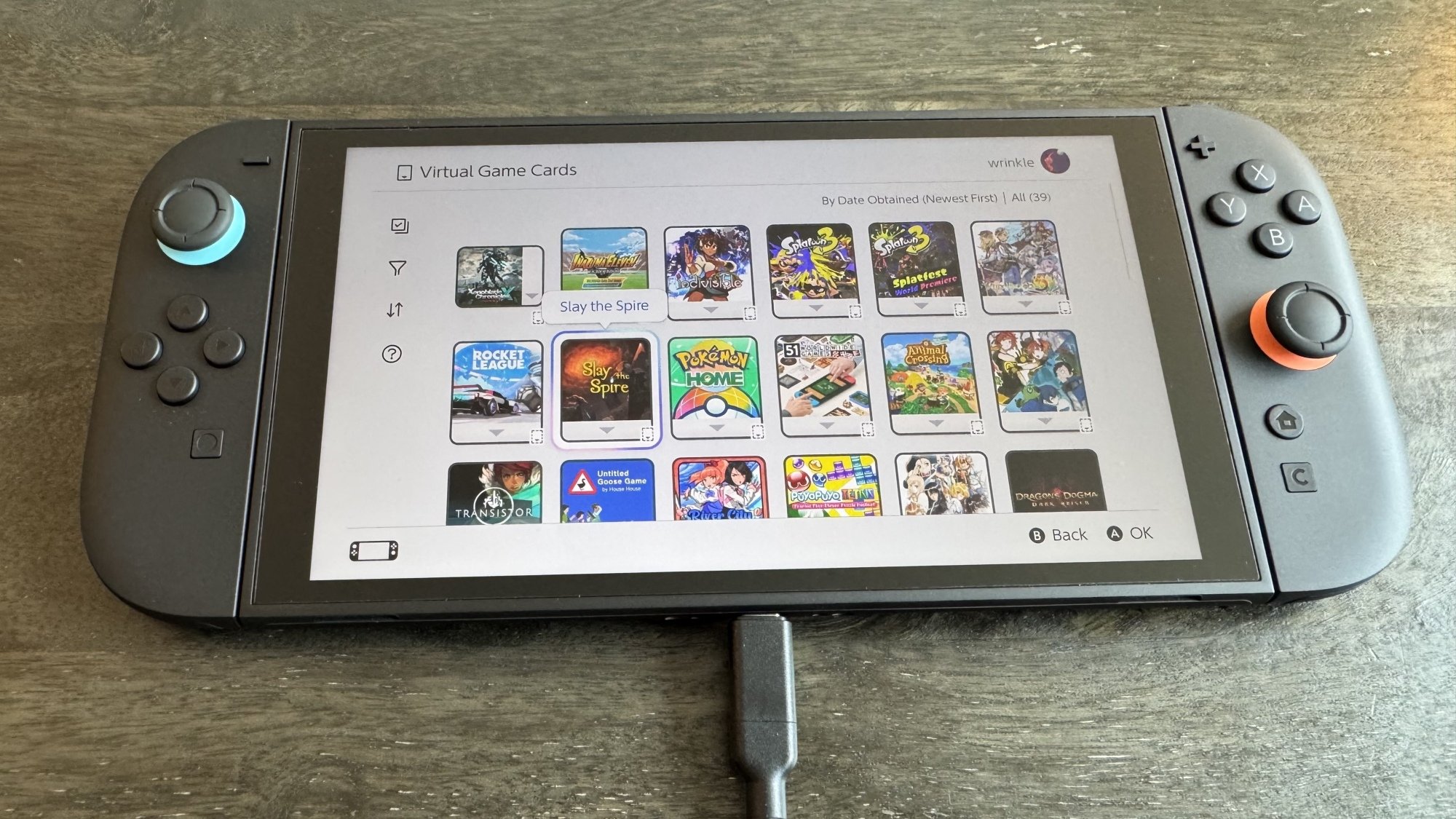
To access your Virtual Game Cards, click the Virtual Game Card icon in the bottom row on your Switch 2’s home screen—it’ll look like a game cartridge. From here, if you’ve signed into your Nintendo account, you’ll see all your digital purchases and will be able to download and play them from here. If you haven’t signed into your Nintendo Account, you’ll have the option to do so.

Switch 2 virtual game cards

Credit: Michelle Ehrhardt

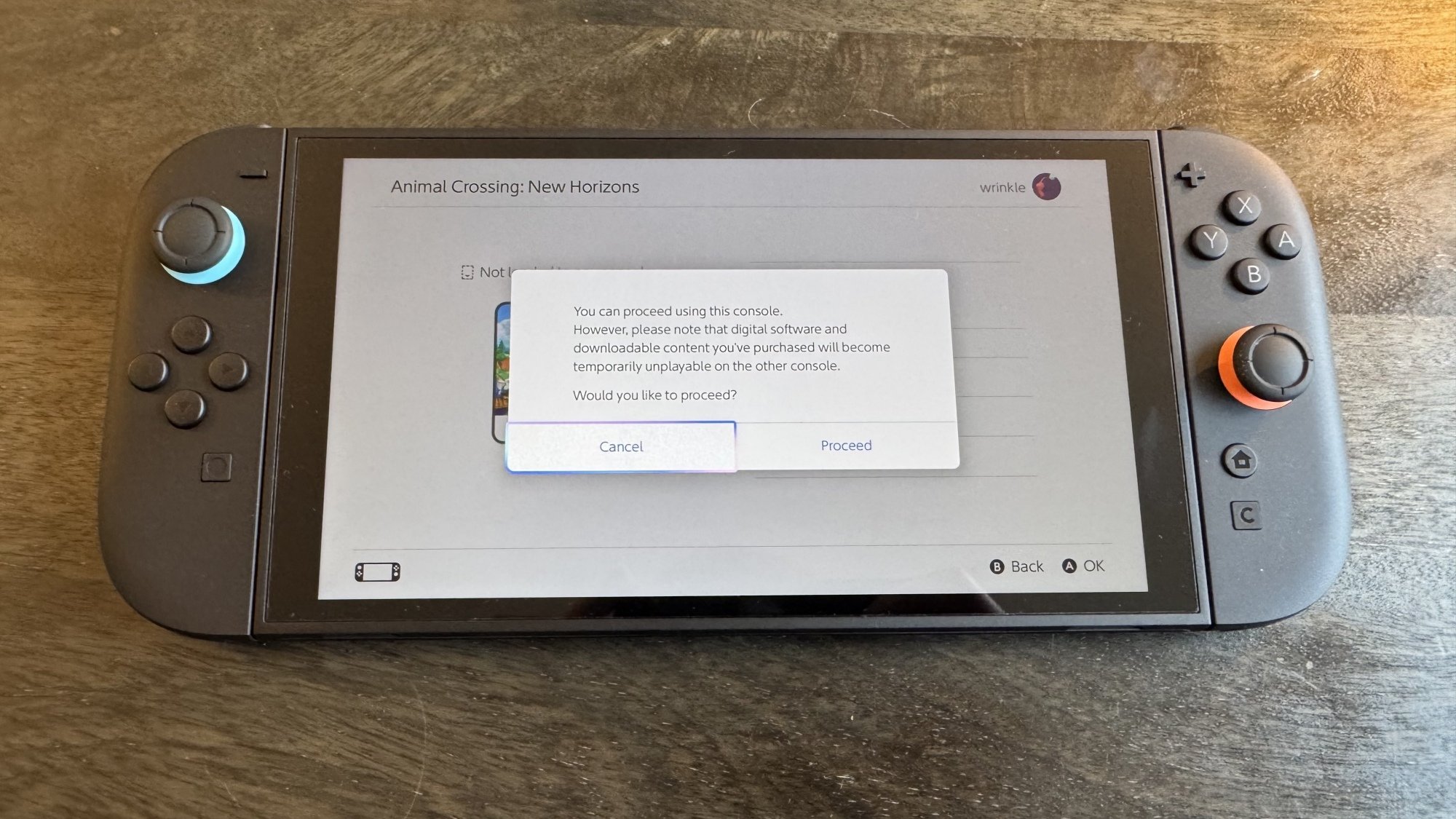
Now, you’ll have a few options. First, if a game isn’t loaded onto your original Switch, you can simply download it to your Switch 2 without issue by clicking Load to This Console. If the console isn’t set as your primary device (likely the case if you didn’t do a transfer), you might see a warning if you try to open a game, but you can click the If You Don’t Have That Console button to download your game anyway. It will simply cease being playable on the other console while you use it on this one, although that’s always the case when moving a Virtual Game Card between systems. Still, you can always change your primary device later by de-registering your original device and connecting your Switch 2 to the eShop. This won’t be necessary for simply accessing your library, but will extend any Nintendo Online benefits to all users on that device, rather than the one associated with your Nintendo Account.

Virtual game cards load screen

Credit: Michelle Ehrhardt

Alternatively, if you do have access to your old console and have it nearby and powered on, you can link it to your new one to directly transfer your digital game to it, without having to re-download it from the internet. You’ll need to be in close proximity for this, and you can only have two consoles linked at a time (although you can freely unlink and link consoles as needed). With that set up, click Load to This Console on the system you want to move the Virtual Game Card to to get started. Transferring a game like this will also remove access to that game from your old device, and if you like, you can initiate this process from the device that’s transferring the game instead, by navigating to the desired Virtual Game Card on it and clicking Load to Another Console.

How to lend a Virtual Game Card to someone else

You’ll also notice that you can lend a Virtual Game Card to members of a “Family Group.” To do this, you’ll first need to set up a Family Group online. On Nintendo’s website, log into your Nintendo Account, then click the Family Group tab on the left hand side of your account page. Here, you can invite members to join your Family Group via email, or create a Family Group account for your child. Note that if you have a Nintendo Switch online Family Plan subscription, members of your Family Group will be able to use its benefits (for up to eight accounts), although accounts that are part of your family group can also still use their individual subscriptions.

With a Family Group set up, on the Virtual Game Card page, click the game you’d like to lend out, then Lend to a Family Group Member. Next, bring your Switch 2 in close proximity with that Family Group Member’s device—this needs to be done in person.

Finally, click Select a User to Lend to. You can lend up to three games to three different accounts at once, and borrowers will be able to play these games for 14 days. During that time, you won’t be able to play the Game Card, and the borrower won’t get access to your save data while borrowing. However, they will keep their own save data for their next borrowing period, or if they choose to buy the game themselves. There are no limits to how often you can lend out a game, and you can re-lend games immediately upon the borrowing period expiring. Also, while you’ll need to lend out your games in person, they’ll return to you remotely.

Transferring save data

Even if you didn’t transfer your Switch 1 data to your Switch 2 during setup, you can still access its save data on your new device. You have a couple of options here.

First, the free option. On your original Switch, go to System Settings > Data Management > Transfer Your Save Data. Click Send Data to Another Console, then pick the user whose saves you want to send to your Switch 2. Pick the saves you want to send over, then click OK. Note that these saves will be deleted from your original console once moved over.

Next, with your Switch 2 in close proximity to your Switch 1 (this also needs to be done in person), navigate to System Settings > Data Management > Transfer Your Save Data. Click Receive Save Data. 

To move data from your Switch 2 to your Switch 1, simply perform these steps in reverse.

Second, the paid option. If you have a Nintendo Switch Online membership, you can also use cloud saves to move save data between devices. By default, these are enabled automatically and will keep both of your systems up to date with the most recent saves. However, you can also manually download cloud saves either from a game’s software menu (press + or – while hovering over it on the Switch home screen) or from System Settings > Data Management > Save Data Cloud. You can also disable automatic save data download from here, if you like.

Lock your home screen behind a passcode

Finally, you can lock your Switch 2 with a PIN for some added security, kind of like a cell phone. To set this up, simply go to Settings > System > Console Lock. Click OK, then follow the instructions on the screen that pops up to enter your PIN.

There’s plenty more to dive into with the Switch 2, which I’ll cover over the following week. For now, though, this should be enough to get you started. Happy gaming!

Here’s a silly puppet boxing game you never knew you needed

I have not played a single boxing game outside of Wii Sports this century, but that could be about to change. Summer Game Fest Live brought us the reveal of Felt That: Boxing, which stars puppet pugilists.

This project from the appropriately named Sans Strings Studio and Seth Green’s animation company, Stoopid Buddy Stoodios, is billed as “a comedic, over-the-top boxing game set in a world where the charm of furry puppets collides with the fury of boxing.” The clip is structured like a trailer for an underdog sports movie and it is just delightful. 

The snippets of gameplay suggest there will be training minigames that include dodging slices of burnt toast that a trainer hurls at your puppet (who is named Fuzz-E) and, uh, plunging a toilet. According to the description on the YouTube video, the developers are aiming to make the “boxing mechanics are intentionally ridiculous, favoring fun over precision, with [puppet] limbs flailing about with an insane sense of chaos.” Lovely.

This trailer was immediately the most interesting thing during SGF Live up to that point. Felt That: Boxing does not yet have a release window, but you can wishlist it on Steam now, like I just did.

This article originally appeared on Engadget at https://www.engadget.com/gaming/heres-a-silly-puppet-boxing-game-you-never-knew-you-needed-215616201.html?src=rss

Lawmakers Vote To Stop NYPD’s Attempt To Encrypt Their Radios

alternative_right shares a report: New York state lawmakers voted to stop the NYPD’s attempt to block its radio communications from the public Thursday, with the bill expected to head to Gov. Kathy Hochul’s desk. The “Keep Police Radio Public Act” passed both the state Senate and state Assembly, with a sponsor of the legislation arguing the proposal strikes the “proper balance” in the battle between transparency and sensitive information.

“Preserving access to police radio is critical for a free press and to preserve the freedoms and protections afforded by the public availability of this information,” state Sen. Michael Gianaris (D-Queens) said in a statement. “As encrypted radio usage grows, my proposal strikes the proper balance between legitimate law enforcement needs and the rights and interests of New Yorkers.”

The bill, which was sponsored in the Assembly by lawmaker Karines Reyes (D-Bronx), is meant to make real-time police radio communications accessible to emergency services organizations and reporters. “Sensitive information” would still be kept private, according to the legislation. In late 2023, the NYPD began encrypting its radio communications to increase officer safety and “protect the privacy interests of victims and witnesses.” However, it led to outcry from press advocates and local officials concerned about reduced transparency and limited access to real-time information.

A bill to address the issue has passed both chambers of New York’s legislature, but Governor Hochul has not yet indicated whether she will sign it.


Read more of this story at Slashdot.

Mortal Shell II is dark, gross and coming in 2026

Developer Cold Symmetry jumpstarted Summer Game Fest Live with the first trailer for Mortal Shell II, a sequel to Mortal Shell with what looks like an equal amount of gruesome imagery. The game is expected to launch in 2026, but you can register right now to try a beta version of Mortal Shell II when it becomes available.

According to the game’s Steam page, Mortal Shell II is a standalone sequel to the original Mortal Shell released in 2020. It combines deliberate, Dark Souls-style action with a grotesque, dark setting, not unlike Dark Souls itself. The trailer offers ample examples is full of over-the-top enemies — of particular note, a giant armored snail — and lots of sharp things piercing soft flesh.

Playing as “the Harbinger” you’ll travel through “more than 60 dungeons,” leveraging the “Shells” of fallen warriors to gain new abilities, Cold Symmetry writes. It sounds like the just the kind of punishing experience Soulslike fans get out of bed for.

Mortal Shell II is coming to PC, PS5, and Xbox Series X / S in 2026.

This article originally appeared on Engadget at https://www.engadget.com/gaming/mortal-shell-ii-is-dark-gross-and-coming-in-2026-214811717.html?src=rss

The soulslike action RPG Code Vein is getting a sequel

Bandai Namco is making a sequel to the 2019 action RPG Code Vein. The sequel, appropriately-named Code Vein II, is coming to PC, PS5 and Xbox Series X/S in 2026. The announcement was made during the Summer Game Fest kickoff stream. 

The first one was a popular soulslike, and the sequel will probably follow this winning formula. It received mixed reviews, but the dungeon-crawling seemed solid and the difficulty wasn’t over the top.

The graphics for Code Vein II look sharp and the story seems convoluted, but fun. It looks to be carrying over some story beats from the first one. It’s still set in a post-apocalyptic future and still follows a protagonist with vampire-like abilities. We’ll have more on this one as it gets closer to the actual release.

This article originally appeared on Engadget at https://www.engadget.com/gaming/the-soulslike-action-rpg-code-vein-is-getting-a-sequel-214216149.html?src=rss

Anti-vaccine quack hired by RFK Jr. has started work at the health department

Notorious anti-vaccine advocate David Geier has begun working at the US Department of Health and Human Services and is seeking access to sensitive vaccine safety data that the Centers for Disease Control and Prevention had previously barred him from accessing—at least twice—according to reporting from The Wall Street Journal.

Geier and his father, Mark Geier, who died in March, are known for peddling the thoroughly debunked falsehood that vaccines cause autism, publishing a long list of dubious articles in low-quality journals that push the idea. In particular, the two have blamed the mercury-containing vaccine preservative, thimerosal, despite numerous studies finding no link. Thimerosal was largely abandoned from vaccine formulations in 2001 out of an abundance of caution.

In 2011, an investigation by the Maryland State Board of Physicians found that the Geiers were misdiagnosing autistic children and treating them with potent hormone therapies in a treatment they dubbed the “Lupron Protocol.” Mark Geier was stripped of his medical license. David Geier, who has no medical or scientific background and holds only a bachelor’s degree, was disciplined for practicing medicine without a license.

Read full article

Comments

Samsung’s AI-Powered Galaxy Watch 7 Is $200 Right Now

We may earn a commission from links on this page. Deal pricing and availability subject to change after time of publication.

If you’re looking for a last-minute Father’s Day gift, this bespoke Samsung Galaxy Watch 7 is currently 38% off and priced right at $200. Available in multiple colors, it combines a sleek aesthetic with high-tech AI-enabled features, including comprehensive trackers that monitor various health metrics, such as heart rate, sleep, and blood oxygen levels. It has over 100 workout modes and can detect sleep apnea via tracking breathing disruptions. The Wellness Tips and AI-powered Energy Score features collect data, translating it into customized, personalized recommendations to help you optimize your daily activities, making this device a helpful accessory for wellness junkies and fitness lovers alike.

With a 40mm screen (you can upgrade to 44mm for an estra $29.99), the face of the watch features AMOLED tech, ensuring visibility even in direct sunlight. Most users find the watch easy to set up and connect to a compatible smartphone. However, it’s worth noting that it’s specifically designed for Samsung devices. Multiple Amazon reviewers mention that it doesn’t function properly with iPhones and Android phones.

The battery life receives mixed reviews, and since it lacks a charging port, it requires a magnetic charger. This PCMag review tested the watch and found that it lasts 22 hours, so if longer battery life is a priority (for instance, during camping trips), you may want to opt for the Samsung Galaxy Watch Ultra instead, which is powered with up to 100 hours on a single charge.

With an average of 4.5 stars and over 2,500 reviews on Amazon, this watch is a well-reviewed choice for fitness enthusiasts or those wanting to live a healthy, balanced life. It combines multiple health trackers while blending aesthetics with functionality, and it doesn’t have the bulky look of many smartwatches. If you’re a Samsung owner, this discounted Samsung Galaxy Watch 7 might be worth the splurge.

Troy Baker is the big cheese in Mouse: P.I. for Hire

Troy Baker will don the cartoon fedora and play the lead role in Mouse: P.I. For Hire. The game has garnered buzz for its unique blending of genres. Imagine a film noir-infused cross between Cuphead and Doom.

Baker will play Private Investigator Jack Pepper, the game’s protagonist. He’s a war hero turned detective who begins his journey responding to a cliché damsel in distress. Pepper’s investigation then peels back the layers of the city’s dark underbelly. It sounds like developer Fumi Games ticked all the items off the noir checklist.

Oh, and don’t forget the minor detail that he’s a rodent. Expect plenty of cheesy (meaning puns about cheese) one-liners.

Being a first-person shooter, Mouse: P.I. For Hire has plenty of Rambo-style room-clearing. Pepper’s weapons range from conventional (shotgun) to comically ludicrous (turpentine cleanser). There’s even an ode to Popeye: Down a can of spinach to beat your foes to smithereens.

The game’s animation draws inspiration from the same 1930s cartoons as Cuphead. Like that game, Mouse: P.I. For Hire‘s monochromatic visuals are all hand-drawn. (But whether it’s as punishingly difficult as the 2017 classic remains to be seen.) Watching the delightfully wacky trailers, it’s easy to see why gamers are keeping an eye on this one.

It sounds like a wild ride. But that doesn’t necessarily point to a game in need of an industry titan like Baker. So, perhaps there’s more to the game’s narrative than you might expect. Or, maybe The Last of Us actor is merely checking “played rodent” off his bucket list. (Couldn’t blame him!)

Baker said he’s been following the game’s development from its first teaser. “Its art style, gameplay and 1930s film-noir aesthetic continue to win me over. I cannot wait to keep working with the team to bring Jack Pepper to life and hope to have some exciting things to share as we get closer to launch!”

You can check out the game’s new trailer here. Mouse: P.I. for Hire arrives later this year. It will be available on all major platforms, including Switch 2.

This article originally appeared on Engadget at https://www.engadget.com/gaming/troy-baker-is-the-big-cheese-in-mouse-pi-for-hire-220033867.html?src=rss

Anthropic releases custom AI chatbot for classified spy work

On Thursday, Anthropic unveiled specialized AI models designed for US national security customers. The company released “Claude Gov” models that were built in response to direct feedback from government clients to handle operations such as strategic planning, intelligence analysis, and operational support. The custom models reportedly already serve US national security agencies, with access restricted to those working in classified environments.

The Claude Gov models differ from Anthropic’s consumer and enterprise offerings, also called Claude, in several ways. They reportedly handle classified material, “refuse less” when engaging with classified information, and are customized to handle intelligence and defense documents. The models also feature what Anthropic calls “enhanced proficiency” in languages and dialects critical to national security operations.

Anthropic says the new models underwent the same “safety testing” as all Claude models. The company has been pursuing government contracts as it seeks reliable revenue sources, partnering with Palantir and Amazon Web Services in November to sell AI tools to defense customers.

Read full article

Comments

UK ‘Exploring Plan For Digital ID Cards’

Mirnotoriety shares a report from the Independent: Downing Street is exploring a proposal to introduce digital ID cards for every adult in Britain in a move to tackle the UK’s illegal migration crisis, according to reports. The new “BritCard” would be used to check on an individual’s right to live and work in Britain, with senior No 10 figures examining the proposal, The Times has reported.

The card, stored on a smartphone, would reportedly be linked to government records and could check entitlements to benefits and monitor welfare fraud. […] … it would cost up to 400 million pounds to build the system and around 10 million pounds a year to administer as a free-to-use phone app.


Read more of this story at Slashdot.

I Made Sense of Garmin’s Forerunner Models so You Don’t Have To

Garmin’s Forerunner line contains some of my favorite watches—the 265, which is arguably still the best of the bunch; the 570, which newly replaced it and has some snazzy new features, and the 955, which is a heck of a deal for something so feature-rich despite its age. If these numbers mean nothing to you, read on—they’re actually pretty easy to understand once you know the two rules Garmin uses to pick what number goes with which watch.

The last two numbers describe its generation

Both of the watches released this year end in -70. The watches that came out in 2023-2024 all end in -65. They were preceded by a generation that ended in -55, and before that was -45, and so on. Could Garmin have just made the last two numbers reference a year, like 23 or 24? Sure, but at least there seems to be some internal logic here. (Go back too far, and the naming scheme gets a little less predictable, but this rule will help you understand pretty much everything released in this line in the last 10 years or so.)

Here’s another important rule of thumb: everything from -65 on up (so, for now -65 and -70) has an AMOLED screen, where it’s glowy like your smartwatch. The older models, up to and including -55, have MIP screens that are reflective and always “on,” but aren’t as sharp or bright. I have a rundown on MIP vs AMOLED here.

The first number tells you how fancy (or expensive) the watch is

Take a look at the first number in the watch name, and think of it as being on a scale of 0 to 9. The higher the number, the nicer the watch. This tells you that the 965 has more features and a higher price tag than the 265; likewise, the 970 has more going for it than the 570. The exact feature set changes from generation to generation, but here’s an important fact to remember: the 9xx watches are the ones with maps. The 570, 265, and so on have breadcrumb navigation but no maps.

With this background, we can now understand why the newest Forerunner line includes a 570. The previous lineup had a 165, 265, and 965, with nothing in between the “2” and “9” levels. Meanwhile, the 165 and 265 were pretty different in terms of features, with the 265 boasting dual-band GPS and compatibility with power meters, to name a few. Garmin apparently wanted to signal that its mid-range watch was truly in the middle of the range, so they added a few extra features the 265 didn’t have—like heat acclimation, which used to only be on the 9xx series—and bumped it up to a “5” rather than a “2”—with an upgraded price to match.

FBI: BadBox 2.0 Android Malware Infects Millions of Consumer Devices

An anonymous reader quotes a report from BleepingComputer: The FBI is warning that the BADBOX 2.0 malware campaign has infected over 1 million home Internet-connected devices, converting consumer electronics into residential proxies that are used for malicious activity. The BADBOX botnet is commonly found on Chinese Android-based smart TVs, streaming boxes, projectors, tablets, and other Internet of Things (IoT) devices. “The BADBOX 2.0 botnet consists of millions of infected devices and maintains numerous backdoors to proxy services that cyber criminal actors exploit by either selling or providing free access to compromised home networks to be used for various criminal activity,” warns the FBI.

These devices come preloaded with the BADBOX 2.0 malware botnet or become infected after installing firmware updates and through malicious Android applications that sneak onto Google Play and third-party app stores. “Cyber criminals gain unauthorized access to home networks by either configuring the product with malicious software prior to the users purchase or infecting the device as it downloads required applications that contain backdoors, usually during the set-up process,” explains the FBI. “Once these compromised IoT devices are connected to home networks, the infected devices are susceptible to becoming part of the BADBOX 2.0 botnet and residential proxy services4 known to be used for malicious activity.”

Once infected, the devices connect to the attacker’s command and control (C2) servers, where they receive commands to execute on the compromised devices, such as [routing malicious traffic through residential IPs to obscure cybercriminal activity, performing background ad fraud to generate revenue, and launching credential-stuffing attacks using stolen login data]. Over the years, the malware botnet continued expanding until 2024, when Germany’s cybersecurity agency disrupted the botnet in the country by sinkholing the communication between infected devices and the attacker’s infrastructure, effectively rendering the malware useless. However, that did not stop the threat actors, with researchers saying they found the malware installed on 192,000 devices a week later. Even more concerning, the malware was found on more mainstream brands, like Yandex TVs and Hisense smartphones. Unfortunately, despite the previous disruption, the botnet continued to grow, with HUMAN’s Satori Threat Intelligence stating that over 1 million consumer devices had become infected by March 2025. This new larger botnet is now being called BADBOX 2.0 to indicate a new tracking of the malware campaign. “This scheme impacted more than 1 million consumer devices. Devices connected to the BADBOX 2.0 operation included lower-price-point, ‘off brand,’ uncertified tablets, connected TV (CTV) boxes, digital projectors, and more,” explains HUMAN.

“The infected devices are Android Open Source Project devices, not Android TV OS devices or Play Protect certified Android devices. All of these devices are manufactured in mainland China and shipped globally; indeed, HUMAN observed BADBOX 2.0-associated traffic from 222 countries and territories worldwide.”


Read more of this story at Slashdot.

Nintendo Switch 2 can make your old Switch games feel brand new again

The Nintendo Switch 2 is launching with a handful of new games, but for many of the people getting one this week, the main thing to play on it is software made for the original Switch.

We’ve known for months that the Switch 2 would maintain backward compatibility with the vast majority of Switch games, but one major question was whether the Switch 2’s improved hardware would benefit older Switch games in some way. Especially in recent years, first- and third-party Switch games have struggled with the original system’s aging Nvidia chipset, which was already a bit dated when the system came out in 2017.

After a day or so of testing various Switch games on the Switch 2, we can report firsthand that Switch games can look dramatically better on the new system. For games that Nintendo has taken the trouble to update—those with Switch 2 upgrade packs and those with free updates—players can expect higher resolutions, better frame rates, less texture and character pop-in, and smoother animations all around. Even games that haven’t been updated for the Switch 2 can run a bit more consistently on the new systems, though games without Switch 2-specific updates don’t improve as much as games with updates.

Read full article

Comments

I Changed These Settings to Turn My iPhone Into a ‘Dumbphone’ and I’m Loving Using It Less

Your smartphone has ruined your life. You’re hopelessly addicted to the empty dopamine drip doled out by apps and algorithms that know you better than you know yourself. You recognize this. But also, you’re no hermit: You need to be able to keep in touch with friends and family with phone calls and text messages, just minus the baggage that comes with a modern iPhone or Android. A dumbphone might seem to be the answer to all your problems, but it’s probably not.

I am often inundated with articles and videos trying to convince me that switching to a dumbphone is the key to living a balance, fruitful life—so much so that I really considered getting one. I still might, someday, but the more I’ve thought about the matter, I’ve come to the conclusion that a dumbphone solves a few problems while introducing many more.

Switching might free me from endlessly scrolling my social media accounts, but I’d lose access to a high-quality camera that’s always with me. I wouldn’t need to deal with notifications from apps that only care about maximizing my screen time, but I’d lose my personal GPS. And I’d still be able to call and text, but I’d miss tools like iMessage and FaceTime that are critical for staying connected. I’m not ready to give all that up.

It’s true that the dumbphone market is adapting take care of some of these weaknesses, offering devices with features like cameras, navigation apps, note-taking apps, and more. But why bother dropping a considerable amount of money for a device like that when I already have a device I can make adjustments to instead?

So, that’s what I did—I took my very smart, very addicting) iPhone, and made it dumber. Here are the steps I took, plus some extra tips you can try yourself (while the instructions may vary, these tips will apply to Android phones as well):

I deleted as many apps as possible

Apps accumulate on my phone like cables in a junk drawer. I really only use a handful of them, but after testing apps on my phone for years, they’ve really added up. Making my phone dumber provided an opportunity to go through and clean house.

My advice is to be as brutal as possible here. The first app on my list, AdGuard, stays, because I need an ad blocker to make the modern internet usable. (Yes, I want a working internet on my dumb iPhone, and one that blocks predatory apps to boot.) But Amazon? Bye. Bluesky? Adios. ChatGPT? Lol.

The priority is to eliminate apps that distract you or suck you in for hours of meaningless activity. Social media is a prime target, but even that gets dicey. Can you really ditch all social media on your smartphone? Some can, but others will find that extreme, or borderline impossible. (More on that in the next section.)

Here’s a helpful tip: If you can access a social media site in a web browser, do that instead, and delete the app. Don’t keep Facebook’s predatory app on your iPhone, and if you must visit Meta’s flagship platform, do so on Safari. That way, yu’ll have better privacy protections against Meta’s tracking, and you’ll have a worse experience, since the Facebook web app is terrible. Good—that means you’ll spend less time on it.

I set Screen Time limits for any apps I can’t delete

As much as it wastes my time, I can’t delete Instagram. While 90% of my use involves mindless scrolling, the other 10% is legitimate socializing that I would very much miss should I ditch the app entirely. There are other apps on my iPhone I feel similarly about, and it’s been a daily battle to use them responsibly.

If you have a similar crop of apps you can’t part with, I highly recommend setting up Screen Time limits. It’s easy to do, and lets you choose the amount of time you can use an app each day. For example, I have Instagram set to 35 minutes of daily use, but I could choose to give myself more time on weekends, or any day that I feel like. You can also enable this feature for websites, so if you are accessing Instagram via Safari instead of the app, you can set limits for there too.

With this App Limit set, Instagram will run like it usually does until that 35th minute. Once the time limit is up, the app is replaced by a blank screen, letting me know that I’ve used my time allotment for the day. Hopefully, I then decide to do something else with my time (maybe put away my phone?), but I don’t have to: The feature gives you the option to extend the time limit by one or 15 minutes, or disable it for the rest of the day. It’s not the best solution for anyone lacking willpower, and I’ve definitely been guilty of extending my time limits again and again. But more often than not, the lock-out screen gets me to leave Instagram for the day. If I only burn 35 minutes watching reels instead of two hours, that’s fine by me.

You can get started setting Scrren Time limits via Settings > Screen Time > App Limits.

I disabled notifications for everything

Smartphone notifications are out of control. These alerts should tell me whether I have a new message or when some critical update needs my attention. If you use system notifications to let me know your app has an amazing sale going on, I’m instantly deleting it.

But even when notifications are appropriate, they’re too much. Likely part of what you hate about your iPhone are the constant distractions and disruptions from system alerts—not only are the unnecessary ones annoying, the legitimate ones steal your attention too. Before you know it, you’ve wasted another hour scrolling on Instagram just because someone replied to a message with a thumbs-up.

You don’t need a dumbphone to eliminate these distractions, though: just disable as many notifications as you can. Any time you download a new app—which you should do sparingly on your new dumb iPhone—don’t allow any notifications. For apps already on your phone, go to Settings > Notifications and disable notifications en masse. You can also attack them as the notifications come in: Swipe left on alerts in Notification Center, tap “Options,” then choose “Turn Off All Notifications.”

This too is challenging. I keep notifications on for my chat apps, since I don’t want to miss important (or funny) updates from friends and family. I did manage to disable Instagram notifications, which has its pros and cons. I’m not sucked into each and every alert I get, but I frequently miss DMs from friends. There are always tradeoffs when prioritizing your time.

I made my Lock Screen uninviting

Apple has made it easy to make your Lock Screen look awesome. The consequence, however, is that your iPhone looks a bit too inviting each time you pick it up. There’s an easy solution to that: Make it look boring AF.

I set my Lock Screen wallpaper to black, so no graphics or colors catch my eye. I allowed myself to add some Weather widgets, including current conditions, UV index, and sunrise/sunset, as I figure having the weather on my Lock Screen means one less reason to unlock my iPhone. (I used to have a News widget there instead, by it often caused me to open my phone in reaction to crazy headlines, which are in no short supply in 2025.)

My Home Screen is dead simple too

Following suit, my Home Screen is also as bland as possible. I use the same black wallpaper, and I’ve abstained from widgets. As much as I like the aesthetics of the calendar and clock widgets, I don’t want to spend any more time on this page than I have to.

As such, I’ve strategically placed the apps I use most (and which, notably, aren’t brain rot traps) on the Home Screen. I could keep this page totally blank, but why not keep the boring, useful apps at easy reach? That way, my brain doesn’t have extra time to think, “Wait, maybe we should just open YouTube instead” as I swipe to the App Library.

In my dock live my Phone, Messages, Camera, and Music apps. In two layers above it live Notes, Reminders, Maps, and Libby. (My hope is that keeping Libby in sight at all time will encourage me to read more, rather than scroll, scroll, scroll.) For all other apps, I rely on the App Library, which is only a swipe away.

You can really get creative with this. Through different apps or hacks, you can emulate the experience of dumbphones like the Light Phone, which simply shows you a list of app titles to choose from instead of wowing you with graphics and animations. Dumb Phone is one such app: After installing it, you select a group of apps you want to see on your Home Screen, and Dumb Phone lists those in a widget one-by-one. Change the color of your wallpaper to match the widget, adjust a few settings, and presto—you own faux Light Phone.

This isn’t really my cup of tea—I still enjoy a traditional home screen/app icons experience—but if you think you’d prefer the look, give it a try. (Just make sure to hit the “X” in the top right corner during setup if you don’t want to pay for the subscription.)

Go grayscale, baby

If there’s one tip to take away from this piece, it’s that you should turn your phone to grayscale. This color filter makes everything on your smartphone, well, gray, wiping away all of the bright, fun colors that make it engaging and welcoming to use.

This has been common advice for combating smartphone addiction for years, and while it’s certainly not a cure-all, it does really help. Scrolling on Instagram isn’t nearly as addicting when everything looks washed out, and it certainly doesn’t make me want to spend time watching shows or movies on my phone. If you’ve eliminated notifications entirely, you won’t notice the benefit in how a gray notification badge is far less intriguing than its bright red counterpart—but then, you’ve won that battle already.

As always, a caveat: I like my dumb iPhone, but I don’t want to punish myself. If someone sends me a video, or if I see something cool online that deserves to be seen in color, I’ll switch off grayscale temporarily. Does that defeat the purpose of my dumb iPhone? Possibly, but I’m making my own rules here.

Set a greyscale shortcut

The best compromise I’ve found is to assign the grayscale filter to the power button’s accessibility shortcut. You’ll find this under Settings > Accessibility > Accessibility Shortcut. Choose “Color Filters,” then triple-click the power button any time you want to toggle grayscale on or off.

Other ways to make your iPhone dumber and less fun to use

The above is what I’ve done to make my iPhone less addicting, and, overall, it’s helped. I’m not sure if it’s the changes themselves, or how the changes constantly remind me to use my device with intention, but, either way, I’ve been reducing my screen time, and making what remains more productive. That’s a win-win.

There are other ways you can make your iPhone less appealing to use, and, thus, reclaim your screen time as well. Here are some suggestions:

  • Use a matte screen protector: These screen protectors cut down on glare, but also emulate the experience of an e-ink screen. That might help any other Libby users out there who want a more soothing reading experience.

  • Disable Face ID/Touch ID: Remember the days of punching in your passcode each and every time you unlocked your iPhone? It sucked. Force yourself to do it again. Knowing that you’ll need to enter your passcode any time you want to check your phone might break the habit of mindless pickups. (Better yet, set an alphanumeric password. That’ll show you.)

  • Keep Low Battery Mode on at all times: If you have a Pro iPhone, your display has a buttery-smooth 120Hz refresh rate. Turning on Low Power Mode drops it down to 60Hz, which, while standard for many iPhone users, looks choppy after you’re used to 120Hz.

Will I keep my iPhone dumb forever?

Am I committed to my new dumber iPhone lifestyle? I’m not sure. If I could wager a guess, I think what’s going to happen is this: I’ll eventually switch off grayscale, add a nice Lock Screen and a well-curated Home Screen, but keep my minimal notifications and limited app selection. I like the idea of maintaining a “normal” iPhone experience, but without many of the things that make it a distraction—even if that means ditching some of the more extreme dumbphone-like measures.

Knowing that, I’m thus far happy I did not spend hundreds of dollars on a dedicated dumbphone. Something tells me that I would be itching to switch back to my iPhone in a heartbeat.

Ted Cruz bill: States that regulate AI will be cut out of $42B broadband fund

Sen. Ted Cruz (R-Texas) wants to enforce a 10-year moratorium on AI regulation by making states ineligible for broadband funding if they try to impose any limits on development of artificial intelligence.

The House previously approved a budget bill that contained a fairly straightforward provision to ban state AI regulation for 10 years. Cruz, chairman of the Senate Commerce Committee, yesterday released budget reconciliation text that takes a different approach to preventing states from regulating AI.

Cruz’s approach may be an attempt to get around the Senate’s Byrd Rule, which limits the inclusion of “extraneous matter” in budget reconciliation legislation. He wants to make it impossible for states to receive money from the $42 billion Broadband Equity, Access, and Deployment (BEAD) program if they try to regulate AI. Cruz released a summary that says his bill “forbids states collecting BEAD money from strangling AI deployment with EU-style regulation.”

Read full article

Comments