Intel loses its latest challenge to 16-year-old EU antitrust case

Intel will have to pay up in an antitrust case dating back to 2009, Reuters reported on Wednesday. The company has lost its challenge against a €376 million ($438.7 million) regulatory fine levied by the European Commission. However, Intel managed to get the amount reduced to 237 million euros ($276.6 million).

The case began in 2009, when mobile computing was in its infancy and netbooks (remember those?) were all the rage in the PC space. At the time, the EU ruled that Intel violated antitrust laws on multiple fronts. First, it used illegal hidden rebates to push rivals out of the PC processor market. Second, it paid manufacturers to delay or stop production of AMD-powered products.

The latter, the portion that today’s fine deals with, was classified as “naked restrictions.” It regarded anticompetitive payments Intel made to HP, Acer and Lenovo between 2002 and 2006.

As often happens in these situations, the legal process bounced back and forth through the courts for years. In 2017, Europe’s highest court ordered the case to be re-examined, citing a lack of proper economic assessment of how Intel’s behavior affected its rivals. Europe’s second-highest court then overturned the judgment from the first (hidden rebates) portion of the fine in 2022, a move confirmed by the EU Court of Justice last year. That penalty, initially set at a whopping €1.06 billion ($1.2 billion), was wiped off the books.

The second (“naked restrictions”) fine was imposed in 2023 after European courts upheld that portion. Intel’s latest challenge sought to have that one removed, too. Instead, it will have to settle for shaving one-third off the initial sum.

With today’s judgment, it’s tempting to declare the matter over and done with. But the Commission and Intel can still appeal the decision to the EU Court of Justice on points of law. Tune in next year to see if this long, strange saga has another chapter.

This article originally appeared on Engadget at https://www.engadget.com/big-tech/intel-loses-its-latest-challenge-to-16-year-old-eu-antitrust-case-200746004.html?src=rss

The world premieres and other hotness from The Game Awards 2025 Day of the Devs stream

You gotta love that post-Day of the Devs showcase feeling. The organization, founded by Double Fine Productions and iam8bit, consistently highlights top-tier games from independent developers across the globe, providing space for creators to share their stories in both online and in-person events. This year’s Day of the Devs: The Game Awards Digital Showcase was an hour-long celebration of 22 upcoming indie games, including six world premieres and three release date announcements.

Settle in and bask in the afterglow with us:

World Premieres

Virtue and a Sledgehammer – Deconstructeam

Deconstructeam is a small Spanish studio that’s responsible for some of the most cerebral, sexy and darkly philosophical games around, including Gods Will Be Watching, The Red Strings Club and The Cosmic Wheel Sisterhood. The team’s next project is Virtue and a Sledgehammer, and it represents a new look with 3D, cel-shaded animations and a third-person perspective rather than the studio’s typical pixelated planar fare. The vibes are just as sinister and introspective as expected, though.

Virtue and a Sledgehammer is a moody coming-of-age experience set in a wooded ghost town dotted with robots and lost locals. Spend quiet moments with old friends and then swing the sledgehammer to raze your hometown and uncover memories that can help you move on. The game’s buildings and objects are highly reactive, which can only help with the catharsis of it all.

Virtue and a Sledgehammer is due to hit Steam in 2026, published by Devolver Digital.

UN:Me – Shueisha Games

Now, this is a horror game. UN:Me comes from Japanese publisher Shueisha Games and developer Historia, and it’s a creepy, mind-bending exploration of primal fear. It stars a young woman with four souls trapped inside of her body, fighting for control of her consciousness. She wanders sterile, illogical hallways and encounters grotesque horrors representing common human fears like heights, authority figures and confined spaces. The souls switch randomly, each one manifesting a specific anxiety. As she wanders, the player has to choose souls to eliminate until only one remains. Whether it’s her real soul or a fake isn’t disclosed until the very end.

UN:Me is available to wishlist now on Steam.

Scramble Knights Royale – Funktronic Labs

Funktronic Labs is mainly known as a VR studio, with games like Cosmic Trip, Fujii and The Light Brigade under its belt, but its latest project doesn’t require a headset at all. Scramble Knights Royale is coming to PC and Xbox in 2026, and it’s a battle royale with adventure game twists. You begin on a boat with 30 to 40 other online players, make your way to land on the back of a turtle, and then it’s essentially Naked and Afraid from there. Find resources, fight creatures, upgrade your gear and play your own game, only battling other players when you encounter them in the wild.

Don’t let the sweet, clay-like animations fool you, either — Funktronic says the combat mechanics are incredibly deep and finely honed. Scramble Knights Royale also supports local split-screen.

Mirria – Mografi

Mografi made a name for itself with the adorable Jenny LeClue detective game, but now it’s time for something different. Mirria is an atmospheric puzzle experience from ISLANDS: Non-Places artist Carl Burton, published by Mografi, and it looks like a delicious mix of Kentucky Route Zero and Monument Valley. In Mirria, you explore mirror worlds and attempt to make the two realities match, paying attention to small details and making minute adjustments until the unsettling environments are perfect reflections. It looks and sounds like soul-soothing stuff.

Mirria is due out in 2026 on Steam.

CorgiSpace – Finji

In recent years, Finji founder Adam Saltsman has been involved in high-profile indie games like Overlands, Night in the Woods, Tunic and Usual June, but his new project taps into his simplistic and mechanics-driven Canabalt roots. Corgispace is a collection of 8-bit games with off-kilter premises, including the soulslike Rat Dreams where you can only dodgeroll, the no-jumping platformer Skeleton Jeleton, and Prince of Prussia, an adventure where you stab Nazis “but in a fun new way,” according to Saltsman. Also, he says there are no secrets in this game, which leads us to believe there is at least one secret in this game.

Corgispace is out now (!) on Steam and Itch.io.

Frog Sqwad – Panic Stations

If the former Fall Guys developers at Panic Stations know how to do one thing, it’s make a silly-physics multiplayer game, so that’s exactly what they’re doing. Frog Sqwad is a co-op experience where you and your fellow frogs search the sewers for food in order to satiate the swamp king. You can eat food to grow bigger and become the mega frog, vomit to shrink, and use your long sticky tongue to swing, hang and slingshot your friends. The sewer levels are procedurally generated, so your froggy playground will always be different, and each run gets harder as the swamp king requires more food.

Frog Sqwad is coming to Steam in 2026, with a playtest beforehand.

Release dates

  • Dogpile by Studio Folly, Toot Games and Foot: Today, like literally right now

  • Big Hops by Luckhsot Games: January 12

  • Demon Tides by Fabraz: February 19, 2026

And the rest

The stream featured a dozen other in-development titles, including the super spooky Lucid Falls, a 90s-grunge-band rhythm game called Rockbeasts, the soothing alien musicality of Soundgrass, an impressive-looking follow-up to The Invincible called Into the Fire, and Unshine Arcade, a creepy game about the secret lives of tamagotchis and claw machines.

The Day of the Devs: The Game Awards Digital Showcase 2025 wrapped up with a neat little announcement. The organization teamed up with the Video Game History Foundation to release Xcavator 2025, a finished version of a long-lost game from legendary programmer Chris Oberth. It was originally developed by Big Buck Hunter studio Incredible Technologies but never found a publisher. It’s been revived by Mega Cat Studios, Retrotainment Games and iam8bit, and an NES cartridge of Xcavator 2025 is available to pre-order now on iam8bit. Proceeds will benefit the Video Game History Foundation.

This article originally appeared on Engadget at https://www.engadget.com/gaming/the-world-premieres-and-other-hotness-from-the-game-awards-2025-day-of-the-devs-stream-200000447.html?src=rss

10 Ways to Use Your Hand Tools and Power Tools Together to Do More

One of the best lessons I’ve learned across years of DIY projects is the fact that, whether powered by hand or by electricity, your tools can can serve more than the purpose for which you purchased them—provided you get creative with how you put them to use. Often, you can use two tools together to improve their performance, make them more versatile, make them easier to use, or even to to replace a tool you’re missing.

Here are 10 unexpected ways to combine your hand tools and power tools to make DIY work a little easier.

Stick an Allen wrench into your drill

Power drill and Allen wrench being used to extract eyehook
Credit: Jeff Somers

Eye hooks serve a wide range of uses, but if you’ve ever had to drive a bunch of them into wood, you know how frustrating they can be. The usual move is to either slip a screwdriver through the hook and twist, which is slow and awkward, or to clamp a wrench or pair of pliers on top and twist, which is…also slow and awkward.

This works better: Place an Allen wrench in your power drill’s chuck, slide the end of the wrench into the eyehook, and let the drill do the work. It’s faster, it saves your elbows and wrists the strain, and you’ll wonder why you never thought of it before.

Use a shop vac to inject wood glue

Wood glue can be a lifesaver when you have a damaged piece of lumber—but only if you can actually get the glue inside the crack. If you’ve ever tried, you know that you wind up with glue smeared everywhere, but only a small amount seeps into the crack, leading to a pretty quick failure.

By combining a shop vac with your gluing efforts, you can make this much more effective. Position the shop vac up close against one end of the crack and turn it on. Then apply the glue from the other end, moving toward the shop vac. The suction will pull the glue into the crack, filling it up and resulting in a stronger bond.

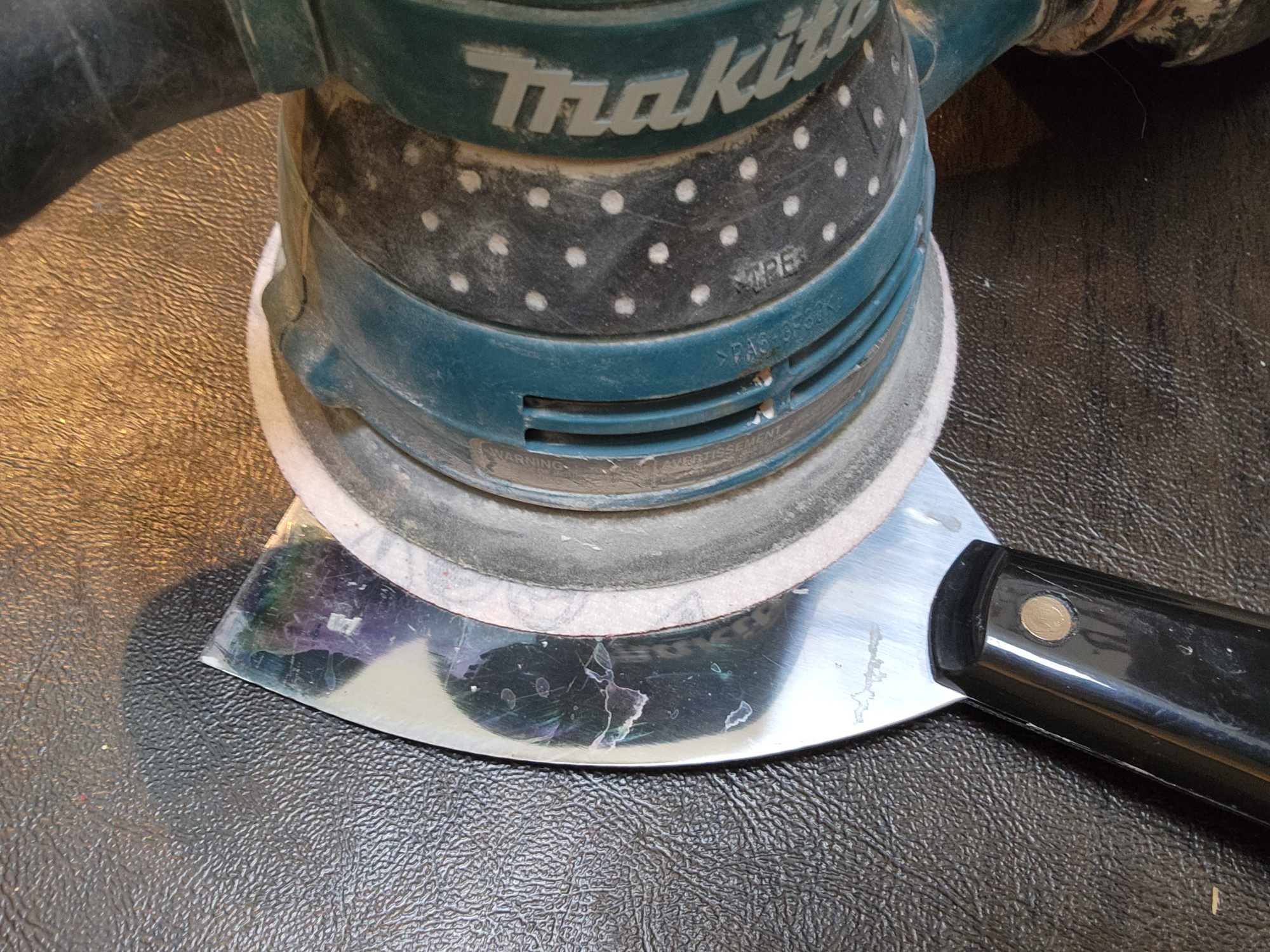
Use a sander to clean your putty knives

Orbital sander cleaning knife
Credit: Jeff Somers

Drywall knives and putty knives can develop a thick, lumpy buildup of drywall mud, paint, and anything else they’re used to scrape. Eventually, they’re almost useless because their flat surface has developed its own topography.

You can try cleaning them, but water will rust them and it’s often a laborious process, especially if they’re covered in cement or thinset. If you’ve got an orbital sander, however, cleaning your putty knives and drywall knives is pretty easy. Using a moderate grit (120 works well) pad, just sand down your blade with gentle pressure—don’t overdo it; just let the sandpaper do its work. You’ll have shiny, clean blades in no time.

Use a carpenter’s square and a chalk line as a makeshift level

Getting things level is surprisingly challenging—at least for me. I can measure things five times and still somehow wind up slightly off. That makes a spirit level an essential part of my toolbox for any project (and even then, I am level-challenged, somehow).

If I forget my level, I’m in trouble—unless I happen to have a carpenter’s square and a chalk line. Place the bottom of the square on the surface you’re checking, and loop your chalk line over the top at the 90° mark so it dangles down. Then adjust until the line is directly over the 45° mark on the bottom. That’s means it’s level.

Use a screwdriver and hammer to remove stubborn nails

Hammer and screwdriver extracting nail
Credit: Jeff Somers

Trying to remove a stuck nail can be an entire project in itself. Your progress freezes while you sweat and strain, and eventually you start to damage the surface as your attempts to pull that nail get wilder and more violent.

To protect a surface you don’t want to damage and give yourself a little extra leverage on the nail, place a screwdriver under your hammer. This will give your pull a little more oomph while stopping your hammer from gouging the surface beneath.

Use a vise grip with a putty knife to remove a headless nail

Got a stubborn nail and don’t have your hammer or prybar? Or dealing with a nail that’s lost its head? You can get it free with the help of a vise grip and a putty knife. Lock the vise grip onto the nail and slide a putty knife onto the surface behind the nail. Rotate the vise grips like a lever, and the nail will slowly pull free, while the putty knife blade protects the surface underneath from damage.

Combine a wrench or pliers and a screwdriver for more torque

Screwdriver and pliers extracting screw
Credit: Jeff Somers

When dealing with a screw that seems to be frozen in place, your hand screwdriver often can’t deliver enough torque, and using a power drill with a screwdriver bit is often overkill, stripping the screw in no time. To increase the torque your screwdriver can provide, combine it with a wrench or pair of adjustable pliers. Lock the pliers onto the screwdriver at a 90° angle, push down, and turn with the plier handles. Even the most stubborn screws will work themselves free.

Use locking pliers and a flat prybar to remove nails

Another way to tackle a nail that just won’t work itself free (or that’s lost its head) is to combine a vise grip and a flat prybar. Lock the grips onto the top of the nail to act as the head, then angle the prybar underneath and apply pressure. You can also slide a putty knife under the prybar blade if you want to protect the surface you’re extracting the nail from.

Use a hammer and driver bit to remove painted over screws

Hammer and drill bit cleaning screw head
Credit: Jeff Somers

When I used to rent, I was always infuriated by the “landlord special” repairs that covered screw heads with multiple layers of paint, often to the extent that I couldn’t get a screwdriver or bit to bite. That meant a lot of slow effort scraping paint out of the grooves until I got them clean enough to extract.

Instead of doing that, combine a hammer and a screwdriver bit: position the bit on the screw head and give it some solid taps with the hammer. The crusted paint will fall right out, and you can get on with your work.

Use an adjustable wrench to find the right drill bit

How much time do you think you’ve wasted trying to eyeball a drill bit when driving bolts? You estimate the bit size, you drill the hole—nope, too small. So you grab the next-largest bit and do it again. Or, worse, you estimate the drill bit and the hole is too big, and now you’ve got a problem.

If you’ve got an adjustable wrench, spare yourself the drama. Tighten the jaws of the wrench onto the bolt, then see which drill bit matches the wrench’s opening. You’ll never have to drill three times for one bolt ever again.

Netflix’s Stranger Things Plots Course For Microsoft Flight Simulator

Netflix's Stranger Things Plots Course For Microsoft Flight Simulator
Crossovers are all the rage in gaming right now, as developers and publishers look for ways to keep players coming back. Even a purist franchise like Microsoft Flight Simulator is getting in on the fun, as it looks to bring the world of Stranger Things to players while still delivering the realism and authenticity fans expect.

Microsoft

PS Plus Game Catalog additions for December include Assassin’s Creed Mirage

Sony just announced December’s Game Catalog additions for PS Plus subscribers and it’s a pretty decent lineup. All of these titles will be ready to play on December 16, except Skate Story which is already available.

Speaking of Skate Story, it’s a really weird skateboarding sim that’s set in a glass-covered world. The reviews have been positive, with many people praising the outlandish story, surreal locations and the satisfying trick mechanics. It’s made by Sam Eng, who was behind the indie shooter Zarvot. This new game is only available for PS5 subscribers.

Assassin’s Creed Mirage will be available for both PS4 and PS5 players. This is the mainline entry from 2023 and it’s actually really fun. It boasts a “back to basics” design that old-school fans of the franchise should appreciate.

Granblue Fantasy: Relink is a 3D action RPG that started its life as a mobile game. However, this particular RPG features music compositions from Nobuo Uematsu and art direction from Hideo Minaba. Both worked together on some games in a mom-and-pop franchise called Final Fantasy. This console port will be playable on PS4 and PS5

Cat Quest III is a simple action RPG starring, well, cats (and dogs.) This one brings open world tomfoolery to a land teeming with islands, so expect plenty of pirate puns. I enjoyed the first two, as the gameplay loop is pretty addictive and the quests are fun. It’ll be available on PS4 and PS5.

Other forthcoming games include Wo Long: Fallen Dynasty, Lego Horizon Adventures, Paw Patrol: Grand Prix and Planet Coaster 2. Sony is also offering a holiday promotion in which new annual PS Plus subscribers receive download credits for movies.

This article originally appeared on Engadget at https://www.engadget.com/gaming/playstation/ps-plus-game-catalog-additions-for-december-include-assassins-creed-mirage-193731745.html?src=rss

10 Hacks Every Android User Should Know

Android remains one of the most customizable mobile operating systems out there, despite Google’s recent efforts to rein it in. You don’t necessarily have to root your Android device to get it to do something off script, either. The fix you need might be hidden behind a system menu or Developer Options. You can personalize Android to address common frustrations with speed, battery life, privacy, and the interface as a whole. I’ve compiled ten helpful Android hacks that require no third-party apps, no ADB commands, and no rooting. All you need is the patience to dig through the operating system and tap as required.

Please note that many of these hacks require you to enable Developer Options, Android’s hidden menu of settings. To do so, head to the Settings menu, scroll to About phone, then tap Build number. Tap it seven times to unlock developer mode. (You’ll see a countdown pop-up if you did it correctly.)

Eliminate battery hogging apps

Have you ever looked at your battery usage stats and wondered what to do about a specific app that’s draining your battery? Android needs apps to run in the background, sync with the cloud, and check for updates by default. As it does this, it wakes the device and consumes battery in the background.

Android introduced a battery optimization feature in version 6.0 that’s supposed to help with apps that drain too much battery. While it’s helped shut down unused apps, it can be either too aggressive or not aggressive enough at identifying bad apps. And while you can force-close an app to kill it when you notice it’s causing issues, it will likely start up again the next time you reboot your device.

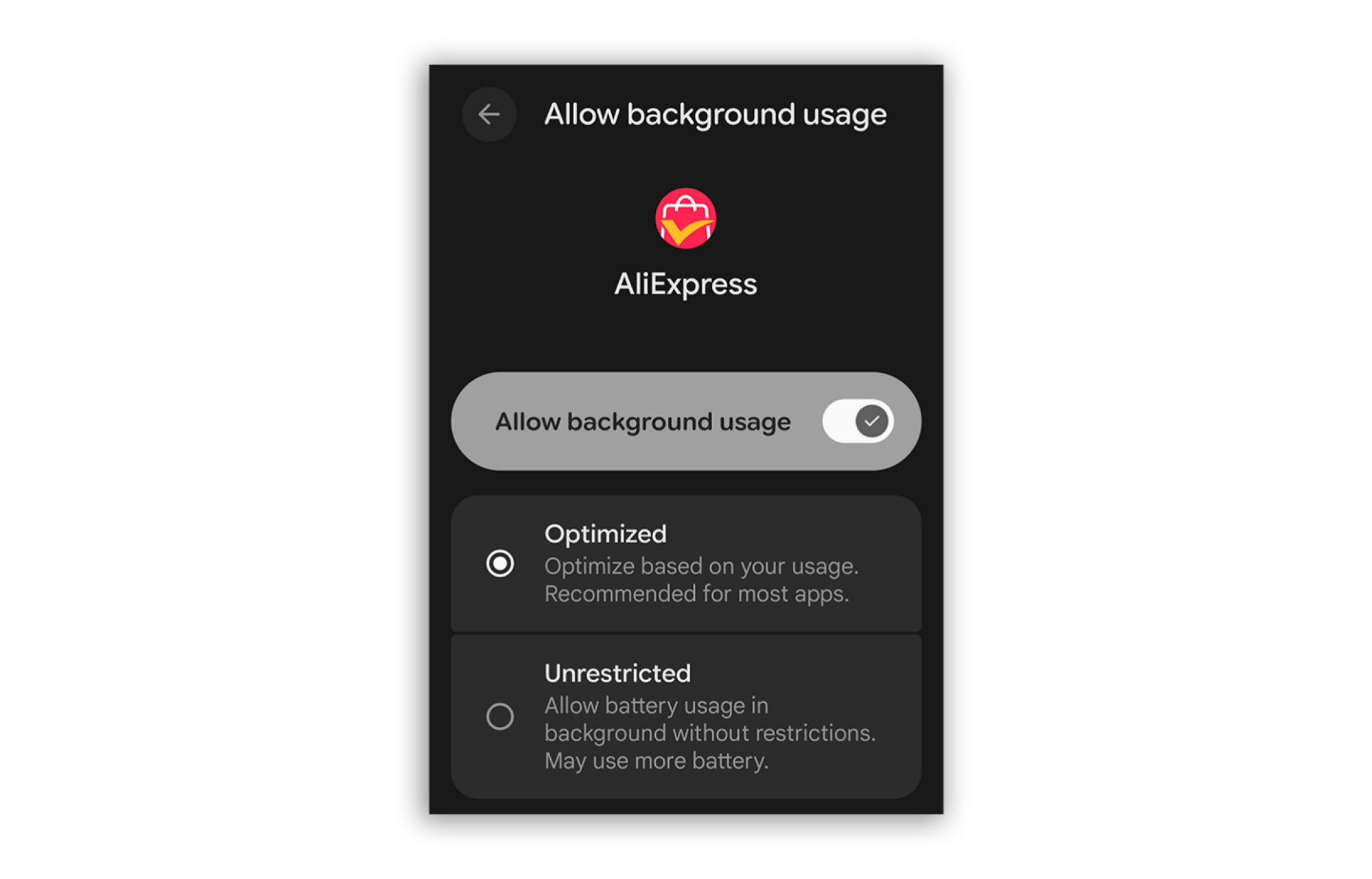
A screenshot showing how to restrict background processes on apps

Credit: Florence Ion/Lifehacker

You can manually set an app’s background privileges to the most restrictive setting without deleting or disabling it. In Settings, under Apps, scroll down and tap to view all your apps in a list. Then, tap App battery usage. Here, you will find details about the last time the app was accessed. Tap on the app to adjust its background usage. You can choose to have it optimized by the Android system or unrestricted—something you might use on a wearable to ensure it works properly, for instance. If you want it restricted completely, use the master switch to toggle off background usage. On Samsung devices, this same option is called “sleeping apps” or “deep sleeping apps.”

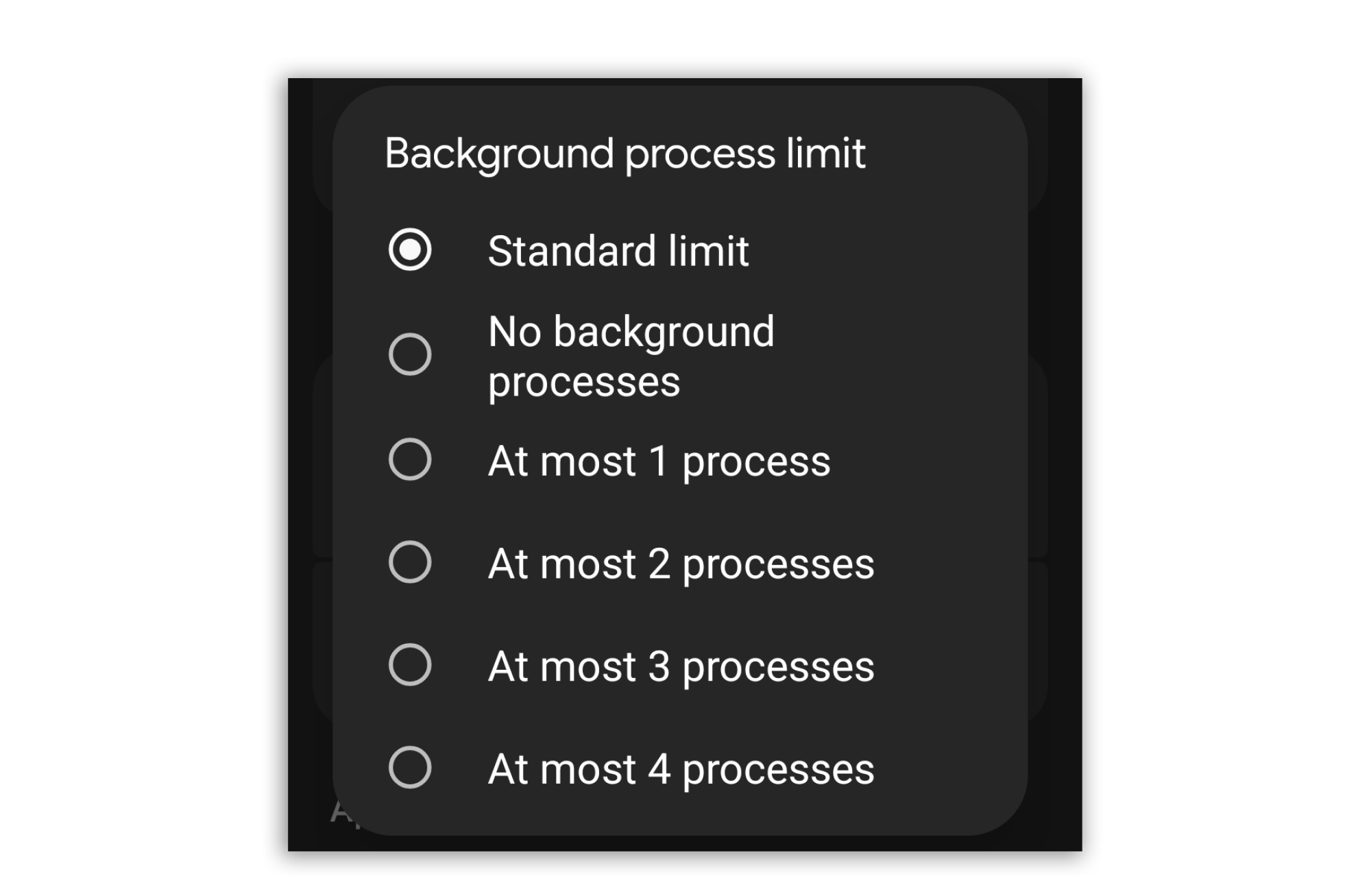
A screenshot showing how to limite background processes in the developer options

Credit: Florence Ion/Lifehacker

Optionally, you can turn to Developer Options to get more robust control over background processes. Head back to Developer Options, then scroll or search for Background process limit, and from here, you can decide how many background apps fire off at a time.

Block ads and trackers without VPN

Even with an ad blocker, background apps can still track your phone use, where you shop, and which ads to show you. You could easily circumvent this by installing a VPN app to route traffic, but that relies on a third party app, and slows down performance. You are better off configuring your phone’s Private DNS settings to filter web traffic through a service of your choosing.

Private DNS seals the request your device makes to look up a website’s IP address, so your carrier can’t see the website you’re visiting. Since that browser data stays hidden, third parties don’t have the data they need to track your habits and, subsequently, target you with ads.

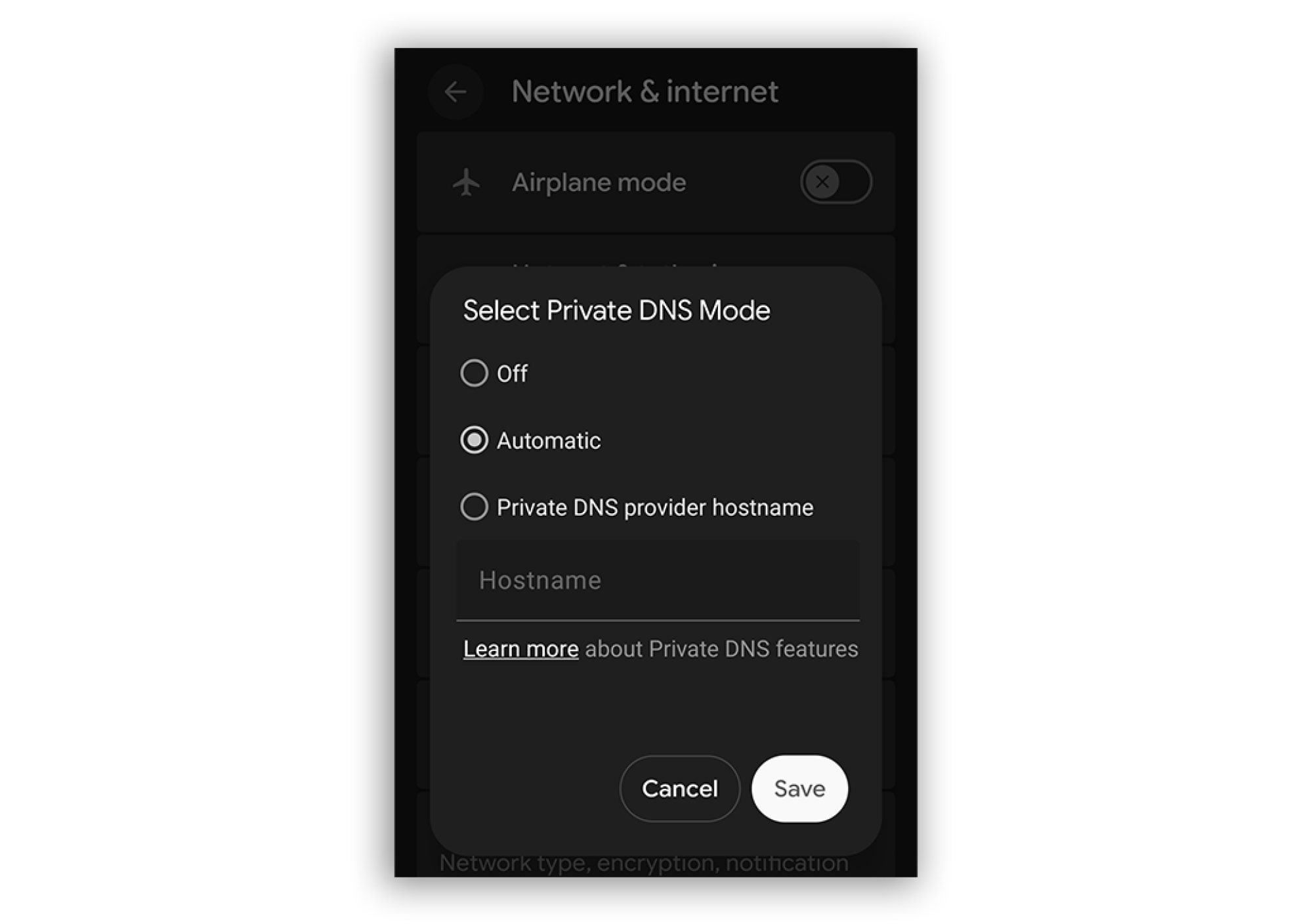
A screenshot showing where the private DNS option lives in the android settings panel

Credit: Florence Ion/Lifehacker

Navigate back to the Settings panel and select Network & Internet > Private DNS. Change the setting to Private DNS provider hostname. You will need to find the URL of a filtering service to link here. Options include Ad Guard, Control D, and Mullvad, which is what I use to block ads in Chrome.

Once you save, this will redirect all DNS requests from every app and browser on your Android device through this specific block list. It should help cut down on ads and tracking servers watching you without cutting down on performance or battery life. This is also a great hack if you’re a parent and your kid has access to an Android device. Use Private DNS to route them away from unsafe sites and adult content.

Unearth long-lost notifications

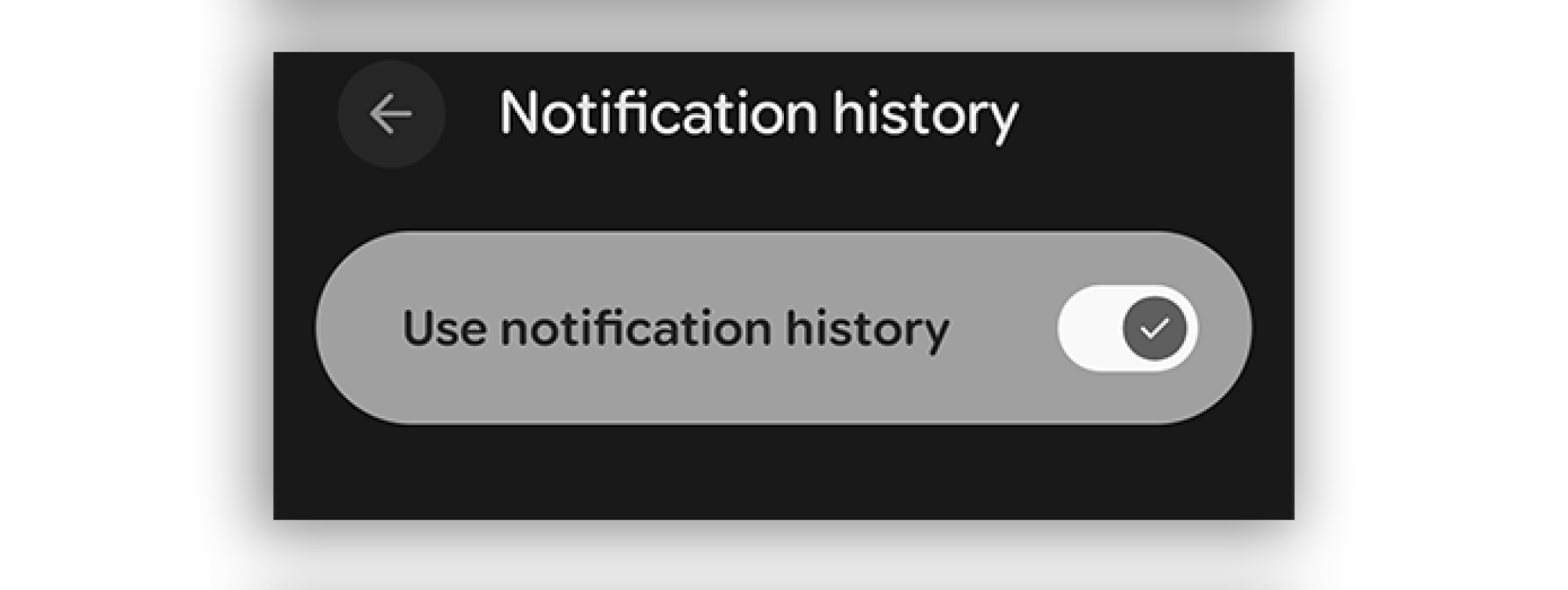
Sometimes, we accidentally dismiss a notification on Android. If you’re always snoozing and missing out on important pings, you can turn on notification history.

a screenshot showing the toggle to turn on Notification history

Credit: Florence Ion/Lifehacker

In Settings, under Notifications, tap to turn on Notification history. Now, when you swipe to dismiss your alerts, you can peek in here to see what you forgot or accidentally swiped away. This feature is also helpful for tracking any apps that might be quietly running in the background.

Maximize (or minimize) screen real estate

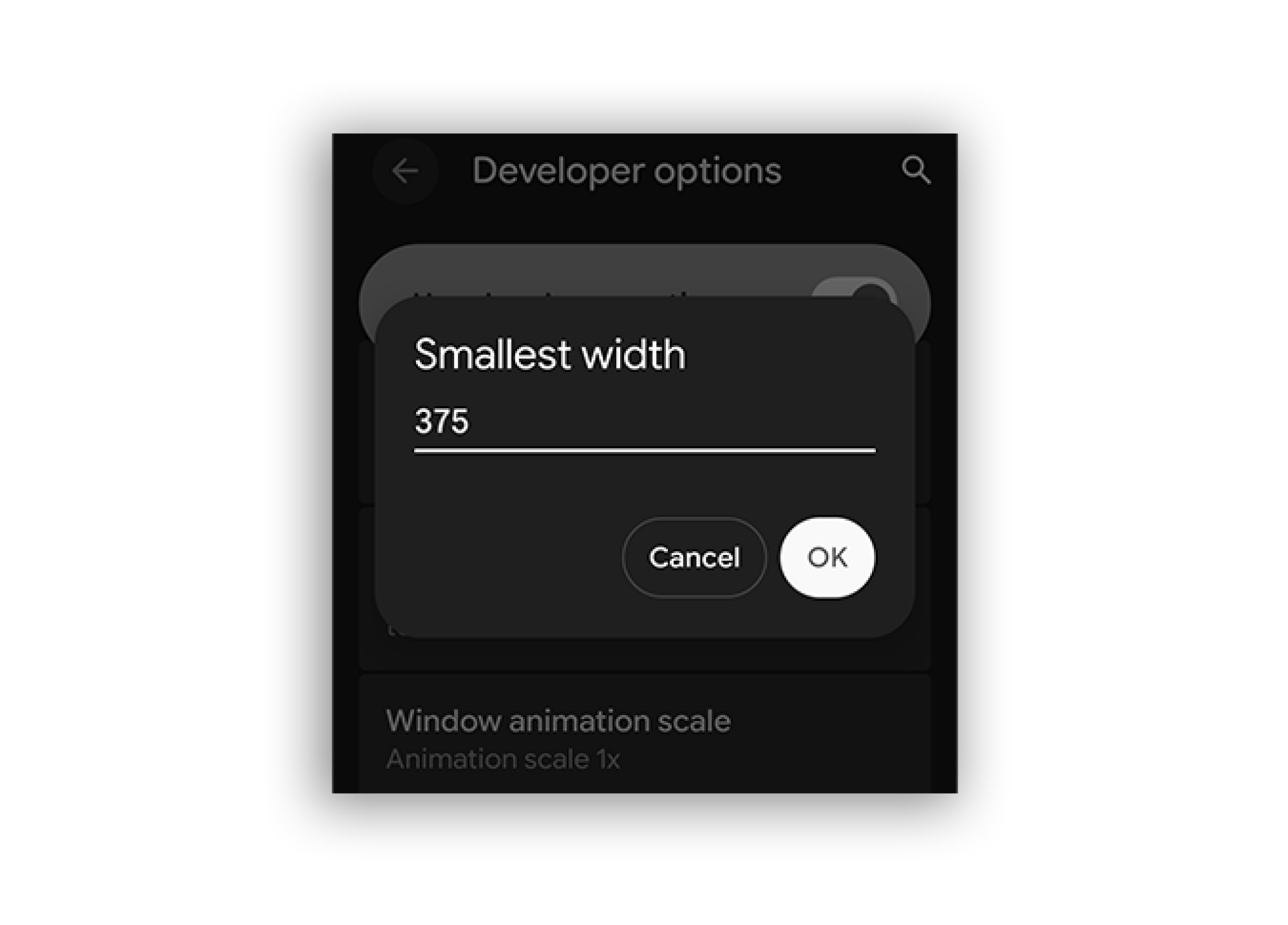
I don’t know what it is about these latest versions of Android, but the text feels either too small or too big when adjusted with the built-in display size settings. You could go into the Accessibility settings to make the text smaller or larger, though it doesn’t affect the rest of the interface much. Or you could deploy Android’s display density (DPI) scaling hack.

A screenshot showing the ability in the developer options to upscale DPI

Credit: Florence Ion / Lifehacker

This is where the developer options come in handy again. You can use the Smallest Width setting to control the DPI precisely, which scales every interface element up and down. Change the value to a higher number if you want fonts and images to shrink down within the resolution—if it starts in the 400s, for instance, try 500 and work backwards until you like what you see. To make fonts and graphics even larger, start around 300.

Adjust what happens when you plug your device in

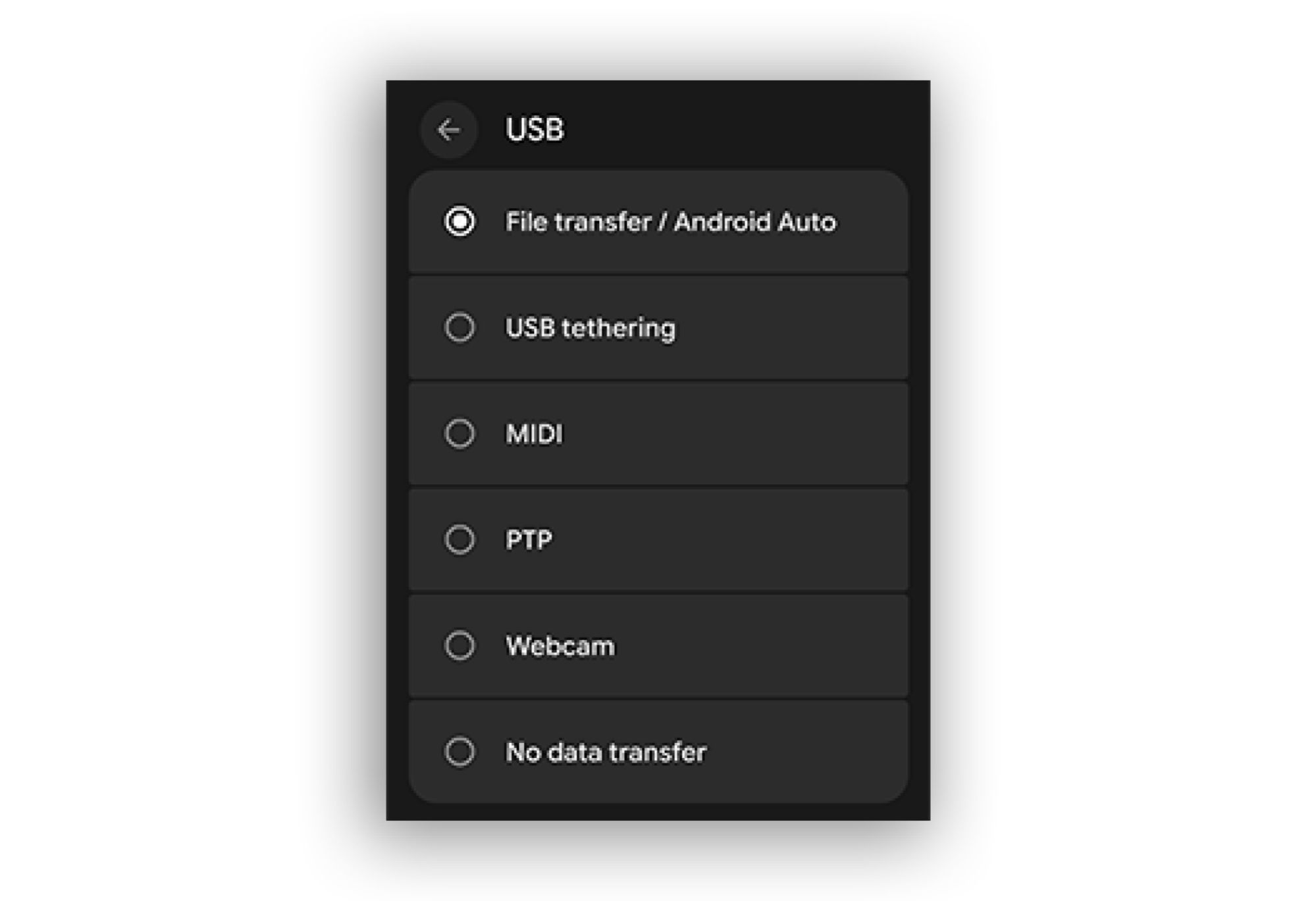
When you plug an Android phone into a PC, it defaults to charging the device rather than turning on file transfer. You can change the option from the notification shade, though it adds a few extra steps to something that should be straightforward. Fortunately, you can tweak the USB default behavior to prioritize file transfers when the device is plugged in via USB-C.

A screenshot showing how to select default USB behavior

Credit: Florence Ion/Lifehacker

In the Developer Options, look for Default USB configuration. Change the setting to File Transfer/Android Auto. Test it by plugging a USB-C cable into a PC to ensure it defaults to file transfer mode.

Get the best audio quality

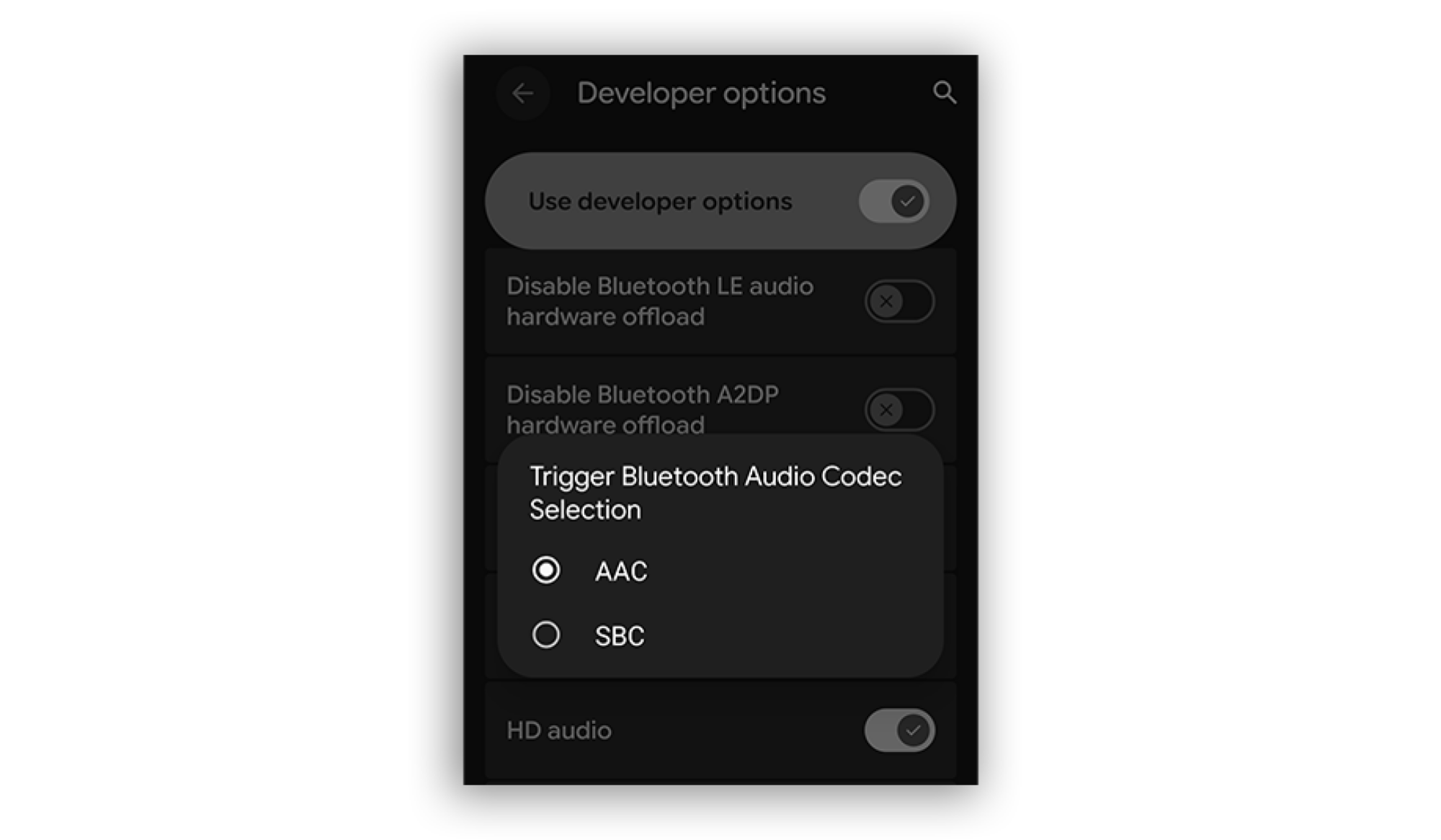
When you stream music or podcasts through headphones or another external source, the audio isn’t at its best. And while you could adjust the equalizer settings in the app that’s streaming media, it won’t fix much. Your phone and the audio device default to standard codecs rather than high-fidelity ones, which is why it doesn’t sound as crisp and loud as it could.

A screenshot showing where you can discover if there are other audio codecs available

Credit: Florence Ion/Lifehacker

You can force Android to use the highest-quality codecs whenever the audio device connects in Developer Options. Search for a Bluetooth audio codec and select the highest-quality option supported by your wireless device. Note that you must be connected to the device when you look for this option, or it will appear grayed out. While you’re in the Developer Options, look for Bluetooth Audio Sample Rate and Bits Per Sample. You can adjust these to higher sampling rates if your hardware supports it.

Make Android look smooth

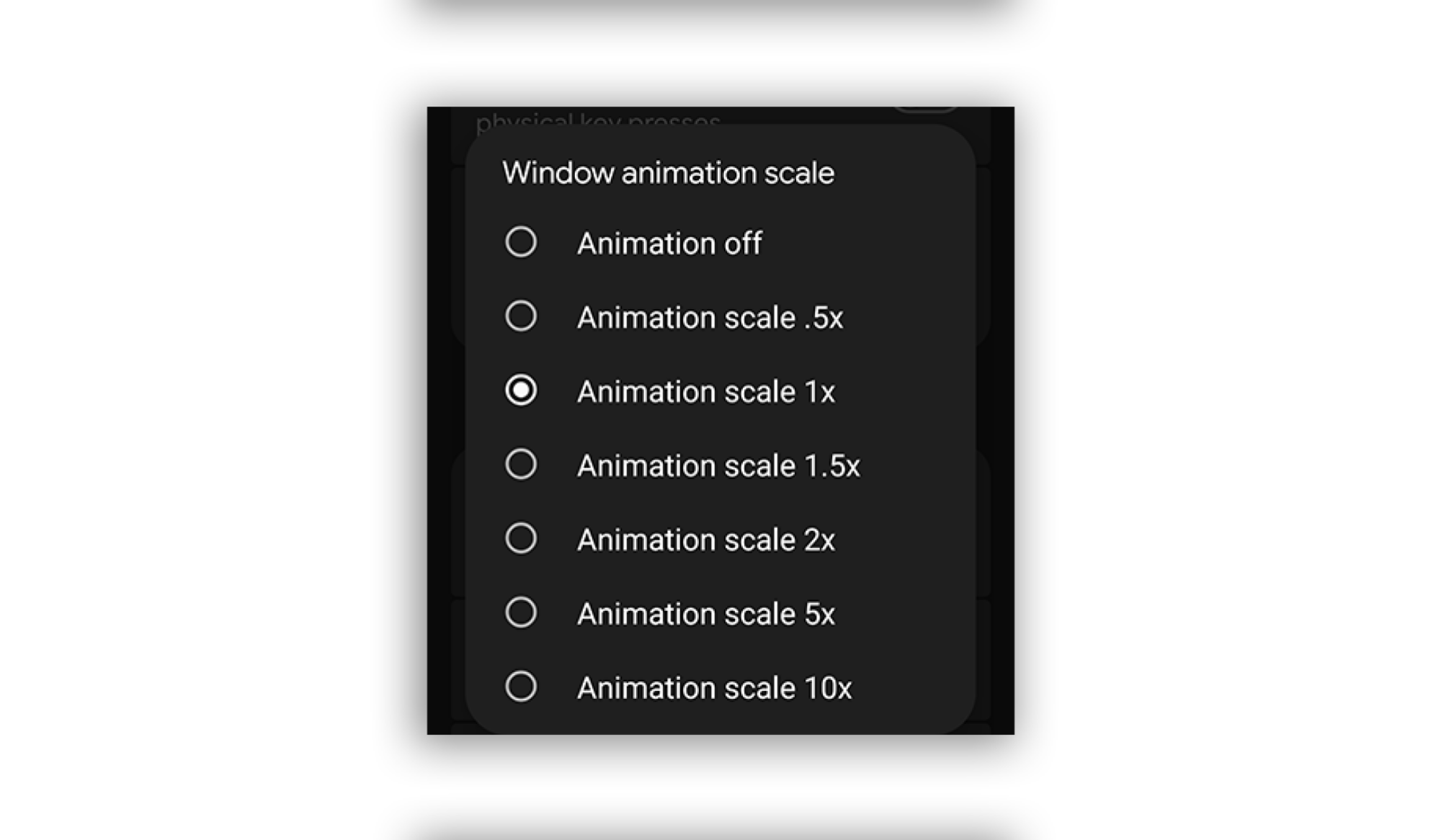
Even on the latest Android flagships, the interface can feel sluggish as you’re moving between screens. That’s because Android deliberately animates between every swipe and flick. But you can eliminate or shorten these animations to make the interface feel more fluid.

A screenshot showing how you can turn down the animation strength

Credit: Florence Ion/Lifehacker

In Developer Options, look for Window animation scale, Transition animation scale, and Animator duration scale. You can adjust their defaults; the lower the number, the faster the animation. You can also choose to turn the animation off completely if it’s just too much.  

Force dark mode

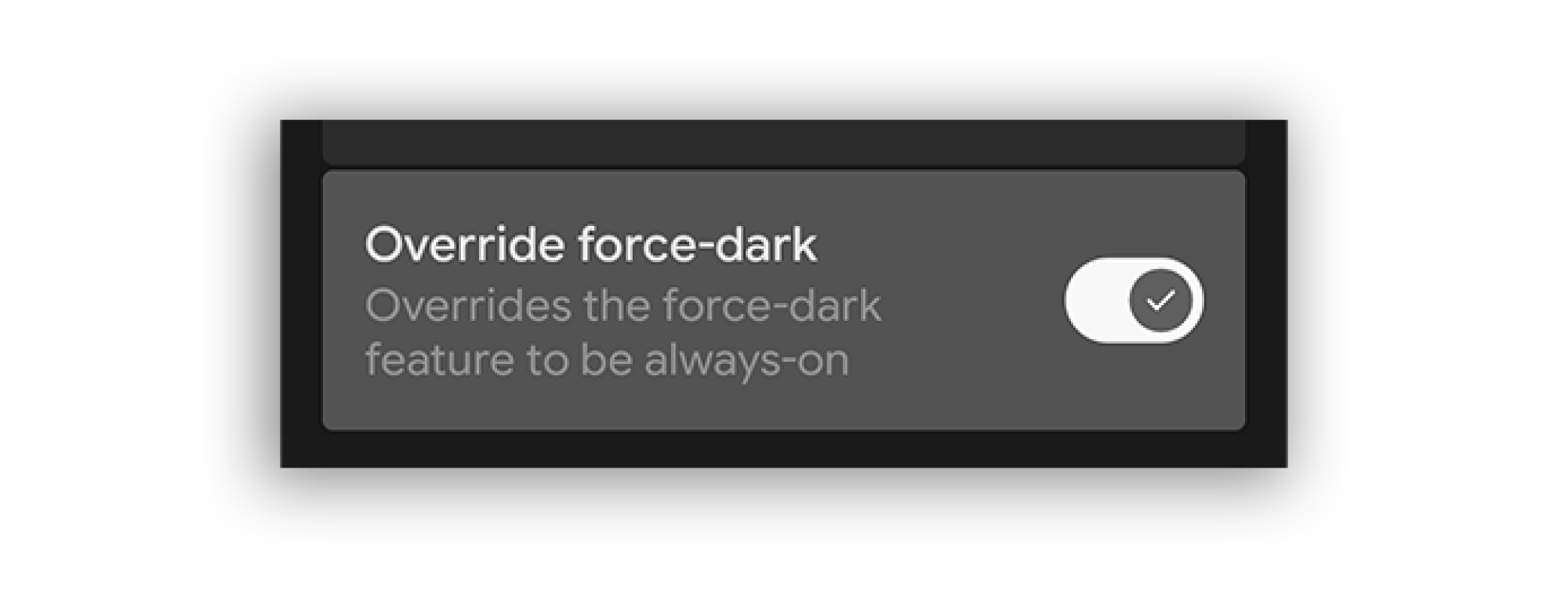
I suffer from migraines, and the brightest background can trigger the pain. I figured out how to force every Android app into dark mode, regardless of whether the developer coded it in.

A screenshot showing the toggle to force dark mode

Credit: Florence Ion/Lifehacker

First, ensure “Dark Theme” is on in your main display settings. Then, navigate to Developer Options and search for Override force-dark. Toggle it on to save your eyes. This feature is also super helpful if you prefer to stare at the screen at night to read. Note that it may cause some apps not to display text properly, in which case, you might want to reserve this ability for when it’s most necessary.

Keep the screen on forever

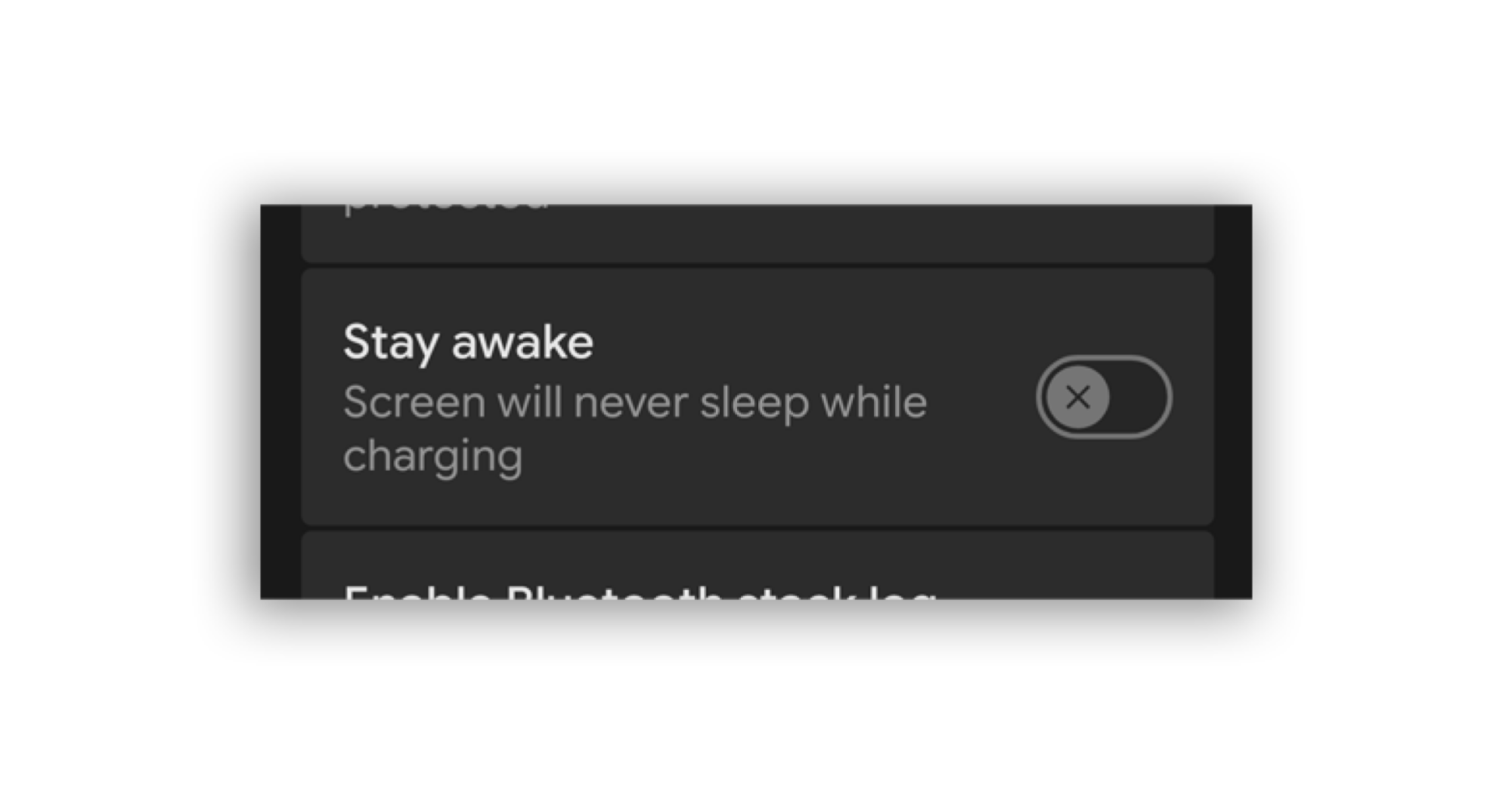
Sometimes you need the display to stay on without timing out. Most Android devices tap out at 30 minutes. But in the developer settings, there is an option to keep the screen “awake” as long as the device is plugged into a power source. I’ve had this feature enabled since I started covering Android phones. It’s the best way to run benchmarks without being affected by random variables.  

A screenshot showing where to toggle the ability to keep the screen on

Credit: Florence Ion/Lifehacker

In Developer Options, search for Stay awake, then switch it on. Note that you will need to turn off the screen when charging the device overnight. Your phone could get hot from being connected and having the screen on for too long.

Get the right device to answer the phone

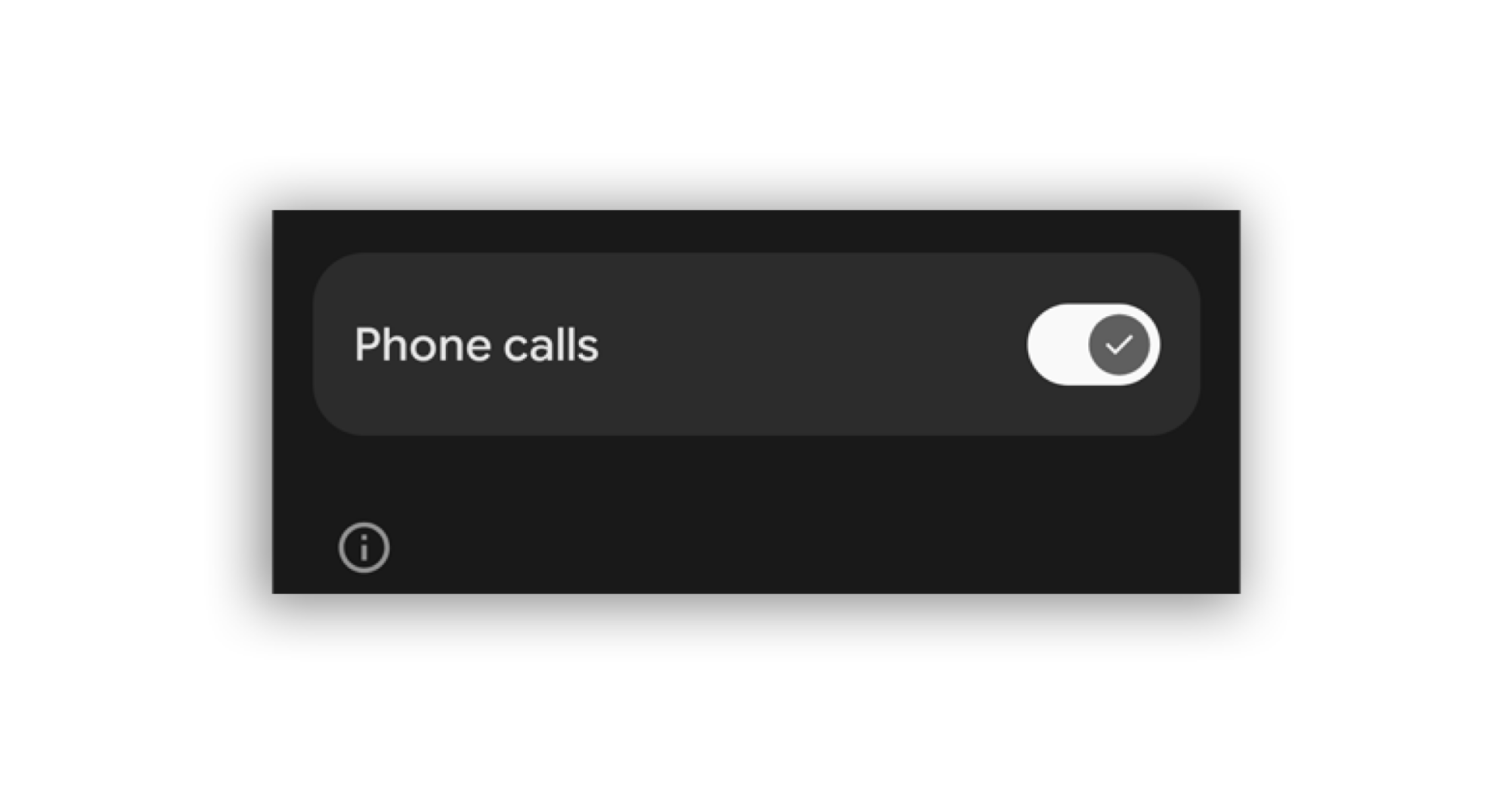
This has happened to me so many times: my phone rings, I answer it, but the call is routed to my smartwatch instead of my buds. While you could manually go into the phone and select the appropriate Bluetooth device, make it easier on yourself by eliminating the devices that you never want to answer the phone.  

A screenshot showing where to toggle off devices that answer the phone

Credit: Florence Ion/Lifehacker

In the Settings panel, under Bluetooth, select the offending device. The easiest way to keep it from rearing its ugly head is to find the switch that completely disables phone calls. You should see an option for it at the bottom of the device’s Bluetooth settings. I’ve disabled the Pixel Watch 4 from answering any calls because there’s no instance I’d ever want to take a call from my watch. It’s too public!


Google Pixel Watch 4 Gets AI-Powered Gestures And It’s On Sale Too

Google Pixel Watch 4 Gets AI-Powered Gestures And It's On Sale Too
Google debuted the Pixel Watch 4 a little over 2 months ago, which brought with it a host of improvements including a new domed display alongside fresh health and fitness capabilities. The latest update will enable users to leverage various gestures and AI features, to complete common tasks.

One of the new gestures, which will be familiar

State Department: Calibri font was a DEI hire

The US Department of State is unwinding a 2023 decision to use san-serif Calibri font on all official communications and switching to Times New Roman instead, The New York Times reports. In a memo obtained by NYT titled “Return to Tradition: Times New Roman 14-Point Font Required for All Department Paper,” Secretary of State Marco Rubio frames the change as a way to return professionalism to the State Department.

“Switching to Calibri achieved nothing except the degradation of the department’s official correspondence,” Rubio said in the memo. That’s because the font is “informal” and clashes with the State Department’s letterhead, according to Rubio, while serif fonts like Times New Roman “connote tradition, formality and ceremony.”

Former Secretary of State Antony Blinken originally switched the State Department to Calibri in 2023 to improve the accessibility of official communications. The curvy, flourish-free lines of sans-serif fonts work better with assistive technologies like screen readers and text-to-speech tools. Serif fonts, meanwhile, are typically used in things like newspapers to make small, printed text legible.

While Rubio notes that Calibri “was not among the department’s most illegal, immoral, radical or wasteful instances of D.E.I.A.,” it seems clear that Rubio lumps the font in with those same diversity, equity, inclusion and accessibility initiatives. Getting rid of it is an easy (and weirdly petty) way to follow through on the second Trump administration’s anti-DEI stance towards just about everything.

This article originally appeared on Engadget at https://www.engadget.com/big-tech/state-department-calibri-font-was-a-dei-hire-190454957.html?src=rss

Tired Of Windows 11’s AI Bloat? Use This Tool To Remove It All In Seconds

Tired Of Windows 11's AI Bloat? Use This Tool To Remove It All In Seconds
It’s no secret that Microsoft’s drive to turn Windows 11 into an “agentic” AI-focused OS has been controversial, but being de facto market leader does not mean users won’t push back, and a handy GitHub script from Zoicware is doing exactly that. For users who want to fully or partially disable AI features in Windows 11, Zoicware’s Remove Windows

Hackers tricked ChatGPT, Grok and Google into helping them install malware

Ever since reporting earlier this year on how easy it is to trick an agentic browser, I’ve been following the intersections between modern AI and old-school scams. Now, there’s a new convergence on the horizon: hackers are apparently using AI prompts to seed Google search results with dangerous commands. When executed by unknowing users, these commands prompt computers to give the hackers the access they need to install malware.

The warning comes by way of a recent report from detection-and-response firm Huntress. Here’s how it works. First, the threat actor has a conversation with an AI assistant about a common search term, during which they prompt the AI to suggest pasting a certain command into a computer’s terminal. They make the chat publicly visible and pay to boost it on Google. From then on, whenever someone searches for the term, the malicious instructions will show up high on the first page of results.

Huntress ran tests on both ChatGPT and Grok after discovering that a Mac-targeting data exfiltration attack called AMOS had originated from a simple Google search. The user of the infected device had searched “clear disk space on Mac,” clicked a sponsored ChatGPT link and — lacking the training to see that the advice was hostile — executed the command. This let the attackers install the AMOS malware. The testers discovered that both chatbots replicated the attack vector.

As Huntress points out, the evil genius of this attack is that it bypasses almost all the traditional red flags we’ve been taught to look for. The victim doesn’t have to download a file, install a suspicious executable or even click a shady link. The only things they have to trust are Google and ChatGPT, which they’ve either used before or heard about nonstop for the last several years. They’re primed to trust what those sources tell them. Even worse, while the link to the ChatGPT conversation has since been taken off Google, it was up for at least half a day after Huntress published their blog post.

This news comes at a time that’s already fraught for both AIs. Grok has been getting dunked on for sucking up to Elon Musk in despicable ways, while ChatGPT creator OpenAI has been falling behind the competition. It’s not yet clear if the attack can be replicated with other chatbots, but for now, I strongly recommend using caution. Alongside your other common-sense cybersecurity steps, make sure to never paste anything into your command terminal or your browser URL bar if you aren’t certain of what it will do.

This article originally appeared on Engadget at https://www.engadget.com/cybersecurity/hackers-tricked-chatgpt-grok-and-google-into-helping-them-install-malware-185711492.html?src=rss

Wells Fargo CEO Says More Job Cuts Coming at the Bank as AI Prompts ‘Efficiency’

Wells Fargo expects more job cuts and higher severance costs in this quarter that ends in three weeks, bank CEO and President Charlie Scharf said Tuesday at an investors conference in New York. He’s also betting on AI to drive efficiency and, eventually, further workforce reduction.From a report: “As we’ve gone through the budgeting process, and even pre AI, we do expect to have less people as we go into next year,” Scharf said at the Goldman Sachs Financial Services Conference in New York City.

“We’ll likely have more severance in the fourth quarter.” The fourth quarter runs Oct. 1 through Dec. 31 for the San Francisco-basaed bank. Wells Fargo already has shrunk from 275,000 employees to about 210,000 since Scharf joined the bank in 2019 — about a 24% decrease. Its largest employee base remains in Charlotte, with about 27,000 workers.


Read more of this story at Slashdot.

Kindle Scribe Colorsoft brings color e-ink to Amazon’s 11-inch e-reader

Amazon has been updating the large-screened Kindle Scribe tablet more frequently and regularly than it updates its standard e-readers, and today the company is announcing the tablet’s third hardware update in four years. The regular Scribe is also being joined by a lower-end Scribe with less storage and no front light and an upgraded Kindle Scribe Colorsoft model with a color e-ink screen. This makes it only the second Kindle to include a color screen, after last year’s Kindle Colorsoft.

Both the regular Kindle Scribe and the Kindle Scribe Colorsoft are available to order starting today for $500 and $630, respectively. Both of those devices include a Premium Pen accessory and 32GB of internal storage; 64GB of storage is available for an extra $50 for both devices. The cheaper front light-less Scribe is coming sometime next year and will run $430 for a model with a more modest 16GB of storage. (These are all much more expensive than the original Scribe’s $340 launch price, but inflation, tariffs, and shortages are wreaking havoc with all kinds of tech prices for the past few years.)

The Scribe and Scribe Colorsoft both come with an updated front light “with miniaturized LEDs that fit tightly against the display,” narrowing the bezel and improving the uniformity of the lighting. Amazon has also tweaked the friction level of the paper-like texture on the glass display, shrunk the gap between the glass and the actual display panel to make writing on the tablet feel more like writing on paper, and added a quad-core processor and more RAM to speed the tablet up.

Read full article

Comments

US taking 25% cut of Nvidia chip sales “makes no sense,” experts say

Donald Trump’s decision to allow Nvidia to export an advanced artificial intelligence chip, the H200, to China may give China exactly what it needs to win the AI race, experts and lawmakers have warned.

The H200 is about 10 times less powerful than Nvidia’s Blackwell chip, which is the tech giant’s currently most advanced chip that cannot be exported to China. But the H200 is six times more powerful than the H20, the most advanced chip available in China today. Meanwhile China’s leading AI chip maker, Huawei, is estimated to be about two years behind Nvidia’s technology. By approving the sales, Trump may unwittingly be helping Chinese chip makers “catch up” to Nvidia, Jake Sullivan told The New York Times.

Sullivan, a former Biden-era national security advisor who helped design AI chip export curbs on China, told the NYT that Trump’s move was “nuts” because “China’s main problem” in the AI race “is they don’t have enough advanced computing capability.”

Read full article

Comments

10 Hacks Every Chromebook Power User Should Know

If you’ve chosen a Chromebook as a laptop, then you know the main benefits that it brings: namely, speed, ease of use, and affordability. Despite the simplicity of ChromeOS, however, there’s more that you can do with it than you might realize. You can use it offline, and you can sync files to and from local storage, for example. The operating system is a lot more powerful and versatile than it often gets credit for.

These hacks are for power users who want to level up their Chromebook capabilities, and get extra value out of their laptop, beyond the standard use cases that everyone knows about. No matter how you use ChromeOS, there should be something here to help.

Use your Chromebook offline

Google Drive offline
Google Drive can work offline.
Credit: Lifehacker

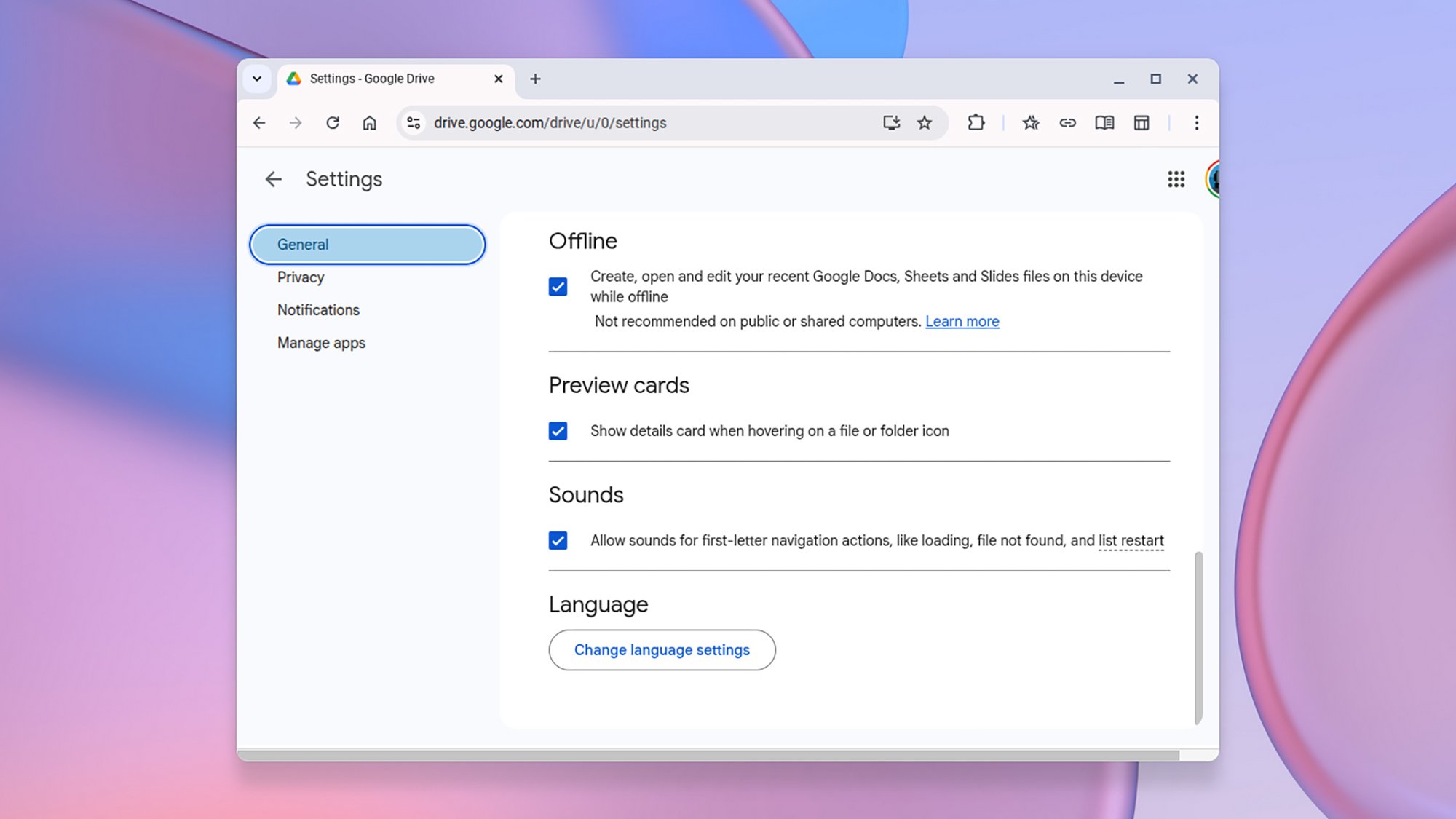
Chromebooks are often criticized for being useless without wifi, but that’s not actually the case: All of the Docs, Sheets, and Slides tools can be used offline, with changes syncing back when your internet connection is restored: From Google Drive, click the gear icon (top right), then choose Settings > General and check the option under the Offline heading.

You can use Gmail offline, too. You can’t send or receive emails, obviously, but you can read through and organize your inbox, and draft emails ready to go once you get your internet back. From Gmail, click on the gear icon (top right), then pick See all settings > Offline. Check the Enable offline mail box and choose how much of your email you want to sync.

Sync media offline

This offline functionality extends to third-party streaming apps too, as ChromeOS supports Android apps. With apps such as Netflix and Spotify, you can sync content to your Chromebook to watch when you don’t have a reliable internet connection—when you’re on a long flight, for example, or traveling between countries.

Talk to your Chromebook

ChromeOS dictation
Enable dictation through the Accessibility settings.
Credit: Lifehacker

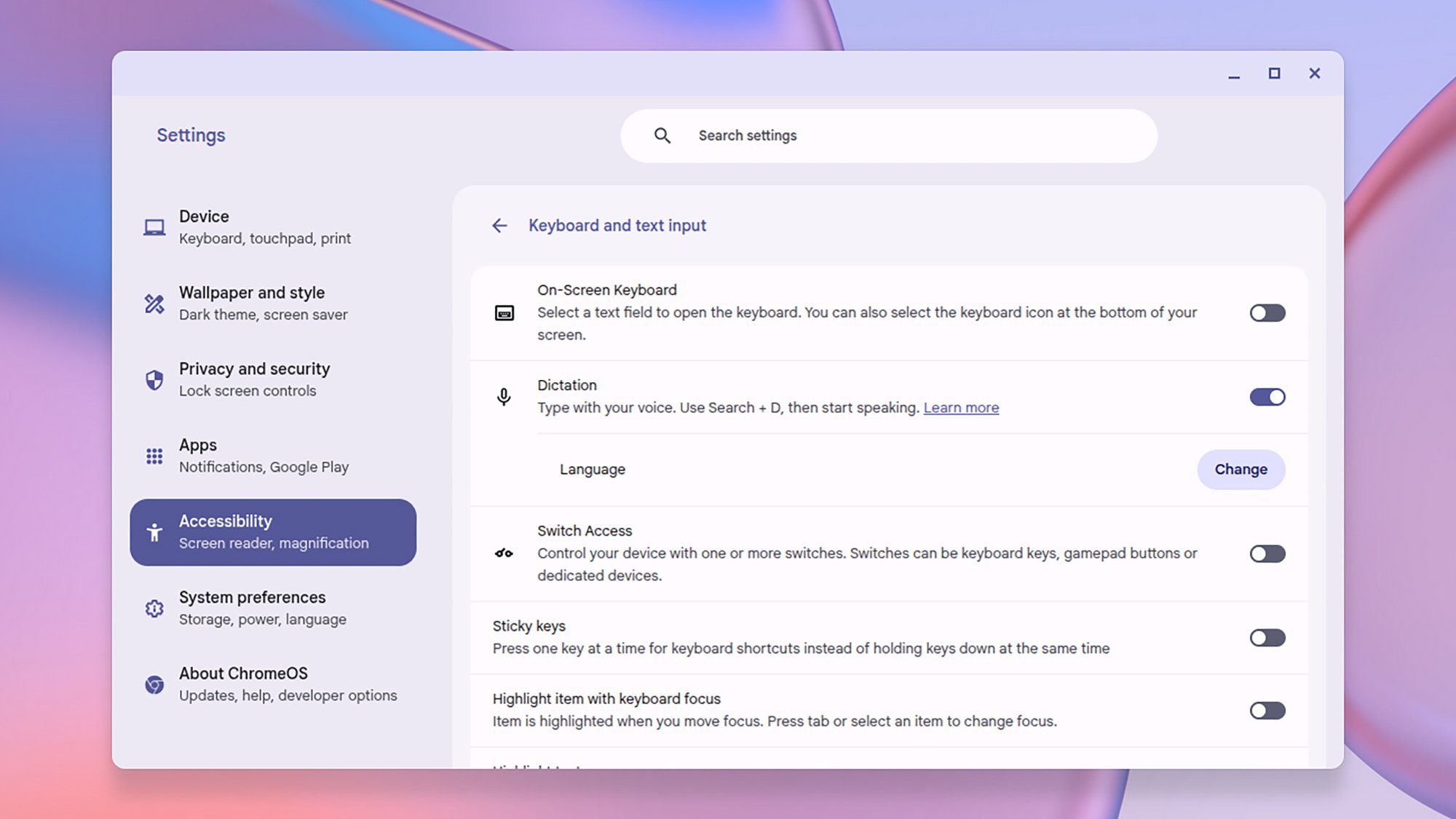
Typing is all well and good, but sometimes talking is faster. Launch Settings, then choose Accessibility > Keyboard and text input > Dictation to enable the feature. You can then press the Launcher (G) button and D to start dictating in any app—whether you’re composing emails or writing essays.

Move local files to Google Drive

One of the pros of using a Chromebook is that everything is synced online pretty much instantly, if you’re using one of Google’s own online apps or something similar. However, there may be local files that accumulate on the laptop, including screenshots and downloads, and sometimes you’ll want to get those synced to the cloud as well.

You can see these files via the Files app that comes built into ChromeOS, and upload them manually via the Google Drive web interface. There’s an easier way to get them into Google Drive, though: From the Files app, select all the local files you want to upload in the pane on the right, then drag them into My Drive under Google Drive in the left-hand menu bar.

Set up virtual desktops

Chromebooks don’t always have the biggest or highest-resolution screens, but you can give yourself more room by managing multiple virtual desktops (which ChromeOS calls “desks”). Press the “show windows” key (it’s the one with little rectangles on it, usually also labeled F3) to view open desks, switch between them, and create new ones.

Enable guest access

As ChromeOS is so tightly tied to your Google account, you don’t necessarily want other people borrowing your laptop and being able to get into your Google apps. The solution is guest mode: Restart your Chromebook or sign out of your current user account, then click Browse as Guest to launch a Chrome window without any Google account attached.

Make full use of the clipboard

ChromeOS can sometimes feel limiting in that you can’t quickly drag files to the desktop or to a temporary folder in the same way that you can on Windows or macOS. You might also see that as a benefit—it means less junk will be cluttering your system—but there could well be times that you just need to store something temporarily for transfer.

That’s where the ChromeOS clipboard comes in: It actually stores five items rather than one, so it’s a useful (if rather hidden) way of moving images, text, and links between websites and apps. Use the usual Ctrl+C, Ctrl+X, and Ctrl+V shortcuts to copy, cut, and paste, then hold down the Launcher (G) button and V to see all the clipboard items.

Open the ChromeOS Task Manager

ChromeOS Task Manager
ChromeOS comes with its own Task Manager.
Credit: Lifehacker

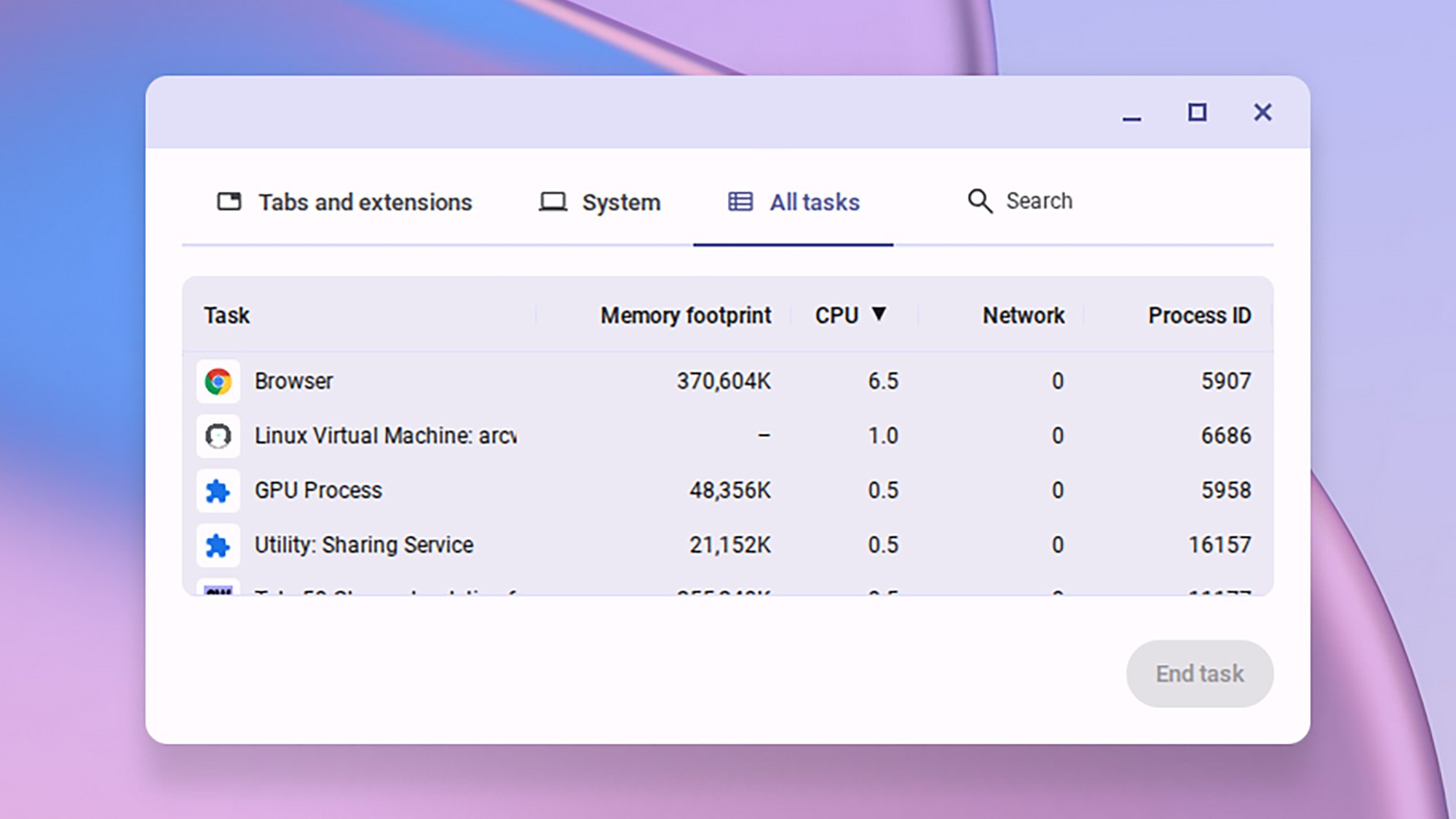
The ChromeOS Task Manager is useful for everything from shutting down crashed apps to seeing exactly where all your RAM is going, and it can be a key tool in the power user’s belt. Open it by pressing the Launcher (G) key and Esc: You’ll see you can browse between individual tabs and system processes, or search for something specific on ChromeOS.

Save an older laptop

ChromeOS isn’t just for Chromebooks: You can give an older, struggling laptop a new lease of life by installing ChromeOS Flex on it (even old laptops can usually handle Chrome). Google has full instructions for what you need to do to get this working, and will guide you through the process of creating a bootable USB drive with the ChromeOS software on.

Explore beta and dev channels

ChromeOS channel
Switching up the channel on ChromeOS.
Credit: Lifehacker

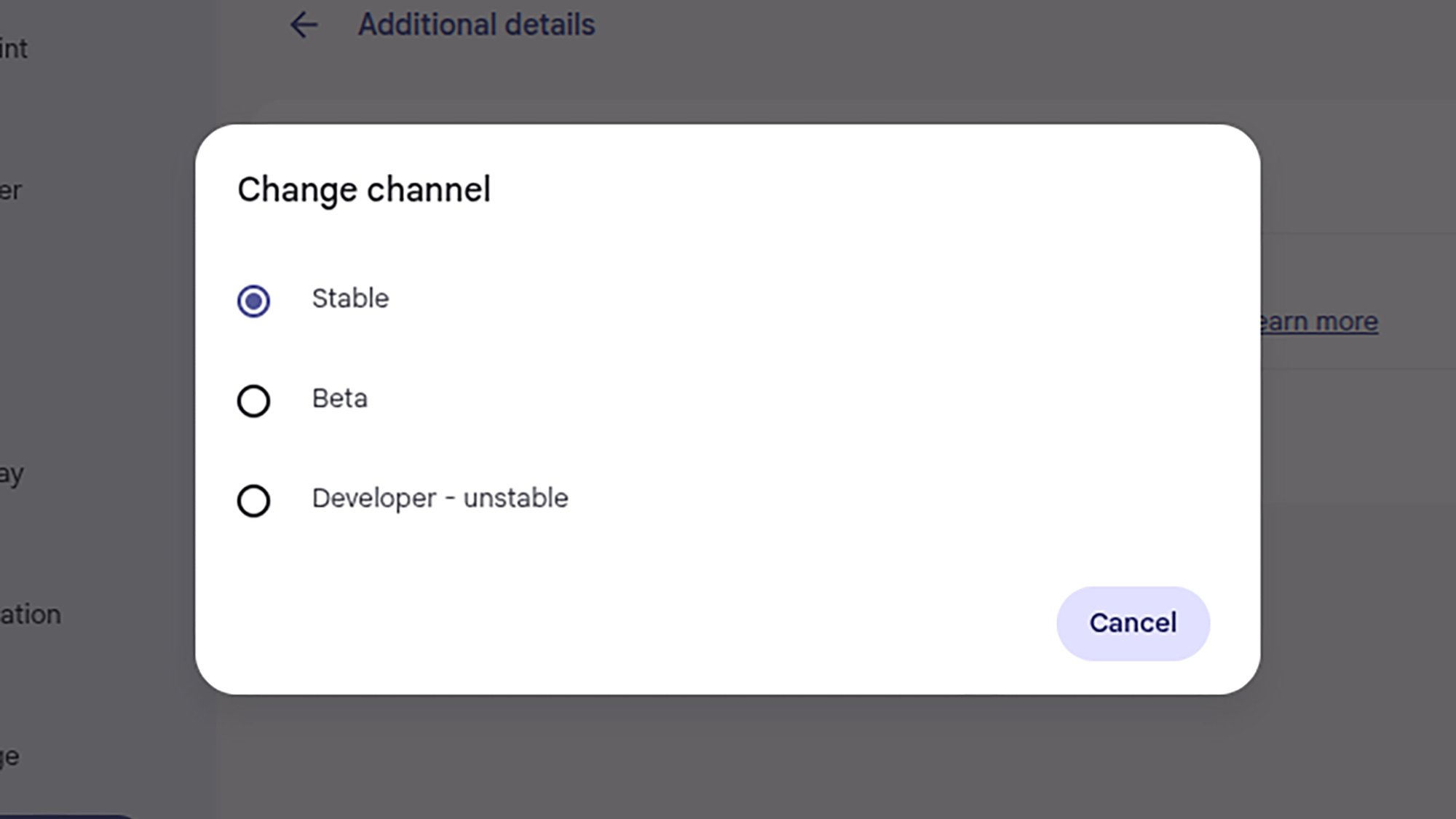
As with a lot of software, there are beta and dev channels of ChromeOS available as well as the stable one. If you want to get the newest Chromebook features before everyone else, and don’t mind a few bugs along the way, then you can make the switch. It doesn’t take long, and you can always switch back again, though a system reset is sometimes required.

To change between ChromeOS channels, click on the time panel (bottom right), then click the gear icon to get to the main Settings page. Choose About ChromeOS > Additional details > Change channel, then choose whichever one you want to use. You’ll keep getting over-the-air updates for your selected channel until you switch to a different one.

YouTube TV Plans will let you choose genre-specific content packages

YouTube TV, which launched in 2017 as a $35-per-month all-in-one service, will soon introduce YouTube TV Plans. Although the announcement is light on details, we know the initiative will let you sign up for genre-specific packages, such as sports and news. In other words, it’s the final step in the legacy-cable-ification of the service.

YouTube hasn’t said anything about pricing. But it’s probably safe to assume that narrowing your available content will reduce your bill. A year ago, the company raised its monthly cost to $83. That’s 137 percent higher than the service’s launch price nearly nine years ago.

We don’t yet have the full list of available plans, but YouTube mentioned packages for sports, news and “family and entertainment content.” As expected, it promised that you can mix and match them. The YouTube TV Sports Plan will include access to all major broadcast channels and several sports networks, like all ESPN networks, FS1, and NBC Sports Network. It sounds similar to offerings from Fubo and DirecTV.

YouTube TV plans will launch in early 2026. The current $83 all-in-one model will remain available alongside it.

This article originally appeared on Engadget at https://www.engadget.com/entertainment/streaming/youtube-tv-plans-will-let-you-choose-genre-specific-content-packages-182909455.html?src=rss

After key Russian launch site is damaged, NASA accelerates Dragon supply missions

With a key Russian launch pad out of service, NASA is accelerating the launch of two Cargo Dragon spaceships in order to ensure that astronauts on board the International Space Station have all the supplies they need next year.

According to the space agency’s internal schedule, the next Dragon supply mission, CRS-34, is moving forward one month from June 2026 to May. And the next Dragon supply mission after this, CRS-35, has been advanced three months from November to August.

A source indicated that the changing schedules are a “direct result” of a launch pad incident on Thanksgiving Day at the Russian spaceport in Baikonur, Kazakhstan.

Read full article

Comments

Democrats Warn Their Party May Try To Unravel Any Paramount-Warner Bros. Discovery Deal

As the battle over Warner Bros. Discovery grows, two Democratic lawmakers are warning that their party may try to block or unravel any
acquisition by Paramount when it returns to power. Semafor: In a letter to the WBD board and Treasury Secretary Scott Bessent first shared with Semafor, Reps. Sam Liccardo (D-Calif.) and Ayanna Pressley (D-Mass.) said they were concerned about the national security risk of letting foreign entities control a large portion of the US entertainment and media industry.

They also hinted that a future Democratic Congress and administration could try to unravel any Paramount-WBD deal. “Future Congresses … will review many of the decisions of the current Administration, and may recommend that regulators push for divestitures, which would undermine the strategic logic of this merger,” they wrote. “We urge the Board to weigh these national security and regulatory liabilities in evaluating a transaction burdened by uncertain but potentially extensive mitigation obligations, foreign influence risks, or adverse regulatory action.”


Read more of this story at Slashdot.

Ugly infotainment mars the 2025 Subaru Forester Hybrid experience

Although many of us associate it with rally-derived machinery from the late 1990s and early 2000s, these days, Subaru has mostly abandoned its performance cars to concentrate on its true calling—rugged, all-wheel-drive vehicles that are high on practicality, powered by horizontally opposed “boxer” engines. One area where the brand has never particularly excelled has been fuel efficiency, which is where today’s test car, the Subaru Forester Hybrid, comes in.

The last time Ars reviewed a Subaru Forester, it left us impressed. How about one with 40 percent better economy, in that case? Now, the 2.5 L flat-four engine operates on the Atkinson/Miller cycle, which generates 162 hp (121 kW) and 154 lb-ft (208 Nm). There’s an electric motor-generator starter and an electric traction motor with 118 hp (88 kW) and 199 lb-ft (270 Nm) that work together to send a combined 194 hp (145 kW) to all four wheels via a symmetrical all-wheel drive system and a planetary continuously variable transmission.

Subaru Forester Hybrid in profile
The Forester Hybrid is 183.3 inches (4,656 mm) long, 70.2 inches (1,783 mm) wide, and 68.1 inches (1,729 mm) tall, with a 105.1-inch (2,670 mm) wheelbase.


Credit:

Jonathan Gitlin

Subaru Forester Hybrid seen head-on
Spot the two EyeSight cameras at the top of the windscreen.


Credit:

Jonathan Gitlin

Subaru Forester Hybrid seen from behind
Hatching plots.


Credit:

Jonathan Gitlin

If that sounds vaguely familiar, that’s because it’s the same powertrain that Subaru has also fitted to the smaller Crosstrek Hybrid that we drove in September.

Read full article

Comments

Amazon brings same-day deliveries of perishable food items to 1,300 new areas

Amazon is introducing same-day delivery of perishable food items to 1,300 new cities and towns throughout the country, upping the total service area to more than 2,300 locations. This expansion covers cities like Boise, Salt Lake City, Fort Collins, Omaha, Des Moines and many more.

Check the link to see if it has expanded to where you live. The commerce giant says it will be bringing the service to even more cities in 2026, making the platform a real rival to stuff like Instacart and Walmart+.

Amazon introduced this feature earlier this year and it has proven to be quite the success, given today’s move. It lets people order perishable food items like fruits, vegetables, dairy and meat alongside other more traditional items like electronics and books.

Amazon uses a “specialized temperature-controlled fulfillment network” to ensure that perishables remain in tip-top shape and they are delivered in insulated bags. The deliveries are free for Prime members, as long as the order exceeds $25. Everyone else has to pay $13 per order.

Some items.
Amazon

The company says that fresh groceries already make up nine of the top ten most-ordered items for quick delivery, which is a fairly astounding metric. People want their avocados. Amazon has been steadily increasing the number of items available via this method by incorporating Whole Foods products.

This article originally appeared on Engadget at https://www.engadget.com/big-tech/amazon-brings-same-day-deliveries-of-perishable-food-items-to-1300-new-areas-175746531.html?src=rss