Multiple Studies Say Video Games Can Boost Brain Power And Fight Burnout

Multiple Studies Say Video Games Can Boost Brain Power And Fight Burnout
Two recent studies have highlighted gaming’s potential benefits for mental health and acuity. The most recent is a study published this month by JMIR Serious Games, named Super Mario Bros. and Yoshi Games’ Affordance of Childlike Wonder and Reduced Burnout Risk in Young Adults: In-Depth Mixed Methods Cross-Sectional Study. This study, authored

Today’s the last day to get $100 off the PS5 and PS5 Pro

Back in November, Sony started selling PS5 consoles at a $100 discount as part of a Black Friday/Cyber Monday promotion. The deal officially sunsets at 3AM ET, so now is a good time to bite the bullet on a gaming console given that prices aren’t likely to go down anytime soon.

You can pick up a regular disc-based PS5 for $450 and a digital model for $400. The beefy PS5 Pro is available for $650. All of these deals are active on Amazon, but also directly from Sony.

If the costs here still sound a bit high, that’s because Sony raised console prices by $50 back in August. In other words, these $100 discounts are pretty much $50 discounts when factoring in that recent increase. Still, cheaper is cheaper. This puts the digital PS5 at the same price as an Xbox Series S and the disc-based version at the same price as a Switch 2.

Both standard PS5 configurations won’t arrive until December 28. The PS5 Pro, however, is available for same-day shipping if you’re jonesing for one last holiday gift.

The PS5 has a fairly large stable of exclusive titles made by Sony-owned studios. These include games like Horizon Forbidden West, Astro Bot, Death Stranding 2 and Ghost of Yotei.

This article originally appeared on Engadget at https://www.engadget.com/gaming/playstation/todays-the-last-day-to-get-100-off-the-ps5-and-ps5-pro-181454333.html?src=rss

Some of DOJ’s Careful Redactions Can Be Defeated With Copy-Paste

The Justice Department justified its delayed release of sensitive files by citing the need to carefully redact information that could identify victims, but at least some of those redactions have proven to be technically ineffective and can be bypassed by simply copying and pasting the blacked-out text into a new document.

A 2022 complaint filed by the US Virgin Islands seeking damages from Jeffrey Epstein’s estate appeared on the DOJ’s “Epstein Library” website with black boxes throughout. Techdirt founder Mike Masnick and others shared on Bluesky that the redactions could be trivially circumvented. The exposed text includes allegations that a co-executor signed over $400,000 in foundation checks “payable to young female models and actresses, including a former Russian model,” and details about an immigration lawyer allegedly “involved in one or more forced marriages arranged among Epstein’s victims.”

Separately, Drop Site News was also apparently able to guess URLs of files not yet published by extrapolating the format.


Read more of this story at Slashdot.

This Last-Minute Sale on the Switch 2 Bundle Is Available at Best Buy Today

We may earn a commission from links on this page. Deal pricing and availability subject to change after time of publication.

The Nintendo Switch 2 with Mario Kart World bundle is in stock at Best Buy after running out of stock very quickly on Amazon. The deal includes the new console with the new Mario Kart for the same price as the standalone console. You can get this one for $449 (down from $499)—the lowest price it has reached yet, according to price-tracking tools. (Note that you can only see the price once you’ve signed in and it’s in your cart, as Nintendo restricts retailers from promoting anything below the “minimum advertised price” of $499.) To top it off, Best Buy is somehow promising to have it delivered to your home by 9 p.m. tonight, Dec. 24—a true Christmas miracle. Not all locations will be available, so make sure you see the “shipping get it by 9 p.m. today” note above “add to cart.” You can also pick it up within an hour if time is of the essence.

This bundle deal is great, and likely the best one you’ll see for quite some time, judging by Nintendo’s previous deals. To put it into perspective, the OLED edition of the original Nintendo Switch is $400 right now, meaning you can get the new Switch 2 with Mario Kart for $50 more. The new console is also an upgrade in every way, according to Associate Tech Editor Michelle Ehrhardt’s Nintendo Switch 2 review. The ergonomics and design have improved, making it much better to hold and look at. The battery life has also improved, now with about 180 minutes of handheld playtime before the juice runs out.

A big plus is that the Switch 2 is backwards compatible, meaning you can play your old Switch games on it. Some Switch games have the ability to upgrade to the Switch 2 Edition by buying that game’s upgrade pack. This is especially worth it for games like The Legend of Zelda: Tears of the Kingdom, which will look better on the Switch 2.

There aren’t a lot of Switch 2 games out at the moment, but there are some classic Nintendo games to keep you busy until the library expands, like Donkey Kong Bananza, Kirby Air Riders, and Hyrule Warriors: Age of Imprisonment.

AMD Expo 1.2 Expected To Bring Faster Memory Overclocking & CUDIMM Support

AMD Expo 1.2 Expected To Bring Faster Memory Overclocking & CUDIMM Support
Because of the way we interact with these features, it’s easy to think of Intel XMP and AMD EXPO as binary, ‘yes or no’ features, but both standards have actually gone through a few revisions. Right now, we’re on revision 1.1 of AMD’s EXPO, but it looks like 1.2 is on the horizon, and we know that because it has just appeared in the patch

This Hidden Spotify Feature Makes the Best Personalized Playlists

Spotify playlists are a surprisingly big part of my life. I make a handful of new, curated, choreographed ones for the spin classes I teach every week and otherwise meticulously maintain quarterly playlists designed to represent the overall vibe of specific, three-month periods in my life. I only edit those during the 12 weeks of the quarter, then leave them alone so I can revisit them and relive the era. This means I am constantly fiddling with the present playlist to make it just right, searching for songs that feel precisely aligned with however I’m feeling. It’s actually a time-consuming hobby—but I stumbled across a feature the other day that has made creating spin playlists and soundtracking Q1 of 2026 easier than ever.

The new Spotify feature

The best way I can describe the feature I stumbled upon is that it’s like Tinder for songs. If you’re listening to a song within the app, scroll down. Go past the buttons for Play and Next, past the About the artist section, past the lyrics, and stop when you see Explore [artist name]. Then, you’ll have three options like Similar to [artist name] and Similar to [song name], but these can differ slightly.

Tapping one of those opens up the new feature. Say you choose Similar to [song name]. You’ll be given 30 seconds of a song that Spotify’s algorithm considers “similar” to the one you were just listening to, plus the artist’s name, how many Spotify followers they have, and a three-dot menu that will let you add the song to your likes, add it to a playlist, go to the artist’s page, and more. If you like the 30-second clip, you can add the song to your playlists. If not, you can keep swiping downward to hear a new one.

See how it’s like Tinder? You make fairly snap decisions based on the quick preview and few details you get, then swipe away if you don’t like it. I found a community forum post on Spotify’s website about it, but otherwise, not much chatter. All I can tell is that it’s been out since about May.

Why I like the feature

I prefer this to the other music-discovery options on Spotify because it gives you a quick preview of the song and makes the finding process simple. I am, of course, a big fan of the pre-generated Discover Weekly playlist or New Releases playlist Spotify makes for me every week, but it’s time-consuming to listen to all the songs in them and it’s not intuitive to find other new songs based on the finite playlists themselves. The 30-second quick hits and easy, swipeable dismissal of the new feature help me figure out if a song is worth my time, either for spin class or personal use, add it to the appropriate playlist if so, and keep moving.

What I especially like is the three hashtags under the artist’s name. They are genre descriptions that match up with whatever song you’re previewing and I’ve found them helpful because I have a hard time describing what kind of music I even like. Apparently, per the new feature, I like something called “speed garage.” Tapping the #speedgarage hashtag that appears in the song previews brings me to another scrollable preview pane full of, exclusively, more speed garage—whatever that actually is. I still can’t define it, but I learned I like it, and that alone is more beneficial than a year’s worth of Discover Weekly playlists.

I used this feature during my Uber ride to the airport the other day and, by the time I was through TSA, I had 29 new songs in my Q1 playlist. I listened to them on the plane, weeded out ones that didn’t match the quarterly vibe well enough, then sent it to my friends, who all gave the collection rave reviews like, and I quote, “this slaps.”

What Rules Govern Hallmark Christmas Movies?

Hallmark has released more than 300 Christmas-themed TV movies since 2000, and a detailed internal rulebook obtained by film data analyst Stephen Follows explains how the company manages to produce nearly one new holiday film per week during the final quarter of each year without the whole operation collapsing into creative chaos.

The document, referred to as Hallmark’s “bible” by writers and producers who have worked on these films, specifies everything from script length (105-110 pages across a rigid nine-act structure) to prohibited activities (no bowling, no karaoke). Christmas movies must include snow or its remnants and feature characters engaged in seasonal activities like baking cookies, ice skating, and drinking hot chocolate.

The target demographic is women aged 25-54, and the content must be watchable by an 80-year-old grandmother and a 5-year-old niece simultaneously. The economics differ sharply from theatrical filmmaking. Licensed titles from outside production companies carry budgets around $500,000 or less, while Hallmark’s in-house productions can exceed $2 million. About three-quarters of the library comes from external producers. The formula appears to work. Hallmark TV movies have averaged a 6.3 IMDb user score over the past 14 years, compared to 5.9 for feature films worldwide.

Further reading: Using Data To Determine if ‘Die Hard’ is a Christmas Movie.


Read more of this story at Slashdot.

Amazon Undercuts Apple With A Great M4 Mac Mini Deal For 20% Off

Amazon Undercuts Apple With A Great M4 Mac Mini Deal For 20% Off
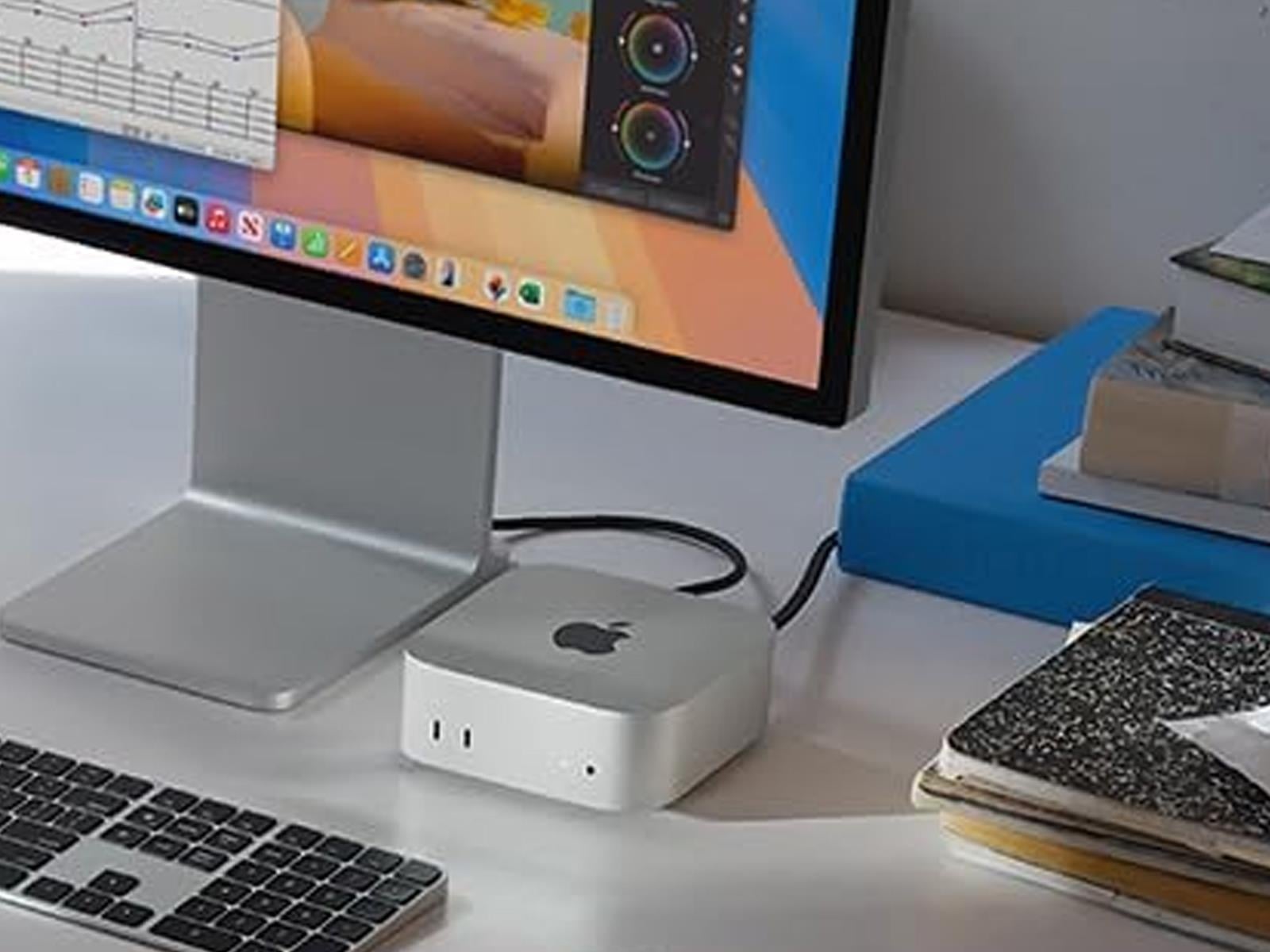
Ladies and gentlemen, boys and girls, and deal hunters far and wide, do yourself a solid and don’t sleep on the Mac mini if you’re in the market for a compact PC (yes, Macs are technically PCs too). They’re great systems, and the model with an M4 chip inside is on sale right now for 20% below Apple’s regular asking price, making this a really

Being Santa Claus is a year-round calling

Tis the season when professional Santas are in peak demand, but many who choose this line of work often view it as a higher calling and maintain some aspects of the identity all year round—even those who don’t fit the stereotypical popular image of Santa, according to a paper published in the Academy of Management Journal.

Co-author Christina Hymer of the University of Tennessee got the idea for the study during the COVID pandemic, when she spent a lot of time watching Christmas movies with her toddler. One favorite was 2003’s Elf, starring Will Farrell as a full-sized human raised among elves who goes to New York City to find his biological father. The film prompted her to wonder about why someone would want to be Santa Claus and what their experiences in that role would be.

Hymer and her co-authors partnered with the leader of a “Santa school” to analyze archival surveys of 849 professional Santas, and conducted a new survey of another 382 Santas. They also did over 50 personal interviews with professional Santas. (One subject showed up in full costume for his zoom interview, with a North Pole background, and signed off with a merry “ho! ho! ho!”)

Read full article

Comments

How to set up an iPad for a child

Creating a child-friendly iPad takes a few extra steps, but Apple’s tools make the process relatively straightforward. From creating a child’s Apple ID to adjusting Screen Time and privacy settings, you can shape how your child uses the device and protect them from inappropriate content. The process varies slightly depending on whether the iPad is new or already in use, but the principles are the same: set up a managed account, connect it to Family Sharing and fine-tune the controls that keep your child’s digital space safe.

Create an Apple ID for your child

Every kid using an iPad should have their own Apple ID. This allows you to manage their account through Family Sharing and gives them access to features like iCloud, the App Store and Messages under your supervision. Apple requires parents to create accounts for children under 13, which can be done directly from your own device.

Open the Settings app on your iPhone or iPad, tap your name at the top and select Family. Tap Add Member, then Create Child Account, and follow the onscreen prompts. You’ll need to provide your child’s name and birth date, along with parental consent using your own Apple ID password. Once created, the account is automatically added to your Family Sharing group.

If your kid already has an account, you can invite them to join your Family Sharing setup instead. On the iPad, go to Settings > Family > Add Member, then select Invite People to send a request to their existing Apple ID email address. When they accept, you’ll be able to manage parental controls from your own device.

Add your child to Family Sharing

Family Sharing brings all your family’s Apple devices together under one umbrella. It lets you share subscriptions, purchases and iCloud storage, while giving you oversight of your child’s activity. The Ask to Buy feature, for example, requires your approval before your child can download apps or make in-app purchases, helping to avoid surprise charges.

To enable Family Sharing on your iPad, go to Settings > [your name] > Family, then tap Add Member if your child isn’t already added. You can manage shared purchases, location sharing and Screen Time settings from here. Linking devices through Family Sharing also makes it easier to locate a lost iPad and maintain consistent restrictions across all your family’s devices. For broader setup advice, see Engadget’s guide on how to set up a phone or tablet for a child.

Set up Screen Time and parental controls

Once your child’s account is linked, you can use Screen Time to manage how the iPad is used. Screen Time is found under Settings > Screen Time, and it lets you set time limits, restrict certain apps, and monitor usage reports.

When first opening Screen Time on your child’s iPad, tap This is My Child’s iPad. You’ll be prompted to create a unique Screen Time passcode. This passcode is different from the iPad’s unlock code and prevents your child from changing settings without permission, so make sure you remember it. From here, you can configure several key features.

Downtime allows you to block all but essential apps and calls during certain hours, such as bedtime or homework time. App Limits sets daily time limits for categories such as games, entertainment or social networking. You can also set Communication Limits to control who your child can contact throughout the day and during Downtime, which is useful for if you only want them to message family members or trusted friends. The Always Allowed section lets you choose essential apps, such as Messages or educational tools, that remain accessible at all times.

You can adjust these settings from your own device if your child is part of your Family Sharing group. Screen Time reports provide detailed insight into how the iPad is used, so you can see which apps are used the most and make adjustments as needed.

Enable Content and Privacy Restrictions

Content and Privacy Restrictions offer finer control over what your kid can and cannot do with their iPad. To enable them, go to Settings > Screen Time > Content & Privacy Restrictions, and toggle them on.

Within this menu, you can manage App Store purchases and downloads, disabling in-app purchases or preventing your child from installing or deleting apps. You can also filter explicit content in Apple Music, TV, and Books, and apply web restrictions in Safari to limit adult content. Under Web Content, choose Limit Adult Websites or specify certain sites that are allowed or blocked.

Privacy controls extend beyond content. You can manage location services, camera and microphone access and other sensitive permissions. For example, turning off location sharing in certain apps can help safeguard your child’s privacy. You can also prevent changes to accounts, passcodes and cellular settings, ensuring that restrictions remain consistent.

Fine-tune privacy and safety settings

Beyond Screen Time, Apple includes additional tools to make iPads safer for children. In Safari, you can enable SafeSearch to filter explicit results in search engines. Restrict AirDrop under Settings > General > AirDrop to limit sharing to Contacts Only or turn it off completely, reducing the potential for exposure to unsolicited files.

Messages includes a Communication Safety feature that uses on-device machine learning to detect sensitive images. When enabled, the iPad will blur images that contain nudity and offer guidance before the child can view them. You’ll find this under Settings > Screen Time > Communication Safety. It works entirely on the device and doesn’t send data to Apple, preserving privacy while offering extra protection.

If your child uses Game Center, you can limit multiplayer games, profile visibility and the ability to add friends. These small adjustments can prevent unwanted social interactions or exposure to inappropriate content in online games.

Use Guided Access for younger children

For younger children or toddlers, Guided Access can keep them focused on a single app and prevent them from accidentally navigating elsewhere. To enable it, open Settings > Accessibility > Guided Access, then toggle it on and set a passcode.

Once it’s active, open the app you want your child to use and triple-click the top button (or the Home button on older models). Guided Access locks the iPad to that app until you end the session with your passcode. You can disable hardware buttons or touch input areas to avoid navigating elsewhere in the app or accessing playback controls. This feature is ideal when you want your child to watch a video or use an educational app without interruption.

Keep everything up to date

After initial setup, it’s important to revisit these settings occasionally. Children’s needs change as they grow, and Apple regularly adds new parental features with each iPadOS update. Keep the iPad updated by going to Settings > General > Software Update, and review restrictions periodically to ensure they still fit your child’s age and usage patterns.

Setting up an iPad for your child isn’t just about managing screen time or blocking certain apps. It’s about creating a space that encourages safe exploration while maintaining healthy boundaries. With Apple’s parental tools, you can find the right balance between freedom and supervision, making the iPad a secure and educational part of your child’s digital world.

This article originally appeared on Engadget at https://www.engadget.com/mobile/tablets/how-to-set-up-an-ipad-for-a-child-160001671.html?src=rss

25.2% of Energy EU Used in 2024 Came From Renewables

An anonymous reader shares a report: In 2024, 25.2% of gross final energy consumption in the EU came from renewable sources, up by 0.7 percentage points compared with 2023. This share is 17.3 pp short of meeting the 2030 target (42.5%), which would require an annual average increase of 2.9 pp from 2025 to 2030.

Among the EU countries, Sweden recorded the highest share of its gross final energy consumption coming from renewable sources (62.8%). Sweden primarily relied on solid biomass, hydro and wind. Finland followed with 52.1%, relying on solid biomass, wind and hydro, while Denmark came in third with 46.8%, with most of its renewable energy sourced from solid biomass, wind and biogas. The lowest shares of renewables were recorded in Belgium (14.3%), Luxembourg (14.7%), and Ireland (16.1%).


Read more of this story at Slashdot.

SteelSeries Arctis GameBuds For PC & Console Gaming Is $80 Off If You Hurry

SteelSeries Arctis GameBuds For PC & Console Gaming Is $80 Off If You Hurry
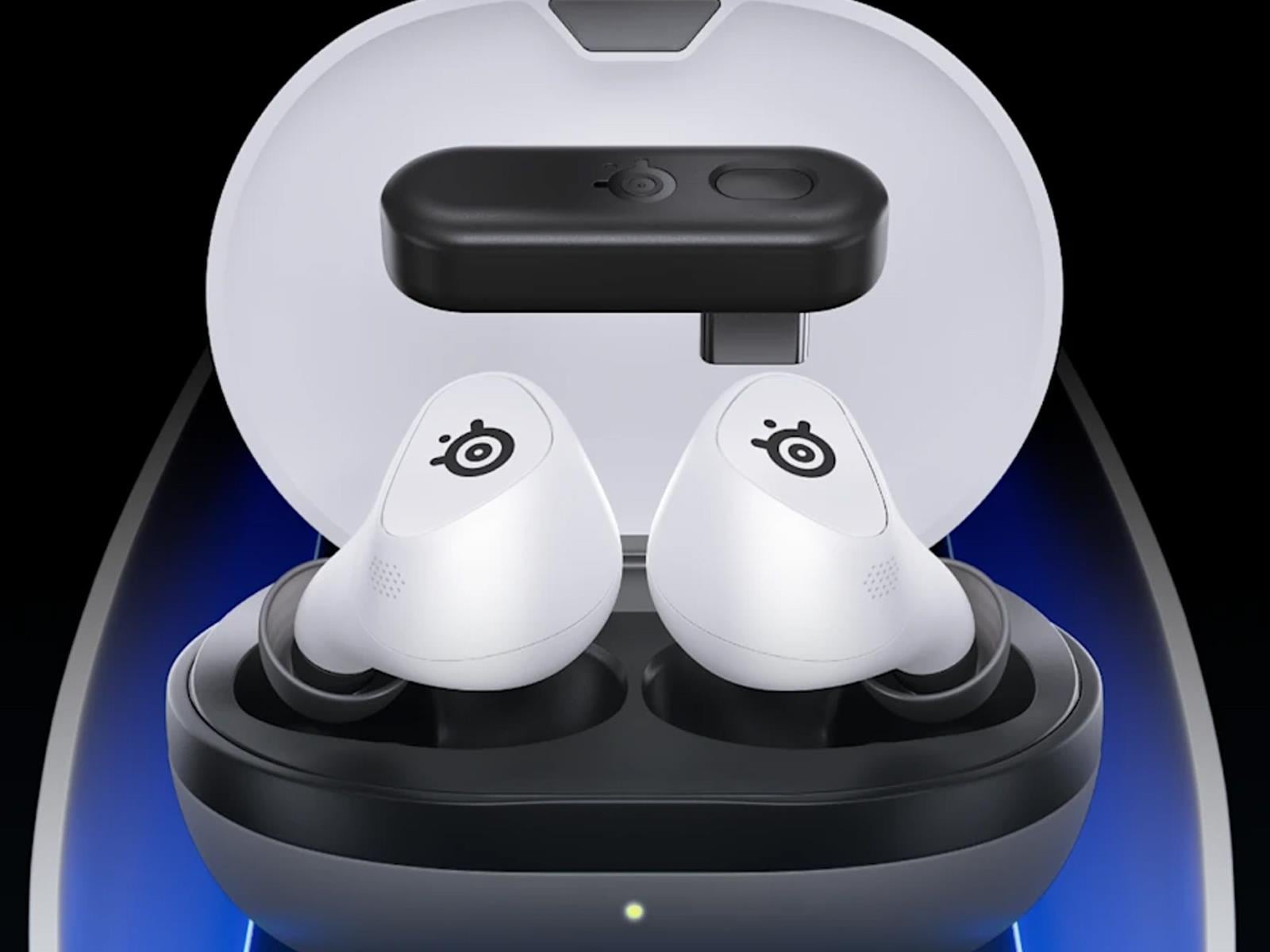
Do you know what stinks about buying earbuds for gaming? The vast majority only support Bluetooth for wireless connectivity. That’s fine and dandy for listening to music and making phone calls, but for playing games, a 2.4GHz wireless connection keeps latency at bay. The good news is, there are a few earbud options that feature 2.4GHz wireless

The Google Pixel 10 Is $450 Right Now

We may earn a commission from links on this page. Deal pricing and availability subject to change after time of publication.

The Pixel 10 came out in August this year, and at a $799 starting price, it was worth considering. Fast forward a couple of months, and now you can get one for almost half off, at $449. Amazon is discounting the flagship Pixel 10 (128GB) to $549, and there’s a promo code (PIXEL10) that drops it down a further $100. At under $500, this might be the best Android smartphone deal of the year.

Usually I recommend the Pixel 9a as the best budget buy. The lowest it’s been was $349 for Cyber Monday, and it’s sitting at $399 right now. The Pixel 10 at $449 is a much better deal.

The Pixel 10 has the latest Tensor G5 chip with new on-device AI features like Magic Cue that the Pixel 9a won’t get. It also has 12GB RAM instead of 9a’s 8GB. The extra RAM goes a long way when it comes to on-device AI tasks and general longevity of the device. The Pixel 10 series is also the first one to get a telephoto lens on a non-Pro device. In its testing, PCMag found that the Pixel 10’s camera output was better compared to the Pixel 9 series, noting, “It preserves details, and colors are more accurate than what we saw on last year’s Pixel 9.”

The most interesting change, and one my Pixel 9a misses out on, is the new magnetic Qi2 charging mount, which supports all MagSafe accessories. I’m a big MagSafe user with my iPhone 16 Pro Max, so this would have come in handy. For some, this upgrade alone might be enough to consider the Pixel 10 instead of the 9a.

Overall, PCMag gave the Pixel 10 an “excellent” rating: “The compact Google Pixel 10 includes most of the Pixel Pro features for a more affordable price, making it an attractive phone for Android lovers who don’t need the highest-end model.”

The gap between the Pixel 10 and the 10 Pro is now quite small. The only point against the Pixel 10 really was its price, and how good of a deal Pixel 9a is. Now, with this price drop, the Pixel 10 finally becomes the all-rounder, offering flagship specs and camera performance at a budget-friendly price. But if you really want that Pro level screen, camera, and features, you can get the Pixel 10 Pro for just $649, after the $100 promo code.

YouTube Has a Firm Grip on Daytime TV

YouTube has been winning the streaming wars for years, but its real competitive advantage comes not from prime-time viewing but from its stranglehold on daytime hours when Americans are meditating, exercising, cooking, or simply looking for background noise. At 11 a.m. in October, YouTube commanded an average audience of 6.3 million viewers compared to Netflix’s 2.8 million, according to Nielsen data. Amazon drew about a million viewers at that hour, and HBO Max, Paramount+ and Peacock each pulled fewer than 600,000.

The gap narrows significantly at night — Netflix’s audience swells to over 11 million at 9 p.m., trailing YouTube’s 12 million — but YouTube’s dominance reasserts itself in overnight hours and through the next day. Netflix is responding by bringing at least 34 video podcasts to its service next year, including “The Breakfast Club,” “The Bill Simmons Podcast,” and “Pardon My Take.” Amazon added the Kelce brothers’ “New Heights” podcast to Prime Video in September. The strategy is intentional: roughly 75 percent of all podcast listening happens between 6 a.m. and 6 p.m., according to Edison Research. YouTube said viewers watched 700 million hours of video podcasts on living room devices in October alone, a 75% increase from the previous year.


Read more of this story at Slashdot.

10 Hacks Every Windows Power User Should Know

For many students and workers, Windows is just the default way to use a computer. It’s where all your apps work as intended, where all your Microsoft Office documents sync easily, and where you play all your games. But if you peel back its layers, Windows can be a lot more than that. Power users can take advantage of hidden features, and utilities from Microsoft and third-parties to not only speed up their workflow, but to improve productivity and fix some of the most annoying quality-of-life issues that plague Windows PCs.

Control everything using the Command Palette

Command Palette in Windows 11.

Credit: Khamosh Pathak

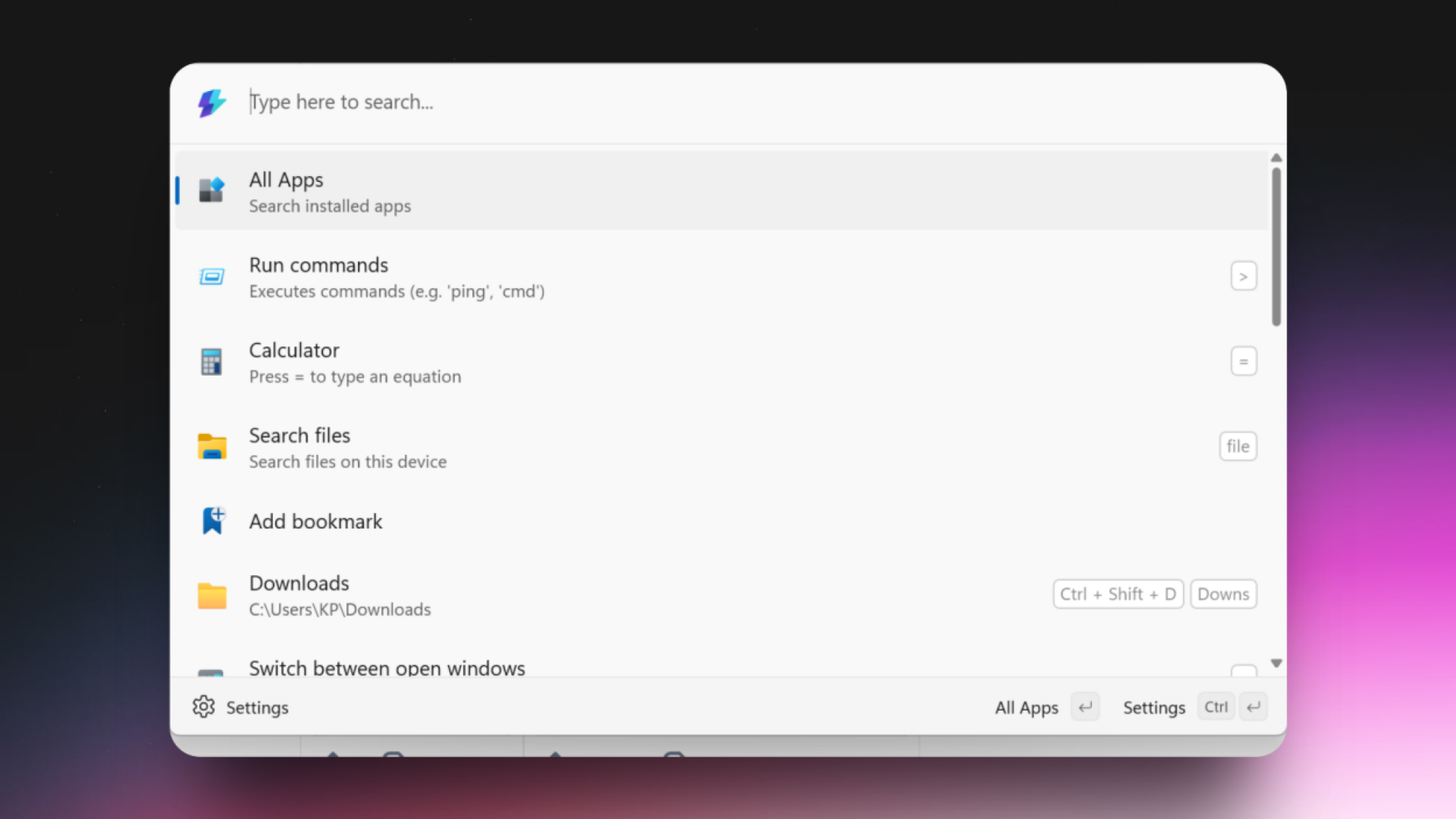
For decades, Mac users have boasted about Spotlight Search, while Windows never really offered a true alternative. Windows Search is fast, but it’s never really come close to replicating all the things Spotlight can do, especially now with the latest macOS Tahoe update. Finally, after years of waiting, Microsoft has introduced its own keyboard launcher, called Command Palette.

It’s not available by default, though. To find it, you’ll have to install PowerToys, which is Microsoft’s own set of handy utilities. Once PowerToys is running, find the Command Palette app from the sidebar, and enable it. Then, you can access it using the default keyboard shortcut, which is Windows + Alt + Space (you can customize this be whatever you like).

Once it’s set up, you can use the Command Palette to launch apps, search for files, open folders, switch between apps, open bookmarked websites or folders, and search the web. In fact, you can even run Terminal commands from here, and you can use extensions to add features. Here’s a detailed guide on the Command Palette to get you started.

Replace the File Explorer with something much better

Files app for Windows

Credit: Khamosh Pathak

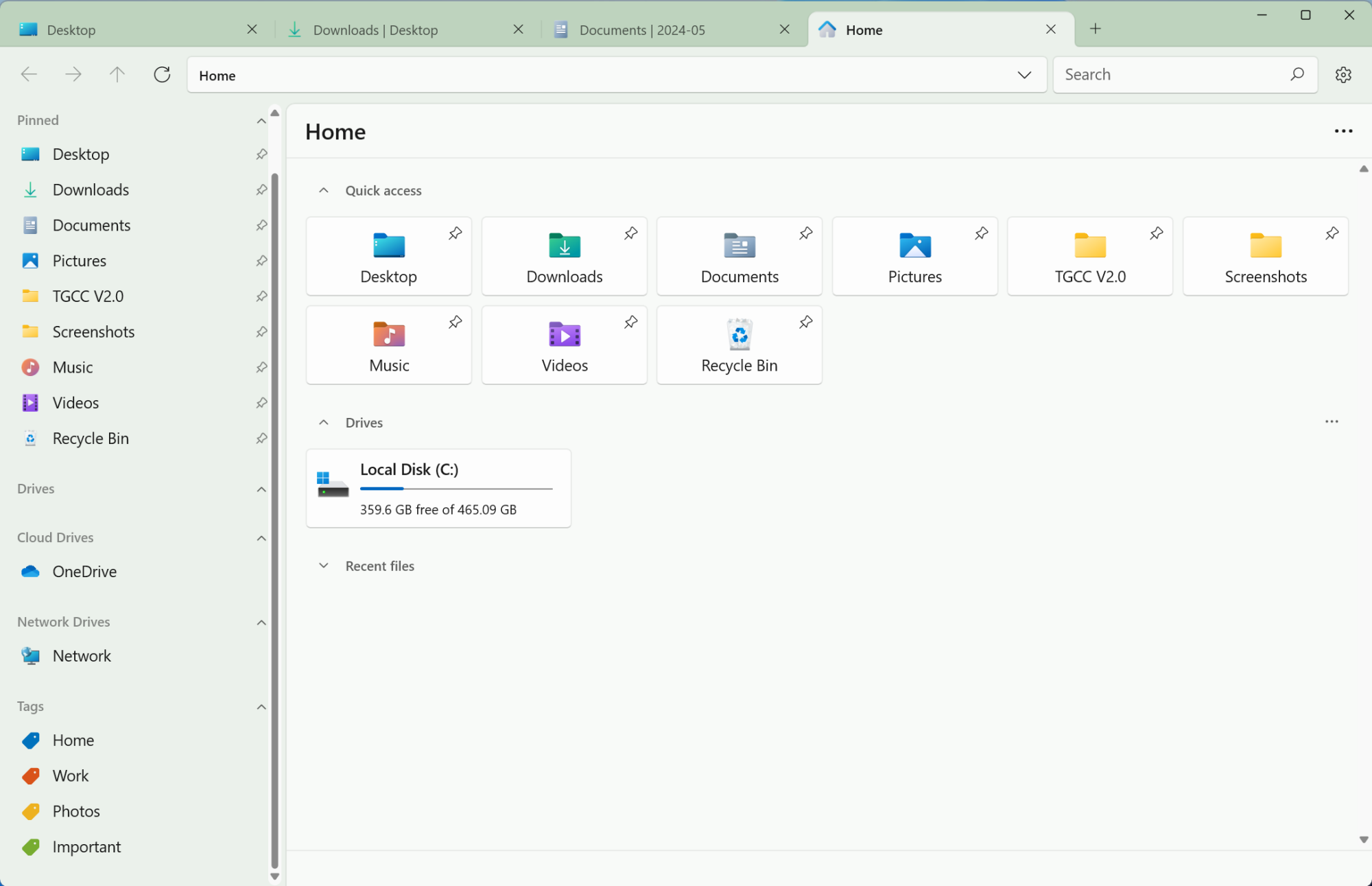
The File Explorer in Windows 11 is a certified mess. It’s slower than the Windows 10 version, and it’s harder to find your way around it. If you’re as frustrated by this as I am, try installing the Files app instead. It’s an $8 app on the Microsoft Store, but can be downloaded for free from the developer’s website.

The Files app is beautifully designed, with support for theme colors. The app has a simple interface with an easy to access sidebar, tabs, dual-pane mode, and a dark mode that actually looks good. There’s also a column view from macOS and an ability to preview files without opening them.

Replace the Windows 11 taskbar and start menu

Start11 Taskbar in Windows 11.

Credit: Start11

The Windows 11 update radically redesigned the taskbar and the Start menu. If you don’t like the new updates, there is a way to go back. You can install the free ExplorerPatcher app to revert back to the Windows 10 Taskbar, with full-length app names, along with the older Start menu. If you only want to change the existing Start menu (I don’t blame you), try the Start 11 app, which costs $9.99 for a single license and a year’s worth of upgrades. Start11 is an incredibly customizable Start menu replacement where you can customize everything from the layout, spacing, icon color, size, and more. You can even go back to the Windows 10 style layout, but with the look of the Windows 11 icons.

Transform how Windows 11 looks with Seelen UI

Seelen UI for Windows 11

Credit: Seelen

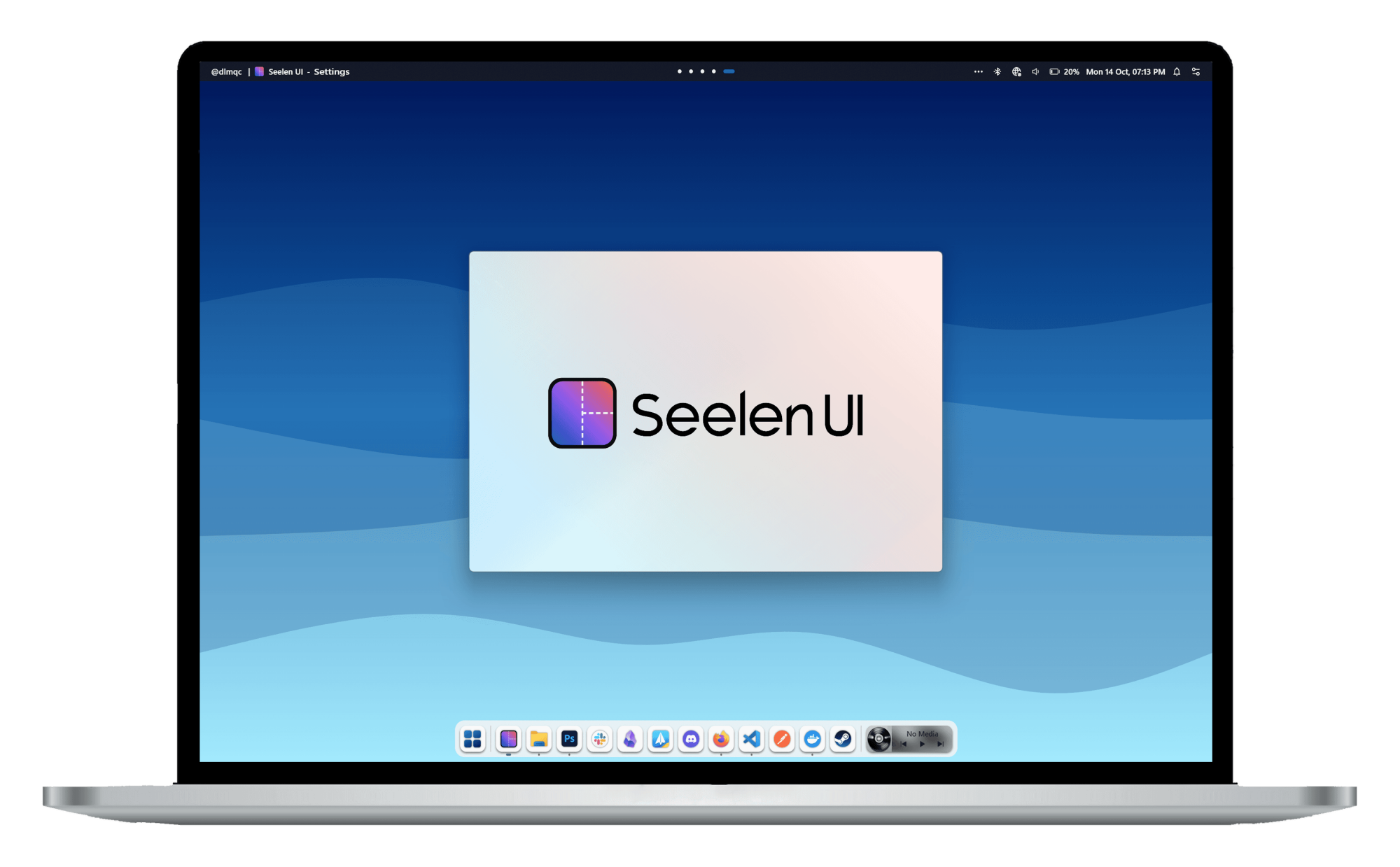
If you’ve swapped from Mac to Windows, and you miss the Mac’s Dock and menu bar, you can get them on Windows using the free and open source Seelen UI app. It’s an app that uses web technologies to add a menu bar and a floating Dock to your screen. It also hides the Windows Taskbar by default.

Seelen is completely customizable with community themes and plugins. You can choose where to keep the taskbar, and you can make it transparent if you want (something Windows 11 doesn’t allow for). You can add community themes to completely transform how it looks and works. You can also add more features using plugins.

Make the dark mode functional again

Light Switch for Windows PowerToys

Credit: Microsoft

The dark mode in Windows is woefully lacking, especially compared to macOS. As a power user, you might prefer to spend most of your time in dark mode, or you might want to automatically switch to dark mode as evening kicks in. By default, Windows doesn’t offer any such features. You have to go deep into Settings to enable or disable the dark theme, and that’s it.

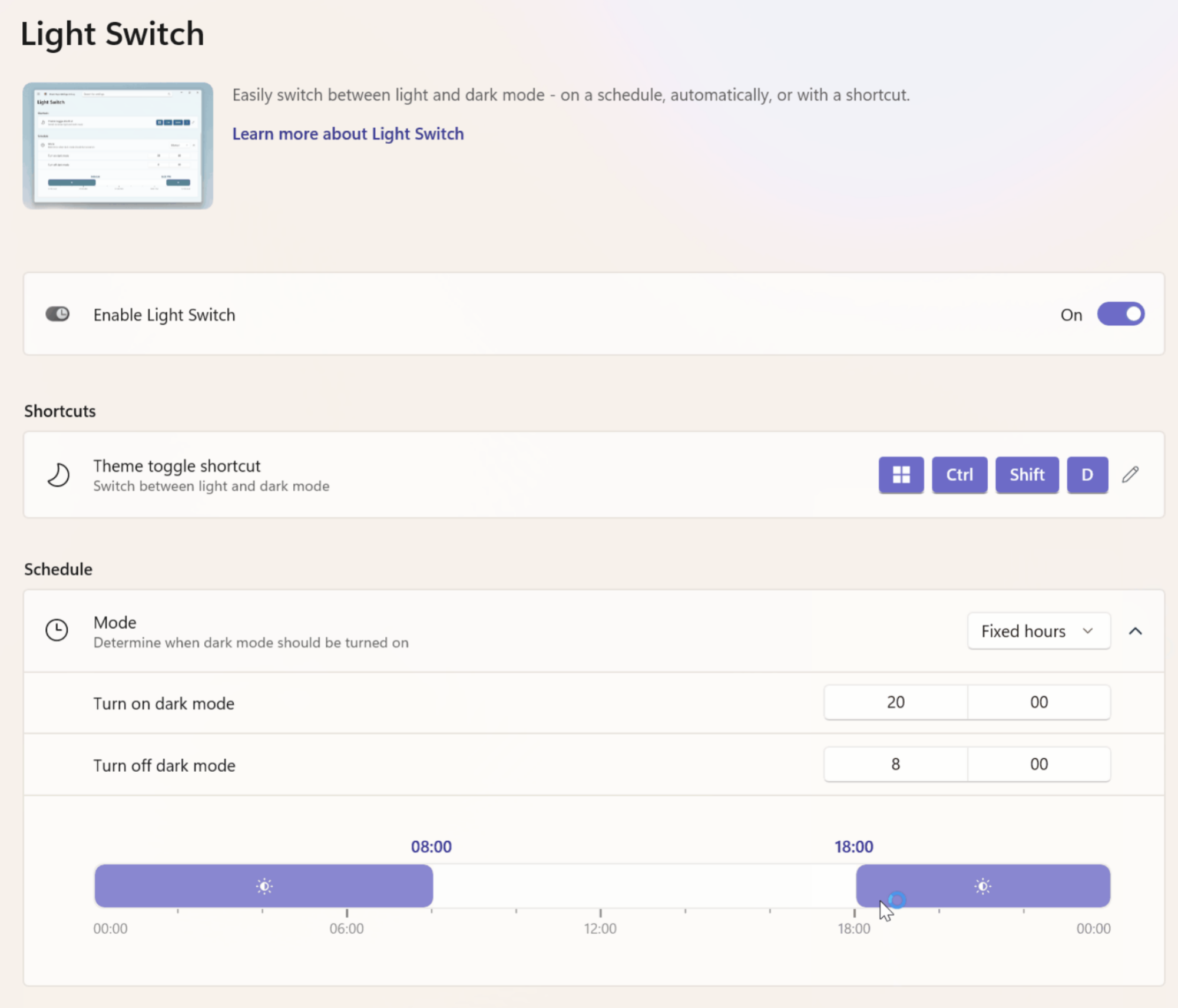
Microsoft has a PowerToys utility called Light Switch that can solve some of those issues. With the Light Switch utility enabled, you can automatically trigger the dark theme at the time of sunset, or or a schedule that you like. Plus, it gives you a global shortcut to trigger the dark theme on the fly.

Embrace the new Snap layouts

Windows 11 Snap Layouts

Credit: Microsoft

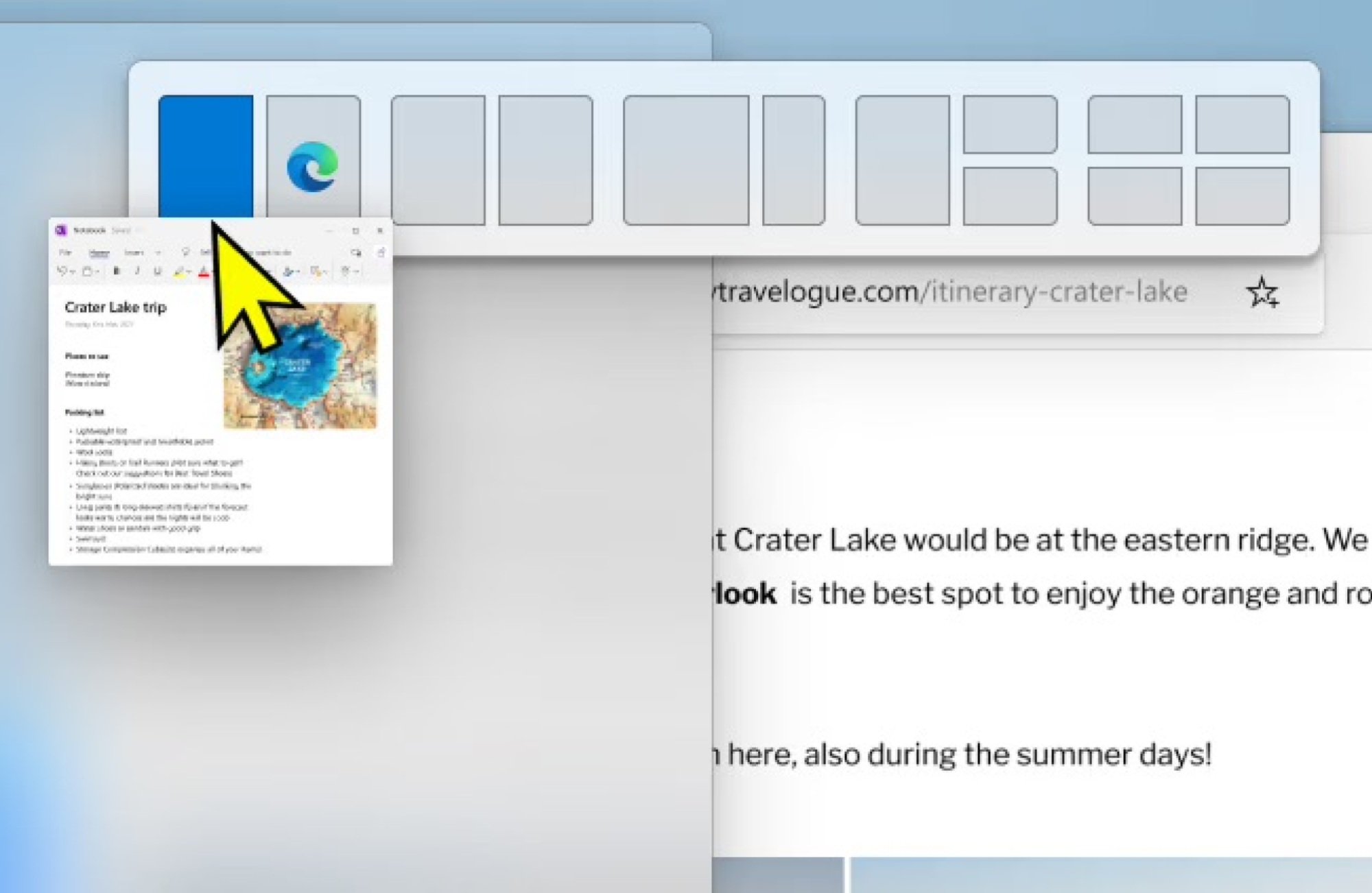
Snap Layouts is a powerful hidden feature in Windows 11 that not many people use. You might be used to dragging the left edge on a window to dock it to the left half of the screen. Well, that’s just part of the Snap Layouts feature. Next time you want to arrange the windows on your screen, drag the window to the top edge, and you’ll see a new preview of all possible layout options. You can easily split your large monitor screen into three or four windows, without doing any heavy lifting. You can also access this feature by hovering over the Maximize button, or you can use the Windows + Z keyboard shortcut to bring up the Snap Layout menu.

Install and manage apps without a thousand clicks

UniGetUI for Windows

Credit: Justin Pot

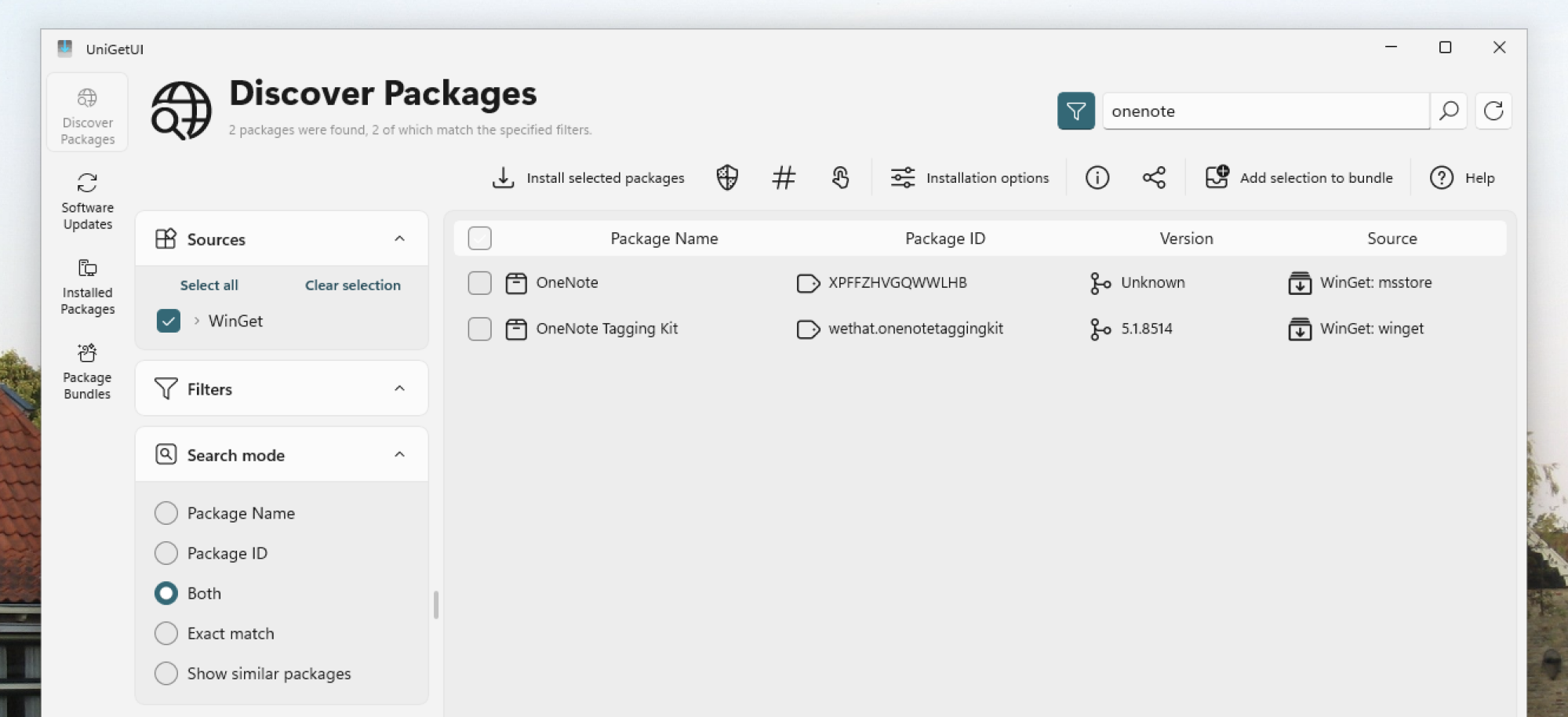
Installing apps on Windows can sometimes be its own special nightmare. You have to deal with installation wizards with dozens of steps, some of which haven’t been updated since Windows XP days. Like Linux and macOS, Windows too has a hidden package manager called Winget, a repository of apps that can be downloaded with just a single command. Yes, you need to open the Terminal to do it, but it’s really not that hard. Say you want to install Chrome: You’ll enter this in the Terminal and in a couple of seconds, the Chrome browser will be installed and ready to go, without a single extra click.

winget install Google.Chrome

Don’t like using the command line? Well there’s a GUI app for you. With the UniGetUI app, you can search for all apps or packages in the Windows Package Manager list, and download them in one click. There’s also a one-click option for updating all WinGet apps at once.

See your clipboard history

Ditto Clipboard History

Credit: Khamosh Pathak

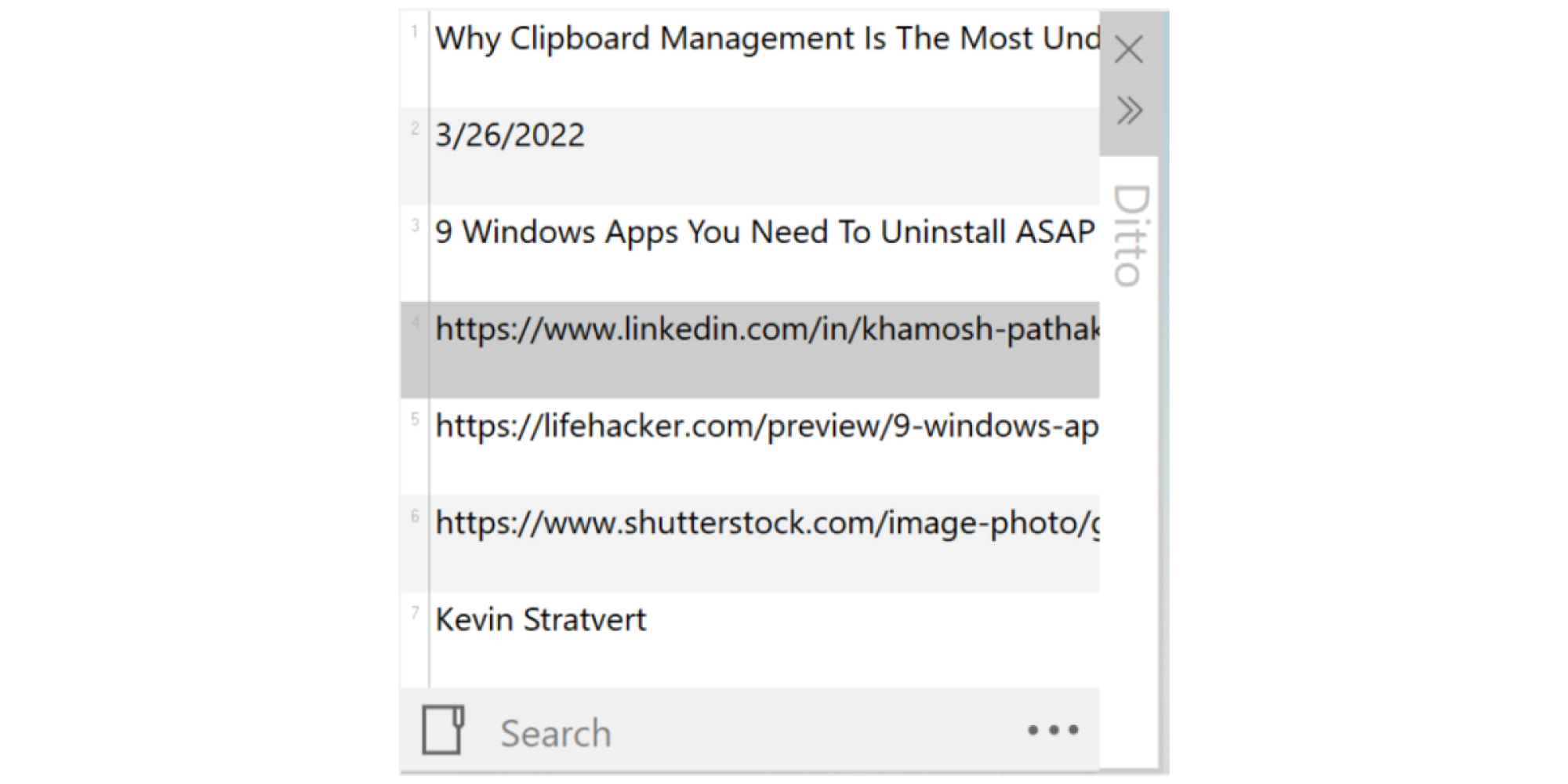
Windows has a built-in clipboard manager that you really should be using. Press Windows + V to bring up the Clipboard History (the first time you do this, you’ll have to enable this feature). Now, every time you copy anything on Windows, it will be stored in this list. You can go back to the Clipboard Manager at any time to copy one or multiple items from this list. You can even pin something to the top of the list, or quickly clear all history. If you’re looking for a bit more, try the Ditto app. It lets you customize how many snippets you store in your clipboard at a given time, and has a capable fast Search feature built-in.

Use Focus Sessions to better focus on your tasks

Focus Session in Windows 11

Credit: Khamosh Pathak

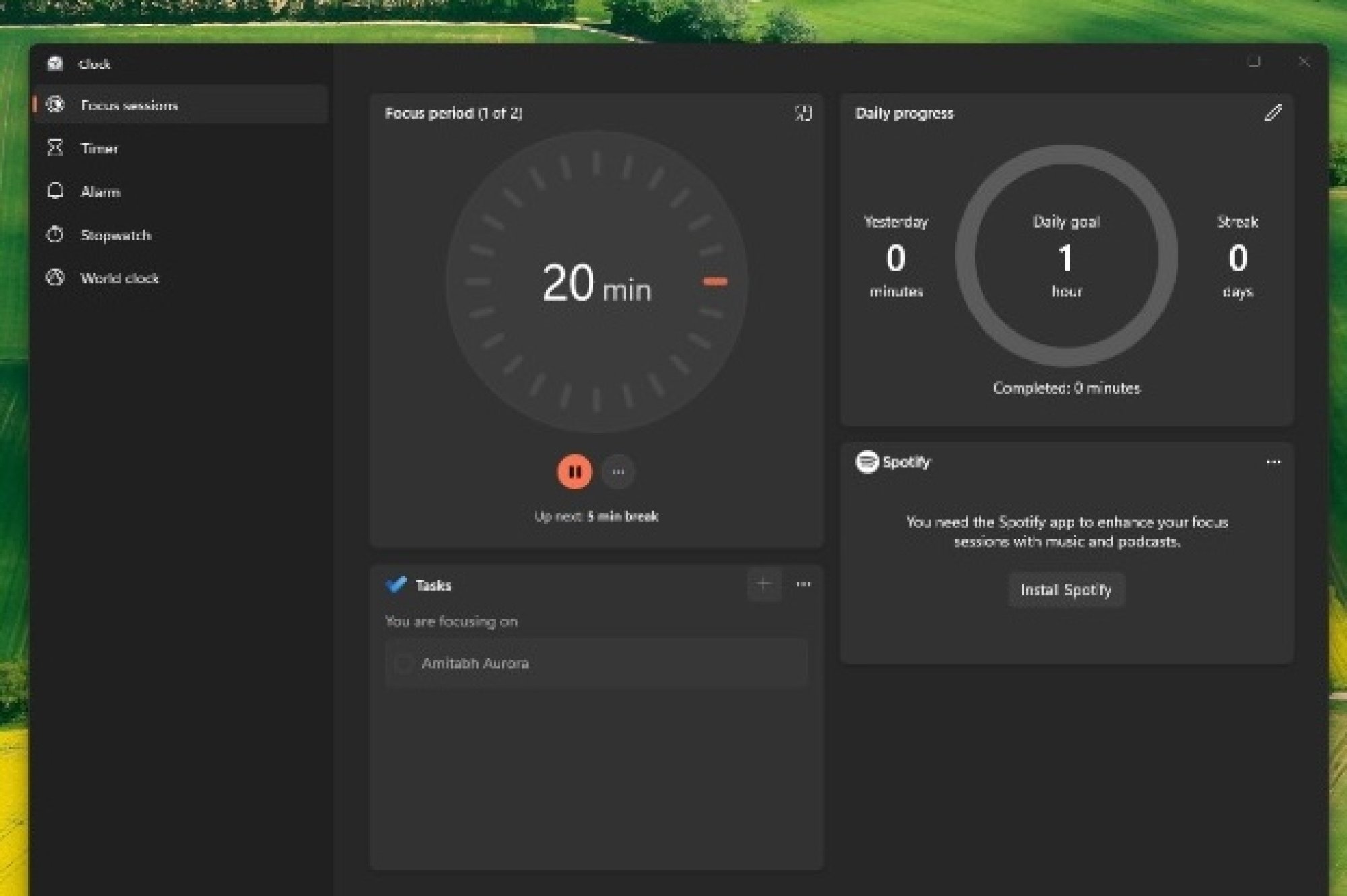
There’s a Focus Session feature inside the Clock app that’s basically a built-in Pomodoro timer, with distraction-free features. You can start a Focus timer for, let’s say, 30 minutes, and during that time Windows will stop all unnecessary notifications and app alerts so you can focus on your task. After a longer session, you’ll also be prompted to take a break.

Create your own custom shortcuts, for anything

Remap keys in Windows 11.

Credit: Microsoft

Power users rely on keyboard shortcuts to not only speed things up but also to reduce mental overload. Once you have the muscle memory, using a keyboard shortcut to perform frequent tasks reduces a lot of friction (especially compared to hunting for buttons using a mouse). When you start using an app, spend some time trying to learn keyboard shortcuts for the most frequently used actions. For example, archiving mail, exporting documents, and so on.

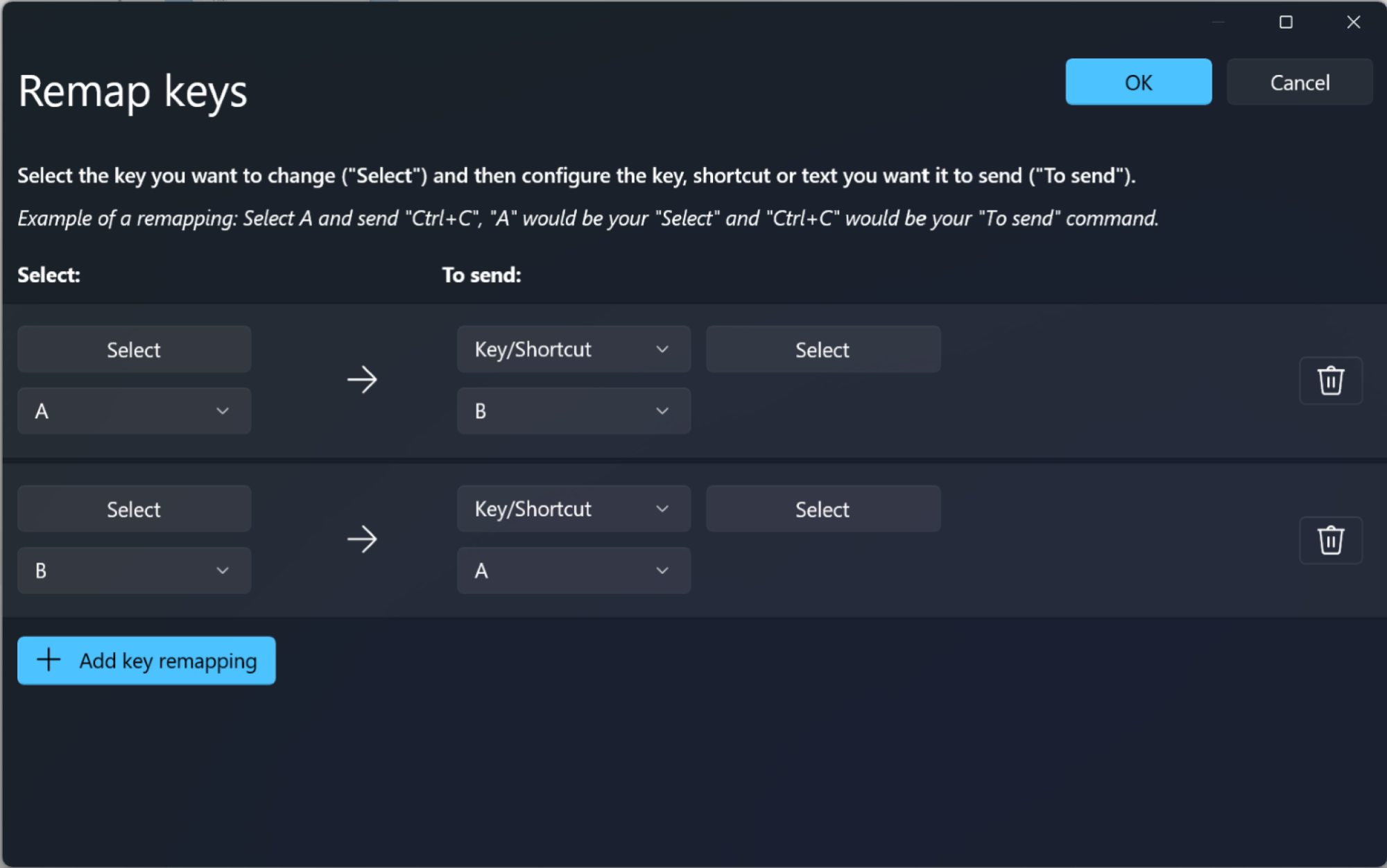
But this gets more interesting once you start to remap your keys and keyboard shortcuts using the Keyboard Manager utility inside PowerToys. Here, click the Remap a Key button to get started. Now, you can map any unused key, like your Caps Lock key, or the Copilot key, to anything else (like a shortcut to bring up Command Palette, for example). Or you can remap the shortcut for Copy from Control + C, to Windows + C. Time to get creative!


What People Are Getting Wrong This Week: The Origin of Christmas Elves

Because it’s Christmas time, I’ve been digging into myths and misconceptions we have about the holiday: Yuletide misinformation is rampant, and I’m setting the record straight. Last week I dug into who Santa Claus really is, with side quests about St. Nicholas bringing children back from the dead and the religious war between Santa and Kris Kringle. One thing I didn’t talk about? His elves.

Christmas elves feel like they’ve been around forever, and people have strangely consistent ideas of what they’re all about—they’re small, they wear green, they make toys out of some innate magical compulsion, they love shelves— but that variety of elf is a recent invention; “real” elves were often anything but jolly little pieceworkers. The elves’ thousand-year transition from supernatural nightmare creatures to friendly factory workers is a cultural Rorschach test revealing Western culture’s changing attitudes about work, wealth, and what it means to be a “useful” member of society.

The dark elves of the past

To understand how we arrived at our current vision of elves, you have to rewind past Will Ferrell vehicles, Christmas specials, and Victorian holiday frippery to the colder heart of Western culture—the old, weird world that was haunted by supernatural forces, and elves weren’t creatures you’d ever want spying on your children.

The early origin of elves can’t be pinned down exactly because the idea of elves predates the written word. Magical, man-like races were mentioned in mythology and oral traditions in cultures all over the world; but elves, specifically, were common in Norse and Germanic folklore. This variety of elf was (usually) more like Legolas than Hermey from Rudolph the Red Nosed Reindeer—human-sized and magical, although sometimes mischievous. 

Elves in Anglo-Saxon England, though, were jerks. Old English medical texts attributed various diseases to elves. If you felt a sharp, unexplained pain, it was probably the result of an “elfshot”—an elf firing an invisible arrow at you. Elves were also associated with witchcraft, nightmares, and mental disorders.

Various elven misdeeds

Elves did all kinds of bad things. Kind of, anyway: The names and deeds of elves, fairies, hobs and other creatures were basically interchangeable and regional, so it’s hard to ascribe anything specifically to elves (it could have been a nixie or brownie, after all).

In the Middle Ages, elves/fairies/other small magic folk were known to steal people’s babies, replacing them with changelings—sickly imposters left in the human’s place. They could curse your livestock, spoil your milk, or lead travelers astray in the woods. Elves were blamed when infants died suddenly or when children developed unexplained illnesses. The “elf-lock” was a particularly nasty bit of mischief where elves would tangle your hair into impossible knots while you slept—the bastards! In other words, these were not the kind of people who would help make toys. They were fundamentally alien—beings that operated by rules humans couldn’t understand and definitely couldn’t trust—and they weren’t for fun or for kids. They were deadly serious and considered very real.

The rise of transitional helper-elves

So how did we get from disease-causing, child-stealing nightmare creatures to Santa’s personal toy-making proletariat? By the medieval and early modern period in Britain, there is widespread belief in what I call “transitional elves.” These were household spirits that came out at night to perform chores while families slept. Useful, for sure, but these elves were mercurial and easily offended. They would leave forever if they felt insulted or taken advantage of. You couldn’t even do something nice for them—if you made them clothes, they might decide to quit forever, shouting, “Gie Brownie a coat, gie Brownie a sark, Ye’se get nae mair o’ Brownie’s wark.”

These “household helper” folk beliefs often cast elves as craftsmen, one step closer to toy-makers. These stories inspired the text that laid the foundation for Christmas Elves: the Brothers Grimm fairytale “The Elves and the Shoemaker.” In that story, a shoemaker is down to his last piece of leather, but he wakes up to find a pair of elf-crafted shoes. He sells them, and continues to get free shoemaking labor until he grows wealthy. Then he makes the fateful mistake of rewarding his unpaid laborers with clothing and shoes of their own. They elves are so impressed with their classy new fits, they leave forever, seemingly because they now regard themselves as too good for a working class life. The moral: Don’t treat your employees very well, lest they think they’re your equal. 

How Elves became associated with Christmas

Along with establishing much of Santa’s mythology, Clement Clarke Moore’s 1823 poem “A Visit from St. Nicholas” (better known as “The Night Before Christmas”) described Santa Claus himself as “a right jolly old elf,” This line laid the foundation for the association of elves with Christmas. An 1857 poem called “The Wonders of Santa Claus” spelled it out clearly. Santa, the poem says, “keeps a great many elves at work,” making “a million of pretty things” like “cakes, sugar-plums, and toys.” 

In a reflection of the industrial revolution that was happening far from the North Pole, elves weren’t household spirits helping one family, they were a workforce, mass-producing toys in a factory. And in what can be seen as an expression of sentimental Victorian ideas about class, the elves loved working in a sweatshop; it’s what they were born to do!

Here’s the first picture of Santa’s Workshop, from Godey’s Lady’s Book in 1873. At the time, Godey’s had a huge circulation in the United States, and this image cemented the modern idea of Santa’s Workshop.

Santa's Workshop

Credit: Public Domain

Modern Christmas elves

The 1964 Rankin/Bass TV special Rudolph the Red-Nosed Reindeer put the finishing touches on Christmas elf lore by presenting a deeper look at how the North Pole workshop operates. Perhaps fueled by growing cultural misgivings about modernization and capitalism, Santa’s workshop in Rudolph is rife with vicious interoffice politics, forced conformity, workers whose dreams and ambitions are crushed (He just wanted to be a dentist, Santa!), and a boss man who is woefully out-of-touch with his employees. The only major innovation in Elf-lore since Rudolph is the “Elf on the Shelf,” but he’s a damn snitch, so we won’t talk about him.

The next time you see a green-suited helper in a Christmas movie, remember, that the jolly little toymaker was cobbled together from medieval folklore, German fairy tales, and 19th-century magazine illustrations, and shaped by the rise of industrialization. The modern elf is the domesticated, sanitized, capitalist-approved descendant of supernatural creatures that stole babies, drove people mad, and shot invisible arrows at your ancestors. Merry Christmas! 

AMD Zen 6 X3D CPUs May Rock Up To 288MB Of Cache To Battle Nova Lake

AMD Zen 6 X3D CPUs May Rock Up To 288MB Of Cache To Battle Nova Lake
AMD’s next-generation Zen 6 processor with 3D V-Cache may kick things up in a big way to compete with Intel’s upcoming Nova Lake chips. How so? According to a popular leaker on X, AMD will offer single CCD (core complex die) variants with up to 144MB of L3 cache, and dual CCD models with up to a whopping 288MB of L3 cache. To put those capacities

Pro-Russian hacker group claims responsibility for DDoS attack on French postal service

A pro-Russian hacker group has come forward as the perpetrator of a DDoS attack on the French national postal service La Poste that took place on December 22, according to Reuters. The distributed denial-of-service attack took central computer systems at La Poste entirely offline and caused major disruptions in package deliveries just days before Christmas.

Reuters reported that the cyberattack on La Poste was still not fully resolved as of Wednesday morning. While regular letters were not affected, postal workers were unable to track packages and online payments through La Banque Postale, the service’s banking division, were also disrupted.

The group, known as Noname057, has taken responsibility for or been accused of cyberattacks across the globe. Though attacks have occurred in over a dozen nations, the group has mostly targeted Ukraine as well as Ukraine-friendly nations.

Europol, the EU’s law enforcement agency, launched an extensive operation against the group this summer. The US Justice Department has also been involved in actions against the hacker group.

This article originally appeared on Engadget at https://www.engadget.com/cybersecurity/pro-russian-hacker-group-claims-responsibility-for-ddos-attack-on-french-postal-service-140015323.html?src=rss

Why Are There No Large Market Cap Companies Globally in Edtech?

Goldman Sachs, in a note this week, via India Dispatch: There are various reasons that explains this: (i) A large part of the global education spend goes towards formal education (schools, colleges and universities), which are typically either run by governments or are not-for-profit institutions;

(ii) It is difficult to replicate education quality at scale in our view, since most teachers would have a different pedagogy, and thus standardization is harder to achieve vs that in other internet categories;

(iii) Education is fragmented – it includes various fields (schools, undergrad courses, medicine, engg, management, etc.), each with their own curriculum, and the same being vastly different across countries globally; this makes scalability difficult beyond a few certain specializations and regions.

Additionally, we believe the ability for online education to capture a sizable value share of supplemental education is limited since the perceived value of offline, including that from community, in-person engagement and doubt solving, rigour, etc., is typically higher.

However, we note that before China’s double reduction policy in 2021, TAL and EDU had market caps of up to US$50 bn; these companies were mostly domestic focused and on the K-12 tutoring segment, which has large volumes. Similarly in India, Byju’s reached a peak valuation of US$20 bn+ (link; again, focused on K-12), before issues around governance etc. impacted the business.


Read more of this story at Slashdot.

The Google Pixel 10 Pro Is $350 Off Right Now

We may earn a commission from links on this page. Deal pricing and availability subject to change after time of publication.

At $749, the unlocked 128GB Google Pixel 10 Pro has slipped into its most affordable price yet on Amazon, down from its original $999 launch price, according to online price trackers. Stack the promo code PIXEL10, and you shave off another $100, which reframes the phone entirely. At full price, it felt like a confident but pricey Android flagship. At this discount, it becomes a far easier recommendation for people who value polish over raw benchmark wins.

This is still very much a Pixel. The design is clean and familiar, with a flat display, matte glass back, and a solid in-hand feel that avoids the slippery problem of earlier generations. It runs Android as Google intends it to run, with fast updates and a long support window that continues to be one of Pixel’s quiet advantages.

Most of what the Pixel 10 Pro does well will feel familiar to longtime Pixel fans. The triple-camera system is reliably consistent, with low-light photos that stay natural instead of heavily processed, portraits that rarely miss, and everyday shots that come out right without needing a second attempt. The display gets a modest but useful bump in brightness, which helps outdoors, and Qi2 wireless charging brings faster, more reliable cable-free top-ups. Google’s new Pixelsnap magnetic system fits cleanly into daily routines, snapping chargers and accessories into place much like Apple’s MagSafe, without feeling forced. Lifehacker’s Associate Tech Editor Michelle Ehrhardt notes in her review that this kind of convenience adds up, especially for car mounts or desk charging. One real trade-off is the move to eSIM-only support. That is fine if your carrier supports it, but it can be limiting if you switch networks often or rely on physical SIMs while traveling.

Where the Pixel 10 Pro feels less settled is in performance expectations. The Tensor G5 chip is smooth for everyday use, but it does not match Snapdragon rivals in demanding third-party apps, as noted in this PCMag review. Google’s latest AI features sound impressive, but many feel optional rather than essential, not exactly reasons to upgrade. Battery life is solid but unremarkable. It lasts a full day with moderate use, though heavier users may need a top-up before night. All told, this discounted Pixel 10 Pro is not aimed at spec chasers. It is a balanced, camera-first Android phone with thoughtful refinements, now priced in a way that finally makes sense.