The Best AI Object Erasers for Photos, Ranked

Apple, Google, and Samsung are competing on multiple fronts—from phones, to health apps, to smartwatches—and that rivalry extends to AI tools as well. All of these tech giants offer AI-powered object removal features in their mobile photo editing apps, which ostensibly allow you get rid of an unwanted person, a tree, a hand, or anything else that’s ruining your shot, with only a tap or two on the screen.

However, just because Apple, Google, and Samsung all offer AI object removal doesn’t mean the tools are of the same standard. There’s been a fair bit of chatter online about how these features stack up against one another, so it feels as though a head-to-head object removal test is in order.

These AI tools all work in the same way. Obviously, the tools don’t know what’s really behind the object being removed—but thanks to a combination of clues in the surrounding pixels and the image training built into their underlying models, they can make a reasonably good guess. How good that guess is then determines the quality of the end result.

This test covers three tools: Clean Up (in Apple Photos on iOS), Magic Eraser (in Google Photos on Android), and Object Eraser (in the Samsung Gallery app on One UI). These tools all appear as options when you open images in the relevant apps. For testing purposes, I’ve borrowed some great photos from Taan Huyn, Tolga Ahmetler, and Marek Piwnicki.

(A quick note on the comparison images: There’s some variation in resolution because of how I saved them using various devices; it has nothing to do with the AI tools in question, so you can mostly ignore the sharpness of the pictures.)

Which AI tool is best at removing a lamp from a photo?

Couch and lamp
The original photo.
Credit: Taan Huyn/Unsplash

Our first photo challenge—removing the lamp in the image above—is relatively simple in some ways, but complex in others. There are some useful guidelines for the AI in terms of the wall and the window, but there are also shadows to deal with (including the shadow of the lamp on the wall behind it, which AI isn’t smart enough to know it needs to remove as well).

First up was Apple Clean Up. The tool did a fine job of identifying the lamp as I scribbled over it—I like the glow effect—and once the removal process was complete, the back wall was filled in nicely. Most of the window pane work looked okay too, but there were a few weird artifacts left as evidence of an object removal.

Next was Google Magic Eraser. The lamp wasn’t identified as a suggestion for something to erase, but selecting it was pretty straightforward and accurate in terms of the boundaries. Unfortunately, while most of the job was done well, Magic Eraser left evidence of the lampshade up at the top, like a ghost of what had been there before.

Finally, I tried Samsung Object Eraser. Here the object selection process was a bit more fiddly—it’s more difficult to zoom and pan in Samsung Gallery, and the automatic selection was less accurate. However, the removal job was the best of the three, with both the wall and the windows accurately filled in.

Lamp removal
Apple on the left, Google in the middle, and Samsung on the right.
Credit: Lifehacker

Which AI photo tool does the best job removing a person from a photo?

Man walking
The original photo.
Credit: Tolga Ahmetler/Unsplash

Our second photo challenge is removing the walking man from this street scene, and it’s a tricky one—the AI has to imagine most of the white car behind our primary subject, as well as fill in the road and its markings. What’s more, it’s a darker scene, with the foreground in focus and the background getting increasingly blurry.

With Apple Clean Up, the tool’s automatic selection wanted to clear away the cars in the background rather than the man in the foreground, but selecting him was easy enough. The AI fill results were patchy, and got worse further back in the scene, with the car at the back turning into a pixelated mess.

Over to Google Magic Eraser, which also wanted to erase people in the background rather than the foreground. It had some trouble picking out the man against the dark and wet street—and it then had difficulty both removing all of the man and replacing the pixels properly. It borrowed pixels from the wrong part of the image on the whole, and the tool couldn’t even carry on the yellow line consistently.

As for Samsung Object Eraser, again the selection process was a bit awkward, but ultimately it did a perfect job of selecting the male figure against the background. It then did really well at removal: It was the only AI to actually end up with a realistic looking car and road after the man had gone. While it’s not perfect, this would probably fool most people at first glance.

Man removal
Apple on the left, Google in the middle, and Samsung on the right.
Credit: Lifehacker

Which AI photo tool is best at removing a bicycle from a photo?

Bicycle and field
The original photo.
Credit: Marek Piwnicki/Unsplash

This third photo challenge, removing the bicycle from this scene, offers a lot of information for the AI to use in terms of the surrounding field. The barely visible fencing behind the bike adds to the difficulty, so I was interested to see if these tools would try to continue the fence, or just ignore it and go with the grass.

With this one, Apple Clean Up needed a few goes to get the whole of the bicycle selected—possibly because it doesn’t appear to be one single object. When that was done, Clean Up was reasonably proficient at filling in the blanks, though both the greenery and the fence it created showed inconsistencies.

Google Magic Eraser also needed several attempts to get the entirety of the bike selected. It tried to fill in the fence as well as the field, and while the results weren’t a disaster, there were obvious errors—some of the bike wheel spokes are still there, for example. It was maybe slightly better than Apple Clean Up, but not by much.

As with the man in the street, Samsung Object Eraser was the best at making an accurate selection first time around, and better at putting something convincing in the space that was left. Both the field and the fence were filled in an accurate, realistic way, and this could easily pass as an unedited photo.

Bicycle removal
Apple on the left, Google in the middle, and Samsung on the right.
Credit: Lifehacker

The final verdict: Samsung’s tool performs best

The first thing to say is that your mileage may vary with these sorts of tasks—as you will see if you look at similar comparison challenges from around social media and the internet at large. Every photo has different characteristics, and every AI tool has its own approach in dealing with object removal.

In terms of my tests, Galaxy AI and Samsung’s Object Eraser are the clear winners. The tool seems to take more time over the replacement pixels, and does some actual image generation rather than just copying and pasting pixels from elsewhere in the image—as you can see with the car on the street. That’s just an AI imagining of a car, not the actual car, but it makes for a photo that looks genuine.

Apple and Google did okay, and were about on a par with one another. The selections are easy to make (easier than with the Samsung, actually), and some more straightforward removal tasks are handled perfectly well. However, these AI removal features do tend to struggle with complex operations where there are fewer clues about how the background should look.

Ultimately, it’s unlikely that anyone’s going to change their phone solely because of the AI object removal tools it offers, but it’s interesting to chart the progress these three companies have made with their AI offerings. It’s also worth noting that Google Photos and its Magic Eraser are available on all Android and iOS devices, which puts pressure on Apple and Samsung to keep up (or stay ahead).

The New Photoshop iPhone App, Unpacked

The following content is brought to you by Lifehacker partners. If you buy a product featured here, we may earn an affiliate commission or other compensation.

Photoshop has been the industry standard in image-editing software for over 30 years, but up until now, creators have been limited to using it on their computers and tablets. The recent launch of the first Photoshop iPhone app has (finally) changed that.

Now you can go to the App Store, search “Photoshop,” and download the spanking-new Photoshop iPhone mobile app. It’s available for free with an impressive feature set, but if you’re a savvy Photoshop user, the $7.99 a month/$69.99 a year Photoshop Mobile and Web Plans unlocks a wider set of premium features. 

This rundown of the app’s key offerings will help you choose what’s right for you.

The ‘freemium’ version is ideal for beginners 

A photo being edited

Credit: Adobe

The mobile app’s free version is an excellent entry point for mobile creators who want to build their Photoshop skills.

The free toolkit includes several Photoshop editing tools, including the Spot Healing Brush, unlimited layers and masks, and a new Tap Select tool that makes it a snap to edit photos on the small screen by tapping on the object you want to highlight, instead of having to wrestle with tools.

The freebie also comes with the Firefly-powered Generative Fill and Generative Expand AI tools, which let you fill in what’s missing or remove unwanted elements from images in seconds. 

The premium plan has more tools, plus web

A photo being edited

Credit: Adobe

If you have Photoshop experience, the Mobile and Web Plan unlocks full access to Photoshop for iPhone and iPad, plus Photoshop on the web. Add in 100GB storage and 100 generative credits a month, and you’re ready to create from anywhere.

Additional premium mobile tools include Object Select, Magic Wand, Remove Tool and Clone Stamp, plus the handy Content-Aware Fill, which allows you to fill portions of an image with content sampled from other parts of the image.

All of your mobile files will automatically sync with your go-to Creative Cloud apps and Photoshop on the web, so you can work across all your devices.

Exclusive AI webtools uplevel your content

A photo being edited

Credit: Adobe

If you use AI to generate content, the premium plan also comes with exclusive access to next-gen Firefly AI web tools such as Reference Image, Generate Background, and Generate Similar, which lets you generate multiple variations of the same image. 

Adobe’s first-ever Photoshop iPhone app makes it easy to create on your phone and is a win for all skill levels. Download the free version or subscribe to the loaded Photoshop Mobile and Web Plan for just $7.99 a month.

TCL’s New QM7K QD-Mini LED 4K TVs Crank The Brightness And Rock Premium B&O Audio

TCL's New QM7K QD-Mini LED 4K TVs Crank The Brightness And Rock Premium B&O Audio
It’s only been a few months since TCL introduced its QM6K series TVs (at the Consumer Electronics Show in January), the first in its extensive lineup to feature the company’s ‘Precise Dimming’ technology, and it’s already old news. The newer kid on the block is the QM7K series, the second in its Precise Dimming lineup with some notable upgrades.

As

Firefox Certificate Expiration Threatens Add-ons, Streaming on March 14

A critical root certificate expiring on March 14, 2025 will disable extensions and potentially break DRM-dependent streaming services for Firefox users running outdated browsers. Users must update to at least Firefox 128 or ESR 115.13+ to maintain functionality across Windows, macOS, Linux, and Android platforms.

The expiration additionally compromises security infrastructure, including blocklists for malicious add-ons, SSL certificate revocation lists, and password breach notifications. Even those on legacy operating systems (Windows 7/8/8.1, macOS 10.12â”10.14) must update to minimum ESR 115.13+.


Read more of this story at Slashdot.

This is what it looks like when parasitic worms directly invade your brain

Doctors in China inadvertently took time-series images of parasitic worms actively invading a woman’s brain and causing rare and rapidly progressing lesions.

The previously healthy 60-year-old woman went to the hospital after having a fever and altered mental status for three days, according to a report of her case published Monday in JAMA Neurology. By the time she arrived, she was unable to communicate normally.


Figure A: FLAIR MRI of the brain before treatment showed multiple white matter lesions adjacent to the lateral ventricles.
Credit:
Li et al. JAMA Neurology 2025

Magnetic resonance imaging (MRI) showed white matter lesions around her lateral ventricles, large cavities in the center of the brain filled with cerebrospinal fluid that, from the side, are C-shaped. The type of MRI used, a FLAIR MRI, is used to more easily detect lesions, and the fluid-filled lateral ventricles appear as dark, curved spaces in the center. Doctors could see white blotches and smears around those dark spaces, indicating lesions. After doing a spinal tap and running tests on her cerebral spinal fluid, they suspected she might have a bacterial infection in her brain. So they treated her with an antibiotic and a fever reducer.

Read full article

Comments

How to Keep Listening to Audio After Your Boox Palma Goes to Sleep

My Boox Palma is one of the most easily lovable pieces of tech I’ve ever used—an e-ink reader with a phone-like form factor that isn’t locked down to one specific retailer’s ecosystem. It has helped me read more and waste time on social media less, but as much as I appreciate it, it can also be weird and finicky. For example, why is it so tricky to use it to listen to audiobooks?

Like most people, before I got the Palma, my phone was my main driver for audiobooks, music, and podcasts—it was always with me and the apps made it super convenient. But I’d find myself pausing my book every time a notification pinged in my headphones, so I decided to shift that “content” over to my e-reader as well. Then I hit a snag: Every time I closed the protective cover that came with the device, it would go to sleep—shutting off the screen and the front light, disconnecting my Bluetooth headphones, and pausing the audio.

While the Palma looks like a phone and runs on Android, it doesn’t always act like a phone. And while my iPhone never gave me any problems playing audio with the screen off, doing the same on the Palma (or any other Boox device) requires some tinkering.

Three settings to change

While it would be nice if the Palma could play audio with the screen off right out of the box—as has been the case for every phone I’ve used since I got my first smartphone in 2010—you’ll need to change a few settings to make it happen.

Keep your audio apps active in the background

Palma App Optimization menu

Credit: Screenshot by Joel Cunningham

The first thing you’ll need to do is adjust your settings to allow apps that play audio to continue running in the background. In the interest of preserving battery life, the Palma OS turns this setting off for every app you download from the Google Play store, but you can fix that in one of two ways.

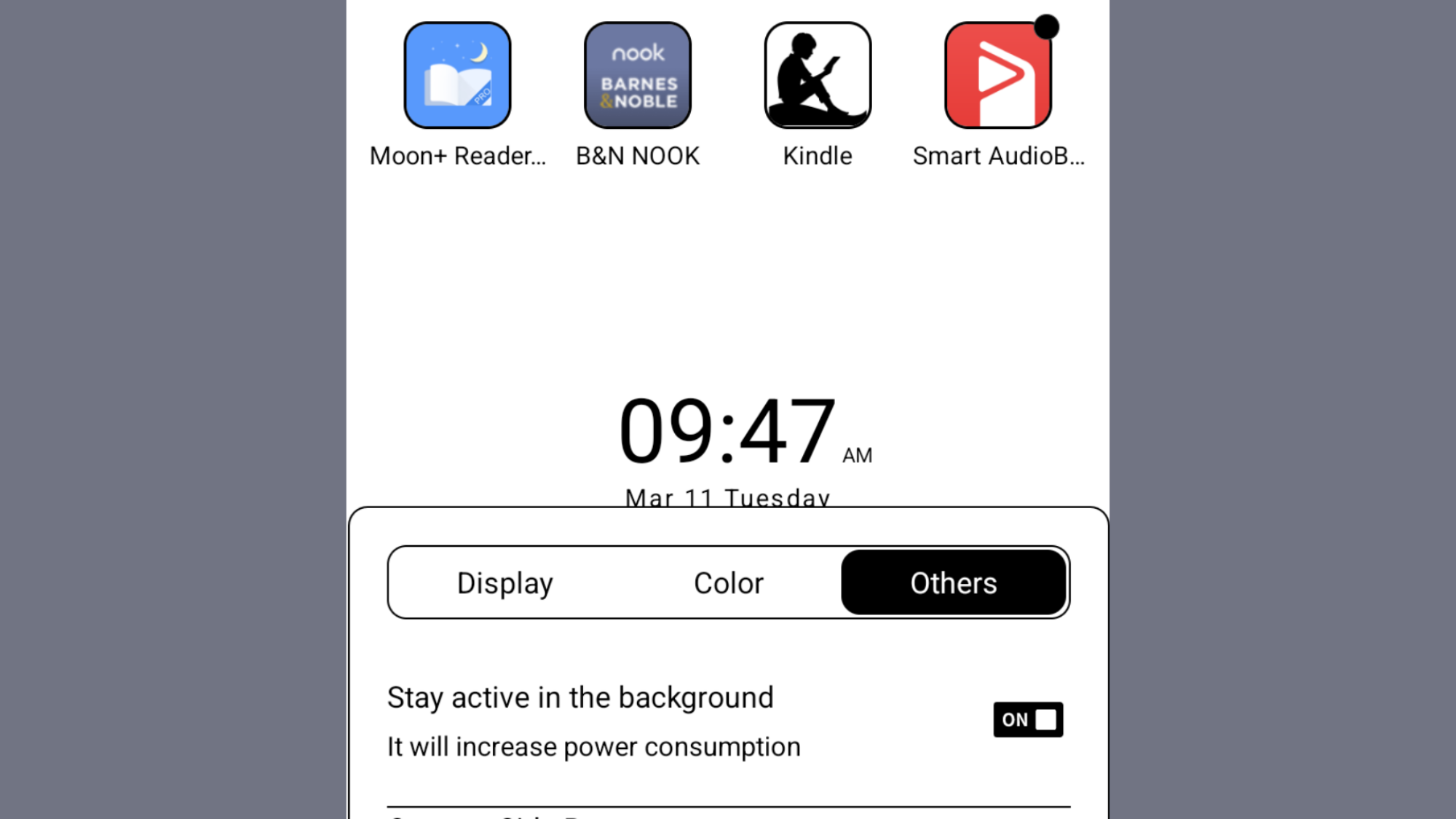
First, you can long press the icon of any app on the home screen. This will bring up a menu with a few different options. Tap Optimize. From the next pop-up menu, select the Others tab, then make sure the slider next to Stay active in the background is turned to On.

“Unfreeze” your audio apps

Palma app freeze menu

Credit: Screenshot by Joel Cunningham

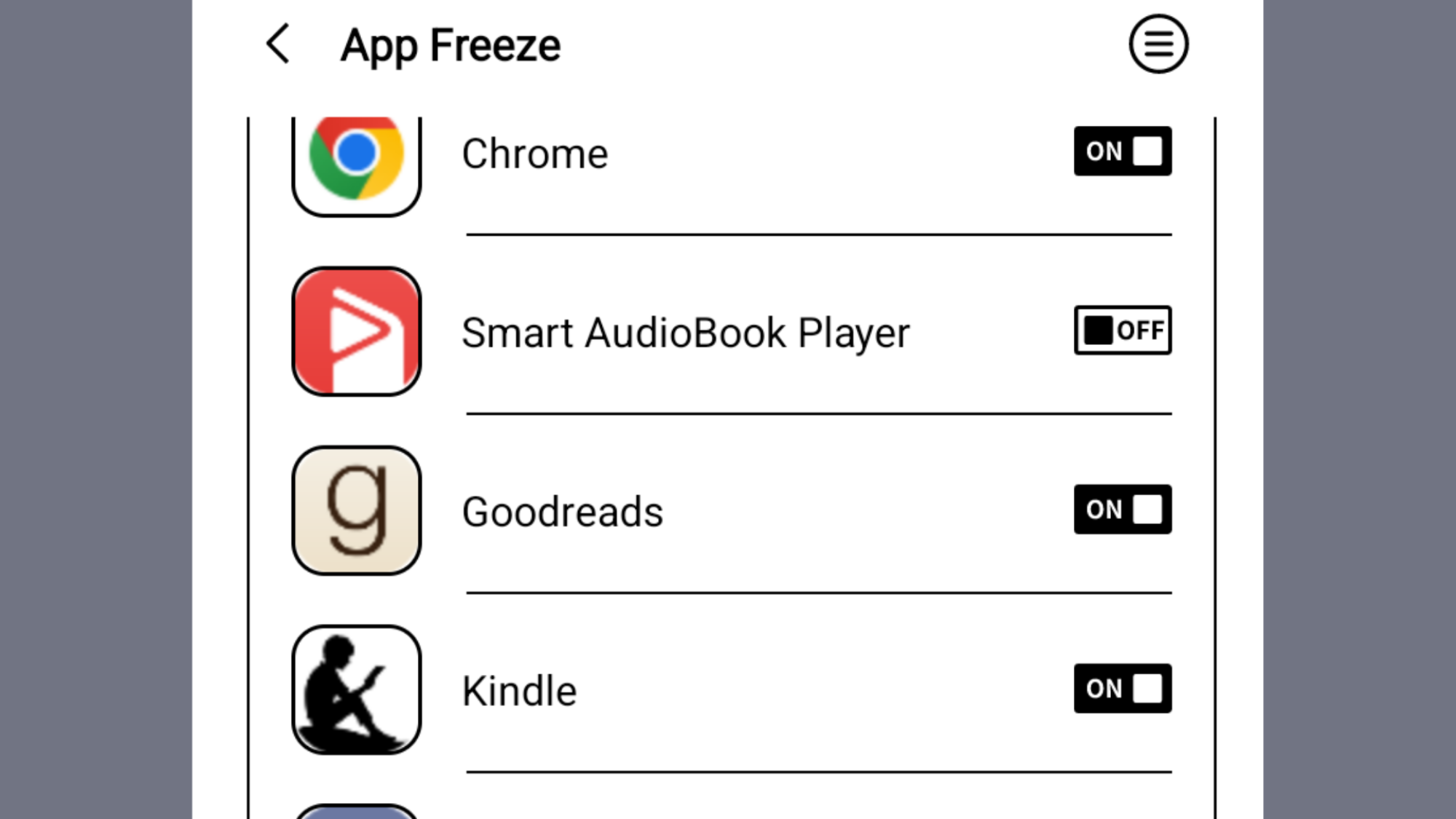
Next, you’ll need to stop the Palma’s OS from “freezing” audio-playing apps running in the background. You can make this change globally, or on a per-app basis. Freezing apps improves battery life, so keep that in mind as you make your decision.

To unfreeze a single app, open Settings and scroll down to Apps and Notifications. Tap Freeze Settings, find your audio-playing apps in the list of installed programs, and turn the slider to Off.

To unfreeze all your apps, from this same menu, turn the Do not freeze apps running in the background (such as audio/input method) slider to On.

You can also stop the Palma from automatically freezing newly downloaded apps by turning the slider next to Automatically enable freezing after installing an app to Off.

Keep your headphones connected

Palma Bluetooth settings menu

Credit: Screenshot by Joel Cunningham

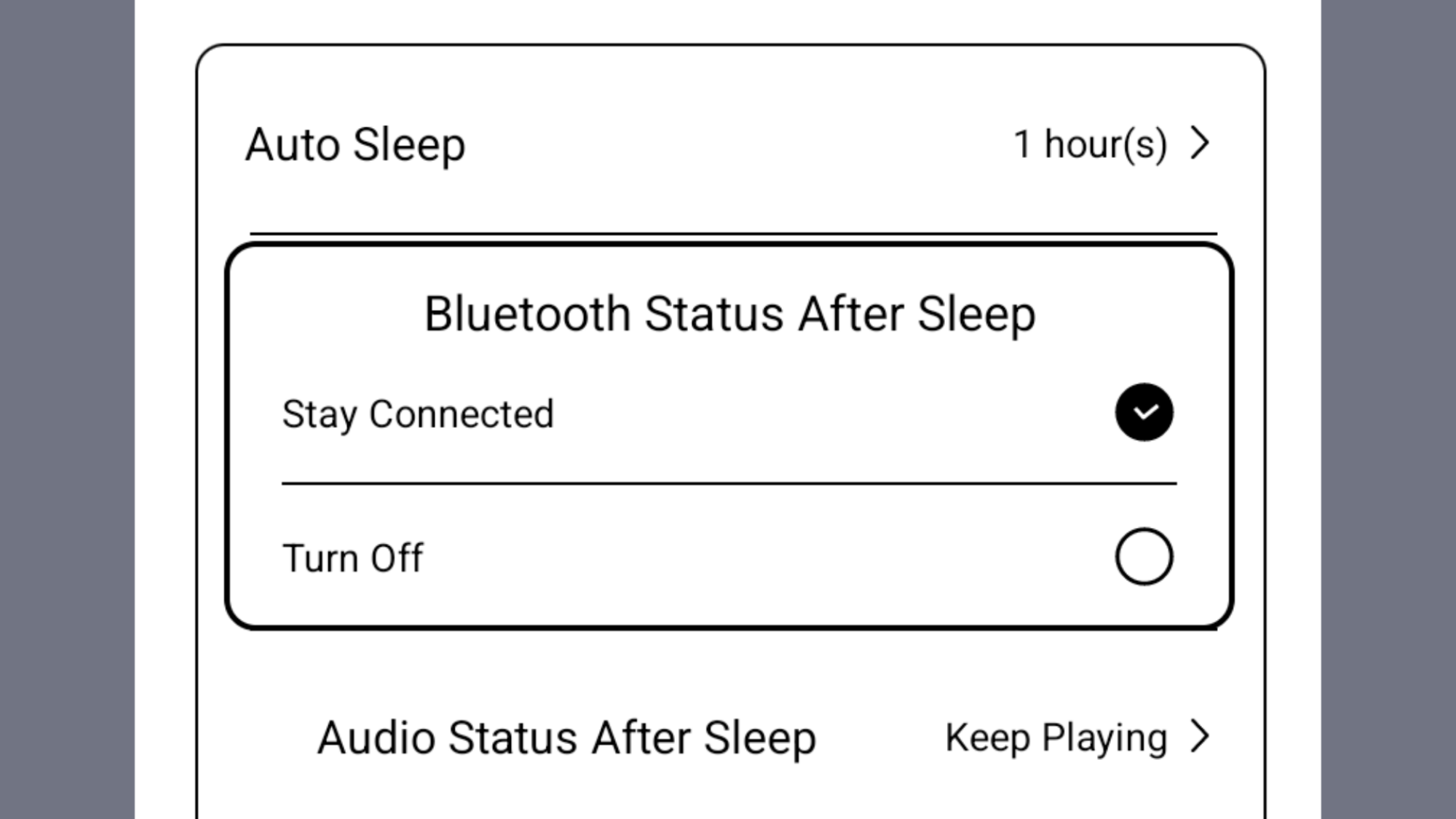
The last thing you’ll need to do is keep the Palma from turning off Bluetooth and disconnecting your headphones after the device goes to sleep. To do that, open Settings and scroll to Power. On the next screen, tap Bluetooth Status After Sleep and select Stay Connected from the pop-up menu.

(I’d also suggest turning on Always turn Bluetooth on when the device starts up from this menu, so you won’t have to manually turn Bluetooth on every time you want to connect your headphones—though, again, that will affect your overall battery life.

Now that that’s taken care of, here are other settings you should consider changing on any Boox device.

Tinker Lets You Create Custom Watch Faces for Your iPhone

Every once in a while, you come across a beautiful app that makes you smile whenever you use it. Tinker is one of those apps for me. It allows you to create beautiful analog clock widgets for your iPhone, and its attention to detail is remarkable. It has a few curated designs to get you started, but you can also bring in your own clock faces and customize every aspect of the widget. The best part—it works with StandBy mode.

In addition to your calendar, the iPhone’s StandBy mode lets you view photos, live activities, or a clock when the iPhone is charging in landscape mode, essentially turning it into a convincing substitute for a real alarm clock. Tinker adds far more options for the analog clock widget, and for me, the result is a lot nicer than the clock widgets Apple supplies.

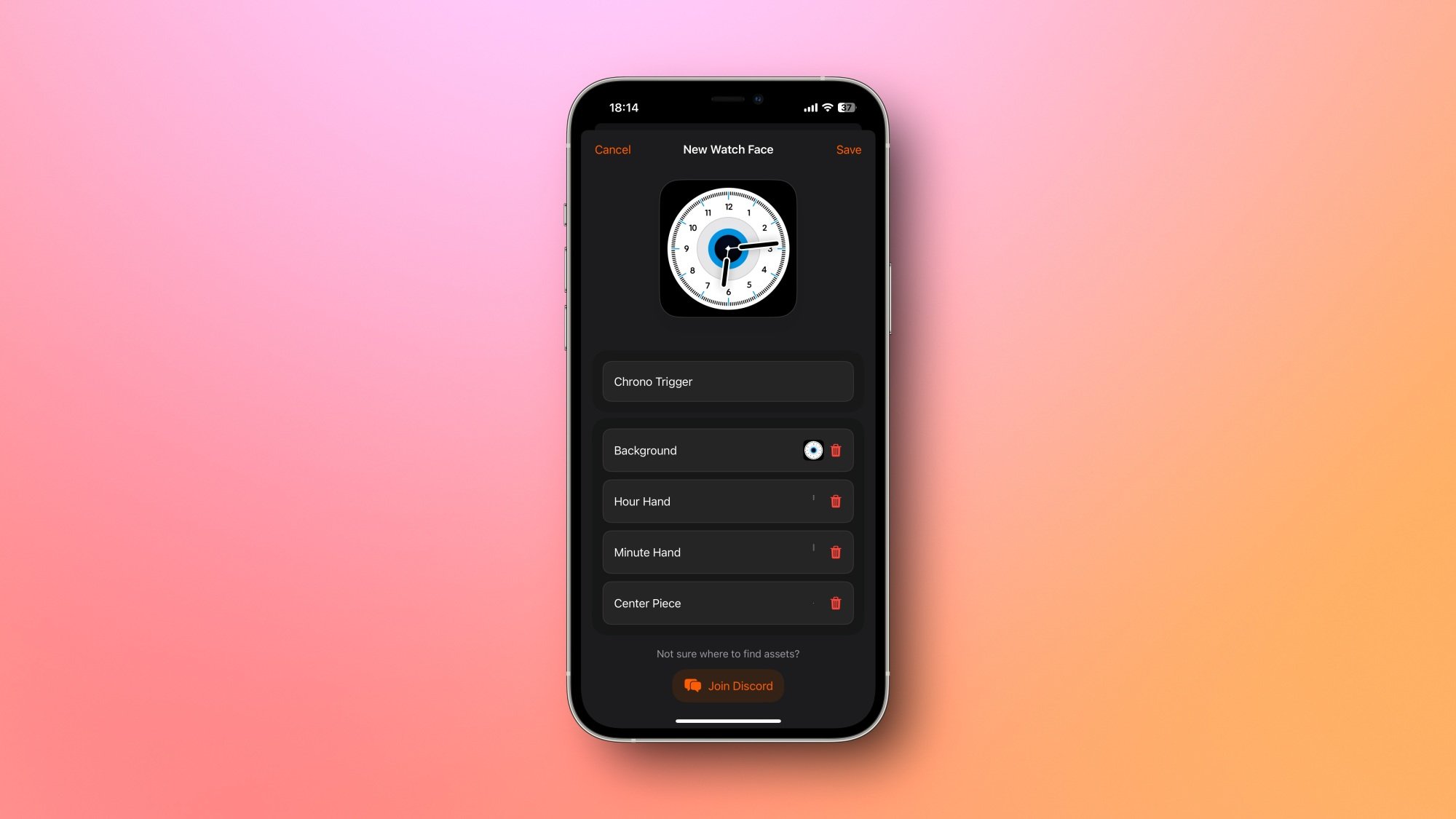
I quite like the design language of Tinker, too, which reminds me of the skeuomorphic designs that iOS had embraced until 2014, when iOS 7 moved in a different direction. Tinker’s app icons mimic the gears in a watch, and the buttons have a neat brushed metal look. All of this will appeal to the kind of person who enjoys analog watches in this digital age. Once you start creating your own watch face in the app, you’ll be able to customize four aspects of it—the background, the hour hand, the minute hand, and the center piece. While you’re doing that, you’ll notice another neat detail—the watch face accurately shows you the current time even while you’re customizing the widget.

Creating a watch face in Tinker. You can see the watch face up top, followed by four buttons—Background, Hour Hand, Minute Hand, and Center Piece.

Credit: Pranay Parab

There are a few templates available to get you started, and the app directs you to a Discord server if you want even more assets. You’re also free to download assets from the internet and add them on your own. This gives you a lot of customizability. Once you’ve found or created a watch face, you can easily add it as a widget on your iPhone’s home screen. Press and hold an empty part of the home screen and tap the Edit button in the top-left corner. Select Add Widget and search for Tinker. You’ll be able to select any of your saved watch faces and add it to the home screen.

Similarly, once you’re in StandBy mode, you can tap and hold the clock widget and replace it with one of Tinker’s watch faces instead. The app is free for up to two watch faces, and has a one-time $4 unlock to remove that limit. 

I really don’t know why Apple still stubbornly refuses to let you use your own watch faces on the Apple Watch, but if it ever decides to change its mind, Tinker is exactly the kind of app that I’d use to customize mine. I don’t care too much about adding complications to my watch face, but I do care a lot about how the watch face looks. With Tinker, I’ve already found a few designs that I’d like to use on the Apple Watch over the included options. Here’s hoping Apple caves and lets you use your own watch faces with Tinker some day.

The Best Free and Paid Cloud Storage Services

When it comes to your important data, you should always have a backup. And then a backup of that backup. Cloud storage services shouldn’t be your whole strategy here, but they can help with that. Sometimes, you just don’t have enough physical space to store all the photos you’ve taken over your life, or all your ebooks and work documents. Plus, there is the convenience factor of syncing your files between all the devices that you use, so that a document you drafted up on your iPad can instantly show up on your Mac or your Windows PC.

That said, picking a cloud storage service isn’t as easy as it used to be. Now that so much of our cloud usage is tied to platforms and ecosystems, your cloud service will really depend on the devices you use.

Google One

If you’re all in on the Android or Google ecosystem, Google One would be the best plan for you. With every Google account, you get 15GB storage for free that’s distributed between services like Gmail, Google Drive, and Google Photos. But you can add more storage at just $.99 a month for 100GB and $2.99 for 200GB.

With Google One, your Photos are backed up to Google automatically, you’re able to upload and share large files on Google Drive, and you won’t have to worry about running out of storage in Gmail. Google Drive’s web app is solid, and there are desktop app options too. Plus, the per TB rates are quite competitive, and even cheaper than Microsoft’s.

The 2 TB Premium plan might be best for most users. It’s $10 per month, or $100 per year, and supports family sharing (as do the cheaper plans). Plus, you get 10% back on purchases from the Google Store and Google Workspace Premium. If 2TB isn’t enough, you can add additional storage all the way up to 30TB, though at a cost of up to $150/year.

Microsoft 365

Microsoft’s policy of stuffing every possible value-added service into a single plan is still going strong. This is why Microsoft 365 is so popular with businesses. A single plan provides you with access to the entire Office suite and Microsoft Teams for Enterprise, shared with multiple users. Every user gets 5GB OneDrive storage for free, and a Microsoft 365 subscription boosts that up to 1TB. Sadly, unlike with Google One, there are no plans in between these options.

While 365’s enterprise offerings are popular, the Microsoft 365 Family plan offers a similar package for individuals. This plan supports all the paid Office apps, Copilot AI, and 6TB of storage space, split across 6 accounts, making it a great deal for family users, or for splitting with your friends. It costs $12.99 per month, or $129.99 per year.

If you don’t want to use multiple accounts, the per TB value for a single account at $9.99/month doesn’t make the most sense. In that case, it’s better to look at alternatives.

iDrive

iDrive is a popular choice when it comes to data backups, or storing copies of whole drives on the cloud. But while it’s not a pure storage solution, its file sharing and collaboration features make it competitive with the other choices on this list. The service provides a generous 10GB plan for free.

A downside is there’s no productivity suite built-in here, since individual files aren’t really the focus with this service, but a benefit to the backup mindset is that iDrive does provide end-to-end encryption, although it needs to be enabled by the user. And if you forget your encryption key, you’ll lose access to all your files.

Still, you can use iDrive to upload data from your computer, and you can share it with others. The 5TB plan will cost you $69.96 for the first year. There’s also a 10TB plan for $105 for the first year.

Proton Unlimited

If what you’re looking for is security, and you don’t need a lot of features, Proton might be for you. The Proton Unlimited plan gives you access to Proton Mail, Proton VPN, Proton Docs, and gives you 500GB of storage space for either $12.99 per month or $120 per year. The 1TB Proton Duo plan will cost you $15 per month instead. When it comes to free storage, Proton only offers 1GB space for free users.

That’s more expensive than established cloud syncing services, but what Proton offers you is extra peace of mind. You get encrypted storage, and no one, including Proton, has access to your files. Plus, the company is based in Switzerland, so strict Swiss privacy rules and laws apply here.

Sync

Sync offers a dependable cloud storage alternative to the big companies. It keeps things extremely simple. It’s just about storing and syncing files between devices and between different platforms. There are on add-ons, no mail accounts, no document apps, nothing. Like the good-old days of Dropbox.

The free plan gives you 5GB space, and you get 2TB storage for $96/year, which is around the same price as iCloud+ or Google Drive. Here, you get client-side encryption, so Sync can’t access your data. Sync offers simple and lightweight apps for Mac and Windows and there are mobile clients, too. Anything you transfer to the Sync folder on your device will show up in your Sync account instantly. There are no file limits here, too. Now that Dropbox has become so bloated (more on that later), Sync offers a simpler alternative that is easy to use.

pCloud

pCloud is another secure cloud backup provider that has two things going for it. The first is that it offers 10GB of storage space for free—this is way more than most of its competitors. Second is that it offers lifetime cloud storage for a one-time fee. This is a good choice for users who don’t like paying a monthly fee. 

At time of writing, you can get 500GB space for $199 and 2TB storage space for $399. pCloud also has annual plans, but at $99 per year for 2TB storage space, it’s not something I would recommend (you can get a Google One or iCloud+ plans for the same rate).

iCloud+

iCloud+ is designed for users in the Apple ecosystem, which is where it makes the most sense. iCloud+ is useful not just as a storage service, but it’s where users’ settings and device data are backed up, too. If you’re all-in on the Apple ecosystem, it might make sense to use iCloud+ as your default cloud storage provider, as it makes it easy to sync photos, videos, and documents from your Mac. iCloud+ is another service that focuses highly on privacy, offering end-to-end encryption.

A free iCloud account gets you 5GB storage, and Cloud+ offers flexible plans, too, starting at $0.99 for 50GB storage. The 2TB plan for $9.99 per month or $99 per year might be the sweet spot for most users, as it comes with family sharing (the 200GB plan can be shared with family as well). Though, I wouldn’t recommend iCloud+ if you’re even slightly cross-platform, or you want to frequently access files from the web browser, as the Windows app and the iCloud+ website are not great, especially when compared to the rivals on this list.

Why I don’t recommend Dropbox

One name that’s missing from this list is Dropbox. In the previous decade, Dropbox became the go-to option for simple, cross-platform storage that didn’t cost a king’s ransom, or even anything at all. Now, a free Dropbox account can only run on three devices, is limited to 2GB data, and has lower transfer speeds compared to their paid plans.

The app has also pivoted to being more business focused, with lots of support for third-party integration. Its storage plans are no longer the cheapest or the most varied. The 2TB plan costs $11.99/month while both iCloud and Google One are cheaper.

The simple-to-use aspect is gone as well. The Mac app, for example, has faced so many issues with reliability that we recommend you use a third-party app instead. Combine all these issues, and it no longer makes sense to use Dropbox in a personal capacity.

Elon Musk claims bad actors in Ukraine are behind “massive“ X cyberattack

Elon Musk is now claiming that bad actors in Ukraine are behind an alleged cyberattack that caused outages on his social media platform X on Monday.

In an interview, Musk told Fox Business that he believes the attack came from “IP addresses originating in the Ukraine area.”

Musk admitted that “we don’t know exactly what happened”—nodding as his comments were characterized as a suspicion and discussing no evidence—but alleged that the attackers were trying to take down the entire X platform.

Read full article

Comments

Apple MacBook Air M4 13-inch and 15-inch review: Minimal upgrades at a much better price

At the risk of repeating myself from Engadget’s MacBook Air M1, M2 and M3 reviews: The M4-equipped MacBook Air is a nearly flawless ultraportable. Even better, it now starts at $999, which is $100 less than before. While I’d still like to see more ports and a faster screen refresh rate, the MacBook Air still remains heads and shoulders above the competition. And when companies try to one-up Apple, as ASUS did with its 2.2-pound Zenbook A14, it only proves how much better-designed Apple’s hardware actually is.
It’s easy to take the MacBook Air for granted, since its design hasn’t changed since the M2 model arrived in 2022. It’s still a remarkable machine today, one that’s fast, light and well-built. The only major downside is that there’s a bit of a learning curve for Windows users jumping ship for the first time. But aside from that, the MacBook Air is a no-brainer purchase if you’re looking for a new ultraportable.

Hardware
Once again, both the 13-inch and 15-inch MacBook Air models feel impressively thin (measuring 0.44 inches thick) and light, weighing in at 2.7 pounds and 3.2 pounds, respectively. Last year, I noted “Its unibody aluminum case feels as smooth a river stone yet as sturdy as a boulder. It’s a computer I simply love to touch.” All of that remains true with the M4 models.
In fact, it’s even more impressive that Apple holds such a commanding design lead when competitors have had a chance to catch up. As much as we like the Surface Laptop, XPS 13 and ASUS’ Zenbook S14, Apple still maintains a level of polish that PC makers can’t quite match. The MacBook Air’s case feels more luxurious than the rest, its keyboard is a dream to type on and it has one of the best trackpads around. (And before you go calling me an Apple fanboy, I’m still primarily a Windows desktop user.)

Devindra Hardawar for Engadget

Apple’s M4 chip — which sports a 10-core CPU, 10-core GPU and 16-core Neural Engine (or what you’d call an NPU in a PC) — is the main upgrade with these new MacBook Airs. It’s also worth noting that the base $999 13-inch model has a slightly slower 8-core GPU, which will slightly hamper gaming and media creation performance. Aside from a new Sky Blue option, there aren’t any physical design changes. Apple also upgraded the webcam to a new 12-megapixel Center Stage shooter, which could be particularly helpful if you want to show off the contents of your desk. (More on that later.)
The 13-inch MacBook Air features a 13.6-inch Liquid Retina Display, which practically feels like a 14-inch screen, while the larger model has a 15.3-inch display. They’re still limited to 60Hz — an annoyance since plenty of PC ultraportables are shipping with faster and smoother screens — but they’re impressive displays nevertheless, with support for the P3 wide color gamut and 1 billion colors. Both screens can also reach up to 500 nits of brightness, which is enough to be usable on a sunny day.

Devindra Hardawar for Engadget

In use: Fast and light
Both the 13-inch and 15-inch MacBook Airs handled my basic workflow without a sweat: juggling browsers with a ton of open tabs, Slack, Spotify, messaging apps and the Pixelmator photo editor. But that was no surprise, as the previous models were similarly zippy. Still, after testing the sluggish Zenbook A14 recently, it felt refreshing to be using laptops that seemed eager to get to work.
I couldn’t actually feel a difference with the jump to the M4 chip, but according to the Geekbench 6 benchmark, it’s 19.5 percent faster than the M3 for single-threaded tasks, and 21 percent faster for multi-threaded tasks. That’s a typical incremental jump for CPU improvements, so I won’t knock Apple too much there. The M4’s GPU gains were far less impressive, scoring just 6 percent higher than the M3 in the 3DMark Wildlife Extreme benchmark and 16.3 percent better in the Geekbench GPU test.

Geekbench 6 CPU
Geekbench 6 GPU
Cinebench 2024

Apple MacBook Air 13-inch (M4, 2025)
3,784/14,745
36,273
172/660 GPU: 3,465

Apple MacBook Air 15-inch (M4, 2025)
3,874/14,873
36,131
171/748 GPU: 3897

Apple MacBook Air 13-inch (M3, 2024)
3,190/12,102
30,561
N/A

Apple MacBook Pro 14-inch (M4, 2024)
3,797/14,571
37,869
172/979 GPU: 3770

Surface Laptop 7 (Snapdragon X Elite)
2,797/14,400
19,963
123/969 GPU N/A

You likely won’t be doing much serious creative work on the MacBook Air, especially since there’s no fan to cool things down. But you can still squeeze out a bit of performance in a pinch. I was able to transcode a 4K clip to 1080p in 27 seconds using the M4’s CPU in Handbrake, while using the GPU took just 17 seconds. In comparison, the Dell XPS 13 Copilot+ system took 32 seconds with its CPU and 24 seconds with its GPU.
The graphically intense Lies of P ran at a smooth 60 fps in 1080p with high settings. That was also true of the M3 MacBook Air, but this time around the performance seemed a bit more consistent. While I’d never recommend buying a MacBook Air with gaming in mind, it’s nice that it can handle a bit of playtime, at least.
While jumping between the 13-inch and 15-inch models, I found a lot to like about them both. The smaller one is definitely easier to travel with, but I also loved the immersive screen on the 15-inch. Ultimately, choosing between them comes down to what’s most important to you.
Similarly, the leap to a 12-megapixel Center Stage camera isn’t exactly Earth-shattering, but I appreciated having a slightly better picture during video calls. I typically turn off the actual Center Stage feature on Macs, but I’m sure some will appreciate its ability to track you around a room. The new camera also supports Desk View, which projects a slightly skewed view of the area directly in front of the MacBook Air.
As for battery life, both MacBook Air models lasted for more than 18 hours while playing an HD video. The 13-inch Air lasted for 18 hours and 15 minutes, while the 15-inch notebook went for 18 hours and 23 minutes.

Devindra Hardawar for Engadget

How can Apple improve the MacBook Air?
As much as I love the 13-inch and 15-inch MacBook Air, there are still plenty of ways Apple can refine them down the line. As I mentioned above, it’d be great to have higher refresh rate displays, which makes scrolling through documents far easier on your eyes. And while I don’t need Apple to go all-out with ports, it’d be nice to have at least one USB-C connection on the right side of the Air to allow for easier charging. Right now, you’re stuck with a MagSafe charging port and two USB-C connections on the left side.
Of course, I don’t really expect Apple to actually deliver those upgrades anytime soon. I’d bet the company would nudge more demanding users to the $1,599 14-inch MacBook Pro, which has a ton of ports and a high refresh rate ProMotion screen. Still, a geek can dream.

Devindra Hardawar for Engadget

Should you buy the M4 MacBook Air?
If you can’t tell by now, I think the 13-inch and 15-inch MacBook Air are the ideal ultraportables for most people. So sure, if you’re in the market for a sleek laptop, they’re worth considering. And if you’re a Windows user who’s hesitant to make the jump, I’d recommend trying an Air for a while. It’s not that hard to learn the basics of macOS, and if you’re not satisfied you can always return it (just be sure to double-check retailer return policies).
While I’d bet most users would be fine with the base $999 13-inch MacBook Air with 256GB of storage, it may be worth jumping up to the $1,199 model with a 10-core GPU and 512GB SSD if you plan to do light media work. Or just jump straight to the $1,199 15-inch model, which comes with a 10-core GPU. 
As usual, I’d also recommend avoiding paying Apple’s absurd upgrade fees for components. If you’re considering spending $400 more for 32GB of RAM, you should probably be considering a MacBook Pro instead. If you’re looking to save some cash, several retailers are still selling the M2 MacBook Air at a steep discount of $700. Even though it’s an older chip, that laptop could still serve most users well for several years (just make sure you’re getting 16GB of RAM).

Devindra Hardawar for Engadget

Wrap-up
Once again, the 13-inch and 15-inch MacBook Air are basically everything we want from ultraportable notebooks. They’re zippy, wonderfully light and can last well beyond a full day of work. While the M4 chip isn’t a transformative upgrade, it helps Apple keep pace with evolving PC notebook chips. And now that the MacBook Air starts at $999, even Windows users should consider making the jump.This article originally appeared on Engadget at https://www.engadget.com/computing/laptops/apple-macbook-air-m4-13-inch-and-15-inch-review-minimal-upgrades-at-a-much-better-price-130002570.html?src=rss

How to pre-order the new Apple MacBook Air M4

Among the slew of Apple announced news from the previous few weeks is a refreshed MacBook Air. The laptop still comes in 13- and 15-inch sizes, starts with 16GB of RAM and offers up to 18 hours of battery life. The big spec bump here is the new M4 chipset, and that’s paired with a $100 price cut; the base model starts at $999. MacBook Air pre-orders are open now, and the notebook will be widely available starting March 12. Here’s everything you need to know about the M4 MacBook Air.
Apart from the new pricing, the marquee upgrade is the M4 chip. Although it isn’t a massive leap over the M3, it still makes the 2025 MacBook Air up to twice as fast as the M1 model. (You know it’s less than a generational breakthrough if Apple’s comparing it to its first in-house silicon from 2020.) The M4 silicon in this model has a 10-core CPU and up to a 10-core GPU.

The MacBook Air still starts with 16GB of RAM, but the top-tier configurations support up to 32GB — an increase from a maximum of 24GB in the M3 model. When combined with the faster processor, you should see a noticeable speed boost when upgrading from an M1 or (especially) an older Intel MacBook.
In a welcome change for those whose laptop does double duty as a desktop PC, you can now connect it to two external displays while still using the built-in one. Last year’s model only supported two with the MacBook lid closed or one with it open.
The new MacBook Air also adds Center Stage, Apple’s auto-centering camera feature, for the first time in the lineup. It’s paired with a 12MP camera, which should make your video calls and selfies look much sharper.
The last big upgrade is a cosmetic one. It now ships in sky blue, a light metallic color also found in the iPad Air and AirPods Max. It joins the carryovers midnight, starlight and silver.
Elsewhere, it still supports Apple Intelligence (if you’re into that), runs macOS Sequoia and has a pair of Thunderbolt / USB 4 ports.This article originally appeared on Engadget at https://www.engadget.com/computing/laptops/how-to-pre-order-the-new-apple-macbook-air-m4-140559026.html?src=rss

Here’s how to pre-order the new Apple iPad and iPad Air M3

Apple announced a number of new products recently, despite its last on-stage event being held last September. On the iPad side of things, both the entry-level iPad and the iPad Air received updates. The new base iPad runs on an upgraded A16 chipset, comes with double the previous amount of storage and is now considered to have an 11-inch display (the previous version sat at 10.9 inches). The new iPad Air models still come in 11- and 13-inch sizes, but are powered by M3 processors. iPad pre-orders are open now, and they will be widely available on March 12. Here’s everything you need to know about the new iPad and the iPad Air M3.

This article originally appeared on Engadget at https://www.engadget.com/mobile/tablets/heres-how-to-pre-order-the-new-apple-ipad-and-ipad-air-m3-143643261.html?src=rss

How to make your smartphone last longer

Replacing a smartphone every two years is partially why billions of phones go into landfills each year. If stacked flat atop one another, that many handsets would reach farther than the ISS. But we’ve become accustomed to that 24-month time frame because wireless carriers often push an upgrade on biennial contracts, and many smaller phone makers only offer software support for two years. But now, with longer software commitments from major manufacturers, along with growing right-to-repair legislation, many newer phones can stay in our pockets for closer to seven trips around the sun. Here’s how you can extend the lifespan of your smartphone and avoid shelling out hundreds before it’s absolutely necessary.
How to make your smartphone last longer
Amy Skorheim for Engadget
Use a case
It’s a flashy move to carry a naked phone around, but the chances of a handset making it through a tumble go up dramatically when you employ extra protection. We recommend a few in our guide to iPhone cases. In my family, we’ve been happy with Mous cases. Though we’ve never subjected our phones to the brutality seen in the company’s ads, I can say that these cases have seen my partner’s aging Samsung Galaxy through some pretty gnarly spills and I credit the cases for getting my iPhone 11 to 2025 in working condition.
Take care of the built-in battery (or use a power bank)
Since a phone’s battery is often the first thing to show signs of age, it’s worth it to follow recommendations for extending its lifespan. Lithium-ion batteries don’t perform well in heat and you should avoid charging them if it’s hotter than 95 degrees — doing so can degrade the battery quickly and even cause them to malfunction. They’ll tolerate cold weather better, but can get sluggish when things get too chilly.
If you’re storing a phone for a while, it’s best to do so with the battery at half charge, rather than full or empty. In fact, Li-ion cells last longer when they spend less time being either completely discharged or full — that’s why battery optimization features in iPhones and Pixel phones delay overnight charging to 100 percent until about an hour before you typically grab your mobile. And while it’s sometimes necessary to charge a battery quickly, a slower charging method when speed isn’t critical will put less stress on the ionic components and help extend the cell’s life.
But over time, any battery will eventually wear down. The cell powering my iPhone 11 can make it through a typical day, but if I’m traveling, relying heavily on navigation or using the phone as a hotspot, it’ll need a top-off before bedtime. I have a slew of them on hand after testing for our best power banks guide and the two I grab most often are the Nimble Champ Pro, because it’s crazy fast and the Anker Prime because it’s massive and I know it’ll always have a charge to lend.
If you really want to give your phone a new lease on life, a new internal battery could be the ticket. For Pixel phones, you can go through Google’s official channel for either a walk-in or mail-in repair, you can look for an authorized repair partner or you can pick the DIY route with iFixit’s Pixel repair kits and instructions.
For iPhones, you can start with Apple’s official page, go through Best Buy or other authorized third-parties, or try iFixit’s methods. Samsung also has an in-house option but both iFixit and Best Buy ended their repair relationships with Samsung in 2024. Depending where you go and the model of your phone, the price for a new battery and installation will likely run you between $60 and $150 — still far less than ditching your handset for something brand new.
Clean up your phone’s storage
Most advice on how to declutter your phone and make it run faster centers on one thing: freeing up space. Your phone’s OS will likely have suggestions for clearing up storage space, like automatically offloading unused apps or deleting year-old messages. You can also do things manually by deleting any apps you don’t use. Next, consider the photos and videos you’re storing locally and either opt to pay for cloud storage or transfer the files to a computer or an external backup device. You can also consider getting rid of any music and movies you may have downloaded for offline use, and deleting old messages and large attachments. A good rule is to keep your storage at around 80 percent capacity. Once you’ve deleted and transferred what you can, restart your phone to give it a chance to clear up its temporary memory.
Why you can (and should) extend the life of your smartphone
Photo by Sam Rutherford/Engadget
The e-waste stream grows each year and doesn’t do great things for human or planetary health. Smartphone companies are offering better and more consistent trade-in deals, but even some electronic recycling has its faults. Simply hanging onto a device instead of opting for a new one is the most efficient way of cutting back on a phone’s environmental impact — plus it’ll save you money.  
While every giant phone maker would like you to believe that upgrading annually is critical, it’s worth noting that new generations of phones often bear strong resemblance to the prior year’s model. Engadget editors see this time and again with the countless smartphones they review — there’s a new button, a few new AI tricks, but the technology generally doesn’t leap forward each year to create something wildly different than what came before.
With only minor hardware upgrades, the more exciting new features come via over-the-air software updates. Starting with the release of the Pixel 8 in 2023, Google promised security and software updates for a full seven years. So those who buy a Pixel 9 in 2025 could still be using the same phone in 2032. Samsung’s Galaxy S25 from this January has the same length of promised support. Apple hasn’t made the same pledge, but when the launch of iOS 18 last year cut support for the iPhone 8 and iPhone X, both models had enjoyed around seven years of updates from launch.
When Apple launched the iPhone 15, the company doubled its estimation for the handset’s battery life saying a handset should retain 80 percent of the original full charge after 1,000 cycles. And Apple said the placement of the larger battery in the iPhone 16 makes replacing it easier. Overall, battery technology has improved in capacity over the years, but longevity hasn’t gone up across the board, as a study by PhoneArena makes clear.
More advancements in battery life spans may be on the horizon particularly as the EV industry grows, which also relies on lithium-ion cells. For now, declining battery health is usually the most noticeable issue affecting older phones. In 2023, the European Council of the European Union adopted new guidelines for battery-powered devices, which includes a mandate to allow consumers to “easily remove and replace” batteries. That won’t go into effect until 2027, and there will be plenty of interpretation as to what “easily” means. But EU mandates are what made Apple finally ditch Lightning ports on iPhones in favor of USB-C, so this could eventually be a step towards (once again) having smartphones with swappable batteries.
Even in the US, legislation could compel companies to make repair a better option. Right-to-repair bills were passed in 2022 in New York, Minnesota and other states. California has the strongest rule, and it even garnered Apple’s support. And Google has voiced its support for Oregon’s law. Some of these laws have already gone into effect, and will require manufacturers to do things like providing repair tools and documentation, and selling components for a number of years after the last new model for higher priced devices.
Currently, a number of phones have decent repairability scores, according to the online repair community iFixit (The FairPhone 5 gets the highest marks.) It even appears California’s law is having an impact, considering that iFixit gave the iPhone 14 a repair score of 4, but the iPhone 15 and 16 gets a 7. Unfortunately, the scores for Google’s Pixel 9 phones went down compared to previous models. Until more companies start making it easier to fix things ourselves, authorized repair is an option, while self-repair remains an option for the more industrious.This article originally appeared on Engadget at https://www.engadget.com/mobile/smartphones/how-to-make-your-smartphone-last-longer-120014817.html?src=rss

Ford says it’s done sending out all its complimentary NACS charging adapters

Ford says it’s done sending out all the complimentary NACS adapters that 140,000 EV customers in the US had reserved. The automaker announced in 2023 that it was working with Tesla to give Ford EV owners access to tens of thousands of Superchargers across the US and Canada. In 2024, Ford’s EVs became the first non-Tesla vehicles to be able to access Superchargers. However, since Ford EVs come with Combined Charging System (CCS) ports, they need North American Charging System adapters to be able to plug into Supercharger stations. 
The automaker gave new and current members of it BlueOval Charge Network — in other words, everyone who purchased it EVs — complimentary NACS adapters until June 30, 2024. Now, it has finished sending out the free adapters to everyone who asked for it. Those who need one will have to purchase the Ford Fast Charging Adapter, which “unlocks access to a vast network of DC fast charging stations using the North American Charging Standard (NACS),” for $200. Ford was planning to make the switch to built-in NACS ports for this year’s EV models, but it’s now unclear if that will happen, seeing as the 2025 model Mustang Mach-E still comes with a CCS port. 
Ford has also announced that its BlueOval Charge Network now includes 180,000 chargers at more than 50,000 locations, which translates to a 40 percent increase from the beginning of 2024. Like other automakers making the switch to electric, Ford is making an effort to expand charging availability. The hope is that wider access to chargers can help assuage range anxiety and encourage more people to buy electric. This article originally appeared on Engadget at https://www.engadget.com/transportation/evs/ford-says-its-done-sending-out-all-its-complimentary-nacs-charging-adapters-120020255.html?src=rss

SpaceX Partners With Airtel To Launch Starlink in India

SpaceX’s Starlink has secured its first agreement in India, partnering with telecommunications leader Bharti Airtel to bring high-speed satellite internet to the world’s most populous country, the companies announced Tuesday [PDF].

The landmark deal will enable Starlink to tap into Airtel’s extensive retail network and ground infrastructure while expanding its global reach into previously underserved regions across India, pending regulatory authorizations.

“We are excited to work with Airtel and unlock the transformative impact Starlink can bring to the people of India,” said Gwynne Shotwell, President and Chief Operating Officer of SpaceX. “The team at Airtel has played a pivotal role in India’s telecom story, so working with them to complement our direct offering makes great sense for our business.”

The collaboration will explore selling Starlink equipment through Airtel’s retail stores and offering services to business customers while connecting communities in rural areas with limited connectivity.

Read more of this story at Slashdot.