Over the weekend, Windows Latest noticed that Microsoft’s official Copilot Discord server began automatically blocking the term “Microslop.” As shown in a screenshot, any message containing the word is automatically prevented from posting, and users receive a moderation notice explaining that the message includes language deemed inappropriate under the server’s rules. From the report: Windows Latest found that sending a message with the word “Microslop” inside the official Copilot Discord server immediately triggers an automated moderation response. The message does not appear publicly in the channel, and instead, only the sender sees the notice stating that the content is blocked by the server because it contains a phrase deemed inappropriate.
Of course, the internet rarely leaves things there. Shortly after Windows Latest posted about Copilot Discord server blocking Microslop on X, users began experimenting in the server with variations such as “Microsl0p” using a zero instead of the letter “o.” Predictably, those versions slipped past the filter. Keyword moderation has always been something of a cat-and-mouse game, and this isn’t any different.
What started as a simple keyword filter quickly snowballed into users deliberately testing the restriction and posting variations of the blocked term. Accounts that included “Microslop” in their messages first got banned from messaging again. Not long after, access to parts of the server was restricted, with message history hidden and posting permissions disabled for many users.
Facebook is clearly no longer the hot social media property it once was—younger generations are now far more likely to spend their time on TikTok, Snapchat, or Instagram—but there are still billions of people logging into the Facebook site and mobile apps each month.
During its 20+ years of existence, Facebook has added a whole host of features and options on top of its platform, and branched out in multiple different areas. There’s plenty on offer in the modern-day Facebook that you may not know about.
Whether you’re using Facebook daily or you haven’t touched your account for months, these hacks and tips will help you get more from the app: Find out how to stop people from tagging you, how to clear your tracks on Facebook, how to look back on a friendship, and more.
Adjust the algorithm to limit AI slop in your Facebook feed
Let the Facebook algorithm know what you’re interested in. Credit: Lifehacker
The Facebook algorithm isn’t always well tuned to your tastes and interests, and that might extend to AI slop as well as friends and family members you don’t particularly want to hear from. The solution is to give the algorithm a few nudges in the right direction.
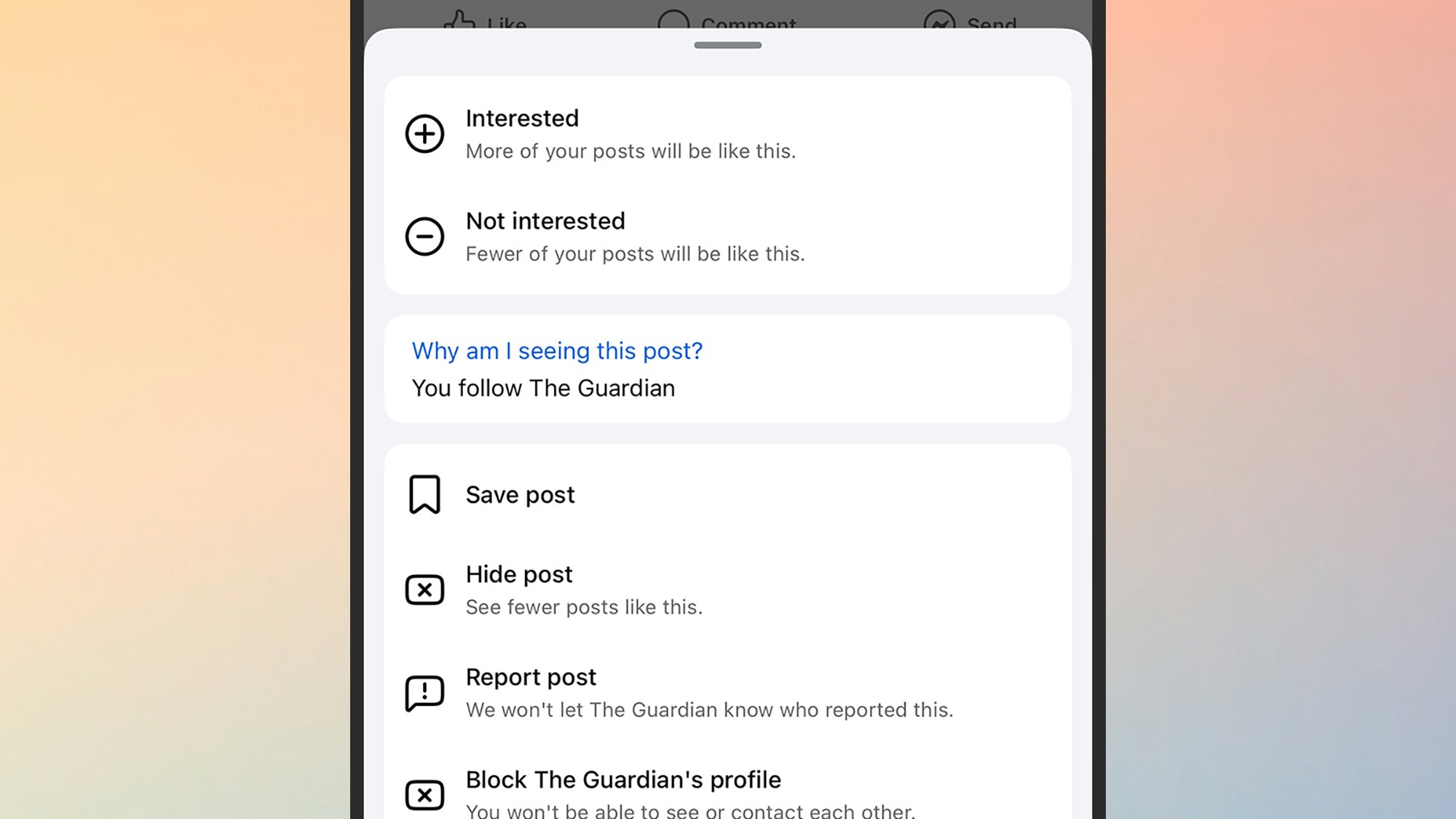
Tap or click on the three dots in the top right corner of any post in your news feed, and you’ve got a few options: You can tell Facebook you’re not interested in something, mute posts from this source for 30 days, or permanently hide this person or page.
There are also options to tweak the algorithm in the other direction—select Interested if you want to see more of this type of content in your feeds.
Change your privacy settings to stop other people from finding you on Facebook
Facebook can cause you problems when it comes to people from your past reaching out, wanting to know how you’re getting on these days. While it can make for some serendipitous reconnections, there may well be old colleagues, friends, and relatives you’d rather not hear from every again.
You can control how available you are on Facebook by heading to the website and clicking your profile picture (top right). Choose Settings & privacy > Privacy Center > Common privacy settings > Profile information and then select your Facebook account. On the next screen, select How people can find and contact you.
There are a few settings you can tweak here: You can stop people finding you through your email address or phone number, and you can stop your Facebook profile from showing up in web search results. You can also decide whether message requests from people who you’re not connected to make it into your main inbox.
Choose who you want to see your Facebook posts
Your posts on Facebook can be visible to specific groups of people. Credit: Lifehacker
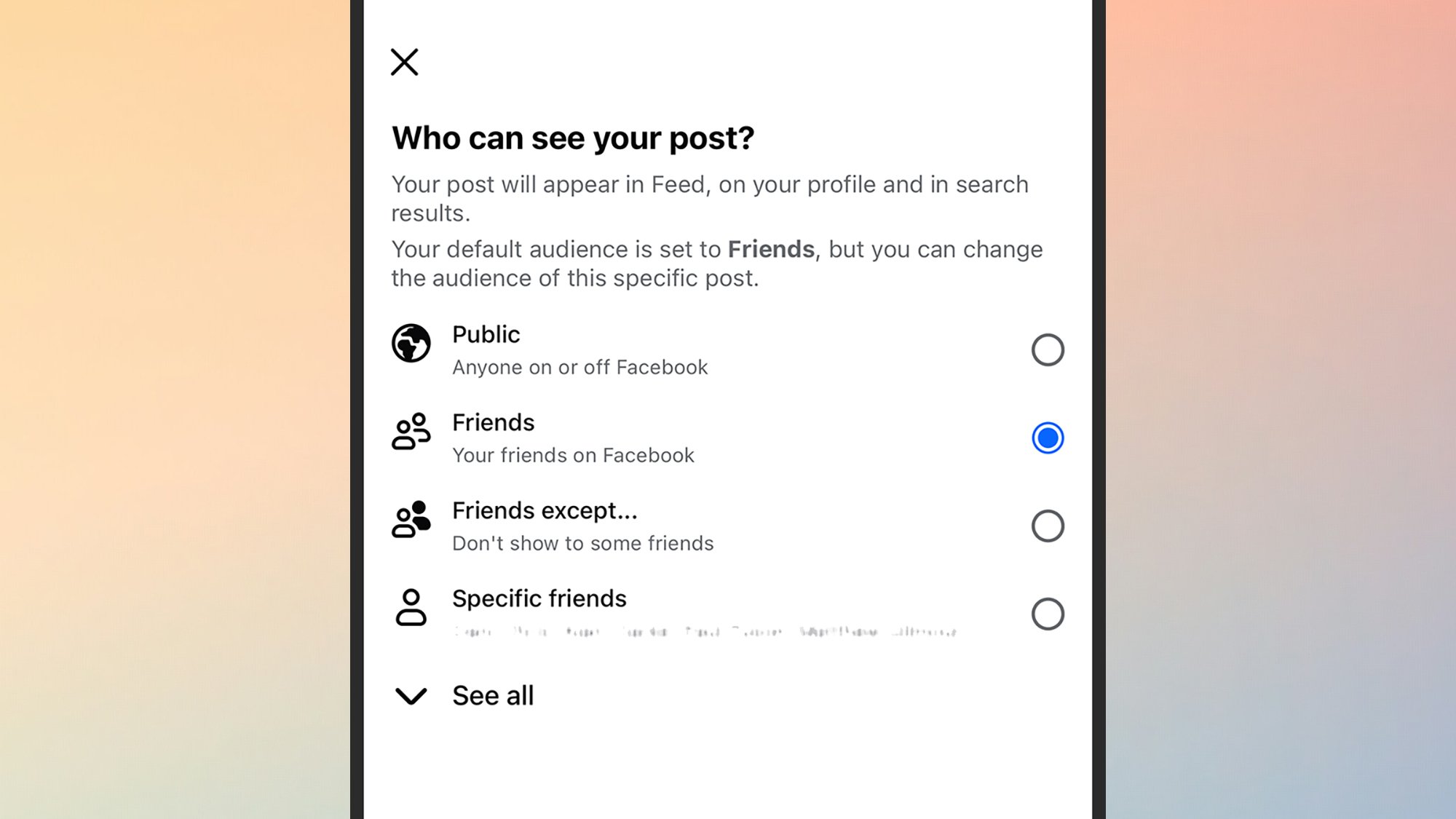
Just like on Instagram or Snapchat, you can limit the audience for certain posts—though it’s not immediately obvious where the option is. When you’re composing a post, you need to tap on the Friends drop-down list just below your name (it might say something else, like Public, if you’ve already changed the audience for posts).
The menu you see next lets you limit the post to any group of Facebook friends you like: Whether it’s two people or 200 people. You can either specify the friends who can see the post, or the friends who can’t, and you can make new custom lists of contacts by going to your friends directory and choosing Create List.
See your entire Facebook friendship history with someone
There’s quite a cool way of looking back on the moments you’ve shared with a Facebook friend—at least on this particular social media platform, anyway. Head to the Facebook profile page of a contact, then click the three dots on the right and See friendship.
You then get shown photos, posts, and events you’ve both been involved in. Assuming you both use Facebook fairly often, it’s a nice trip down memory lane (you might also see some of this shared content in your feed when your friend has a birthday).
Undo your activity on Facebook
You can remove a reaction you’ve left on Facebook. Credit: Lifehacker
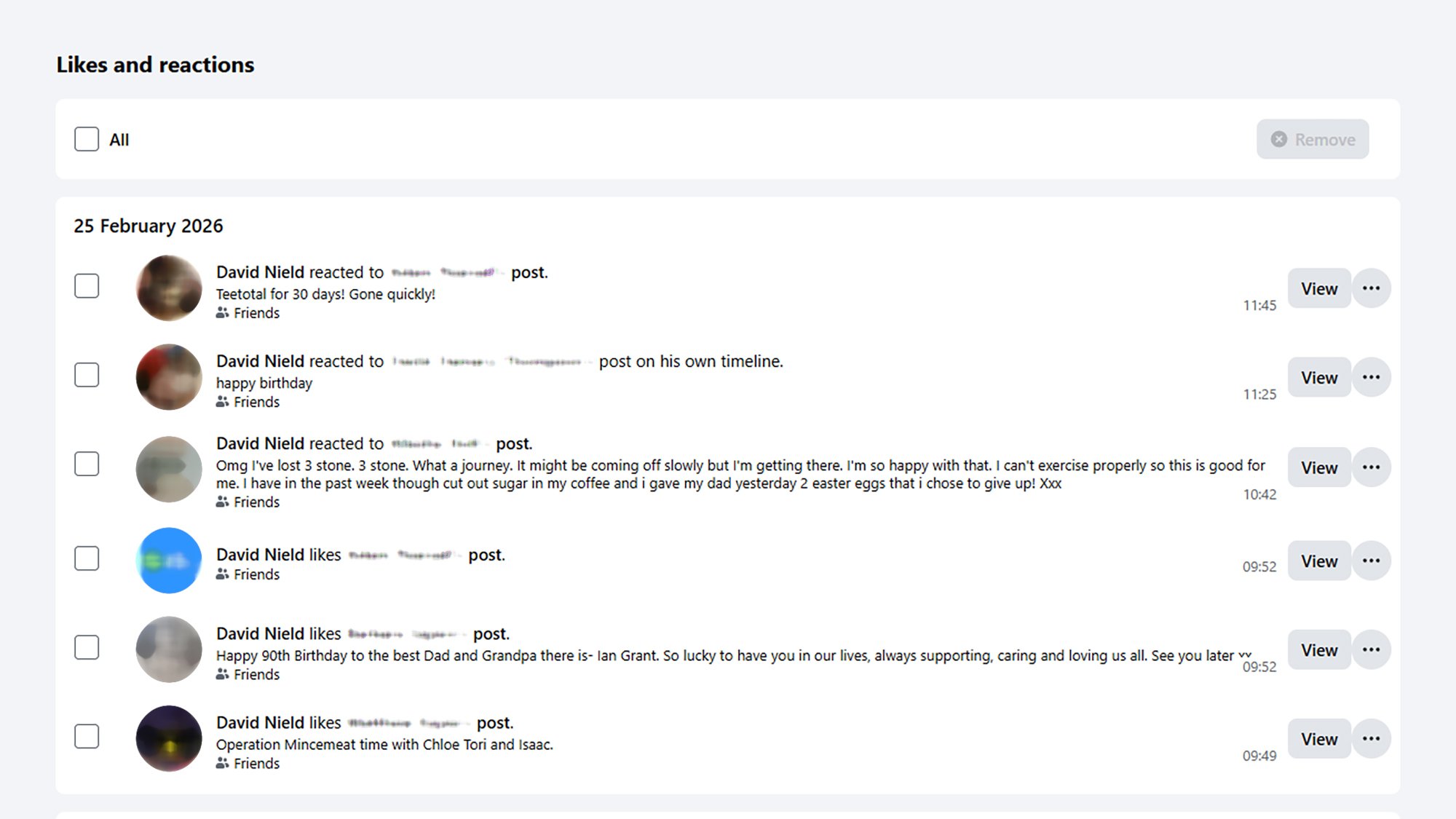
If you’ve logged a comment or a like on Facebook that you later regret, you can take it back: On the web, click your profile picture (top right), then pick Settings & privacy > Activity log. This is a record of everything you’ve done on Facebook.
Choose Comments to get to your comments and likes, and to remove them if necessary. You can also delete posts you’ve made, and searches you’ve run on Facebook—it’s a central hub for viewing and managing your digital tracks on the social media app.
Download and save your Facebook photos
Facebook used to be the best place to post photos, and it may well be that you’ve got a ton of pictures on the platform that you haven’t saved anywhere else. Maybe you took them before photo backup from phones was so seamless—or perhaps they were snapped with an actual camera and scanned in (remember that?).
You don’t have to go through images and videos individually to get all this content exported from Facebook and put somewhere else (like Google Photos). On the web, click your profile picture (top right), then Settings & privacy > Settings > See more in Accounts Center > Your information and permissions.
Finally, you will see the Export your information option: This lets you get all of your data out of Facebook, including pictures, posts, and messages. Be sure to choose the Higher quality option for Media quality to get the best versions of your images and videos.
Stop people from tagging you on Facebook
Facebook lets you manually review posts you’re tagged in. Credit: Lifehacker
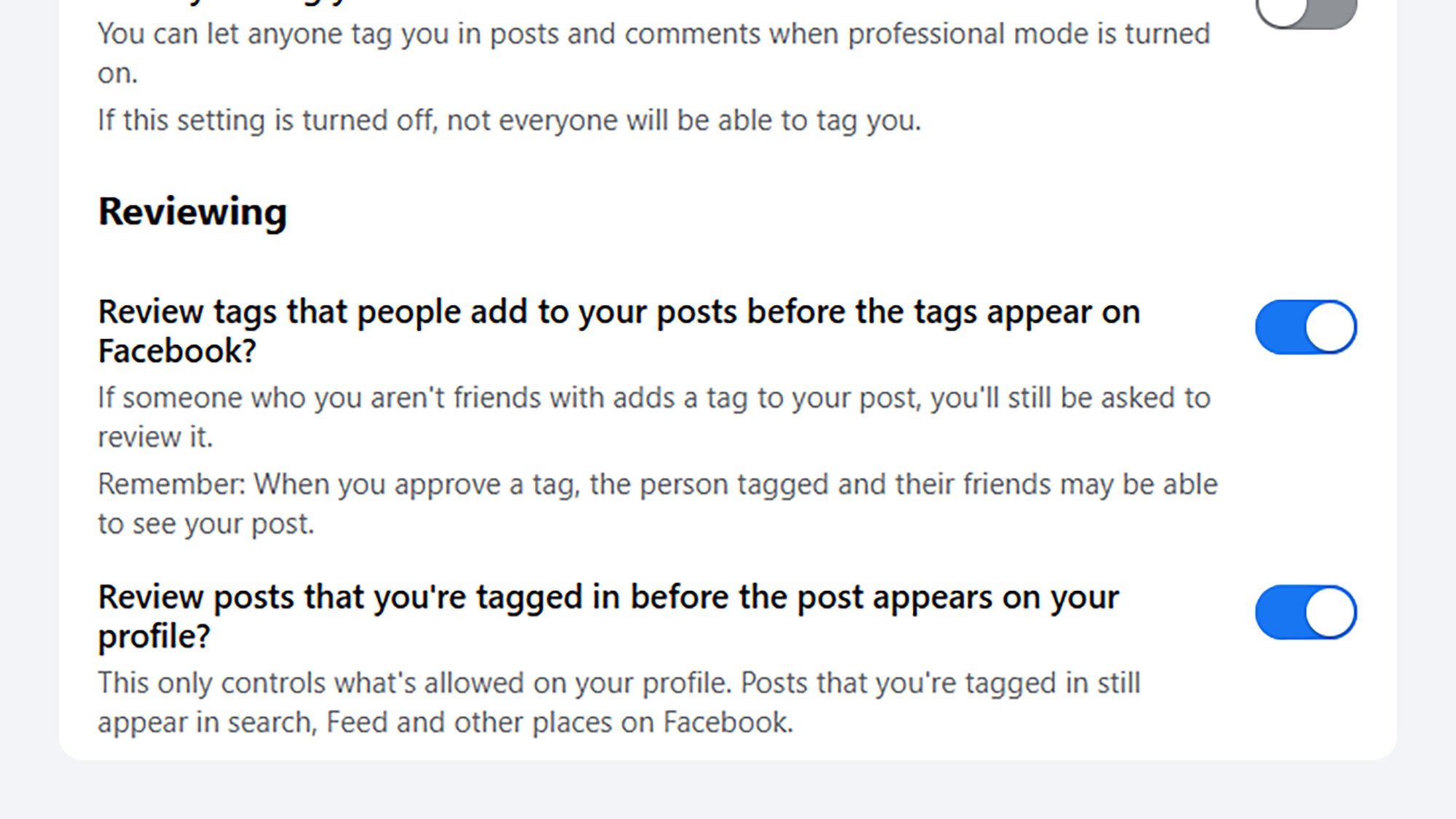
You don’t necessarily want other people tagging you in pictures and other content (which means these posts will then be visible to your network too). You can enable manual tagging approval to stop this from happening: On the web, click your profile picture (top right), and select Settings & privacy > Settings > Profile and tagging.
When you’ve enabled tag reviews, you’ll get notifications on Facebook when someone else tags you. You then have the option to approve or block the tag (the tagger won’t be notified directly, but may notice if the tag hasn’t been accepted).
Control the type of ads you see on Facebook
Adverts are an inescapable part of the Facebook experience, but you can at least take some control over the types of ads you see, and from which companies. On the web, click your profile picture (top right), then choose Settings & privacy > Privacy Center > Common privacy settings, and Manage in Accounts Center under Ads preferences.
There’s lots you can do here: You can change the categories of adverts you see, hide ads from specific advertisers, and even access ads you might have saved—so if there’s a purchase you do want to make and didn’t get around to, you can do that here.
Keep your conversations on Facebook secret
Facebook Messenger chats can disappear automatically. Credit: Lifehacker
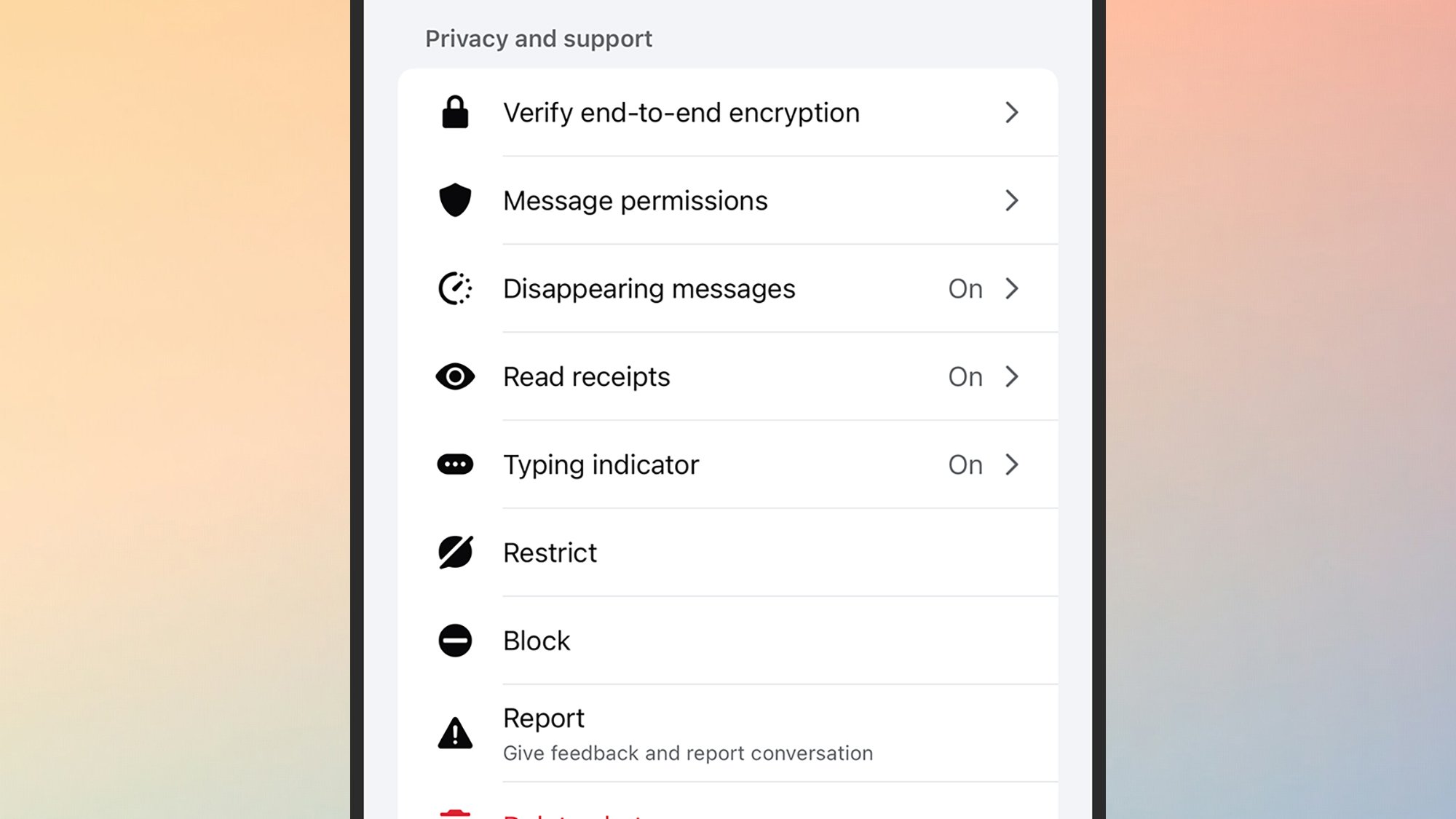
Some of us will be using Facebook Messenger far more than the main site, and the messaging component of the platform can be tweaked and customized in multiple ways. For example, you can set messages to disappear after a set amount of time if you’d rather keep conversations off the record.
From inside a Facebook Messenger chat on mobile, tap the contact or group chat name at the top, then pick Disappearing messages. Note that the setting you choose will be applied to all messages from every sender, and a notification will be posted to the chat if you make a change.
You can give nicknames to your friends and family on Facebook
If you want to add some spice to a group chat, you can assign a nickname to the contacts in it: Tap on the group name at the top of the chat, then choose Nicknames. Bear in mind that everyone else will see the nicknames you set (and can change them to something else), and that you can use nicknames or real names when tagging people in the chat.
AMD told us at CES 2026 that it would be bringing its Ryzen AI 400 processors to desktop at some point, and naturally it announced those chips today, because why wouldn’t you announce desktop CPUs at Mobile World Congress? Yes, indeed; AMD’s bringing its latest mobile silicon to the desktop market, and a sentence like that gets integrated
Snapchat launched all the way back in 2011, and has had quite the journey since: It practically invented the stories format that every social media platform uses, and helped drive the shift from public and permanent online sharing to the more private and temporary approach most of us prefer today.
The app is also packed with more features than you might be aware of—in fact, it could reasonably claim to be the most capable and versatile social media app out there. From location alerts and data saving, to custom notifications and clever camera tricks, here’s how to get the most out of Snapchat.
Use Snapchat’s buried Data Saver mode to use less storage and prolong your battery life
Snapchat comes with a Data Saver mode that does exactly what it sounds like—it saves on data usage. Snaps and stories won’t load automatically in the background like normal, so you’ll need to manually tap them to trigger the download and see the media. This helps when you’re traveling and away from reliable wifi, and because there’s less background downloading going on, you should save a little battery life too. To enable it, from your profile, tap the cog icon (top right) to open the app settings, then tap Data Saver.
Get notifications only for specific Snapchat stories
Get notifications for specific stories. Credit: Lifehacker
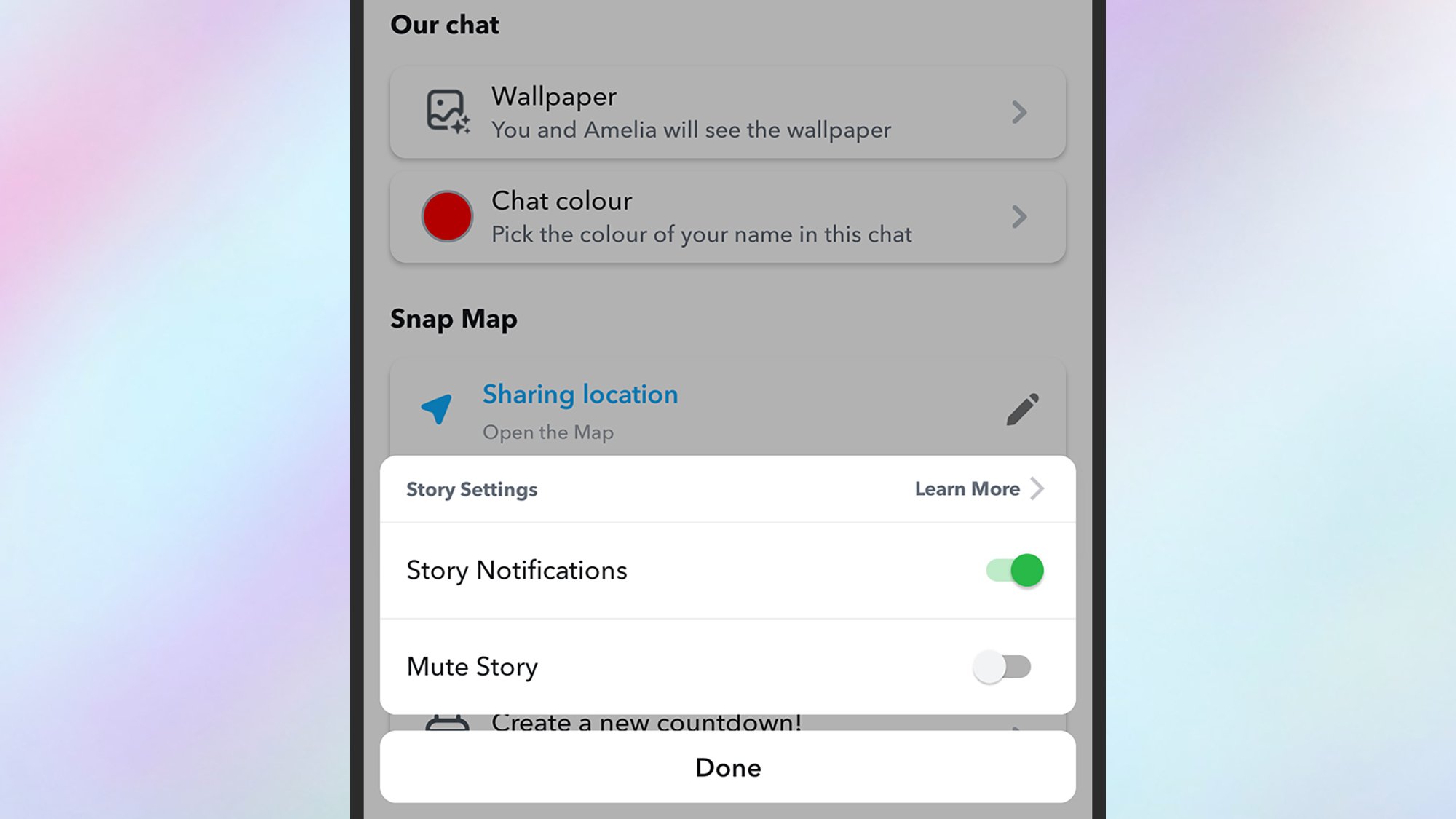
There’s a lot going on in Snapchat, so if you’ve got a significant number of friends, you can quickly get overwhelmed with notifications—especially when it comes to stories. With a little bit of tweaking, you can just get alerts for the stories you care about most.
From your profile page, tap the cog icon (top right), then Notifications—from here you can turn off notifications for stories generally. You can then add story notifications specifically for your favorite contacts, one by one. Tap through to the friend’s profile page, then tap on the three dots (top right): Choose Story Settings > Story Notifications to make sure you get alerts for this particular person.
You can create snaps with multiple cameras at once
You don’t have to limit yourself to just one camera for your snaps: You can capture photos and videos from both the selfie and rear cameras on your phone simultaneously, so you can comment on or react to what you’re seeing. When you’re in the main capture screen, tap the drop-down arrow on the right, then pick Dual Camera. Tap on the Dual Camera icon again to choose from four layout options—including one where a cut out of you gets superimposed over the main view.
Use Snapchat’s Snap Map to let someone know when you’ve arrived safely
You can set up location alerts for trusted friends and family. Credit: Lifehacker
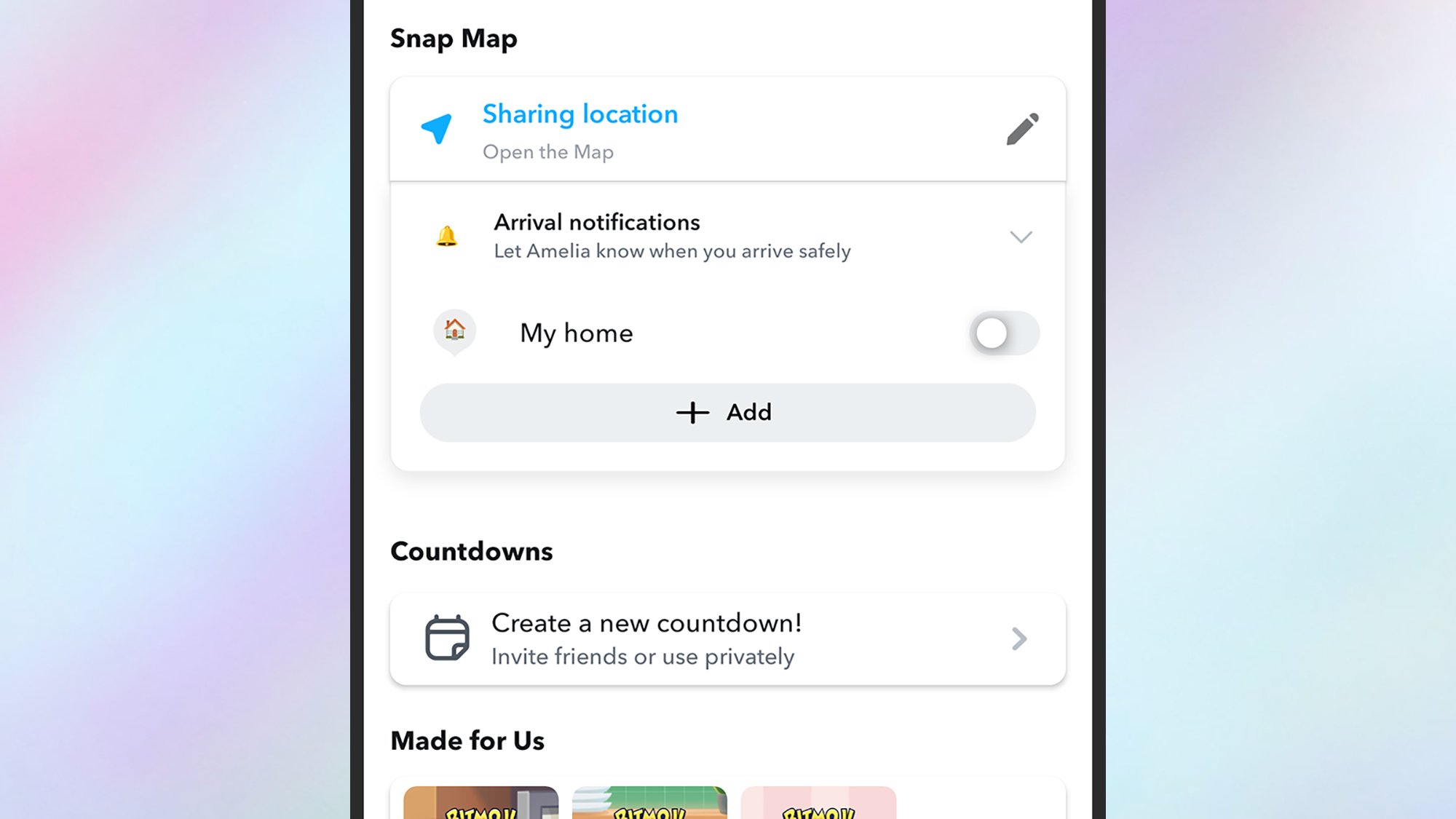
This isn’t something that you’ll want to use widely, but it’s handy for family members and partners: As an extension of the Snap Map location sharing feature, you can also ping a specific contact when you get home (or arrive at any other place on the map).
Head to the contact’s main profile page, tap the three dots (top right), then choose Arrival notifications. You can pick My home, or tap Add to set up another location—it could be school, football practice, or whatever you like.
Let your friends decide if they want to view your custom Snapchat stories
One of Snapchat’s most appealing features is the way you can create custom stories for custom audiences, and these can be set up from your profile page: Just tap New Story. However, you don’t have to pick the contacts who can view your story yourself—you can let your friends decide if they want to get involved instead.
Once you’ve created a story, create a new snap in the usual way, then tap the sticker icon (top right), and Story. This lets you post an invite link to any of your stories, so your contacts can decide for themselves whether they want to see your vacation adventures or thousands of your pet pictures.
The snap can be posted to individuals, or to one of your other stories, so you still get full control over who can see what (and you can kick out story viewers at any time).
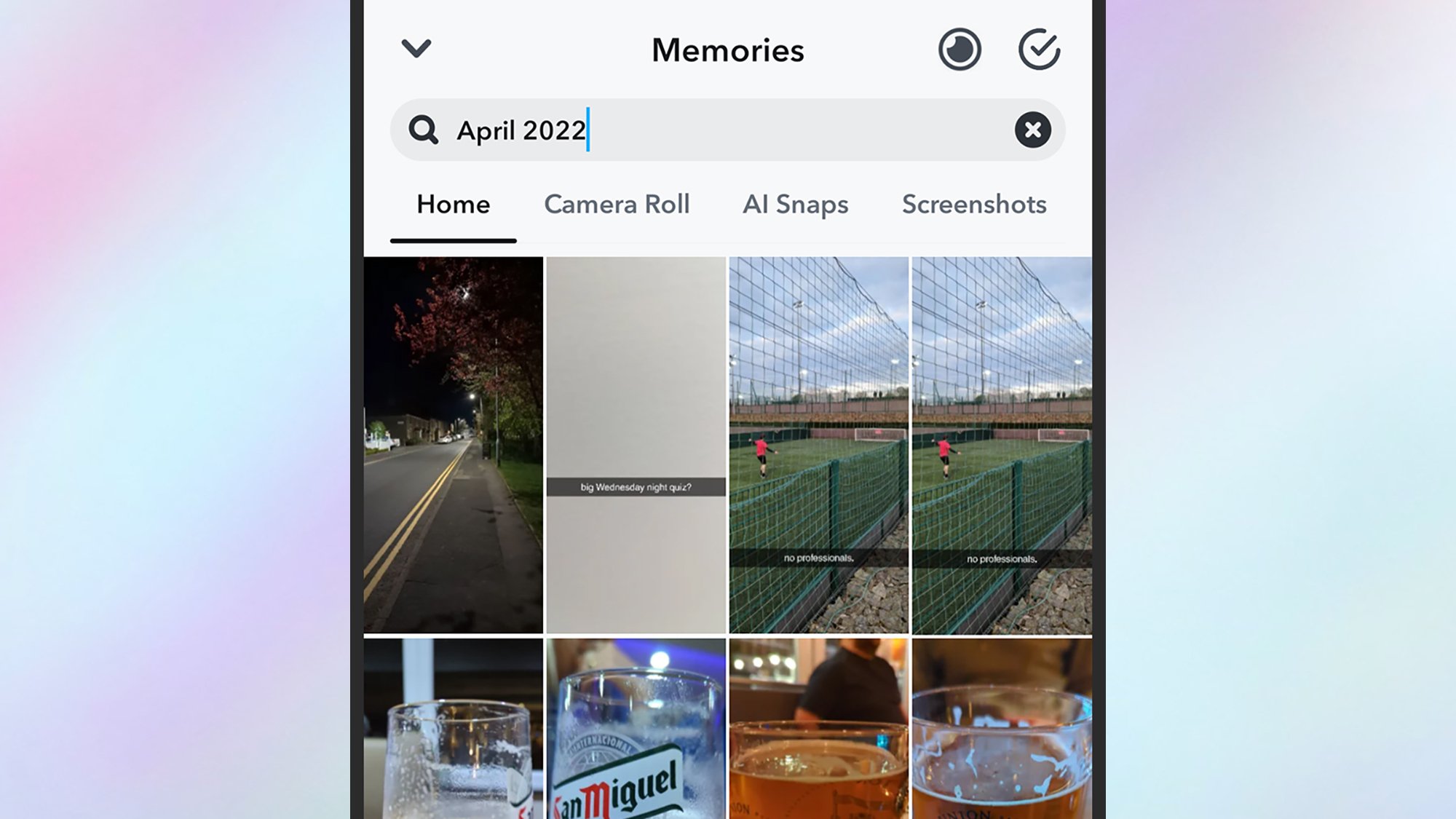
You can search through your Snapchat memories
There are some powerful search options for your Snapchat memories. Credit: Lifehacker
Snapchat is focused on content creation, which means you may not realize how much you can do with the photo and video memories that the app builds up for you. From your profile page, tap the three dots (top right), then Memories to make sure they’re being saved (you can also save individual snaps as you capture them).
You can get to your memories later by tapping the image icon to the left of the shutter button on the main capture screen—and there’s a powerful search capability built right in. Try searching for pets, sunsets, locations, or dates (like “August 2023”) and you’ll get results back more or less instantly.
You’ll also see certain images and videos picked out by Snapchat and grouped as flashbacks, and any of your memories can be reposted again as snaps or stories (with new edits, if needed).
Yopu can permanently save your Snapchat chats
Snapchat is known for its ephemerality, but your pictures, videos, and text messages don’t have to disappear right after they’ve been viewed. You can keep them around for longer in certain conversations, turning the app into more of a conventional messaging tool.
From inside any of your one-to-one or group chats, tap the header bar at the top, then the three dots (top right). Choose Delete Chats and you can set them to never expire. You can also save images, videos, and text permanently by tapping and holding on them in the chat, then choosing Save in Chat.
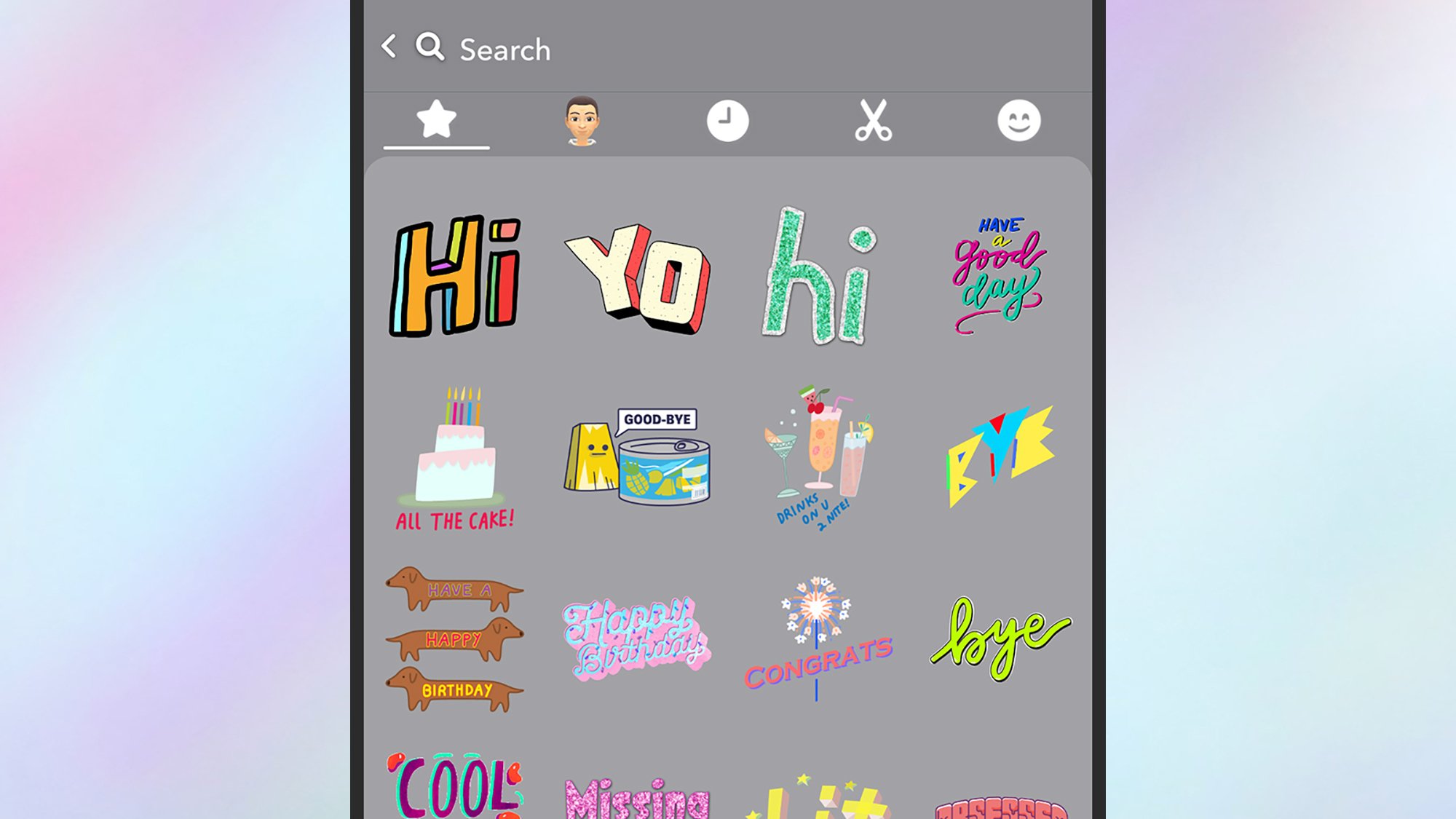
You can make your own Snapchat stickers
You can add your own stickers to the Snapchat selection. Credit: Lifehacker
Anything in your image and video snaps can be cut out as a sticker, ready to be used again in future posts. When you’ve captured the content, tap the scissors icon on the right, and you get three selection tools for picking out the sticker you want. Once you’ve done the cutting, you can reposition the new sticker anywhere you want in the current snap, and find it in the future by tapping on the sticker icon in the top right corner of the capture screen.
You can also use Snapchat in a web browser
Snapchat isn’t just for mobile, and there’s an official web app that offers most of the features you get on Android and iOS. It also makes typing much easier, so if you use Snapchat as a general messaging app, this is something worth looking into. You can view stories on the web, and even send snaps—though you’ll be limited to using your computer’s webcam, so these will mostly just be snaps of your face and whatever room you happen to be in.
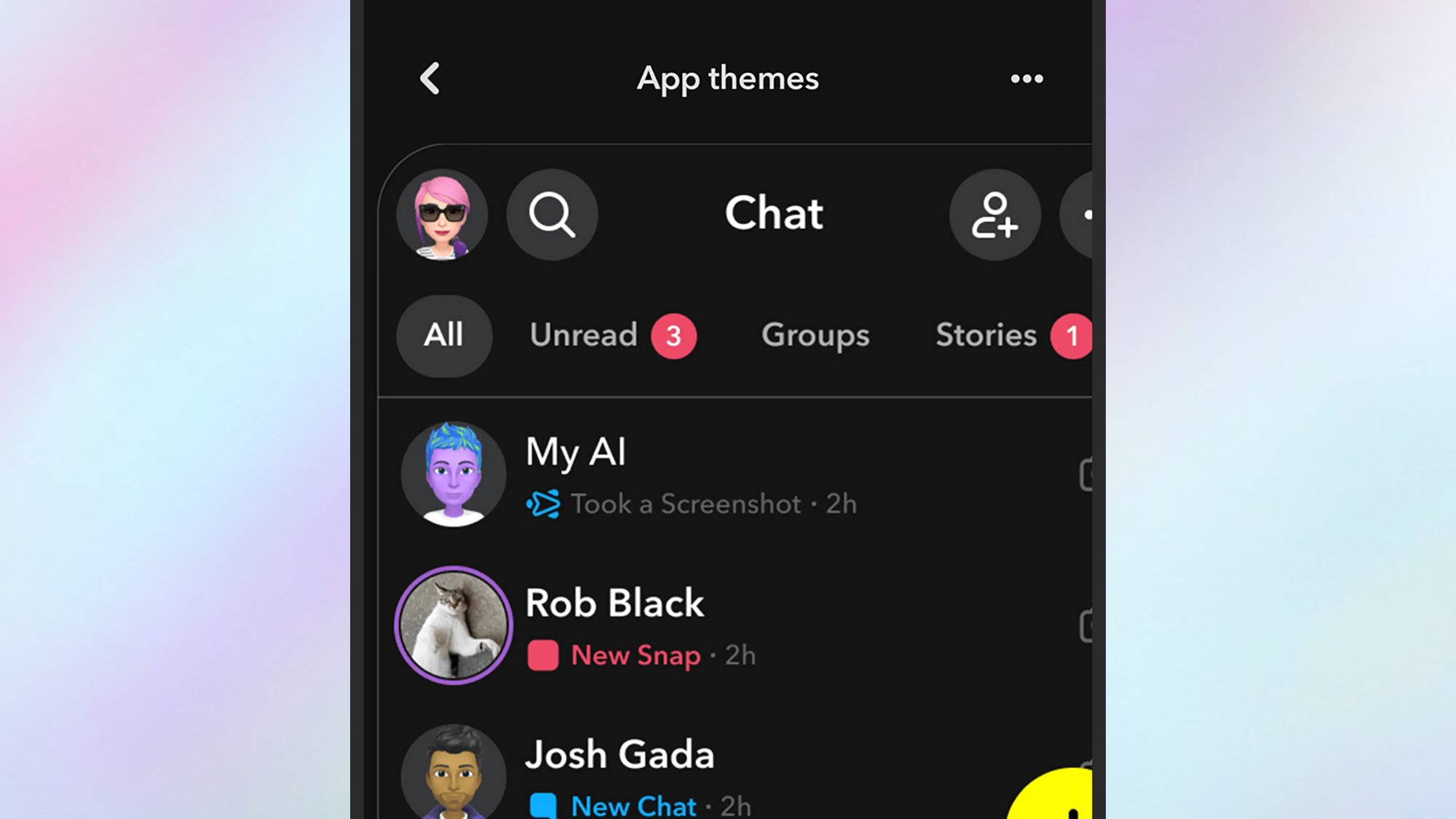
Snapchat has a hidden dark mode—and other themes
A dark mode for Snapchat is available. Credit: Lifehacker
There are a variety of different themes for Snapchat on mobile that you can choose between, though these options are pretty well hidden in the app. From your profile page, tap the cog icon (top right), then choose App appearance to get to the themes. Swipe left and right to cycle through them, including light and dark modes and numerous others. If you’re a Snapchat+ subscriber ($3.99 a month), the benefits include being able to customize individual theme elements yourself.
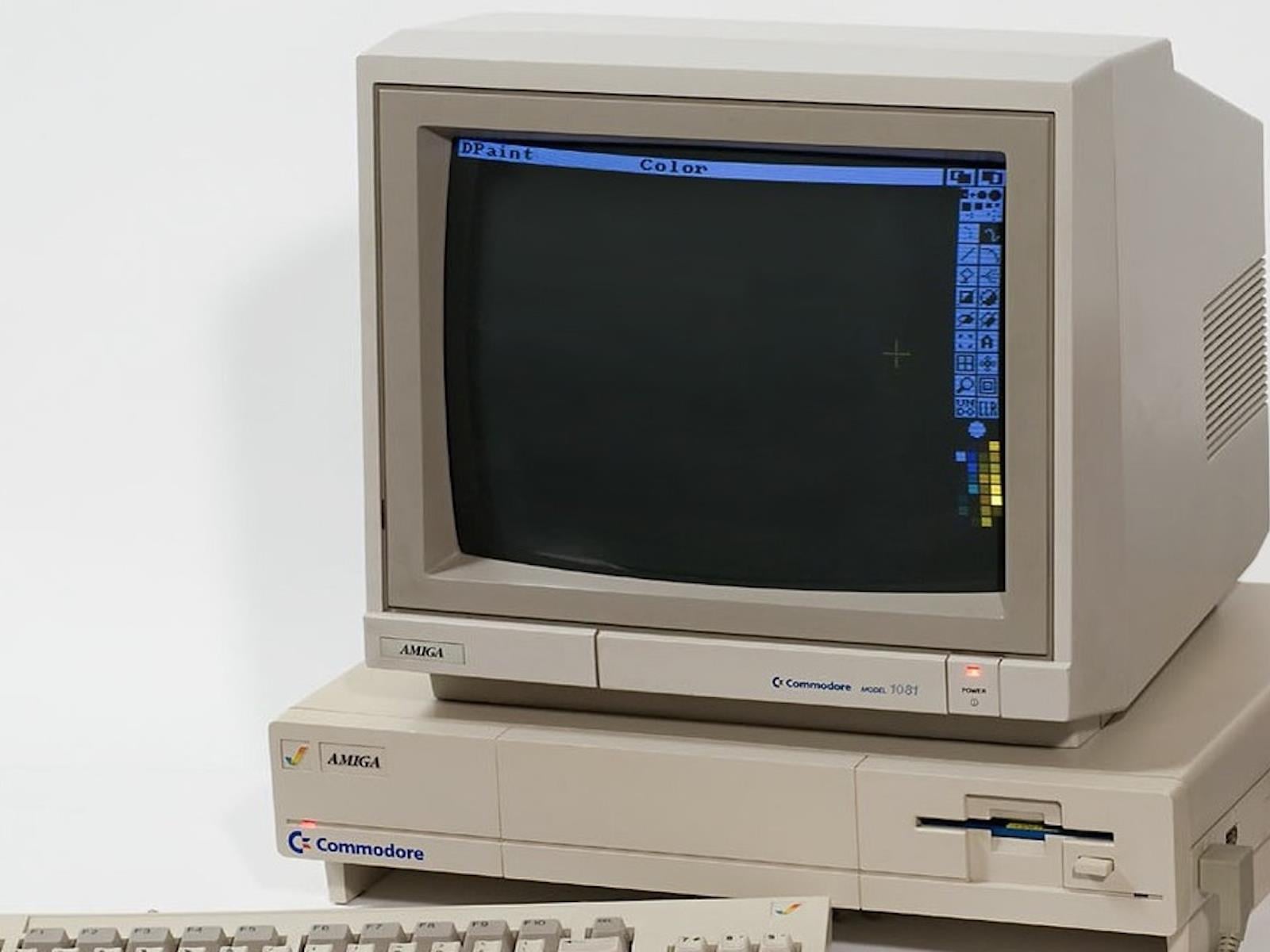
We’re in the midst of a classic computing revival, with numerous recreations of older hardware, such as THEC64 Mini and the Amiga A1200. This retro goodness isn’t limited to just hardware, though. Enthusiasts are contributing with interesting software projects like The Amiga Workbench Simulator (TAWS) as well.
Starlink is getting ready to launch its second generation of satellites, and it’s expected to match the speeds of a traditional terrestrial network. During a keynote at Mobile World Congress, Starlink execs detailed the roadmap for the company’s upgrade towards the next generation of satellites called V2.
“The goal of Starlink Mobile … is to provide a terrestrial-like connectivity when you’re connected to the satellite system,” Michael Nicolls, SpaceX’s senior vice president of Starlink engineering, said during the MWC keynote. “In the right conditions, it should look and feel like you’re connected to a high-performing 5G terrestrial network.”
Nicolls detailed that the V2 satellite constellation could offer download speeds up to 150 Mbps in ideal conditions, comparing it to a broadband experience. According to Starlink, next-gen satellites will offer 100 times the data density of its predecessors, which should help users with faster streaming and browsing as well as more reliable voice calls. Notably, Nicolls added that the V2 satellite constellation would offer better coverage to Earth’s polar regions, which are known to have unreliable coverage with traditional networks.
Nicolls said that SpaceX is planning to send out more than 50 V2 satellites on each SpaceX launch starting in mid-2027, with a goal of building out a full constellation in six months. Outside its MWC presser, Starlink also announced a partnership with German telecommunications company Deutsche Telekom. The partnership would help Deutsche Telekom address internet coverage gaps in Europe using Starlink’s constellation, starting in 2028.
This article originally appeared on Engadget at https://www.engadget.com/science/space/starlinks-next-gen-satellite-network-could-provide-150-mbps-speeds-by-end-of-next-year-192118368.html?src=rss
Have you tried Club Ladder racing? Last week, I jumped into my first Ladder race in almost two years. The concept is simple: two teams battle head-to-head, 5v5. Riders earn points based on finishing position, and the team with the most points wins. moving up the ranking “ladder.”
It’s such a strategic and engaging format; a tactical Zwift race experience that’s wholly different from what ZRL, ZRacing, or any Zwift scratch race. Read this post to learn more about Club Ladder racing, or visit the Club Ladder website (in particular the Rule Book) to learn all the nitty-gritty details.
This would be my first race with a new Ladder squad, Coalition’s Taraxyl. We were racing the new London Uprising route, with a custom finish near the bottom of the Fox Hill descent over climbing Box Hill. Interesting. Let’s go!
Race Prep
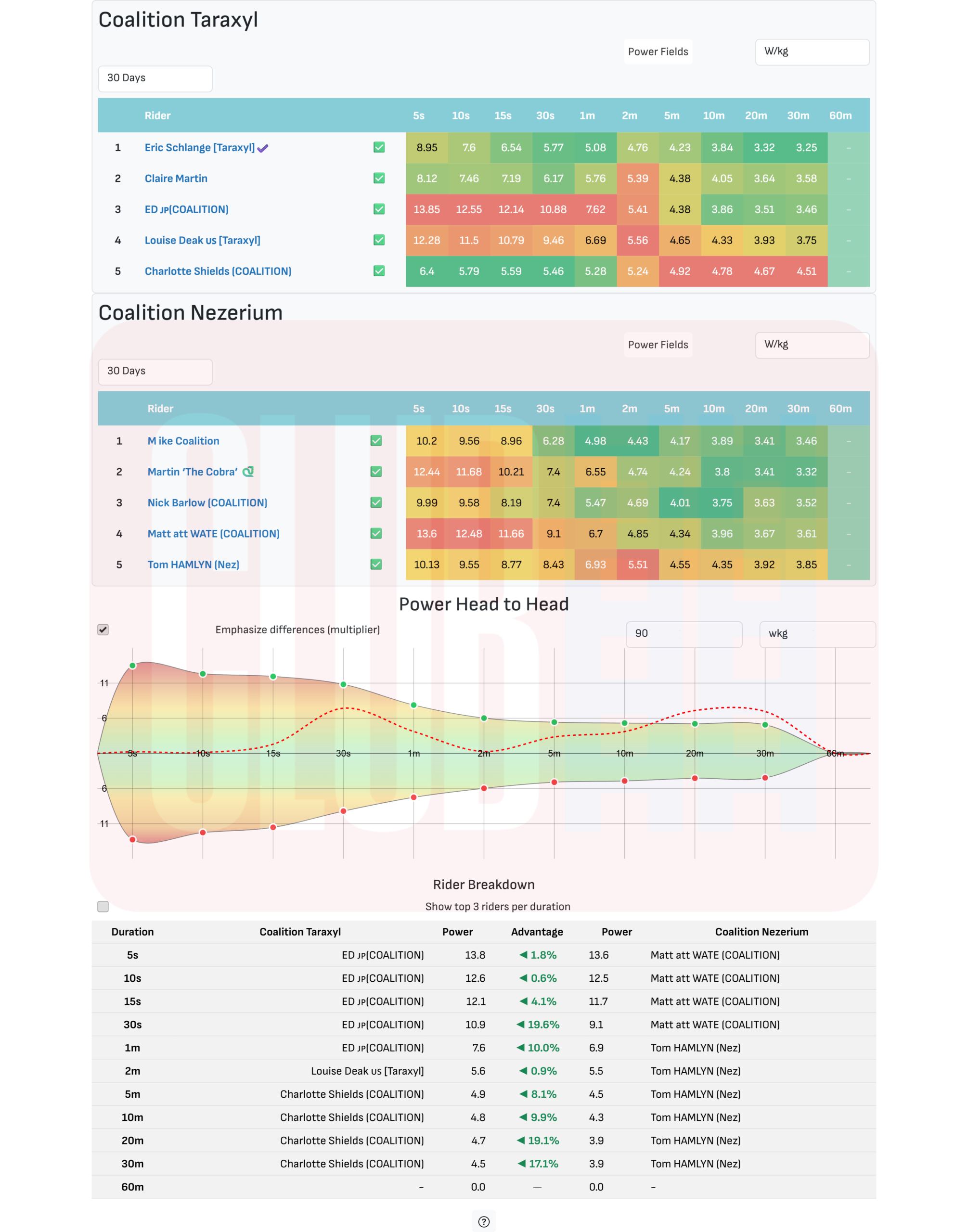
Heading into the race, we were doing what Ladder racers do: chatting on Discord to formulate a plan! Looking at power numbers, we thought we would have the advantage on the climbs, while our opponents (Coalition Nezerium, aka “Nez”) would have the pure watts to do well on flats and descents. So our plan was to make them work hard on Fox Hill, without breaking the race apart. We could then stay together for the descent and flats that followed, then go hard on Box Hill to (hopefully) drop some opponents.
The Club Ladder site produces lots of cool charts to help you plan your race. Here’s the data for this match:
On the morning of the race, one of our riders had to call in sick. Without a sub on hand, our captain reached out to the Nez squad to ask if we could make it a 4v4 race, and they agreed to do so (#sporting).
With that, our squad of four was finalized:
Louise Deak
Ed H
Claire Martin
Eric Schlange
We would be racing these Nez riders:
Mike
Martin
Matt
Tom
The Start: Fox Hill
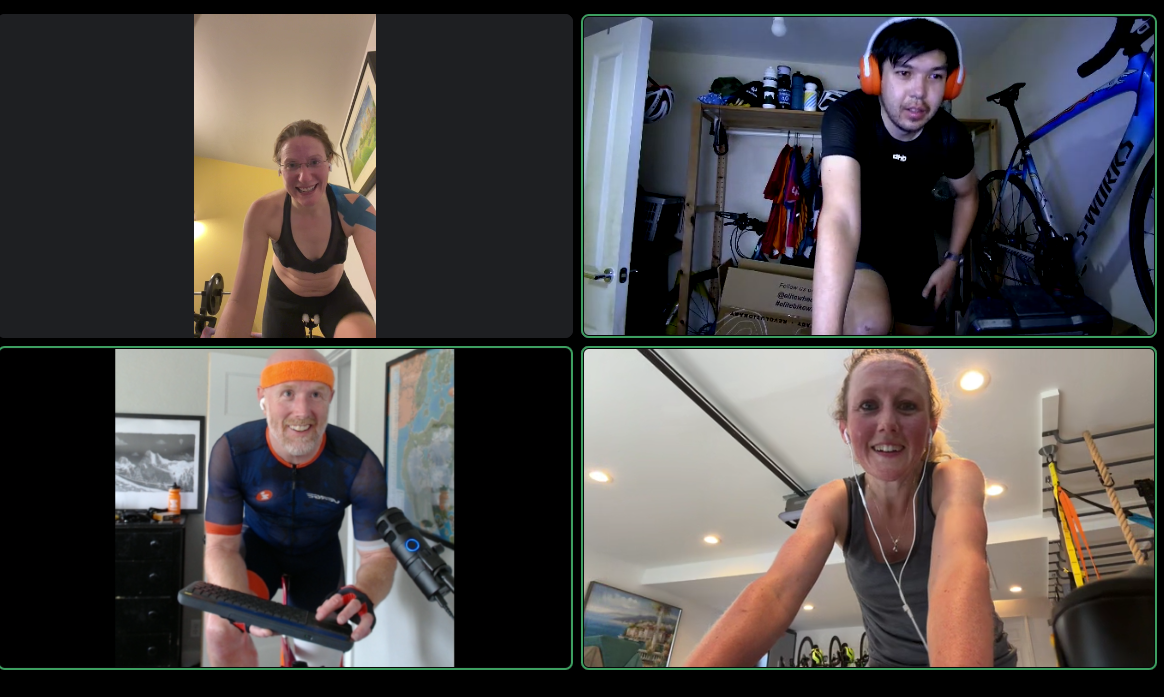
Sitting in the London start pens, my team chatted on Discord as we spun our legs to stay warm. One of the Nez riders was wearing the wrong jersey (our jersey), and we messaged a request for him to change to his team’s kit… but that never happened. (This may seem like a small thing, but in a Ladder Race especially, wearing the right kit is important. Those visuals help you make split-second decisions and, in fact, this would cause issues later in the race.)
With DS Beccah in our ears, we headed out of the pens and turned left to cross Tower Bridge, go through The Underground tunnel, then start climbing Fox Hill.
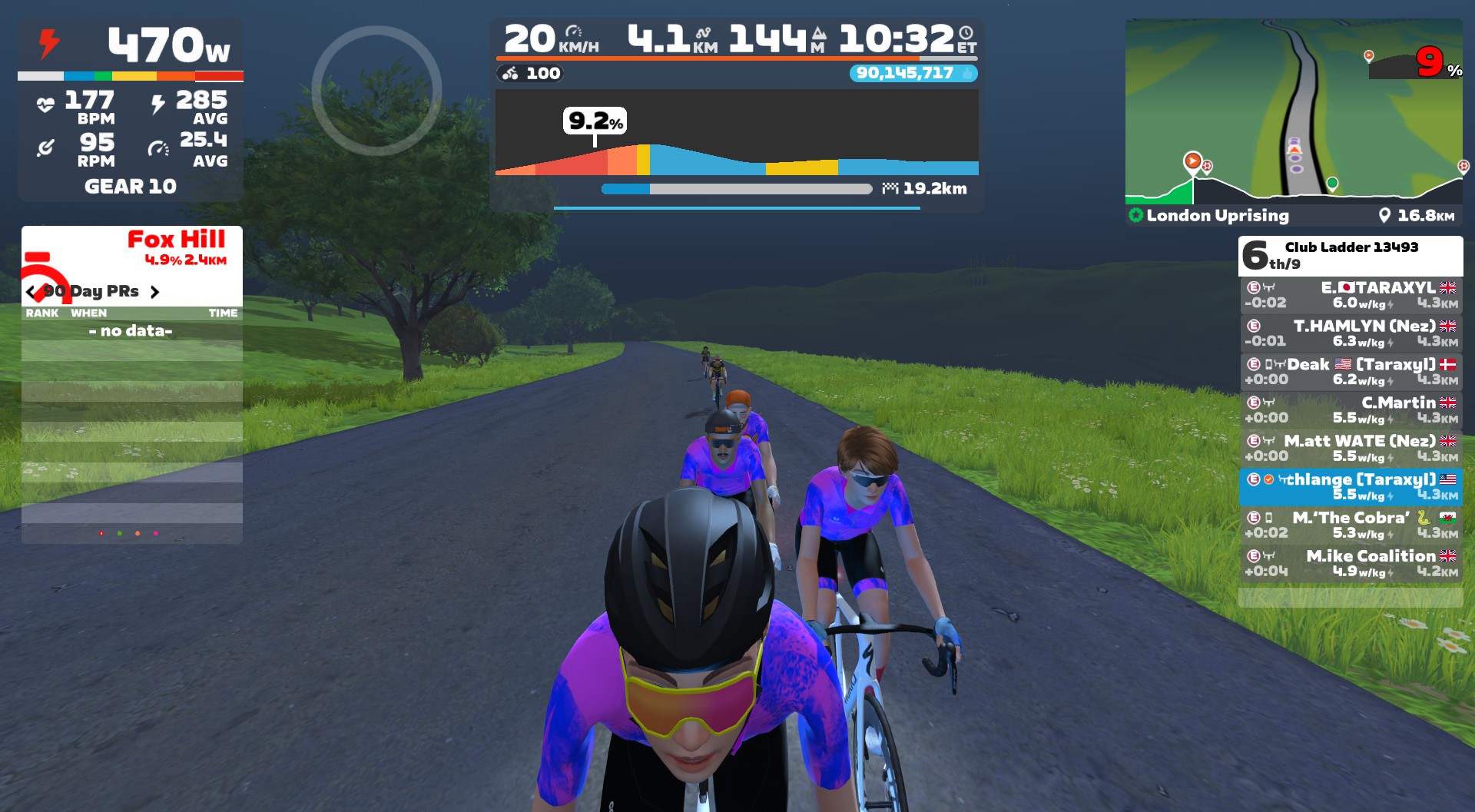
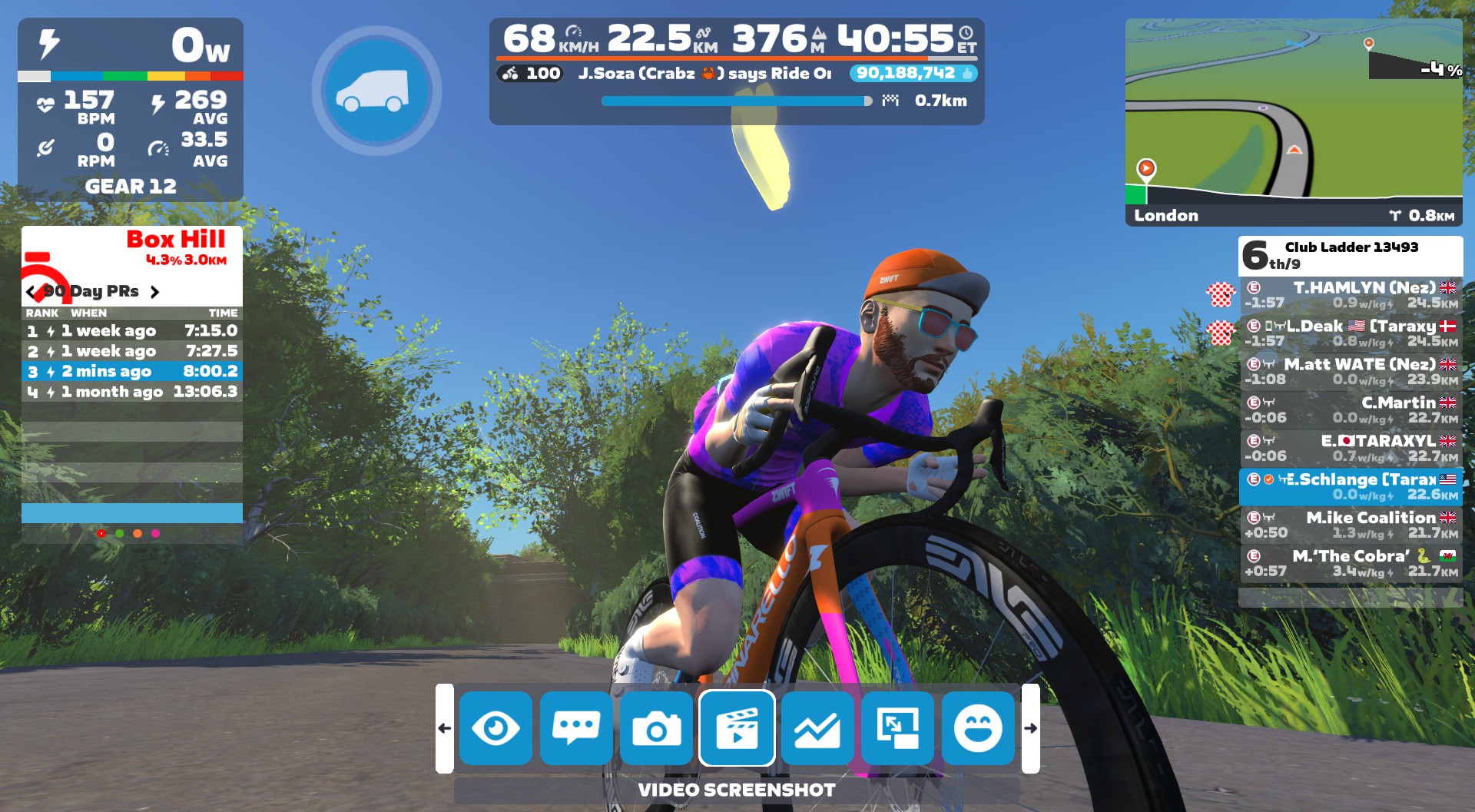
The pace was easy until we hit Fox Hill, then it picked up predictably. Our group strung out into a single-file line, but I was able to stay in the wheels where I wanted to be, in that “comfortably suffering” place bike racers know so well.
Five minutes into the climb, we were nearing the top. Nez’s Mike was clearly struggling near the back, and Martin seemed to be hanging back to assist him. With those two dangling off the back, things felt like they were going our way.
Then suddenly, everything exploded!
I went from being well-positioned to being gapped in the span of a few seconds as Nez’s Matt (wearing our team kit) sprinted me off his wheel. By the time I realized what was happening, a sizeable gap had opened, and Claire was on my wheel, and DS Beccah was telling us not to drop Claire!
So I made the split-second decision to ease a bit to make sure Claire stayed on my wheel, because we didn’t want her in a 1v2 matchup against two bigger guys heading into the descent and flats. I figured we’d catch the group of 4 up the road on the Box Hill descent.
But I was wrong.
At the start of the descent, we were just 4 seconds behind the front group. But the two Nez riders in that group (Matt and Tom) wisely began pushing to keep their speeds high descending Box Hill, and even though we put in some digs, we weren’t able to close down the gap. In fact, it grew to 10 seconds by the bottom! Fox Hill had taken too much out of my legs, and I just didn’t have the gas in the tank to pull us back.
The Middle: Flat and Chill
With our teammates not pushing the pace in the 2v2 front group, and the Nez riders in our group not working to bridge up, Claire and I tried to keep our speed steady and high enough to chase back to the front on the flat Classique section that followed. But the Nez riders in front weren’t having it, putting in strong pulls that kept pushing that gap out. Smart.
Eventually, Claire and I pulled the plug on the chase. The race would be two groups of 2v2.
Claire and I tried a little attack on the Classique hairpin (where riders are slowed), but Mike and Martin clearly had the pure watts to hold our wheels on flat roads, and we didn’t want to burn out our legs heading into Box Hill.
With a small number of riders in our group, and no chance to bridge up to the group ahead, strategic decisions crystallized. We were confident Claire had the w/kg to drop the two Nez riders with us. And I figured I could at least drop Mike, based on how he struggled up Fox Hill. My only question was, had Martin hung back with Mike just to help, or because Martin was struggling, too?
We would know soon enough. My plan was to let Claire attack first and get a gap while I sat back and made the Nez riders chase. Then, closer to the top, if I felt up to it, I would attack and try to drop both Nez riders as well.
The Final Climb: Box Hill
Each team’s final strategies would be put to work on Box Hill. Up the road, Ed and Louise were playing chess with Nez riders Matt and Tom, each team trying to figure out how tired the other riders were, who should follow who on attacks, etc.
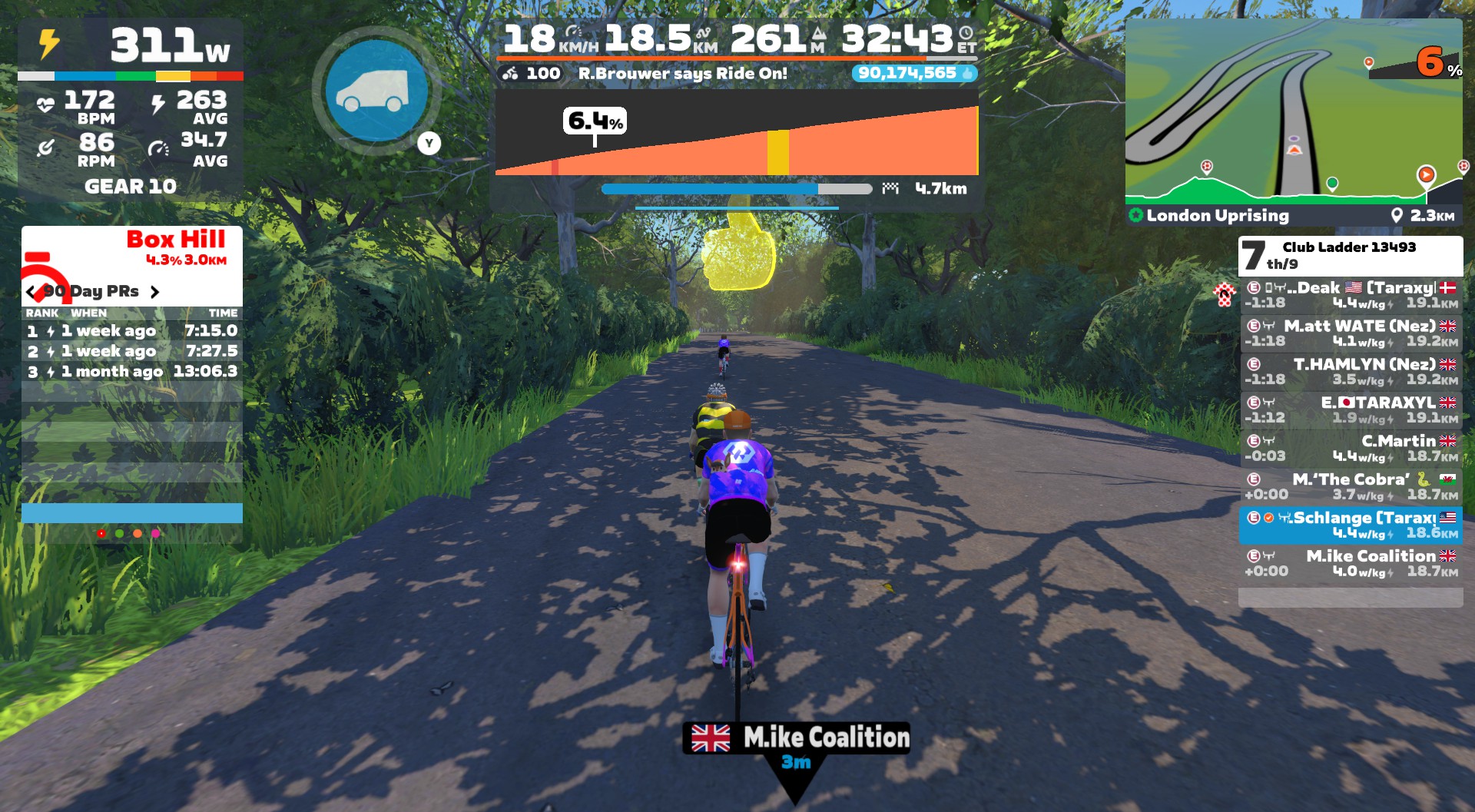
My group started the Box Hill KOM together, then as we turned right and began the steepest part of the climb, Claire ramped up to 4.5-5 W/kg. Martin was trying to chase, but he was slowly losing her wheel. I was sitting on his wheel, benefiting slightly from his draft while he was forced to work a little extra if he wanted to close the gap to Claire.
After a minute or so, Martin gave up the chase. We hit the hard left turn and the road flattened a bit, so I activated my draft powerup, grabbing just a bit of recovery and steeling myself mentally for my planned attack.
We turned the next hairpin, and as the road ramped back up to 5%, I attacked hard from Martin’s slipstream, with Claire 35 seconds up the road. I quickly opened up a gap of 10, 15, 20 meters. It was working! I gritted my teeth, trying to keep my power steady and high to the top.
Beccah was in my ear, cheering on the effort and letting me know I had to beat both Martin and Mike for us to win. Ed chimed in, “You’ve broken them Eric, keep going.” I could see the gap growing behind me, and I kept pushing, wanting at least 10 seconds once I hit the flats so they wouldn’t have time to work together and pull me back.
The Finish
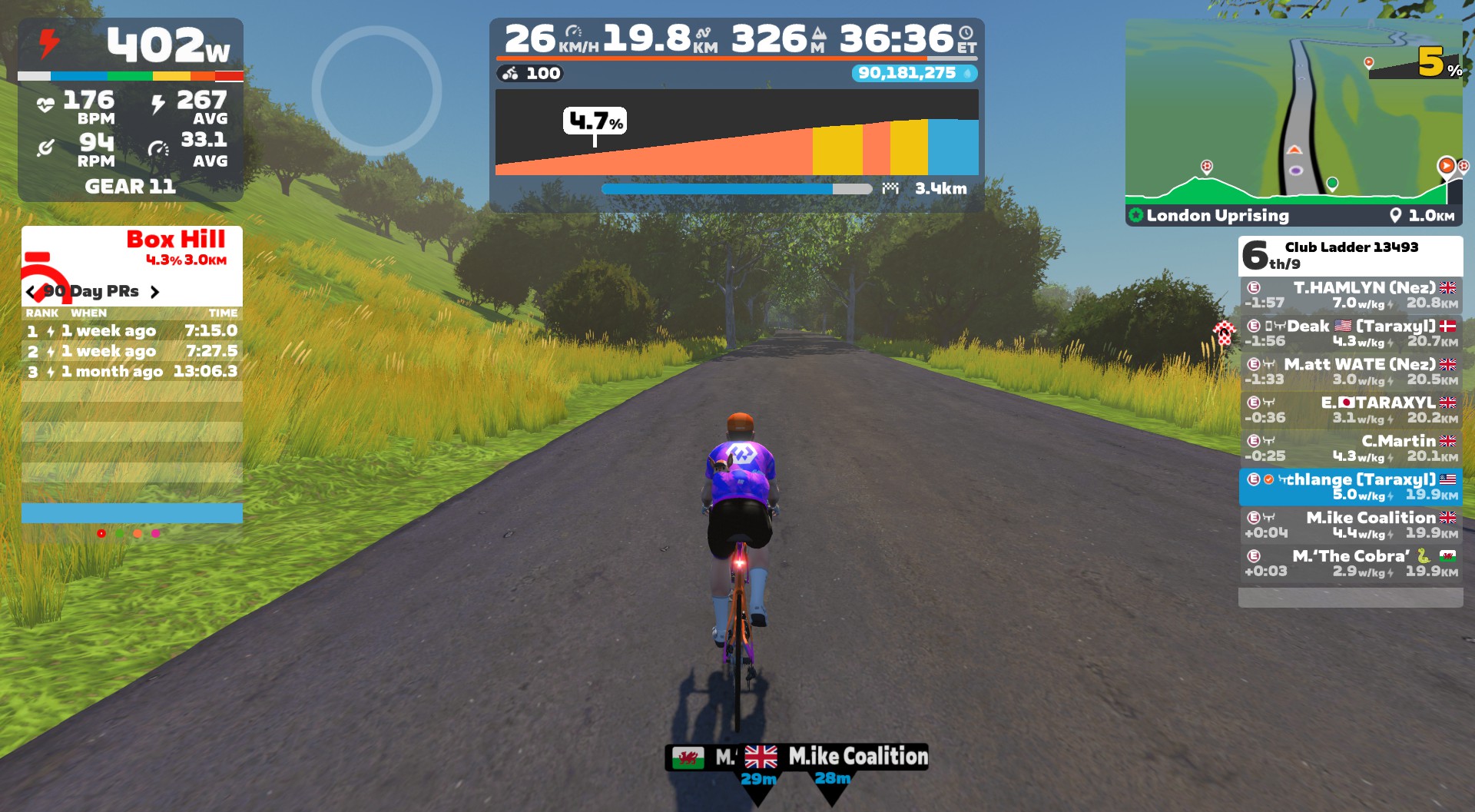
Through the Box Hill banner, I was now 30+ seconds ahead of Mike and Martin, who seemed to have given up the chase. Up the road, teammate Louise was facing off with Tom to see who would take 1st on the fast downhill finish, while Nez’s Matt was solo in the 3rd slot, and Ed and Claire were working together in the 4th and 5th slots.
In Discord, I heard the action as Louise executed a perfectly-timed sprint to take the win. Chapeau!
I hammered up the little kicker after Box Hill, keeping the power up until I could stop pedaling and supertuck. All that was left was to coast across the line near the bottom of Fox Hill…
(As it turns out, my “overmuscled cyclist” physique and masterful (lazy) supertucking served me well, and I flew past Ed and Claire just before the finish, landing 4th overall.)
It may seem counterintuitive, but these Ladder races with 2 teams and only 8-10 riders often feel like they have a lot more action than a typical Zwift race with 50+ riders. I think it’s because you’re noticing more of what’s going on, and every rider’s actions have real implications for the race. It’s a super engaging format, both mentally and physically.
While I kicked myself a bit for being inattentive and getting gapped near the top of Fox Hill, it turned out to be a mistake that worked in our favor. (Or at least, didn’t hurt us.) Apart from that little snafu, this race had everything that makes bike racing fun for me:
hard efforts that put me on the rivet
teamwork
a successful attack
a team win
I think this is my first time riding in a mixed-gender Ladder squad, too, and that was a cool experience as well. Claire and Louise are both significantly lighter riders than the six guys in the race, and that really changes how you approach things strategically.
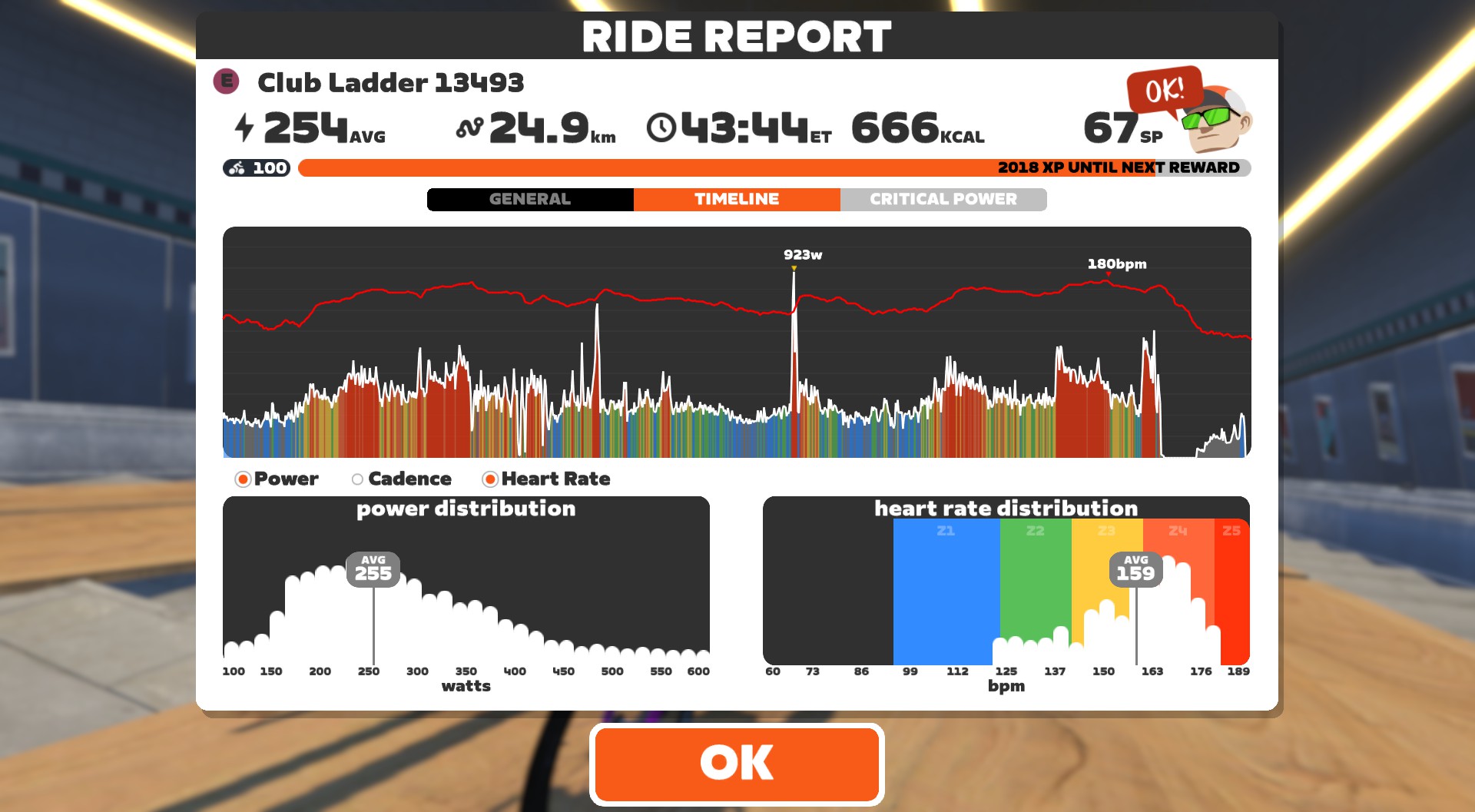
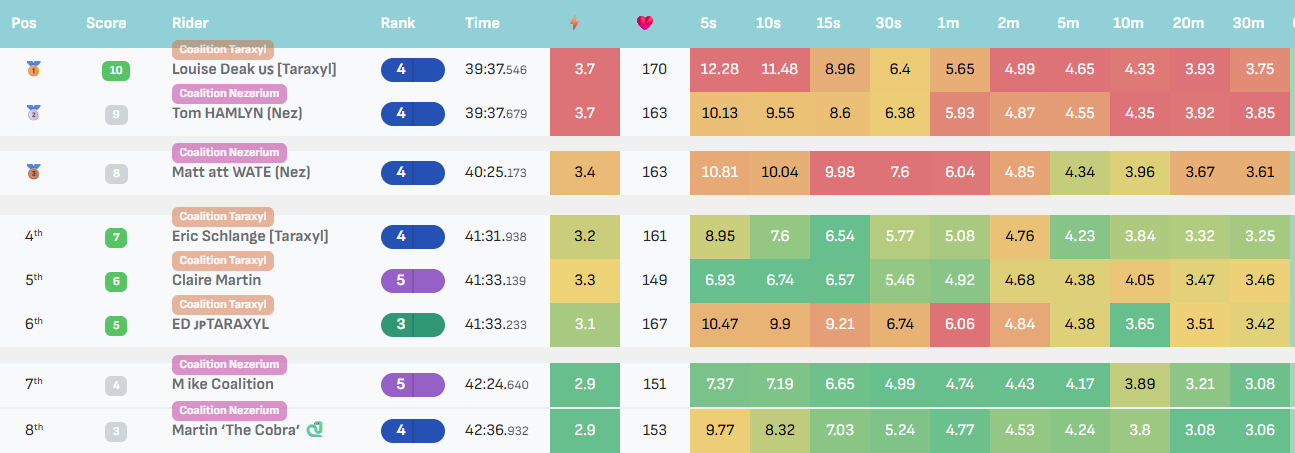
The Club Ladder website delivers cool post-race charts as well:
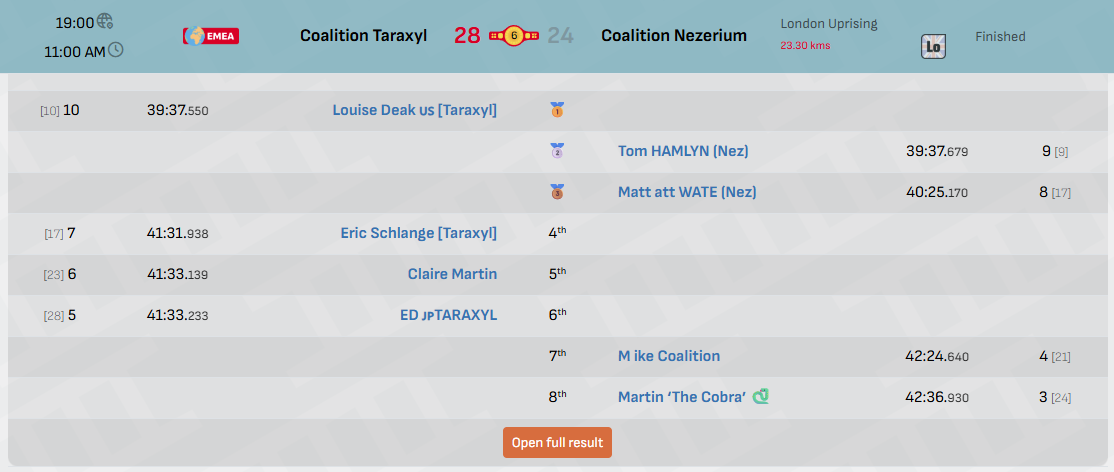
And here are the final placings and points:
Lastly, of course, we have the traditional team shot!
At MWC 2026, Motorola announced a partnership with the GrapheneOS Foundation to bring the hardened, Google-free Android variant to future devices. Until now, the OS had been designed exclusively for Google Pixel phones. “We are thrilled to be partnering with Motorola to bring GrapheneOS’s industry-leading privacy and security-focused mobile operating system to their next-generation smartphone,” a GrapheneOS statement reads. “This collaboration marks a significant milestone in expanding the reach of GrapheneOS, and we applaud Motorola for taking this meaningful step towards advancing mobile security.”
GrapheneOS is a privacy and security focused mobile OS with Android app compatibility developed as a non-profit open source project. It’s often referred to as the “de-Googled OS” because Google apps are not available by default. However, users can install them via a sandboxed version of Google Play Services.
Version 7.3 of Texinfo, the GNU documentation-formatting system, has been released.
It contains a number of new features, performance improvements, and enhancements.
X is rolling out a built-in “Paid Partnership” label that creators can apply to sponsored posts, replacing the hashtag workarounds they’ve had to rely on until now. The feature, announced by the platform’s head of product Nikita Bier, adds a toggle that places a disclosure label directly below a post’s content. It can also be applied retroactively.
The label is meant to help creators comply with years-old FTC regulations requiring clear disclosure of sponsored content. The agency sent out letters reminding influencers about this requirement in 2017, and Instagram added a disclosure feature that same year. Without a native tool, X creators had been left to use hashtags like #ad and #paidpartnership.
X has been trying to court creators for some time with tools like ad-revenue sharing and creator subscriptions, but the platform still struggles with major image issues following a string of scandals like Grok creating CSAM. The Elon Musk-owned platform is under investigation both domestically and abroad for the AI agent’s behavior.
This article originally appeared on Engadget at https://www.engadget.com/social-media/x-adds-paid-partnership-labels-so-users-can-more-easily-identify-ads-183528227.html?src=rss
Apple is gearing up for a series of product announcements on Wednesday. So, naturally, the company revealed two of those products on Monday. There’s the iPhone 17e, Apple’s latest “affordable” iPhone, which largely just updates the chip to the A19. In the same vein, the company is updating its iPad Air line with the M4 chip. If you’re hoping for other big iPad Air upgrades, however, keep waiting.
The iPad Air is the same, just now with M4
If you put the M4 iPad Air side-by-side with the M3 iPad Air, you might mix the two up. That’s because Apple has changed virtually nothing about the overall design and appearance of these tablets. The 11-inch M4 Air looks like the 11-inch M3 Air, as do the two 13-inch variants.
Just about the only thing new about the M4 Air, is, well, M4. This isn’t Apple’s newest chip—that would be the M5—but the M4 is one generation newer than the M3, so you should expect some performance gains between the two. The M4 chip in the Air comes with an eight-core CPU with three performance cores and five efficiency cores, a nine-core GPU, 120GB/s memory bandwidth, and 12GB of RAM. That’s one less performance core than the M3 Air, but one more efficiency core. What’s likely going to be more dramatic is the extra 4GB of RAM, as the M3 Air only comes with 8GB. You should be able to run more tasks at once on the new Air without iPadOS needing to refresh an app or page.
We won’t know exactly how those changes will affect performance until testers get their hands on the M4 iPad Airs. However, Apple says the new iPad is up to 30% faster than the previous generation, and up to 2.3 times faster than the M1 iPad Air. (Apple tends to compare its latest products to those from multiple generations past, as the difference is often more subtle from generation to generation). To me, that means this is certainly not an iPad that M3 Air users need to consider upgrading to, but if it would likely be a good option for anyone with an older Air—or older iPad—to jump to.
With that M4 chip, Apple is adding the N1 chip and C1X modem to the iPad Air. The N1 chip comes with all M4 iPad Airs, and supports standards like Wi-Fi 7, Bluetooth 6, and Thread, a smart home standard. If you buy the cellular iPad Air, you’ll get C1X, Apple’s in-house modem that it says is 30% more efficient than the modem in the M3 iPad Air.
Aside from those points, this is the same iPad Air as the M3 model. It comes in an 11- or 13-inch option, with 12MP rear and front cameras; USB-C connectivity with Touch ID; the same battery life (Apple says 10 hours of video playback); and both still start with 128GB of storage. And, notably, it still omits a high-refresh 120Hz display for the usual 60Hz. That’s disappointing.
How to buy the M4 iPad Air
You can preorder an M4 iPad Air on March 4, starting at $599 (the same starting price as Apple’s newly-announced iPhone 17e) for the 11-inch 128GB model. The 13-inch starts at $799 for the 128GB model. Adding cellular adds $150 to the price. Apple says that the M4 iPad Air will officially launch on Wednesday, March 11—the same day as the iPhone 17e, as well as Samsung’s Galaxy S26 series.
The iPad Air, the middle child in Apple’s tablet lineup, has been upgraded to the M4 chip with increased RAM and… Well, there’s not a whole lot else if I’m being honest. At the very least, the new iPad Air M4 models remain at the same price as the iPad Air M3, with the 11-inch version starting at $599 and the 13-inch at $799. I would give Apple more credit if it had increased the starting storage or added literally anything else.
If you put them side by side, you might not be able to tell the difference, but this upgrade would benefit creatives and professionals more than anything. There’s a significant performance bump from the M3 to the M4, and the increased RAM is doing a lot of work, especially if you’re taking advantage of Apple Intelligence.
If you’re using an M1-powered iPad Air or something even older, though, the new iPad Air M4 should be a compelling upgrade. Pre-orders start at 9:15AM ET on March 4, with the units arriving a week later. We expect full reviews will be published by then. But in the meantime, let’s dive into what the performance gains might look like and what we’re missing out on in this year’s iteration of the iPad Air.
iPad Air M4 vs. iPad Air M3: Performance and battery life
The most significant difference between the two iPad Air generations is their chipsets. The latest iPad Air launches with the M4 chip versus its predecessor’s M3 chip, and it gets a bump in RAM from 8GB to 12GB.
I don’t give much fanfare to incremental chip increases because the performance gain is usually minimal. However, the M4 is up to 30 percent faster than the M3, according to Apple. That might be noticeable to even casual users, especially as the years go on and iPadOS becomes more demanding. For power users, it’ll mean more demanding work like video editing will be noticeably quicker.
For those in need of the fastest internet speeds, the new iPad Air is also equipped with Apple’s N1 chip, which enables Wi-Fi 7 and Bluetooth 6, the latest connectivity technology. However, I really don’t imagine the average user needing up to 46 gigabits per second of internet speed compared to the iPad M3’s 9.6 Gbps on Wi-Fi 6. If you do, you’re in the tax bracket for an iPad Pro.
Now, despite the increase in speeds, the battery life between the M4 and M3 models remains the same. Apple claims all four models get up to 10 hours of battery life surfing the web on Wi-Fi or watching video (up to 9 hours on cellular). No complaints here.
iPad Air M4 vs. iPad Air M3: Design, display, audio and cameras
For better or worse, we’re not getting any changes in any of these departments, which is why I’m lumping them together.
The iPad Air comes in blue, purple, beige and gray. The 11-inch option measures 9.74 x 7.02 x 0.24 inches and the 13 comes in at 11.04 x 8.46 x 0.24 inches. As their names suggest, they’re both rather light, at 1.01 pounds (1.02 pounds for M4) and 1.36 pounds, respectively. My only wish was that we got new colors that popped a bit more.
Then there’s the displays. All four versions of the iPad Airs sport a Liquid Retina LED display at 264 ppi. The 11-inch supports a 2,360 x 1,640 resolution with a peak brightness of 500 nits, while the 13-inch offers a 2,732 x 2,048 resolution at 600 nits. It would’ve been nice to see an OLED or even Mini-LED panel make its way to the iPad Air, which could’ve made the screen more vivid and vibrant. But it’s more disappointing that we’re stuck at 60Hz unlike the Pro models that offer 120Hz, making their visual experience smoother.
Both products feature landscape stereo speakers. The iPad Air M3’s audio quality couldn’t live up to the iPad Pro, so I doubt the M4 model will.
You won’t catch me taking photos with an iPad, but for those of you who do, the iPad Air M4 features the same 12MP cameras on the front and back as its predecessor.
iPadOS 26, Apple Intelligence and Apple accessories
Nothing huge is happening to iPadOS or the Apple accessories in the iPad Air refresh. The revamped Magic Keyboard from last year still works with these new models, as does the Apple Pencil Pro. iPadOS 26, released last fall, was a major update but will still be familiar enough to anyone who has used an iPad before. The new iPad Air M4 is getting a significant boost in AI processing speeds, though, thanks to its new chip and 50 percent increase in RAM. However, unless you’re an AI power user, you probably won’t notice a difference there.
All that said, if your love language is spreadsheets, the full specs are helpfully laid out below:
iPad Air M4 vs. iPad Air M3: Specs at a glance
Spec
iPad Air M4
iPad Air M3
Price
$599 (11-inch), $799 (13-inch)
$599 (11-inch), $799 (13-inch)
Processor
M4
M3
Display
11-inch: Liquid Retina, 2,360 x 1,640, LED display at 264 ppi
13-inch: Liquid Retina, 2,732 x 2,048, LED display at 264 ppi
11-inch: Liquid Retina, 2,360 x 1,640, LED display at 264 ppi
13-inch: Liquid Retina, 2,732 x 2,048, LED display at 264 ppi
RAM
12GB
8GB
Storage
128GB, 256GB, 512GB, 1TB
128GB, 256GB, 512GB, 1TB
Battery
Up to 10 hours (Wi-Fi), 9 hours (Cellular model)
Up to 10 hours (Wi-Fi), 9 hours (Cellular model)
Cameras
12MP Wide (rear), 12MP Center Stage (front)
12MP Wide (rear), 12MP Center Stage (front)
Apple accessories
Apple Pencil Pro, Apple Pencil, Magic Keyboard Folio
Apple Pencil Pro, Apple Pencil, Magic Keyboard Folio
Dimensions
11-inch: 9.74 x 7.02 x 0.24 inches
13-inch: 11.04 x 8.46 x 0.24 inches
11-inch: 9.74 x 7.02 x 0.24 inches
13-inch: 11.04 x 8.46 x 0.24 inches
Weight
11-inch: 1.02 pounds
13-inch: 1.36 pounds
11-inch: 1.01 pounds
13-inch: 1.36 pounds
This article originally appeared on Engadget at https://www.engadget.com/mobile/tablets/ipad-air-m4-vs-ipad-air-m3-the-few-new-things-in-apples-midrange-tablet-182701520.html?src=rss
The Analogue Pocket handheld retro console has proven to be extremely popular, as initial runs have sold out. The company just announced the system will be back in stock this week, along with the dock accessory. Preorders open up on March 4 at 11AM ET, with shipments going out this June.
Analogue Pocket & Analogue Dock – restock.
A tribute to portable gaming. Out of the box, Pocket is compatible with the 2,780+ Game Boy, Game Boy Color & Game Boy Advance game cartridge library and more.
That’s the good news. The bad news? The little console is getting slapped with a price increase. It’s shooting up to $240 from the recent price of $220, with the company placing the blame squarely on President Trump’s neverending tariffs. The device is assembled in China and Trump just hit the region with even more tariffs after the Supreme Court struck down the old ones. We love to suddenly pay more for gadgets that have been out in the wild for nearly six years, don’t we folks?
For the uninitiated, the Pocket isn’t an emulation machine. It plays actual Game Boy, Game Boy Color and Game Boy Advance cartridges. It also integrates with various Game Boy accessories, like the camera and printer. The console can even handle Game Gear, TurboGrafx-16 and Atari Lynx games, but those require separate adapters.
We praised the Analogue Pocket in our official review, calling it “a clever little thing” that is sure to light up the nostalgia center of your brain. It even made our list of the best handheld consoles, which is notable given competition included stuff like the Steam Deck.
In any event, this drop will likely sell out quickly. We recommend parking a browser on the company website just prior to 11AM ET if you can stomach the new price.
This article originally appeared on Engadget at https://www.engadget.com/gaming/the-analogue-pocket-will-be-back-in-stock-this-week-but-theres-a-tariff-related-price-increase-182226016.html?src=rss
Charter Communications, operator of the Spectrum cable brand, has obtained Federal Communications Commission permission to buy Cox and surpass Comcast as the country’s largest home Internet service provider.
Charter has 29.7 million residential and business Internet customers compared to Comcast’s 31.26 million. Buying Cox will give Charter another 5.9 million Internet customers. The FCC approved the deal on Friday, but the companies still need Justice Department approval and sign-offs from states including California and New York.
Opponents of Charter’s $34.5 billion acquisition told the FCC that eliminating Cox as an independent entity will make it easier for Charter and Comcast to raise prices. But the FCC dismissed those concerns on the grounds that Charter and Cox don’t compete directly against each other in the vast majority of their territories.
An important default kernel behavior change worth noting in advance for the upcoming Linux 7.1 kernel is that the system will attempt to power-off automatically if encountering any fatal ACPI errors. Up to now the Linux kernel has just logged ACPI fatal errors…
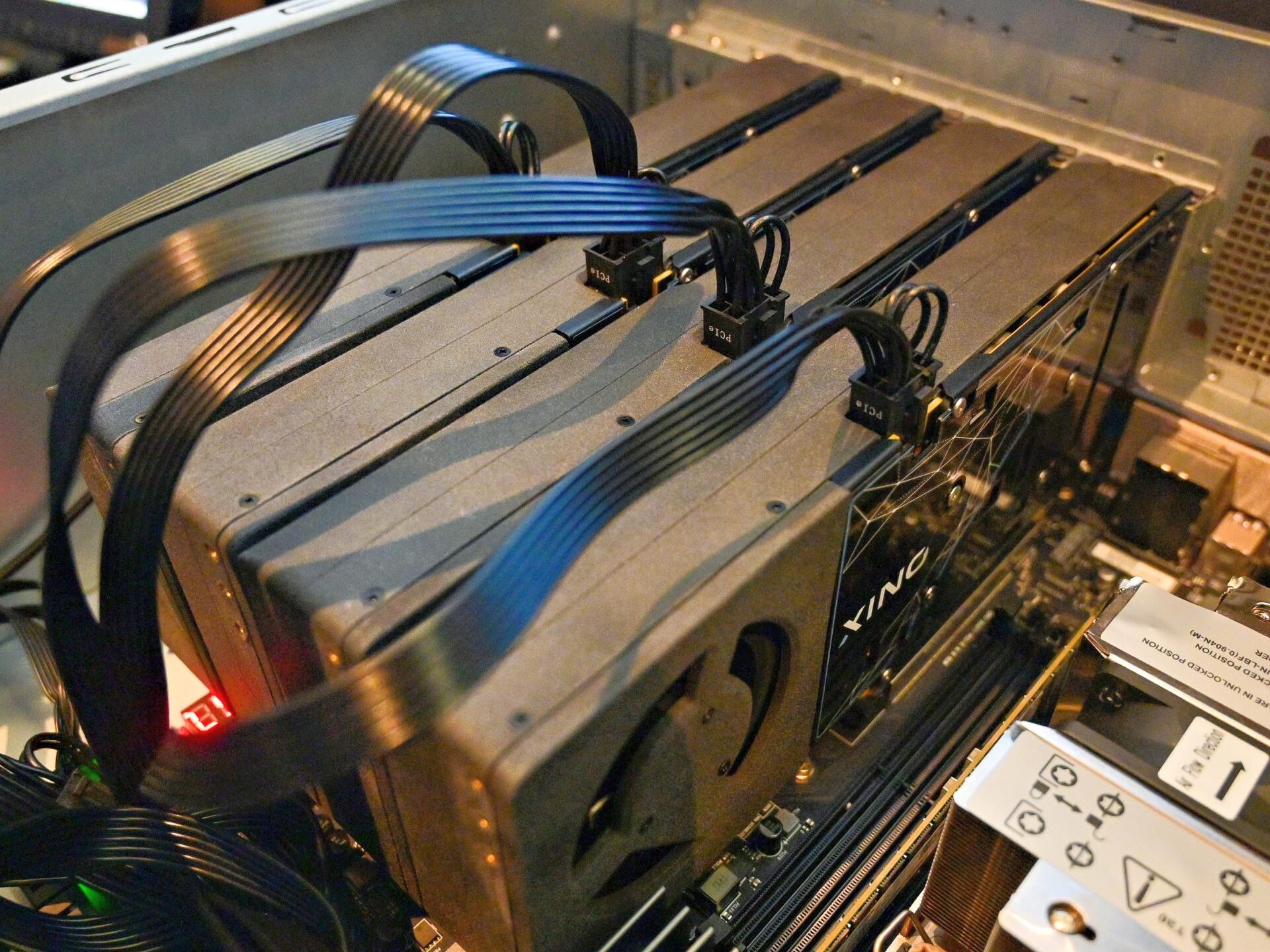
We’ve believed with confidence for a while now that Intel was bringing out its BMG-G31 “Big Battlemage” GPU as the Arc Pro B70 first, foremost, and possibly exclusively. Now we have explicit proof straight from Intel, in the form of the patch notes for the company’s LLM-Scaler-vLLM, which is a containerized, Intel-optimized distribution of
An anonymous reader quotes a report from the Washington Post: The Plain Dealer, Cleveland’s largest newspaper, has begun to feature a new byline. On recent articles about an ice carving festival, a medical research discovery and a roaming pack of chicken-slaying dogs, a reporter’s name is paired with the words “Advance Local Express Desk.” It means: This article was drafted by artificial intelligence. “This article was produced with assistance from AI tools and reviewed by Cleveland.com staff,” reads a note at the bottom of each robot-penned piece, differentiating it from those still written primarily by journalists. The disclosure has done little to stem the backlash that caromed across the news industry after the paper’s editor, Chris Quinn, published a Feb. 14 column lamenting that a fresh-out-of-college job applicant withdrew from a reporting fellowship when they found out the position included no writing — just filing notes to an AI writing tool.
“Artificial intelligence is not bad for newsrooms. It’s the future of them,” Quinn wrote, adding that “by removing writing from reporters’ workloads, we’ve effectively freed up an extra workday for them each week.” […] Quinn, for his part, says his paper’s use of AI to find, draft and edit stories is a success story that others must emulate if they want to survive. “It’s a tool,” he said in a phone interview last week. “If AI can do part of our job, then why not let it — and have people do the part it can’t do?” He added that the paper’s embrace of technology — including using AI to write stories summarizing its reporters’ podcasts and its readers’ letters to the editor — is already boosting its bottom line, helping it retain staff at a time when other newspapers are shrinking or even shutting down. Just 130 miles east of Cleveland, the 240-year-old Pittsburgh Post-Gazette said in January that it will close its doors this spring.
Quinn, who has led the Plain Dealer’s newsroom since 2013, said its newsroom has shrunk from some 400 employees in the late 1990s to just 71 today. Over the past three years, Quinn has implemented a suite of AI tools with various purposes: transcribing local government meetings, scraping municipal websites for story leads, cleaning up typos in story drafts, suggesting headlines and helping reporters draft follow-ups to articles they’ve already written. He said he is particularly pleased with an AI tool that turns podcasts by the paper’s reporters into stories for the website, which he said generated more than 10 million page views last year. He has documented those efforts in letters to readers and sought their feedback. But the paper’s latest experiment — using AI to turn reporters’ notes into full story drafts — has aroused indignation online and anxiety within the paper’s ranks.
We may earn a commission from links on this page. Deal pricing and availability subject to change after time of publication.
I didn’t understand the need for a power station until this past winter gave me a rude awakening. Although I ultimately didn’t lose power, the prep for that what-if scenario of facing freezing temperatures without power was enough for me to decide to get one. While I went with the EcoFlow DELTA 3 Ultra Plus, I should have waited, because the more powerful EcoFlow Delta Pro 3 is $1,999 right now—a steep 46% discount from the $3,699 list price. This is its lowest price ever, according to price tracking tools.
While I haven’t had a chance to put the power station to the test during a full blackout, I am impressed by the functionality of the EcoFlow app. You get the ability to prioritize which devices receive power the longest, so when battery power is scarce, the essentials will keep running while the other devices shut off. How that might work in the real world: You leave your refrigerator plugged in overnight, along with your phones and a heater. You can prioritize your refrigerator so if the battery runs low during the night, it will shut off power to your phone and heater to keep you fridge running longer. You can also monitor your energy use, and the app will automatically start charging your power station if it detects a storm is coming.
The power station is extremely quiet when in use. Although it’s heavy, it’s still easily portable with its handle and rear wheels. The unit has seven AC outlets total, including standard, RV, 240 V, and twist‑lock, four USB ports (A and C), two 12 V DC outputs, and solar charging inputs if you ever want to get extra accessories down the road.
The 4096 Wh battery can keep essentials running for a while—it can power the average fridge for up to 28 hours while keeping other essentials like Wi-Fi, lights, phone charging, and AC running simultaneously.