
How to Change the Settings on a Lectric XPeak 2.0 E-Bike

We may earn a commission from links on this page.

If you own a Lectric XPeak 2.0 e-bike, it’s possible to modify a ton of aspects of the bike right from the onboard screen, including changing the top speed, adjusting the throttle and pedal assist, controlling the lights, and more. But these settings are not readily understandable from the display alone, so here’s a step-by-step guide to how to change settings on a Lectric e-bike, as well as some suggestions on which settings you should change, and which you definitely shouldn’t.

(You can check out my review of the Lectric XPeak 2.0 right here.)

How to adjust the settings on a Lectric XPeak 2.0 e-bike

Here’s how to access the settings menu of a Lectric XPeak 2.0 e-bike:

  • Power the bike on.

  • Hold down the “+” and “-” keys on the controller on the left handlebar for a few seconds, until you see this:
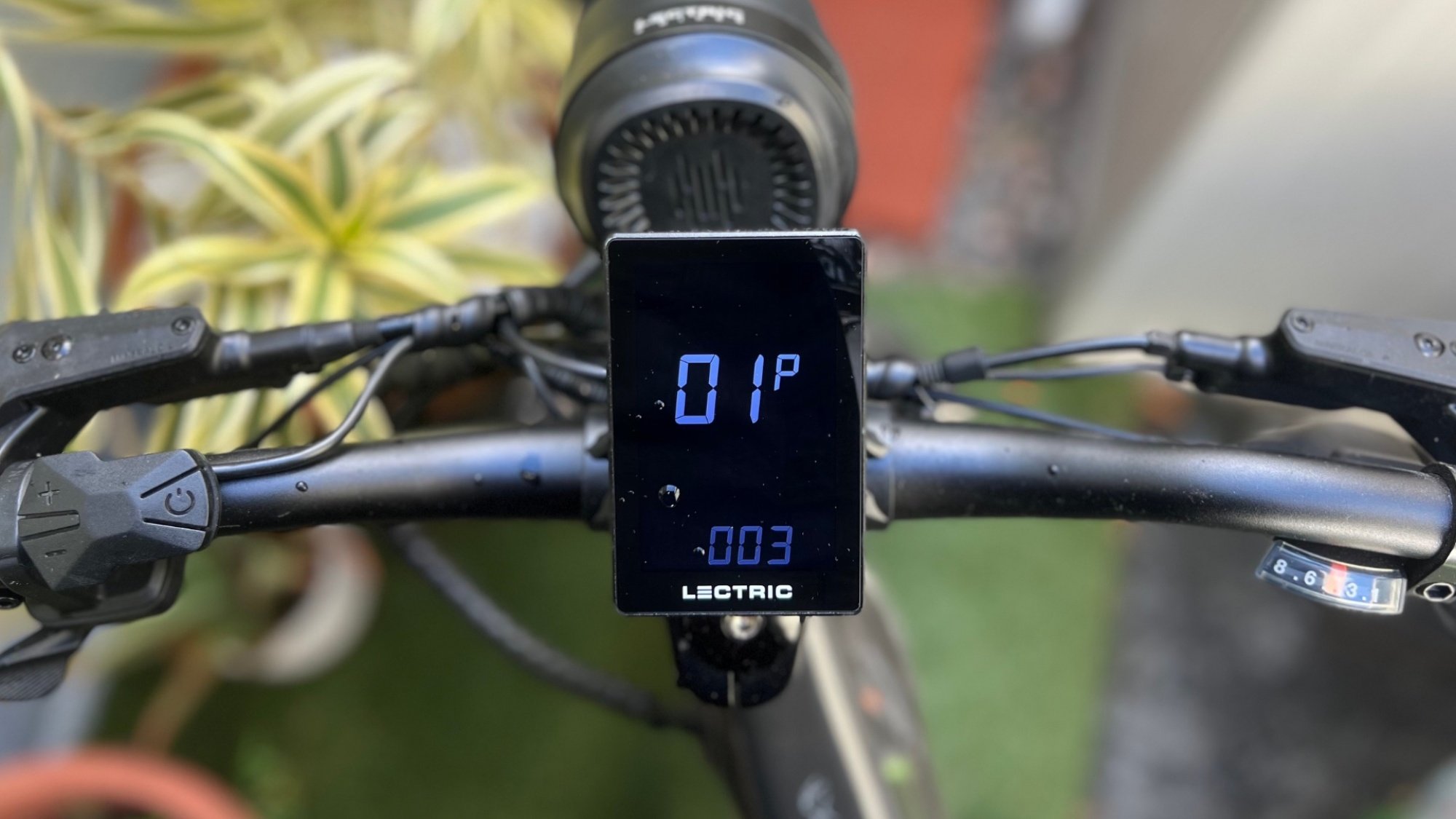
Cockpit Xpeak 2.0

Credit: Stephen Johnson

  • Press the power-on button to toggle between each numbered setting. Use “+” and “-” keys to change their values—but don’t change any settings until you know what you’re changing.

What do the different settings on a Lectric e-bike do?

If you’ve gotten into the settings menu of your Lectric XPeak 2.0, you can see that the settings are labeled P-1 through P-22 with no other information available on screen. That’s not a lot to go on, so here’s what the settings do. (You’ll notice there are a few settings I skip over—I’ll go over that in another section below.)

  • P1: Changes the brightness of the display screen. There are three settings. “1” is dimmest. “3” is brightest. Default is 2.

  • P2: Toggles between miles and kilometers. “0” is kilometers. “1” is miles.

  • P4: Sleep timer: Changes how long it will take for the bike to power off if not used. The default is 10 minutes, but you change it from “0” (which means it never automatically turns off) to 60 minutes.

  • P6: Tire size: You can change this from 27 to 31. This is used to compute distance and speed, and shouldn’t be changed unless you’ve changed tire size from the default, 29.2.

  • P8: Speed limit: This sets the bike’s top speed. 32 is a “Class 2” setting, meaning the top speed is 20 mph. 45 is “Class 3,” boosting the speed limit to 28 mph when using pedal assist. The default is 32, or 20 mph, so you’ll need to change this if you want to go faster.

  • P9: Throttle active toggle: Setting this to 0 means the throttle can be used from a standstill. Setting it to 1 means the throttle can only be used when the bike is moving.

  • P10: Throttle/pedal assist system toggle: There are three settings here: “0” means the pedal assist is active, but throttle is not. “1” means only the throttle is active, with no pedal assist. “2” means both PAS and throttle are active. The default is 2, which most users will want to use most of the time, but there are cases where it makes sense to change it (see below).

  • P11: Multiplier toggle: This changes the torque on your bike. “0” is the default, normal torque multiplier. “1” is increased torque multiplier. If you want quicker acceleration, set this to “1,” but don’t change it until you know the bike fairly well—the default multiplier provides plenty of torque. I tested this out and didn’t notice a ton of difference anyway.

  • P12: Light control: “0” means “no light icon on the display means the front and rear lights are OFF. When the light icon is on, the front and rear lights are ON.” Changing this to “1” means “The front and rear lights are flashing right away when bike is on. The icon on the display for light is flashing at the same rate as front and rear lights.” When you turn the light on in setting one, you’ll see an icon on the display screen with no flashing.

  • P13: Walk mode speed: “0” sets the walk mode speed to 3mph. “1” is a slightly brisker 3.7 mph.

  • P16: Odometer reset: Hold the “+” for 5 seconds to reset the odometer to “0.”

  • P20: Walk mode toggle: setting this to “0” disables walk mode. Setting this to “1” enables it. (To turn on walk mode, hold down the “-” button on the controller. If enabled, your bike will move forward at the speed you set on P13.)

  • P22: Assistance level: “0” limits the pedal assist to 9mph if you’re on pedal assist level 1 and 15 mph if you’re on pedal assist level 2. The same “speed limit” applies to the throttle. “1” means the pedal assist is not speed limited on pedal assist levels 1 and 2, but the throttle is speed limited. “2” means there is no speed-limit on pedal assist or throttle, no matter what pedal assist level you’re in. (Of course the bike’s overall speed limit of either 20mph or 28mph still applies.)

Which settings should you change on an XPeak 2.0?

The setting that most users will be concerned with is P8, the speed limit of the bike. The default is a 20 mph speed limit that you can reach with either pedal assist or throttle, but you may want to boost it to 28 (assuming that a class 3 e-bike is legal in your local area and you’re experienced enough to handle the extra speed.) This setting means the throttle or pedal assist will take you to 20 mph, then the throttle will cut off but you can use pedal assist to go up to 28 mph. There is no setting to use throttle control to go over 20 mph.

Another setting to consider is P9, the throttle active toggle. The default setting means that the throttle can be activated from a standstill, but you might want to change it so the throttle can only work if the bike is in motion. If you accidentally hit the thumb throttle a lot, especially when walking your bike, this prevents your bike “jumping forward.”

P10 is another useful setting for some situations. In some places, it’s not legal to ride a “class 2” e-bike, meaning one that has throttle control. This setting disables the throttle but allows the pedal assist, transforming your class 2 bike into a class 1.

What about the rest of the settings?

The Lectric XPeak 2.0 has 22 total settings that can be changed from the dashboard, but only 13 are listed above. I looked into it, and the nine “secret” settings on Lectric bikes are less exciting than I’d hoped. They’re mostly settings that allow different models of bikes to use the same computer, so they change things like the voltage level of the battery and the magnet type. Do not change these settings; as far as I can tell, there’s nothing to be gained from doing so. If you accidentally alter these somehow and you don’t know the correct setting, do not ride the bike until you’ve spoken to someone at Lectric who can help you restore the proper values.

“I messed up the settings on my Lectric XPeak 2.0! How can I fix it?”

Sadly, there is no “return to factory default” setting on Lectric’s controller. To get your e-bike back to how it was, you can use the manual to see the default number for each setting, or contact the company for extra help.

Grab Anker power banks and wireless chargers while they are up to 35 percent off

It’s your lucky day if you’ve been looking for a good deal on a power bank or charging station. A sale on many Anker products is taking place at Amazon. One power bank, the Anker 621, is 35 percent off. That discount brings it down to $26, which is almost a record low. The device typically costs $40.

This model is MagSafe-compatible, meaning it’ll attach magnetically to an iPhone 12 and above (but, annoyingly, not the new iPhone 16e unless you resort to a workaround) and charge your phone wirelessly. However, if you plug a cable into the Anker 621’s USB-C port, you can top up your phone’s battery a little faster — at a rate of 12W vs. 7.5W for wireless charging. The power bank has a capacity of 5,000mAh, which Anker says is enough to charge an iPhone 15 to 85 percent of its capacity from zero and an iPhone 14 to 80 percent.

Anker makes some of the best power banks and best portable chargers around, in our opinion. There are lots of options to consider as part of this sale.

A new power bank that Anker introduced at CES has a large enough capacity to top up an M3-powered MacBook Air’s battery approximately 1.3 times, per the brand. This model has dropped by 18 percent from $110 to $90. This particular power bank can charge four devices simultaneously — it has two built-in USB-C cables, another USB-C port and a USB-A port. It supports fast charging at up to 100W as well.

Elsewhere, a 3-in-1 charging cube is down to $104, which marks a 31 percent discount given that it usually costs $150. This compact device can charge your iPhone, Apple Watch and AirPods at the same time.

There are a few other deals that caught our eye. An Anker Zolo power bank with a built-in USB-C cable is just $13, which is half off. It has a capacity of 10,000mAh, which Anker says is enough to fully charge an iPhone 15 Pro twice over. Meanwhile, Prime members can pick up a travel-friendly 3-in-1 charging station (that can top up your iPhone, Apple Watch and AirPods batteries simultaneously) for $88, which is a $21 discount.

Follow @EngadgetDeals on Twitter and subscribe to the Engadget Deals newsletter for the latest tech deals and buying advice.

This article originally appeared on Engadget at https://www.engadget.com/deals/grab-anker-power-banks-and-wireless-chargers-while-they-are-up-to-35-percent-off-155626756.html?src=rss

SpaceX’s Starship explodes (again) during its eighth test flight

SpaceX has lost another Starship, as the vehicle’s eighth test flight ended in an explosion just like its seventh. The first few minutes of the flight went according to plan: SpaceX launched the Starship rocket from its Starbase facility in Texas at 6:30PM Eastern time on March 6, and its first stage Super Heavy booster flew back down and was successfully captured by the launch tower’s “chopstick” arms. The event marked the third time SpaceX was able to capture the booster with the tower’s mechanical appendages. 

The vehicle’s upper stage called the “Ship” was supposed to deploy four dummy Starship satellites as part of the test run before splashing down into the Indian Ocean around 50 minutes later. But eight minutes into the flight, the Ship lost multiple Raptor engines, causing it to lose altitude until it ultimately exploded over the Caribbean. Several people who witnessed the event posted videos of the Ship’s debris streaking across the sky. 

As TechCrunch notes, SpaceX revealed in February that the seventh Starship test flight exploded because it suffered from propellant leaks that resulted in fires. The company took several measures to prevent the same thing from happening, such as adding vents and a new purge system to make the ship resistant to leaks. SpaceX also conducted a longer static fire test to make sure its changes and adjustments were working properly. 

The company posted on X that the Starship’s eighth test flight “experienced a rapid unscheduled disassembly” during its ascent burn. However, it it still has to review data from the flight to be able to determine the root cause of the issue. In another statement posted on its website, the company said that “an energetic event in the aft portion of Starship” prior to the ascent burn led to the loss of the engines. SpaceX lost contact with the Ship completely at around nine minutes and 30 seconds after liftoff. The Federal Aviation Administration temporarily halted flights departing from and into some of Florida’s busiest airports due to “space launch debris.” It also told TechCrunch that it’s requiring SpaceX to conduct a “mishap investigation” to determine the cause of the failure, so we’ll likely get a more detailed report from the company in the future. 

This article originally appeared on Engadget at https://www.engadget.com/science/space/spacexs-starship-explodes-again-during-its-eighth-test-flight-140018375.html?src=rss

Intuitive Machines Lunar Lander Reaches Moon, Status Uncertain

Intuitive Machines’ Athena lander touched down near the lunar south pole Thursday but may have toppled during landing, jeopardizing its scientific mission. “We’re trying to evaluate exactly what happened in that last bit,” said Tim Crain, Intuitive Machines’ chief technology officer. Data from an inertial measurement unit suggests the 15-foot robotic spacecraft is lying on its side.

The landing issues mirror problems faced by the company’s Odysseus spacecraft last year, which also toppled after touchdown. Noisy data from laser altitude instruments likely contributed to the landing complications, officials said. CEO Steve Altemus reported the spacecraft isn’t generating expected power, probably because its solar panels are improperly oriented. The company believes Athena landed somewhere on Mons Mouton, though outside the planned landing zone.

The $62.5 million NASA-contracted mission carries several payloads, including a drill to search for frozen water, three small rovers, and a rocket-powered hopping drone. NASA officials indicated some experiments might still function despite the lander’s orientation. Intuitive Machines’ stock fell 20% Thursday following reports of the spacecraft’s problems.

Read more of this story at Slashdot.

White House may seek to slash NASA’s science budget by 50 percent

Although the Trump administration will not publicly release its budget request for at least a few more weeks, senior agency officials are starting to be briefed on the president’s priorities.

This includes NASA. As expected, the president’s plan for the space agency includes some significant shakeups, including a desire to move elements of NASA headquarters to field centers around the country. However, in perhaps the most drastic change, the White House seeks to massively cut funding for science programs at the space agency.

Multiple people familiar with the White House proposal said cuts to NASA’s “Science Mission Directorate” could be as high as 50 percent. These sources emphasized that no decisions are final, and there are some scenarios in which the cuts to NASA’s science programs would be less. But the intent is to slash science.

Read full article

Comments

Unofficial ROCm SDK Builder Expanded To Support More GPUs

The community-based ROCm SDK Builder is an unofficial project leveraging the open-source AMD ROCm code and making it easy to build machine learning and GPU compute software across a range of environments and helping ensure proper integration with other machine learning tools and models. The ROCm SDK Builder takes special focus on the consumer Radeon iGPUs and dGPUs that typically aren’t as much of a focus for the upstream AMD ROCm stack…

ASUS Zenbook A14 review: A lightweight in every sense

With the Zenbook A14, ASUS has reached a new milestone of portability. It’s a 14-inch laptop that weighs just 2.2 pounds, making it feel more like a tablet than a computer when you pick it up. And with its unique Ceraluminum case, which feels like a cross between ceramic and metal, the Zenbook A14 is a more viable premium notebook than LG’s chintzy ultra-light Gram lineup. But there’s always a tradeoff between size and power, and in this case ASUS has delivered the slowest Copilot+ PC we’ve seen yet. But I suppose that just makes it a true lightweight.

Now to be clear, the Zenbook A14 is a serviceable laptop for light productivity work. Since it’s a Copilot+ AI PC, it comes with at least 16GB of RAM, so it can easily deal with juggling dozens of browser tabs and your typical office and photo editing apps. But the A14’s Snapdragon X X1 chip limits its ability to do anything truly demanding, so don’t expect it to be playing many games or rendering video. And since it’s powered by that Arm chip, the Zenbook also has to run apps designed for Intel and AMD CPUs in a slower emulation. Some software won’t work at all, including very old apps, and games like Fortnite that use anti-cheat software.

So while the Zenbook A14 may seem like a MacBook Air killer at first glance, it’s more of a reminder of how well Apple has balanced that laptop. Sure, it’s half a pound heavier, but the MacBook Air can also edit videos, render 3D and play games in a pinch. You won’t feel the same sort of performance limitations you’ll undoubtedly encounter on the Zenbook A14.

That being said, there’s still an audience for an ultra-light, under-powered laptop. The A14 is an ideal machine for writing on the go, since you can travel with it effortlessly and it offers a whopping 18 hours and 16 minutes of battery life (according to the PCMark 10 benchmark). And let’s face it, the Zenbook’s sluggish gaming chops may actually boost your productivity.

I could see it being a perfect secondary computing device if you’ve already got a desktop or heftier laptop setup at home. And if you really just need to browse the web, reply to emails and watch the occasional video, you probably won’t notice its performance issues.

ASUS Zenbook A14
Devindra Hardawar for Engadget

The Zenbook A14 makes a startling first impression long before you see it in action. Its retail box feels alarmingly weightless, as if it only contains air and some cardboard cushioning. And once you open it up, it’s hard to comprehend how a 14-inch laptop can weigh a mere 2.2-pounds. It also feels as well balanced as an artisanal chef’s knife, making it easy to hold. As impressed as I was by the ASUS ROG Zephyrus G14 and G16 last year, the Zenbook A14 feels like a stronger example of how far the company has come from producing cheap MacBook clones.

Also adding to the Zenbook A14’s overall polish is that aforementioned Ceraluminum case, which simply feels nice to hold. It’s warm and inviting to touch, whereas Apple’s MacBooks and most other all-metal laptops almost always feel cold (especially in heavily-chilled offices). As we’ve seen on other recent ASUS notebooks, Ceraluminum also feels sturdy, as there’s no flex on the A14’s slight frame.

The company clearly spent time fine-tuning the usability of such a light machine. Opening it up with one hand is effortless, thanks to a new hinge design that keeps the A14 from tilting backwards as you raise the screen. I’ve tested other light notebooks, including earlier Zenbook models, that required two hands: one to hold the computer’s keyboard section down, and another to lift the display. I can tell you from experience that it’s helpful to be able to flip open your computer with one hand while holding a crying kid in the other.

ASUS Zenbook A14
Devindra Hardawar for Engadget

The Zenbook A14 sports an impressively thin profile when it’s open, but it’s also well-built enough to keep its screen steady when typing on your lap. That may seem like a niche point, but I’ve grown to despise unstable displays on lesser thin notebooks. It’s yet another sign of ASUS getting the little things right in the A14.

And speaking of getting things right, I appreciated that ASUS was able to squeeze in a ton of ports: two USB-C connections, one USB Type A, a full-sized HDMI connection and a headphone jack. Apple, meanwhile, only includes two USB-C ports, a MagSafe charging connection and a headphone jack on the MacBook Air.

ASUS Zenbook A14
Devindra Hardawar for Engadget

It’s a shame that all of ASUS’ thoughtful hardware design is held back by the Snapdragon X X1, an eight-core system on a chip (SOC) meant for ultra-slim and low-power devices. In benchmarks and general usage, it’s clearly a much slower solution than the X Elite and X Plus chips that graced the Surface Pro and other Copilot+ systems. As I mentioned up top, that’s the major compromise ASUS had to make to deliver such a slim notebook, and for some, it may be a complete dealbreaker.

The Zenbook A14 handled my basic productivity workflow just fine: browsing on Chrome and Edge with dozens of tabs, while also running Slack, Spotify and occasional photo editing apps. But in comparison to the Surface Pro and Laptop, it’s like driving an entry-level car instead of a true luxury offering. And that’s a shame since it’s priced similarly to those PCs. Best Buy currently lists our review unit, which includes 32GB of RAM and a 1TB SSD, for $1,100. If those specs were paired with a better processor, I’d consider the A14 a smart purchase. Instead, it feels like a machine that should clearly be under $1,000 with 16GB of RAM and a smaller SSD.

On Edge and Chrome, I noticed slight hiccups when I was jumping between tabs and multiple windows. And those were native apps developed for Arm processors! Snapdragon chips need to emulate older x64 and x86 Windows apps, which introduces even more slowdown. While writing this review in Evernote (an x64 app), the A14 would often have trouble smoothly scrolling down long notes, and it would sometimes take a few seconds to load older notes. (Evernote owner Notion says it “does not officially support ARM processors at this time,” which means users are out of luck if they encounter more significant issues.)

ASUS Zenbook A14
Devindra Hardawar for Engadget

One upside to running a fairly slow processor? Excellent battery life. In the PCMark 10 battery benchmark, the Zenbook A14 lasted 18 hours and 16 minutes. That’s around 30 minutes more than Dell’s Copilot+ XPS 13 with a Snapdragon X Elite, and it’s also two and a half hours longer than last year’s Intel Core Ultra-powered Zenbook S14.

I appreciated the Zenbook A14 the most when I wasn’t trying to benchmark it or search for its occasional slowdowns. It’s a wonderful machine to grab when you just want to focus on writing, clearing out e-mail or finalizing accursed corporate training. Its keyboard is responsive and comfortable to type on, though I wish its touchpad measured clicks more accurately.

The Zenbook A14 is also great for catching up on Netflix shows in bed, since it feels practically weightless and video looks tremendous on its 14-inch OLED screen. Its speakers sound terribly tinny, though, so I’d use headphones for any serious binge-watching sessions. I was also surprised that its 1080p webcam actually produced decent footage, and it also lets you log into the A14 easily with Windows Hello IR support.

ASUS Zenbook A14
Devindra Hardawar for Engadget

Given the combined issues of Arm compatibility and a slow processor, I wouldn’t recommend the Zenbook A14 as a primary computer for most people, even though it’s priced like a true MacBook Air competitor. If anything, it’s a bit of an experiment by ASUS to see what compromises consumers will tolerate to get such a lightweight laptop. Instead of an impossibly light and underpowered notebook, most people would be better off with something like the Zenbook 14 OLED, which currently sells for $1,050 with 16GB of RAM and a 1TB SSD. Sure, it weighs 2.8 pounds instead of 2.2, but it’s still pretty portable.

Apple’s 13-inch MacBook Air, which starts at $999 with an M4 chip, is a half pound heavier than the Zenbook A14, but far more capable overall. Even the older M2 chip is faster than the Snapdragon X, and macOS has a wider selection of Arm-compatible apps, as well as faster emulation than Windows.

ASUS Zenbook A14
Devindra Hardawar for Engadget

If ASUS’ goal was to make an impressively premium ultra-light laptop, it almost got there with the Zenbook A14. While it outdoes the MacBook Air in weight and value, its slow processor makes it far less capable than Apple’s ultraportable. Perhaps one day, with future revisions and more capable hardware, ASUS could finally deliver a powerful near-two-pound laptop. For now, though, you’re better off waiting for a discount so the A14 can serve as a secondary PC.

This article originally appeared on Engadget at https://www.engadget.com/computing/laptops/asus-zenbook-a14-review-a-lightweight-in-every-sense-133013668.html?src=rss

The best eco-friendly phone cases for 2025

We all want to protect our phones from the inevitable drops, scratches and tumbles of daily life, but what if your phone case could protect more than just your device? The best eco-friendly phone cases offer a great blend of durability and sustainability, helping to reduce plastic waste and better the planet.

Made from natural materials like biodegradable plastics, recycled ocean waste or even sustainable bamboo, eco-friendly and compostable phone cases prove that you don’t have to sacrifice style or protection to go green. They’re designed to safeguard your device while actively combating plastic pollution, making them a win-win for both you and Mother Earth.

Whether you’re looking for something sleek and minimal or bold and artistic, there’s an eco-friendly option out there that will fit your style. Instead of a standard plastic case, you can choose one that’s both practical and planet-friendly.

A phone case can be considered eco-friendly when it’s designed to protect not just your phone but also the planet. What sets these cases apart is the use of sustainable materials like biodegradable plastics, recycled plastic waste or even natural materials like bamboo or flax straw. Instead of contributing to plastic pollution, these materials break down naturally over time, or are made from recycled content that reduces waste.

Eco-friendly cases can also go a step further by being compostable, meaning you can toss them in a compost bin at the end of their life and they’ll decompose into the earth without leaving harmful residues. Plus, many brands behind these cases focus on sustainable practices, like reducing carbon emissions during production or offering recycling programs for old cases.

This article originally appeared on Engadget at https://www.engadget.com/computing/accessories/best-eco-friendly-phone-cases-150016494.html?src=rss

Apple must allow app sideloading in Brazil within 90 days, judge orders

Brazil has ordered Apple to allow users to bypass the App Store and sideload apps within 90 days, according a report in Valor Econômico seen by 9to5Mac. The new ruling follows similar orders issued in Europe and elsewhere that were referenced by the Brazilian court. “[Apple] has already complied with similar obligations in other countries, without demonstrating a significant impact or irreparable damage to its business model,” wrote judge Pablo Zuniga.

Late last year, Brazil’s antitrust regulator CADE ordered Apple to allow users to download apps and make purchases from outside its App Store, with a 20-day deadline and fines for not complying. However, Apple appealed that ruling on the grounds that the changes would be too difficult to implement within the time frame. The court agreed, calling the injunction “disproportionate and unnecessary,” buying Apple more time but forcing it to face a public hearing in Brazil.

Following another appeal, this time by CADE, the court ordered Apple to allow sideloading and third-party app stores within the next three months or face fines. 

The litigation was launched by the Latin American e-commerce firm Mercado Libre, which complained about developers being forced to pay hefty commissions through Apple’s App Store. That was followed later by other developers including Match and Epic Games.

An Apple spokesperson told Valor Econômico that it “believes in vibrant and competitive markets,” but said that the changes will “harm the privacy and security” of iOS users. Apple plans to appeal the decision.

This article originally appeared on Engadget at https://www.engadget.com/apps/apple-must-allow-app-sideloading-in-brazil-within-90-days-judge-orders-130037196.html?src=rss

DuckDuckGo Is Amping Up Its AI Search Tool

An anonymous reader quotes a report from The Verge: DuckDuckGo has big plans for embedding AI into its search engine. The privacy-focused company just announced that its AI-generated answers, which appear for certain queries on its search engine, have exited beta and now source information from across the web — not just Wikipedia. It will soon integrate web search within its AI chatbot, which has also exited beta. DuckDuckGo first launched AI-assisted answers — originally called DuckAssist — in 2023. The feature is billed as a less obnoxious version of tools like Google’s AI Overviews, designed to offer more concise responses and let you adjust how often you see them, including turning the responses off entirely. If you have DuckDuckGo’s AI-generated answers set to “often,” you’ll still only see them around 20 percent of the time, though the company plans on increasing the frequency eventually.

Some of DuckDuckGo’s AI-assisted answers bring up a box for follow-up questions, redirecting you to a conversation with its Duck.ai chatbot. As is the case with its AI-assisted answers, you don’t need an account to use Duck.ai, and it comes with the same emphasis on privacy. It lets you toggle between GPT-4o mini, o3-mini, Llama 3.3, Mistral Small 3, and Claude 3 Haiku, with the advantage being that you can interact with each model anonymously by hiding your IP address. DuckDuckGo also has agreements with the AI company behind each model to ensure your data isn’t used for training.

Duck.ai also rolled out a feature called Recent Chats, which stores your previous conversations locally on your device rather than on DuckDuckGo’s servers. Though Duck.ai is also leaving beta, that doesn’t mean the flow of new features will stop. In the next few weeks, Duck.ai will add support for web search, which should enhance its ability to respond to questions. The company is also working on adding voice interaction on iPhone and Android, along with the ability to upload images and ask questions about them. … [W]hile Duck.ai will always remain free, the company is considering including access to more advanced AI models with its $9.99 per month subscription.

Read more of this story at Slashdot.

Four months of the Disney+ Hulu Duo Basic streaming plan is on sale for only $12 right now

The Disney+ Hulu Duo Basic plan usually costs $11 a month, but the companies are giving a big discount this spring. You can secure four months of the joint Disney+ and Hulu streaming subscription for just $3 a month. That comes out to just $12 in total and a savings of $32 for the whole offer period. The deal is for new and returning subscribers and is only for the basic tier, which includes advertisements on both Disney+ and Hulu content. You can sign up for the sale price from today through March 30.

At a time when it feels like every streaming service, audio and video, is pushing their subscription costs ever-higher, it’s a treat to get any amount of entertainment access for a discount. That’s why we’re big fans of the Disney+ Hulu Duo plans; even at the normal rate, it unites two of our favorite standalone content libraries in a single package that’s a solid deal at its normal rates. 

Snagging the basic tier for an even lower cost feels like a no-brainer, especially if you’re invested in any facet of the Marvel Cinematic Universe, if you’re counting the days until the second season of The Secret Lives of Mormon Wives or if you just like to hum along with Encanto in the background while you work. 

Keep in mind that the ad-free Duo Premium plan isn’t covered in this promotion, nor is the option that also bundles ESPN into the package. Access to Duo Premium will still run you $20 a month, while the Trio bundles begin at $17 a month.

Check out our coverage of the best streaming deals for more discounts, and follow @EngadgetDeals on X for the latest tech deals and buying advice.

This article originally appeared on Engadget at https://www.engadget.com/deals/four-months-of-the-disney-hulu-duo-basic-streaming-plan-is-on-sale-for-only-12-right-now-123511911.html?src=rss