How to Install iOS 26 (and Why You Shouldn’t)

iOS 26 is official: Apple finally announced the newest update for iPhones during WWDC 2025. After months of leaks and rumors, we now know that the new “Liquid Glass” redesign is real, the Camera app is getting its first major overhaul in years, and live translation is coming to all supported Apple devices.

Apple isn’t planning on releasing iOS 26 to the public until some time this fall. However, you can try it out right now, if you have a compatible iPhone. That’s because Apple has officially released the first developer beta for iOS 26. The thing is, I wouldn’t recommend you try it out.

You probably shouldn’t install the iOS 26 developer beta

Betas, by their nature, are unfinished software. The whole point of a beta is to test a new update to look for bugs, instability, and incompatibility. Developers then fix those issues before releasing the software to the public at large.

Apple’s latest beta is even more specific, though—it’s a developer beta, which means it’s exclusively meant for software developers to install and test their apps with iOS 26. That way, they can update their own apps to work well with the new OS update, and report any OS-level issues back to Apple.

This is the buggiest iOS 26 will ever be, since Apple has another three months or so until their public release. As such, I recommend you avoid this version of iOS 26. It’s tempting, considering all the new features and changes Apple added this year, but you’ll be introducing an unstable version of iOS to your iPhone. You might find your iPhone difficult to use, or, in the worst case scenario, impossible to use. And if you need to wipe the beta from your iPhone, you’ll likely need to install a clean version of iOS 18, which could result in data loss if you normally rely on a backup.

Unless you have a spare iPhone lying around to test, I wouldn’t risk it. Apple will release the public beta in July, which, while not perfect, has at least gone through more testing and debugging than this beta.

How to install the iOS 26 developer beta

Apple’s developer betas used to be exclusive to developers with a paid $99 license. That barred most of the public from trying it out early, though some found downloads on the internet anyway. But in recent years, Apple made it free to at least sign up to be a developer, which is now all you need to access the dev beta.

To start, you’ll need to enroll your Apple ID in the Apple Developer program. Sign in with your Apple ID here, and agree to any terms. From here, open the Settings app, then go to General > Software Update > Beta Updates. Here, you should have the option to select iOS 26 Developer Beta once it’s available. Hit Back in the top left, allow iOS to load the beta, then hit Update Now.

Which iPhones are compatible with iOS 26?

Of course, in order to install iOS 26, your iPhone needs to be compatible with it. Unfortunately, Apple axed the iPhone XS, XS Max, and XR from this year’s update. That means the following iPhones are compatible with iOS 26:

  • iPhone 16e

  • iPhone 16

  • iPhone 16 Plus

  • iPhone 16 Pro

  • iPhone 16 Pro Max

  • iPhone 15

  • iPhone 15 Plus

  • iPhone 15 Pro

  • iPhone 15 Pro Max

  • iPhone 14

  • iPhone 14 Plus

  • iPhone 14 Pro

  • iPhone 14 Pro Max

  • iPhone 13

  • iPhone 13 mini

  • iPhone 13 Pro

  • iPhone 13 Pro Max

  • iPhone 12

  • iPhone 12 mini

  • iPhone 12 Pro

  • iPhone 12 Pro Max

  • iPhone 11

  • iPhone 11 Pro

  • iPhone 11 Pro Max

  • iPhone SE (2nd generation)

  • iPhone SE (3rd generation)

What’s new with iOS 26?

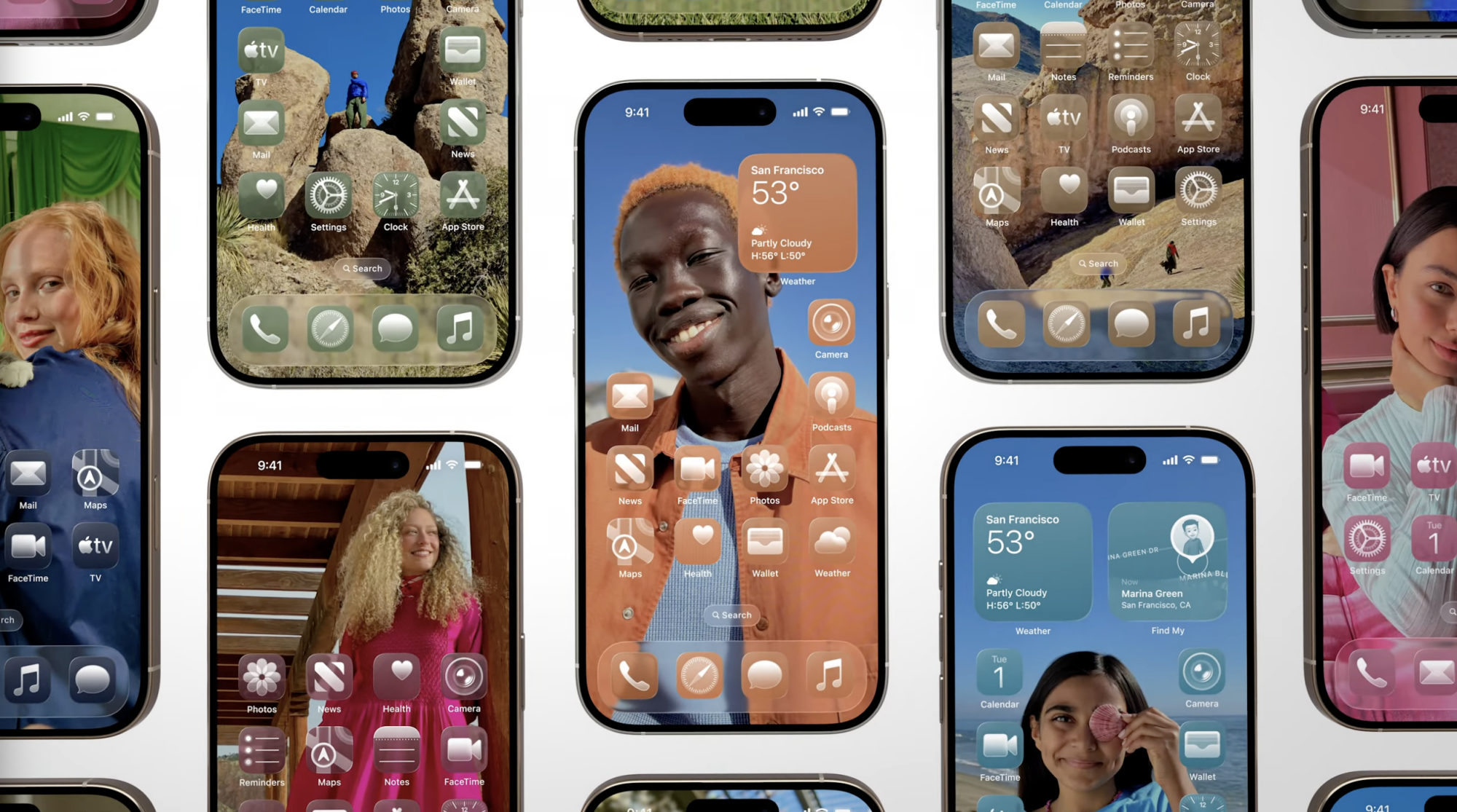
Apple announced a host of new features for this software update. There’s an all new design called “Liquid Glass,” which is based on the way light and objects appear through glass. That might sound pretentious, but, to be honest, I dig the design: It’s minimalist, and seems to have some great attention to detail. I’m looking forward to testing this one out.

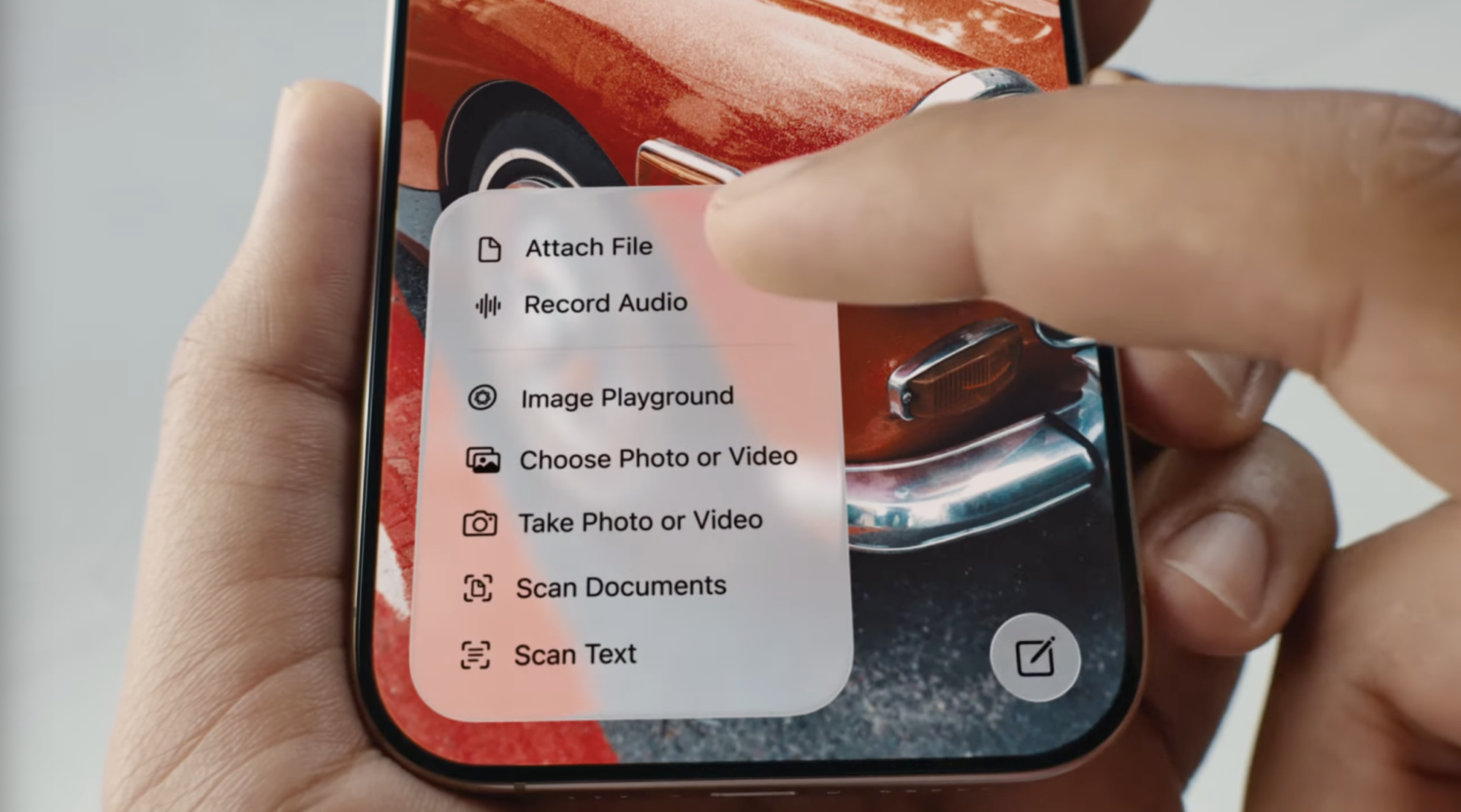
Live Translation can translate audio and text alike, so you can have bilingual conversations without knowing another language. Visual intelligence, which lets you analyze subjects with your camera, now works with anything on your iPhone’s screen, which should make the feature even more useful. Genmoji and Image Playground now lets you combine two AI images into one, and Shortcuts now has Apple Intelligence support.

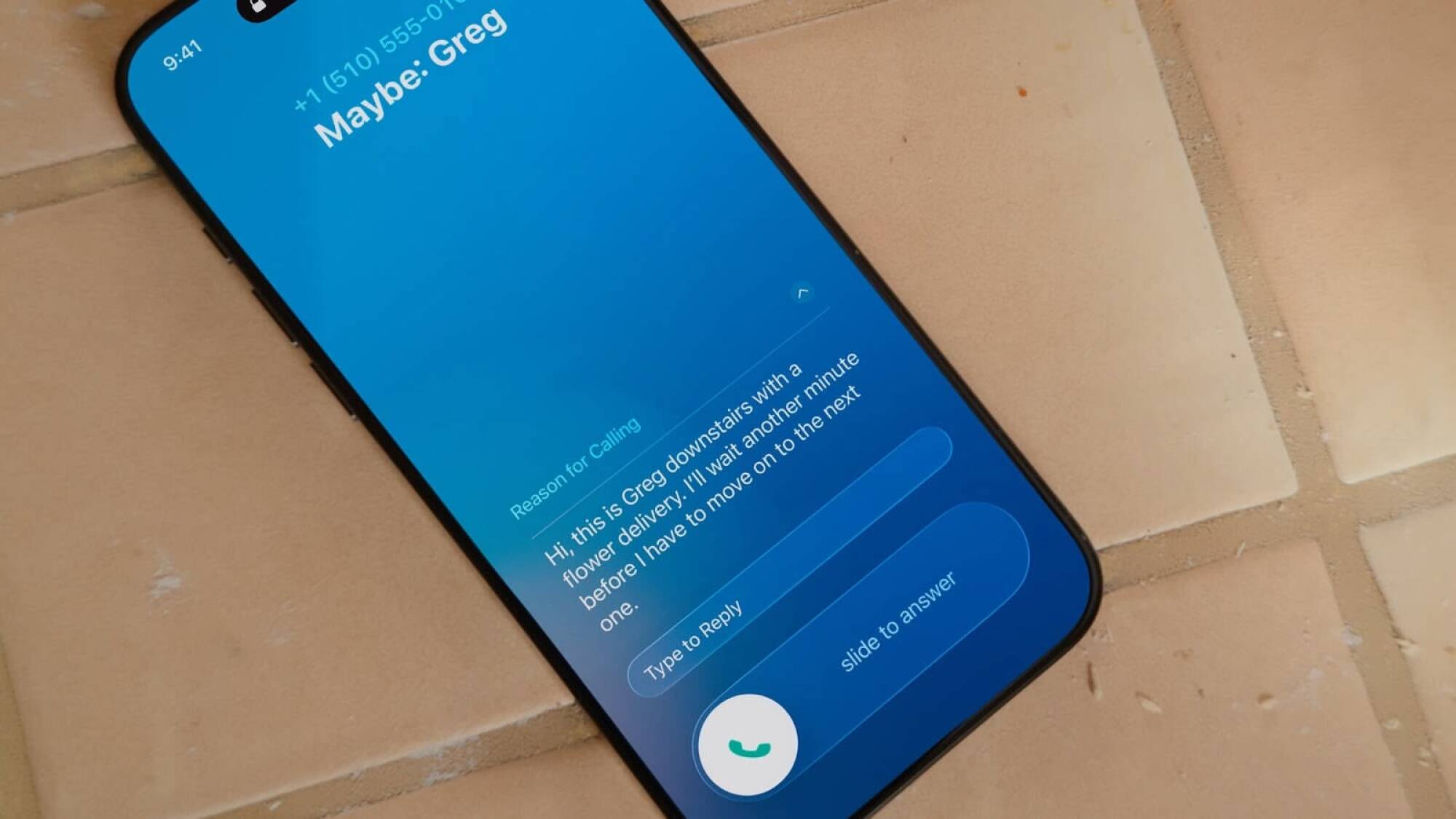
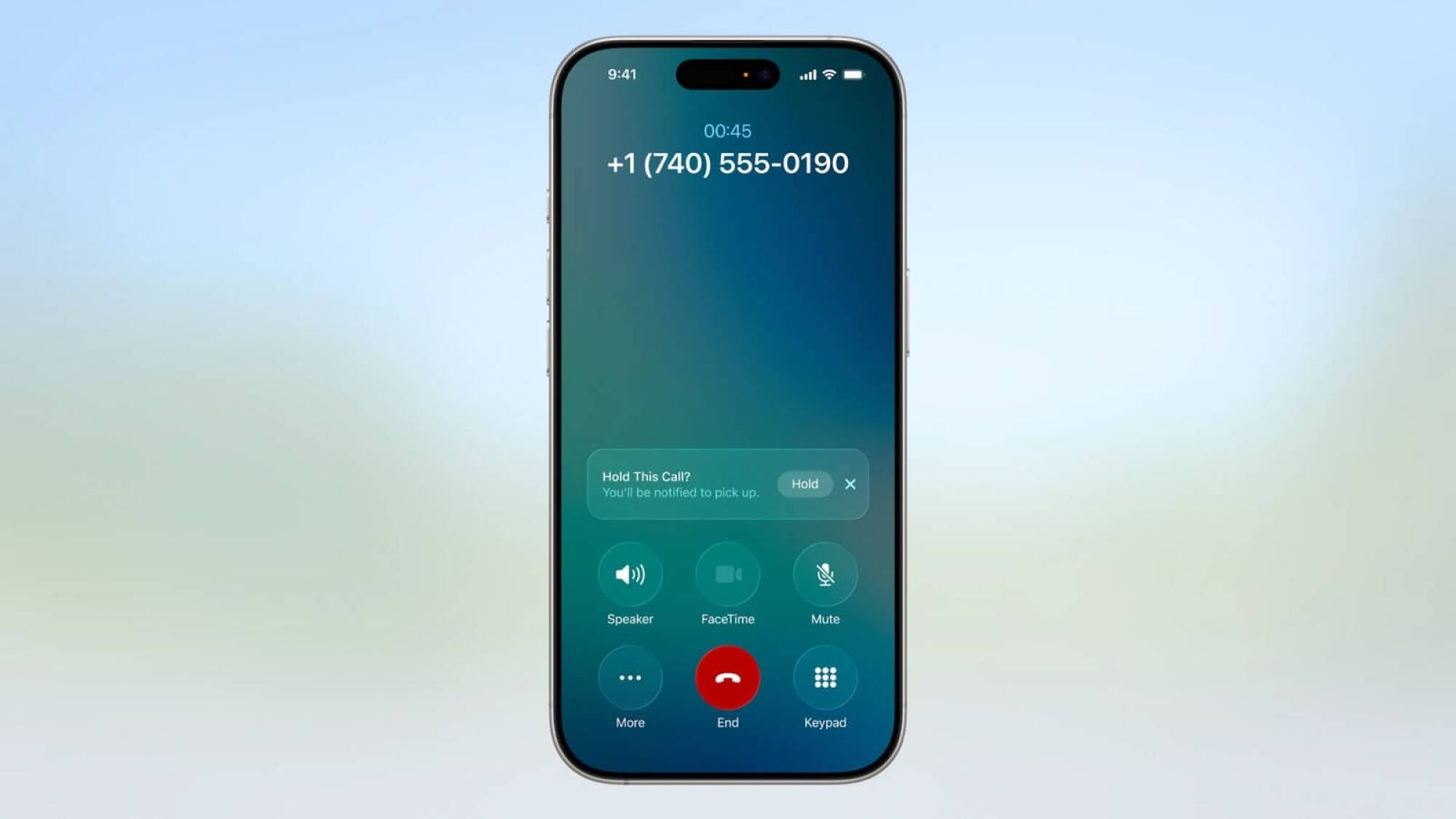
The Phone app gets a redesign, as well as some new features that should cut down on spam: Call Screening, which asks callers for their info before patching them through to you, and Hold Assist, which lets you know when a live agent is available on a call. You can screen texts in the Messages app, too, and implement custom backgrounds and generate polls. Group chats now support typing indicators.


Tony Hawk’s Pro Skater 3 + 4 Gets Ready To Shred With This Teenage Mutant Ninja Turtle

Tony Hawk's Pro Skater 3 + 4 Gets Ready To Shred With This Teenage Mutant Ninja Turtle
Remakes continue to be a safe bet for publishers, with classics such as The Elder Scrolls IV: Oblivion achieving strong sales numbers. Microsoft is looking to keep the momentum of these revivals going with Tony Hawk’s Pro Skater 3 + 4. With the game’s launch approaching, the company gave another another glimpse of the varied roster fans can

MSI Unveils MPG B850I EDGE TI WIFI To Build An Elite Compact Ryzen Gaming PC

MSI Unveils MPG B850I EDGE TI WIFI To Build An Elite Compact Ryzen Gaming PC
Way back when VIA introduced the Mini-ITX standard in 2001, it was initially aimed at low-power systems and highly-integrated machines. VIA’s designers probably never imagined a future where you could slap a 150-watt 16-core CPU and a 575W 32GB GPU into a Mini-ITX machine. That’s exactly the use case for something like the new MSI MPG B850I

YouTube Will ‘Protect Free Expression’ By Pulling Back On Content Moderation

An anonymous reader quotes a report from Ars Technica: YouTube videos may be getting a bit more pernicious soon. Google’s dominant video platform has spent years removing discriminatory and conspiracy content from its platform in accordance with its usage guidelines, but the site is now reportedly adopting a lighter-touch approach to moderation. A higher bar for content removal will allow more potentially inflammatory content to remain up in the “public interest.” […]

Beginning late last year, YouTube began informing moderators they should err on the side of caution when removing videos that are in the public interest. That includes user uploads that discuss issues like elections, race, gender, sexuality, abortion, immigration, and censorship. Previously, YouTube’s policy told moderators to remove videos if one-quarter or more of the content violated policies. Now, the exception cutoff has been increased to half. In addition, staff are now told to bring issues to managers if they are uncertain rather than removing the content themselves.
“Recognizing that the definition of ‘public interest’ is always evolving, we update our guidance for these exceptions to reflect the new types of discussion we see on the platform today,” YouTube’s Nicole Bell told the New York Times. “Our goal remains the same: to protect free expression on YouTube while mitigating egregious harm.”

Most of the videos hosted on YouTube won’t be affected by this change, the company says. “These exceptions apply to a small fraction of the videos on YouTube, but are vital for ensuring important content remains available,” a YouTube spokesperson tells Ars. “This practice allows us to prevent, for example, an hours-long news podcast from being removed for showing one short clip of violence.”


Read more of this story at Slashdot.

iOS 26 Will Help You Screen Your Calls and Messages for Spam

The iOS 26 update announced at WWDC 25 isn’t just about the new Liquid Glass redesign. Apple is using this opportunity to redesign some fundamental features in the Phone and Messages apps, something that the company hasn’t done in, well, forever.

Apple is clearly taking inspiration from Google’s Pixel phones here, bringing in call screening features and a new multi-view layout that combines your favorites, recent calls, and voicemails all on one page. It’s the same story in Messages, where you’ll find some Pixel and WhatsApp style features like custom backgrounds.

Apple’s Phone app brings a new view, Call Screening, and Hold Assist

Call screening.

Credit: Apple

First, there’s a new design for the Phone app, and a new tab bar with a big Search icon that could come in handy. The new Phone screen shows your Favorites pinned to the top, and then you’ll see all your recent calls and voicemails in a single view. According to Apple, though, this is going to be an optional feature, so it should be possible to roll back to the old look, although we don’t exactly know how that will work yet.

Next is Call Screening, a feature similar to one on the Google’s Pixel phone series. When you get a call from an unknown number, your iPhone will pick up the call in the background, and will hear what the caller saying. If it’s something actually useful, and not spam, your iPhone will ring, and you’ll see a transcription of what the caller is saying. You can then choose to answer the call, if you wish.

Hold Assist

Credit: Apple

Lastly, there’s the Hold Assist feature, which could help save you from hours of hold music. This feature automatically detects hold music and activates a background mode for the call. You are now free to leave the Phone app, or even lock your phone. When an agent connects, your iPhone will call you, and will also tell you when what the Agent said while you were away.

Live translate in phone, messages, and everywhere

iMessage chats are about to get livelier, too. Like on WhatsApp and Telegram, you’ll now be able to set custom backgrounds for any chat. There’s also a new Polls feature, something that’s really popular on WhatsApp.

In group chats, you’ll also finally see typing indicators. And you’ll be able to send a receive Apple Cash directly in group chats.

The Live Translate feature is also coming to Messages, so you’ll be able to automatically translate audio messages and text on the fly.

Apple is even bringing a spin on its call screening features to Messages. Texts from unknown senders will be sent to a dedicated new folder, and they won’t be added to your main texts list until you accept them. However, this won’t apply to things like one-time passwords, delivery updates and other important information.

Your Messages App Will Be Able to Detect Spam Texts in iOS26

While text messages are an easy way to communicate with people, one of the downsides is unsolicited or unwanted messages—particularly ones that are trying to scam you. But today at WWDC 2025, Apple introduced a new way to handle them in the Messages app.

With iOS 26 (the new naming scheme for Apple’s software), the Messages app will now include on-device spam detection, allowing you to screen spam text messages as they come through. The Messages app will automatically flag texts from unfamiliar numbers in a separate folder under Unknown Senders. From there, you can mark a phone number as known, get more info, or delete it; messages from these Unknown Senders will be silenced until a user accepts them.

The Messages app will let you easily filter out those spam messages so then they’re not in your main conversation view and you can focus on your important threads. Apple says the new on-device spam detection feature in the Messages app will be launching with iOS 26, which is coming later this year for compatible iPhones.

For more WWDC 2025 announcements, follow our live blog.

Apple’s macOS 26 Tahoe has new Liquid Glass look, customizable folders, and more

Apple unveiled the next version of macOS today during the Worldwide Developers Conference. Codenamed Tahoe, macOS 26 gets a visual refresh with the same “Liquid Glass” look that Apple is introducing across all of its operating systems this year. Apple has also changed the version number, jumping directly from version 14 to version 26 as it shifts to unified year-based version numbering across all of its operating systems.

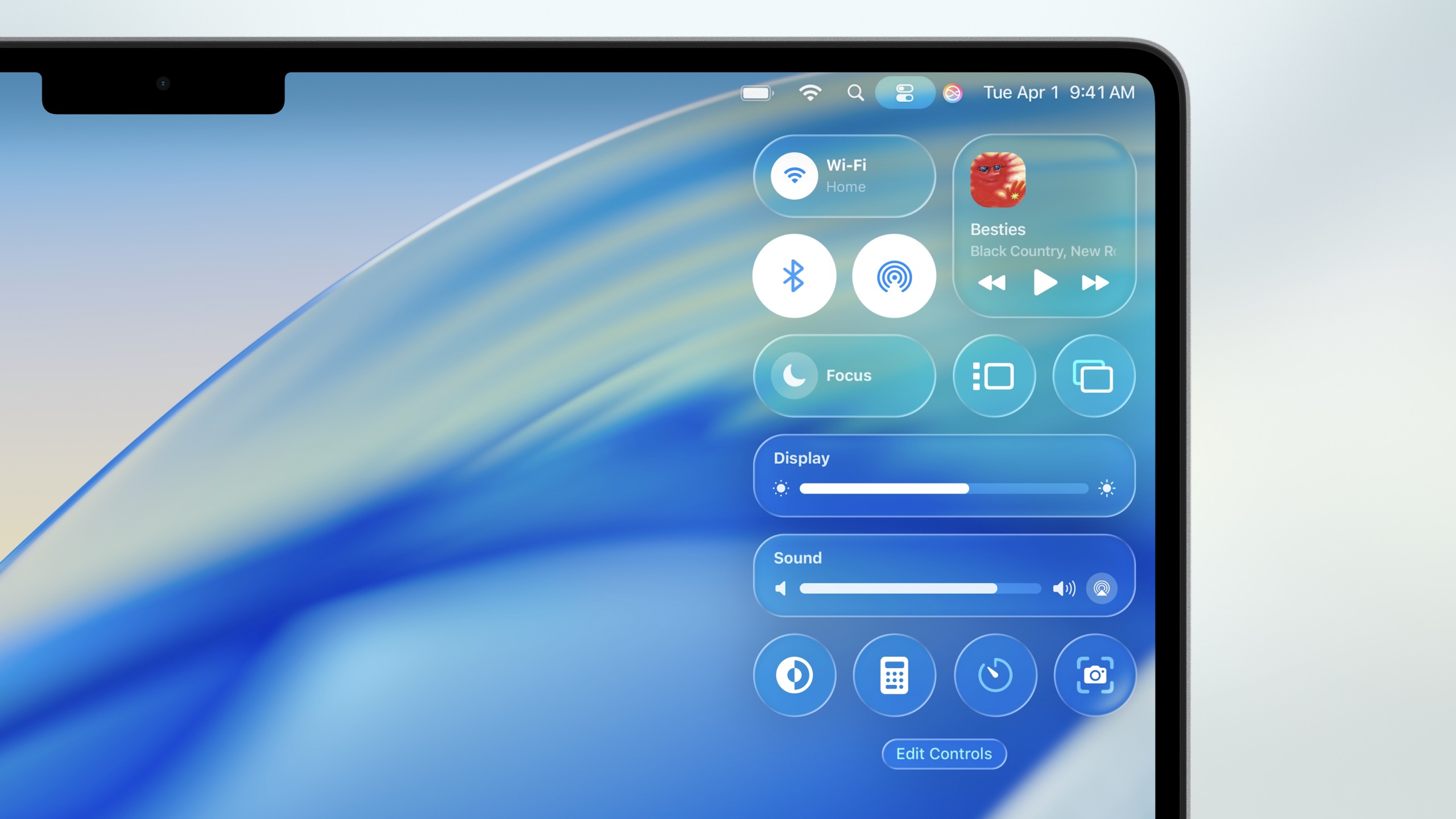
Liquid Glass goes all-in on translucency and transparency, changing the look of icons and windows across the operating system. Most significantly, the macOS menu bar has become entirely invisible, and the Control Center has adopted a new, glassy, translucent appearance. The same color-tinting customization features available on iOS and iPadOS are coming to the Mac this year, giving users multiple customization options on top of the standard light and dark modes and accent colors.


The invisible menu bar and glassy Control Center in macOS Tahoe.
Credit:
Apple

The new look will probably define the release in the minds of most users, but it’s bringing the standard handful of new features and refinements across the built-in apps. For the Finder, folders can be customized with colors and emoji labels to help them stand out from a big list of folders.

Read full article

Comments

Metal 4 for macOS Tahoe 26 introduces new gaming features like frame interpolation

Apple continues to improve gaming features on Macs with Metal 4 for Apple Silicon on its latest version of macOS Tahoe 26 announced at WWDC 26. The new graphics platform introduces two new technologies designed to make graphics look better and run faster, MetalFX Frame Interpolation and MetalFX denoising. 

MetalFX Frame Interpolation generates an intermediate frame for every two input frames to boost frame rates with minimal computing overhead, while MetalFX Denoising “makes real-time ray tracing and path tracing possible in the most advanced games,” the company said. It pointed out that upcoming titles like Crimson Desert and InZOI will use technologies like MetalFX Upscaling to improve performance and visuals via technology like ray-tracing available with the company’s M3 and M4 family of chips.

Apple put a fair amount of emphasis on gaming during this year’s developer conference. It revealed the new Games app that will come pre-installed on Mac, iPhone and iPad with macOS Tahoe 26 and iOS 26 this fall. The company also reminded us of new games arriving on macOS, including Cyberpunk 2077, Cronos: The New Dawn, Architect: Land of Exiles, Lies of P: Overture, HITMAN World of Assassination, EVE Frontier and Where Winds Meet.

This article originally appeared on Engadget at https://www.engadget.com/gaming/metal-4-for-macos-tahoe-26-introduces-new-gaming-features-like-frame-interpolation-183247623.html?src=rss

Apple is bringing Preview to iPadOS

Apple is bringing Preview, macOS’s built-in image and PDF viewer, to the iPad. Starting with iPadOS 26, Preview will now come preinstalled on iPads. On desktop, Preview allows users to view and edit documents and images; Apple is bringing this functionality to its tablet by leveraging Apple Pencil.

Using Apple Pencil Markup, users can annotate and edit PDFs and images. If you don’t have an Apple Pencil, touch will work as well. Preview will have direct access to compatible documents and pictures saved in iPadOS’s Files folder so users can select what to work on without leaving the app.

Another common use of the Preview app is filling out PDF forms, which iPadOS will support with AutoFill. Once edits are complete, Preview can export your file in a number of different formats and sizes.

Apple kicked off WWDC 2025 today where it announced a slew of new software features across mobile and desktop devices as well as updates to Apple Intelligence and more. AI integration has been the main focal point at this year’s developer conference, along with a top-to-bottom UI redesign that unifies all OS versions in the Apple device lineup.

This article originally appeared on Engadget at https://www.engadget.com/mobile/smartphones/apple-is-bringing-preview-to-ipados-175643371.html?src=rss

Your iPhone Is Getting a Redesigned Camera App

During the WWDC 2025 keynote, Apple unveiled a big design revamp for iOS 26, the successor to iOS 18. The Liquid Glass redesign takes a lot from visionOS, and adopts a glass-like transparent look for key UI elements. Three apps that have benefited from this new look are Camera, Photos, and FaceTime.

The Camera app streamlines controls

Screenshots from the Apple annopuncement showing changes to the Camera app

Credit: Apple

The Camera app in particular has been in need of streamlining for a while, and Apple has made an attempt to address it, and the Photos app, which already got a redesign last year, now has a bit more refinement with iOS 26, starting with a new icon, which looks quite a bit like the camera lens from Apple’s good old Aperture for Mac. This is a significant improvement over the rather generic iOS Camera icon that’s been around for a few years.

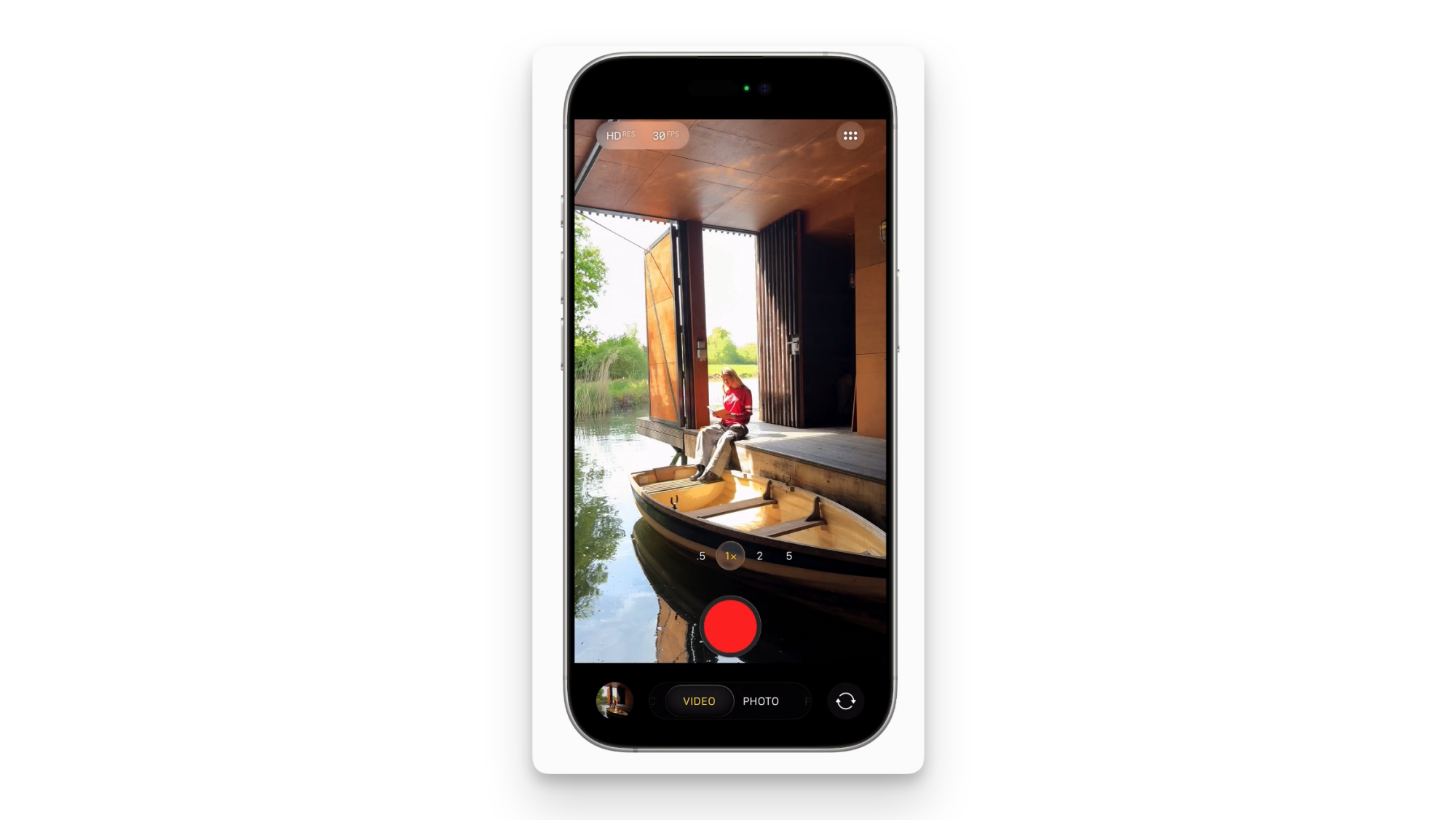
Apple has also given the Camera app a simplified design, which highlights just the two buttons, one for photos and the other for videos. Tapping these buttons opens up more options, which makes it easier to navigate. When you’re in the Videos tab, you can swipe to access different video modes, and the same thing applies to the Photos tab. You’ll see the Liquid Glass design show up when you’re trying to select video recording modes, for example. 

The Photos app builds on that controversial redesign

Screenshots from the Apple announcement showing changes to the Photos app

Credit: Apple

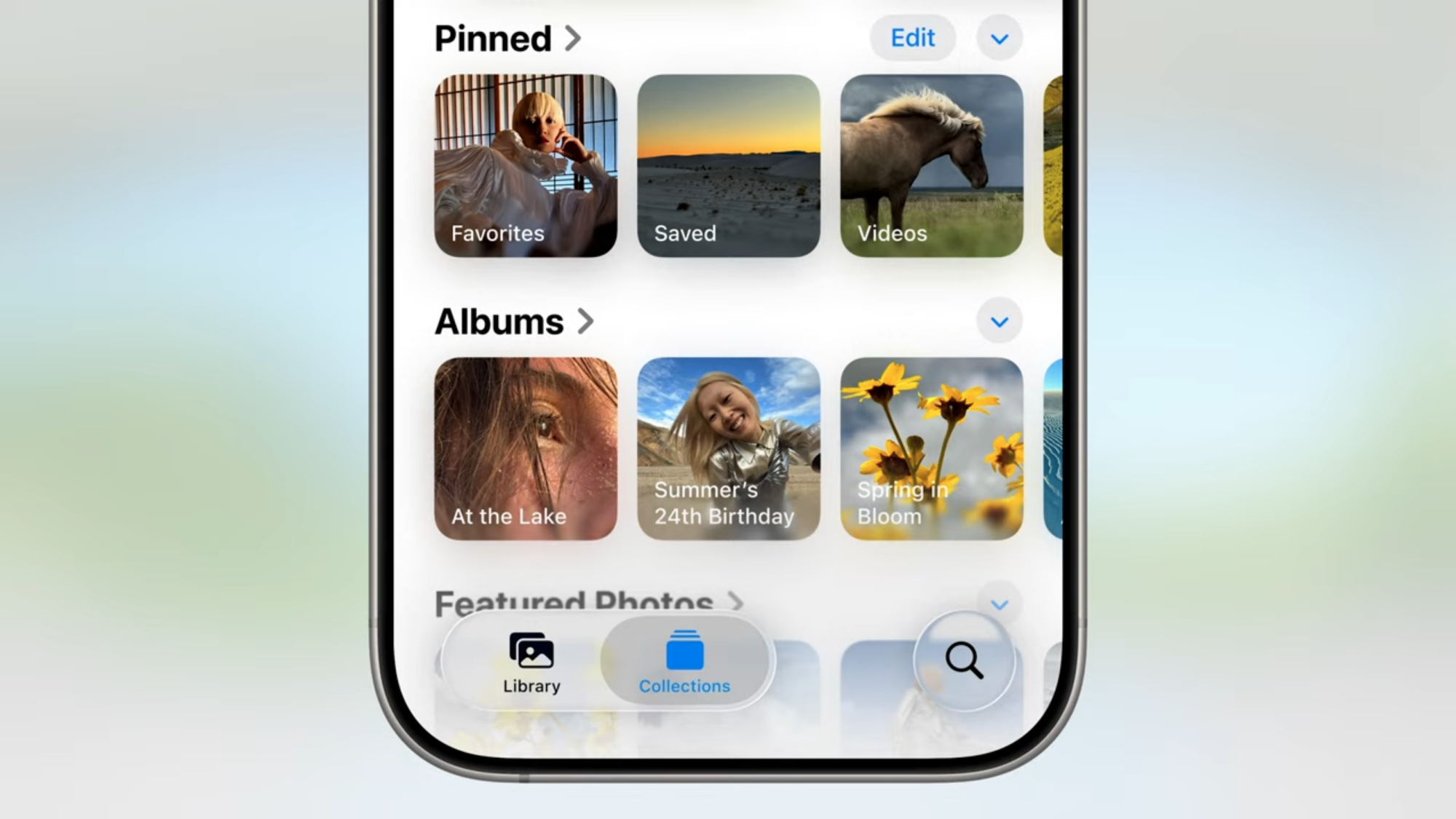
The Photos app also has a few neat changes for iOS 26, building upon the changes in the controversial overhaul the app received last year. The biggest change, other than the Liquid Glass UI, is the positioning of the buttons. Apple has moved the search button to the bottom-right corner of the display, where you can actually tap it without stretching your finger like a yogi. Two other buttons, Library and Collections, are in the bottom-left corner, and all three buttons follow the Liquid Glass design, obviously.

FaceTime moves things around

Screenshots from the Apple annopuncement showing changes to the FaceTime app

Credit: Apple

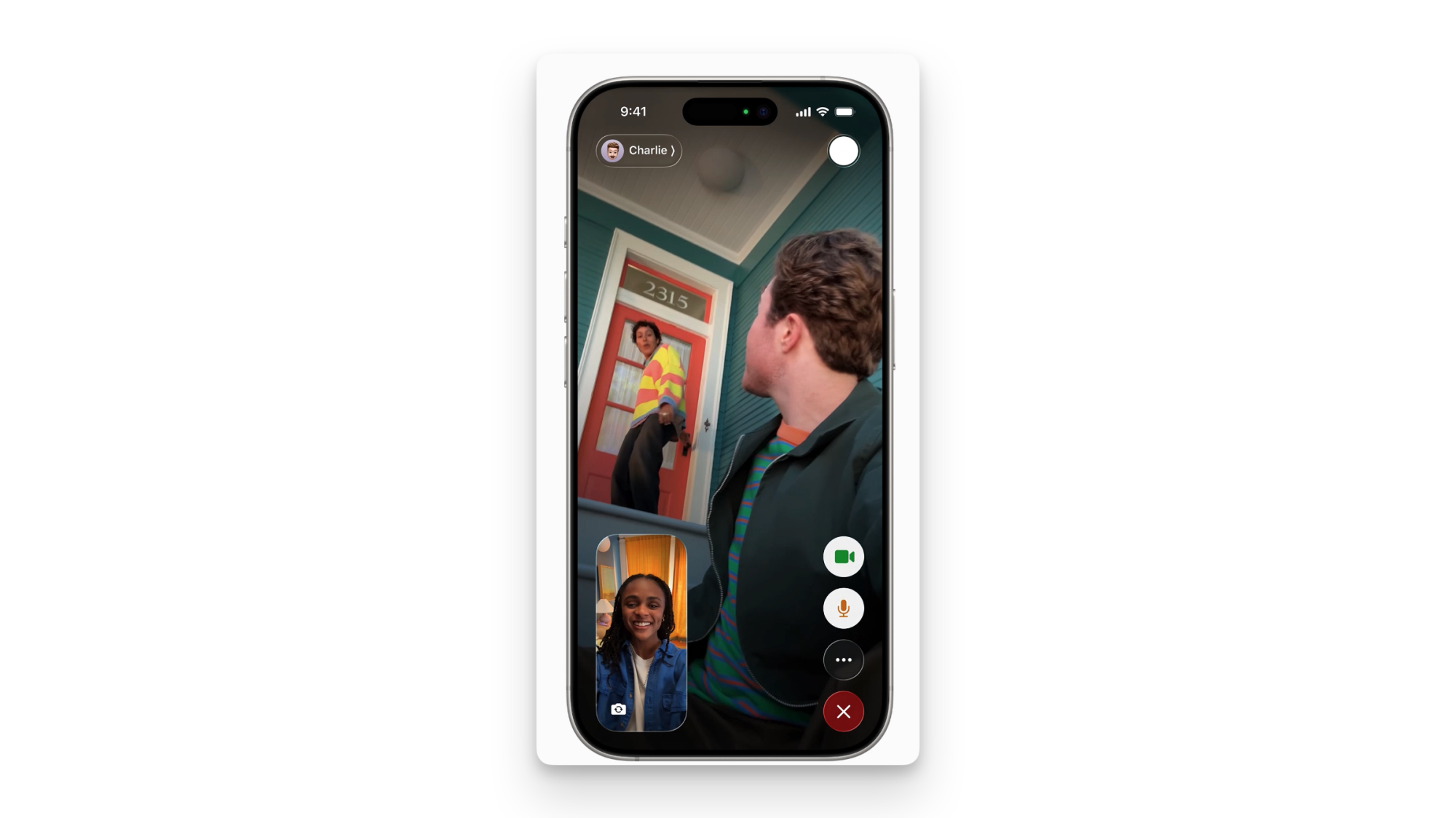
FaceTime also has embraced iOS 26’s Liquid Glass redesign. All the call controls buttons have been moved to the bottom right, which is a welcome change given how big iPhones have become over the years. The FaceTime photo (aka screenshot) button has moved to the top-right, and the buttons fade out once the call begins, but you can tap the screen to access them again.

Apple is adding a camera remote and upgrading audio recording on AirPods

Apple‘s WWDC isn’t usually known for a lot of a hardware news, but the company previewed a couple intriguing updates coming to AirPods with its latest batch of software updates. The earbuds are getting built-in camera control features that allow you to snap photos or control video recording.

With the update, users will be able to control the camera on iPhones, iPads and compatible third-party camera apps by pressing and holding on the stems of their AirPods. No word yet on which non-Apple camera apps might support this feature, but it could be particularly handy for creators if it’s widely adopted by social media and video editing apps.

Another AirPods update likely to appeal to content creators is the addition of “studio quality recording” for AirPods. According to Apple, the change will allow “interviewers, podcasters, singers, and other creators can record their content with greater sound quality” even in noisy environments. The company is also improving audio quality for phone calls and FaceTime, as well as third-party CallKit-enabled apps. Other apps will also benefit from AirPods’ improved audio, including the camera app, Voice Memos, Messages (specifically, its dictation features), as well as third-party camera and video conferencing apps.

All of the upgrades will arrive as a firmware update that’s part of iOS 26, PadOS 26 and macOS Tahoe 26 and will be available for AirPods 4, AirPods 4 with ANC and the second-gen AirPods Pro. While those updates won’t officially drop until later this year, developers enrolled in Apple’s beta program will be able to start experimenting with the changes today, while those registered for the company’s public betas will be able to get their hands on it next month.

This article originally appeared on Engadget at https://www.engadget.com/audio/headphones/apple-is-adding-a-camera-remote-and-upgrading-audio-recording-on-airpods-180211014.html?src=rss

watchOS 26: Everything Apple announced for its wearable at WWDC 2025

During Apple‘s WWDC keynote event today in Cupertino, company execs announced, among other things, the latest Apple Watch software: watchOS 12, er, watchOS 26. Like iOS, macOS, iPadOS and the rest, the latest generation of watchOS will now be appended with the upcoming year, instead of a sequential number. What would have been watchOS 12, is now watchOS 26. 

Aside from the new name, there’s a new look for watchOS, too. Apple gave its entire suite of software a redesign, one that takes aesthetic cues and the “physicality and richness” of visionOS, the software used in the company’s VR headset, the Vision Pro. It’s the biggest redesign since iOS 7. The look is called “liquid glass” and dynamically reacts to movement and responds to the content on screen. Menus now better fit to the rounded corners of the hardware. Notifications and other information now involve translucent backgrounds, giving the interface a glass-like appearance. 

The watchOS 26 also brings new features including Workout Buddy, an AI that will verbally talk you through your next run while also congratulating you on your accomplishments. The text-to-speech model is built on the voices of Fitness+ trainers and draws on data from your Workout and Health history. This is one of the first significant applications of Apple Intelligence to the Apple Watch. 

Workout Buddy will be available on Apple Watches Series 6 or later, the Apple Watch SE (2nd generation), and Apple Watch Ultra and Ultra 2 and you’ll need an Apple Intelligence-supported iPhone nearby along with Bluetooth headphones connected to your watch.  

Apple Intelligence upgrades will also make the Smart Stack more useful with a predictive algorithm that gathers information such as your location, time of day and routine to better bring up relevant apps in the Stack. The example given was showing you a workout card when you arrive at the gym in the morning. 

Apple’s AI will also make Messages smarter in watchOS 26. Now, an analysis of your incoming messages will generate suggested replies, expanding on the current suite of quick replies — meaning you may actually want to use one of the canned responses. That should make it easier to communicate without puling out your phone. 

images from watchOS 26 from WWDC 2025
Apple

A new gesture will also let you dismiss messages — or other notifications — that you’re not ready to deal with by flicking your wrist. A quick twist of your wrist away from you and back will return you to the watch screen. The wrist flick is available on the Series 9, Series 10 and Apple Watch Ultra 2. 

This latest suite of features join those announced during last year’s WWDC, in which Apple previewed watchOS 11. The best of the bunch (for me anyway) was the ability to pause your Rings for a day in the Activity app. Other features included a Training Load metric that rates your efforts during exercise, comparing it with your output over time, and the Vitals app, which tracks overnight health metrics for those who wear their watch to bed. 

This story is developing, refresh for the latest updates…

This article originally appeared on Engadget at https://www.engadget.com/wearables/watchos-26-everything-apple-announced-for-its-wearable-at-wwdc-2025-174915653.html?src=rss

Apple’s ‘Visual Intelligence’ Can Actually See Your Screen Now

Last year, Apple introduced Visual Intelligence, which uses your camera to translate text, identify objects, or start searches by pointing your phone at something. But if the thing you want to know about is on your phone instead of in front of it, you’ve been out of luck. Until today’s WWDC announcement, that is.

The new Visual Intelligence update will let users take a screenshot of what’s on their phone and perform searches on the image’s content. If you’re looking at an object, the feature can search to find where you might be able to buy it online. You can also pull up a ChatGPT box to ask questions about what you’re looking at.

Perhaps the most useful, Visual Intelligence can suggest calendar events from images you screenshot. So, you can remember all those music festivals, conventions, or shows at your local bar that you find on Instagram. Frankly, this might be the coolest, most helpful AI feature I’ve seen on any platform in a while.

Apple Is Bringing Live Translation to Messages, FaceTime, and Your Phone Calls

At WWDC today, Apple announced an extremely welcome feature for anyone who’s ever been frustrated with not knowing every language on Earth (like me). Live Translation will translate between many languages, and it will work directly inside Messages, FaceTime, and even during your calls through the Phone app.

This feature looks similar to comparable features on Google’s Pixel phones, which is great, because crossing the language barrier shouldn’t be platform-specific. Live Translate can also translate messages you’re writing as you write them, into the recipient’s language. Their responses will then be translated to your language on the way back. Technically, you could translate messages before, but you had to long press them first.

In FaceTime calls, those translations will take the form of live captions you can read on your screen, while you listen to the speaker. On pure phone calls, you’ll receive translations spoken aloud. These might be a little more difficult to pay attention to, since you’ll also be hearing the raw audio from the person you’re speaking to, so we’ll have to wait and see how Apple manages volume levels between the person you’re talking to and the voiceover. On the plus side, translations in phone calls will also still be displayed on screen, so you’ll be able to see them if you’re on speaker and don’t need to hold the phone up to the side of your face.

As with most of Apple’s AI-powered features, the company is touting this as all running on your device, to avoid having all your conversations run through some random server somewhere.

tvOS 26 is getting Apple’s new Liquid Glass design language

Apple is updating tvOS alongside its other operating systems at WWDC 2025, introducing its new Liquid Glass design language, naming conventions (tvOS 26) and updated built-in apps.

The new design language adds sleek, translucent finishes to different parts of the tvOS experience, with updated app icons, glassy menus and fluid animations that respond to your clicks and swipes. 

In the Apple Music app, you’ll be able to connect iPhones to use as karaoke microphones, add songs to your karaoke playlist from your device and use your iPhone to react with emoji while your friends sing. Translated versions of a song’s lyrics will be available in tvOS, too, just like in the iOS version of the app.

Screenshots of the new features coming in tvOS 26.
Apple

Similar translation features are coming to the tvOS FaceTime app, with the option to view translated captions while you’re on a call. The Contact Poster-focused homepage that Apple is bringing to other versions of the FaceTime app is coming to tvOS 26, making it possible to view visual voicemail from your TV and jump into a call with a friend just by clicking on their picture.

Apple is also adding new aerial screensavers featuring footage filmed in India, and giving you the ability to choose which screensavers you want to display or hide on your TV. Your Apple TV can now also be set to launch into a profile selection screen when you turn it on, so content recommendations in tvOS are completely customized to each user.

Interestingly, Apple isn’t making its new Liquid Glass design available on all versions of the Apple TV. The company’s blog post specifically mentions that tvOS’ new look is only available on the 2nd-generation Apple TV 4K and later. 

The tvOS 26 beta is available for developers to try today. A public beta of tvOS 26 will be available for everyone to use in July. The final version of tvOS 26 will be available in the fall.

This article originally appeared on Engadget at https://www.engadget.com/home/home-theater/tvos-26-is-getting-apples-new-liquid-glass-design-language-180312551.html?src=rss

Apple’s visionOS 26 brings eye-scrolling and support for PS VR2 controllers

Apple has updated the operating software for the Apple Vision Pro, visionOS, and added a couple of really nifty features. The company unveiled visionOS 26 at its live WWDC keynote. This is not the 26th operating system for Vision Pro. It’s called that because of the Apple’s new unified naming convention. 

A list of OS names.
Apple

The biggest news with visionOS 26 is that the Apple Vision Pro will now work with PlayStation VR2 Sense controllers. This should turn the Vision Pro into a legit gaming device, being as how the lack of analog controllers was a real hurdle to that end. This type of integration should let developers port over a bounty of Quest and Steam VR titles to the device. The headset will also now work with third-party accessories like the Logitech Muse, which is a stylus of sorts. 

The Muse in action.
Apple

Widgets can now be placed anywhere in a virtual space, which could be handy. The company also promises “shared spatial experiences.” Users will be able to come together to “watch the latest blockbuster movie in 3D, play a spatial game or collaborate with coworkers.” Folks can add new participants via FaceTime.  

Apple’s controversial Personas have gotten an update here, and they look a lot more lifelike. They almost look like actual people now. I’m actually not sure if this is good or bad. 

A  female persona.
Apple

The software update also brings eye-scrolling to the headset. This is exactly what it sounds like. People will be able to use their eyes to scroll up and down through documents, websites and apps. Spatial videos have gotten a boost here, with support for wide field-of-view content from Insta360, GoPro and Canon.

Apple’s visionOS 26 will officially be available later this year, but testing begins today. It looks it’s time to dig into the closet and break out that Apple Vision Pro. 

This article originally appeared on Engadget at https://www.engadget.com/ar-vr/apples-visionos-26-brings-eye-scrolling-and-support-for-ps-vr2-controllers-180651833.html?src=rss

Here’s the First Look at Apple’s New ‘Liquid Glass’ Style

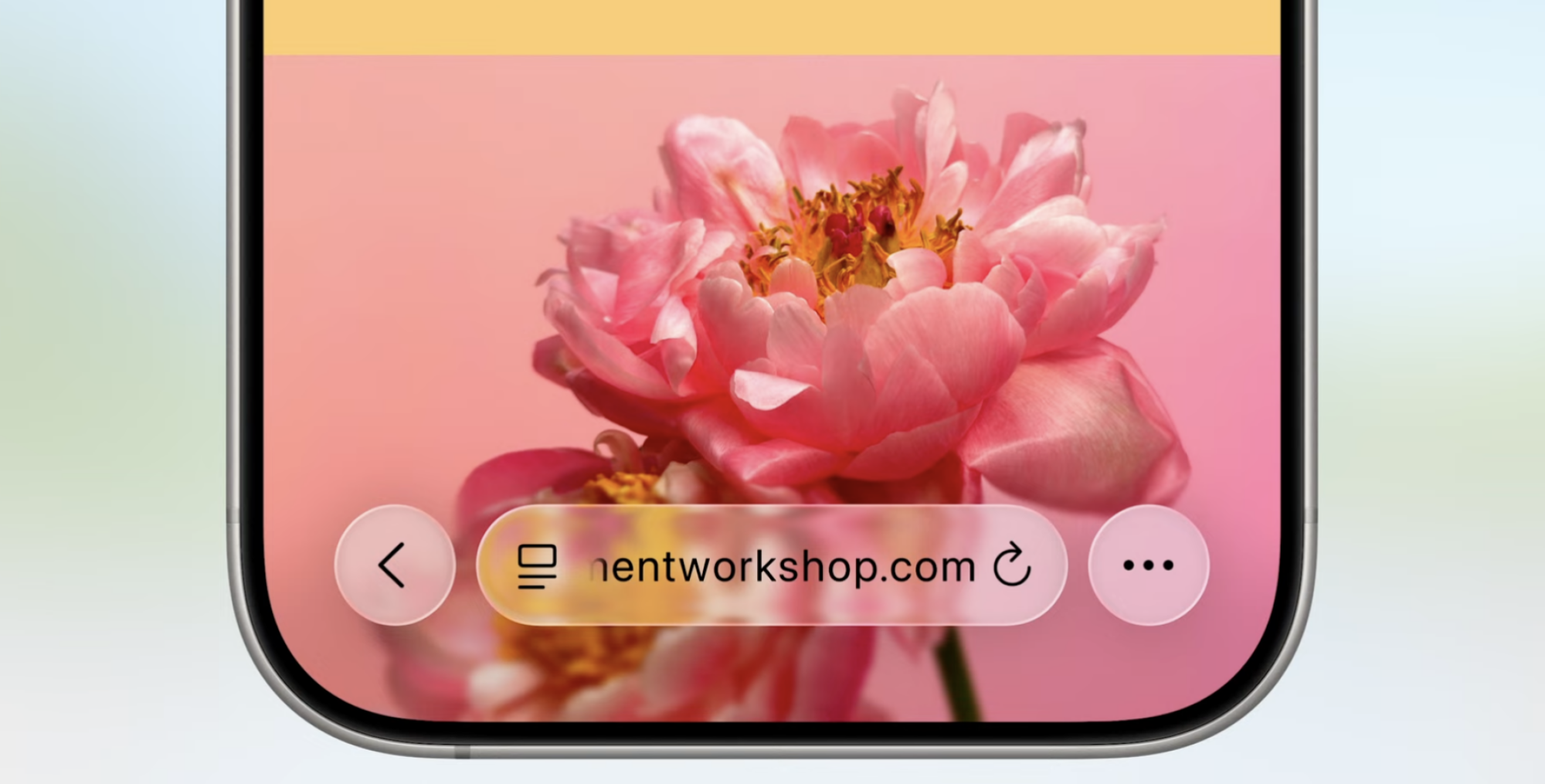
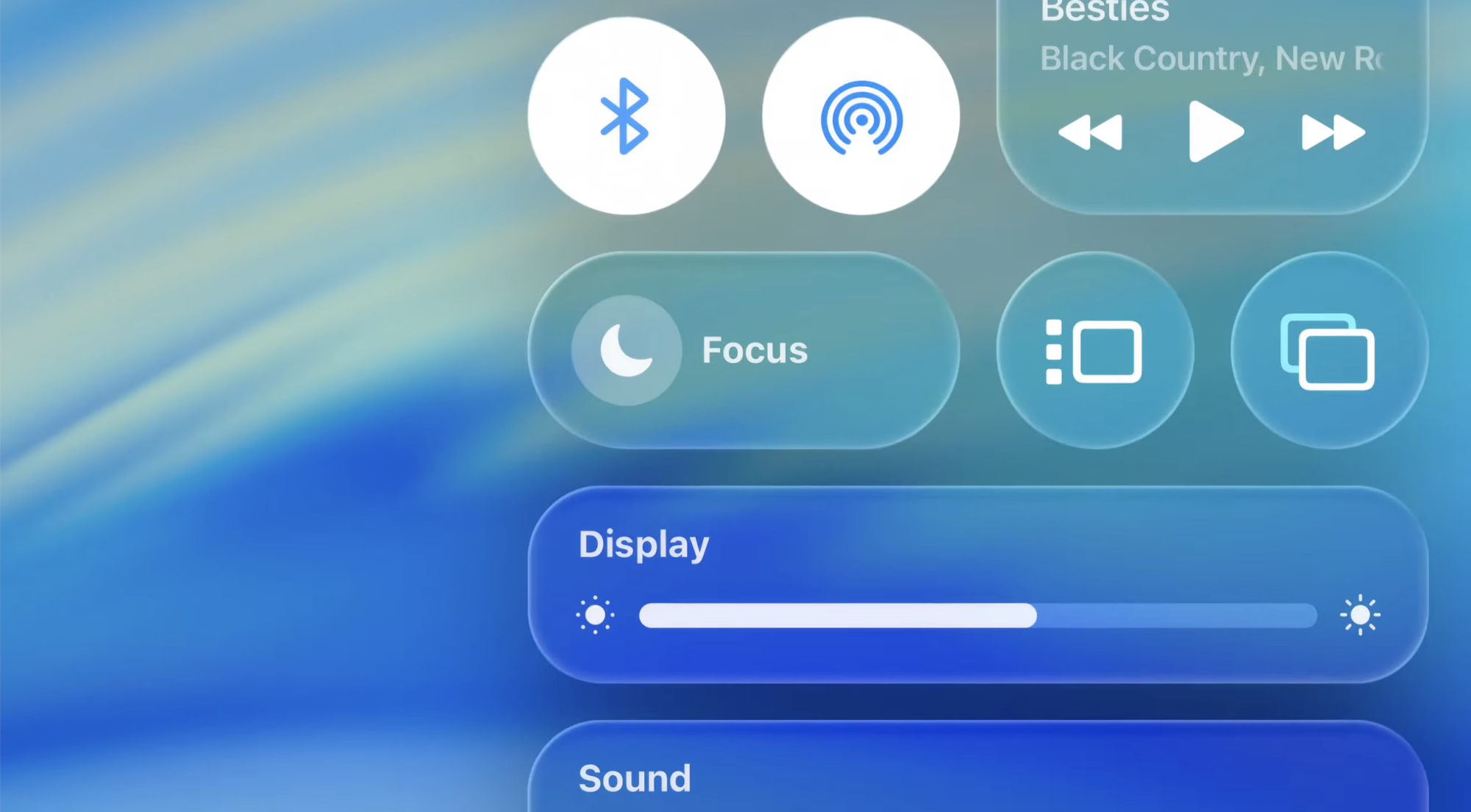
Apple’s user interfaces are going to feature more transparency than ever before—literally. The company’s new design language—which was announced today at WWDC 2025 and will be incorporated on iPhone, iPad, Mac, Watch, and other Apple devices—is called “Liquid Glass.” The design incorporates transparency into almost every aspect of the user experience, which is going to be either very cool or very annoying, depending on your aesthetic preferences and eyesight.

A screenshot of the new Safari UI, featuring a transparent addressbar

Credit: Justin Pot

This new design language feels less like an overhaul and more like building on recent UIs trends Apple has been incorporating. I’ve noticed the glassy, transparent effect show up in more and more places over the years. If the keynote presentation at WWDC is anything to go by, that transparency is going to be even more prominent.

Transparent system toggles

Credit: Justin Pot

Screenshots shown during the presentation show colors leaking through everything from pop-up menus to the address bar in Safari.

A screenshot of a transparent menuon an iPhone

Credit: Justin Pot

Glass, apparently, will be one of three UI choices alongside the traditional light and dark mode, though I’m not sure what those choices look like relative to each other yet. And there are further customization options. Changes coming to iOS allowing users to customize the color scheme for icons and widgets on their operating system, building on a tint featured added to iOS last year. This change, in the screenshots shown, make home screens feel less cluttered while also potentially reducing the number of times I impulsively tap icons.

Various customized iPhone home screens

Credit: Justin Pot

It’s a great deal of customization. People who like transparency are going to be happy; those who don’t like it have the option to try these other modes.

This is all made possible by Apple’s increasingly powerful processors, which can render these kinds of effects easily. I suspect anyone with an older Apple device is going to notice things slowing down. Hopefully the option to turn off transparency entirely will live on in the Accessibility settings—those with poor eyesight are going to need it more than ever.

Seagate’s New 4TB Xbox Expansion Card Costs More Than the Xbox Series S

An anonymous reader shares a report: Seagate has announced a new 4TB version of its storage expansion card for the Xbox Series X and S consoles. It’s the first time the company has introduced a new capacity since launching 2TB and 512GB versions of the expansion card in late 2021.

The 4TB card is available starting today through Seagate’s online store and Best Buy for $499.99, but is discounted to $429.99 as part of a limited-time launch promotion. For comparison, the Xbox Series S starts at $379.99, while the Xbox Series X starts at $599.99.


Read more of this story at Slashdot.

Apple’s iOS 26 betas are available next month

Apple’s WWDC is here and with it comes some of the company’s biggest operational developments — along with confirmation of when you can check them out in beta. This year’s WWDC brings the awaited news of a visual overhaul that is platform-wide, with changes like round icons on the home screen and Control Center.

The company has launched its first major redesign since iOS 7, calling it “our broadest design update ever.” The new uniform design across all devices includes a new material called liquid glass. This translucent design theme shows up across OSes on widgets, icons and even through a new all-clear mode, available alongside the light and dark modes. 

Apple has further confirmed the rumors that it’s changing the names of its operating systems. So, instead of getting the iOS 19 this fall, it will be the iOS 26, representing Apple’s system for the year ahead. The same is true for all other devices’ operating systems, like the iPadOS 26, MacOS 26 and so on. However, Apple is sticking with its California-themed names for MacOS, naming the next version Tahoe.

WWDC has revealed a range of iOS 26 updates, including typing indicators for group chats and live translations on iMessage, FaceTime and calls, even if the other person doesn’t have an iPhone. 

So, when can you see some of these changes for yourself? All betas are available today through the Apple Developer Program, while a public beta should roll our next month through the Apple Beta Software Program. 

This article originally appeared on Engadget at https://www.engadget.com/mobile/apples-ios-26-betas-are-available-next-month-180213420.html?src=rss