These Are the Best Tech Gifts Under $50

Tech products can get expensive fast. When you factor in the historic demand from the ongoing memory crisis, you might find yourself spending more than you’d like for the people on your list. It doesn’t have to be this way. There’s a surprising variety of products you can pick up for $50 or less. While not everything in the tech world can be found at this price point (at least, not with any expectation of quality), you can buy name-brand speakers, headphones, trackers, and more. If someone on your gift-giving list is looking for a new gadget, these under $50 products may just be it.

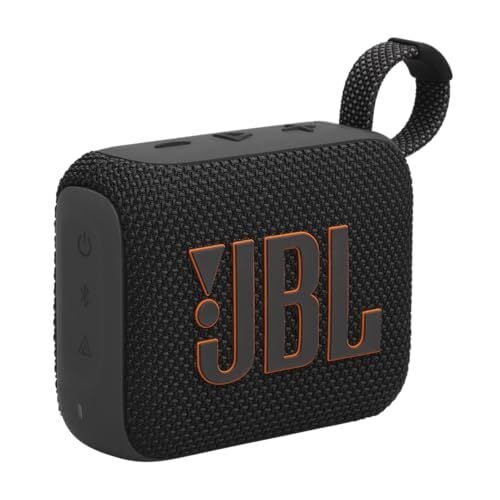
Best portable speaker under $50 to gift: JBL Go 4

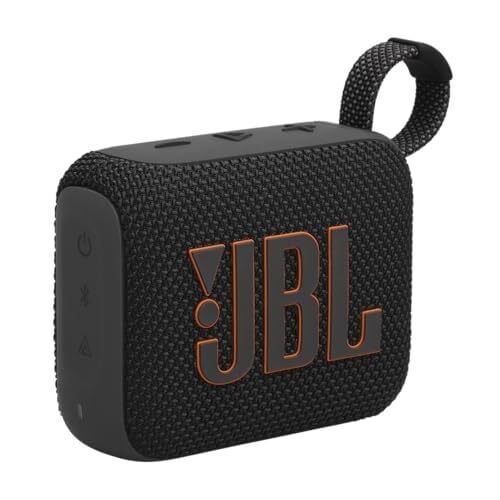
If your giftee wants a portable speaker, it’s tough to beat the JBL Go 4 at this price point. This is a great portable (emphasis on portable) speaker from a company that makes excellent audio equipment. It has up to seven hours of battery life on one charge and an IP67 rating against water and dust, which makes it as good of a speaker to bring to the beach as it is for your shower. As it happens, one of my favorite things about this speaker is the fact that it’s made by JBL: For less than $50, you get a speaker that can pair with any other compatible JBL speaker, big or small. I’ve found it to be a lifesaver for parties, events, or when traveling: Usually, someone else in the group has a JBL speaker (if not multiple people), which makes setting up an impromptu sound system easy. Better yet, outlets like Amazon often have these speakers on sale, which means you can pick it up well under its already-reasonable MSRP.
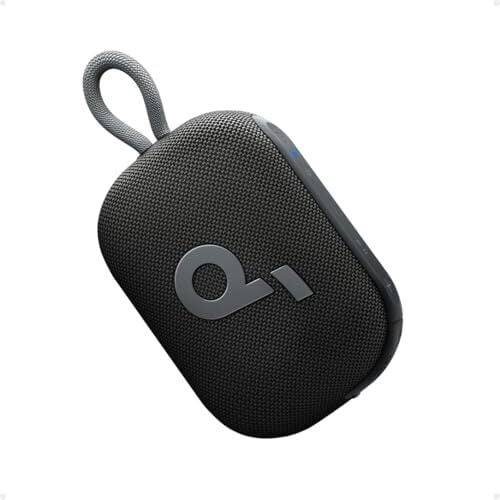
Longest-lasting portable speaker to gift under $50: Soundcore Select 4 Go

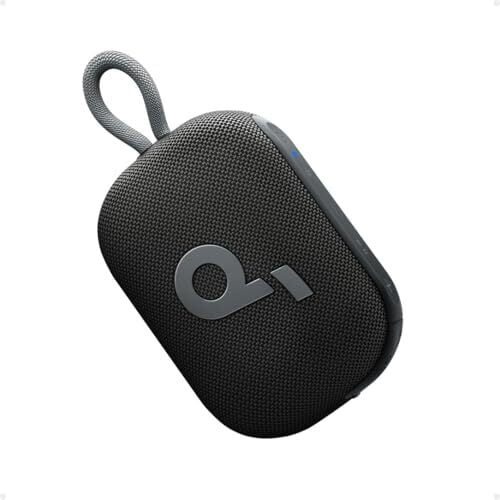
If you’re looking for something even less expensive for your gift, Anker’s Soundcore Select 4 Go is a great option. It, too, has an IP67 water and dust resistance rating, though its main advantage is its 20-hour battery life. You can pair two of these speakers together to create a stereo system, and, depending on available discounts, you may be able to buy two for under $50—though its MSRP is $34.99.
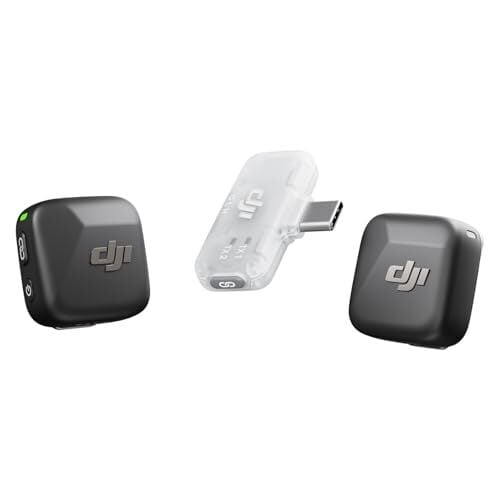
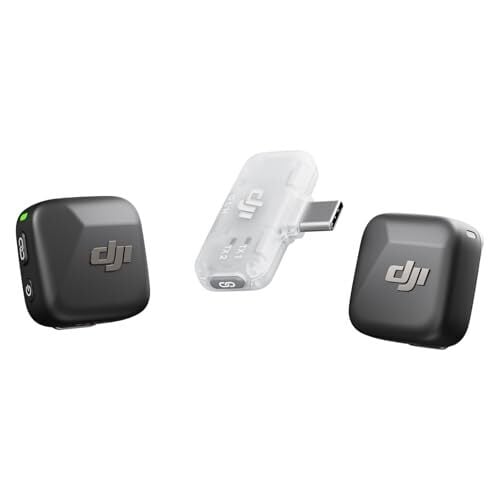
Best wireless mic under $50 to gift: DJI Mic Mini

Wireless microphones are often pricey, and “cheap” options are often not worth the money. However, if you need wireless lav mics on a budget for someone on your list, DJI’s “Mic Minis” might be the move. This particular option comes with two mini mics and one USB-C receiver. You can connect the receiver to any smartphone (iOS or Android) that supports USB-C, and mic up two different subjects to capture remote audio. Your subjects can move up to 300 meters away from the receiver while recording, and each mic supports noise cancellation.
Best smartphone game controller to gift under $50: 8BitDo Ultimate Mobile Gaming Controller

Dedicated portable handheld gaming consoles, like the Nintendo Switch or Steam Deck, are great, but most of us already own capable game systems of our own: our smartphones. The problem is, playing on a touchscreen doesn’t come close to matching the experience of a physical controller, which is why smartphone game controller accessories are such a great buy for any gamer on your list. One of the best—$50 or under, anyway—is 8BitDo’s Ultimate Mobile Gaming Controller. This device turns your giftee’s iPhone or Android into a Switch or Steam Deck, complete with an Xbox-designed button and joystick layout.

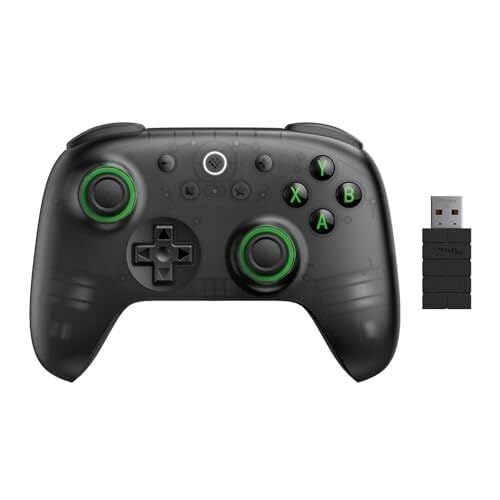
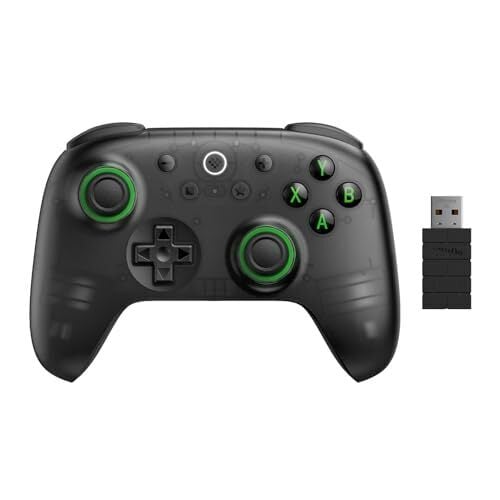
Best game controller to gift under $50: 8BitDo Ultimate 2C

Let’s switch gears slightly. If your giftee wants a great gaming controller but for PC, console, or to wirelessly connect to a mobile device, the Ultimate 2C from 8BitDo is also an excellent option. Unlike other gaming controllers that can get expensive fast, the Ultimate 2C retails for $29.99—but Amazon reviews note that it doesn’t feel “cheap.” The build quality feels solid, the connections are snappy, and there are even three sets of triggers, in case you find yourself needing to assign extra functions in your games. While third-party game controllers have had poor reputations over time, 8BitDo’s products seem to offer a lot of value at these price points.
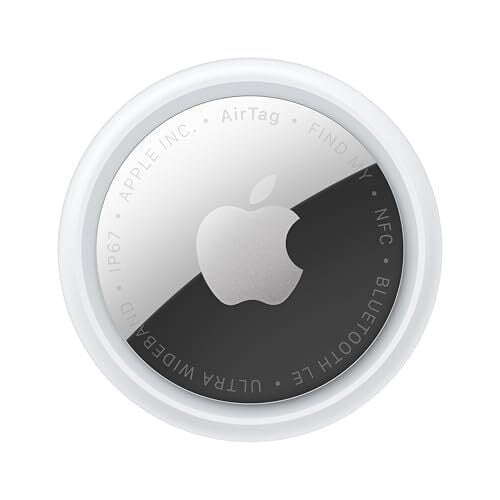
Best tracker to gift under $50: Apple AirTags

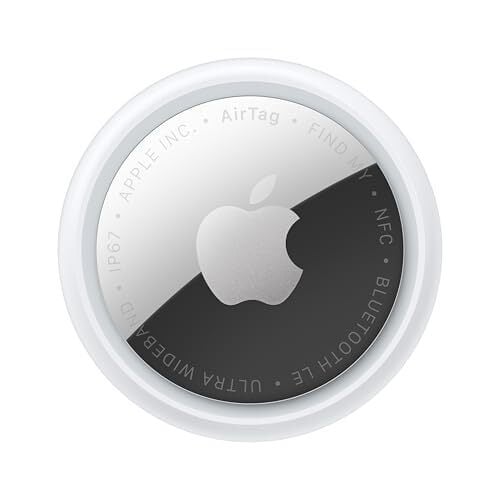
There’s really no beating AirTags when it comes to keeping tabs on your stuff—assuming your giftee has other Apple products already. AirTags work with Apple’s Find My network: While they don’t have the ability to connect to the internet on their own, they can communicate securely and privately with other internet-connected Apple devices in the wild, which then update the AirTag’s location on the Find My network. In addition, if your giftee is within Bluetooth range of their AirTag, their compatible iPhone or Apple Watch can use Precision Finding to guide them to its location. These retail for $29.99, but when they’re on sale, you can pick up two for under $50.
Best earbuds to gift under $50: Soundcore P30i by Anker Noise-Cancelling Earbuds

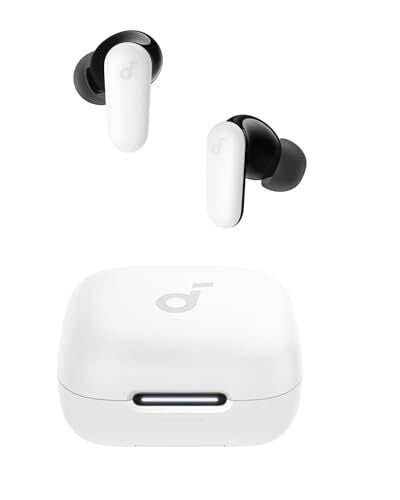
Wireless earbuds are not cheap, especially if your friend or family member wants them to come with noise cancellation. Anker’s Soundcore P30i earbuds, however, retail for $49.99 and come with both noise cancellation and transparency mode. Anker says you can get up to 10 hours of playtime on one charge (or six hours with noise cancellation turned on). The charging case even doubles as a phone stand, which is quite clever—especially at this price point.
Best earbuds to gift Apple users under $50: Beats Flex Wireless Earbuds

You may want to consider these wireless earbuds from Beats for the Apple users in your life. The Beats Flex wireless earbuds come with Apple’s W1 chip. That means your giftee can quickly switch between their various Apple devices (iPhone, Mac, Apple TV, etc.) and their Beats will follow, all without having to repair them at each juncture. While they retail for over $50, Amazon hasn’t listed them at that price in three months, according to Keepa. As such, I’m recommending them here, if for no other reason than to offer the Apple users in your life an Anker alternative.

Best headphones to gift under $50: Soundcore Anker Life Q20

Similar to the Beats Flex, the Soundcore Anker Life Q20 retail for more than $50. However, Amazon has had them priced well below that for the past three months, which makes them an excellent over-the-ear headphone purchase. RTings says these headphones have “an excited sound profile,” with nearly 50 hours of battery life between charges. These headphones have noise cancellation, transparency mode, as well as 40mm drivers in each earcup. Your giftee can also pair them to two Bluetooth devices at once, so they can quickly switch between both when they need to.

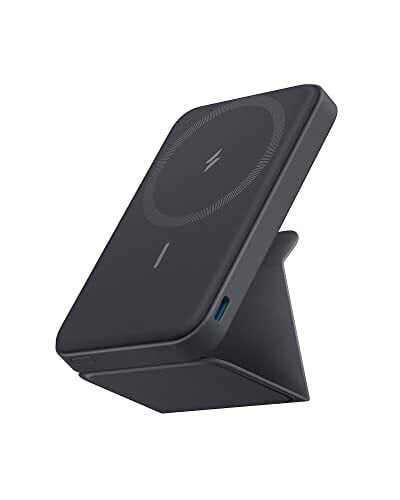
Best portable charger to gift under $50: Anker 622 Magnetic Battery (MagGo)

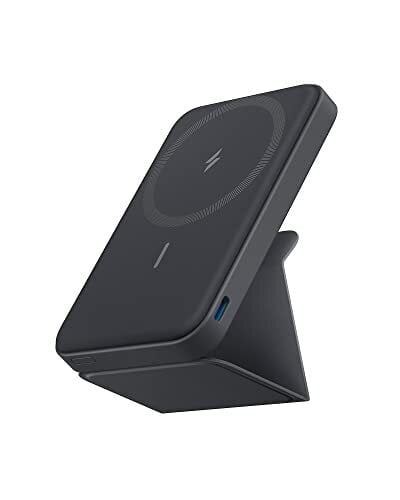
Whenever I travel, I always have the same two thoughts concerning my iPhone: I wish I could prop it up, and I worry about when I can charge it up. This MagSafe power bank from Anker solves both those problems. It attaches magnetically to your iPhone, giving you extra battery life, while also serving as a stand, so you can use it hands-free. That’s perfect for planes, trains, though perhaps not automobiles—assuming the latter doesn’t offer a seatback tray-table equivalent. Anker says this 5,000mAh charger is typically good for one full charge at a time, which should mean your giftee can double their iPhone’s total battery life.

Best streaming device to gift under $50: Amazon Fire TV 4K

If your giftee needs a new streaming device, but you don’t have more than $50 to spend, the Amazon Fire TV 4K Select may be your best bet. As the name implies, this device can stream in 4K, but it’s also compatible with HDR10+. Amazon is happily advertising this device’s Alexa+ capabilities, which add the company’s generative AI assistant to the streaming device. But even if your giftee just need something to stream Apple TV, HBO, or Netflix in 4K, this stick can handle it. Plus, as of this article, the device is heavily discounted, making it an excellent deal.

Best gaming mouse to gift under $50: SteelSeries Rival 3 gaming mouse

If your giftee needs a new gaming mouse, but the “best” options are giving you sticker shock, consider the Rival 3 from SteelSeries. This is one of CNET’s picks, and despite its $35 price tag, it comes with the same switches as some of SteelSeries’ premium mice, as well as a 8,500 DPI sensor. It’s lightweight at 77g, and while that might not be surprising at this price point, it could make for a convenient travel mouse, as well as a dedicated gaming option.

Best Razer gaming mouse to gift under $50: Razer DeathAdder Essential

If your giftee is more of a Razer fan, the company has its own affordable gaming mouse. The DeathAdder Essential is the budget version of its more expensive DeathAdder mouse, but it comes with a 6,400 DPI sensor, five programmable buttons, and support for up to 10 million clicks. As of this article, Razer is offering this mouse for just over $20, an excellent price for a capable gaming mouse.

These Are the Best Tech Gifts Under $50

Tech products can get expensive fast. When you factor in the historic demand from the ongoing memory crisis, you might find yourself spending more than you’d like for the people on your list. It doesn’t have to be this way. There’s a surprising variety of products you can pick up for $50 or less. While not everything in the tech world can be found at this price point (at least, not with any expectation of quality), you can buy name-brand speakers, headphones, trackers, and more. If someone on your gift-giving list is looking for a new gadget, these under $50 products may just be it.

Best portable speaker under $50 to gift: JBL Go 4

If your giftee wants a portable speaker, it’s tough to beat the JBL Go 4 at this price point. This is a great portable (emphasis on portable) speaker from a company that makes excellent audio equipment. It has up to seven hours of battery life on one charge and an IP67 rating against water and dust, which makes it as good of a speaker to bring to the beach as it is for your shower. As it happens, one of my favorite things about this speaker is the fact that it’s made by JBL: For less than $50, you get a speaker that can pair with any other compatible JBL speaker, big or small. I’ve found it to be a lifesaver for parties, events, or when traveling: Usually, someone else in the group has a JBL speaker (if not multiple people), which makes setting up an impromptu sound system easy. Better yet, outlets like Amazon often have these speakers on sale, which means you can pick it up well under its already-reasonable MSRP.

Longest-lasting portable speaker to gift under $50: Soundcore Select 4 Go

If you’re looking for something even less expensive for your gift, Anker’s Soundcore Select 4 Go is a great option. It, too, has an IP67 water and dust resistance rating, though its main advantage is its 20-hour battery life. You can pair two of these speakers together to create a stereo system, and, depending on available discounts, you may be able to buy two for under $50—though its MSRP is $34.99.

Best wireless mic under $50 to gift: DJI Mic Mini

Wireless microphones are often pricey, and “cheap” options are often not worth the money. However, if you need wireless lav mics on a budget for someone on your list, DJI’s “Mic Minis” might be the move. This particular option comes with two mini mics and one USB-C receiver. You can connect the receiver to any smartphone (iOS or Android) that supports USB-C, and mic up two different subjects to capture remote audio. Your subjects can move up to 300 meters away from the receiver while recording, and each mic supports noise cancellation.

Best smartphone game controller to gift under $50: 8BitDo Ultimate Mobile Gaming Controller

Dedicated portable handheld gaming consoles, like the Nintendo Switch or Steam Deck, are great, but most of us already own capable game systems of our own: our smartphones. The problem is, playing on a touchscreen doesn’t come close to matching the experience of a physical controller, which is why smartphone game controller accessories are such a great buy for any gamer on your list. One of the best—$50 or under, anyway—is 8BitDo’s Ultimate Mobile Gaming Controller. This device turns your giftee’s iPhone or Android into a Switch or Steam Deck, complete with an Xbox-designed button and joystick layout.

Best game controller to gift under $50: 8BitDo Ultimate 2C

Let’s switch gears slightly. If your giftee wants a great gaming controller but for PC, console, or to wirelessly connect to a mobile device, the Ultimate 2C from 8BitDo is also an excellent option. Unlike other gaming controllers that can get expensive fast, the Ultimate 2C retails for $29.99—but Amazon reviews note that it doesn’t feel “cheap.” The build quality feels solid, the connections are snappy, and there are even three sets of triggers, in case you find yourself needing to assign extra functions in your games. While third-party game controllers have had poor reputations over time, 8BitDo’s products seem to offer a lot of value at these price points.

Best tracker to gift under $50: Apple AirTags

There’s really no beating AirTags when it comes to keeping tabs on your stuff—assuming your giftee has other Apple products already. AirTags work with Apple’s Find My network: While they don’t have the ability to connect to the internet on their own, they can communicate securely and privately with other internet-connected Apple devices in the wild, which then update the AirTag’s location on the Find My network. In addition, if your giftee is within Bluetooth range of their AirTag, their compatible iPhone or Apple Watch can use Precision Finding to guide them to its location. These retail for $29.99, but when they’re on sale, you can pick up two for under $50.

Best earbuds to gift under $50: Soundcore P30i by Anker Noise-Cancelling Earbuds

Wireless earbuds are not cheap, especially if your friend or family member wants them to come with noise cancellation. Anker’s Soundcore P30i earbuds, however, retail for $49.99 and come with both noise cancellation and transparency mode. Anker says you can get up to 10 hours of playtime on one charge (or six hours with noise cancellation turned on). The charging case even doubles as a phone stand, which is quite clever—especially at this price point.

Best earbuds to gift Apple users under $50: Beats Flex Wireless Earbuds

You may want to consider these wireless earbuds from Beats for the Apple users in your life. The Beats Flex wireless earbuds come with Apple’s W1 chip. That means your giftee can quickly switch between their various Apple devices (iPhone, Mac, Apple TV, etc.) and their Beats will follow, all without having to repair them at each juncture. While they retail for over $50, Amazon hasn’t listed them at that price in three months, according to Keepa. As such, I’m recommending them here, if for no other reason than to offer the Apple users in your life an Anker alternative.

Best headphones to gift under $50: Soundcore Anker Life Q20

Similar to the Beats Flex, the Soundcore Anker Life Q20 retail for more than $50. However, Amazon has had them priced well below that for the past three months, which makes them an excellent over-the-ear headphone purchase. RTings says these headphones have “an excited sound profile,” with nearly 50 hours of battery life between charges. These headphones have noise cancellation, transparency mode, as well as 40mm drivers in each earcup. Your giftee can also pair them to two Bluetooth devices at once, so they can quickly switch between both when they need to.

Best portable charger to gift under $50: Anker 622 Magnetic Battery (MagGo)

Whenever I travel, I always have the same two thoughts concerning my iPhone: I wish I could prop it up, and I worry about when I can charge it up. This MagSafe power bank from Anker solves both those problems. It attaches magnetically to your iPhone, giving you extra battery life, while also serving as a stand, so you can use it hands-free. That’s perfect for planes, trains, though perhaps not automobiles—assuming the latter doesn’t offer a seatback tray-table equivalent. Anker says this 5,000mAh charger is typically good for one full charge at a time, which should mean your giftee can double their iPhone’s total battery life.

Best streaming device to gift under $50: Amazon Fire TV 4K

If your giftee needs a new streaming device, but you don’t have more than $50 to spend, the Amazon Fire TV 4K Select may be your best bet. As the name implies, this device can stream in 4K, but it’s also compatible with HDR10+. Amazon is happily advertising this device’s Alexa+ capabilities, which add the company’s generative AI assistant to the streaming device. But even if your giftee just need something to stream Apple TV, HBO, or Netflix in 4K, this stick can handle it. Plus, as of this article, the device is heavily discounted, making it an excellent deal.

Best gaming mouse to gift under $50: SteelSeries Rival 3 gaming mouse

If your giftee needs a new gaming mouse, but the “best” options are giving you sticker shock, consider the Rival 3 from SteelSeries. This is one of CNET’s picks, and despite its $35 price tag, it comes with the same switches as some of SteelSeries’ premium mice, as well as a 8,500 DPI sensor. It’s lightweight at 77g, and while that might not be surprising at this price point, it could make for a convenient travel mouse, as well as a dedicated gaming option.

Best Razer gaming mouse to gift under $50: Razer DeathAdder Essential

If your giftee is more of a Razer fan, the company has its own affordable gaming mouse. The DeathAdder Essential is the budget version of its more expensive DeathAdder mouse, but it comes with a 6,400 DPI sensor, five programmable buttons, and support for up to 10 million clicks. As of this article, Razer is offering this mouse for just over $20, an excellent price for a capable gaming mouse.
10 Security Hacks Every Local AI User Should Know

When you think of local AI, you might assume that running models on local hardware instead of paying for cloud-based services is the safer and more private option. That’s only partially true. When running AI locally, you maintain better control over your workflows and data. You decide whether to share your data with any third-party services, and if so, under what terms. You also don’t have to worry about data breaches and cyberattacks targeting major tech corporations. But on the other hand, you refuse the multimillion-dollar security infrastructure built by established players like OpenAI or Anthropic. Your security is now fully your responsibility, for better or worse. With that in mind, here are ten clever hacks to help you achieve better security when running AI models on your PC or a private VPS (virtual private server). 

Is it safer to run AI models on local hardware?

When running AI models on your personal hardware using a platform like Jan, Ollama, or LM Studio, your messages, documents, and chat history do not leave your device and aren’t sent to someone else’s cloud servers. If you’re worried about an AI company selling your data without your consent, or if you don’t want to end up with your credentials leaked in the next data breach, going local is the smart move. 

That said, it isn’t foolproof. You’re still downloading the AI model files from a public database. You may also have to let the model access certain APIs so it can talk to your software or data over the public web. Finally, if you’re using a public wifi, anyone else connected to the network may be able to breach your operating system by targeting the AI. In other words, things are not as simple as people sometimes make them out to be. 

Just this January, SentinelOne and Censys found 175,000 publicly exposed Ollama hosts that could be used by any attacker with an internet connection to execute code and connect to third-party services from a user’s credentials and hardware. If you want to run AI locally, you have to be very careful with where you get your models from and what they have access to. Here are some tips to help you get it right.

Keep your model server on localhost

To run AI models on your local machine, you’ll need to use an inference engine (also called a runner) like Ollama or LM Studio, which let the model load and execute on your hardware. By default, AI runners are configured to run models on localhost (127.0.0.1 or 0:0:0:0:0:0:0:1), meaning that other devices on your network or the public web can’t access it. But if you run your AI model on 0.0.0.0, that opens up access to all devices in your network. Anyone on your shared wifi can boot up your local AI setup, then use it to make changes to your hardware or steal sensitive data.

Sometimes, setup guides will suggest that you do this anyway, so that you can access your local AI model from other devices on your network, like a smartphone or laptop. It also comes up when people try to run AI models on VPS servers or Network-Attached Storage (NAS) devices. But this will put your data and workflows at risk, so if you did something to change the default server configuration of your model runner, make sure to change it back now: 

  • On Ollama, you can do this by changing the OLLAMA_HOST variable back to 127.0.0.1. 

  • For LM Studio, toggle off “Serve on Local Network.”

  • If you use Jan, click the gear icon on your Hub interface to get to the Settings page. Then select Local API Server and make up an API key using an online generator like RandomKeygen.

Use a private VPN tunnel instead of port forwarding

You shouldn’t expose your AI model to your public IP address on the internet. But what if you still need to share model access to your other devices remotely? Normally, people enable port forwarding on their routers to configure access to their resources and data from a remote location. But you should never use this approach to configure remote access to AI models or runners on your local machine. 

If you’re already running your AI model on 0.0.0.0, and you choose to enable port forwarding on your router on top of that, anyone on the internet can break into your local AI setup if they manage to guess your IP address. Cyber attackers often operate bot networks that routinely scan the internet for open ports on residential IPs, so you’re running the risk of being targeted if you do this. A better way is to set up an encrypted tunnel using a VPN or Cloudflare ZTNA. Mesh VPNs like Tailscale are a popular choice for this, as is Cloudflare Zero Trust’s new Tunnel feature. 

Update your AI runner as soon as patches land

In May 2026, Cyera uncovered a new Ollama vulnerability that let attackers steal chunks of your data and credentials using unauthenticated API calls. The flaw, called “Bleeding Llama,” had a CVSS rating of 9.3 out of 10. At the time, it put around 300,000 publicly exposed Ollama servers at risk until it was addressed in patch version 0.17.1. 

AI runners like LM Studio, Ollama, Jan, and GPT4All are still experimental and often reveal new vulnerabilities that get patched in subsequent releases. If your runner is even a few versions out of date, your server could be vulnerable to a serious attack vector that hackers can exploit. Always grab the latest release as soon as you can from the AI runner’s official website or GitHub repository.

Choose safetensors or GGUF files over pickle

AI models based on older deep learning models like PyTorch are often downloadable as pickle files, with extensions like .bin, .pt, or .pkl. But due to the nature of the Python pickle file format, these model files can be altered to execute malicious code as soon as you try to load them using your runner. 

Back in 2025, ReversingLabs found two live model files on Hugging Face that had cleared the platform’s automated security checks even though they had an unauthorized remote access function hidden in plain sight. Now, Hugging Face’s own documentation notes pickle files as a major security risk.  

To avoid data breaches or unauthorized access, you should only download LLMs that come packaged in newer file formats like .safetensor or .gguf. These file formats store your data in numerical format, which makes malicious code execution impossible as a model loads. If a particular model is only available as a .pt  or .pkl file, I’d just skip it. There are plenty of newer-version LLMs that use more secure file formats. 

Download models from publishers you can verify

AI hubs like Hugging Face or ModelScope allow anyone with an internet connection to upload AI models to their website. While they have some platform-level security protocols in place, in cases like the incident discovered by ReversingLabs in 2025, newer or more sophisticated exploits can bypass these protocols and verifications very easily. 

For better safety, download model files uploaded from official accounts managed by major model developers only. For example, Google, Mistral, Meta, and Qwen (Alibaba) all have separate organizational accounts with a verified badge on Hugging Face.  Verification badges indicate that a company account is really owned and administered by that company, because the uploader would have had to use an official company email address to log in and upload the model files. You can see the Advanced Security section of Hugging Face’s documentation for more details on how verified badges work for enterprises.

Get your AI apps from official websites only

Hackers like to use popular GenAI tools as a lure to get people to install malicious software. Often, they’ll set up fake websites or upload to popular app marketplaces where they can pose as official platforms. Earlier attempts focused on ChatGPT clones on lookalike websites that seemed like the real OpenAI. They would get people to download a corrupt .exe or .dmg file, which would then deliver dangerous payloads like Redline, Lumma, or the Odyssey infostealer for Mac. Similar attempts have also been used to target Android users through malicious apps uploaded to the Play Store. 

But the attacks have grown more sophisticated since then and may even target obscure local AI platforms and Python packages. Attackers have gone as far as to breach official GitHub repositories and Python Package Index (PyPI) uploads. TrendAI reported one particularly disturbing instance where malicious code was inserted directly into the official PyPI package of LiteLLM, an open-source AI gateway that lets you call hundreds of LLMs from a single API. Positive Security also discovered malicious Python packages uploaded to PyPI as Deepseek lookalikes. 

Make sure to verify where you’re getting your AI tools from. Your best bet is to rely on direct official sources, verified GitHub repos maintained by trusted AI vendors, and Python packages referenced directly in the source company’s official documentation.

Double-check packages your model tells you to install

I already covered how Python packages are corrupted to install malware as soon as you run them on your system. But it’s not just the LLM files and AI tools that you need to watch out for. When you ask AI agents to write code or execute tasks, they also install and run any packages or dependencies needed to complete that job. And because AI models are prone to hallucination, agents will often just make up package names that don’t exist. A recent study that analyzed 16 models across 576,000 code samples found that open-weight LLMs do this 21.7% of the time, while frontier AI models have a lower hallucination rate of 5.2%. 

Hackers know this, hence “slopsquatting,” a new attack in which bad actors register fake software packages under commonly hallucinated package names across different LLMs. These packages can run malicious code, prompt injection attacks, or infostealers as soon as your AI agent runs them on your local machine. 

The best way to avoid these attacks is to limit what your AI agent can install and run without your approval. You can either choose to manually approve each software package before the model installs or runs it, or you can whitelist certain trustworthy repositories that aren’t likely to contain malware. Either way, make sure to review your model’s log to see what pip install and npm install commands it runs to avoid unauthorized installations.

Limit what your AI agents can touch

Even when you run them on your local hardware, AI agents can call MCP servers, download and run files, search the web, or connect to third-party services using APIs. Moreover, they can read and write files to your local hardware and even change core operating system settings. All of these features should be enabled only with an abundance of caution based on your security profile. Carefully manage the level of access an AI agent or model runner has on your system, especially newer open-weight models that are more likely to hallucinate or have exploitable vulnerabilities. 

There are multiple ways to regulate how much access an AI agent has. The first is to run your AI workflows inside a Dockerized container that can’t make direct changes to your system files. Beyond that, you can also restrict permissions by changing the default configuration of your agentic framework, like OpenClaw or Hermes. OpenClaw lets you choose between three default permission profiles, including ask, deny, and allowlist, which can be further scoped to specific workflows and services. Hermes also lets you set up a similar allowlist (whitelist) or restrict tool usage per cron job. 

Switch on local-only mode

AI model runners like Ollama and LM Studio can support local as well as cloud-hosted models. But you can configure them to restrict network access through a single function even if you haven’t done so at the orchestration layer with Hermes or OpenClaw. You do this by binding the service to your local IP address (127.0.0.1) to prevent other devices from accessing it over your network or the public web.

Encrypt the drive that holds your chat history

When you keep your AI workflows local, your entire chat history, along with any credentials, secrets, or API tokens you may have shared with your model, exist in plain text on your local drives. If someone managed to access your device physically, they could take all of it. Apps like FileVault, BitKocker, or LUKS can encrypt your hard drive so that your chat history can’t be read in plain text without an encryption key to decode it. Use them to avoid the risk of exposure if your device is stolen or lost.

A few local AI platforms to get started with

If you’re new to local AI, here are a few platforms to play around with. They offer the best accessibility for new users who aren’t familiar with the technicalities of AI engineering. 

  • Ollama: An open-source model runner for macOS, Windows, and Linux. Large model library and a simple desktop app that most other local AI tools can plug into.

  • LM Studio: A polished desktop app that lets you download models from Hugging Face inside a graphical UI. It’s been free for both work and personal use since July 2025.

  • Jan: An open-source, Apache 2.0-licensed ChatGPT alternative that runs fully offline on Windows, macOS, and Linux.

  • AnythingLLM Desktop: A free MIT-licensed app for chatting with your own documents locally. It’s a solid pick if you want to feed PDFs and notes to a model without uploading them anywhere.

  • Open WebUI: A browser-based offline chat interface that can connect to Ollama and make the UI more accessible. Pair it with a mesh VPN, and your whole household can use one AI server safely.

10 Security Hacks Every Local AI User Should Know

When you think of local AI, you might assume that running models on local hardware instead of paying for cloud-based services is the safer and more private option. That’s only partially true. When running AI locally, you maintain better control over your workflows and data. You decide whether to share your data with any third-party services, and if so, under what terms. You also don’t have to worry about data breaches and cyberattacks targeting major tech corporations. But on the other hand, you refuse the multimillion-dollar security infrastructure built by established players like OpenAI or Anthropic. Your security is now fully your responsibility, for better or worse. With that in mind, here are ten clever hacks to help you achieve better security when running AI models on your PC or a private VPS (virtual private server). 

Is it safer to run AI models on local hardware?

When running AI models on your personal hardware using a platform like Jan, Ollama, or LM Studio, your messages, documents, and chat history do not leave your device and aren’t sent to someone else’s cloud servers. If you’re worried about an AI company selling your data without your consent, or if you don’t want to end up with your credentials leaked in the next data breach, going local is the smart move. 

That said, it isn’t foolproof. You’re still downloading the AI model files from a public database. You may also have to let the model access certain APIs so it can talk to your software or data over the public web. Finally, if you’re using a public wifi, anyone else connected to the network may be able to breach your operating system by targeting the AI. In other words, things are not as simple as people sometimes make them out to be. 

Just this January, SentinelOne and Censys found 175,000 publicly exposed Ollama hosts that could be used by any attacker with an internet connection to execute code and connect to third-party services from a user’s credentials and hardware. If you want to run AI locally, you have to be very careful with where you get your models from and what they have access to. Here are some tips to help you get it right.

Keep your model server on localhost

To run AI models on your local machine, you’ll need to use an inference engine (also called a runner) like Ollama or LM Studio, which let the model load and execute on your hardware. By default, AI runners are configured to run models on localhost (127.0.0.1 or 0:0:0:0:0:0:0:1), meaning that other devices on your network or the public web can’t access it. But if you run your AI model on 0.0.0.0, that opens up access to all devices in your network. Anyone on your shared wifi can boot up your local AI setup, then use it to make changes to your hardware or steal sensitive data.

Sometimes, setup guides will suggest that you do this anyway, so that you can access your local AI model from other devices on your network, like a smartphone or laptop. It also comes up when people try to run AI models on VPS servers or Network-Attached Storage (NAS) devices. But this will put your data and workflows at risk, so if you did something to change the default server configuration of your model runner, make sure to change it back now: 

  • On Ollama, you can do this by changing the OLLAMA_HOST variable back to 127.0.0.1. 

  • For LM Studio, toggle off “Serve on Local Network.”

  • If you use Jan, click the gear icon on your Hub interface to get to the Settings page. Then select Local API Server and make up an API key using an online generator like RandomKeygen.

Use a private VPN tunnel instead of port forwarding

You shouldn’t expose your AI model to your public IP address on the internet. But what if you still need to share model access to your other devices remotely? Normally, people enable port forwarding on their routers to configure access to their resources and data from a remote location. But you should never use this approach to configure remote access to AI models or runners on your local machine. 

If you’re already running your AI model on 0.0.0.0, and you choose to enable port forwarding on your router on top of that, anyone on the internet can break into your local AI setup if they manage to guess your IP address. Cyber attackers often operate bot networks that routinely scan the internet for open ports on residential IPs, so you’re running the risk of being targeted if you do this. A better way is to set up an encrypted tunnel using a VPN or Cloudflare ZTNA. Mesh VPNs like Tailscale are a popular choice for this, as is Cloudflare Zero Trust’s new Tunnel feature. 

Update your AI runner as soon as patches land

In May 2026, Cyera uncovered a new Ollama vulnerability that let attackers steal chunks of your data and credentials using unauthenticated API calls. The flaw, called “Bleeding Llama,” had a CVSS rating of 9.3 out of 10. At the time, it put around 300,000 publicly exposed Ollama servers at risk until it was addressed in patch version 0.17.1. 

AI runners like LM Studio, Ollama, Jan, and GPT4All are still experimental and often reveal new vulnerabilities that get patched in subsequent releases. If your runner is even a few versions out of date, your server could be vulnerable to a serious attack vector that hackers can exploit. Always grab the latest release as soon as you can from the AI runner’s official website or GitHub repository.

Choose safetensors or GGUF files over pickle

AI models based on older deep learning models like PyTorch are often downloadable as pickle files, with extensions like .bin, .pt, or .pkl. But due to the nature of the Python pickle file format, these model files can be altered to execute malicious code as soon as you try to load them using your runner. 

Back in 2025, ReversingLabs found two live model files on Hugging Face that had cleared the platform’s automated security checks even though they had an unauthorized remote access function hidden in plain sight. Now, Hugging Face’s own documentation notes pickle files as a major security risk.  

To avoid data breaches or unauthorized access, you should only download LLMs that come packaged in newer file formats like .safetensor or .gguf. These file formats store your data in numerical format, which makes malicious code execution impossible as a model loads. If a particular model is only available as a .pt  or .pkl file, I’d just skip it. There are plenty of newer-version LLMs that use more secure file formats. 

Download models from publishers you can verify

AI hubs like Hugging Face or ModelScope allow anyone with an internet connection to upload AI models to their website. While they have some platform-level security protocols in place, in cases like the incident discovered by ReversingLabs in 2025, newer or more sophisticated exploits can bypass these protocols and verifications very easily. 

For better safety, download model files uploaded from official accounts managed by major model developers only. For example, Google, Mistral, Meta, and Qwen (Alibaba) all have separate organizational accounts with a verified badge on Hugging Face.  Verification badges indicate that a company account is really owned and administered by that company, because the uploader would have had to use an official company email address to log in and upload the model files. You can see the Advanced Security section of Hugging Face’s documentation for more details on how verified badges work for enterprises.

Get your AI apps from official websites only

Hackers like to use popular GenAI tools as a lure to get people to install malicious software. Often, they’ll set up fake websites or upload to popular app marketplaces where they can pose as official platforms. Earlier attempts focused on ChatGPT clones on lookalike websites that seemed like the real OpenAI. They would get people to download a corrupt .exe or .dmg file, which would then deliver dangerous payloads like Redline, Lumma, or the Odyssey infostealer for Mac. Similar attempts have also been used to target Android users through malicious apps uploaded to the Play Store. 

But the attacks have grown more sophisticated since then and may even target obscure local AI platforms and Python packages. Attackers have gone as far as to breach official GitHub repositories and Python Package Index (PyPI) uploads. TrendAI reported one particularly disturbing instance where malicious code was inserted directly into the official PyPI package of LiteLLM, an open-source AI gateway that lets you call hundreds of LLMs from a single API. Positive Security also discovered malicious Python packages uploaded to PyPI as Deepseek lookalikes. 

Make sure to verify where you’re getting your AI tools from. Your best bet is to rely on direct official sources, verified GitHub repos maintained by trusted AI vendors, and Python packages referenced directly in the source company’s official documentation.

Double-check packages your model tells you to install

I already covered how Python packages are corrupted to install malware as soon as you run them on your system. But it’s not just the LLM files and AI tools that you need to watch out for. When you ask AI agents to write code or execute tasks, they also install and run any packages or dependencies needed to complete that job. And because AI models are prone to hallucination, agents will often just make up package names that don’t exist. A recent study that analyzed 16 models across 576,000 code samples found that open-weight LLMs do this 21.7% of the time, while frontier AI models have a lower hallucination rate of 5.2%. 

Hackers know this, hence “slopsquatting,” a new attack in which bad actors register fake software packages under commonly hallucinated package names across different LLMs. These packages can run malicious code, prompt injection attacks, or infostealers as soon as your AI agent runs them on your local machine. 

The best way to avoid these attacks is to limit what your AI agent can install and run without your approval. You can either choose to manually approve each software package before the model installs or runs it, or you can whitelist certain trustworthy repositories that aren’t likely to contain malware. Either way, make sure to review your model’s log to see what pip install and npm install commands it runs to avoid unauthorized installations.

Limit what your AI agents can touch

Even when you run them on your local hardware, AI agents can call MCP servers, download and run files, search the web, or connect to third-party services using APIs. Moreover, they can read and write files to your local hardware and even change core operating system settings. All of these features should be enabled only with an abundance of caution based on your security profile. Carefully manage the level of access an AI agent or model runner has on your system, especially newer open-weight models that are more likely to hallucinate or have exploitable vulnerabilities. 

There are multiple ways to regulate how much access an AI agent has. The first is to run your AI workflows inside a Dockerized container that can’t make direct changes to your system files. Beyond that, you can also restrict permissions by changing the default configuration of your agentic framework, like OpenClaw or Hermes. OpenClaw lets you choose between three default permission profiles, including ask, deny, and allowlist, which can be further scoped to specific workflows and services. Hermes also lets you set up a similar allowlist (whitelist) or restrict tool usage per cron job. 

Switch on local-only mode

AI model runners like Ollama and LM Studio can support local as well as cloud-hosted models. But you can configure them to restrict network access through a single function even if you haven’t done so at the orchestration layer with Hermes or OpenClaw. You do this by binding the service to your local IP address (127.0.0.1) to prevent other devices from accessing it over your network or the public web.

Encrypt the drive that holds your chat history

When you keep your AI workflows local, your entire chat history, along with any credentials, secrets, or API tokens you may have shared with your model, exist in plain text on your local drives. If someone managed to access your device physically, they could take all of it. Apps like FileVault, BitKocker, or LUKS can encrypt your hard drive so that your chat history can’t be read in plain text without an encryption key to decode it. Use them to avoid the risk of exposure if your device is stolen or lost.

A few local AI platforms to get started with

If you’re new to local AI, here are a few platforms to play around with. They offer the best accessibility for new users who aren’t familiar with the technicalities of AI engineering. 

  • Ollama: An open-source model runner for macOS, Windows, and Linux. Large model library and a simple desktop app that most other local AI tools can plug into.

  • LM Studio: A polished desktop app that lets you download models from Hugging Face inside a graphical UI. It’s been free for both work and personal use since July 2025.

  • Jan: An open-source, Apache 2.0-licensed ChatGPT alternative that runs fully offline on Windows, macOS, and Linux.

  • AnythingLLM Desktop: A free MIT-licensed app for chatting with your own documents locally. It’s a solid pick if you want to feed PDFs and notes to a model without uploading them anywhere.

  • Open WebUI: A browser-based offline chat interface that can connect to Ollama and make the UI more accessible. Pair it with a mesh VPN, and your whole household can use one AI server safely.

10 Security Hacks Every Local AI User Should Know

When you think of local AI, you might assume that running models on local hardware instead of paying for cloud-based services is the safer and more private option. That’s only partially true. When running AI locally, you maintain better control over your workflows and data. You decide whether to share your data with any third-party services, and if so, under what terms. You also don’t have to worry about data breaches and cyberattacks targeting major tech corporations. But on the other hand, you refuse the multimillion-dollar security infrastructure built by established players like OpenAI or Anthropic. Your security is now fully your responsibility, for better or worse. With that in mind, here are ten clever hacks to help you achieve better security when running AI models on your PC or a private VPS (virtual private server). 

Is it safer to run AI models on local hardware?

When running AI models on your personal hardware using a platform like Jan, Ollama, or LM Studio, your messages, documents, and chat history do not leave your device and aren’t sent to someone else’s cloud servers. If you’re worried about an AI company selling your data without your consent, or if you don’t want to end up with your credentials leaked in the next data breach, going local is the smart move. 

That said, it isn’t foolproof. You’re still downloading the AI model files from a public database. You may also have to let the model access certain APIs so it can talk to your software or data over the public web. Finally, if you’re using a public wifi, anyone else connected to the network may be able to breach your operating system by targeting the AI. In other words, things are not as simple as people sometimes make them out to be. 

Just this January, SentinelOne and Censys found 175,000 publicly exposed Ollama hosts that could be used by any attacker with an internet connection to execute code and connect to third-party services from a user’s credentials and hardware. If you want to run AI locally, you have to be very careful with where you get your models from and what they have access to. Here are some tips to help you get it right.

Keep your model server on localhost

To run AI models on your local machine, you’ll need to use an inference engine (also called a runner) like Ollama or LM Studio, which let the model load and execute on your hardware. By default, AI runners are configured to run models on localhost (127.0.0.1 or 0:0:0:0:0:0:0:1), meaning that other devices on your network or the public web can’t access it. But if you run your AI model on 0.0.0.0, that opens up access to all devices in your network. Anyone on your shared wifi can boot up your local AI setup, then use it to make changes to your hardware or steal sensitive data.

Sometimes, setup guides will suggest that you do this anyway, so that you can access your local AI model from other devices on your network, like a smartphone or laptop. It also comes up when people try to run AI models on VPS servers or Network-Attached Storage (NAS) devices. But this will put your data and workflows at risk, so if you did something to change the default server configuration of your model runner, make sure to change it back now: 

  • On Ollama, you can do this by changing the OLLAMA_HOST variable back to 127.0.0.1. 

  • For LM Studio, toggle off “Serve on Local Network.”

  • If you use Jan, click the gear icon on your Hub interface to get to the Settings page. Then select Local API Server and make up an API key using an online generator like RandomKeygen.

Use a private VPN tunnel instead of port forwarding

You shouldn’t expose your AI model to your public IP address on the internet. But what if you still need to share model access to your other devices remotely? Normally, people enable port forwarding on their routers to configure access to their resources and data from a remote location. But you should never use this approach to configure remote access to AI models or runners on your local machine. 

If you’re already running your AI model on 0.0.0.0, and you choose to enable port forwarding on your router on top of that, anyone on the internet can break into your local AI setup if they manage to guess your IP address. Cyber attackers often operate bot networks that routinely scan the internet for open ports on residential IPs, so you’re running the risk of being targeted if you do this. A better way is to set up an encrypted tunnel using a VPN or Cloudflare ZTNA. Mesh VPNs like Tailscale are a popular choice for this, as is Cloudflare Zero Trust’s new Tunnel feature. 

Update your AI runner as soon as patches land

In May 2026, Cyera uncovered a new Ollama vulnerability that let attackers steal chunks of your data and credentials using unauthenticated API calls. The flaw, called “Bleeding Llama,” had a CVSS rating of 9.3 out of 10. At the time, it put around 300,000 publicly exposed Ollama servers at risk until it was addressed in patch version 0.17.1. 

AI runners like LM Studio, Ollama, Jan, and GPT4All are still experimental and often reveal new vulnerabilities that get patched in subsequent releases. If your runner is even a few versions out of date, your server could be vulnerable to a serious attack vector that hackers can exploit. Always grab the latest release as soon as you can from the AI runner’s official website or GitHub repository.

Choose safetensors or GGUF files over pickle

AI models based on older deep learning models like PyTorch are often downloadable as pickle files, with extensions like .bin, .pt, or .pkl. But due to the nature of the Python pickle file format, these model files can be altered to execute malicious code as soon as you try to load them using your runner. 

Back in 2025, ReversingLabs found two live model files on Hugging Face that had cleared the platform’s automated security checks even though they had an unauthorized remote access function hidden in plain sight. Now, Hugging Face’s own documentation notes pickle files as a major security risk.  

To avoid data breaches or unauthorized access, you should only download LLMs that come packaged in newer file formats like .safetensor or .gguf. These file formats store your data in numerical format, which makes malicious code execution impossible as a model loads. If a particular model is only available as a .pt  or .pkl file, I’d just skip it. There are plenty of newer-version LLMs that use more secure file formats. 

Download models from publishers you can verify

AI hubs like Hugging Face or ModelScope allow anyone with an internet connection to upload AI models to their website. While they have some platform-level security protocols in place, in cases like the incident discovered by ReversingLabs in 2025, newer or more sophisticated exploits can bypass these protocols and verifications very easily. 

For better safety, download model files uploaded from official accounts managed by major model developers only. For example, Google, Mistral, Meta, and Qwen (Alibaba) all have separate organizational accounts with a verified badge on Hugging Face.  Verification badges indicate that a company account is really owned and administered by that company, because the uploader would have had to use an official company email address to log in and upload the model files. You can see the Advanced Security section of Hugging Face’s documentation for more details on how verified badges work for enterprises.

Get your AI apps from official websites only

Hackers like to use popular GenAI tools as a lure to get people to install malicious software. Often, they’ll set up fake websites or upload to popular app marketplaces where they can pose as official platforms. Earlier attempts focused on ChatGPT clones on lookalike websites that seemed like the real OpenAI. They would get people to download a corrupt .exe or .dmg file, which would then deliver dangerous payloads like Redline, Lumma, or the Odyssey infostealer for Mac. Similar attempts have also been used to target Android users through malicious apps uploaded to the Play Store. 

But the attacks have grown more sophisticated since then and may even target obscure local AI platforms and Python packages. Attackers have gone as far as to breach official GitHub repositories and Python Package Index (PyPI) uploads. TrendAI reported one particularly disturbing instance where malicious code was inserted directly into the official PyPI package of LiteLLM, an open-source AI gateway that lets you call hundreds of LLMs from a single API. Positive Security also discovered malicious Python packages uploaded to PyPI as Deepseek lookalikes. 

Make sure to verify where you’re getting your AI tools from. Your best bet is to rely on direct official sources, verified GitHub repos maintained by trusted AI vendors, and Python packages referenced directly in the source company’s official documentation.

Double-check packages your model tells you to install

I already covered how Python packages are corrupted to install malware as soon as you run them on your system. But it’s not just the LLM files and AI tools that you need to watch out for. When you ask AI agents to write code or execute tasks, they also install and run any packages or dependencies needed to complete that job. And because AI models are prone to hallucination, agents will often just make up package names that don’t exist. A recent study that analyzed 16 models across 576,000 code samples found that open-weight LLMs do this 21.7% of the time, while frontier AI models have a lower hallucination rate of 5.2%. 

Hackers know this, hence “slopsquatting,” a new attack in which bad actors register fake software packages under commonly hallucinated package names across different LLMs. These packages can run malicious code, prompt injection attacks, or infostealers as soon as your AI agent runs them on your local machine. 

The best way to avoid these attacks is to limit what your AI agent can install and run without your approval. You can either choose to manually approve each software package before the model installs or runs it, or you can whitelist certain trustworthy repositories that aren’t likely to contain malware. Either way, make sure to review your model’s log to see what pip install and npm install commands it runs to avoid unauthorized installations.

Limit what your AI agents can touch

Even when you run them on your local hardware, AI agents can call MCP servers, download and run files, search the web, or connect to third-party services using APIs. Moreover, they can read and write files to your local hardware and even change core operating system settings. All of these features should be enabled only with an abundance of caution based on your security profile. Carefully manage the level of access an AI agent or model runner has on your system, especially newer open-weight models that are more likely to hallucinate or have exploitable vulnerabilities. 

There are multiple ways to regulate how much access an AI agent has. The first is to run your AI workflows inside a Dockerized container that can’t make direct changes to your system files. Beyond that, you can also restrict permissions by changing the default configuration of your agentic framework, like OpenClaw or Hermes. OpenClaw lets you choose between three default permission profiles, including ask, deny, and allowlist, which can be further scoped to specific workflows and services. Hermes also lets you set up a similar allowlist (whitelist) or restrict tool usage per cron job. 

Switch on local-only mode

AI model runners like Ollama and LM Studio can support local as well as cloud-hosted models. But you can configure them to restrict network access through a single function even if you haven’t done so at the orchestration layer with Hermes or OpenClaw. You do this by binding the service to your local IP address (127.0.0.1) to prevent other devices from accessing it over your network or the public web.

Encrypt the drive that holds your chat history

When you keep your AI workflows local, your entire chat history, along with any credentials, secrets, or API tokens you may have shared with your model, exist in plain text on your local drives. If someone managed to access your device physically, they could take all of it. Apps like FileVault, BitKocker, or LUKS can encrypt your hard drive so that your chat history can’t be read in plain text without an encryption key to decode it. Use them to avoid the risk of exposure if your device is stolen or lost.

A few local AI platforms to get started with

If you’re new to local AI, here are a few platforms to play around with. They offer the best accessibility for new users who aren’t familiar with the technicalities of AI engineering. 

  • Ollama: An open-source model runner for macOS, Windows, and Linux. Large model library and a simple desktop app that most other local AI tools can plug into.

  • LM Studio: A polished desktop app that lets you download models from Hugging Face inside a graphical UI. It’s been free for both work and personal use since July 2025.

  • Jan: An open-source, Apache 2.0-licensed ChatGPT alternative that runs fully offline on Windows, macOS, and Linux.

  • AnythingLLM Desktop: A free MIT-licensed app for chatting with your own documents locally. It’s a solid pick if you want to feed PDFs and notes to a model without uploading them anywhere.

  • Open WebUI: A browser-based offline chat interface that can connect to Ollama and make the UI more accessible. Pair it with a mesh VPN, and your whole household can use one AI server safely.

Sam’s Club Has Some Great Tech Deals to Compete With October Prime Day

We may earn a commission from links on this page. Deal pricing and availability subject to change after time of publication.

With October Prime Day around the corner, other retailers are starting their own competing sales in the hopes of getting a slice of your business. Sam’s Club is one of them, and although they haven’t officially announced a sale for the same timeframe as October Prime Day, they are currently offering tech deals in different categories that are worth considering. One of the biggest is a discount on a membership, which you can get for 50% off right now. Below are the best tech deals I’ve found so far from the wholesaler in the lead-up to Amazon’s big fall sale.

Best Sam’s Club TV deals

The QN70F Neo QLED TV is Samsung’s attempt at incorporating AI tech into its QLED TVs. This is a midrange QLED TV with a sizeable $500 discount that makes it a great buy, especially for an 85-inch TV. At $1,198 (originally $1,698), its lack of Dolby Vision support and middling HDR feel more palatable, and the AI enhancements, brightness, and low input lag with a high refresh rate are a nice bonus.

Other TV deals:

Best Sam’s Club security camera deals

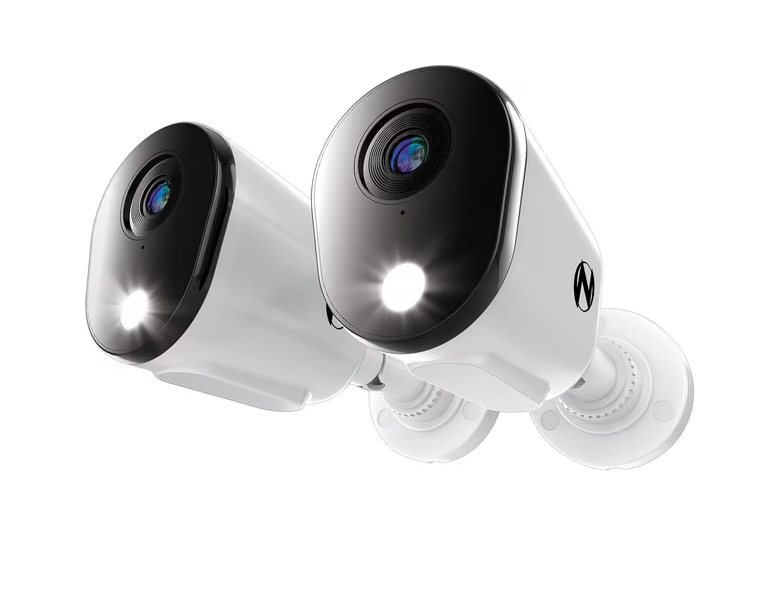
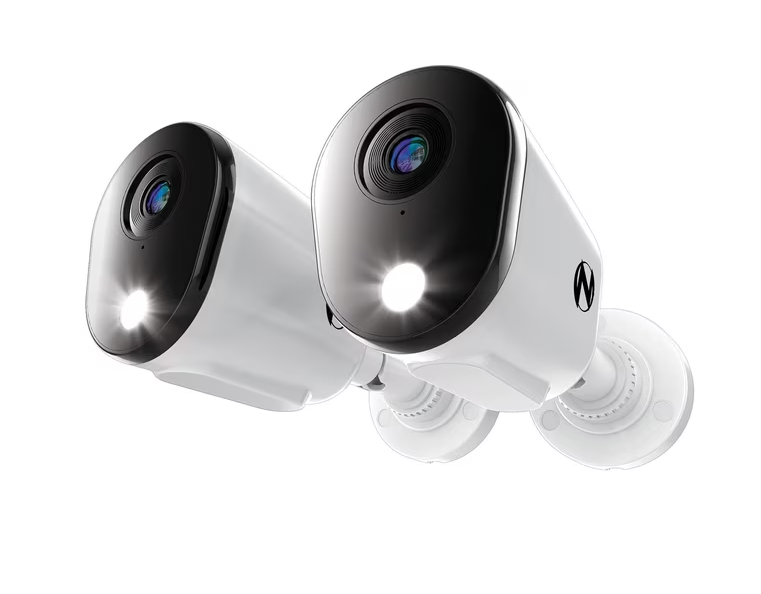
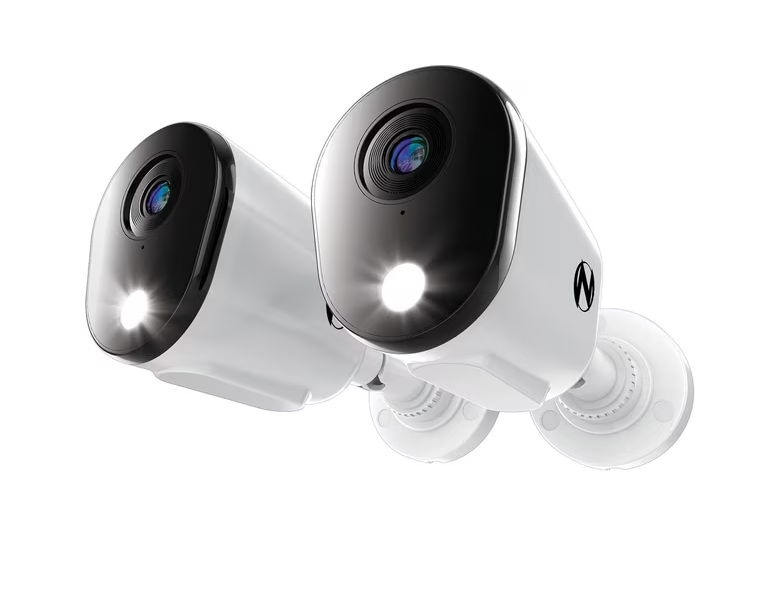
I hate products that require subscriptions, and I’m sure I’m not the only one. I always look for security cameras with local storage and no restrictions on app features. Night Owl’s two-pack of wired 4K security cameras are a good bet in this regard. They’re currently $149 (down from $179)—though you’ll need to get a Night Owl Flex Protect DVR to save your footage locally.

Other security camera deals:

Best Sam’s Club monitor deals

This 49-inch Samsung Odyssey is a gaming monitor with some impressive specs, including a 240Hz refresh rate and a 1ms response time. It’s available for $699.99 (originally $899.99). It’s a curved ultrawide monitor with a massive screen that makes gaming much more immersive.

Other gaming monitor deals:

Best Sam’s Club laptop deals

The Samsung Galaxy Book4 is an ultra-portable laptop with a 15.6-inch display, an Intel Core 7 processor, 16 GB of RAM, and 512 GB storage. Personally, I think these are the minimum specs you should be shopping for in 2026; anything below that risks becoming outdated very quickly. At $749 (originally $899), it’s a great option for students or anyone who values portability and performance over the beefiest specs.

Other laptop deals:


October Prime Day FAQs

When is Prime Day in October?

October Prime Day is a two-day event that starts Oct. 6 and ends on Oct. 7.

What goes on sale on Prime Day?

Since Prime Big Deal Days happens in the fall, you’re likely to see more deals on gaming and indoor gym equipment. Amazon has already announced some of the 35 categories that will be on sale, including beauty, tech, kitchen, fashion, and home. Some brands Amazon has already mentioned are: Shark, Princess Polly, Soundcore by Anker, UGG, Nest New York, Sony, Tarte, Adidas, and Barefoot Dreams.

Is Prime Day once a year?

Prime Day happens every summer. Prime Big Deal Days (or October Prime Day) happens every October. Big Spring Sale happens every spring.

Our Best Editor-Vetted Early Prime Day Deals Right Now

Deals are selected by our commerce team

Sam’s Club Has Some Great Tech Deals to Compete With October Prime Day

We may earn a commission from links on this page. Deal pricing and availability subject to change after time of publication.

With October Prime Day around the corner, other retailers are starting their own competing sales in the hopes of getting a slice of your business. Sam’s Club is one of them, and although they haven’t officially announced a sale for the same timeframe as October Prime Day, they are currently offering tech deals in different categories that are worth considering. One of the biggest is a discount on a membership, which you can get for 50% off right now. Below are the best tech deals I’ve found so far from the wholesaler in the lead-up to Amazon’s big fall sale.

Best Sam’s Club TV deals

The QN70F Neo QLED TV is Samsung’s attempt at incorporating AI tech into its QLED TVs. This is a midrange QLED TV with a sizeable $500 discount that makes it a great buy, especially for an 85-inch TV. At $1,198 (originally $1,698), its lack of Dolby Vision support and middling HDR feel more palatable, and the AI enhancements, brightness, and low input lag with a high refresh rate are a nice bonus.

Other TV deals:

Best Sam’s Club security camera deals

I hate products that require subscriptions, and I’m sure I’m not the only one. I always look for security cameras with local storage and no restrictions on app features. Night Owl’s two-pack of wired 4K security cameras are a good bet in this regard. They’re currently $149 (down from $179)—though you’ll need to get a Night Owl Flex Protect DVR to save your footage locally.

Other security camera deals:

Best Sam’s Club monitor deals

This 49-inch Samsung Odyssey is a gaming monitor with some impressive specs, including a 240Hz refresh rate and a 1ms response time. It’s available for $699.99 (originally $899.99). It’s a curved ultrawide monitor with a massive screen that makes gaming much more immersive.

Other gaming monitor deals:

Best Sam’s Club laptop deals

The Samsung Galaxy Book4 is an ultra-portable laptop with a 15.6-inch display, an Intel Core 7 processor, 16 GB of RAM, and 512 GB storage. Personally, I think these are the minimum specs you should be shopping for in 2026; anything below that risks becoming outdated very quickly. At $749 (originally $899), it’s a great option for students or anyone who values portability and performance over the beefiest specs.

Other laptop deals:


October Prime Day FAQs

When is Prime Day in October?

October Prime Day is a two-day event that starts Oct. 6 and ends on Oct. 7.

What goes on sale on Prime Day?

Since Prime Big Deal Days happens in the fall, you’re likely to see more deals on gaming and indoor gym equipment. Amazon has already announced some of the 35 categories that will be on sale, including beauty, tech, kitchen, fashion, and home. Some brands Amazon has already mentioned are: Shark, Princess Polly, Soundcore by Anker, UGG, Nest New York, Sony, Tarte, Adidas, and Barefoot Dreams.

Is Prime Day once a year?

Prime Day happens every summer. Prime Big Deal Days (or October Prime Day) happens every October. Big Spring Sale happens every spring.

Our Best Editor-Vetted Early Prime Day Deals Right Now

Deals are selected by our commerce team

TikTok to Pay Alabama $100 Million, Limit Teen Use In First State Settlement

TikTok has agreed to pay Alabama at least $100 million and adopt new restrictions for teenage users, including a two-hour daily limit, overnight access restrictions, stronger age verification, a ban on beauty filters, and an option for a non-personalized feed. The settlement could grow to as much as $300 million if enough other state attorneys general join similar agreements. The Guardian reports: A trial had been set to begin on Monday in the southern US state over claims by Alabama that TikTok misled parents about tools meant to shield children from harmful content. […] Attorney general Steve Marshall hailed Friday’s settlement as “a great day for Alabama parents.” He said: “Tonight, they can rest easier knowing real protections are in place to shield their children from the dangers of social media addiction.”

Under the settlement, TikTok will send $100m to Alabama and could possibly pay up to $300m in total if 40 other attorneys general sign similar agreements with the company within a specified timeframe. In addition, the Alabama deal includes a conditional restriction that Meta also agreed to: expanding the night-time shutdown period to 10pm to 7am if other platforms also commit to do the same.

“TikTok’s priority has always been fostering a safe and positive space where people can be creative, discover what they love, and connect with their community,” a company spokesperson told AFP. “This builds on our commitment and core objective to continually enhance our robust safety tools to protect teens,” the spokesperson added. More than a dozen other states, including California and New York, still have suits against TikTok.


Read more of this story at Slashdot.

Sam’s Club Has Some Great Tech Deals to Compete With October Prime Day

We may earn a commission from links on this page. Deal pricing and availability subject to change after time of publication.

With October Prime Day around the corner, other retailers are starting their own competing sales in the hopes of getting a slice of your business. Sam’s Club is one of them, and although they haven’t officially announced a sale for the same timeframe as October Prime Day, they are currently offering tech deals in different categories that are worth considering. One of the biggest is a discount on a membership, which you can get for 50% off right now. Below are the best tech deals I’ve found so far from the wholesaler in the lead-up to Amazon’s big fall sale.

Best Sam’s Club TV deals

The QN70F Neo QLED TV is Samsung’s attempt at incorporating AI tech into its QLED TVs. This is a midrange QLED TV with a sizeable $500 discount that makes it a great buy, especially for an 85-inch TV. At $1,198 (originally $1,698), its lack of Dolby Vision support and middling HDR feel more palatable, and the AI enhancements, brightness, and low input lag with a high refresh rate are a nice bonus.

Other TV deals:

Best Sam’s Club security camera deals

I hate products that require subscriptions, and I’m sure I’m not the only one. I always look for security cameras with local storage and no restrictions on app features. Night Owl’s two-pack of wired 4K security cameras are a good bet in this regard. They’re currently $149 (down from $179)—though you’ll need to get a Night Owl Flex Protect DVR to save your footage locally.

Other security camera deals:

Best Sam’s Club monitor deals

This 49-inch Samsung Odyssey is a gaming monitor with some impressive specs, including a 240Hz refresh rate and a 1ms response time. It’s available for $699.99 (originally $899.99). It’s a curved ultrawide monitor with a massive screen that makes gaming much more immersive.

Other gaming monitor deals:

Best Sam’s Club laptop deals

The Samsung Galaxy Book4 is an ultra-portable laptop with a 15.6-inch display, an Intel Core 7 processor, 16 GB of RAM, and 512 GB storage. Personally, I think these are the minimum specs you should be shopping for in 2026; anything below that risks becoming outdated very quickly. At $749 (originally $899), it’s a great option for students or anyone who values portability and performance over the beefiest specs.

Other laptop deals:


October Prime Day FAQs

When is Prime Day in October?

October Prime Day is a two-day event that starts Oct. 6 and ends on Oct. 7.

What goes on sale on Prime Day?

Since Prime Big Deal Days happens in the fall, you’re likely to see more deals on gaming and indoor gym equipment. Amazon has already announced some of the 35 categories that will be on sale, including beauty, tech, kitchen, fashion, and home. Some brands Amazon has already mentioned are: Shark, Princess Polly, Soundcore by Anker, UGG, Nest New York, Sony, Tarte, Adidas, and Barefoot Dreams.

Is Prime Day once a year?

Prime Day happens every summer. Prime Big Deal Days (or October Prime Day) happens every October. Big Spring Sale happens every spring.

Our Best Editor-Vetted Early Prime Day Deals Right Now

Deals are selected by our commerce team

Jeans Made Of All Pockets Has 41 Functional Pockets

Because when it comes to hard drives and jeans you can never have enough storage, this is a video of fashion designer Cory Infinite’s ‘Infinite Pocket Jeans’. Despite the name, the pockets are actually finite, and total 41. That is a far cry from infinite, but also a far cry from the five measly pockets my jeans have. Mine do have lot of extra holes though, I just can’t put anything in them without it falling down my pant leg. Has anybody seen a roll of singles? The Infinite Pocket Jeans consist of 14 front pockets, 7 front change pockets, 2 side pockets, and 18 rear pockets, and Cory demonstrates their carrying capacity in the video. They can fit a lot of stuff. Probably great for shoplifting. Also probably great for forgetting what pocket your wallet is in. *frantically rummaging through pockets at checkout as customers behind me grow restless* Well if I could just find my phone I could check my pocket spreadsheet!

TikTok to Pay Alabama $100 Million, Limit Teen Use In First State Settlement

TikTok has agreed to pay Alabama at least $100 million and adopt new restrictions for teenage users, including a two-hour daily limit, overnight access restrictions, stronger age verification, a ban on beauty filters, and an option for a non-personalized feed. The settlement could grow to as much as $300 million if enough other state attorneys general join similar agreements. The Guardian reports: A trial had been set to begin on Monday in the southern US state over claims by Alabama that TikTok misled parents about tools meant to shield children from harmful content. […] Attorney general Steve Marshall hailed Friday’s settlement as “a great day for Alabama parents.” He said: “Tonight, they can rest easier knowing real protections are in place to shield their children from the dangers of social media addiction.”

Under the settlement, TikTok will send $100m to Alabama and could possibly pay up to $300m in total if 40 other attorneys general sign similar agreements with the company within a specified timeframe. In addition, the Alabama deal includes a conditional restriction that Meta also agreed to: expanding the night-time shutdown period to 10pm to 7am if other platforms also commit to do the same.

“TikTok’s priority has always been fostering a safe and positive space where people can be creative, discover what they love, and connect with their community,” a company spokesperson told AFP. “This builds on our commitment and core objective to continually enhance our robust safety tools to protect teens,” the spokesperson added. More than a dozen other states, including California and New York, still have suits against TikTok.


Read more of this story at Slashdot.

TikTok to Pay Alabama $100 Million, Limit Teen Use In First State Settlement

TikTok has agreed to pay Alabama at least $100 million and adopt new restrictions for teenage users, including a two-hour daily limit, overnight access restrictions, stronger age verification, a ban on beauty filters, and an option for a non-personalized feed. The settlement could grow to as much as $300 million if enough other state attorneys general join similar agreements. The Guardian reports: A trial had been set to begin on Monday in the southern US state over claims by Alabama that TikTok misled parents about tools meant to shield children from harmful content. […] Attorney general Steve Marshall hailed Friday’s settlement as “a great day for Alabama parents.” He said: “Tonight, they can rest easier knowing real protections are in place to shield their children from the dangers of social media addiction.”

Under the settlement, TikTok will send $100m to Alabama and could possibly pay up to $300m in total if 40 other attorneys general sign similar agreements with the company within a specified timeframe. In addition, the Alabama deal includes a conditional restriction that Meta also agreed to: expanding the night-time shutdown period to 10pm to 7am if other platforms also commit to do the same.

“TikTok’s priority has always been fostering a safe and positive space where people can be creative, discover what they love, and connect with their community,” a company spokesperson told AFP. “This builds on our commitment and core objective to continually enhance our robust safety tools to protect teens,” the spokesperson added. More than a dozen other states, including California and New York, still have suits against TikTok.


Read more of this story at Slashdot.

Jeans Made Of All Pockets Has 41 Functional Pockets

Because when it comes to hard drives and jeans you can never have enough storage, this is a video of fashion designer Cory Infinite’s ‘Infinite Pocket Jeans’. Despite the name, the pockets are actually finite, and total 41. That is a far cry from infinite, but also a far cry from the five measly pockets my jeans have. Mine do have lot of extra holes though, I just can’t put anything in them without it falling down my pant leg. Has anybody seen a roll of singles? The Infinite Pocket Jeans consist of 14 front pockets, 7 front change pockets, 2 side pockets, and 18 rear pockets, and Cory demonstrates their carrying capacity in the video. They can fit a lot of stuff. Probably great for shoplifting. Also probably great for forgetting what pocket your wallet is in. *frantically rummaging through pockets at checkout as customers behind me grow restless* Well if I could just find my phone I could check my pocket spreadsheet!

Pixel Watches Are Getting Two New Health Tracking Features

We may earn a commission from links on this page.

Google’s “Health Guardian” feature set is rolling out to Pixel Watches 3, 4, and 5 this week, and to Fitbit Air users “later this year.” Google says the new features will include reports on your blood pressure trends and on insulin resistance, which is a big claim for a wearable. Here’s what we know about Health Guardian, including how to set it up and what to expect. 

Can you really measure insulin resistance with a wearable? 

Insulin resistance is associated with type 2 diabetes, and can be an early sign that you are heading toward pre-diabetes or diabetes. When your body’s insulin receptors stop responding as strongly to insulin, you’re more likely to have higher blood glucose. 

Insulin resistance is normally measured with bloodwork. For example, your fasting glucose levels and fasting insulin are combined into a score called HOMA-IR. If you’re concerned about insulin resistance or pre-diabetes, it’s best to talk to an actual healthcare professional to find out what tests they recommend, and what to do with the results. 

The insulin resistance feature coming to Google Health is, Google notes, “not intended for medical purposes” and “not a pre-screener for diabetes.” 

Google published a paper describing some of the testing that went into developing its insulin resistance algorithm. In the study, the researchers had people use their own Fitbits or Pixel Watches to record a variety of metrics, including heart rate, HRV, and activity. It’s not clear from this paper exactly how the algorithm works or whether it’s likely to be useful in a general population, but apparently Google is betting on it being an interesting factor to track in your Google Health app.

Is Health Guardian free? 

Google said in a press release that Health Guardian is available for free for people who use a Pixel Watch 3, 4, or 5. Fitbit Air users will get blood pressure and insulin resistance trends “with a Google Health Premium subscription later this year.” So it’s free if you have a Pixel Watch, but not if you only have the Fitbit Air. Google Health Premium is $9.99/month. 

It’s unclear what happens if you own both devices; presumably having a Pixel Watch will get you free access. In any case, other devices, including older Fitbits, do not seem to be included. 

How to get Health Guardian’s blood pressure trends and insulin resistance estimates

The new features are built into the 5.09 release of the Google Health app for Android, which is rolling out this week. (It seems iOS will be getting the features later. This makes sense, since iOS users wouldn’t have a Pixel Watch paired, anyway.) 

According to Google, you can “set up” your blood pressure and insulin resistance tracking as soon as you get the new version of the Google Health app. A Reddit user who has gotten the update says that you can set up these features by going to the Health tab and then tapping Metabolic to set up insulin resistance tracking, Heart to set up blood pressure tracking, and Respiratory to set up sleep breathing quality. 

Google says that you’ll receive your first monthly reports for these metrics on Oct. 1, and that afterwards you’ll be able to view this data in the Health tab. 

To get the blood pressure report on Oct. 1, Google says you’ll need to wear the watch for five consecutive days in September. For insulin resistance, you’ll need to wear the watch for seven or more “days and nights” in September. I notice that doesn’t say consecutive days. 

I haven’t gotten the new version of the app yet myself, and nobody has gotten their monthly report yet, so I’m looking forward to it as much as you are. I’ll update when I’ve had a chance to try out the new features. 

Jeans Made Of All Pockets Has 41 Functional Pockets

Because when it comes to hard drives and jeans you can never have enough storage, this is a video of fashion designer Cory Infinite’s ‘Infinite Pocket Jeans’. Despite the name, the pockets are actually finite, and total 41. That is a far cry from infinite, but also a far cry from the five measly pockets my jeans have. Mine do have lot of extra holes though, I just can’t put anything in them without it falling down my pant leg. Has anybody seen a roll of singles? The Infinite Pocket Jeans consist of 14 front pockets, 7 front change pockets, 2 side pockets, and 18 rear pockets, and Cory demonstrates their carrying capacity in the video. They can fit a lot of stuff. Probably great for shoplifting. Also probably great for forgetting what pocket your wallet is in. *frantically rummaging through pockets at checkout as customers behind me grow restless* Well if I could just find my phone I could check my pocket spreadsheet!

Pixel Watches Are Getting Two New Health Tracking Features

We may earn a commission from links on this page.

Google’s “Health Guardian” feature set is rolling out to Pixel Watches 3, 4, and 5 this week, and to Fitbit Air users “later this year.” Google says the new features will include reports on your blood pressure trends and on insulin resistance, which is a big claim for a wearable. Here’s what we know about Health Guardian, including how to set it up and what to expect. 

Can you really measure insulin resistance with a wearable? 

Insulin resistance is associated with type 2 diabetes, and can be an early sign that you are heading toward pre-diabetes or diabetes. When your body’s insulin receptors stop responding as strongly to insulin, you’re more likely to have higher blood glucose. 

Insulin resistance is normally measured with bloodwork. For example, your fasting glucose levels and fasting insulin are combined into a score called HOMA-IR. If you’re concerned about insulin resistance or pre-diabetes, it’s best to talk to an actual healthcare professional to find out what tests they recommend, and what to do with the results. 

The insulin resistance feature coming to Google Health is, Google notes, “not intended for medical purposes” and “not a pre-screener for diabetes.” 

Google published a paper describing some of the testing that went into developing its insulin resistance algorithm. In the study, the researchers had people use their own Fitbits or Pixel Watches to record a variety of metrics, including heart rate, HRV, and activity. It’s not clear from this paper exactly how the algorithm works or whether it’s likely to be useful in a general population, but apparently Google is betting on it being an interesting factor to track in your Google Health app.

Is Health Guardian free? 

Google said in a press release that Health Guardian is available for free for people who use a Pixel Watch 3, 4, or 5. Fitbit Air users will get blood pressure and insulin resistance trends “with a Google Health Premium subscription later this year.” So it’s free if you have a Pixel Watch, but not if you only have the Fitbit Air. Google Health Premium is $9.99/month. 

It’s unclear what happens if you own both devices; presumably having a Pixel Watch will get you free access. In any case, other devices, including older Fitbits, do not seem to be included. 

How to get Health Guardian’s blood pressure trends and insulin resistance estimates

The new features are built into the 5.09 release of the Google Health app for Android, which is rolling out this week. (It seems iOS will be getting the features later. This makes sense, since iOS users wouldn’t have a Pixel Watch paired, anyway.) 

According to Google, you can “set up” your blood pressure and insulin resistance tracking as soon as you get the new version of the Google Health app. A Reddit user who has gotten the update says that you can set up these features by going to the Health tab and then tapping Metabolic to set up insulin resistance tracking, Heart to set up blood pressure tracking, and Respiratory to set up sleep breathing quality. 

Google says that you’ll receive your first monthly reports for these metrics on Oct. 1, and that afterwards you’ll be able to view this data in the Health tab. 

To get the blood pressure report on Oct. 1, Google says you’ll need to wear the watch for five consecutive days in September. For insulin resistance, you’ll need to wear the watch for seven or more “days and nights” in September. I notice that doesn’t say consecutive days. 

I haven’t gotten the new version of the app yet myself, and nobody has gotten their monthly report yet, so I’m looking forward to it as much as you are. I’ll update when I’ve had a chance to try out the new features. 

Data Center Developer Offers $10,000 Checks To Nearby Households

An anonymous reader quotes a report from Tom’s Hardware: NorthPoint Development wants to build a data center on 1,300 acres in the Pocono foothills, near Hazle Township, Pennsylvania. As well as seeking to charm the local government with various funding packages, it has proposed paying checks of $10,000 per household. Despite the Pennsylvania town’s median income of $60,000, the offer isn’t being warmly welcomed by locals, reports the Wall Street Journal. Those interviewed were widely against the data center development plans and cited several reasons for being averse to accepting the payout. The major concerns regarded potential impacts on property values, the specter of noise pollution, and a distrust of both the AI moguls and local government representatives.

Offer letters began to be received by Hazle Township back in June. The WSJ recently talked to several residents about NorthPoint’s $10,000 offer. While some say the $10,000 would be handy, it couldn’t find many residents who were “eager to welcome the data center for the payout,” in the journal’s words. […] Traditionally, developers have offered towns and cities packages worth tens of millions, including funding for local services. But direct cash payments to residents represent a new phase of their charm offensive, the WSJ indicates. Perhaps the idea for the direct payments to residents came after “a raucous public meeting last year, where angry locals asked what they had to gain by supporting the data center,” ponders the source.

The locals won’t just get the direct payout, though. Other funds up to $120 million over the next 15 years have been dangled like a carrot for community and local services investments — improved schools, emergency services, and so on. Meanwhile, Hazle Township’s government already rejected the data center project on zoning grounds last year, and it has enacted a temporary moratorium on data center construction. Finally, the $10,000 offer to households is simply not enough in many interviewed folks’ opinions. Residents could feel insulted by it, regarding the offer as a bribe, concludes the WSJ report.


Read more of this story at Slashdot.

Pixel Watches Are Getting Two New Health Tracking Features

We may earn a commission from links on this page.

Google’s “Health Guardian” feature set is rolling out to Pixel Watches 3, 4, and 5 this week, and to Fitbit Air users “later this year.” Google says the new features will include reports on your blood pressure trends and on insulin resistance, which is a big claim for a wearable. Here’s what we know about Health Guardian, including how to set it up and what to expect. 

Can you really measure insulin resistance with a wearable? 

Insulin resistance is associated with type 2 diabetes, and can be an early sign that you are heading toward pre-diabetes or diabetes. When your body’s insulin receptors stop responding as strongly to insulin, you’re more likely to have higher blood glucose. 

Insulin resistance is normally measured with bloodwork. For example, your fasting glucose levels and fasting insulin are combined into a score called HOMA-IR. If you’re concerned about insulin resistance or pre-diabetes, it’s best to talk to an actual healthcare professional to find out what tests they recommend, and what to do with the results. 

The insulin resistance feature coming to Google Health is, Google notes, “not intended for medical purposes” and “not a pre-screener for diabetes.” 

Google published a paper describing some of the testing that went into developing its insulin resistance algorithm. In the study, the researchers had people use their own Fitbits or Pixel Watches to record a variety of metrics, including heart rate, HRV, and activity. It’s not clear from this paper exactly how the algorithm works or whether it’s likely to be useful in a general population, but apparently Google is betting on it being an interesting factor to track in your Google Health app.

Is Health Guardian free? 

Google said in a press release that Health Guardian is available for free for people who use a Pixel Watch 3, 4, or 5. Fitbit Air users will get blood pressure and insulin resistance trends “with a Google Health Premium subscription later this year.” So it’s free if you have a Pixel Watch, but not if you only have the Fitbit Air. Google Health Premium is $9.99/month. 

It’s unclear what happens if you own both devices; presumably having a Pixel Watch will get you free access. In any case, other devices, including older Fitbits, do not seem to be included. 

How to get Health Guardian’s blood pressure trends and insulin resistance estimates

The new features are built into the 5.09 release of the Google Health app for Android, which is rolling out this week. (It seems iOS will be getting the features later. This makes sense, since iOS users wouldn’t have a Pixel Watch paired, anyway.) 

According to Google, you can “set up” your blood pressure and insulin resistance tracking as soon as you get the new version of the Google Health app. A Reddit user who has gotten the update says that you can set up these features by going to the Health tab and then tapping Metabolic to set up insulin resistance tracking, Heart to set up blood pressure tracking, and Respiratory to set up sleep breathing quality. 

Google says that you’ll receive your first monthly reports for these metrics on Oct. 1, and that afterwards you’ll be able to view this data in the Health tab. 

To get the blood pressure report on Oct. 1, Google says you’ll need to wear the watch for five consecutive days in September. For insulin resistance, you’ll need to wear the watch for seven or more “days and nights” in September. I notice that doesn’t say consecutive days. 

I haven’t gotten the new version of the app yet myself, and nobody has gotten their monthly report yet, so I’m looking forward to it as much as you are. I’ll update when I’ve had a chance to try out the new features. 

Data Center Developer Offers $10,000 Checks To Nearby Households

An anonymous reader quotes a report from Tom’s Hardware: NorthPoint Development wants to build a data center on 1,300 acres in the Pocono foothills, near Hazle Township, Pennsylvania. As well as seeking to charm the local government with various funding packages, it has proposed paying checks of $10,000 per household. Despite the Pennsylvania town’s median income of $60,000, the offer isn’t being warmly welcomed by locals, reports the Wall Street Journal. Those interviewed were widely against the data center development plans and cited several reasons for being averse to accepting the payout. The major concerns regarded potential impacts on property values, the specter of noise pollution, and a distrust of both the AI moguls and local government representatives.

Offer letters began to be received by Hazle Township back in June. The WSJ recently talked to several residents about NorthPoint’s $10,000 offer. While some say the $10,000 would be handy, it couldn’t find many residents who were “eager to welcome the data center for the payout,” in the journal’s words. […] Traditionally, developers have offered towns and cities packages worth tens of millions, including funding for local services. But direct cash payments to residents represent a new phase of their charm offensive, the WSJ indicates. Perhaps the idea for the direct payments to residents came after “a raucous public meeting last year, where angry locals asked what they had to gain by supporting the data center,” ponders the source.

The locals won’t just get the direct payout, though. Other funds up to $120 million over the next 15 years have been dangled like a carrot for community and local services investments — improved schools, emergency services, and so on. Meanwhile, Hazle Township’s government already rejected the data center project on zoning grounds last year, and it has enacted a temporary moratorium on data center construction. Finally, the $10,000 offer to households is simply not enough in many interviewed folks’ opinions. Residents could feel insulted by it, regarding the offer as a bribe, concludes the WSJ report.


Read more of this story at Slashdot.

To keep drug prices high, pharma has been piling up the patents

The cost of healthcare in general is a debilitating, pre-existing condition for Americans. But the high prices of prescription drugs usually stand out as a pain point. While there are many insidious reasons why Americans pay more—often far more—for their medicines than people in peer countries, exploitation of the US patent system is an obvious one.

A study published Monday in JAMA highlights just how much patent exploitation has grown since 1990. In that time, researchers found that the number of patents on small-molecule drugs has more than tripled, going from an average of 2.1 patents per drug approved in 1990 to 6.9 for those approved in 2019.

Most of the growth was in “nonprimary” patents—patents that generally aren’t related to a drug’s active ingredient, but are instead for things like minor tweaks to a drug’s nonactive ingredients, updates to the way the drug is used, or the design of specialty delivery devices, such as auto-injectors. Together, those extra patents on an individual drug can create what’s called a “patent thicket,” which delays the release of affordable generics on the market, keeping drug prices higher for longer without actual clinical advancements.

Read full article

Comments