Microsoft’s Office Apps Now Have Free Copilot Chat Features

Microsoft is adding the free Microsoft 365 Copilot Chat and agents to Office apps for all Microsoft 365 business users today. From a report: Word, Excel, PowerPoint, Outlook, and OneNote are all being updated with a Copilot Chat sidebar that will help draft documents, analyze spreadsheets, and more without needing an additional Microsoft 365 Copilot license.

“Copilot Chat is secure AI chat grounded in the web — and now, it’s available in the Microsoft 365 apps,” explains Seth Patton, general Manager of Microsoft 365 Copilot product marketing. “It’s content aware, meaning it quickly understands what you’re working on, tailoring answers to the file you have open. And it’s included at no additional cost for Microsoft 365 users.”

While this free version of Copilot will rewrite documents, provide summaries, and help create slides in PowerPoint, the $30 per month, per user Microsoft 365 Copilot license will still have the best integration in Office apps. The Microsoft 365 Copilot license is also not limited to a single document, and can reason over entire work data.


Read more of this story at Slashdot.

How to Turn On Apple’s New ‘Wrist Flick’ Gesture in watchOS 26

In 2023, Apple introduced the Double Tap feature for Apple Watch Series 9 and Ultra 2. This allows a user to perform common actions, like answering or starting a song, simply by quickly tapping their thumb and index finger together twice. It was an intuitive way to confirm when you wanted to do something on your watch without tapping a tiny touchscreen button, but what if you wanted to dismiss something? Now, with the release of watchOS 26, Wrist Flick is here to solve that problem.

Also available on Apple Watch Series 9 (and higher) as well as Apple Watch Ultra 2 (and higher), Wrist Flick is kind of like Double Tap’s evil twin. If you get a notification you don’t like, or a call you want to mute, now you can quickly twist your wrist to dismiss it, like you’re tossing it into a garbage bin.

To try it out, first install watchOS 26 on your Apple Watch. Using a paired iPhone with iOS 26 installed, open the Apple Watch app, navigate to General > Software Update, and start the upgrade to the new version of watchOS. Alternatively, you can simply ensure Automatic Updates are enabled, and so long as your iPhone has iOS 26, your watch will simply choose a time to update on its own while charging (likely overnight). 

Then, once watchOS 26 is installed, put on your watch and navigate to Settings > Gestures. Toggle on Wrist Flick.

That’s it. You’ll simply need to wait for a notification or call to come in, or for a timer you want to silence to go off, and you’ll be able to turn it off with a quick flick of the wrist. It might take some practice, but essentially, you want to quickly rotate your wrist away from your body, as seen on this page on Apple’s website.

Used together with Double Tap, the goal is that you won’t need to fiddle with your watch’s touchscreen for most basic activities anymore, so you won’t have to interrupt your workout (or, if you’re like me, you’re leisurely sit on the subway) by tapping away at it. The only limitation is that, while Double Tap has some basic mapping functions that let you customize what exactly it does, Wrist Flick currently doesn’t offer that level of control, instead sticking to Apple’s default “dismissing” behavior. That means you won’t be able to use it to, say, go back one tile in your Smart Stack, like how you can set Double Tap to advance you by one tile. Here’s hoping Apple expands its functionality soon.

What do people actually use ChatGPT for? OpenAI provides some numbers.

As someone who writes about the AI industry relatively frequently for this site, there is one question that I find myself constantly asking and being asked in turn, in some form or another: What do you actually use large language models for?

Today, OpenAI’s Economic Research Team went a long way toward answering that question, on a population level, releasing a first-of-its-kind National Bureau of Economic Research working paper (in association with Harvard economist David Denning) detailing how people end up using ChatGPT across time and tasks. While other research has sought to estimate this kind of usage data using self-reported surveys, this is the first such paper with direct access to OpenAI’s internal user data. As such, it gives us an unprecedented direct window into reliable usage stats for what is still the most popular application of LLMs by far.

After digging through the dense 65-page paper, here are seven of the most interesting and/or surprising things we discovered about how people are using OpenAI today.

Read full article

Comments

NVIDIA’s Next-Gen Feynman GPUs May Use TSMC’s Advanced A16 Chip Node

NVIDIA's Next-Gen Feynman GPUs May Use TSMC's Advanced A16 Chip Node
Remember Tensordyne, who promised to slash AI GPU power consumption with a new way of doing things? That entire pitch was basically predicated on the power predicament that the industry finds itself in. Put simply, there’s just not enough electricity to scale out the world’s AI compute demands. That’s likely why NVIDIA is reportedly willing

Rockstar Just Quietly Retracted Its Overzealous GTA 6 Launch Claim, But Why?

Rockstar Just Quietly Retracted Its Overzealous GTA 6 Launch Claim, But Why?
Yesterday, eager eyes noticed that Rockstar Games had made a job listing for Lead Software Engineer, claiming within that Grand Theft Auto 6 would be “the largest game launch in history”— but just a day later, the text within that job listing has changed, omitting the entire paragraph and combining the surrounding two in its stead. This struck

HybridPetya Ransomware Alarmingly Sneaks Past BIOS Secure Boot To Install Malware

HybridPetya Ransomware Alarmingly Sneaks Past BIOS Secure Boot To Install Malware
UEFI secure boot was designed to block malicious code from sneaking into your PC’s BIOS boot-up process. However, a newly discovered ransomware dubbed HybridPetya somehow found a way to circumvent this. Cybersecurity firm ESET discovered the threat and revealed that it had not been observed in any active attacks just yet.

Here’s how it

China says NVIDIA’s Mellanox acquisition violated antitrust law

A regulator has accused NVIDIA of violating China’s antitrust laws over its acquisition of chipmaker Mellanox. In its preliminary findings of an investigation it commenced in December, the State Administration for Market Regulation (SAMR) claimed that the company breached both national regulations and the conditional terms China outlined when it rubberstamped the $6.9 billion takeover. The SAMR hasn’t announced any penalties yet, as the investigation will continue.

The SAMR is said to have determined its preliminary findings several weeks ago. According to Financial Post sources, the regulator held off from releasing its statement until now, as trade talks with the US take place in Madrid, with the idea of giving Chinese officials more leverage. (Those talks have so far resulted in a framework agreement for TikTok.)

NVIDIA and Mellanox announced the buyout back in 2019. China approved it in April the following year on the condition that NVIDIA continued to supply GPUs and interconnect products to the country and adhere to “fair, reasonable, and non-discriminatory principles,” per the South China Morning Post.

Last month, it was reported that China was discouraging companies in the country from buying NVIDIA’s H20 chips pending a national security review. Officials were said to have taken offense at remarks from Howard Lutnick, the US commerce secretary. After the US allowed NVIDIA to start offering chips to China again in July following a three-month ban, Lutnick said the company wasn’t going to be selling its most cutting-edge tech there.

“We don’t sell them our best stuff, not our second best stuff, not even our third best. The fourth one down, we want to keep China using it,” he told CNBC. “The idea is the Chinese are more than capable of building their own. You want to keep one step ahead of what they can build, so they keep buying our chips. You want to sell the Chinese enough that their developers get addicted to the American technology stack.”

This article originally appeared on Engadget at https://www.engadget.com/big-tech/china-says-nvidias-mellanox-acquisition-violated-antitrust-law-200409929.html?src=rss

Hard Drive Shortage Intensifies as AI Training Data Pushes Lead Times Beyond 12 Months

Lead times for high-capacity hard drives have exceeded 52 weeks as AI workloads drive unprecedented demand for warm storage that sits between fast SSDs and offline tape archives, according to TrendForce. Western Digital notified customers of price increases across its entire hard drive portfolio citing demand for “every capacity” in its product line.

The shortage stems from AI infrastructure requirements including training datasets, model checkpoints and inference logs that consume petabytes of storage space. These files are too large for primary SSD storage but must remain accessible for quick retrieval. Hard drive manufacturers have not significantly expanded production capacity in approximately a decade. Cloud service providers are evaluating QLC SSDs for cold data storage despite costs remaining four to five times higher per gigabyte than mechanical drives. Memory suppliers are developing SSD products specifically for this intermediate storage tier.


Read more of this story at Slashdot.

Spotify Free Tier to Let Users Play the Songs They Want

Did you know you can customize Google to filter out garbage? Take these steps for better search results, including adding my work at Lifehacker as a preferred source.


Spotify is finally giving its free-tier customers a feature that’s been requested since the music streaming platform launched nearly 20 years ago: the ability to listen to any song they choose. That’s right: The days of searching for a song, then hitting “skip” until it rolls around on a Spotify-generated playlist are over.

Free-tier users can choose songs in three ways: through the search function, by clicking on any song from the Spotify interface, or by clicking on a link shared by other users. Free-tier users can also listen to podcasts through Spotify, and create and listen to playlists too. Spotify’s previous “six skips per hour” rule also appears to be no more.

There are still limitations to Spotify’s free accounts, of course. The most obvious is that you still have to listen to ads. Free users will also face a cap on how many minutes of music they can listen to on demand, won’t be able to queue tracks, and won’t be able to access Spotify’s “AI DJ” feature. (No great loss; trust me.)

They also won’t have access to another new Spotify feature exclusive to paid accounts: lossless audio.

Premium Spotify customers to get lossless audio

“Premium” Spotify perks are improving too. The first, most important upgrade in the long-awaited launch of lossless audio on the service. Lossless audio (streaming files that are bit-for-bit copies of the source material) is rolling out to over 50 Spotify markets from now through October.

Premium users will also be able to send private messaging, to make music-sharing easier, and add and customize transitions between songs within a playlist.

The changes make Spotify more competitive

The upgrades to both levels of Spotify’s service aren’t really about making life better for users; they’re about staying relevant and profitable in a crowded and ever-changing marketplace. The hope from Spotify is to increase ad revenue by increasing the number of ears listening to ads, entice more free users to upgrade to pay services, and shed fewer customers who leave for other services.

Until the change, Spotify’s free tier was close to a radio service—you could listen to music that you kind of wanted to hear, maybe, if you also put up with frequent ads. This model may have made sense when streaming was newer, but more and more younger users are turning to YouTube, where you can listen to whatever song you want (and see a video for it) on demand, and for free. And young people are discovering music on TikTok, not on Spotify.

Changes to Spotify’s premium service are aimed at the more “mature” listener. Lossless audio doesn’t make a ton of difference without decent headphones or speakers. But “our music is lossless” has long been a selling point for Apple Music and Tidal, but it won’t be anymore. 

New York details its plans for online age verification rules

Last year, New York joined the wave of states passing legislation aimed at protecting minors using the Internet, particularly social media. Governor Kathy Hochul signed the Stop Addictive Feeds Exploitation (SAFE) for Kids Act and the New York Child Data Protection Act in June 2024. Today, the state’s Attorney General Letitia James released more specifics about what the SAFE for Kids Act will entail in practice. Public comment is open until December 1 and the rules must be finalized within a year from that date.

In particular, the rule will require online platforms to confirm the ages of users before showing them algorithmically-curated feeds or sending them notifications at night. The Attorney General’s approach allows sites to choose their method of age verification, as long as the approach “are shown to be effective and protect users’ data.” New York will also require an age confirmation method that does not rely on having a government-issued ID.

There is also a component of parental consent in the SAFE for Kids Act. Minors must request a social media network to seek parental permission for accessing algorithmic feeds or receiving nighttime notifications. If parental consent is not granted, the platforms may not block minors from generally accessing their service or content. Both the minor and their parent may revoke their consent at any time.

“The proposed rules released by my office today will help us tackle the youth mental health crisis and make social media safer for kids and families,” James said in the announcement. “This is an issue that affects all of us, and I encourage parents, educators, young people, industry groups, and others to review the proposed rules and submit a comment during the public comment period.”

This article originally appeared on Engadget at https://www.engadget.com/social-media/new-york-details-its-plans-for-online-age-verification-rules-195223379.html?src=rss

Video of ‘Meta Ray-Ban Display’ glasses surfaces ahead of Connect

Meta’s smart glasses plans were already one of the worst kept secrets, as there have been more than a year of leaks and reports about its work to add a heads-up display to the product. Now, just days before their unveiling at Connect, a promotional video of the new frames seems to have leaked.

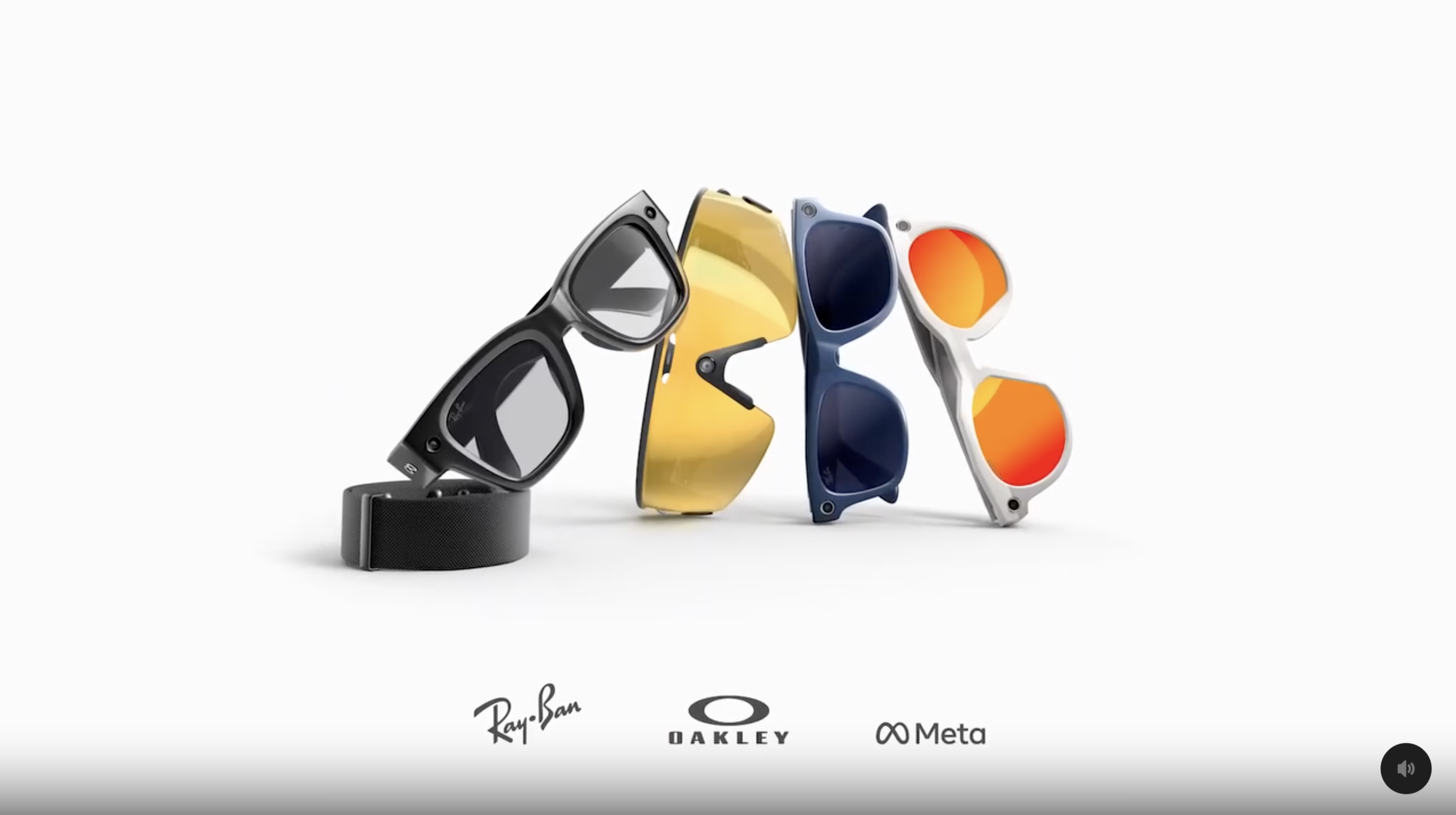
The video, reported and reposted by UploadVR, shows the new “Meta Ray-Ban Display” frames as well as a new model of camera-enabled Oakley sunglasses. The clip mainly features the new Ray-Ban glasses, and shows a pair of black frames with clear lenses that look similar to the company’s previous Wayfarer frames. 

Four pairs of glasses.
Meta’s new smart glasses lineup.
Screenshot

The glasses also include a small display that’s able to show info like a map preview, chats with friends and information related to what you’re looking at. As reported, it also shows a dedicated wristband for the device. The video briefly shows someone swiping with their fingers in order to type out a reply to a message in a chat app. 

The clip also shows a new pair of Oakley frames that don’t have a display. The sunglasses seem to be based on the company’s wraparound Sphaera frames and show a camera in the center directly over the nosepiece. That would line up with prior reporting about the glasses that suggested Meta planned to market the glasses to cyclists and other athletes.

UploadVR reports that the video briefly appeared on Meta’s official YouTube channel as an unlisted clip but was quickly removed. We’ve reached out to the company for comment.In the meantime, you can read more about the company’s new smart glasses lineup and what to expect at Connect here. Engadget will be reporting live from the event beginning September 17.

This article originally appeared on Engadget at https://www.engadget.com/video-of-meta-ray-ban-display-glasses-surfaces-ahead-of-connect-194713365.html?src=rss

Ars Live: CTA policy expert explains why tariff stacking is a nightmare

Earlier this month, Ars sat down with the Consumer Technology Association’s vice president of international trade, Ed Brzytwa, to check in and see how tech firms have navigated Donald Trump’s unpredictable tariff regimes so far.

Brzytwa has led CTA’s research helping tech firms prepare for Trump’s trade war, but during our talk, he confirmed that “the reality has been a lot more difficult and far worse, because of not just the height of the tariffs, but the variability, the tariffs on, tariffs off.”

Our discussion with Ed Brzytwa. Click here for transcript.

Currently, every tech company is in a “slightly different position,” depending on their specific supply chains, he explained. However, until semiconductor tariffs are announced, “it’s impossible” for any tech company to make the kind of long-term plans that could help keep consumer prices low as Trump’s negotiations with foreign partners and investigations into various products drag on, Brzytwa said.

Read full article

Comments

Chromium 140.0.7339.80 Security Update Released: Critical Vulnerability Fixes for Linux Users

The Chromium 140.0.7339.80 security update has rolled out across major Linux distributions, delivering critical vulnerability fixes that strengthen browser security for millions of open-source desktop users. Released on September 12, 2025, this latest Chromium browser update addresses four significant security flaws while maintaining the performance and compatibility that makes Chromium the foundation for numerous web browsers in the Linux ecosystem.

The First Eight Settings to Change After Installing iOS 26

Apple’s iOS 26 drops today, and with it comes a bunch of small tweaks and improvements to how your iPhone works. The catch? A lot of them are opt-in, so you need to turn them on before you can reap their benefits. Here are the settings you should turn on after updating your iPhone to Apple’s latest operating system, although note that some of them require an iPhone 15 Pro or later, as they rely on Apple Intelligence.

Adaptive battery mode

If you’re like me, you can never decide whether it’s worth it to swap your phone over to Battery Saver mode. Now, if you have an iPhone 15 Pro or above, your iPhone can make the decision for you.

Apple’s new Adaptive Power mode uses Apple Intelligence to intelligently determine when your battery usage is running higher than usual, and makes small tweaks to bring it back under control. These might include slightly dimming your display or slowing down less important tasks, like those that are running in the background or are particularly intensive. Then, once your phone’s been on an even keel for a while, it’ll start turning things back to normal. Think of it as a less aggressive “low power” mode that only affects certain processes, and can make adjustments based on more than your phone’s remaining charge. To try it out, simply navigate to Settings > Battery > Power Mode. Just don’t forget to turn it back off if you find its compromises aren’t worth the extra battery life.

Turn on call screening

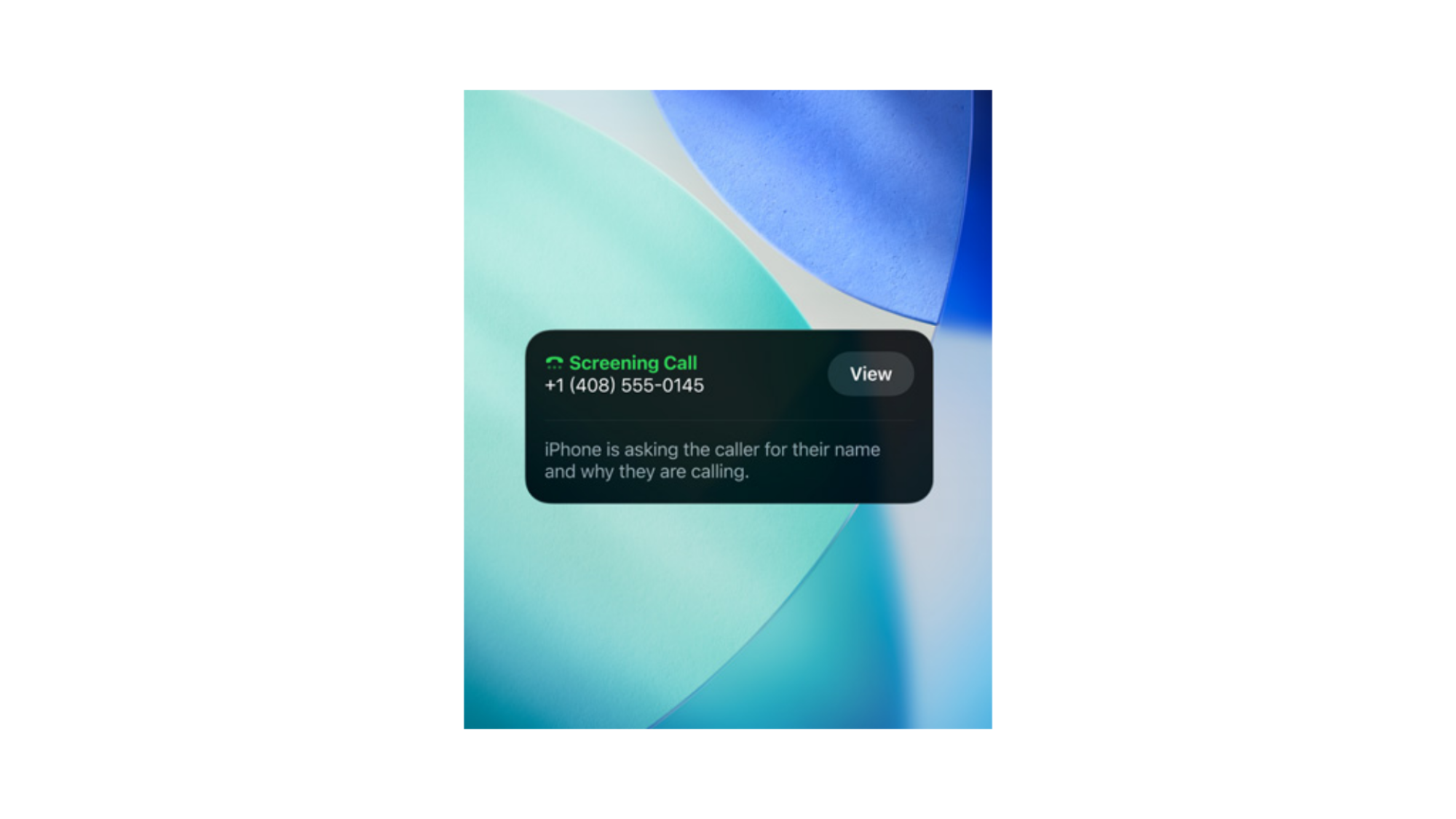
Call screening

Credit: Apple

I’ll be honest—I barely pick up phone calls anymore. Instead, I usually prefer to wait until after the call, and then call back if the caller was someone I knew or if it was important enough to leave a message. This usually works out for me, but I’ll admit, sometimes I do feel a bit bad for leaving people who call me in the lurch, especially if it turns out they had a good reason to dial me up. That’s where Apple’s new Call Screening feature comes in.

This one doesn’t require Apple Intelligence, so it’ll work on any iPhone running iOS 26. Simply open your Settings, then under Apps, tap Phone and look for the Screen Unknown Callers option.

You’ll have three choices. Never will work just like before, with calls ringing for a bit before they go to your Recents list. But now, you’ve got two additional options you can choose instead.

First is Silence, which will turn off your ringer for calls from unsaved numbers, then send them to Voicemail and display them in the Recents list. Essentially, it just cuts out the middle-man of having to wait for the caller to give up before you move on with figuring out what they wanted.

But the more exciting addition is Ask Reason for Calling. Choose this, and your iPhone will pick up calls from unsaved numbers for you, then ask the caller a few questions about their reason for calling. You’ll see a transcript of their answers on screen, and then you’ll be able to choose whether you want to pick up.

It’s a clever trick, and should make me feel a little less bad for anyone who tries to chat with me over the phone. I do wish it worked for Contacts as well, to be honest, but I can understand why my family might not be enthused to call me and get a robot secretary instead.

Try out the new ringtones

With iOS 26, Apple’s added a few new default ringtones to pick from. Six are variations of the classic “Reflection” ringtone, but there’s also a new one called “Little Bird.” You can find them all under Settings > Sound & Haptics > Ringtone, or check out the embeds below to hear them for yourself.


This Tweet is currently unavailable. It might be loading or has been removed.


This Tweet is currently unavailable. It might be loading or has been removed.

Personally, “Bouyant” is probably my favorite, although my colleague Jake Peterson likes “Dreamer” the most. I’ll probably still stick with my custom ringtone, but if you’d rather not bother downloading a ringtone manually, you now have more choice than ever.

Fix Liquid Glass

This next one is technically about turning a feature off instead of turning it on, but I couldn’t ignore it. With iOS 26, Apple’s redesigned its design language to focus on transparency, and not everyone’s a fan. If you remember the transparent bezels Microsoft added to app windows in Windows Vista, it’s a lot like that, but more aggressive. Essentially, instead of showing a solid background, many buttons and overlays will now appear clear, allowing a blurred version of whatever is underneath them to bleed through.

Luckily, there’s a pre-existing accessibility control that essentially sets your iPhone back to how it was before. Simply navigate to Settings > Accessibility > Display & Text Size, then toggle on Reduce Transparency. This will bring back solid background across your entire iPhone, which you can see in effect here. Notice how the play button no longer allows blurred album artwork to bleed into it? If you prefer that flatter, more contrast-y look, this could be for you.

Custom backgrounds in iMessage

This one’s just fun. Now, in iMessage, you set custom backgrounds for your conversations and group chats on a per-chat basis. These include presets, like Water and Sky, but you can also pick solid colors, choose a photo from your library, or if you have an iPhone 15 Pro or above, generate a background using Apple Intelligence.

To get started, open a chat, click its title towards the top of the page, then choose Backgrounds.

Note that your chosen background will appear for everyone in the chat, but if you don’t like a background someone else set, you don’t have to live with it. Go to Settings > Apps > Messages and disable Conversation Backgrounds to turn the feature off.

Notification summaries for news

If you have an iPhone 15 Pro or above, Apple is actually bringing back a previously deleted feature with iOS 26: Notification summaries for news and entertainment apps.

These initially launched in the iOS 18.3 beta, but were quickly pulled after Apple’s AI had misrepresented some major BBC headlines, including one about United Healthcare shooting suspect Luigi Mangione. 

Now, Apple is confident enough to bring these notification summaries back, although with a new warning that says “Summarization may change the meaning of the original headlines. Verify information.”

If you’re comfortable with that, according to my colleagues over at CNET, you don’t have to do much to turn them on. Apple will actually greet you with a splash screen once you download the iOS 26 update, which will ask your preferences for which apps will get notification summaries. You’ll have three options, and you can select as many as you wish. All other apps will summarize notifications from non-social apps, like Maps, while Communication & Social will throw in notification summaries for apps like TikTok and Mail. These were available already. What’s new (again) is the News & Entertainment option, which will add notification summaries for apps including BBC or Netflix.

Simply make your choices, and you’re good to go. If you change your mind later, you can adjust your summaries under Settings > Notifications > Summarize Notifications. You can also adjust notification summaries on a per-app basis here, which isn’t available in the splash screen you get after installing iOS 26.

Get clear icons in iOS 26

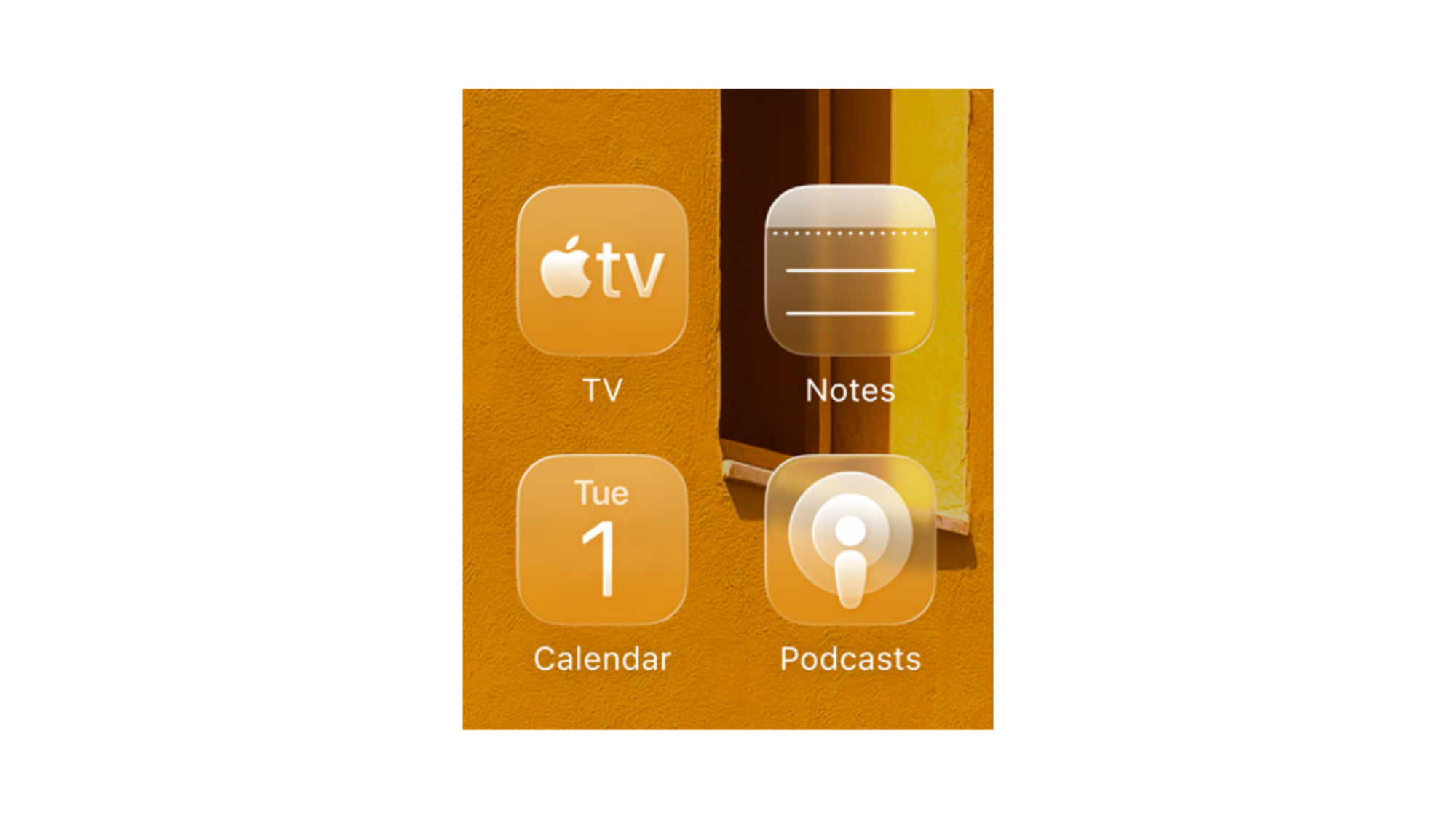
Clear icons iOS 26

Credit: Apple

Let’s say you actually like Liquid Glass, but think it doesn’t go far enough. In that case, you might want to turn your icons clear too, so you can see your background through them. I promise I won’t judge.

To turn your app icons clear in iOS 26, simply long press on your home screen’s background until your apps start jiggling. Then, tap Edit in the top-left corner, followed by Customize. Then, choose Clear. You can also choose between Clear Light or Clear Dark, with the dark mode opting for a more subdued tint.

This will make your app icons look like frosted glass, similar to iOS 26’s new lock screen clock. You do you.

(If you’re like me, you might prefer the new Tinted Light Mode option instead, which finally allows you to set a custom color for your app icons’ graphical elements alongside a bright background. You can find it in the Tinted option next to Clear while selecting your app icon appearance).

New ways to customize your lock screen

iOS 26 gives you more control over how your phone looks while locked than ever before. To get started, lock your phone, then press the power button, tap and hold on the lock screen, and tap Customize.

First off, you can now adjust the size of your clock by grabbing one of its corners and dragging it down, although this will only work with certain fonts. 

Second, you can now justify your widgets box to the bottom of the lock screen, as well as add an Apple Music search widget to it, if you like. If you actually start playing something, you’ll notice it’ll enable a large Now Playing interface that shows album art.

Finally, there’s support for Spatial Scenes. When selecting a Photo wallpaper, you can now tap on a small icon of a mountain and a sun to separate the photo’s subject from the background. Now, when moving your iPhone, the subject will move with it, to help them pop. Your clock might also move to fill up space in the photo, including slightly behind the subject, to help give an illusion of depth. Or, your widgets might automatically shift to the bottom of the screen if placed elsewhere, to better frame the photo subject.

Other settings you can enable

There’s plenty more you can do to make iOS 26 truly yours. If the above changes aren’t enough for you, here are 36 other tweaks you can make to get the most out of your iPhone’s new operating system.

President Calls for Six-Month Corporate Reporting Cycle, Citing Cost Savings

President Donald Trump called Monday for companies to report earnings every six months instead of quarterly. Trump posted on social media that semi-annual reporting would save money and let managers focus on running companies. The SEC mandated quarterly reports in 1970. Trump made similar comments in 2018 that prompted SEC public comment but no regulatory changes.

Critics argue quarterly reporting increases costs and encourages short-term thinking. Supporters say frequent disclosures maintain investor trust and reduce market manipulation risks.

Further reading: The Renewed Bid To End Quarterly Earnings Reports.


Read more of this story at Slashdot.

[$] Fighting human trafficking with self-contained applications

Brooke Deuson is the developer behind

Trafficking Free Tomorrow
, a nonprofit organization that
produces free software to help law enforcement combat human trafficking. She is
a survivor of human trafficking herself.
She spoke at RustConf 2025 about her
mission, and why she chose to write her anti-trafficking software in Rust.
Interestingly, it has nothing to do with Rust’s lifetime-analysis-based memory-safety —
instead, her choice was motivated by the difficulty she faces getting police
departments to actually use her software. The fact that Rust is statically
linked and capable of cross compilation by default makes deploying Rust software
in those environments easier.

Early Access is the latest place where Steam is restricting games with mature themes

Valve has apparently updated its Steam Early Access policy to no longer accept games with what the company deems to be “mature themes.” As first reported by Gamesmarkt earlier this month, gaming studio Dammitbird, which develops the adult adventure game Heavy Hearts, was not allowed to put the title on Steam Early Access because of its content.

Payment processors like Mastercard and Visa have been mounting a pressure campaign on video game marketplaces Steam and Itch.io to remove certain adults-only content since early summer. After taking down a game called No Mercy in April at the behest of payment processors and an Australian anti-porn organization, there has been a steady expansion in the application of these new policies.

Steam, for its part, made some incredibly vague policy changes to appease the payment giants, adding a sweeping clause that promises to ban certain kinds of adults-only content before proceeding to remove hundreds of games. Itch.io made similar changes before removing more than 20,000 titles from its marketplace. Steam has removed hundreds of titles that we know of. 

The apparent scope creep is of particular concern to small independent developers whose fairly innocuous games like VILE: Exhumed were banned from Steam and delisted from Itch.io. Exhumed is a mostly text-based game whose limited imagery and innuendo is worlds away from the sort of adult games that were first banned when this whole saga kicked off.

Part of the problem is how card payments are policed. Stores like Steam and Itch.io don’t contract with Visa or Mastercard directly but with acquiring banks and processors that must enforce the card networks’ brand-safety and anti-trafficking rules. This can end up influencing how companies like PayPal work with Steam across different regions, depending on how banks in those areas are responding to the pressure exerted by Visa and Mastercard.

The confusion will continue to cause consternation among developers and consumers alike until policies on these platforms are made clearer, or payment processors relieve some of the pressure by clarifying their own standards.

Engadget has reached out to Valve for comment and will update if we hear back. 

This article originally appeared on Engadget at https://www.engadget.com/gaming/early-access-is-the-latest-place-where-steam-is-restricting-games-with-mature-themes-190806818.html?src=rss

iOS 26 Finally Gives the iPhone a Real Fitness App

We may earn a commission from links on this page.

With the launch of iOS 26, Apple has added a bunch of new features to the Fitness app—features that it has been sorely missing. Finally, you can track a workout from your phone without an Apple Watch, and you can pair a bluetooth heart rate monitor to your phone to get heart rate data. And though it seems like a small change, Apple Watch users will love the fact that you can now create and edit custom workouts on your phone.

How to get the new Fitness updates

The new features in the Fitness app are part of iOS 26, which comes out today. (That’s the version with the controversial “liquid glass” look, but you can turn it off if you hate it.) To install it, go to Settings, General, and then tap Software Update. 

Once you’ve, you’ll find that the Fitness app has a new tab at the bottom, labeled Workout. This is where you’ll find the fun stuff. 

How to track a workout from the Apple Fitness app (with or without a watch)

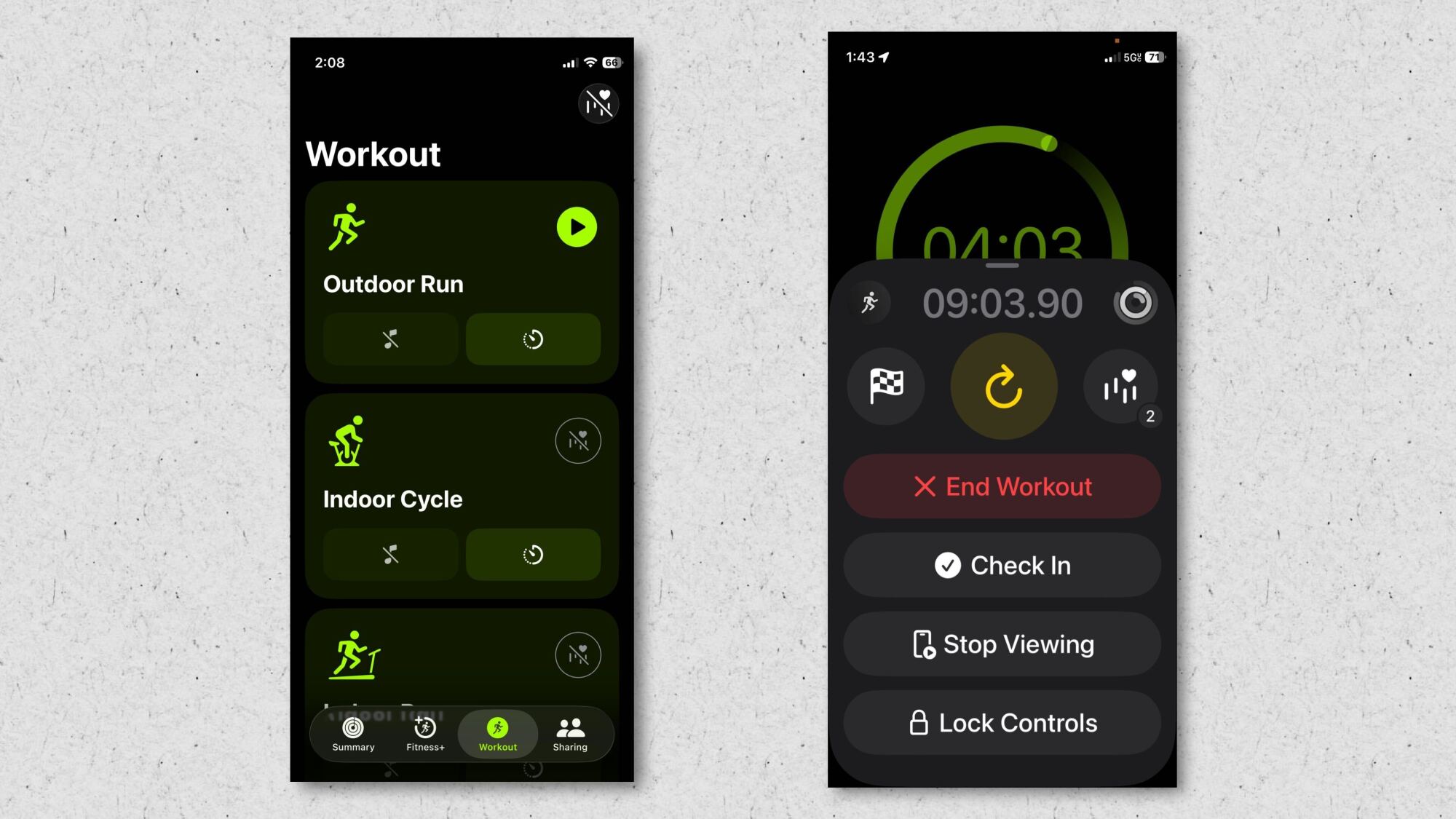
Workout selection screen and in-workout screen

Credit: Beth Skwarecki

In the Workout tab, you’ll see a variety of workout types that you can start just by tapping the play button. Outdoor Run, Outdoor Walk, Outdoor Cycle, and Hiking are available for everyone. To access the other workout types, like Indoor Run, Indoor Cycle, Yoga, High Intensity Interval Training, and Traditional Strength Training, you’ll need to pair a heart rate monitor. 

(The idea seems to be that the app needs some kind of data to track. If you run outdoors, GPS data tells the app how far and how fast you’re running. If you’re on a treadmill, it’s got nothing to go on—unless it has a device telling it your heart rate.) 

So what counts as a heart rate data source? I had success with: 

I did four short runs today: three testing each of the above, plus one with just the phone by itself and no heart rate monitor. Each of the four tracked my speed and distance, made a map of where I’d been, and (if there was a heart rate monitor paired) recorded my heart rate data. I was able to view these workouts afterward from the Sessions card on the Summary tab, where Apple Watch-only workouts would normally be found.

To be clear, the three workouts I did without the Apple Watch did not require the watch at all. I left it behind in my car, and was able to track these workouts just fine. 

How to mirror your workouts from Apple Watch on your phone

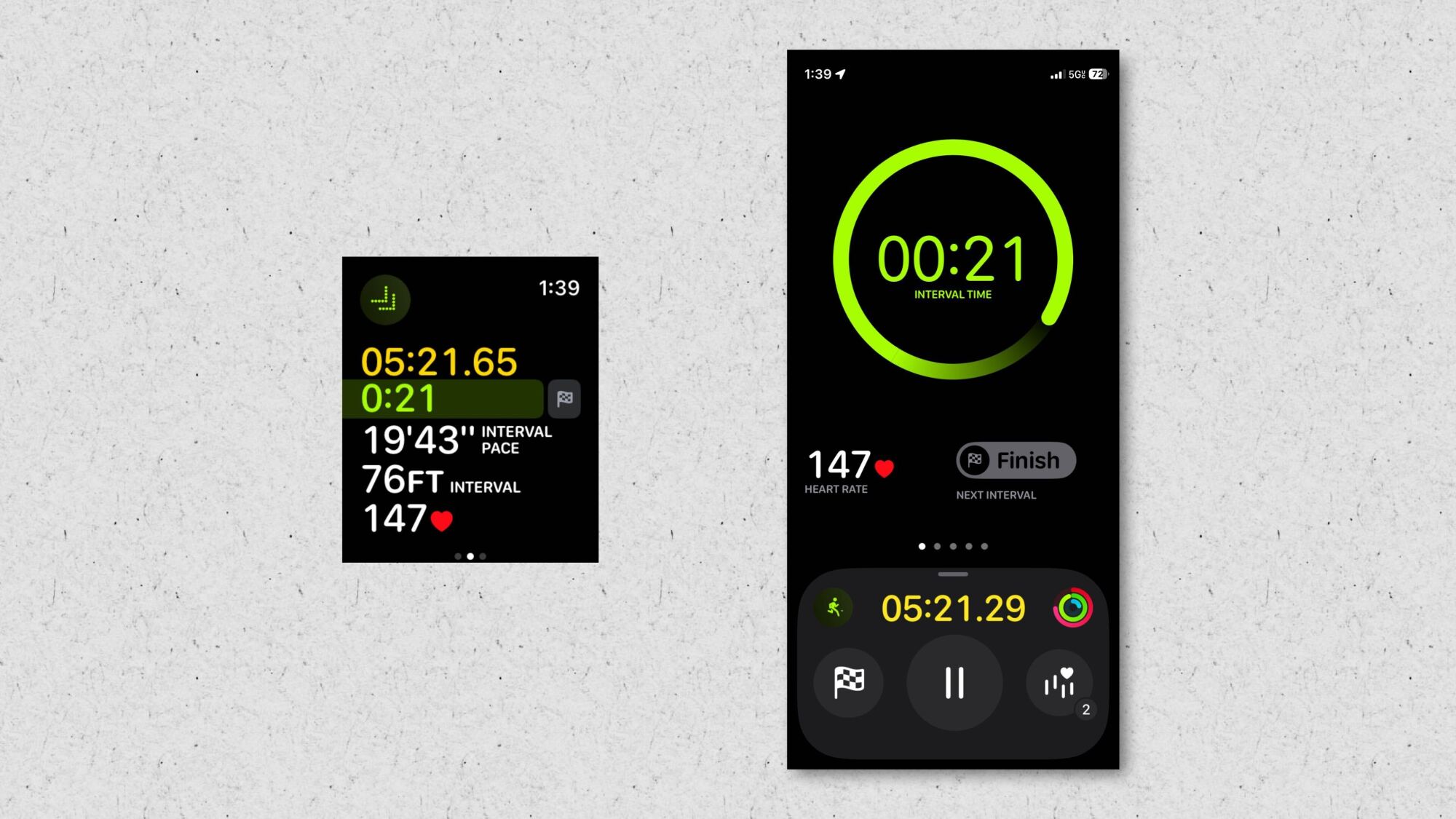
in-workout: Apple Watch screenshot on left, iPhone screenshot on right.
Apple Watch screenshot on left, iPhone screenshot on right. (I did my best to take these at the same time…I was close, OK?)
Credit: Beth Skwarecki

The new mirrored workouts just work. You can start a workout from the Fitness app, or from your phone, and either way you get a Live Activity on your phone’s lock screen. Tap that, and you’ll see a screen in the Fitness app that shows the same data you see on your watch.

This can be handy for cardio machines especially—set your phone in front of you, and look at that instead of having to take your hand off the handlebars and turn your wrist to see how many seconds you have left in your interval.

If you don’t see the workout view on your phone, swipe right from the workout screen on your watch and select View to enable it. 

How to create custom Apple Watch workouts on your phone

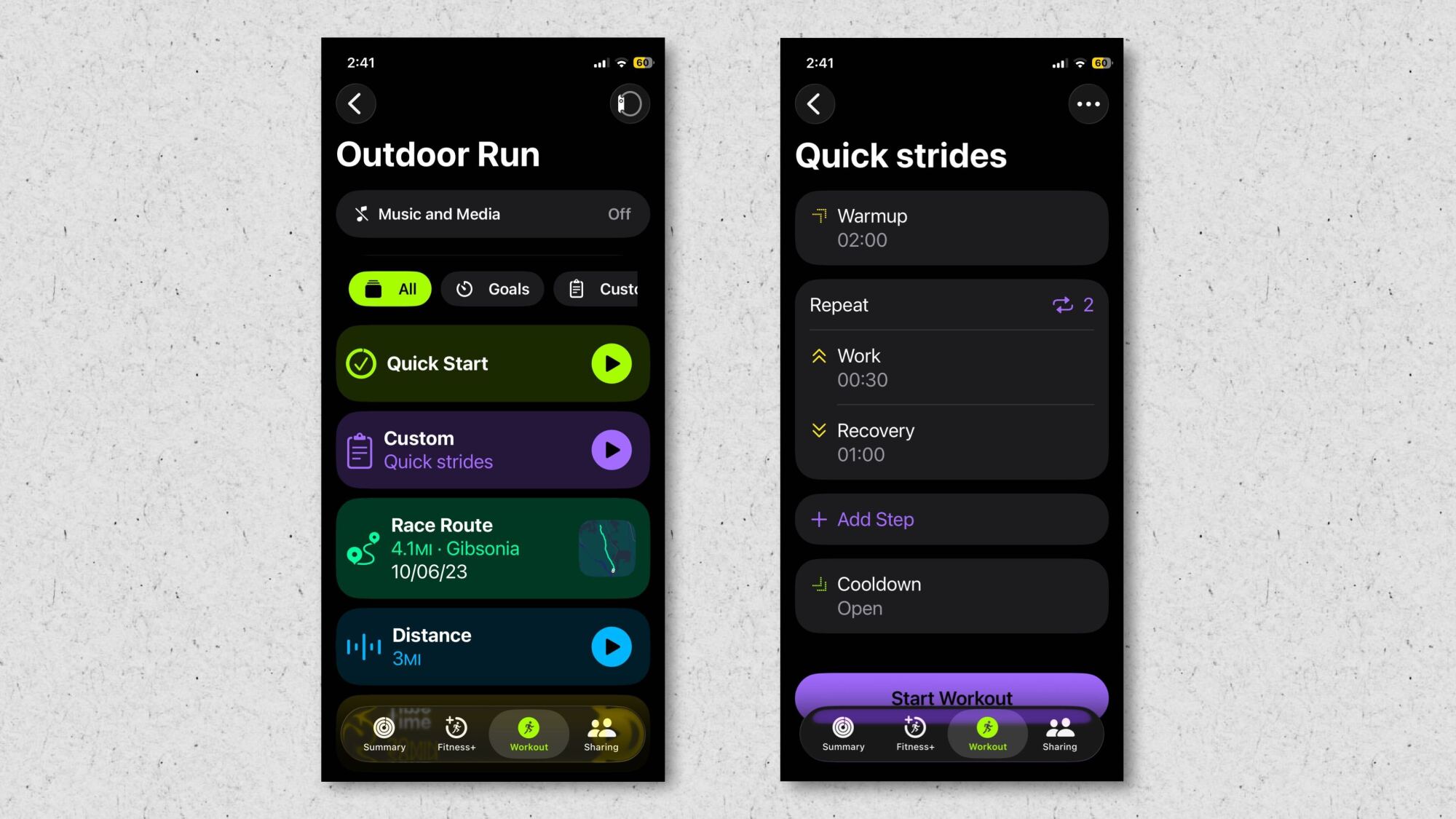
Workout creation screens

Credit: Beth Skwarecki

The Apple Watch already had a feature where you could create custom workouts, or set yourself a goal for a workout (like running for a certain amount of time, or racing your past self on a favorite route). Now, that’s all available in the fitness app. 

To find it, go to the Workout tab of the Fitness app. instead of hitting the triangle play button on your phone to start a workout, tap the timer icon. This takes you to the screen with routes, goals, and custom workouts. 

I had never before bothered with the custom workouts since they were so annoying to access on the watch, but today I created a short interval workout and ran it as part of my testing. (One thing to know: You need to create a work interval and a rest interval before creating a repeat loop—some apps have you do this in the opposite order, which tripped me up.) 

In total, these new features make the Apple Fitness app a lot more useful. You no longer need a third-party app to use a Bluetooth heart rate monitor or to track a simple run around the neighborhood. It’s now a real workout app, rather than just something you open to check how many times you’ve closed your rings.