Garmin Took One of Whoop’s Best Features, and You Don’t Need a New Watch to Use It

We may earn a commission from links on this page.

It turns out the “lifestyle logging” feature introduced with Garmin’s Venu 4 watch announcement isn’t limited to that watch—it seems to be available to all Garmin users, which means the app has made a huge stride in catching up with competitors like Whoop. 

What is lifestyle logging? 

This feature lets you track different habits, behaviors, or factors that might impact your health metrics. For example, you can log when you have caffeine or alcohol at night, and see how this affects your sleep. (Garmin tends to refer to these as “behaviors,” even though some of them are more like environmental factors or states of being—illness, for example—but I’ll allow it.) 

Whoop, the screenless tracker with the expensive (but arguably worth it) subscription, has long had this kind of feature, and it will give you detailed breakdowns of how your habits have affected your recovery. The Apple Watch app Bevel provides similar functionality as well, while the Oura ring has “tags” in its app, although they are more for labeling than analysis. 

Garmin’s version uses your logged behaviors to generate reports that show how the factors you logged affect: 

  • Your sleep score

  • Your overnight HRV

  • Your overnight stress

These seem to be the only outcomes, so you won’t see whether these behaviors affect, say, your running performance. And as with any feature of this type, the app can’t actually tell you if your behaviors are causing the positive or negative results you get. 

For example, Whoop told me that I sleep worse on nights I take melatonin, but that’s just a correlation: The melatonin probably isn’t making my sleep worse; it’s more likely that the connection is because I take melatonin on nights when I’m already up late or expect to have trouble sleeping. 

Which Garmin devices can use lifestyle logging? 

Logging your behaviors doesn’t require any specific device; I was able to activate it on an account that had no wearable devices paired at all. However, Garmin notes that to get meaningful reports, you’ll need a device that is capable of measuring HRV (which also contributes to your sleep score and overnight stress). Most of the popular Garmin wearables have HRV capabilities, including Venu, Vivoactive, and Forerunner watches, and the new Index sleep monitor. 

How to use Garmin’s lifestyle logging

The feature is kind of hidden, so I wouldn’t blame you for not knowing that it’s there. Make sure your Garmin Connect app is up to date, and then tap the three-dot menu in the bottom right corner. Go to training and planning, then health stats, and then lifestyle logging. 

The first time you do this, you’ll get a few information screens explaining the feature and asking you to acknowledge that it’s not medical advice.

You’ll then select the items you want to log. Garmin recommends choosing “only a few” items to log at a time, so you can learn more about those specific things rather than trying to wade through mountains of data. The app’s info screen wisely points out that if you log many different factors, “you may get conflicting data and have a difficult time determining what’s really impacting your health stats.”

A non-exhaustive list of what you can log

  • The lifestyle category includes alcohol, caffeine (morning or late), exercise (light, moderate, or vigorous), late meals, and intermittent fasting.

  • The self-care category includes cold showers, journaling, and sunlight.

  • The treatments category includes acupuncture and massage.

  • The sleep-related category includes CPAP machine use, eye masks, reading in bed, and having a pet in your bedroom.

  • The life status category includes allergy symptoms, caregiving, illness, and vacation.

You can also create custom items to log. You can give them a quantity if you like, or just set them up as a yes/no answer. You can also indicate if the item is daytime or bedtime related. Finally, after choosing the behaviors you’d like to log, the app will ask if you’d like related morning and/or evening reminders. 

To see results from any of your behaviors, you’ll need to accumulate five yeses and five nos for each. (As with Whoop’s version of this feature, it’s not useful to track a behavior that you always do or never do—there’s just not enough data to work from.) 

You can view your results from the Training and Planning menu, as above, and you can also add a card to the “at a glance” section of your Garmin Connect app home screen. The card will show whether you’ve logged your behaviors for the day, and tapping on it will show what you’ve logged today and in the past. The Venu 4 watch also has a widget for lifestyle logging on the watch itself. 

Change These Settings to Extend Your New iPhone Air’s Battery Life

We may earn a commission from links on this page.

Did you know you can customize Google to filter out garbage? Take these steps for better search results, including adding my work at Lifehacker as a preferred source.


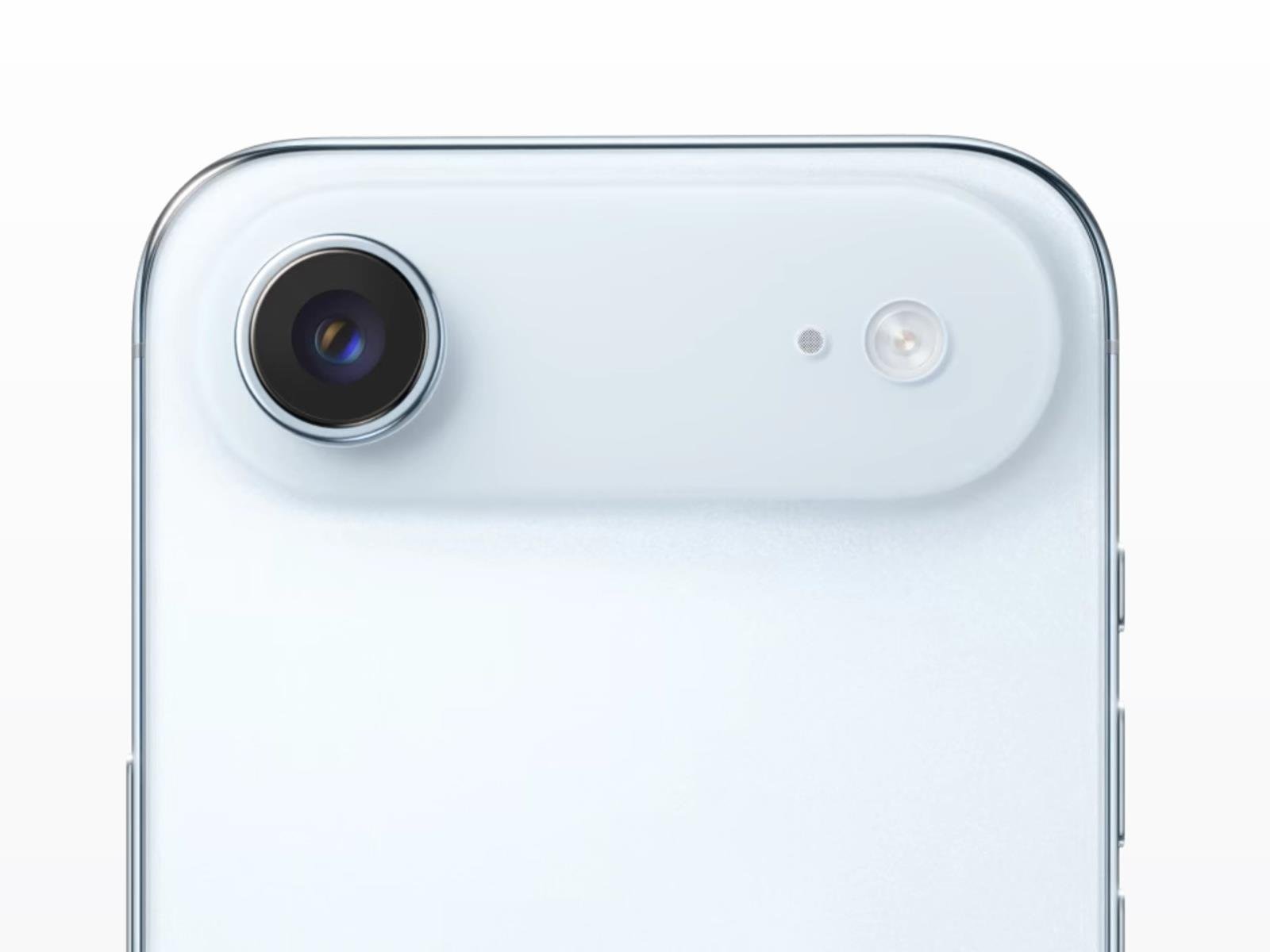
The iPhone Air is a brand-new type of phone for Apple, shrinking down the iPhone’s internals into the thinnest form factor yet, at just 0.22 inches thick. Despite all that, Apple is promising up to 27 hours of video playback, which is just three hours fewer than it’s estimating for the iPhone 17.

Honestly, I’m skeptical—and I’m not alone in that. Most of the phones I test don’t quite live up to their official battery life estimates, which are always done in ideal conditions and usually come with a number of caveats. It’s possible the iPhone Air will have significant battery shortcoming compared to the other new iPhones, which I’ll confirm when I’ve been able to test it. But despite not getting extended time with the phone, I have gotten to hold the iPhone Air, and I will admit that it feels downright magical in the hand, almost like a credit card that can make phone calls.

I won’t blame you if you’re willing to sacrifice some battery life or camera potential to snag one for yourself, but if you do, here are the settings you’ll want to turn on to eke out some extra battery life.

Low Power Mode

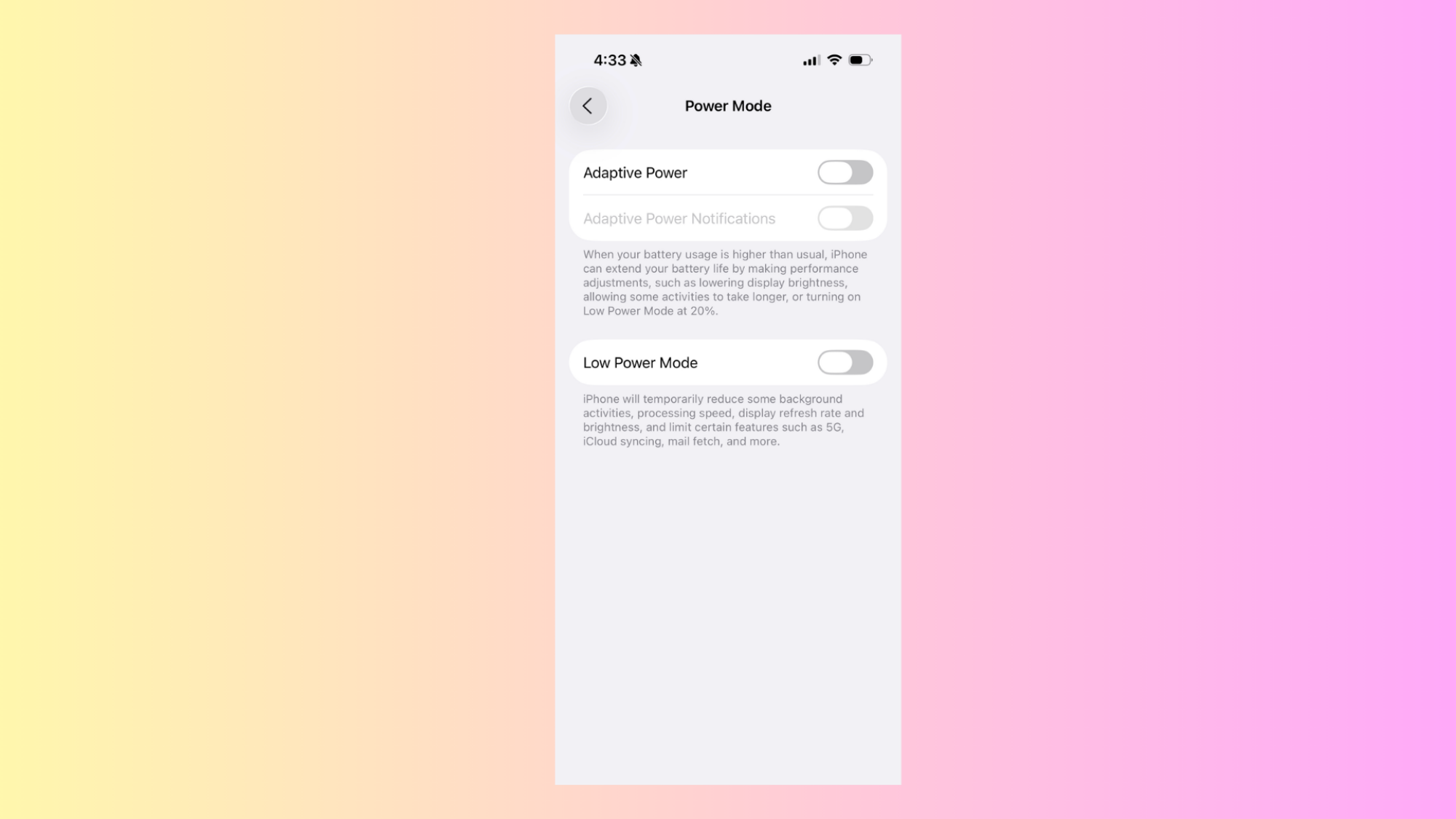
Low Power and Adaptive Power Mode iOS 26

Credit: Michelle Ehrhardt

The most obvious way to extend battery life on your phone is to turn on Low Power Mode. On an iPhone, doing so is as simple as swiping down from your Home Screen’s top right corner and tapping the battery icon in the control center (or you can go to Settings > Battery > Power Mode and toggle on Low Power Mode from there).

This will make the most battery life-extending changes for you, but will also come with the biggest hits to performance and usability. That means it’ll reduce your background activities, lower your refresh rate and brightness, and limit features like 5G and iCloud syncing. It’ll also cut some animations and start automatically locking your phone after 30 seconds of inactivity. Essentially, it’s probably not how you’ll want to use your phone most of the time, but it can help in a pinch.

Adaptive Power mode

Adaptive Power mode is kind of like a less aggressive Low Power Mode. You’ll find it in the same menu as Low Power Mode, under Settings > Battery > Power Mode, although you’ll need an iPhone 15 Pro or above and iOS 26 to access it.

When enabled, this will use Apple Intelligence to adjust your phone’s performance on the fly, rather than immediately battening down all hatches like Low Power Mode. Based on your usage patterns, it’ll attempt to predict when you’ll need more battery life than usual, and will make tweaks like stopping background apps from refreshing, lowering screen brightness by 3%, or just generally making “performance adjustments.” How it works is all very new and behind the Apple curtain for now, but the idea is that while you’re only meant to turn Low Power Mode on when you absolutely need it, you can set Adaptive Power mode and forget it. And it’s not one-or-the-other, either. You can still use Low Power Mode in addition to Adaptive Power Mode. In fact, if your phone is at less than 20% battery, Adaptive Power Mode will turn Low Power Mode on for you.

The catch? Adaptive Power Mode needs seven days to learn your charging habits, so you’ll need to enable it at least a week before you actually want to use it.

Turn down your brightness

Brightness controls iOS 26

Credit: Michelle Ehrhardt

Let’s say you don’t trust Apple’s various power modes to adjust your phone’s settings for you, or you only want to limit a few things. That’s totally an option. In that case, let’s start with brightness. Keeping your phone at max brightness all the time isn’t just eye-searing, but it’ll also drain your battery faster. That’s why you’ll probably want to turn it down to just what you need for the situation you’re in.

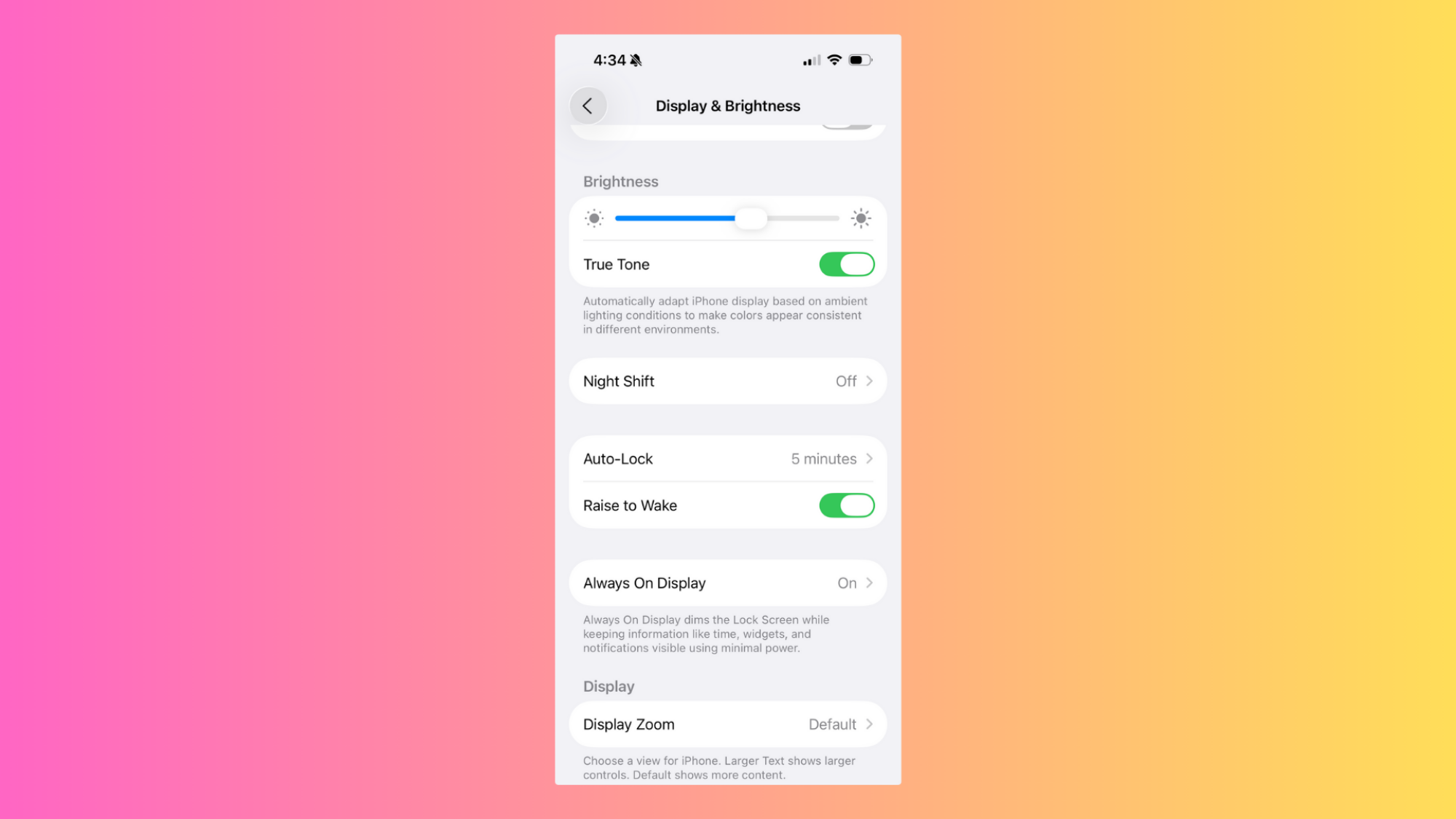
You’ve got a few options here. The easiest is to simply swipe down from your Home Screen’s top right corner, then adjust your brightness using the slider with the sun icon on it. If you prefer to adjust your brightness in the Settings app, you can head over to Settings > Display & Brightness and scroll down until you see the slider there. You’ll see a bunch of other options here, but they’re more about color temperature, and won’t actually help you adjust your brightness (although we will return to them later on in this guide).

But if you’re like me, manually controlling your brightness all the time will get a bit tiring. That’s why I prefer to turn on Auto-Brightness. Simply toggle it on under Settings > Accessibility > Display & Text Size > Auto-Brightness, and your phone will automatically lower the brightness when you’re in a dark environment or turn it up while you’re surrounded by sunlight. It gives you a bit less control, but it’s pretty convenient.

Turn down the amount of time until your phone auto-locks

Auto-Lock menu iOS 26

Credit: Michelle Ehrhardt

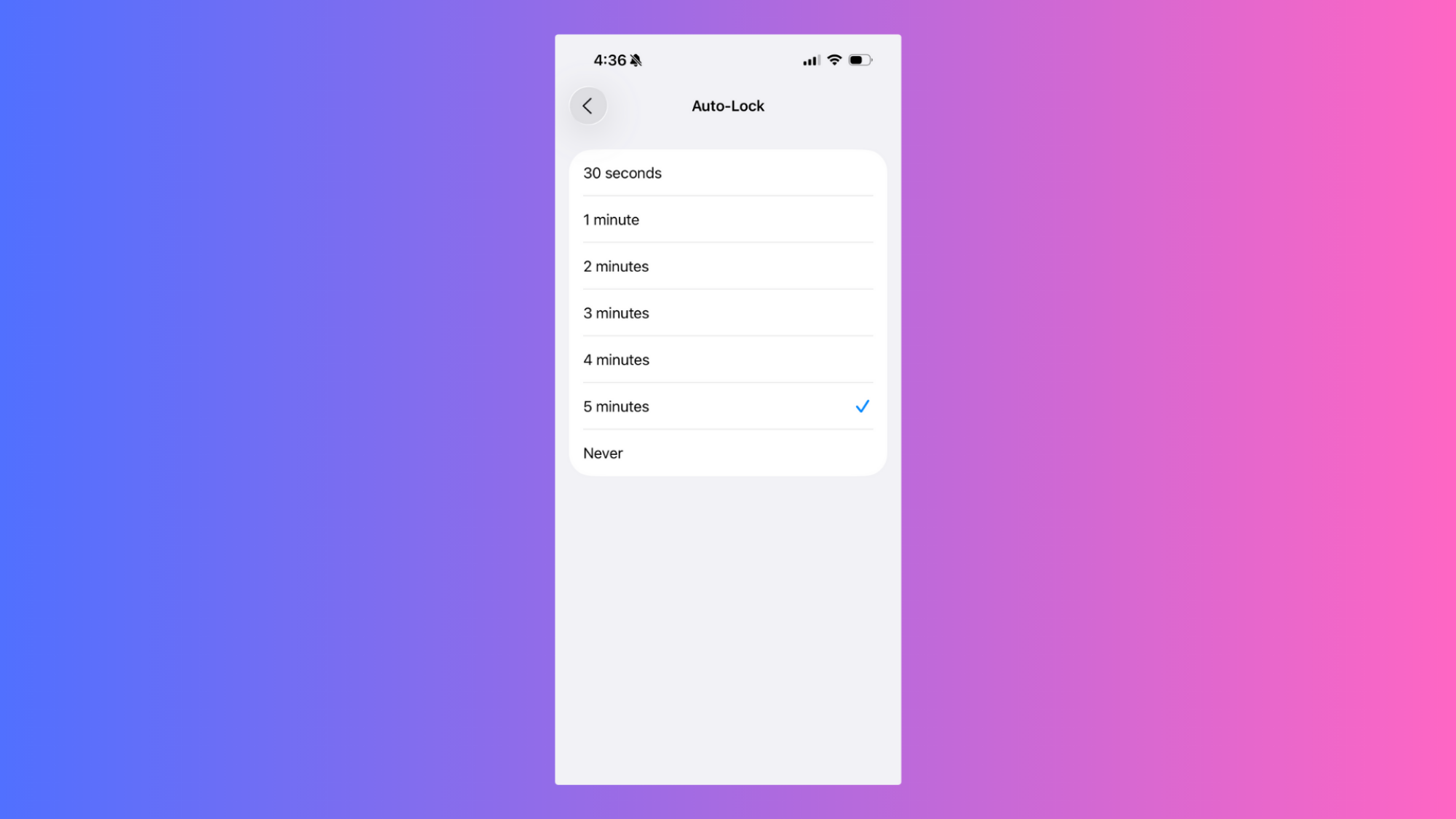
Back in Settings > Display & Brightness, you’ll see a toggle called Auto-Lock. This is what kicks you out of your phone and back to your lock screen after a certain amount of inactivity. Personally, I like to leave it at five minutes, so I can safely read long articles or check recipes while cooking without being kicked out for not tapping the screen enough. But that does drain my battery faster.

To eke out more battery life from your phone, try turning it down to the 30-second or one-minute mark. You might need to remind your phone that you’re there more often than you’d like, but it’ll keep you from needlessly draining your battery if you accidentally get up and leave your phone behind without locking it first.

And don’t worry: even with the auto-lock set to its strictest settings, it won’t lock the screen while you’re watching a video or playing a game.

Turn off the always-on display

Always On Display iOS 26

Credit: Michelle Ehrhardt

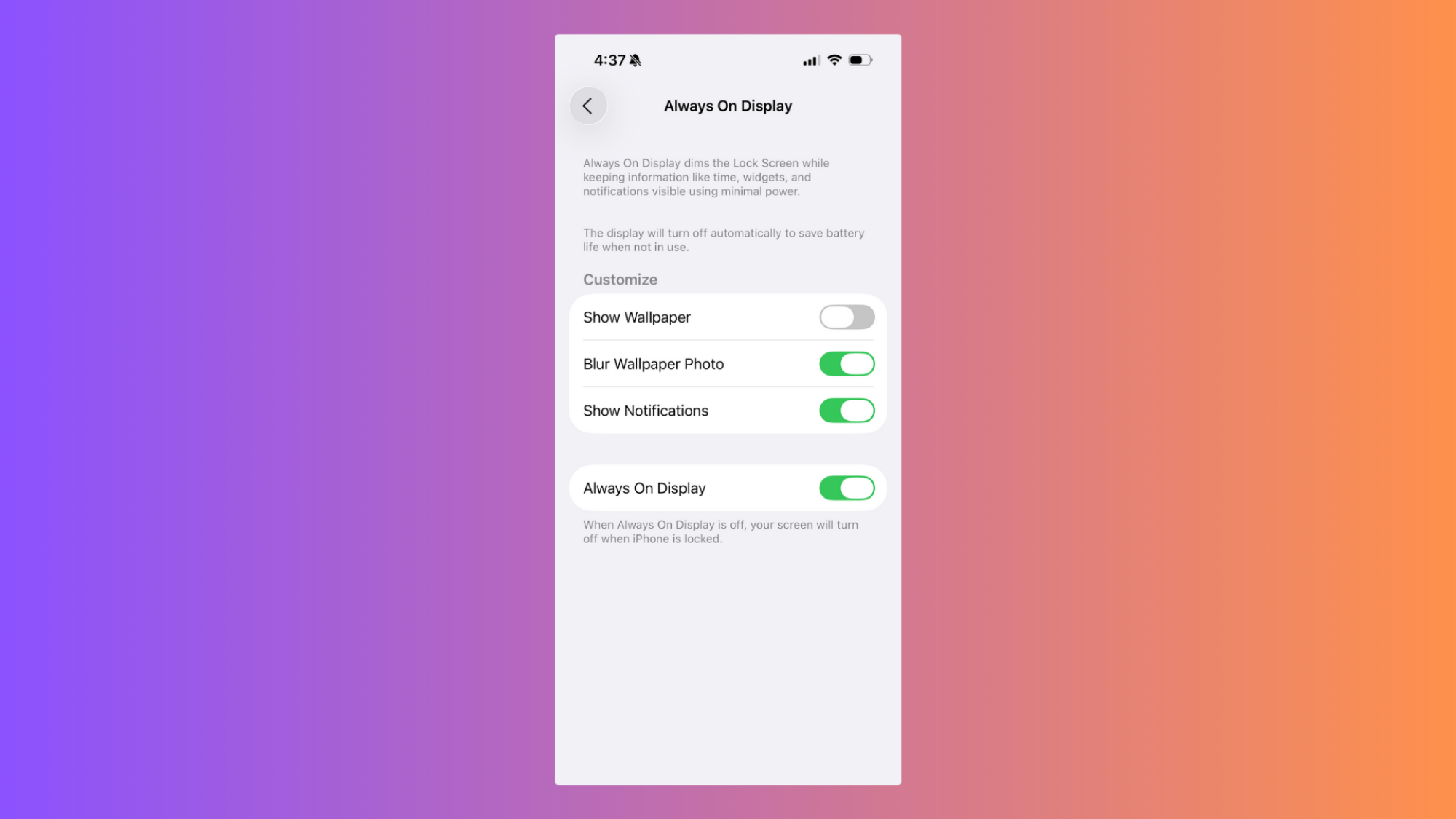
The iPhone’s always-on display, added with the iPhone 14 Pro, is one of my favorite things about Apple’s most recent iPhone models, since it makes it easy to check notifications or the time at a glance. But it will drain your battery, even if it’s set to a low, 1Hz refresh rate.

To turn it off, again head to Settings > Display & Brightness, then tap Always On Display and toggle off Always On Display at the bottom of the menu that pops up. If you want to compromise, you can simply toggle off Show Wallpaper at the top of the same menu. This will keep the always on display on, but everything except for the clock and your widgets will be black. That’ll save you some battery life needed to display color, which brings me to my next tip.

Turn on Dark Mode

Dark Mode iOS 26

Credit: Michelle Ehrhardt

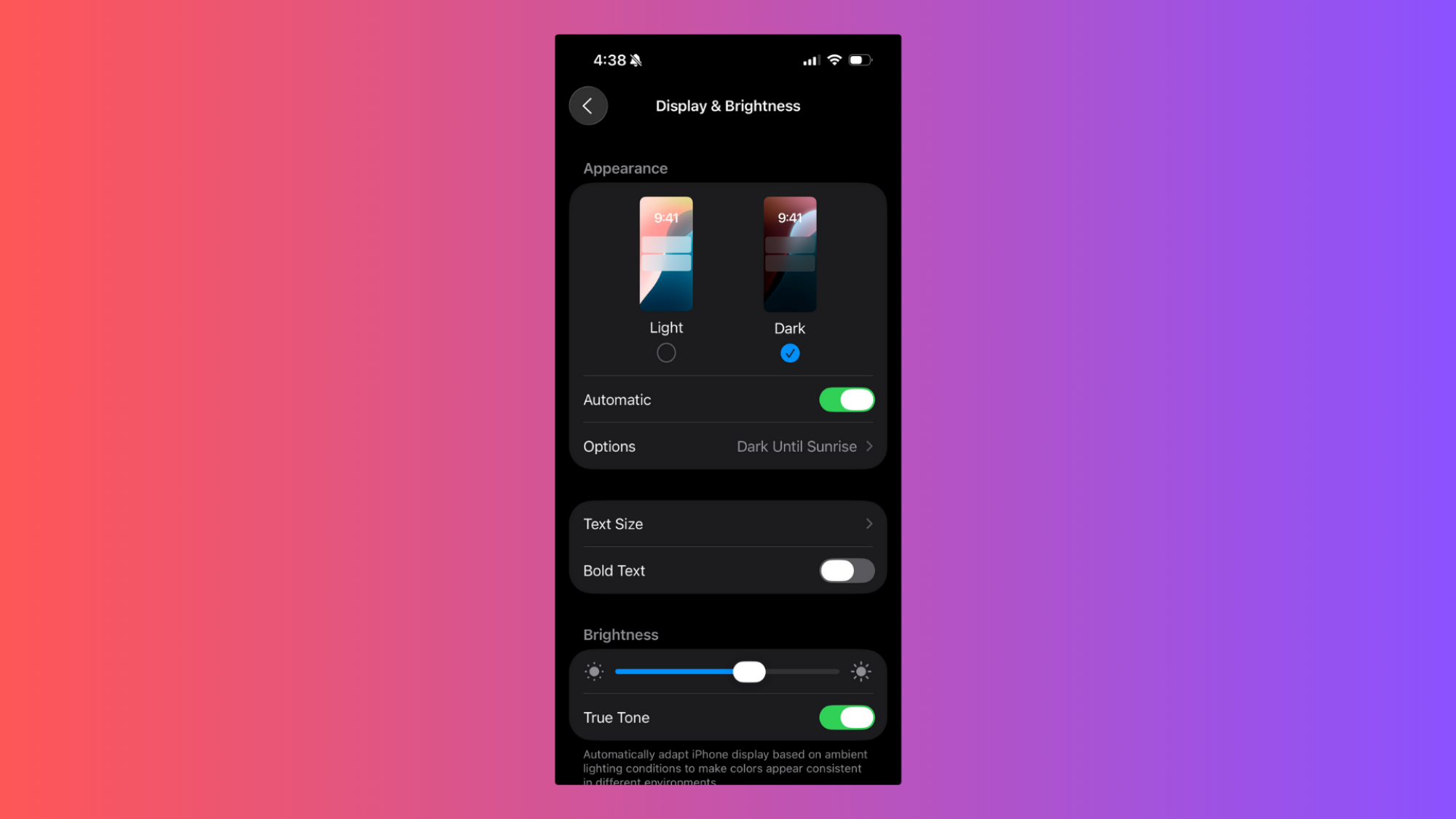
Here’s my final tip for Settings > Display & Brightness. At the top of this page, you’ll be able to select whether you want your phone in Light Mode or Dark Mode. If you want to save battery life, choose Dark Mode. That’s because the iPhone uses an OLED screen, so each individual pixel is self-illuminating. If a pixel only needs to display black, it just won’t turn on, saving you battery life.

Dark Mode won’t work across all apps, but in ones that support it, it’ll swap your background to black, which should help your phone last longer over time.

Manage your data consumption

Cellular menu iOS 26

Credit: Michelle Ehrhardt

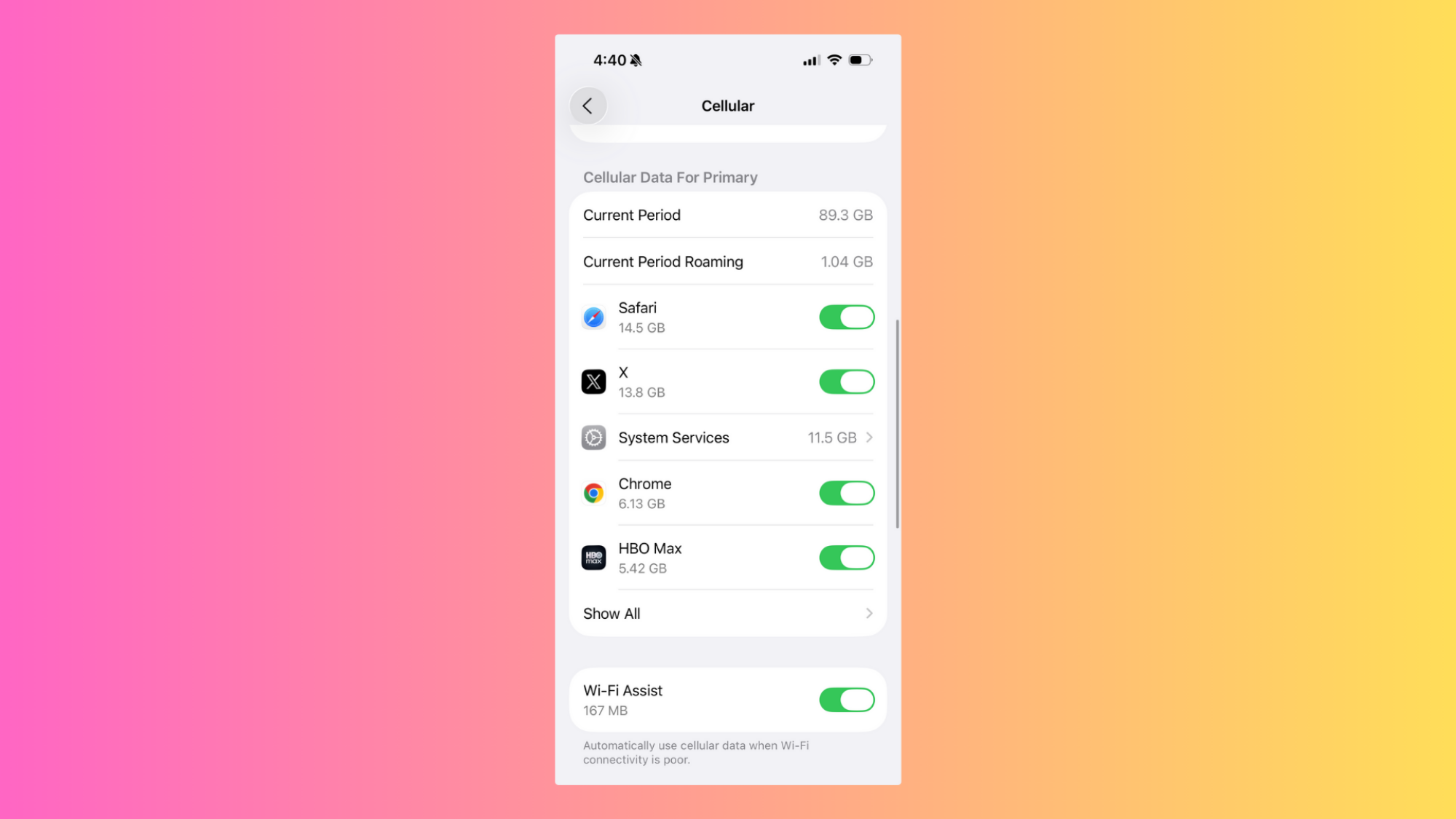
Connecting to a network to use data actually drains more power than wifi, because a cellular connection requires a stronger signal over long distances. That means, to save battery life on your iPhone, you’ll want to be a bit strict about data consumption.

You’ve got a few options here. The easiest is to simply turn off data altogether, by swiping down from the Home Screen and turning off the small green data icon next to the Bluetooth icon in the top left corner. This will turn off data altogether, but because it doesn’t discriminate between apps, it’s not ideal for everyday use.

To be a bit more specific with how your iPhone uses data, you’ll need to navigate to Settings > Cellular. Here, you’ve got a few controls at your fingertips.

The easiest choice to make here is disabling Wi-Fi Assist, which supplements your wifi with data connection when it’s running slow. Since our goal here is to reduce our reliance on data, having it on isn’t ideal.

You might also want to turn off iCloud Drive and iCloud Backup, which will use your cell network to transfer and backup files to iCloud when wifi isn’t available.

Above these toggles, you’ll also be able to see your most data hungry apps and restrict their access to your network. This can be helpful even if you’re not trying to increase battery life, as you can probably cut down on unnecessary data usage here as well.

Finally, let’s enable Wi-Fi Calling. This will allow your phone to make calls over the internet while you’re connected to wifi, saving you some cellular data. Head back to the main Settings menu, then scroll down to Apps > Phone. Here, scroll down to Calls and ensure Wi-Fi Calling is turned on. If you want to, you can even scroll up and uncheck Cellular Data under Allow Phone to Access, although this will keep you from making calls unless you’re connected to wifi.

Manage background app refresh

Background app refresh iOS 26

Credit: Michelle Ehrhardt

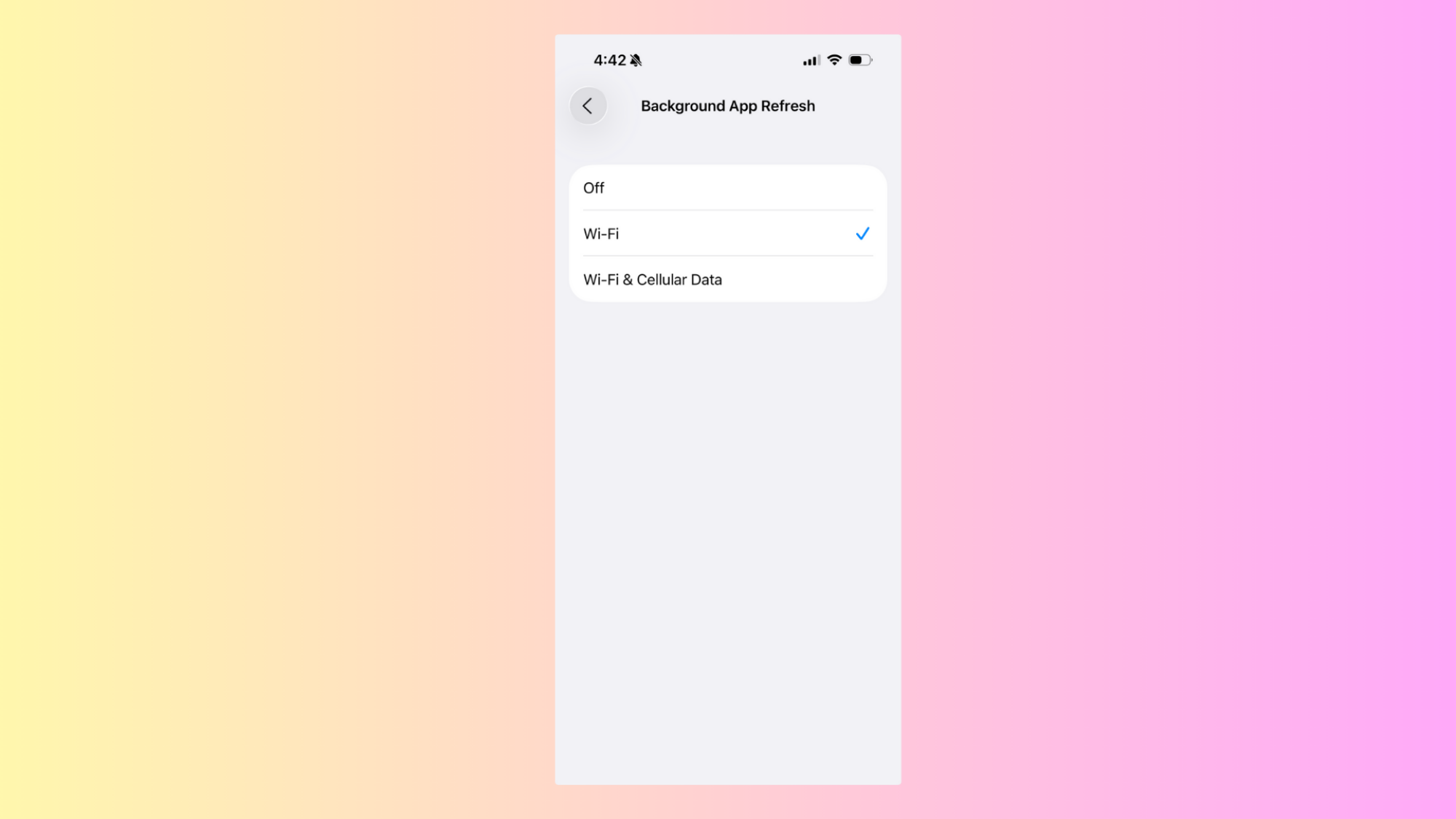
Just because you’ve navigated away from an app on your iPhone doesn’t mean it isn’t running anymore. Instead, plenty of apps will continue to refresh in the background, updating their content but also draining your battery. Luckily, you have a few choices here.

To see your options, head to Settings > General > Background App Refresh. You’ll see your phone’s general approach to refreshing apps in the background, as well as toggles for every app on your phone.

Click the Background App Refresh button in the menu and you can choose whether to turn it off, keep it on all the time, or only enable it when you’re on wifi. Off is the most battery efficient option, but if you’re not that strict, you can also choose Wi-Fi to at least keep the feature from using your data (which, again, drains more battery).

With that done, if you’ve left the feature on, you can now scroll through your list of apps and select which apps you want to allow to refresh in the background. This could save you some battery life if you don’t want to turn the feature off altogether, but do want to disable it for certain hungry apps. Unfortunately, unlike with the Cellular Data menu, you won’t see how hungry your apps are here, so you’ll have to guess.

Just buy an external battery pack

iPhone Air with MagSafe battery pack attached

Credit: Apple

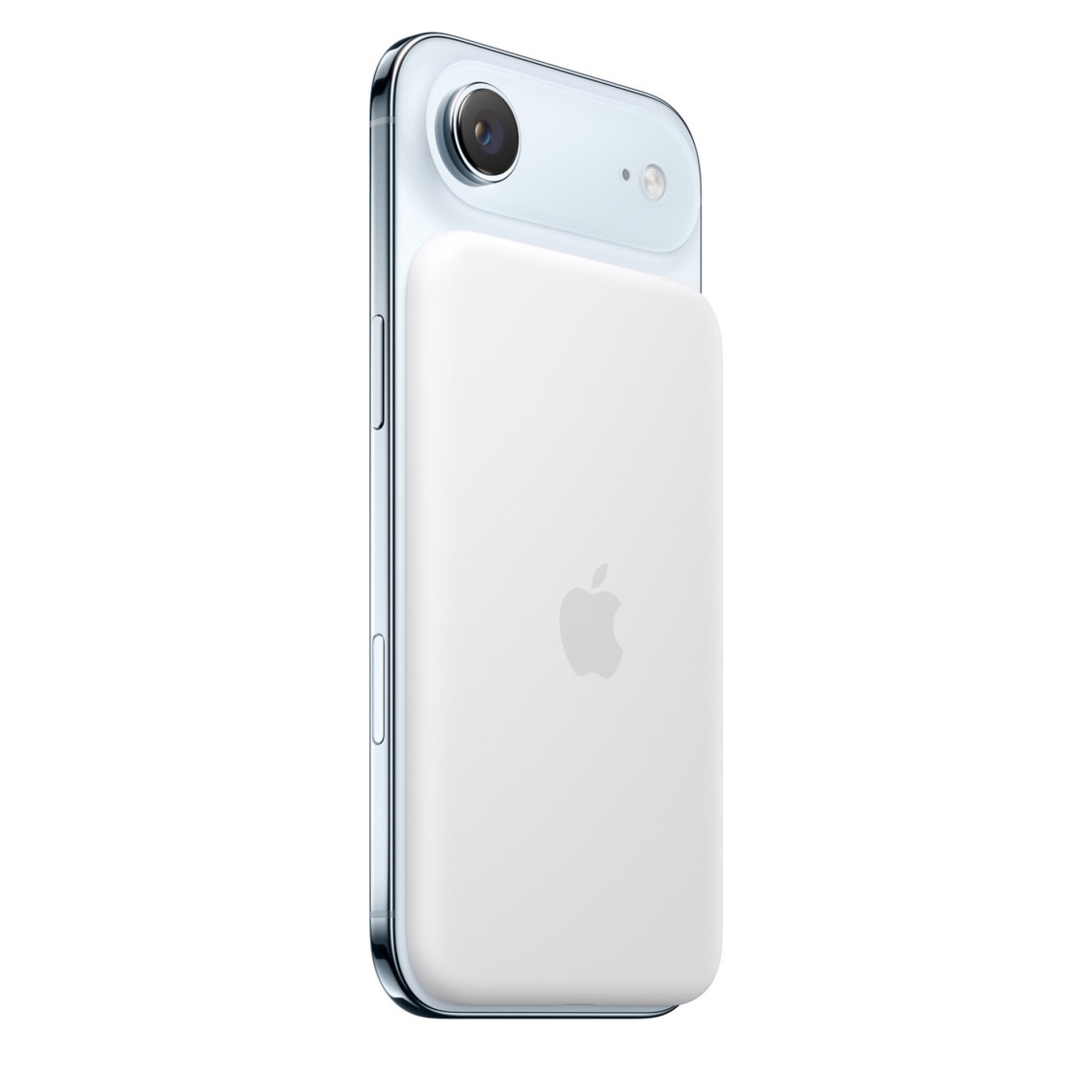
Finally, you could just give up and buy an external power pack. The iPhone Air will work with any external batteries that your other iPhones do, and despite being so thin, it will securely attach to compatible batteries via MagSafe. As much as I hate to suggest “just spend more money” as an option, Apple doesn’t share that concern. In fact, it’s even made a MagSafe battery designed specifically for the iPhone Air, which it says will give you “65 percent additional charge” while still maintaining a slim profile.

It costs $100, and whether that’s worth it to you will depend on your priorities. Personally, I’m not quite sure myself, since you’d presumably be buying the iPhone Air because it’s thin and light. If that’s the case, why slap an external battery on it? But I can also see why you’d want a MagSafe battery some of the time and a slim form factor at other times. Just be aware: This battery is a bit tall, so it won’t fit vertically on either the iPhone 17 or iPhone 17 Pro.

“Get off the iPad!” warns air traffic control as Spirit flight nears Air Force One

As Air Force One journeyed from the US to the UK this week, it came within eight lateral miles of a Spirit Airlines flight heading up the East Coast from Fort Lauderdale to Boston. An alert air traffic controller in the New York control center reached out to the Spirit flight, telling it to execute an immediate right turn to avoid any possibility of colliding with Air Force One.

But the Spirit pilots did not respond immediately, leading the testy air traffic controller to scold them repeatedly. (You can listen to the audio archive on LiveATC.net; it begins at around the 23:15 mark.)

“Pay attention!” said the controller after his first instruction was not acknowledged. “Spirit 1300, turn 20 degrees right.”

Read full article

Comments

UEFI Secure Boot for Linux Arm64 — where do we stand?

Still exotic for now, but moves are afootArm devices are everywhere today and many of them run Linux. The operating system also powers cloud computing and IT environments all over the world. However, x86 is still the dominant architecture of global computer hardware, where the Unified Extensible Firmware Interface (UEFI) with Secure Boot incorporated is a standard. But what does UEFI look like from an Arm perspective?…

FTC and Seven States Sue Ticketmaster Over Alleged Coordination With Scalpers

The Federal Trade Commission and attorneys general from seven states filed an 84-page lawsuit Thursday in federal court in California against Live Nation Entertainment and its Ticketmaster subsidiary. The suit alleges the companies knowingly allow ticket brokers to use multiple accounts to circumvent purchase limits and acquire thousands of tickets per event for resale at higher prices.

The FTC claims this practice violates the Better Online Ticket Sales Act and generates hundreds of millions in revenue through a “triple dip” fee structure — collecting fees on initial broker purchases, then from both brokers and consumers on secondary market sales. FTC Chairman Andrew Ferguson cited President Trump’s March executive order requiring federal protection against ticketing practices. The lawsuit arrives one month after the FTC sued Maryland broker Key Investment Group over Taylor Swift tour price-gouging and follows the Department of Justice’s 2024 monopoly suit against Live Nation.


Read more of this story at Slashdot.

New V4 Apollo A6000 Is The Most Powerful 68K Amiga Ever And It Sold Out Immediately

New V4 Apollo A6000 Is The Most Powerful 68K Amiga Ever And It Sold Out Immediately
The Apollo Team behind the Vampire V4 just launched preorders for a new, all-in-one modern Amiga, dubbed the Apollo V4 A6000, which is built atop the Apollo V4 platform.  The V4 platform, like other standalone boards and Apollo accelerators, offers what the team calls a 68080 processor with AMMX support, which is a 100% code compatible evolution

Meta will let outside developers create AI-powered apps for its smart glasses

Meta’s lineup of smart glasses could soon get a lot more capabilities. The company will begin allowing outside developers to bring their apps to its RayBan and Oakley smart glasses, Meta announced on the second day of its Connect event.

Up to now, Meta has only had a limited number of third-party integrations for its glasses, with apps like Spotify and Audible. But Meta will now allow developers to start experimenting with apps that can take advantage of the built-in sensors and audio capabilities of its glasses. This means other companies will be able to create their own custom experiences that use Meta’s multimodal AI features.

The company is already working with a set of early partners, like Twitch, which is creating livestreaming capabilities for the glasses, and Disney, which is experimenting with an app for inside its parks. A demo video shows a visitor walking around Disneyland and asking the AI assistant about the rides she’s seeing and other park information. 18Birdies, a golf app, is working on an integration that can give players club recommendations and yardage stats.

Notably, these apps all seem like they work with Meta’s non-display glasses, which means that even people who have first-gen Ray-Ban Meta glasses could see a bunch of added new functionality. It’s not clear if the company will also allow developers to also build experiences that can take advantage of the display on its newest Meta Ray-Ban Display frames, but that could open up even more possibilities.

Meta’s new set of tools, officially called the “Wearables Device Access Toolkit,” will roll out as a limited developer preview ahead of broader availability in 2026.

This article originally appeared on Engadget at https://www.engadget.com/wearables/meta-will-let-outside-developers-create-ai-powered-apps-for-its-smart-glasses-194159233.html?src=rss

An Apple iPhone 17 Camera Glitch Is Wrecking Photos, Fix Inbound

An Apple iPhone 17 Camera Glitch Is Wrecking Photos, Fix Inbound
It’s iPhone season and Apple has delivered some nice upgrades to its entire lineup of phones, alongside iOS 26, while adding a new device to the family with the thinner and lighter iPhone Air. As expected, the bevy of upgrades include a new set of improved cameras across the board, but one early reviewer has spotted a glitch while taking photos,

Google announces massive expansion of AI features in Chrome

Now that it’s looking like Chrome will remain in the Google fold, the browser is undergoing a Gemini-infused rebirth. Google claims the browser will see its most significant upgrade ever in the next few weeks as AI permeates every part of the experience. For people who use AI tools, some of these additions might actually be helpful, and for everyone else, well, Firefox still exists.

The most prominent change, and one that AI subscribers may have already seen, is the addition of a Gemini button on the desktop browser. This button opens a popup where you can ask questions about—and get summaries of—content in your open tabs. Android phones already have Gemini operating at the system level to accomplish similar tasks, but Google says the iOS Gemini app will soon be built into Chrome for Apple devices.

Gemini in Chrome
Credit:
Google

Read full article

Comments

Epic will let Fortnite creators sell in-game items in latest attempt to compete with Roblox

Creators building experiences in Fortnite are getting a new way to earn revenue. Epic says developers will soon have the ability to make and sell in-game items in Fortnite, and earn a cut of the V-Bucks users spend to buy them. Previously, developers only earned money through Fortnite based on the amount of time users spent on their “islands,” the in-game name for third-party experiences creators can offer through Fortnite.

Developers will be able to create their consumable and durable in-game items using soon-to-be-released tools in Unreal Editor for Fortnite and a new “Verse-based API,” according to Epic. The company also plans to be generous with the revenue split its offering, at least at first. Developers “will ordinarily earn 50 percent of the V-Bucks value from sales in their islands,” but from December 2025 through the end of 2026, they’ll get to keep 100 percent.

Epic says its 50 percent cut — notably more than the 30 percent popularized by Apple’s App Store — is to help “contribute to server hosting costs, safety and moderation costs, R&D and other operating expenses” of running Fortnite. It’s also a make-good of sorts, since Epic claims it’s been “investing and operating the business at a loss.”

How much 100 percent or 50 percent of “V-Bucks value” actually equals in real money unfortunately isn’t as simple as converting Fortnite’s digital currency to dollars, though. Epic offers the following explanation for how it calculates V-Bucks value: 

To determine the V-Bucks value in US dollars in a given month, we take all customer real-money spending to purchase V-Bucks (converted to US Dollars), subtract platform and store fees (ranging from 12 percent on Epic Games Store to 30 percent on current consoles), and divide it by the total V-Bucks spent by players. Fortnite’s average platform and store fees are currently 26 percent (with specific fees ranging from 12 percent on the Epic Games Store to 30 percent on console platforms). So, 50 percent of V-Bucks value translates to ~37 percent of retail spending, and 100 percent of V-Bucks value translates to ~74 percent.

A mockup of Fortnite's Sponsored row for developers.
Epic

Alongside the new ability to create in-game items, Epic says Fortnite developers will be able to pay to be featured in a new “Sponsored row” inside Fortnite‘s Discover feed. And to better engage new and returning players, developers are also getting access to new tools for creating community forums and sharing updates on their islands.

All of these changes are in service of further extending Fortnite‘s ability to act as a platform for games and social experiences, rather than just a battle royale game (with racing, rhythm game and LEGO spin-offs). Epic clearly wants Fortnite to be Roblox, and reap the benefits of having an active community of adult and child users creating experiences for its platform. Cultivating that audience has led to all sorts of child safety problems for Roblox, but Epic clearly views the risks to be worth it.

This article originally appeared on Engadget at https://www.engadget.com/gaming/epic-will-let-fortnite-creators-sell-in-game-items-in-latest-attempt-to-compete-with-roblox-192059073.html?src=rss

Borderlands 4 Dev Says Fixing Performance And Improving Stability Is A Top Priority

Borderlands 4 Dev Says Fixing Performance And Improving Stability Is A Top Priority
Yesterday, the official Borderlands X account finally spoke up about the performance issues that gamers have been reporting on console and PC since Borderlands 4 launched, taking a much calmer approach than Gearbox CEO Randy Pitchford. Pitchford was making his own headlines, thanks to how angrily he was replying to users posting about the

The FTC sues Ticketmaster for allegedly colluding with resellers

The FTC and seven states sued Ticketmaster owner Live Nation on Wednesday. The lawsuit accused the company of knowingly allowing brokers to buy tickets in bulk. Ticketmaster allegedly then let them resell the tickets at a significant markup on its own second-hand market.

The FTC claims Ticketmaster was aware that resellers routinely bypassed its security measures for these purchases. The company profits three times from resales. It collects fees at the initial purchase, followed by both buyer and seller fees upon resale. Between 2019 and 2024, Ticketmaster raked in $16.4 billion in fees, according to the FTC.

The agency paints a picture of the company that epitomizes rampant corporate greed. The FTC claims an internal Live Nation review showed that five resellers alone harvested 246,407 tickets to 2,594 events. The agency accused Ticketmaster of admitting in an internal email that it “turn[s] a blind eye as a matter of policy.”

The company is said to even offer tech support to brokers through its TradeDesk app. The software is designed to consolidate and manage tickets purchased through multiple Ticketmaster accounts.

Ticketmaster also allegedly failed to implement third-party identity verification tools that could have prevented the bulk purchases. Why? The FTC quotes the company as saying these tools would have been “too effective.” The company is also said to have admitted to engaging in deceptive pricing. Their alleged reason: Customers were less likely to buy tickets when they saw the actual cost upfront.

The FTC accused Live Nation of violating two laws: the FTC Act’s ban on deceptive practices and the BOTS Act. The latter was signed by President Obama in 2016, just before leaving office. As its name suggests, it banned the use of bots or other software to obtain more tickets than is legally allowed. Earlier this year, President Trump issued an executive order to increase enforcement of the law.

The suit was filed in the US District Court for the Central District of California. Joining the FTC in the suit are Virginia, Utah, Florida, Tennessee, Nebraska, Illinois and Colorado.

This article originally appeared on Engadget at https://www.engadget.com/entertainment/the-ftc-sues-ticketmaster-for-allegedly-colluding-with-resellers-191337586.html?src=rss

Samsung Brings Ads To US Fridges

An anonymous reader shares a report: A software update rolling out to Samsung’s Family Hub refrigerators in the US is putting ads on the fridges for the first time. The “promotions and curated advertisements” are coming despite Samsung insisting to The Verge in April that it had “no plans” to do so. Samsung is calling it a pilot program for now, which — I kid you not — is meant to “strengthen the value” of owning a Samsung smart fridge.


Read more of this story at Slashdot.

The Best Meal-Planning Apps (for When You’re Sick of Doing It Yourself)

We may earn a commission from links on this page.

Did you know you can customize Google to filter out garbage? Take these steps for better search results, including adding Lifehacker as a preferred source for tech news.


For as basic a necessity as it is, feeding yourself is a lot of work. What’s more, feeding a household is even worse. There’s the planning, then the shopping, the unpacking, the cooking, the storing, and finally, the cleaning, all of which has to be done over and over again forever. We all know what it’s like to be faced with this task and just decide to open up Uber Eats and pay a bunch of fees to have someone do (most of) it for us. Apps are the saving grace when meal planning gets too daunting—but you’re using the wrong apps. Forget Door Dash and Grub Hub: These apps can help you plan, shop for, and prepare meals on your own while still offloading some of the hard work on tech.

Here are some meal-planning apps that can suggest recipes based on your dietary preferences, put together shopping lists, and even walk you through the cooking. They can’t box up leftovers or wash the dishes, but maybe one day in the future, we’ll get there, too.

Best app for recipes: BigOven 

BigOven on browser

Credit: Lindsey Ellefson/BigOven

BigOven is a meal-planning app that grants you access over one million recipes—and new recipes are constantly being added. I like a few different things about it: First, you can input some of the ingredients you already have and get recipes based on those, reducing your grocery shopping and limiting how many of those million-plus recipes you need to scroll through. You can scan handwritten recipes in, too, and let the app turn them into recipes you can store there, preserving family traditions. Finally, I appreciate that it has a browser version, since that makes it easier to type, browse, and scroll. A few of the apps on this list also work on the browser. In general, I like to do a lot of my planning and work on the computer, then call in my phone at crunch time, just when I need to refer to a recipe.

The free version is nice, but limited. You get the ability to put together a grocery list and one free recipe scan. For more detailed meal planning, you’ll need to upgrade to its paid version for $2.99 per month or $24.99 for the year. Think of it like this: You’ll save that much by skipping a delivery order or two.

Best app for family meal planning: Cozi 

Cozi in iOS

Credit: Lindsey Ellefson/Cozi

Cozi is a family organizer, so you might not think of food and recipes when you first hear about it—but don’t be fooled. In addition to its daily calendar and to-do lists, Cozi provides space for you to keep a grocery list (which any family member can add to in real time) and even offers up recipes. Not only can you plan your meals’ content, but you can schedule them for when everyone is available.

The basic version is free, but the premium version, which is $39.99 per year, offers more features, most of which have to do with the family management aspect (like birthday tracking and calendar searching). If you’re using it for meal planning, you may not need to upgrade; I was able to build out an entire schedule of recipes without paying.

Best app for fitness and nutrition goals: Eat This Much 

Eat This Much in iOS

Credit: Lindsey Ellefson/Eat This Much

Eat This Much is really ideal for anyone with specific nutrition and fitness goals. It puts together plans based not only on your budget and personal preferences, but your nutritional plans, as well. You’re prompted to enter in how many calories you’d like to eat in a day, as well as how many grams of protein and other nutrients you want to hit. It even doubles as a calorie tracker and comes with a database of nutritional information about restaurant and packaged food. If you’re meal planning and prepping for fitness or health goals, this could be the one for you to really focus in on. (Relatedly, if you’re in the market for a comprehensive calorie and nutrient tracker, I am a huge fan of Lifesum.)

Money comes into play if you want more features. For $8.99 per month, you can create meal plans for a week, used advanced search features, view your past meals, and generate reports on your eating habits, to name a few. A bump up to $59 per month unlocks bulk meal plans for over a week in advance, macro tracking, and a recipe database, among other things. That’s not exactly a small cost, but if you’re serious about meal prepping, give it a look.

Best app for when you’re busy: Mealime 

Mealime in iOS

Credit: Mealime/Lindsey Ellefson

Mealime is widely recommended in forums for meal planners and caters to busier people because it’s full of recipes that can be made in under half an hour. You can filter recipes by dietary restrictions or preferences, generate a grocery list, and get on with your day. It’s a little bare-bones beyond that, but as a picky eater, I appreciate the ability to eliminate recipes that include the things I don’t care for. If you ever catch me eating a single mushroom, call the authorities because I’m sending a distress signal.

You’ll get plenty of recipes in the free version, but you’ll notice some are labeled “Pro.” To get those, as well as other features like the ability to add notes, you’ll have to upgrade to the paid version for $2.99 per month. For its simplicity of use and fairly low cost, this is a favorite of mine.

Best app to relieve decision fatigue: eMeals

eMeals on browser

Credit: Lindsey Ellefson/eMeals

eMeals emphasizes that it’s meal planning “made simple,” and they mean that. You get pre-loaded, dietitian-curated menus that come in “themes.” Themes can be kid-friendly, keto, quick, etc. The apps on this list with thousands of recipes to scroll through are great, but if you just want someone or something else to pick for you, start here.

eMeals also has partnerships with major grocery retailers, which makes creating your grocery list a little easier and more specific. Another on the list that has a robust browser component, this makes things almost too easy.

Best app for more recipe control: Plan to Eat

Plan to Eat in iOS

Credit: Lindsey Ellefson/Plan to Eat

Plan to Eat is for people who have a general sense of what they like or want to eat, but just need a little push on the organization. You can clip recipes from the internet or browse recipes in the app, add them to the built-in calendar, and create grocery lists that are specified by category, making shopping easier. The app’s cooking view even comes with step-by-step instructions that include timers, walking you right through everything you need to do down to the minute.

You get a free two-week trial, then you’ll pay $5 a month or $55 a year to access all the features.

Intel Responds To Questions On Future Of Arc Graphics Following NVIDIA Collaboration Announcement

Intel Responds To Questions On Future Of Arc Graphics Following NVIDIA Collaboration Announcement
Earlier today, Intel and NVIDIA announced the two tech giants are planning to co-develop several generations of data center and PC products, with the latter also investing $5 billion into the former’s common stock. Hours later, Intel CEO Lip-Bu Tan and NVIDiA CEO Jensen Huang hosted a webcast to discuss the announcement followed by a Q&A session,

Microsoft’s Gaming Copilot AI assistant is coming to Windows PCs and the Xbox mobile app

Microsoft’s Gaming Copilot AI assistant is officially coming to Windows PCs and the Xbox mobile app. The company has been testing the tool for PCs with Xbox Insiders, but now it’s getting a broader rollout.

To that end, it’ll be available to players aged 18 and older on the PC Game Bar. The Xbox app version rolls out this October, for both Android and iOS, after a beta test took place earlier this year. Microsoft says that its Gaming Copilot will be available throughout the globe, except in mainland China.

So what exactly is this thing? It’s sort of like an AI version of those old Nintendo help phone lines. The chat box appears as an overlay on the screen and players can use it to ask questions or to get tips about a game. The company says it “knows what you’re playing and understands your Xbox activity,” as it uses in-game screenshots. It can also answer questions about an Xbox account and offer recommendations on stuff to buy.

The official version also offers voice chat, so you can just ask the questions out loud. On PC, there’s a “Push to Talk” hotkey that activates the bot, which is handy. The app includes a microphone button. There’s a widget for the PC build that can be placed anywhere on the screen. This is useful for longer conversations.

With Copilot for Gaming, you can jump back into games faster, get real-time coaching, and stay connected… all on your own terms. Excited for what the team has in store! pic.twitter.com/18Ll2D25i1

— Satya Nadella (@satyanadella) March 13, 2025

Microsoft is still tinkering with this software and urges feedback from users as they “continue to develop Gaming Copilopt and make it even more helpful for players’ needs and preferences.” The company has been testing the system on Windows-based portable consoles, and it did recently announce the pending availability of its own Xbox Ally handheld gaming machines. It’s likely that the software will get an official rollout for those consoles some time after they launch on October 16. 

This article originally appeared on Engadget at https://www.engadget.com/ai/microsofts-gaming-copilot-ai-assistant-is-coming-to-windows-pcs-and-the-xbox-mobile-app-185452965.html?src=rss

Discord will launch a native Meta Quest app next year

In addition to new hardware announcements, Meta had software news to share during its Meta Connect 2025 conference today. The company revealed that Discord will be making a native app for the Meta Quest headset. According to Meta, the native window app will be available some time in 2026.

The development makes sense. VR is a platform with a lot of gaming presence, so having Discord for easy social and voice connections while playing is a win for players and a natural match for the two businesses. Having a native app can make a big difference in the ease of use. I’m primarily a member of the PlayStation nation, and I swear I heard an angelic choir singing when the PS5 finally got call support. 

Meta positioned the upcoming availability of the native app as a boon for the developers of VR experiences to reach new audiences, thanks to Discord’s more than 200 million monthly active players. We’ve reached out to Discord for additional comment and will update with any more details we receive.

This article originally appeared on Engadget at https://www.engadget.com/discord-will-launch-a-native-meta-quest-app-next-year-183939524.html?src=rss

Northrop Grumman successfully resupplies ISS after overcoming software glitch

Running a day late, Northrop Grumman’s Cygnus XL cargo freighter pulled alongside the International Space Station on Thursday, delivering more than 5 tons of supplies and experiments to the lab’s seven-person crew.

NASA astronaut Jonny Kim took control of the space station’s robotic arm to capture the Cygnus spacecraft at 7:24 am EDT (11:24 UTC) on Thursday. A short time later, the robot arm positioned the spacecraft over an attachment port on the station’s Unity module, and 16 bolts drove closed to create a firm mechanical connection with the ISS.

The Cygnus XL supply ship will remain at the station for up to six months, during which time astronauts will unpack the spacecraft’s cargo module and refill it with trash. The Cygnus spacecraft will depart the station and head for a destructive reentry over the remote Pacific Ocean to conclude the mission.

Read full article

Comments

Why the FDA Is Warning Against Some Wearable Baby Monitors

We may earn a commission from links on this page.

As a new parent, it’s unfortunately pretty normal to be paranoid about whether your baby is breathing when you put them down for a nap. Gadgets promise peace of mind—like heart rate or movement sensors that attach to your baby or their crib. But the FDA is warning against most of them.

As the FDA writes in a safety communication to parents and pediatricians, no devices are approved to prevent or reduce the chances of sudden infant death syndrome (SIDS) or sudden unexplained death in childhood (SUID). If a device says it will do this, the FDA advises avoiding that product entirely. 

When it comes to devices that just claim to give you metrics like heart rate or blood oxygen, there are a few approved products on the market, including the Dream Sock by Owlet, but many of the devices in this category aren’t FDA-cleared at all. The FDA doesn’t name names, but when I searched for “wearable baby monitor” on Amazon and on Google Shopping, most of the brands that popped up are ones that aren’t in the FDA’s database. The unapproved ones I saw were often in the $100-150 price range, while the most popular FDA-cleared device, the Owlet Dream Sock, was significantly more, at $239.99. 

What these monitors are, and why they can be risky

Baby monitors that promise to track your baby’s vital signs include sock-style wearables, sensors that clip to the baby’s diaper or clothes, sensors that go under a mattress, and ones that are built into camera systems. 

These monitors may say they can track heart rate, blood oxygen levels, and respiratory rate, among other metrics, and notify caregivers if something is wrong. However, the FDA says that they can cause harm in these ways: 

  • If they fail to measure the vital signs accurately

  • If they miss serious problems, making caregivers think everything is fine when it’s not

  • If they indicate a problem when there is none, leading to unnecessary medical care

  • Burns or rashes from the device itself

How to find approved devices

If your baby needs an accurate medical device, the best place to start is asking their pediatrician to point you to something appropriate. But if you want to use an over-the-counter device for peace of mind, there are two databases you can check to see if the device is FDA-cleared. 

The first is the de novo device lookup. This is for devices where the manufacturer has applied for recognition as a new type of medical device. These are known as 513(f)(2) devices. Go to this link and type the company’s name in the blank marked Requester name. If the product is in the database and the classification product code is QYU, it’s been evaluated and authorized by the FDA. For example, here is the entry for the Owlet Dream Sock, with a QYU code.

The other is the 510(k) premarket notification lookup, which you can find here. This is for devices that are “substantially equivalent” to an already-approved device. Put in the company’s name under Applicant name. 

The FDA adds that if you have a problem with a device, including inaccurate measurements or anything that resulted in an injury, to report it to MedWatch here. 

Oops! Microsoft’s Xbox Mode For ROG Ally Just Leaked For All Gaming Handhelds

Oops! Microsoft's Xbox Mode For ROG Ally Just Leaked For All Gaming Handhelds
Microsoft recently released an update for the Xbox app designed to make gaming on Windows devices, including handhelds, more convenient. Additionally, the company has been working on a full-screen Xbox experience destined for the Asus ROG Xbox Ally, which was meant to be an exclusive feature to better differentiate the device from competitors.

However,