All the Ways You Can Customize Notifications on Android Auto

If you’re an Android Auto user, you may already know that setting up phone notifications while you’re driving isn’t as straightforward as it could be—though Google has recently made a settings tweak that should simplify things. On the one hand, you don’t want to miss important messages or calls, but on the other you definitely don’t want to put yourself and other road users at risk by getting distracted while driving. A careful balance is needed, and it’s important to know what options are available on your phone.

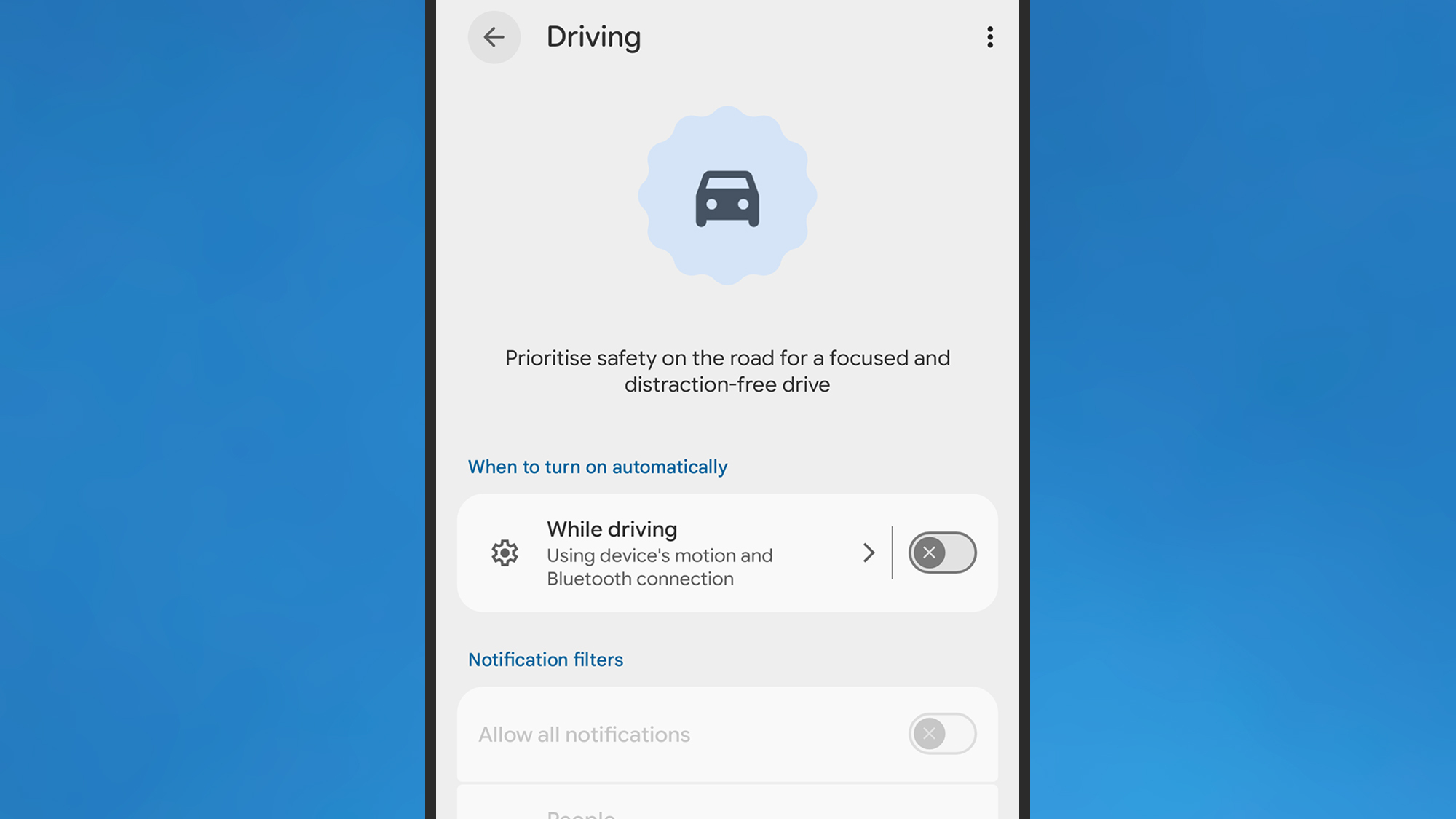
If you’re a Pixel user, Do Not Disturb is handled by Modes, which you can find by tapping Modes in Settings. Pick Driving, and if you enable the While driving toggle switch, this mode is automatically enabled when you’re in your car.
Android Auto
You can mute some or all of your phone’s notifications when driving.
Credit: Lifehacker

Tap the While driving text (not the toggle switch), and you can tell Android how it should determine whether or not you’re driving. This is the setting that Google recently tweaked: You can now choose Use Bluetooth (so the mode is enabled when a car dashboard is detected), or Use motion and Bluetooth (which also takes readings from your phone’s accelerometer into consideration). Previously, you had to rely solely on motion, which led to problems with automatic activation for both drivers and passengers—the addition of Bluetooth should mean a more reliable experience.

It’s slightly different on Samsung Galaxy phones: You need to tap Modes and Routines from Settings, then you can access the Driving mode. Here, you can specifically set a connection to an Android Auto dashboard as the trigger for enabling the mode, rather than just any Bluetooth device—something Google should really add to standard Android.

On both Pixel and Galaxy phones, you can tweak the driving mode to allow notifications from certain apps or from certain people, but again be wary of making your vehicle too distracting with pop-ups and pings.

Other Android Auto notification settings

As well as setting which apps and contacts can trigger phone notifications while you’re driving, you can customize these modes further. From the Driving mode screen on a Pixel, tap Display settings to control whether or not the phone lights up when you get a notification. You can also dim the wallpaper, and switch to a grayscale look.

When you’re editing your Driving mode on a Galaxy phone, you’ll see you can tap either Lock screen or Home screen to change the wallpaper and color palette specifically for this mode. Again, the idea is that your phone is a little less distracting visually.

There are more notification options on the main Android Auto settings page: From Android Settings, tap Connected devices > Connection preferences > Android Auto (Pixel) or Connected devices > Android Auto (Galaxy).

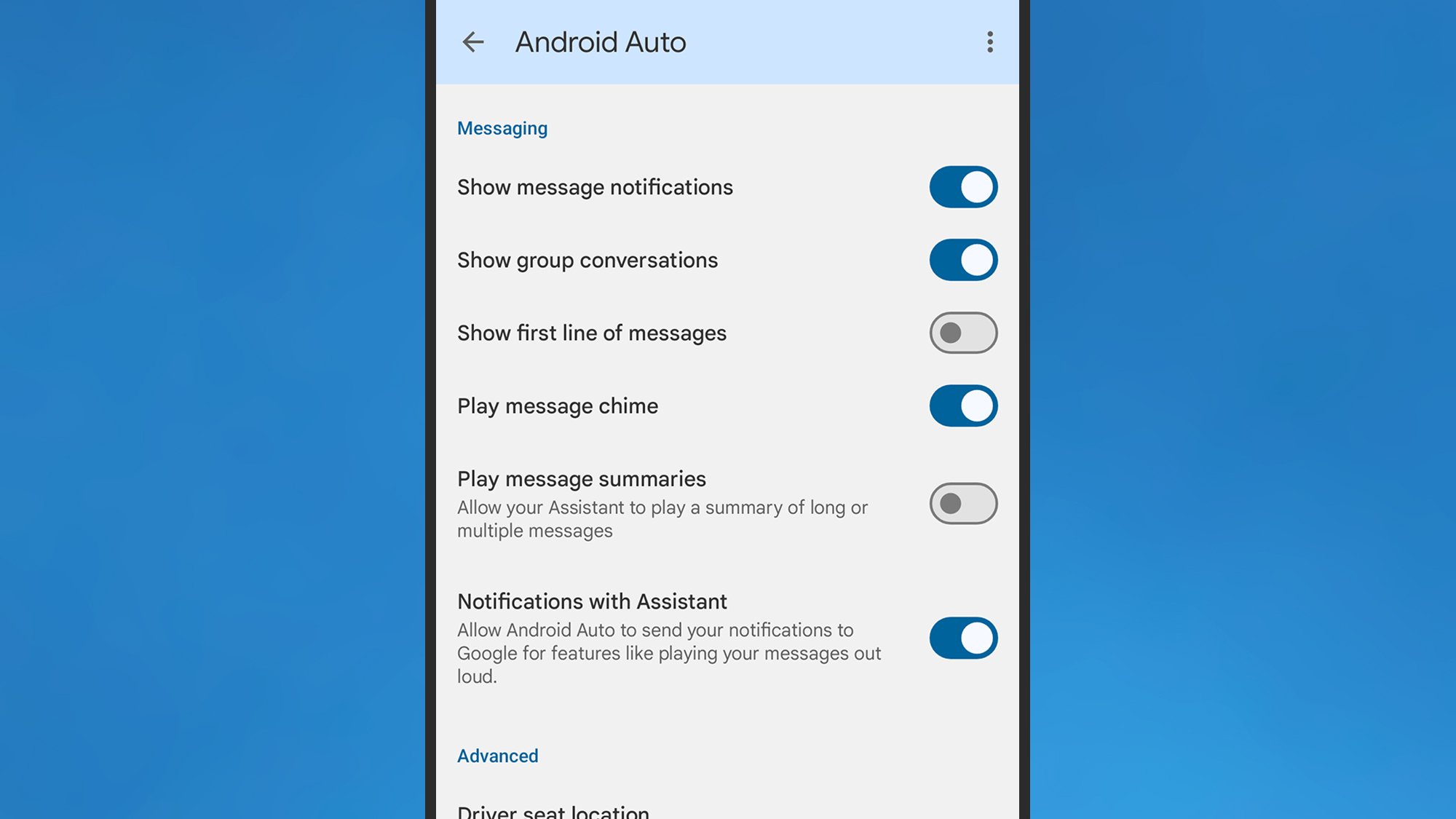
Under the Messaging header, you can turn off alerts for group conversations, or for messaging apps entirely. There’s also a toggle switch here for showing or hiding the first line of the incoming message—you probably want to disable this if you want to spend more time with your eyes on the road.
Android Auto
You can control how messages appear on your dashboard.
Credit: Lifehacker

Finally, there’s the option for having your incoming messages read out loud to you, which is another way you can reduce the temptation to stare at your vehicle’s dashboard for an extended period of time, or to pick up and unlock your phone.

It’s worth reviewing all the other Android Auto settings here as well, to make sure your driving experience is set up exactly the way you want: You can reduce the number of apps available in Android Auto, for example, and enable taskbar widgets for easier app control, which can also make a difference to how distracted you are on the road.

You should end up with an Android Auto notification system that’s not going to overwhelm you with alerts while you’re driving, but which also won’t hide important messages from you by automatically enabling notification filters without you being aware.
Roku Streaming Stick Deals Up To 47% Off As Netflix Abandons PS3 And Legacy TVs

Roku Streaming Stick Deals Up To 47% Off As Netflix Abandons PS3 And Legacy TVs
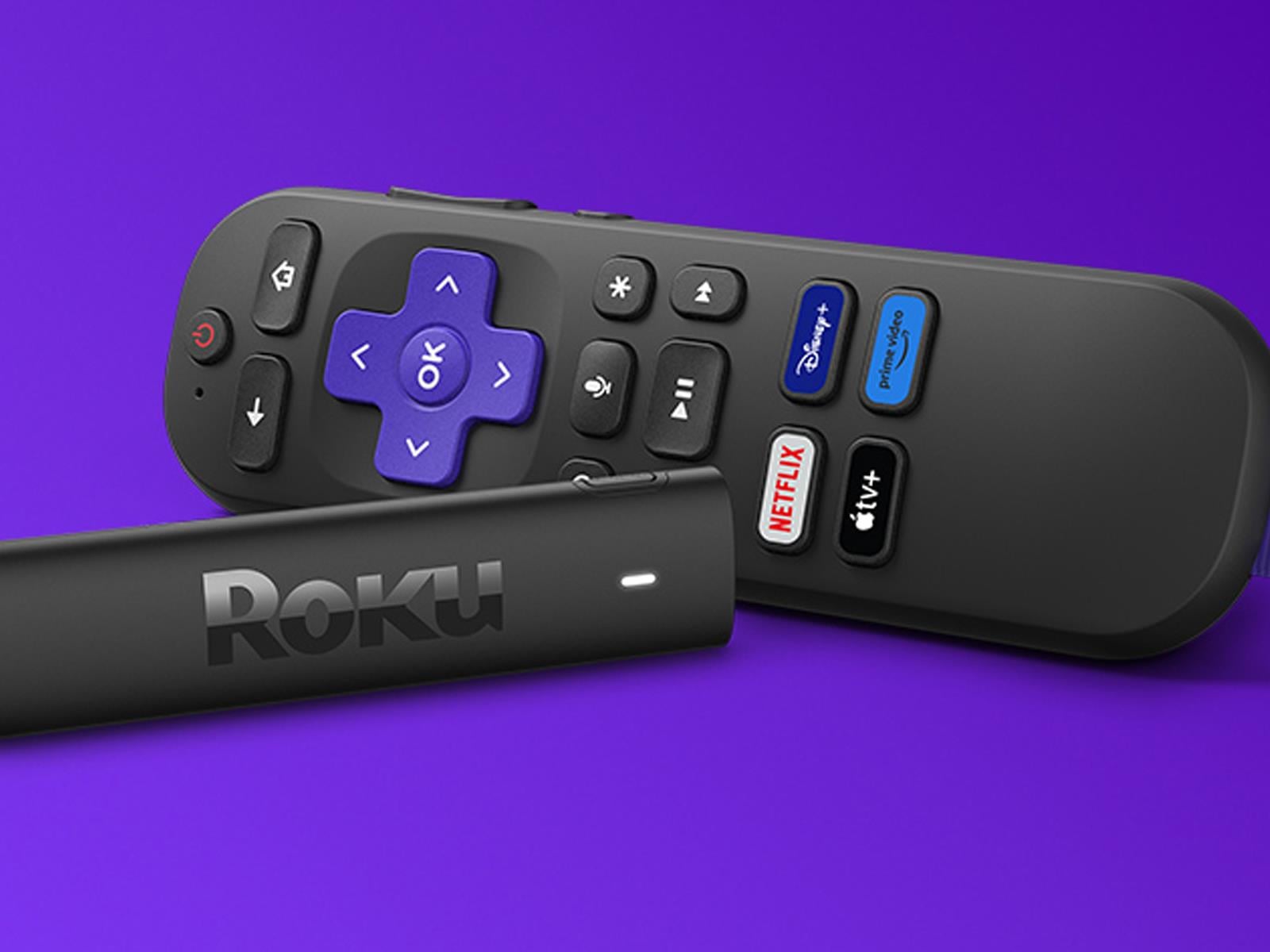
In case you have not heard, Netflix is planning to the pull the plug on streaming support for PlayStation 3 consoles. Same goes for legions of legacy TVs and older set-top boxes. Now, we’re not here to drag Netflix over the coals for abandoning a 20-year-old console and other aging hardware, but with Sony estimated to have sold nearly 90 million

The creators of Dark Sky have a new weather app

The team behind the beloved Dark Sky weather app has announced a new iPhone app called Acme Weather. The release comes after Apple’s 2020 acquisition of Dark Sky, which it ultimately shut down in 2022 after integrating much of its tech into the native iOS Weather app.

Acme Weather is primarily designed to address the uncertainty inherent in most forecasts, as different models yield disparate results and no two weather apps seem to report the same thing. Acme’s answer to this issue is “Alternate Predictions,” which shows users a range of possible outcomes alongside the app’s core forecast line throughout the day. If the lines are arranged together tightly, it means the app has high confidence in the forecast at that time. When those lines start to diverge, the app is signaling lower confidence while showing users alternate predictions for that time of day.

The app also supports community reporting, seeking to do for weather what Waymo did for traffic. Users can share real-time conditions in their area using icons or emojis, helping increase accuracy when conditions are changing quickly. Like most weather apps, there is also a map component with layers for radar, lightning, rain and snow totals, wind and more.

Acme leverages notifications to help make sure you don’t miss important changes to the forecast or weather alerts. Grossman says they are comprehensive and should help you avoid getting caught in the rain unawares. Notifications also include community reports, government weather alerts and even experimental tools from “Acme Labs” like rainbow and beautiful sunset alerts.

Acme offers a two-week free trial, then costs $25 a year. The iOS version is available now and an Android is forthcoming.

This article originally appeared on Engadget at https://www.engadget.com/apps/the-creators-of-dark-sky-have-a-new-weather-app-155426063.html?src=rss

Google Details Glimmer, Its UI Design Language For HUD & AR Glasses

Google Glimmer is the company’s design language for the interfaces in coming Gemini smart glasses with transparent heads-up displays, and eventually true AR glasses too.

Small Screens Without The Struggle

On a traditional screen, designers fill a rectangle, and a VR headset stretches the canvas to a full sphere. On display glasses, the usable area is much smaller and always competes with real life. That alone calls for apps with glanceable layouts and a simple menu system. We saw a demo of Google’s prototype smart glasses at last year’s I/O.

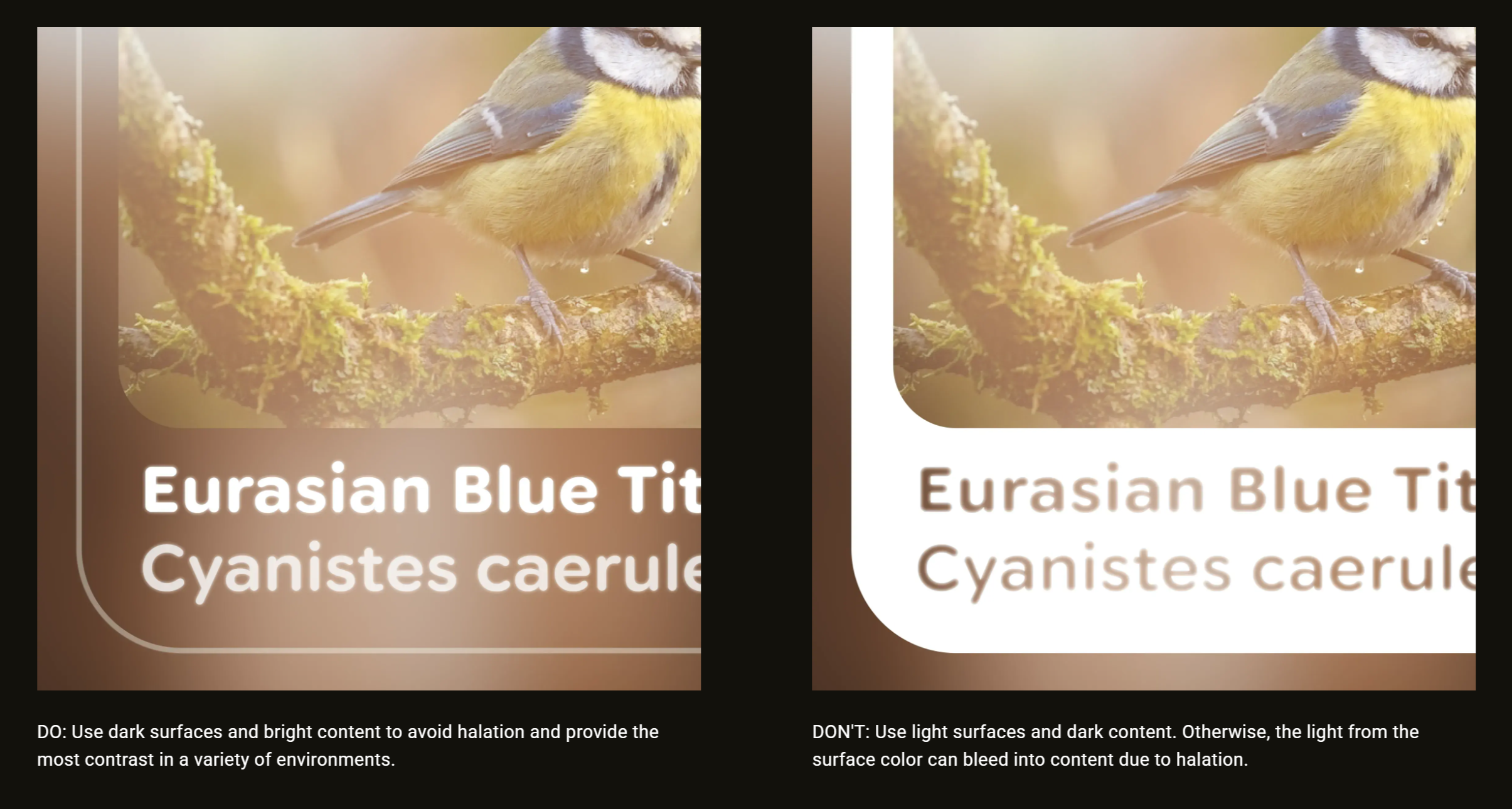
Google Glimmer suggest light content on dark backgrounds.

Google describes the display as a space you opt into with focus, not something you passively absorb. These glasses are essentially heads-up displays (HUDs), not screens you stare at for hours. For daily use, display smart glasses should use a small area that allows you to shift attention briefly, then return to the real world at a moment’s notice.

The same suggestions will help for any HUD. Meta’s Gen 2 Ray-Ban Display glasses are expected later this year, for example.

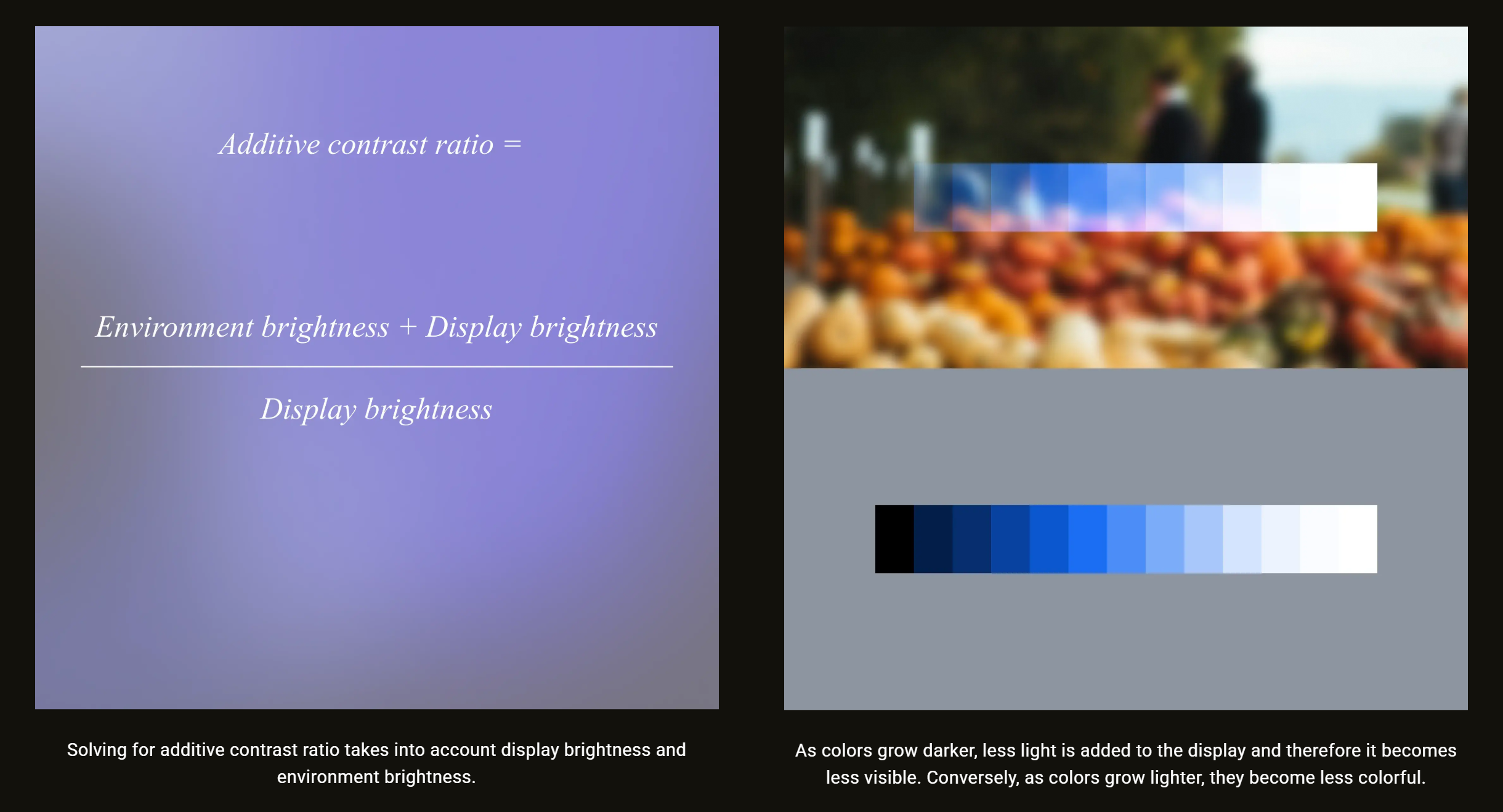
Since screen colors blend with the background, Google recommends maintaining intensity instead of maximizing saturation since darker colors fade away on transparent screens.

Resolution, Aspect Ratio, And Font Limits

Google also covered legibility, noting designers should base font size on what the eye can see clearly at arm’s length. Smart glasses displays often have tighter resolution limits and less forgiving optics, especially near edges. The predictable aspect ratios of mobile design no longer apply.

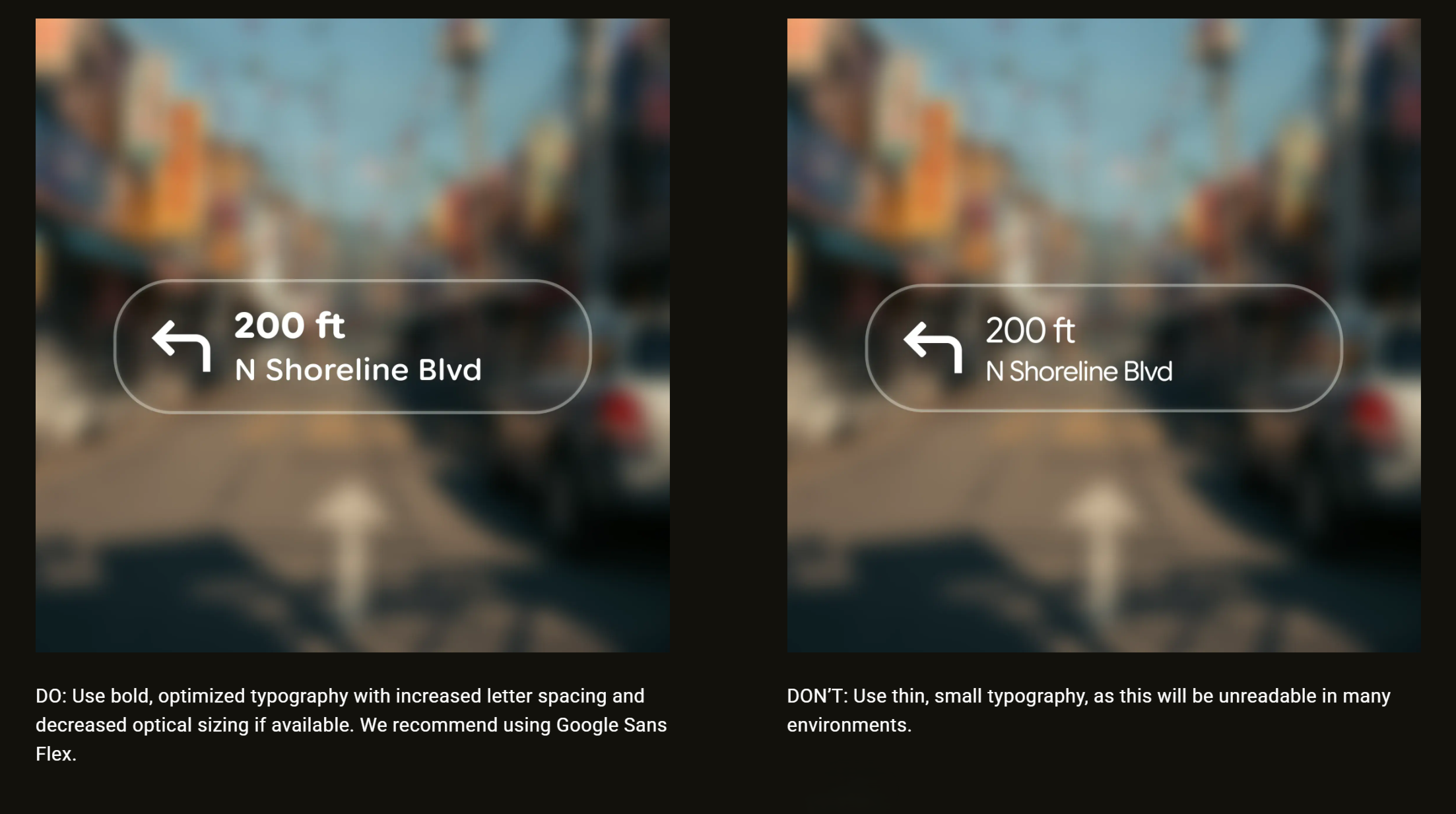
Google Glimmer suggests bold type for transparent screens.
Bold type is easier to read on transparent screens.

Apps shouldn’t display dense lists in tiny type, and even content should shift toward fewer words. Readability requires stronger contrast, heavier fonts, and clearer spacing. Google suggests its Sans Flex typeface as a good choice.

Power Is Part Of The Design

Battery life is another hard constraint for smart glasses, since weight is held to a minimum. Google calls for outlines instead of filled blocks to avoid halation (light bleed) and reduce power drain. Fewer lit pixels, transient messages, and optimizing motion are less taxing on the tiny thermal and battery envelope of smart glasses.

Google Glimmer graphic suggests transparent displays benefit from brighter graphics with less saturated colors.
Transparent displays benefit from brighter graphics with less saturated colors.

Google’s Glimmer is more than a style preference. It’s a plan to make the most of the limited display area, real-world backgrounds, legibility limits, and the challenges of daily use. To learn more, check Google’s guide on Jetpack Compose Glimmer.

AIs can generate near-verbatim copies of novels from training data

The world’s top AI models can be prompted to generate near-verbatim copies of bestselling novels, raising fresh questions about the industry’s claim that its systems do not store copyrighted works.

A series of recent studies has shown that large language models from OpenAI, Google, Meta, Anthropic, and xAI memorize far more of their training data than previously thought.

AI and legal experts told the FT this “memorization” ability could have serious ramifications on AI groups’ battle against dozens of copyright lawsuits around the world, as it undermines their core defense that LLMs “learn” from copyrighted works but do not store copies.

Read full article

Comments

Apple Reportedly Plans Multi-Day Product Blitz In Major Shift To Past Events

Apple Reportedly Plans Multi-Day Product Blitz In Major Shift To Past Events
Apple confirmed its first big product event of this year as the company sent invites to press for a “special Apple Experience” taking place in New York, London, and Shanghai. However, this slate of product launches will be different from past ones, according to Bloomberg’s Apple insider Mark Gurman, who’s expecting a slew of new additions

Meta’s ‘Horizon Plus’ Game Subscription Service Now Has Over 1M Active Members

Meta announced that its Horizon+ game subscription service topped over one million active subscribers.

Reality Labs VP of Content Samantha Ryan revealed the figure in a developer blog post, noting the service now boasts a games catalog of over 100 titles in addition to its rotating dip of monthly games.

Popular titles include Ghosts of Tabor, Job Simulator, Red Matter, Red Matter 2, Cubism, Pistol Whip, Moss, Maestro, Into Black, Racket Club, Demeo Battles, and Asgard’s Wrath 2. You can see the full list here.

Notably, this is the first time Meta has revealed active subscriber numbers for Horizon+, which was previously known as ‘Quest+’ when it first launched in 2023.

Meta’s Q4 2025 earnings didn’t offer much granularity when it comes to Reality Labs revenue, however since Horizon+ costs $8 per month, or $60 per year, this could put its revenue somewhere between $60 – $96 million.

Granted, that’s provided the company isn’t actually counting users of its three-month trial period as ‘active’ members, an offer that automatically comes with purchase of any new Quest 3 and Quest 3S. It also assumes the one million subscriber figure was relatively stable throughout 2025, and didn’t see any dramatic spikes that would otherwise skew that estimation lower.

Additionally, Ryan notes Meta had “a tremendous holiday season that was on par with our 2024 results — all despite the fact that we didn’t launch any new devices for the year.”

Furthermore, Ryan says that total payment volume on the Quest platform remained similar year-over-year in 2025, with in-app purchases making a +13% increase.

The post Meta’s ‘Horizon Plus’ Game Subscription Service Now Has Over 1M Active Members appeared first on Road to VR.

10 Hacks Every YouTube User Should Know

For all its faults as a platform, YouTube’s video player functionality is easily among the best online. It streams reliably to almost every device you can think of, in your choice of both video quality and playback speed. But it’s the array of hidden features and interface tricks that push it over the edge for me. (Other video players, take note.) Here are 10 of my favorite hacks that make YouTube easier to use.

Search YouTube video transcripts with Ctrl-F

Almost every video on YouTube either has an official or auto-generated subtitled track. While these are mainly used for captioning, you can also pull up this transcript on the web and use Ctrl-F (or Cmd-F on Macs) to search for keywords in a video and jump straight to the part you want to see.

This feature has been around for a while, but YouTube has shuffled around where to find the transcript from time to time. As of this writing, the most reliable way to find it is to open the video’s description, scroll to the bottom, and click Show transcript to open it up in a side bar.

Set a sleep timer for long videos

Four hour video essays and ASMR streams can be great background noise to help you fall asleep. However, if you want to avoid getting jolted awake by that one really loud joke you forgot about, you can set a sleep timer to pause any video after a certain amount of time.

On web or mobile, click the Settings icon on any given video and choose Sleep timer (on mobile, it may be under Settings > More). You can choose a timer ranging from 10 to 60 minutes. You can also automatically pause once the current video is over, which is helpful if you usually have auto-play enabled.

Link to specific timestamps in a video

One of YouTube’s handiest features is the ability to deep-link to a specific second of any video, like I did in the last section. There are several ways to get a precise timestamp link. If you’re on the web, you can right click a video and choose “Copy video URL at current time.” And on mobile, when you click the Share icon, you can tap the toggle next to the timestamp to add the precise link.

If none of those are options, you can even create your own timestamp link. At the end of any video URL, add “&t=01h05m47s”, replacing the numbers with the specific time you want to link to. You can use any combination of hours, minutes, and seconds to specify the point in the video you want.

Use arrow keys or double-taps for quick navigation

Most video players at this point have some kind of “Hang on, what did they just say?” button that lets you skip 5-10 seconds backward or forward. YouTube has several. The most straightforward, on mobile, is the double-tap. Tap twice on the left side of the screen to go backwards 10 seconds, and on the right to go forward. Keep tapping to move forward or back by further increments of 10 seconds.

On the web, you have even finer grain control. You can use the left and right arrow keys to move 5 seconds back and forth. Alternatively, you can use the J-K-L keys to move in 10 second increments (with K being used to pause the video). This latter method is borrowed from video editors, making it a handy way to keep your muscle memory consistent if you do a lot of editing.

Move frame-by-frame with keyboard shortcuts

YouTubers love putting walls of text in a single frame of a video that you have to pause to be able to read. On mobile, the only way to read these–or examine any specific frame–is to back up and try to time your pause perfectly. On the web, however, there’s a better way. While paused on a video, you can press the , (comma) or . (period) keys to move back or forward exactly one frame at a time. You can hold these keys down to slowly move through frames as well.

Quickly fast-forward with a long-press

It’s pretty common knowledge at this point that you can play YouTube videos at 2x (or higher) speed, but what if you only want to rush through a small part of a video, like an ad read? On the mobile version of YouTube, there’s a handy gesture to do just that, without changing your default playback speed.

Simply long-press and hold anywhere on the video while it’s playing. This will temporarily cause the video to play back at 2x speed, until you lift your finger. If you’re already watching at 2x or higher, it won’t play any faster (or slower) than your current speed, though.

Set your video quality defaults

YouTube generally does a pretty good job of automatically deciding what video quality to stream at, balancing fidelity with bandwidth demands. You can manually override this on a per-video basis, but on mobile, you have a few more options to get broader control.

In the YouTube mobile app, head to Settings > Quality. Here, you can set separate quality defaults for video when you’re streaming over mobile networks or wifi, as well as audio quality. The latter is particularly helpful if you use YouTube for listening to music or podcasts. If your wifi is reliably fast, it can be worth it to set higher quality defaults, rather than manually change each video’s resolution whenever you notice the quality looks degraded. 

Use incognito mode to preserve your suggestions

YouTube can get overly eager to show you videos even vaguely similar to one you watched before. If you’d rather not get a feed full of videos on how to fix a door, you can use an incognito tab to browse without contributing to your algorithm’s history. It’s a little tougher on mobile, but fortunately the YouTube app has an option for that.

In the mobile YouTube app, navigate to the You tab. Along the top of the screen, tap “Turn on incognito.” This will let you search and browse without any algorithmic recommendations or contributing to your history. You can manually turn off incognito mode, or it will automatically turn off after 90 minutes of inactivity. Note, if you’re a YouTube Premium subscriber, none of your benefits will apply while you’re browsing incognito.

Remove unwanted videos from your history

If you forget to turn on incognito mode, you can still remove videos from your browsing history so they won’t muck up your recommendations. To do this, head to your YouTube history on mobile or the web, tap the three-dot menu next to the video in question, and choose “Remove from watch history.”

This is usually enough to prevent a video from becoming the algorithm’s latest fixation, but it also means you won’t be able to find the video in your history again. If you want provide any kind of direct feedback, like a thumbs down or a report, make sure to do that first. Otherwise, if you navigate to the video again, it will be re-added to your history.

Master even more keyboard shortcuts

Beyond basic navigation, YouTube on the web has a plethora of helpful keyboard shortcuts that you might never encounter that are worth knowing about. Some of them are pretty niche, but you never know when they can come in handy:

  • Up and Down arrows: Turn the volume on a video up or down in 5% increments.

  • Shift+> and Shift+<:> Speed up or slow down the current video playback speed

  • M: Mute the current video.

  • F: Enter/exit fullscreen mode.

  • T: Enter/exit Theater mode

  • Shift+N: Play the next video in your queue or playlist.

  • Shift+P: Play the previous video in your queue or playlist.

  • Ctrl/Cmd+Left or Right arrow keys: Navigate to the next or previous chapter in a video.

Stressful People in Your Life Could Be Adding Months To Your Biological Age

A study published last week in PNAS found that people who regularly cause problems or make life difficult — whom the researchers call “hasslers” — are associated with measurably faster biological aging in those around them, at a rate of roughly 1.5% per additional hassler and about nine months of additional biological age relative to same-age peers.

The research drew on DNA methylation-based epigenetic clocks and ego-centric network data from a state-representative probability sample of 2,345 adults in Indiana, aged 18 to 103. Nearly 29% of respondents reported at least one hassler in their close network. The biological toll varied by relationship type: hasslers who were family members showed the strongest and most consistent associations with accelerated aging, while spouse hasslers showed no significant effect on either epigenetic measure.

The damage also went beyond aging clocks — each additional hassler was associated with greater depression and anxiety severity, higher BMI, increased inflammation, and higher multimorbidity. When benchmarked against smoking, a major behavioral risk factor for aging, the hassler effect corresponded to roughly 13 to 17% of smoking’s estimated impact on the same aging clocks.


Read more of this story at Slashdot.

GTA 6 Shows Up For $124 In Early Retail Listing But Don’t Believe The Price

GTA 6 Shows Up For $124 In Early Retail Listing But Don't Believe The Price
Oh boy, here we go again. A supposed early retail listing for Grand Theft Auto VI, arguably (and not all that arguable, really) the most anticipated video game of all time, is causing a ruckus with a listed price of $124.19. It comes on the heels of speculation that GTA VI could break hit and surpass the $100 barrier, though before anyone

These ‘Job Applications’ Are Actually Scams

If you receive a text from a random number offering you a job, it’s almost certainly a scam, and you likely know to ignore and delete the message and move on with your life. But a message from a recruiter with a link to an employment application may give you pause—and fraudsters are hoping that you’ll believe it just enough to hand over your personal information. Malwarebytes recently identified a phishing scam that uses fake Google Forms posing as job applications to harvest user account credentials.

How the Google Forms job scam works

This specific campaign involves a fake Google Forms site that impersonates the real thing. Links sent to scam targets—likely via email or LinkedIn—direct to forms.google.ss-o[.]com, which looks like a subdomain of the legitimate forms.google.com. (It isn’t.) The “ss-o” may be a trust signal for “single sign-on” and fail to raise red flags for many users. Each target receives a personalized URL, which leads to a (fake) Google Form inviting the user to apply for a job.

As Malwarebytes found, the fake page uses the standard Google Forms colors, header, and disclaimers. The form itself is greyed out behind a pop-up prompting users to “sign in to continue.” Again, this doesn’t look particularly suspicious for a typical Google flow. But the sign-in button redirects to another domain that has been used in multiple phishing attacks to harvest credentials.

Fraudsters have long used Google apps to perpetuate phishing schemes. A 2025 campaign targeting students, faculty, and staff at U.S. colleges and universities used Google Forms that mimicked legitimate school communications to collect login credentials entered directly into the form itself. (Google warns you to never, ever do this.) And numerous attacks on Gmail users have leveraged shared Google Docs to direct victims to a fake sign-in page.

How to avoid phishing attempts on your Google credentials

As always, your first red flag for a scam is a link sent via an unsolicited job offer—even if that link goes to a seemingly legitimate site. Scammers have all kinds of tricks for spoofing URLs and using recognizable domains to gain your trust. Always hover over hyperlinks to see the actual destination before clicking, and look carefully for additions or misspellings in the URL.

Plus, you should probably be wary of any job application submitted via Google Forms. Do your due diligence in speaking with an actual human, and do not send sensitive personal information through Google Forms.

This is also a good reason to use a password manager, which won’t allow you to fill login credentials on a fake site. If your password manager gives you a warning or prevents you from using autofill, don’t override it.

Prologo’s new Pressure Map system clips onto your saddle and provides real-time fit data

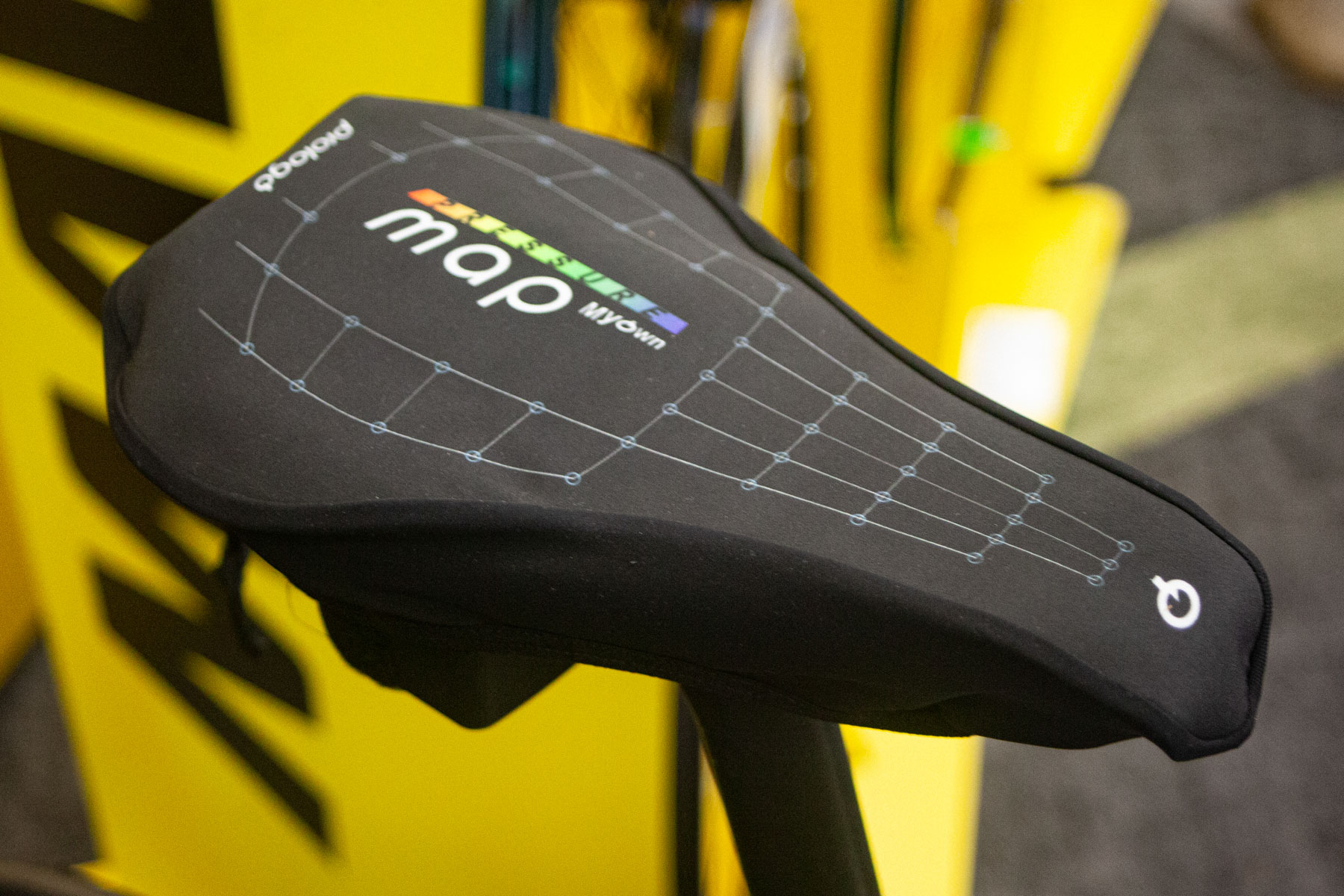
Prologo’s new Pressure Map system attaches to your bike saddle and produces a wealth of fit data.

The brand’s existing saddle-fit system, MyOwn, uses a pressure pad mounted into a stool. It does a great job of mapping pressure points in a fixed position and has proven a great indicator to aid saddle choice.

Plenty of competing saddle brands have similar saddle-fit tools, too. Even custom saddle makers such as Posedla rely on fixed pressure-mapping tools.

Now Prologo has unveiled a new saddle-fit system called Pressure Map at the COREbike show that it says will attach to any bike saddle.

Pressure Map system
The Pressure Map system records and transmits data as you ride. Warren Rossiter / Ourmedia

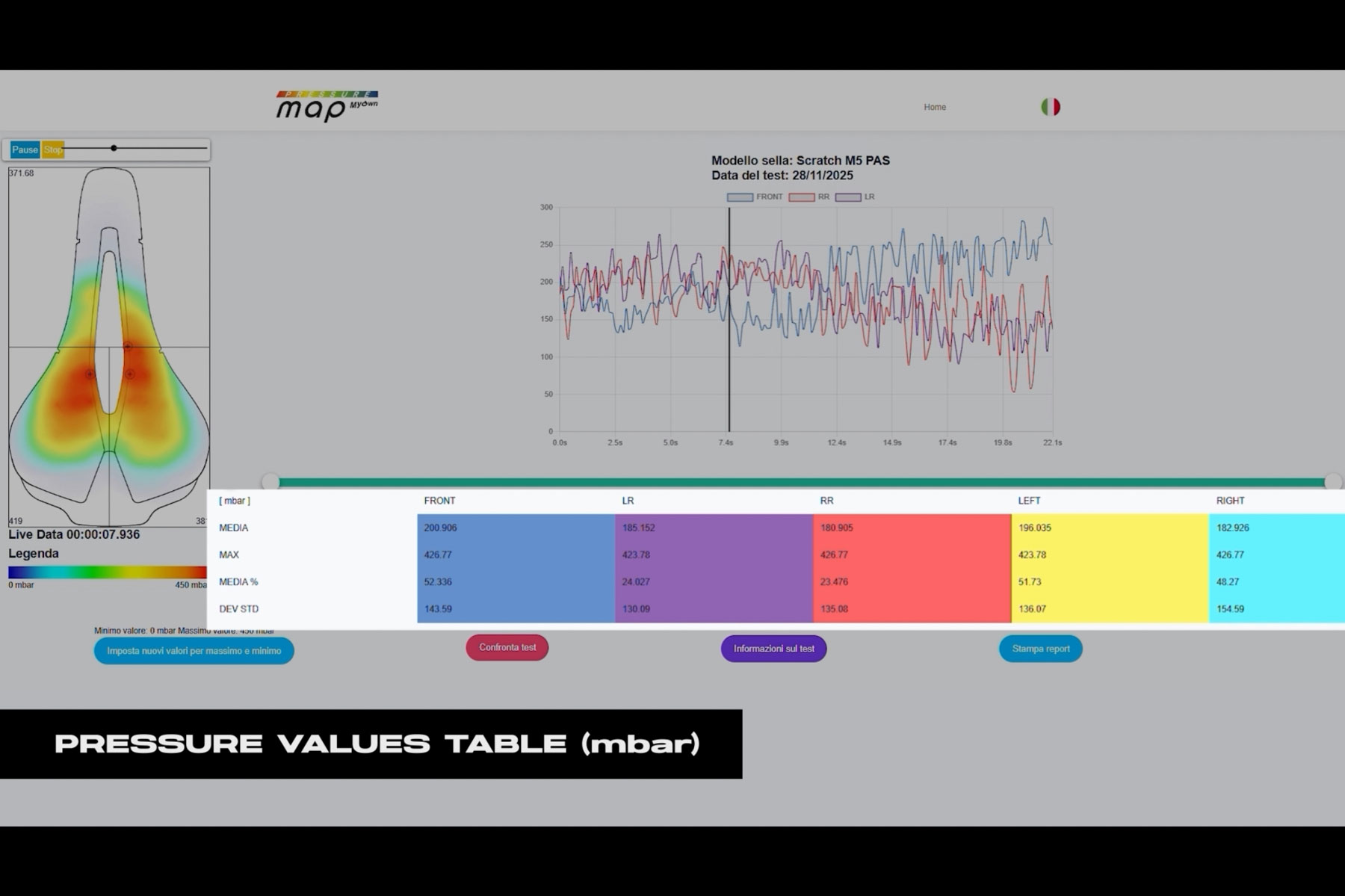
Pressure Map consists of a pressure pad cover, which offers 62 points of data measurement collected by the system’s ‘brain’. This clips to the underside of your saddle using the rails (much like a saddle pack). It gathers and streams the data via Bluetooth to the Pressure Map software, which records in real time.

The portable wireless system means you can ride your bike outdoors as usual and record how you sit on different terrain and surfaces.

Prologo’s brand manager, Salvatore Truglio, says: “We’ve been developing the system for more than two years in conjunction with the University of Pisa and now it’s finally ready to roll out.”

Pressure map cover
The Pressure Map measures across 62 points on the saddle’s surface. Warren Rossiter / Ourmedia

The system has already been used by two of Prologo’s major professional team partners.

“We’ve used the system with both Visma and Ineos riders, to see their pressure profiles both in the wind tunnel and out on the roads,” says Truglio. “It is proving vital in helping our pro riders make the right choice of saddle on each of their bikes. It also helps optimise rider position alongside aero and efficiency considerations.”

The system isn’t being rolled out to consumers, but will be accessible at Prologo stockists and affiliated bike fitters.

Sam Altman Would Like To Remind You That Humans Use a Lot of Energy, Too

OpenAI CEO Sam Altman is pushing back on growing concerns about AI’s environmental footprint, dismissing claims about ChatGPT’s water consumption as “totally fake” and arguing that the fairer way to measure AI’s energy use is to compare it against humans.

In an interview with Indian Express, Altman acknowledged that evaporative cooling in data centers once made water usage a real concern but said that is no longer the case, calling internet claims of 17 gallons of water per query “completely untrue, totally insane, no connection to reality.”

On energy, he conceded it is “fair” to worry about total consumption given how heavily the world now relies on AI, and called for a rapid shift toward nuclear, wind and solar power. He took particular issue with comparisons that pit the cost of training a model against a single human inference, noting it “takes like 20 years of life and all of the food you eat” before a person gets smart — and that on a per-query basis, AI has “probably already caught up on an energy efficiency basis.”


Read more of this story at Slashdot.

The Out-of-Touch Adults’ Guide to Kid Culture: What Is ‘Baby Boo Syndrome’?

If you want to understand a generation, look at the athletes they revere. The post-war generation’s suburban conformity found a hero in baseball’s ultimate company man—Stan Musial—and his 22 seasons on the Cardinals. Boomers were drawn to Broadway Joe Namath, a self-important celebrity who wasn’t even a good quarterback. Gen X saw itself in Tiger Woods’ stoic, lone-grinder-in-a-high-stakes-vacuum style. This year’s Winter Olympics introduced the world to the first iconic athletes that express Gen Z’s vibe, and they’re amazing. But first, let’s talk about Baby Boo Syndrome.

What is “Baby Boo Syndrome”?

It seems like everyone on TikTok has come down with Baby Boo Syndrome this week. The trend started with a short dance video from @selenaaa.dta using a particularly snippet of YoungBoy Never Broke Again’s “What You Is.” The rapper saying “She gon call me baby boo” is both really catchy and really annoying, in other words, a perfect ear-worm.

@selenaaa.dta’s unique style earned their video over 10 million views, but it took more than a year for everyone else to catch up and start posting their own choreography to the music. Then things got weird.

Baby Boo variations and remixes started appearing, like this operatic cover:

and this patriotic remix:

And this mash-up with “Baby Shark”

The rapid spread of the trend and the catchiness of the song soon led to people diagnosing cases of “Baby Boo Syndrome” in videos like this:

and like this:

and this:

I am getting definite 6-7 vibes with this one.

Alysa Liu is Gen Z’s sports hero

Olympic gold medalist figure skater Alysa Liu is that rare athlete that kids should consider a role model. Liu embodies everything that makes people between of 14 and 29, and America itself, so uniquely awesome. First there’s the look. Liu’s blonde halo highlight and frenulum piercing is fully in tune with Gen Z’s aesthetic, but it’s deeper than style.

Like roughly 22% of Generation Z, Liu is from an immigrant family—her parents are Chinese dissidents who fled after Tiananmen Square. Liu was a skating prodigy, then, like everyone of her age, COVID shaped her destiny. She retired from skating at 16 when her local rink’s closure gave her time to consider the strain skating was taking on her mental health. After attending UCLA for two years, Liu came back to the ice, but on her own, very Gen Z, terms: She would be in charge of her training schedule, costumes, and diet. Maybe more importantly, she rejected the competitiveness of her sport in favor of viewing figure skating as an act of self-expression, something fun.

Many in the conservative world of figure skating thought she was finished—you don’t succeed as a world class athlete while without sacrificing everything in your life for it, and it’s definitely not fun. But Liu made it to the Olympics and murdered her individual routine like it was no big deal, then walked off the ice giving NBC’s camera a hearty, “That’s what I’m fucking talking about.” So punk rock. Just as iconic: Liu sharing victory with silver medal winner Kaori Sakamoto of Japan.

Amber Glenn: Alysa Liu’s nerdier counterpart

Maybe she’s not as fierce and in-your-face as Liu, but Team USA figure skater Amber Glenn is quietly becoming a Gen Z icon as well. The 26-year-old figure skater is open about her mental health struggles and being queer, and she’s also a passionate Magic: The Gathering player. A recent interview reveals that Glenn carries her Magic cards with her, but leaves the “super fancy” ones at home because they’re her prized possessions, and she doesn’t want to lose them.

Viral video of the week: Punch-kun the monkey

The main character of the internet this week is a baby macaque from the in Japan. Punch-kun was introduced to the world on the Ichikawa City Zoo’s twitter account.


This Tweet is currently unavailable. It might be loading or has been removed.

Punch was born on July 26, 2025, but was rejected by his stressed-out mother. Zookeepers raised him, giving him an orangutan plush toy to replace mom. He drags it everywhere, which is cute, but things got a lot less adorable when the zoo introduced the little guy to other monkeys. It seems to not go well at all.

Everyone spread the video above because how could you not? It’s so poignant. Many were moved, and others angered by the seeming mistreatment of Punch by the other macaques, or angry at the zoo for putting him in that position.

Weirdly enough, it turns out the internet got it totally wrong. The controversy lead to the zoo explaining that the macaque dragging him around in the video isn’t bullying Punch; it’s an older member of the troop teaching him how to fit in. It’s monkey business. They are wild animals, and they don’t do things like humans do.

The saga of Punch is ongoing. Sometimes he seems to be getting along with the troop better, sometimes he still seems like an outsider. Keep checking every social media site for updates.

Ex-Xbox President Sarah Bond Details Sudden Exit And Next-Gen Console Progress

Ex-Xbox President Sarah Bond Details Sudden Exit And Next-Gen Console Progress
In a surprise twist to Phil Spencer leaving Microsoft after becoming one of the faces of Xbox, it was also announced that Xbox President Sarah Bond is out, representing a major shakeup in management to one of the most popular gaming brands on the planet. Speculation has been rampant since Microsoft announced the changes, and in a post on LinkedIn,